How can we help you?
Browse Categories
How to Import Contacts from HubSpot into Contactzilla

This guide shows you how to import your HubSpot contacts into a Contactzilla address book, keep them in sync on a schedule, and deploy them to your team's iPhones, with headshots, desk and mobile numbers and labels. It assumes you can approve app connections in your HubSpot account and already have a Contactzilla address book for the contacts.
What You'll Need
- A Contactzilla account with an address book for the HubSpot contacts. If you haven't made one yet, see Setting up a Team and Address Book.
- The HubSpot importer enabled on your Contactzilla team. It's a premium importer, so contact
support@contactzilla.comto switch it on. - A HubSpot account (any plan, including the free CRM) and a HubSpot user who can connect apps.
- Optional: a HubSpot text property that holds a link to each contact's headshot, if you want photos on the phones (see Step Four).
- To deploy to phones with an MDM: an MDM team member in Contactzilla. See Setting Up MDM Deployments in Contactzilla.
Connect Contactzilla to HubSpot
Step One: Start a HubSpot import
Open the address book that should receive the HubSpot contacts, using the address book switcher at the top left.
a) Click Import → under Premium Importers, click Hubspot.
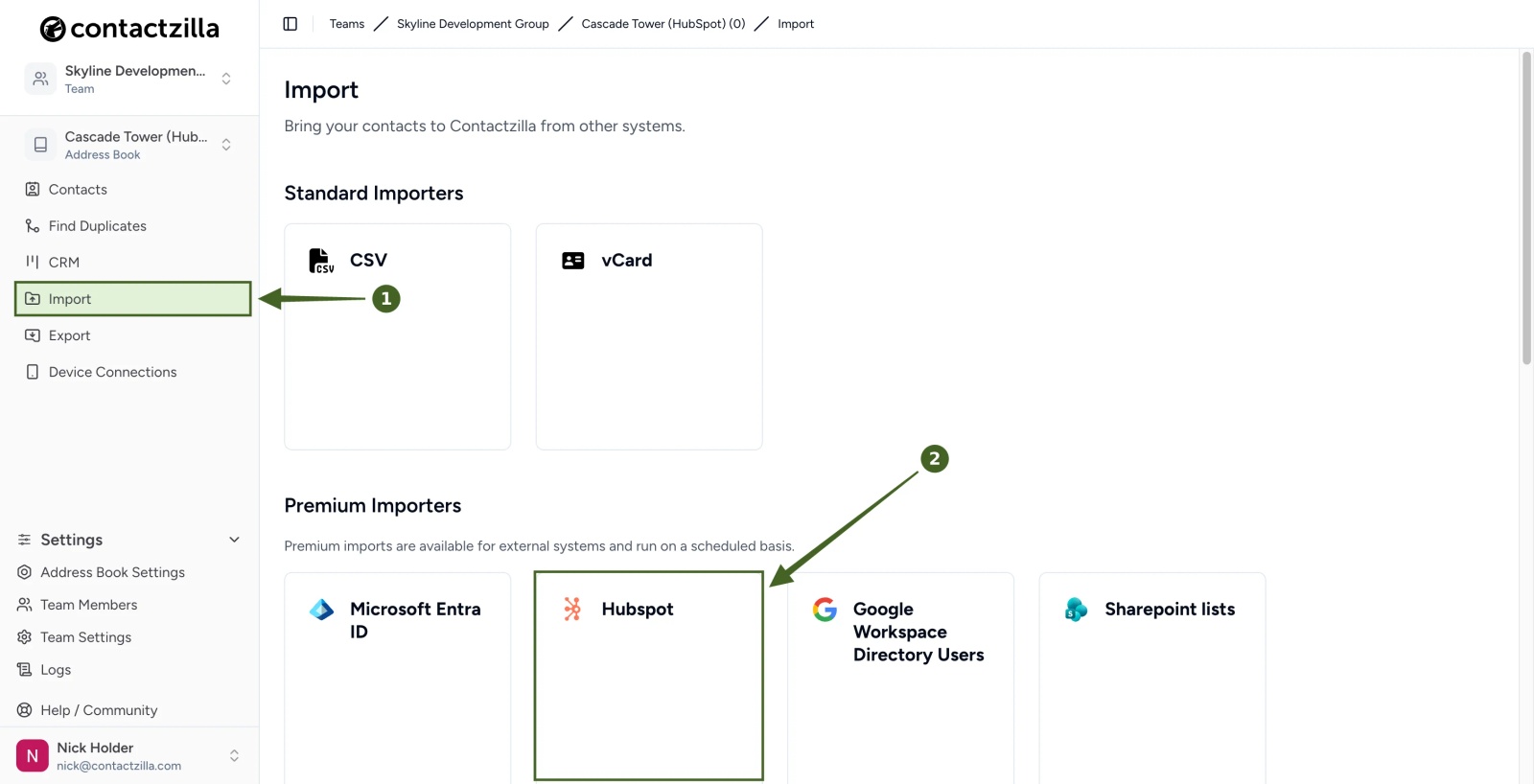
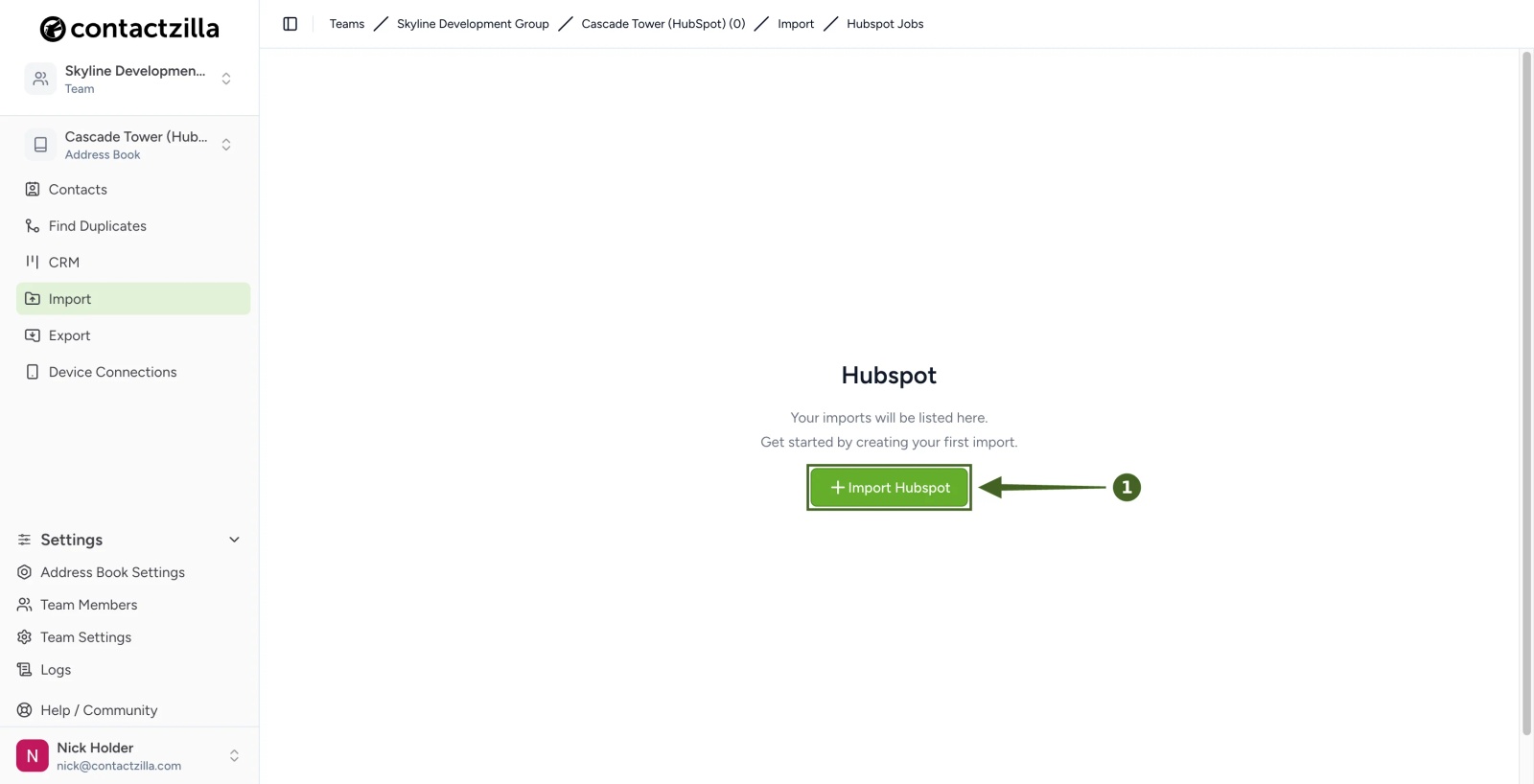
b) Click + Import Hubspot.
Step Two: Connect your HubSpot account
Contactzilla connects to HubSpot through HubSpot's own sign-in and approval screens, so no HubSpot password is stored in Contactzilla.
a) 1. OIDC connector for Hubspot is already set to Contactzilla Hubspot Default Connector → open the 2. OIDC connection dropdown → Add New Connection.
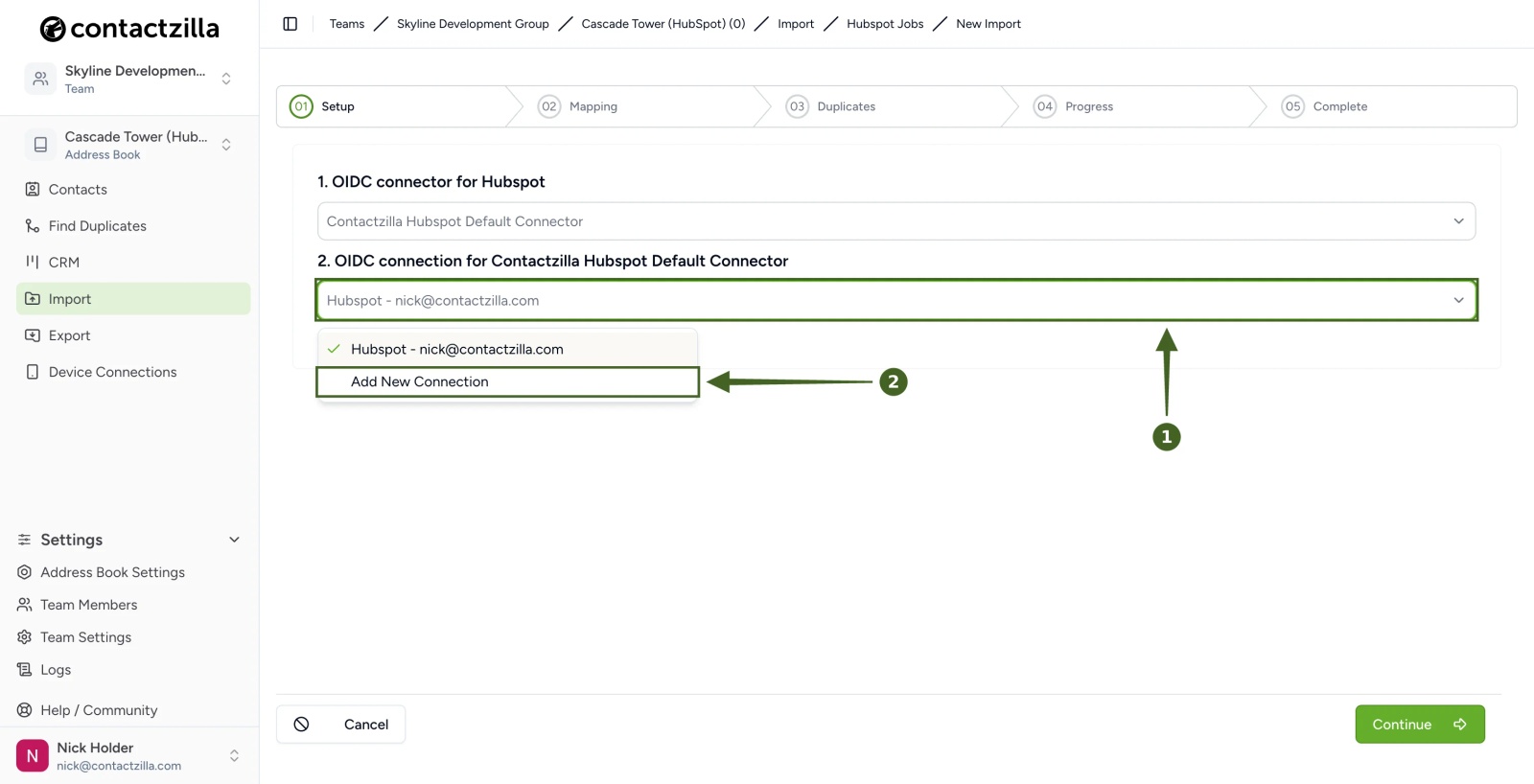
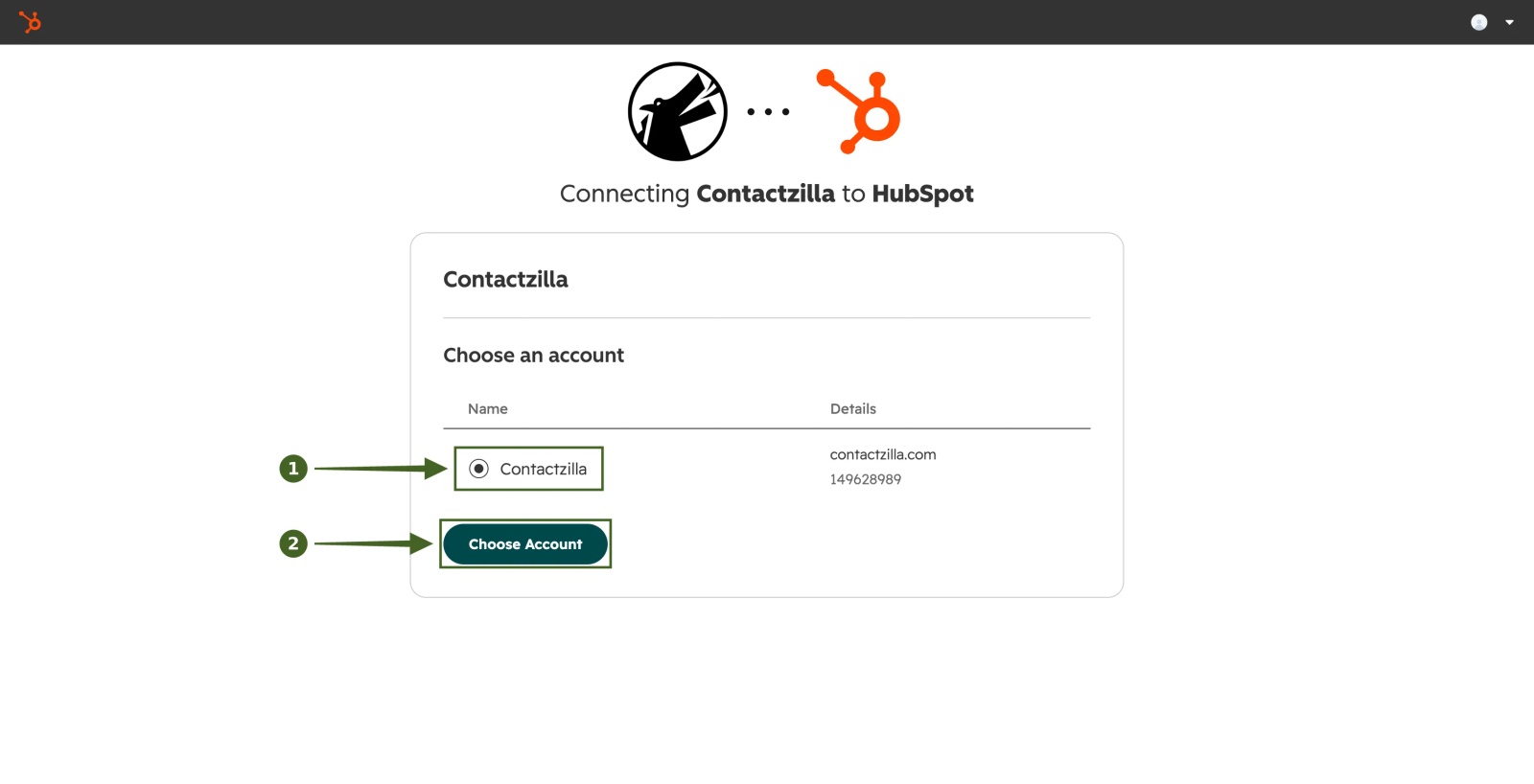
b) HubSpot opens. Select the HubSpot account that holds your contacts → Choose Account.
c) Read the warning → Connect app.
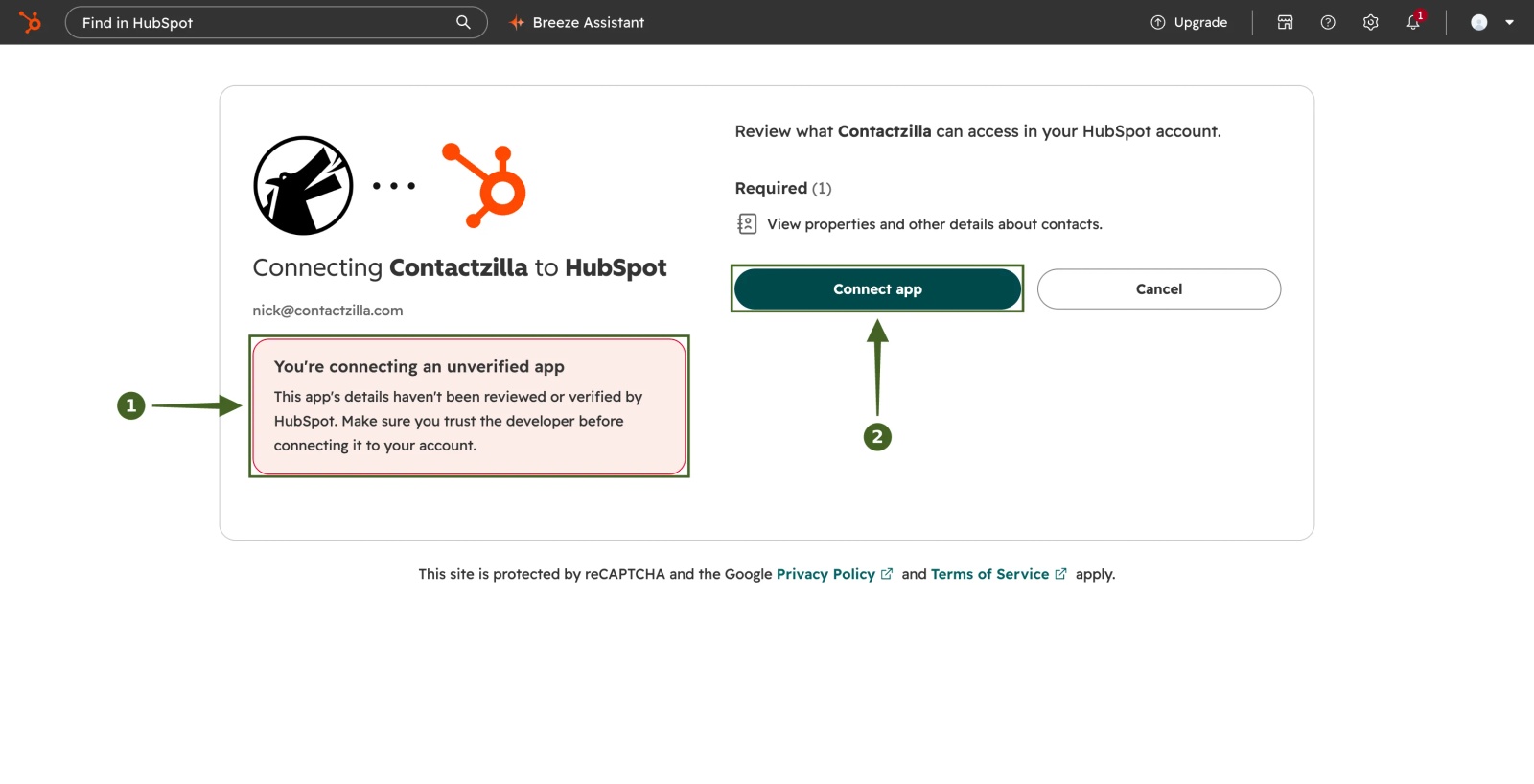
⚠️ Important: HubSpot shows You're connecting an unverified app because it hasn't reviewed Contactzilla's HubSpot app. The only permission Contactzilla asks for is View properties and other details about contacts, so it can read your contacts but can't change anything in HubSpot.
d) In the Connecting an unverified app box, type I accept the risk → Connect.
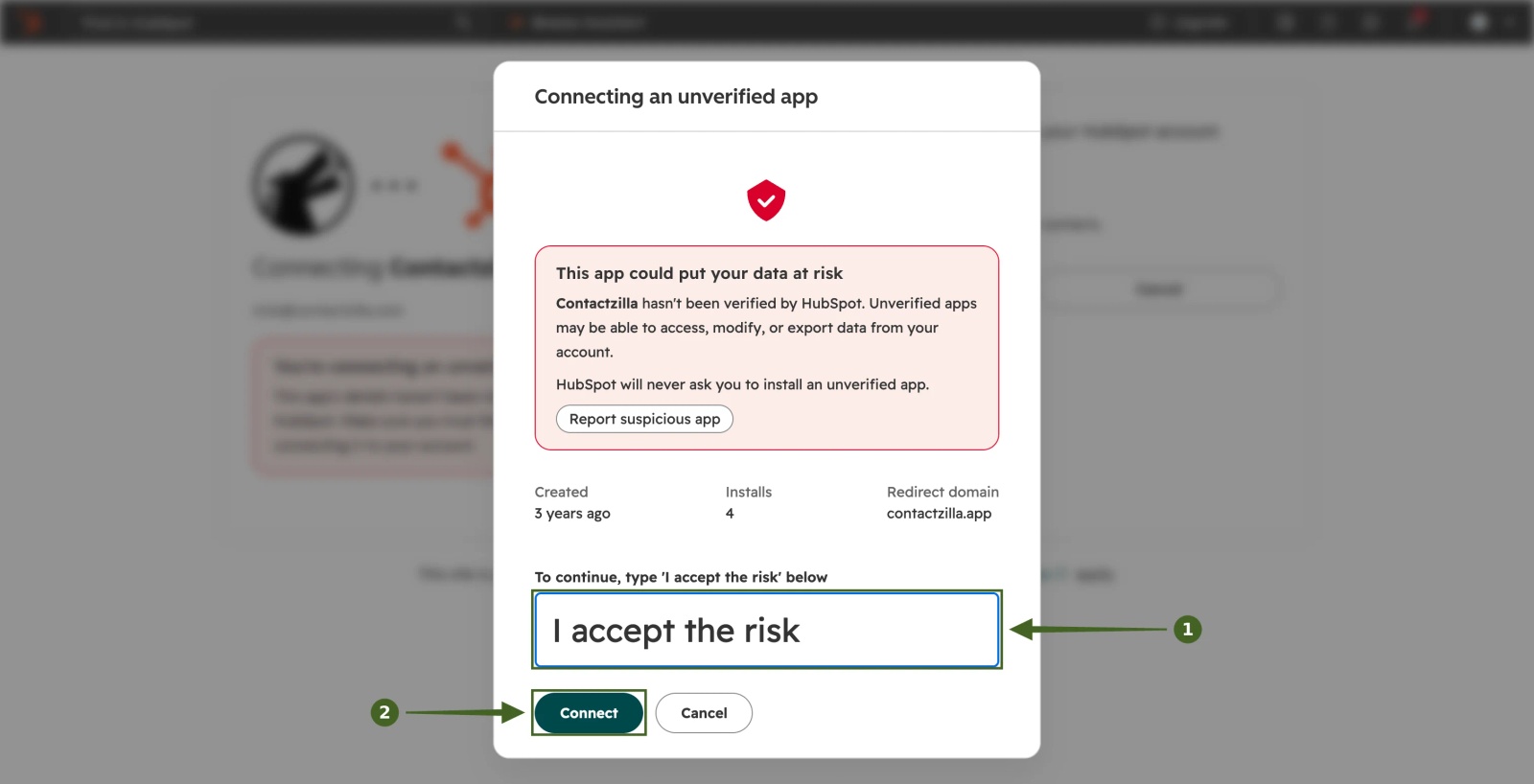
💡 If this HubSpot account has connected to Contactzilla before, HubSpot skips the account and warning screens and takes you straight back to Contactzilla.
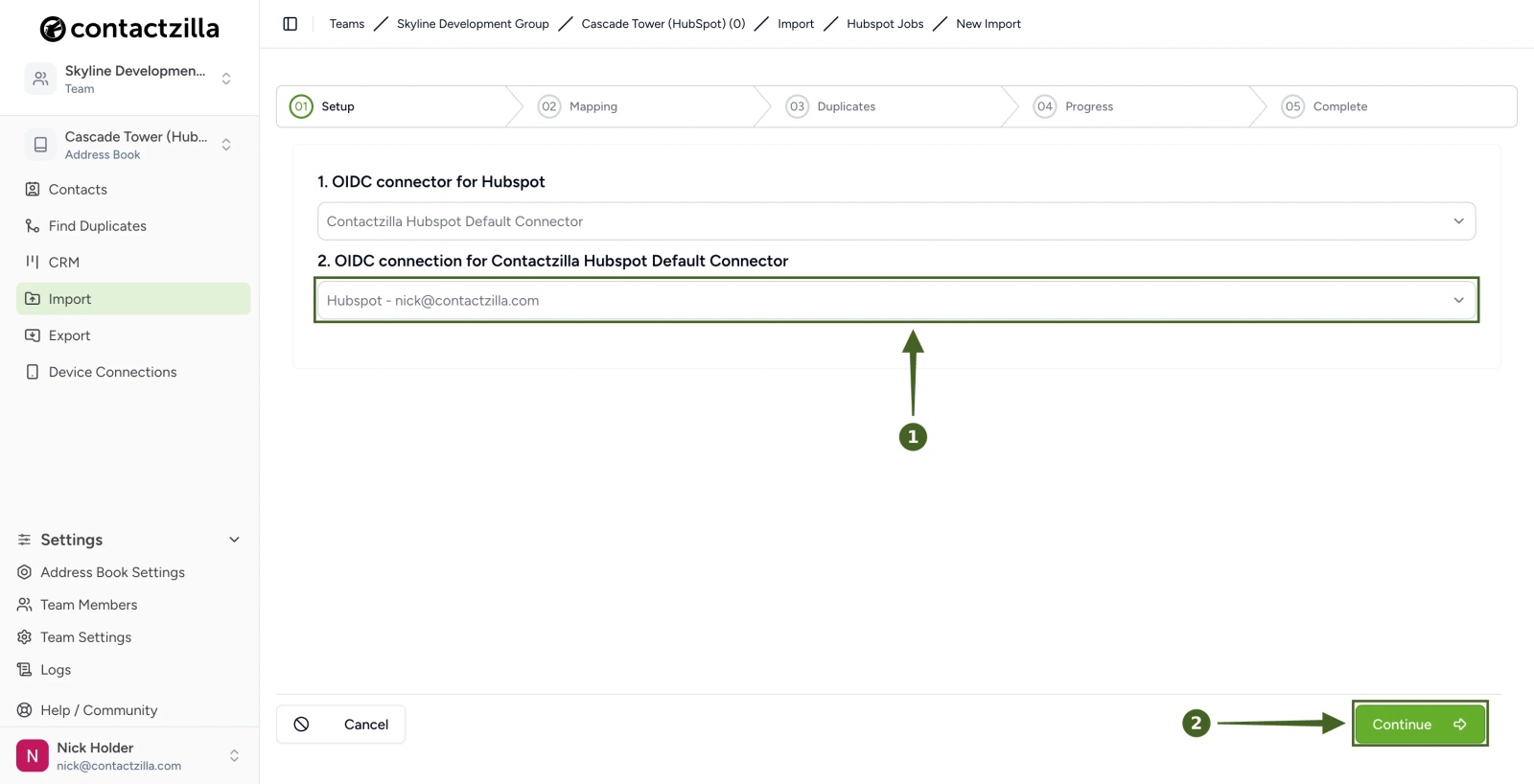
e) Back in Contactzilla, your new connection is selected under 2. OIDC connection → Continue.
Step Three: Choose how often to sync
a) Under 3. Configure sync settings, choose a schedule, for example Every day → Continue.
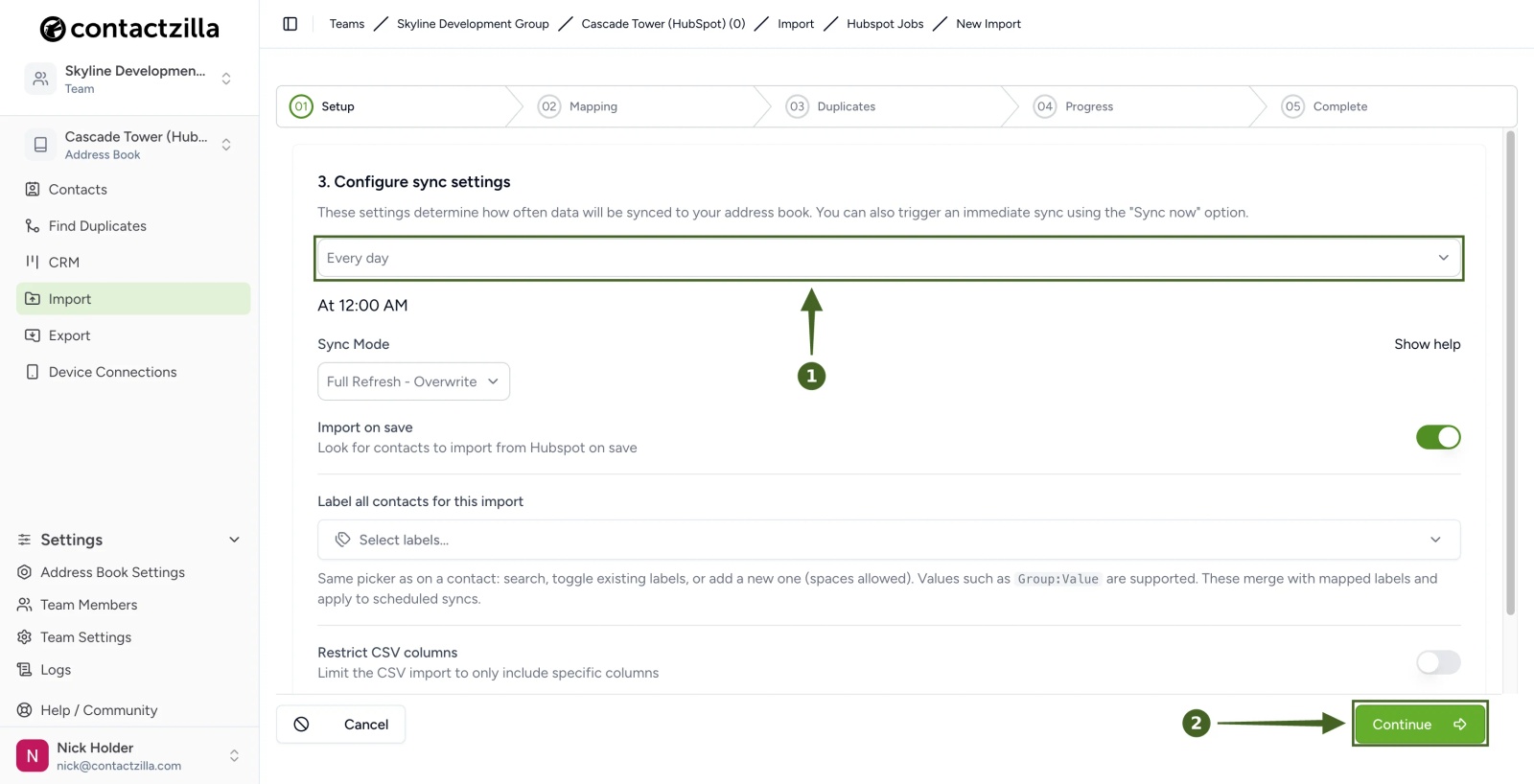
- Schedule: Manual, Every 4 hours, Every 8 hours, Every 12 hours, Every day, Every week or Every month. Manual only syncs when you click Sync Now.
- Sync Mode: Full Refresh - Overwrite pulls the full contact list from HubSpot each time.
- Import on save starts the first pull as soon as you continue.
- Label all contacts for this import adds the labels you pick to every contact from this job.
Contactzilla now shows Waiting for Hubspot data to be ready while it collects your contacts from HubSpot.
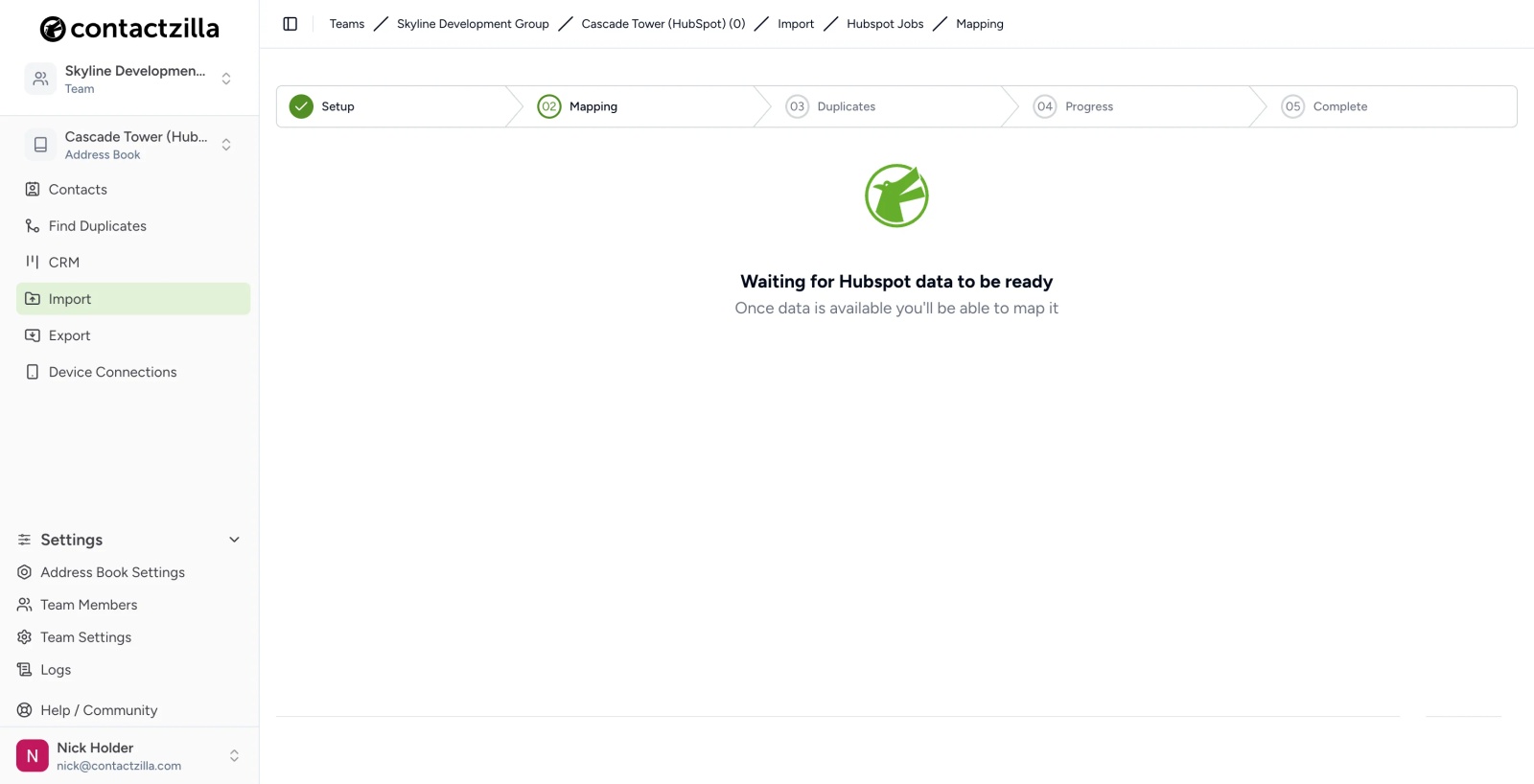
💡 The first pull can take a while, especially for large HubSpot accounts. You can leave the page: when the data is ready, the job card on Import → Hubspot shows Requires mapping.
Contactzilla is now connected to HubSpot, and the import job waits for you to map the HubSpot properties.
Map HubSpot properties to Contactzilla fields
HubSpot sends every contact property it has, so expect a long list. Our test account sent 341 columns. Each HubSpot property arrives as a column starting properties_, for example properties_email.
Step Four: Map the columns
a) On the job card, click Requires mapping → on the id column, which Contactzilla recommends as Hidden Custom Unique - Hubspot ID, click Use.
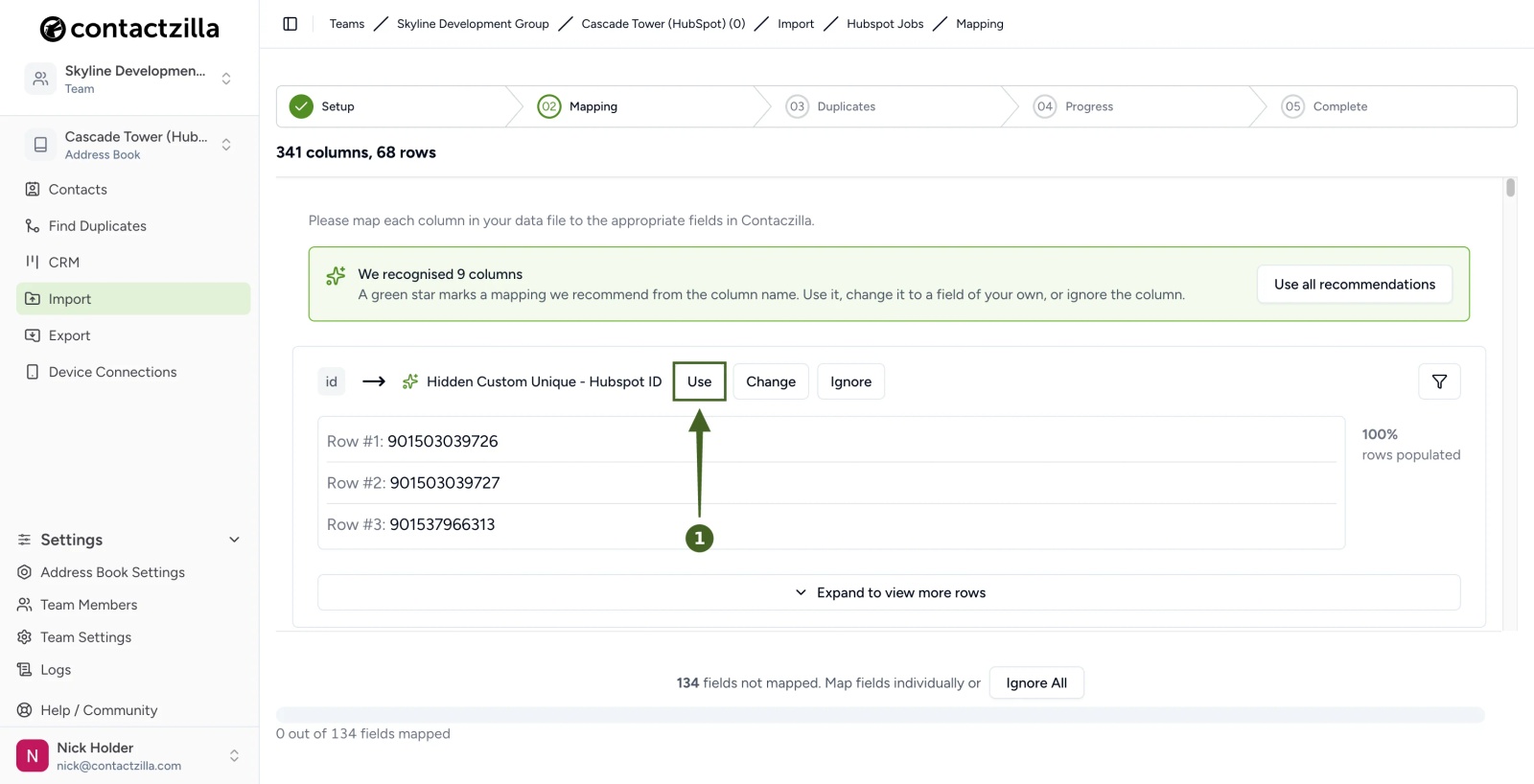
The HubSpot ID keeps each contact matched to the same HubSpot record on every later sync.
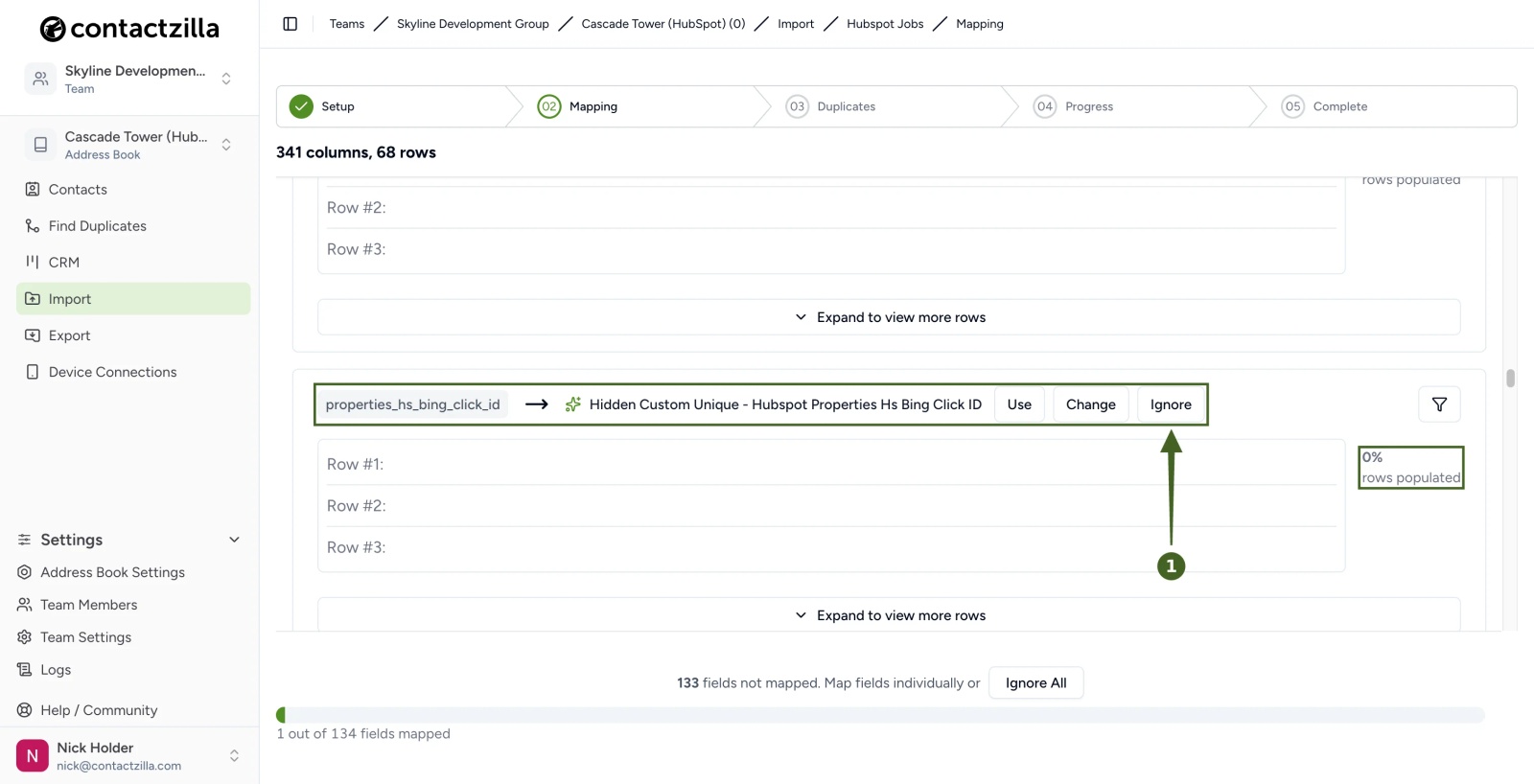
⚠️ Important: Don't click Use all recommendations. As well as the HubSpot ID, Contactzilla also recommends HubSpot's tracking columns (such as the Bing, LinkedIn, TikTok and ChatGPT click IDs) as hidden unique fields. These are usually empty, and you don't want them treated as contact IDs.
b) On each of those tracking columns, for example properties_hs_bing_click_id, click Ignore. You can also leave them and use Ignore All at the end.
c) On your headshot column (ours is a custom HubSpot property called Photo URL, so it arrives as properties_photo_url), open Select a field → search Avatar → Avatar.
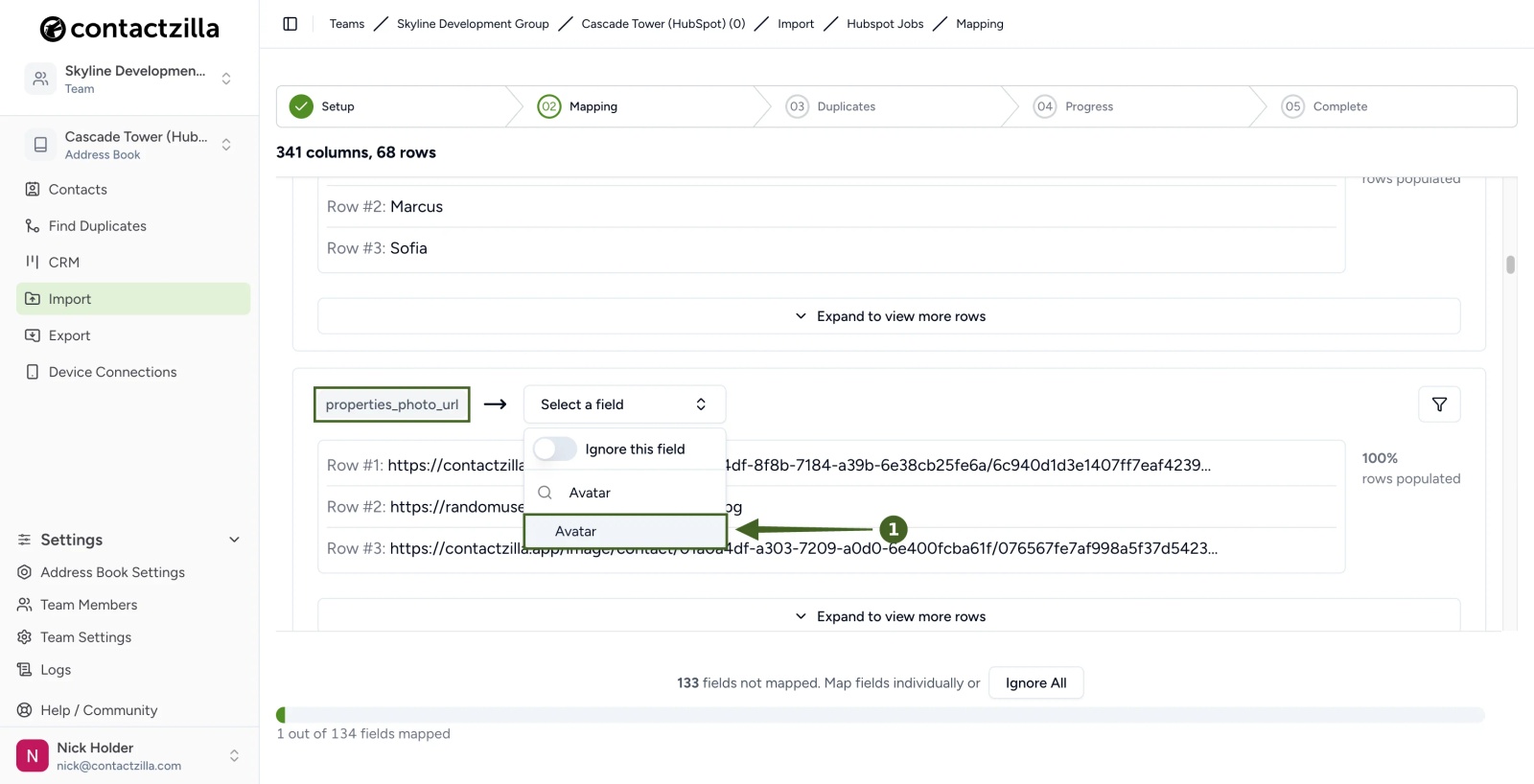
⚠️ Important: HubSpot doesn't make the photo you upload to a contact record (the round image at the top of the record) available to connected apps, so it can't come through to Contactzilla. To sync headshots, you'll need each photo hosted at a public link, for example on your website or a public image host. Then add a single-line text property in HubSpot (ours is called Photo URL), fill it with a public link to each person's headshot, and map that column to Avatar as above. The headshots then show in Contactzilla and on your team's phones. Each link must open the image directly without a sign-in. Links to photos already stored in Contactzilla (contactzilla.app/image/...) aren't picked up, so use another host for those.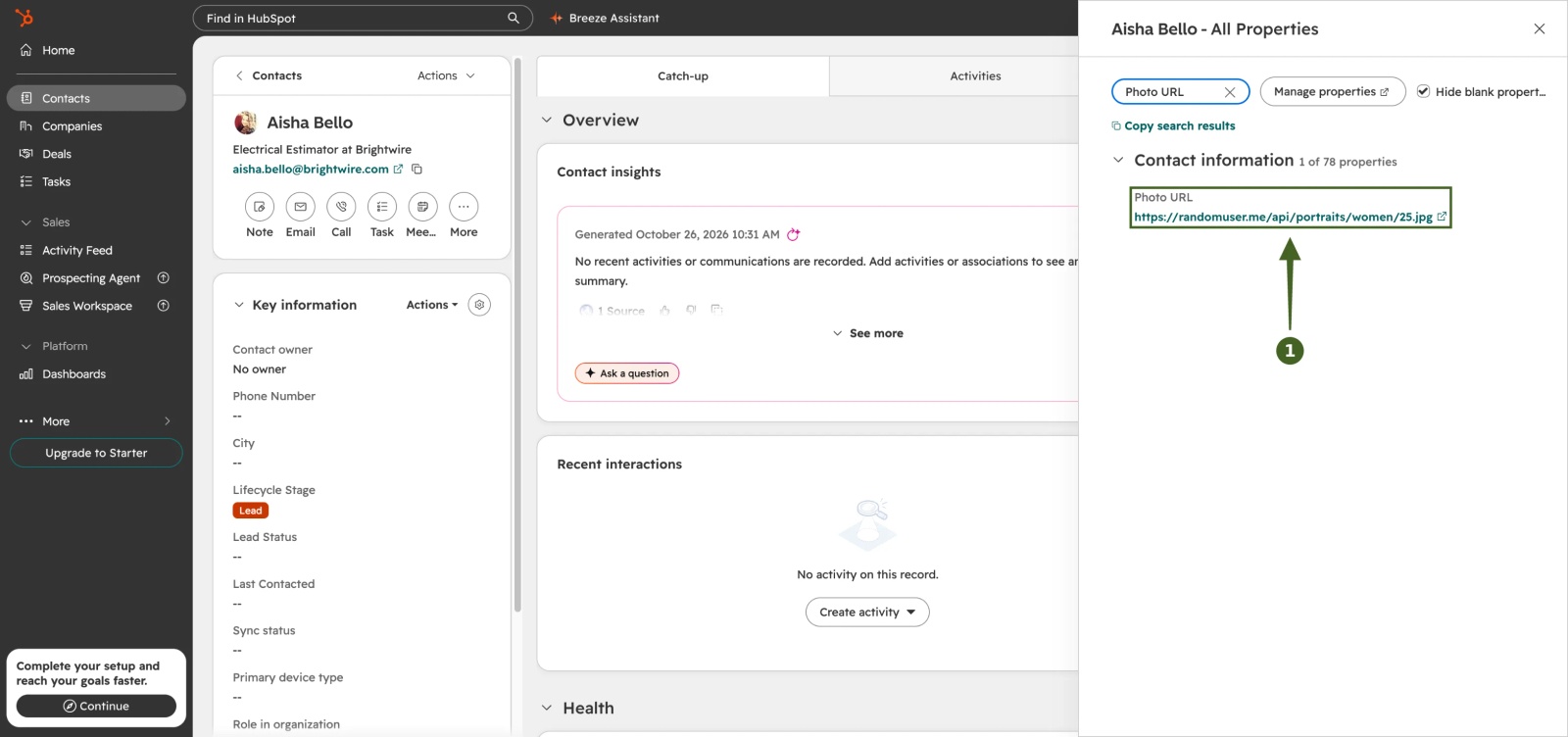
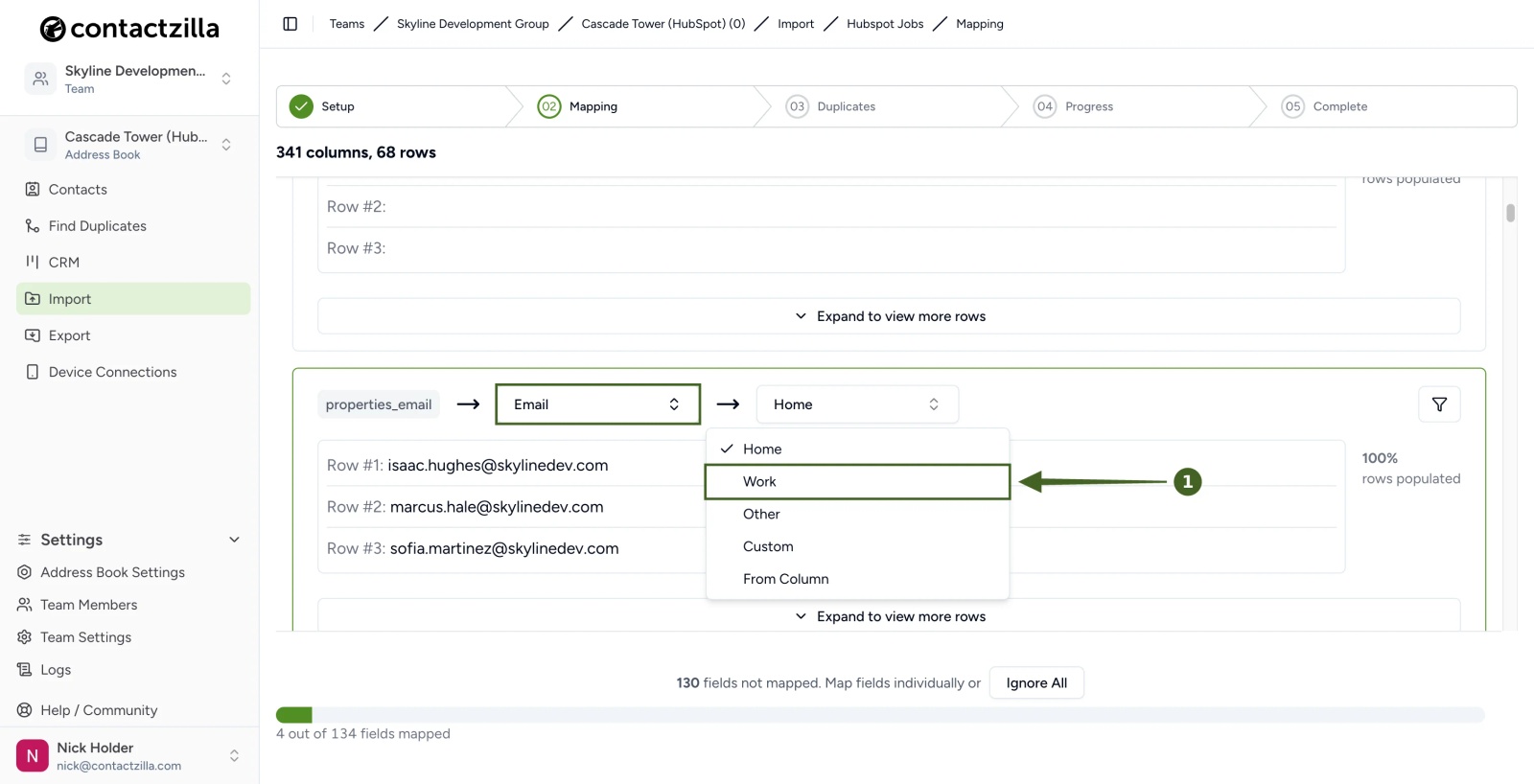
d) On properties_email, choose Email → change the label from Home to Work.
e) On properties_phone (HubSpot's Phone Number), choose Phone → Custom → type a label such as Desk phone → confirm.
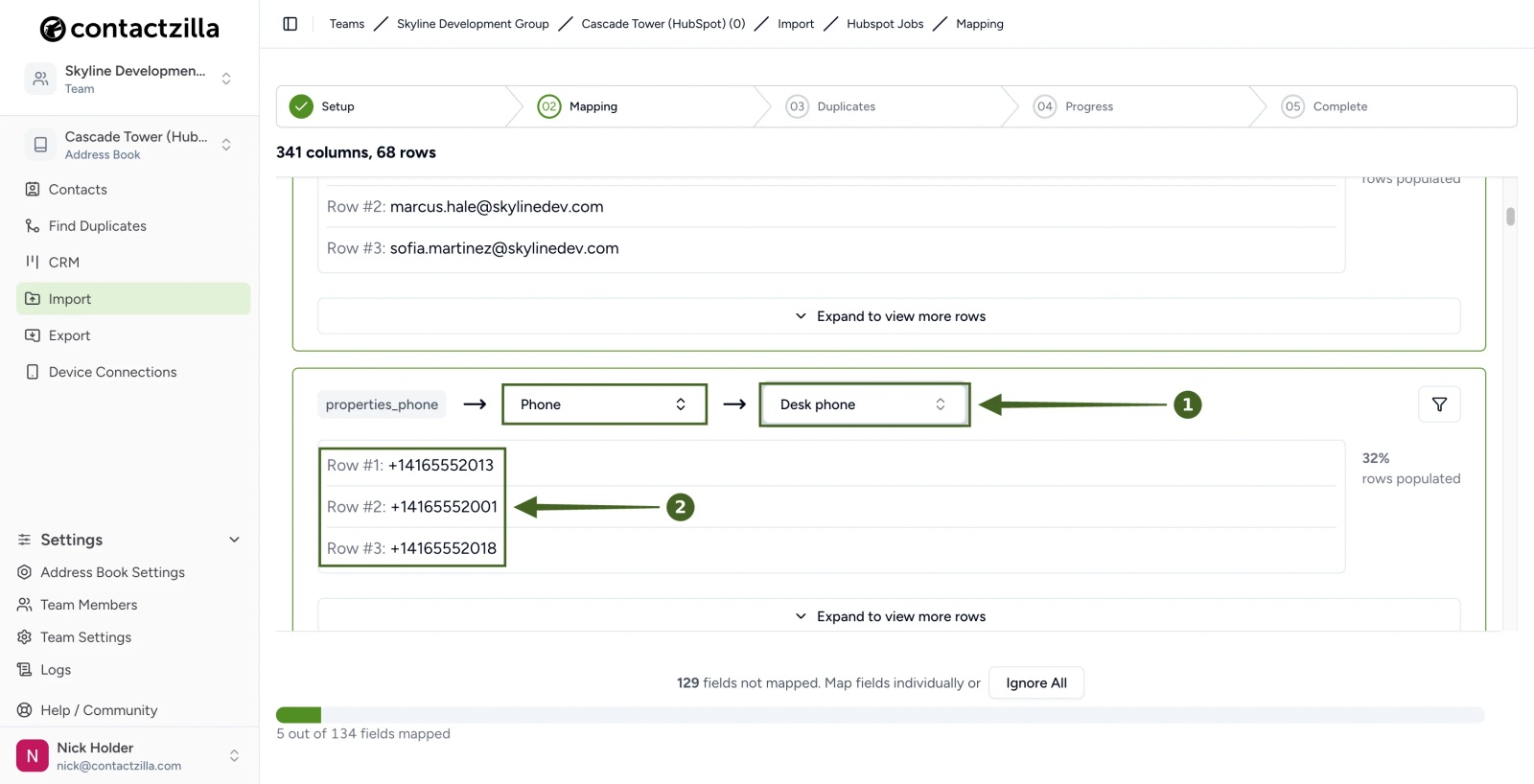
HubSpot sends numbers without spacing, for example +14165552013. To show them in a consistent format in Contactzilla and on phones, turn on Phone Number Formatting under Team Settings → Address Book.
f) On properties_mobilephone (HubSpot's Mobile Phone Number), choose Phone → change the label to Mobile.
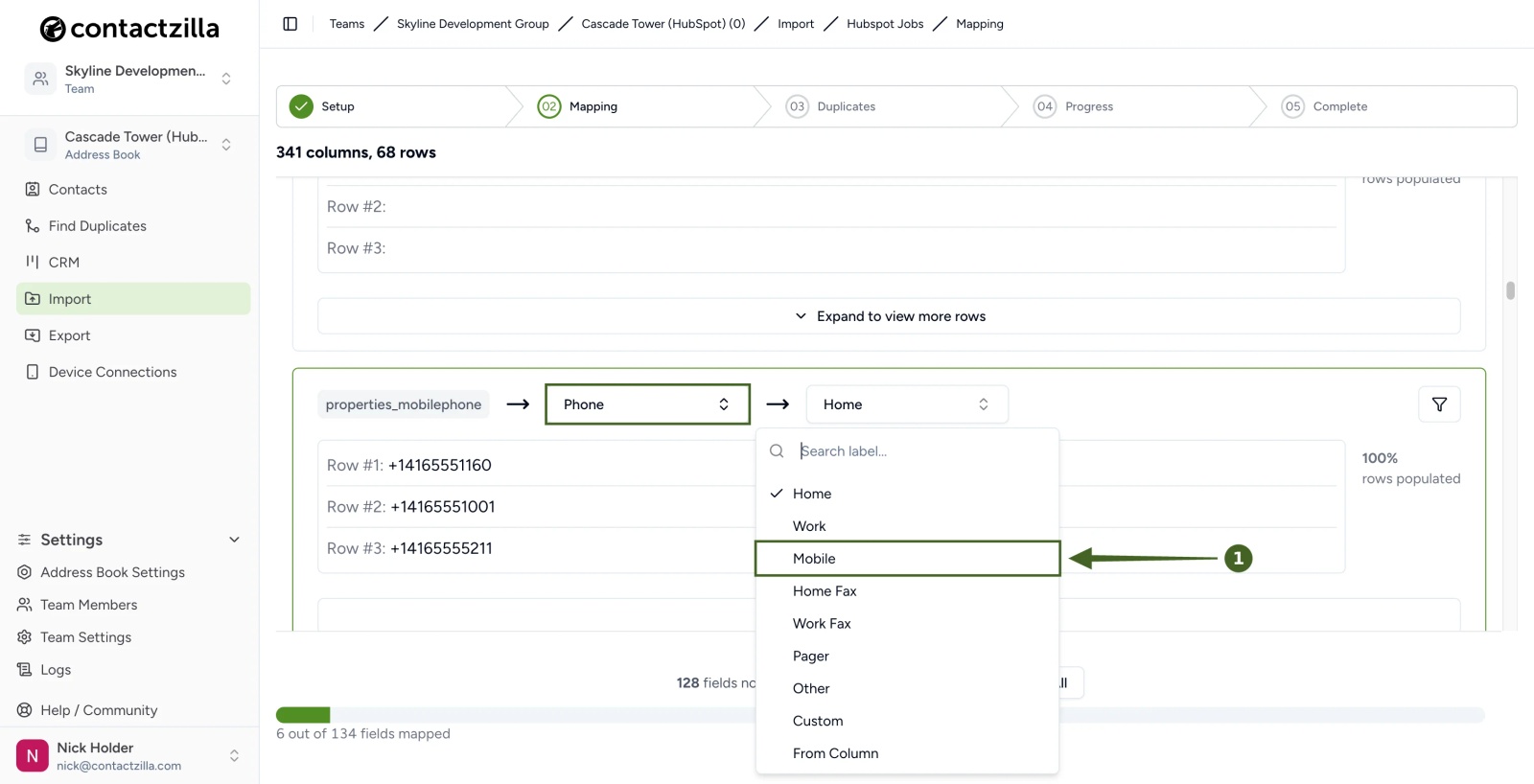
g) Map your other columns the same way. In our example:
properties_firstname→ First Name andproperties_lastname→ Last Nameproperties_company→ Company Name andproperties_jobtitle→ Job Titleproperties_bio(a custom HubSpot property) → Bioproperties_trade(a custom HubSpot property) → Label, so each contact is labelled by its value, such as Skyline Team or MEP
h) Click Ignore All to skip the remaining columns → under Would you like to handle deletes?, click Yes → tick archived → Continue.
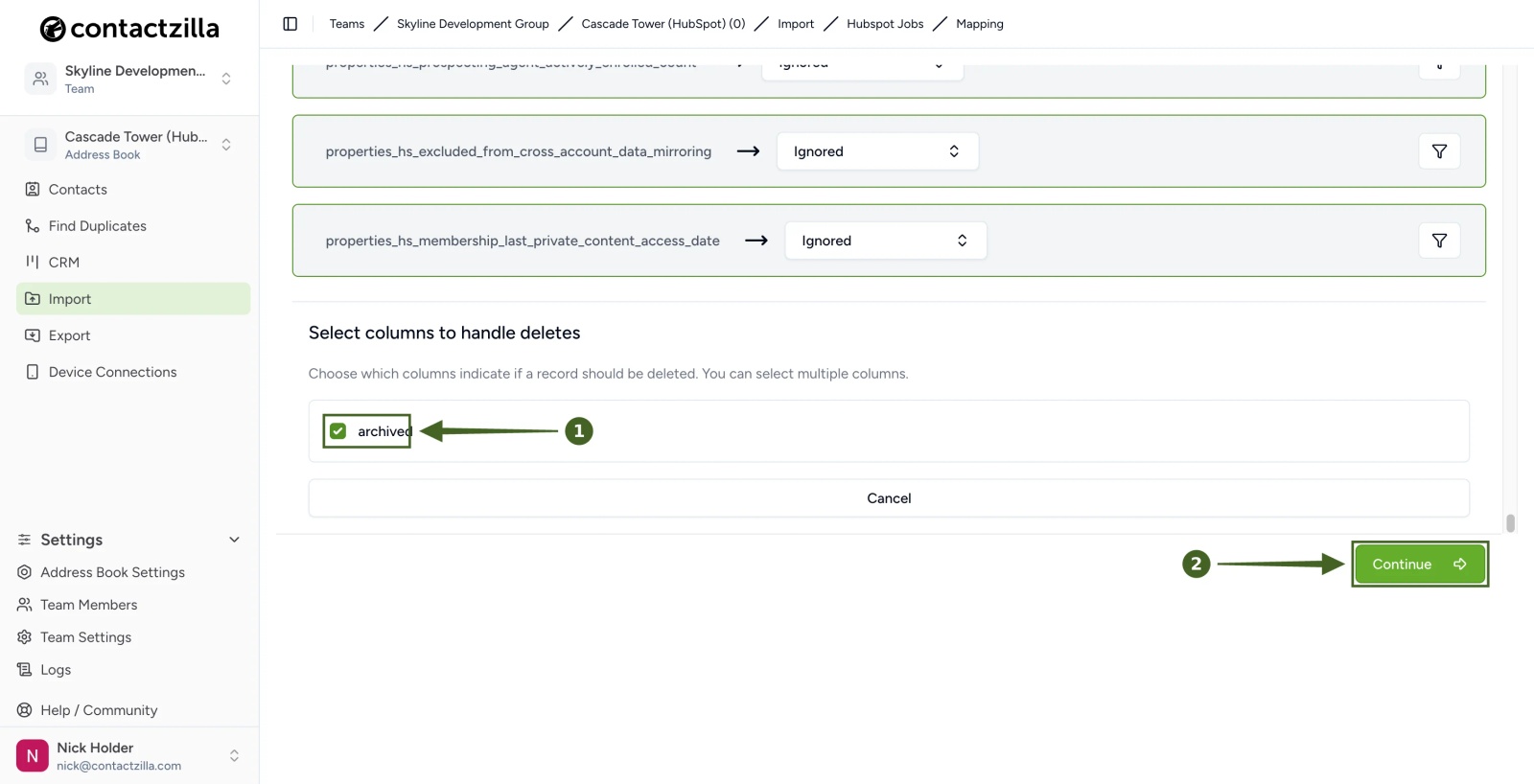
HubSpot leaves deleted contacts out of the data it sends, so the archived column never marks anyone for removal. To remove contacts you delete in HubSpot, use Delete any contacts not replaced in Step Five. Contactzilla saves this mapping, so later syncs reuse it.
Import the HubSpot contacts into the address book
Step Five: Handle duplicates and run the import
a) Choose Replace duplicates → Continue.
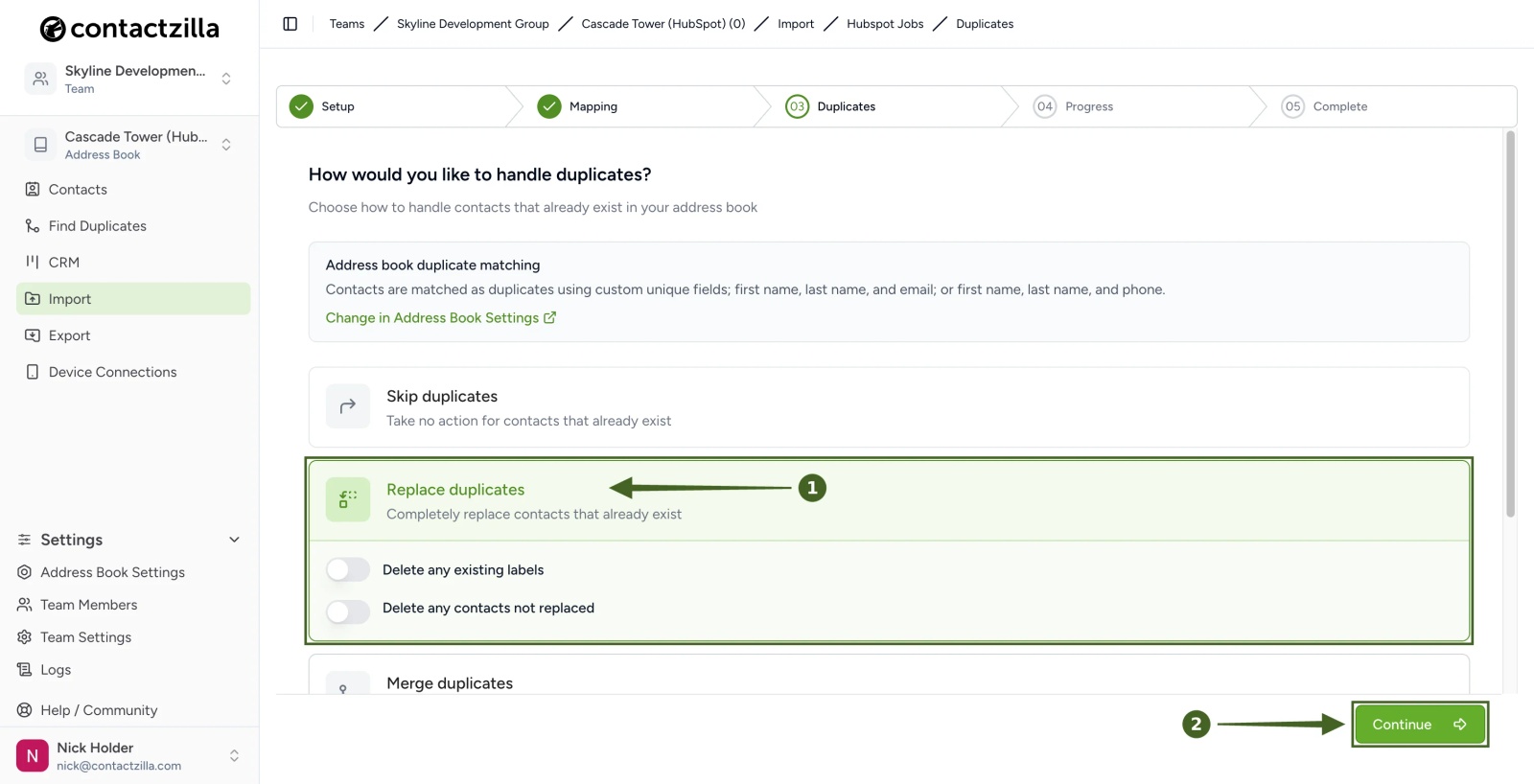
Replace duplicates updates a contact in Contactzilla whenever its HubSpot record changes, which keeps the address book matching HubSpot. If this address book holds only your HubSpot contacts, also turn on Delete any contacts not replaced: a contact you delete in HubSpot is then removed from the address book, and from your team's phones, on the next sync. In our test, deleting one contact in HubSpot removed it from Contactzilla on the next sync and left the other 67 untouched. Leave it off if the address book also holds contacts from other sources, because it removes any contact this import didn't bring in. For what each option does, see How to Re-import Contacts Without Creating Duplicates.
b) When Import Complete appears, check the counts → Return to contacts.
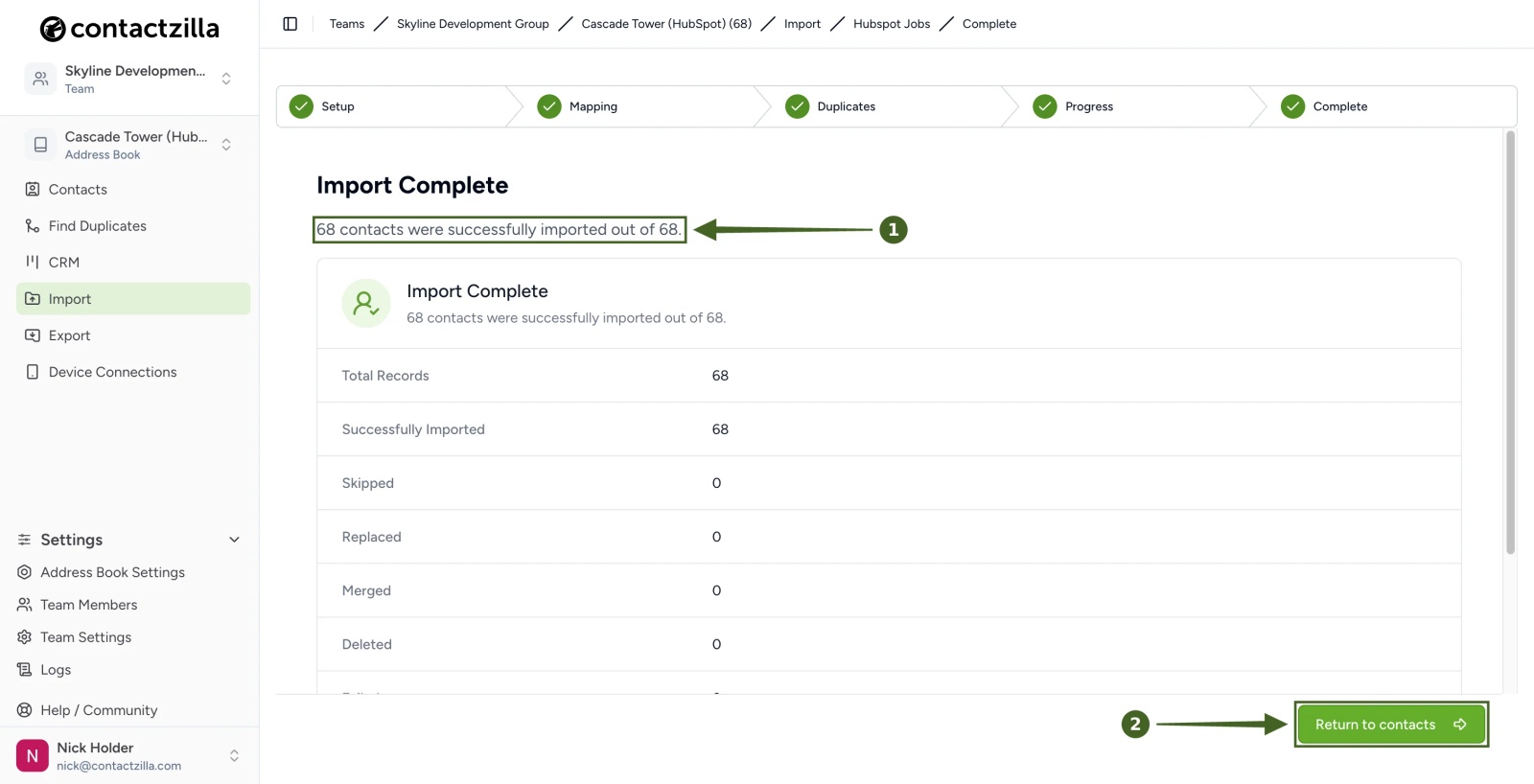
The address book now lists your HubSpot contacts, with their headshots, labels, desk and mobile numbers and work emails.
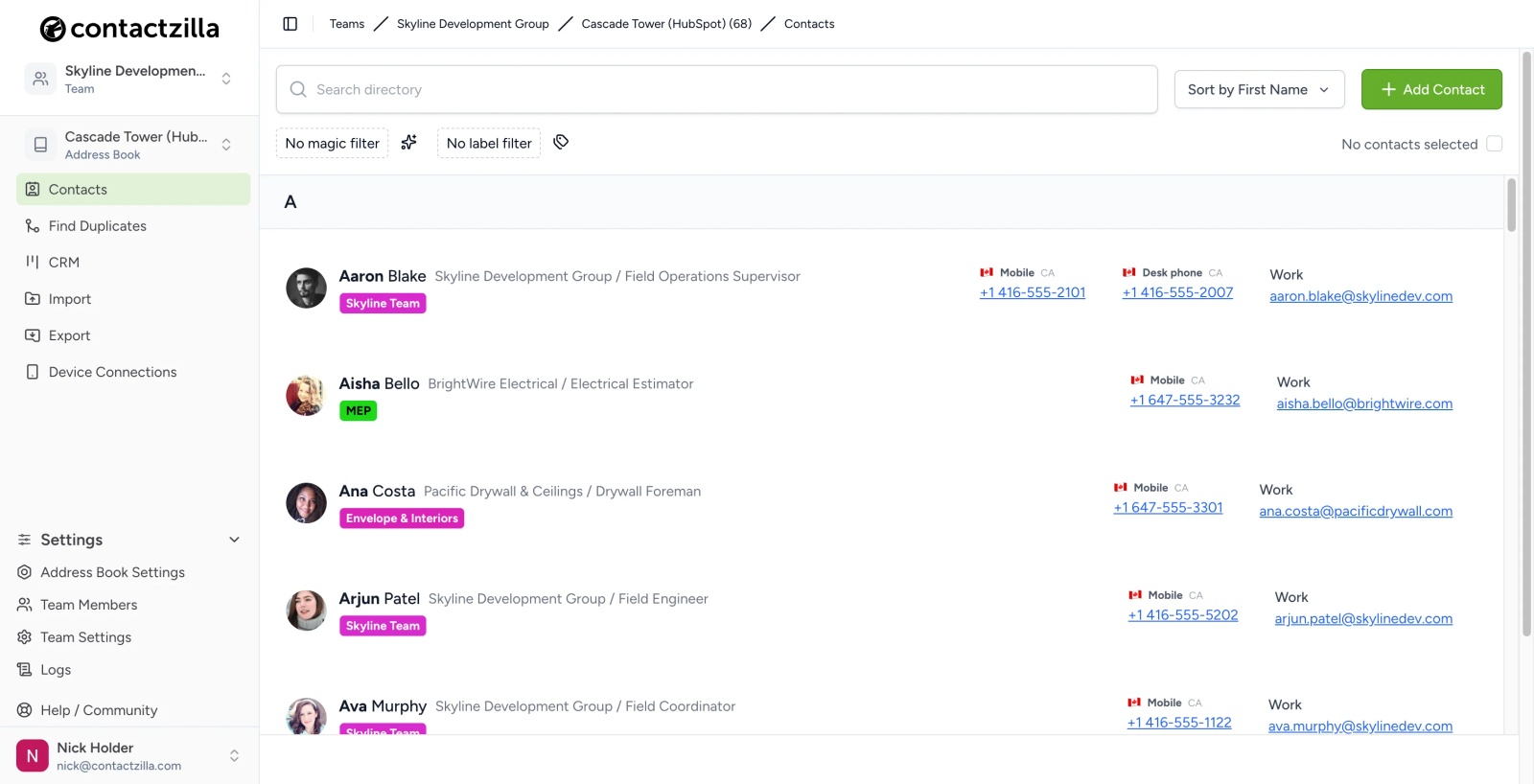
💡 From then on, the job syncs on your schedule. To pull changes straight away, open the job's Setup menu → Sync Now. View Job Runs shows what each sync inserted, replaced and skipped; contacts that haven't changed in HubSpot are counted as Ignored.
Deploy the HubSpot contacts to iPhones
Step Six: Create a device connection for your MDM
a) Click Device Connections → Connection Type: iOS iPhone/iPad → Assign to Team Member: your MDM team member → Access Type: Full Read Only → tick Append 🔒 emoji → Number of Device Connections: the number of phones → Create.
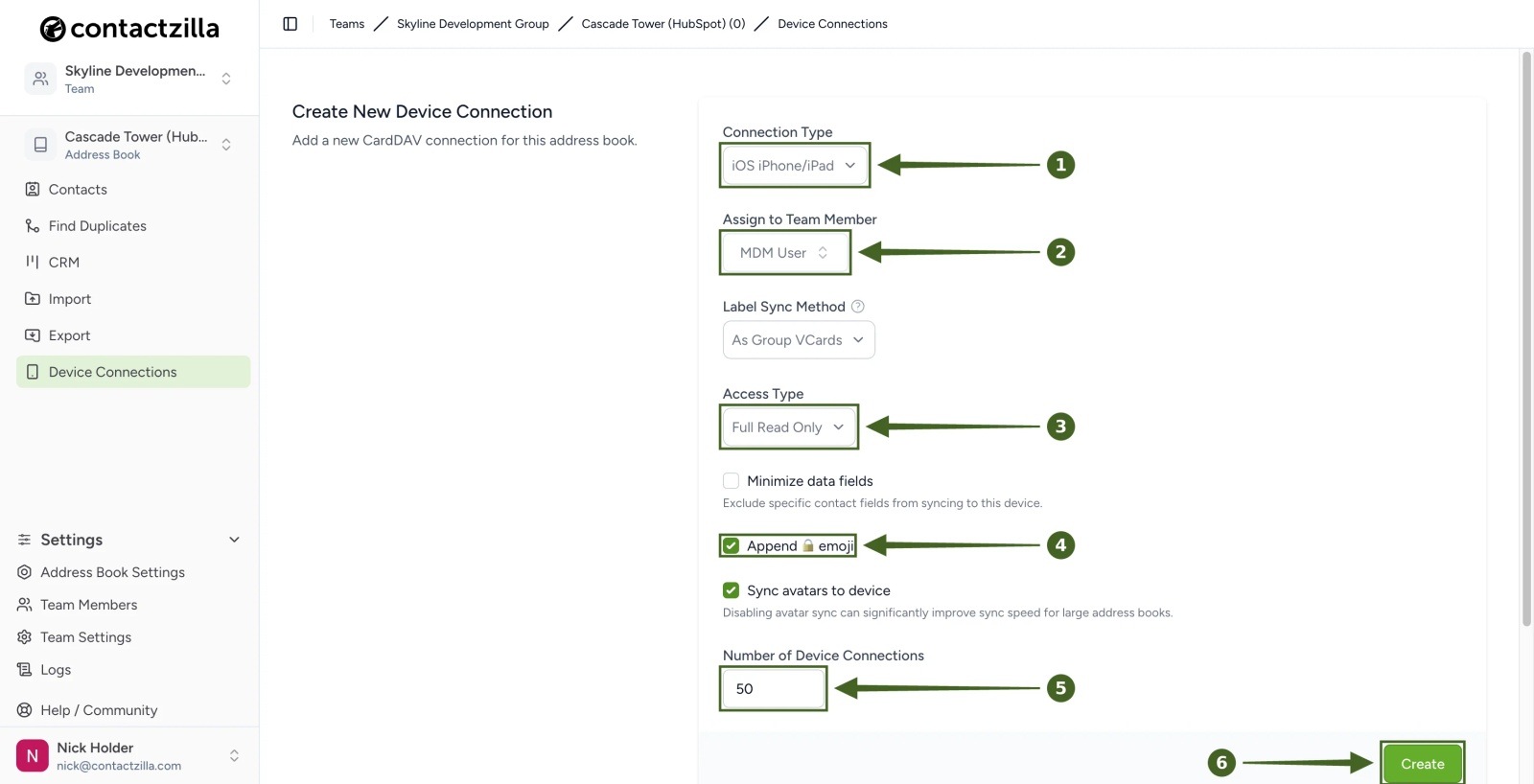
💡 With Full Read Only, staff can't edit the contacts on their phones, so HubSpot stays the place to make changes. Append 🔒 emoji adds a lock to each contact in the phone's Contacts app as a reminder.
b) On the new connection, click Setup → Download Profile to save the .mobileconfig file.
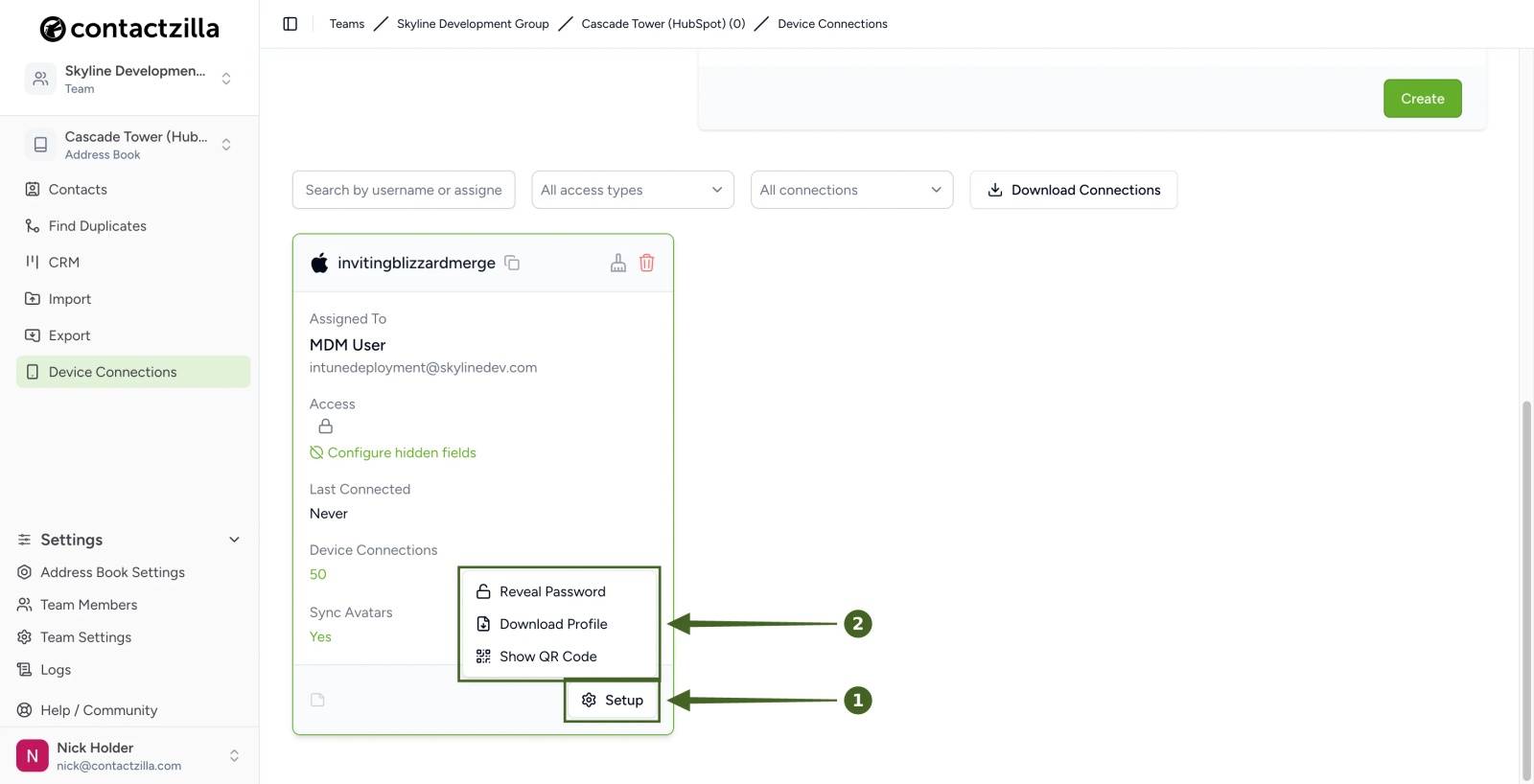
Upload the .mobileconfig file to your MDM and assign it to your devices. Follow the guide for your MDM: Microsoft Intune, Jamf Pro, Mosyle or IBM MaaS360. No MDM? See How to Put Contactzilla Contacts on Phones Without MDM by Scanning a QR Code.
You've now connected HubSpot to Contactzilla and imported your contacts. Each scheduled sync brings HubSpot changes into the address book, and the phones pick them up automatically.
Still Need Help?
Our support team is available to assist you with any questions or issues you may have.
Still need help?
Our support team is available to assist you with any questions or issues you may have.