How can we help you?
Browse Categories
Contactzilla: How to Set Duplicate Matching Rules for an Address Book

This guide shows you how to set the duplicate matching rules for a Contactzilla address book, which decide when an imported or newly added contact counts as someone already in the book, so you don't end up with duplicate contacts or people missing from your phones. Our example is Skyline Development Group's Staff Directory, synced from Microsoft Entra ID, where each person should be matched by their Entra ID alone.
What You'll Need
- A Contactzilla address book, and access to its Address Book Settings.
- If you sync from a directory, the directory's ID mapped to a Hidden Custom Unique field. See Import contacts from Microsoft Entra ID.
How Contactzilla Decides Two Contacts Are the Same Person
Each address book has three matching rules, and each can be switched on or off:
- Match using custom unique fields: contacts with the same value in a unique custom field count as the same person. Each field is checked on its own, so an Entra ID only matches another Entra ID.
- Match using first name, last name, and email: the same first name, last name and email address count as the same person.
- Match using first name, last name, and phone: the same first name, last name and phone number count as the same person. Spaces and punctuation in the number are ignored.
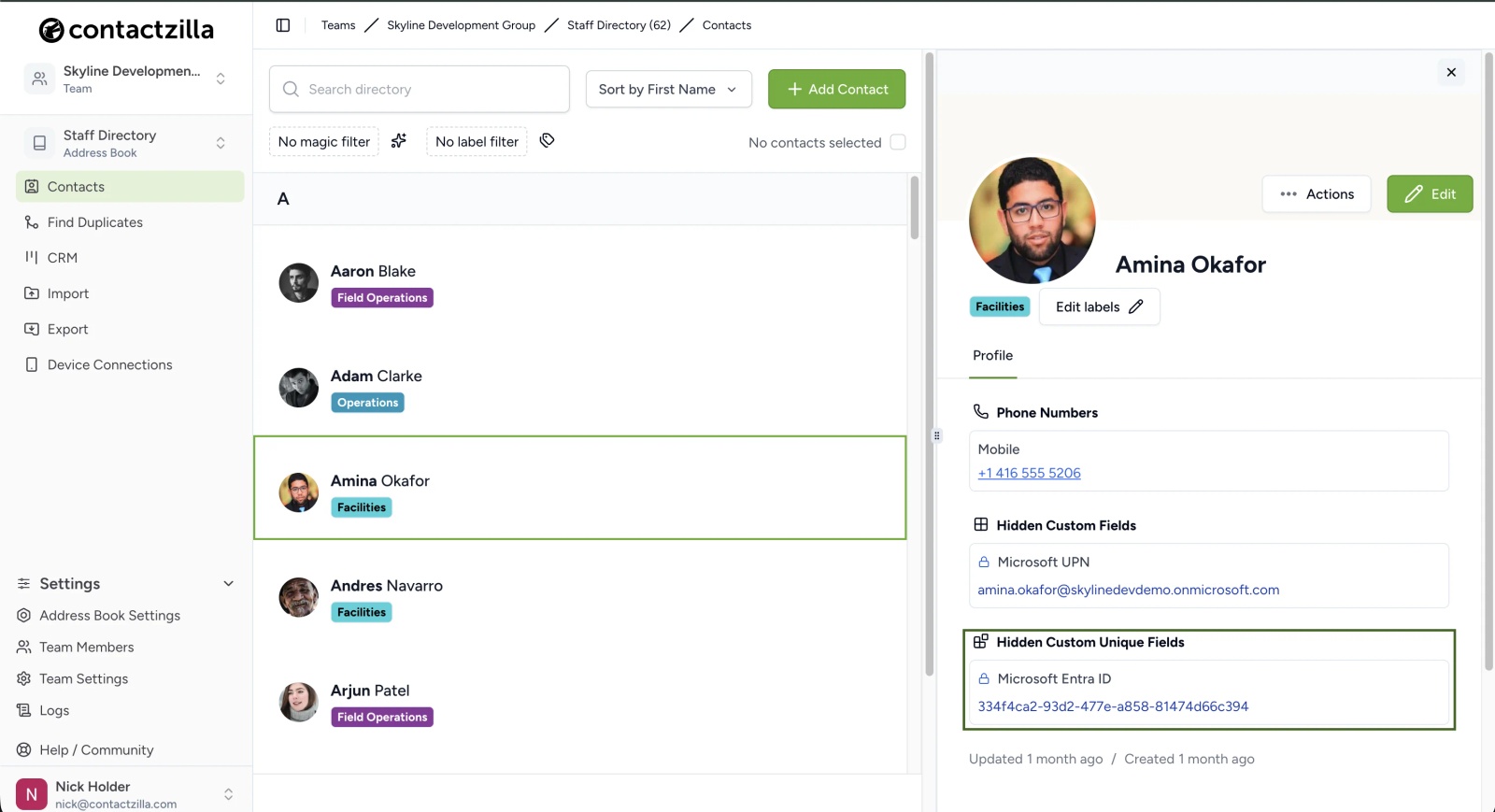
In the Staff Directory, every contact imported from Entra carries its Entra ID in a Hidden Custom Unique field. Admins can see it on the contact in the dashboard, but it never syncs to phones. This is the value the custom unique fields rule matches on.
A contact counts as a duplicate if it matches an existing contact on any rule that's switched on. The rules apply in two places:
- Imports. At the Duplicates step, a matching row is skipped, replaced or merged, depending on the option you choose. If a row's ID matches one contact but its name and phone match a different contact, Contactzilla doesn't guess: the row fails, both contacts stay as they are, and the results CSV gives the reason. See How to Re-import Contacts Without Creating Duplicates.
- Contacts added in the dashboard. Add Contact won't save a contact that matches an existing one, and shows "Contact with same name and email or phone number already exists."
💡 Phone numbers only match when they're written with the same country code. +1 416 555 1113 and 416-555-1113 count as different numbers, so if one source includes the country code and another leaves it out, the same person can come in twice.
Which Rules to Use
Address books synced from Microsoft Entra ID, Google Workspace or Salesforce
Switch on Match using custom unique fields only, as long as the directory's ID is mapped to a Hidden Custom Unique field. Each account in the directory has its own ID that never changes, so every import finds the right contact even after someone's name or number changes. The name rules can treat two different accounts as one person. At Skyline, Oscar Foster in IT has a separate admin account with the same name and mobile number. With the name and phone rule on, only one of them can be in the address book, and the other is skipped on every import. If two staff with the same name both list the site office number, the second one is skipped in the same way.
Address books built from CSV files or by hand, with no ID
Keep all three rules on. Without an ID, a name with an email or phone number is the only way Contactzilla can recognise someone it already has. If someone's name changes in your file, for example Joe Bloggs becomes Joe Billy, the next import can't match them and adds a new contact. Adding an ID column to your file and mapping it to a Hidden Custom Unique field fixes this.
💡 With the name rules off, a contact someone adds by hand isn't checked against your directory contacts. Run the duplicate report now and then to catch these. See How to Find and Merge Duplicate Contacts in an Address Book.
Set Skyline's Staff Directory to Match by Entra ID Only
Step One: Turn Off the Name Rules
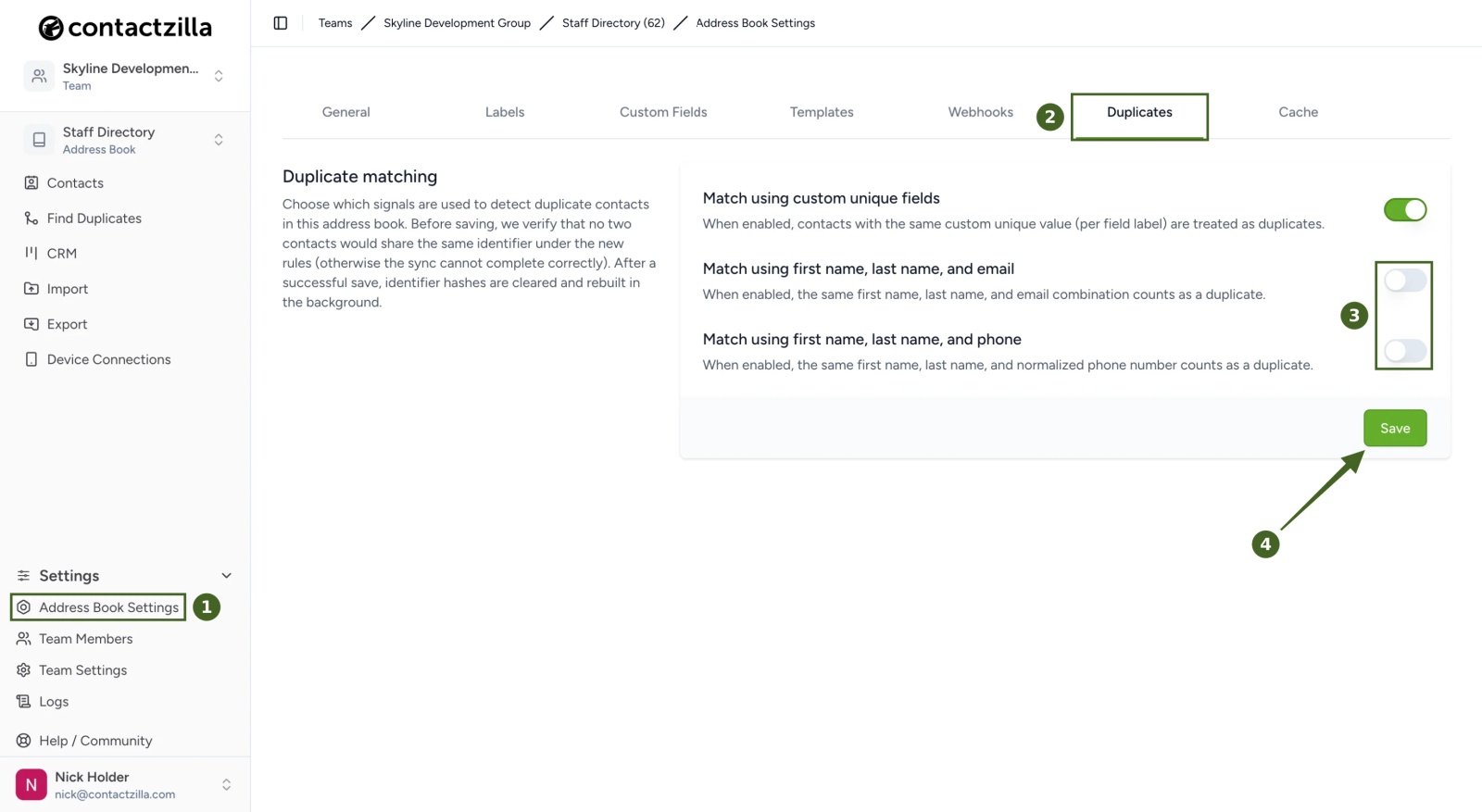
a) Address Book Settings → Duplicates → leave Match using custom unique fields on and switch off Match using first name, last name, and email and Match using first name, last name, and phone → Save.
Contactzilla confirms with "Duplicate matching settings saved. Contact identifiers are being rebuilt in the background." On the next import, the Address book duplicate matching box at the Duplicates step reads "Contacts are matched as duplicates using custom unique fields." Changing the rules doesn't edit or merge any existing contacts.
💡 You can also reach these settings from any import: the Address book duplicate matching box at the Duplicates step has a Change in Address Book Settings link.
Fix the "Cannot Save Duplicate Matching" Message
Turning a rule off always saves. Turning a rule on only saves if no two contacts in the address book would match under it, because the sync can't complete correctly otherwise.
Step Two: Clear the Contacts That Clash
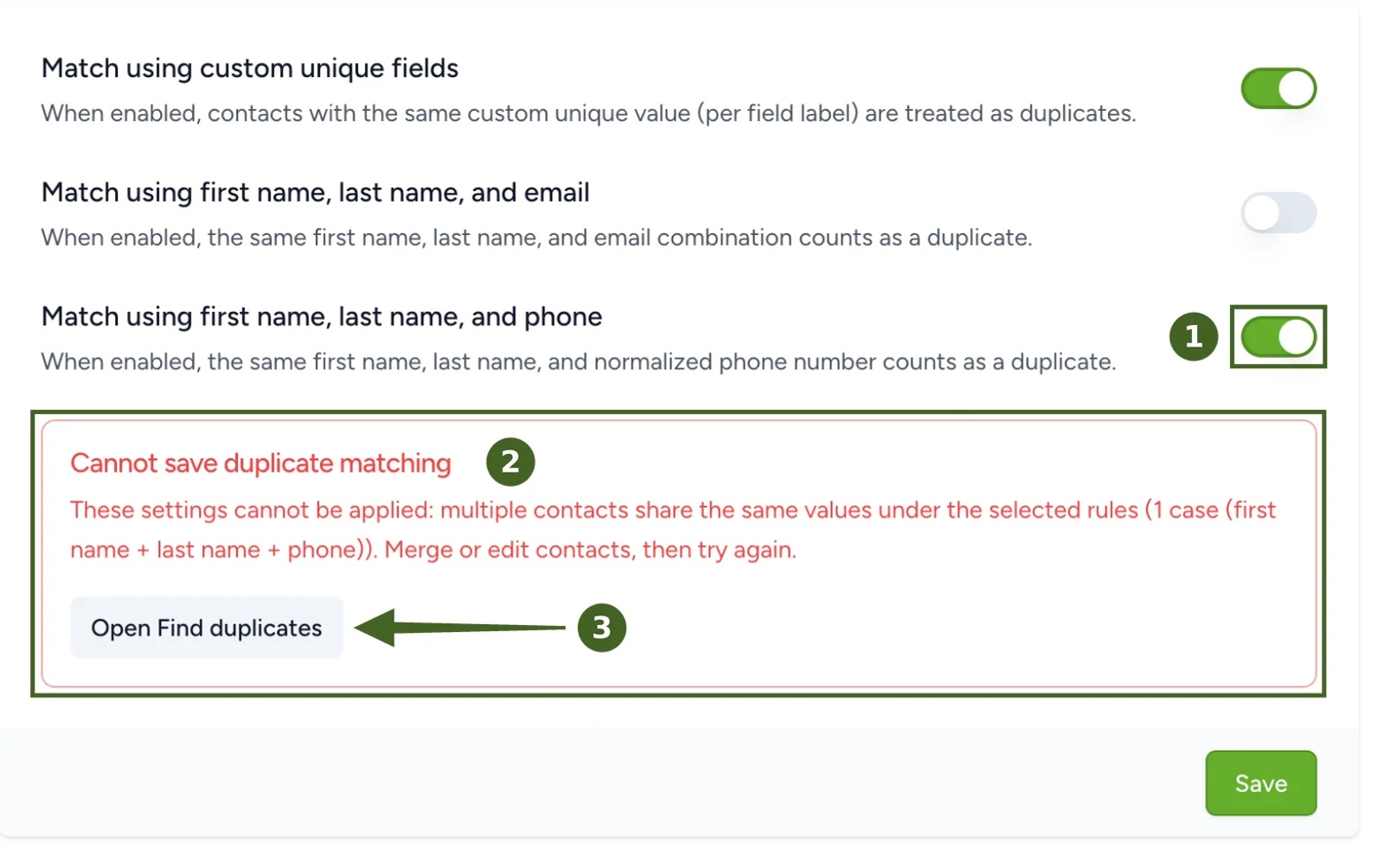
a) Switch the rule on → Save → read Cannot save duplicate matching, which shows how many contacts clash and under which rule → Open Find duplicates.
In the duplicate report, merge or edit the contacts that clash, then come back to Duplicates and click Save again.
⚠️ Important: marking a pair as Not a duplicate in the duplicate report doesn't clear this check. If two genuinely different people share a name and a phone number, like Oscar Foster's two accounts, leave the name and phone rule off for that address book.
Once no contacts clash, the rule saves and Contactzilla rebuilds its matching data in the background.
Your Staff Directory now matches people by their Entra ID alone, so a rename, a shared office number or a second admin account won't merge anyone or block them from the address book.
Still Need Help?
Our support team is available to assist you with any questions or issues you may have.
Still need help?
Our support team is available to assist you with any questions or issues you may have.