How can we help you?
Browse Categories
How to Set the Default Account on iPhone So New Contacts Save to Contactzilla

💡 If you deploy a read/write address book and your team add contacts on their iPhones, each contact needs to be saved into the Contactzilla address book to appear on everyone else's phones. This guide shows how to make sure that happens.
This guide shows you how to make a new contact added on an iPhone save to your Contactzilla address book, by adding it from inside the right list and setting the Default Account. It assumes your address book is already installed on the iPhone and its device connection is set to Full Read/Write.
What You'll Need
- A Contactzilla address book already installed on the iPhone. If it isn't yet, see Adding a Contactzilla address book on your iPhone: using the provisioning profile, or for managed devices the Microsoft Intune guide for iOS
- A device connection with Full Read/Write access. To check, open Device Connections in Contactzilla and look at the Access Type
- The iPhone's Contacts app, and access to Settings
How the iPhone Decides Where a New Contact Is Saved
The iPhone Contacts app can hold several accounts at once, such as iCloud and your Contactzilla address book. Every new contact is saved to one of them, and the iPhone chooses in one of two ways:
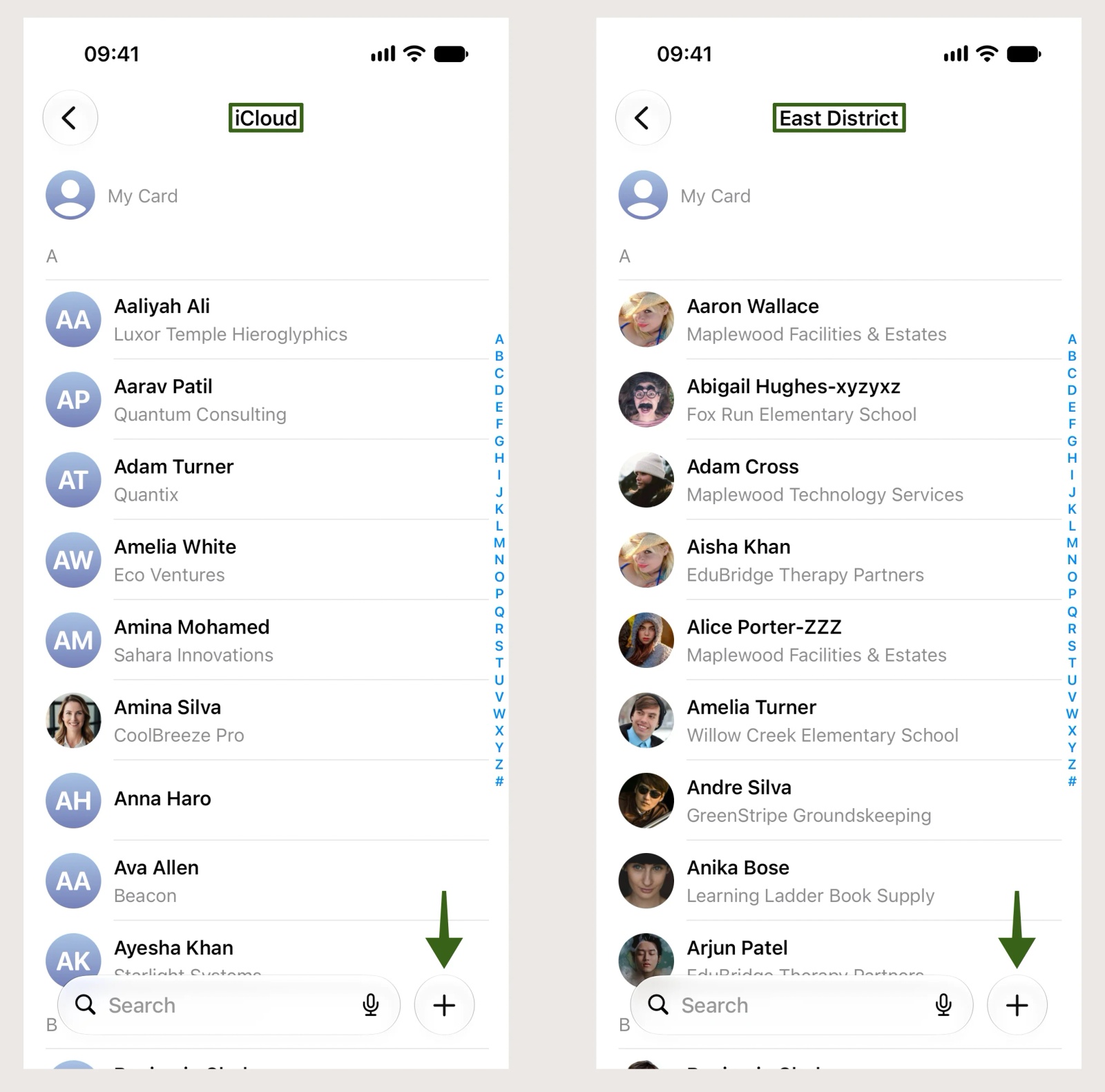
- From a list. If you open a list first, such as All East District, and then tap +, the contact is saved to that list's account.
- Without a list. If you add a contact from All Contacts, or straight from the keypad, the contact is saved to the Default Account.
So two people with the same address book can get different results. One person's contacts sync to everyone, while another's stay in iCloud, because of where the contact was saved.
When You Need This Guide
- A colleague adds a number on their iPhone and it doesn't appear on anyone else's phone, or in the Contactzilla dashboard.
- Staff use an iPhone that also has an iCloud account, for example their own phone with the work address book added.
- Your address book is read-only and you want staff to stop adding contacts to it by accident.
💡 Read-only address books work the other way round. The iPhone lets a person save a contact into a read-only address book and it appears on their phone, but it is not saved to Contactzilla. If your devices use Full Read Only access, set the Default Account to On My iPhone (Step Two) so contacts staff add themselves don't go into the read-only address book.
Save New Contacts to Your Contactzilla Address Book
Step One: Add the Contact From Inside Your Contactzilla List
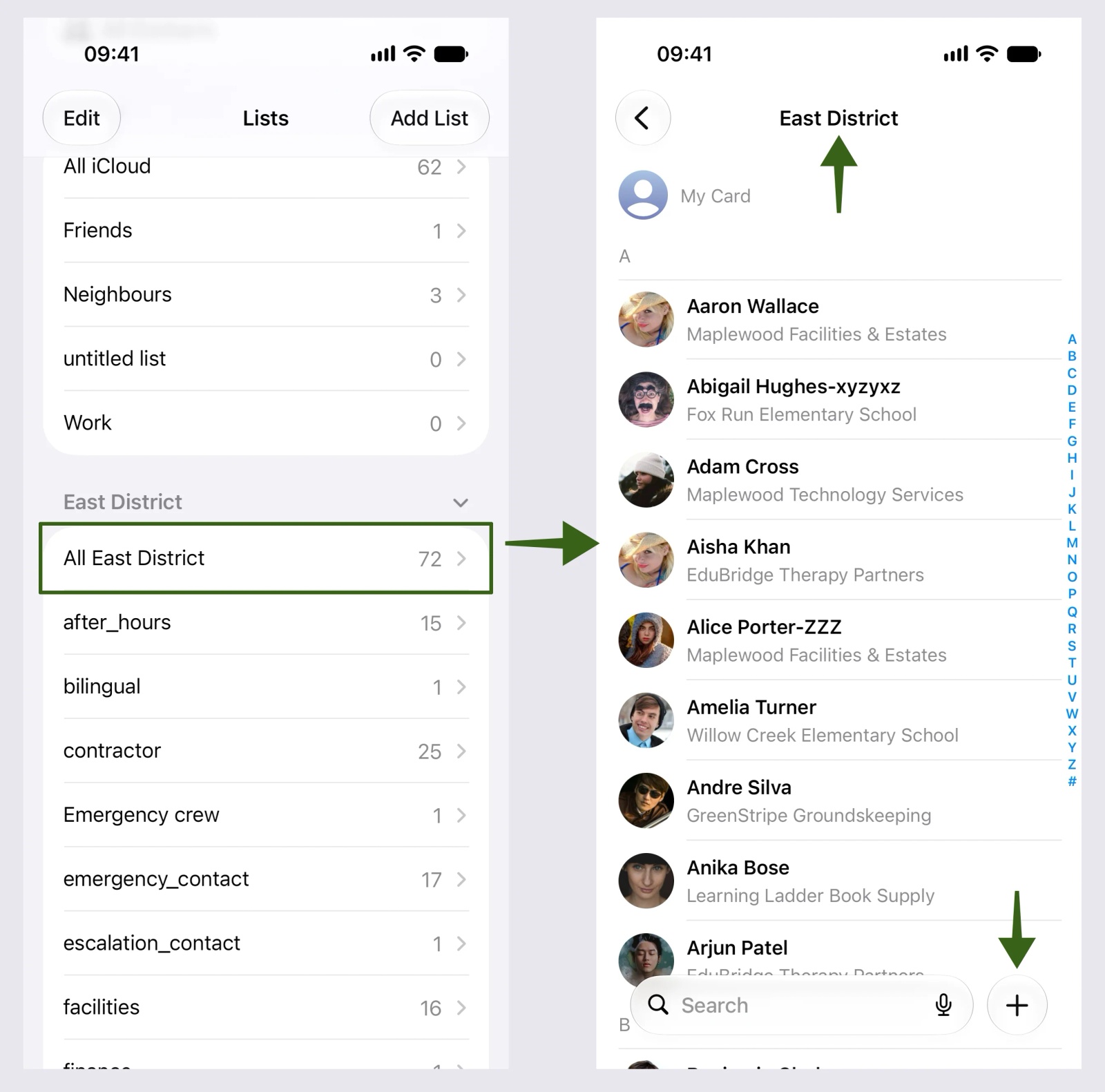
a) Open Contacts and go to Lists.
b) Under your Contactzilla address book, tap the list that holds everyone, for example All East District. Check that the title at the top shows your Contactzilla address book.
c) Tap the + at the bottom right, enter the contact's details and save it.
The contact is now saved to your Contactzilla address book. With a Full Read/Write connection it appears in the Contactzilla dashboard within a few seconds, and on your team's other phones.
⚠️ Important: Check the title at the top before you tap +. If it says iCloud, the contact is saved to iCloud and won't reach Contactzilla or anyone else's phone.
Step Two: Set the Default Account
Contacts added without choosing a list, such as a number typed on the keypad and saved with the add contact icon, go to the Default Account. Set it to your Contactzilla address book so these contacts sync too.
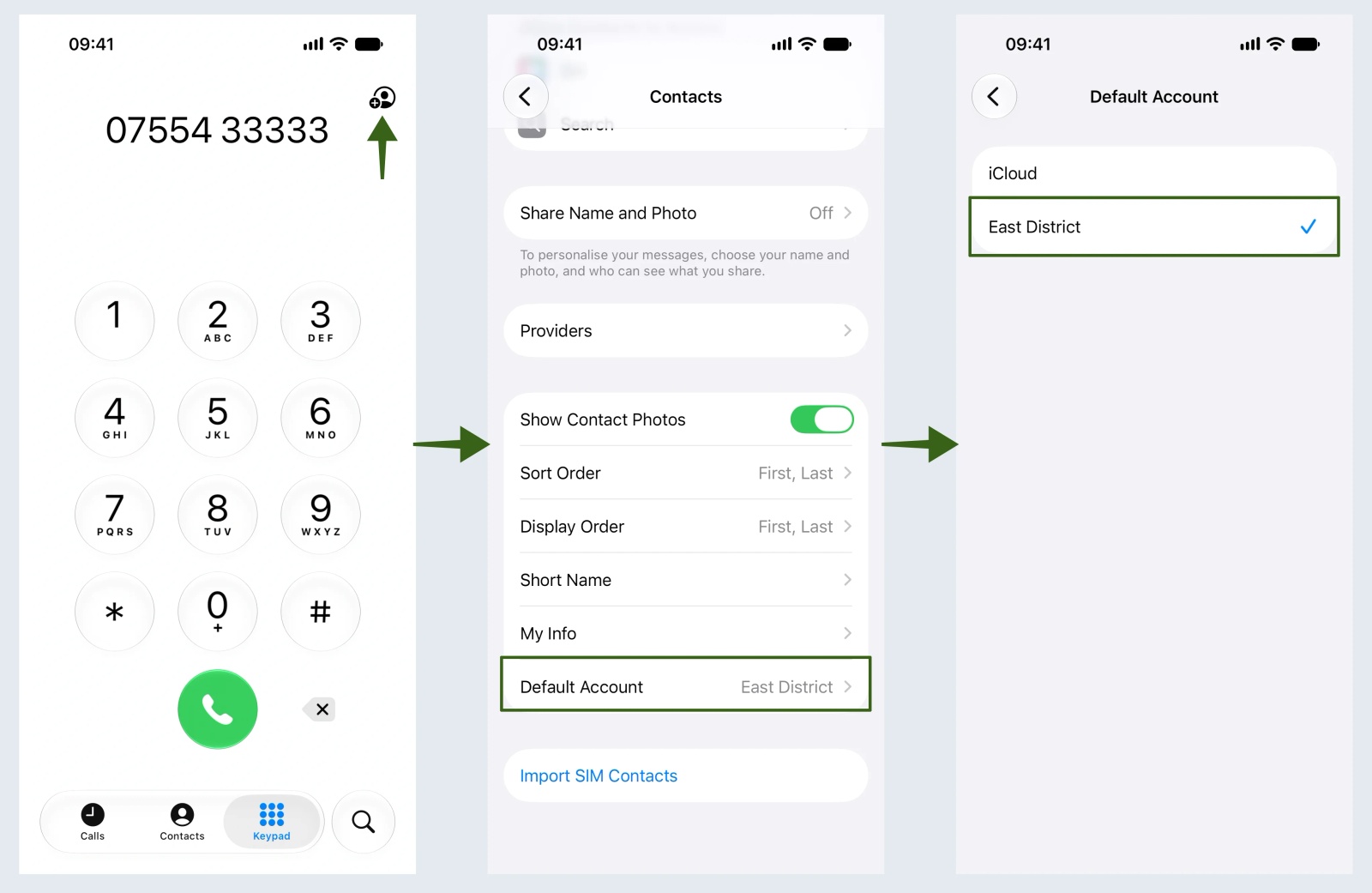
a) Open Settings > Apps > Contacts. On older versions of iOS, open Settings > Contacts.
b) Tap Default Account.
c) Choose your Contactzilla address book, shown as East District in the screenshot. A tick appears beside it.
New contacts added from All Contacts or the keypad are now saved to your Contactzilla address book.
💡 Changing the Default Account only affects contacts you add from now on. Contacts already saved to iCloud stay in iCloud, so add them again to your Contactzilla address book if your team needs them.
Check That It Worked
1) On the iPhone, add a test contact by following Step One.
2) Log in to Contactzilla and open the address book.
The test contact is listed in the address book within a few seconds. If it isn't there, check the title of the list you added it from, and your Default Account setting.
New contacts added on the iPhone now save to your Contactzilla address book, so they sync to the rest of your team's devices.
Android: Save New Contacts to Your Contactzilla Address Book
Android works in a similar way, with one difference.
- Default account. Open Contacts > your profile icon (top right) > Contacts app settings > Default account for new contacts, then choose your Contactzilla address book.
- Save to. On the Add new contact screen, scroll to the bottom and use the Save to drop-down to choose the account. Opening a Contactzilla list first is not enough on Android: unless you change Save to, the contact is also saved to the default account.
Still Need Help?
Our support team is available to assist you with any questions or issues you may have. Contact Support | Technical Support
Still need help?
Our support team is available to assist you with any questions or issues you may have.