How can we help you?
Browse Categories
How to Automatically Format Phone Numbers in Contactzilla

This guide shows you how to turn on automatic phone number formatting in Contactzilla, so every phone number in your team's address books is stored in one consistent format before it reaches staff iPhones and Android phones. It assumes you're a team administrator and that your address books already have contacts in them.
Phone numbers often arrive written in different ways. One import sends +13125550160, a spreadsheet has 312.555.0160, and someone typed (312) 555-0160 by hand. With formatting turned on, Contactzilla rewrites each number into the format you choose. The number as it was originally entered is always kept in the contact data.
What You'll Need
- Administrator access to your Contactzilla team (to open Team Settings)
- At least one address book with contacts that have phone numbers
- The country most of your phone numbers belong to
⚠️ Important: Phone Number Formatting is a team setting. It applies to every address book in the team, not just the one you have open.
Turn On Phone Number Formatting in Team Settings
Step One: Choose Your Format and Default Country
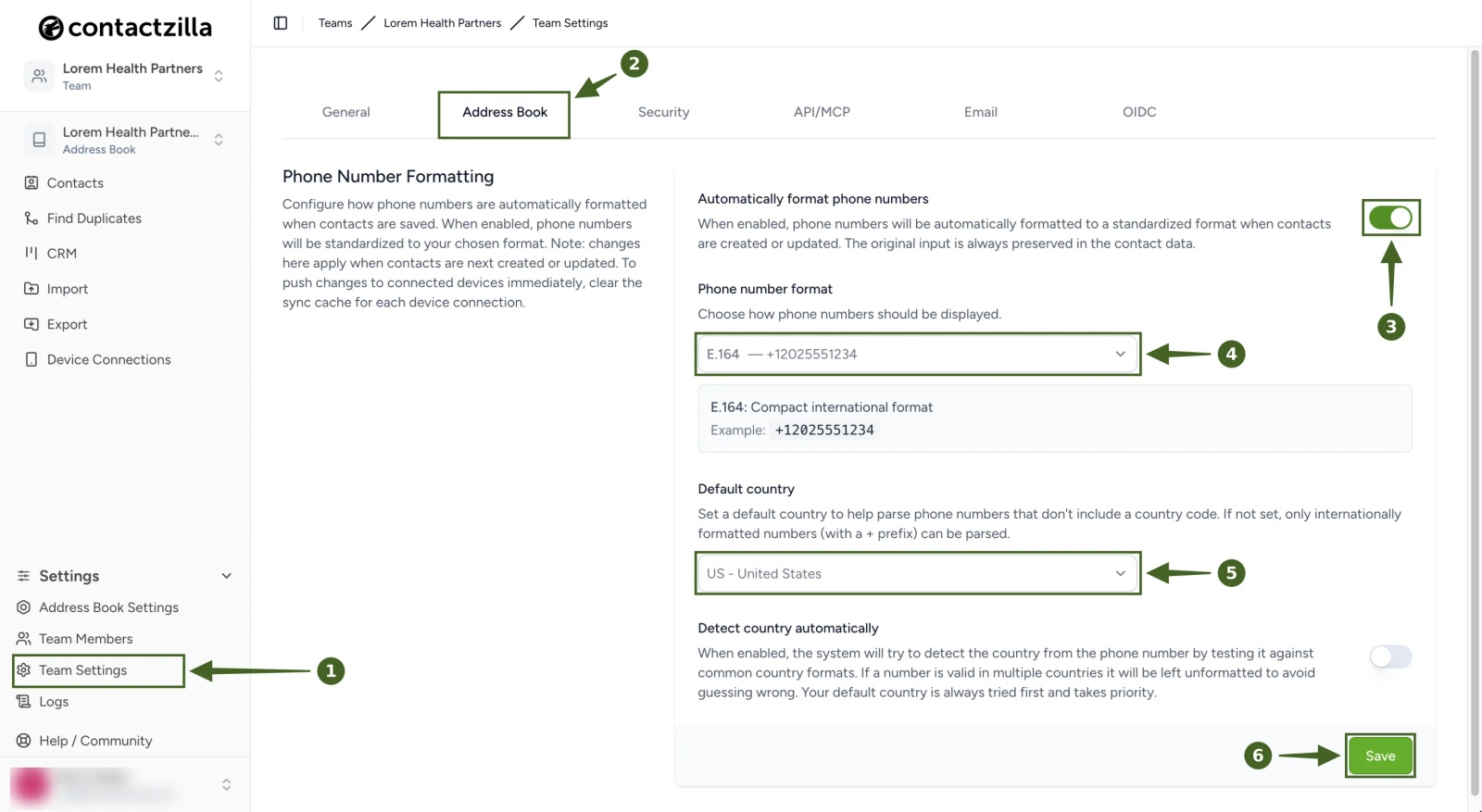
a) Team Settings > Address Book.
b) Turn on Automatically format phone numbers.
c) Under Phone number format, choose how numbers should be written. The four options are explained below.
d) Under Default country, choose the country most of your numbers belong to. Contactzilla uses it to read numbers that don't include a country code, such as 312.555.0160. If no default country is set, only numbers that start with + can be formatted.
e) Detect country automatically is optional. When it's on, Contactzilla tests a number without a country code against other countries' formats and only formats it if exactly one country matches. Numbers that could belong to more than one country, such as US and Canadian numbers that share +1, are left as they are. Your default country is always tried first.
f) Click Save.
💡 Always set a default country, even if you turn on Detect country automatically. In our testing, detection on its own left ordinary national numbers such as020 3123 4567and312-555-0199unformatted.
Which Phone Number Format to Choose
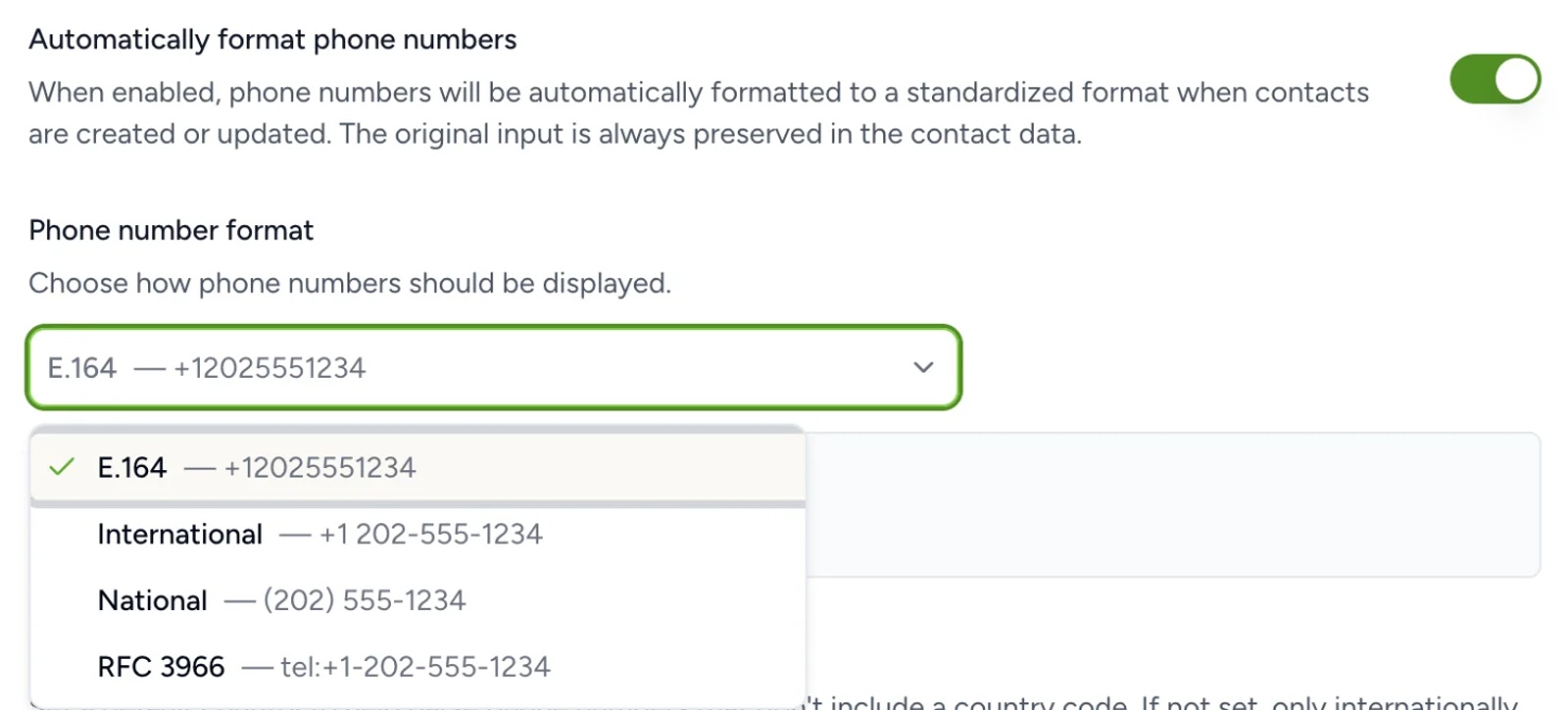
Here's how each option writes the same Chicago number, 312.555.0160, with the default country set to the United States:
- E.164:
+13125550160. Compact, with the country code and no spaces. Extensions and dial pauses are removed. - International:
+1 312-555-0160. Country code with spacing. Extensions are kept, for example+1 312-555-0108 ext. 245. - National:
(312) 555-0160. No country code. This also removes the country code from numbers in other countries, so a London number becomes020 7946 0959. - RFC 3966:
tel:+1-312-555-0160. A link-style format. Extensions are kept as;ext=245.
💡 If your address books hold numbers from more than one country, choose E.164 or International, which keep the country code on every number. Choose National only when every number is in the same country as your staff.
Step Two: Confirm and Save the Settings
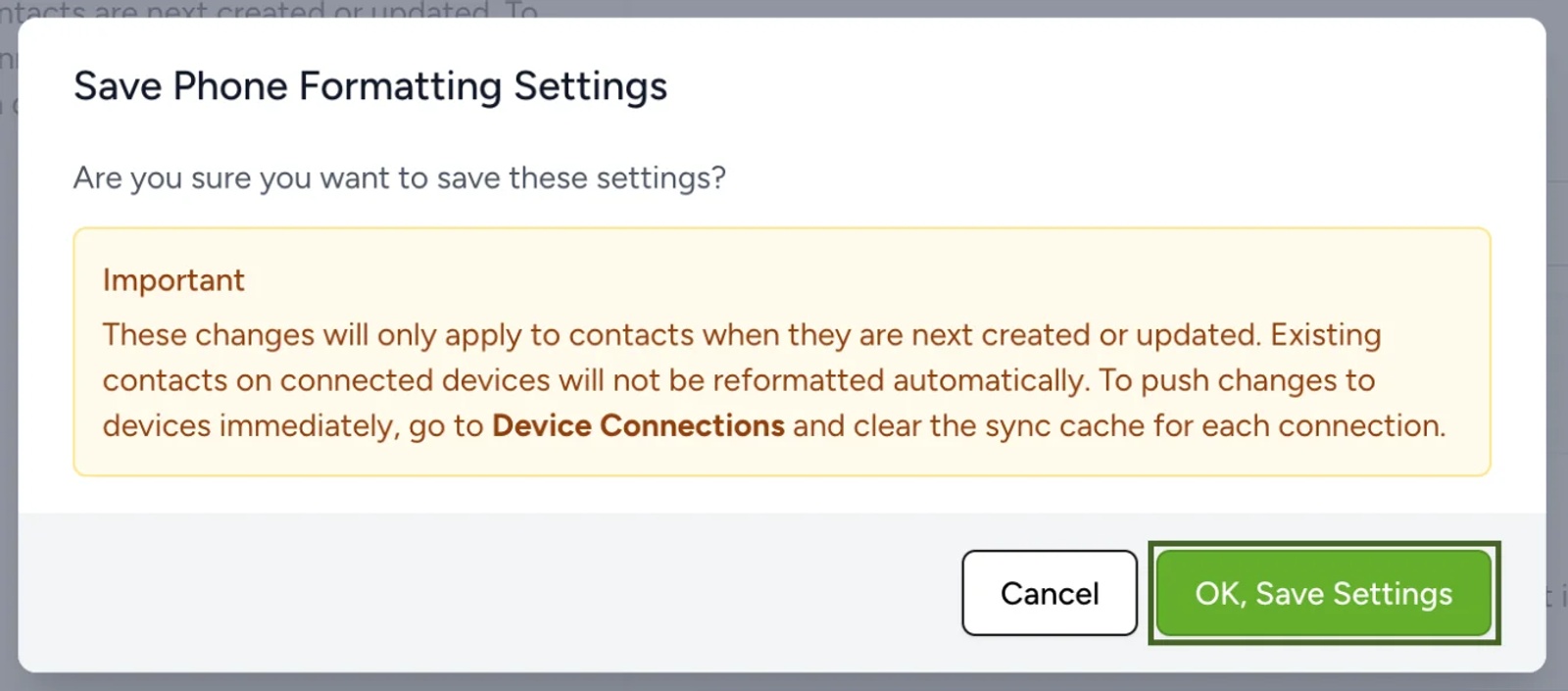
1) Contactzilla asks you to confirm. Click OK, Save Settings.
Contactzilla reformats the phone numbers in every address book in the team as soon as you save, so you don't need to re-import your contacts. Staff phones that already have the contacts still need one more step, covered below.
Check the Formatted Numbers in Your Address Book
Step Three: Review Phone Numbers in the Contact List
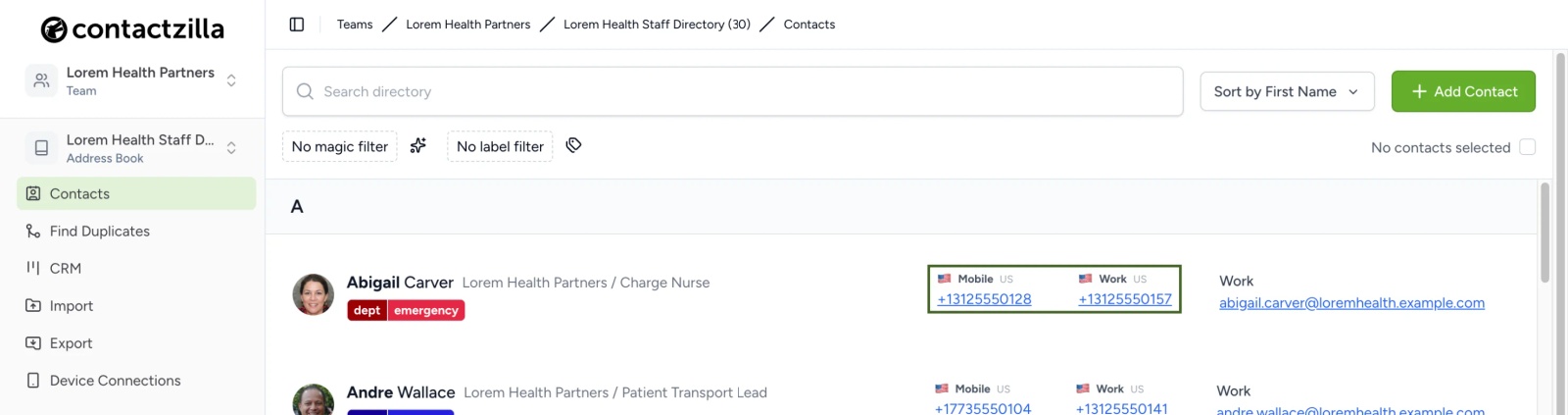
1) Open Contacts in any address book in the team. Each formatted number shows a country flag and code next to its label, such as Work or Mobile.
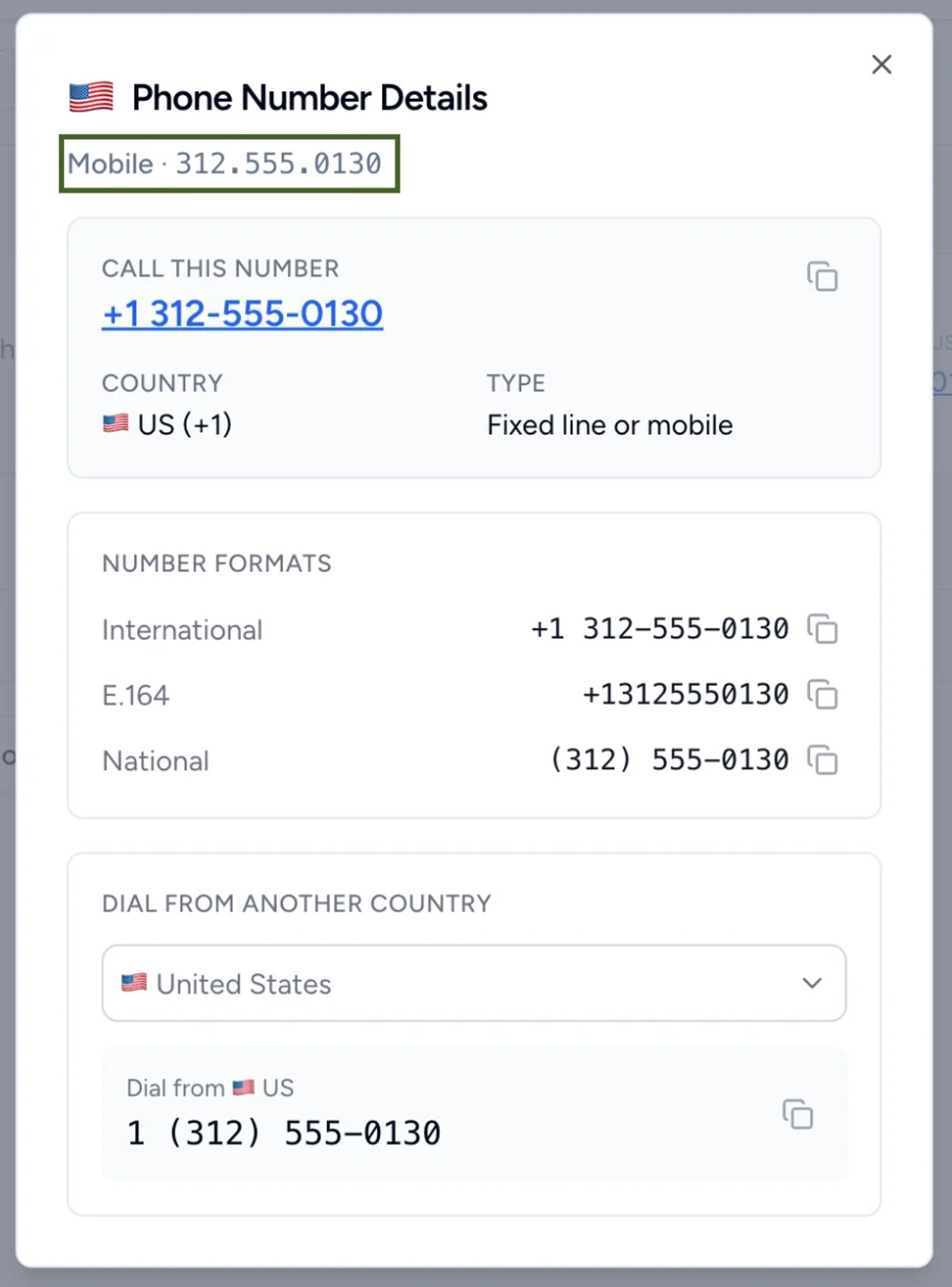
2) Click a phone number to open Phone Number Details. The number as it was originally entered is shown under the title, for example 312.555.0130. Below it you'll find the number's country and type, the number in each format, and how to dial it from another country.
Numbers without a flag couldn't be formatted and are shown exactly as entered. This usually means the number has no country code and doesn't belong to your default country, is too short to be a full number, or was damaged before import (a spreadsheet can turn a long number into something like 4.47701E+11). Correct these numbers in the contact or in the source system, then import again.
Push the New Format to Staff Phones
Saving the setting updates the numbers in Contactzilla, but phones that already have the contacts don't download them again on their own. Clear the sync cache on each device connection so phones pick up the new format.
Step Four: Clear the Sync Cache for Each Device Connection
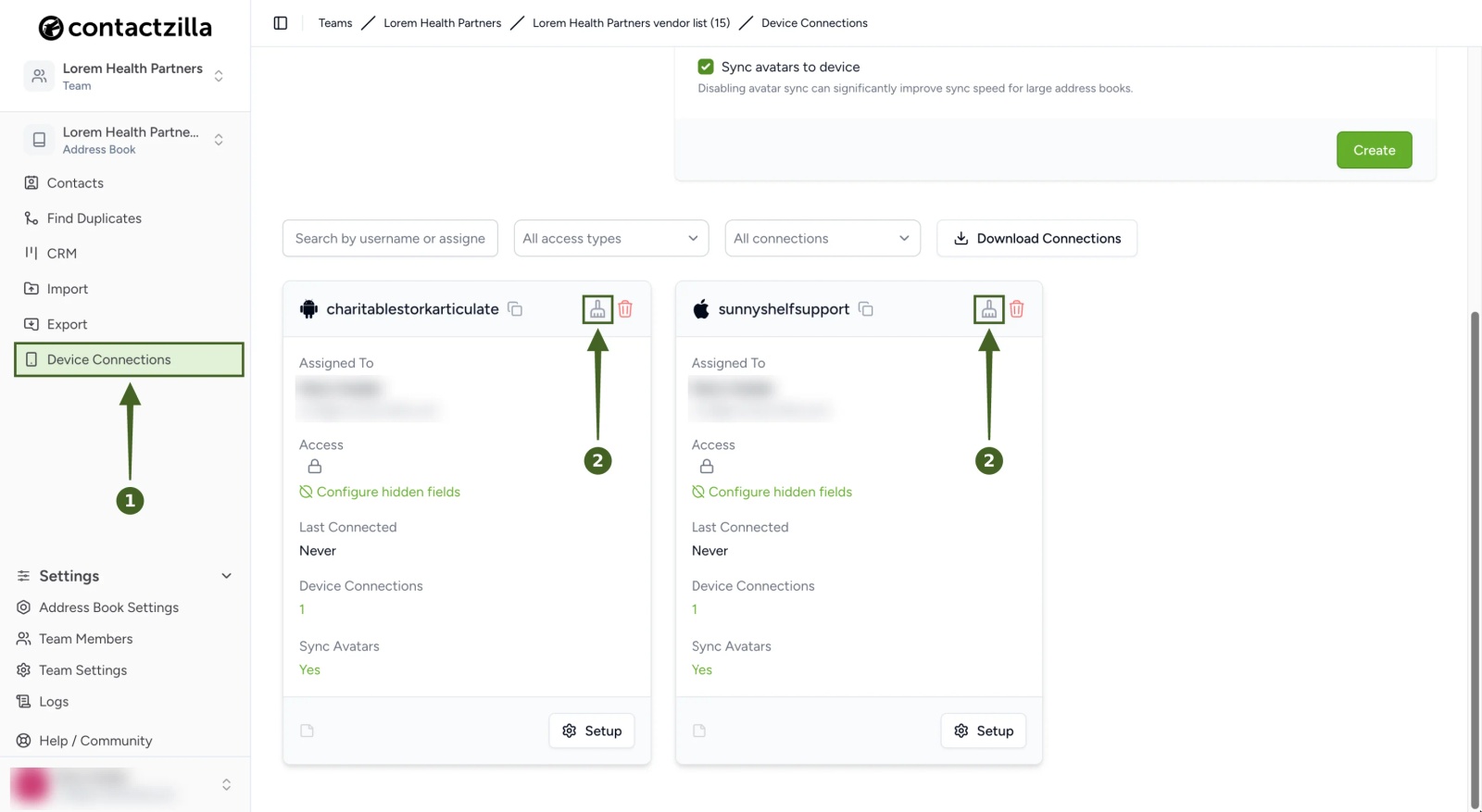
a) Open the address book and click Device Connections.
b) On each connection, click the brush icon, Clear sync cache. Repeat this for every address book in the team that has device connections.
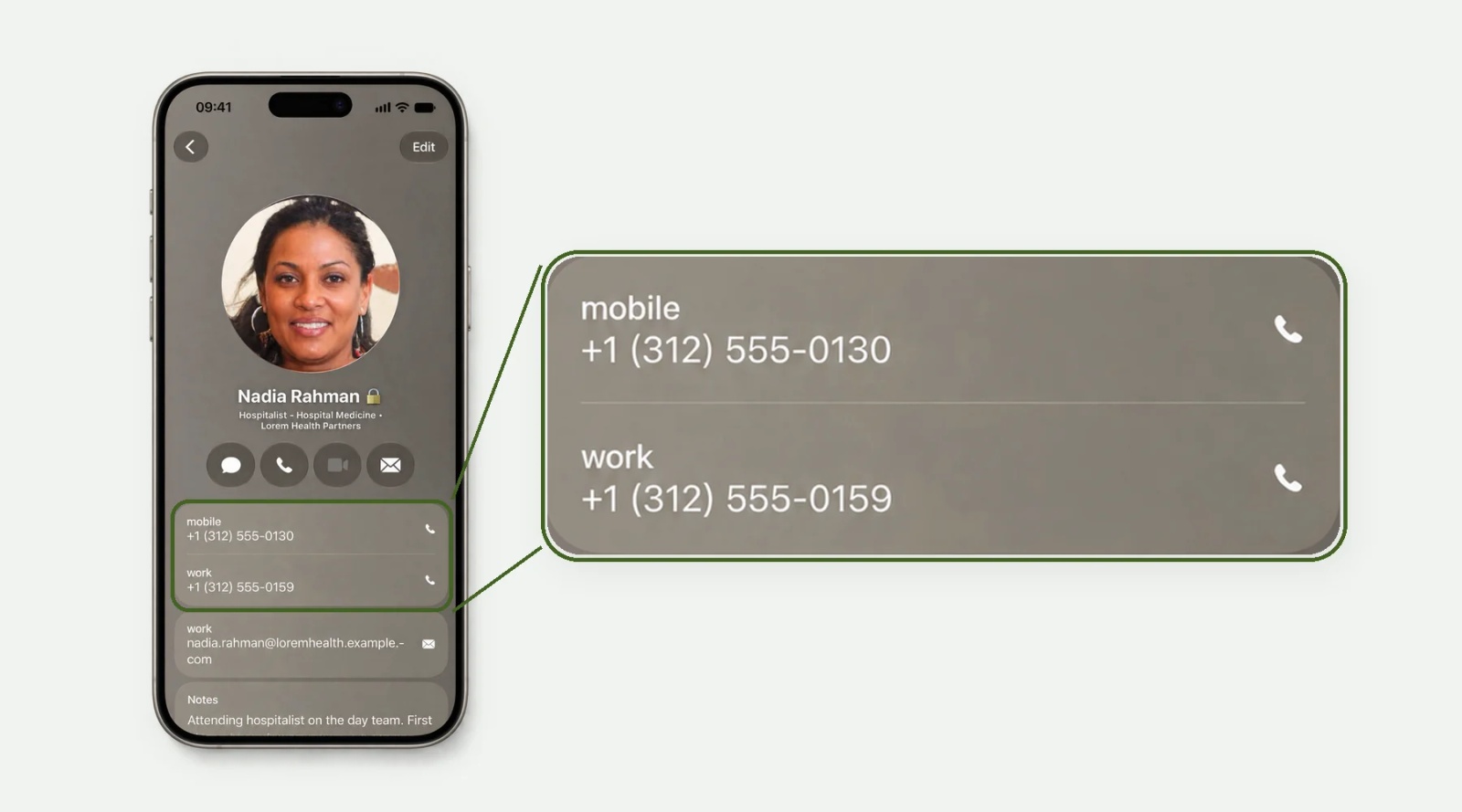
Phones pick up the new format the next time they sync. In our test on an iPhone 15 running iOS 27.0.1, the new format appeared about three minutes after the sync cache was cleared. The phone shows the same number, but it may add its own spacing, so +13125550160 can appear as +1 (312) 555-0160.
Good to Know About Phone Number Formatting
- The original number is never lost. Contactzilla keeps the number as it was entered alongside the formatted version, and you can see it in Phone Number Details.
- New and updated contacts are formatted automatically. Once the setting is on, contacts you add, edit or import are formatted as they're saved.
- Formatting doesn't change how imports find duplicates. An import row with
+1 (312) 555-0102still won't match an existing contact saved as312-555-0102, because one has a country code and the other doesn't. See Duplicate Matching Rules for how matching works. - Imports that send numbers without spacing look tidier. For example, the HubSpot importer brings in numbers such as
+14165552013, which International format turns into+1 416-555-2013.
That's it. Your team's phone numbers are now stored in one consistent format, and staff phones show the same format after their next sync.
Still Need Help?
Our support team is available to assist you with any questions or issues you may have.
Still need help?
Our support team is available to assist you with any questions or issues you may have.