How can we help you?
Browse Categories
How to Put Contactzilla Contacts on Phones Without MDM by Scanning a QR Code

⚠️ Important: by default, a Contactzilla QR code sets up one phone only. As soon as the first phone connects, the connection's password is wiped and the same code stops working. To set up several phones from one code, change the setting in Option B before you start.
This guide shows you how to get a Contactzilla address book onto iPhones and Android phones that aren't managed by an MDM, by scanning a QR code, either from your screen or from an email sent to each person, so your shared contacts appear in the phone's own Contacts app. It assumes you're an administrator of your Contactzilla team and the address book already has contacts in it.
What You'll Need
- A Contactzilla team and an address book with contacts in it. See Setting up a Team and Address Book.
- Administrator access to Team Settings and Device Connections.
- The phones you're setting up, or the email addresses of the people who will set them up.
- Android only: the Contactzilla Sync app on each phone.
💡 If your phones are enrolled in an MDM such as Microsoft Intune, Jamf or Mosyle, deploy through the MDM instead, using our MDM deployment guides. This guide is for phones with no MDM, which often includes staff using their own phones.
Choose One Connection per Person or One Shared Connection
Every phone gets its contacts through a device connection. You can give each person their own connection, or share one connection across many phones. Decide this first, because it changes how you remove contacts from a phone later.
Option A: one device connection per person. Best for a small team, say 5 to 10 people. You add each person as a team member and give them their own connection, so you can email their QR code straight to them. When someone leaves, you delete just their connection and wipe the contacts from their phone, and nobody else is affected. A note on each connection records whose phone it is.
Option B: one shared connection for many phones. Best when you have a pile of phones on your desk, or 50 to 100 staff to set up without an MDM. You lengthen how long the QR code keeps working, then scan it on every phone or send it out yourself. It's much quicker, but every phone shares one connection: if you delete it, the contacts are removed from all of those phones, not just one.
Option A: Set Up One Phone per Person
Step One: Add the Person as a Team Member
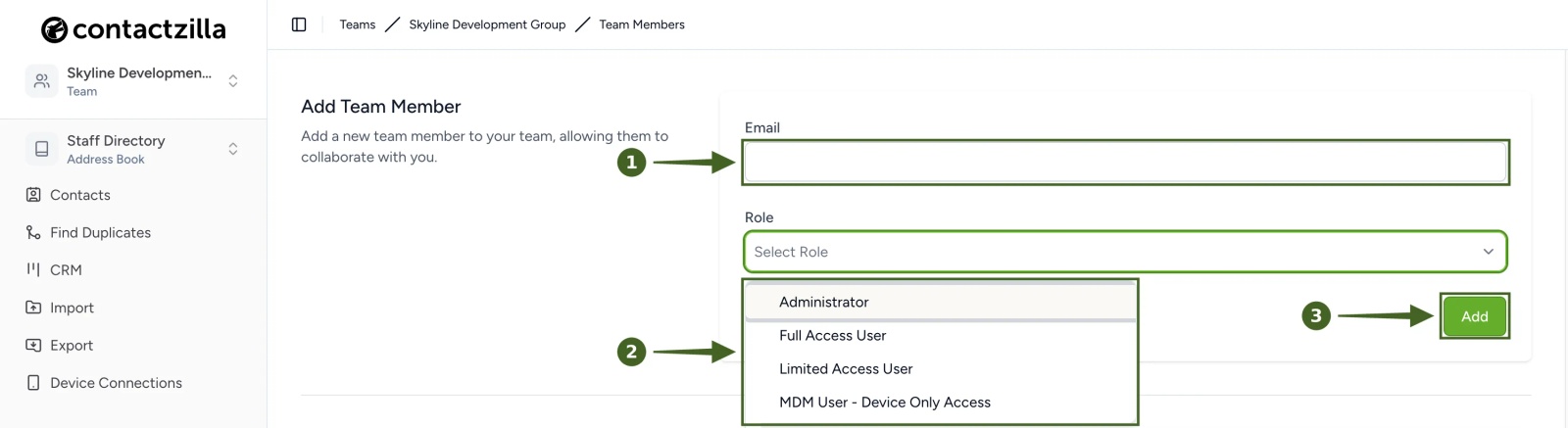
a) Team Members → enter the person's work email in Email → choose a Role → click Add.
The role sets what they can do in the Contactzilla dashboard. See Managing Team Members and Permissions for what each role allows.
The person is sent an invitation email and is listed under Pending Team Invitations. They appear in the Assign to Team Member list once they've accepted it.
Step Two: Create a Device Connection Assigned to That Person
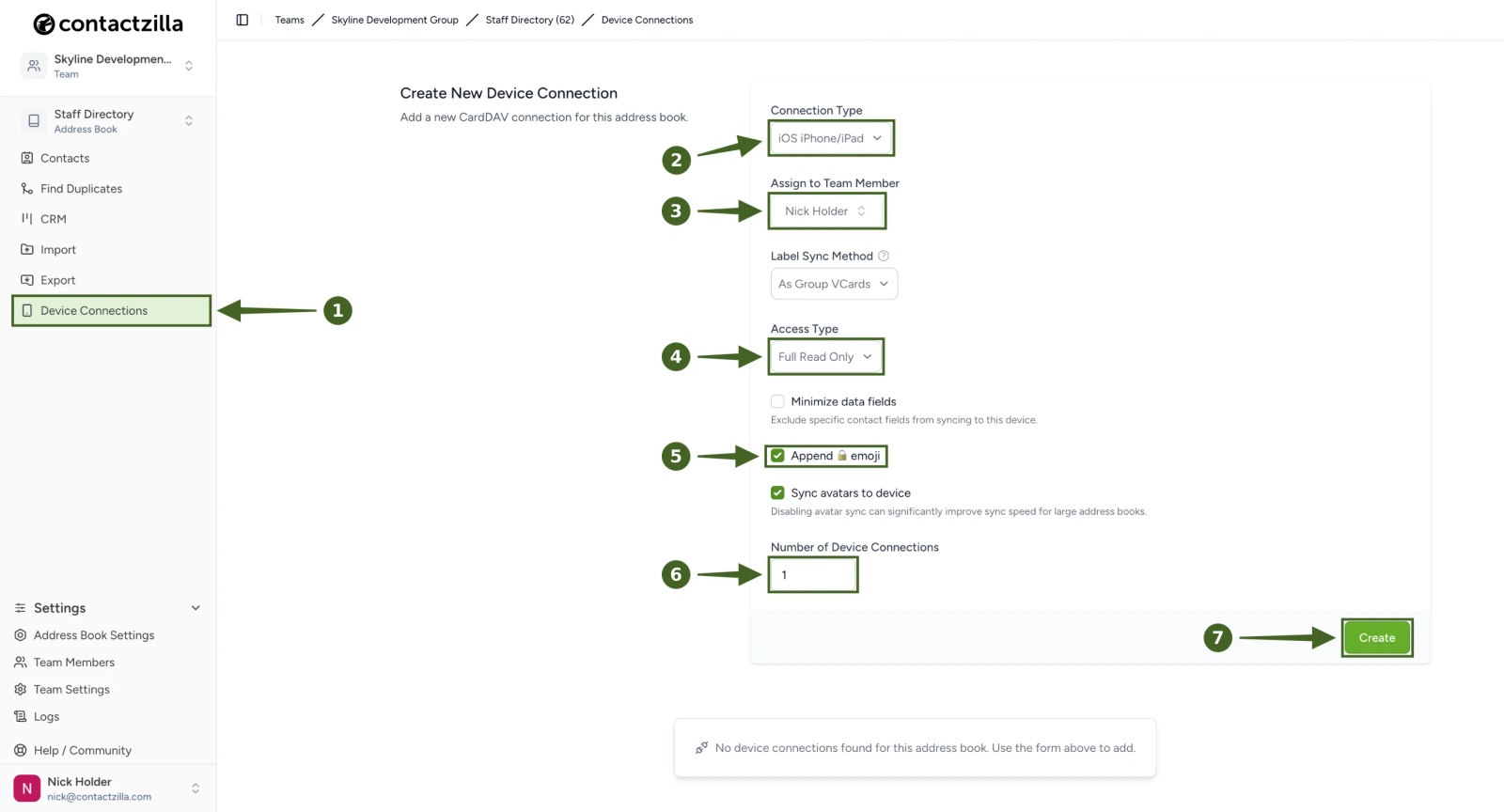
a) In the address book's menu, click Device Connections.
b) Connection Type: iOS iPhone/iPad, or Android for an Android phone.
c) Assign to Team Member: the person you added in Step One.
d) Access Type: Full Read Only keeps the shared contacts as you set them. Choose Full Read/Write if the person needs to add or edit contacts.
e) Append 🔒 emoji (optional): adds a padlock to each contact so people can see it's read-only.
f) Number of Device Connections: leave at 1 for one person's phone.
g) Click Create.
The new connection card shows the person's name and email under Assigned To, and Last Connected reads Never until their phone syncs.
Step Three: Add a Note to the Connection (Optional)
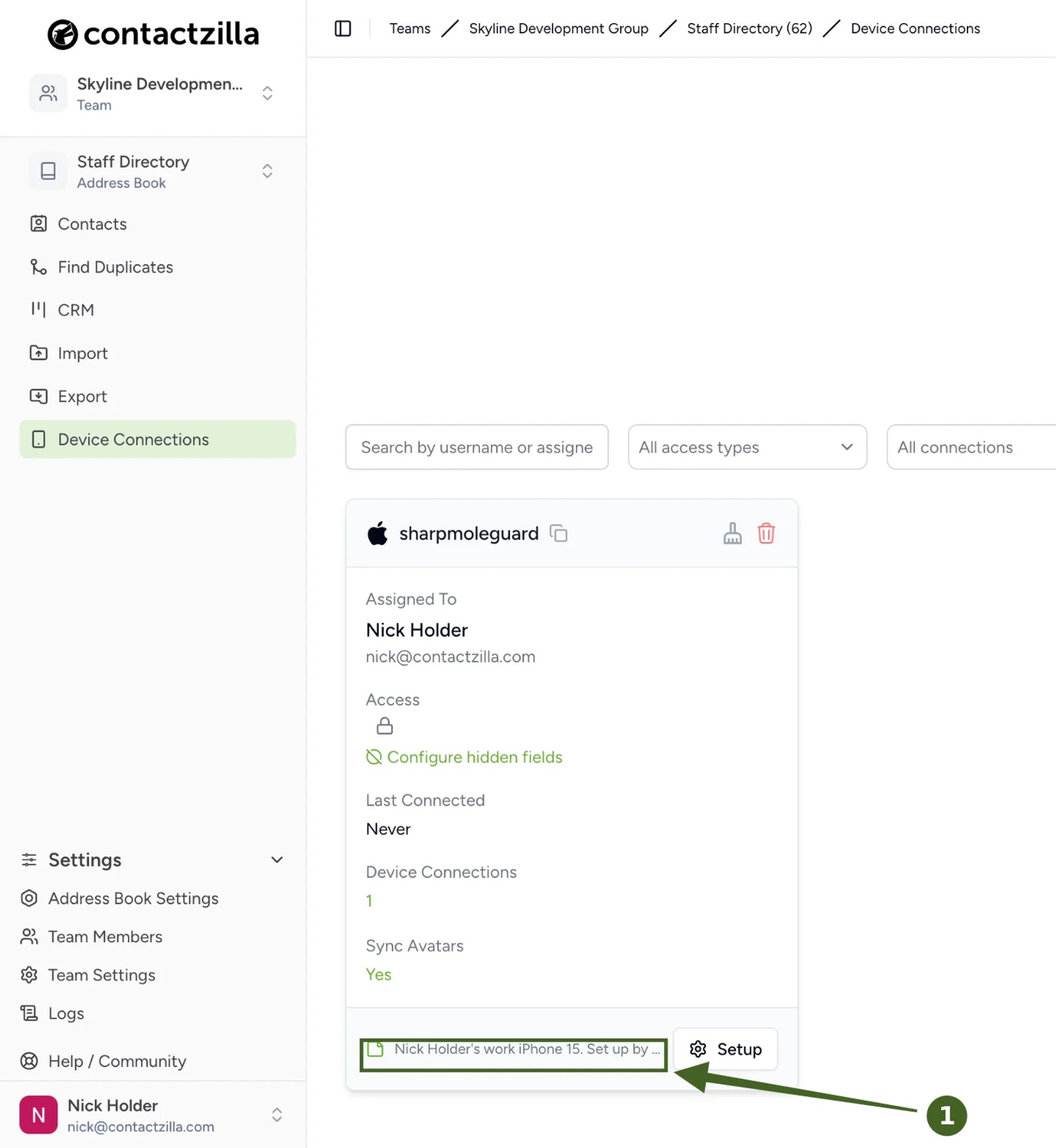
a) Click the small note icon at the bottom left of the connection card.
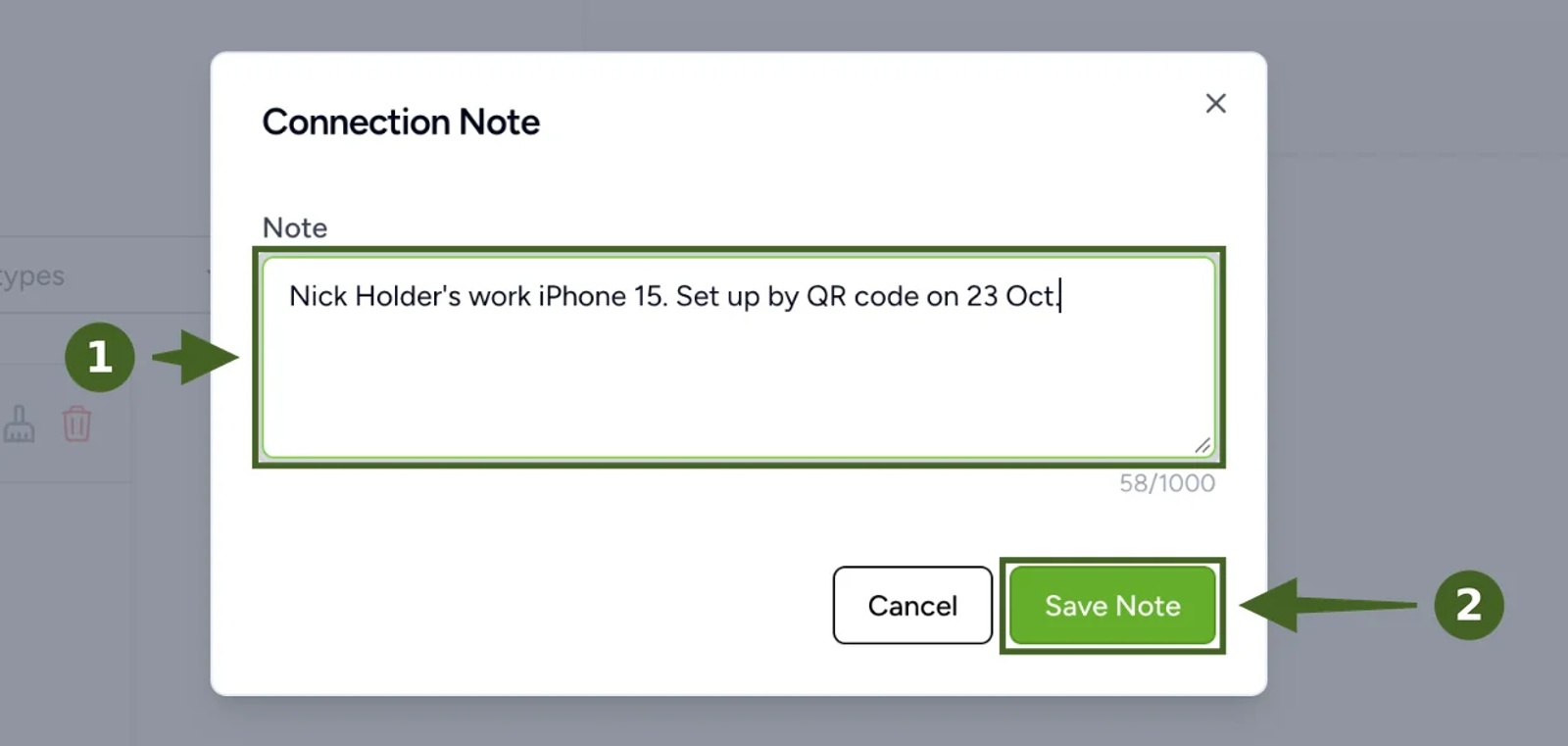
b) Type a note, such as which phone it is and when it was set up → Save Note.
The note now shows in the card's footer, shortened to fit, with the full text when you hover over it.
Step Four: Get the QR Code to the Phone
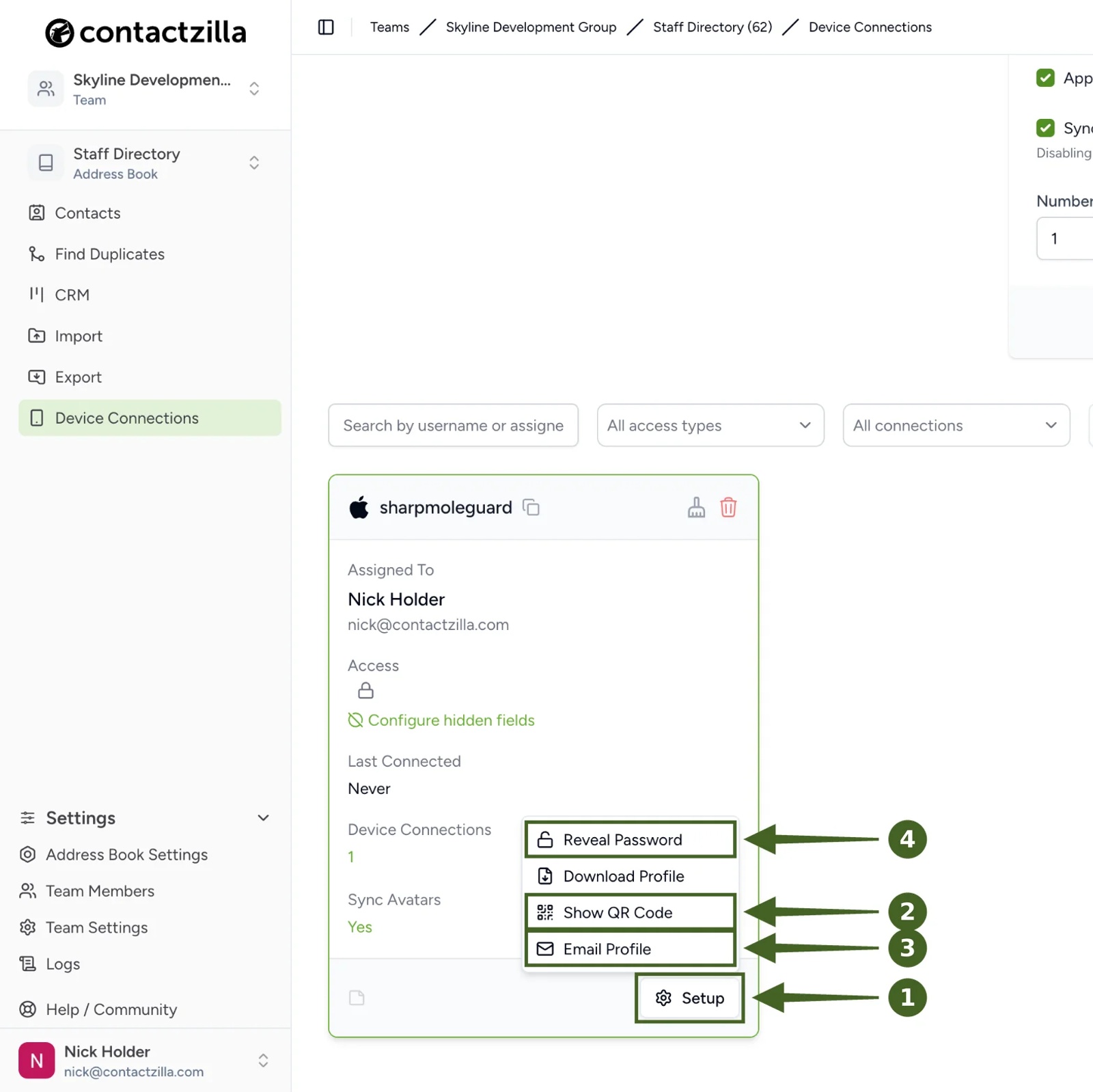
a) Setup → Show QR Code to set up the phone now, or Setup → Email Profile to email the QR code to the person.
- Show QR Code: on an iPhone, point the Camera at the code on your screen. On an Android phone, scan it from the Contactzilla Sync app (Add account → Scan Contactzilla QR setup code).
- Email Profile: emails the QR code, with a short how-to video, to the email address of the team member the connection is assigned to. You can't pick a different recipient here. To send it to someone else, assign the connection to them.
Then install it on the phone by following Adding a Contactzilla address book on your iPhone or How to Sync Your Contactzilla Address Book with Android Devices.
With the default setting, the code works for this one phone only, which is what you want for a connection that belongs to one person.
Option B: Set Up Many Phones From One QR Code
Step One: Choose How Long QR Codes Keep Working
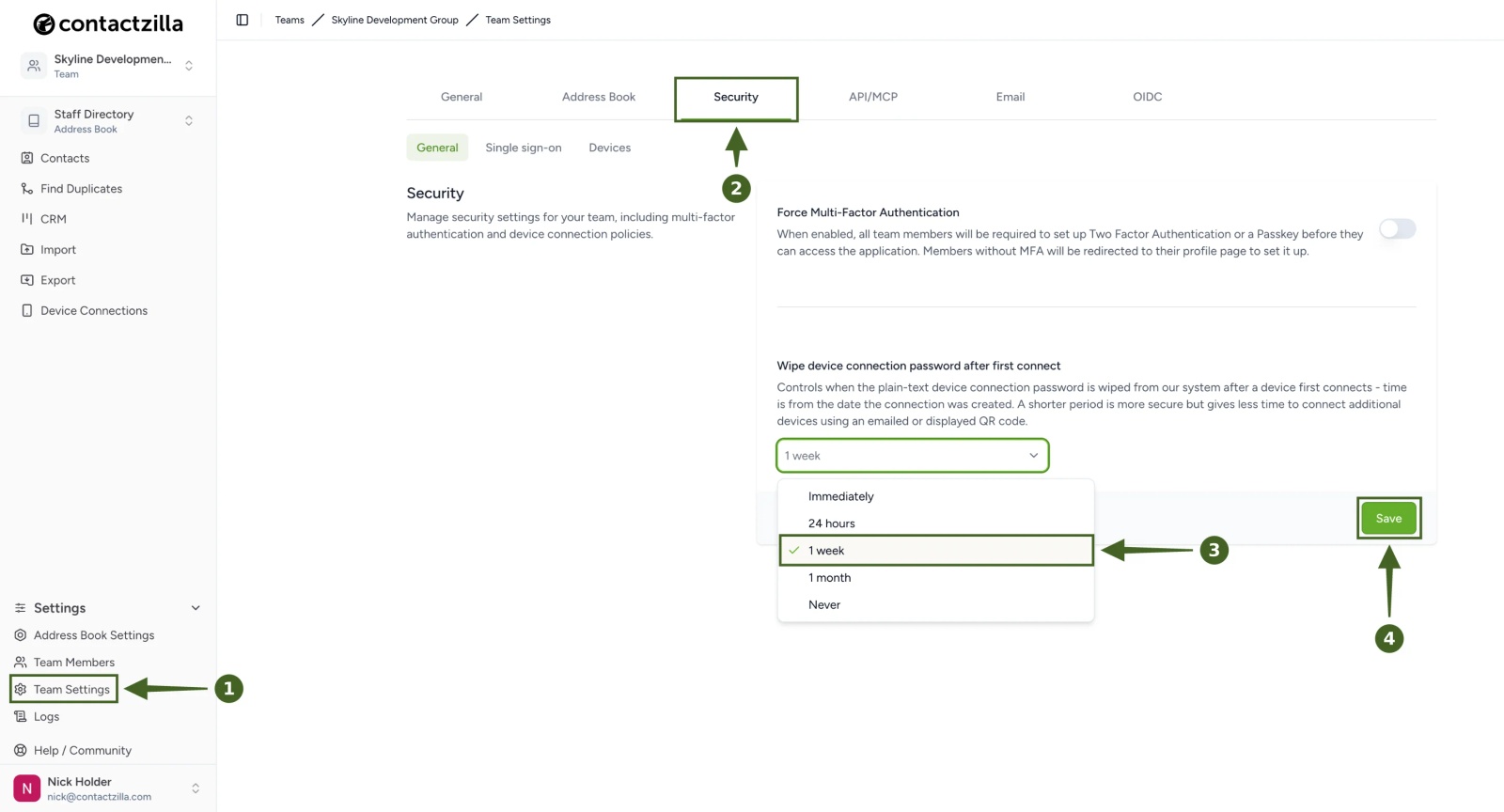
a) Team Settings → Security → under Wipe device connection password after first connect, choose a period → Save.
- Immediately (the default): the password is wiped as soon as the first phone connects, so each connection sets up one phone.
- 24 hours, 1 week or 1 month: any number of phones can use the same QR code until the period ends. The period counts from the date the connection was created, not from the first scan.
- Never: the password is never wiped. Contactzilla shows a security alert with this option and doesn't recommend it.
⚠️ Important: this is a team setting, so it applies to the device connections in every address book in the team.
💡 Choose the shortest period that fits the job. 24 hours suits a pile of phones on your desk. A week suits remote staff who'll scan in their own time. If people haven't finished, come back and choose a longer period.
Step Two: Create One Device Connection for All the Phones
Create the connection as in Option A, Step Two, with two differences:
- Assign to Team Member: yourself, or the administrator looking after these phones. Email Profile only ever sends to this person, so it isn't a way to reach your staff.
- Number of Device Connections: the number of phones you plan to set up.
Use a note on the connection to record which group of phones it covers.
Step Three: Scan or Share the QR Code
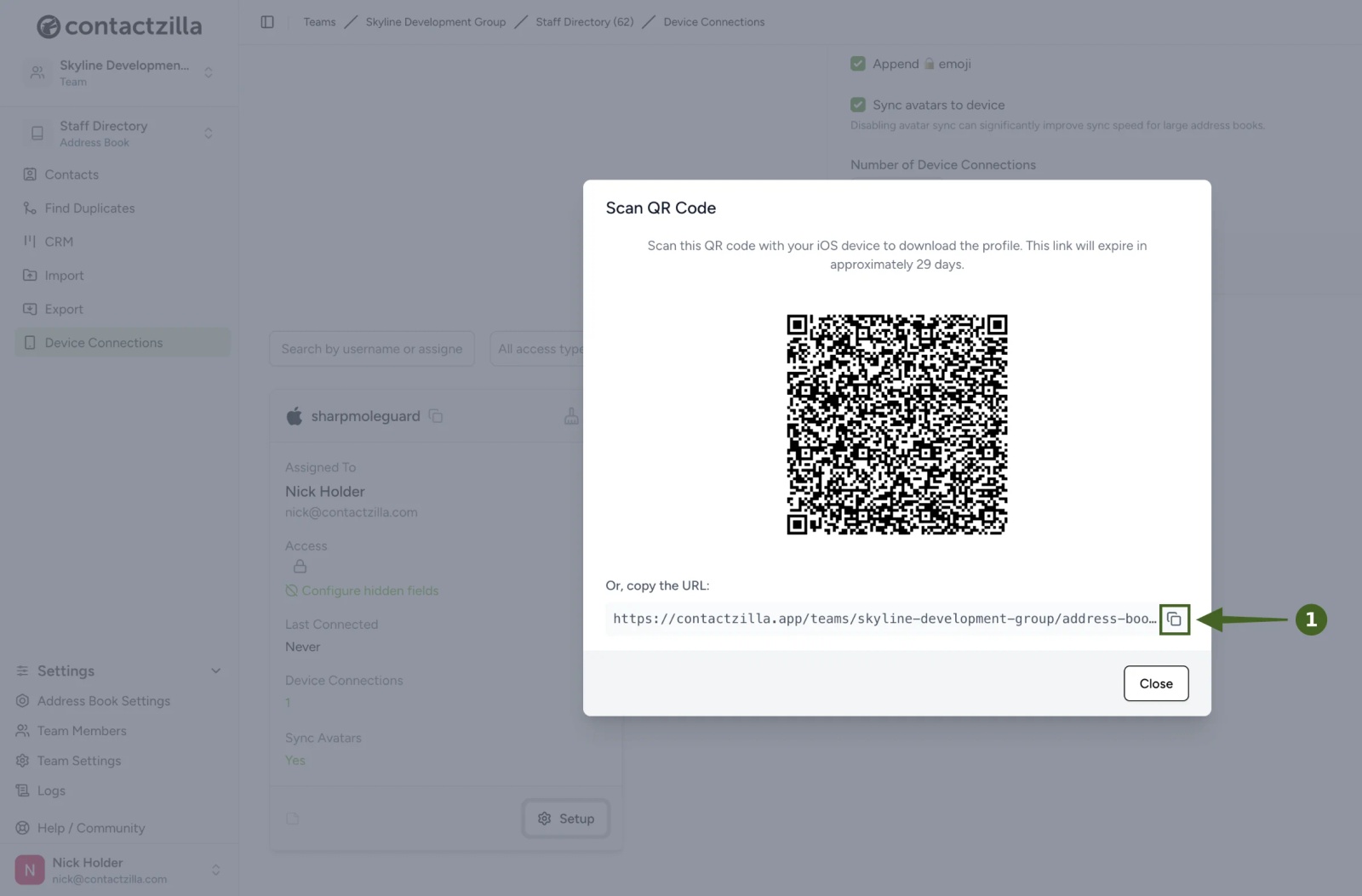
a) Setup → Show QR Code → scan the code with each phone, or click the copy button next to the URL and paste the link into your own email or chat message to staff. You can also copy the QR code image into the message.
⚠️ Important: anyone who has the code or the link can add a phone to this address book until the period ends. Send it only to the people who should have it, and keep the period short.
Every phone that scans the code before the period ends gets the address book.
Keep a Copy of the Connection Password
Each device connection has its own password, and that password is what the QR code carries, whether it's shown on screen or emailed. Once Contactzilla has wiped its copy, it can't show a QR code for that connection again. If you might need to add another phone to the same connection later, such as a replacement phone, copy the password first and keep it somewhere secure, such as your password manager.
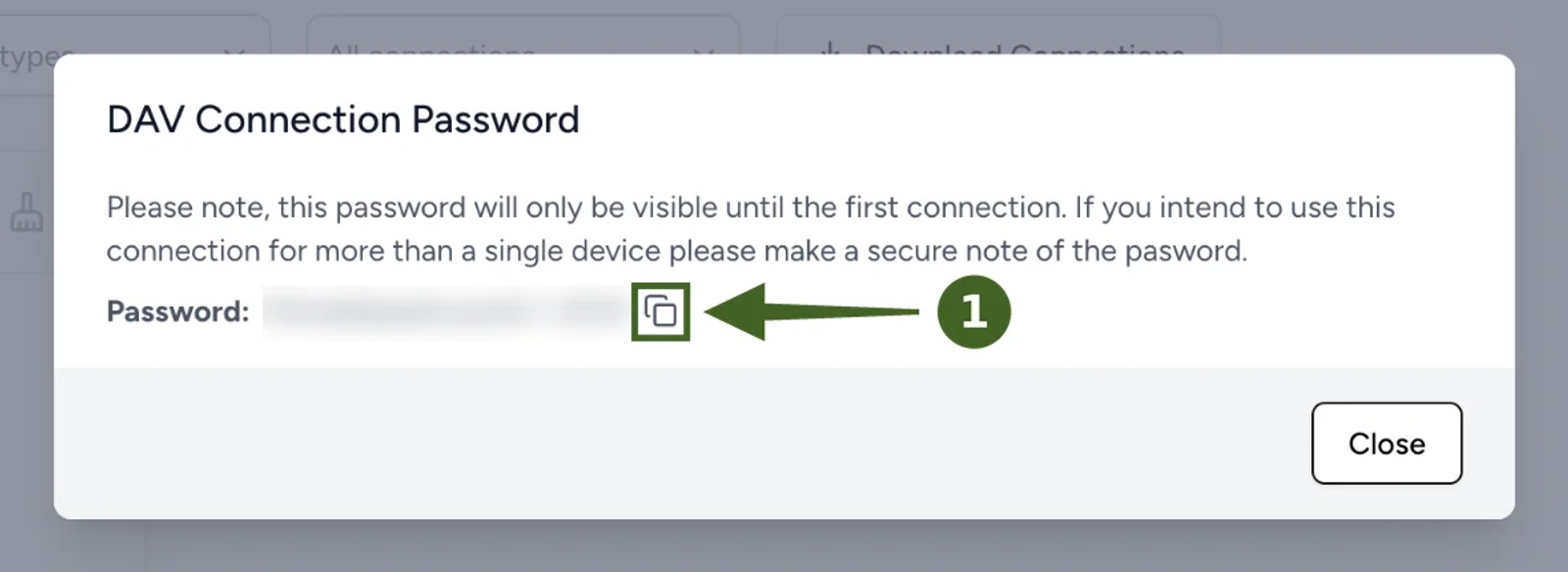
a) On the connection card, Setup → Reveal Password → click the copy button next to the password.
Do this before the first phone connects. Contactzilla reminds you in this window that the password stays visible only until then.
Remove the Contacts From a Phone
When someone leaves or a phone is lost, delete its device connection and tell Contactzilla to wipe the contacts from the phone.
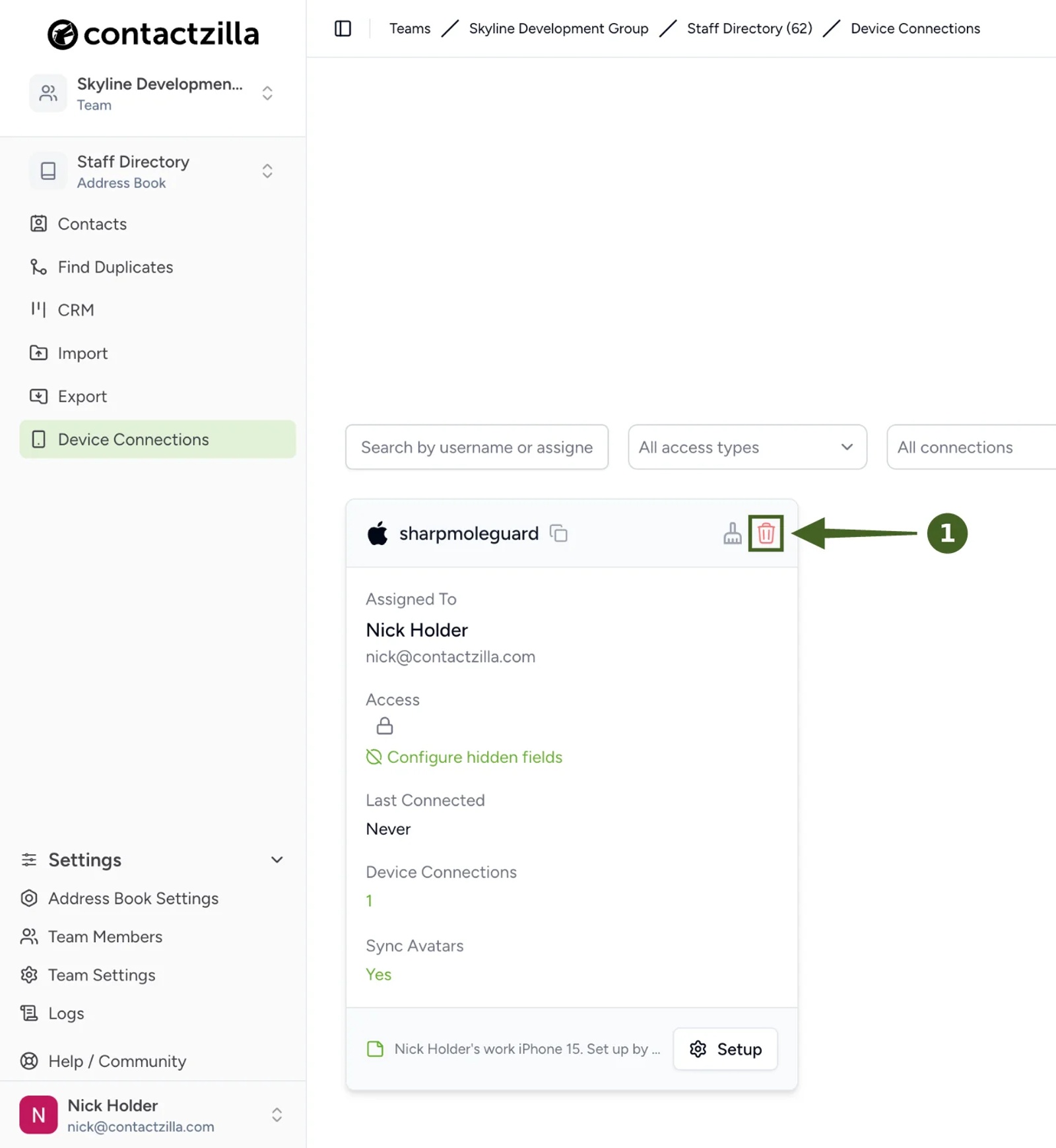
a) Click the bin icon at the top right of the connection card.
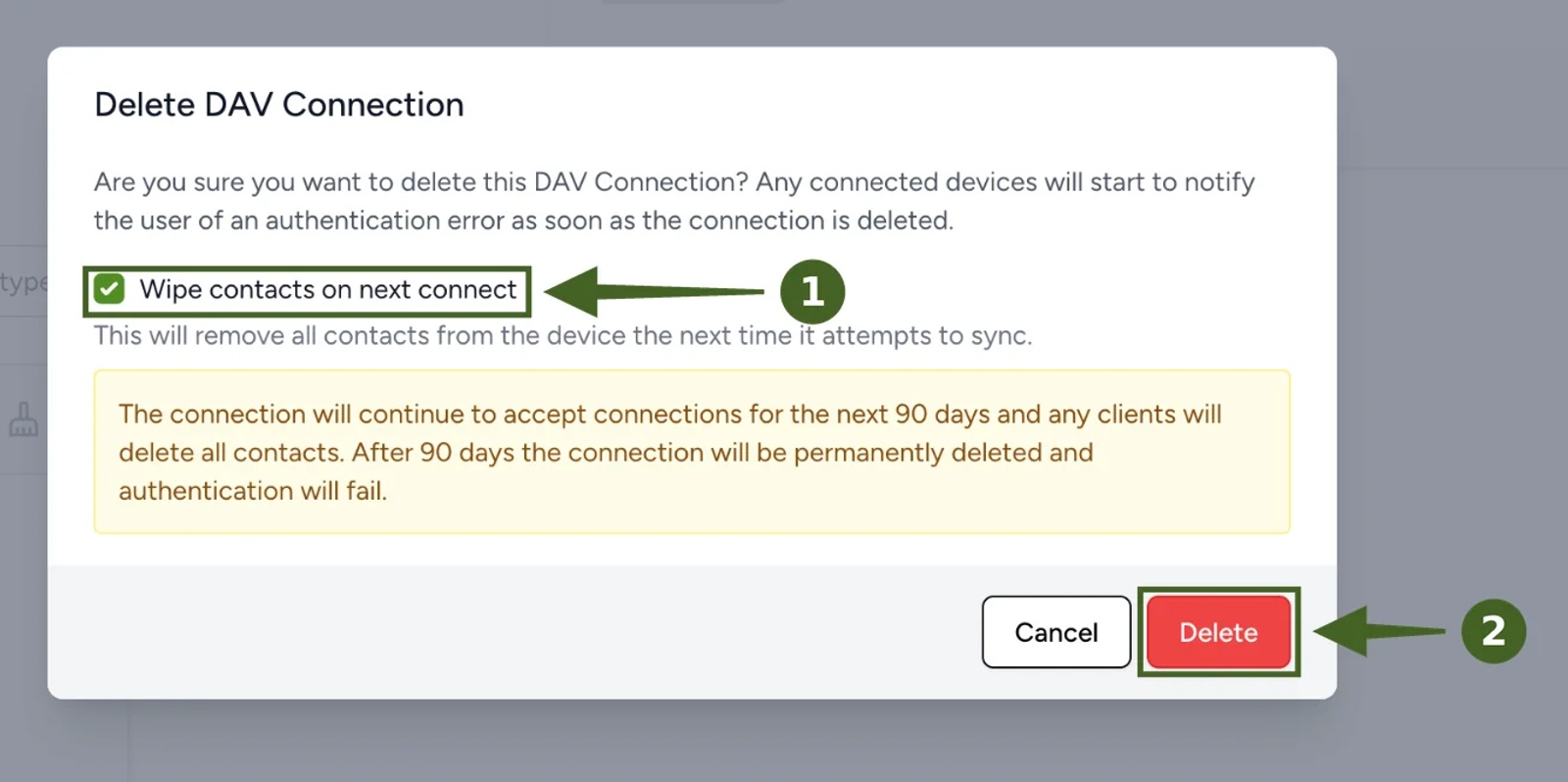
b) Tick Wipe contacts on next connect → Delete.
The next time the phone tries to sync, its Contactzilla contacts are removed. The connection keeps accepting the phone for 90 days so it has time to pick up the wipe. After 90 days the connection is permanently deleted and the phone gets an authentication error. If you don't tick the box, phones start showing an authentication error as soon as the connection is deleted.
⚠️ Important: on a shared connection (Option B), this wipes every phone that uses it. If you need to remove people one at a time, use Option A.
Your address book is now on your phones without an MDM, and any change you make in Contactzilla reaches them automatically. If you later enrol the phones in an MDM, use our MDM deployment guides, and remove the QR-installed account first so the address book doesn't appear twice.
Still Need Help?
Our support team is available to assist you with any questions or issues you may have.
Still need help?
Our support team is available to assist you with any questions or issues you may have.