How can we help you?
Browse Categories
Contactzilla: How to Create Contact Templates for the Add Contact Form

This guide shows you how to create contact templates in Contactzilla, so the Add Contact form in the web app starts with the fields, required entries and labels your team needs every time someone adds a contact by hand. It assumes you already have an address book set up.
What You'll Need
- A Contactzilla account with an existing address book
- Access to Address Book Settings for that address book
💡 Templates work alongside labels and custom fields. If you haven't used them yet, our guides to custom fields and using labels explain them first.
Open Contact Templates in Address Book Settings
Step One: Go to the Templates tab
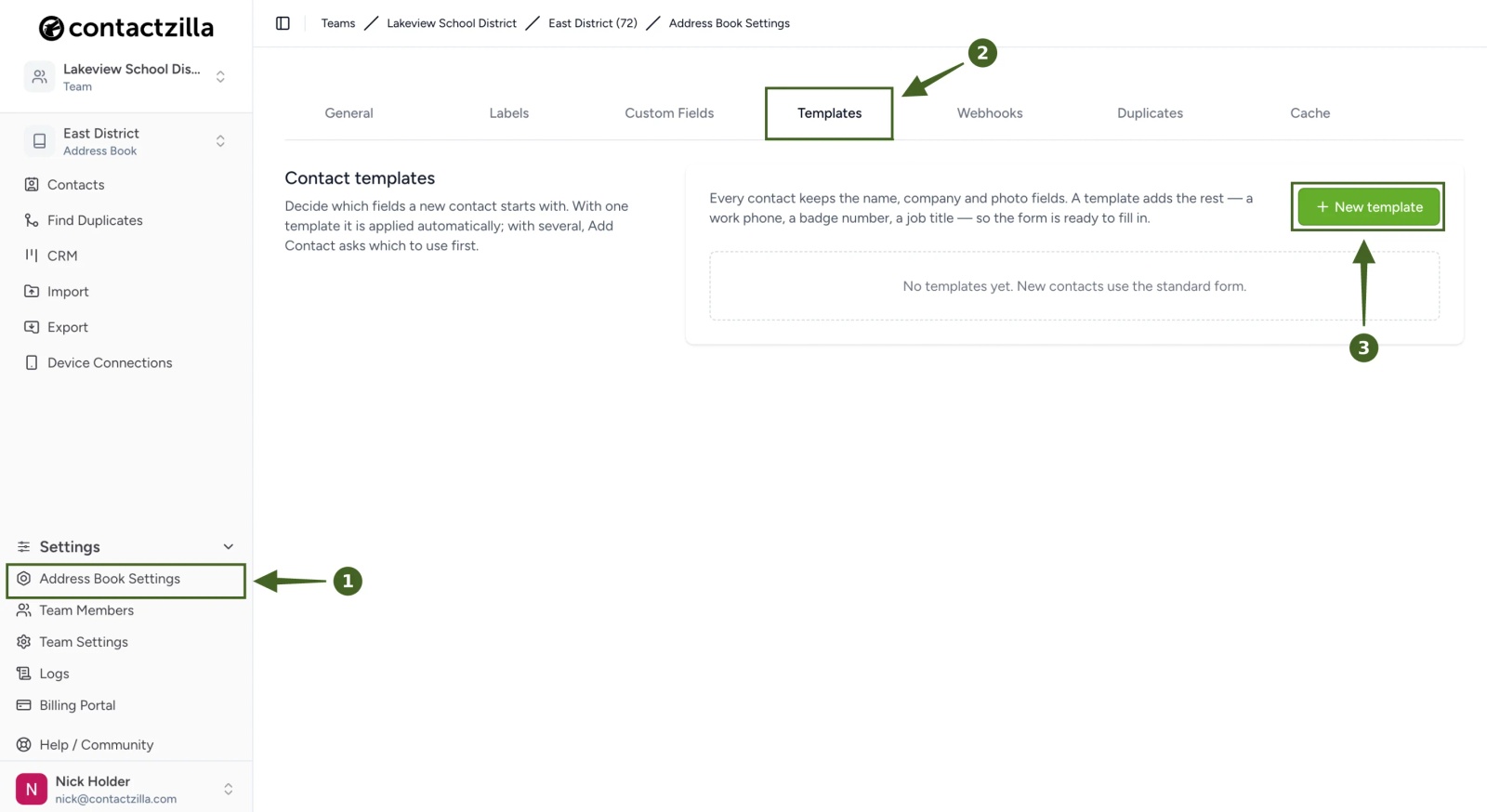
a) Address Book Settings → Templates tab → click + New template
Make sure the address book you want to add templates to is the one selected at the top of the left menu. Templates belong to a single address book.
The Templates tab lists your templates, or shows "No templates yet. New contacts use the standard form." if you haven't created one.
Set Up the Fields, Required Entries and Labels for a Contact Template
In this guide we'll build a Contractor template for outside companies who work with the organisation, so every contractor is added with their company, a mobile number, an email address and the same label.
Step Two: Name the template and choose its standard fields
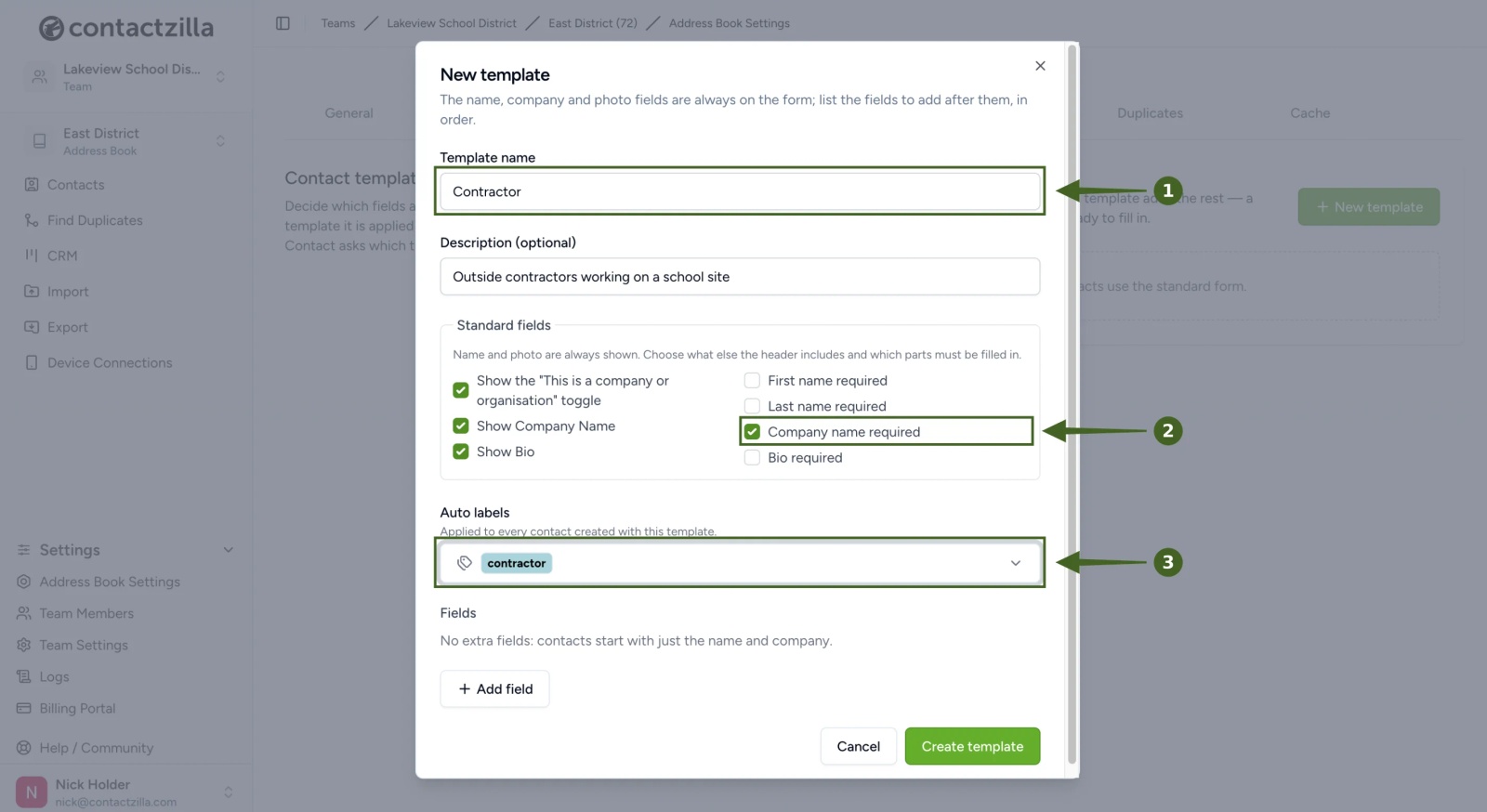
a) Enter a Template name (for example, Contractor) → add a Description (for example, Outside companies working at our sites)
The description is shown when someone is choosing a template, so use it to say what the template is for.
b) Under Standard fields, tick Company name required
You can also tick or untick Show the "This is a company or organisation" toggle, Show Company Name and Show Bio to decide what the form header includes, and make First name required, Last name required or Bio required for any part that must be filled in.
💡 Name and photo are always shown on the form. A new template starts with the three Show options ticked and none of the required options ticked.
Step Three: Apply a label automatically
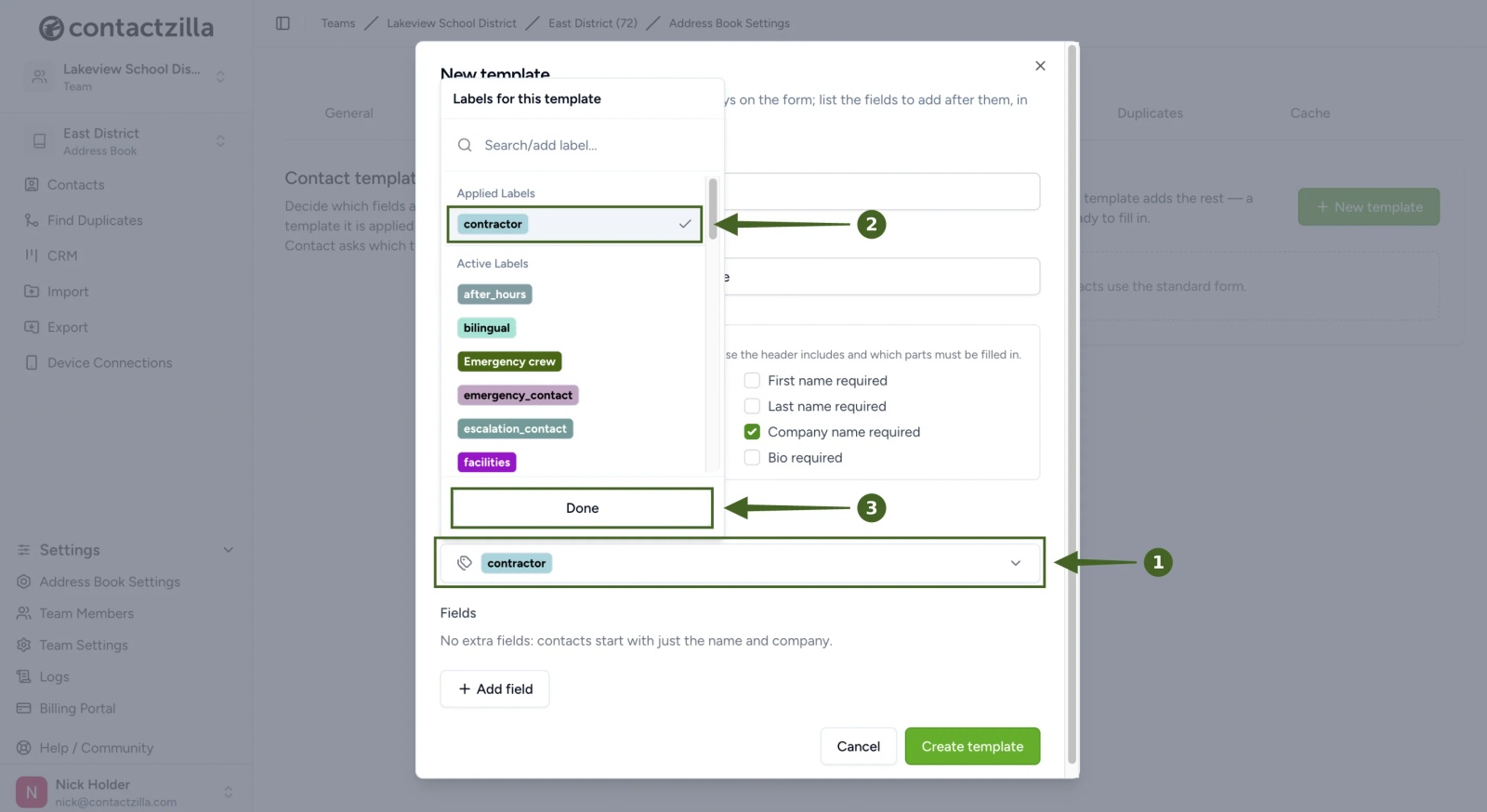
a) Auto labels field → tick contractor in the list → click Done
If the address book has many labels, use the search box at the top of the list to find the one you want.
Auto labels are applied to every contact created with this template. Until you choose any, the field shows No labels.
Step Four: Add the extra fields
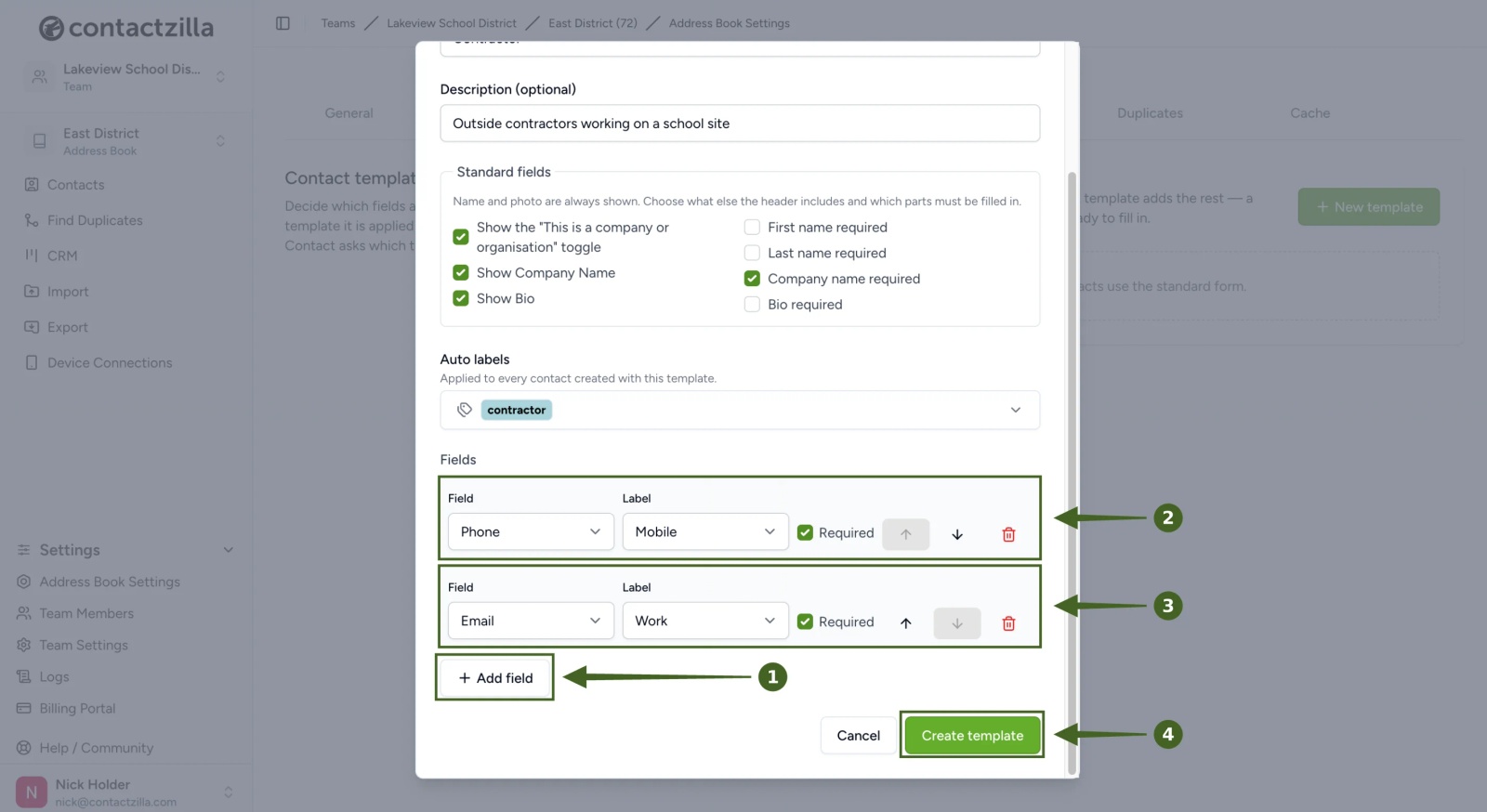
a) Under Fields, click + Add field → open the Field dropdown → choose Phone → open the Label dropdown → choose Mobile → tick Required
b) Click + Add field again → choose Email → choose Work → tick Required
c) Use the up and down arrows to put the fields in the order you want them on the form, or click the red bin to remove a row
Fields appear on the form after the name and company, in the order you list them. With no extra fields, contacts start with just the name and company.
💡 The Label dropdown changes with the field you choose. A phone number can be Home, Work, Mobile, Home Fax, Work Fax, Pager, Other or Custom. Choose Custom to type your own label, such as Desk phone. Some fields, such as Job Title, have no label dropdown.
The Field dropdown also includes four kinds of custom field:
- Custom: an extra field of your own, such as a badge ID.
- Custom Unique: the same, but the value must be different for every contact. This suits IDs and helps Contactzilla spot duplicates.
- Hidden Custom and Hidden Custom Unique: the same again, but only shown in the Contactzilla dashboard. They are not sent to phones.
Step Five: Create the template
a) Click Create template
Create a Second Template and Choose Between Templates in Contactzilla
Different kinds of contact often need different forms. Here we'll add a School staff template next to the Contractor one, with a custom field staff can see and a hidden one only administrators see.
Step Six: Create another template
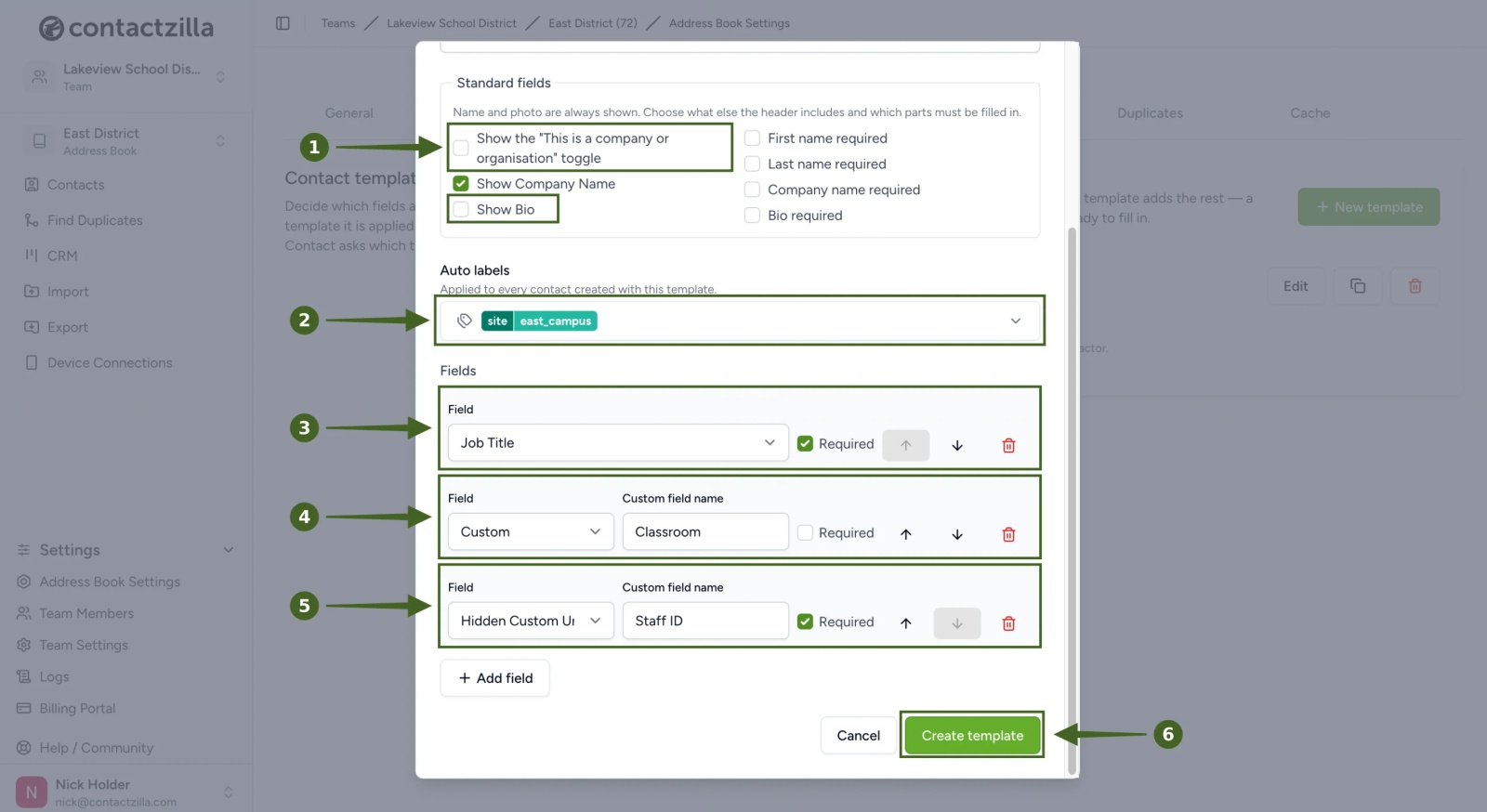
a) + New template → Template name School staff → untick Show the "This is a company or organisation" toggle and Show Bio → Auto labels → choose site:east_campus
b) + Add field → Job Title → tick Required
c) + Add field → Custom → type Classroom in the name box
d) + Add field → Hidden Custom Unique → type Staff ID in the name box → tick Required → Create template
Classroom is a normal custom field, so it appears on the contact and syncs to phones. Staff ID is hidden, so only administrators see it in Contactzilla and it never reaches a device. Because it is unique, no two contacts can share a Staff ID, which also helps Contactzilla spot duplicates when staff are added again later.
💡 Want to see hidden custom fields in action? Watch our short video, Contactzilla Hidden Custom Fields.
Step Seven: Add a contact using a template
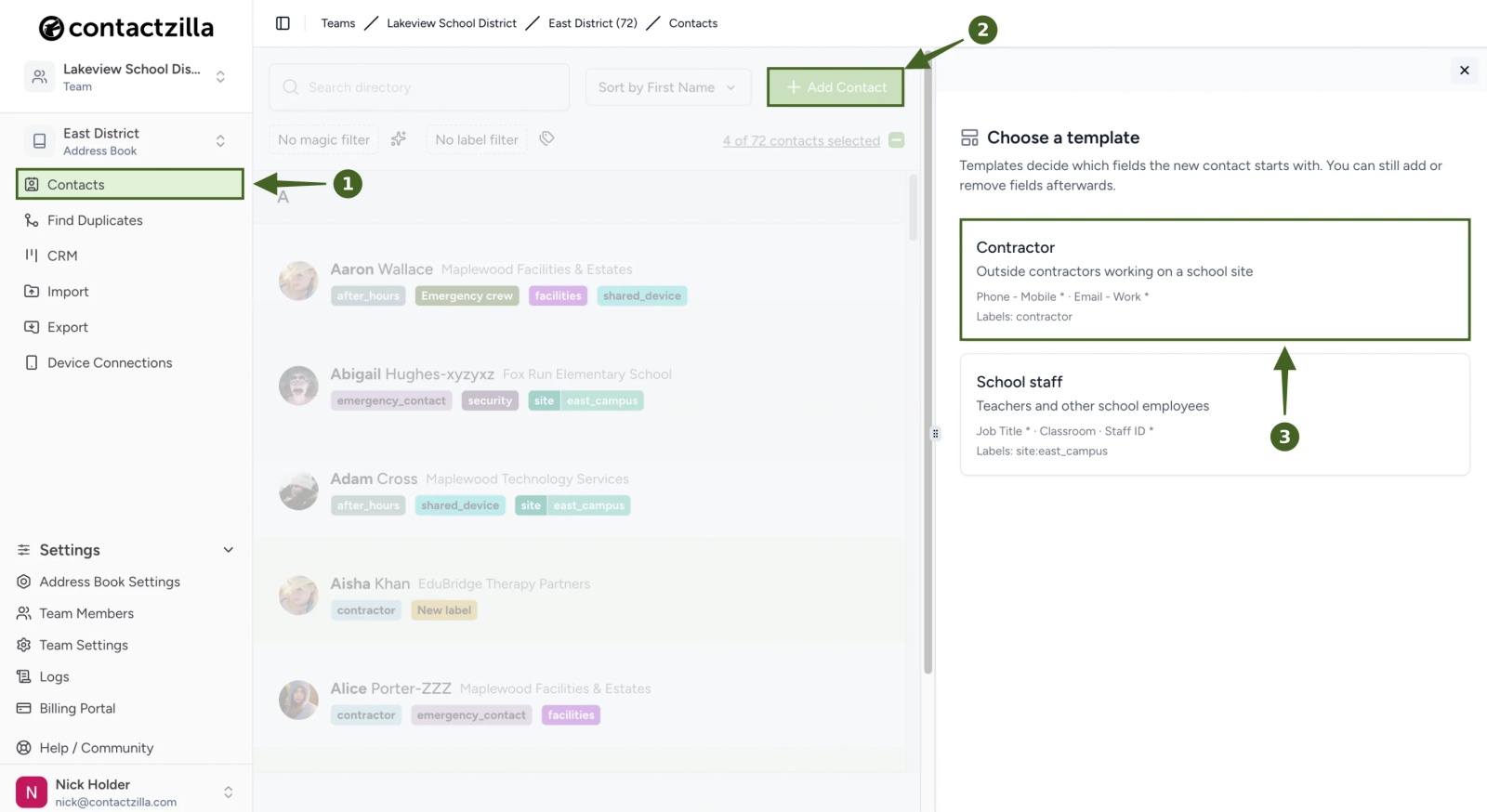
a) Contacts > Add Contact > choose Contractor
The Choose a template panel lists each template with its description, the fields it starts with (a * marks a required field) and the labels it applies. Templates decide which fields the new contact starts with. You can still add or remove fields afterwards.
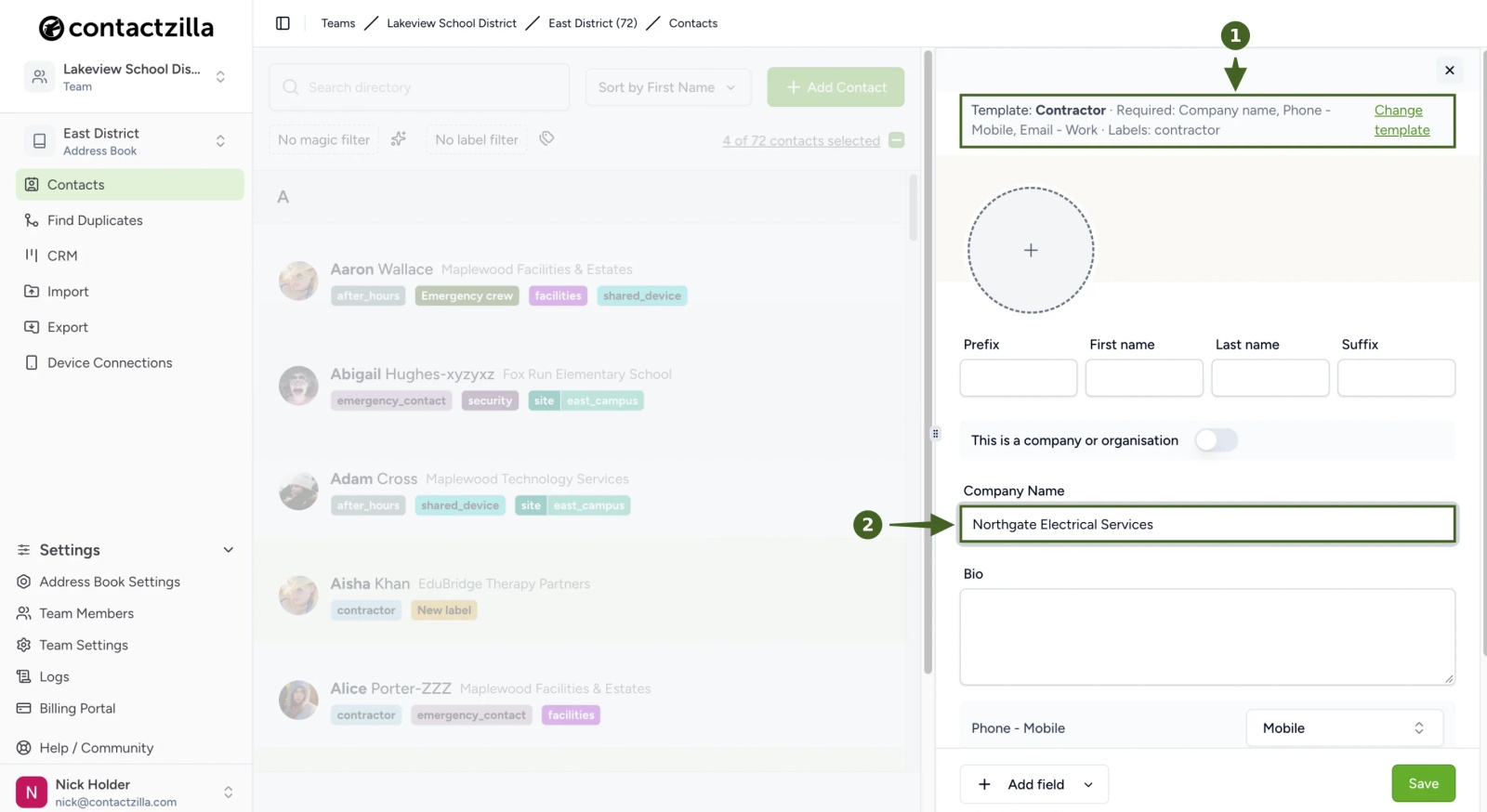
b) Check the banner at the top of the form, then type the contractor's Company Name and complete the rest of the form, including the required fields
The banner shows which template you are using, its required fields and its labels, for example Template: Contractor · Required: Company name, Phone - Mobile, Email - Work · Labels: contractor. Click Change template if you picked the wrong one.
c) Click Save
Your team can now add contacts with the same fields, required entries and labels every time, and switch between templates for different kinds of contact.
Still Need Help?
Our support team is available to assist you with any questions or issues you may have.
Still need help?
Our support team is available to assist you with any questions or issues you may have.