
How can we help you?
Browse Categories
MS INTUNE: Add an Additional Contactzilla Address Book to an Existing Android Deployment
This guide assumes you’ve already deployed one Contactzilla address book to a device group using an App configuration (Managed devices) policy for Contactzilla Sync.
Need a refresher first?
If you haven’t yet deployed your first Contactzilla address book to a device group in MS Intune, follow this step-by-step guide: Deploy Contactzilla Address Books to Android with Intune.
In this guide, you’ll add another address book to the same policy so the same device group receives both address books.
Tip 💡: When to use a new policy instead: If you want to send a different address-book set to a different set of phones, create a separate app-config policy and assign it to a different device group.
Step 1: Download the new address book JSON from Contactzilla
1) In your Contactzilla dashboard > open the target Address book > Device Connections > Hit Setup on the device connection window you want to depoly > Click Download Profile (JSON).
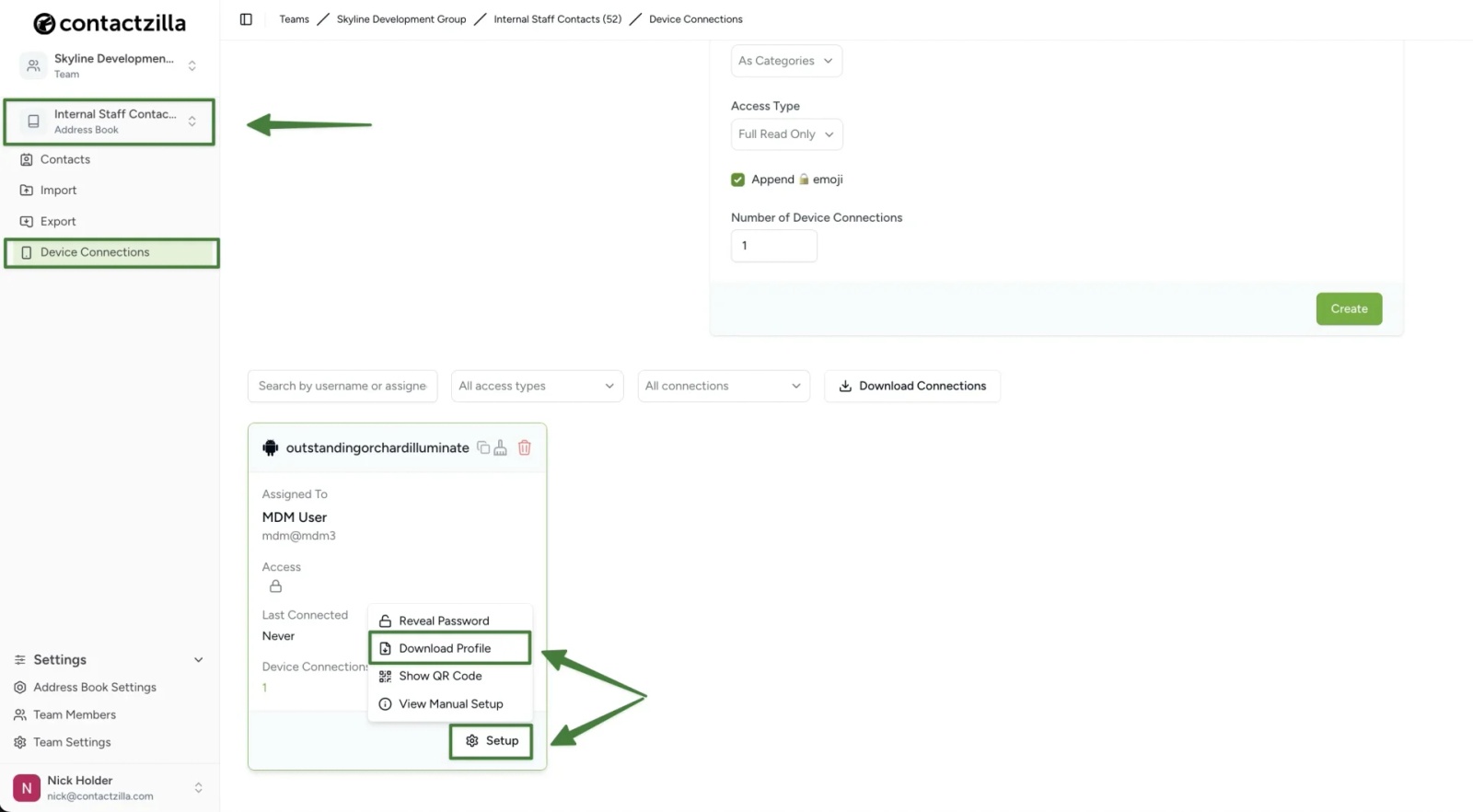
This download contains the JSON settings you’ll paste into your existing Intune app-config policy in the next step.
Step 2: Open your existing Intune app-config policy
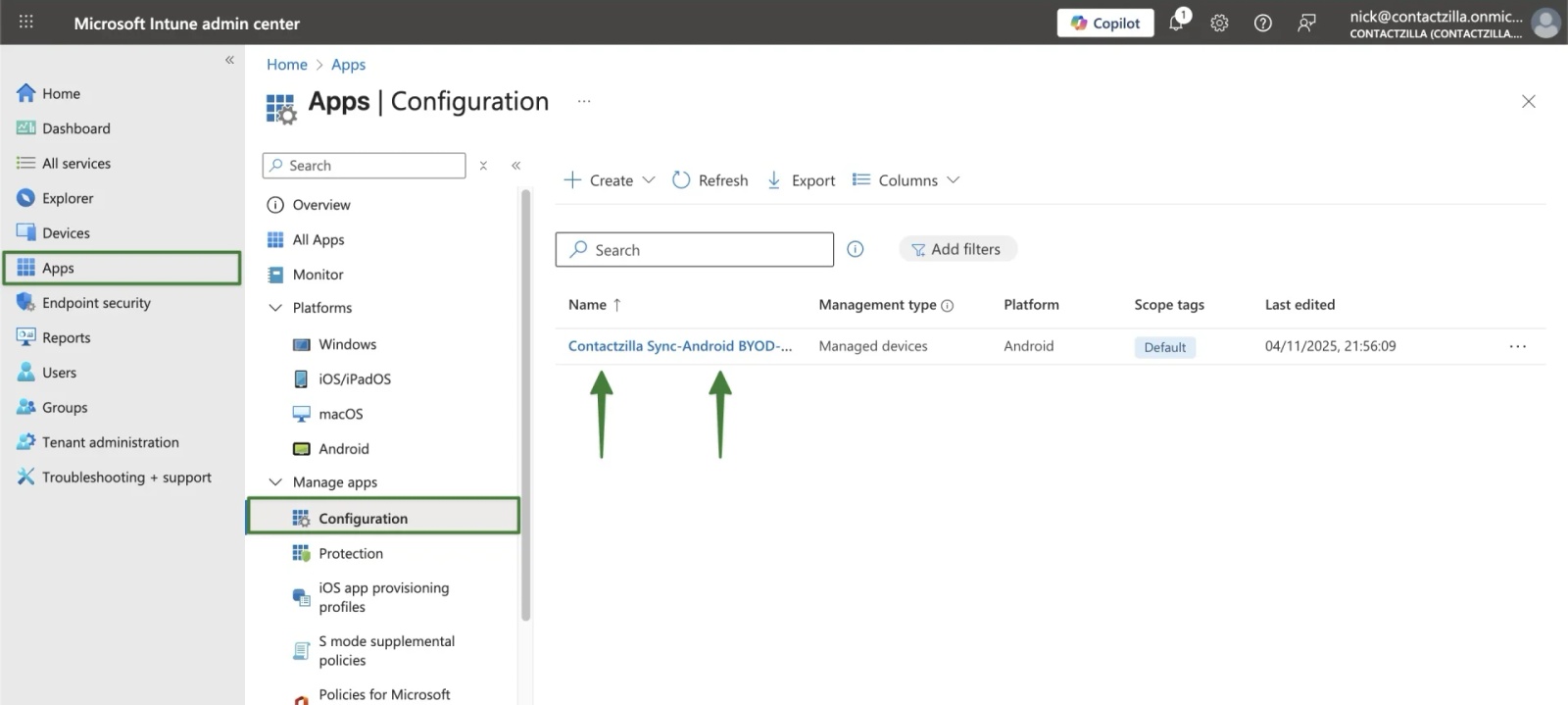
1) Go to Intune admin center > Apps > Manage apps > Configuration > Open your existing policy. In our example: Contactzilla Sync-Android BYOD-App Config–Skyline-Demo
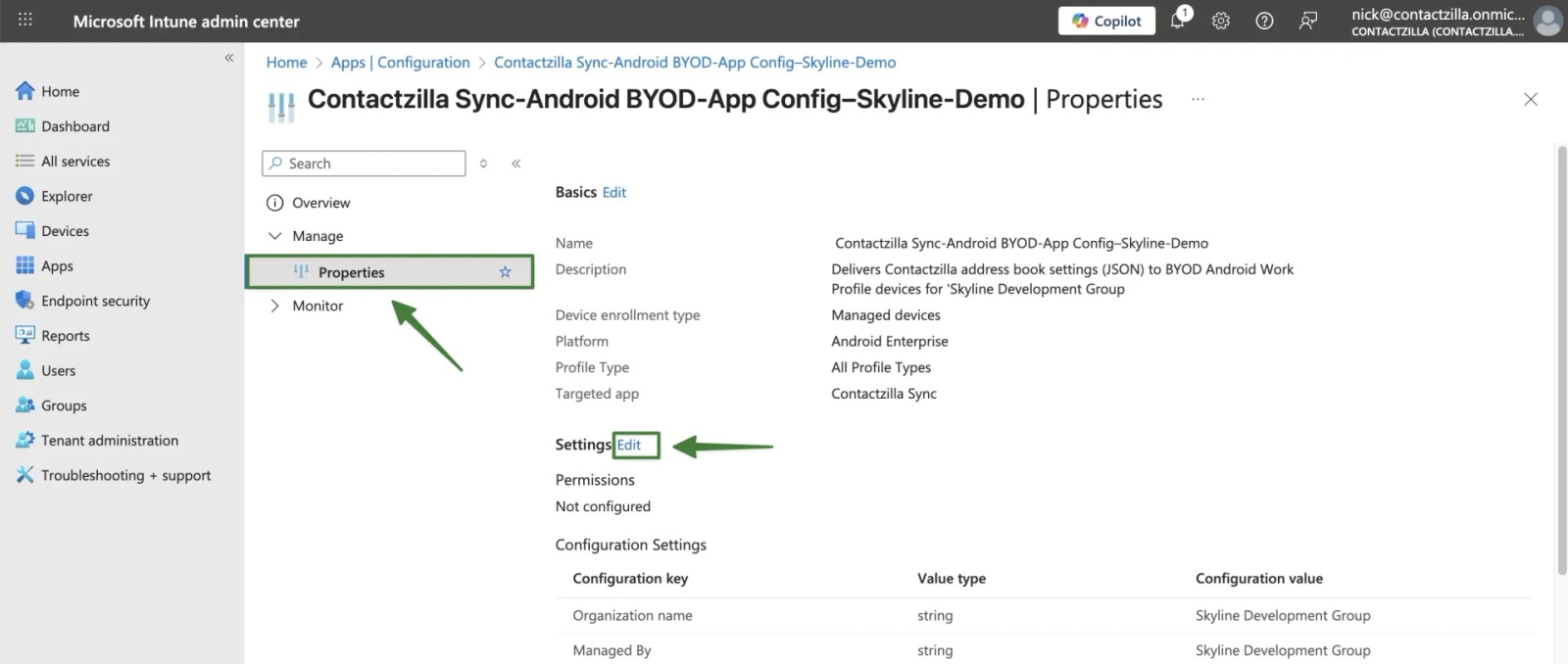
2) Click Properties Open your existing policy (e.g., Contactzilla Sync – Android BYOD – App Config – Skyline Demo Cohort) > Properties > EditSettings.
Step 3: Merge the new address book into the existing JSON
You’re on the policy’s Settings tab
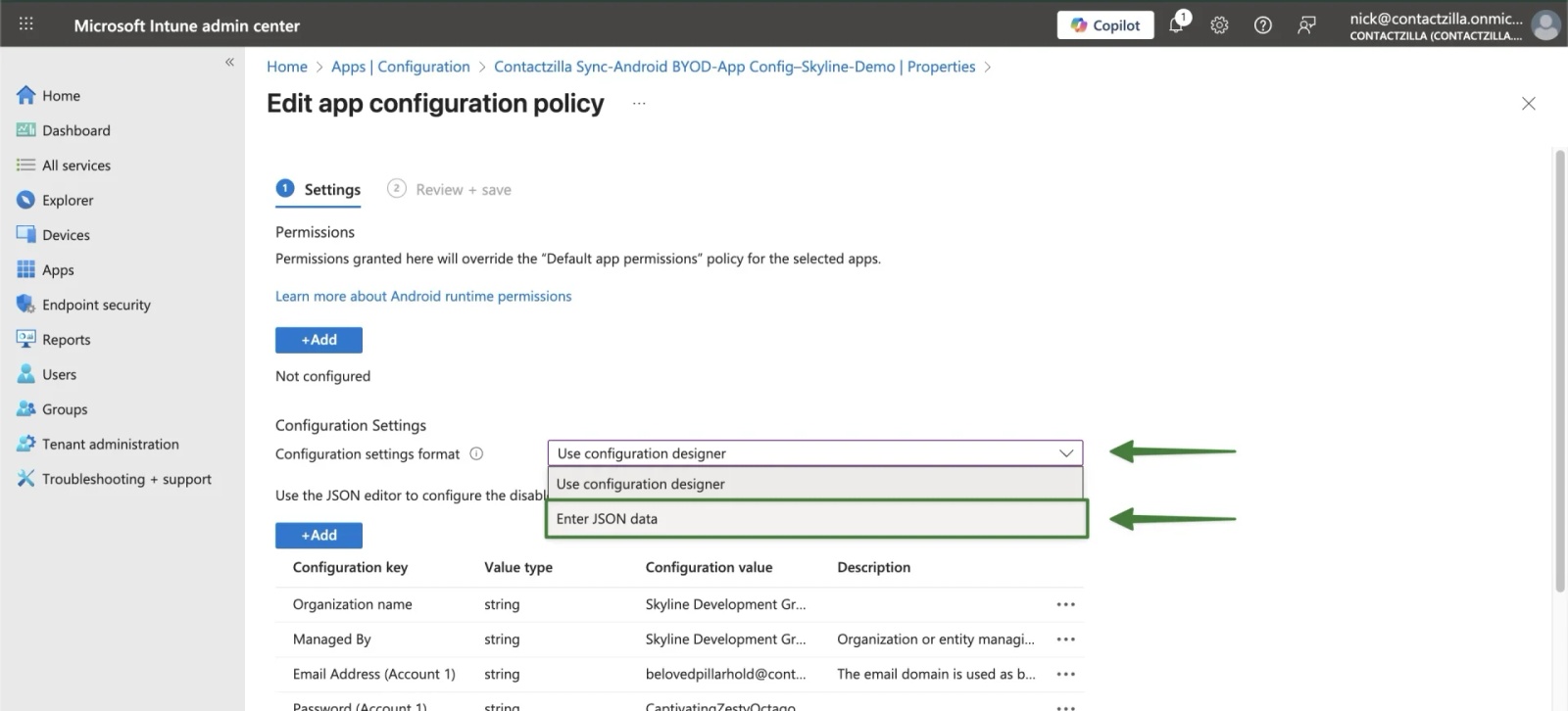
1) In Configuration settings format > open the drop down menu and choose Enter JSON data. You will see your original JSON text from your first address book deployment.
A Contactzilla address-book JSON is the managed configuration Intune sends to the Contactzilla Sync app. It contains:
- Shared tenant fields:
organization,managed_by(appear once). - One or more address-book triplets:
login_email_Nlogin_password_Nlogin_account_name_N→ the human-readable address book name users will see in Contactzilla Sync and in the Contacts app.
To add another address book, you don’t replace the policy. You append a new triplet to the managedProperty array and bump the suffix from _1 to _2, _3, etc. Keep organization and managed_by only once.
What an existing address-book JSON looks like with 1 address book (Project Cascade Tower):
{
"kind": "androidenterprise#managedConfiguration",
"productId": "app:com.atomicasoftware.contactzillasync",
"managedProperty": [
{ "key": "organization", "valueString": "Skyline Development Group" },
{ "key": "managed_by", "valueString": "Skyline Development Group" },
{ "key": "login_email_1", "valueString": "belovedpillarhold@contactzilla.app" },
{ "key": "login_password_1", "valueString": "examplepassword01" },
{ "key": "login_account_name_1", "valueString": "Project Cascade Tower" }
]
}
What to notice here
login_account_name_1= “Project Cascade Tower” (this is the address book name users will see).- The
_1suffix ties those three lines together as Address book #1.
Now add Address book #2 (in our example “Internal Staff Contacts”) by appending a second triplet:
To deploy another address book, add a second triplet (renumbered to _2) inside the same managedProperty array that contains the info found in your 2nd JSON you downloaded from the new address book:
{ "key": "login_email_2", "valueString": "eminentcraterlink@contactzilla.app" },
{ "key": "login_password_2", "valueString": "examplepassword02" },
{ "key": "login_account_name_2", "valueString": "Internal Staff Contacts" }
Result (two address books in one policy):
{
"kind": "androidenterprise#managedConfiguration",
"productId": "app:com.atomicasoftware.contactzillasync",
"managedProperty": [
{ "key": "organization", "valueString": "Skyline Development Group" },
{ "key": "managed_by", "valueString": "Skyline Development Group" },
{ "key": "login_email_1", "valueString": "belovedpillarhold@contactzilla.app" },
{ "key": "login_password_1", "valueString": "examplepassword01" },
{ "key": "login_account_name_1", "valueString": "Project Cascade Tower" },
{ "key": "login_email_2", "valueString": "eminentcraterlink@contactzilla.app" },
{ "key": "login_password_2", "valueString": "examplepassword02" },
{ "key": "login_account_name_2", "valueString": "Internal Staff Contacts" }
]
}
2) Copy you’re merged JSON text from your text editor (unless you have composed it directly in the Intune JSON data box) by following the method above and paste it into Intune’s Enter JSON data box > keep Connected apps set to Not configured > click Review + save.
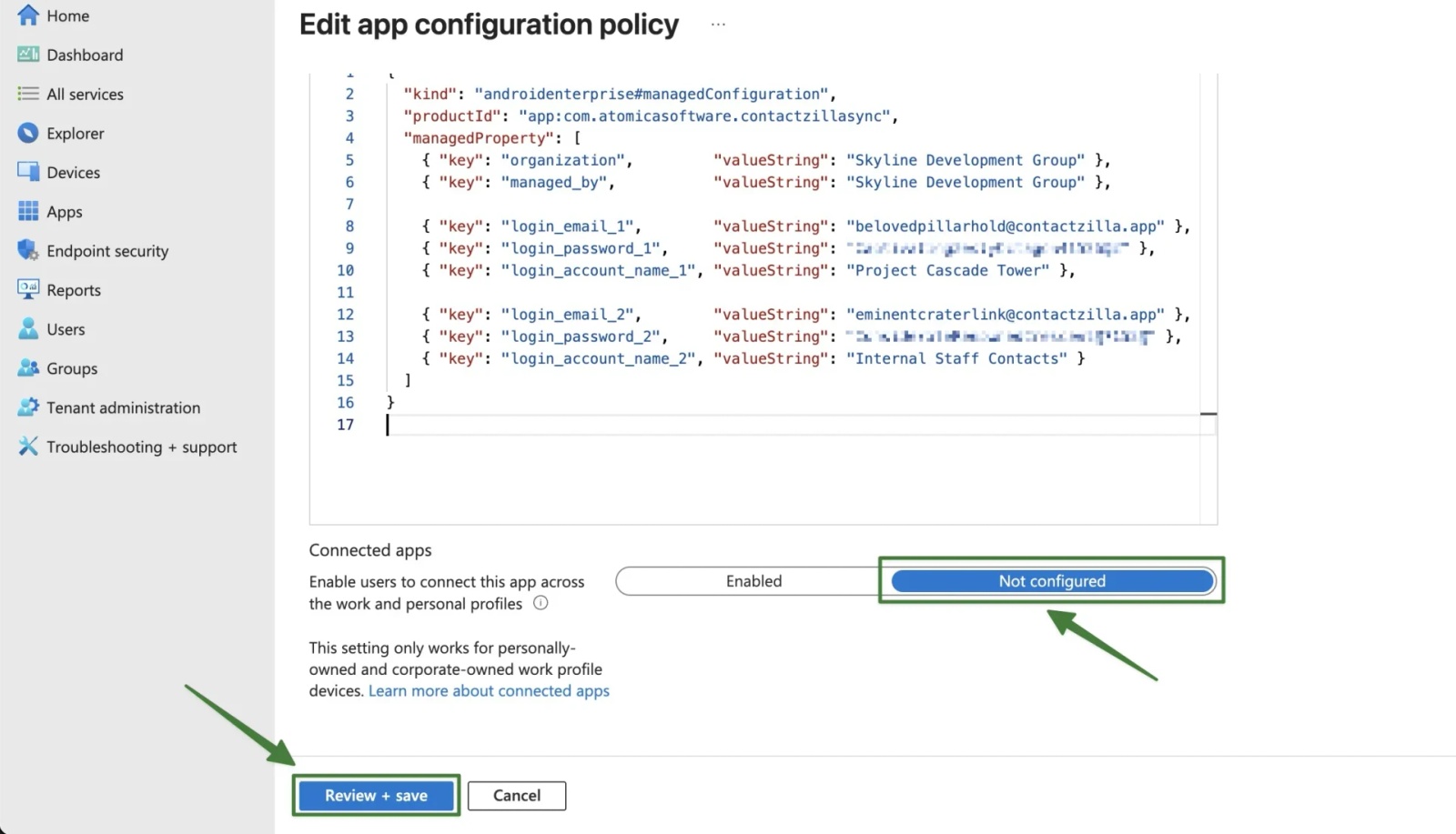
3) From the Review screen that follows hit Save.
Step 5: Verify the contacts on the devices
After the policy is assigned, check that the Contactzilla address book appears in the native contacts app on your device – If you have a work profile installed on a BYOD device it will be the Contacts app with the brief case icon.
If it needs an extra nudge:
On the phone (work profile): open Company Portal > Check status > Sync > wait for “Device is compliant”.
From Intune (optional extra nudge): Devices > select the phone > Sync > confirm.
Open Contactzilla Sync (work) > leave it open for ~10–20 seconds to finish provisioning.
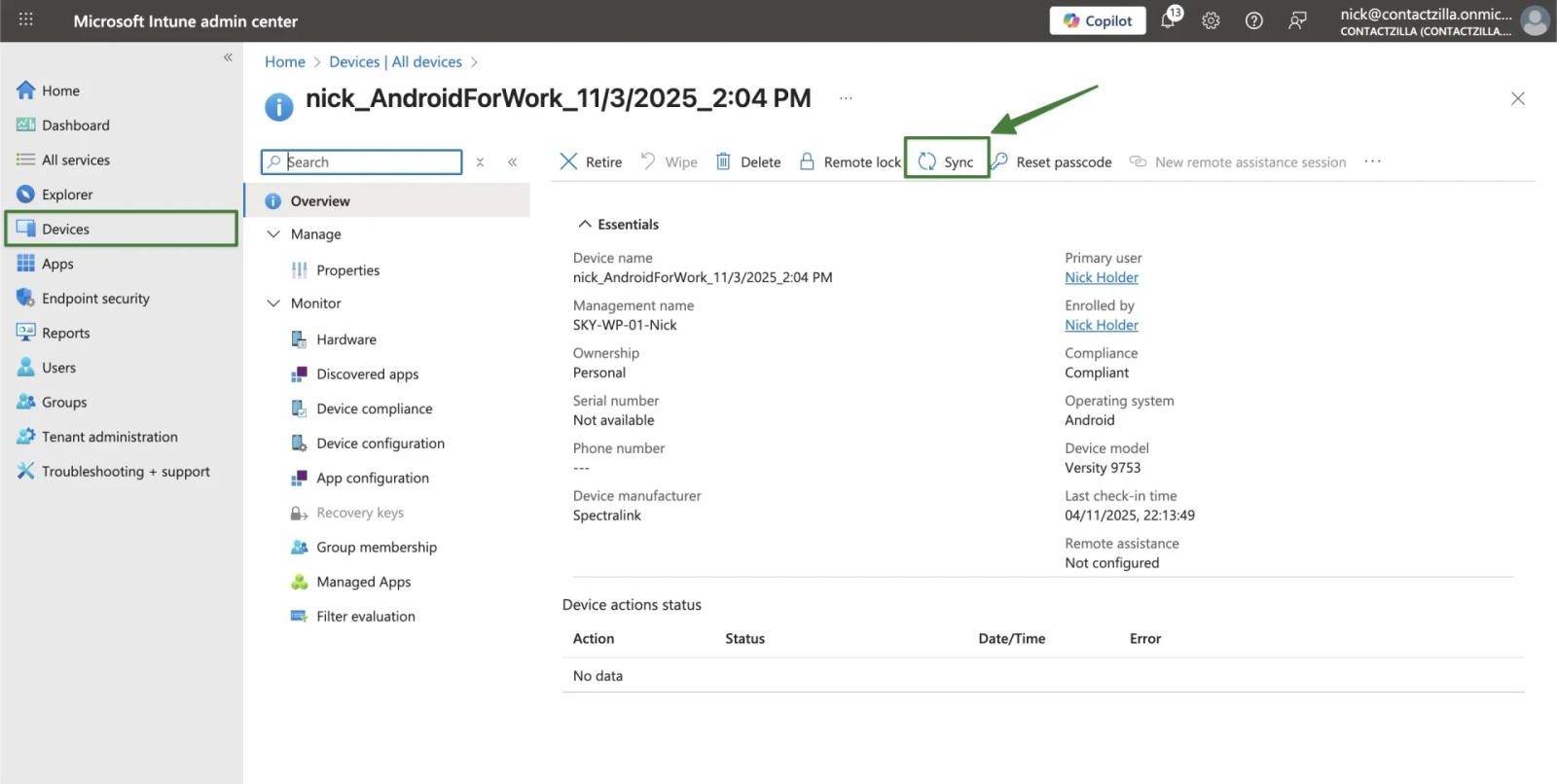
Forcing a sync on a device will give Intune a nudge to check in with the device
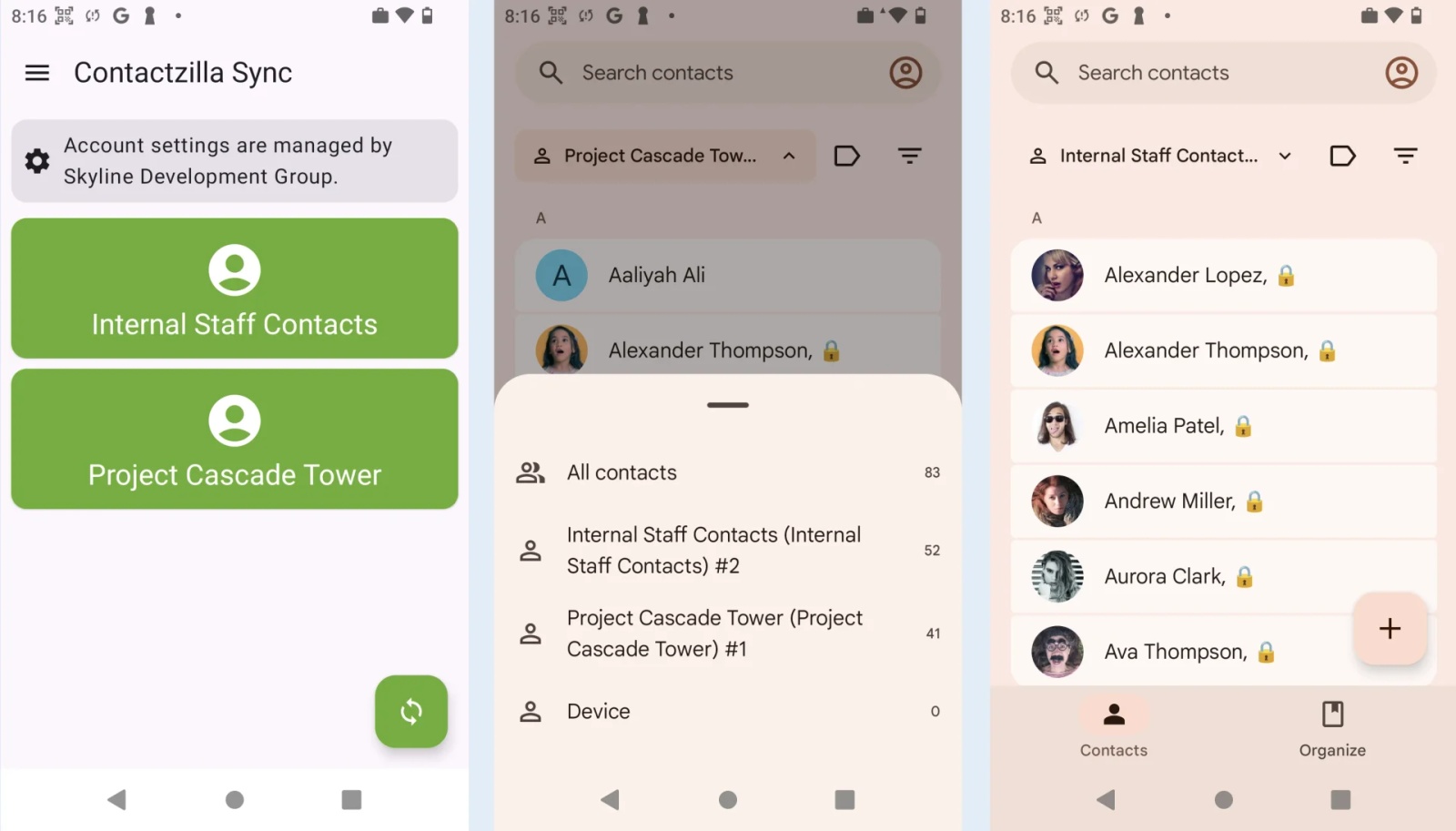
Here’s what success looks like on a BYOD work profile:
- Provisioned in Contactzilla Sync
The app shows 2 or more address book tiles – In this case Project Cascade Tower and Internal Staff Contacts with “Account settings are managed by <your org>”. That means the JSON config applied. - Visible in the native Contacts app
Open Contacts (work) > Tap the address book name at the top and 2 or more address books will appear in the pull up menu. - BONUS – As our Internal Staff Contacts address book was deployed as a Read Only connection and the check box Append Lock Emoji was ticked each contact has a lock symbol to signal to the user the contacts can not be edited.
Still need help?
Our support team is available to assist you with any questions or issues you may have.

