
How can we help you?
Browse Categories
Import contacts from Microsoft Entra ID to Contactzilla
If your organisation manages users in Microsoft Entra ID, you can use Contactzilla’s Microsoft Entra ID Importer to import those contacts directly into a Contactzilla address book. Once imported, you can then deploy that address book to mobile devices using CardDAV connections.
Tip 💡: Want your whole Microsoft directory on staff iPhones, with caller ID? How to Sync the Global Address List (GAL) to iPhone Contacts covers the full setup, from the Entra ID import to the phone.
Tip 💡: If you haven’t already created a team and address book, follow our guide on setting up your first Contactzilla team and address book.
The process for importing your MS Entra contacts into Contactzilla is also covered in this video walkthrough below if you prefer.
Prefer to watch? Sync Microsoft Global Address List to iPhone & Android shows the Entra ID import and the rollout to phones from start to finish.
Step 1: Start a Microsoft Entra ID import from the address book you want to populate
To begin, open the address book that will receive the imported contacts.
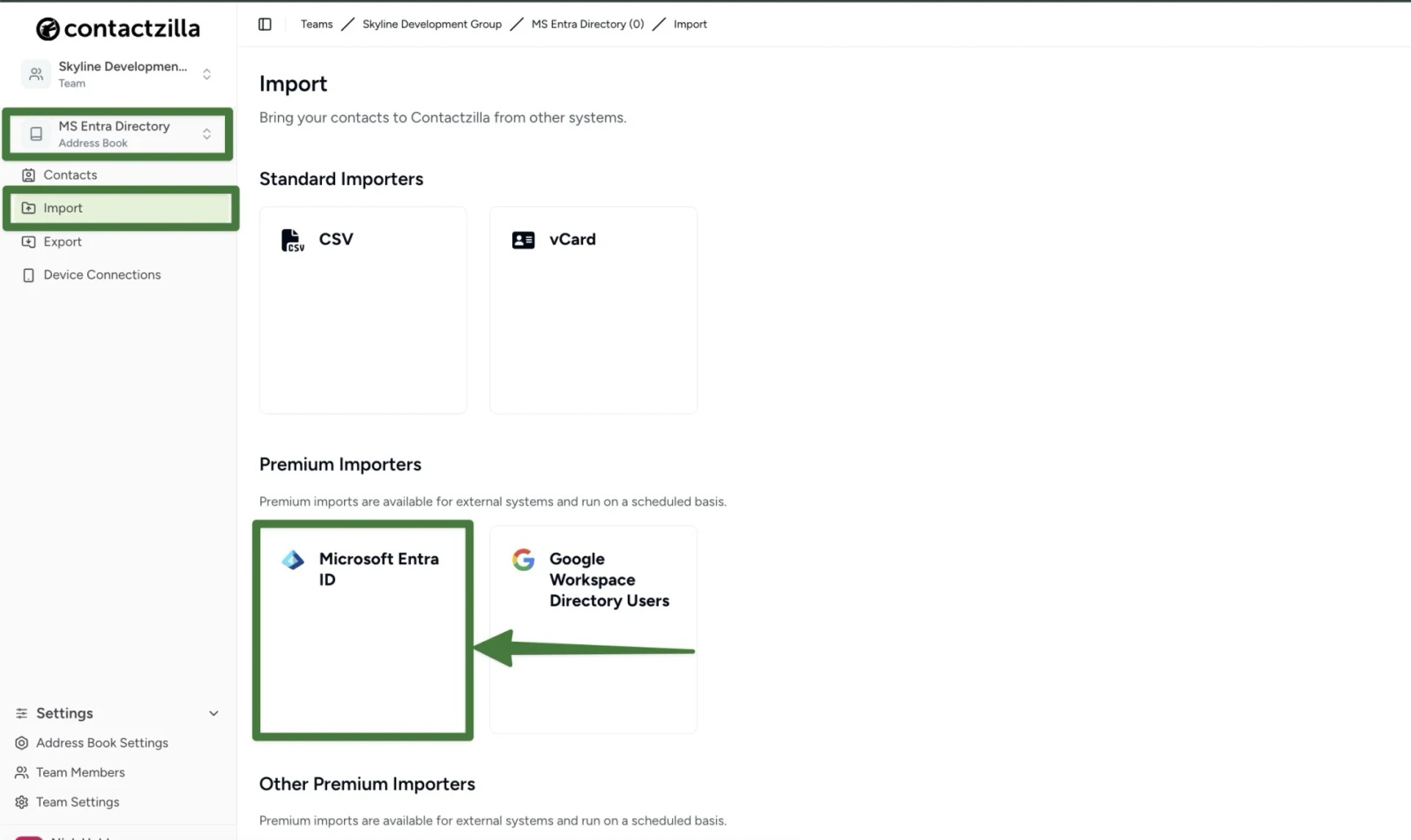
1) Make sure the address book you want to import into is selected on the left hand side drop-down > Click Import in the left-hand menu and select Microsoft Entra ID under Premium importers > Click Import on the screen that follows.
Step 2: Create (or select) your Microsoft Entra connection using OAuth
Contactzilla uses Microsoft’s OAuth authorisation flow to securely connect to your Entra tenant. No credentials are stored.
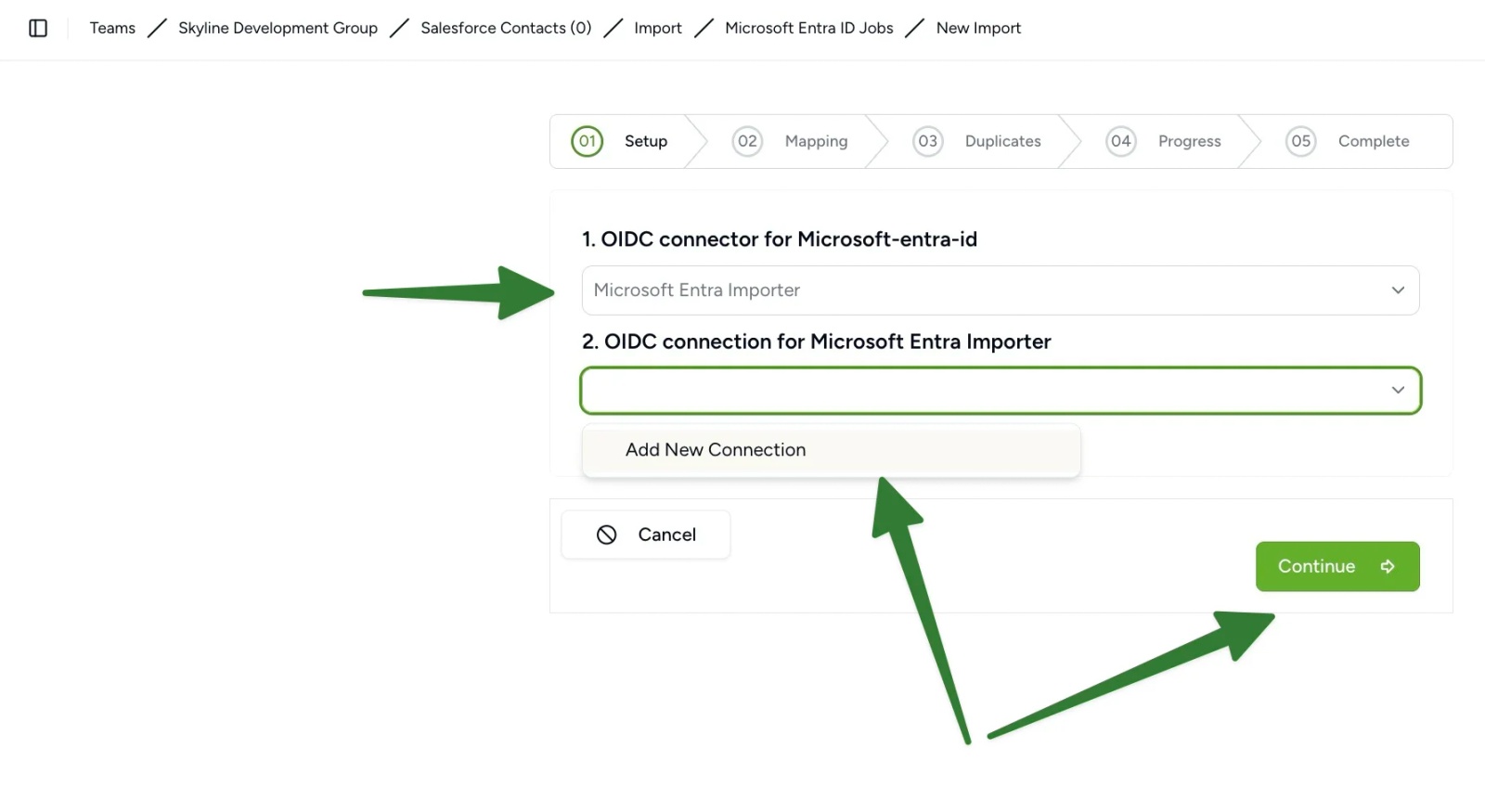
1) From the initial setup screen click the first drop down and choose; Microsoft Entra Importer> From the 2nd drop down menu choose Add New Connection and then hit Connect
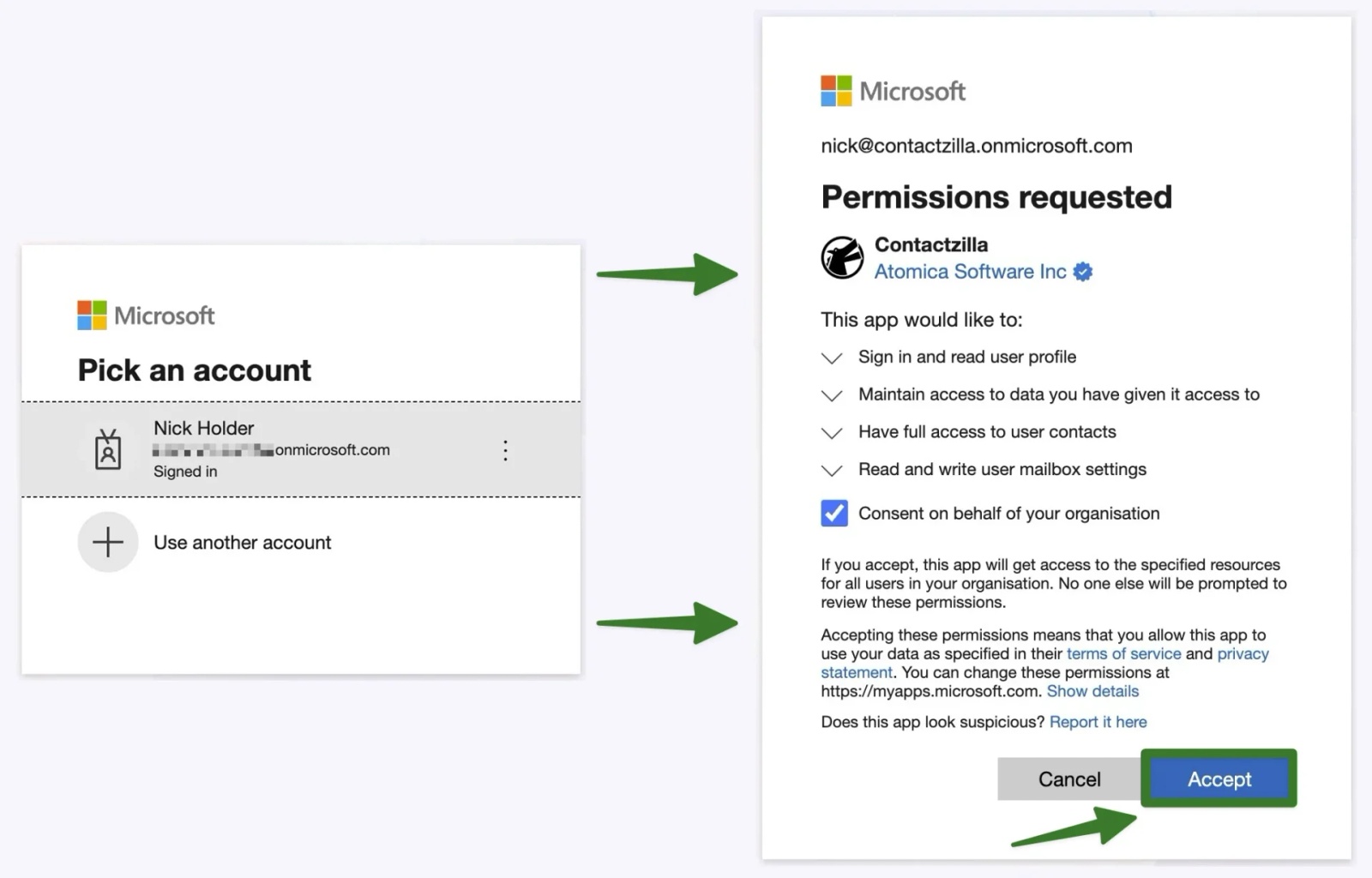
2) You will be redirected to Microsoft’s secure OAuth sign-in flow > Confirm the permissions requested > tick Consent on behalf of your organisation > click Accept to continue.
NOTE: Possible required step on Entra
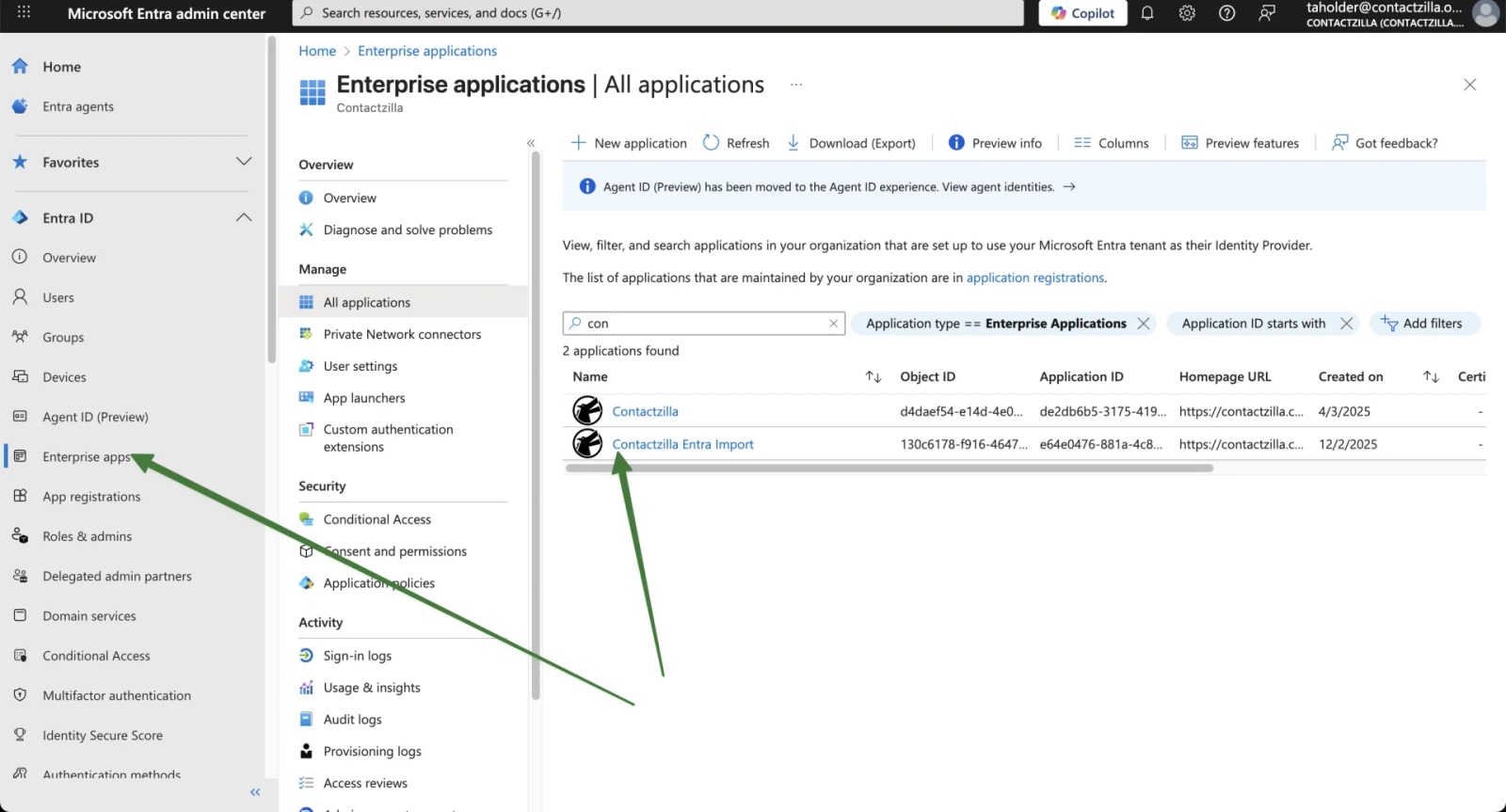
In some Microsoft Entra tenants, admin consent may be required before Contactzilla can read directory data.
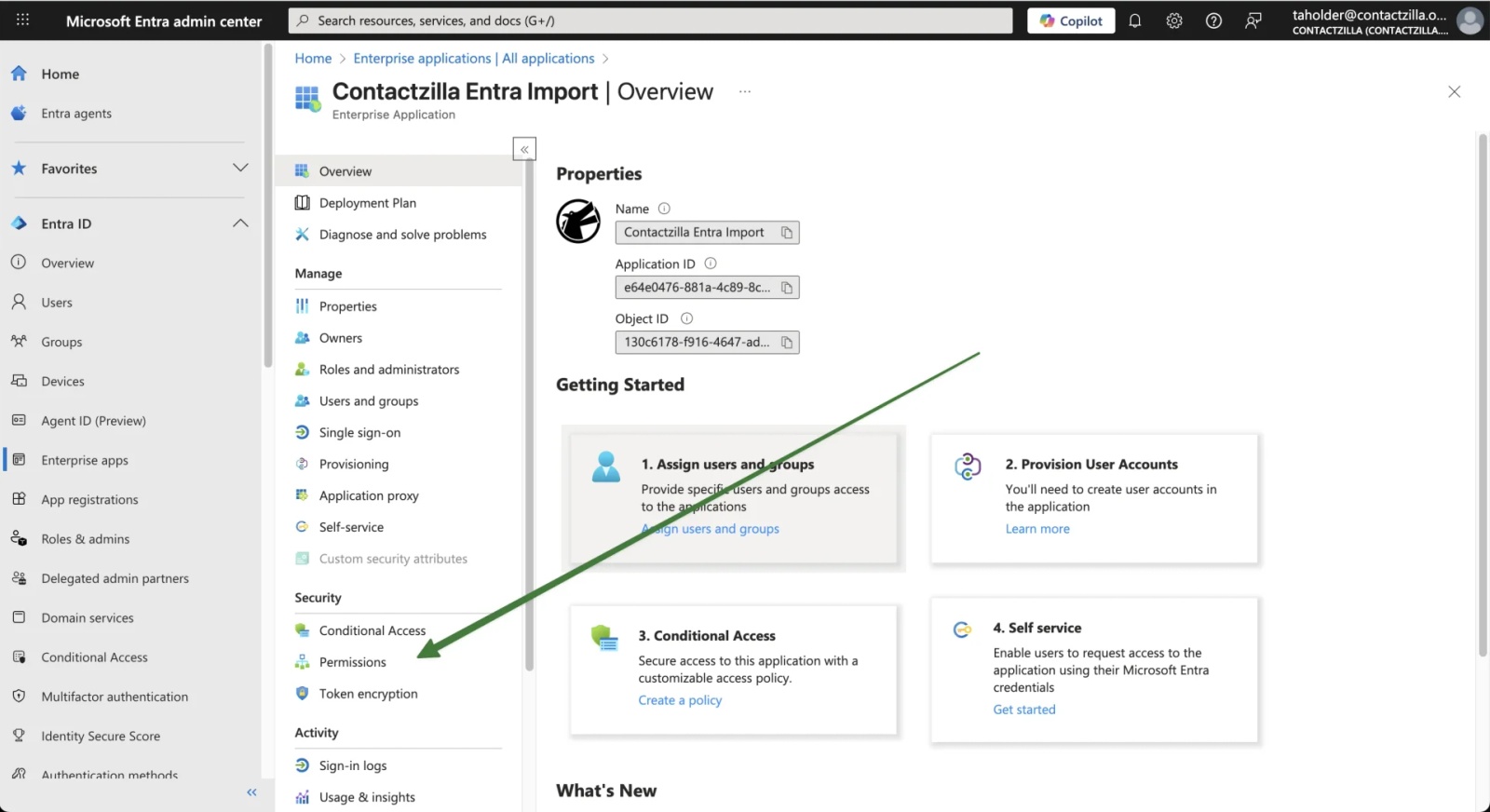
1) Go to Enterprise applications > search for Contactzilla Entra Import > select the application
2) In the left-hand menu from the screen that follows, select Permissions.
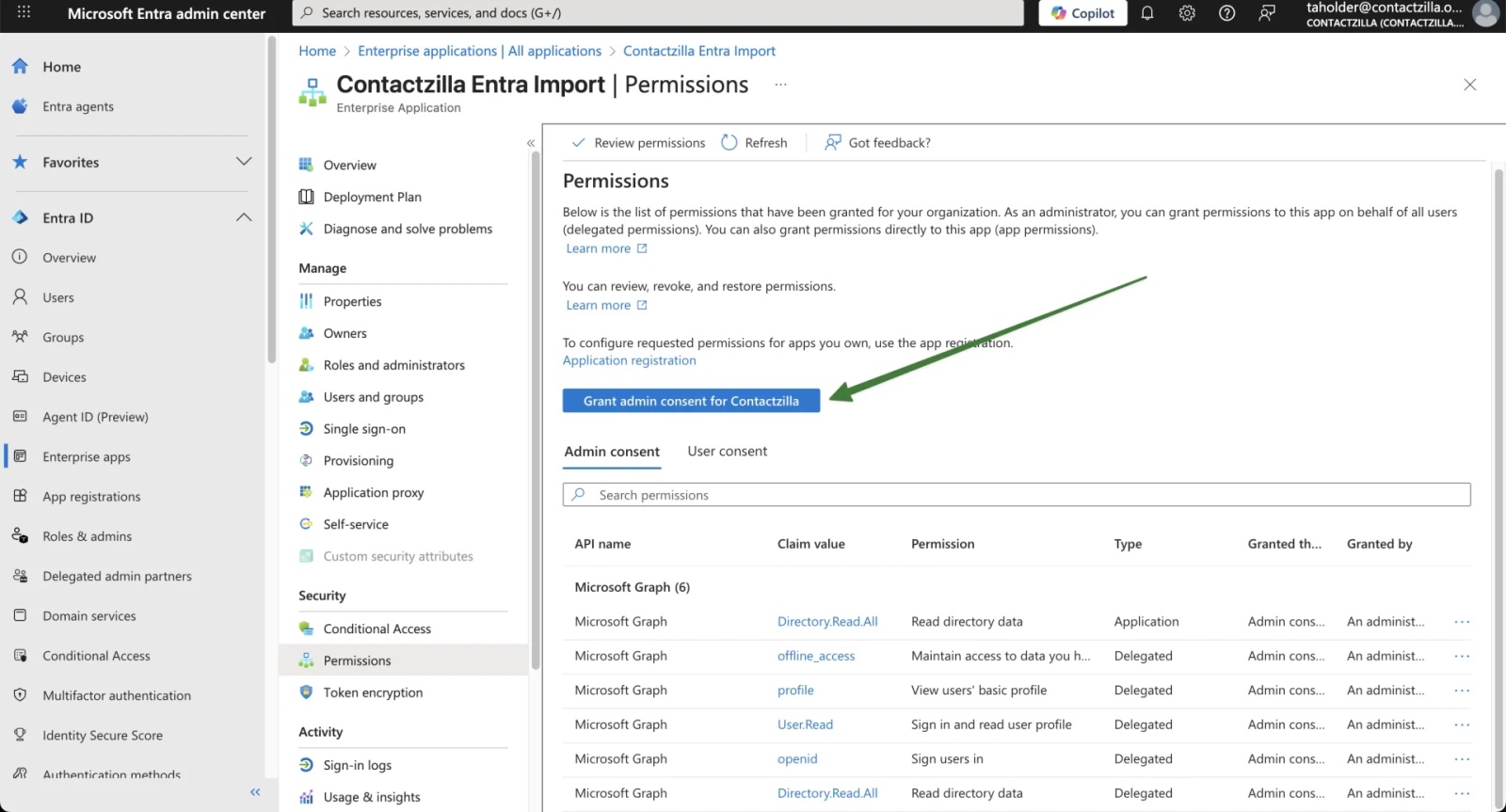
3) On the Permissions screen, click Grant admin consent for Contactzilla and confirm when prompted.
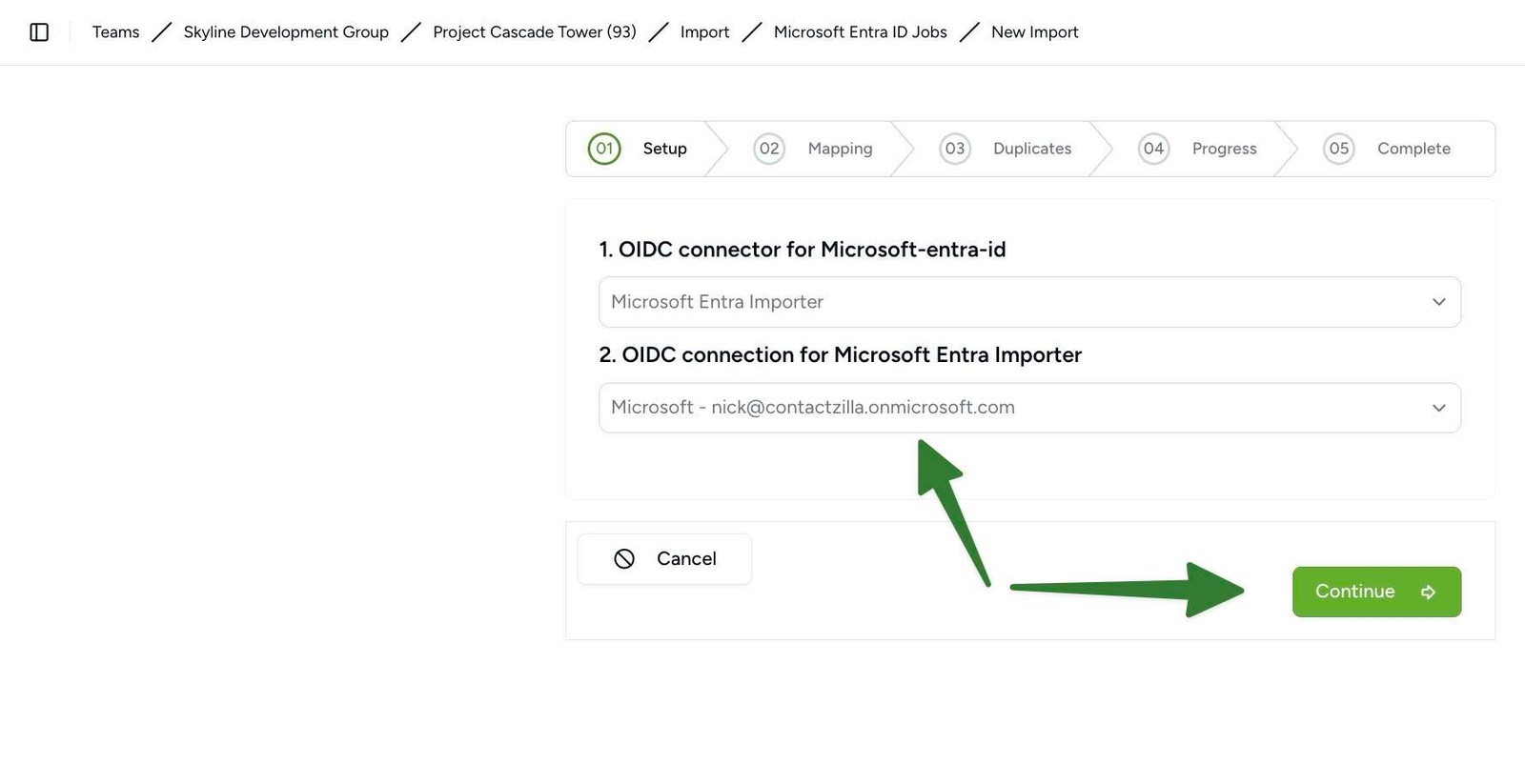
3) Back to the Contactzilla dashboard and you will now see the newly created Microsoft Entra connection automatically selected in the OIDC connection dropdown > Click Continue
Step 3: Configure Microsoft Entra ID sync settings
These settings control how often contacts are synced from Microsoft Entra ID into your Contactzilla address book and whether the first sync runs immediately.
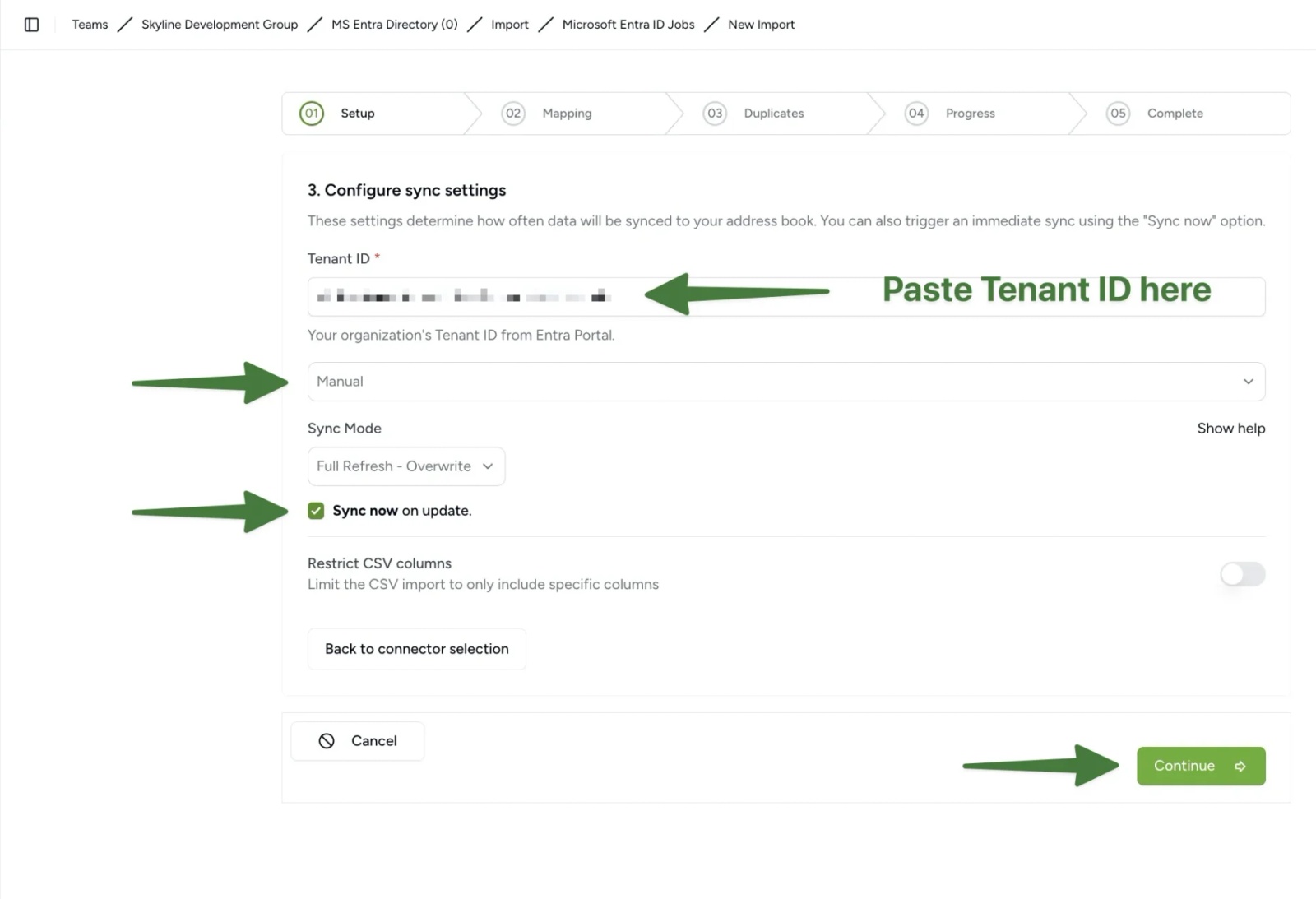
1) In Microsoft Entra ID, copy your Tenant ID from the Entra overview screen.
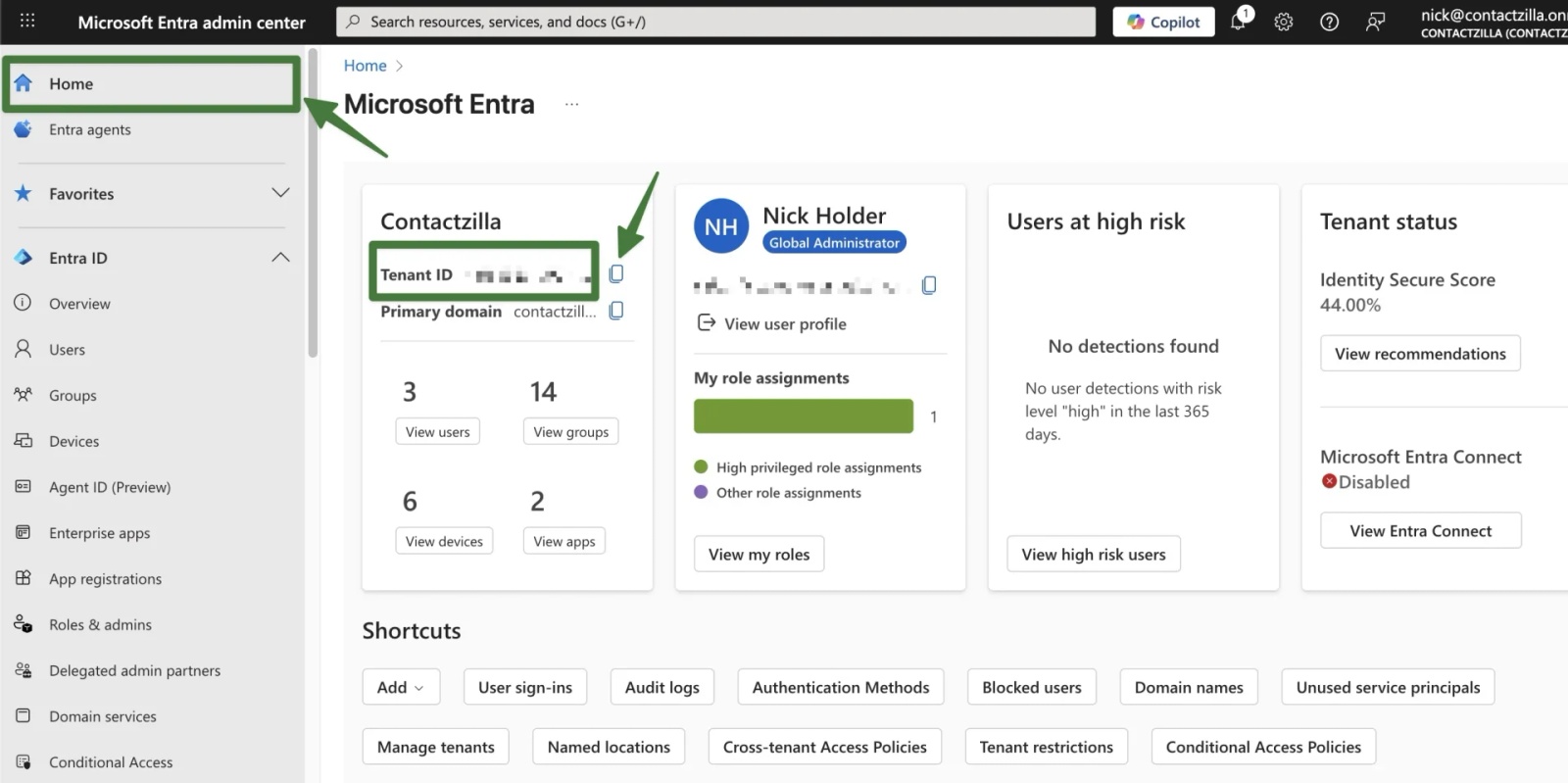
2) Paste the Tenant ID into the Contactzilla sync settings screen > We recommend you set the Sync frequency to Manual for your initial import. You can then adjust this to an automatic setting (e.g. daily) after the initial import has been verified.
> Enable Sync now on update so the import runs immediately after setup > Click Continue.
Step 4: Allow the importer to retrieve your Entra data
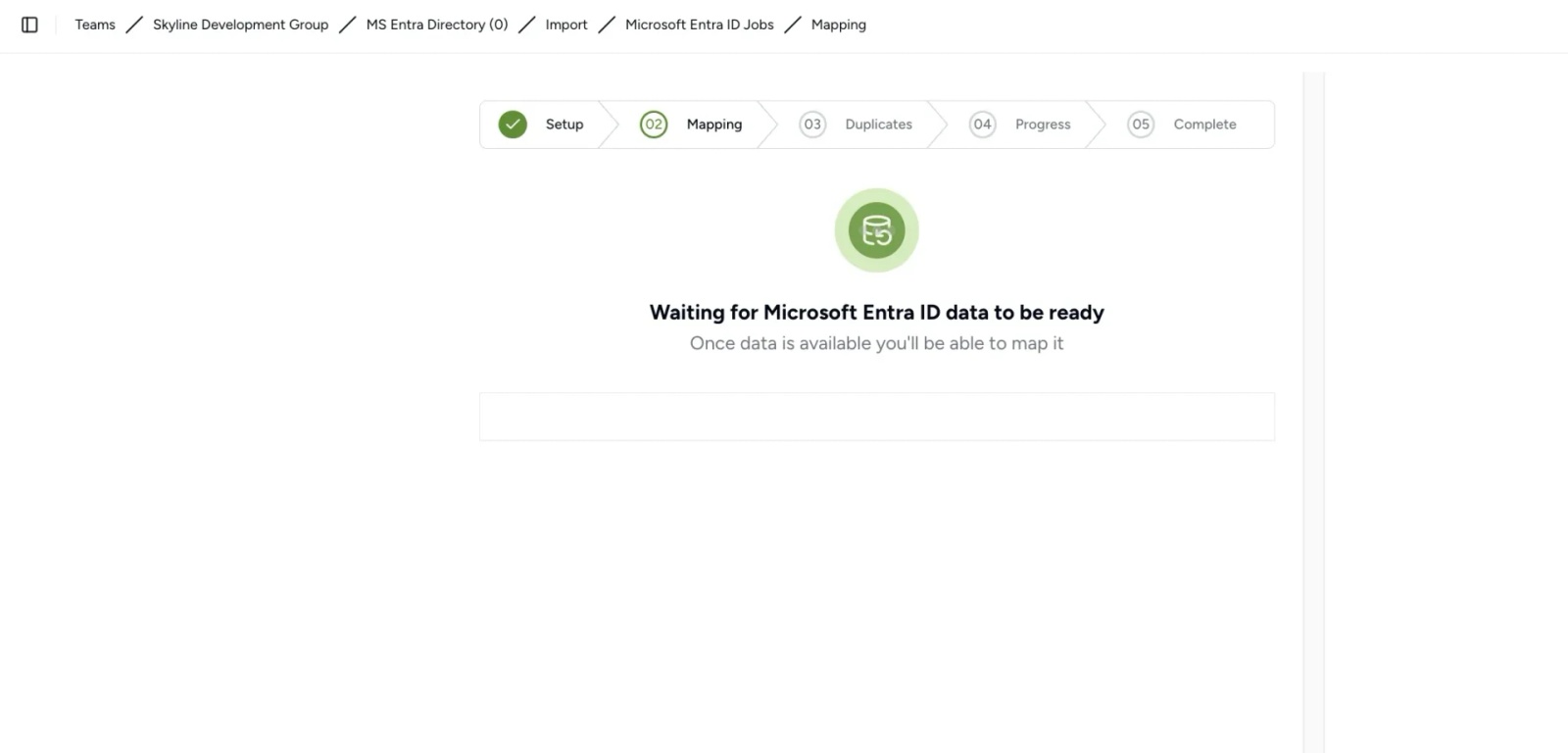
Contactzilla will now initialise the importer and begin retrieving data from your Microsoft Entra tenant. This process should take under a minute, depending on the size of your directory.
Once complete, the importer will move on to the field mapping stage, where you’ll decide how Entra attributes are mapped into Contactzilla contact fields.
Step 5: Map Microsoft Entra ID fields to Contactzilla contact fields
Once the Entra data has been retrieved, you’ll be taken to the Mapping screen. This step determines how Microsoft Entra attributes are stored in Contactzilla and is critical for ensuring future updates sync correctly.
Map the Microsoft Entra ID to a hidden unique field
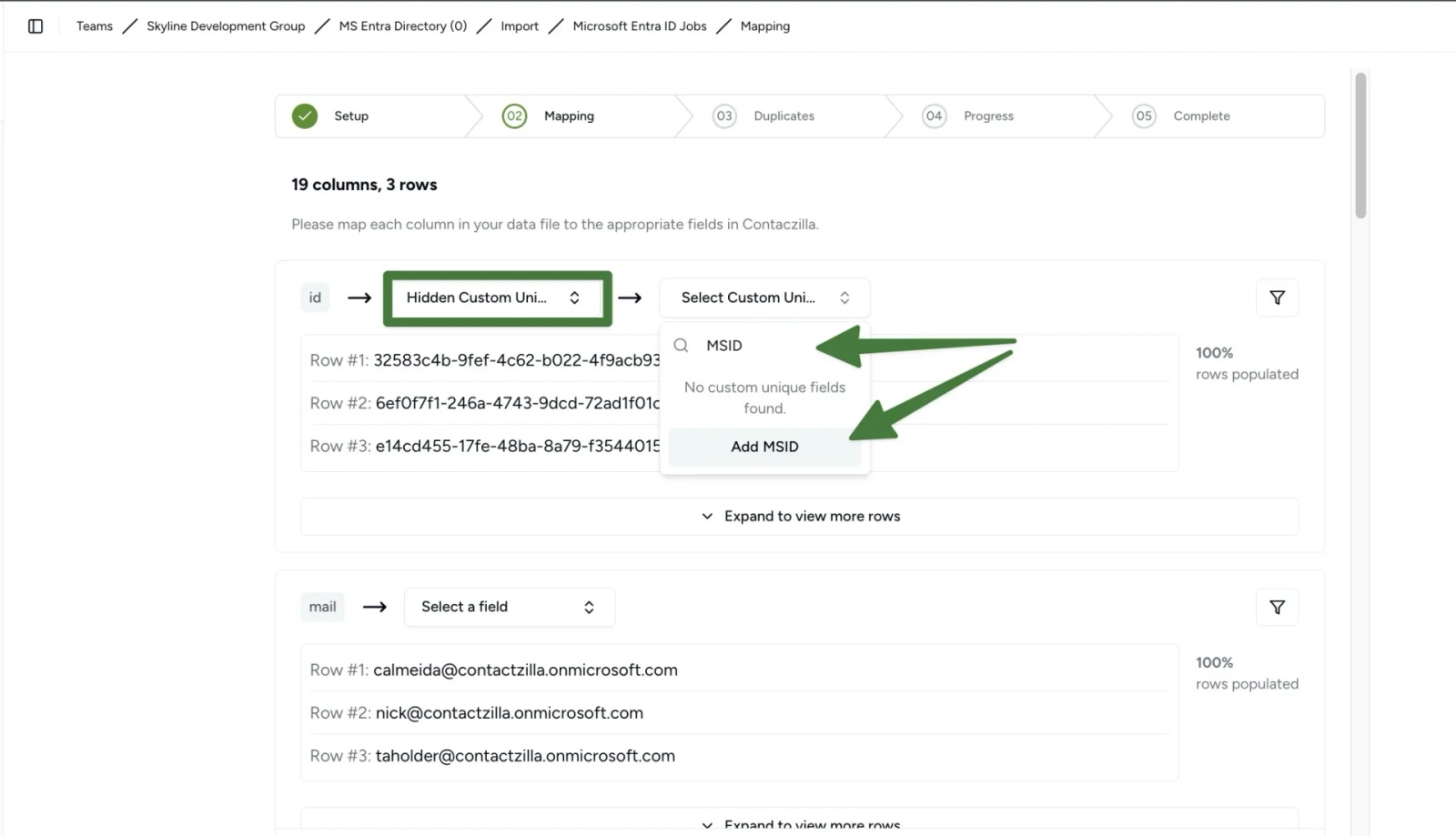
Every Entra record includes a unique Microsoft ID. This should be mapped to a Hidden Custom Unique Field so Contactzilla can reliably identify the same contact on future imports. Hidden custom unique fields are used for internal matching only, are only visible to administrators, and are not synced to mobile devices.
1) In the top mapping row where the source field is id > select Hidden Custom Unique from the first dropdown > type a name for the field (for example MSID or Entra ID) > click Add to create the field.
2) Map the remaining fields you want to appear in Contactzilla and on devices. For example:
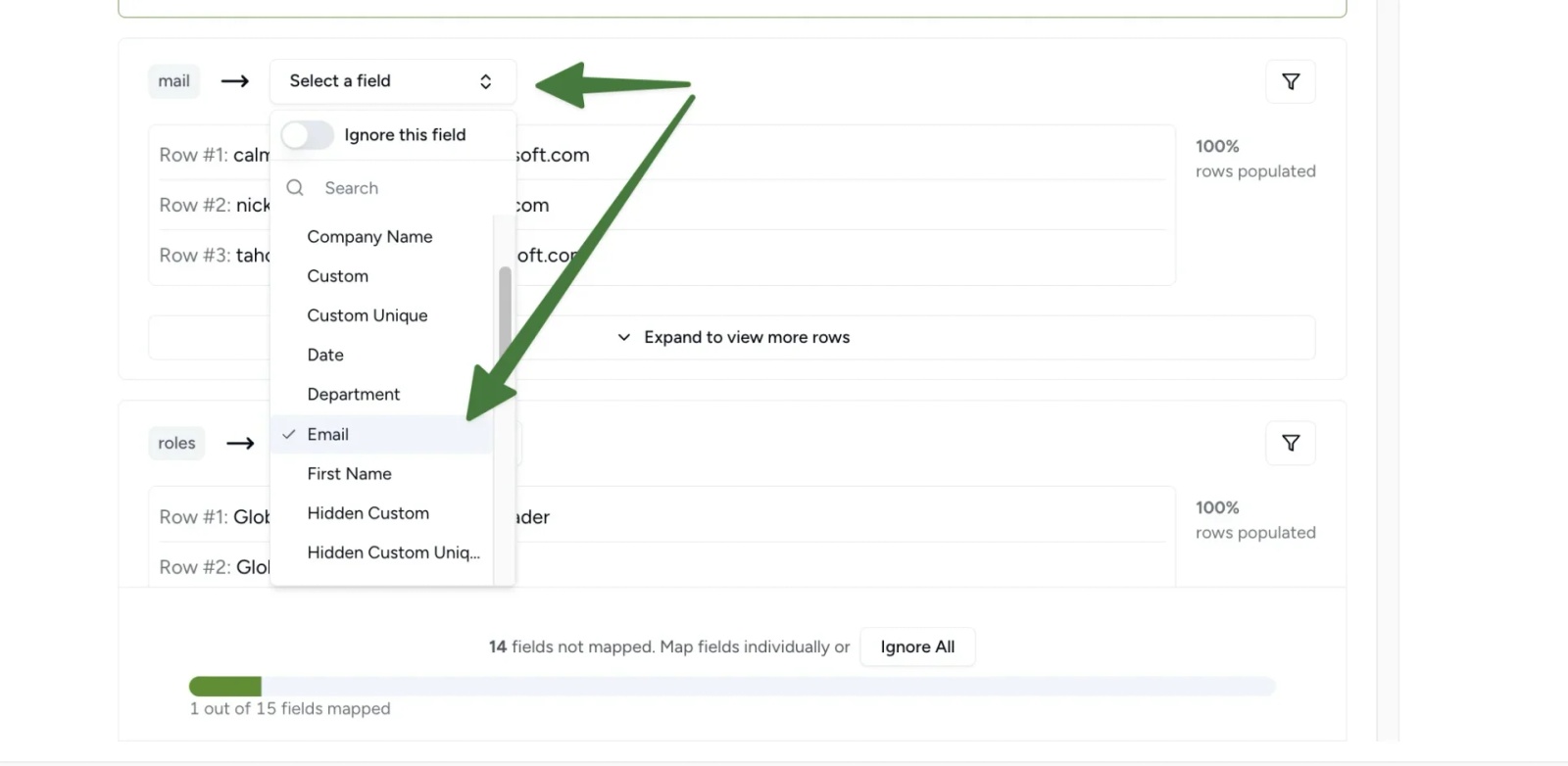
In the mail row > select Email > choose the email type (for example Work)
In the givenName row > select First Name
In the jobTitle row > select the most appropriate field (for example Job Title)
(Optional) Map Roles and Groups to Contactzilla Labels
Roles and groups can be useful as labels inside Contactzilla, because labels let you quickly filter contacts in the address book and can also support more targeted deployments later (Selective Read Only deployments).
Tip 💡 If you map groups (and/or roles) to Labels, Contactzilla will create labels based on those values. This can be useful if you later want to selectively deploy read-only contacts to specific users or device groups.
1) In the roles row, open the Contactzilla field dropdown > select Label
2) In the groups row, open the Contactzilla field dropdown > select Label
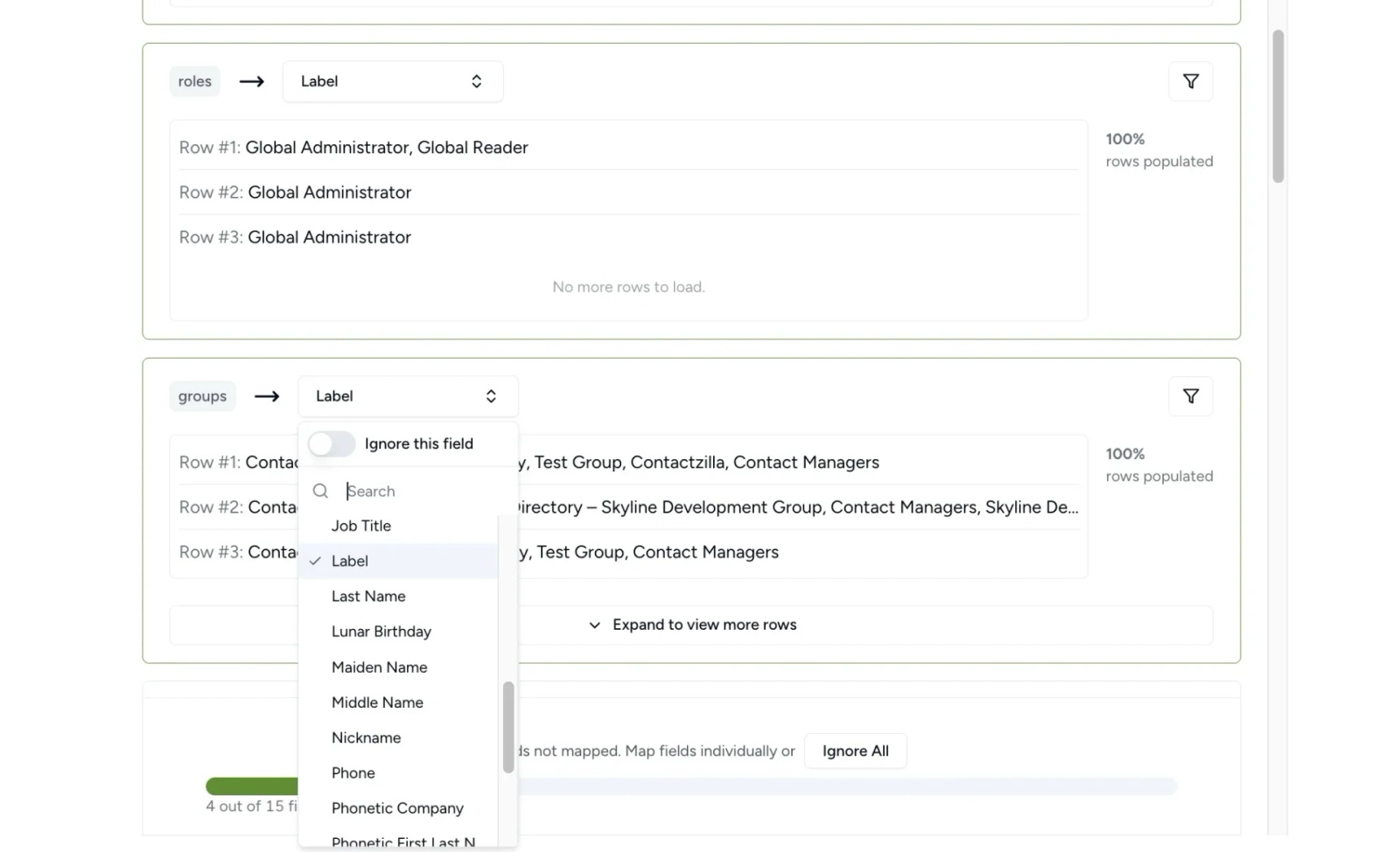
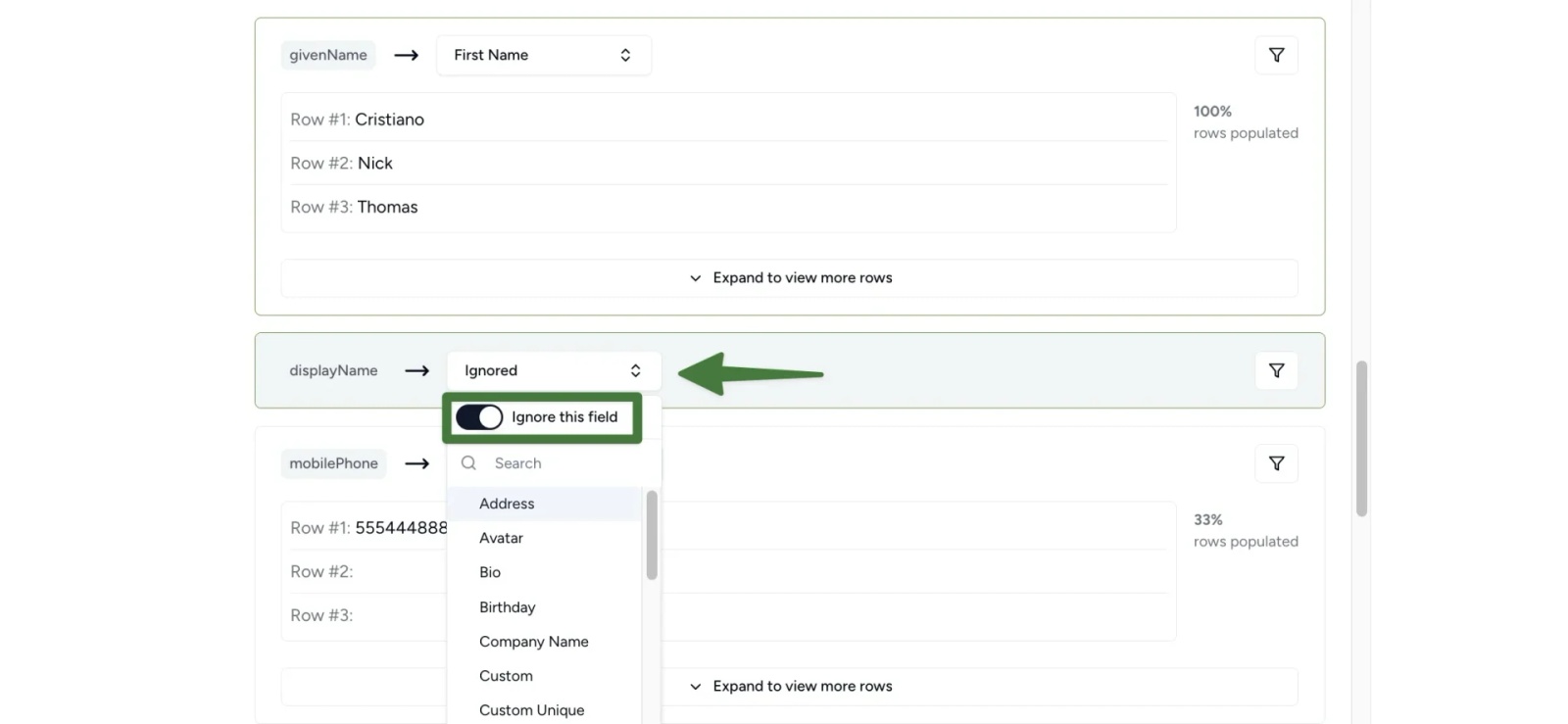
Tip 💡:You can ignore fields you don’t need (such as roles or internal-only attributes) > set the toggle switch to Ignore this field from that row’s drop down menu.
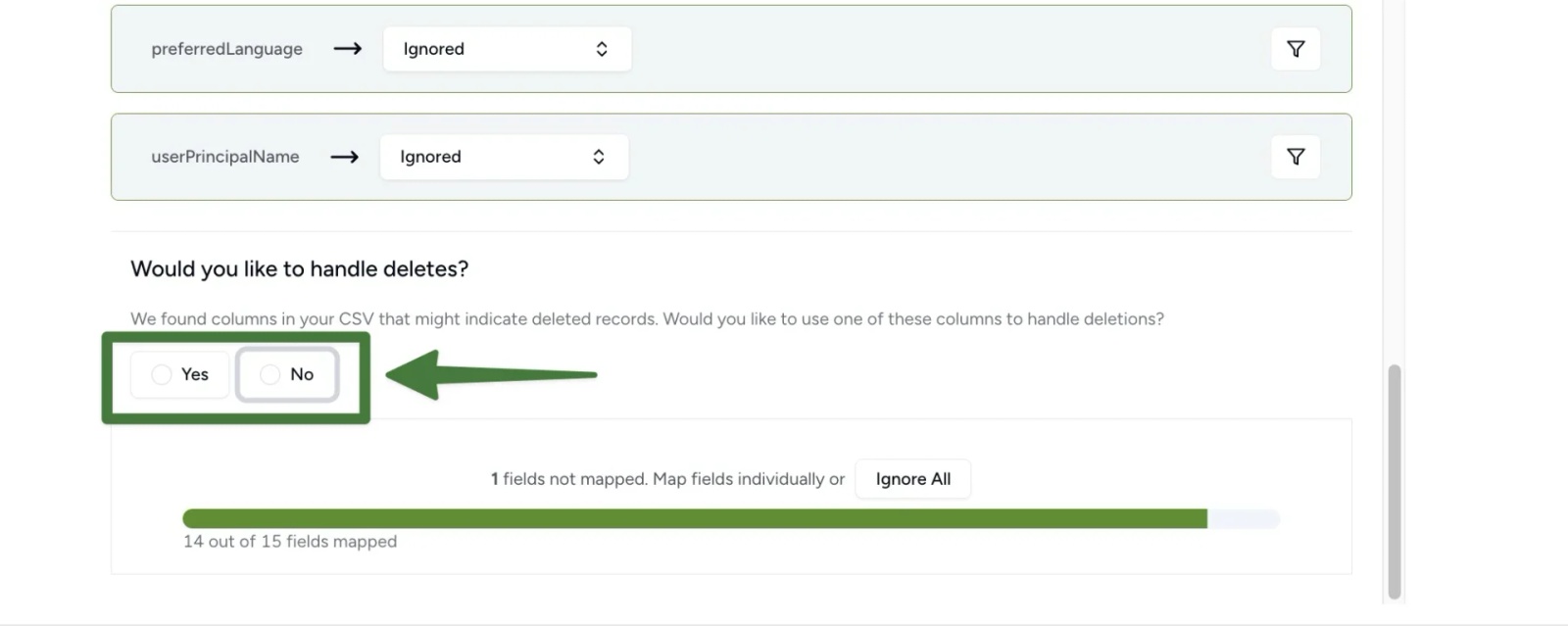
Choose how deleted or disabled Entra accounts are handled
At the bottom of the mapping screen, you’ll see an Action required message asking whether you would like to handle deletes.
This setting controls what happens in Contactzilla when a user account is disabled in Microsoft Entra ID.
1) Decide whether to handle deletes > Click Yes or No
No – Contactzilla will continue to import contacts even if the Entra account is later disabled
Yes – Contactzilla will use Entra status information to remove contacts when accounts are no longer active.
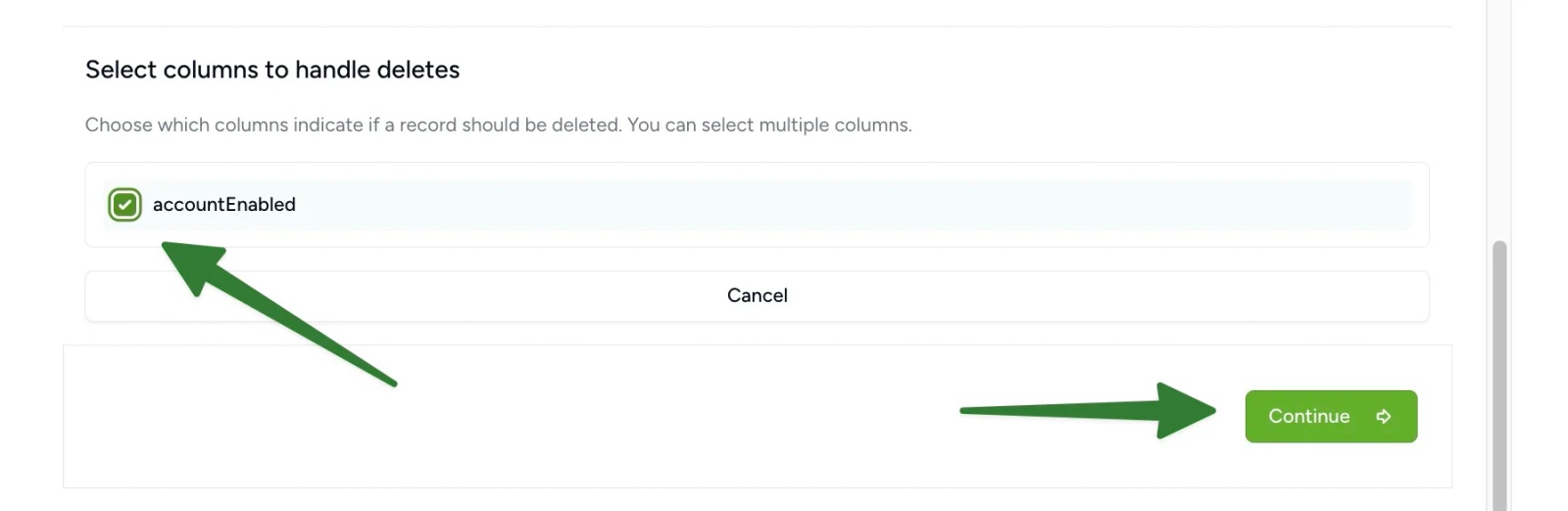
2) If you select Yes, you’ll be asked to choose which column should be used to identify deleted or inactive records.
From the list of available columns > select accountEnabled
Confirm your selection to continue
When this option is enabled:
- Contacts are imported only while their Entra account is active
- If an account later becomes disabled in Entra, the corresponding contact will be automatically removed from the address book
This helps keep contact lists accurate as staff leave or accounts are deactivated.
Tip 💡 Microsoft Entra does not always signal when an account is fully deleted. In most organisations, accounts are first disabled and then deleted later – this option is designed to work with that common workflow.
Step 5: Choose how Contactzilla handles duplicate contacts
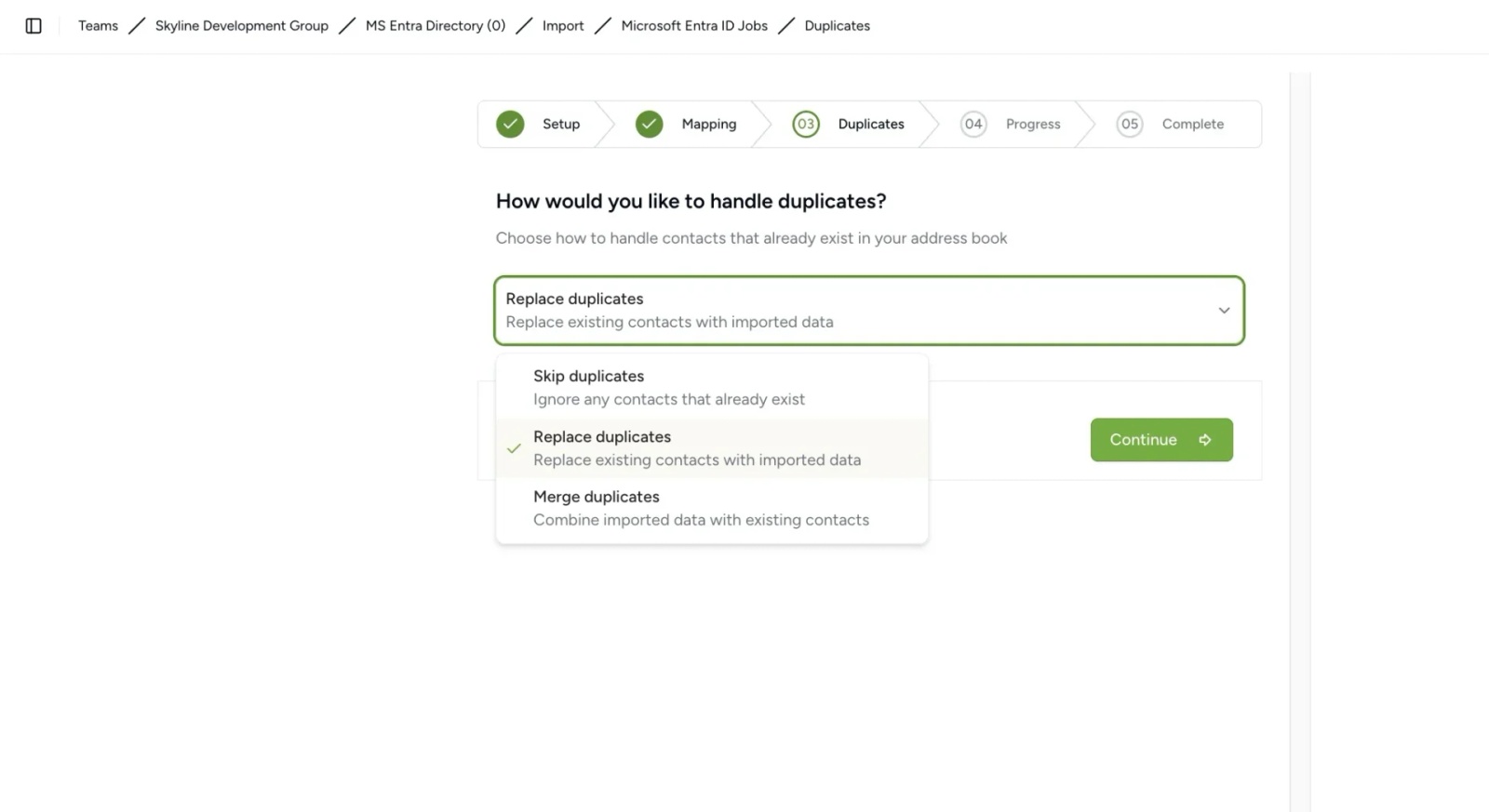
In this step, you’ll decide what Contactzilla should do if an imported Entra contact already exists in the address book.
Contactzilla primarily uses the Hidden Custom Unique Field you mapped earlier (for example MSID or Entra ID) to identify matching contacts. If that field is not present, it will fall back to matching on name and email address or mobile number.
Choose a duplicate handling option
1) Select one of the following behaviours:
- Skip – Existing contacts are left unchanged and Entra updates are ignored
- Merge – Entra data is merged with existing Contactzilla data
- Replace – Existing Contactzilla contacts are completely replaced with data from Entra
Recommended option
For most organisations, Replace is recommended.
This is the best choice when Microsoft Entra ID is your source of truth, as it ensures contact details in Contactzilla always reflect the latest data from Entra.
When other options may be useful
- Merge may be appropriate if contacts are enriched or edited inside Contactzilla and you want to preserve those changes
- Skip may be useful for one-off imports where you don’t want to modify existing contacts
2) Once you’ve selected the appropriate option > click Continue to start the import.
Step 6: Review the import results
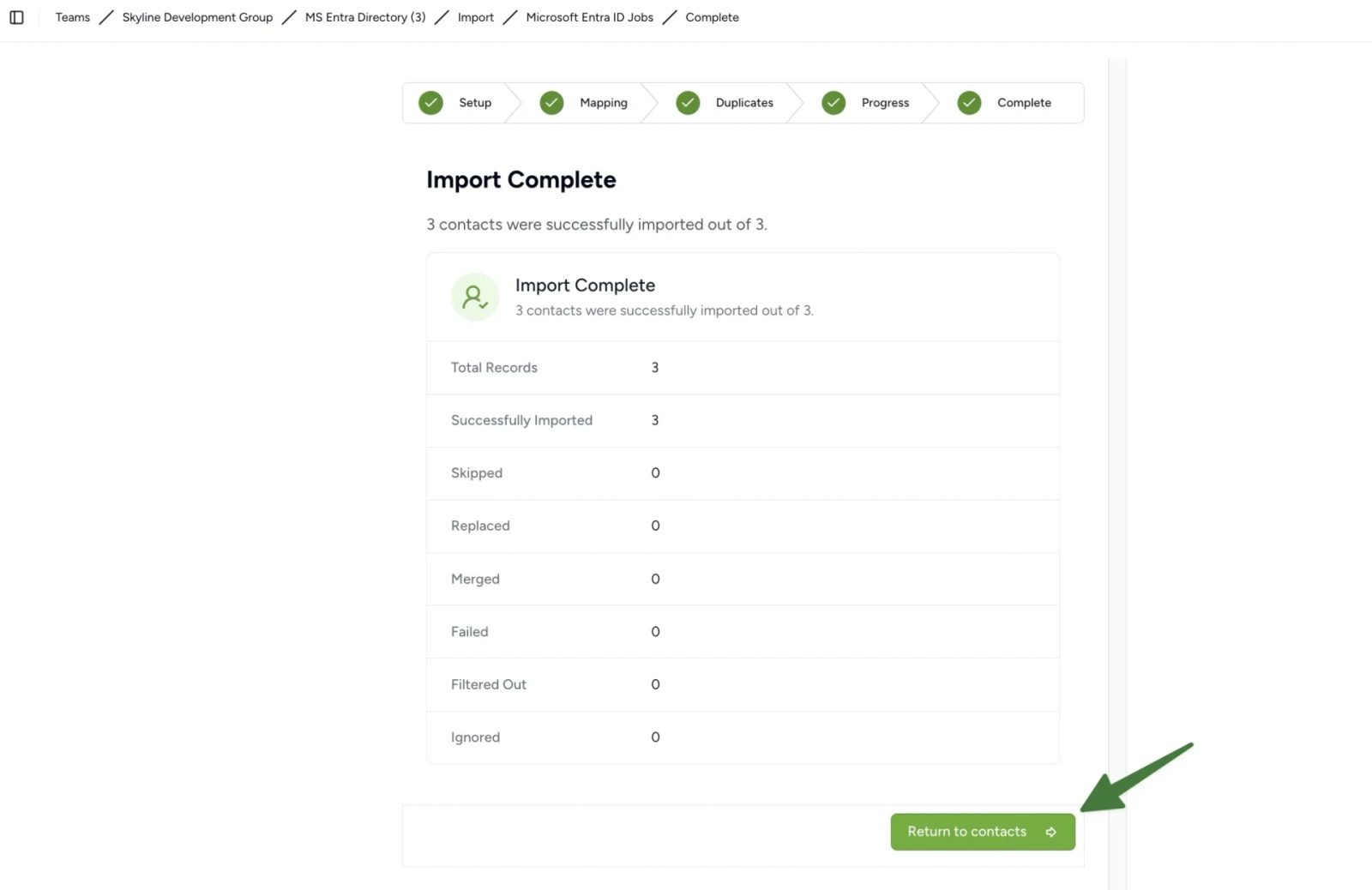
Once the import starts, Contactzilla will process the data and display the Progress screen while records are being created or updated.
When the import finishes, you’ll see the Import Complete confirmation screen > Click Return to contacts to view the newly imported contacts in your chosen address book.
Still need help?
Our support team is available to assist you with any questions or issues you may have.

