
How can we help you?
Browse Categories
IBM MAAS 360: How to Deploy Contactzilla Address Books to iOS Devices using Maas 360 MDM
This guide assumes you already have Maas 360 configured and iOS devices enrolled. We’ll walk you through creating the mobile configuration file in Contactzilla and deploying it via Maas 360.
What You’ll Need
- A Contactzilla account with an existing address book. Please see our getting started guide here
- An MDM team member created in your Contactzilla account (required prerequisite – see setup below)
- Maas 360 configured with enrolled iOS devices (Admin access to your Maas 360 dashboard)
Prerequisites – MDM Team Member Setup
⚠️ Important: Before you can create mobile configuration files for MDM deployment, you must first set up an MDM team member in your Contactzilla account. This creates the specialized user account needed for device deployments and generating the .mobileconfig file.
If you haven’t created one yet, follow the steps for creating an MDM team member in our detailed setup guide:
Setting Up MDM Deployments in Contactzilla
Creating the MDM Device Connection in Contactzilla
Step One: Set Up Your MDM Connection
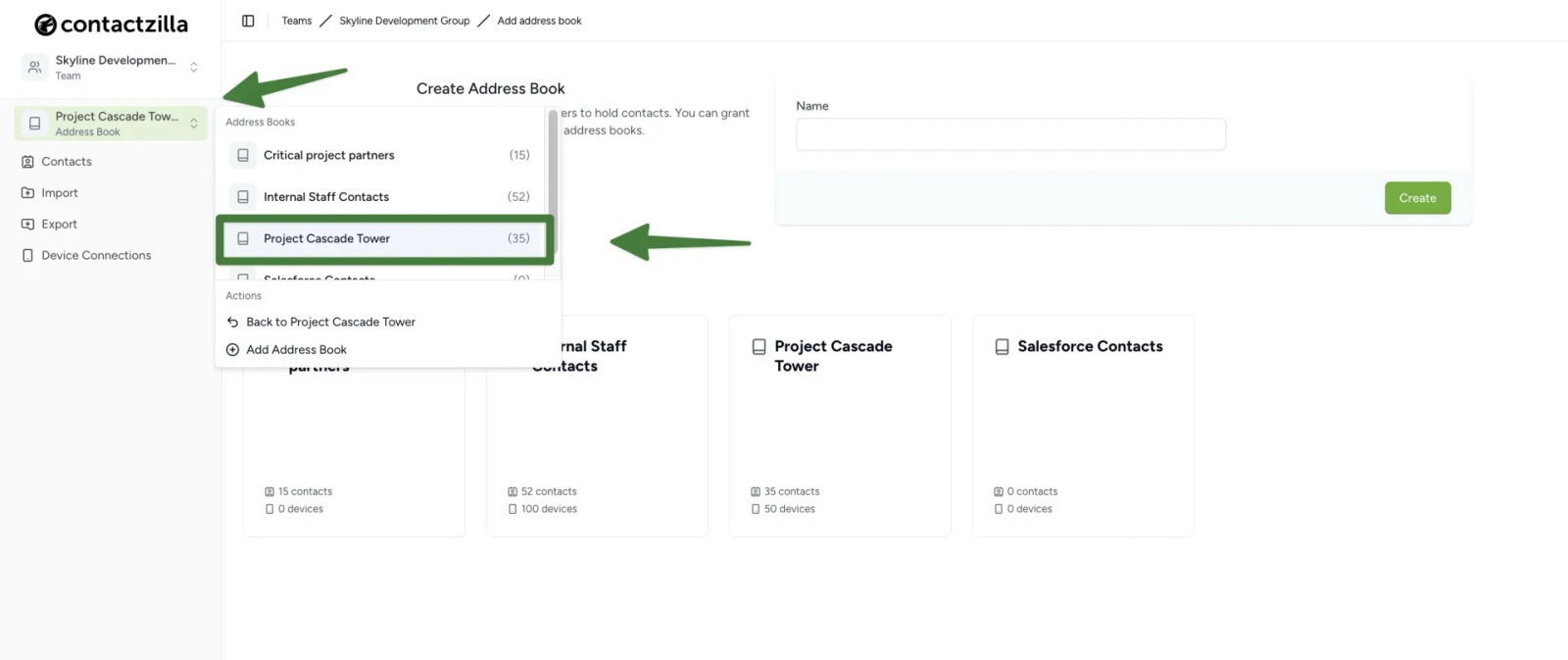
1) Login to Contactzilla and select the address book that you wish to deploy to your iOS devices.
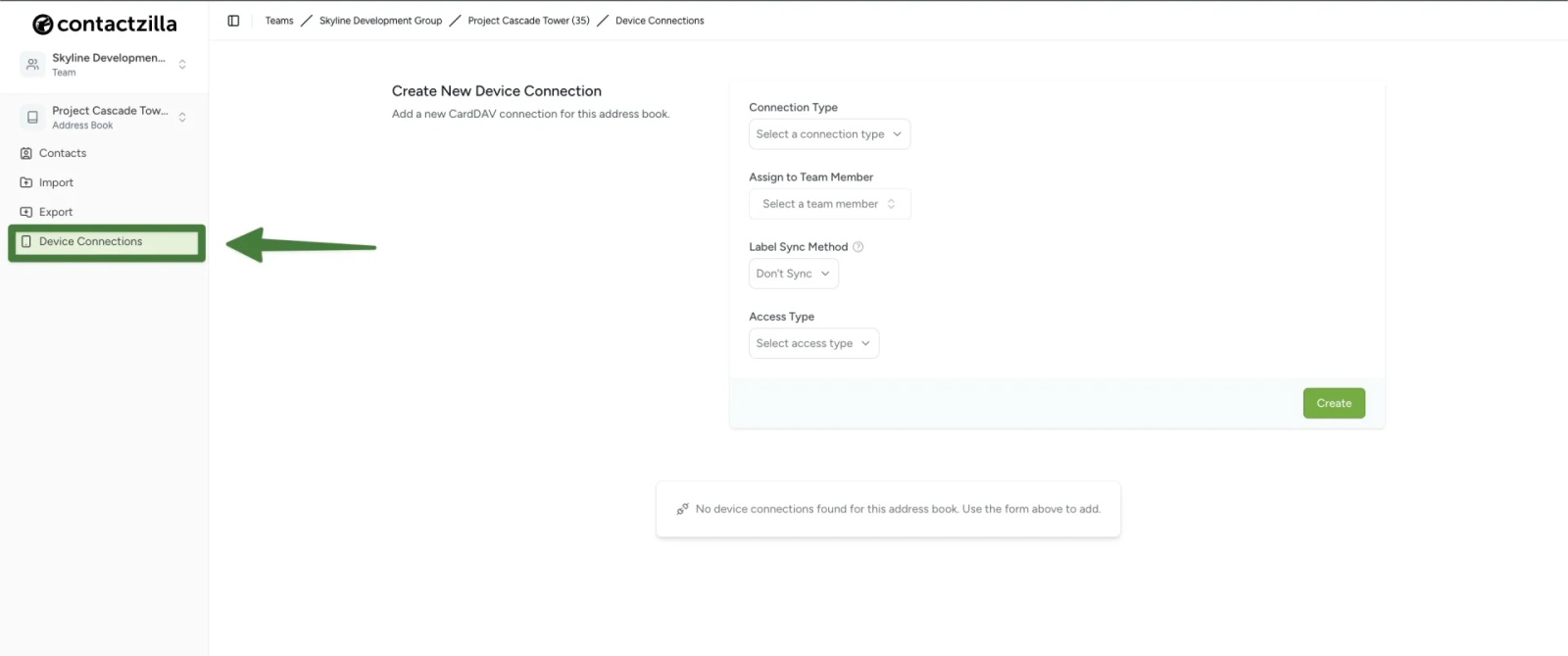
2) Click on ‘Device Connections’. From here we will create a CardDAV connection specifically designed for MDM deployment.
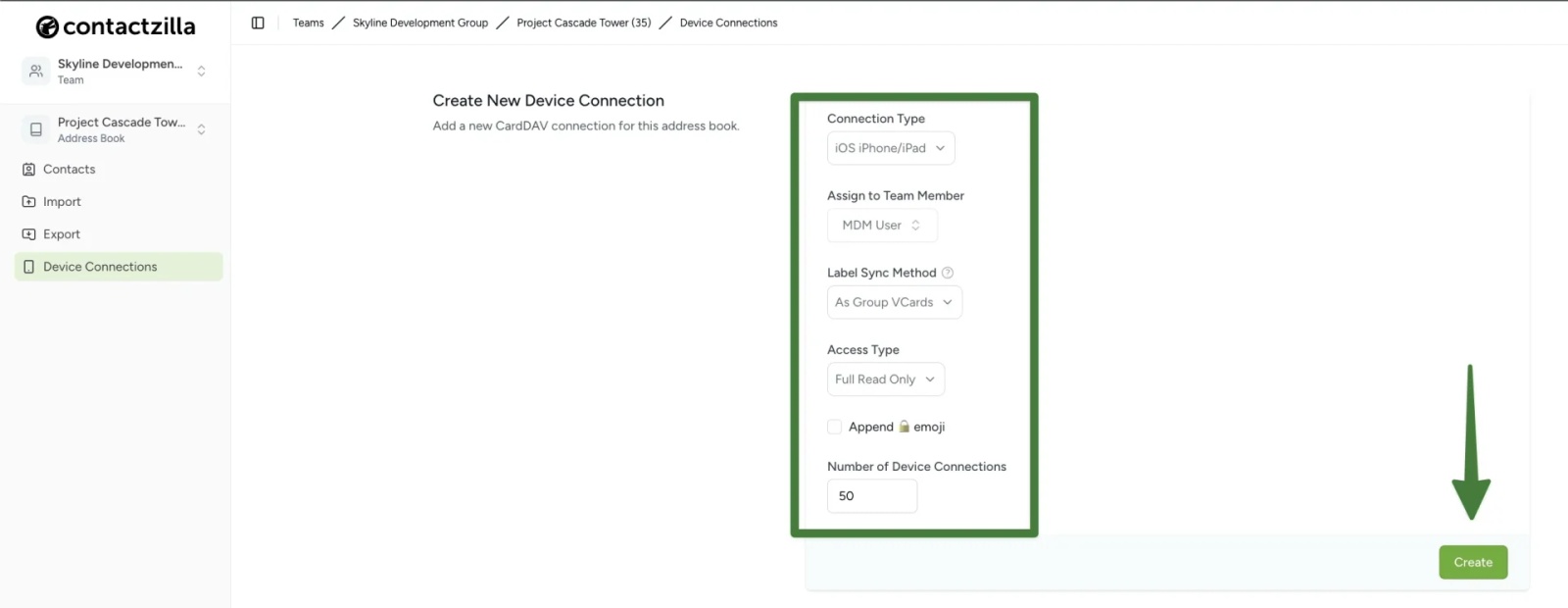
3) From the ‘Create New Device Connection’ screen that follows configure the following settings from the dropdown menus:
Connection Type: ‘iOS’
Assign to Team Member: Select your MDM team member (created in the prerequisite setup above)
Label Sync Method: Leave as default ‘As Group VCards’
Access Type: Choose based on your needs
- ‘Full Read Only’ (recommended for managed devices to prevent accidental changes)
- ‘Selective Read Only’ (if you only want specific labeled contacts)
- ‘Full Read/Write’ (if devices need to add/edit contacts)
Tip 💡: For Read only deployments you have an option to append a lock emoji to each contact in the native contacts app to make it clear to a user that any changes will not be written to the server.
Number of Device Connections: Set to the number of devices you plan to deploy to
Click the ‘Create’ button to generate your new Device connection.
Step Two: Download the Mobile Configuration File
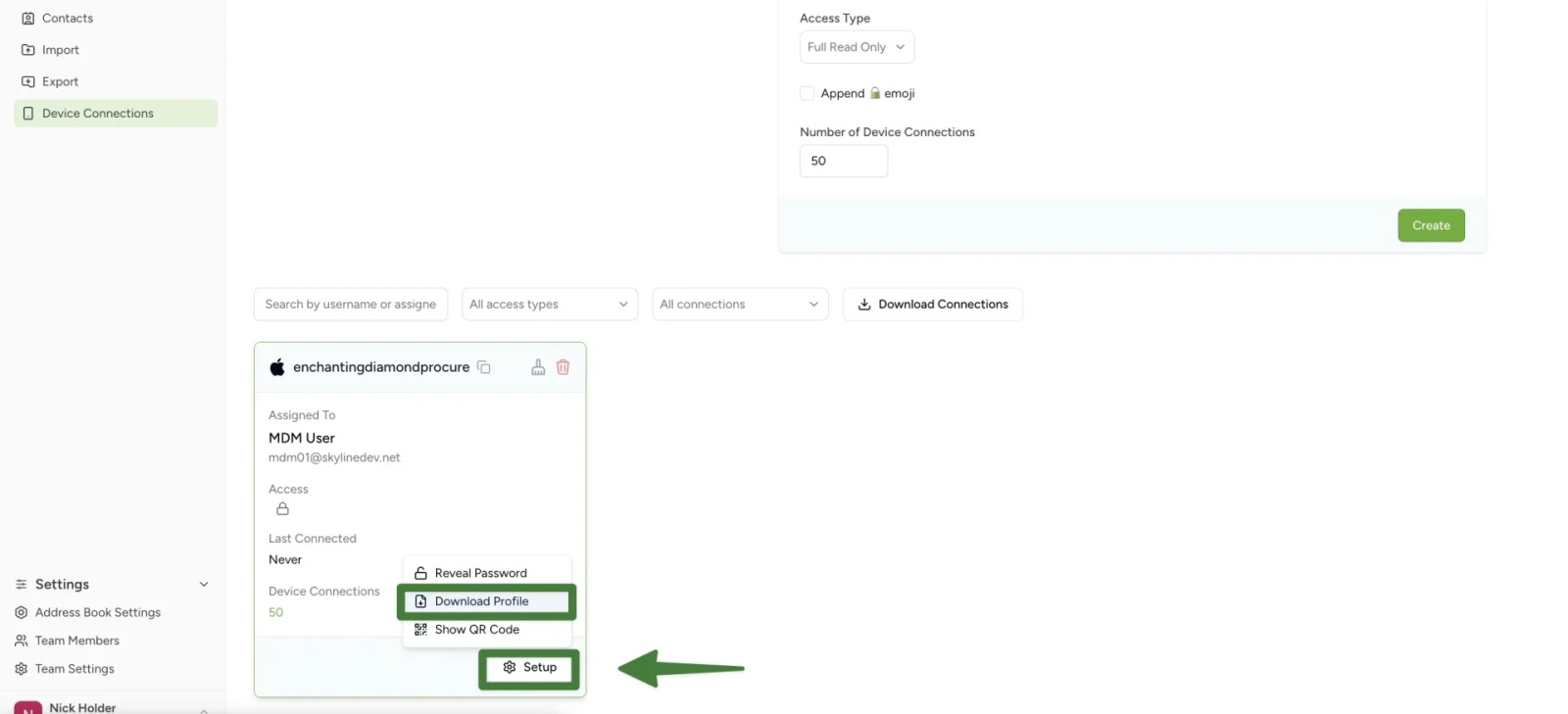
1) After clicking Create, you’ll see your new CardDAV connection listed in the connections panel. Click the ‘Setup’ button on your new connection and choose ‘Download Profile’.
Save the .mobileconfig file to your computer – you’ll need this file for the Maas 360 deployment.
Step Three: Deploy via MaaS360 (upload and assign your Contactzilla profile)
1) Go to Security → Policies > click Add Policy to create a new policy.
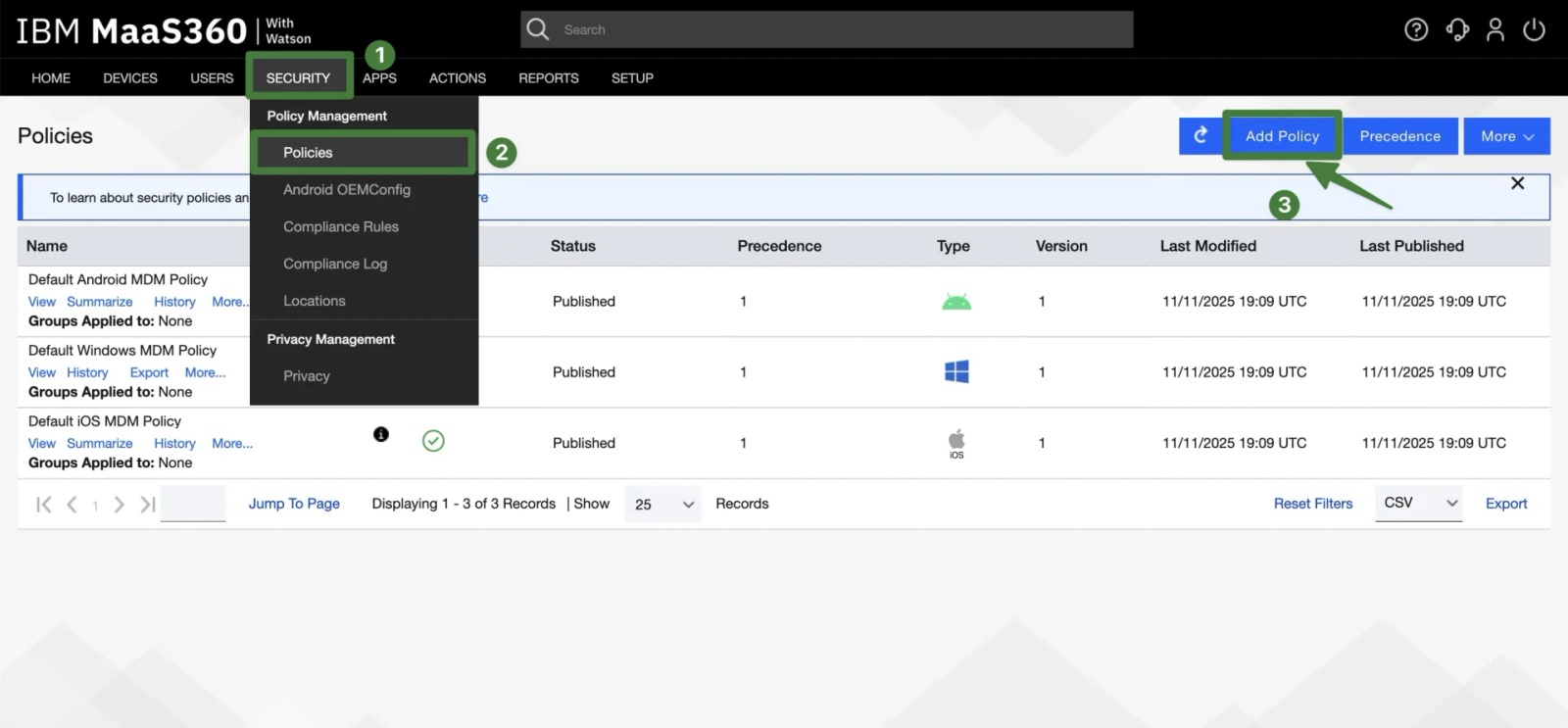
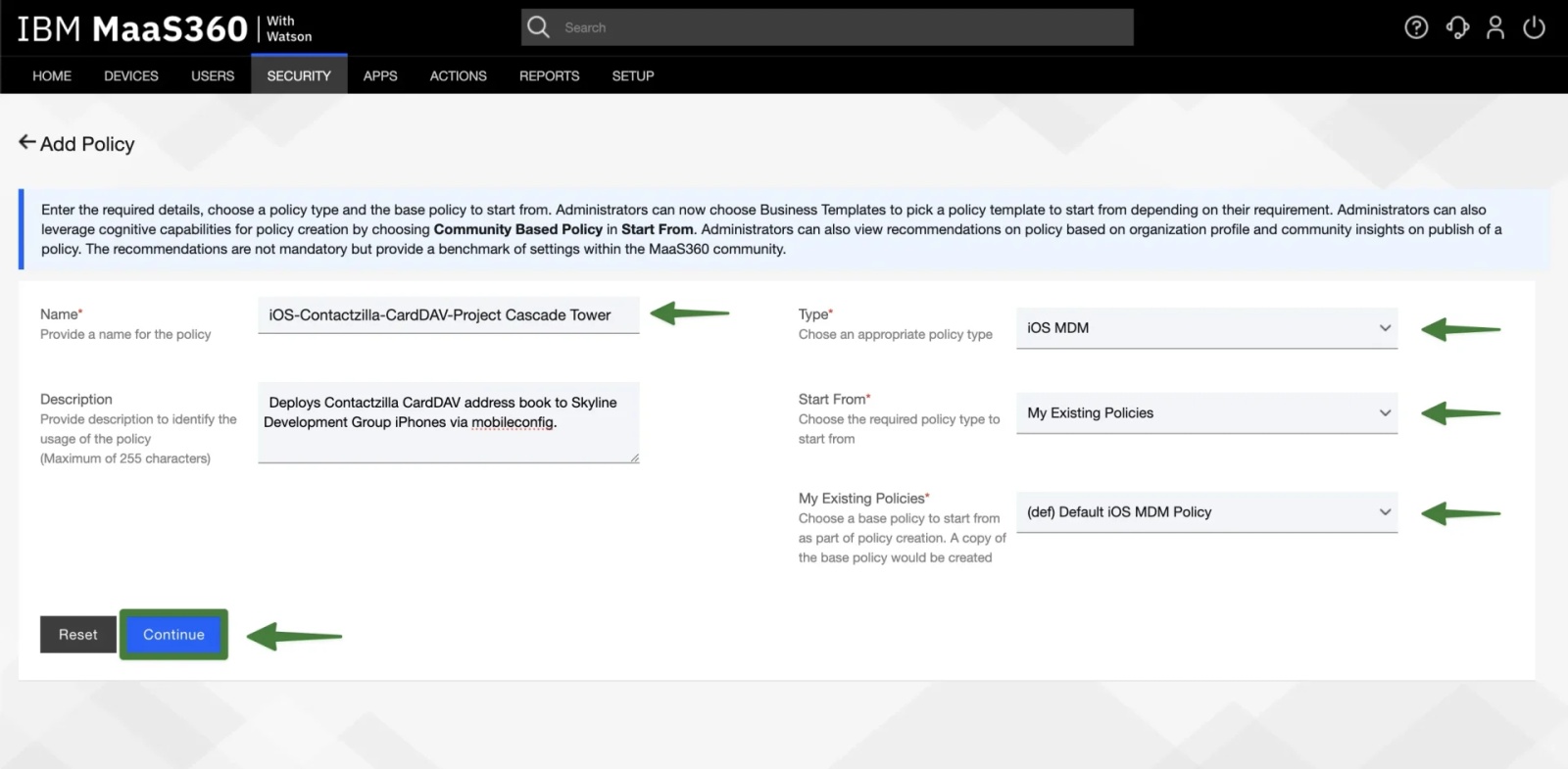
On the Add Policy screen, complete the fields as follows:
Name → use a clear, address-book specific name, e.g. iOS – Contactzilla – CardDAV – Project Cascade Tower
Description (optional) → Deploys Contactzilla CardDAV address book to Skyline Development Group iPhones via mobileconfig.
Type → iOS MDM
Start From → My Existing Policies and select Default iOS MDM Policy (recommended).
What “Start From” means: it only chooses the baseline template MaaS360 uses to pre-populate policy settings.
- Default/Blank (sometimes shown as Start from scratch or similar) gives you a clean policy with minimal toggles — ideal here because we’re just importing a
.mobileconfig. - Community/Business templates (if shown) come with opinionated restrictions and can introduce extra payloads you don’t need. Use them only if your org standardizes on those templates.
> Click Continue to create the policy.
We’ll now open this policy to import the Contactzilla .mobileconfig and then publish it.
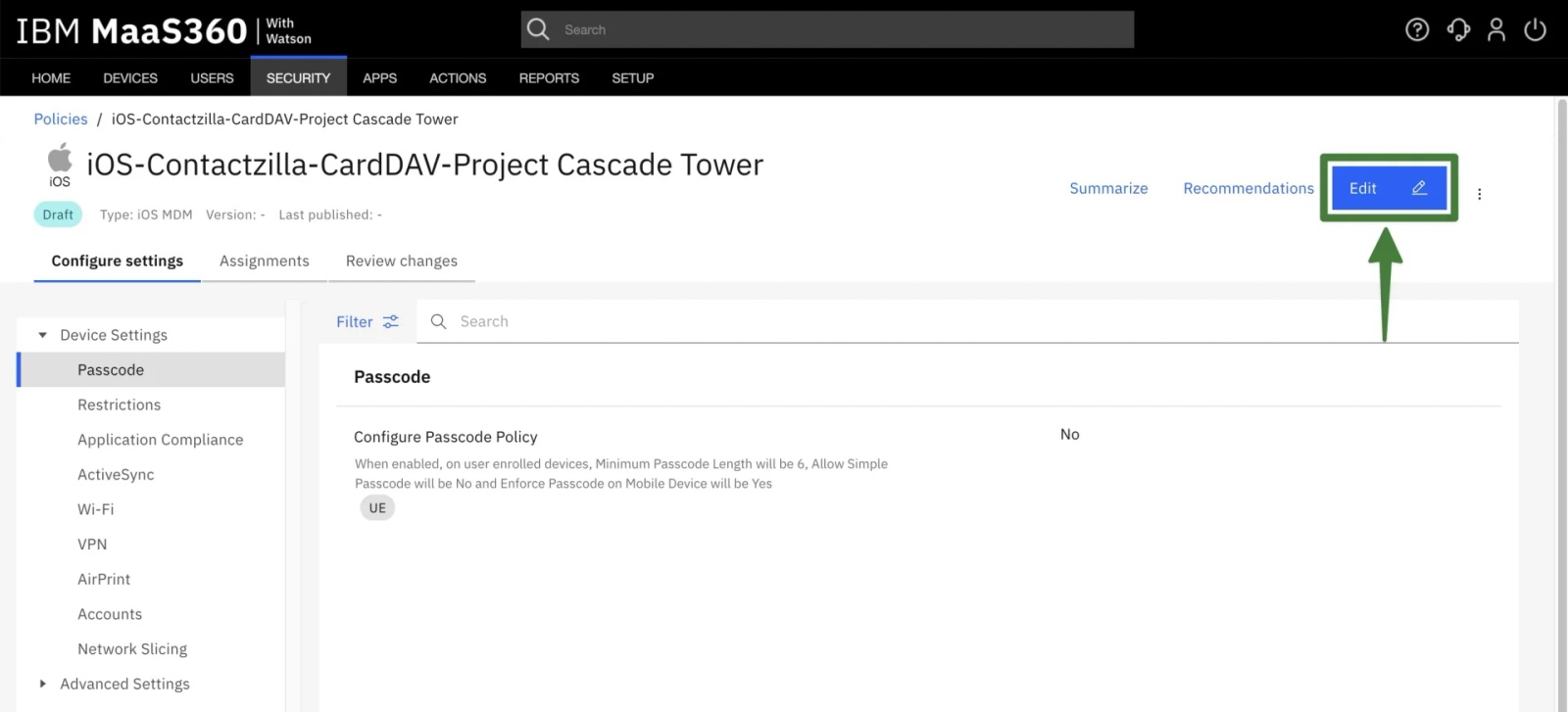
3) Your policy has now been created > Click Edit in the top right
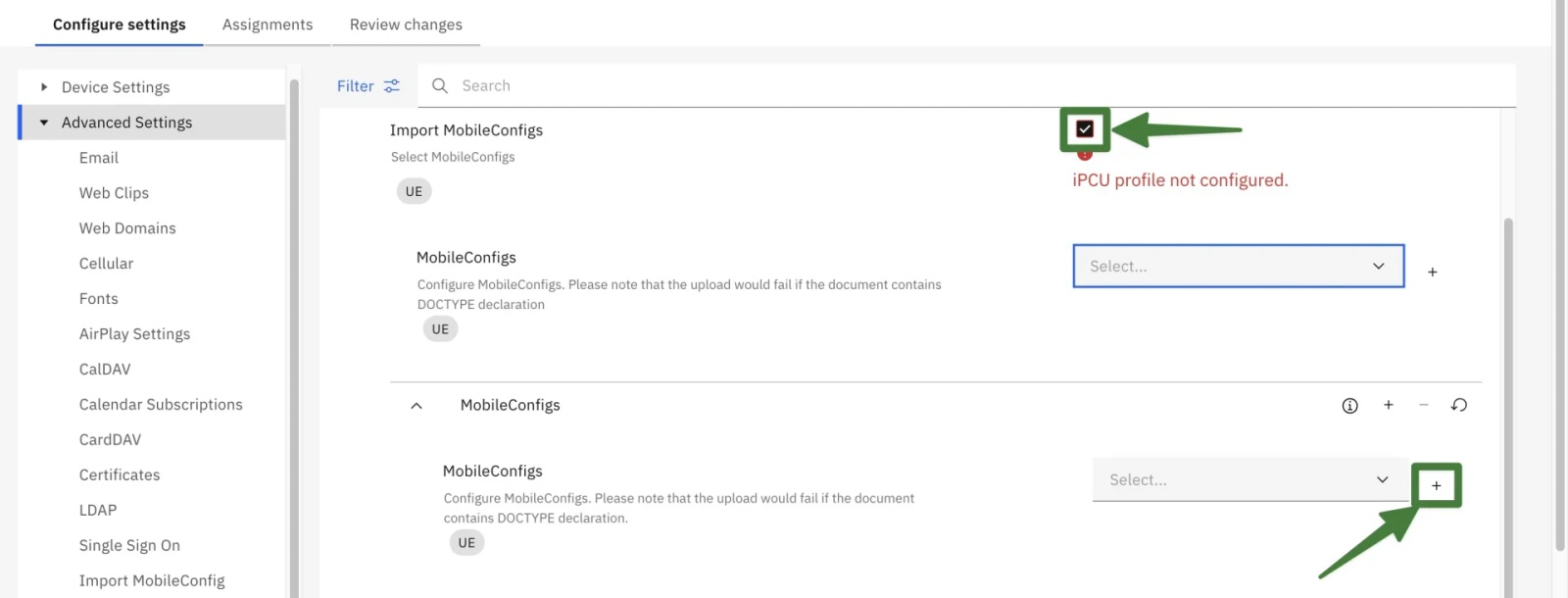
4) In the left sidebar scroll down > expand Advanced Settings > Click Import MobileConfig > In the Right hand side pane that opens expand the MobileConfig menu > Tick the Import MobileConfigs box
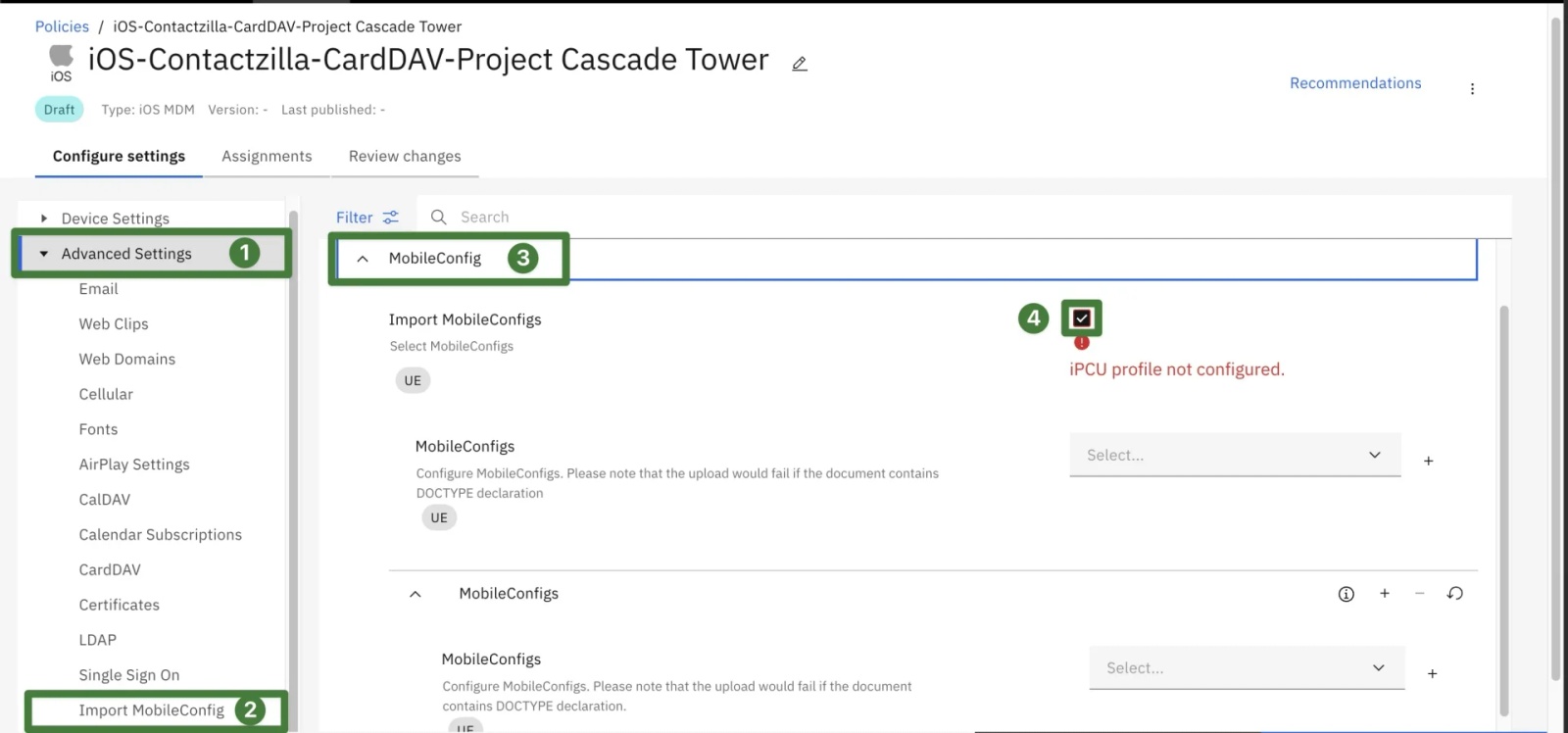
You’ll see “iPCU profile not configured.” That’s normal here—MaaS360 is just telling you no iOS profile has been imported yet. We’re about to import one, so you can ignore that banner.
Editing the downloaded mobile config file
Before we upload, MaaS360 requires one tiny change to standard iOS profiles: it rejects .mobileconfig files that include an XML DOCTYPE (DTD) declaration. We’ll remove that single line from the Contactzilla mobileconfig downloaded in the previous steps.
Do this once, then upload:
A) Open your .mobileconfig in your text editor
B) Find and delete only the DOCTYPE line:
<!DOCTYPE plist PUBLIC "-//Apple//DTD PLIST 1.0//EN" "http://www.apple.com/DTDs/PropertyList-1.0.dtd">
Leave the XML header and everything else intact, e.g.:
<?xml version="1.0" encoding="UTF-8"?>
<plist version="1.0">
Save the file, keeping the .mobileconfig extension.
Why this is safe: Removing the DTD doesn’t change your payload (server URL, username, password, UUIDs, etc.). iOS accepts plist XML without a DTD, and this satisfies MaaS360’s validator.
5) Click the + icon next to the first MobileConfigs dropdown
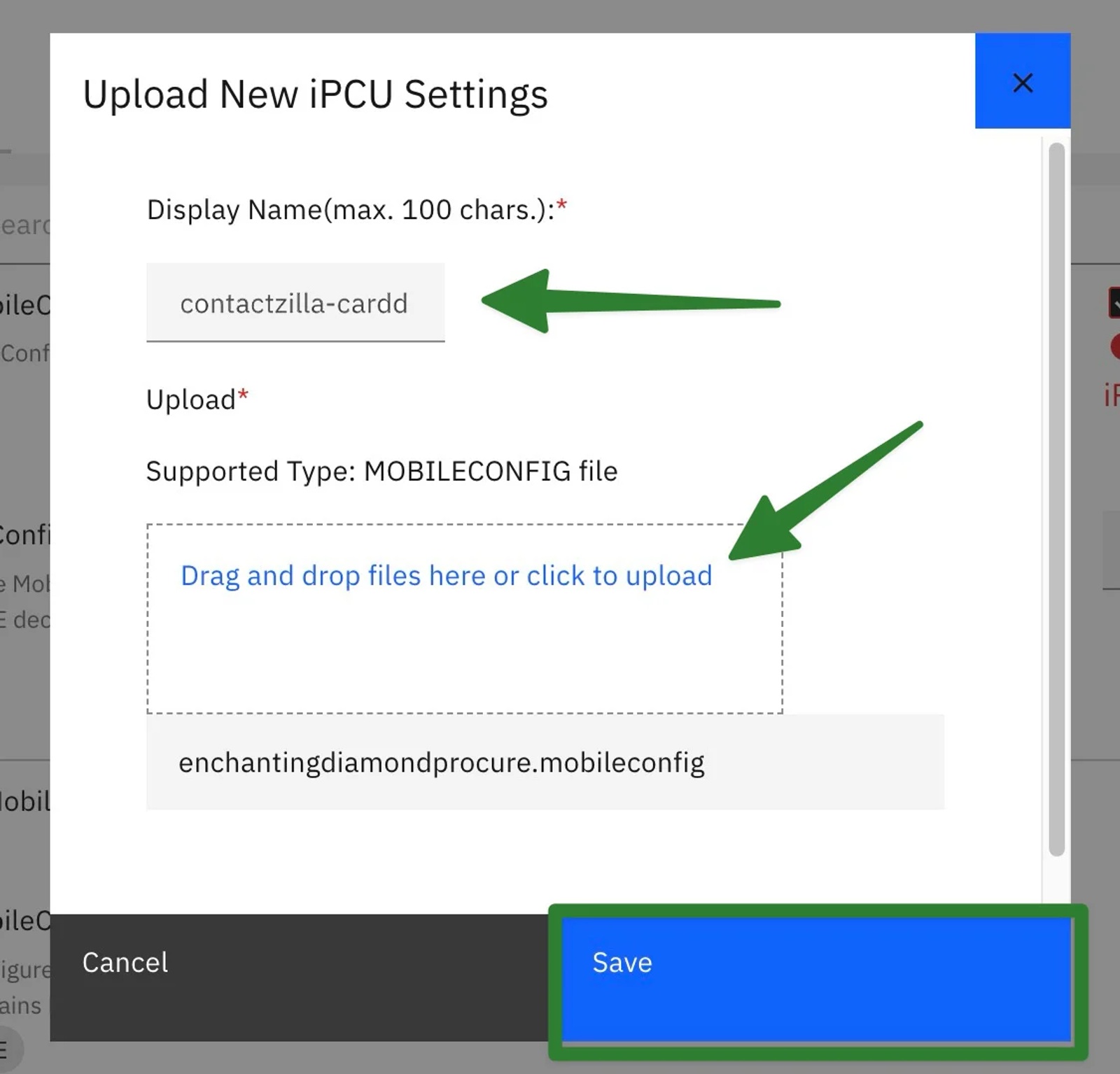
6) Now give your mobile config a display name e.g. ‘contactzilla-carddav-mobileconfig-addressbookname’ > drag and drop your edited Contactzilla mobileconfig file and hit save.
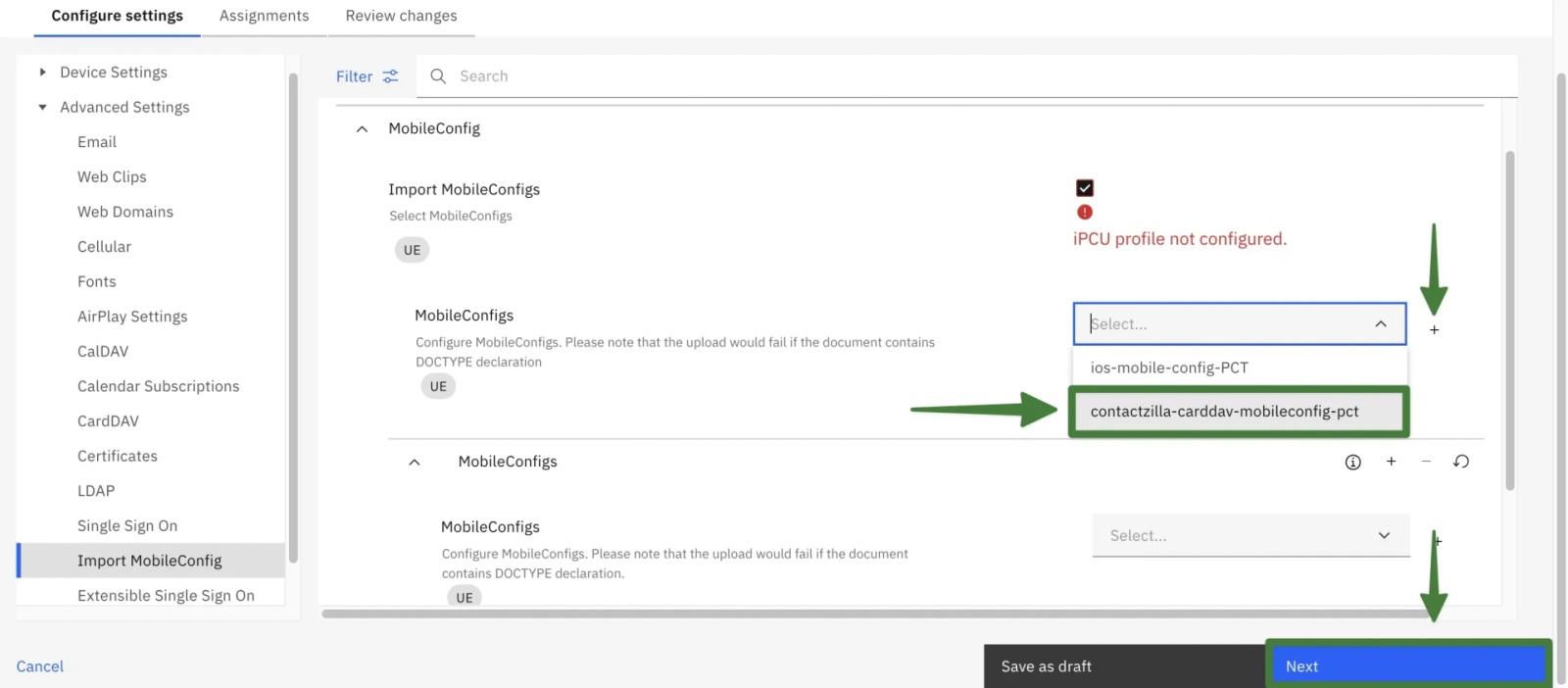
7) You’re taken back to the Advanced settings/MobileConfig screen > Open the MobileConfigs dropdown > choose the display name you just created (e.g., contactzilla-carddav-mobileconfig-pct) > click Next (bottom right)
NOTE: During testing we saw a MaaS360 quirk where the MobileConfigs dropdown doesn’t immediately list the file you just uploaded. If that happens:
Back out and re-enter the policy: return to Security → Policies, click your policy, then Edit → Advanced Settings → Import MobileConfig and open the dropdown again.
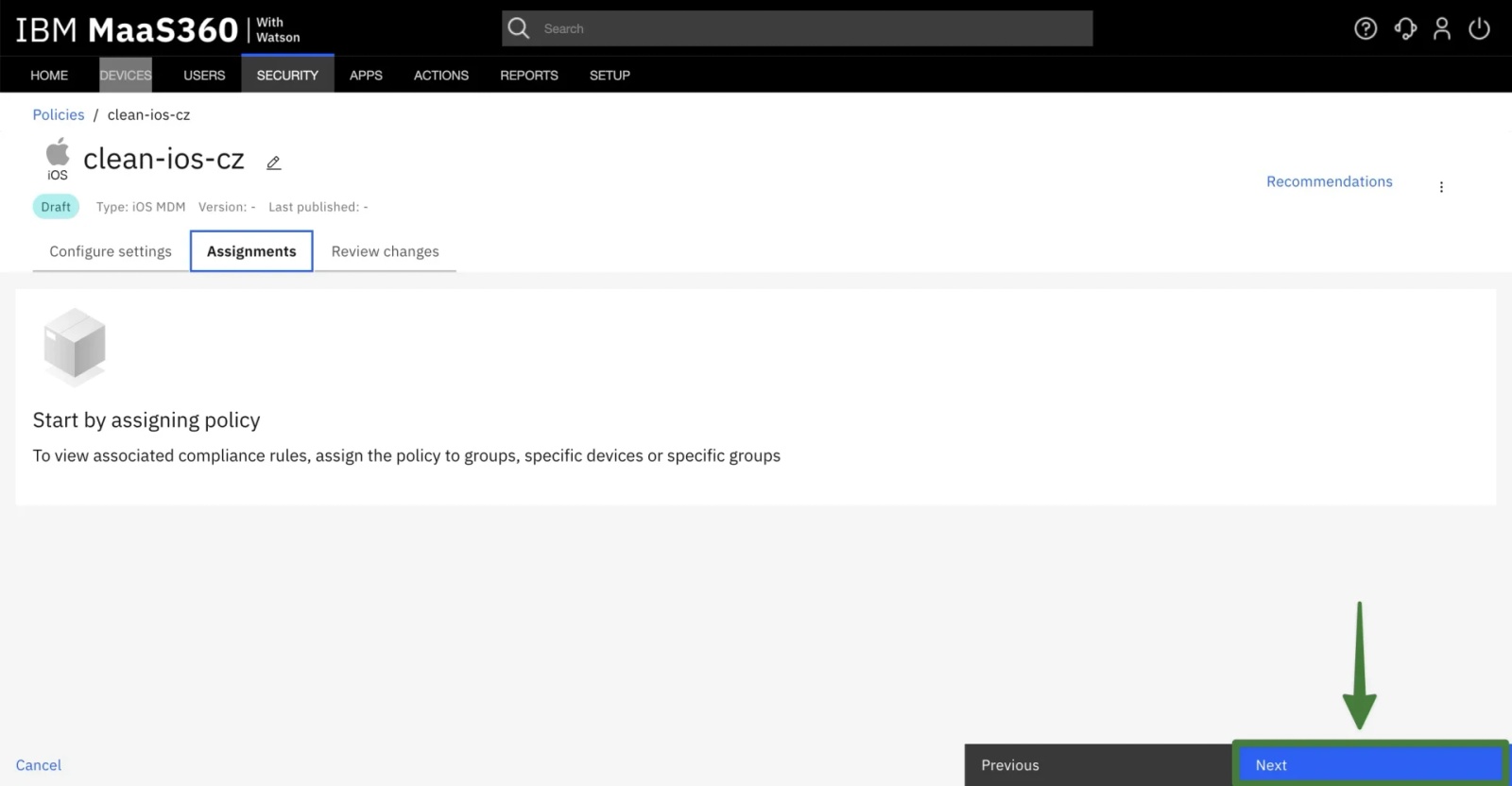
8) You’ll land on the Assignments tab. MaaS360 doesn’t let you pick a group from here for this workflow > Click Next (bottom-right)
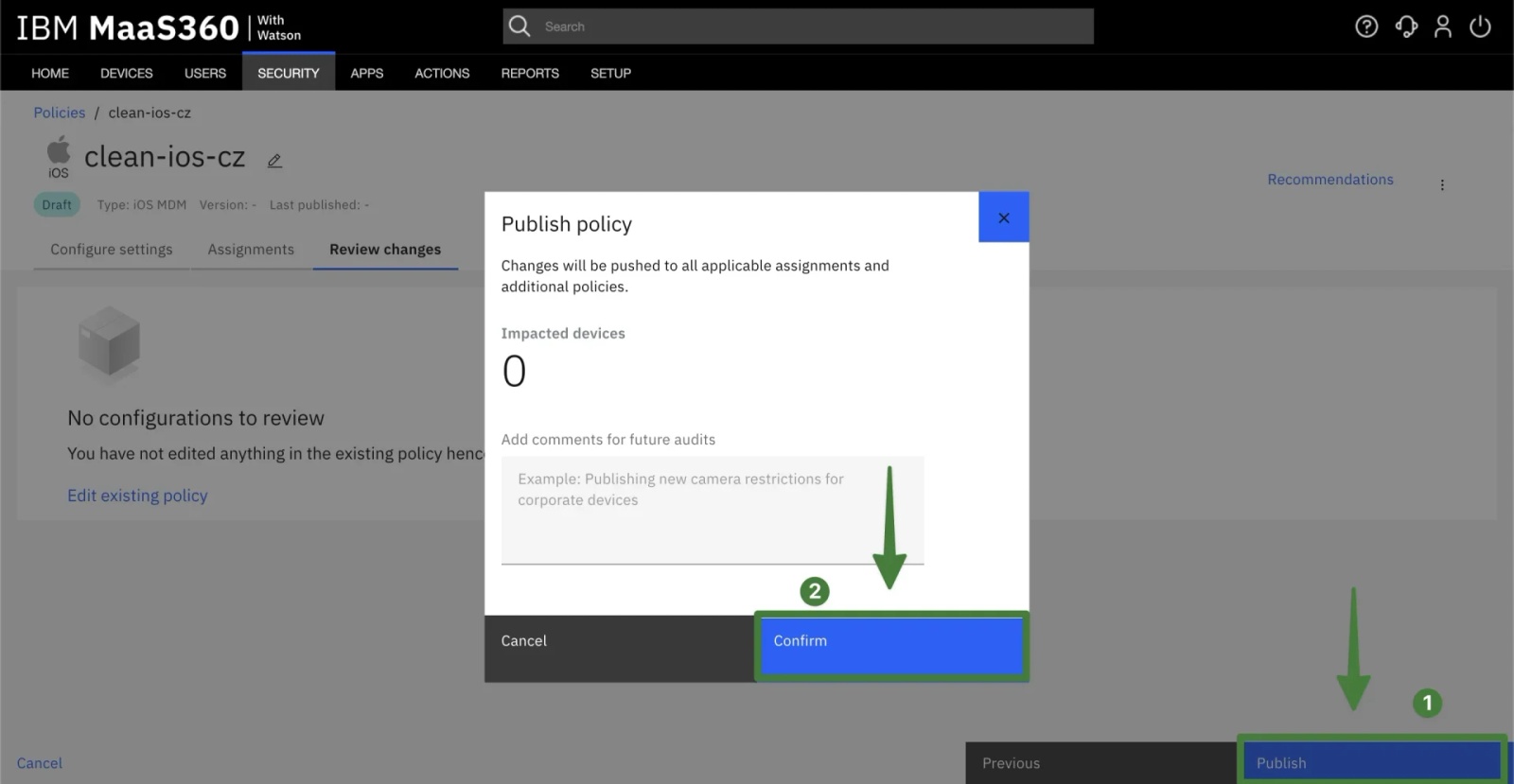
9) On the Review Changes tab that follows > Click Publish (bottom right) > Hit Confirm on the Publish Policy pop up that appears – This saves the policy with your Contactzilla .mobileconfig but does not assign it yet.
10) Apply the policy to your device group
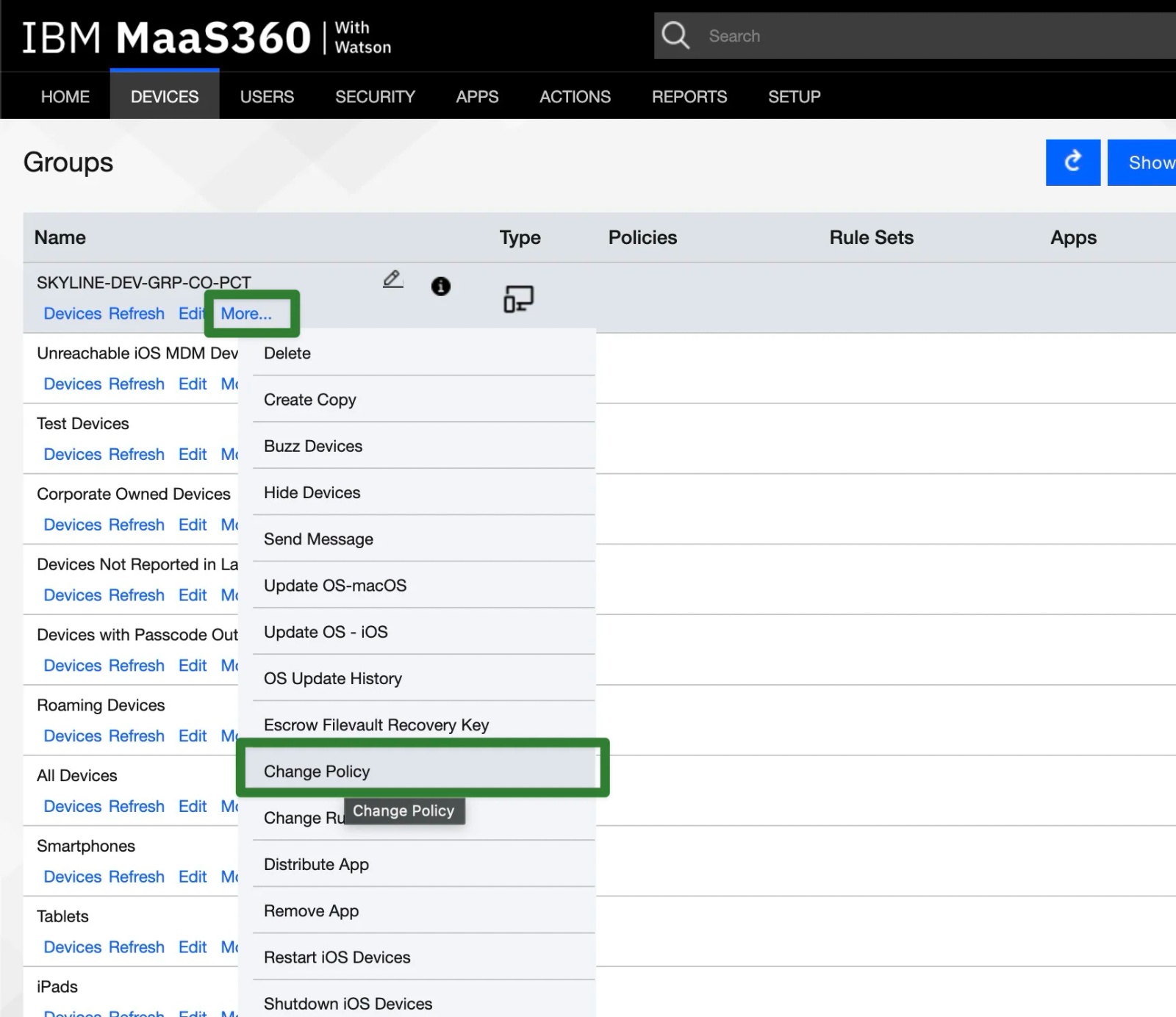
Go to Devices → Device Groups > find Your group > More… → Change Policy.
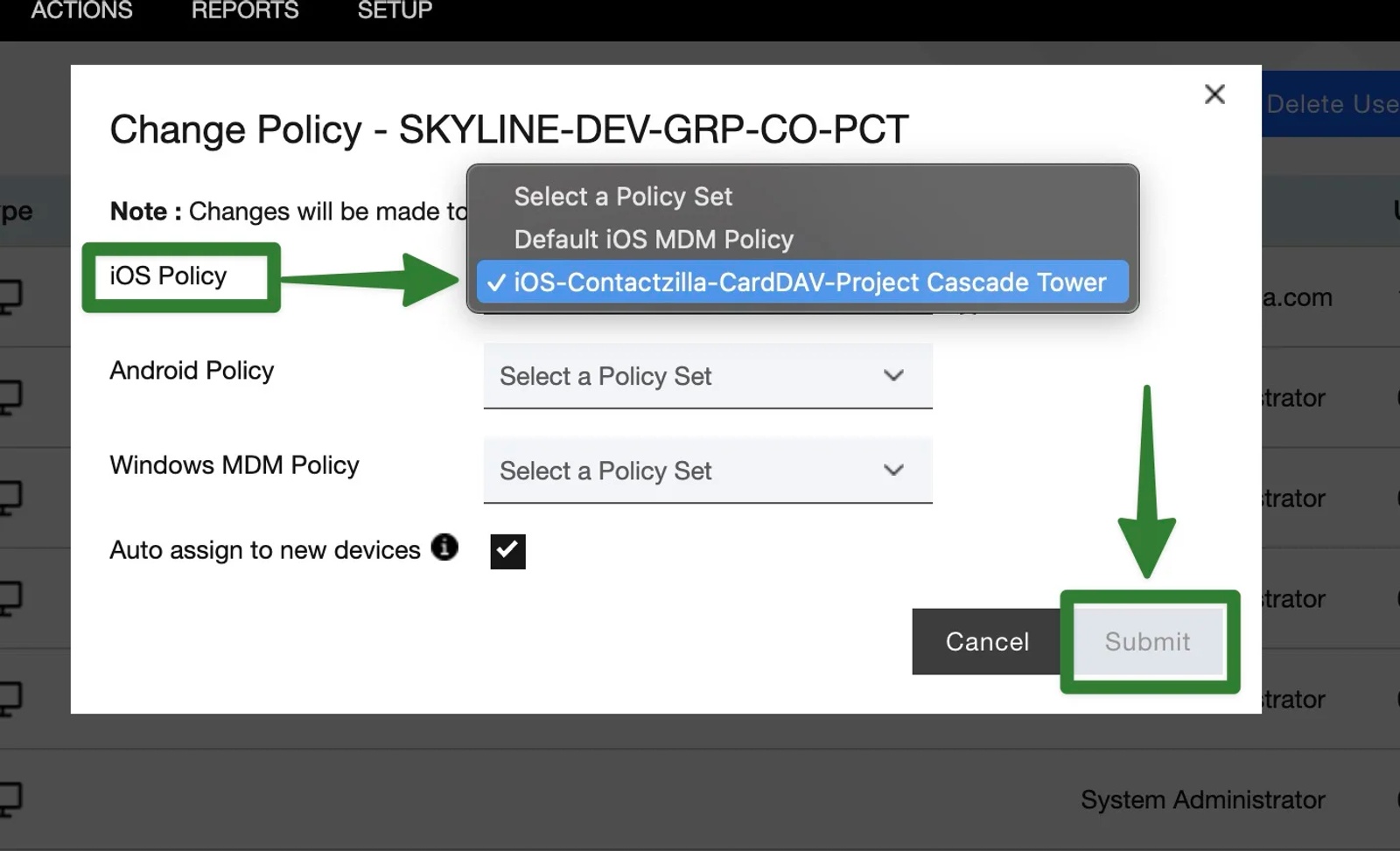
11) Select your iOS policy (e.g., iOS – Contactzilla – CardDAV – Project Cascade Tower) > Apply.
Auto-install vs “push now”
Once your policy is Published and applied to the device group, MaaS360 will auto-install the .mobileconfig on each device at the next APNs check-in. Timing can vary if the device is idle/offline.
If you want it right away (e.g., for testing):
Go to Devices > Groups > Click the circular arrow Request Data Refresh
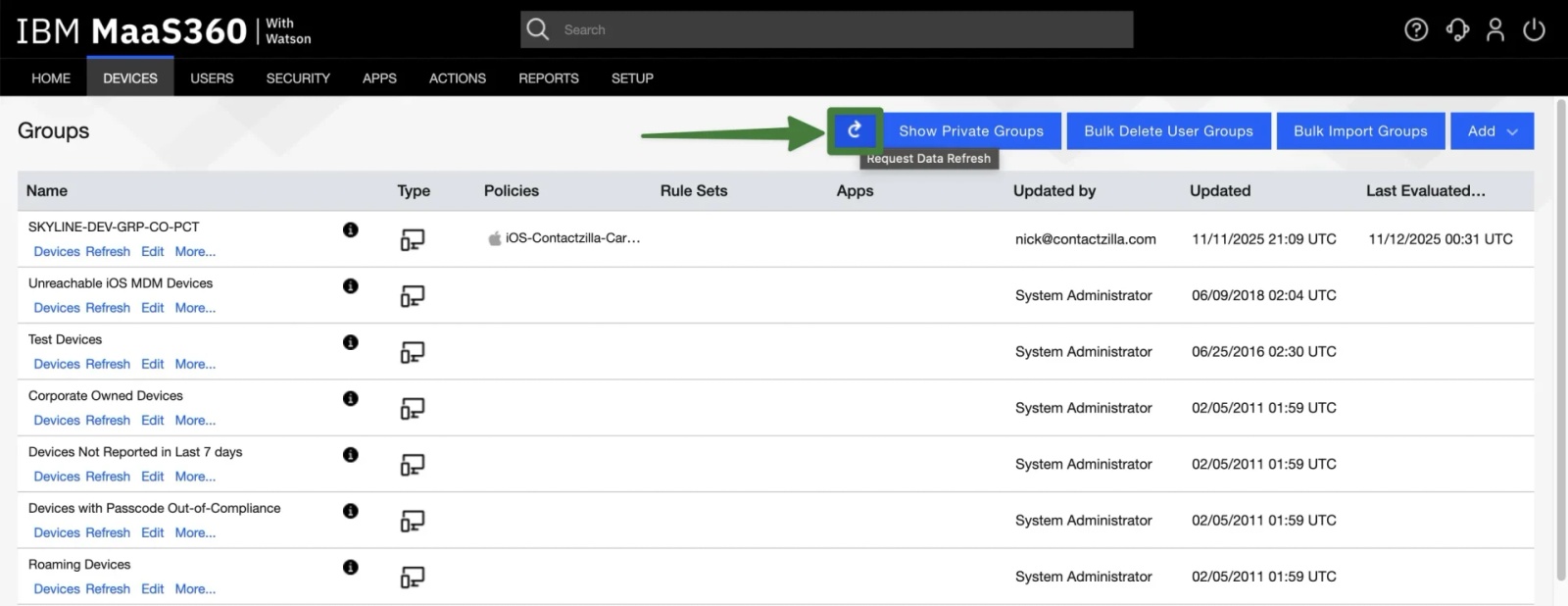
That sends an APNs nudge so the device checks in and pulls the new policy/profile immediately.
Step Four: Verify the Deployment on iPhone
Once the profile has been sent, you can confirm the Contactzilla address book has been successfully installed in a couple of ways.
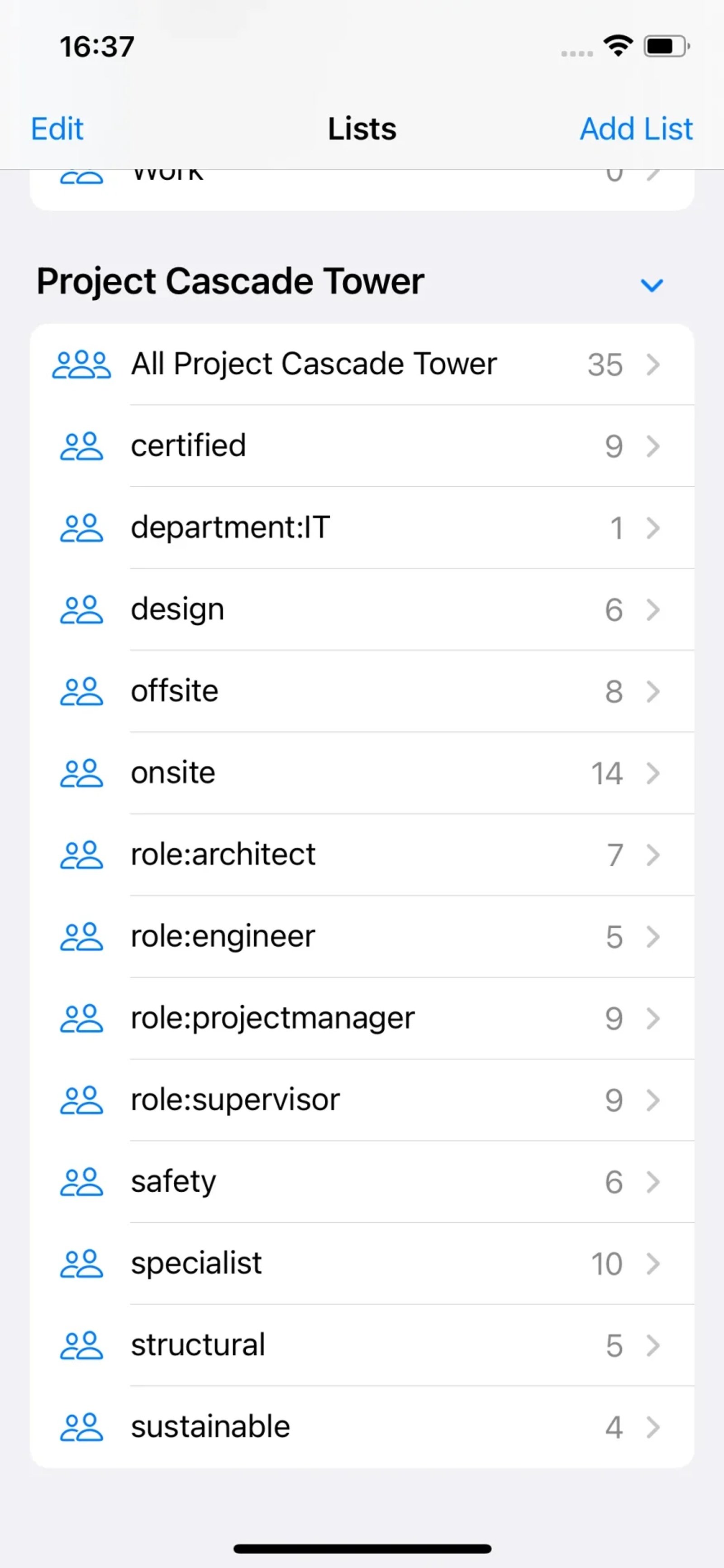
1) Open the Contacts app. Your shared contacts should now appear within the native Contacts app.
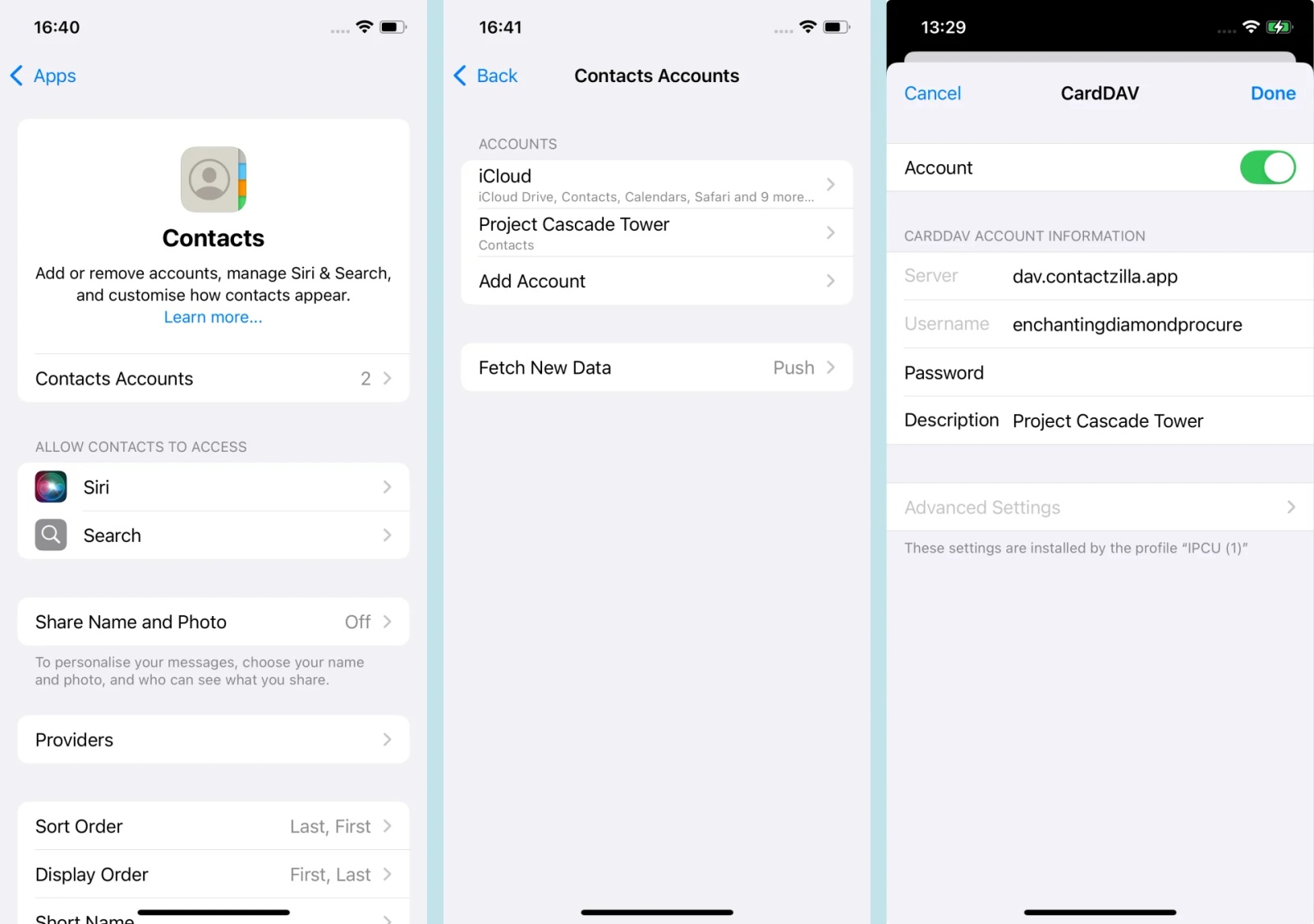
2) On the iPhone choose Settings > Contacts > Contacts Accounts.
You should see your Contactzilla address book listed there. If you click through you can see a detailed look at the CardDAV connection and make sure the Account toggle switch is on
You’ve now successfully deployed Contactzilla address books to your iOS devices using Maas 360.
Managed users will see the contacts automatically appear in their native Contacts app, with ongoing sync handled silently in the background.
Still need help?
Our support team is available to assist you with any questions or issues you may have.

