
How can we help you?
Browse Categories
WORKSPACE ONE: Android Setup | Installing Contactzilla Sync via Workspace One
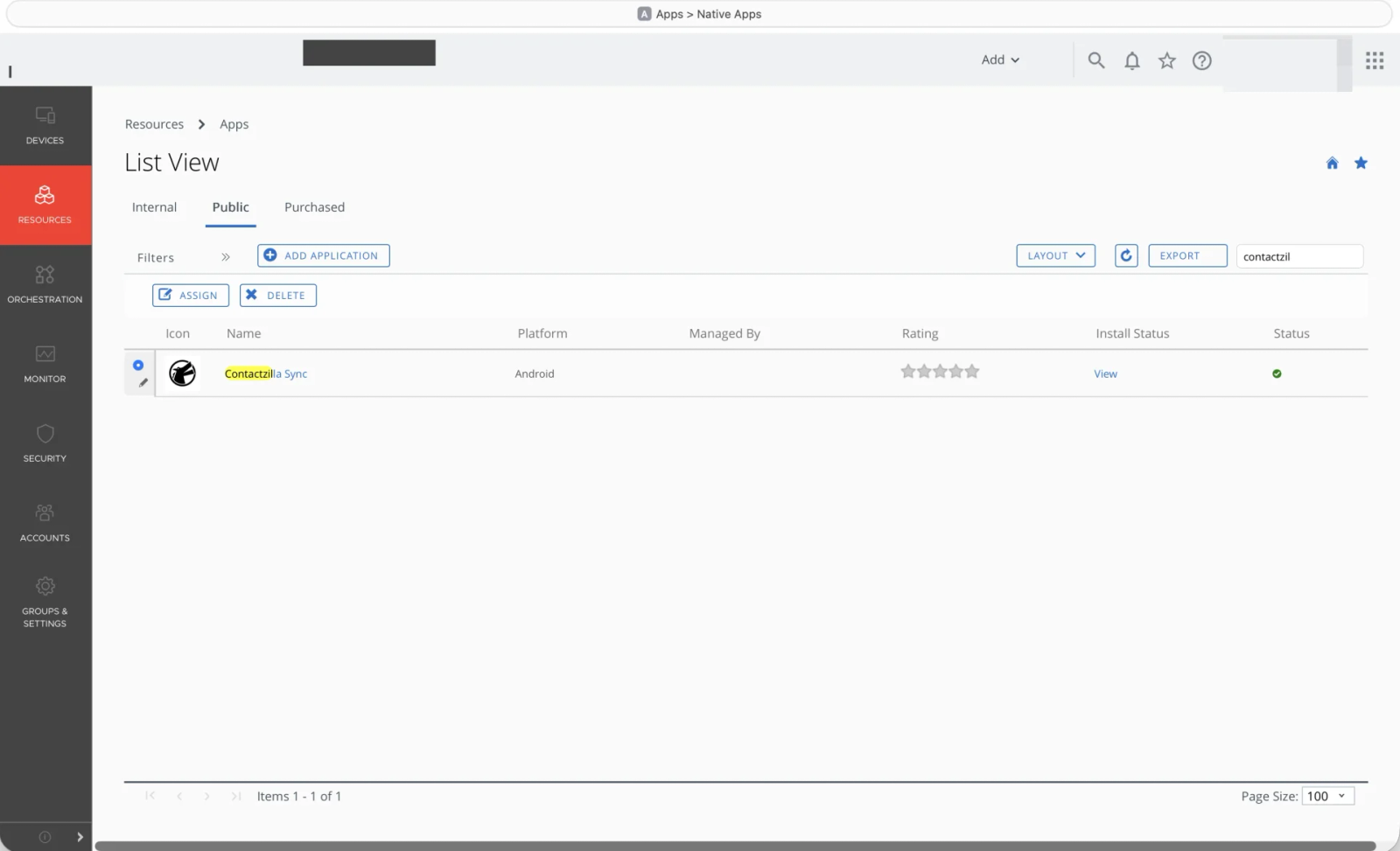
Step 1: Locate the Contactzilla Sync App in Workspace ONE
Start by locating the Contactzilla Sync Android app inside your Workspace ONE console. This ensures you’re working with the managed Google Play version.
Step 2: Open the App Assignment
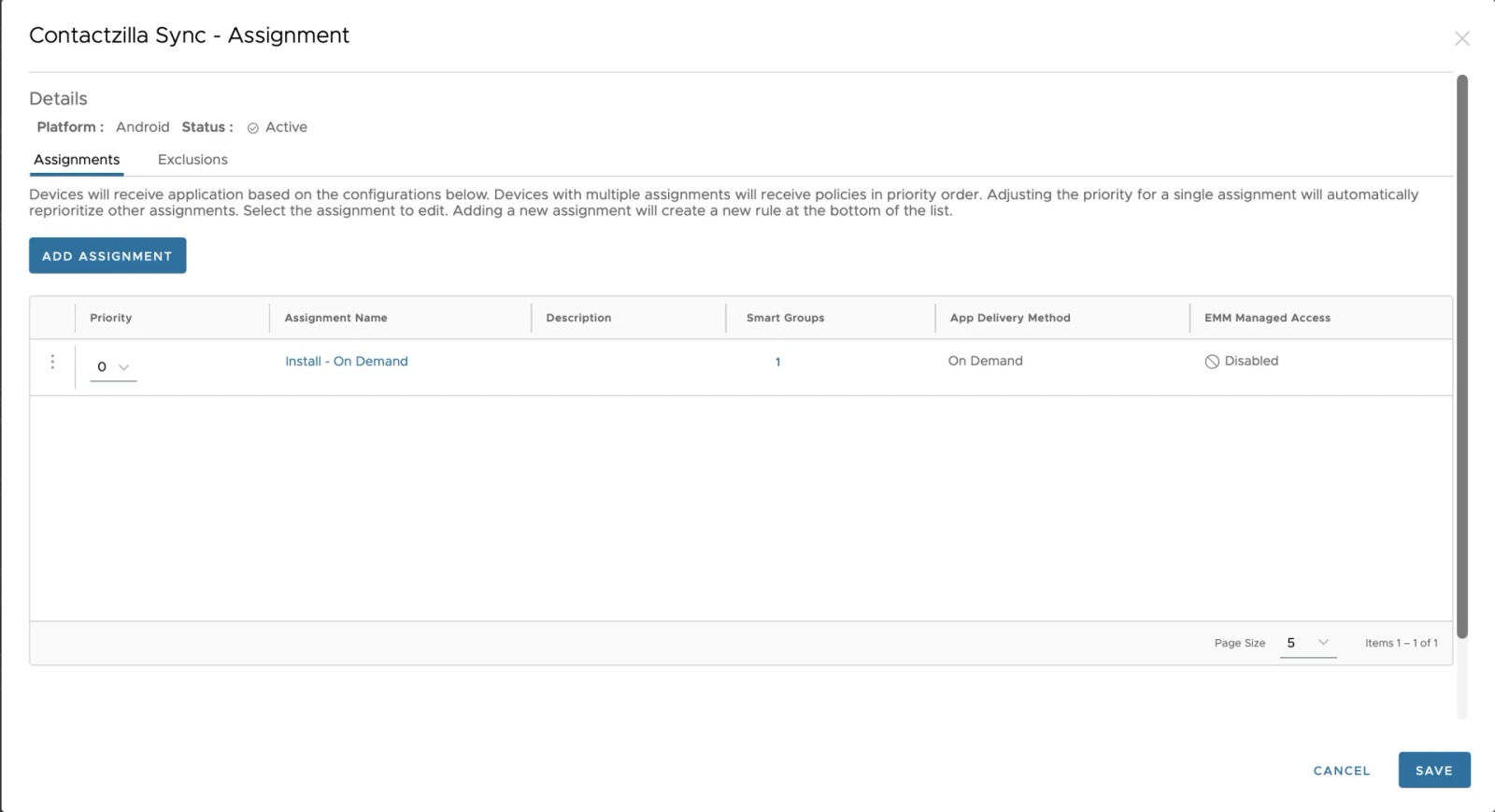
Workspace ONE uses Assignments to determine which devices receive the app and what configuration is applied.
Open the existing assignment (or create a new one if required).
Step 3: Configure Distribution Settings
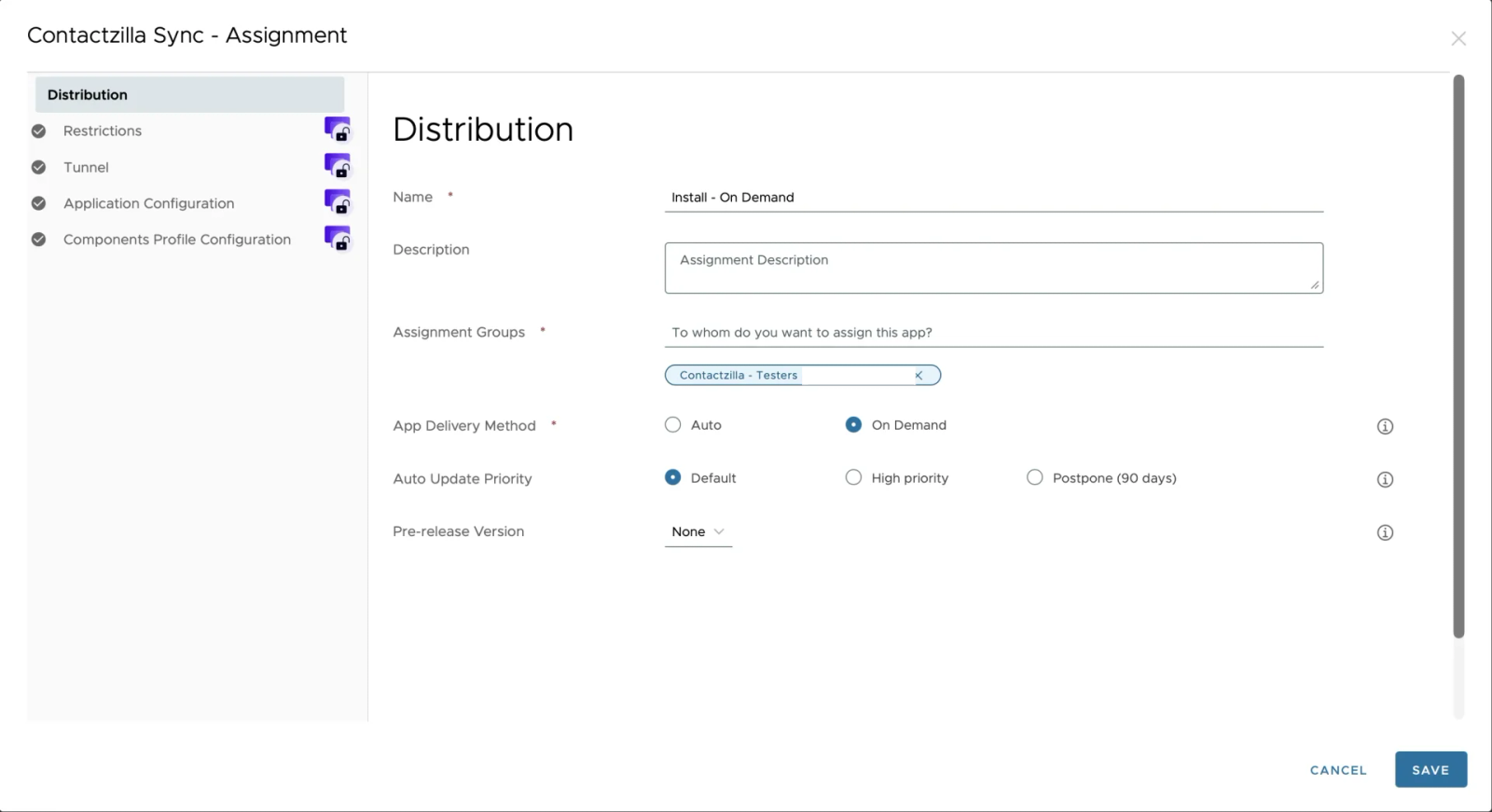
Under Distribution, choose which device group(s) will receive the Contactzilla app and how it should be delivered.
For silent rollout, you could use use Auto delivery to push the app directly to devices.
Ensure the correct smart group is selected for testing or deployment.
Step 4: Set Up Any App Restrictions
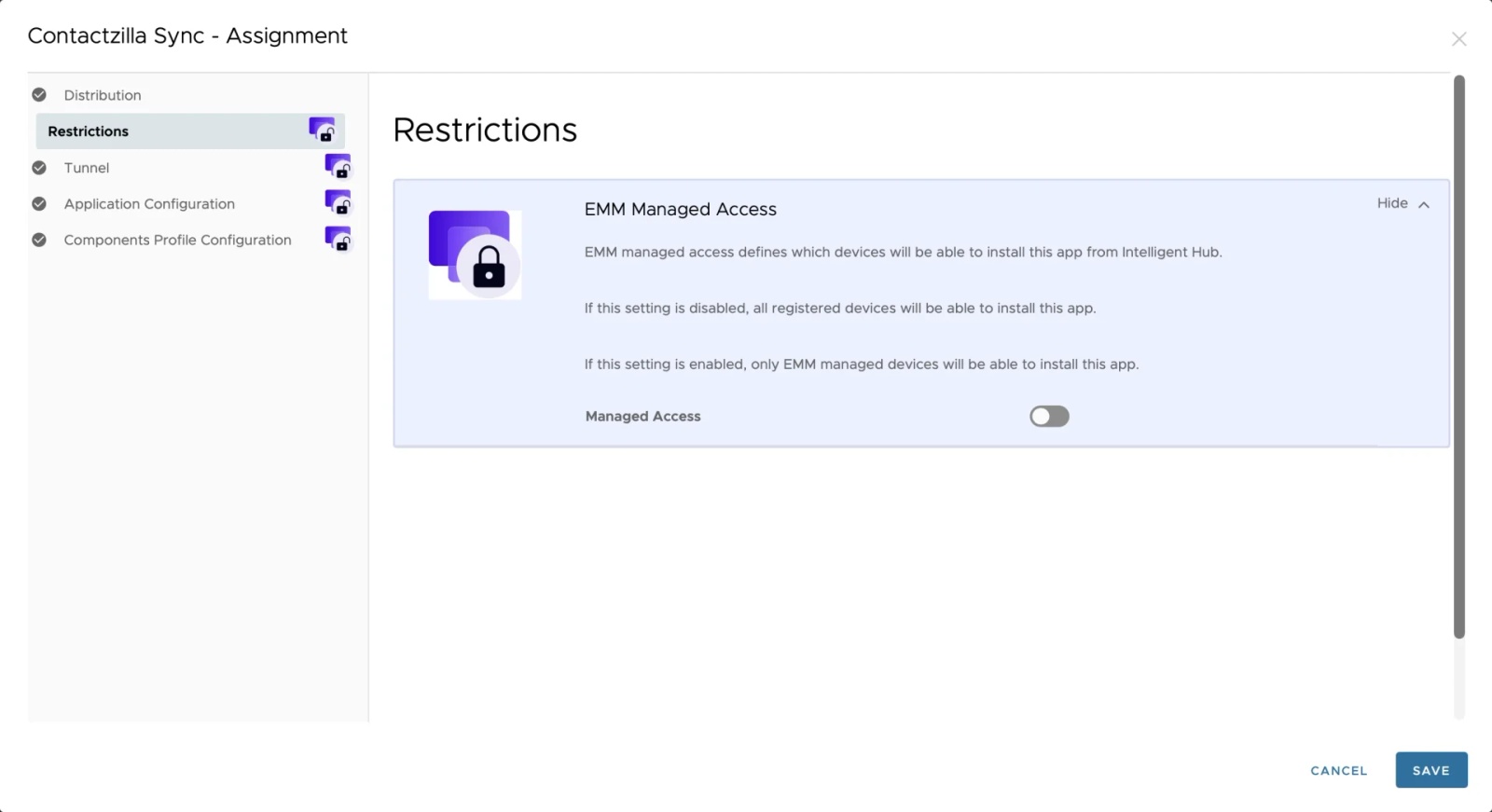
The Restrictions section allows you to limit app visibility in the Intelligent Hub.
You could leave this as the default unless you want the app hidden from users.
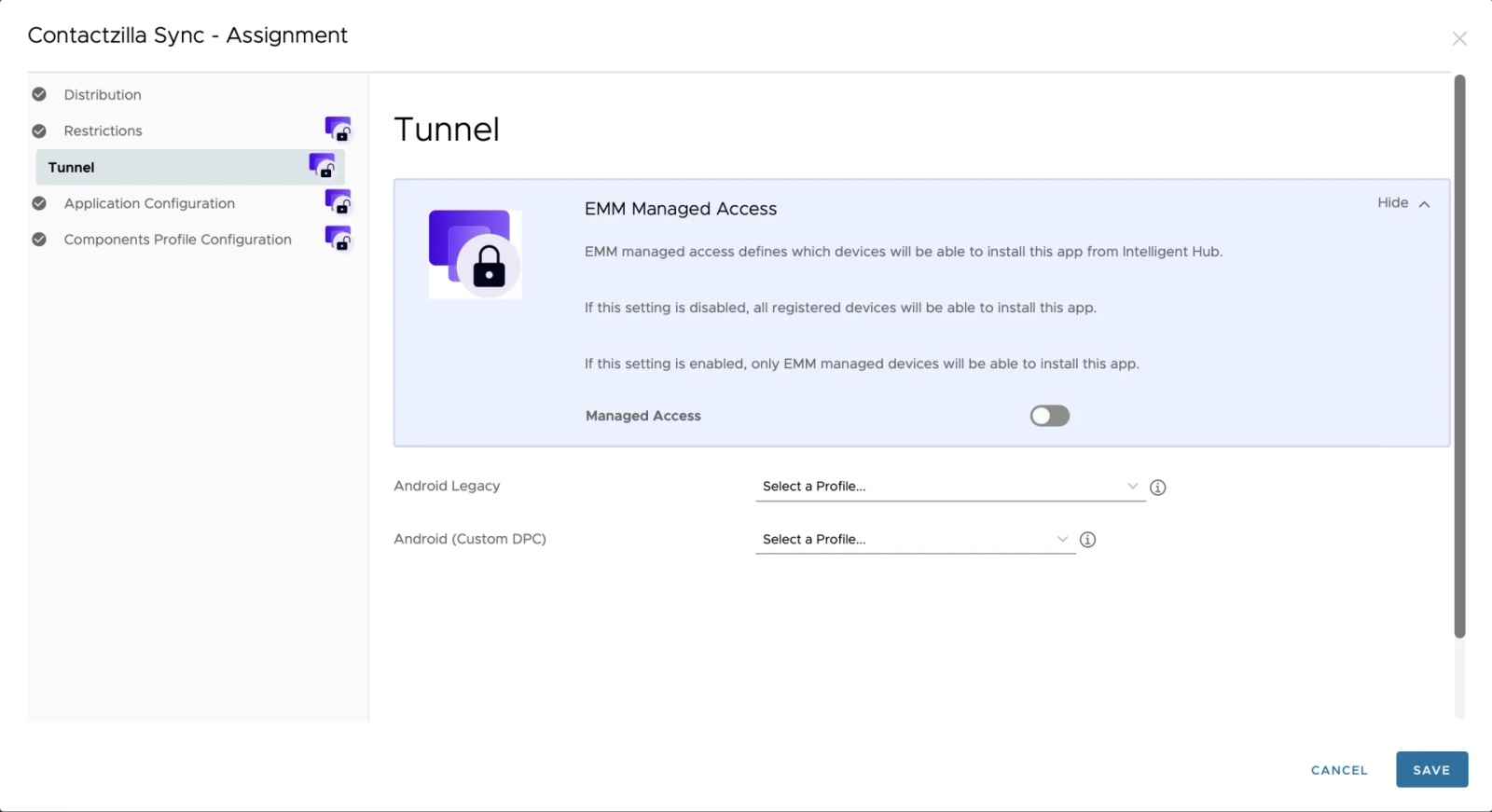
Step 5: Check Tunnel Settings (Optional)
Contactzilla Sync does not normally require a VMware Tunnel profile.
Unless your organisation routes traffic through a tunnel, you can leave this section unchanged.
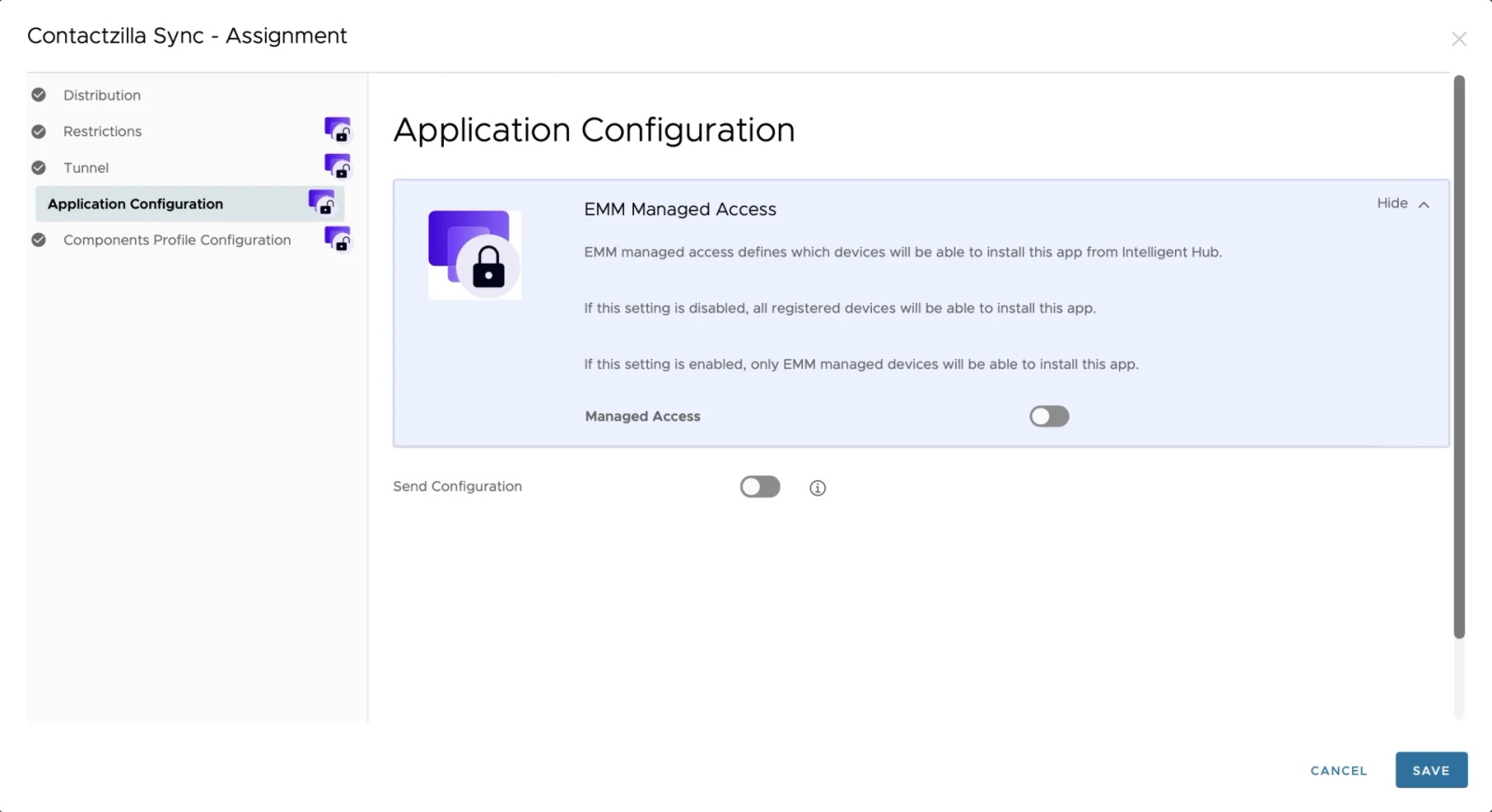
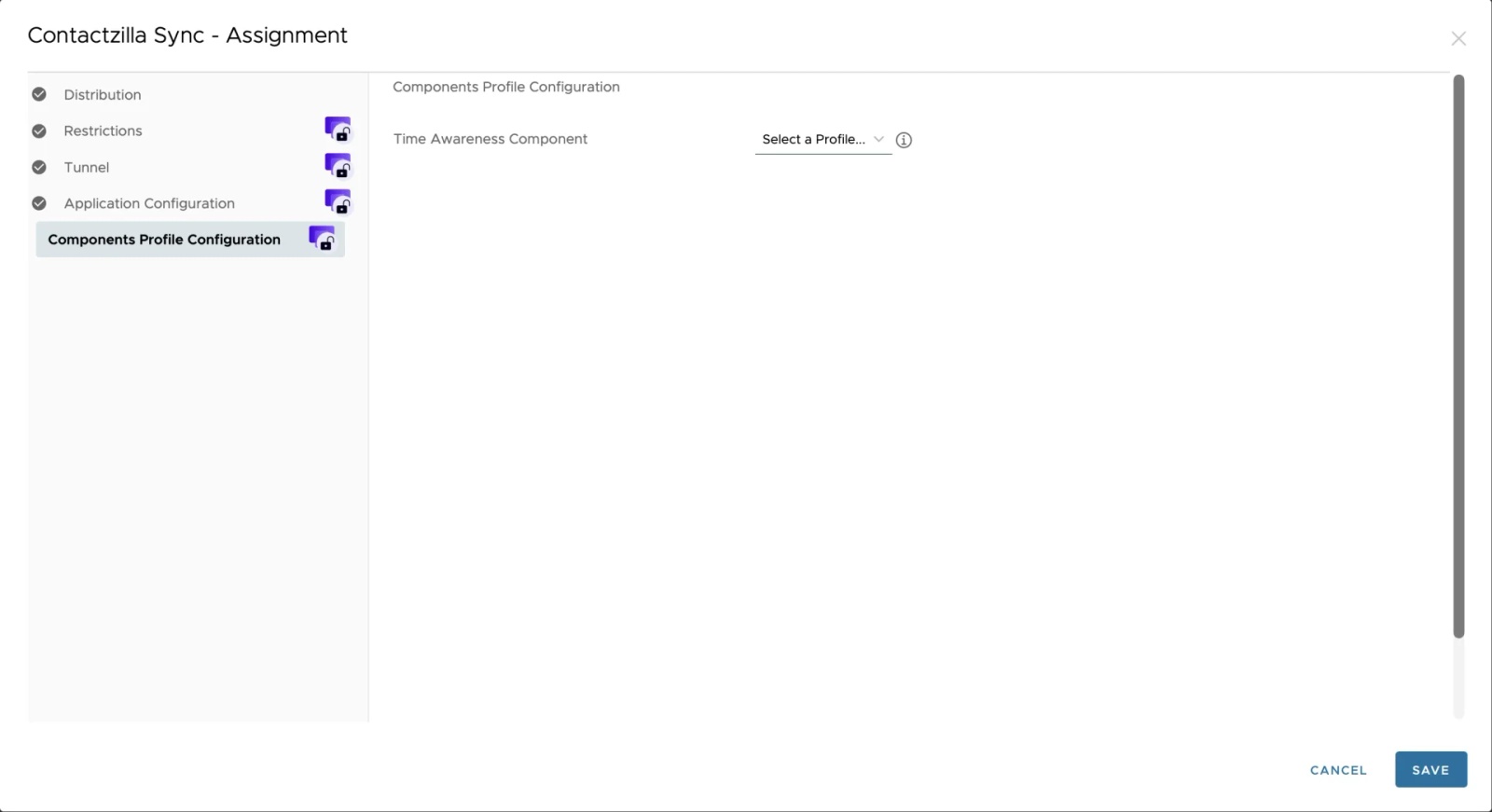
Step 6: Enable Application Configuration
To deploy Contactzilla silently with zero user interaction, you must enable Send Configuration.
This allows Workspace ONE to pass the CardDAV settings (username, password, and sync account name) directly into the app.
Step 7: Apply the Contactzilla App Configuration
Once Send Configuration is turned on, Workspace ONE reveals the full list of available settings.
These fields control the Contactzilla CardDAV account details that will be automatically installed on each device.
You will receive your Connection Username, Password, and Account Label from your Contactzilla dashboard.
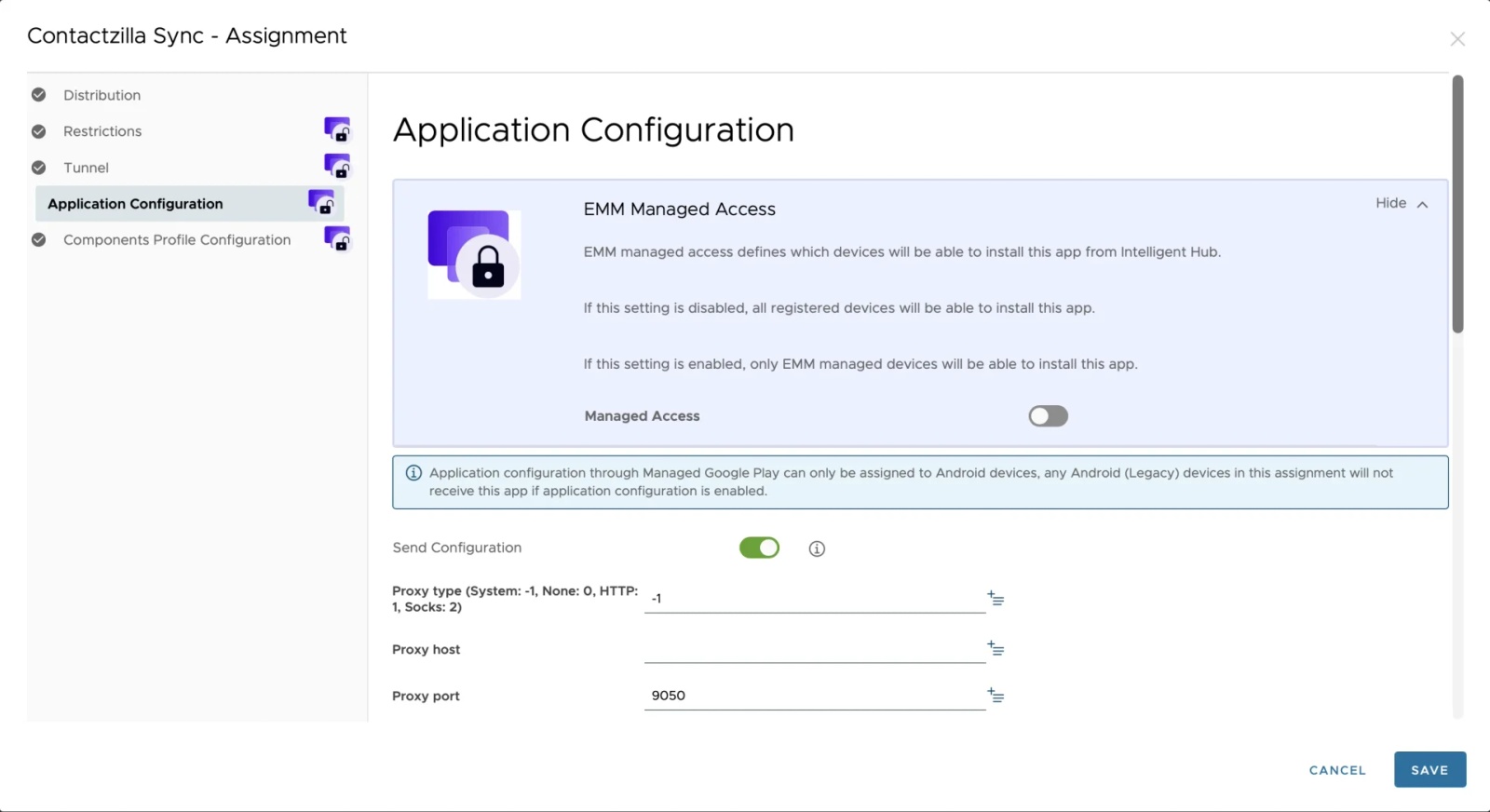
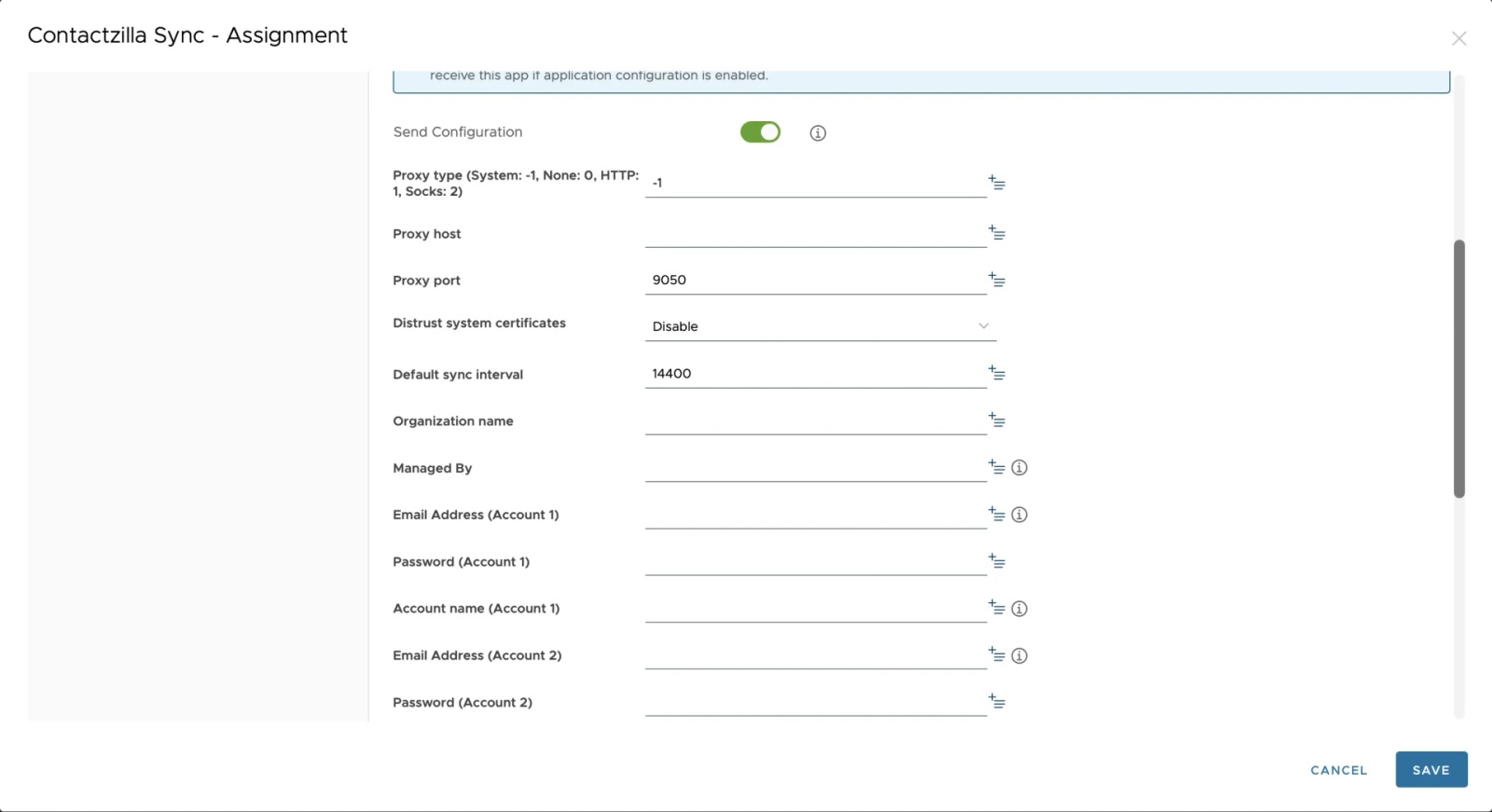
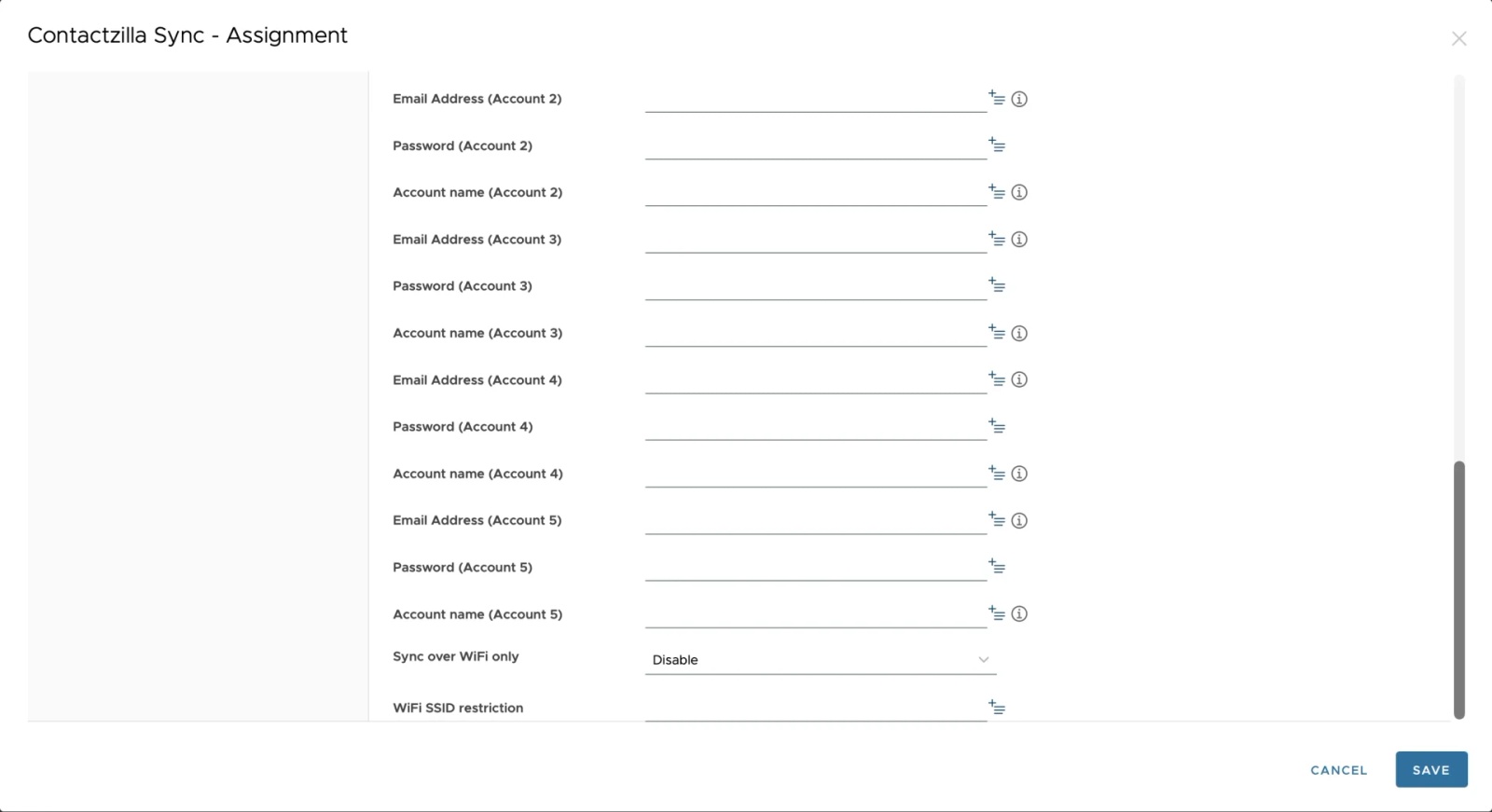
(Add your connection credentials to Account 1).
Step 8: Save and Deploy
Once the configuration is complete, click Save.
Workspace ONE will now:
- Install Contactzilla Sync automatically
- Push the CardDAV account details silently
- Add the address book to the Android device’s native Contacts app
- Keep the data in sync according to your chosen sync interval
No user interaction is required on the device.
Still need help?
Our support team is available to assist you with any questions or issues you may have.

