
How can we help you?
Browse Categories
MOSYLE: How to Deploy Contactzilla Address Books to iOS Devices using Mosyle MDM
⚠️ Important: Mosyle password-prompt issue
By default, Mosyle removes and reinstalls an assigned profile when you save changes. This can trigger CardDAV password prompts. Follow the instructions below carefully to avoid this issue.
After the initial installation, enable Do not auto-install the profile after saving. Devices added later will then need installation triggered manually, as explained in Step Five.
This guide assumes you already have Mosyle configured and iOS devices enrolled. We’ll walk you through creating the mobile configuration file in Contactzilla and deploying it via Mosyle.
What You’ll Need
- A Contactzilla account with an existing address book. Please see our getting started guide here
- An MDM team member created in your Contactzilla account (required prerequisite – see setup below)
- Mosyle configured with enrolled iOS devices (Admin access to your Mosyle dashboard)
Prerequisites – MDM Team Member Setup
⚠️ Important: Before you can create mobile configuration files for MDM deployment, you must first set up an MDM team member in your Contactzilla account. This creates the specialized user account needed for device deployments and generating the .mobileconfig file.
If you haven’t created one yet, follow the steps for creating an MDM team member in our detailed setup guide:
Setting Up MDM Deployments in Contactzilla
Creating the MDM Device Connection in Contactzilla
Step One: Set Up Your MDM Connection
1) Login to Contactzilla and select the address book that you wish to deploy to your iOS devices.
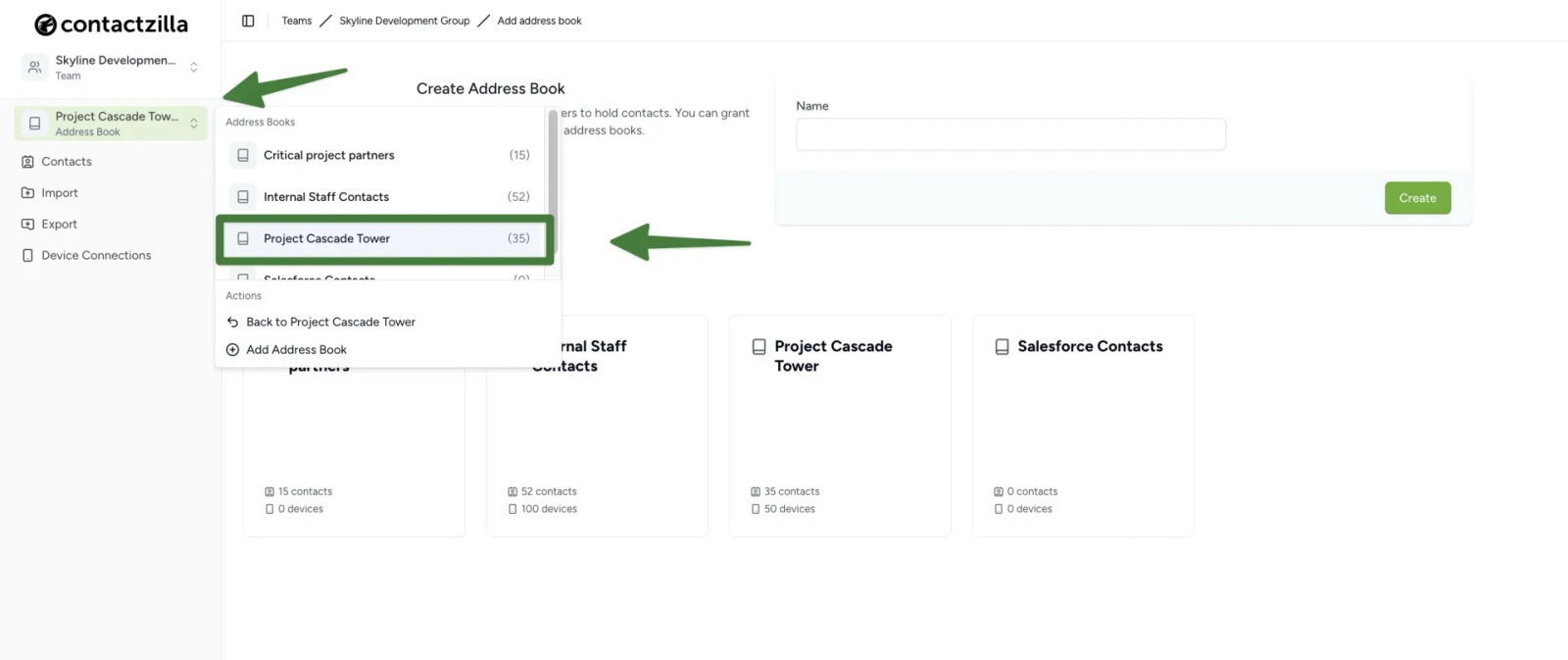
2) Click on ‘Device Connections’. From here we will create a CardDAV connection specifically designed for MDM deployment.
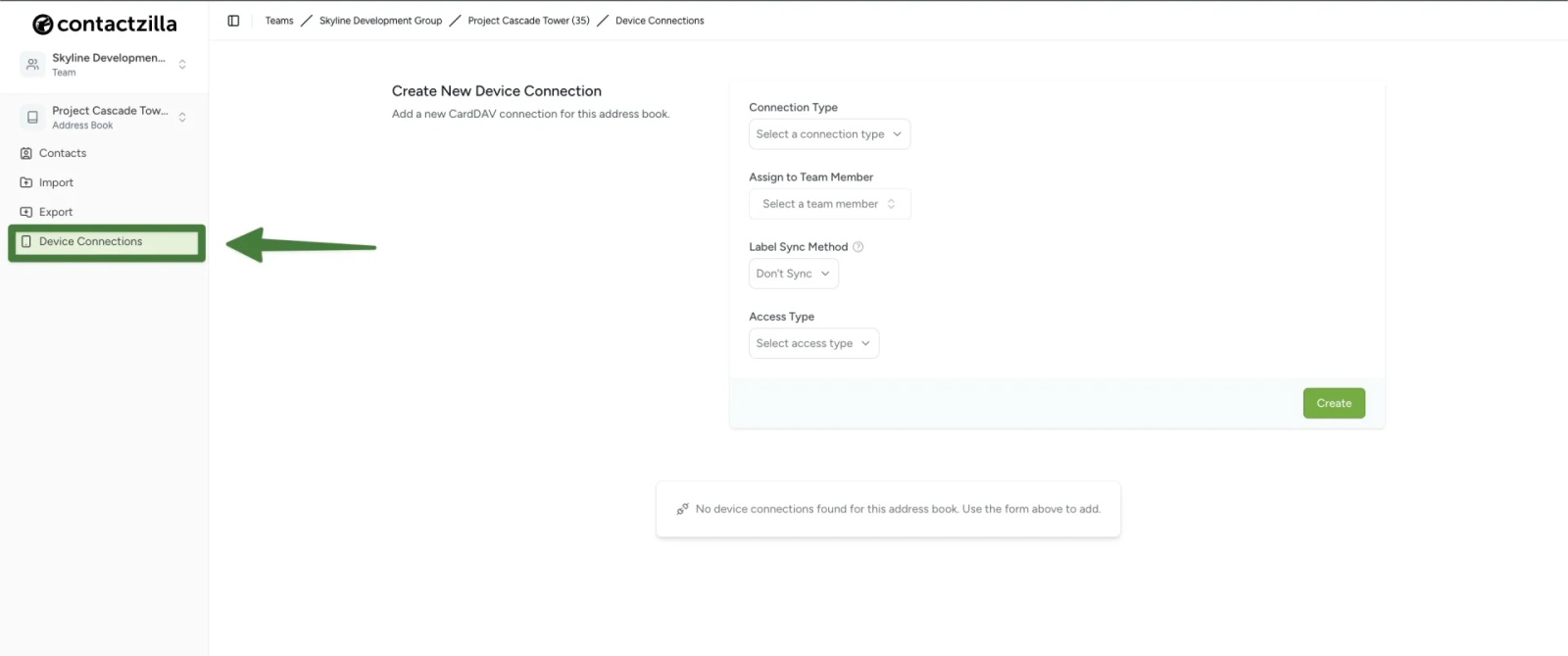
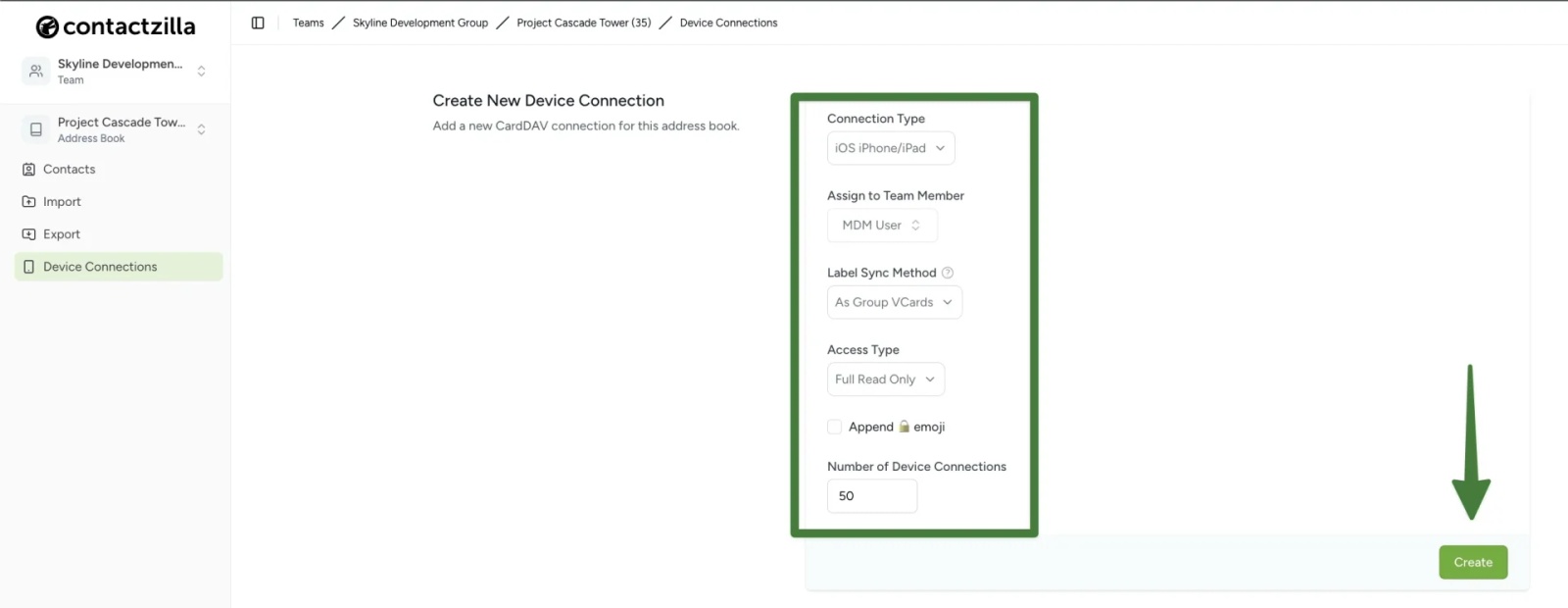
3) From the ‘Create New Device Connection’ screen that follows configure the following settings from the dropdown menus:
Connection Type: ‘iOS’
Assign to Team Member: Select your MDM team member (created in the prerequisite setup above)
Label Sync Method: Leave as default ‘As Group VCards’
Access Type: Choose based on your needs
- ‘Full Read Only’ (recommended for managed devices to prevent accidental changes)
- ‘Selective Read Only’ (if you only want specific labeled contacts)
- ‘Full Read/Write’ (if devices need to add/edit contacts)
Tip 💡: For Read only deployments you have an option to append a lock emoji to each contact in the native contacts app to make it clear to a user that any changes will not be written to the server.
Number of Device Connections: Set to the number of devices you plan to deploy to
Click the ‘Create’ button to generate your new Device connection.
Step Two: Download the Mobile Configuration File
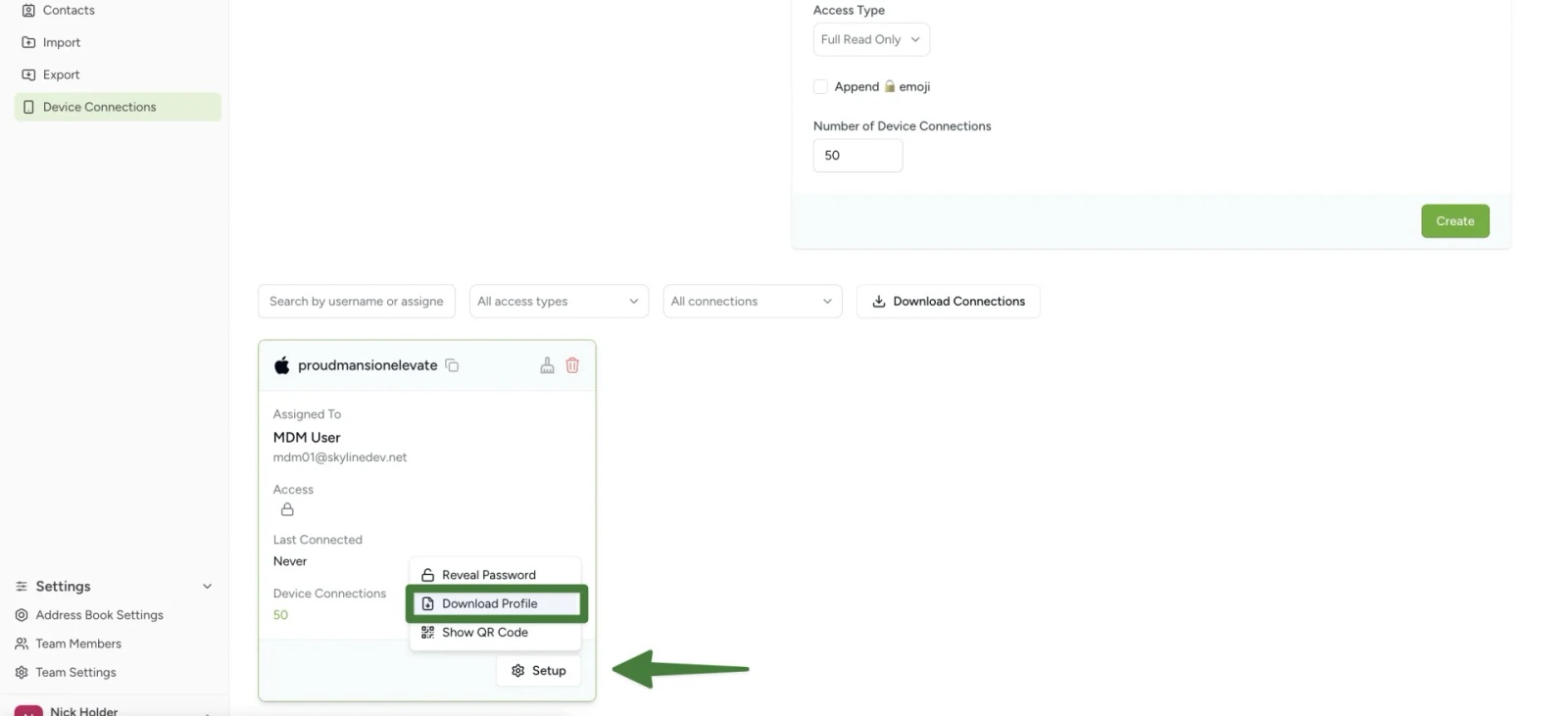
1) After clicking Create, you’ll see your new CardDAV connection listed in the connections panel. Click the ‘Setup’ button on your new connection and choose ‘Download Profile’.
Save the .mobileconfig file to your computer – you’ll need this file for the Mosyle deployment.
Step Three: Deploy via Mosyle (upload and assign your Contactzilla profile)
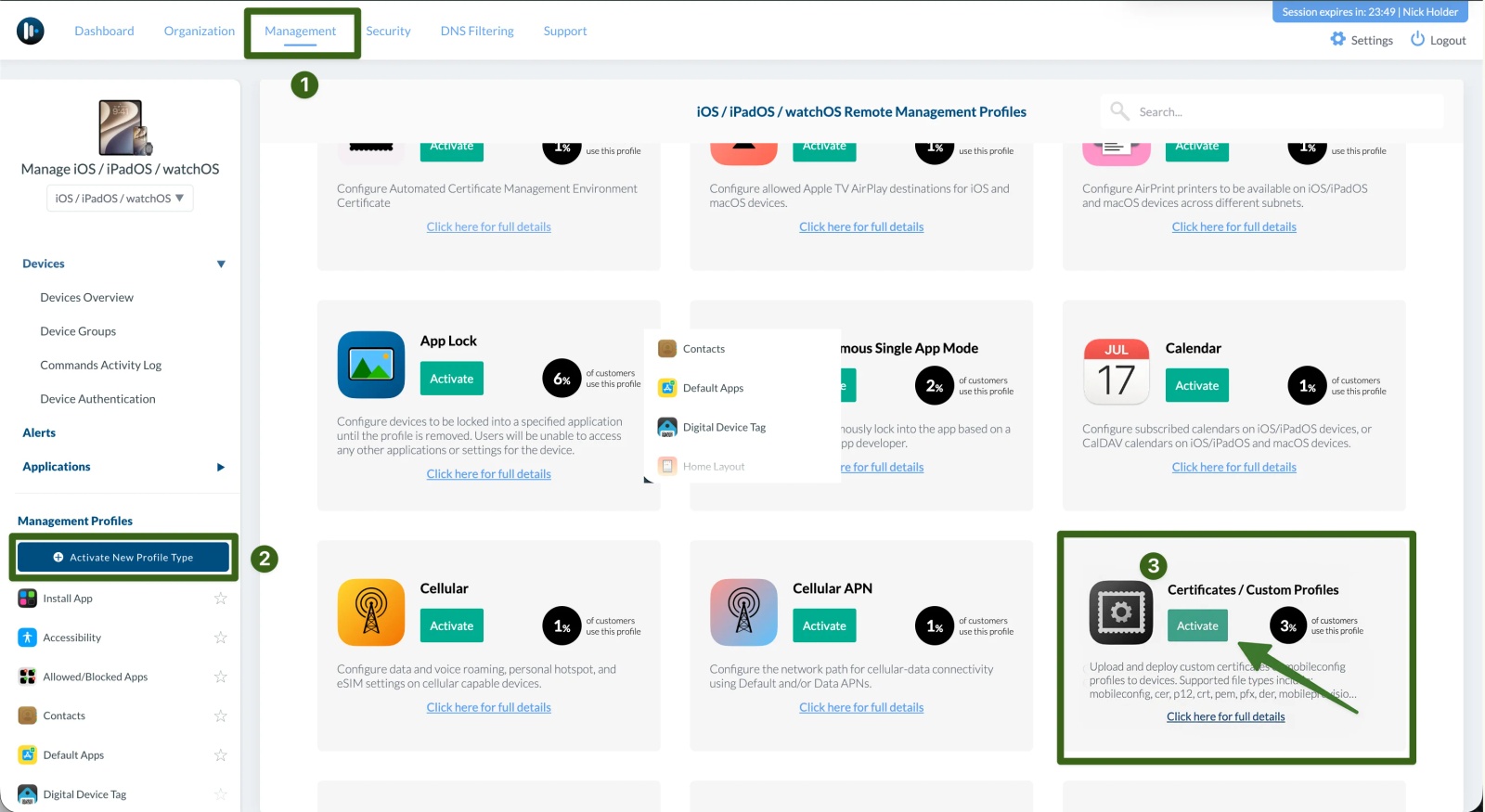
To upload your Contactzilla .mobileconfig file, you’ll need Certificates / Custom Profiles enabled in Mosyle. If it’s already listed under Management Profiles in the left sidebar, skip to the next step.
1) From the top navigation bar, click Management. In the left sidebar, under Management Profiles, click Activate New Profile Type. Locate Certificates / Custom Profiles and click Activate.
You’re now ready to create a custom profile in Mosyle using the Contactzilla file you downloaded earlier.
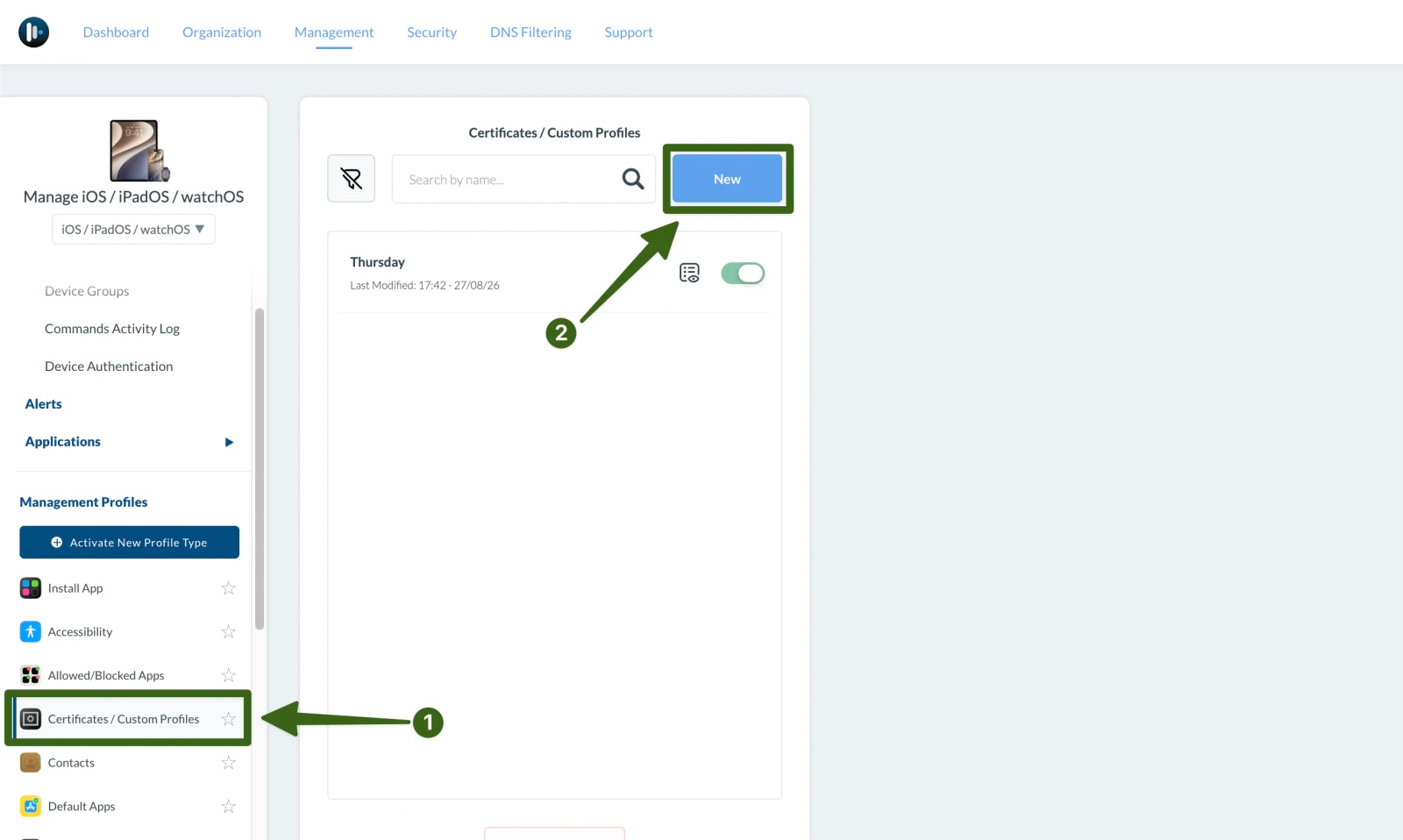
2) In the left sidebar, under Management Profiles, select Certificates / Custom Profiles, then click New.
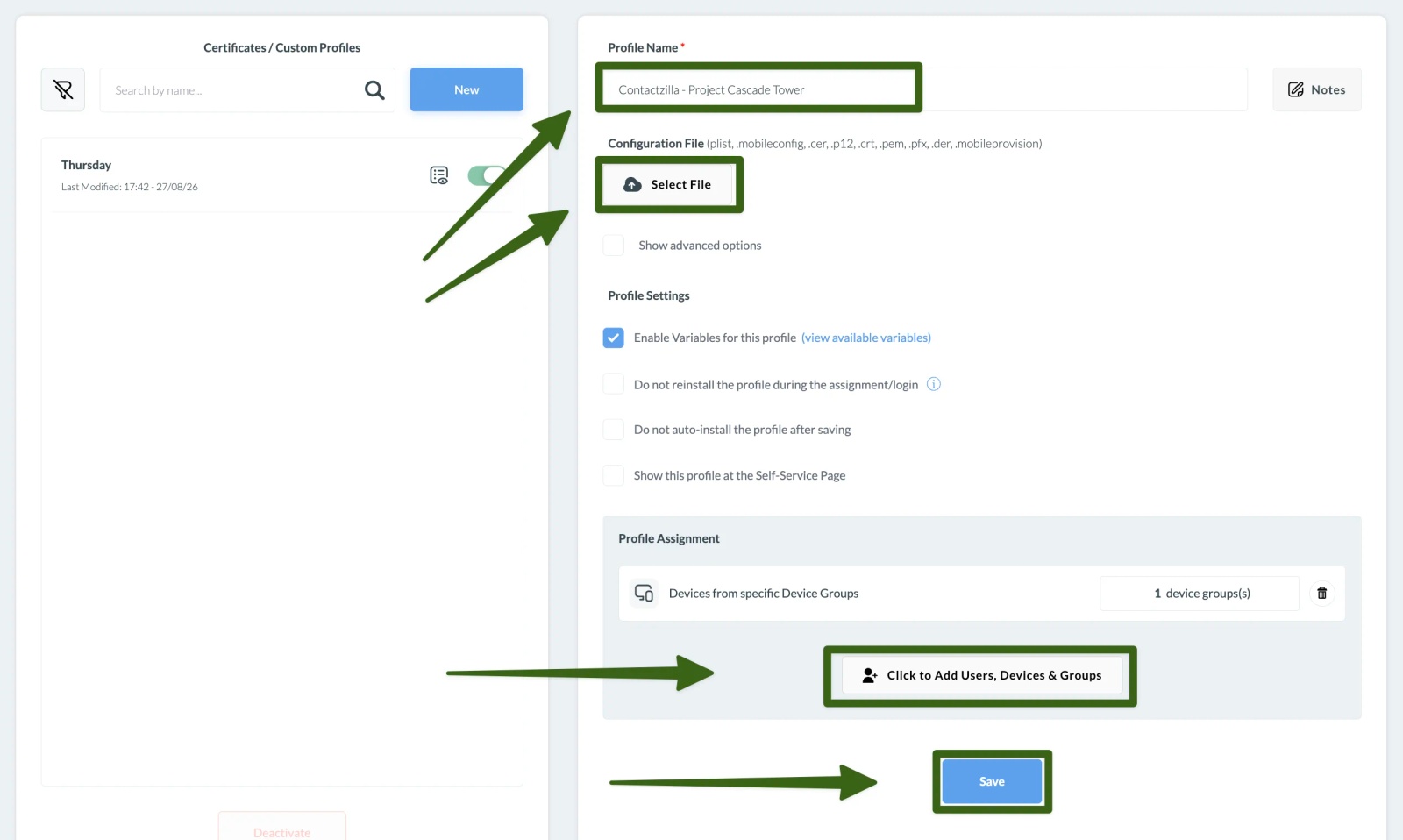
3) Enter a Profile Name. In our example, we’ve used Contactzilla - Project Cascade Tower to reference the address book name
4) Under Configuration File, click Select File and choose the .mobileconfig file you downloaded from Contactzilla.
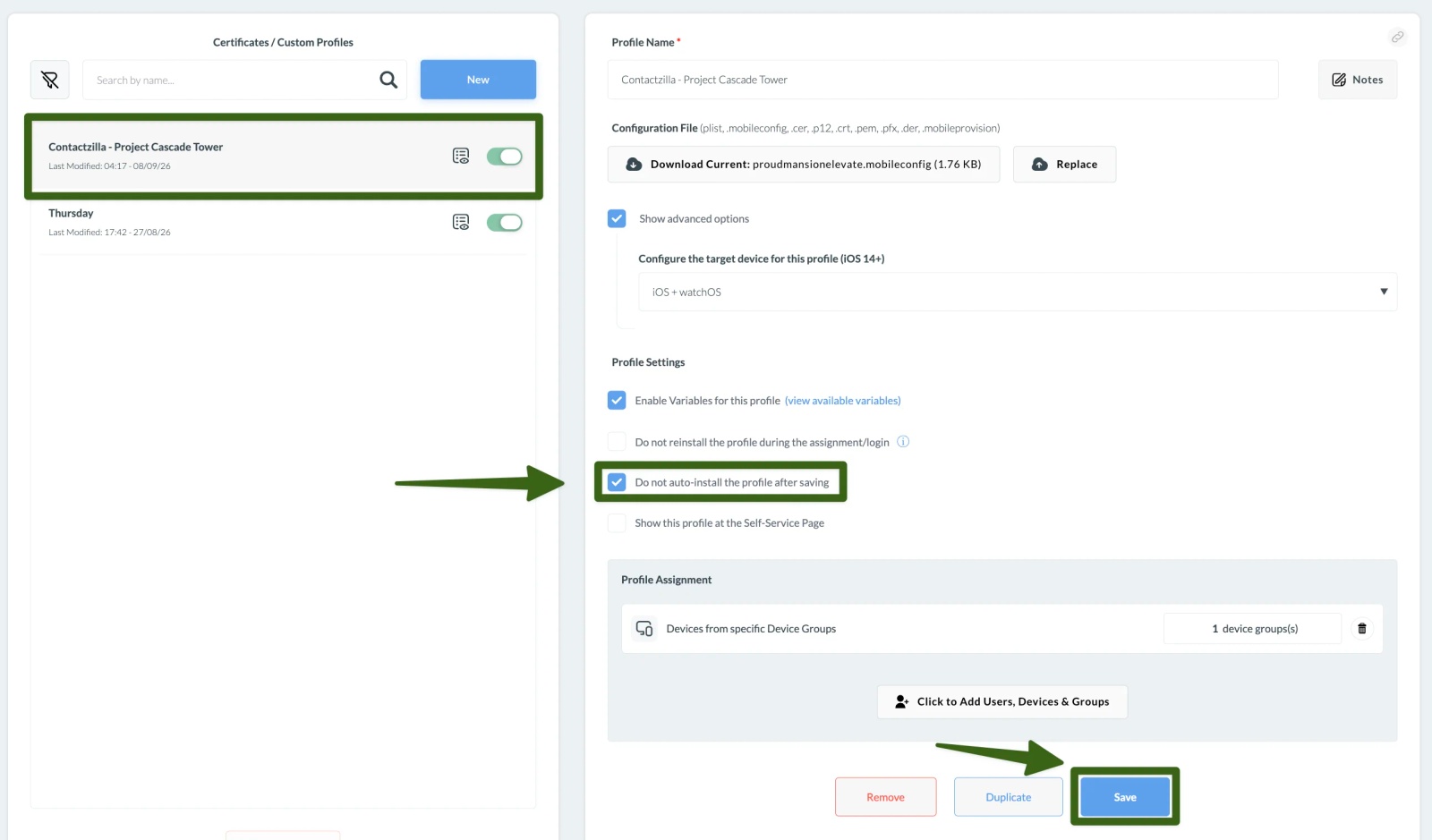
5) Under Profile Settings, leave Enable Variables for this profile ticked.For the initial installation, leave Do not auto-install the profile after saving unticked. You’ll enable this after confirming the profile has installed on your devices.
6) Under Profile Assignment, click Click to Add Users, Devices & Groups. Select the devices or group you want to deploy to, then confirm your selection.
7) Click Save to create the profile and begin installation on the assigned devices.
Step Four: Confirm Installation and Prevent Password Prompts
1) Click the status icon beside your new profile to open Compliance Status and view installation progress. Wait until all devices in your initial deployment show as Installed, then check that the address book appears in the Contacts app on a device.
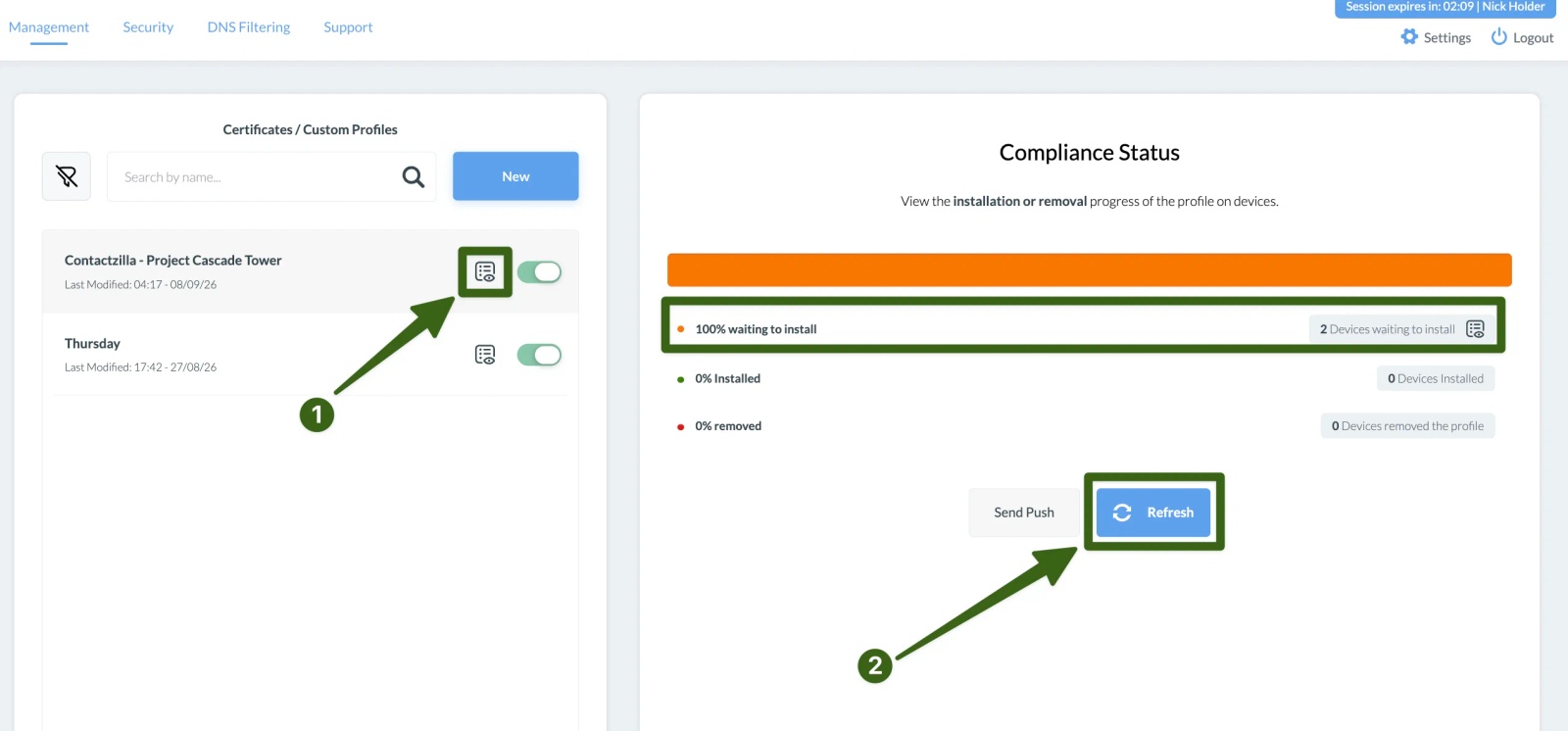
⚠️ Prevent password prompts - Saving changes to an assigned profile can cause Mosyle to remove and reinstall it, which may trigger CardDAV password prompts. Now that the initial installation is complete, enable the setting below to prevent this redeployment.
2) Open the custom profile again. Under Profile Settings, tick Do not auto-install the profile after saving, then click Save. Keep this option ticked when making subsequent changes.
Tip 💡:Installation on devices added later will need to be triggered manually, as explained in the next section.
Step Five: Install on Additional Devices
You can add devices to your assigned groups as normal. However, with Do not auto-install the profile after saving enabled, the Contactzilla profile will be held on new devices rather than installed automatically.
Leave this option ticked to prevent password prompts on existing devices. After adding new devices to the group, trigger installation as follows:
1) Open Devices Overview, click a newly added device, and select the Profiles tab. The Contactzilla profile will show as On hold.
2) Click Reinstall beside the profile. Despite the button’s name, this starts the first installation on a new device.
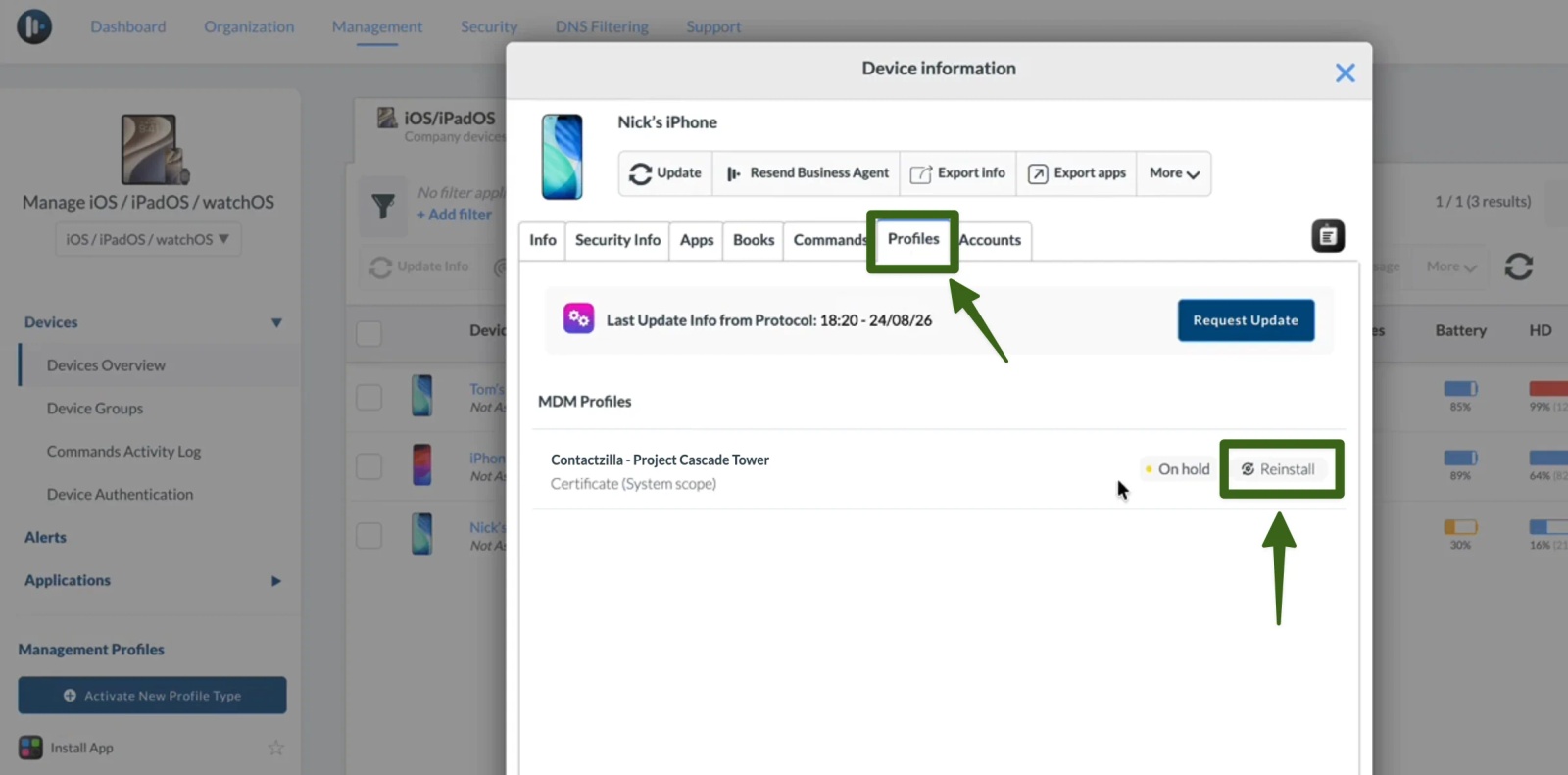
3) The status should change to Pending install. Repeat for each new device, then check progress in the profile’s Compliance Status screen. Once installed, verify the address book on the devices as described in Step Six.
Step 6: Verify install on devices
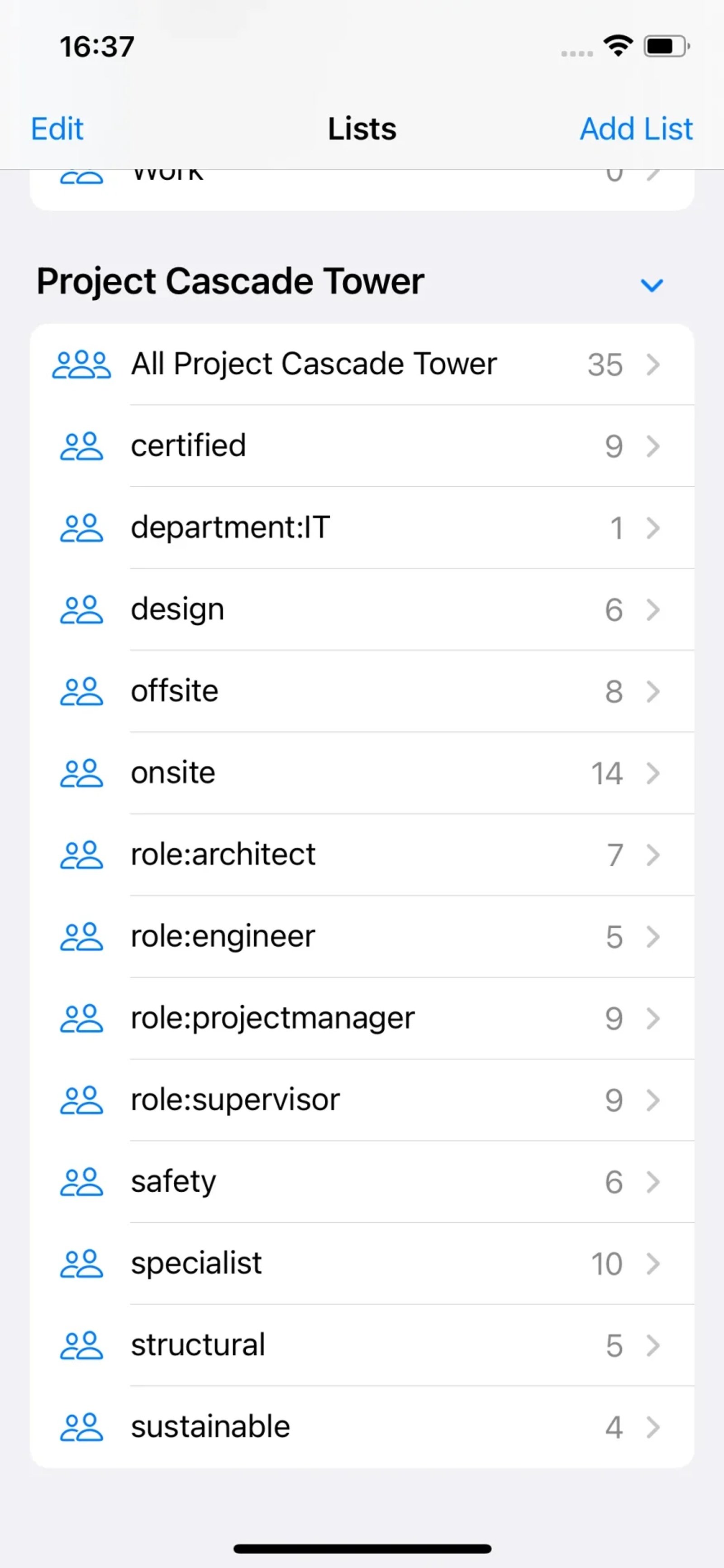
As well as checking the native contacts app you can verify the cardDAV account is installed on the iPhone
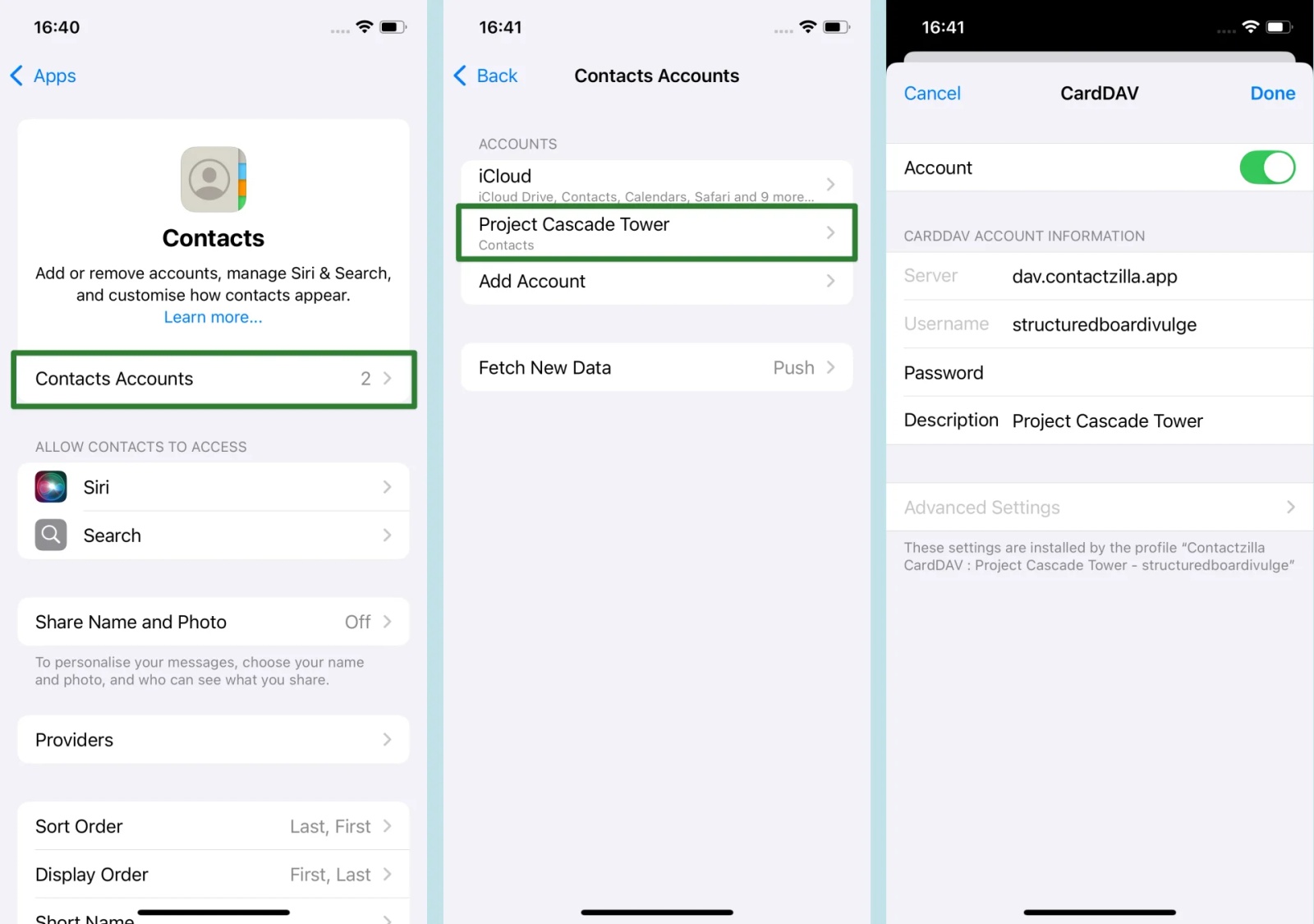
1) On the iPhone choose Settings > Contacts > Contacts Accounts.
You should see your Contactzilla address book listed there. If you click through you can see a detailed look at the CardDAV connection and make sure the Account toggle switch is on
You’ve now successfully deployed Contactzilla address books to your iOS devices using Mosyle.
Managed users will see the contacts automatically appear in their native Contacts app, with ongoing sync handled silently in the background.
Still need help?
Our support team is available to assist you with any questions or issues you may have.

