
How can we help you?
Browse Categories
MS INTUNE: How to Deploy Contactzilla Sync to Android Devices Using Android Enterprise

This guide assumes you already have Microsoft Intune connected to Android Enterprise with Android devices enrolled. We'll walk you through creating the Android device connection in Contactzilla, then deploying Contactzilla Sync and its configuration to your devices through Intune, so that your address book appears in the native Android Contacts app without any manual setup on the phone.
What You'll Need
- A Contactzilla team with an existing address book. If you haven't set these up yet, see Setting up a Team and Address Book
- An MDM team member created in your Contactzilla team (required prerequisite, see setup below)
- Microsoft Intune with Android Enterprise connected to Managed Google Play, enrolled Android devices, and a Microsoft Entra group containing the devices you want to deploy to
- Admin access to the Microsoft Intune admin center
Prerequisites – MDM Team Member Setup
⚠️ Important: Before you can create an Android device connection for MDM deployment, you must first set up an MDM team member in your Contactzilla team. An MDM team member is a placeholder that you assign to your device connections. It has no login rights and no password, and it never receives email, so the email address you give it is only a label. Use a dedicated address such as mdm@yourcompany.com rather than the email of a real person.If you haven't created one yet, follow the steps for creating an MDM team member in our detailed setup guide: Setting Up MDM Deployments in Contactzilla
Creating the Android Device Connection in Contactzilla
Step One: Set Up Your Android Connection
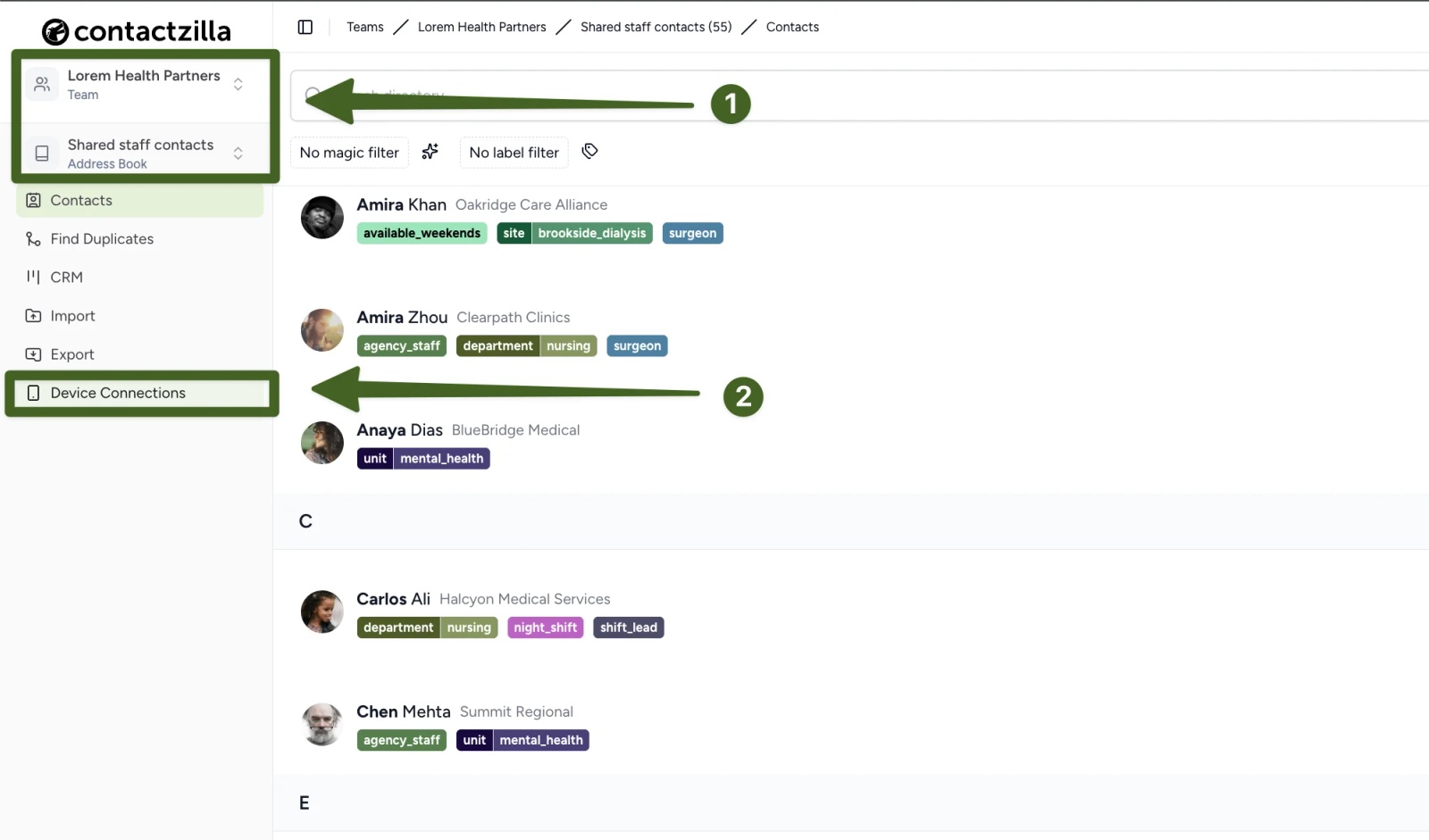
a) Log in to Contactzilla → Select the team and address book you wish to deploy to your Android devices → Click Device Connections.
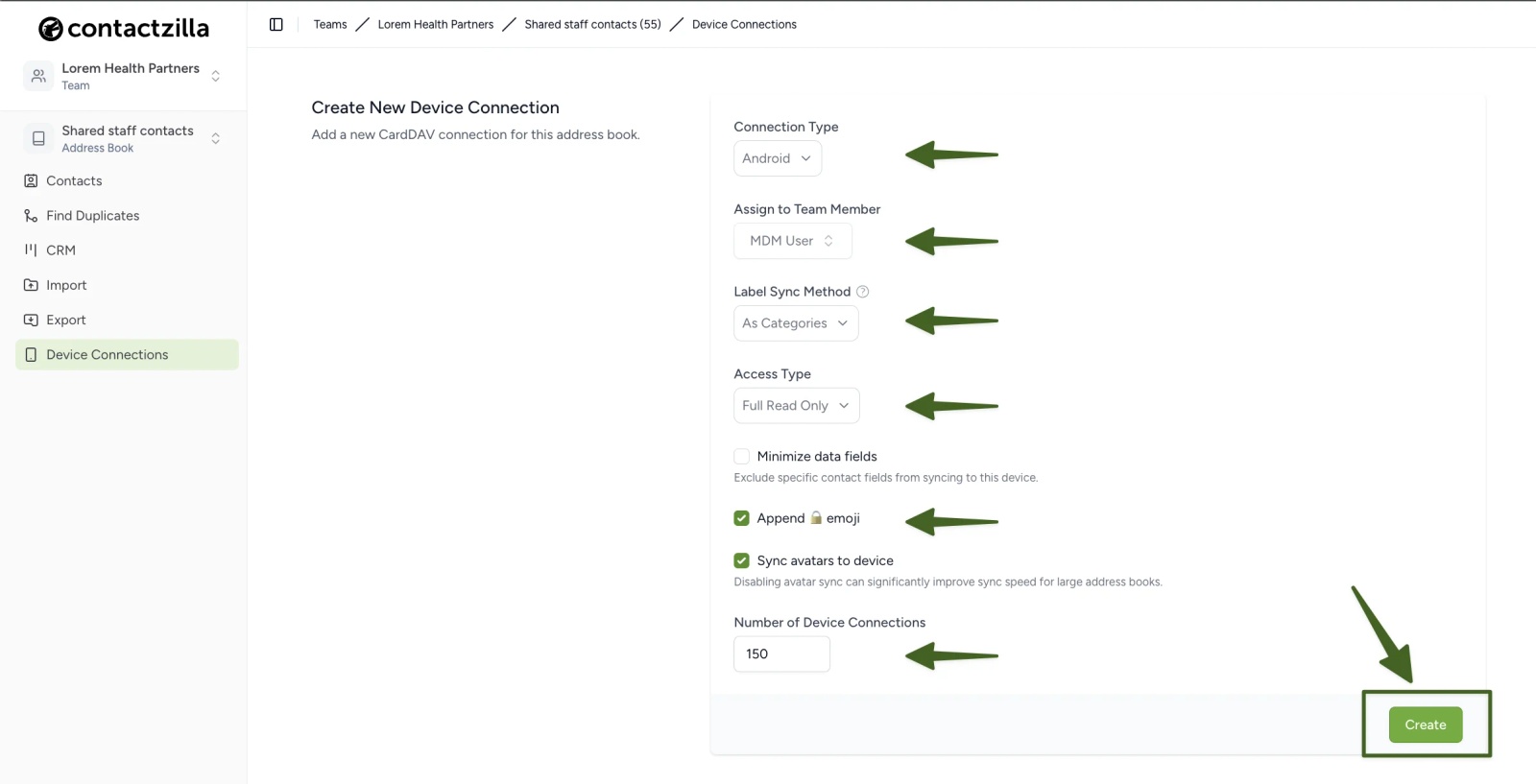
b) On the Create New Device Connection screen, set the following → Then click Create (bottom right) to generate your new device connection:
- Connection Type: Android
- Assign to Team Member: select your MDM team member (created in the prerequisite setup above)
- Label Sync Method: leave as the default
- Access Type: choose based on your needs
- Full Read Only (recommended for managed devices to prevent accidental changes)
- Selective Read Only (if you only want contacts with specific labels)
- Full Read/Write (if devices need to add or edit contacts)
- Append 🔒 emoji: recommended with read-only access, so users can see at a glance which contacts they can't edit
- Number of Device Connections: set to the number of devices you plan to deploy to (the example uses 150)
Optional settings
- Sync avatars to device: on by default. Turning it off can significantly improve sync speed for large address books.
- Minimize data fields: tick this to exclude specific contact fields from syncing to the devices.
Step Two: Download the Android Configuration File
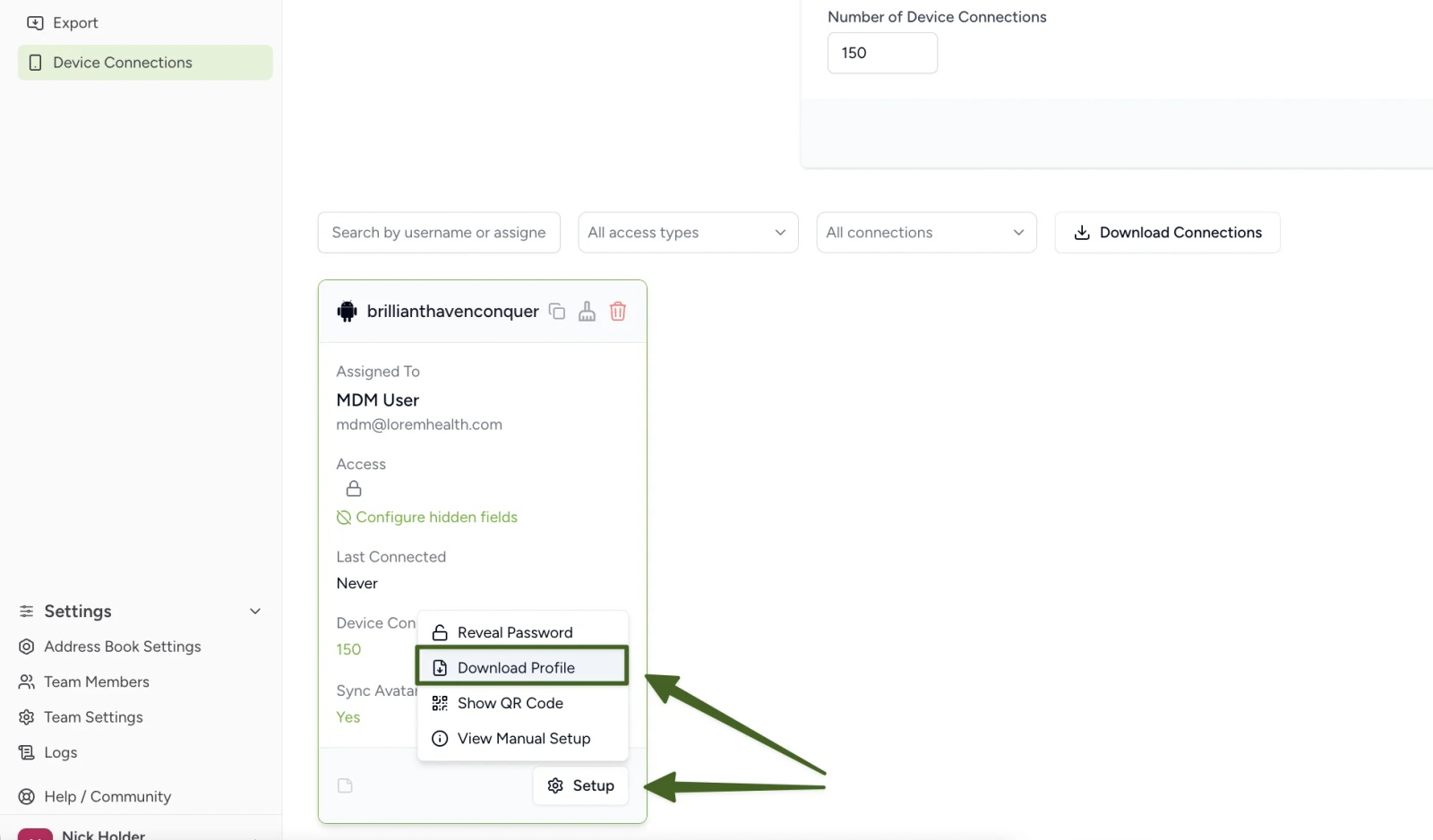
a) On the Device Connections page, find your new connection → Click Setup → Choose Download Profile → Save the .json file to your computer.
This file is the Android managed configuration that you'll paste into Intune. It contains the connection details Contactzilla Sync needs: the account name (your address book), the connection credentials and an optional setting for the app's interface.
💡 The JSON file contains the connection credentials, so treat it like any other credential file and avoid sharing it by email or chat once you've pasted it into Intune.
Adding Contactzilla Sync to Intune
Step Three: Add Contactzilla Sync from Managed Google Play
On Android there is no built-in CardDAV client, so Contactzilla Sync is the app that brings your address book into the native Contacts app. Intune installs it from Managed Google Play.
a) In the Microsoft Intune admin center, select Apps → Select Android → Click Create.
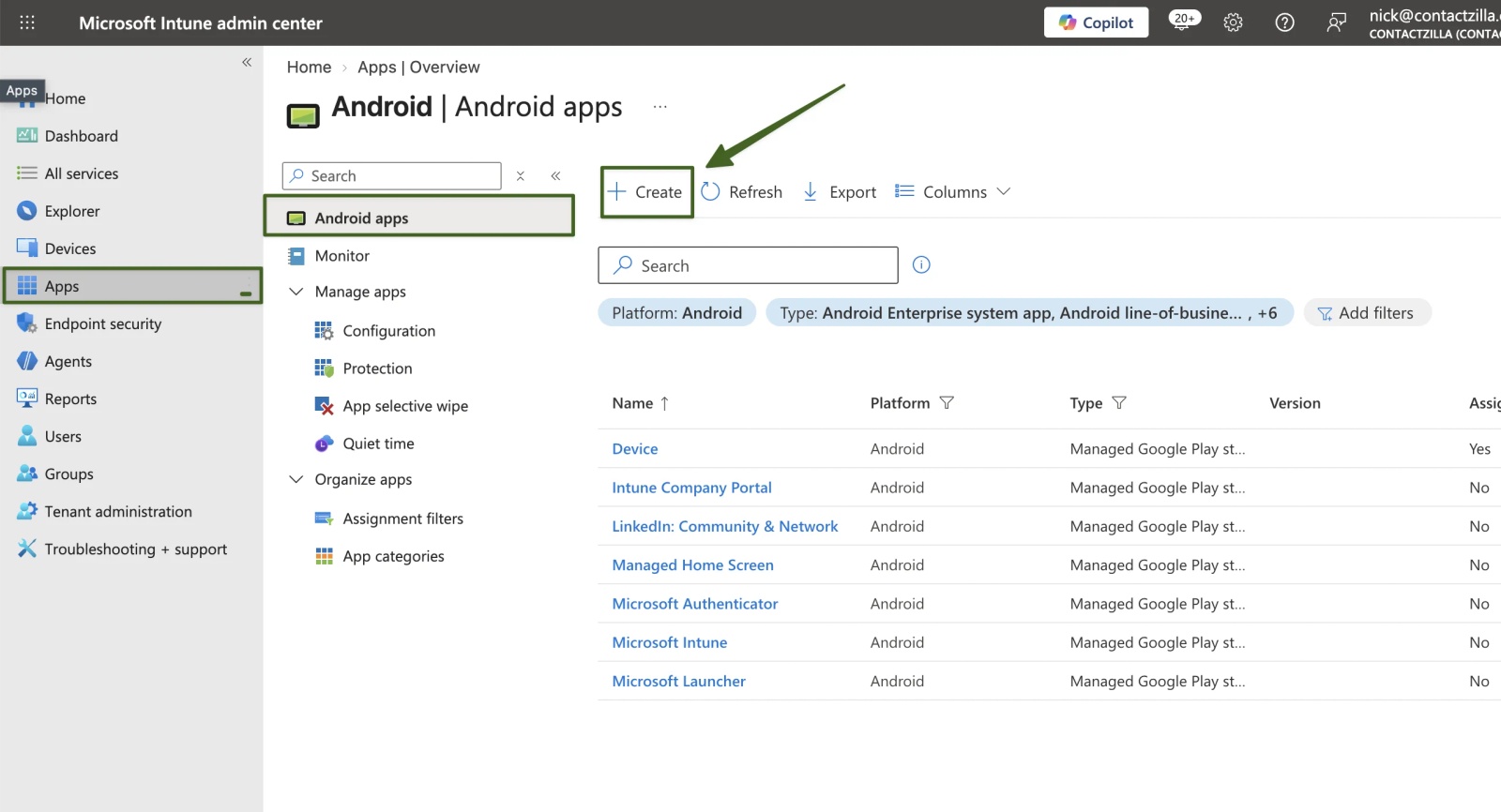
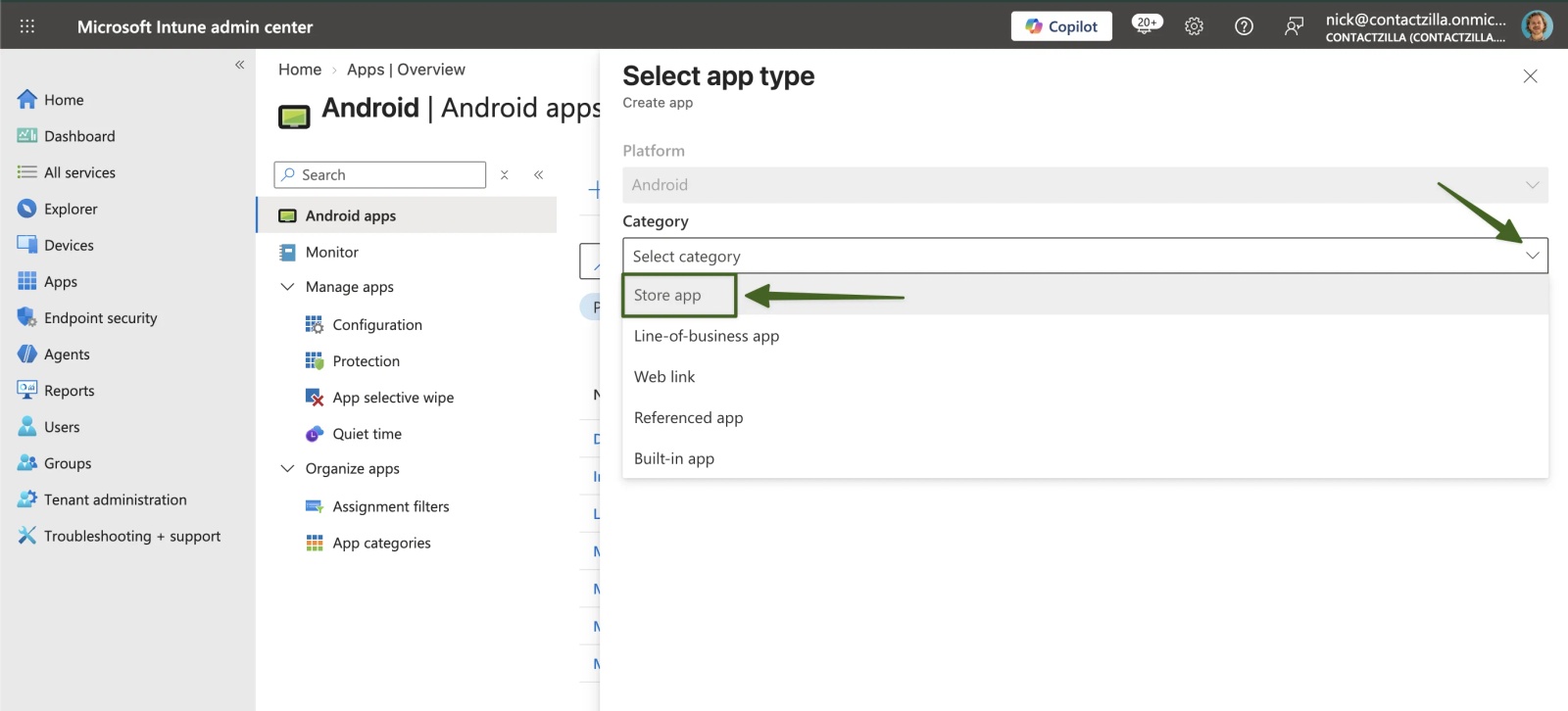
b) Open the Category dropdown → Select Store app.
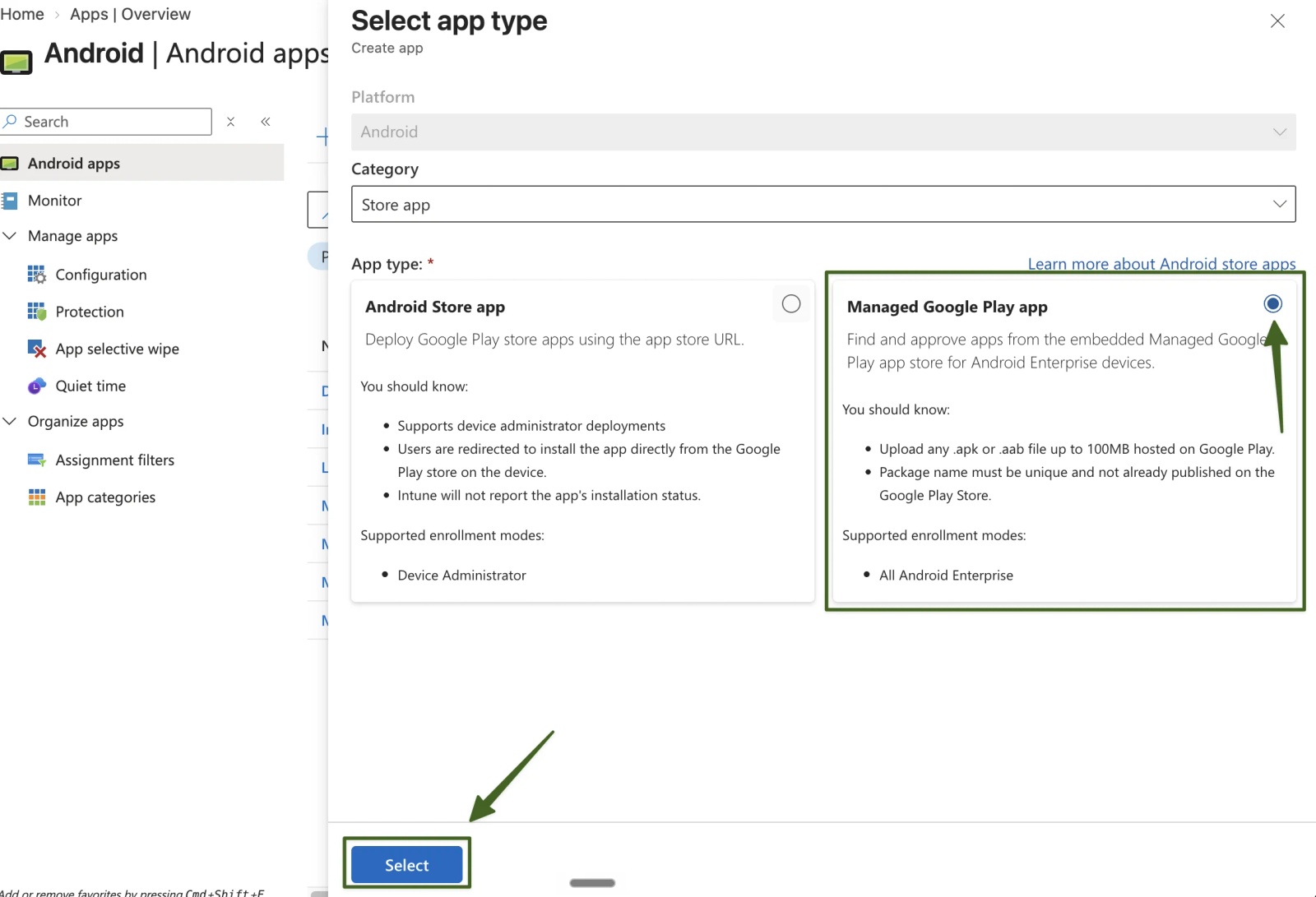
c) Under App type, select Managed Google Play app → Click Select.
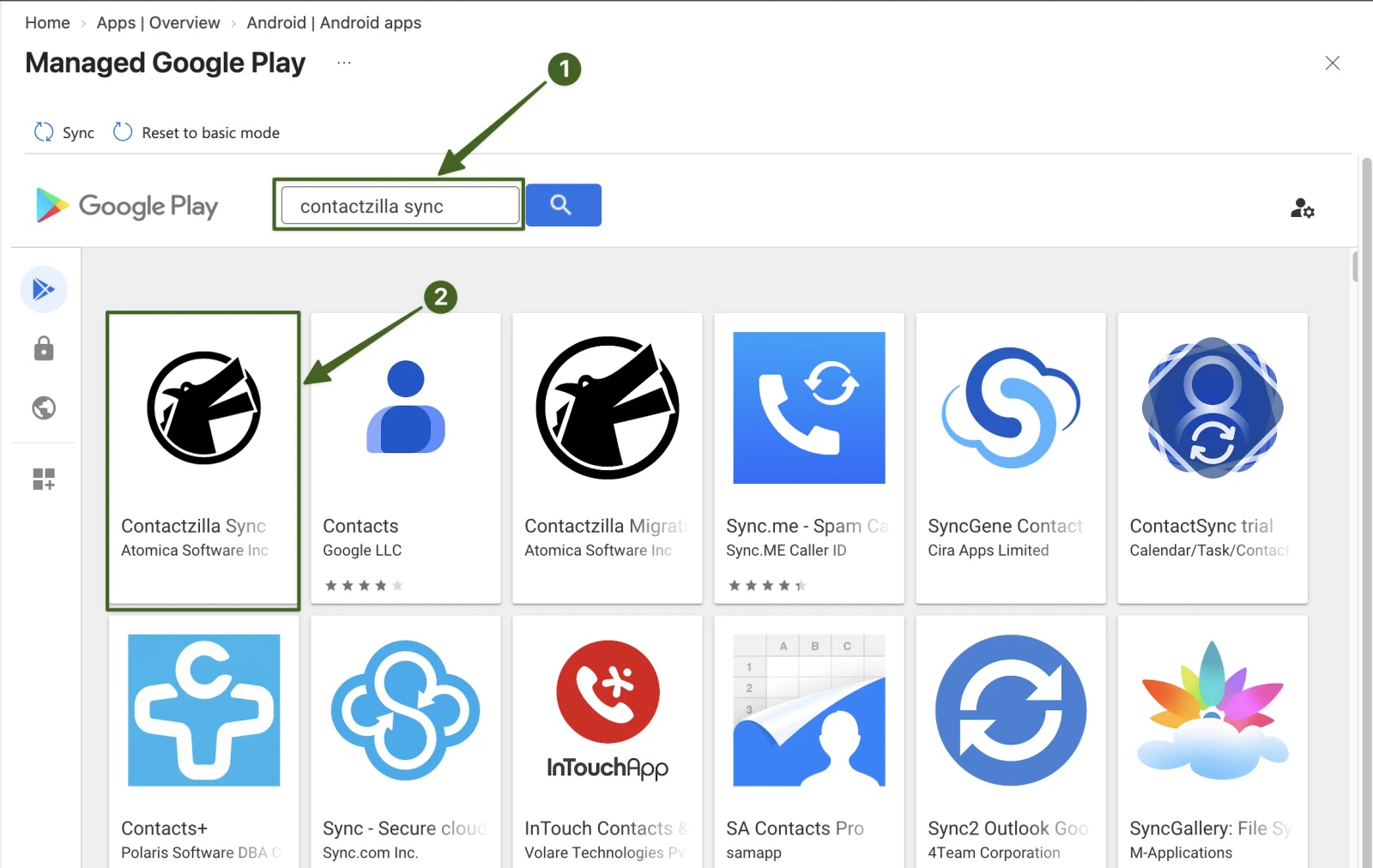
d) In the Managed Google Play store, type contactzilla sync in the search box → Select the Contactzilla Sync result (publisher Atomica Software Inc).
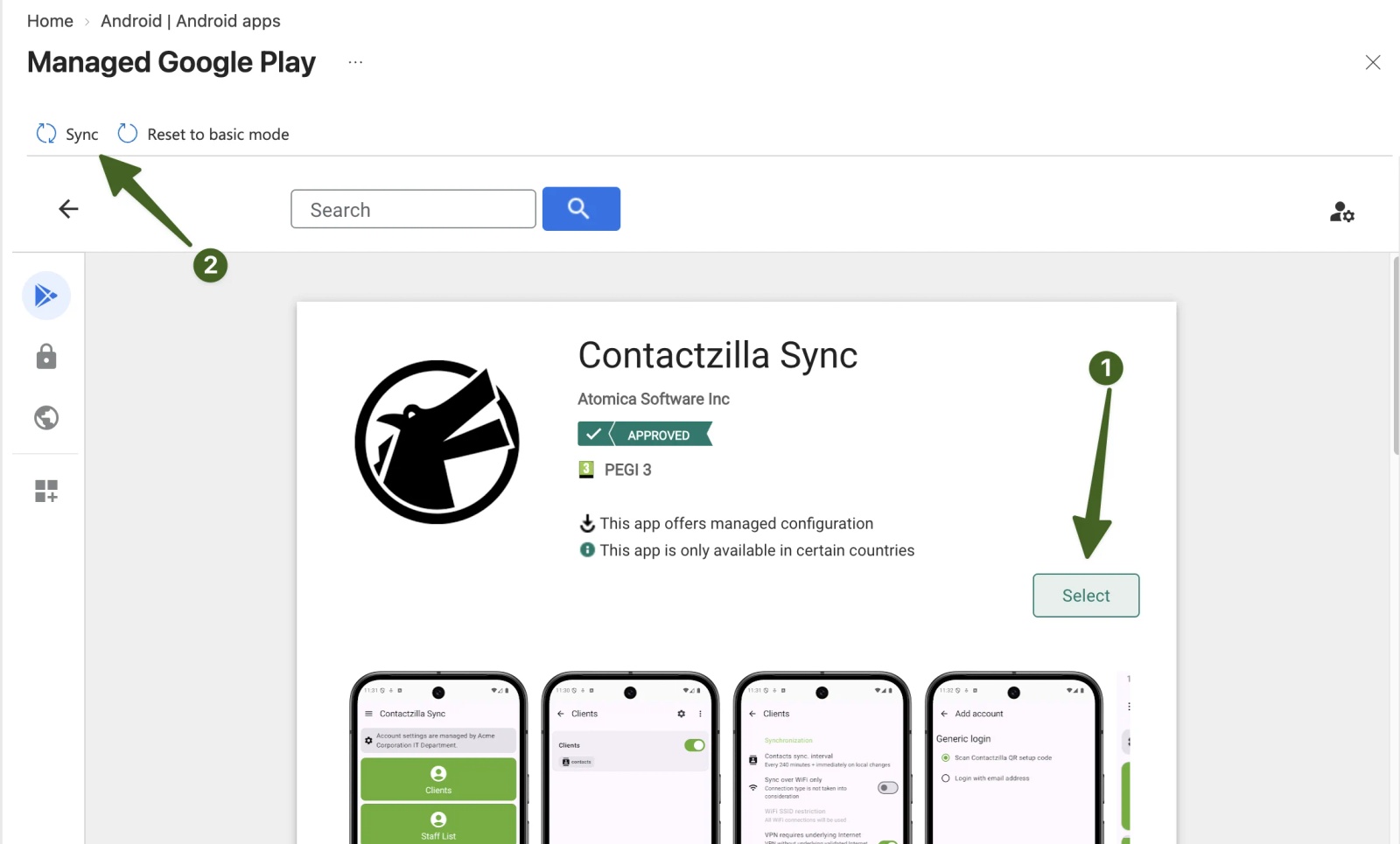
e) On the app page, click Select → If Intune gives no sign that the app was added, click Sync in the upper left of the Managed Google Play window → Check the app page now shows the Approved badge.
f) Back on the Android apps list, click Refresh until Contactzilla Sync appears. While the sync runs, a banner says "Managed Google Play sync in progress".
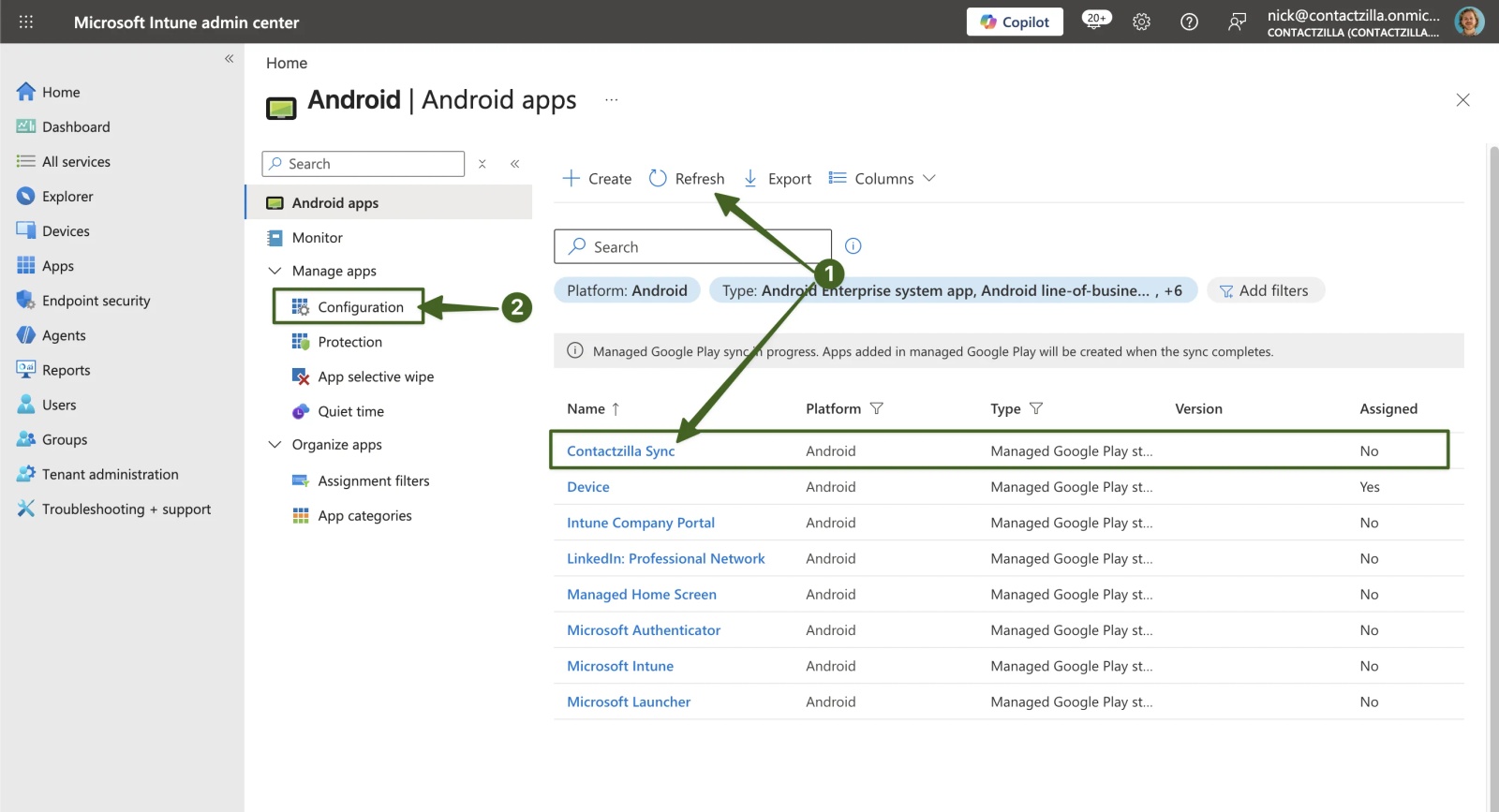
You'll assign the app to your devices in a later step, once the configuration policy is ready.
Creating the App Configuration Policy in Intune
Step Four: Create the App Configuration Policy
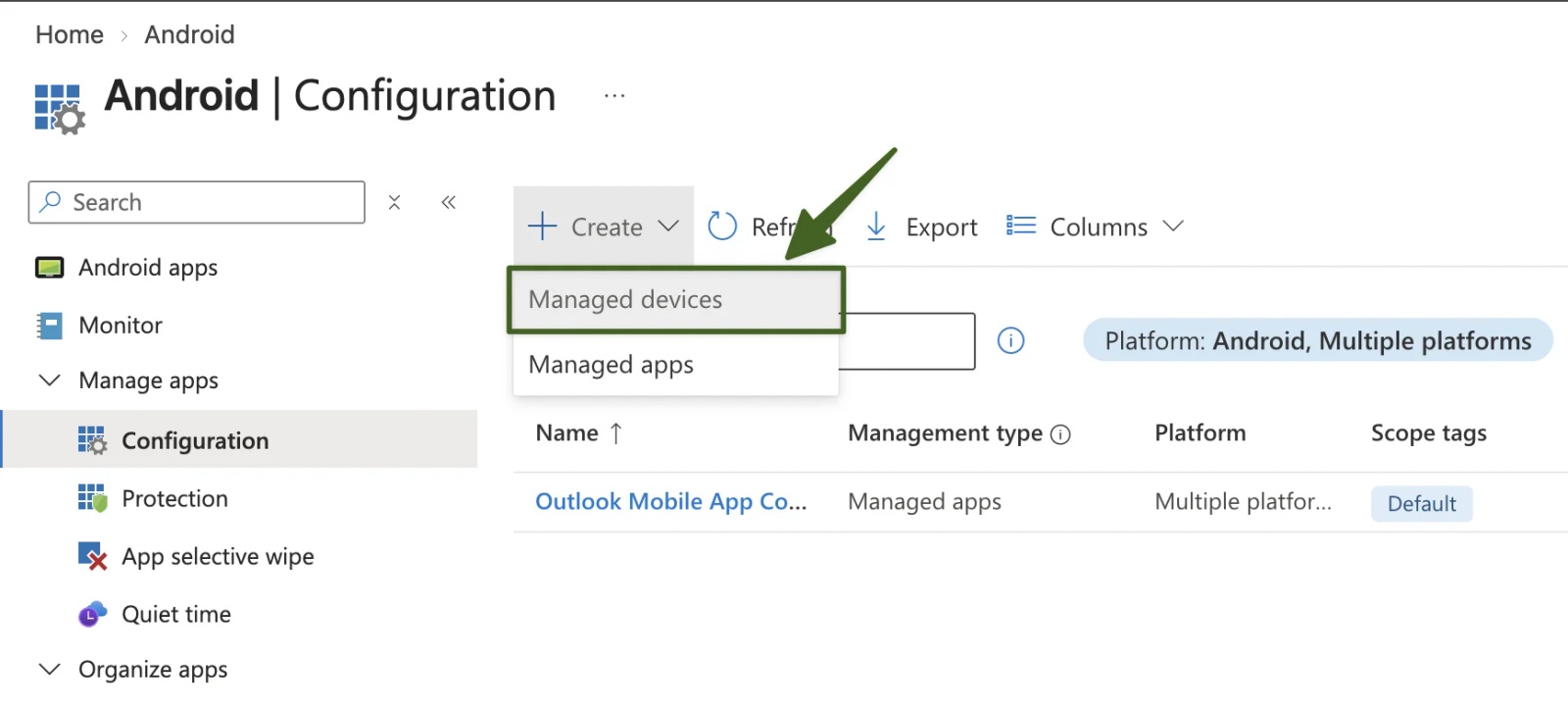
a) In the Android apps area, select Configuration (under Manage apps) → Click Create → Choose Managed devices.
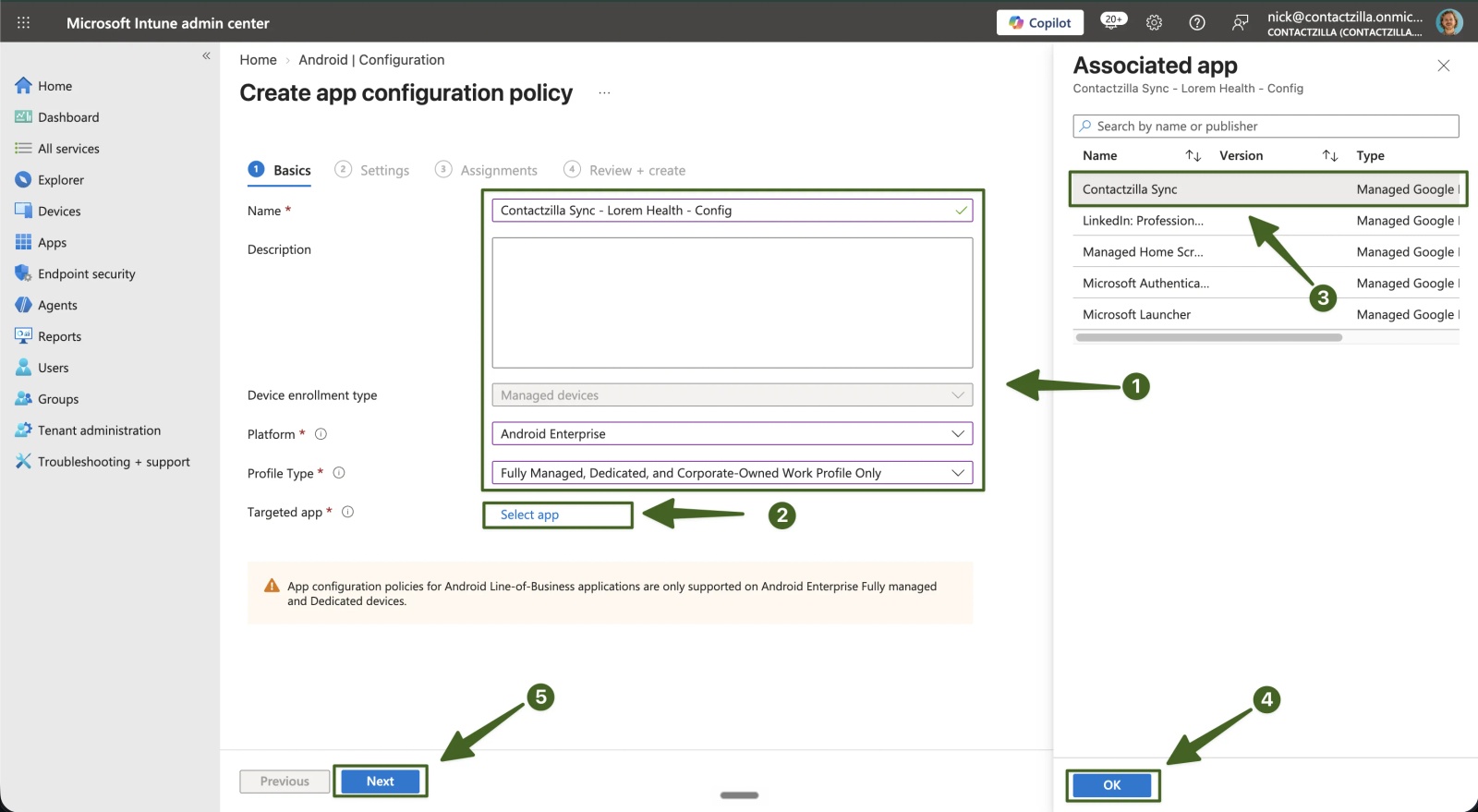
b) On the Basics tab, enter a Name that identifies the deployment, for example Contactzilla Sync - Lorem Health - Config → Leave Description blank → Check Platform is Android Enterprise → Choose a Profile Type that matches how your devices are enrolled → Click Select app → Choose Contactzilla Sync in the Associated app panel → Click OK → Click Next.
Step Five: Auto-Grant the Permissions
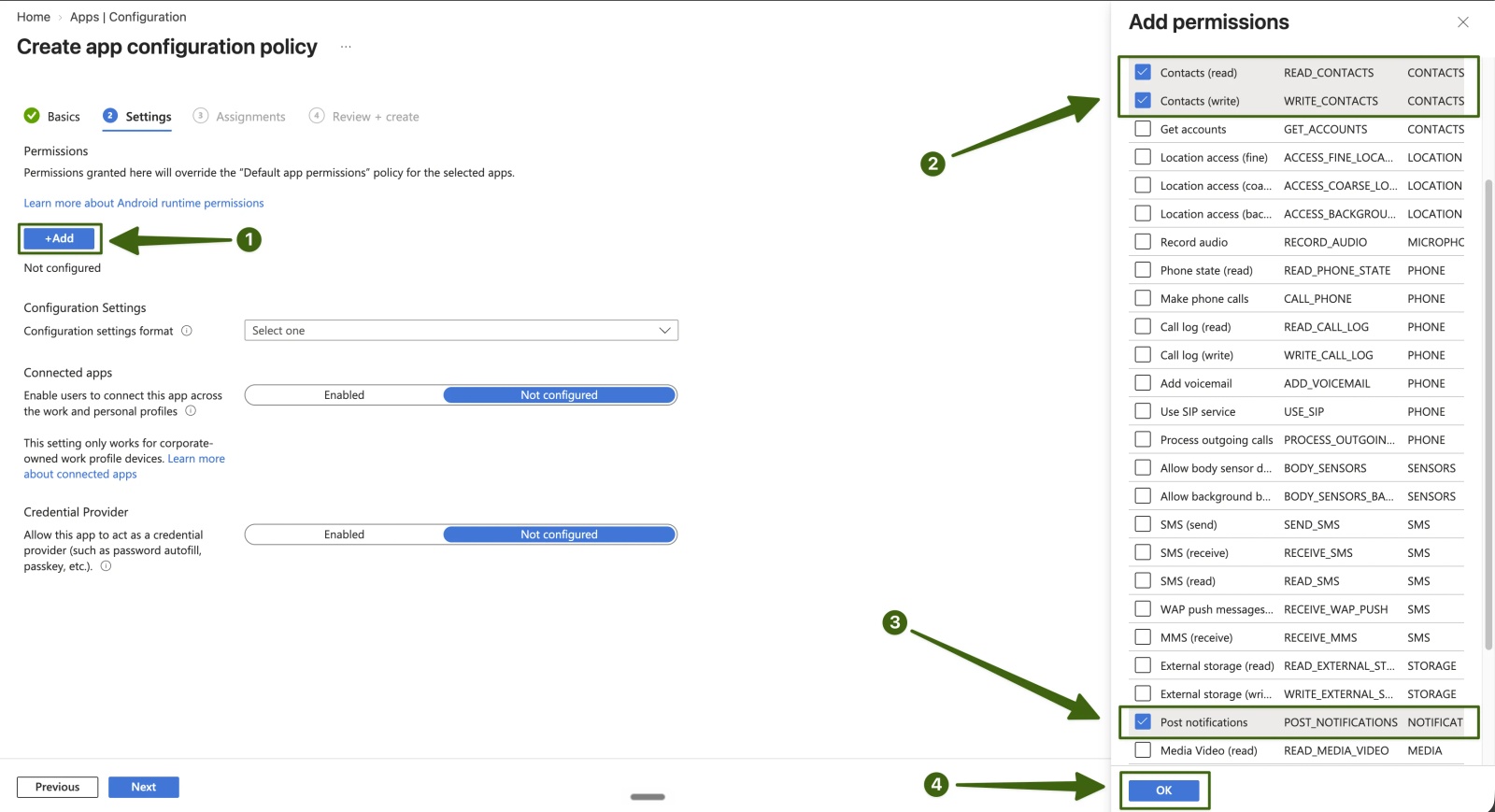
On the Settings tab, set the permissions Contactzilla Sync needs to be granted automatically. This stops Android prompting the user for them, so the deployment needs no action on the device.
a) Under Permissions, click +Add → Tick Contacts (read) and Contacts (write) → Scroll down and tick Post notifications → Click OK.
b) Set the Permission state of all three permissions to Auto grant → Under Configuration Settings, open the Configuration settings format dropdown → Select Enter JSON data.
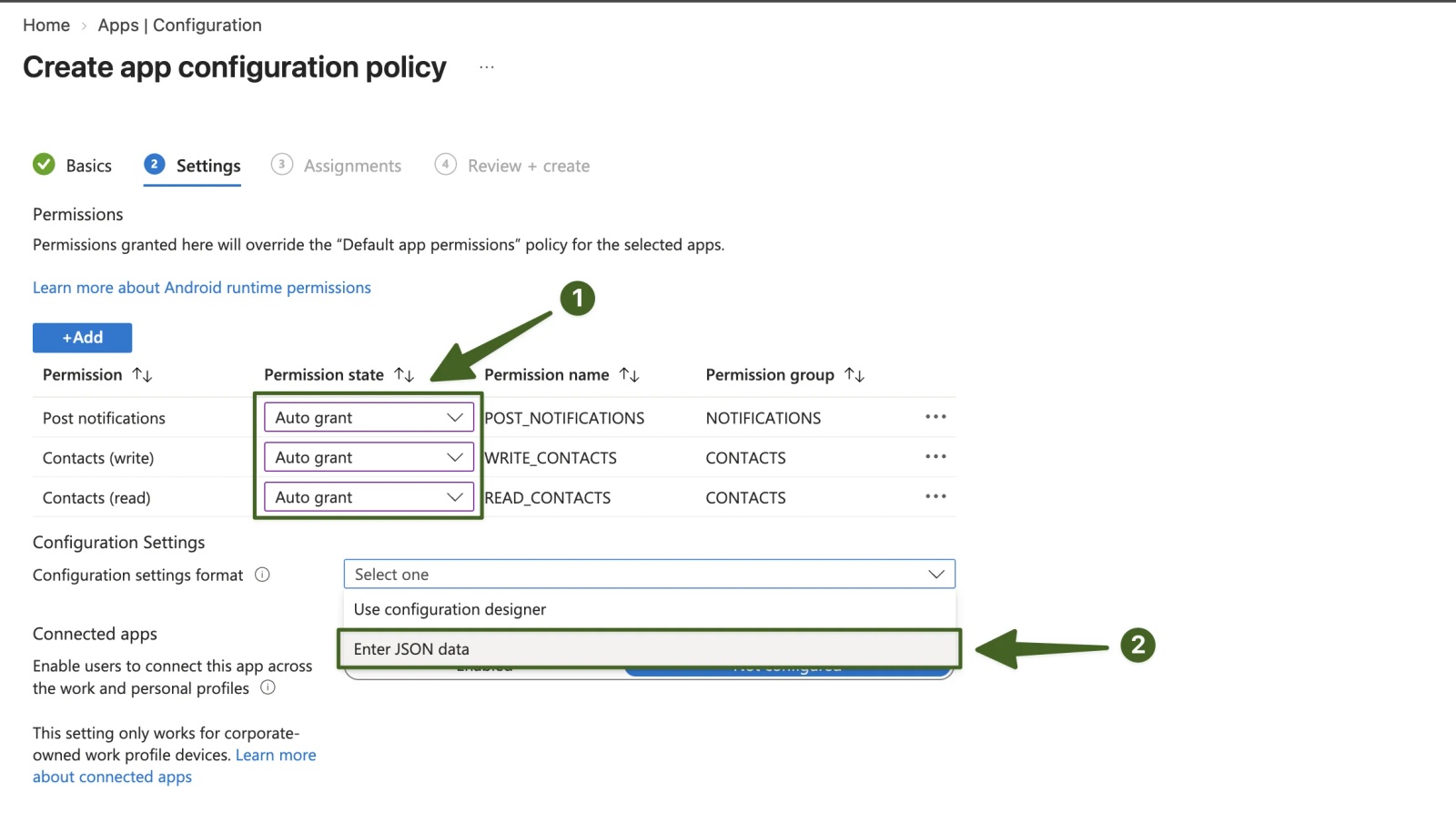
Step Six: Enter the Managed Configuration as JSON
a) Open the Contactzilla JSON file you downloaded → Copy its entire contents → Select everything in the Intune JSON box → Paste over the template, so none of the template is left behind.
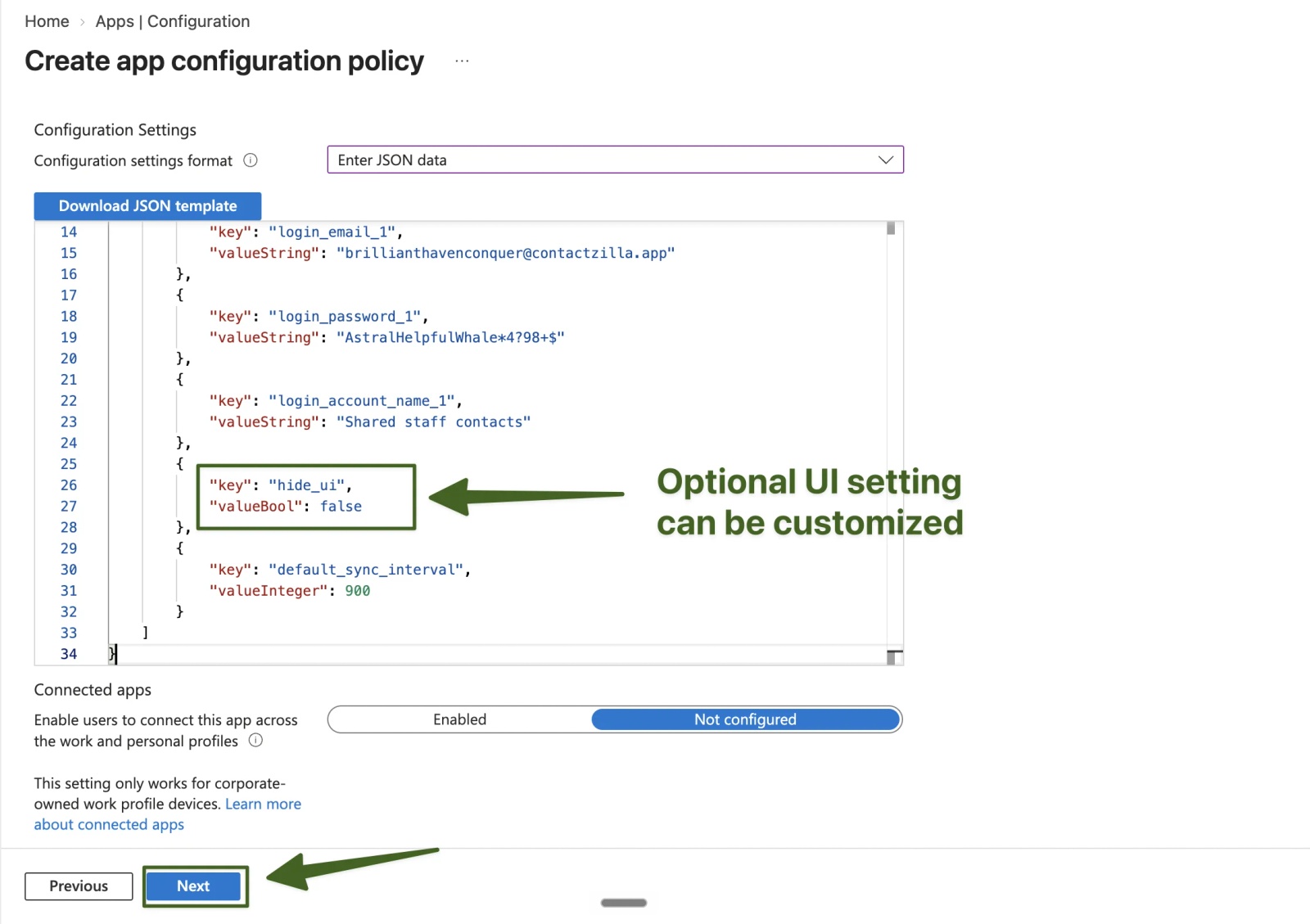
Step Seven: Review the Optional Hide App Interface Setting
The JSON from Contactzilla works as it is, and you don't need to understand every value in it. There is one optional setting you may want to change before you save the policy, and it's highlighted in the Step Six screenshot above.
Hide App Interface hide_ui (optional)
- Change
hide_uifromfalsetotrueif you want to lock down the Contactzilla Sync interface. - When enabled, the normal interactive controls are hidden or disabled, so users can't manually change the account or use the usual sync controls.
- Leave it as
falseif you're happy for users to see the app as normal. Most deployments don't need it.
💡 Hide App Interface locks down the controls inside the app. It does not remove the Contactzilla Sync icon from the device.
a) Scroll down and leave Connected apps and Credential provider as Not configured → Click Next (both visible in the Step Six screenshot).
Step Eight: Assign the Policy to Your Android Device Group
a) On the Assignments tab, under Included groups, click Add groups → Tick the group that contains your target devices (the example uses Lorem Health Partners - Android Devices) → Click Select → Click Next.
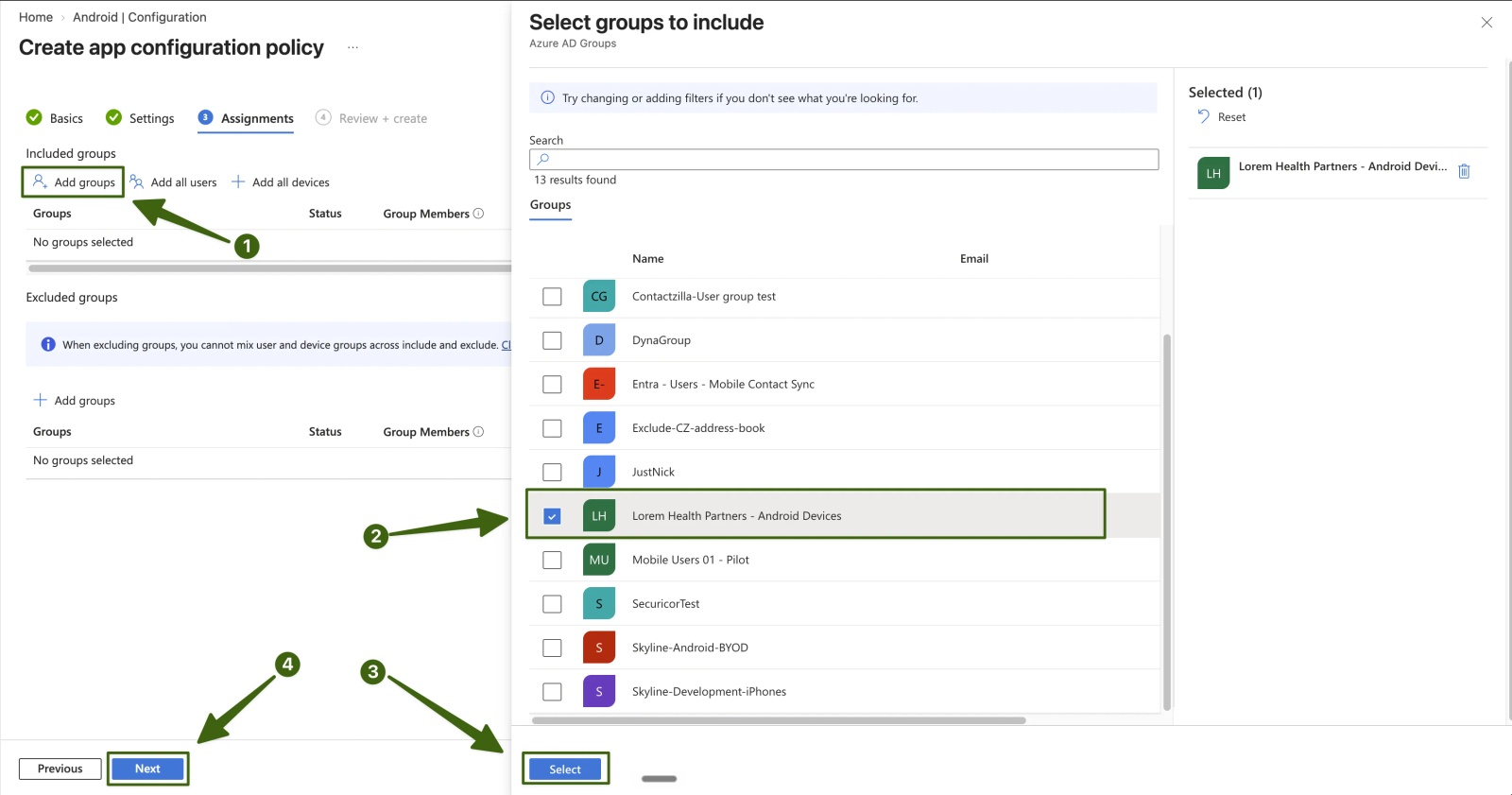
b) On Review + create, check the summary (the group shows as Active) → Click Create.
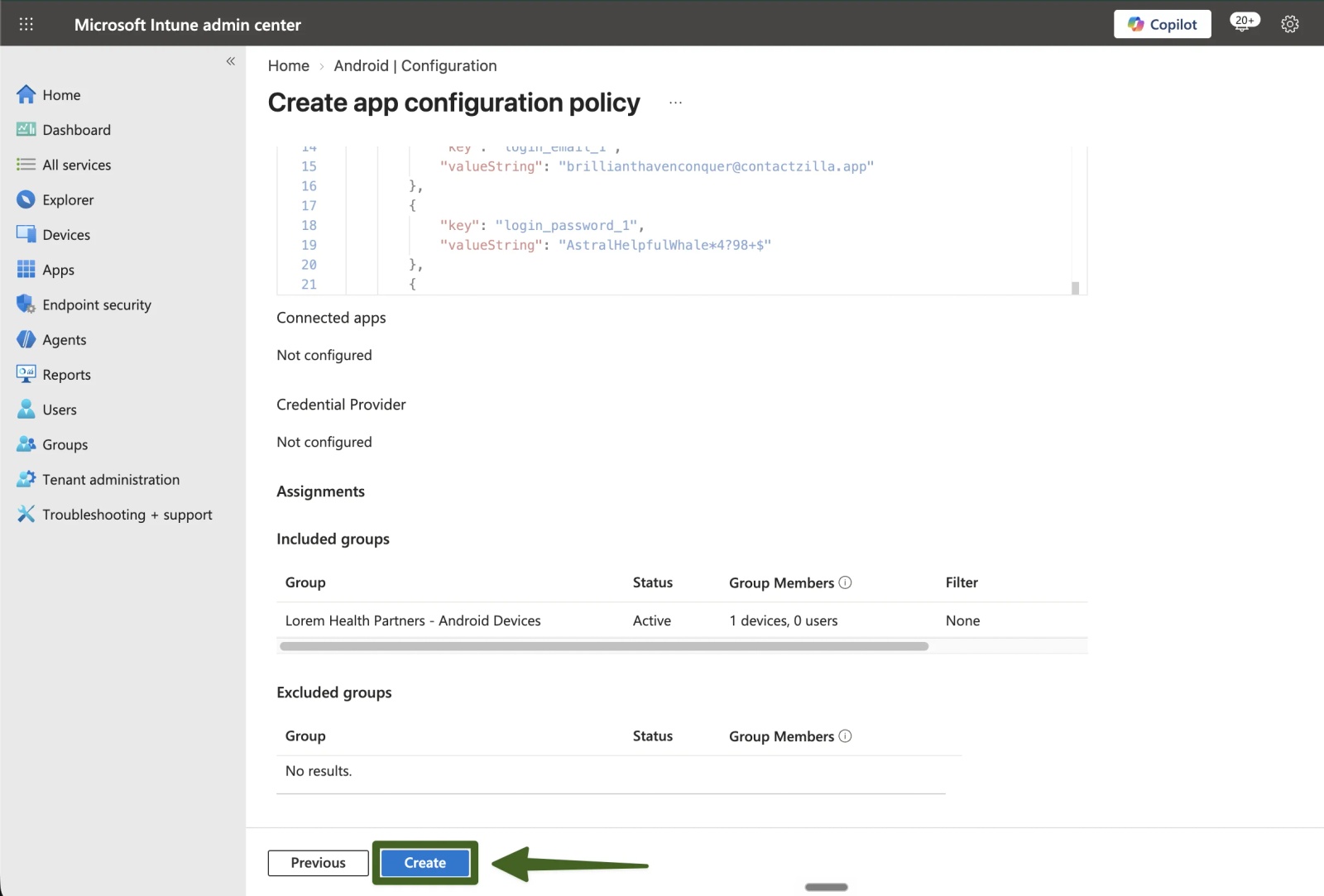
Creating the policy doesn't install the app. That happens when you assign the app itself in the next step.
Deploying Contactzilla Sync to Your Devices
Step Nine: Assign Contactzilla Sync as a Required App
With the configuration policy in place, assign the app itself to the same device group. Intune will then install it automatically.
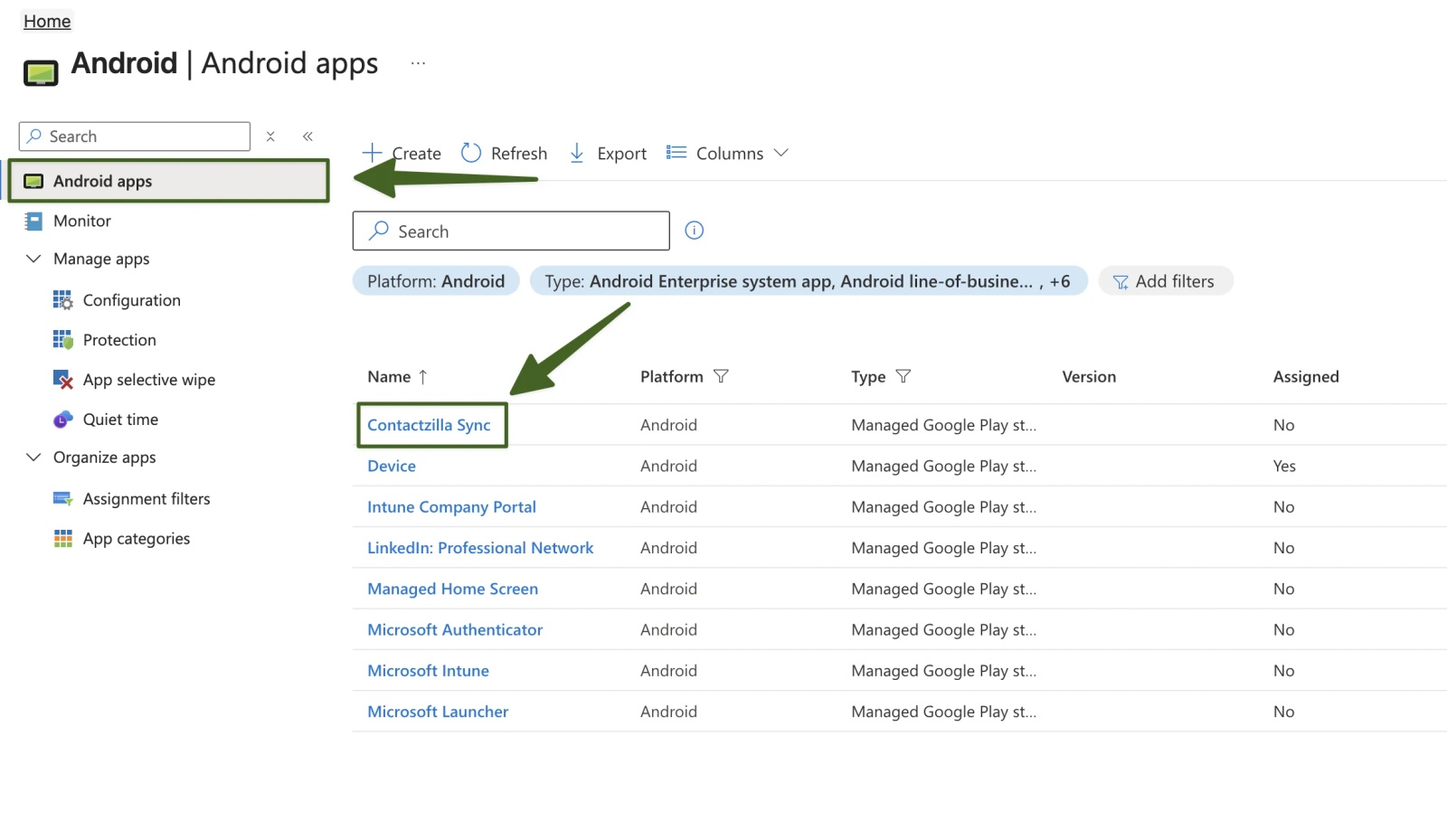
a) Go to Apps → Select Android → Click Contactzilla Sync.
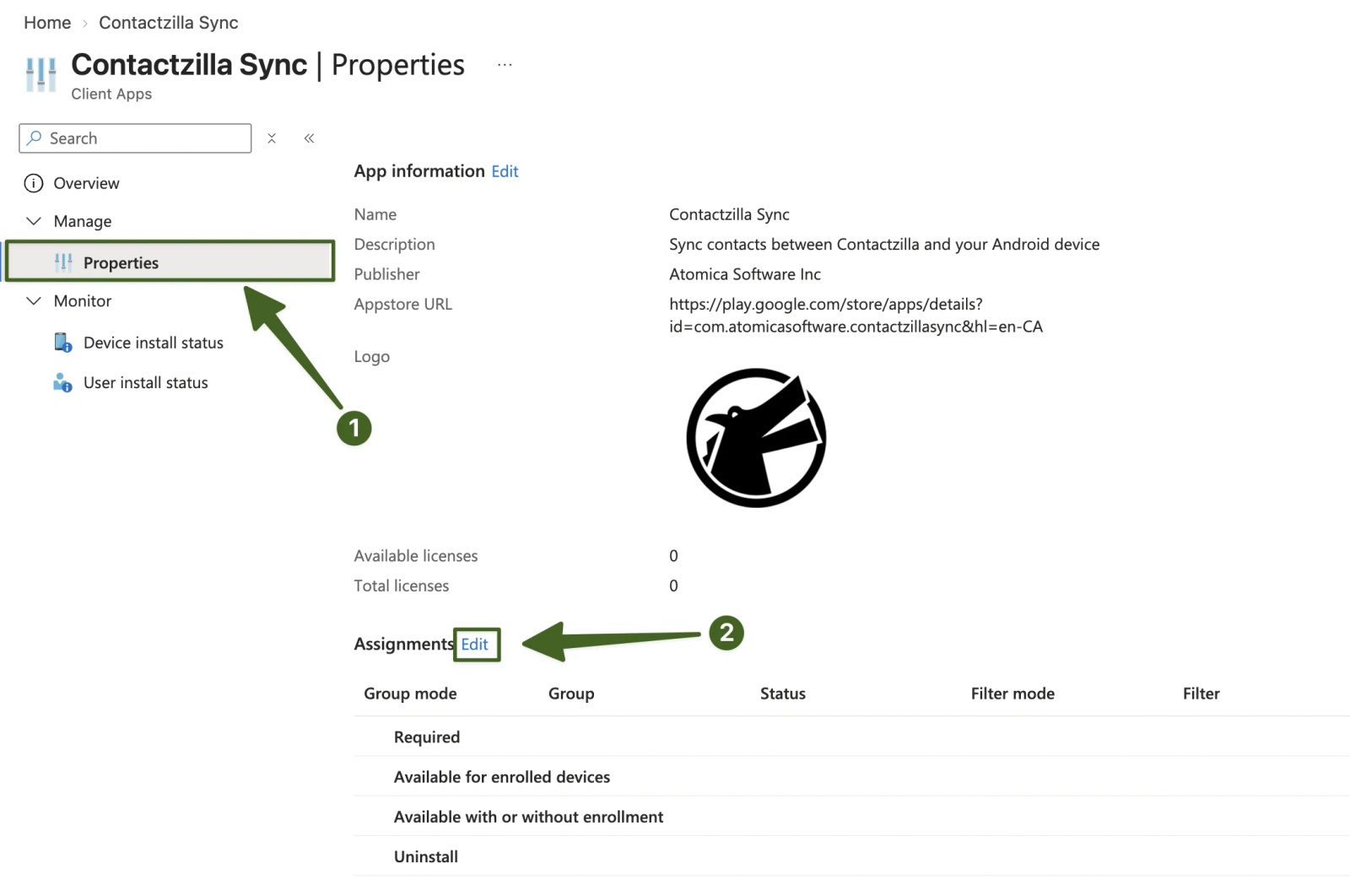
b) Select Properties → Click Edit next to Assignments.
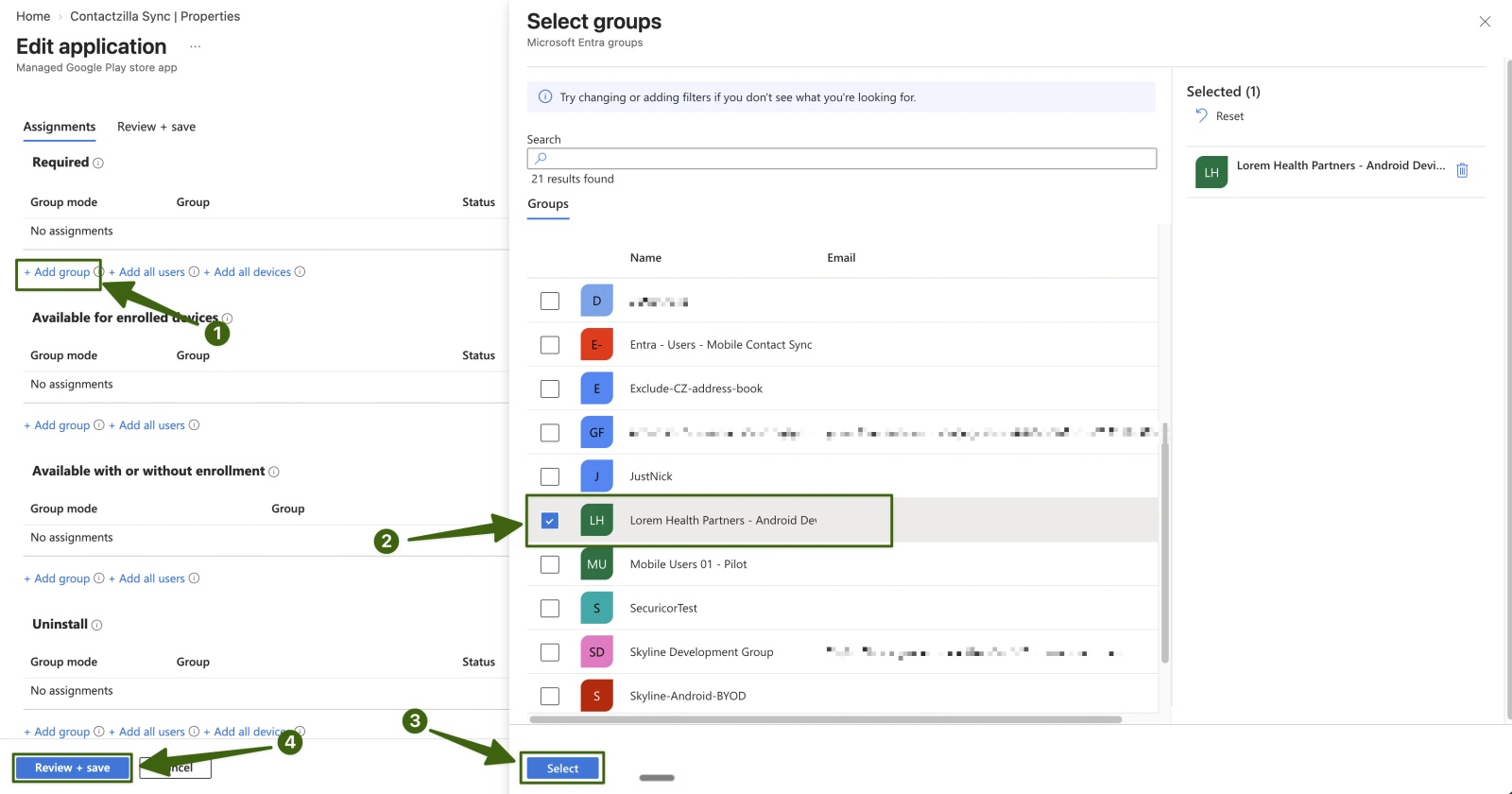
c) Under Required, click Add group → Choose the same group you used for the configuration policy → Click Select → Click Review + save → Click Save.
Step Ten: Devices Receive the App and Configuration
After the next Intune check-in, Contactzilla Sync installs on each device with the managed configuration already applied. Users don't need to enter any Contactzilla credentials or address book settings.
💡 To speed things up when testing, open the device in Intune and use Sync to prompt it to check in.
Verifying the Deployment on a Device
Step Eleven: Open Contactzilla Sync to Start Syncing Your Contacts
⚠️ Important: Contactzilla Sync needs to be opened once before the first sync is set up on the device. Make sure users, or whoever is staging the devices, know to do this after the app installs.
Opening Contactzilla Sync once sets up the configured account and starts bringing your contacts into the native Android Contacts app.
a) Tap the Contactzilla Sync icon → Check your address book is shown in the app → Tap the sync button (bottom right) for an immediate first sync.
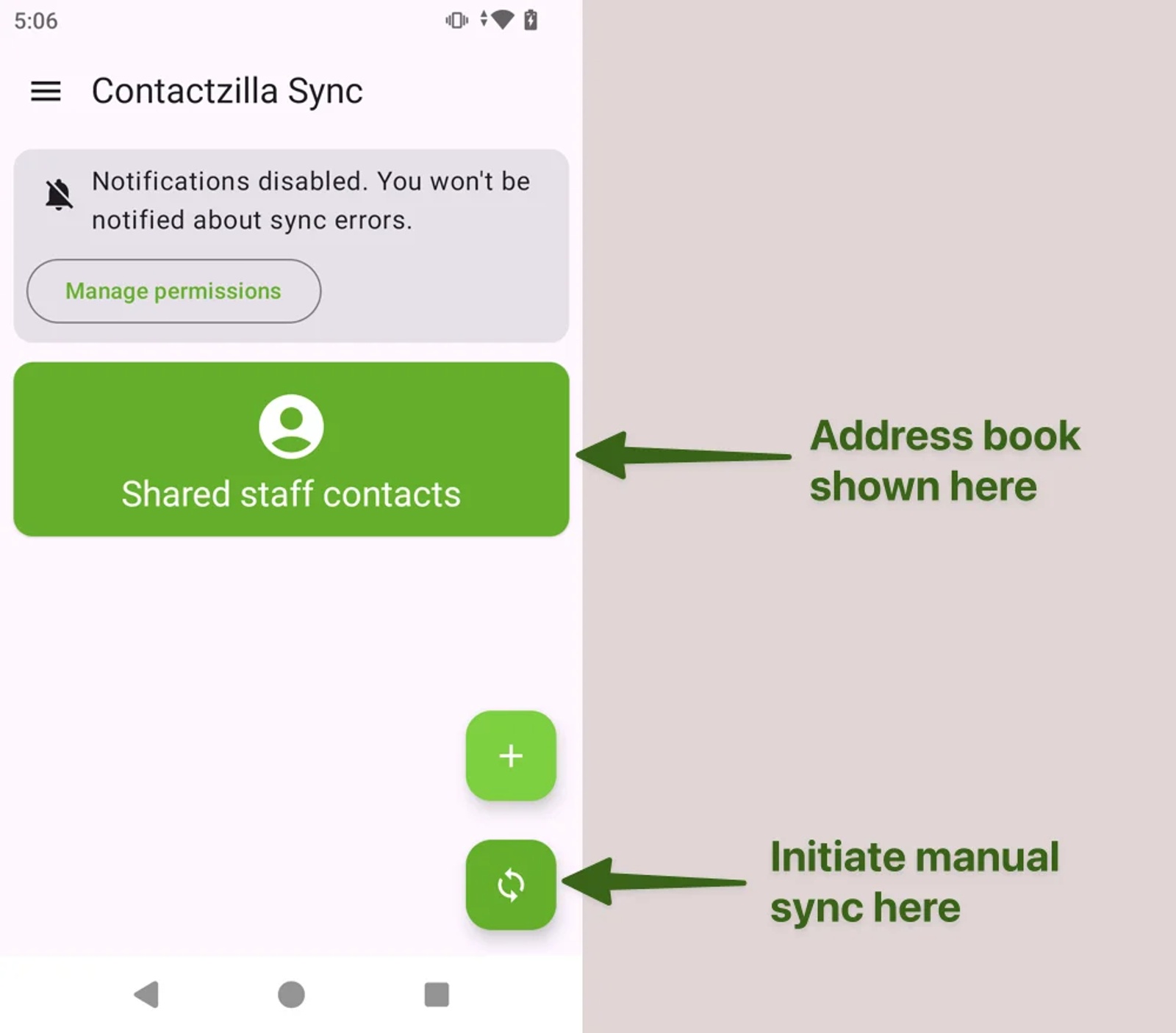
If you have hidden the app interface with hide_ui, pull down to refresh instead.
Step Twelve: Check Your Contacts in the Android Contacts App
Your contacts now appear in the Android Contacts app, kept separate from the contacts stored on the device itself. The Contacts app may open on the device's own contacts, which can show as empty or list a different number of contacts. That's normal, and it just means you need to switch the contact source.
a) Open the Android Contacts app → If it shows no contacts or the wrong ones, tap the account icon (top right) → Select Contactzilla Address book → Tap the menu icon (top left) → Your Contactzilla labels are listed here as lists.
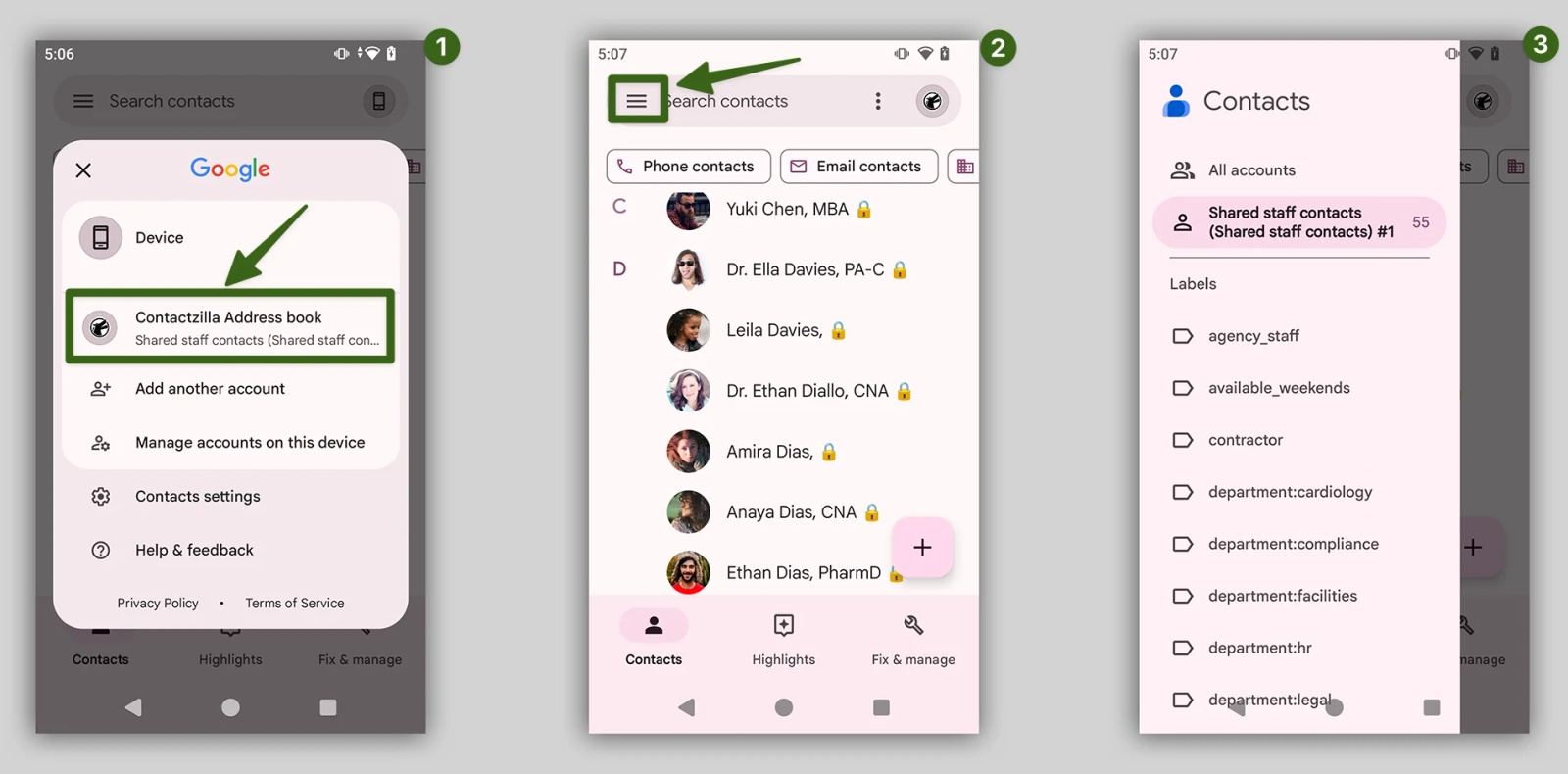
Each label you created in Contactzilla now appears as a list, so your contacts stay organised on the phone exactly as they are in your address book. If you ticked Append 🔒 emoji when creating the connection, a padlock beside each contact shows that it is read-only.
You've now deployed Contactzilla Sync to your Android devices using Microsoft Intune. After that first launch, Contactzilla Sync keeps the native Contacts app up to date in the background.
Last updated on
Still need help?
Our support team is available to assist you with any questions or issues you may have.

