
How can we help you?
Browse Categories
iPhone keeps asking for the password for the Contactzilla CardDAV account
In some situations, an iPhone may repeatedly show a “Password Required” prompt for a Contactzilla CardDAV account, even though the address book was deployed via MDM and no password was ever manually entered.
This issue is uncommon, but we’ve seen it most often on MDM-managed iPhones, including deployments using MaaS360.
Why your iPhone is asking for a CardDAV password
This behaviour is usually triggered by iOS or MDM state changes, rather than an issue with the Contactzilla address book itself. Based on customer reports and testing, common triggers include:
- An MDM policy being re-published or updated, even when the CardDAV payload itself hasn’t changed
- An iOS update triggering a background re-authentication request
- A temporary authentication failure during an earlier sync attempt
- A conflict with another CardDAV account on the device (manual or legacy)
- iOS clearing stored credentials after a CardDAV account is removed or re-applied
In some cases, contacts may briefly disappear and then reappear, while the password prompt continues to show intermittently.
How to resolve repeated CardDAV password prompts
If the password prompt persists, the most reliable resolution we’ve seen is to create a fresh CardDAV connection and update the MDM policy to use it.
Why this works
Each CardDAV connection in Contactzilla has its own credentials. Creating a new connection forces iOS and the MDM to treat it as a clean, first-time setup rather than attempting to reuse cached credentials.
Steps
- In Contactzilla, create a new CardDAV device connection for the same address book
- Download the new provisioning profile (.mobileconfig) or note the new credentials
- Update your MDM policy (for example, MaaS360) to use this new CardDAV connection
- Publish the updated policy and allow it to deploy to the device
- If prompted for a password during this process, tap Cancel and allow the profile to complete deployment
This approach has resolved cases where repeated wipes, factory resets, and policy re-publishes did not.
Other things you can try
If you’d prefer to try less disruptive steps first, the following may help in some cases:
Reassign the existing MDM policy
- Remove the Contactzilla CardDAV policy from the affected device
- Wait for the account/profile to be fully removed from the phone
- Reassign the policy and allow it to reinstall
Check for duplicate CardDAV accounts
- On the iPhone, go to Settings → Contacts → Accounts
- Look for multiple CardDAV accounts that may relate to Contactzilla
- Remove any manually-added or legacy CardDAV accounts
Check where new contacts are being saved
If the prompt appears when creating new contacts:
- Go to Settings → Contacts → Default Account
- Set this to iCloud, On My iPhone, or Exchange
- Avoid setting Contactzilla as the default account for new contacts
About the CardDAV password
Tip 💡:You normally should not need the password
When a CardDAV connection is created in Contactzilla, a unique username and password are generated for that connection.
For security reasons:
- The password is only shown once, when the connection is first created
- After the connection is used, the password is deleted from our UI and cannot be retrieved again
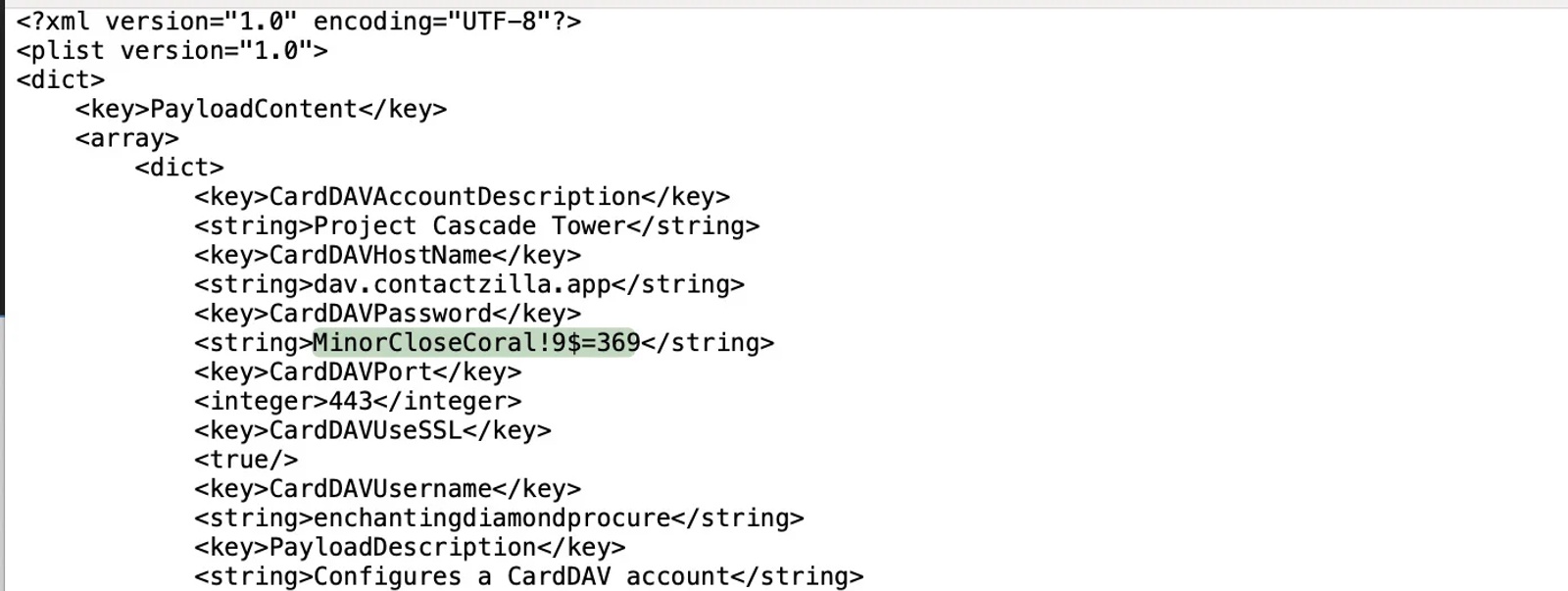
When deploying via MDM using a provisioning profile, the .mobileconfig already contains the credentials, so users should never need to enter a password manually.
If you do need to access the password
You have two options:
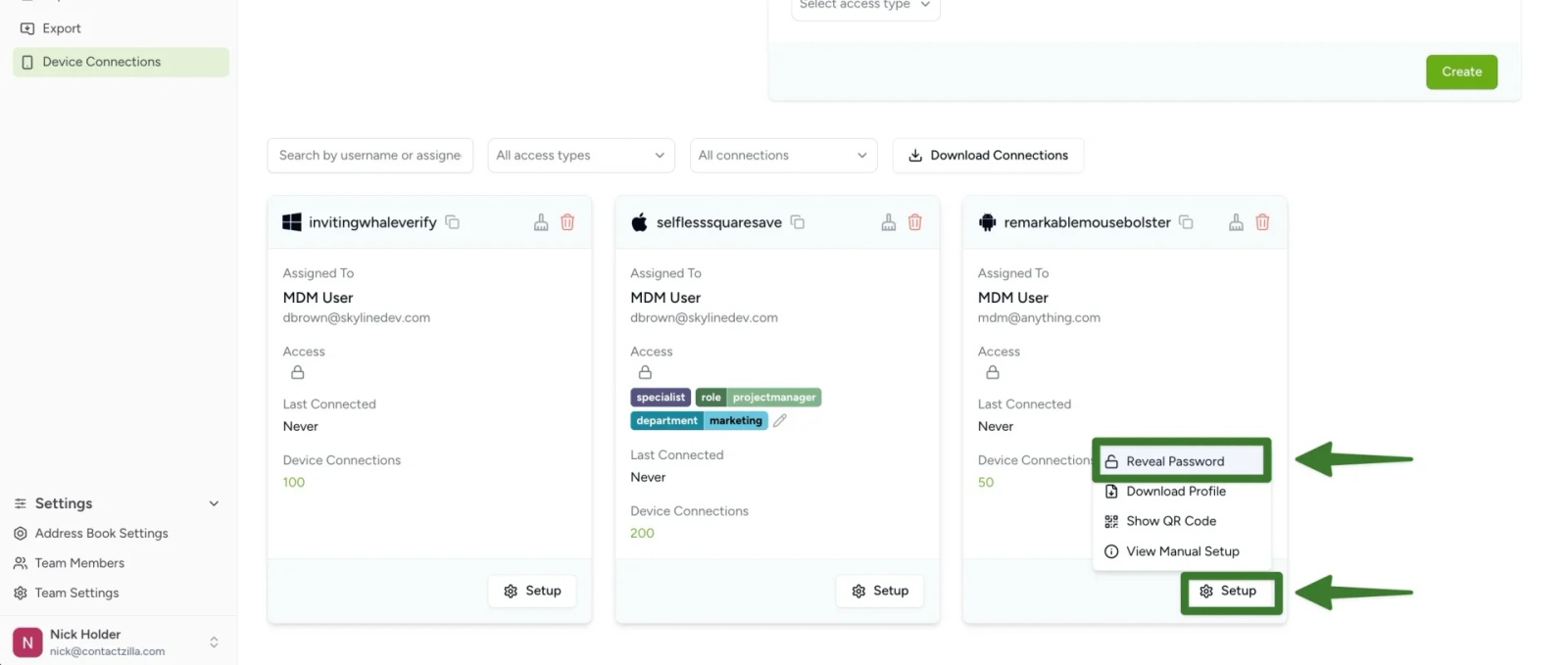
1) Before first deployment
Copy the password from the CardDAV connection screen immediately after creating it (before it is used)
2) From the provisioning profile
Open the downloaded .mobileconfig file in a text editor and locate the password field
If the password is no longer available, the only way to obtain a new one is to create a new CardDAV connection.
Still need help?
Our support team is available to assist you with any questions or issues you may have.

