How can we help you?
Browse Categories
Setting Up CardDAV Connections
Device connections let you sync contacts to phones and other devices over CardDAV. Each connection exists within a specific address book, allowing you to manage different sync configurations for different contact lists.
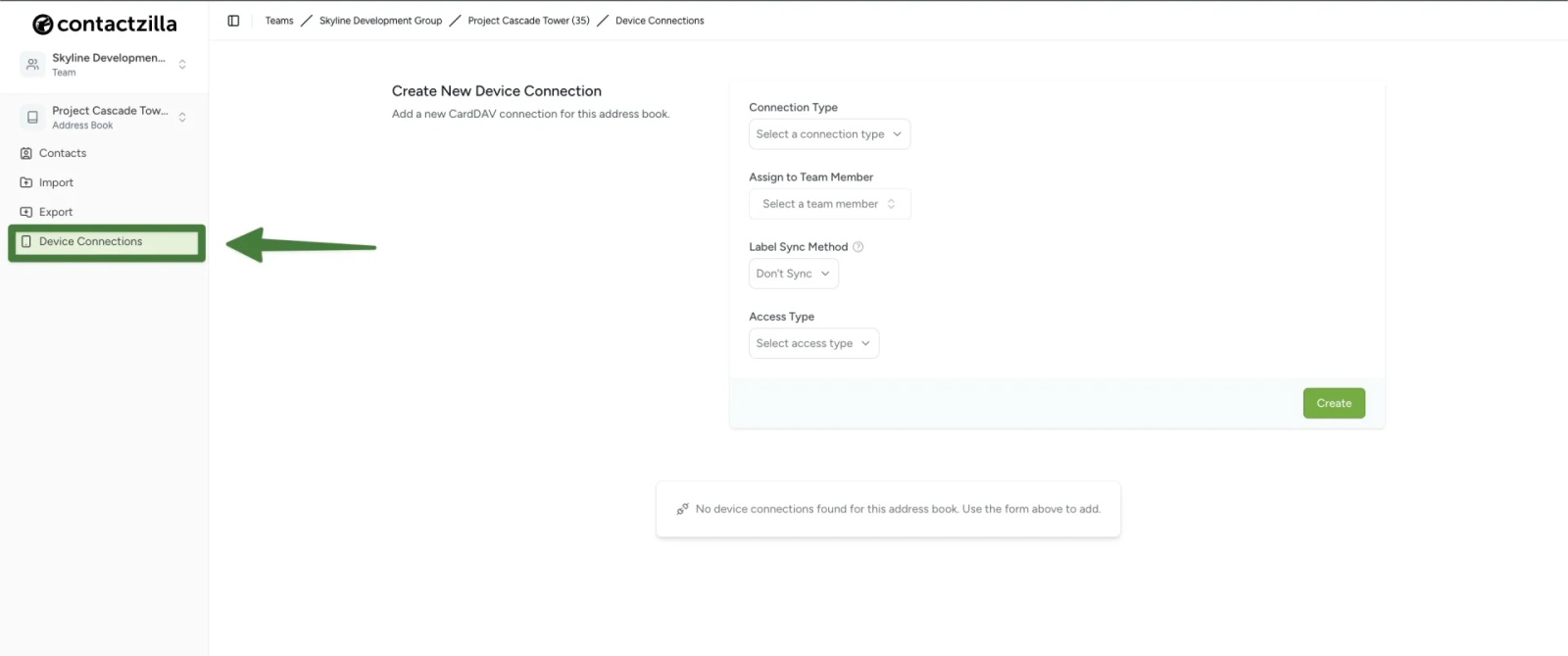
First, open the team and address book selector at the top of the left-hand menu and choose the address book where you want to create the connection. Then click Device Connections.
Creating a New Device Connection
Everything for a new connection is set on one form. Work down it from top to bottom, then click Create.
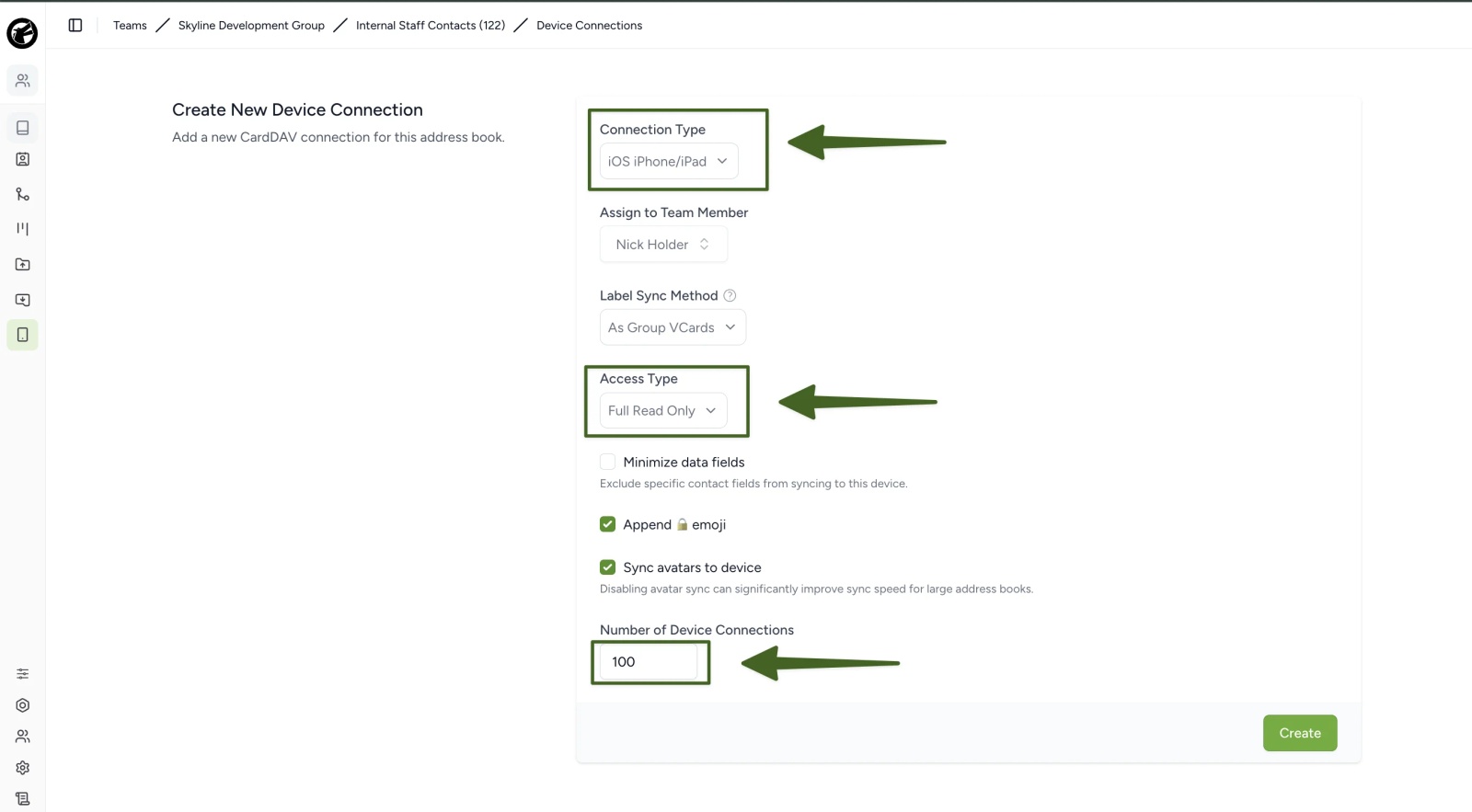
a) Connection Type → Choose your device platform: iOS iPhone/iPad, Android, or Other (for any CardDAV-compatible device).
b) Assign to Team Member → Choose who the connection is for:
- A regular team member (administrators, owners and other team member types) for individual device synchronization.
- An MDM user for large-scale device deployments. When you choose an MDM user, a Number of Device Connections field appears (see step e).
c) Access Type → Choose the level of access:
- Full Read/Write: Complete access to all contacts in the address book.
- Full Read Only: View-only access to all contacts.
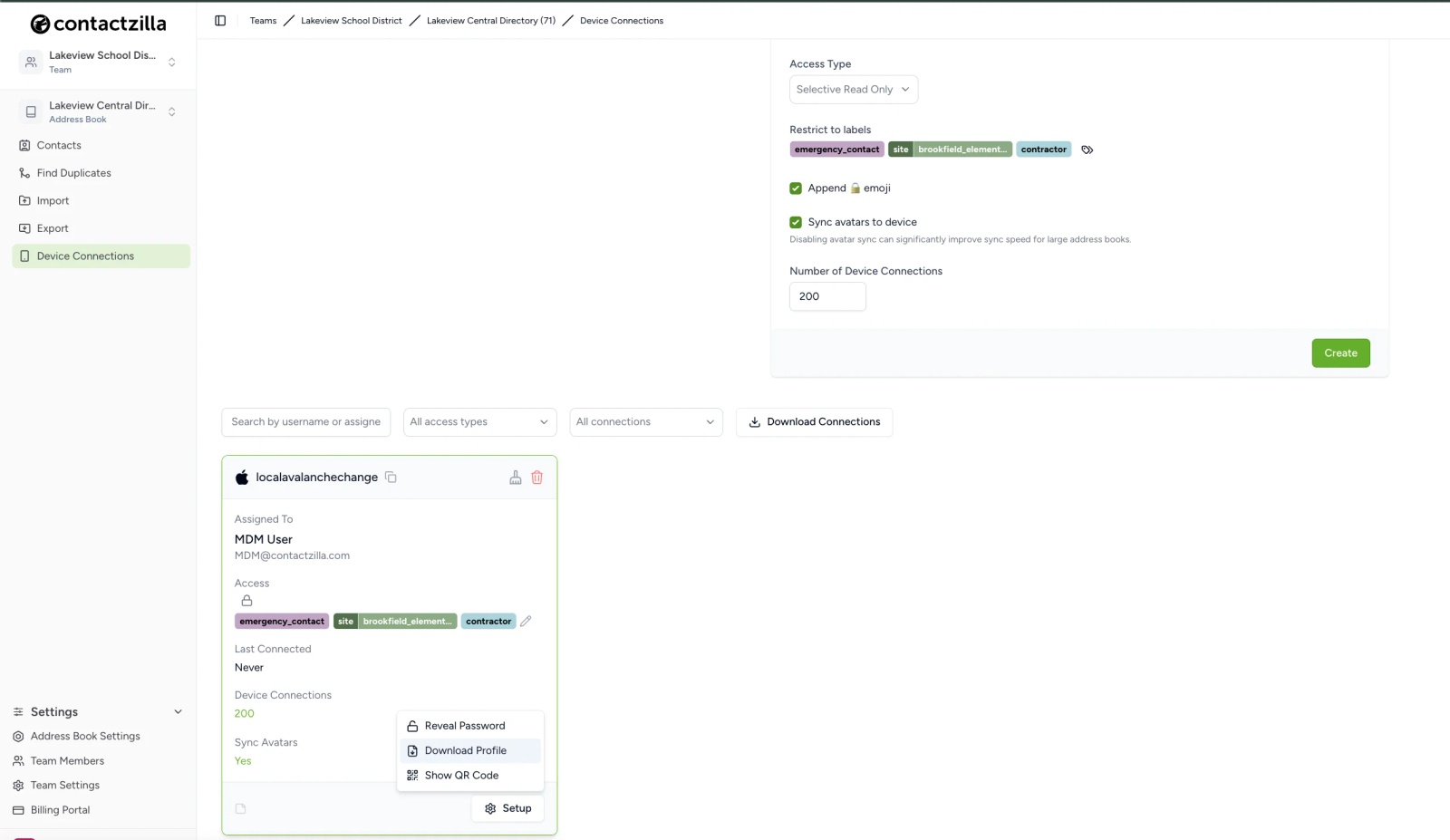
- Selective Read Only: View-only access to contacts with specific labels. Click the label button beside Restrict to labels → Select one or more labels from the list. Only contacts with the labels you choose will sync to the device.
d) Options below Access Type → Tick the ones you want:
- Append 🔒 emoji (read-only access types): Adds a lock symbol (🔒) to the end of each contact name on the device, a clear visual sign that these contacts are read-only.
- Sync avatars to device: Contact photos are synced by default. Disabling this can significantly improve sync speed for large address books.
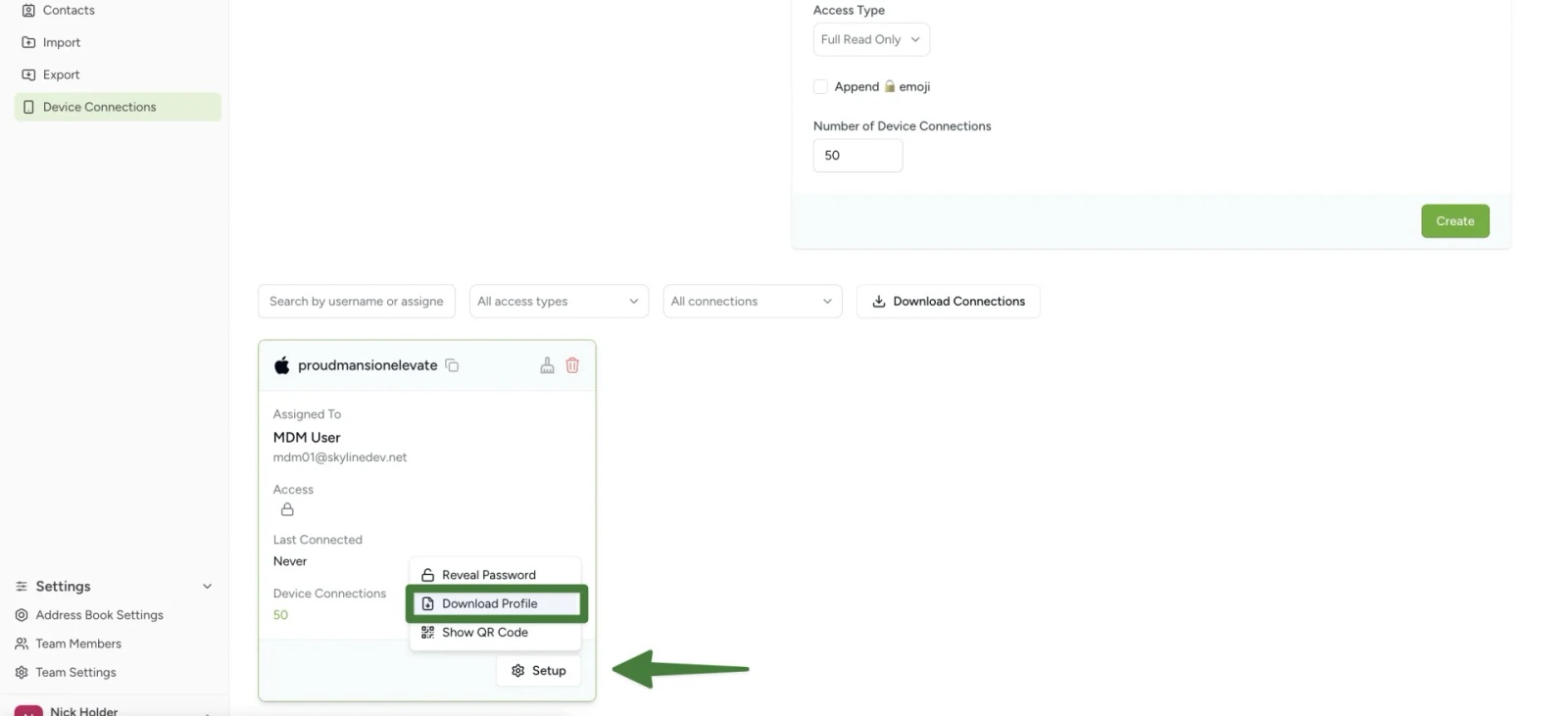
e) Number of Device Connections (MDM users) → Enter how many devices can use this connection (for example, 500) → Click Create.
After Creating a Device Connection
When you create a new connection, it appears in your list of device connections where you can monitor status, view connection details, adjust the number of device connections, and click Setup to download a provisioning profile or show a QR code, making setup on iOS devices incredibly simple. Each new connection generates a unique username and secure password for device authentication.
To set up phones by scanning the QR code, including letting one code set up several phones, see How to Put Contactzilla Contacts on Phones Without MDM by Scanning a QR Code.
Important Notes About the Password
- The password is only revealed once
- You must save or use the password immediately
- Once the connection is first used, the password cannot be retrieved again
- If you need the password later, you’ll need to create a new connection
Connection Options
You can either use the generated username and password directly with your CardDAV client, or download the provisioning profile (a .mobileconfig file) which contains all necessary configuration settings. The provisioning profile can be installed by double-clicking on Apple devices and is perfect for bulk deployments via MDM solutions.
Tip 💡: Follow our Setting up MDM deployments guide here
Still need help?
Our support team is available to assist you with any questions or issues you may have.