
How can we help you?
Browse Categories
HEXNODE: How to Deploy Contactzilla Address Books to Android Devices using Hexnode MDM
This guide assumes you already have Hexnode configured and Android devices enrolled and in a device group. We’ll walk you through creating the JSON file in Contactzilla and deploying it via Intune.
What You’ll Need
- A Contactzilla account with an existing address book. Please see our getting started guide here
- An MDM team member created in your Contactzilla account (required prerequisite – see setup below)
- Hexnode configured with enrolled Android devices
- Admin access to your Hexnode
Prerequisites – MDM Team Member Setup
⚠️ Important: Before you can create mobile configuration files for MDM deployment, you must first set up an MDM team member in your Contactzilla account. This creates the specialized user account needed for device deployments and generating the JSON file to add to Hexnode
If you haven’t created one yet, follow the steps for creating an MDM team member in our detailed setup guide:
Setting Up MDM Deployments in Contactzilla
Step 1: Creating the MDM Device Connection in Contactzilla
1) Login to Contactzilla and select the address book that you wish to deploy to your Android devices.
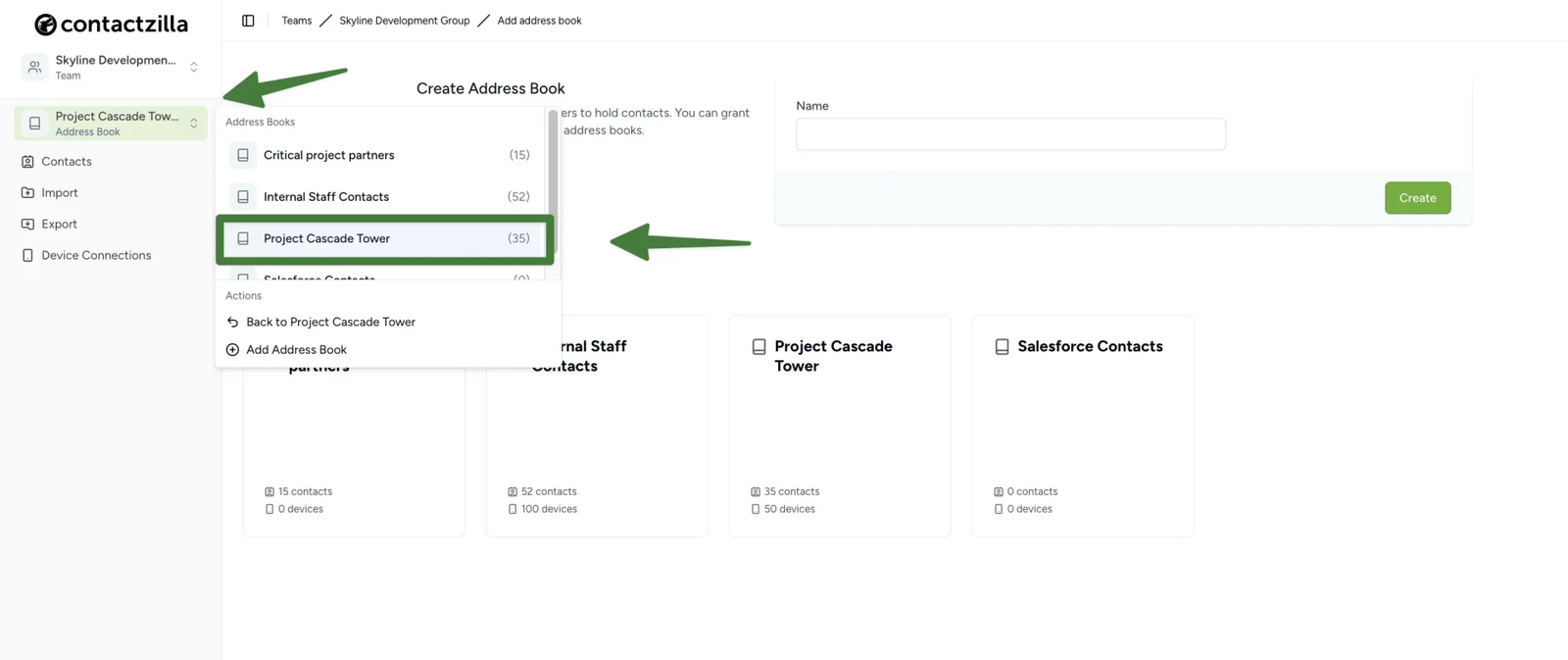
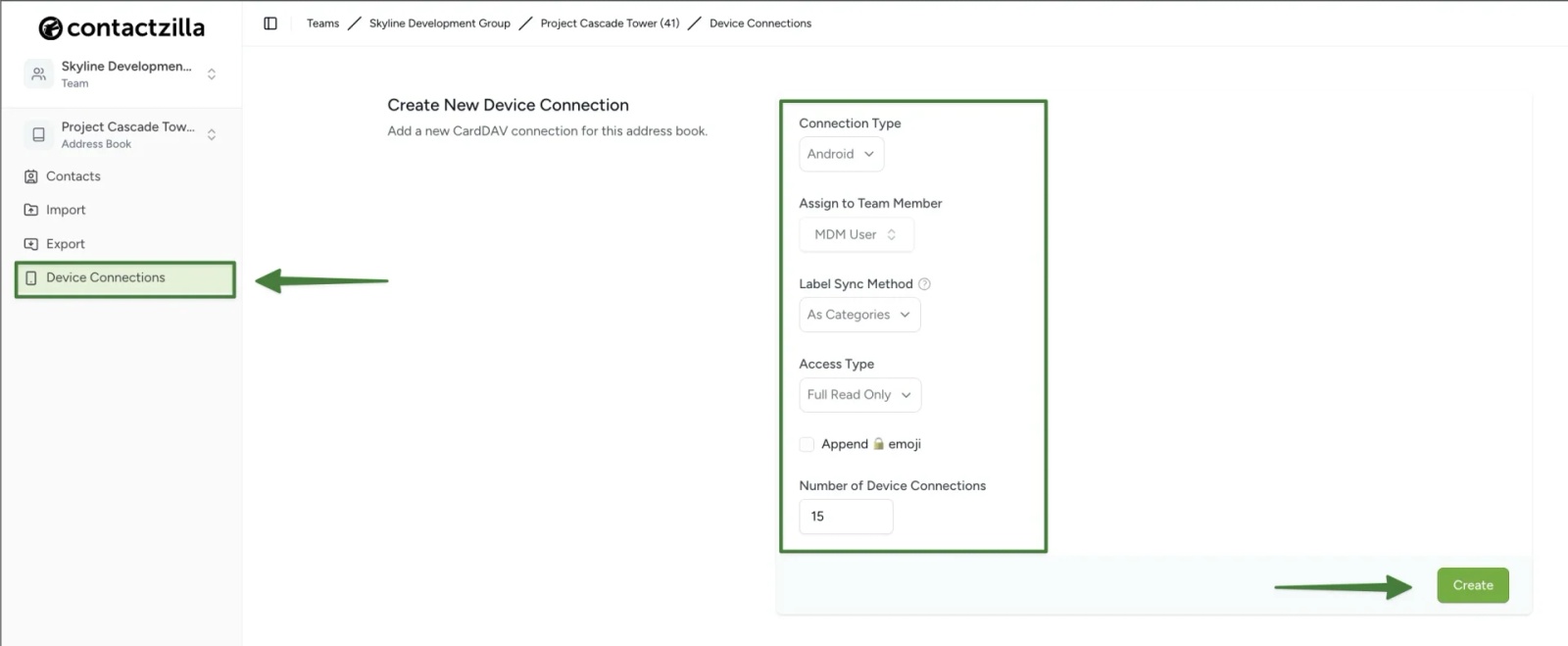
2) Click on ‘Device Connections’. From here we will create a CardDAV connection specifically designed for MDM deployment. From here we will create a CardDAV connection specifically designed for MDM deployment.
From the ‘Create New Device Connection’ screen that follows configure the following settings from the dropdown menus:
Connection Type: ‘Android’
Assign to Team Member: Select your MDM team member (created in the prerequisite setup above)
Label Sync Method: Leave as default ‘As Categories’
Access Type: Choose based on your needs
- ‘Full Read/Write’ (if devices need to add/edit contacts)
- ‘Full Read Only’ (recommended for managed devices to prevent accidental changes)
- ‘Selective Read Only’ (if you only want specific labeled contacts)
Tip 💡: For Read only deployments you have an option to append a lock emoji to each contact in the native contacts app to make it clear to a user that any changes will not be written to the server.
Number of Device Connections: Set to the number of devices you plan to deploy to
Click the ‘Create’ button to generate your new Device connection.
Step Two: Download the Contactzilla Configuration File
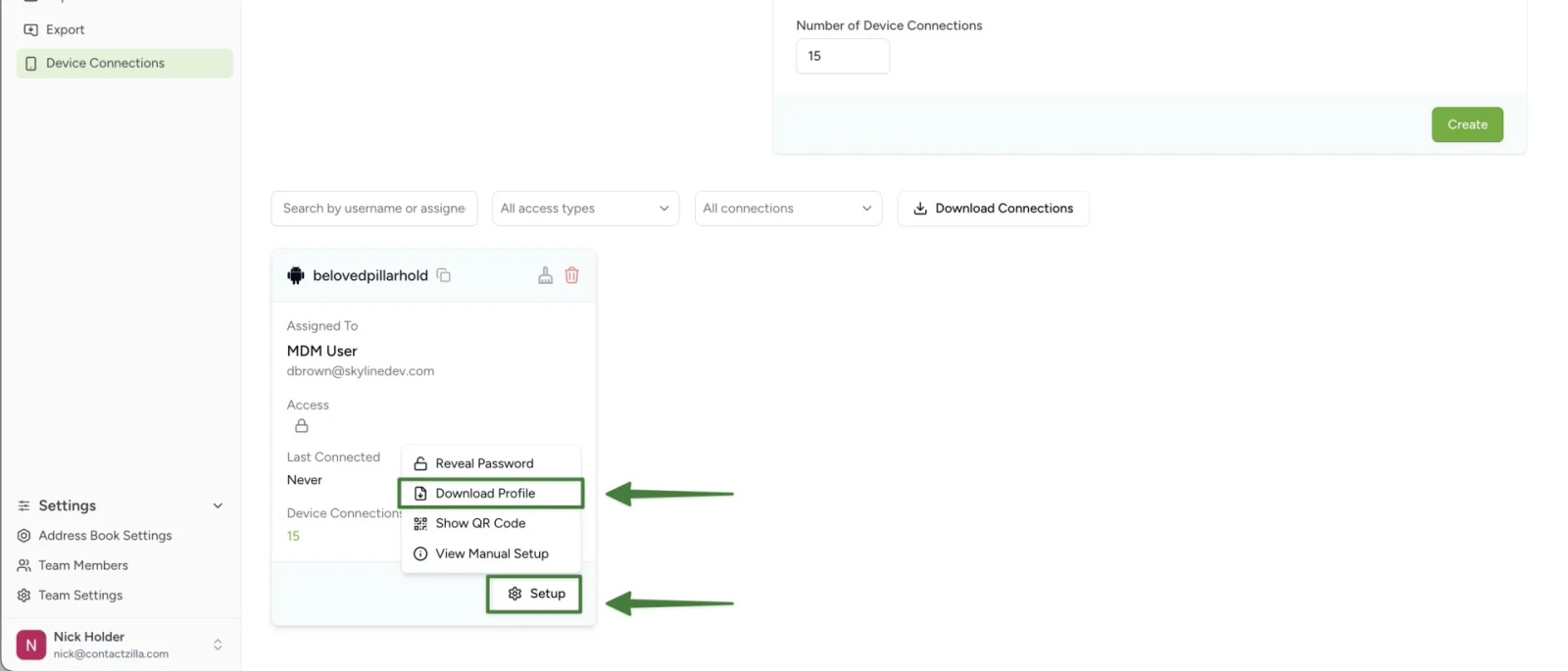
1) After clicking Create, you’ll see your new Device connection listed in the connections panel. Click the ‘Setup’ button on your new connection and choose ‘Download Profile’.
Save the JSON file to your computer – you’ll need this file for the Hexnode deployment.
Step 3: Add Contactzilla Sync as a Managed Google Play app in Hexnode
In Hexnode:
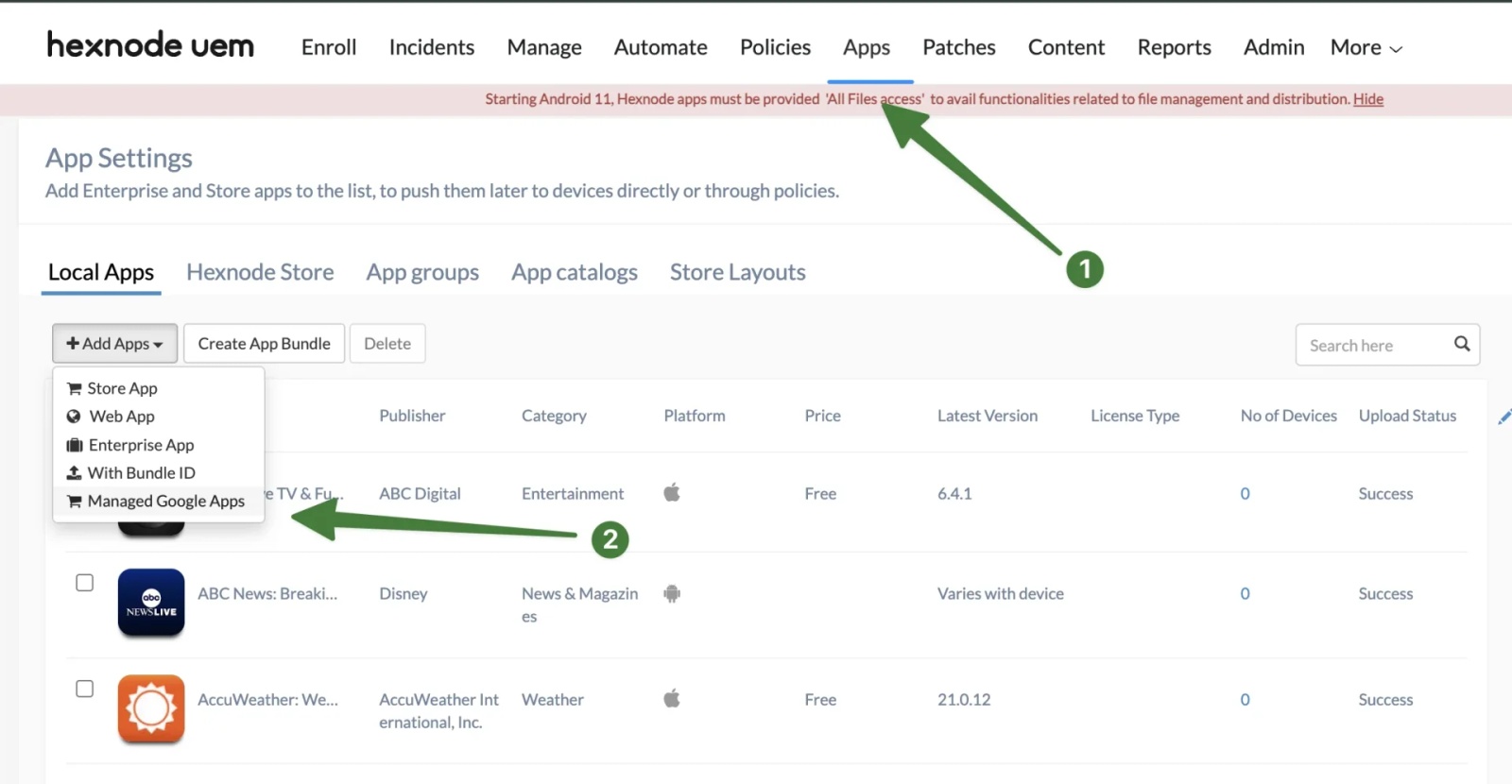
Go to Apps > Click the + Add Apps drop down > Select Managed Google Play
Search for Contactzilla Sync in the Managed Google Play window, click it and choose Select to add it.
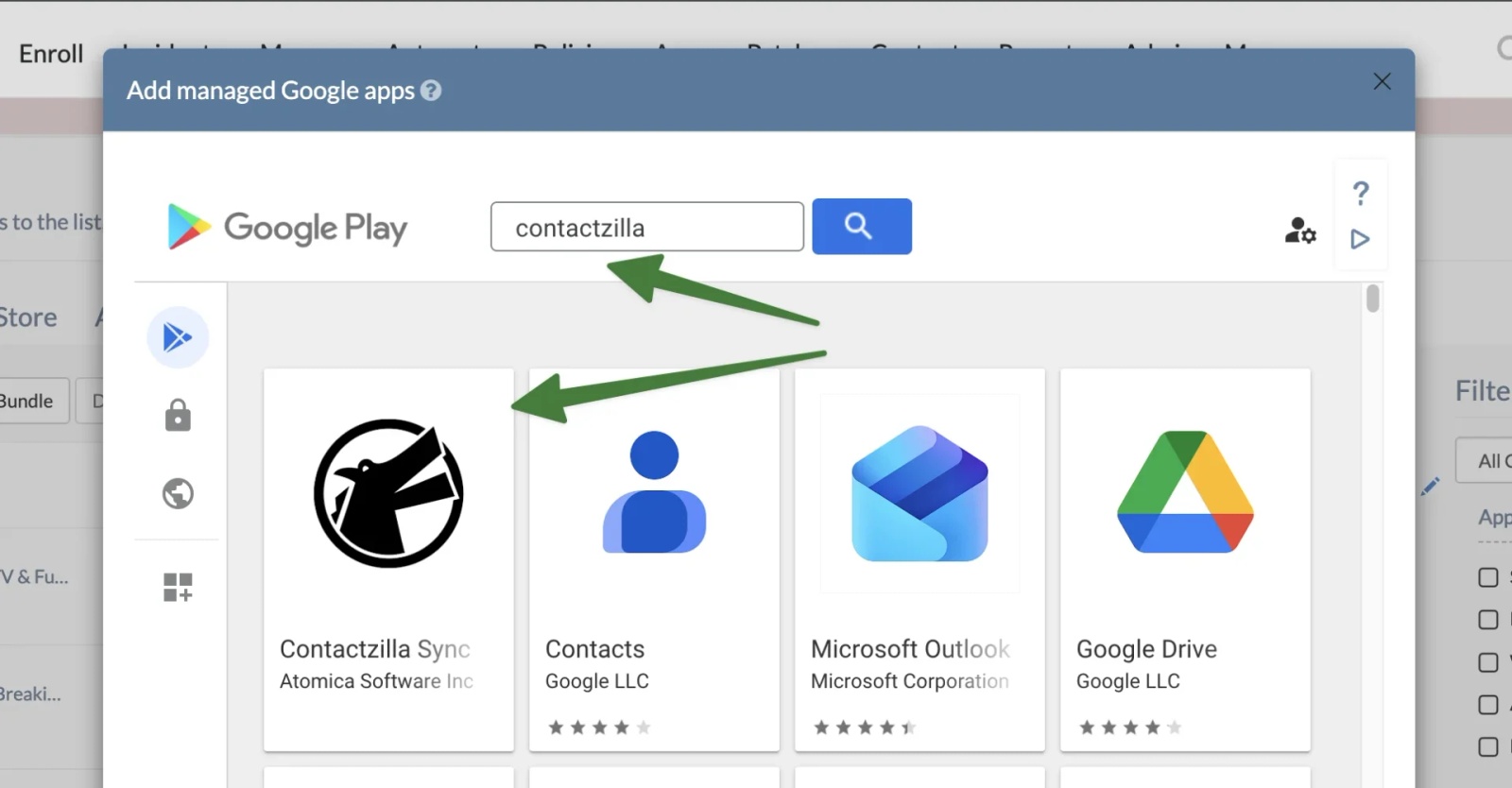
At this point, the app is approved for your organisation and becomes available for deployment to managed Android devices. The app is not yet installed on any devices.
Step 4: Create a policy to install Contactzilla Sync
Go to Policies > New Policy > Select Create a fully custom policy
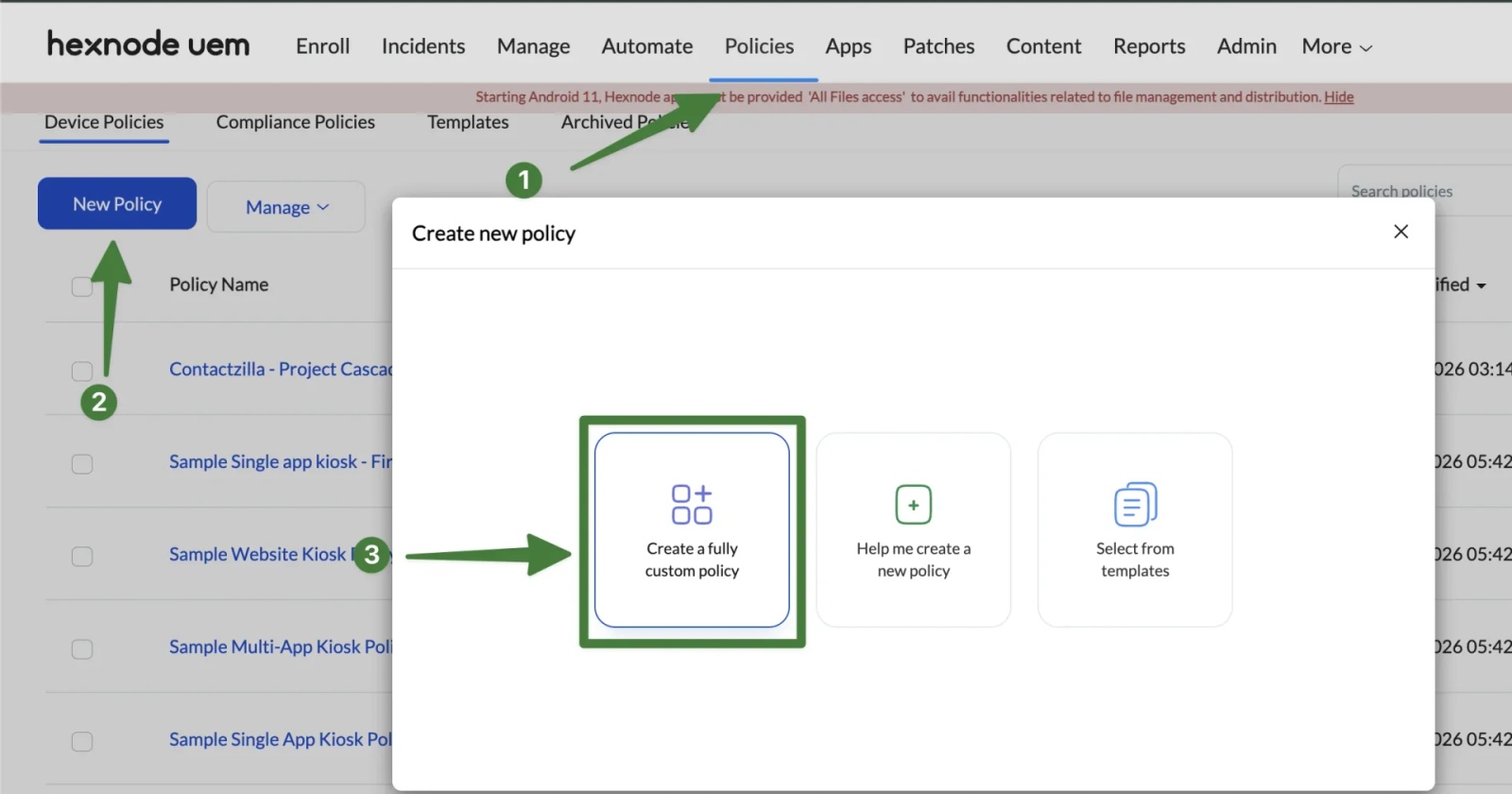
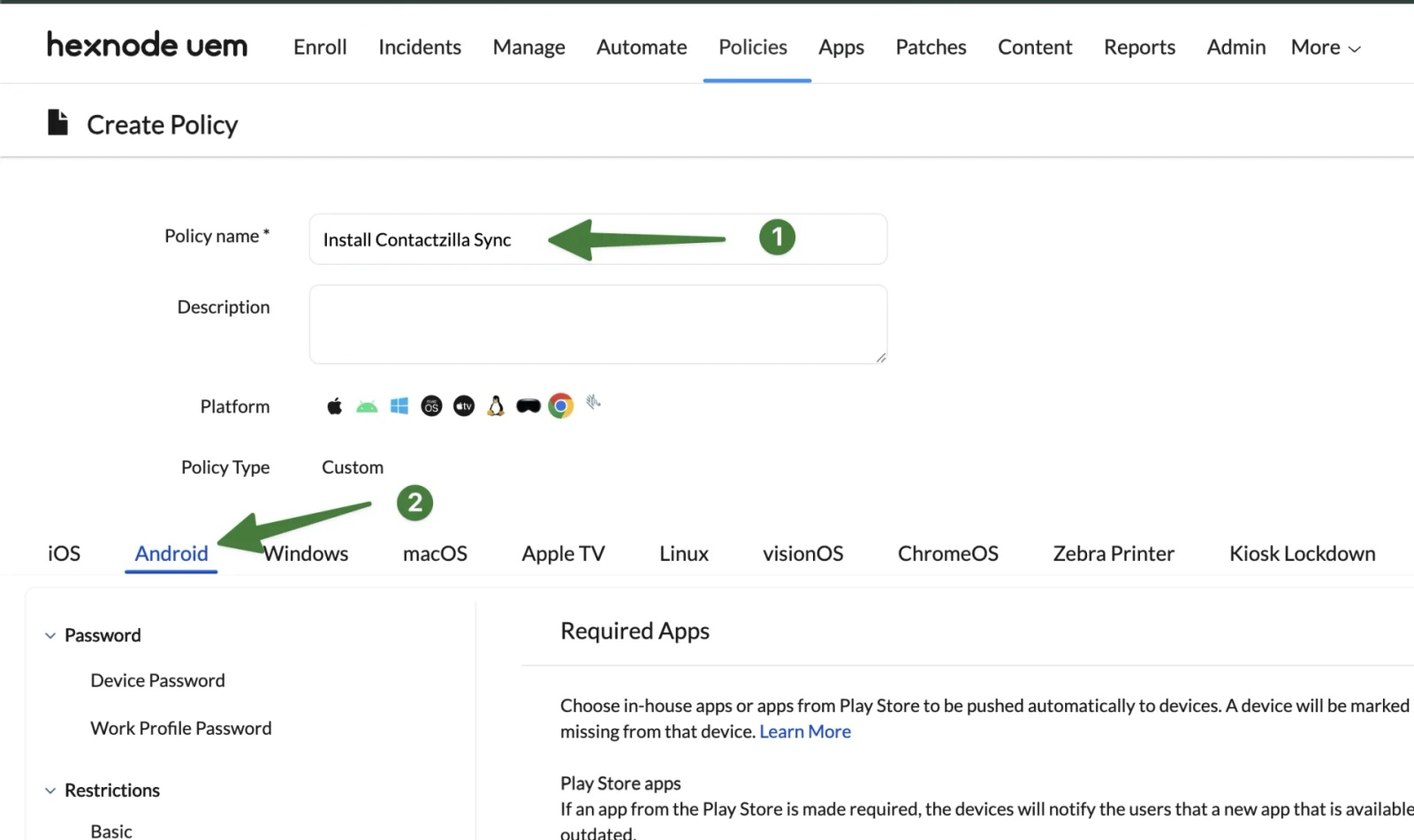
Enter a Policy name (for example: Install Contactzilla Sync) > Select the Android tab
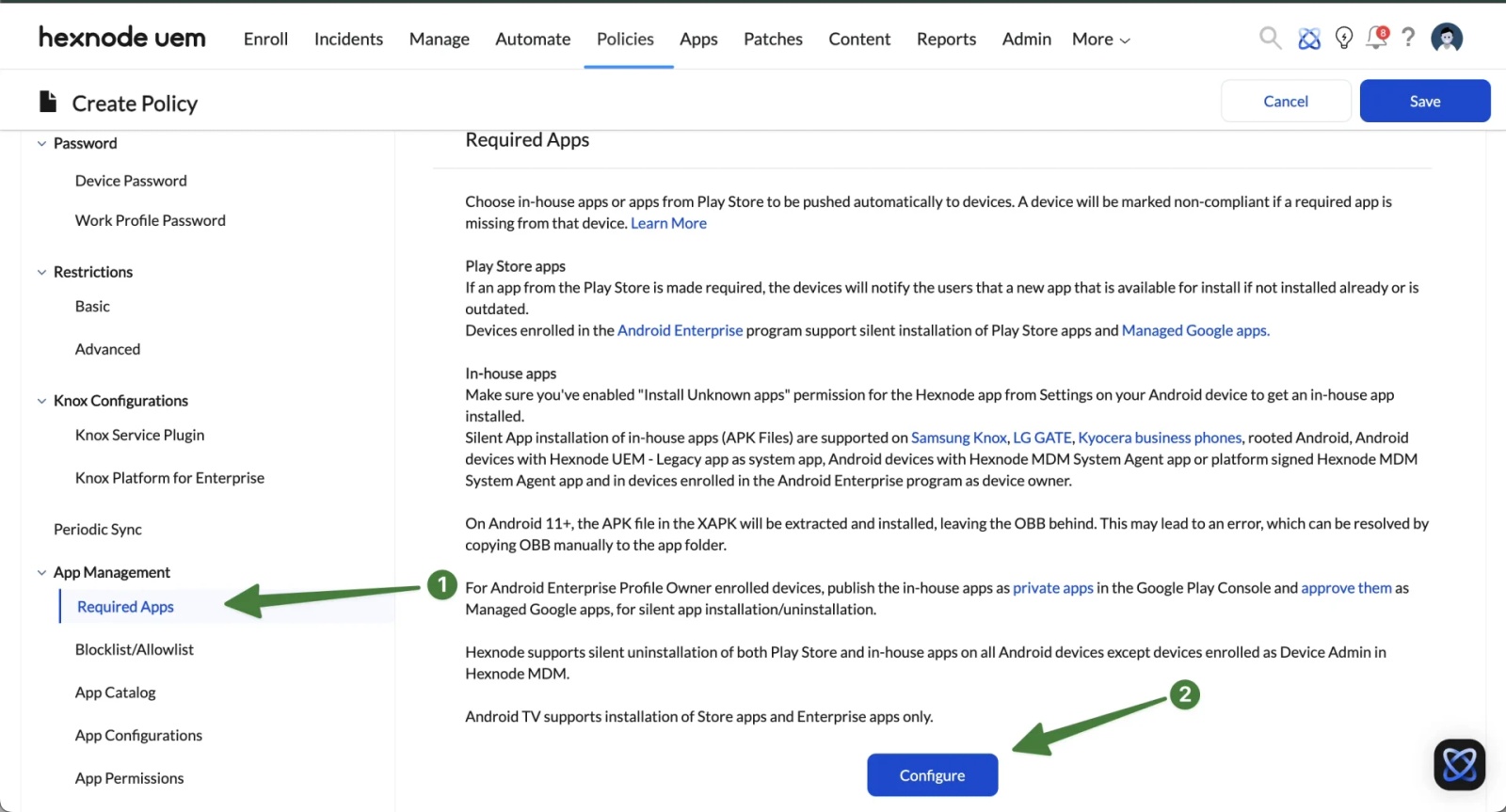
Scroll down toApp Management > Choose Required Apps > Click Configure
Click + Add > Add App
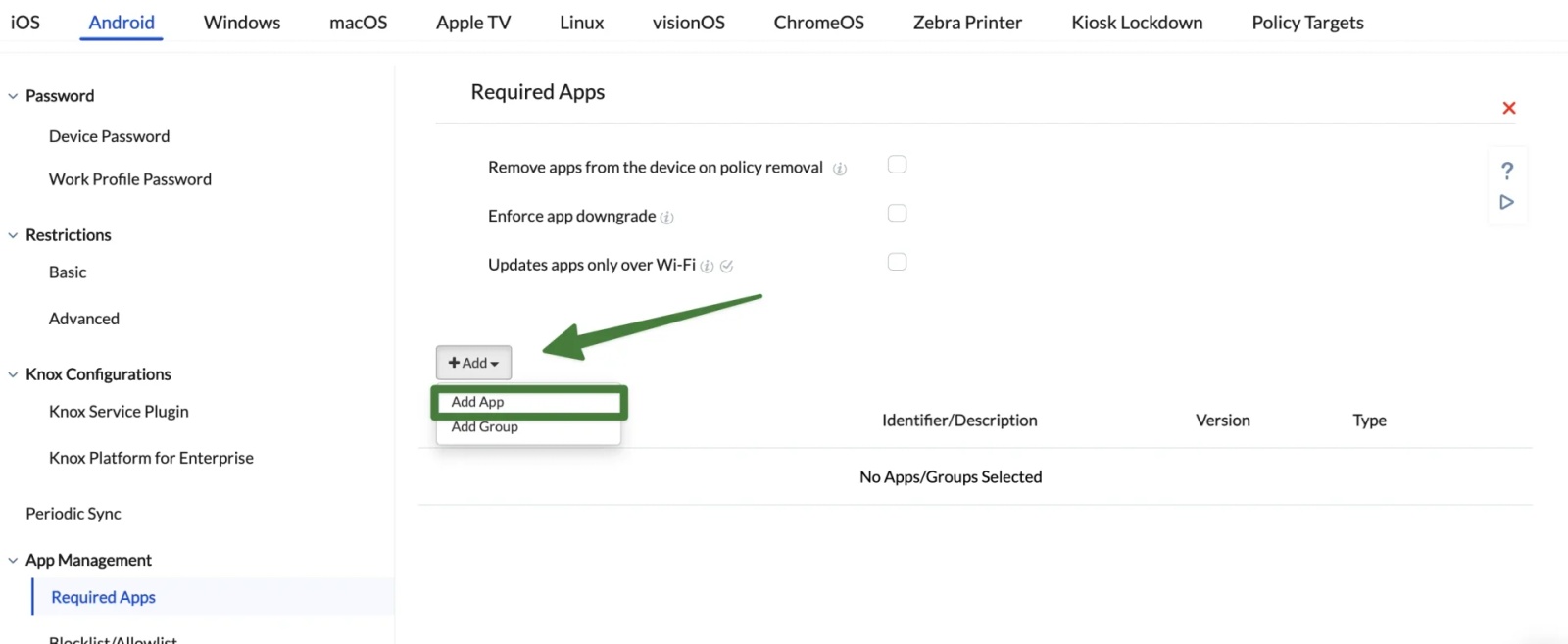
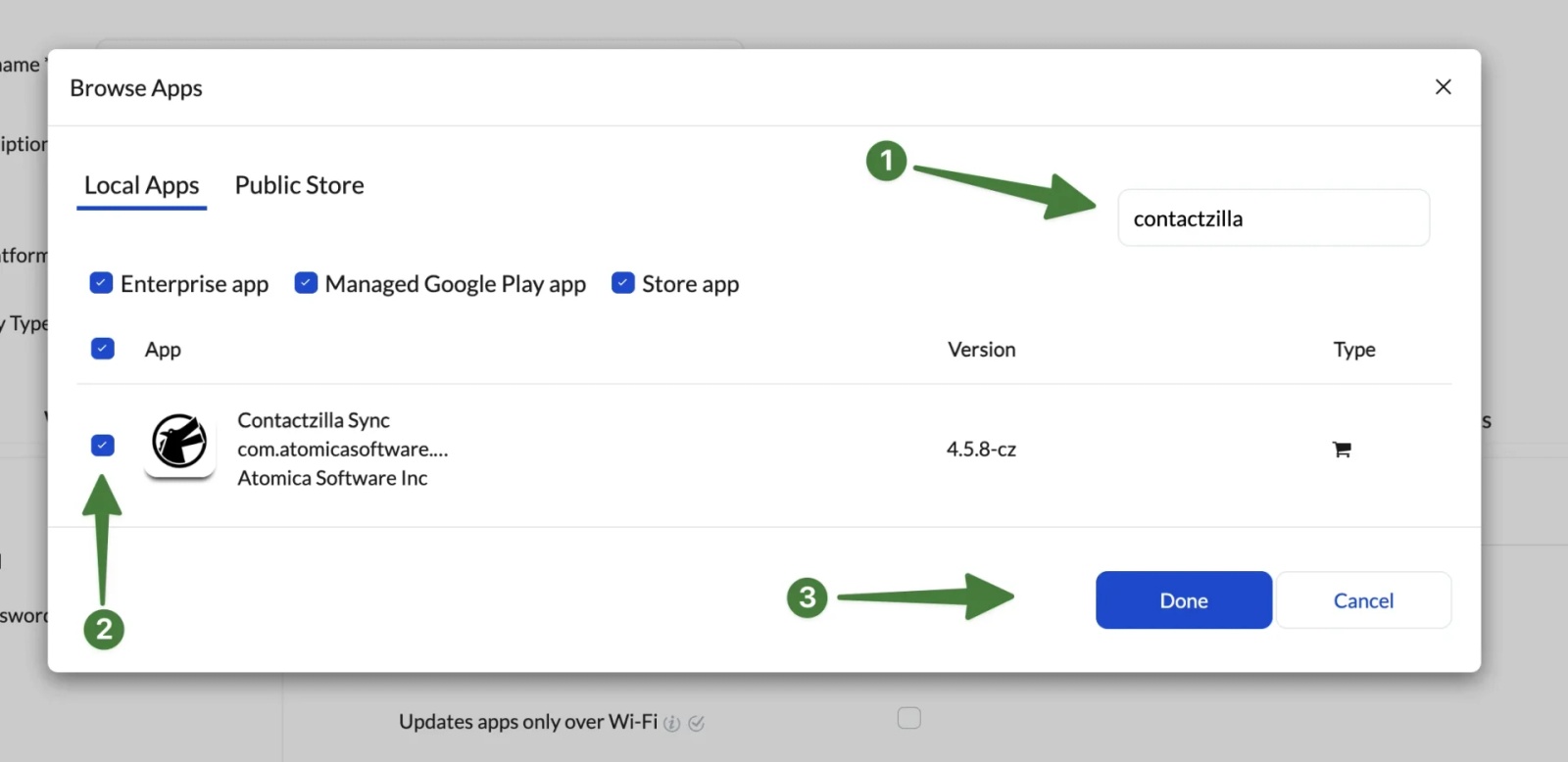
Search for Contactzilla > Check the tick box to select > Hit Done
Step 5: Configure the App permissions
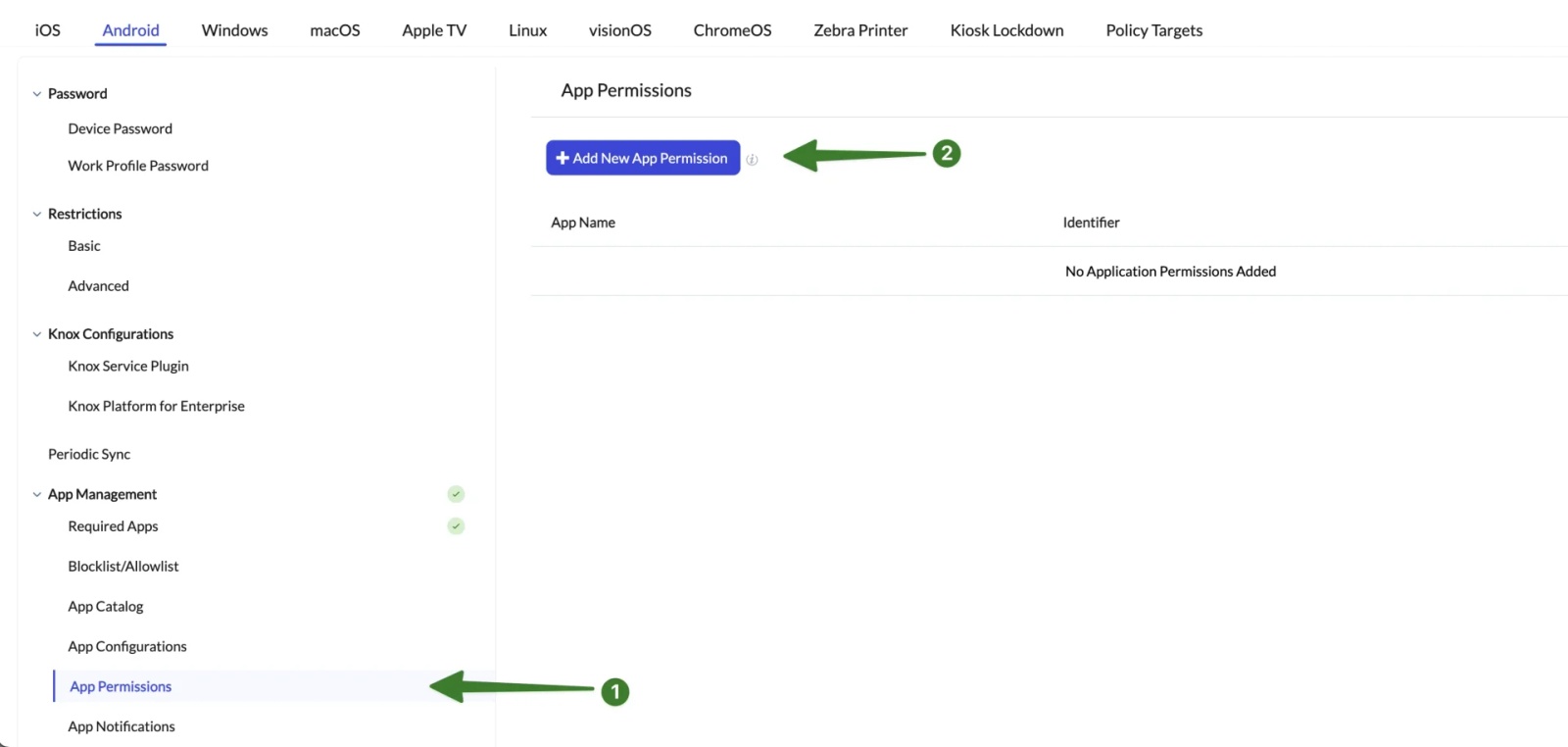
Still under App Management click App Permissions > Click Add New App Permissions
Find Contactzilla Sync in the list and select it
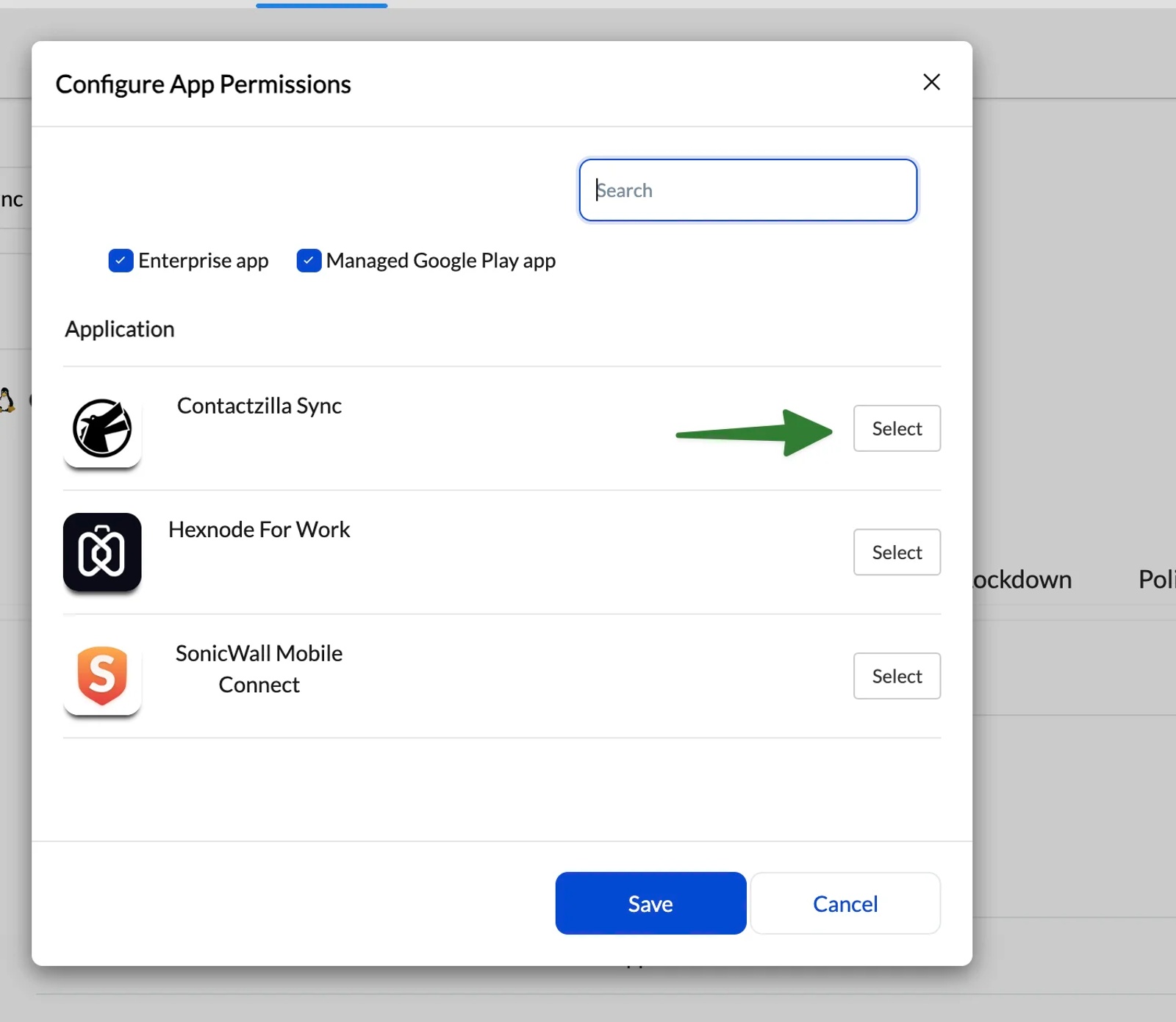
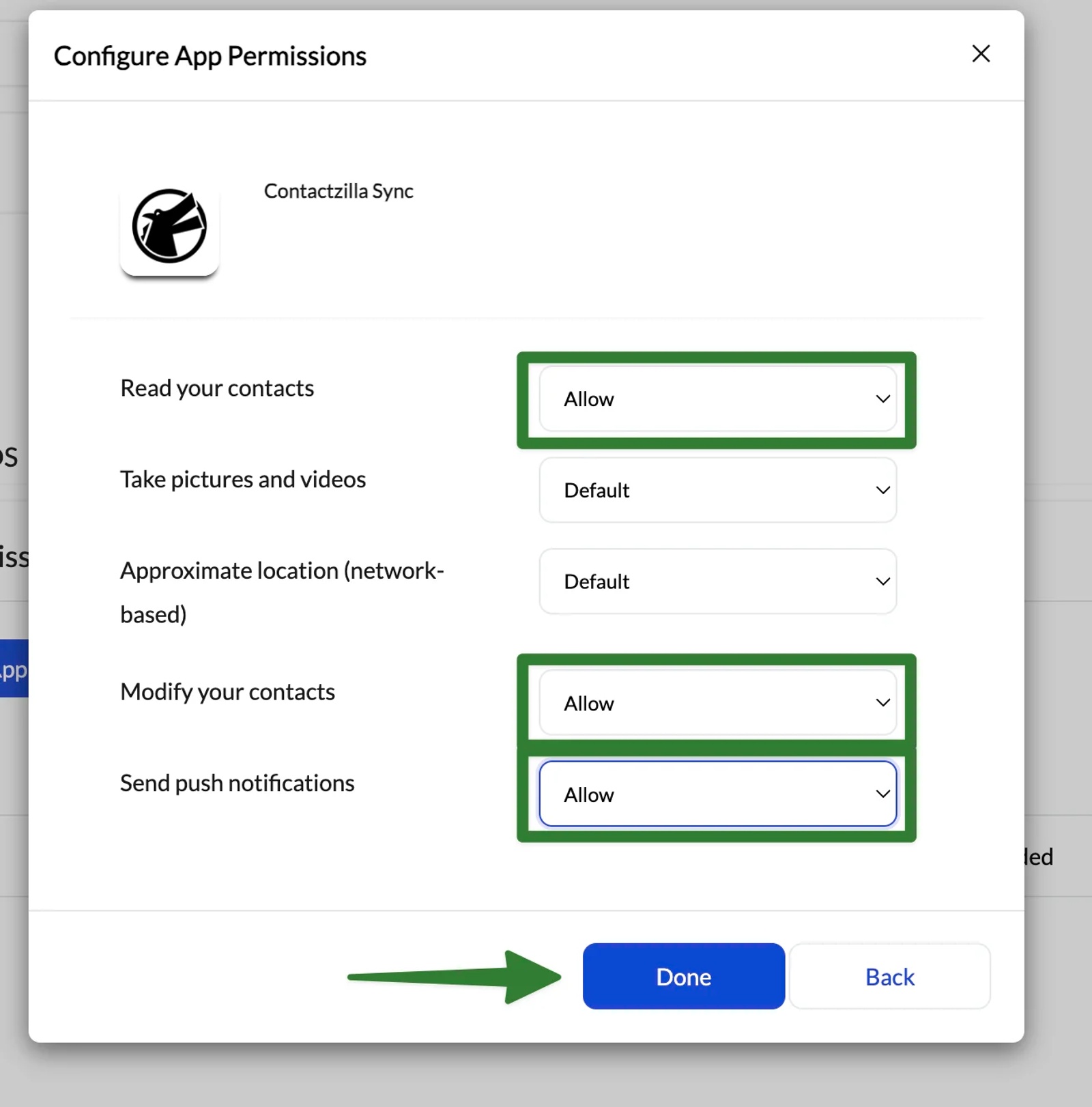
On the Configure App Permissions pop-up for Contactzilla Sync, leave most permissions set to their default values and explicitly allow only the permissions required for contact syncing.
Set the permissions as follows:
Read your contacts → Allow
Modify your contacts → Allow
Send push notifications → Allow
Leave all other permissions set to Default, including:
Precise location (GPS and network-based) → Default
Approximate location (network-based) → Default
Access location in background → Default
Take pictures and videos → Default
Once the permissions are set, click Done to save the configuration.
Hit Save on the screen that follows
Step 6: Assign the policy to devices
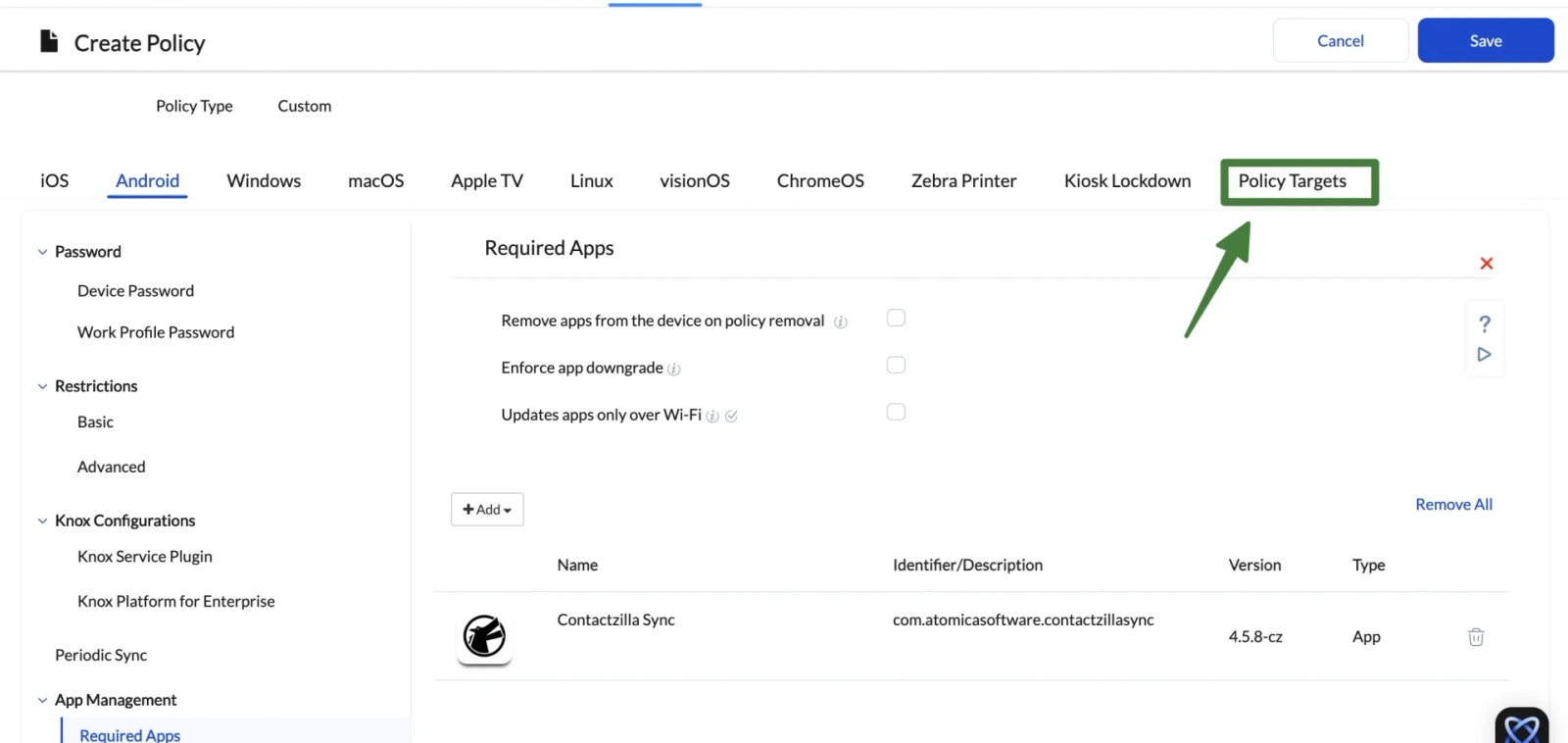
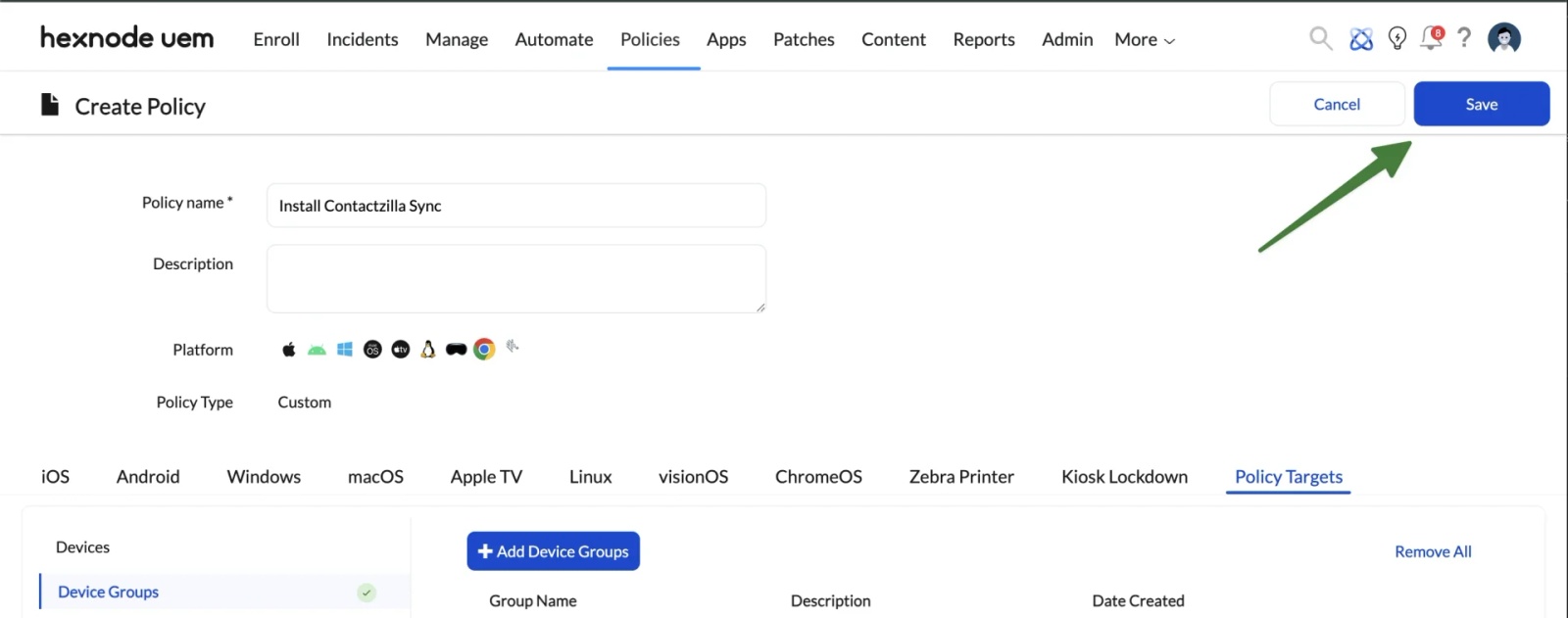
Still in the Create Policy flow choose the Policy Targets tab at the end of the row
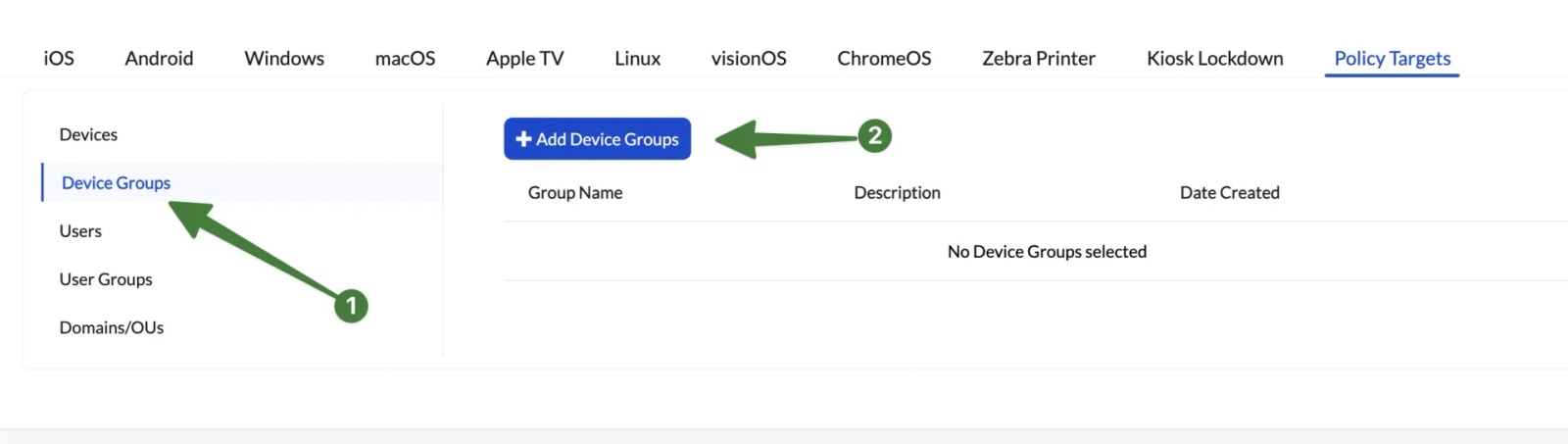
Select the Device groups from the left hand menu > Click Add Device Groups
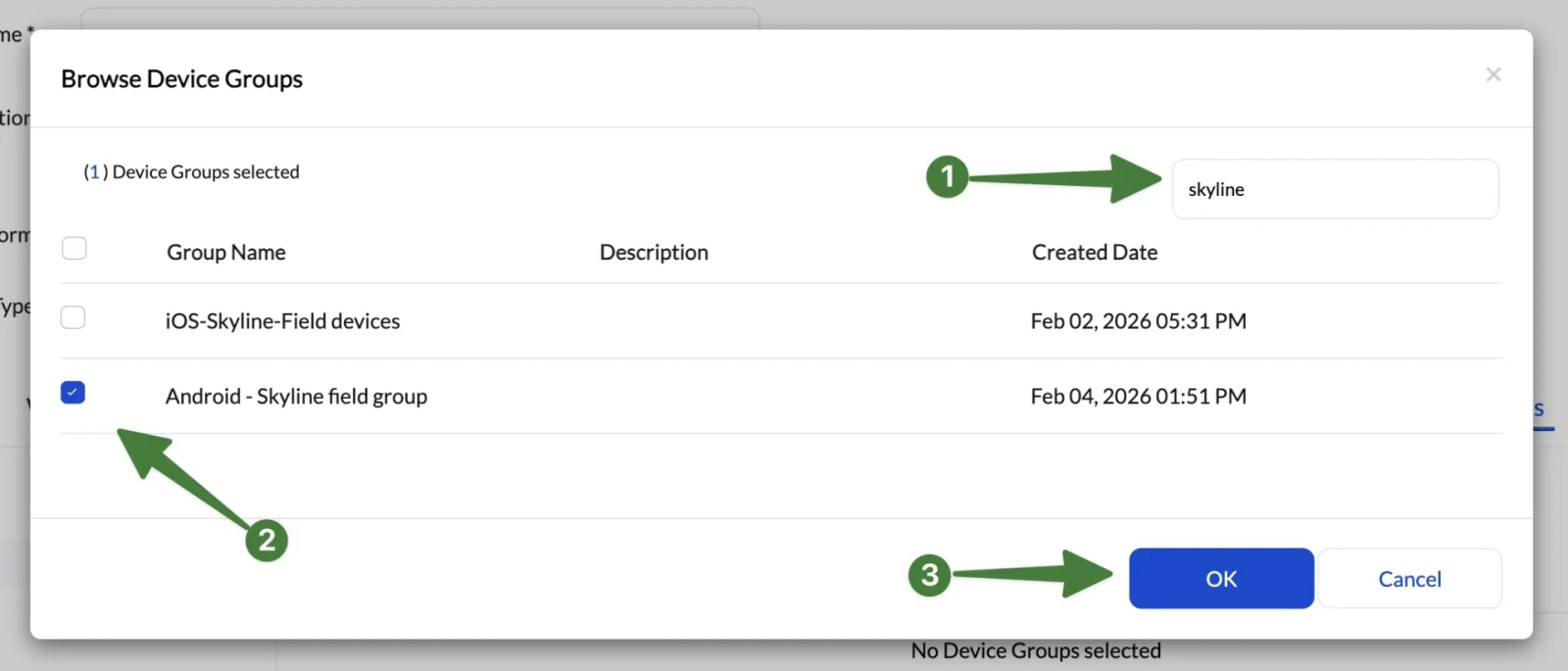
In the Browse Device Groups window that opens search for your device group > Hit the check box next to it > Hit OK
IMPORTANT: After selecting your group you must hit Save in the top right of the Create Policy window and then Confirm on the pop up that appears.
Result:
Contactzilla Sync will now install automatically on all targeted Android devices.
Step 6: Create a policy to push the Contactzilla configuration
In Hexnode:
Go to Policies > New Policy > Create a fully custom policy
Set a policy name. It is good practice to reference the address book name (for example: Contactzilla – Project Cascade Tower – Android
Select the Android tab > Scroll down to App Management once again > This time select App Configurations
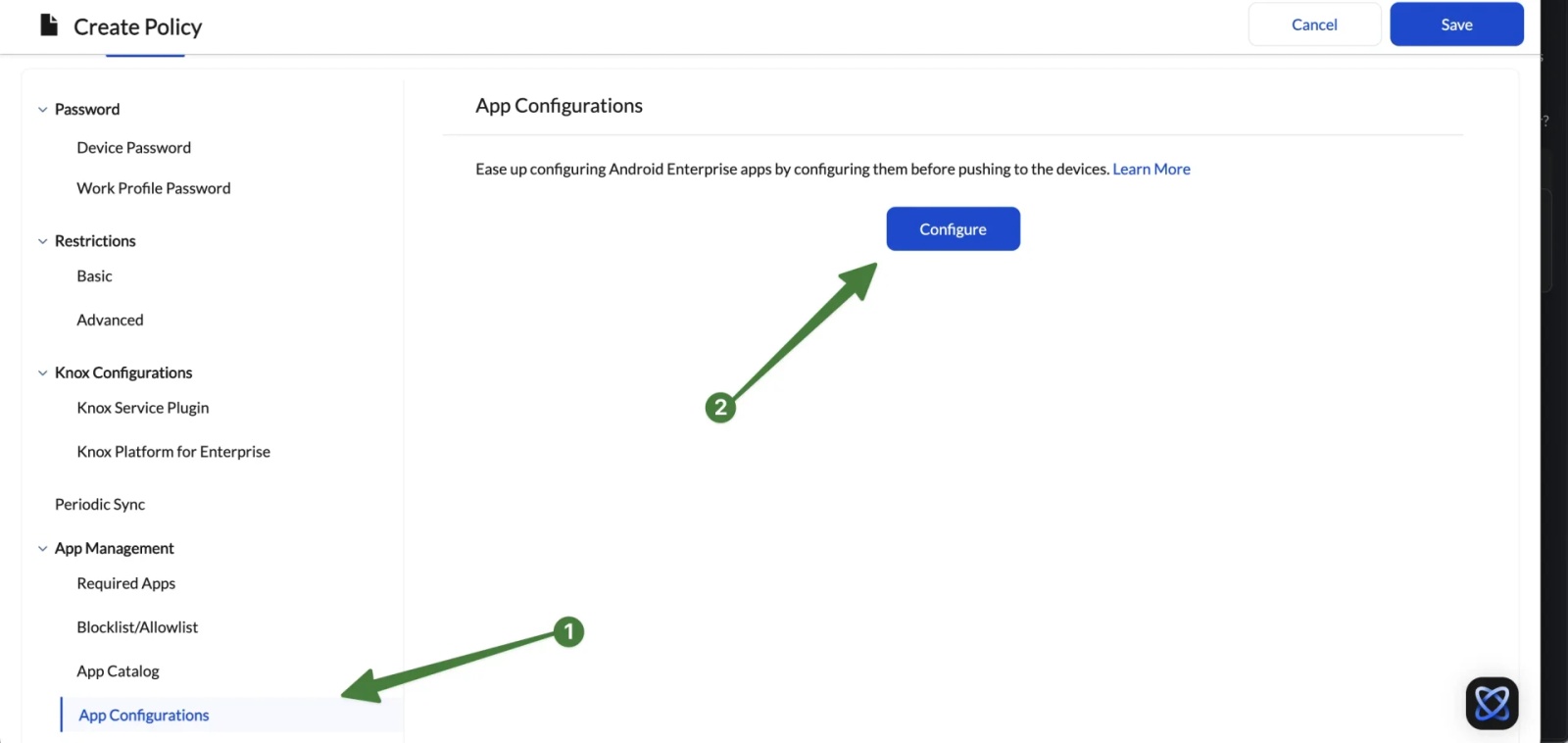
Click + Add new configuration > Select Contactzilla Sync
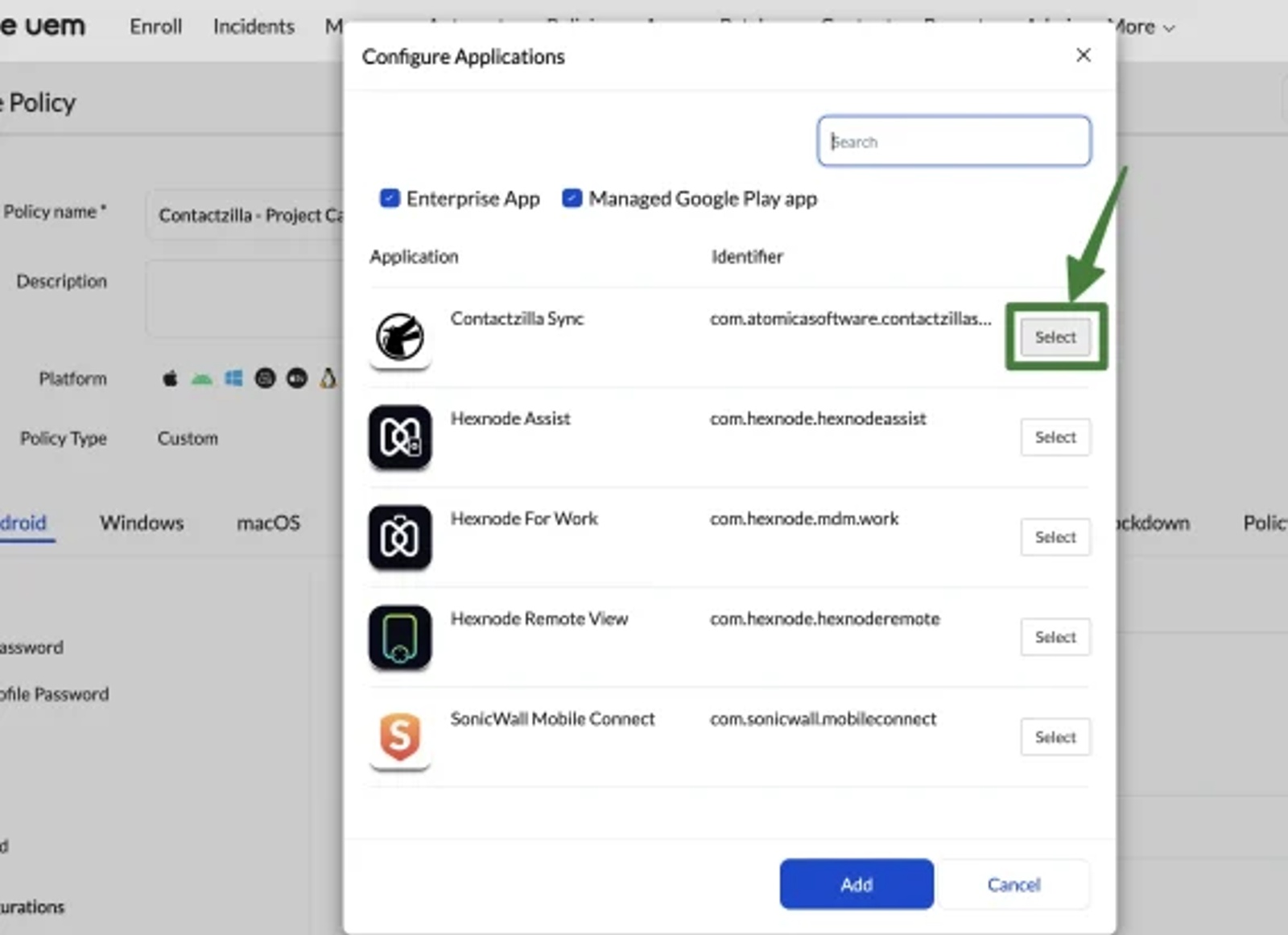
Configure Contactzilla Sync application settings
When the Configure Application screen opens, you will see a number of fields at the top of the page.
Do not change these fields. Leave them at their default values:
- Proxy type
- Proxy host
- Proxy port
- Distrust system certificates
- Default sync interval
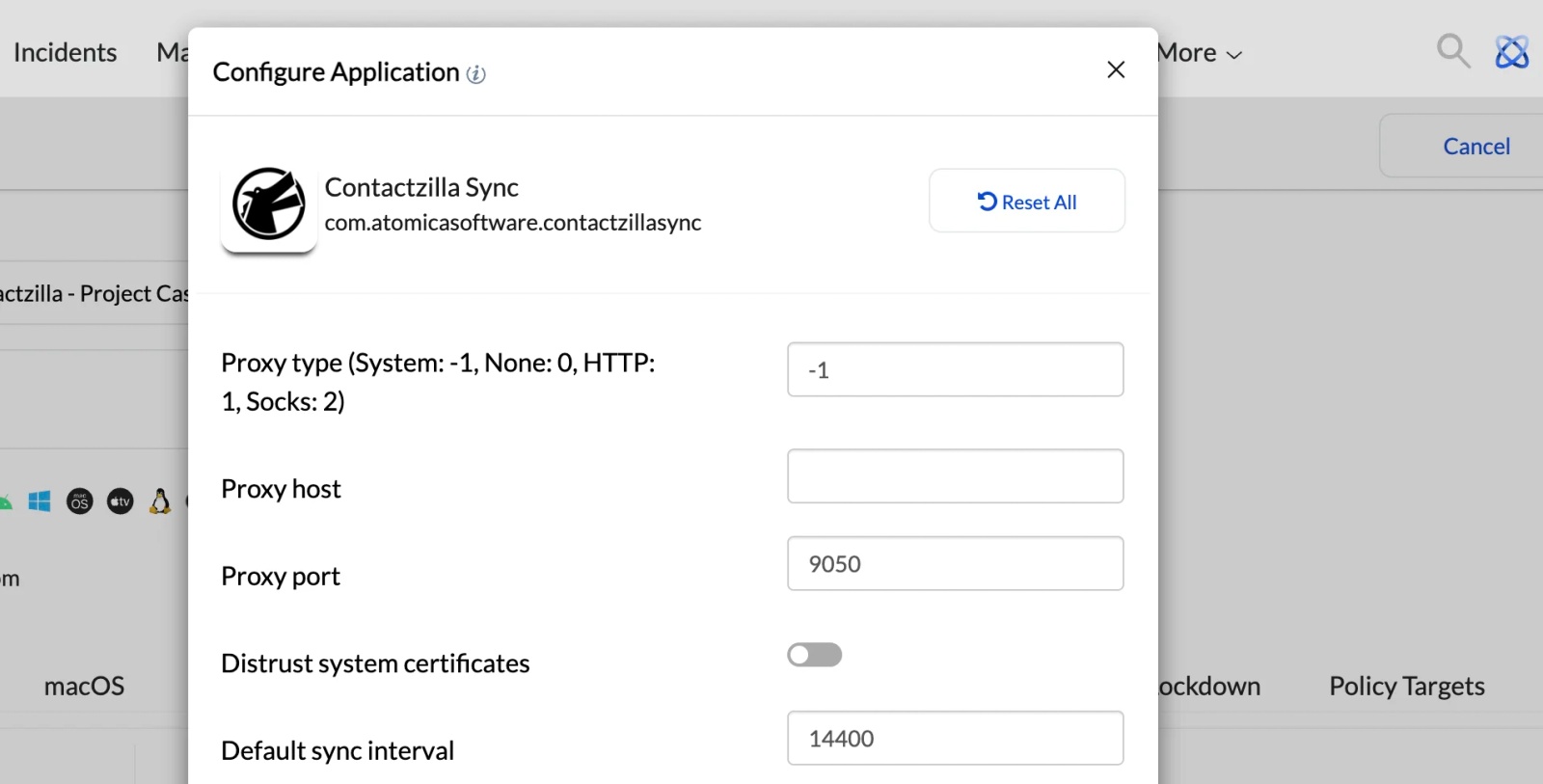
These settings are not required for a standard Contactzilla deployment. The defaults shown in Hexnode are correct.
Tip 💡: You can change the Default sync interval to a more frequent value if required. For example, setting this to 30 will make Contactzilla Sync refresh every 30 minutes instead of using the default interval.
Populate the Contactzilla Sync configuration fields
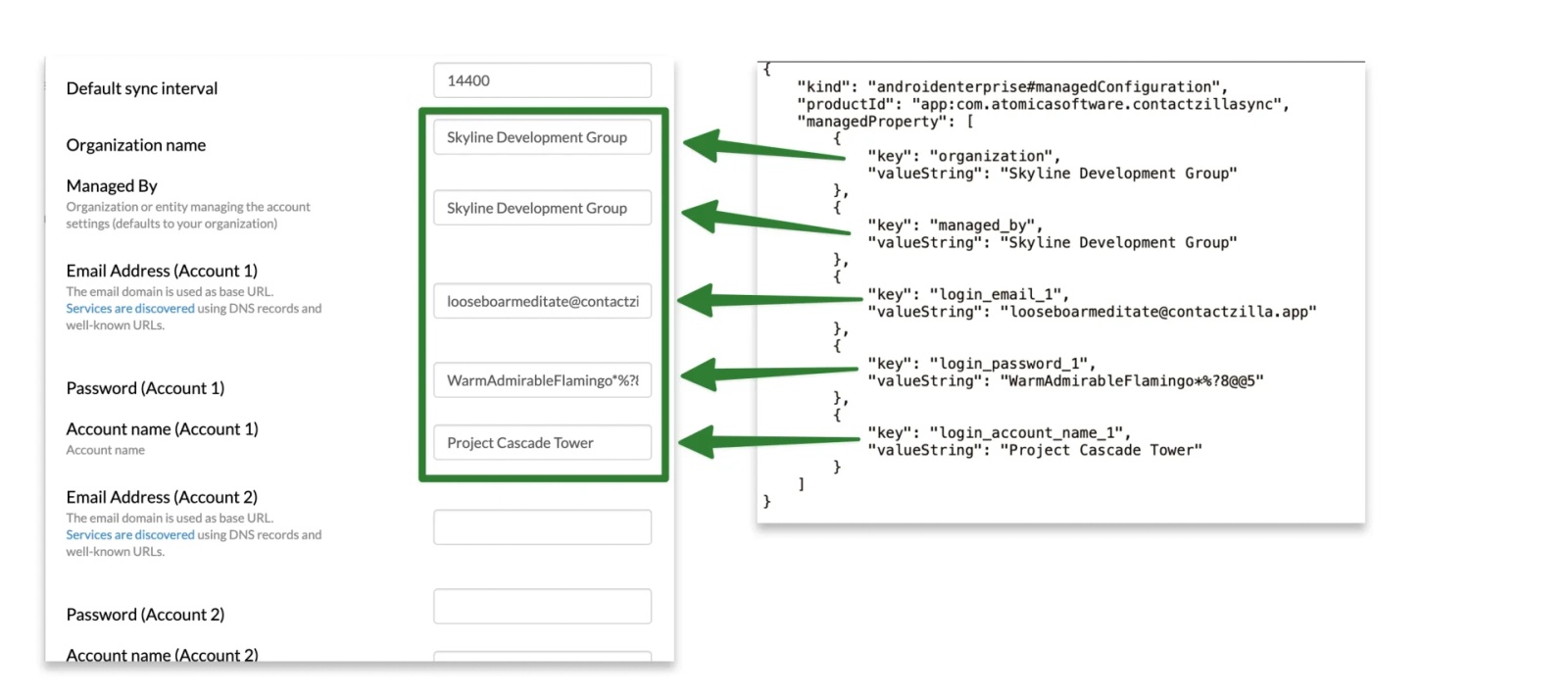
The values entered in the following fields come directly from the Contactzilla device connection JSON that was downloaded from the Contactzilla dashboard in Step 1
Each field in Hexnode maps to a value in that JSON file:
Fill in the fields as follows:
Organization name
Enter the organization value from the JSON.
Managed By
Enter the managed_by value from the JSON.
Email Address (Account 1)
Enter the login_email_1 value from the JSON.
Password (Account 1)
Enter the login_password_1 value from the JSON.
Account name (Account 1)
Enter the login_account_name_1 value from the JSON.
This is typically the name of the Contactzilla address book being deployed.
Leave all other fields unchanged
Scroll to the bottom and hit Done > You will then be returned to the Configure Applications screen > Hit Add
Step 7: Assign the policy to devices
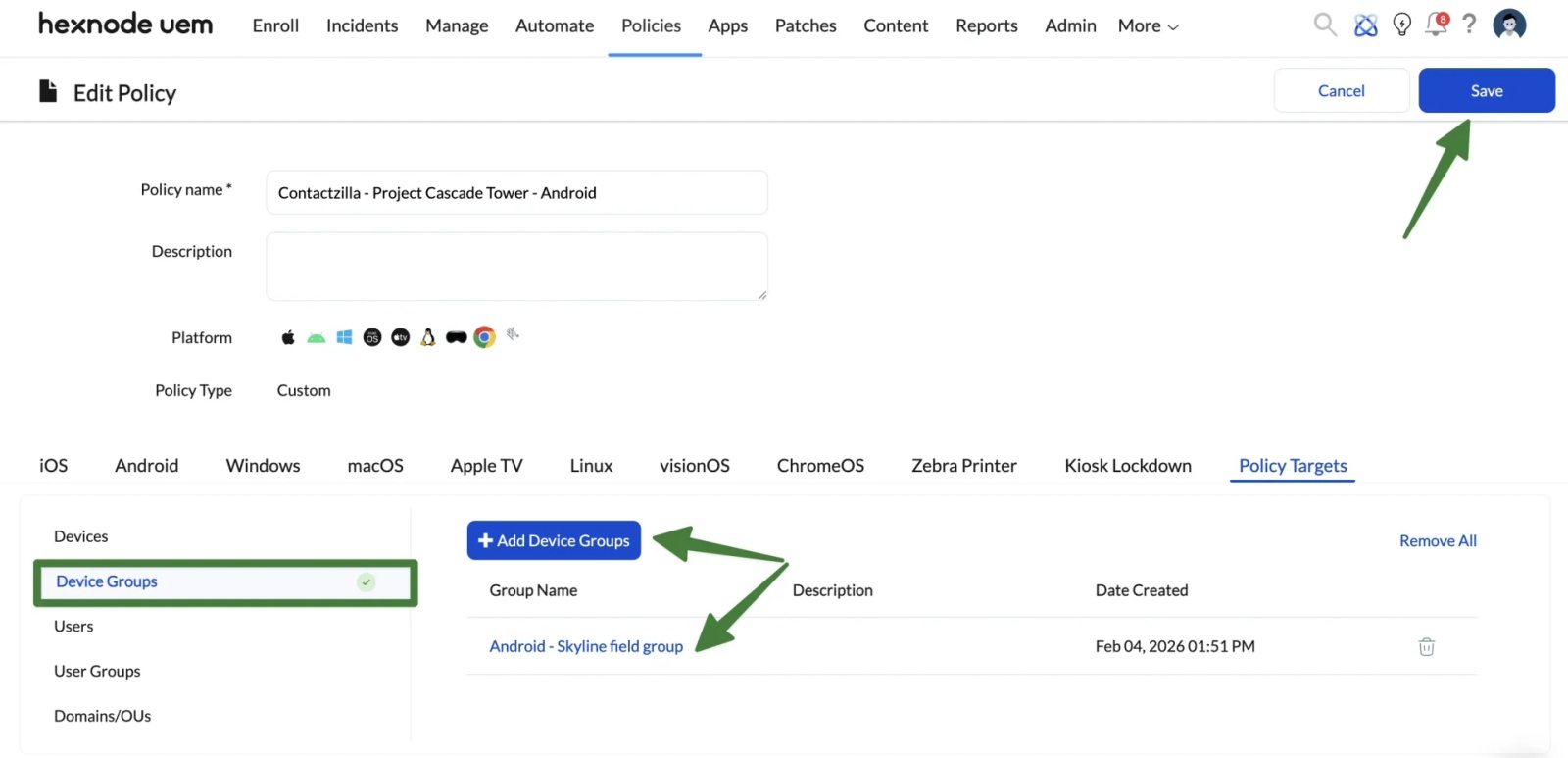
As we did with the Install Contactzilla Sync policy, Go to Policy Targets > Select Device Groups > Click + Add Devices > Choose the Android device group > Click Save
Then:
Click Save (top-right) to apply the policy
What happens on the device
- Hexnode applies the policy
- Contactzilla Sync receives the JSON configuration
- The address book is provisioned automatically
- Contacts begin syncing to the Android Contacts app
No user interaction is required.
Verifying the deployment
On the Android device, you can confirm the deployment by:
- Opening Contacts and checking that contacts from the Contactzilla address book are visible
- Opening Contactzilla Sync and confirming the address book is listed and syncing
If the app is installed, permissions are allowed, and the policy is assigned correctly, contacts will continue to stay in sync automatically going forward.
Still need help?
Our support team is available to assist you with any questions or issues you may have.

