How can we help you?
Browse Categories
Contactzilla: How to Find and Merge Duplicate Contacts in an Address Book

This guide shows you how to run Contactzilla's duplicate report on an address book, check each possible match side by side, and merge the real duplicates so every person appears once on your team's phones. Our example is Lakeview School District's East District address book, where the transport depot's own list and contacts added from staff iPhones left a few people in the book twice.
What You'll Need
- A Contactzilla address book with contacts in it. If you haven't set one up yet, see Setting up a Team and Address Book.
Run a Duplicate Report on the East District Address Book
Step One: Open Find Duplicates
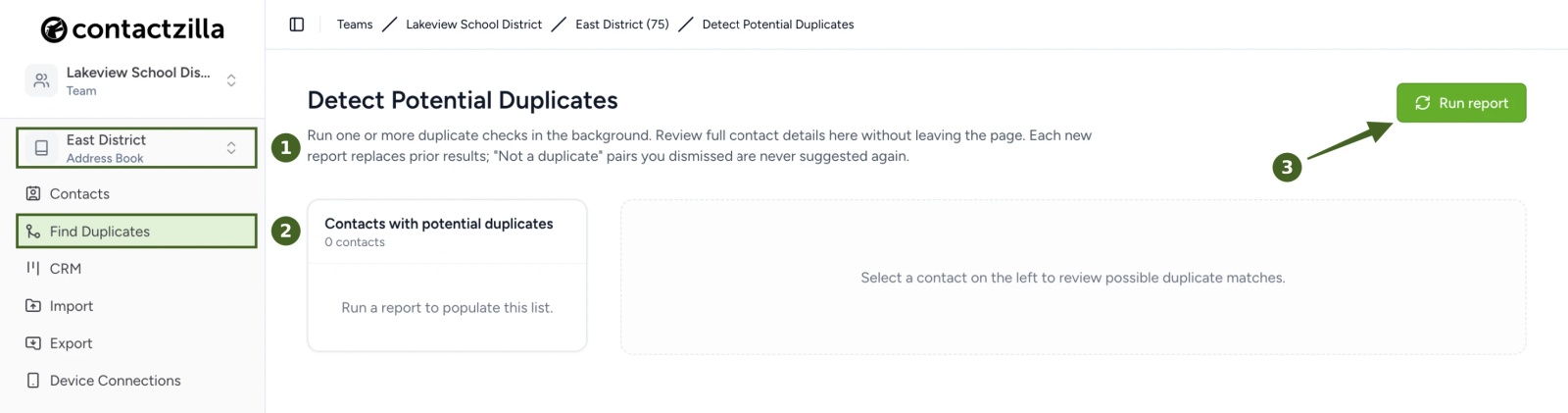
a) Choose the address book in the left menu (East District in our example) → Find Duplicates → Run report.
Step Two: Choose Which Checks to Run
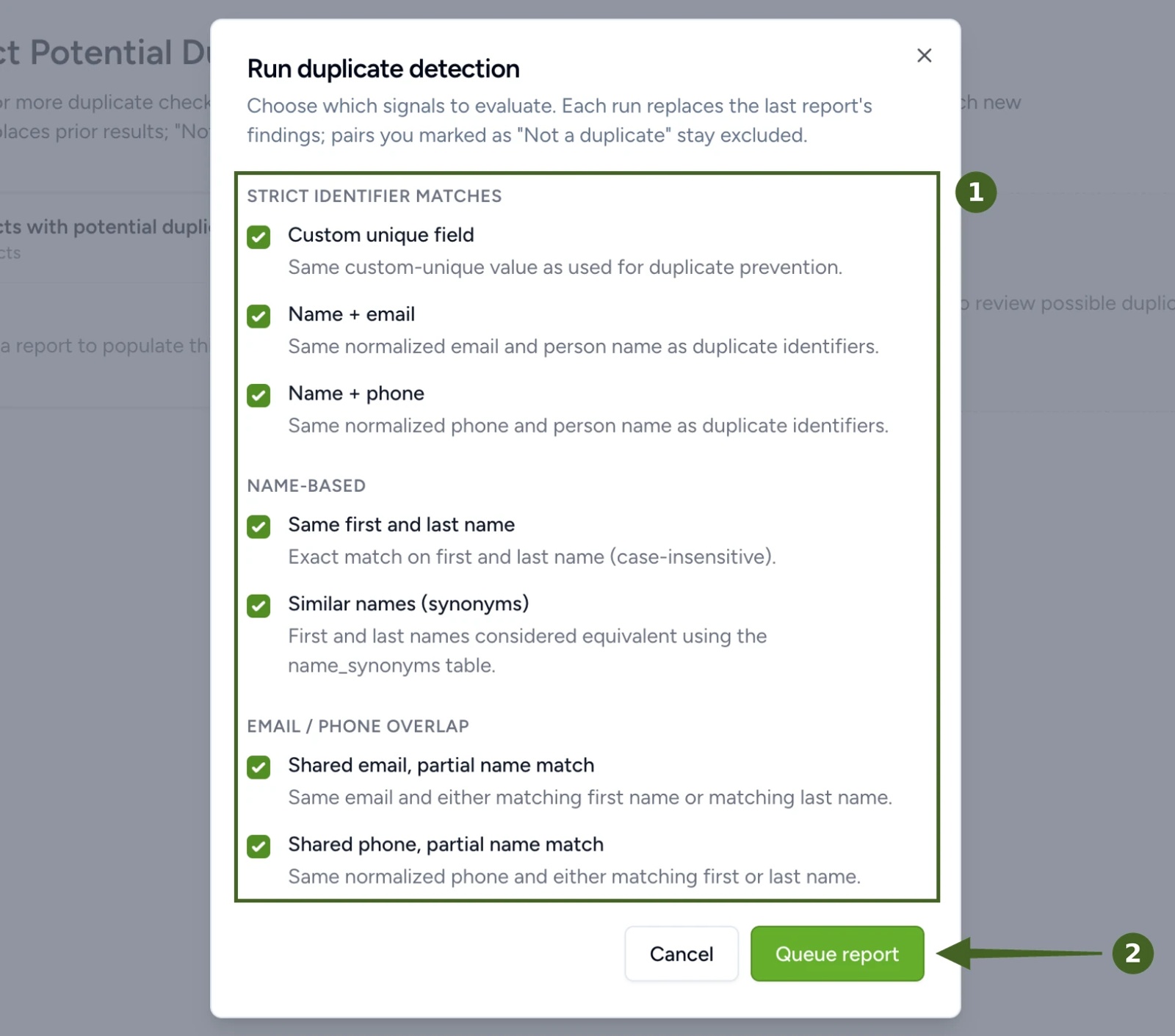
a) Run duplicate detection → leave every check ticked → Queue report.
The checks fall into three groups:
- Strict identifier matches: Custom unique field, Name + email and Name + phone. These are the same rules the address book uses to stop duplicates being added. See How to Set Duplicate Matching Rules for an Address Book.
- Name-based: Same first and last name (not case-sensitive), and Similar names (synonyms), which treats common short forms as the same name, so Will Fox and William Fox are flagged.
- Email / phone overlap: Shared email, partial name match and Shared phone, partial name match. These catch the same person with a changed surname or a typo in one name, such as Ruby Jenkins and Ruby Ortiz sharing a mobile, or Matthew Dean and Matthew Deane sharing an email address.
The report runs in the background, so you can leave the page and come back. When it finishes, Contacts with potential duplicates lists every contact with at least one possible match, and the number next to each name is how many checks flagged it. In East District, the report found 8 contacts: four pairs.
💡 Each new report replaces the previous one's results, but a pair you've marked as Not a duplicate is never suggested again.
Review and Merge Duplicates in East District
Step Three: Compare a Possible Match and Merge It
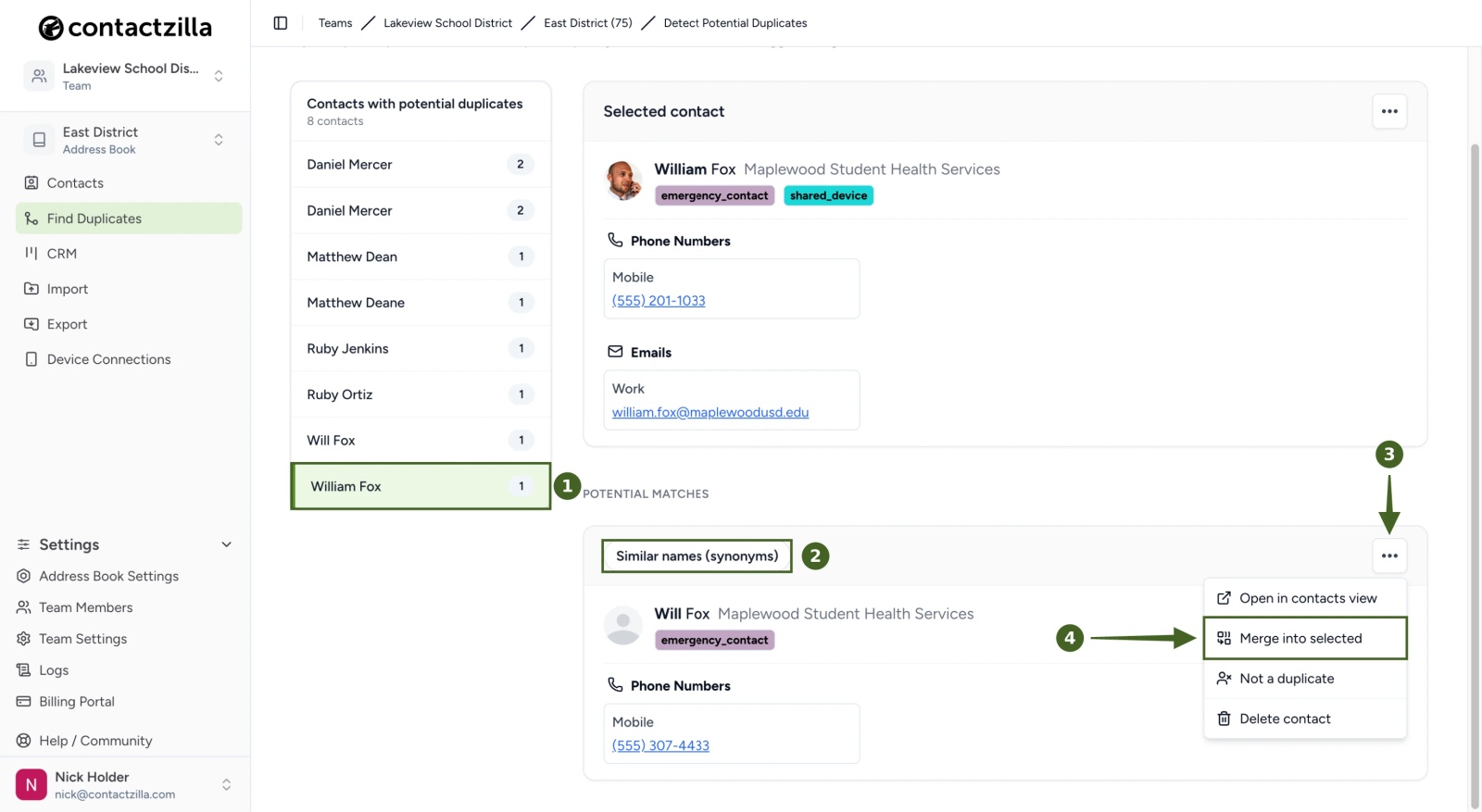
a) Click the contact you want to keep (William Fox) → see which check flagged the match (Similar names (synonyms)) → the match's ⋯ menu → Merge into selected.
The selected contact is shown at the top with its full details, and each possible match has its own card below, labelled with the check that found it. A pair found by two checks appears twice, once under each. Compare the company, phone numbers and email addresses to decide whether they're the same person.
In our example, William Fox came in with the district's staff list, and a school nurse later added Will Fox from her iPhone with his second mobile number. They're the same person, so Will Fox is merged into William Fox.
💡 The contact you click in the list is the one that's kept, with its name. If Ruby Jenkins is now Ruby Ortiz, click Ruby Ortiz and merge Ruby Jenkins into it. The match's menu also has Open in contacts view, to look at the full record first, and Delete contact, for a copy you don't need at all.
Step Four: Confirm the Merge
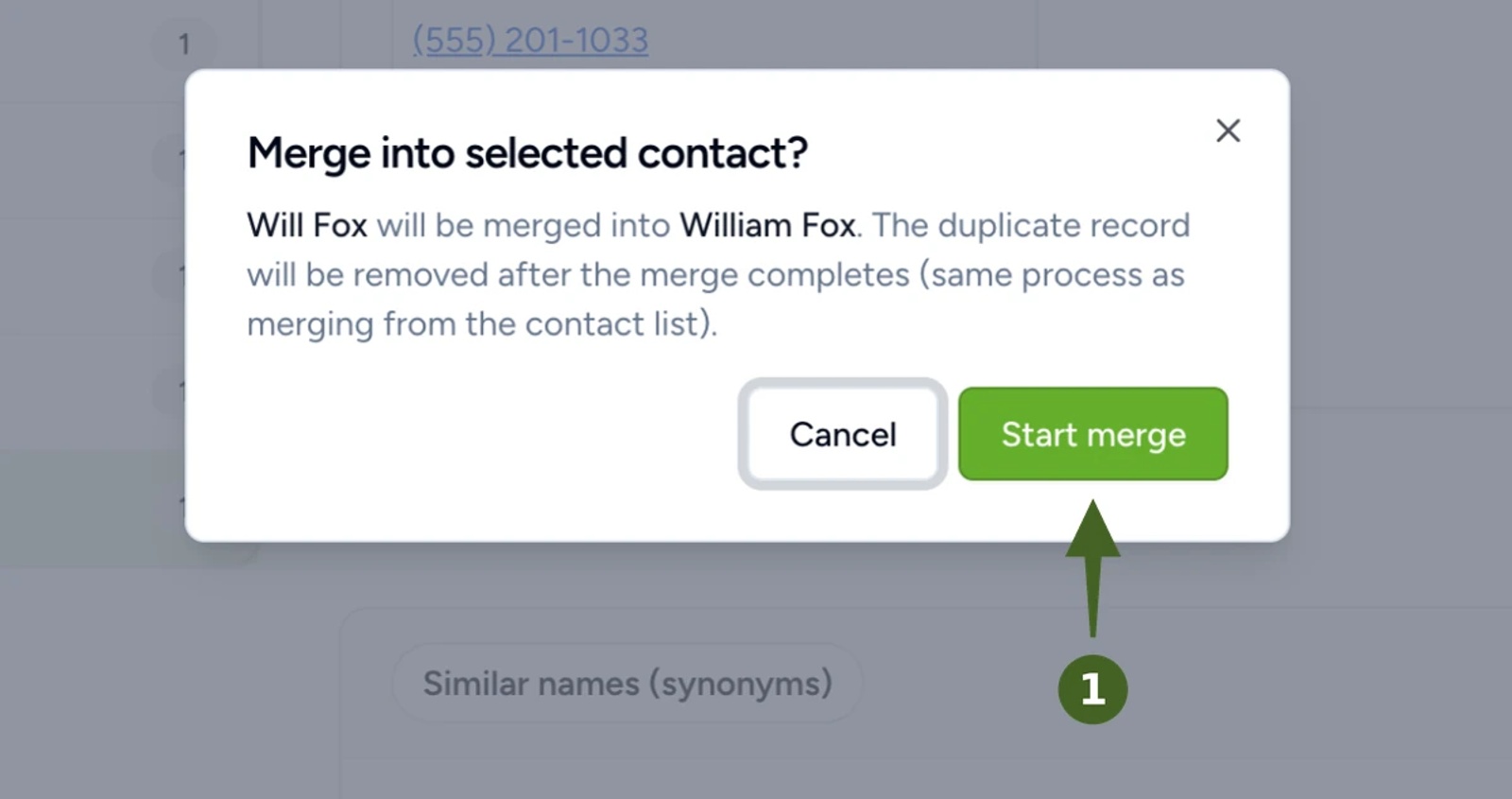
a) Merge into selected contact? → Start merge.
Contactzilla confirms which contact is merged into which: "Will Fox will be merged into William Fox. The duplicate record will be removed after the merge completes." The pair then drops off the report, and the address book has one contact fewer.
Step Five: Check the Merged Contact
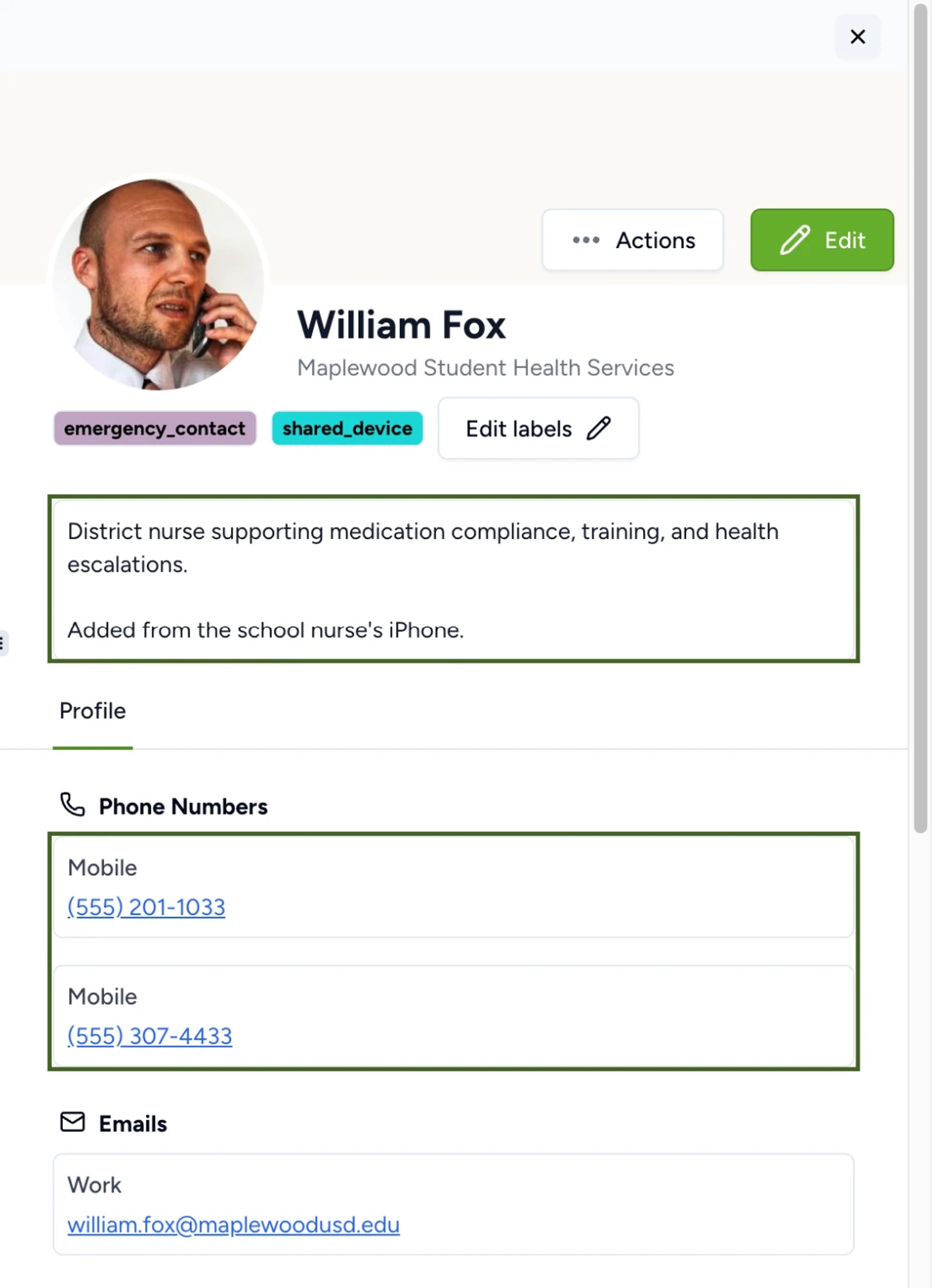
a) Contacts → open the kept contact → check the bio and the phone numbers.
Merging adds the duplicate's details to the kept contact without removing anything:
- The kept contact's name, photo and labels stay. Labels from the duplicate are added.
- Phone numbers and email addresses from the duplicate are added alongside the existing ones. A number both contacts share isn't added twice.
- The duplicate's bio is added below the kept contact's bio.
William Fox now has both of his mobile numbers and the nurse's note, and appears once on every connected phone.
💡 If one of the duplicate's numbers or email addresses is out of date, edit the merged contact and remove it. Merging keeps everything, so a typo or an old number comes across too.
Dismiss Matches That Aren't Duplicates
Step Six: Mark the Pair as Not a Duplicate
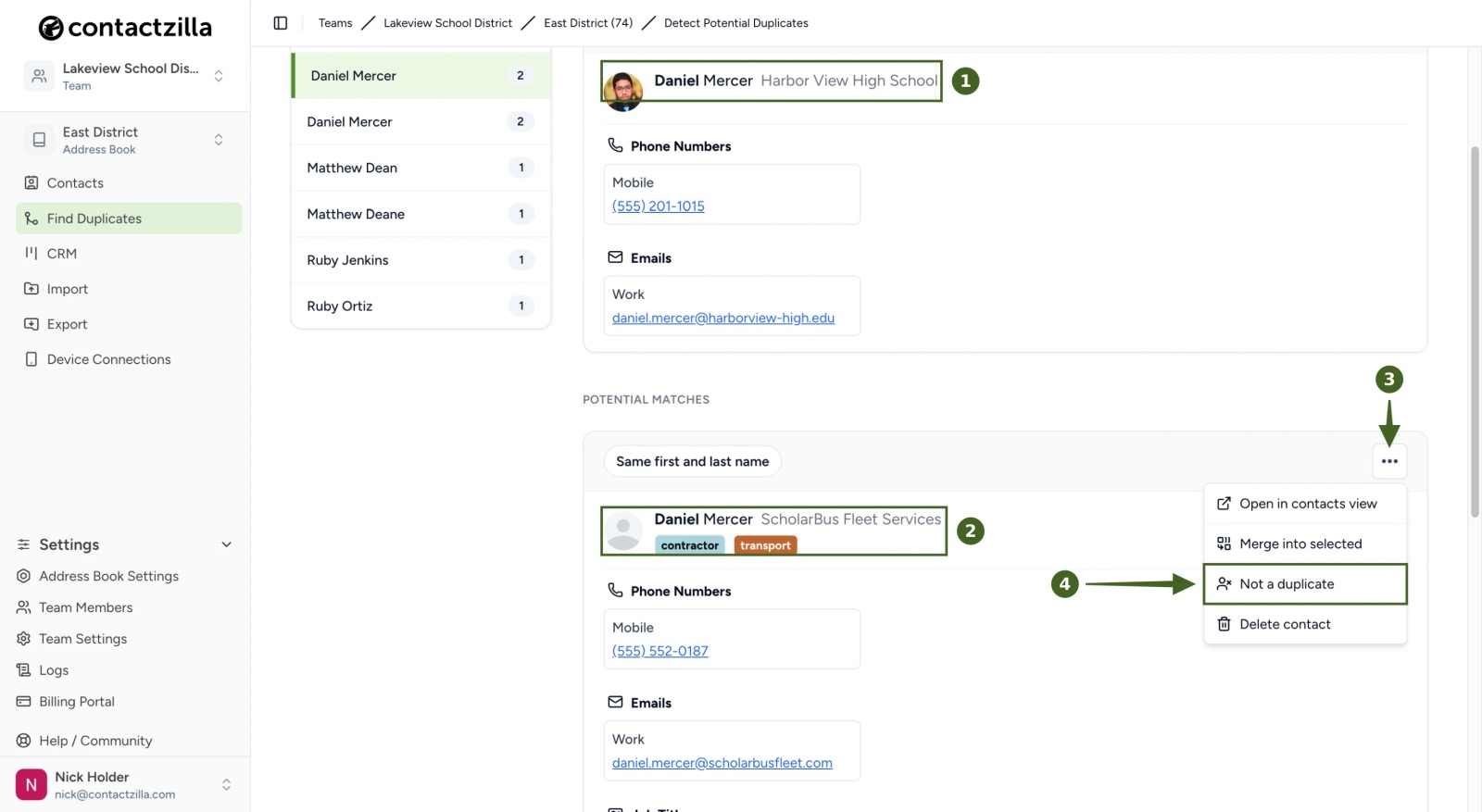
Two different people can share a name. In East District, Daniel Mercer the Harbor View High School teacher and Daniel Mercer the ScholarBus driver are flagged by Same first and last name, but their company, phone and email are all different.
a) Compare the selected contact with the match → the match's ⋯ menu → Not a duplicate.
There's no confirmation step. Both contacts stay as they are, the pair disappears from the report under every check that flagged it, and it isn't suggested again. When we ran a fresh report after merging the other three pairs, East District showed "No potential duplicates found. The latest completed report did not flag any contact pairs (after applying your dismissed pairs)."
⚠️ Important: Not a duplicate only hides the pair from the report. If the two contacts also share a name and a phone number or email address, you still can't switch on that matching rule in Address Book Settings while both are in the address book. See How to Set Duplicate Matching Rules for an Address Book.
Every person in East District now appears once in the address book and on every connected phone. Run a new report after a large import, or after staff have been adding contacts from their phones for a while. To stop duplicates arriving through imports in the first place, see How to Re-import Contacts Without Creating Duplicates.
Still Need Help?
Our support team is available to assist you with any questions or issues you may have.
Still need help?
Our support team is available to assist you with any questions or issues you may have.