How can we help you?
Browse Categories
How to Use Webhooks to Tell Other Apps When Contacts Change in Contactzilla

This guide shows you how to add a webhook to a Contactzilla address book, so another app or system is told within seconds whenever a contact in that address book is added, changed, labelled or deleted. Our example is Skyline Development Group's Project Cascade Tower address book, the site contact list for a construction project. It assumes you can open the address book's Address Book Settings.
What You'll Need
- A Contactzilla address book, with access to its Address Book Settings
- A URL from the system that will receive the messages, such as an automation in Microsoft Teams, Zapier or Make, or an endpoint your developer has built. To try webhooks first without setting anything up, you can use a free test address from webhook.site
- Optional: API access switched on for your team, if the receiving system needs to look up the contact's details (see Look Up the Contact a Webhook Refers To below)
What You Can Use Webhooks For
A webhook sends a short message to another system the moment something changes in one address book, so nobody has to check for changes by hand. Each message names the event and the contact's ID, never the contact's details, so names and numbers don't leave Contactzilla unless the receiving system looks them up.
For the Project Cascade Tower address book, that could mean:
- Telling the site team. Post a message in the project's Microsoft Teams or Slack channel when a new subcontractor is added.
- Keeping a change log. Add a row to a Google Sheet or SharePoint list for every change, as an audit trail outside Contactzilla.
- Starting a task. Create a site safety orientation or insurance certificate check in Planner or Asana when someone new joins the project.
- Keeping another system in step. Update the same person in a phone system directory, a mass notification list or your accounting software.
- Catching deletions. Warn an administrator when a contact is deleted from a shared address book.
Most apps can't read a Contactzilla message on their own, so there is usually a small automation step in between, such as a Teams workflow, Zapier, Make or Power Automate. That step gives you the URL to paste into Contactzilla and turns each message into whatever the app needs.
Add a Webhook to the Project Cascade Tower Address Book
Step One: Open the Webhooks Tab
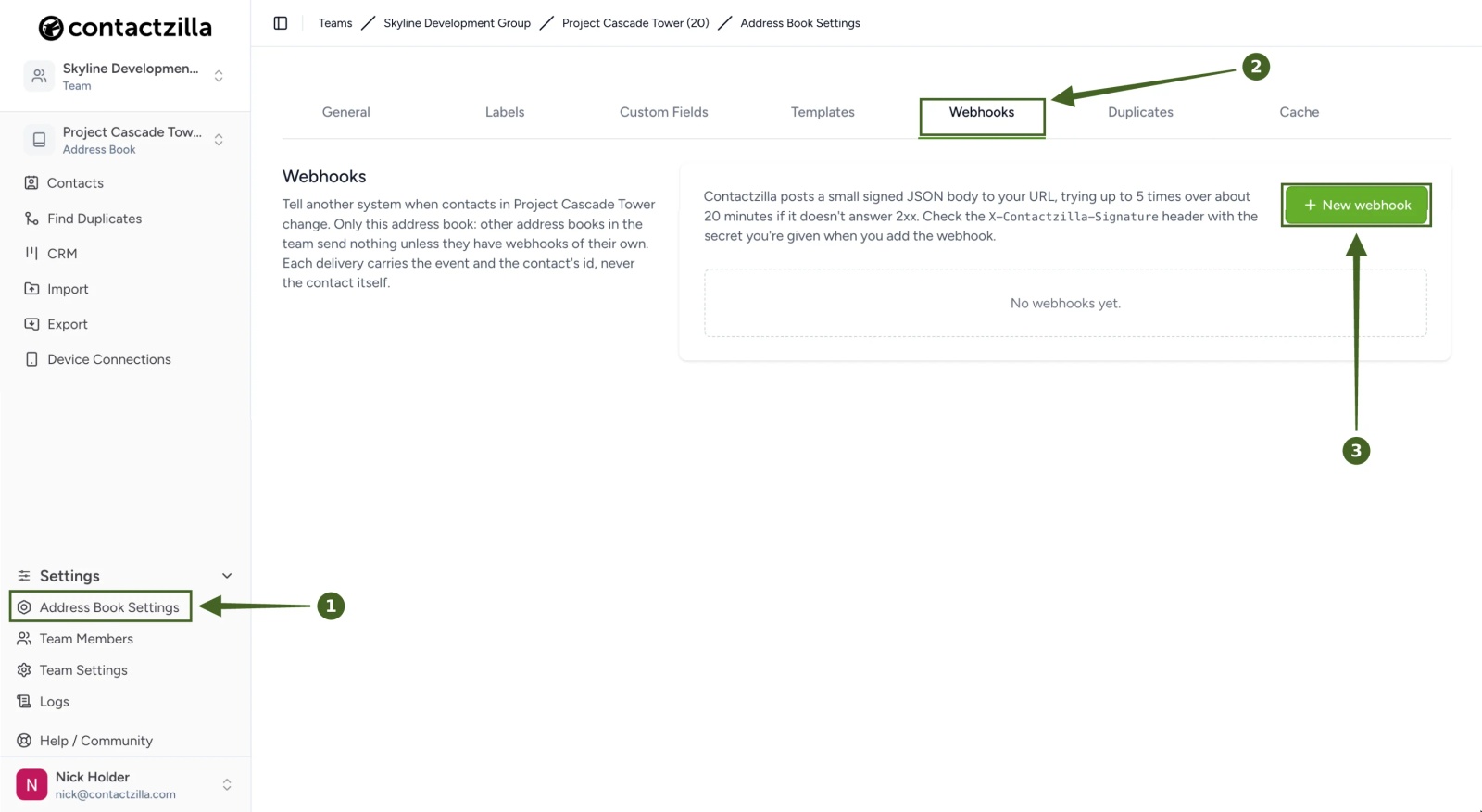
a) Select the address book, then Address Book Settings > Webhooks.
b) Click New webhook.
💡 A webhook only covers the address book it's added to. Other address books in the same team send nothing unless they have webhooks of their own.
Step Two: Enter the URL and Choose the Events
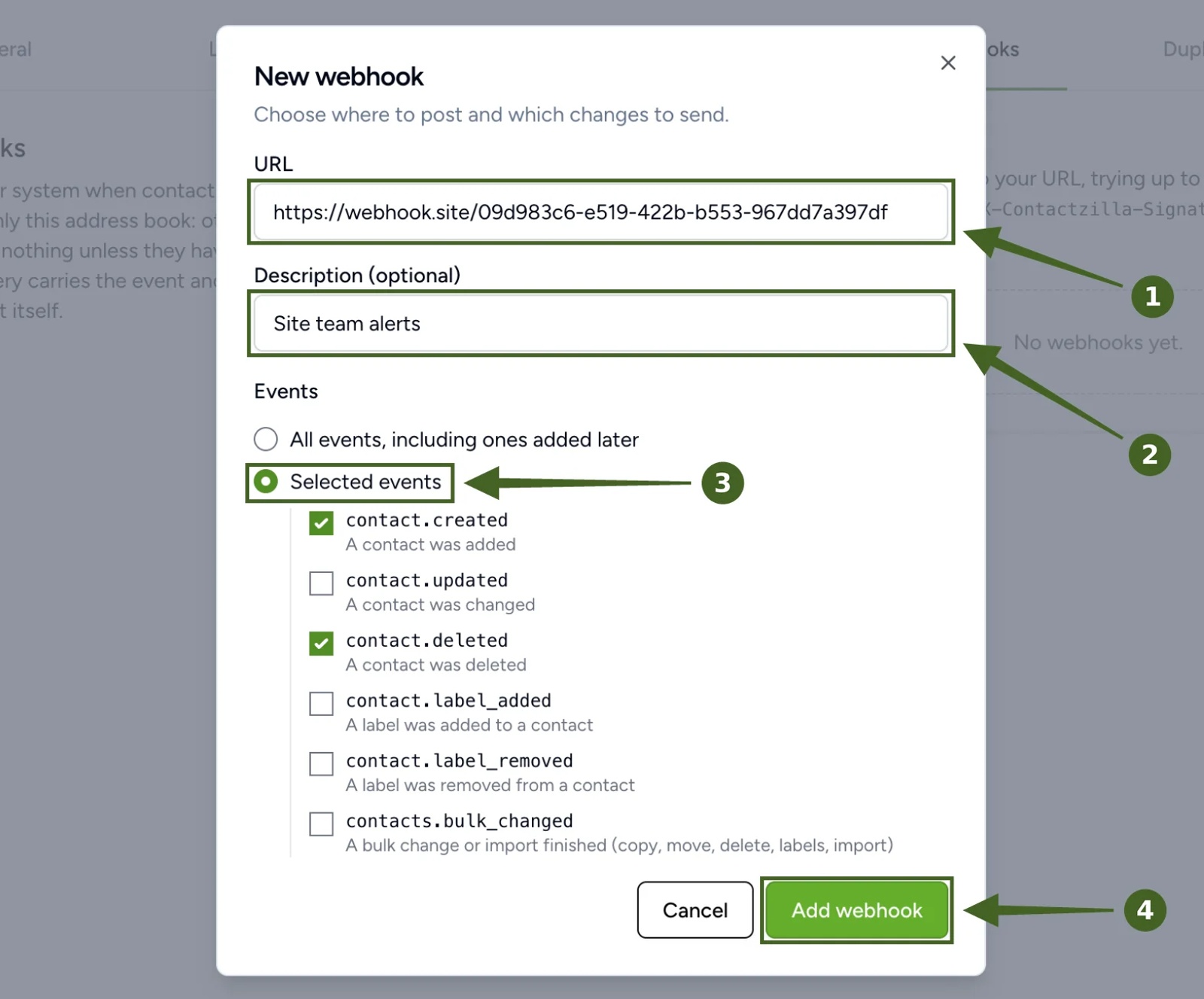
a) In URL, paste the address the receiving system gave you.
b) In Description (optional), say what the webhook is for, such as Site team alerts, so the next person knows what it does.
c) Under Events, choose All events, including ones added later, or choose Selected events and tick only the ones the receiving system needs (at least one). Our Site team alerts webhook only needs contact.created and contact.deleted:
| Event | Sent when |
|---|---|
| contact.created | A contact was added |
| contact.updated | A contact was changed |
| contact.deleted | A contact was deleted |
| contact.label_added | A label was added to a contact |
| contact.label_removed | A label was removed from a contact |
| contacts.bulk_changed | A bulk change or import finished (copy, move, delete, labels, import) |
d) Click Add webhook.
💡 An import sends one contacts.bulk_changed message with a count, not one message per contact. If you only tick the single-contact events, imports won't reach the receiving system at all.Step Three: Copy the Signing Secret
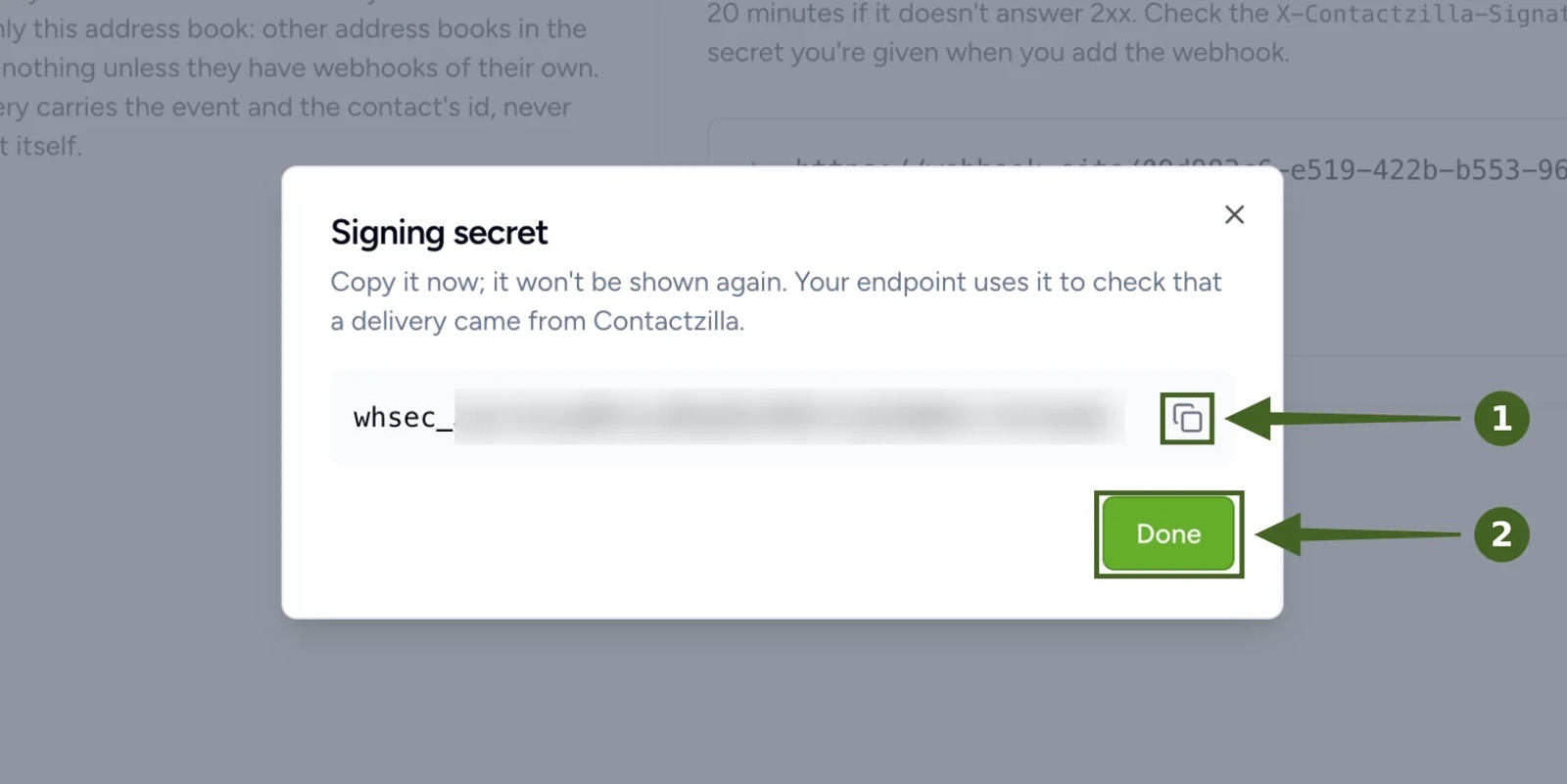
a) Click the copy icon beside the secret, which starts whsec_, and store it somewhere safe, such as your password manager or the receiving system's settings.
b) Click Done.
⚠️ Important: the secret is shown once only. If you lose it, use New secret on the webhook to make another, and update the receiving system with it.
The webhook is now listed in the Webhooks tab with an On badge, its description and events, and Last delivery shows a dash until the first message is sent.
Check the Webhook Is Working
Step Four: Send a Test Message
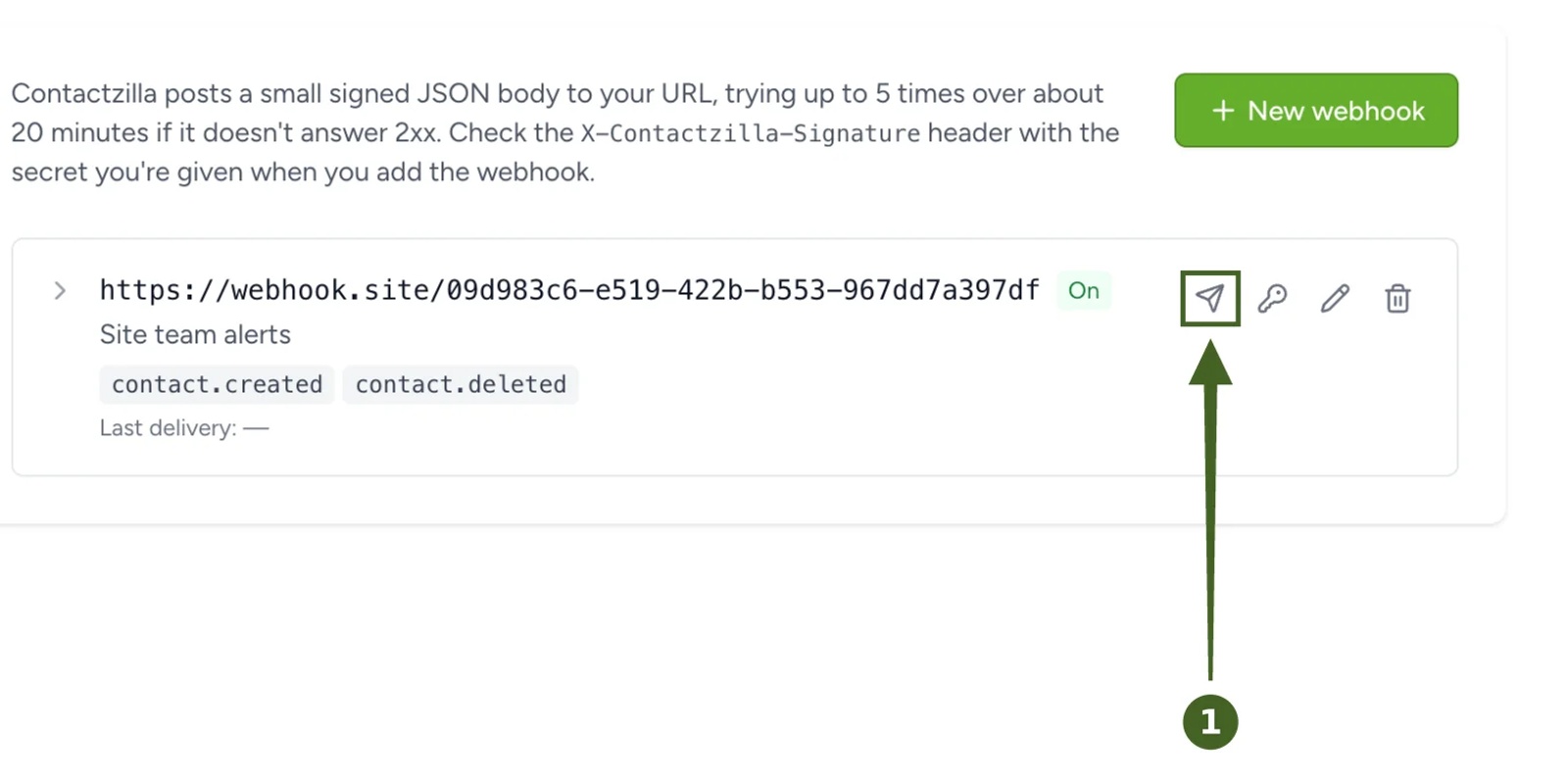
1) On the webhook, click Send test (the paper plane icon). Contactzilla sends a webhook.test message to the URL, so you can check the receiving system without changing a contact.
Step Five: Review Recent Deliveries
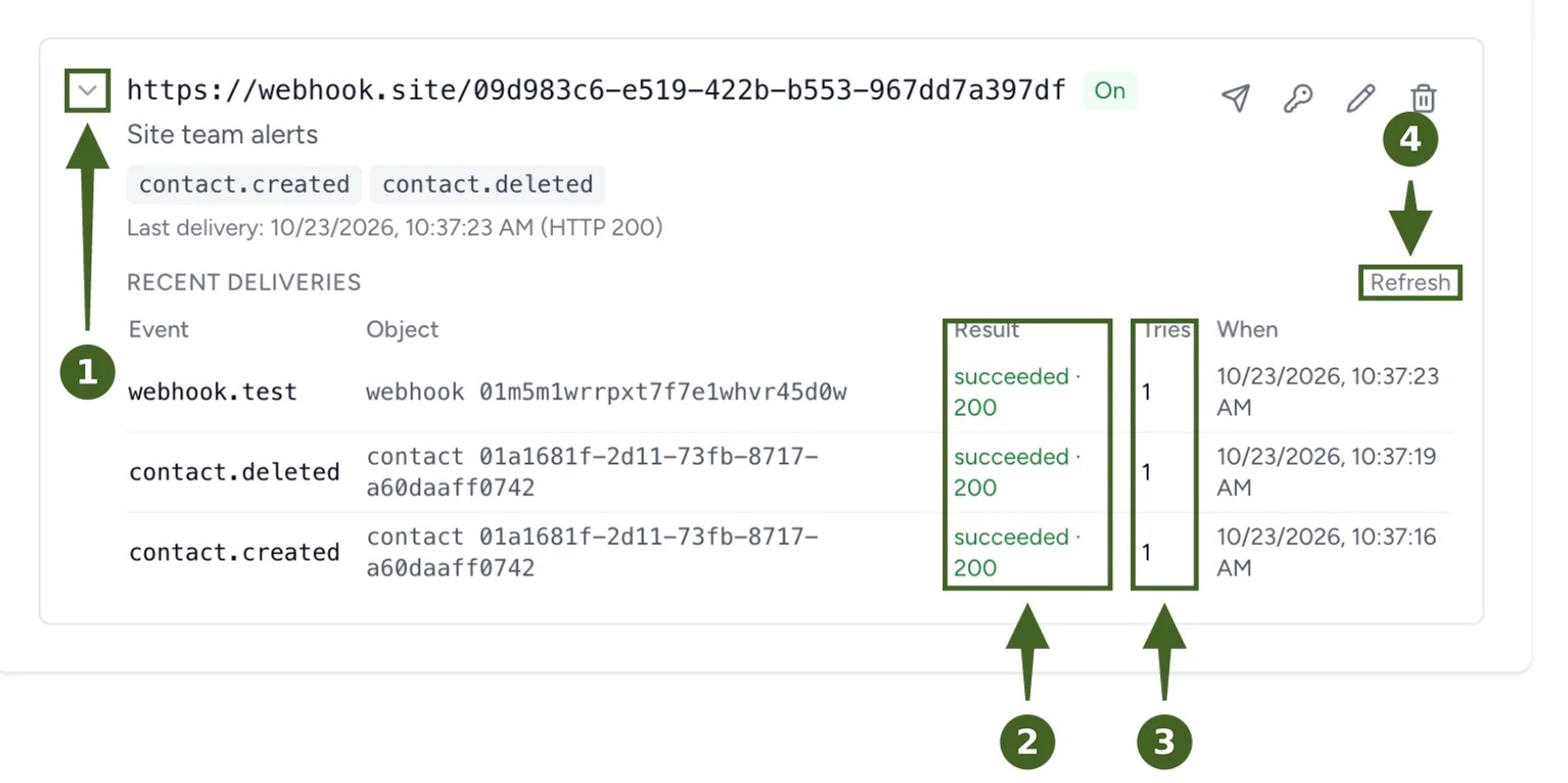
a) Click the arrow beside the webhook's URL to open Recent deliveries, and click Refresh to update the list.
b) Check each row's Result. succeeded · 200 means the receiving system accepted the message. failed shows the answer it gave instead, for example The endpoint answered HTTP 500.
c) Tries shows how many times Contactzilla sent that message.
A working webhook shows webhook.test as succeeded in Recent deliveries, and the webhook's badge reads On.
If a Delivery Fails
If the receiving system doesn't answer with a success code (any 2xx), Contactzilla tries again, up to 5 times in about 20 minutes, each wait three times longer than the last:
| Try | Sent |
|---|---|
| 1 | Straight away |
| 2 | 30 seconds later |
| 3 | 1 minute 30 seconds after that |
| 4 | 4 minutes 30 seconds after that |
| 5 | 13 minutes 30 seconds after that (about 20 minutes after the first) |
While deliveries are failing, the webhook's badge shows Failing with a count, and Last delivery shows the time and the answer received. The badge returns to On after the next successful delivery.
💡 Every try of the same message carries the same delivery ID, so a receiving system that sees an ID twice can safely ignore the repeat.
What Each Webhook Message Contains
Contactzilla sends each message as an HTTP POST with a small JSON body. A contact.created message from Project Cascade Tower looks like this:
{
  "id": "01m5jk9bh11cze387tfzw0mj1w",
  "event": "contact.created",
  "created_at": "2026-10-22T20:01:53Z",
  "team": "skyline-development-group",
  "address_book": "project-cascade-tower",
  "object": { "type": "contact", "id": "01a16534-ada1-7330-a2f7-c76cce0ee6e3" },
  "actor": { "type": "user", "user_id": 25 }
}id: the delivery ID, the same on every try of this message.eventandcreated_at: what happened, and when.teamandaddress_book: where it happened.object: the contact's ID. Forcontacts.bulk_changedit is a batch ID instead, with adataobject giving the action and count, for example"data": {"action": "import", "count": 2}.dataon label events: the label, for example"data": {"label": "after_hours"}.actor: who made the change.useris someone in the Contactzilla dashboard,apiis the API or an AI assistant connected through MCP, andsystemis an import.
Each message also carries these headers:
X-Contactzilla-Event: the event nameX-Contactzilla-Delivery: the delivery IDX-Contactzilla-Signature: the signature to check (see below)User-Agent:Contactzilla-Webhooks/1.0
Check That a Message Came From Contactzilla
Anyone who knows your URL could send it a message, so the receiving system should check the X-Contactzilla-Signature header before acting on one. The header looks like t=1792699318,v1=43d2edfb…, where t is when that try was sent (a Unix timestamp) and v1 is the signature.
To check it, calculate an HMAC-SHA256 of the timestamp, a full stop and the raw request body (t + "." + body), using the whole signing secret, including whsec_, as the key. If the hex result matches v1, the message is genuine. This is the same method many payment and developer platforms use, so most automation tools and developers will recognise it. In Node.js:
const crypto = require("crypto");

function isFromContactzilla(rawBody, signatureHeader, secret) {
  const parts = Object.fromEntries(signatureHeader.split(",").map(p => p.split("=")));
  const expected = crypto
    .createHmac("sha256", secret)              // the whole secret, including whsec_
    .update(`${parts.t}.${rawBody}`)
    .digest("hex");
  const tooOld = Math.abs(Date.now() / 1000 - Number(parts.t)) > 300;
  return !tooOld && expected.length === (parts.v1 || "").length &&
    crypto.timingSafeEqual(Buffer.from(expected), Buffer.from(parts.v1));
}
💡 Use the body exactly as it arrived, before any JSON parsing, or the signature won't match. Each retry gets a new timestamp and a new signature, so rejecting messages more than a few minutes old stops anyone replaying an old one.
Look Up the Contact a Webhook Refers To
Because a message carries only the contact's ID, a receiving system that needs the person's name or number fetches it from the Contactzilla API. For example, an alert that says "Ben Carter, Westmark Architects, was added to Project Cascade Tower" needs this step.
- A team administrator switches API access on under Team Settings > API/MCP.
- The receiving system connects with OAuth 2.0 using an API client created under your profile's API clients, with the
contacts.readscope. - One contact:
GET /api/v1/teams/{team}/address-books/{address_book}/contacts/{contact}, usingteam,address_bookandobject.idfrom the message. - Everyone a bulk change touched:
GET /api/v1/teams/{team}/address-books/{address_book}/batches/{batch}/contacts, using the batch ID from acontacts.bulk_changedmessage.
Full details are in the Contactzilla API documentation.
⚠️ Important: once a contact is deleted, its details can no longer be fetched by ID. If you want a deletion alert to say who was removed, have the receiving system keep its own record of names, such as a change log keyed by contact ID, as contacts are added.
Change, Re-Key or Remove a Webhook
Each webhook in the Webhooks tab has four icons:
- Send test: sends a
webhook.testmessage. - New secret: makes a new signing secret. Update the receiving system with it.
- Edit: change the URL, description or events.
- Delete: removes the webhook. Contactzilla asks you to confirm, and the webhook's delivery history is removed with it.
Your address book now tells the receiving system about every change as it happens, and Recent deliveries shows you each message and how it was answered.
Still Need Help?
Our support team is available to assist you with any questions or issues you may have.
Still need help?
Our support team is available to assist you with any questions or issues you may have.