How can we help you?
Browse Categories
Contactzilla: How to Re-import Contacts Without Creating Duplicates

This guide shows you how to set up an import so that every time you run it again, people who are already in the address book are updated instead of added a second time, and people who have left the list are removed. Our example is Skyline Development Group's Project Cascade Tower address book, refreshed each week from the site contact list exported from the project's management system. The same Skip, Replace and Merge options appear in the CSV, Microsoft Entra ID, Google Workspace and Salesforce importers.
What You'll Need
- A Contactzilla address book you import into. See Import contacts from a CSV, or the guides for Microsoft Entra ID, Google Workspace and Salesforce.
- Ideally, a column in your source that gives each person an ID that never changes, such as an employee number, a contact ID from your project system, the Entra ID or the Salesforce ID.
- If the address book will also hold contacts from somewhere else, a label for your directory import, chosen when you create it. See Remove Leavers Without Losing Your Other Contacts below.
How Contactzilla Spots Someone It Already Has
Every row in an import is checked against the address book's duplicate matching rules. A row that matches an existing contact counts as a duplicate, and the option you choose at the Duplicates step decides what happens to it. By default a row matches when it has the same value in a unique custom field, or the same first name, last name and email, or the same first name, last name and phone number. To change the rules, see How to Set Duplicate Matching Rules for an Address Book.
Names, email addresses and phone numbers change. An ID from your source doesn't. If each contact carries its ID in a Hidden Custom Unique field, every future import finds the right person even after they change their name, email and number. Admins can see the field on the contact in the dashboard, but it's never synced to phones.
Remove Leavers Without Losing Your Other Contacts
Updating people is only half the job. When someone leaves your organisation, or a subcontractor finishes on site, you want them gone from the address book and from every phone without anyone having to remember. That's what Delete any contacts not replaced does: after each import, anyone who wasn't in it is deleted.
How you set it up depends on whether the import is the only place the address book's contacts come from.
The address book is an exact copy of your directory or list. Every contact comes from one import. Skyline's Staff Directory is synced from Microsoft Entra ID and nothing else, and Project Cascade Tower is rebuilt each week from the site contact list. Turn on Delete any contacts not replaced, and anyone who isn't in the import is deleted.
The address book also holds contacts from somewhere else. Suppose Skyline's Field Teams address book has its staff from Entra, plus:
- subcontractors imported from a CSV each week
- staff from a second Entra tenant after Skyline bought another firm
- a few numbers added by hand, like the site office hotline and the out-of-hours facilities line
Skyline still wants staff who leave Entra to drop off every phone, but not the subcontractors, the second firm's staff or the hotline. The plain switch would delete all of them on the next sync, because none of them are in Skyline's Entra tenant.
The answer is to label the directory import when you create it. When you set up the Microsoft Entra ID import, switch on Label all contacts for this import and give it a label such as source:entra. Every contact that import brings in carries the label, and the delete switch at the Duplicates step becomes Delete any contacts with label source:entra that are not replaced. Each sync now only deletes contacts that came from that import and have left the directory. Everything else in the address book is left alone. Give each directory import its own label, so the second tenant cleans up its own leavers too. For the subcontractor CSV, leave Delete any contacts not replaced off on that import: its delete switch covers the whole address book, so it would delete your Entra staff.
⚠️ Important: choose the label when you create the import. It can't be added to an existing import, so to add one later you delete the import and set it up again. If you add a contact by hand and give it the import's label, the next sync treats it as a leaver and deletes it.
Give Every Contact a Permanent ID on the First Import
Step One: Map the ID Column to a Hidden Custom Unique Field
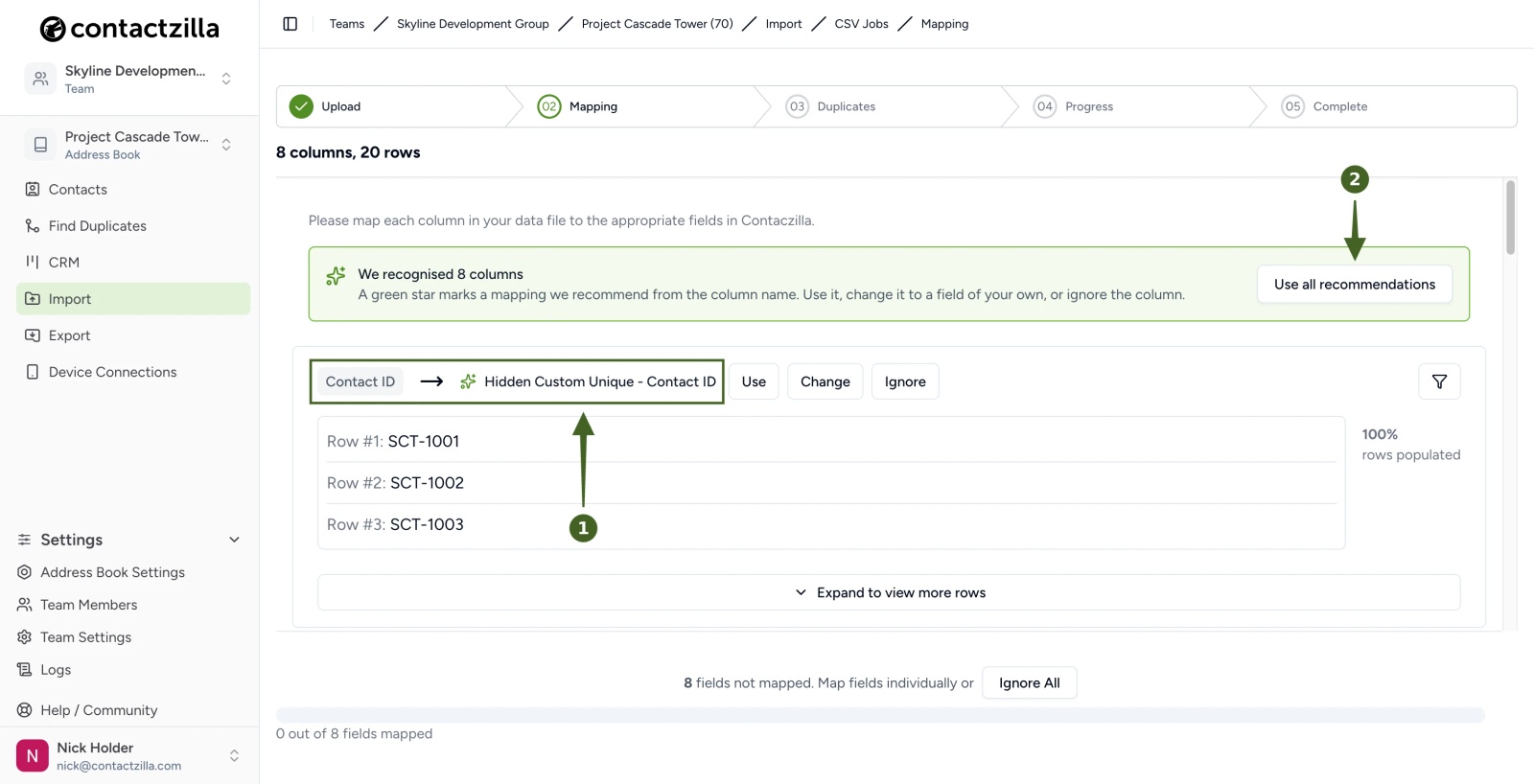
a) Import → CSV → Import CSV → upload your file → at Mapping, check that your ID column shows Hidden Custom Unique → Use all recommendations → Continue.
Contactzilla recommends a mapping for each column it recognises from the column name, marked with a green star. In our example it recognised Contact ID as an ID and suggested Hidden Custom Unique - Contact ID. If your ID column isn't recognised, click Change next to it and choose Hidden Custom Unique. For Microsoft Entra ID, map id; for Salesforce, map the Salesforce ID.
⚠️ Important: only map a column to a unique field if every row has a different value. Mapping a column that people share, such as Groups or Department, to a unique field stops the import at the mapping step. Map shared values to Label or Hidden Custom instead.
Each contact now carries its ID in a hidden field, ready for the next import to match against. When you upload next week's file with the same columns, the mapping is already filled in, so you can go straight to Continue.
Choose What Happens to Contacts That Already Exist
At the Duplicates step, choose one of three options:
- Skip duplicates: contacts already in the address book are left as they are, and only new people are added. Labels from the import may still be added to the existing contact. Use this when people are edited in Contactzilla and the import should only add newcomers.
- Replace duplicates: each matching contact is overwritten with the incoming row, so it ends up exactly like your source. Use this when the source is the master copy, such as Microsoft Entra ID or Skyline's weekly site list.
- Merge duplicates: incoming details are added to the existing contact and existing details are kept. A changed phone number is added alongside the old one rather than replacing it. Use this when details are kept in both places and you don't want to lose anything added in Contactzilla.
Step Two: Replace Duplicates and Remove People Who Have Left the List
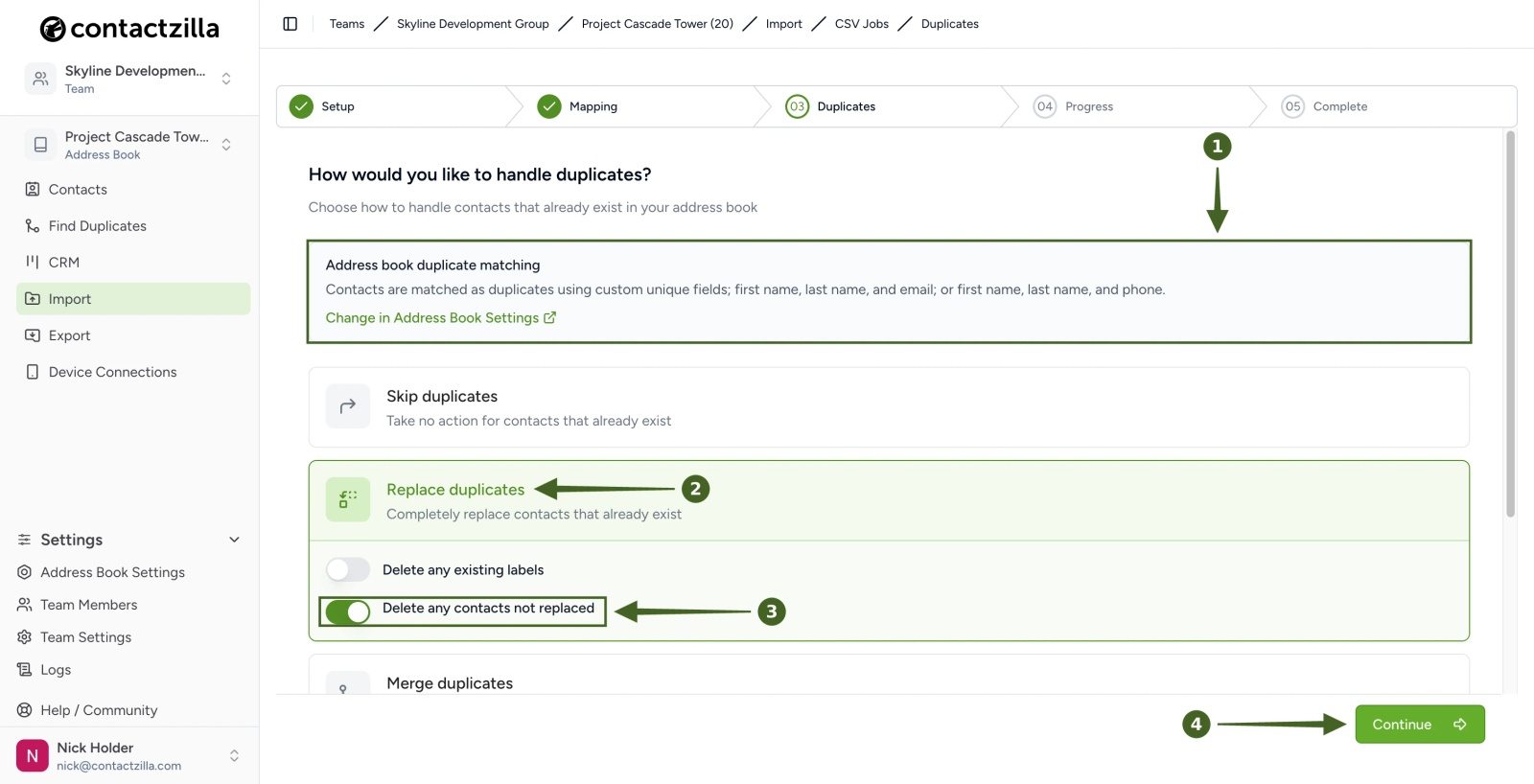
a) Duplicates → check the rules in Address book duplicate matching → Replace duplicates → switch on Delete any contacts not replaced → Continue.
Replace duplicates shows two switches:
- Delete any contacts not replaced: after the import finishes, every contact in the address book that isn't in the file is deleted, so the address book matches your source exactly. At Skyline, when the drywall subcontractor finishes on site and drops off the weekly list, the next import removes their crew from Project Cascade Tower and from every connected phone. If the import was set up with a label, this switch reads Delete any contacts with label your label that are not replaced instead: only contacts with that label are deleted, and contacts from anywhere else are left alone.
- Delete any existing labels: off, the contact keeps the labels it already has and gains any labels from the import. On, all labels on the contact are cleared first and only the import's labels are applied. Turn it on if the file is the only place you manage labels, so a label removed from the file is also removed from the contact.
⚠️ Important: only use Delete any contacts not replaced when the file is the complete list for that address book. Anyone added by hand, from a phone or by another import is deleted on that run. The first time you use it on an address book that already has contacts, everyone who isn't in the file is removed, so export the address book first if you're not sure.
💡 Replace overwrites the whole contact, so anything added in Contactzilla that isn't in the file, such as a contact photo or a note, is lost on the next run. If you add details by hand that you want to keep, choose Merge duplicates instead.
When the import runs, people already in the address book are updated in place, newcomers are added, and anyone who isn't in the file is removed from the address book and from every connected phone.
Check What the Import Changed
Step Three: Read the Import Complete Counts
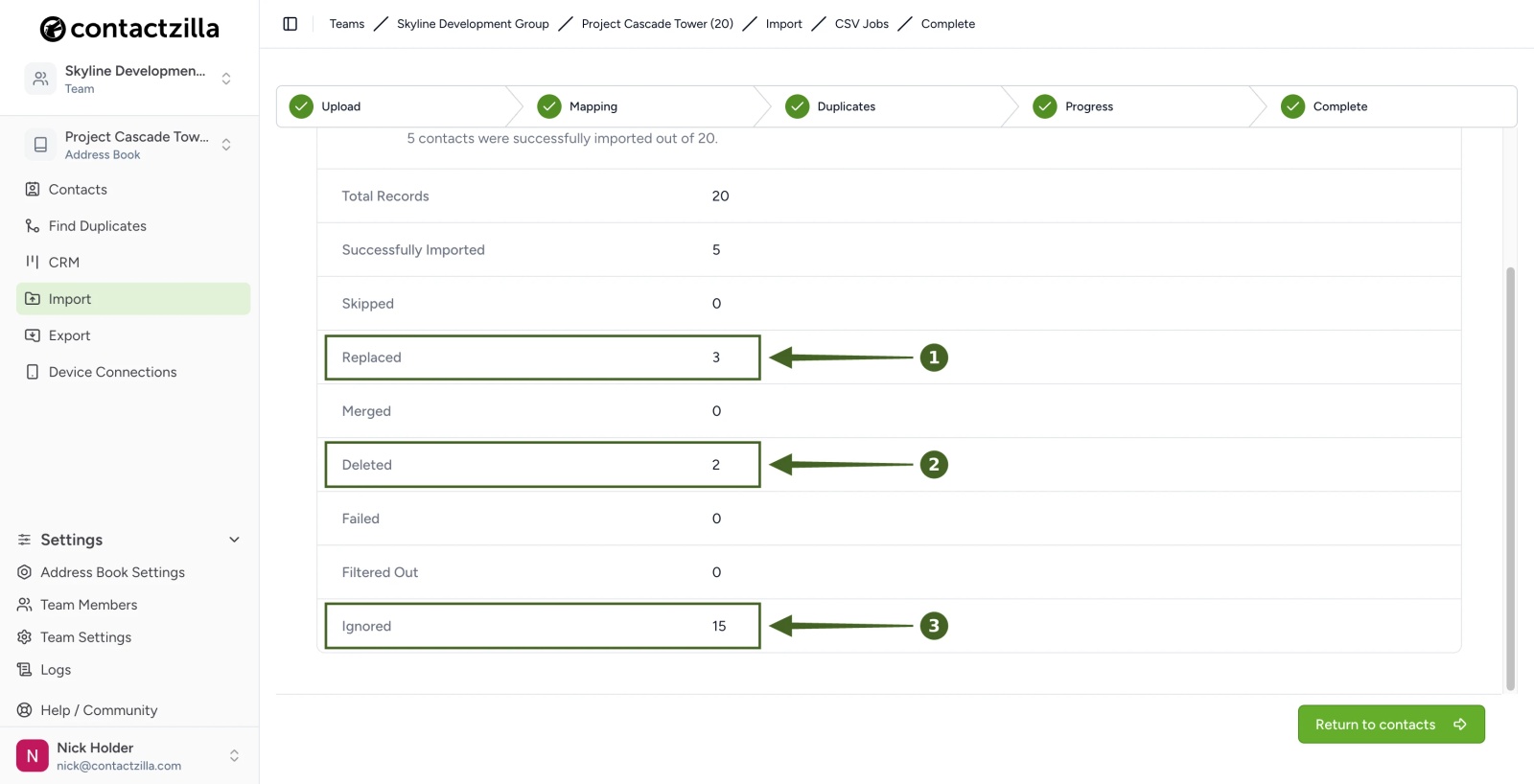
a) Import Complete → check Replaced → Deleted → Ignored.
Skyline's week 2 file had 20 rows. Here's what the counts mean:
- Replaced: 3. People whose details changed in the file were updated in place: Priya Nair is now Priya Nair-Collins with a new email address, Mike Doyle has a new mobile, and Laura Chen has a new job title.
- Deleted: 2. The two drywall contractors who are no longer on the list were removed.
- Ignored: 15. These rows were exactly the same as the contacts already in the address book, so there was nothing to change.
- Successfully Imported: 5. The 3 replaced contacts plus 2 new people from ClearView Glazing.
If any rows are counted as Skipped or Failed, click Download CSV under the counts. The file lists each of those rows with a Status and a Reason, so you can fix your file and import it again.
Step Four: Check That a Changed Contact Was Updated, Not Duplicated
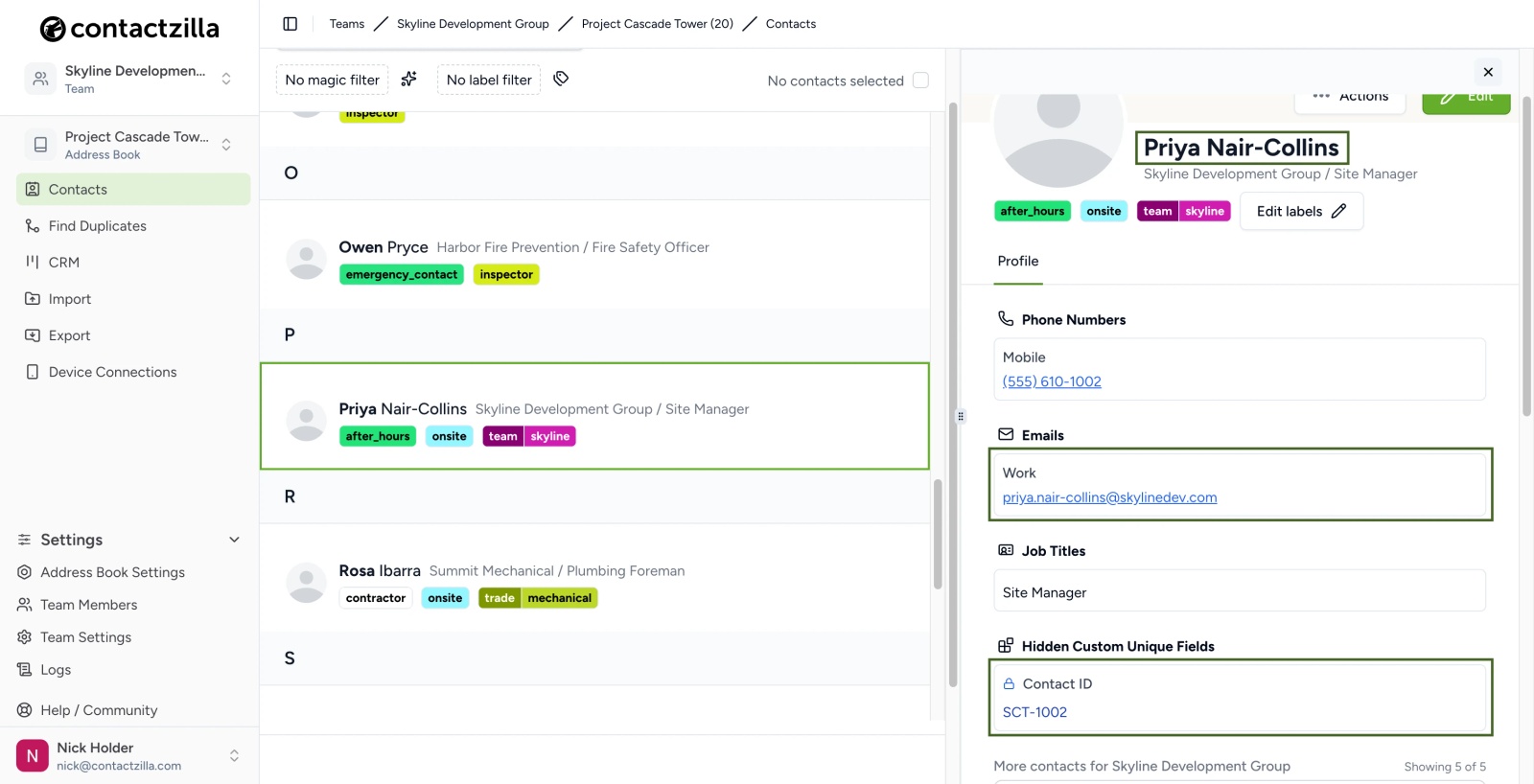
a) Contacts → open someone whose details changed → check the new details → check Hidden Custom Unique Fields.
Priya's name and email changed in the site list, so neither name rule could recognise her. Her Contact ID, SCT-1002, did, so the import updated her existing contact. There's still only one Priya in the address book and on every connected phone.
Duplicates When You Sync From Microsoft Entra ID, Google Workspace or Salesforce
Directory and CRM importers show the same Duplicates step, and the options you choose are saved and used on every scheduled sync. Most organisations choose Replace duplicates, because the directory is the master copy.
- With Microsoft Entra ID, map
idto Hidden Custom Unique. Accounts that are disabled in Entra are removed or kept out of the address book by the importer's deletion setting (accountEnabled); in the results CSV they show the reason "Contact marked for deletion." - If the address book also holds contacts from somewhere else, label the import when you create it so the delete switch only removes that import's leavers. See Remove Leavers Without Losing Your Other Contacts above.
- If staff photos or other details are added in Contactzilla, a Replace sync removes them. Choose Merge duplicates for those address books, bearing in mind that a number changed in the directory is then added alongside the old one rather than replacing it.
💡 If you use Clear Saved Mapping to change an import's mapping or filters, choose your duplicate options again before the next sync. Clearing the mapping doesn't keep them.
Your weekly import now updates the people you already have, adds newcomers and removes anyone who has left the list, so the address book and every connected phone match your source. To clean up duplicates that are already in an address book, see How to Find and Merge Duplicate Contacts in an Address Book.
Still Need Help?
Our support team is available to assist you with any questions or issues you may have.
Still need help?
Our support team is available to assist you with any questions or issues you may have.