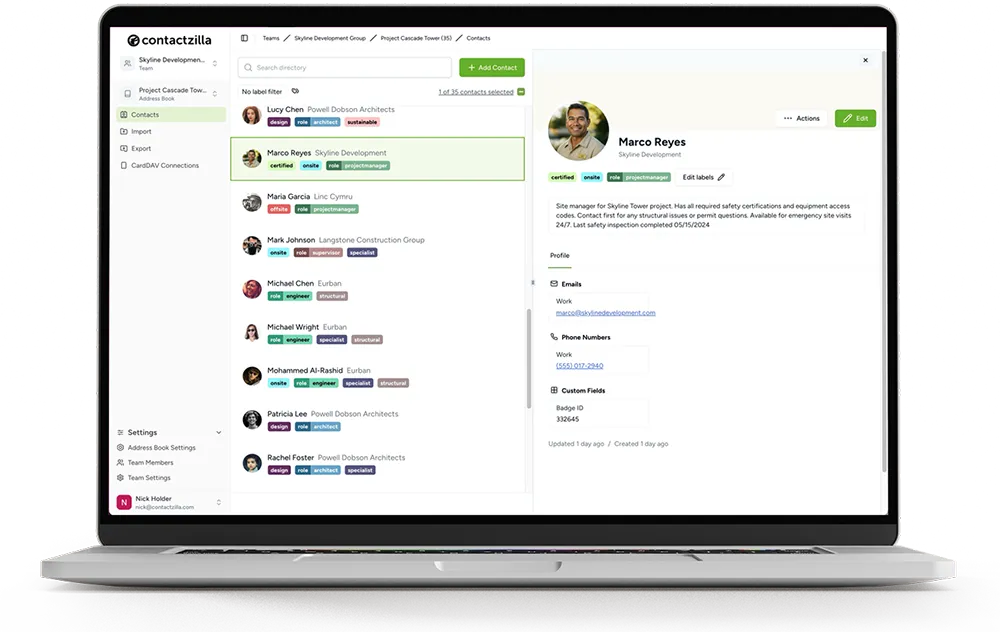
How to Export Contacts from HubSpot to Your Team's iPhones and Android Phones

HubSpot's Export button gives you a spreadsheet, not contacts on your team's phones.
Short answer: To export contacts from HubSpot, open CRM > Contacts, pick a view and click Export; HubSpot then gives you a download link for a CSV, XLS or XLSX file. To get those contacts onto your team's iPhones and Android phones, connect HubSpot to a shared address book and deploy it to the phones as a contacts account, because a one-off file goes stale and phones don't sync from it. Contactzilla imports your HubSpot contacts on a schedule, with headshots, desk and mobile numbers and labels, and delivers them to each phone's native Contacts app as a read-only CardDAV account through your MDM, such as Microsoft Intune or Jamf Pro, so caller ID works and HubSpot changes reach the phones automatically.
In outline, the HubSpot to phone workflow has five steps:
1) Connect: give Contactzilla read-only access to your HubSpot contacts.
2) Map: match HubSpot properties to contact fields such as Mobile, Desk phone and Job Title.
3) Add headshots: bring photos across through a Photo URL property.
4) Sync: choose how often HubSpot updates and deletions reach the address book.
5) Deploy: push the address book to iPhones and Android phones through your MDM.
How do you export contacts from HubSpot?
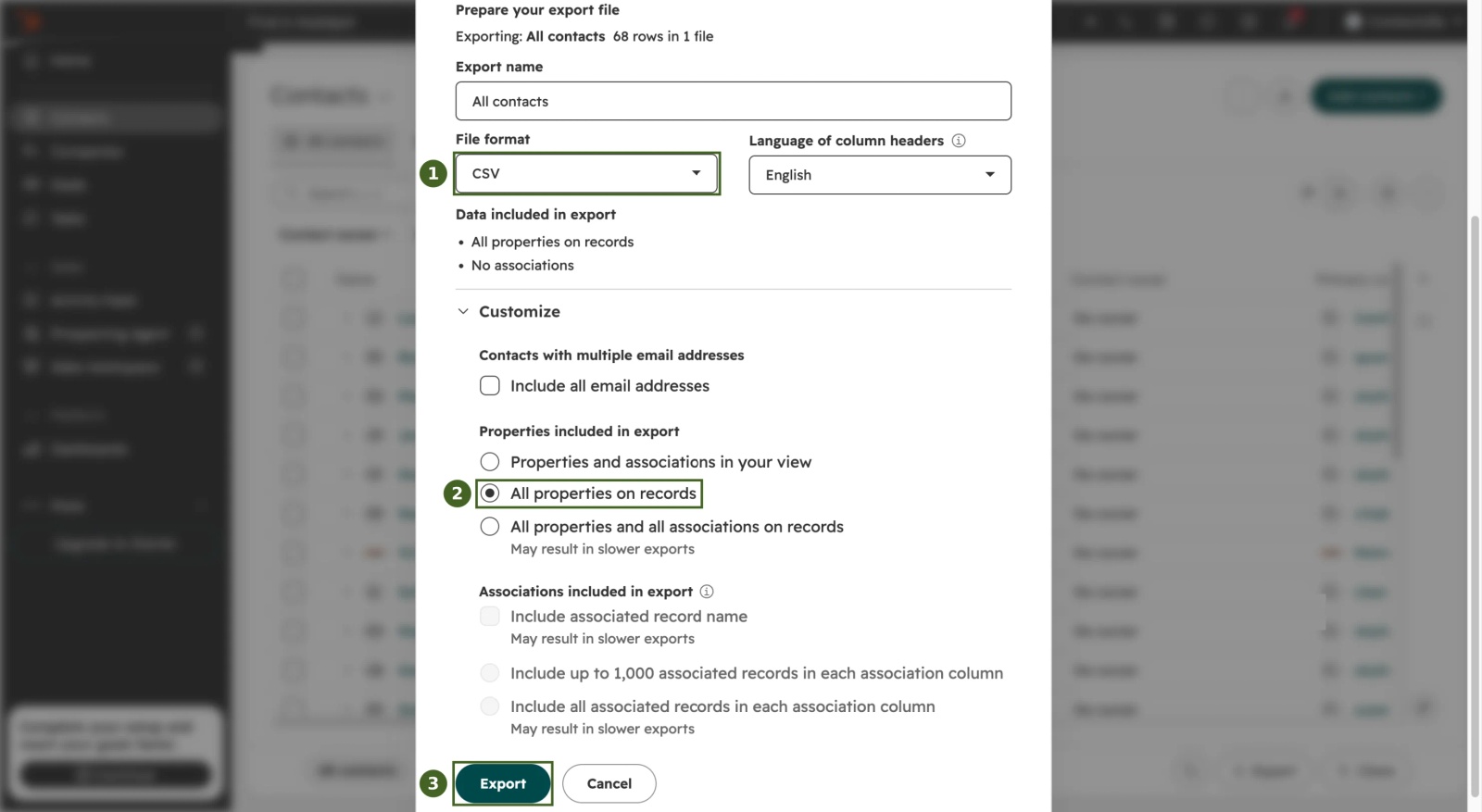
You export HubSpot contacts from any contacts view. Go to CRM > Contacts, open the view you want (the All contacts view for everyone), click Export, choose a File format of CSV, XLS or XLSX, and click Export. By default the file holds only the properties shown in your view; click Customize and choose All properties on records if you want every field. HubSpot then prepares the file and posts it to your Notifications Center, with a download link that expires after 30 days, according to HubSpot's export guide.
Two limits matter for contact lists. An XLS file holds at most 256 columns, so choose CSV for a full export, and CSV files over 2 MB arrive zipped. You need export permission in HubSpot to see the button at all.
Why doesn't a HubSpot export put contacts on your team's phones?
A HubSpot export is a snapshot. The day after you send it round, a new client contact or a changed mobile number is already missing, and nobody knows which copy is current. Phones also can't sync contacts from a spreadsheet: each person would need to import the file into Google Contacts or iCloud, or convert it to vCards first, and then do it all again for the next update. That is fine for a one-off move, but not for a team that needs the right numbers in their Contacts app and on incoming calls.
Tip 💡 If you do need a one-off file for phones, our guide to converting a CSV to vCard format shows how to turn a HubSpot export into contacts a phone can import.
What are the ways to get HubSpot contacts onto iPhones and Android phones?
HubSpot gives individual users two built-in options, and a shared address book covers the team-wide case. They solve different problems, so it helps to compare them side by side.
| Option | Where the contacts show | Who sets it up | Kept in sync |
|---|---|---|---|
| CSV or Excel export | Wherever each person imports the file | Each person, every time | No, a one-off copy |
| HubSpot mobile app Caller ID | Caller details on incoming calls | Each user, in the HubSpot app on their own phone | Daily, and HubSpot says it works best under 10,000 contacts |
| HubSpot Google Contacts integration | The Google account connected to HubSpot, and phones signed in to it | A HubSpot admin, per connected Google account | Yes, one-way or two-way |
| Contactzilla shared address book | The native Contacts app on every deployed iPhone and Android phone, with caller ID | IT, once, through MDM or a QR code | Yes, on a schedule you choose, read-only on phones |
HubSpot documents the mobile app's Caller ID and the Google Contacts integration in its knowledge base. Both are useful for one salesperson. When a whole team, or a fleet of company phones, needs the same contacts, a central address book delivered to every phone is the simpler model, and it doesn't depend on each person installing and configuring an app.
Key definitions: HubSpot properties, CardDAV and MDM
HubSpot property: a field on a HubSpot contact record, such as Email, Phone Number or a custom field you add yourself, like Photo URL.
CardDAV: the open standard phones use to sync a contacts account with a server, so the contacts appear in the phone's own Contacts app. Our explainer What Is CardDAV? covers it in more detail.
MDM (mobile device management): the platform IT uses to configure company phones, such as Microsoft Intune, Jamf Pro or Mosyle. An MDM can install a contacts account on many phones at once.
Read-only address book: contacts that staff can see, call and search on their phone but can't edit or delete, so HubSpot stays the place where changes are made.
What you need before you start
- A HubSpot account on any plan, including the free CRM, and a HubSpot user who can connect apps.
- A Contactzilla account with the HubSpot importer switched on. It's a premium importer, so ask
support@contactzilla.comto enable it. - An MDM for company phones, or the QR code route for phones without one.
The exact clicks for every step below are in our help article How to Import Contacts from HubSpot into Contactzilla. This post covers the decisions and what we saw when we ran it.
Step 1: Connect Contactzilla to HubSpot with read-only access
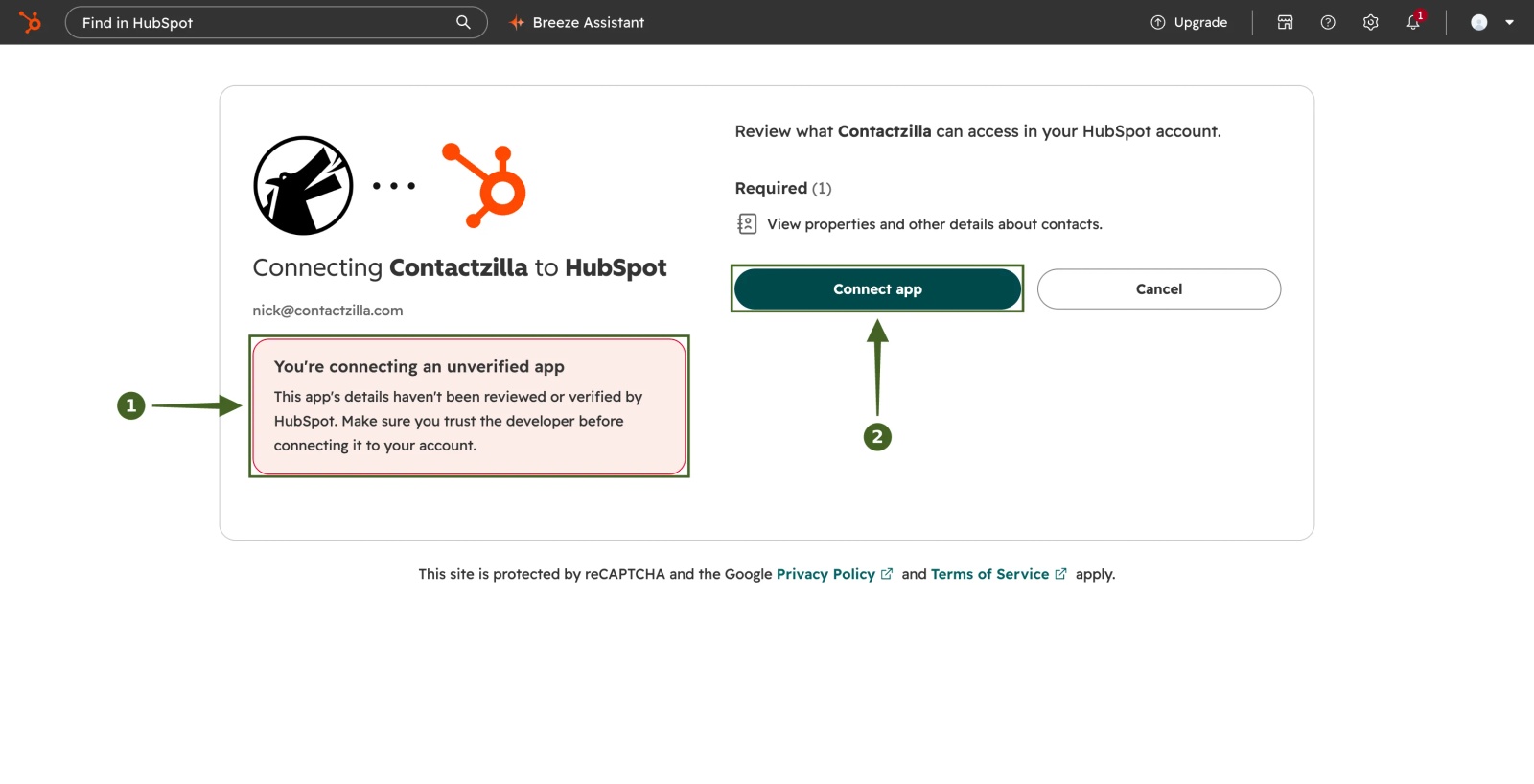
Start a HubSpot import in the Contactzilla address book that should hold the contacts, and sign in to HubSpot when asked. HubSpot then warns that you're connecting an unverified app, which means HubSpot hasn't reviewed Contactzilla's app, and asks you to type "I accept the risk". The only permission requested is View properties and other details about contacts, so Contactzilla can read your HubSpot contacts but can't change them.
Step 2: Map HubSpot properties to Contactzilla contact fields
HubSpot sends every contact property it holds, so the column list is long: our test account sent 341 columns, each starting properties_. Map the handful your team needs on their phones and ignore the rest. The HubSpot record ID is the important one, because it keeps each phone contact matched to the same HubSpot record on every later sync. Avoid Use all recommendations: it also suggests HubSpot's ad tracking columns, such as the Bing and LinkedIn click IDs, as contact IDs.
This is the mapping we used for a construction team's HubSpot contacts:
| HubSpot property | Contactzilla field | Label on the phone |
|---|---|---|
| Record ID (id) | Hidden Custom Unique | Not shown |
| First Name, Last Name | First Name, Last Name | - |
| Work | ||
| Phone Number | Phone | Desk phone (custom) |
| Mobile Phone Number | Phone | Mobile |
| Company Name, Job Title | Company Name, Job Title | - |
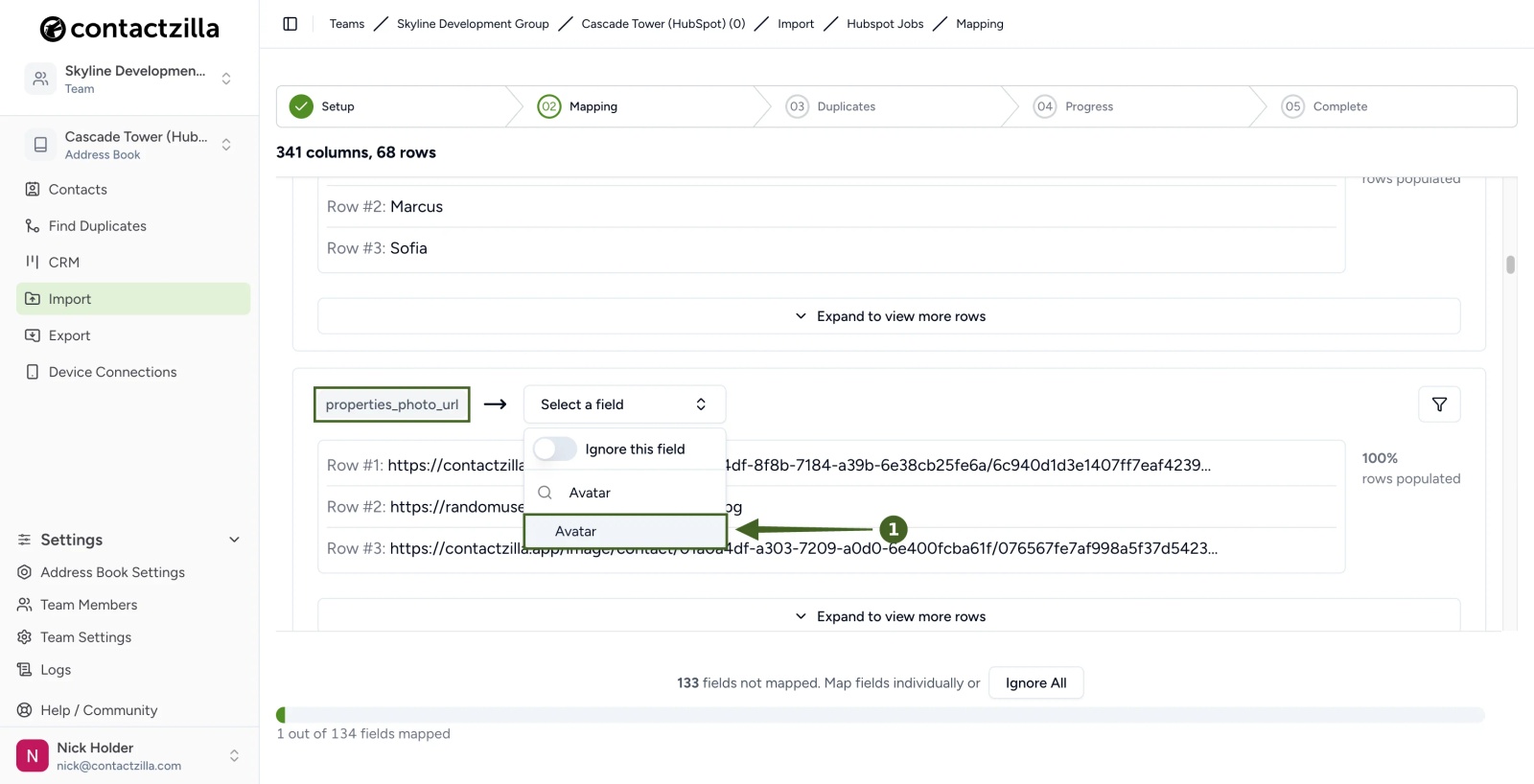
| Photo URL (custom) | Avatar | Contact photo |
| Trade (custom) | Label | List (iPhone) |
HubSpot sends phone numbers without spacing, such as +14165552013. Contactzilla's phone number formatting setting can show them consistently in the address book and on phones.
Step 3: Bring HubSpot headshots across with a Photo URL property
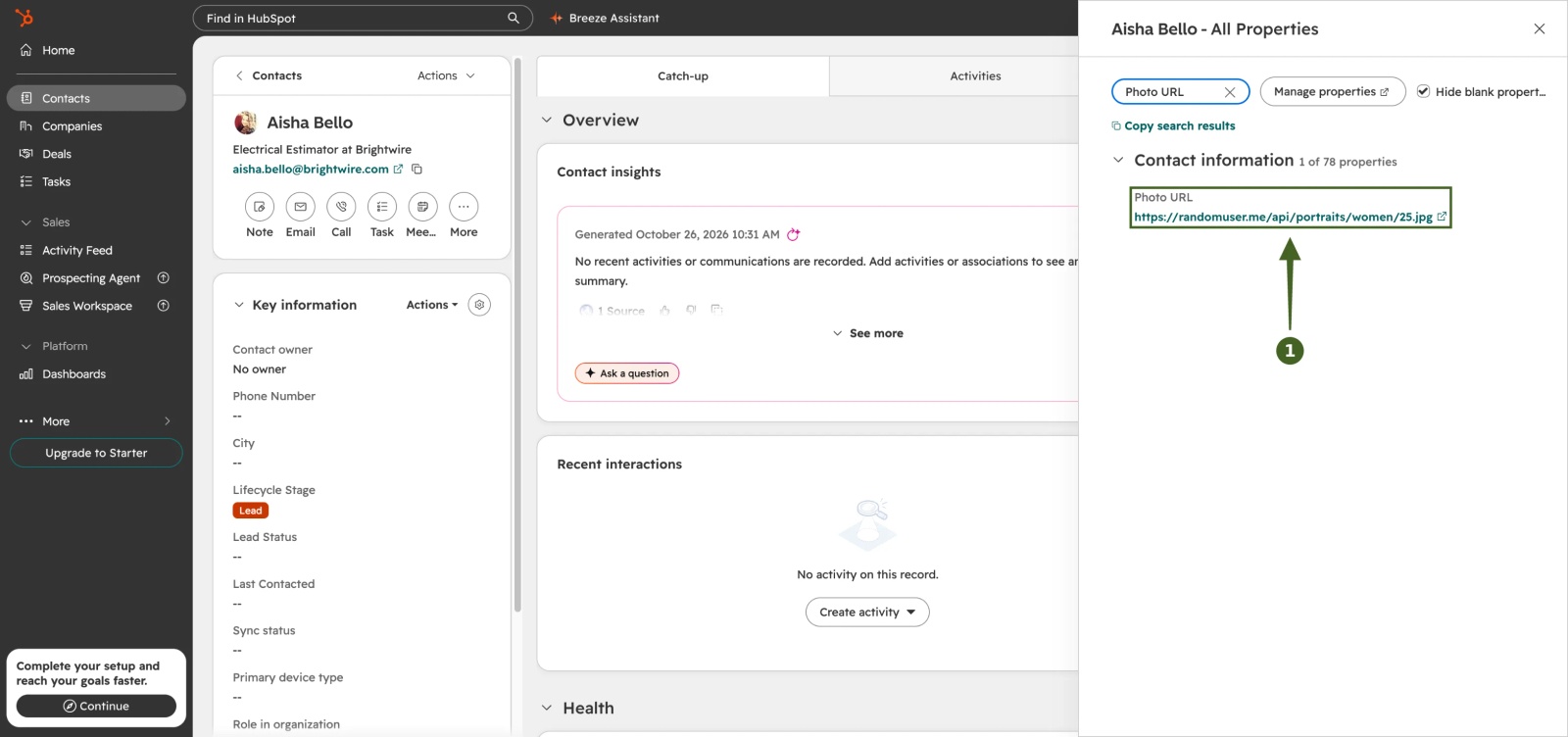
Many teams upload a photo to each HubSpot contact record. In our test, those uploaded photos never reached Contactzilla: HubSpot didn't include them in the contact data it sends to connected apps, so there was no column to map. To get headshots onto phones, keep a public link to each photo in a single-line text property in HubSpot (ours is called Photo URL) and map that column to Avatar. Each link must open the image directly without a sign-in, so the photos need to be hosted somewhere public, such as your website.
Step 4: Choose how HubSpot updates and deletions reach the phones
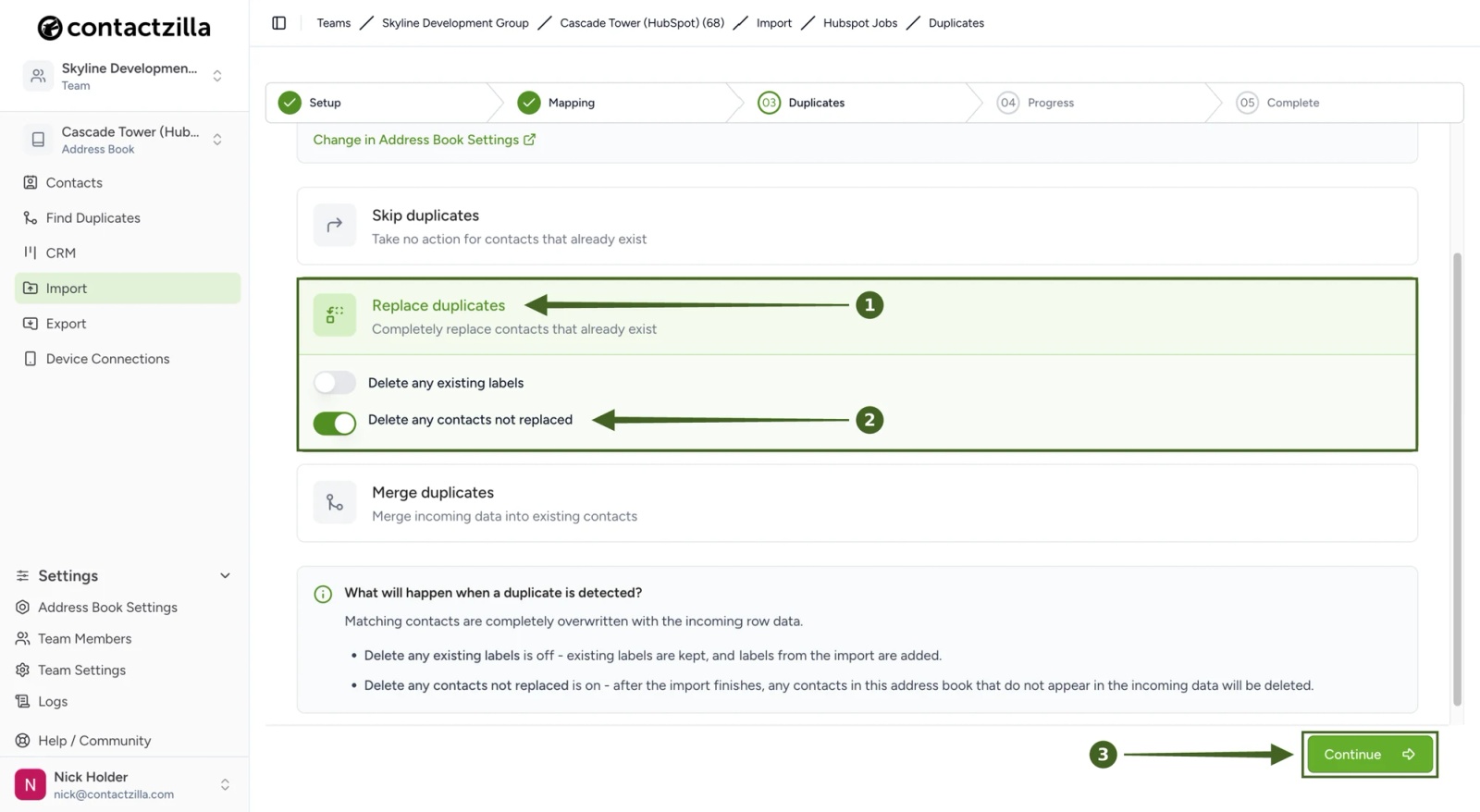
Pick a sync schedule, from every 4 hours to monthly, or Manual. Then choose Replace duplicates, so a contact updated in HubSpot is updated in the address book instead of duplicated. Deletions need one more setting, and it is the one that matters for leavers. When we deleted a contact in HubSpot, the next sync simply left it out, so it stayed in Contactzilla and on staff phones. Turning on Delete any contacts not replaced removed it on the next sync and left the other 67 contacts untouched. So when someone leaves a client, a supplier or your own team and their HubSpot contact is deleted, their number drops off every phone instead of lingering in staff Contacts. Use that setting only if the address book holds nothing but HubSpot contacts, because it removes anything the import didn't bring in.
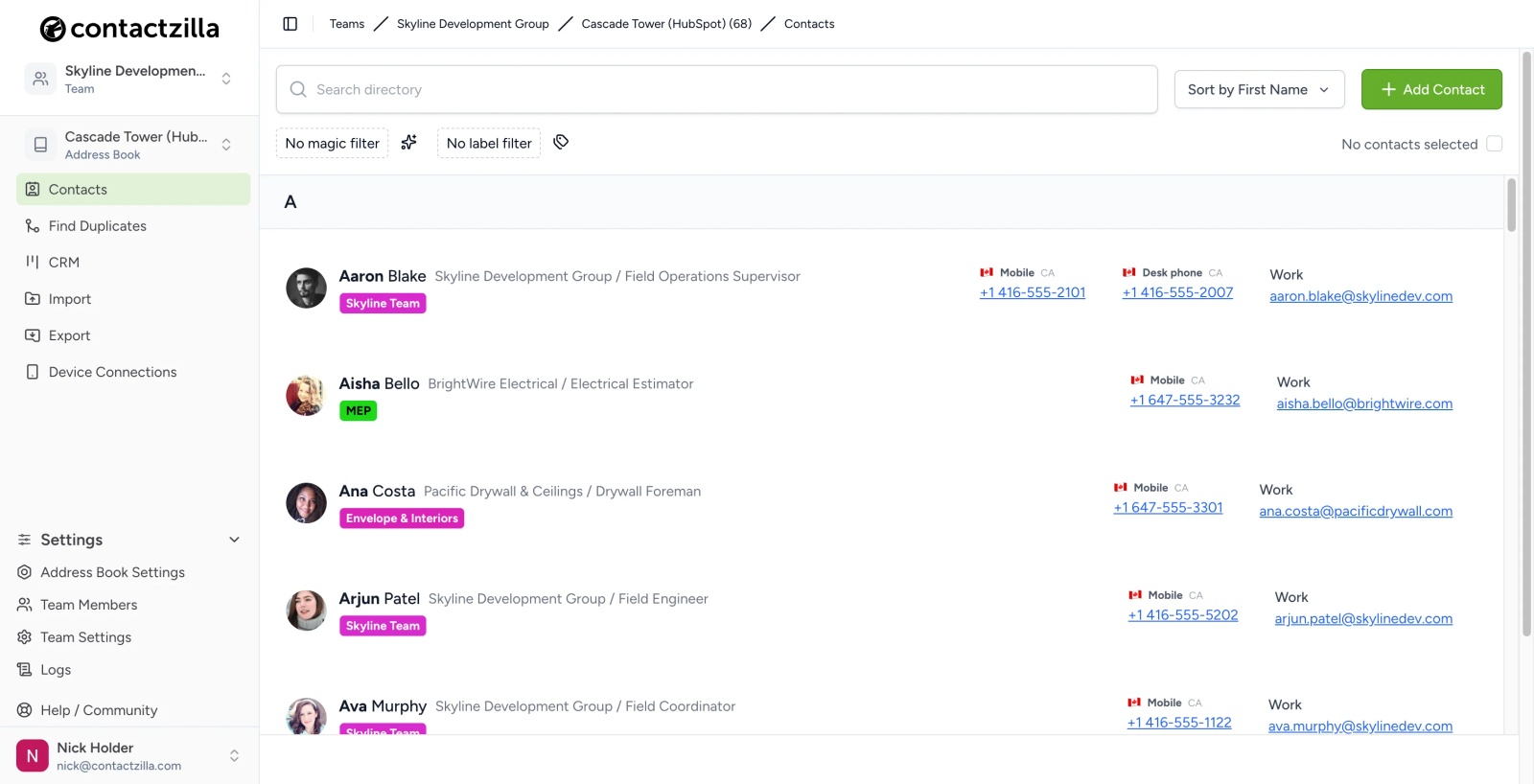
Our first sync brought in all 68 HubSpot contacts, with headshots, labels, desk and mobile numbers and work emails.
Step 5: Deploy the HubSpot address book to iPhones and Android phones
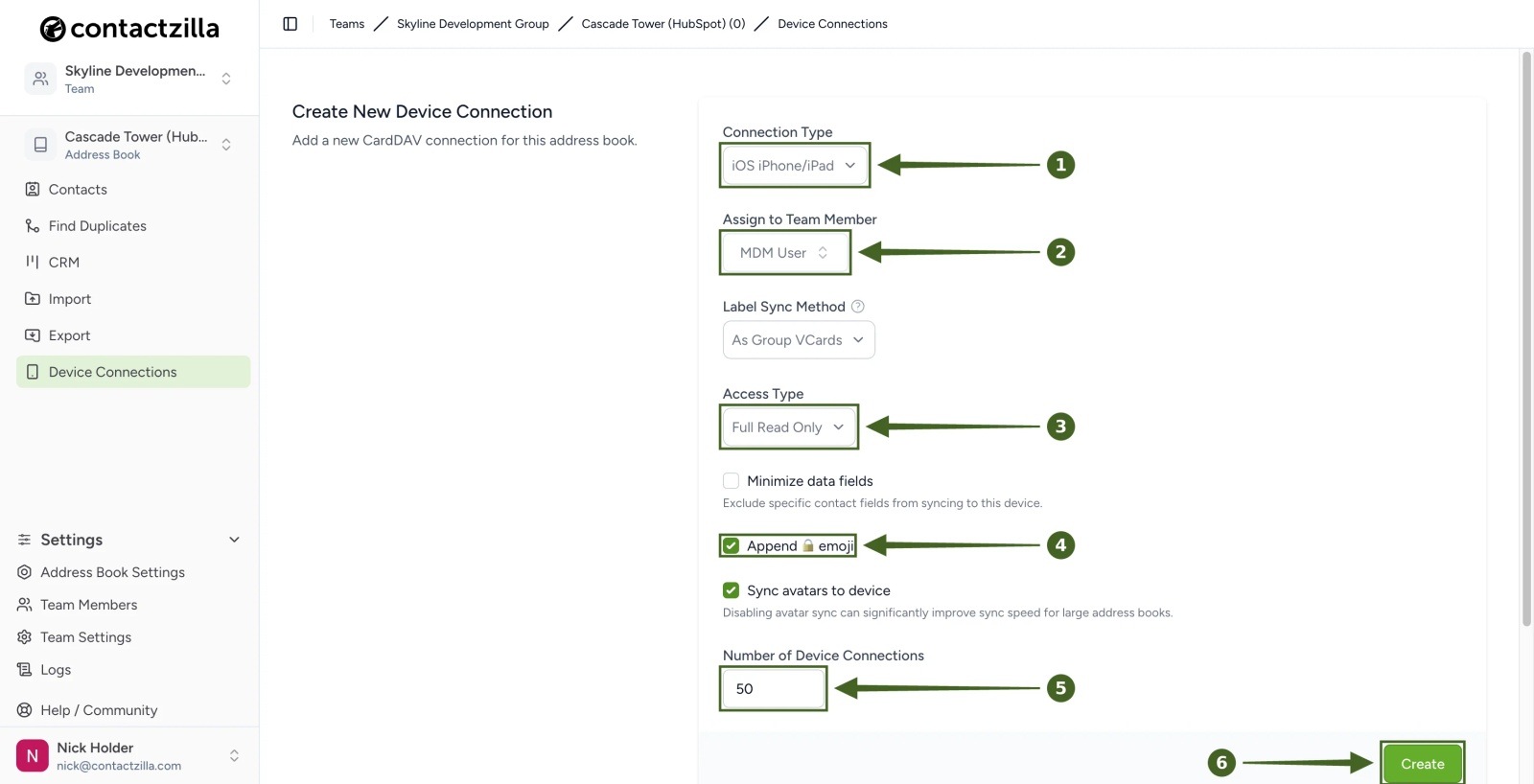
Create a device connection for the address book and hand it to your MDM. For iPhones, choose iOS iPhone/iPad, assign it to your MDM team member, set Full Read Only so staff can't edit the contacts, and download the profile to upload to your MDM. Android phones use the Contactzilla Sync app instead. Once installed, the HubSpot contacts appear in the phone's own Contacts app as their own account, and incoming calls show the caller's name.
Tip 💡 Deploying with an MDM? Our step-by-step guides cover Microsoft Intune, Jamf Pro, Mosyle, IBM MaaS360 and Workspace ONE. No MDM? You can put the contacts on phones by scanning a QR code.
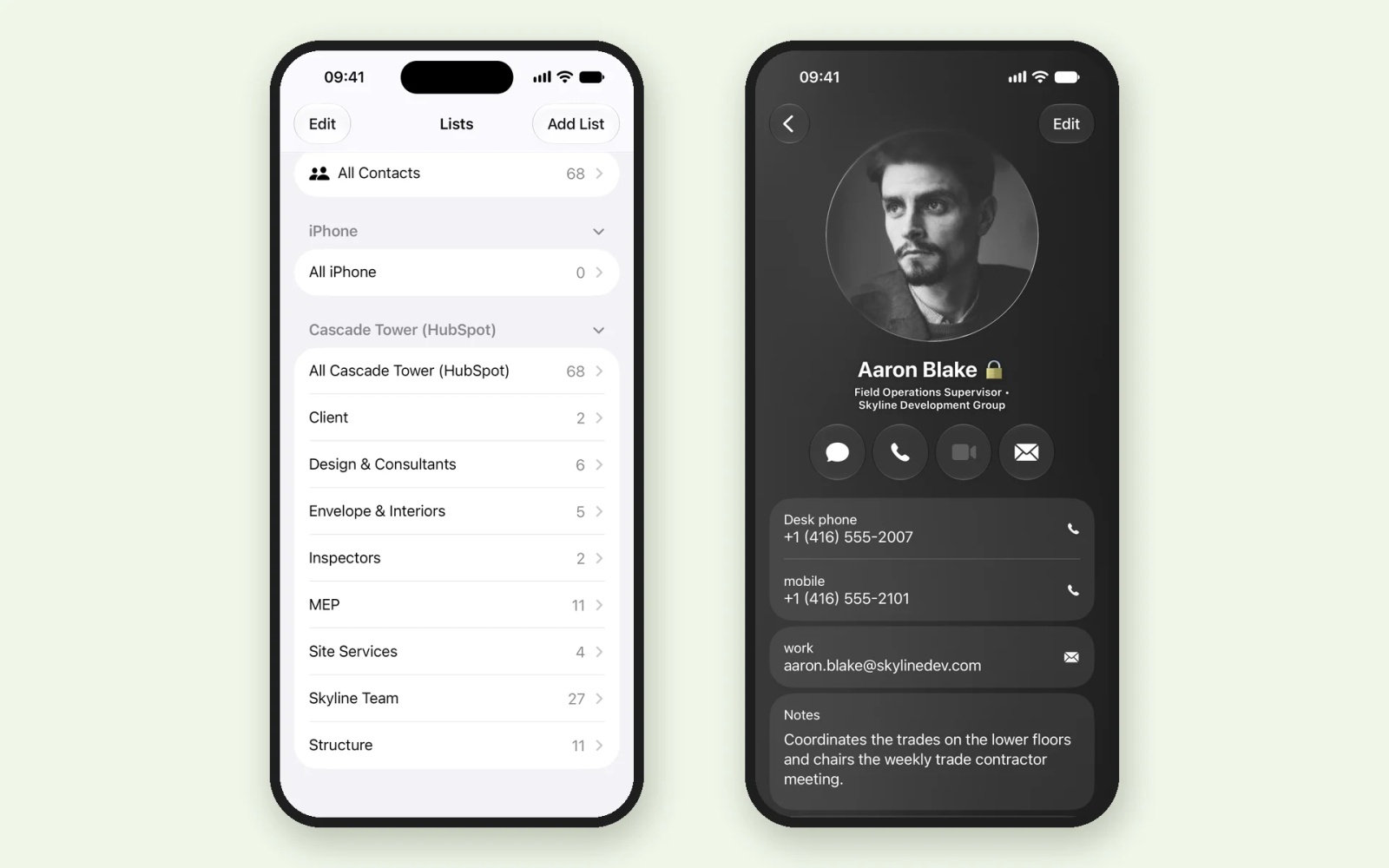
On our test iPhone, the address book appeared as its own Cascade Tower (HubSpot) account in Contacts. Each HubSpot trade label became a list under that account, such as MEP (11 contacts) and Structure (11), so staff can open just the trade they need. Each contact card showed the headshot, the formatted desk and mobile numbers, the work email and job title, and the HubSpot bio in Notes, with the lock emoji marking the card as read-only.
When HubSpot and Contactzilla are the right fit
- Your team's clients, suppliers or partners live in HubSpot, and staff need those numbers in their phone's Contacts app and on incoming calls.
- Phones are company-managed through an MDM, or you want one QR code per person instead of individual app set-ups.
- HubSpot should stay the single place where contacts are edited, with phones read-only.
- You want contacts that leave HubSpot to disappear from phones too.
Next steps
- Follow the clicks in How to Import Contacts from HubSpot into Contactzilla.
- Clean up duplicate CRM records first: How to Deduplicate Contacts Before They Reach Staff Phones.
- Keep staff from editing company contacts: How to Make Company Contacts Read-Only on iPhone.
Frequently Asked Questions
Can you export all HubSpot contacts at once?
Yes. Open the All contacts view, click Export, choose CSV and select All properties on records under Customize. HubSpot posts a download link to your Notifications Center. Very large exports can take a few hours and may arrive zipped or split into several files.
Do photos uploaded to HubSpot contacts sync to phones?
No, not in our testing. Photos uploaded to HubSpot contact records weren't included in the data HubSpot sent to Contactzilla. To sync headshots, keep a public image link in a text property such as Photo URL and map it to Avatar.
Does it work with the free HubSpot CRM?
Yes. We built and tested this workflow on a free HubSpot CRM account. Contactzilla only needs a HubSpot user who can connect apps, and the HubSpot importer enabled on your Contactzilla team.
Can Contactzilla change or delete anything in HubSpot?
No. The HubSpot connection asks only for permission to view contact properties, so Contactzilla reads your HubSpot contacts and never writes back. Contacts reach phones read-only when you choose Full Read Only for the device connection.
What happens on staff phones when a contact is deleted in HubSpot?
With Delete any contacts not replaced turned on, a contact deleted in HubSpot is removed from the address book on the next sync, and phones drop it when they next sync. Without it, the contact stays, because HubSpot simply leaves deleted contacts out of what it sends.
How often do HubSpot changes reach iPhones and Android phones?
As often as you schedule the import, from every 4 hours to monthly, or on demand with Sync Now. After each import, phones pick up the changes on their next contacts sync, with no action from staff.
Does HubSpot caller ID work for the whole team without the HubSpot app?
Yes, with a shared address book. HubSpot's own Caller ID runs in the HubSpot mobile app and is set up by each user. With the contacts in each phone's native Contacts app, the iPhone or Android phone shows the caller's name itself.