How to Deduplicate Contacts Before They Reach Staff Phones (Entra ID, CRM and CSV)

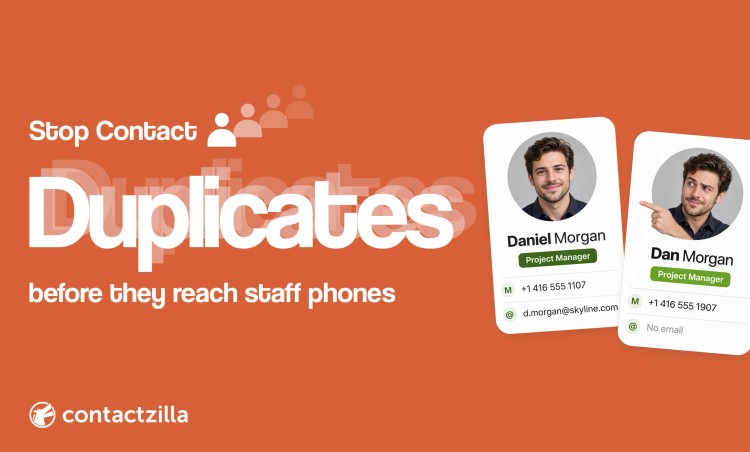
Short answer: Give every contact a permanent ID from the system it comes from, match each import on that ID rather than on names, and let each source delete only the contacts it owns. Then run a duplicate report to catch what IDs can't, like a Dan and a Daniel, before the list syncs to anyone's phone.
When one company contact list feeds every phone in the organisation, a duplicate is no longer a tidy-up job in one database. It's two entries for the same person on every iPhone and Android phone, and staff have no way of knowing which number is right. Phones can't fix it for you: whatever sits in the shared list syncs to every device.
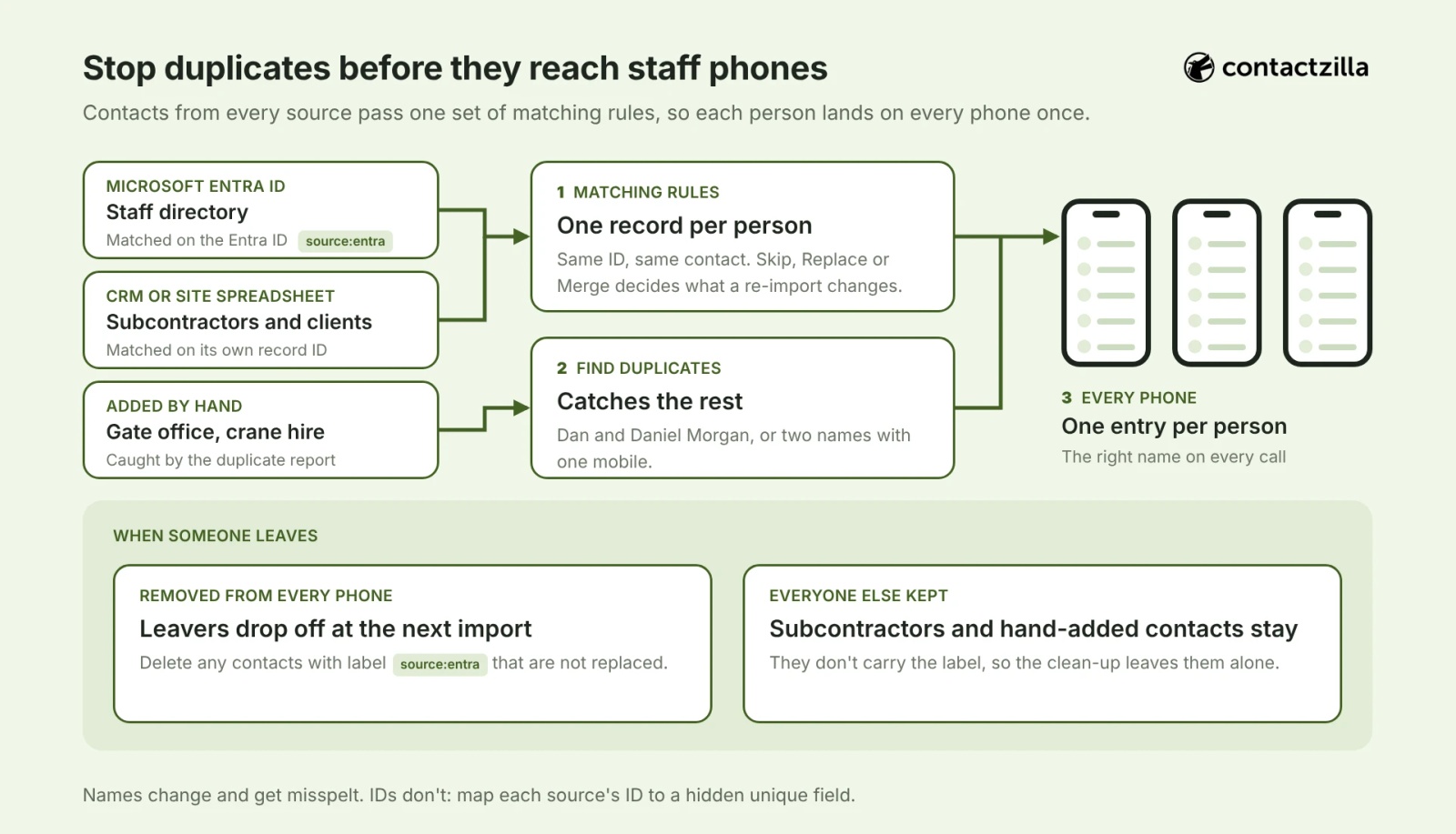
The approach has five parts. We use Contactzilla as the worked example, where all of this happens in the shared address book before contacts reach phones through your MDM, but the same principles apply to any tool that feeds a company contact list to phones:
- Give every contact a permanent source ID, such as the Entra object ID or a CRM record ID.
- Match directory contacts on that ID, and decide whether name matching helps or hurts.
- Choose Skip, Replace or Merge for each recurring import.
- Remove leavers from one source without touching contacts that came from anywhere else.
- Clean up what's already there with a duplicate report, before it syncs out.
Why duplicate contacts on staff phones cause more trouble than duplicates in a CRM
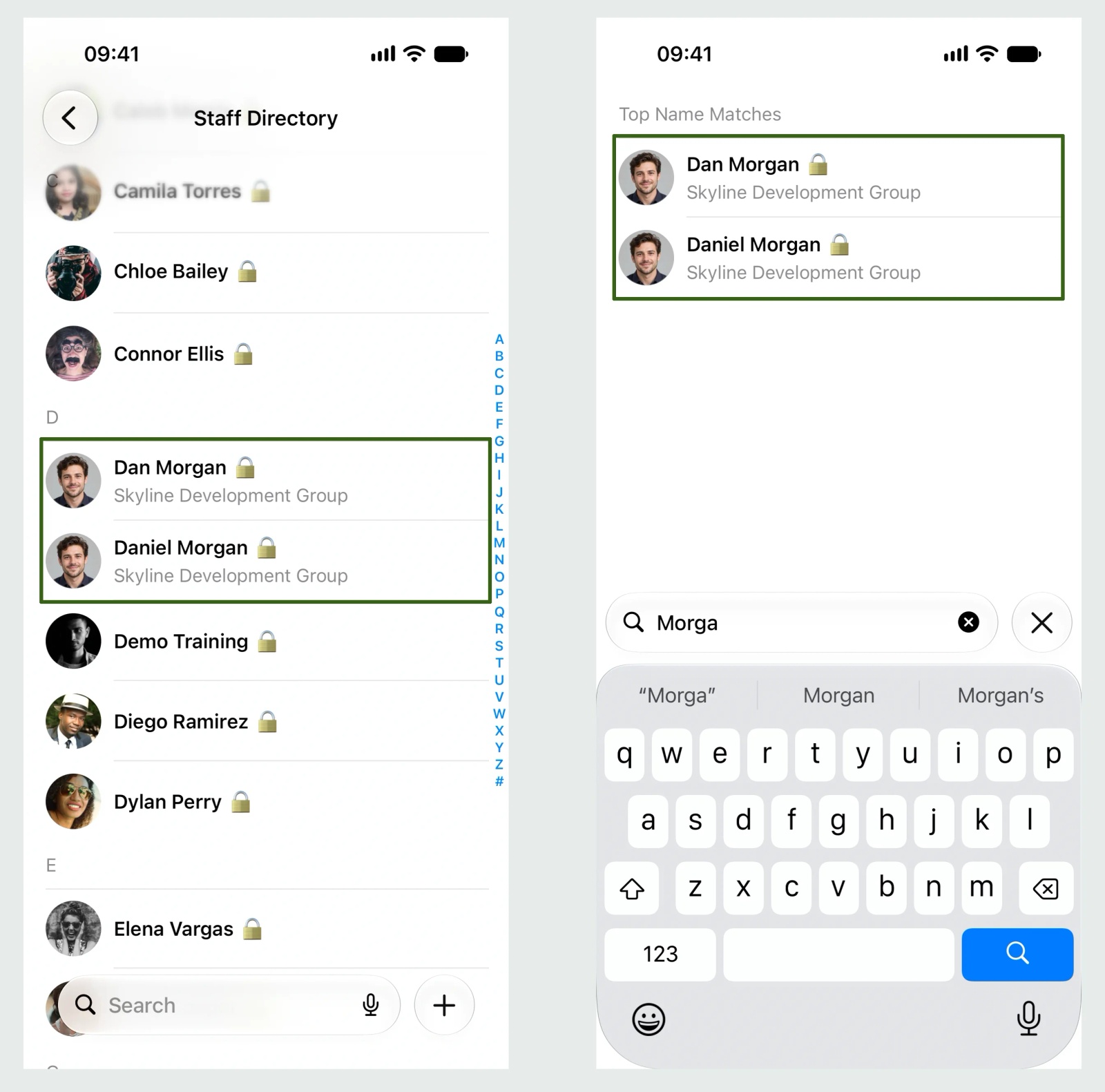
A duplicate in a CRM is an annoyance for whoever runs the reports. A duplicate in a contact list that syncs to company phones is copied to every device, and it turns up at the moment someone is trying to call a colleague. With two entries for one site manager, each with a different mobile, half the calls go to an old number. A contractor merged into an employee means caller ID shows the wrong name. A leaver who is still in the list keeps ringing through as a colleague long after they've gone.
Staff can't fix this on their own phones. If the company contacts arrive as a read-only account, as they often do on managed phones, edits made on the phone don't stick. Even where staff can merge or link cards, iOS only tidies the view on that one phone; the next person still sees both entries. The fix has to happen in the shared list, before it syncs.
Where duplicate contacts come from when you combine Entra ID, a CRM and spreadsheets
Most duplicates in a shared company list come from the same handful of causes, and only some of them look like duplicates at first glance:
- The same person from two sources. An employee arrives from Microsoft Entra ID and again from a project spreadsheet someone imported last year.
- Name variants. Dan Morgan on a site sign-in sheet, Daniel Morgan in Entra. A married name, or a typo in an email address.
- Phone numbers written differently. In our tests,
416-555-1113and+1 416 555 1113were treated as different numbers: spaces and punctuation are ignored, but a missing country code is not. - A rehire on a new account. Someone who leaves and comes back on a brand-new Entra account gets a new object ID, so to anything matching on the ID they are a new person.
- The same person in two address books. Matching happens inside one address book. If two books both reach a phone and both contain the same person, the phone shows them twice.
The opposite problem matters just as much: two different people treated as one. Name-based matching can merge an IT admin's separate admin account into their everyday account, or two staff with the same name who both list a shared site office number.
Key definitions: contact deduplication, unique IDs and matching rules
Contact deduplication: finding contact records that describe the same person and keeping one, either by stopping the second copy at import or by merging copies that already exist.
Unique identifier (source ID): a value that belongs to one record in the source system and never changes, such as the object ID Microsoft Entra ID gives every user, a Salesforce record ID or a contact ID column in a spreadsheet.
Matching rule: the test an address book uses to decide that an incoming contact is someone it already has. In Contactzilla there are three per address book: custom unique fields, first name + last name + email, and first name + last name + phone.
Import label: a label added to every contact one import brings in (for example source:entra), so you can tell later which contacts that import owns.
Step 1: Give every Entra ID, CRM and CSV contact a permanent source ID
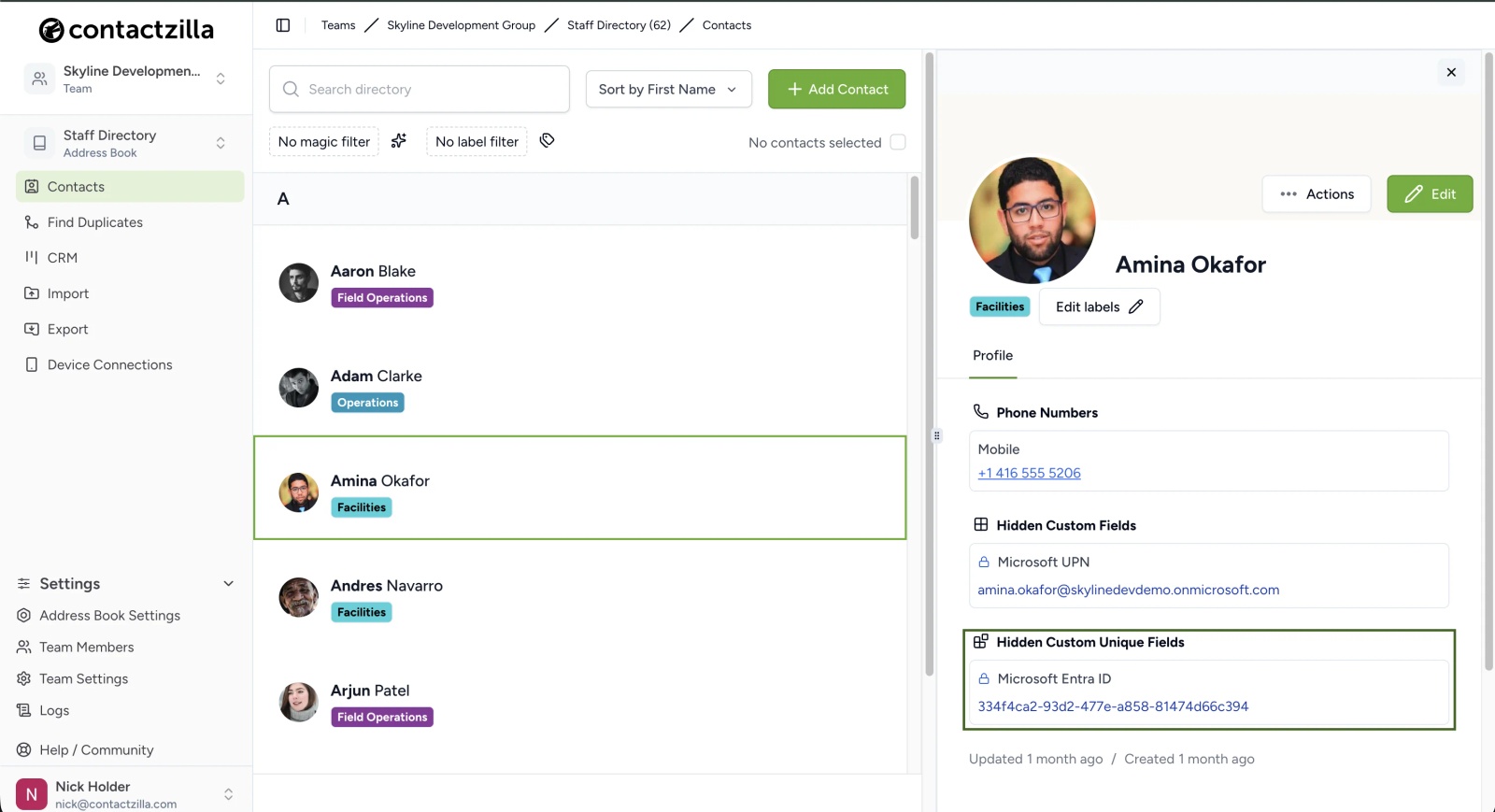
Map each source's own ID to a hidden unique field when you set up the import. Names, emails and job titles change; the ID doesn't. The Microsoft Graph user resource describes a user's id as "the unique identifier for the user" and marks it read-only, which is exactly what you want to match on. In Contactzilla the ID goes into a Hidden Custom Unique field: admins see it in the dashboard, and it never reaches the phone. For a spreadsheet with no ID, add one (a simple Contact ID column is enough) before the first import, not after.
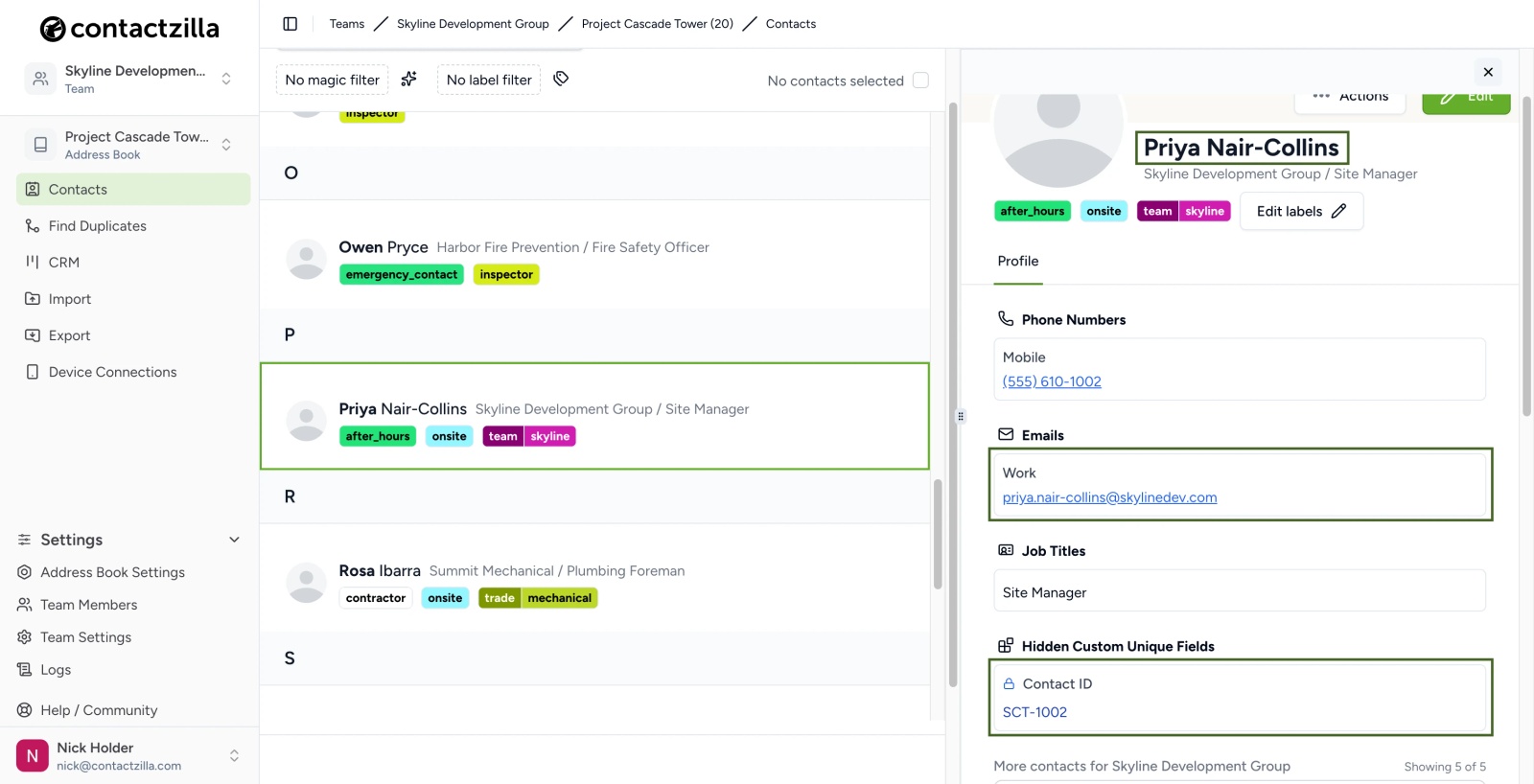
The payoff shows up the first time someone changes their name. In a re-import test, Priya Nair became Priya Nair-Collins with a new email address. Because the import matched on her contact ID, Contactzilla updated her existing contact instead of adding a second Priya.
Tip 💡 Setting up the Entra side for the first time? Our video Sync Microsoft Global Address List to iPhone & Android walks through the import, including mapping the Entra ID to a hidden unique field.
Step 2: Match Entra ID contacts on the ID, not on names
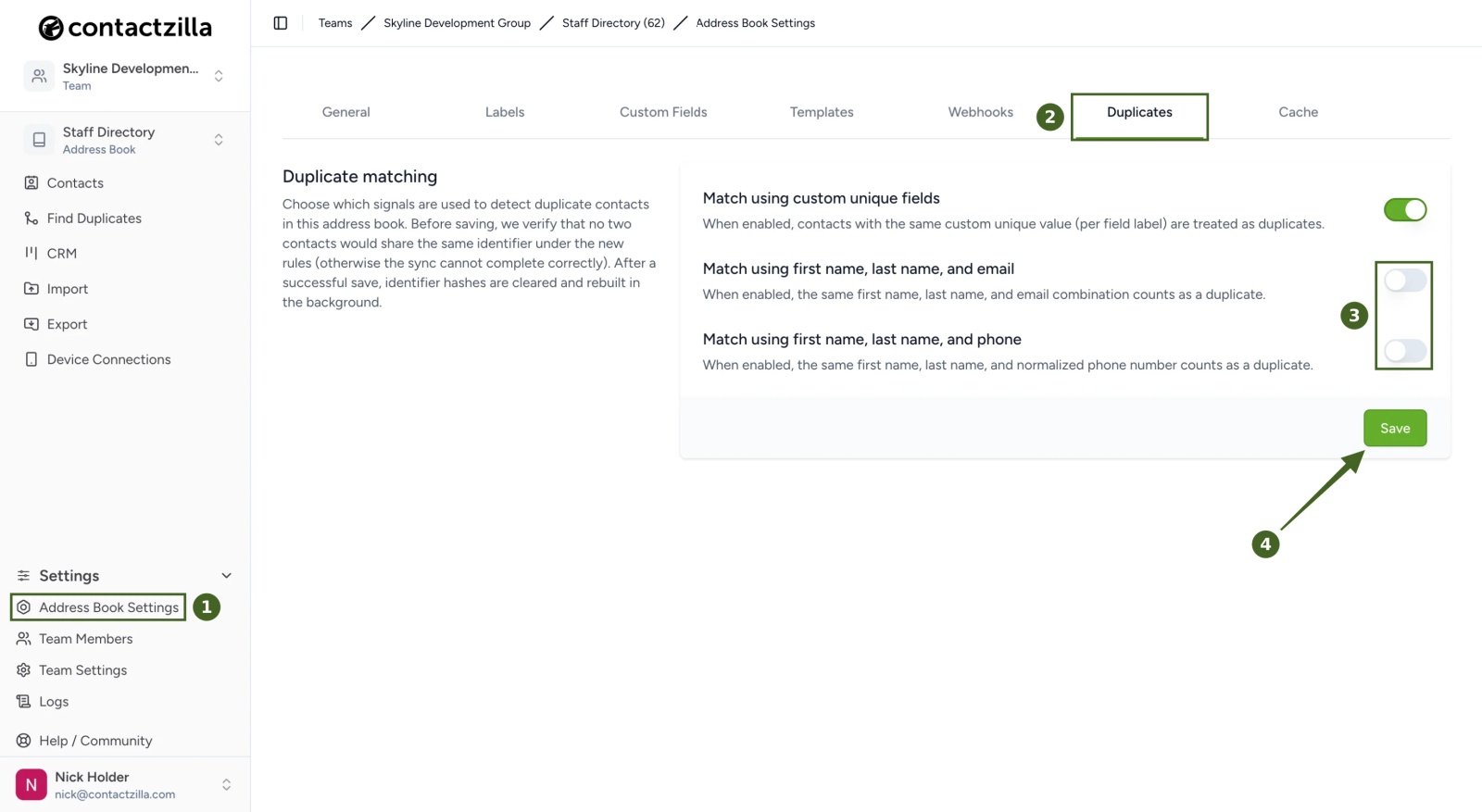
For an address book fed from Microsoft Entra ID, switch the name-based matching rules off and keep Match using custom unique fields. That's the setting we recommend to Entra customers, and our tests showed why: with the name rules on, a row with a new Entra ID but the same name and mobile as an existing person was skipped, so the second account never got in. Two genuinely different people with the same name and the same site office number fared the same way. And a row whose ID pointed at one contact while its name and phone pointed at another failed outright, because Contactzilla refuses to guess.
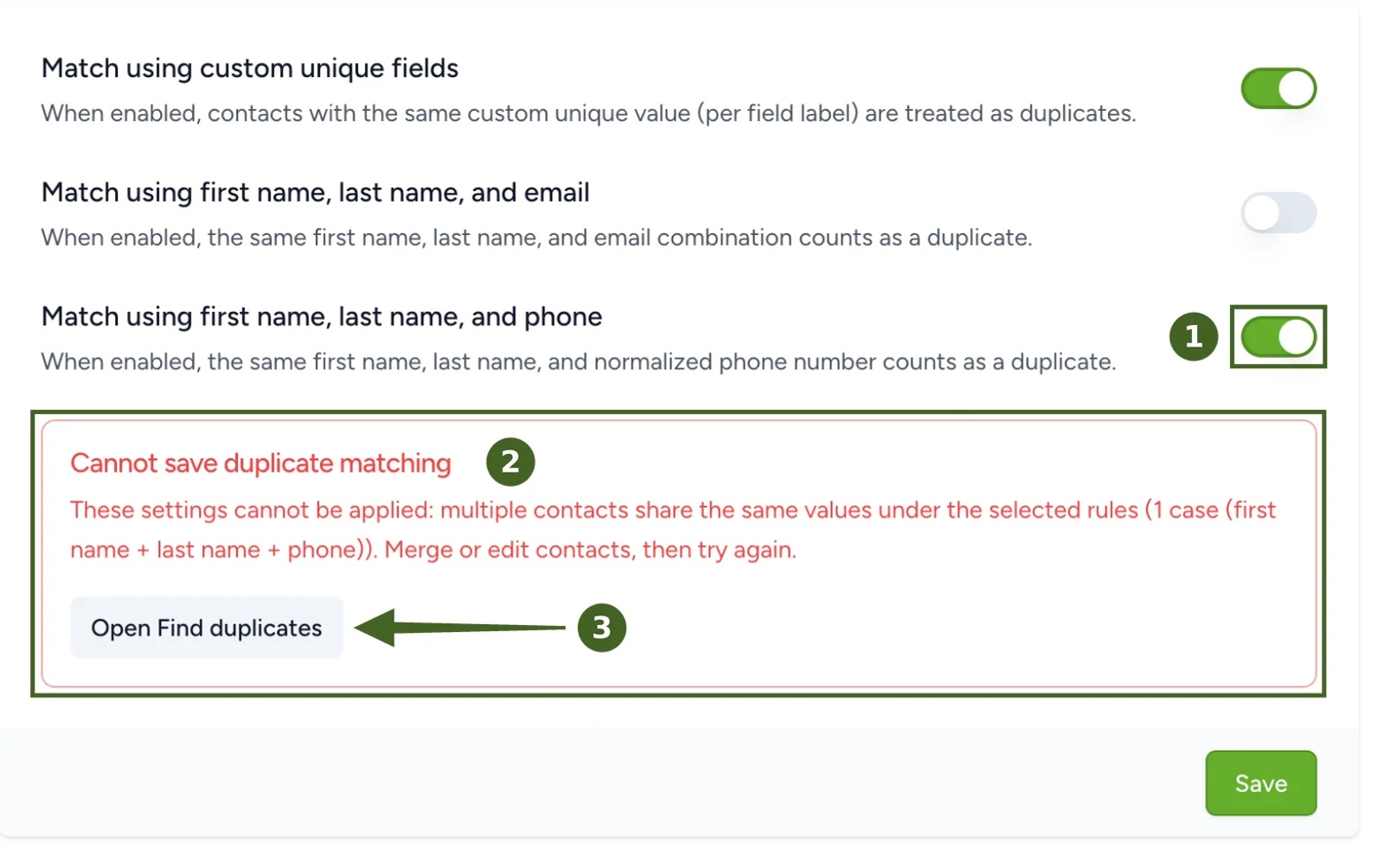
The rules decide what counts as a duplicate, so Contactzilla won't let you switch one on while two contacts already break it. With two same-name staff sharing a number in the book, turning the name and phone rule back on was refused, with a button to open the duplicate report. That's a useful signal: if real namesakes share a number in your organisation, name and phone matching can't work for that book at all.
Name matching still earns its place where there's no ID to match on, such as a book built only from hand-made spreadsheets. In that case keep the name rules on, and keep phone formats consistent across sources, since a missing +1 is enough to make the same number look different.
| Matching rule | Catches | Goes wrong when |
|---|---|---|
| Custom unique field (source ID) | The same record every time, through name, email and job changes | The source has no ID, or a rehire comes back on a new account |
| First name + last name + email | The same person from two sources that share an email | Two accounts for one person share an email; email isn't filled in |
| First name + last name + phone | The same person from two sources that share a mobile | Namesakes share a desk or site number; numbers are written differently |
The exact switches and the save check are covered in our help article How to Set Duplicate Matching Rules for an Address Book.
Step 3: Choose Skip, Replace or Merge for each recurring import
Matching decides that a contact already exists; the import's duplicate setting decides what happens next. Skip leaves the existing contact's details alone, though it can still add the import's labels. Replace overwrites it with the incoming row, so the source stays in charge, but anything added by hand in Contactzilla is lost: in our tests a photo added to a contact disappeared on the next Entra import with Replace. Merge keeps existing data and adds what's new, which keeps that photo but can stack values, so a changed mobile sits alongside the old one rather than replacing it.
| Option | Best for | Watch out for |
|---|---|---|
| Skip | One-off imports that shouldn't change anyone already in the book | Changes in the source never arrive |
| Replace | A directory or CRM that owns the data (Entra ID, Google Workspace, Salesforce) | Photos and edits made in Contactzilla are overwritten |
| Merge | Topping up contacts that people also edit by hand | Old and new numbers both stay, so check changed contacts |
Replace is the usual choice for a directory feed, and the import summary tells you what it did. In a weekly site list re-import, three people were updated (a name change, a new mobile and a promotion), two who had left the list were deleted, and the 15 whose rows hadn't changed were ignored.
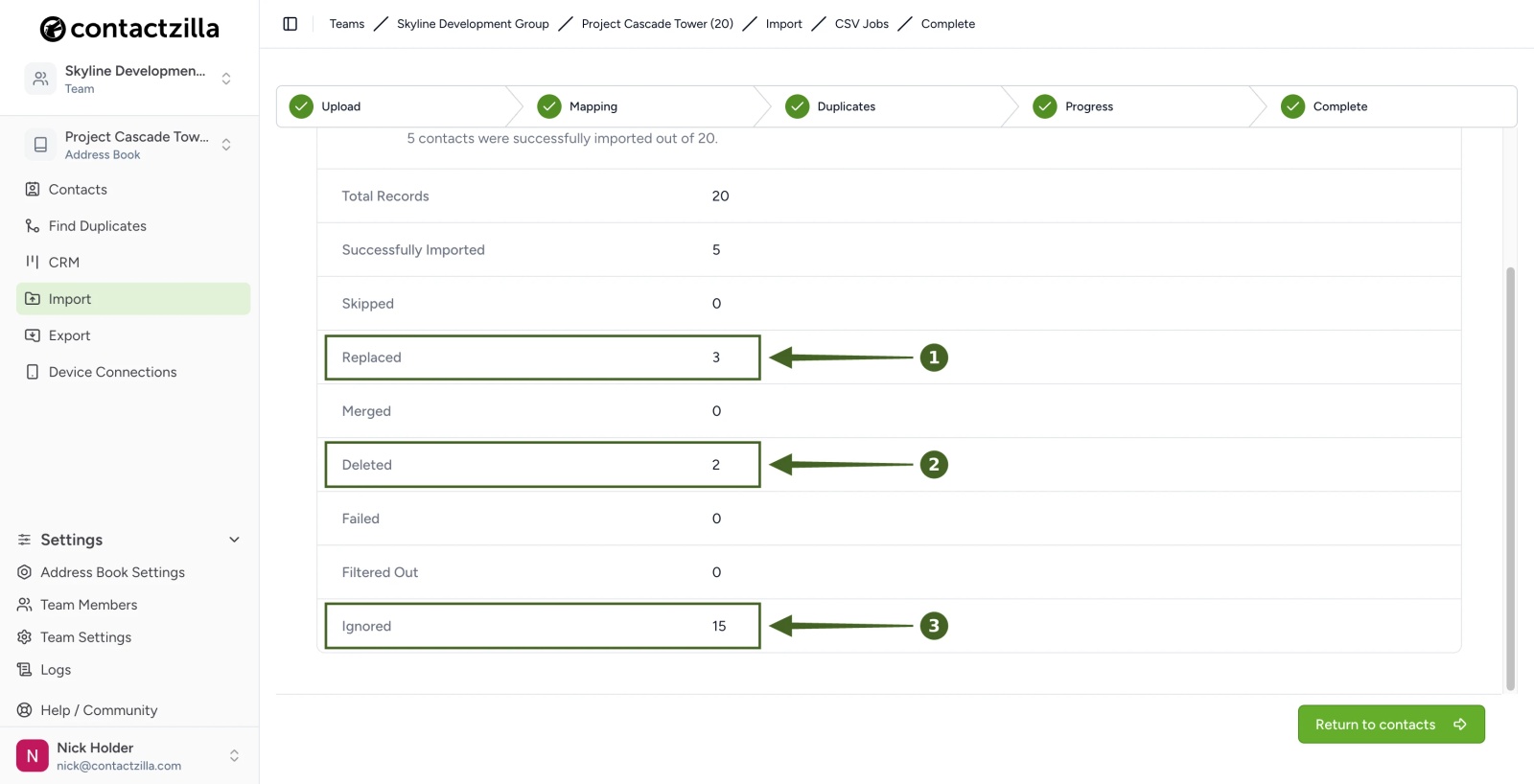
Our help article How to Re-import Contacts Without Creating Duplicates walks through each option on the CSV, Entra ID, Google Workspace and Salesforce importers.
Step 4: Remove leavers from Entra ID without deleting contacts from other sources
Replace has a second switch, Delete any contacts not replaced, which removes anyone in the address book who wasn't in the latest import. That's how leavers drop off every phone automatically. In a book that holds only one import, it's exactly right. In a book that mixes sources, it's dangerous: an Entra import would also delete the subcontractors from your site spreadsheet and the gate office number someone added by hand, because none of them are in Entra.
The fix is to label the import. When an import is set up with Label all contacts for this import (for example source:entra), the switch on its duplicates step becomes Delete any contacts with label source:entra that are not replaced. Contactzilla's own explanation on that screen spells out the scope: after the import finishes, contacts with the source:entra label that don't appear in the incoming data are deleted, and everything else is left alone.
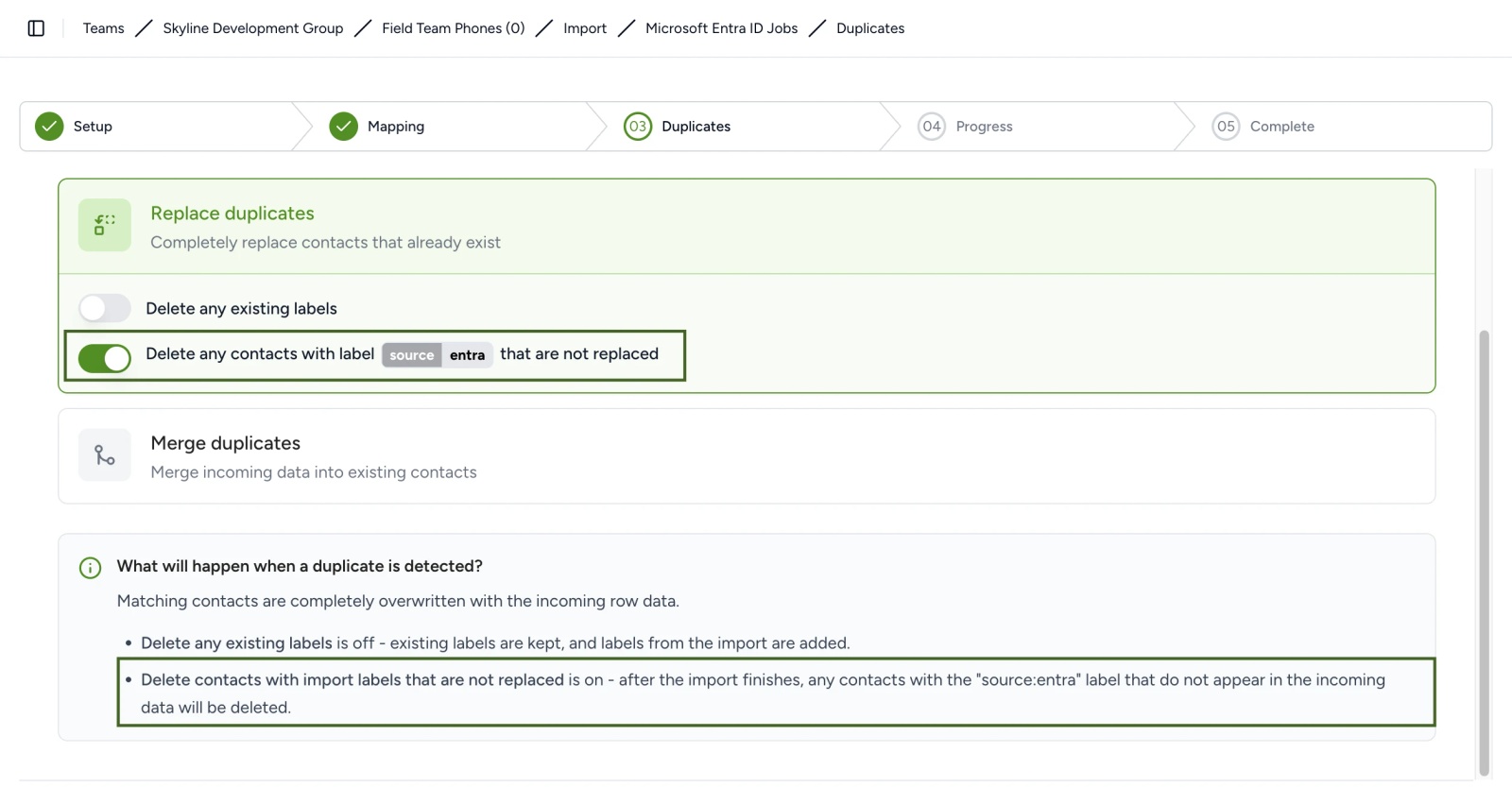
Important: the import label is set when the import is created and can't be changed afterwards. If an existing Entra import has no label, create a new import with one rather than switching on the plain delete in a mixed book.
Disabled accounts are a separate case. Entra marks them with accountEnabled set to false, and the importer's deletion handling can use that column to drop them. In our demo tenant, four disabled accounts were left out of the very first import for that reason.
Step 5: Find and merge duplicate contacts already in the address book
Matching rules stop new duplicates; they don't remove the ones you already have, and they can't catch Dan and Daniel. Run a duplicate report on the address book before you deploy it, and again after any big import. Contactzilla's Find Duplicates report runs seven checks in three groups (strict identifiers, names including common short forms, and shared email or phone with a partly matching name), and lists each contact with every potential match it found.
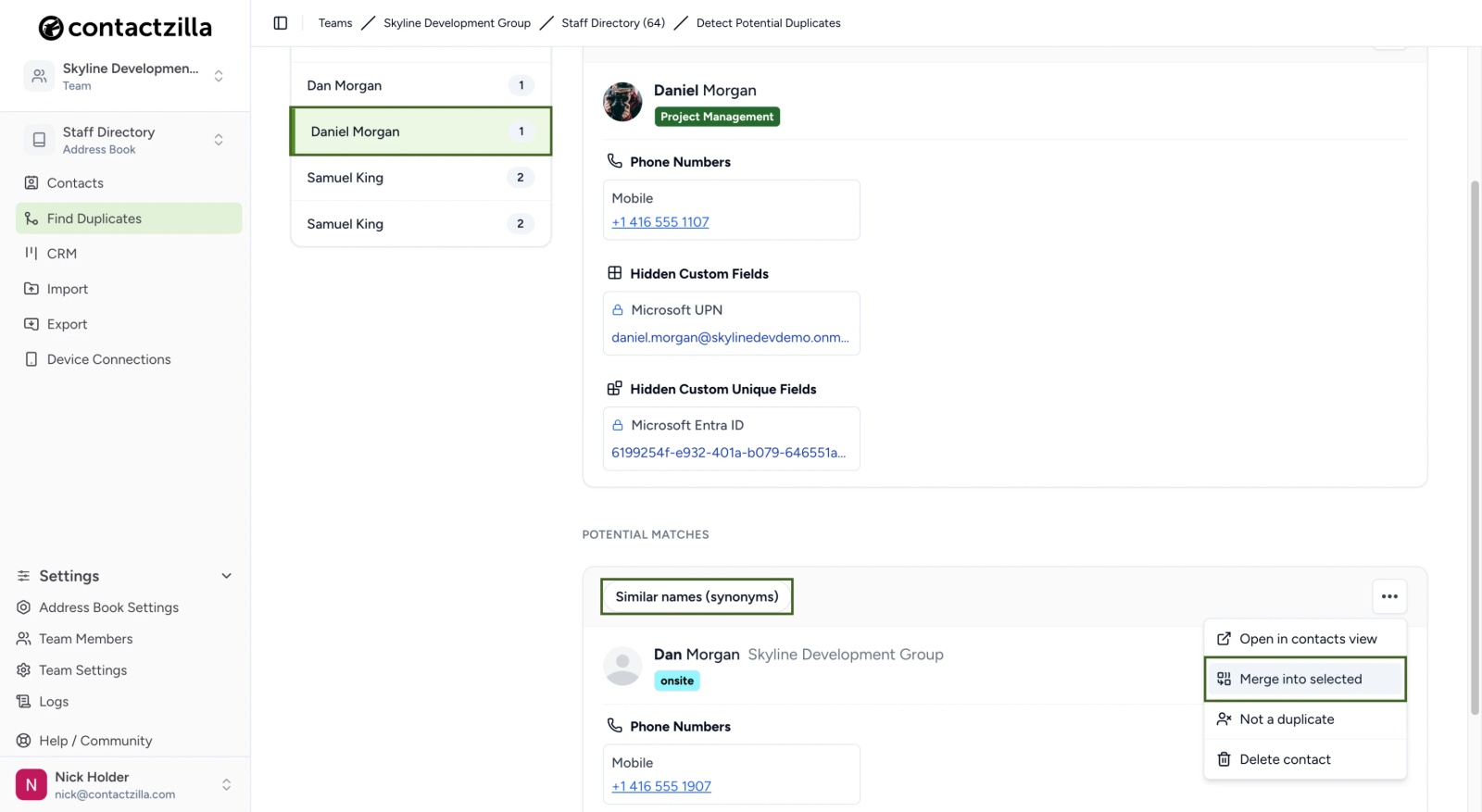
Merge into selected keeps the contact you selected, with its name, photo, labels and Entra ID, and adds what the duplicate had that it didn't: its phone numbers, email addresses, labels and bio, without doubling a number both already share. Not a duplicate is just as important: Samuel King in facilities and Samuel King from a scaffolding subcontractor are different people, and once marked they aren't suggested again, under any check.
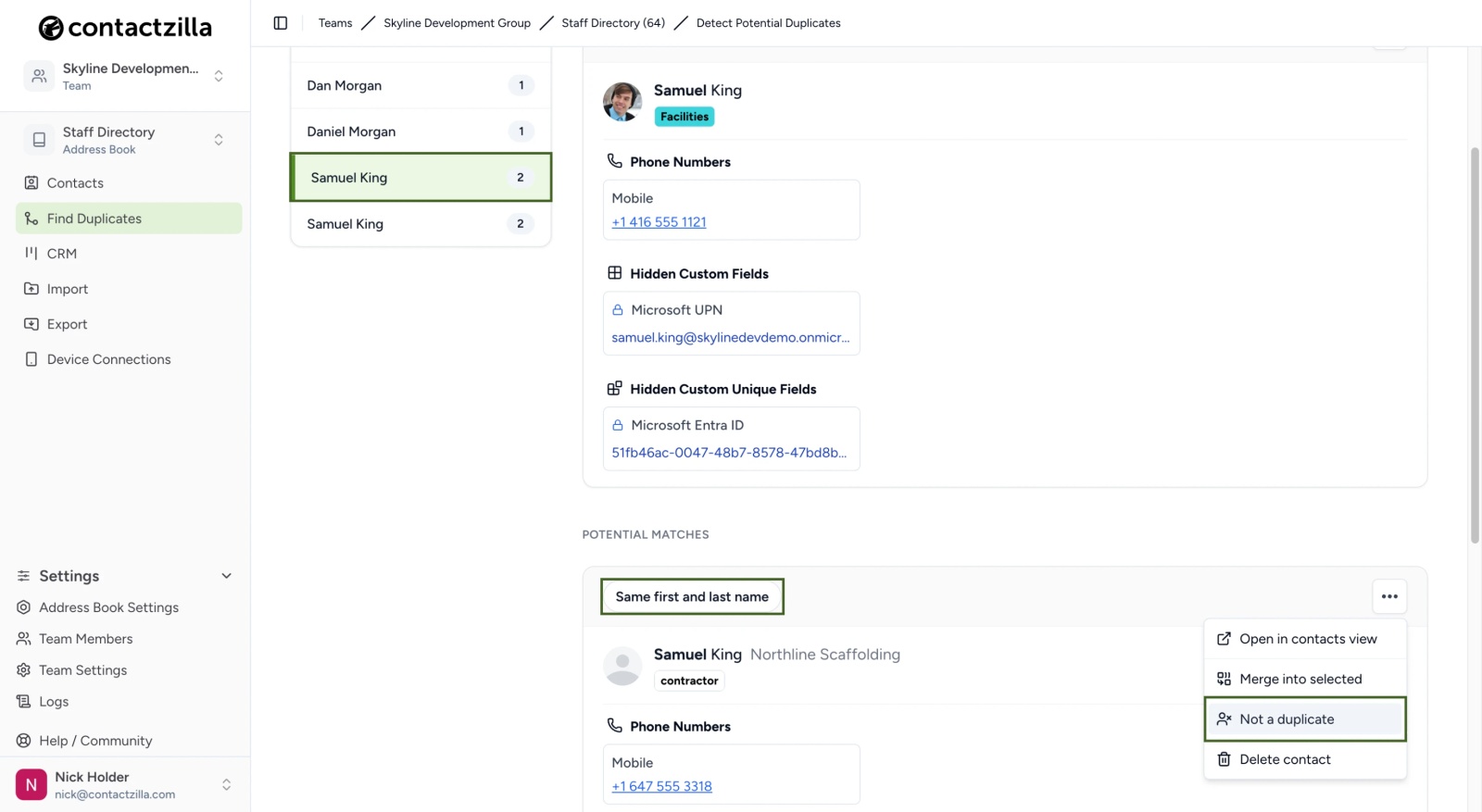
The full review, merge and dismiss steps are in our help article How to Find and Merge Duplicate Contacts in an Address Book.
Tip 💡 Delivering the cleaned-up list as a locked company account? Our guide to making company contacts read-only on iPhone covers what staff can and can't change once it's on their phones.
Once the list is clean, it stays clean the same way it got there: one ID per person, one owner per contact, and a quick report after any big import.
Next steps
- Set the right rules for each book with How to Set Duplicate Matching Rules for an Address Book.
- Re-import safely with How to Re-import Contacts Without Creating Duplicates.
- Clean up an existing book with How to Find and Merge Duplicate Contacts in an Address Book.
- Watch Sync Microsoft Global Address List to iPhone & Android to see the Entra import end to end.
- Send the cleaned-up list to phones: sync company contacts to iPhones with Intune or deploy contacts to iPhone with Jamf Pro.
Frequently Asked Questions
Can staff merge duplicate company contacts on their own iPhone?
Not in a way that helps anyone else. Apple lets people link contact cards for the same person so they show once in All Contacts, but that only changes one phone. On a read-only company account, edits made on the phone don't stick either, so fix duplicates in the shared address book instead.
Should I match Microsoft Entra ID contacts on email instead of the object ID?
No. Email addresses change when people change names or domains, and some accounts have no email at all; in our demo tenant only a handful did. The Entra object ID is read-only and stays with the account, so a rename, a new email or a new job title still updates the same contact.
What happens to a contact when someone is rehired in Entra ID?
If they come back on a brand-new account, it has a new object ID, so the import adds them as a new contact. Their old contact goes when the old account is deleted or disabled, through the label-scoped delete or deletion handling. Run the duplicate report afterwards to catch any overlap.
Does Not a duplicate stop the same pair being flagged again?
Yes. Once you mark a pair as Not a duplicate, the report stops suggesting it, across every check. It doesn't change the matching rules, though: two namesakes sharing a number still stop the name and phone rule being switched on.
Can the same person appear twice on a phone from two address books?
Yes. Matching rules work inside one address book, so a person in two books that both reach the same phone appears twice. Keep each person in one book, or use labels and selective read-only sync to send different groups different contacts from a single book.
Does Replace or Merge keep a contact's photo?
Merge keeps it. Replace overwrites the contact with the incoming row, so a photo or note added by hand in Contactzilla is lost at the next import. If your source supplies photos, as Microsoft Entra ID can, Replace is fine; if people add them by hand, use Merge.