How to Make Company Contacts Read-Only on iPhone (So Staff Can't Edit or Delete Them)

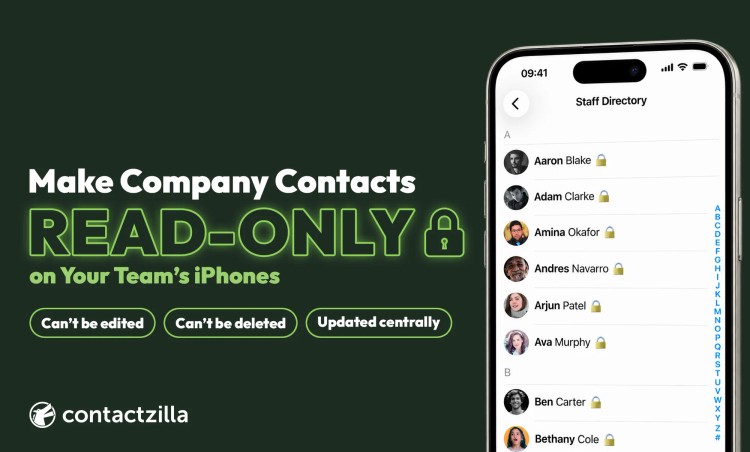
You want every iPhone in the organisation to carry the same company contacts, kept up to date centrally, and you don't want staff changing numbers, deleting the on-call line or adding their own contacts to a list everyone sees.
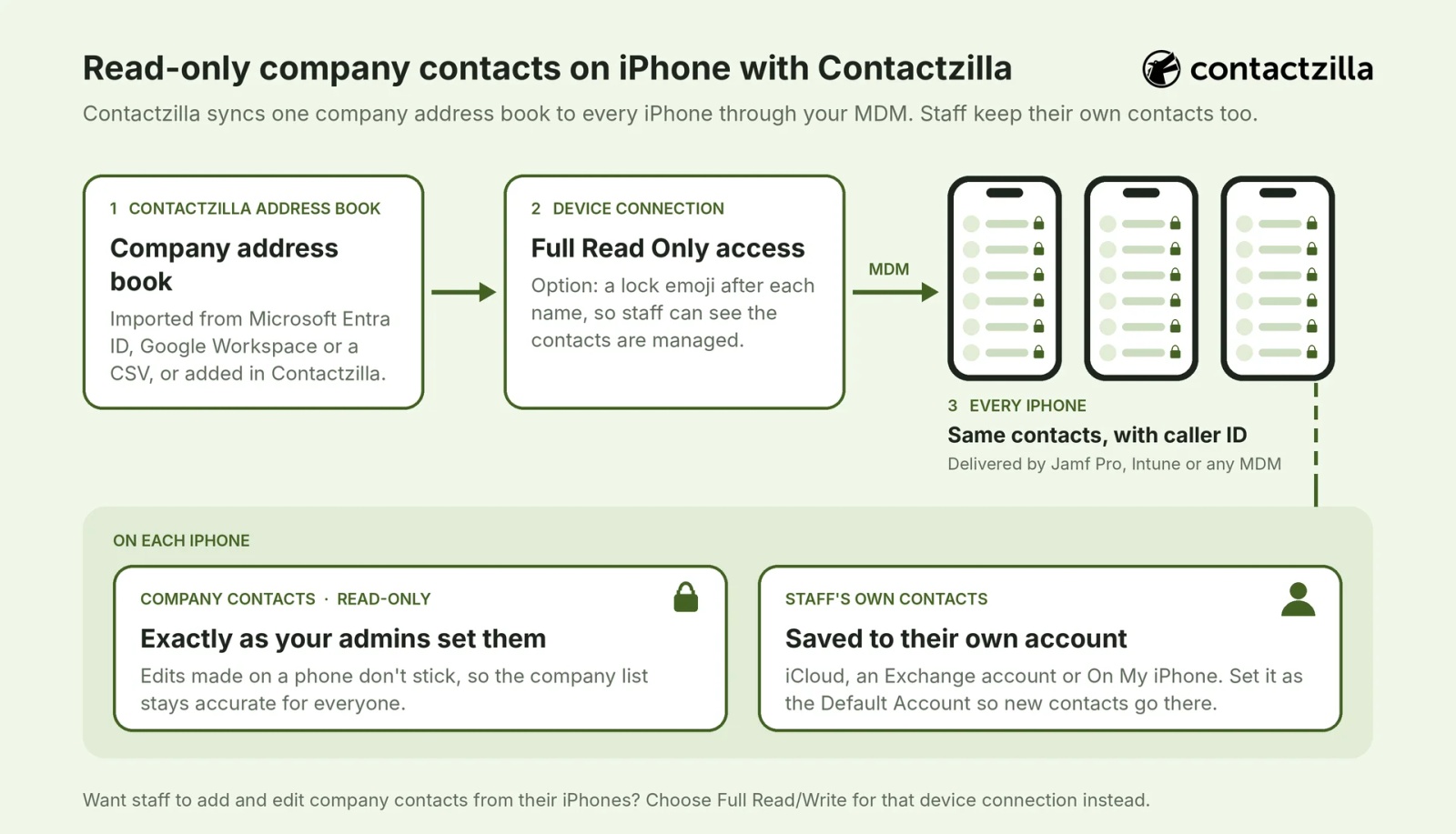
Short answer: An iPhone can't lock contacts by itself, so read-only has to come from the server the contacts sync from. Sync your company contacts as a read-only CardDAV address book and deliver it to the phones as a configuration profile through your MDM, such as Jamf Pro or Microsoft Intune. With Contactzilla, nothing staff do on their phones can change the company list: anything they add or edit never reaches the address book or anyone else's phone, and it's undone on their own phone at the next sync, usually within a minute or two. Choose Full Read Only, or Selective Read Only to send each group only the contacts with certain labels, and add an optional 🔒 after every name so staff can see the contacts are managed. Your MDM can't set the iPhone's Default Account, so set it to iCloud or On My iPhone on each phone so contacts staff save are kept. Android phones work the same way through the Contactzilla Sync app.
Why IT teams make company contacts read-only on iPhone
The problem comes up again and again on Jamf Nation. In one thread about read-only contact sharing, an admin syncing an organisation's contacts to more than 100 iPhones through a Google account's CardDAV server found that staff could add, change and remove the shared contacts, and every change went back out to everyone else's phone. A local government admin in the same thread described fire, police, parks and public works crews sharing phones that are handed from shift to shift, where nobody logs in and the contact list simply has to be right.
Read-only access solves both. One person or team maintains the list, every phone shows the same contacts, and nobody can delete the dispatch number by accident or add a personal number to a list the whole company sees. Updates still arrive: when an admin changes a contact, the phones pick it up on their next sync.
Can you make contacts read-only on the iPhone itself?
No. iOS has no setting to lock a contact or a contacts account on the phone. Apple's managed contacts restrictions, which your MDM can apply, control which apps can read contacts from a managed account, not whether staff can edit them. Whether staff can change company contacts is decided by the server the contacts come from. Apple's CardDAV configuration profile tells the iPhone which server, account and password to use; whether that account can write is up to the CardDAV server behind it. So the choice that matters is where the contacts live, and the common options behave differently on iPhone.
| Source of the company contacts | On the iPhone | Read-only for staff? |
|---|---|---|
| A shared Google account over CardDAV | In the Contacts app, with caller ID | No. Staff can edit and delete, and changes sync to everyone (the Jamf Nation problem above) |
| The Exchange or Microsoft 365 Global Address List | Searchable from the Contacts app, but not part of the contact list | Yes, but because the entries aren't saved contacts, incoming calls from them don't show a name |
| A managed CardDAV address book such as Contactzilla | In the Contacts app, with caller ID | Yes, set per device connection, with full or label-based read-only access |
The Global Address List row is the reason many admins look for another route. Our post on syncing the Global Address List to iPhone contacts covers that case in detail.
Tip 💡 New to the protocol? Our explainer What Is CardDAV? shows how CardDAV puts a shared address book into the iPhone's own Contacts app.
How to set up read-only company contacts on iPhone
Contactzilla is a hosted contact manager and CardDAV server for teams. You keep company contacts in a shared address book, and device connections deliver it to iPhones and Android phones in their own Contacts apps, with read-only or read/write access you choose. The four steps below cover the decisions; the exact clicks are in our help article Setting Up CardDAV Connections.
Step 1: Put company contacts in one managed address book
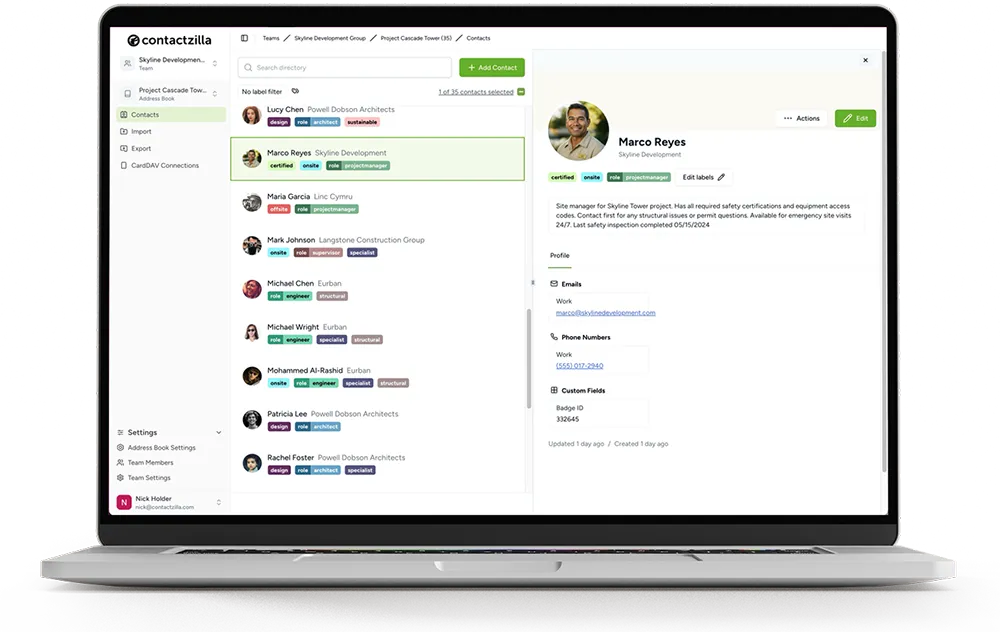
Create one address book for the contacts every iPhone should carry. Import them from Microsoft Entra ID, a Google Workspace directory, a CSV file or a CRM, and keep that address book as the single place they're changed. Add labels such as a department, site or crew if different phones need different contacts. Admins and editors work in the web dashboard, so the people maintaining the list never need to touch a phone.
Step 2: Create a read-only iPhone device connection
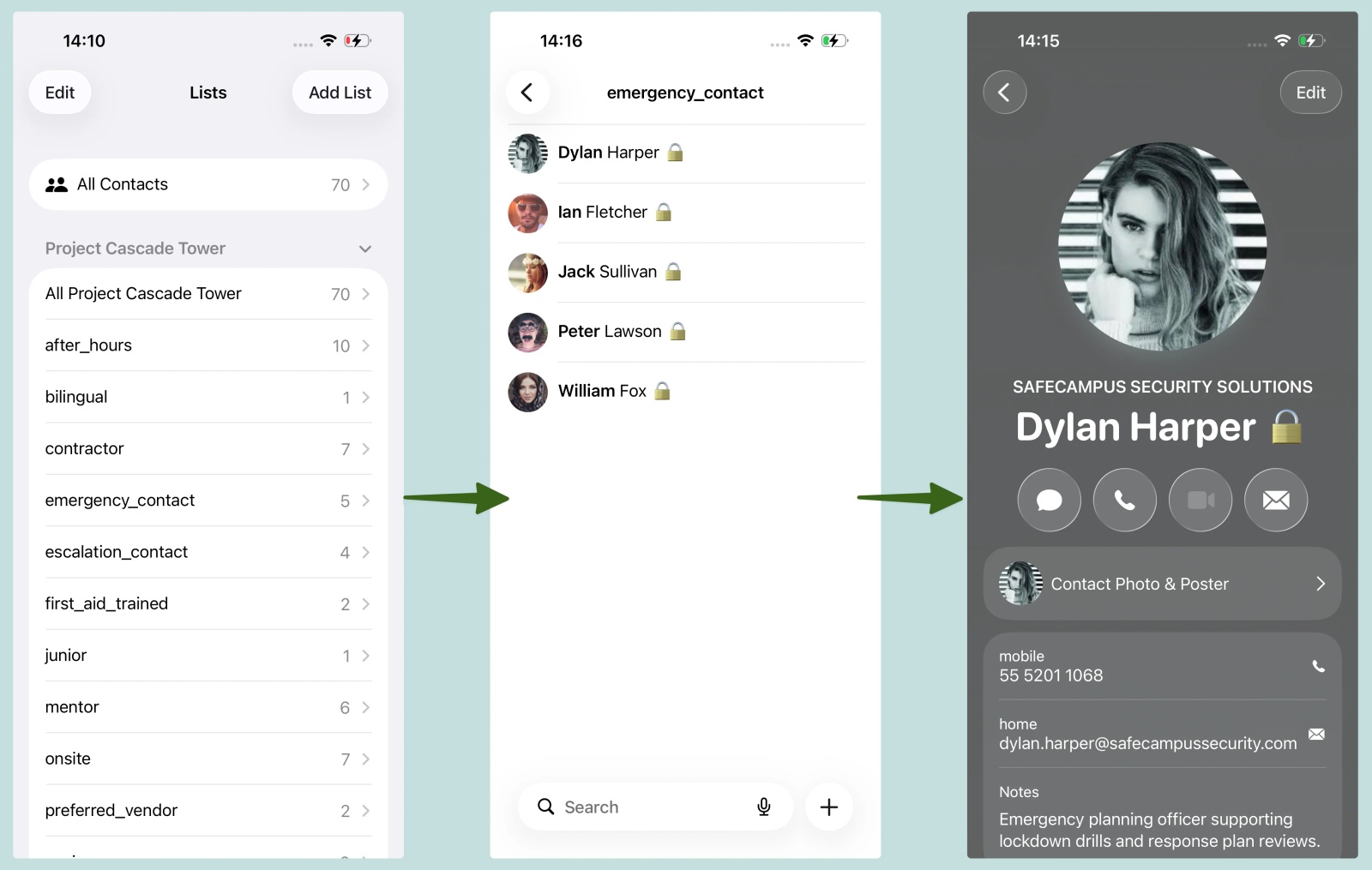
A device connection decides what a group of phones receives and whether they can write back. For a company directory, choose Full Read Only, and tick the lock emoji option so staff can see at a glance which contacts are managed. The table compares the three access types.
| Access type | What the iPhones get | Typical use |
|---|---|---|
| Full Read/Write | Every contact in the address book; changes made on a phone sync back for everyone | A small team that maintains the list together |
| Full Read Only | Every contact; changes made on a phone never reach the address book | Company directories, staff lists, shared phones |
| Selective Read Only | Only contacts with the labels you pick, read-only | Crews, departments and shift phones that each need a different list |
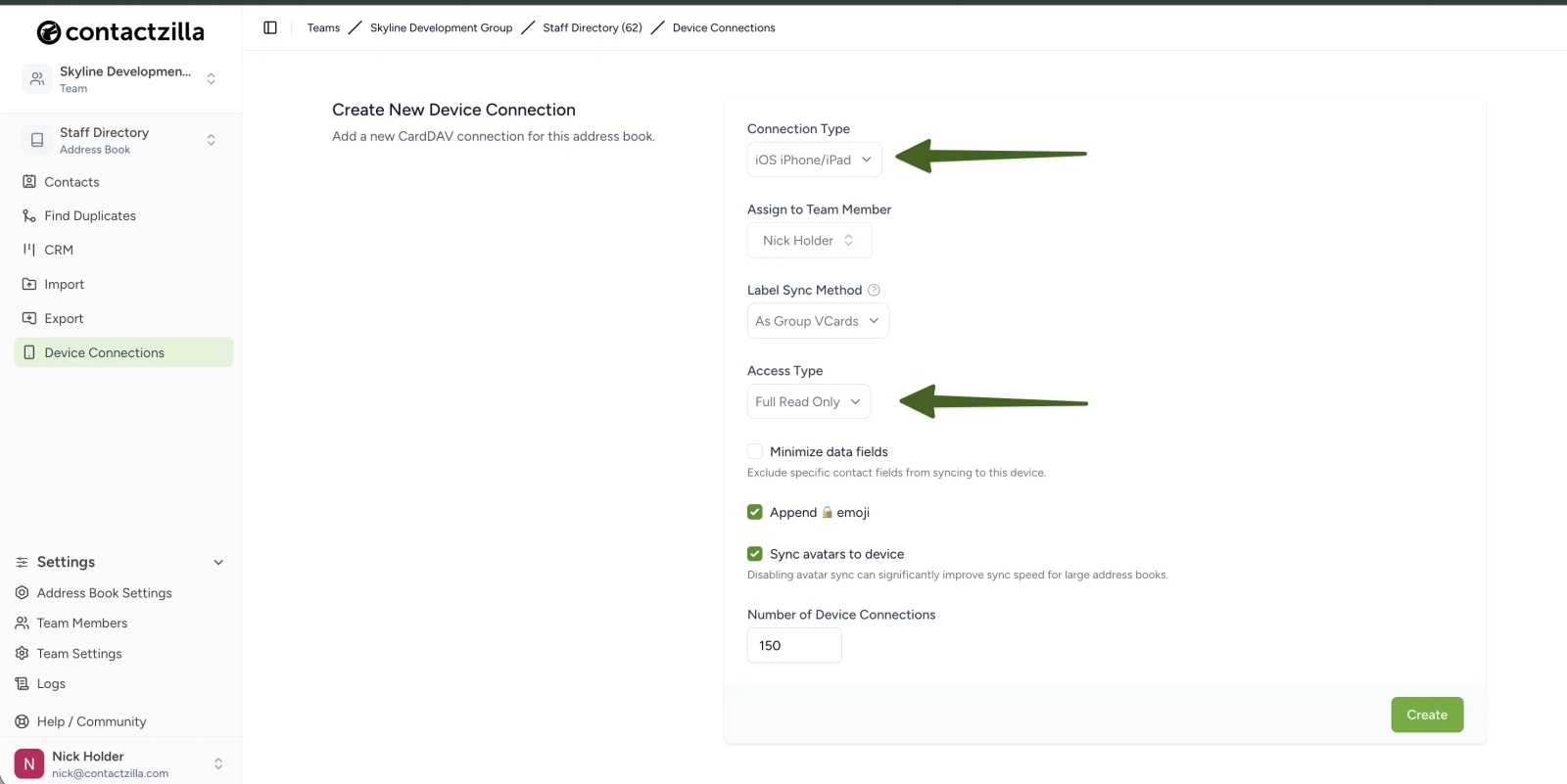
Tip 💡 Different crews need different contacts? Selective read-only sync sends each group of phones only the contacts with its labels, still locked.
Step 3: Deliver the read-only address book to iPhones through your MDM
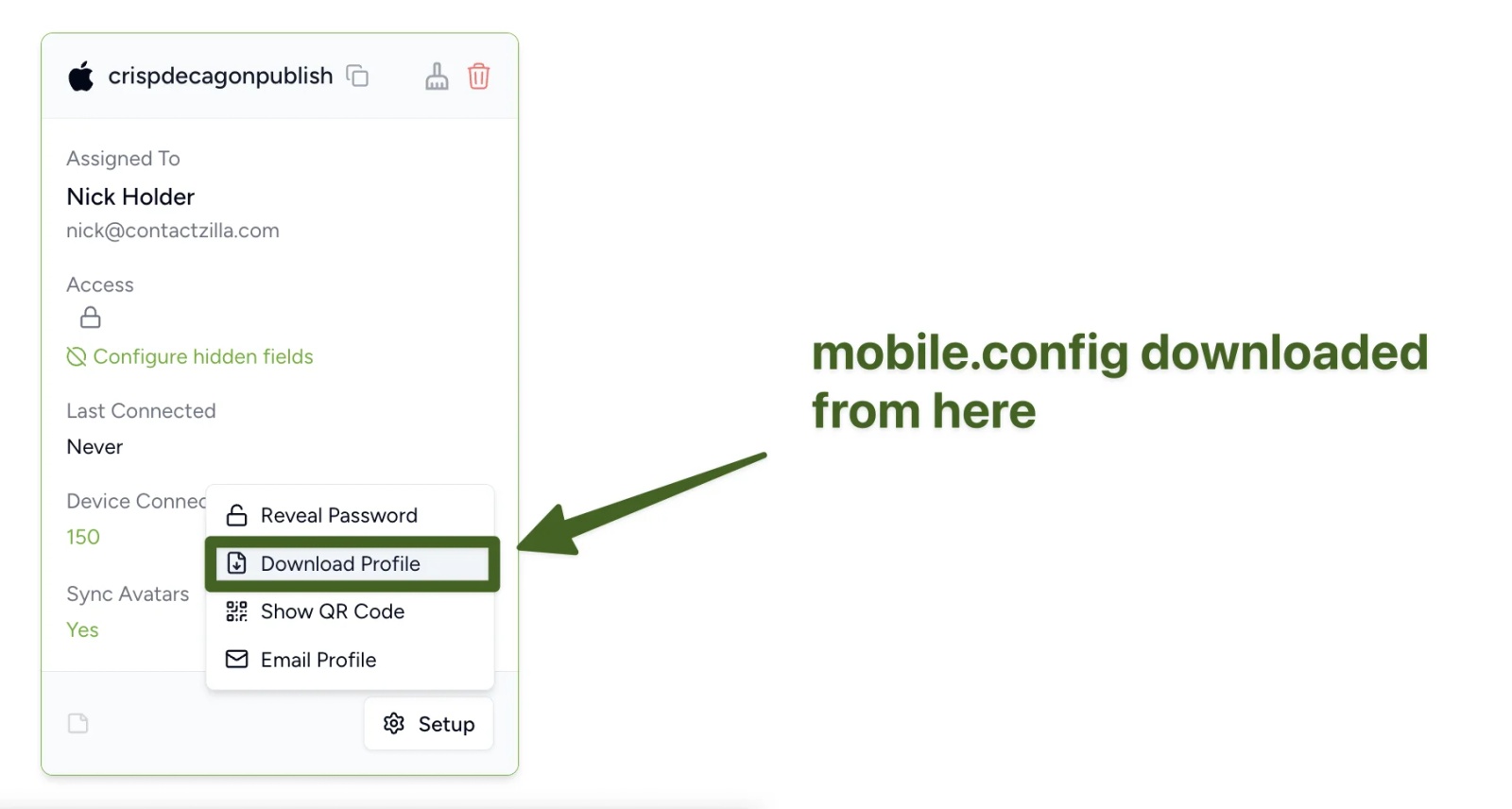
Download the device connection's .mobileconfig profile and upload it to your MDM, such as Jamf Pro or Microsoft Intune, as a custom configuration profile, then assign it to the iPhones or groups that need it. The company address book appears in the iPhone's Contacts app as its own account, with no app to install. Phones you don't manage can scan a QR code instead, as our guide to syncing the GAL without Intune shows.
Tip 💡 Using a specific MDM? Our guides cover syncing company contacts to iPhones with Jamf Pro, Microsoft Intune, Mosyle, Workspace ONE and IBM MaaS360.
Step 4: Set each iPhone's Default Account to a writable account
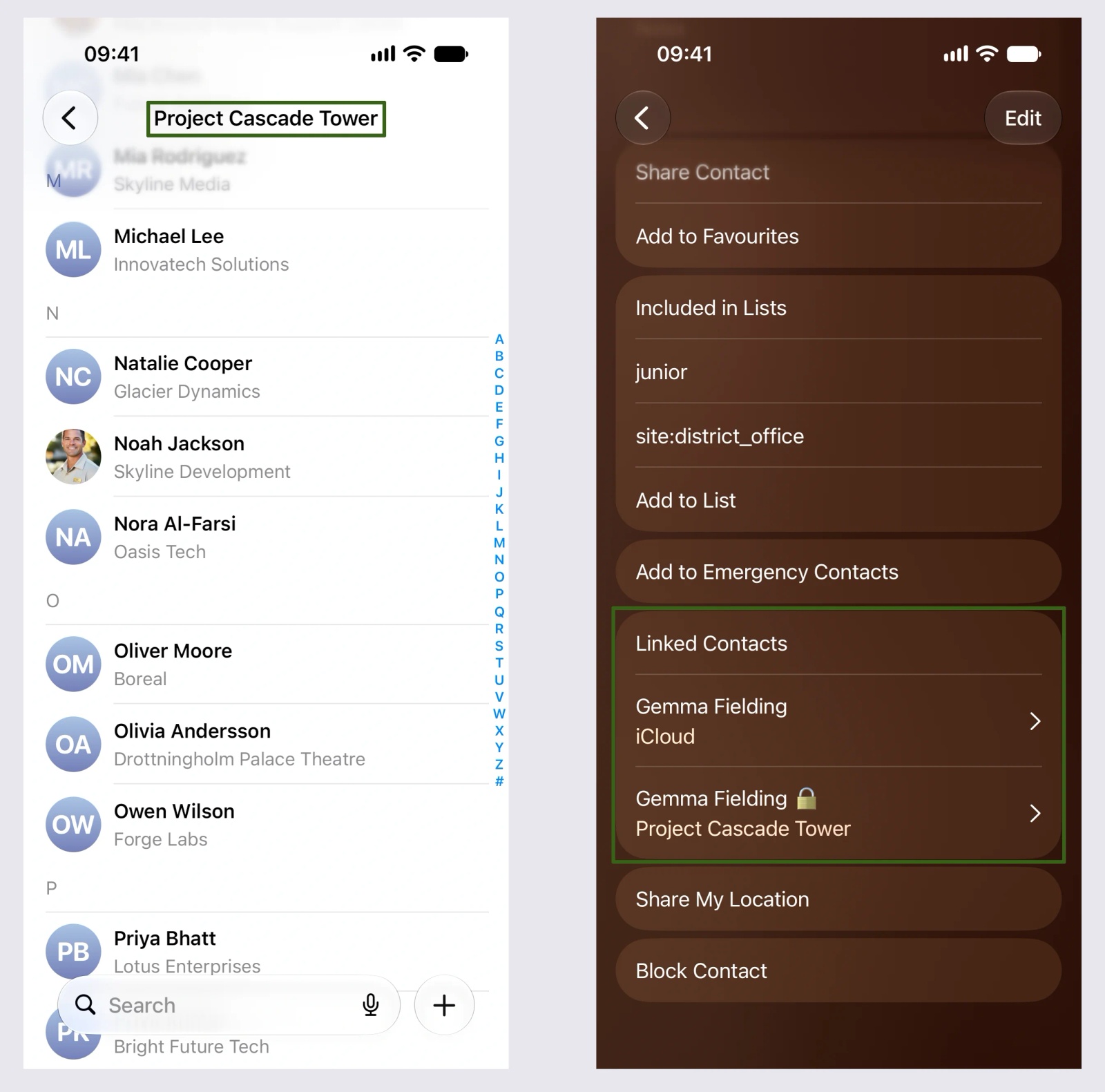
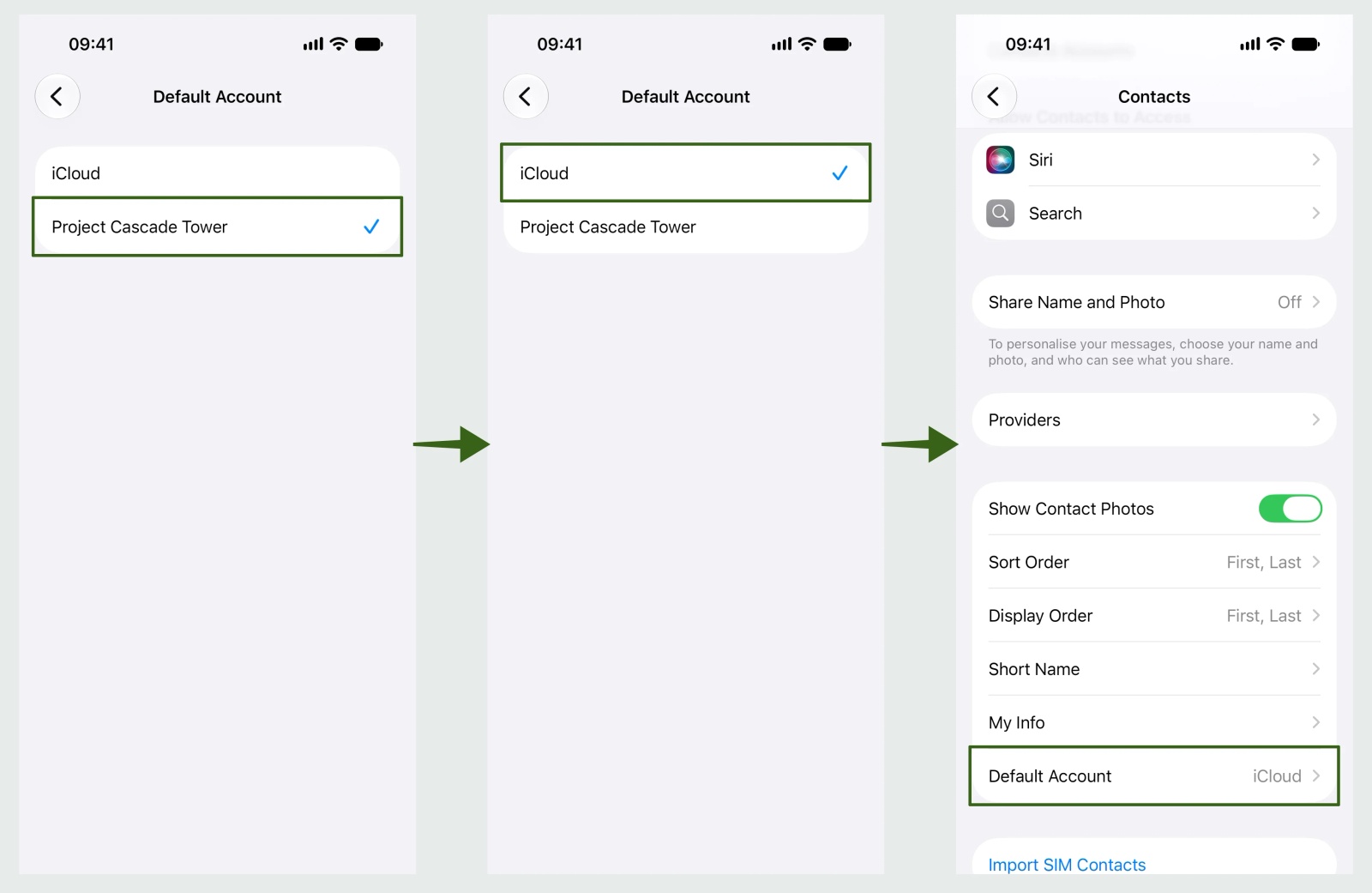
Read-only applies only to the company address book. Staff can still keep their own contacts in iCloud, an Exchange account or On My iPhone, and the iPhone's Default Account decides where new ones go. In our testing, iOS picked the read-only company address book as the Default Account on its own, so contacts saved from All Contacts or the keypad went into it, and Contactzilla then removed them. Your MDM can't set the Default Account, because the CardDAV profile has no option for it. On each phone, open Settings > Apps > Contacts > Default Account, as in Apple's guide to managing contacts on iPhone, and pick the staff member's own account, such as iCloud or On My iPhone. Our help article on setting the Default Account on iPhone has the clicks.
What happens when staff save a contact into a read-only address book on iPhone?
We tested this on an iPhone with three accounts: a read-only Contactzilla address book, a read/write Contactzilla address book and iCloud. Nobody chose a Default Account, and contacts were added the way staff normally add them, from All Contacts without picking a list. First tested in January 2026; removal and edits rechecked on an iPhone 15 running iOS 27.0.1, October 2026.
| What we did | What happened |
|---|---|
| Added a contact from All Contacts | It went into the read-only address book, which iOS had set as the Default Account |
| Checked the Contactzilla dashboard | The contact never arrived; the server refused it, so no other phone got it |
| Kept watching the iPhone | The contact disappeared from the phone at the next sync, within a minute or two |
| Changed the number on an existing 🔒 contact | The original number came back at the next sync |
| Added a contact inside the read/write address book | It reached the dashboard in about five seconds |
| Set the Default Account to On My iPhone | New contacts stayed on the phone and went into neither Contactzilla address book |
So nothing a phone does can change the company address book: stray numbers can't find their way in, and edits don't stick. The iPhone has no way to block the save itself, so the contact stays on that one phone until the next sync, usually a minute or two, and Contactzilla then takes it back off. Staff who want to keep a number save it to their own account instead, which the Default Account setting in Step 4 makes the normal place for new contacts.
That's why the 🔒 matters. In our January tests, iOS's own read-only indicator showed on only one contact, so the emoji in the name is the reliable signal. Because it's part of the contact's name, it shows wherever the name does.
If staff do need to share contacts they collect, give that group a Full Read/Write connection to a separate address book, and keep the company directory read-only.
Read-only company contacts on Android
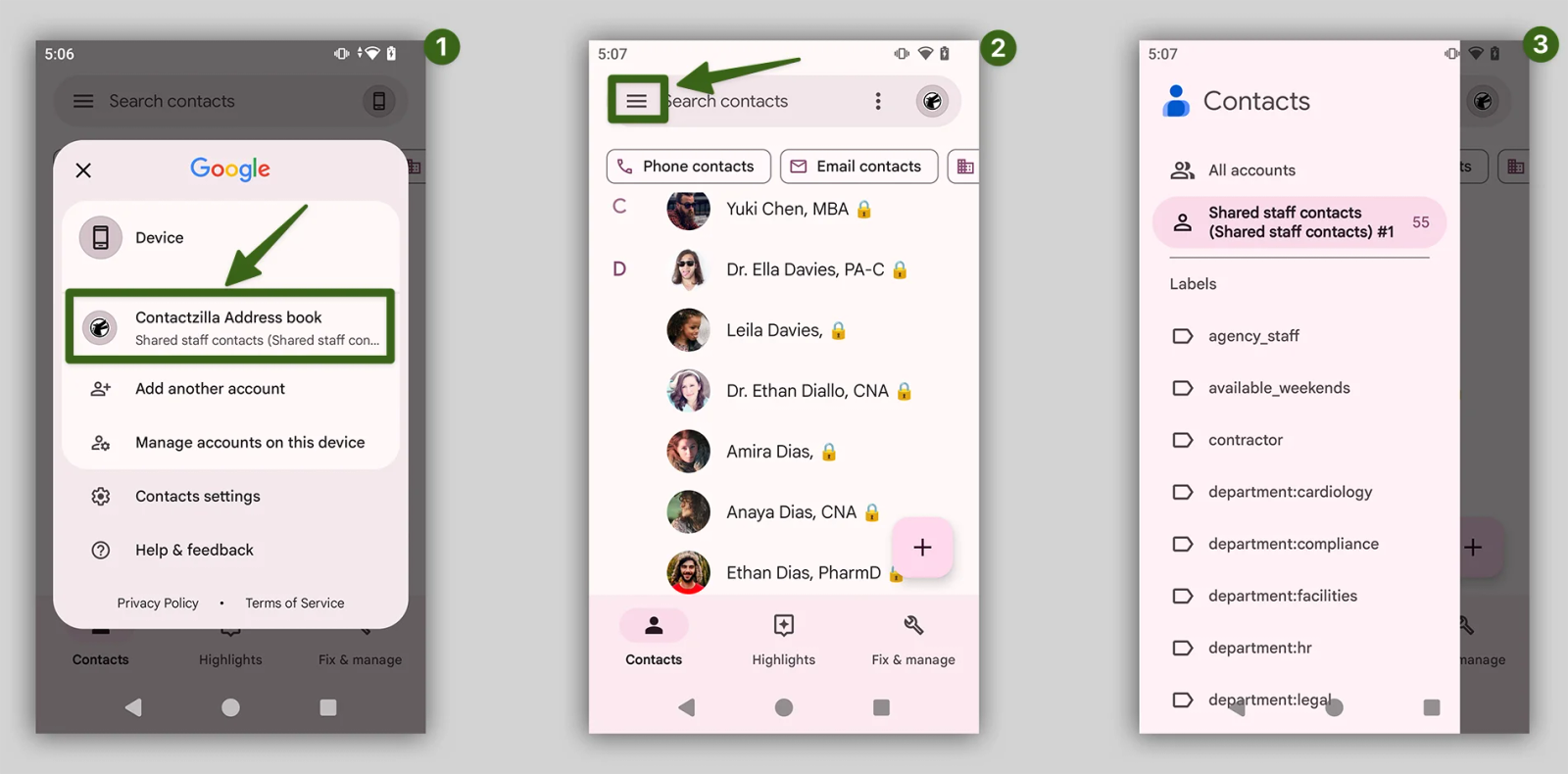
The same address book and access types work for Android. Android phones get the contacts through the free Contactzilla Sync app from Google Play, installed through your MDM, and the contacts appear in the phone's own Contacts app. Read-only works the same way on the server: anything an Android phone adds or changes in the company address book never reaches it or anyone else's phone. Two differences showed up in our tests. The 🔒 appeared consistently on Android. And opening a company list before adding a contact isn't enough, because Android saves to the account in the Save to menu on the new contact screen, which follows the phone's default account.
Next steps
- Set up a read-only device connection: Setting Up CardDAV Connections
- Stop staff saving into the company address book: How to Set the Default Account on iPhone
- Send different locked lists to different crews: Selective read-only sync
Frequently Asked Questions
Does a read-only CardDAV address book stop staff adding contacts on iPhone?
It stops them adding to the company list. A contact saved into a read-only address book never reaches the shared address book or anyone else's iPhone, because Contactzilla refuses it, and the next sync removes it from that phone too, usually within a minute or two. iOS can't block the save on the phone itself, so set the Default Account to iCloud or On My iPhone and contacts staff save are kept in their own account.
Can an MDM set the default contacts account on iPhone?
No. Apple's CardDAV configuration profile sets the server, account and password, but it has no setting for the Default Account, so Jamf Pro, Intune and other MDMs can't choose it. Set it on each iPhone under Settings > Apps > Contacts > Default Account, and add it to your phone setup checklist.
Can I sync a read-only company address book to iPhones with Intune or Jamf Pro?
Yes. Create a Full Read Only device connection in Contactzilla, download its .mobileconfig profile and upload it to Intune or Jamf Pro as a custom configuration profile, then assign it to the phones or groups that need it. The address book appears in each iPhone's Contacts app as its own read-only account, with no app to install. Our Intune and Jamf Pro guides walk through each console.
Can I make only some company contacts read-only on iPhone?
Yes. Selective Read Only sends a group of phones only the contacts with the labels you choose, and keeps them locked. A dispatch team can get dispatch and hospital numbers while office phones get the staff directory, all from the same address book.
Can some staff edit company contacts while others get read-only access?
Yes. Access is set per device connection, so office staff can have a read/write connection and field phones a read-only one on the same address book. Admins can also edit everything in the web dashboard, whatever the phones are set to.
What does the lock emoji next to a contact name mean on iPhone?
It shows the contact comes from a read-only company address book. Contactzilla can add 🔒 to the end of every read-only contact's name, so staff know they can't change it. Because it's part of the name, it shows in Contacts, Phone and Messages.
What happens to read-only company contacts when someone leaves?
On a managed iPhone, removing the device from the MDM, or removing the profile from that device, takes the company address book and its contacts off the phone. For phones set up with a QR code instead of an MDM, Contactzilla's Wipe on Delete option clears the contacts the next time the phone connects.
Do read-only company contacts show caller ID on iPhone?
Yes. A read-only CardDAV address book puts real contacts into the iPhone's Contacts app, so incoming calls and messages from those numbers show the contact's name, just like contacts in iCloud.