
Workspace One: How to Sync Contacts to iPhones

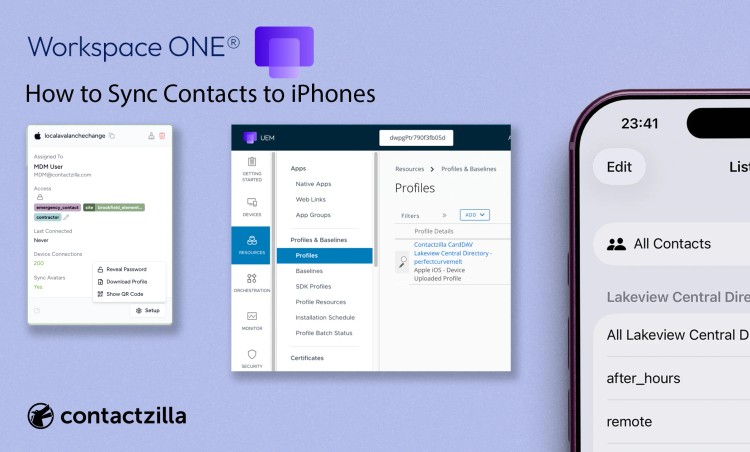
Workspace ONE UEM can deploy iOS configuration profiles to managed iPhones. Those profiles can configure a CardDAV contacts account, allowing business contacts to appear in the native iPhone Contacts app.
Short answer:
To sync contacts to iPhone with Workspace ONE, create a CardDAV address book in Contactzilla, download the iOS .mobileconfig profile, then upload it to Workspace ONE UEM as an iOS profile. Assign the profile to a Smart Group of iPhones. Once installed, the contacts appear in the native iPhone Contacts app and support caller ID.
Can Workspace ONE sync contacts to iPhone?
Yes. Workspace ONE can sync contacts to iPhone by deploying an iOS profile that configures a CardDAV contacts account.
That profile still needs a contact source behind it. Workspace ONE delivers the profile to the iPhone; Contactzilla provides the managed CardDAV address book, generates the .mobileconfig, and controls how contacts sync.
This distinction matters for IT teams managing shared devices. Deploying a CardDAV account is only one part of the job. You also need to decide which contacts belong in the shared address book, whether users can edit them, and which groups of iPhones should receive which contact lists.
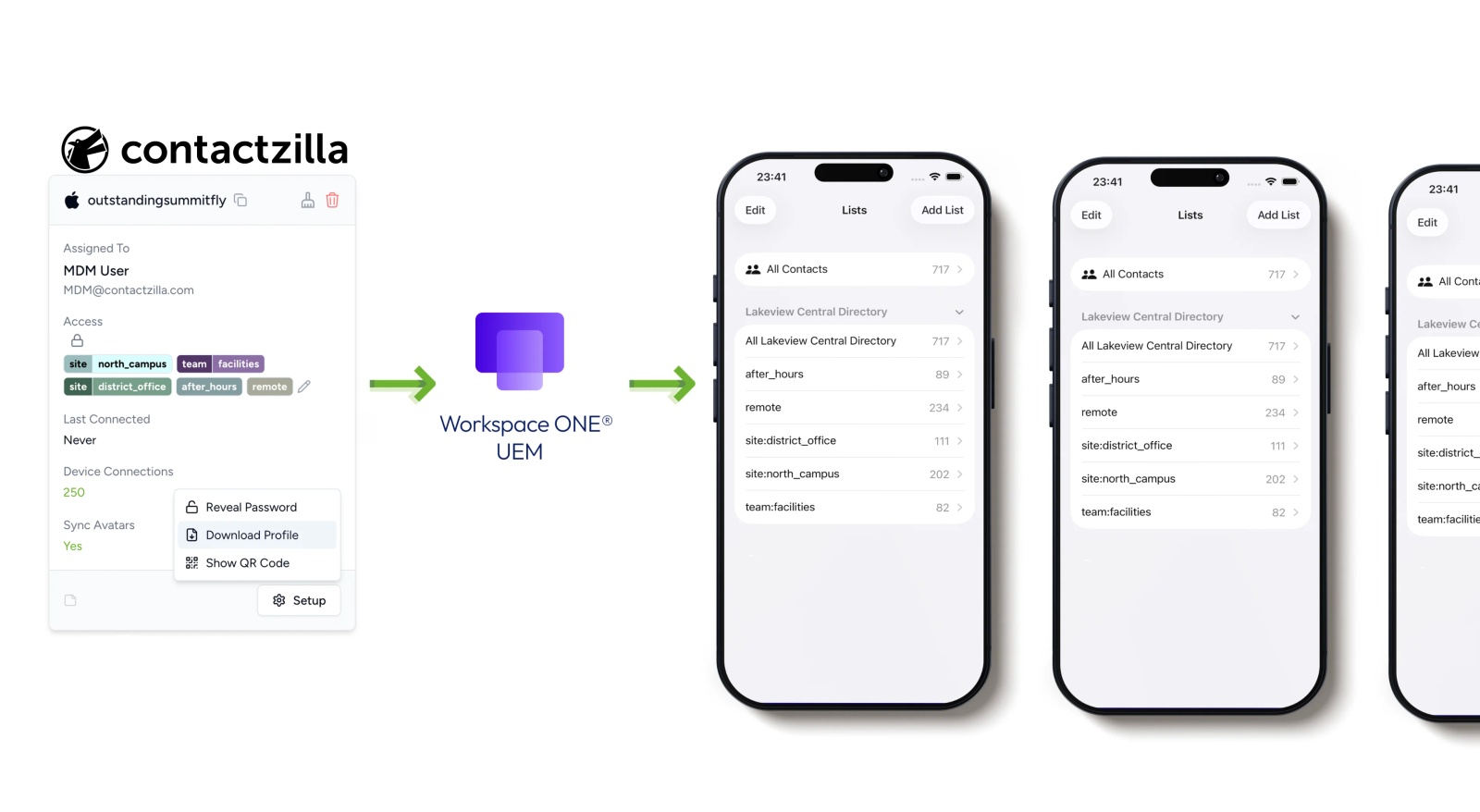
Where Contactzilla fits in a Workspace ONE contact deployment
Contactzilla provides the contact management layer behind the Workspace ONE profile.
Workspace ONE UEM manages the iPhones, deploys the iOS profile, and targets devices using Smart Groups. Contactzilla stores the shared address book, generates the CardDAV .mobileconfig, controls read-only access, and filters contacts using labels.
Why not just use Outlook app contact sync or Microsoft Graph API?
Outlook app contact sync is usually tied to a user’s mailbox and Outlook configuration. Contactzilla’s Workspace ONE workflow is different: it deploys a managed CardDAV address book to the native iPhone Contacts app using an iOS .mobileconfig profile.
Microsoft Graph API can help developers access Microsoft 365 contact data, but it does not by itself solve device targeting, read-only contact deployment, label-based contact subsets, or native iPhone Contacts app rollout through Workspace ONE.
Key definitions
CardDAV: CardDAV is a protocol for syncing contacts between a contact server and devices such as iPhones.
.mobileconfig: A .mobileconfig file is an Apple configuration profile that can install settings such as a CardDAV contacts account on an iPhone.
Workspace ONE Smart Group: A Smart Group is a Workspace ONE targeting group used to decide which devices receive a profile, app, or configuration.
Selective read-only sync: Selective read-only sync sends only contacts with selected labels from a Contactzilla Address Book to a device group.
Native iPhone Contacts app: The native Contacts app is Apple’s built-in contacts application. Contacts stored there can support the normal iPhone calling and caller ID experience.
Outlook app contact sync: Outlook app contact sync is Microsoft Outlook’s method for making mailbox contacts available on a mobile device. It is useful for user mailbox contacts, but it is not the same as deploying a centrally managed shared address book to shared iPhones.
Microsoft Graph API: Microsoft Graph API is Microsoft’s developer API for accessing Microsoft 365 data, including users and contacts where permissions allow. It can support contact-related integrations, but it is not an MDM deployment method by itself.
How the Contactzilla + Workspace ONE workflow works
The Contactzilla and Workspace ONE workflow has four main stages: prepare the address book, generate the iOS profile, deploy it with Workspace ONE, and verify the contacts on the iPhone.
1) Prepare the address book in Contactzilla: Import, sync, organise, and label the contacts you want to deploy. This creates the managed contact source that iPhones will sync from.
2) Create an iOS device connection in Contactzilla: Create the iOS CardDAV device connection and choose the right access model, such as read-only or selective read-only. Contactzilla then generates the CardDAV .mobileconfig profile.
3) Upload and assign the profile in Workspace ONE UEM: Upload the Contactzilla .mobileconfig profile into Workspace ONE UEM, then assign it to the relevant Smart Group of iPhones.
4) Verify contact sync on the iPhone
Check that the CardDAV account appears on the iPhone and that the contacts show in the native Contacts app. The contacts should then be available for normal iPhone search, calling, and caller ID.
Step 1: Prepare the address book in Contactzilla
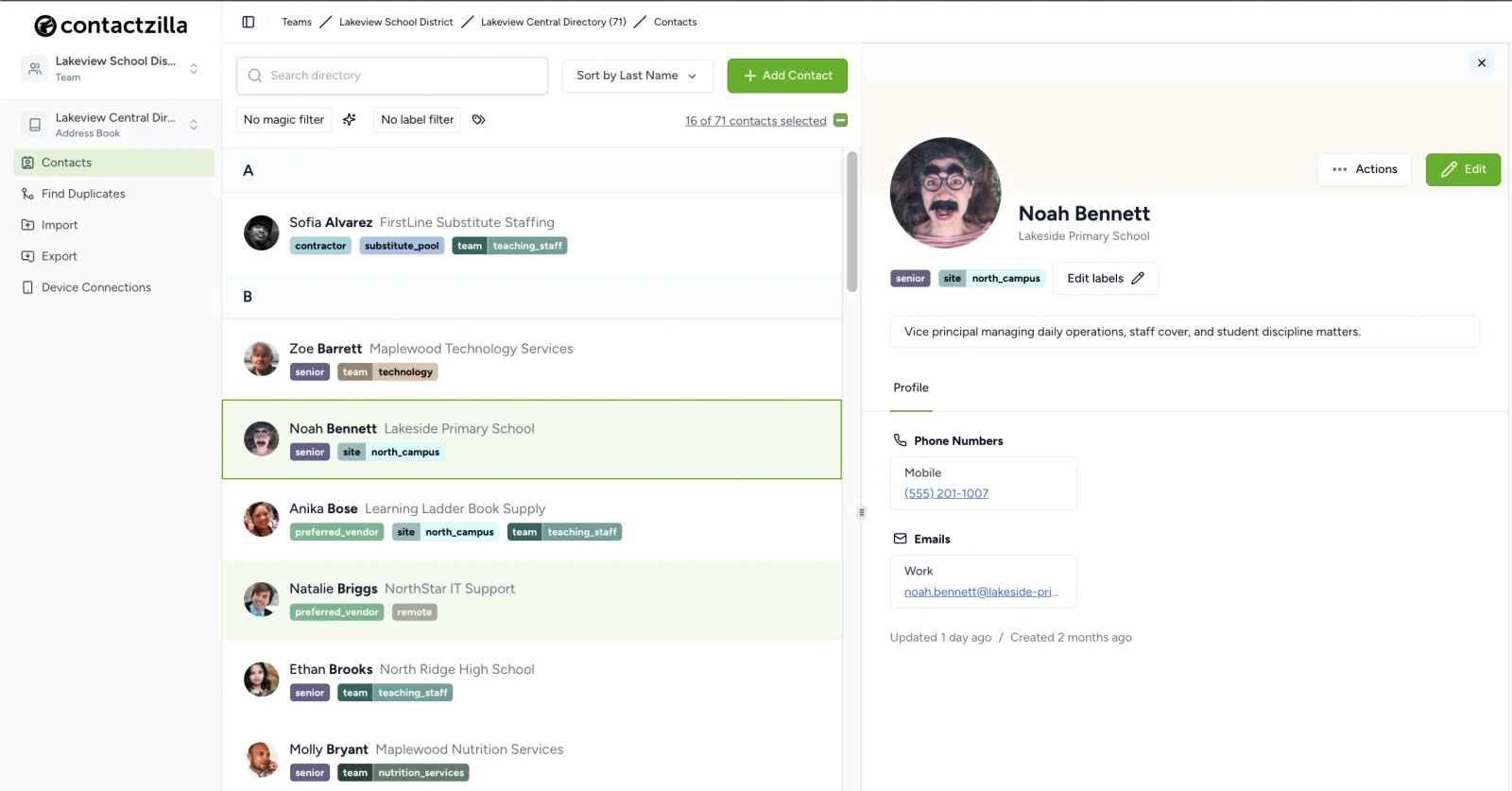
A Contactzilla Address Book is the syncable contact list that will be deployed to iPhones.
Each Address Book can contain contacts, labels, permissions, and device connections.
Contacts can be added or synced from sources such as:
- CSV files
- vCard files
- Microsoft 365 / Entra ID
- Google Workspace directory users
- Salesforce, Hubspot and other CRM’s
- other structured contact sources
Step 2: Create an iOS CardDAV device connection
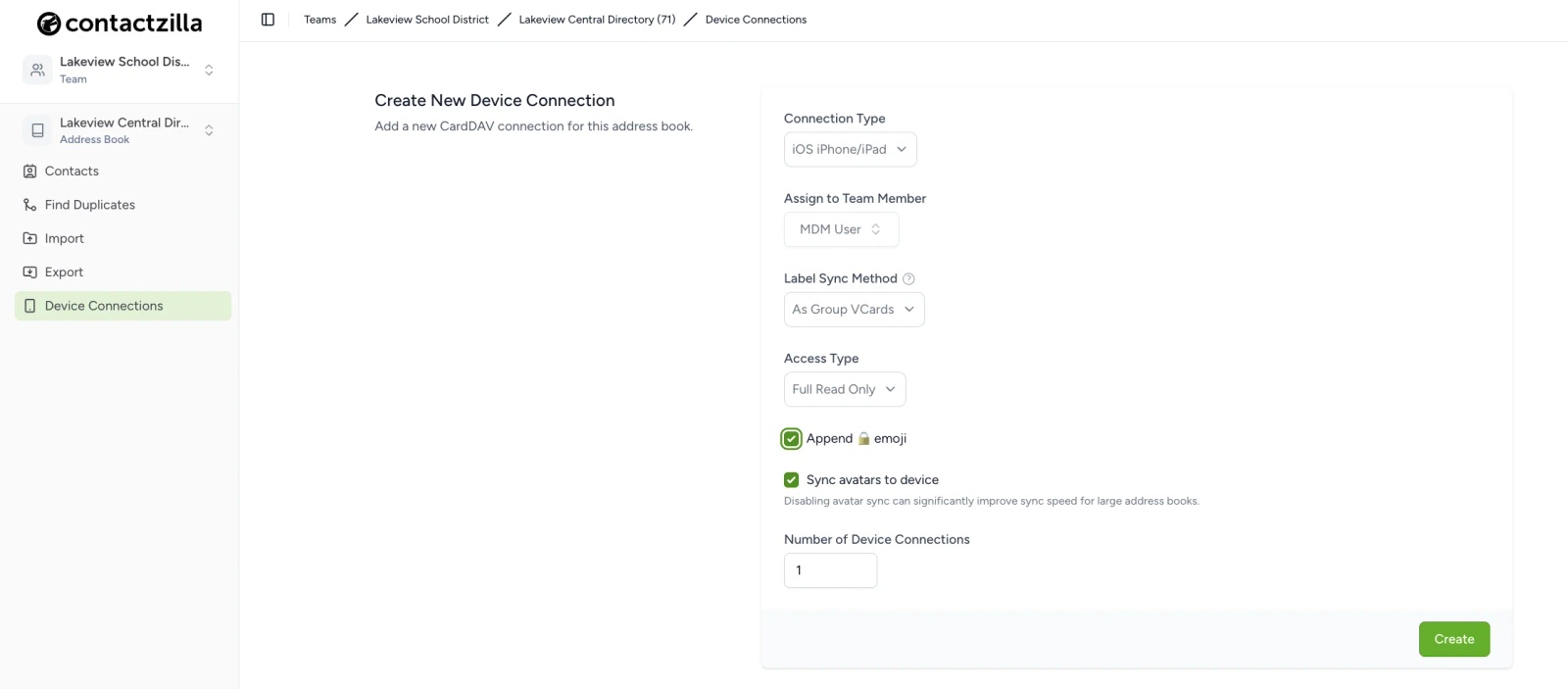
A Contactzilla iOS device connection generates the .mobileconfig profile that Workspace ONE deploys to iPhones.
When creating the iOS device connection, choose the access model that matches the deployment.
Read-only is best for shared business contacts that users should not edit.
Selective read-only is best when you only want to send specific labelled contacts from an address book to a Workspace ONE device group.
Read/write is best when users are allowed to add or update shared contacts.
Read/write with deletion blocked is best when users can update contacts but should not be able to remove important entries.
For most Workspace ONE shared iPhone deployments, read-only or selective read-only is the safest choice. Read-only sends the shared address book without allowing user edits. Selective read-only sends only contacts with selected labels, such as site:north-campus, team:dispatch, or role:on-call.
Tip 💡 To see how label-based selective sync works on shared devices, read our guide to selective read-only CardDAV sync.
Once the connection is created, Contactzilla generates a .mobileconfig profile. This profile contains the CardDAV settings that Workspace ONE will deploy.
Step 3: Upload the .mobileconfig profile to Workspace ONE UEM
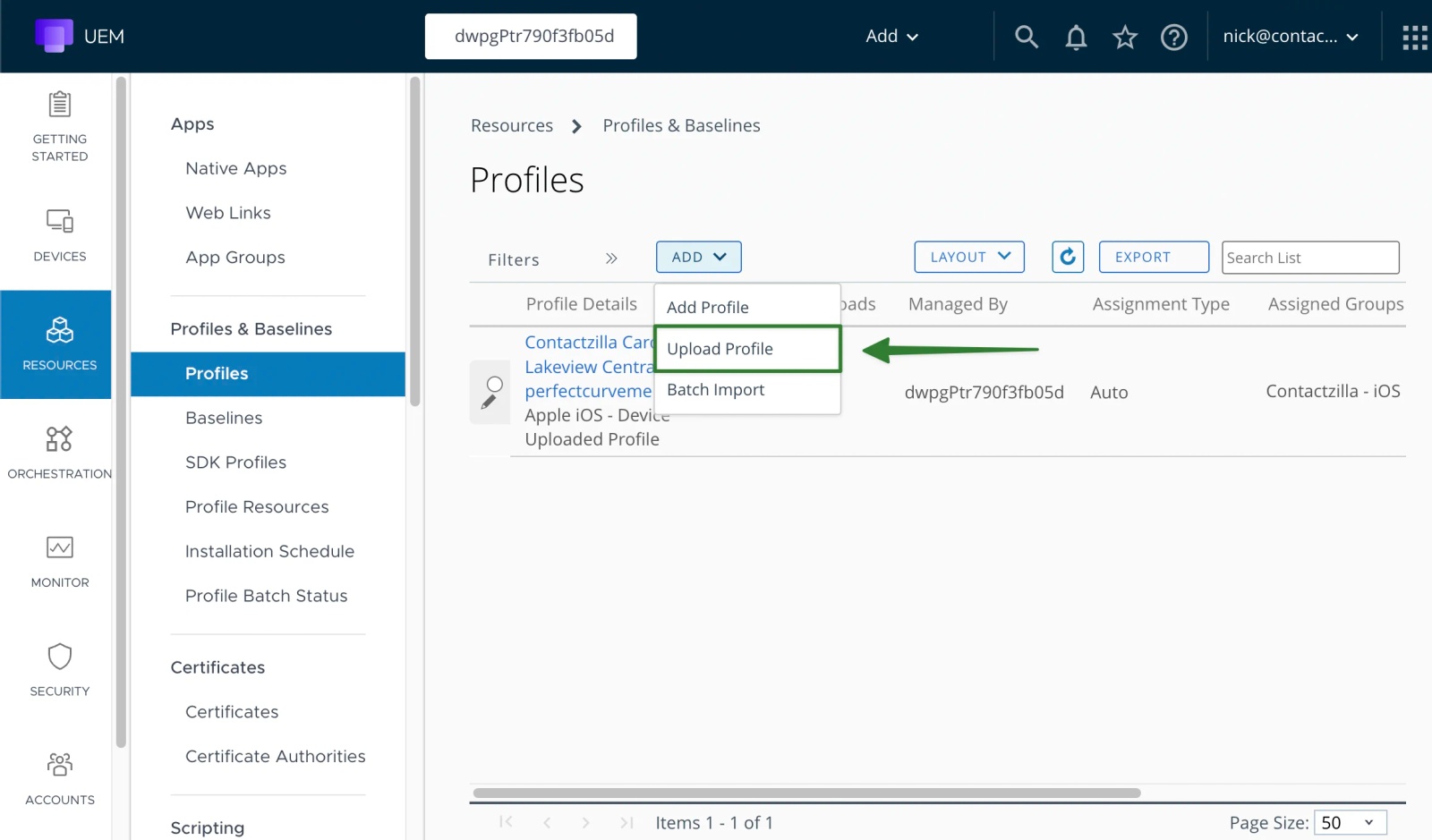
Workspace ONE UEM deploys the Contactzilla .mobileconfig file as an iOS profile.
At a high level, the process is:
- Open Resources > Profiles & Baselines > Profiles.
- Choose Add > Upload Profile.
- Upload the Contactzilla .mobileconfig file.
- Assign the profile to the relevant Workspace ONE Smart Group.
- Save and publish the profile.
Use a Smart Group instead of assigning the profile to one device at a time. This makes the deployment scalable.
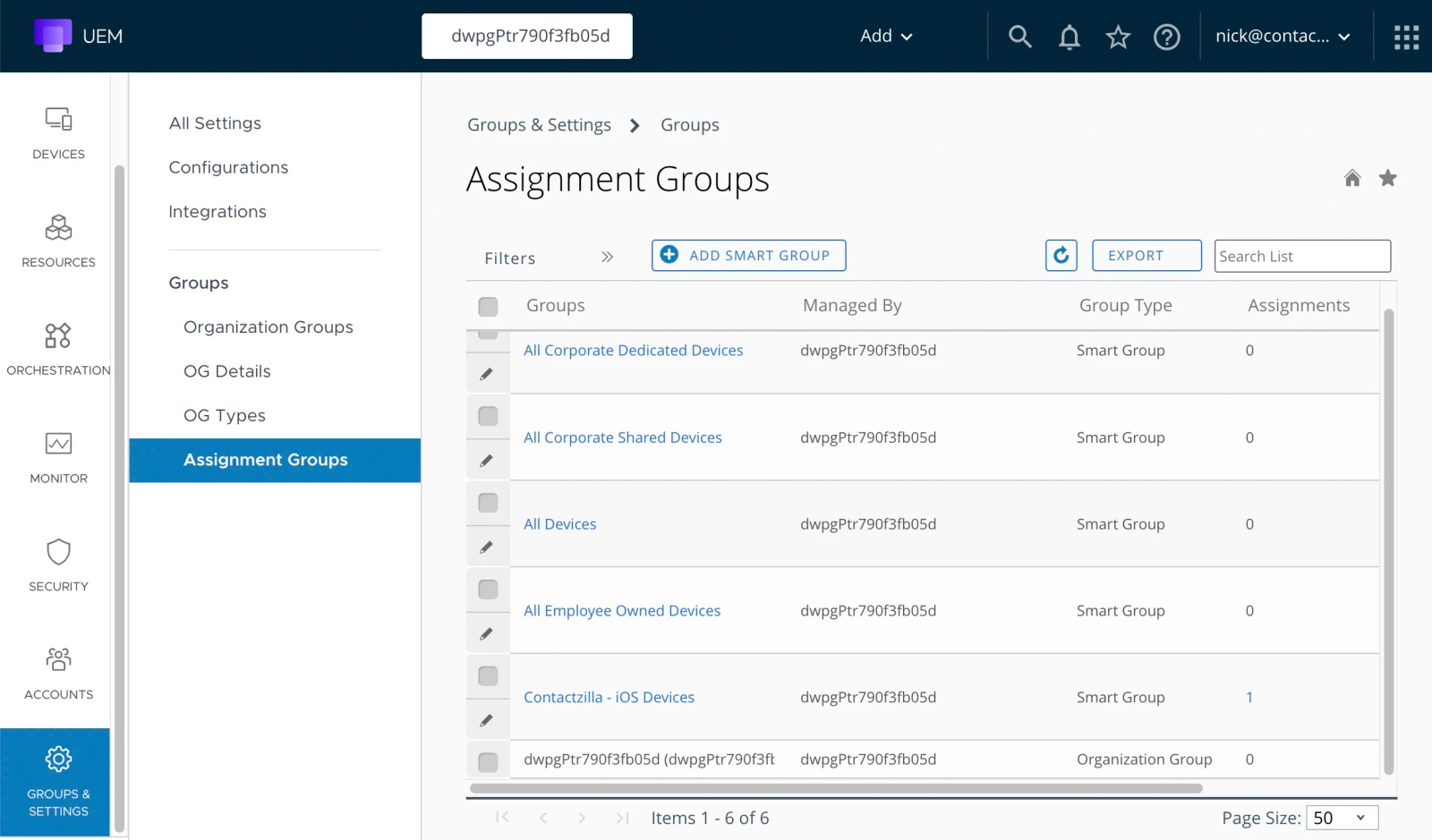
Example Smart Group names:
- Contactzilla - iOS Devices
- Corporate Shared iPhones
- Field Team iPhones
- Ward Phones
- Dispatch iPhones
Once published, Workspace ONE pushes the profile to the iPhones in that group.
Step 4: Verify contacts in the native iPhone Contacts app
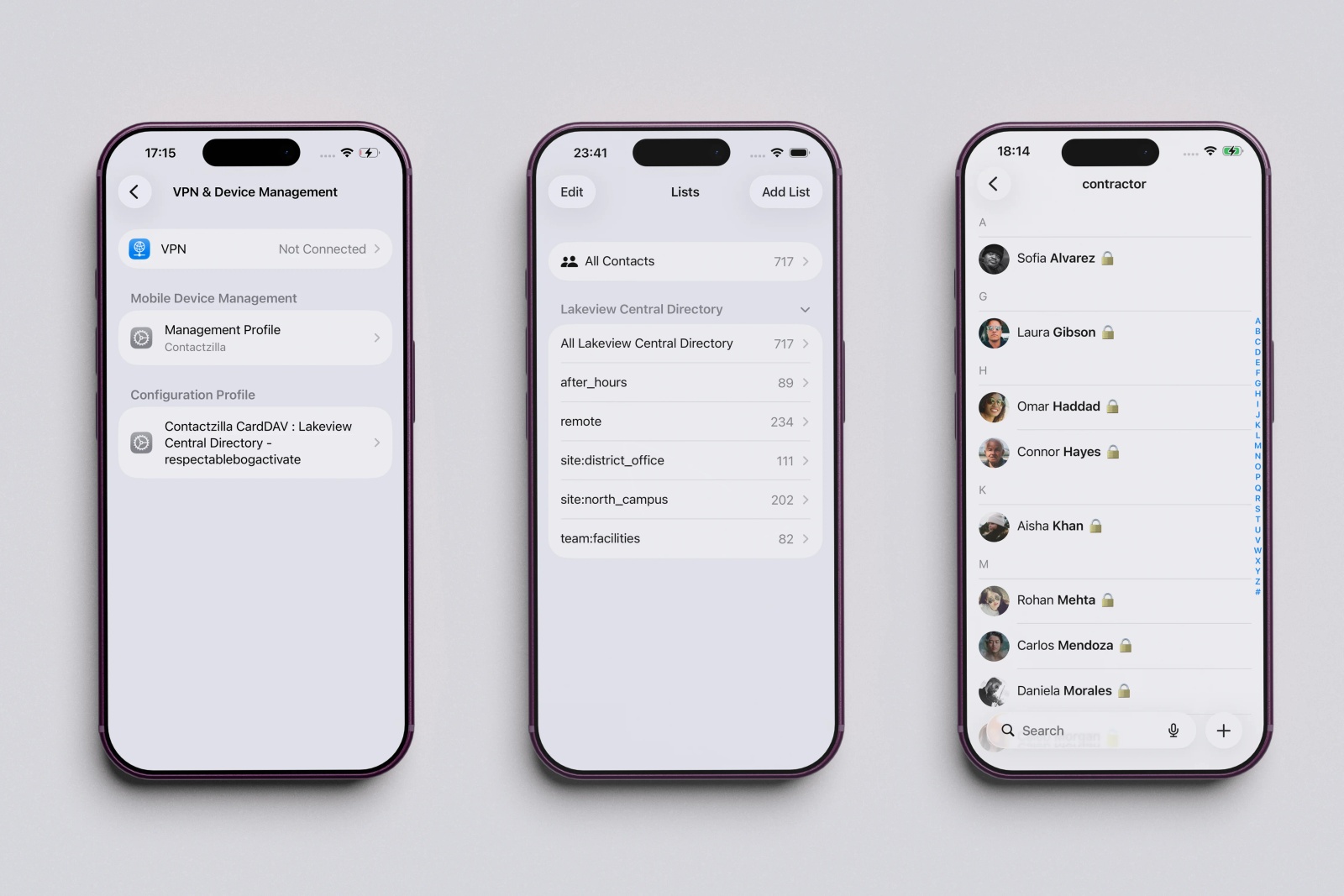
The deployment is successful when the Contactzilla contacts appear in the native iPhone Contacts app.
On the iPhone, check:
- Settings
- Contacts
- Accounts
- the new CardDAV account
- the native Contacts app
- a known contact and phone number
- caller ID behaviour, if relevant
The goal is for users to see the right business contacts where they already place calls, receive calls, search contacts, and identify numbers - In the native contacts app.
If the contacts only exist inside a separate app, users may still miss calls or fail to identify important numbers. Native Contacts app sync solves that part of the workflow.
How to send different contacts to different Workspace ONE Smart Groups
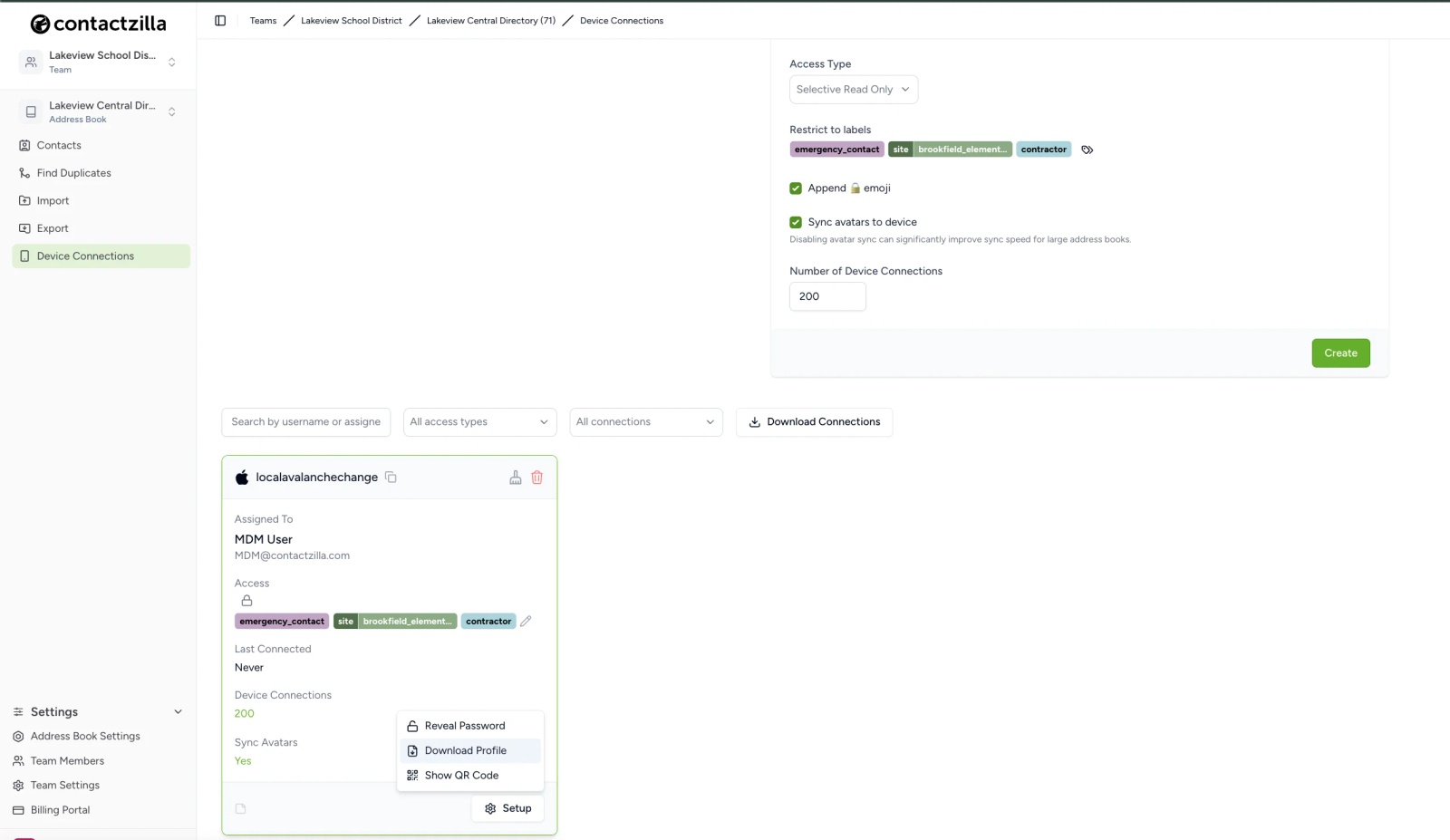
Contactzilla labels control which contacts sync; Workspace ONE Smart Groups control which devices receive the profile.
This is useful when different teams, sites, or device groups need different contact lists.
Dispatch iPhones receive contacts labelled team:dispatch and role:supervisor.
Ward A iPhones receive contacts labelled site:ward-a and role:on-call.
North Region field phones receive contacts labelled region:north and team:field-support.
Site 12 construction phones receive contacts labelled project:site-12 and supplier:approved.
Maintenance crew phones receive contacts labelled crew:maintenance and role:contractor.
The pattern is:
- Label contacts in Contactzilla.
- Create a selective read only device connection for that contact set (can be one or multiple labels).
- Download the .mobileconfig.
- Upload it to Workspace ONE.
- Assign it to the matching Smart Group.
This lets IT deploy targeted address books without manually editing contacts on each iPhone.
Why CardDAV works well for iPhone contact sync
CardDAV works well for iPhone contact sync because iOS can use CardDAV accounts as native contact sources.
Tip 💡 New to the protocol behind the profile? Our explainer covers what CardDAV is and how contact sync works.
With Contactzilla and Workspace ONE:
- Contactzilla hosts the CardDAV address book.
- Contactzilla generates the .mobileconfig.
- Workspace ONE deploys the profile.
- iOS adds the CardDAV account.
- The native Contacts app shows the synced contacts.
This avoids manual setup on each phone. It also avoids locking important business contacts inside a single email app.
When Contactzilla and Workspace ONE are the right fit
Use Contactzilla with Workspace ONE when you need centrally managed business contacts on managed iPhones.
This approach is a strong fit when:
- IT wants a centralized dashboard where contact data can be edited and instantly deployed to devices.
- iPhones are enrolled in Workspace ONE UEM
- contacts need to appear in the native iPhone Contacts app
- caller ID matters
- devices are shared by teams or shifts
- contacts should be read-only
- different device groups need different contact lists
- the contact list changes over time
- IT wants to avoid manual vCard or CSV imports
This is especially useful for corporate-owned and shared devices.
Tip 💡 Planning a wider rollout? See our guide to deploying contact lists at scale.
Troubleshooting Workspace ONE iPhone contact sync
Most Workspace ONE iPhone contact sync issues happen at one of three points: the profile was not assigned, the profile did not install, or the CardDAV account installed but did not return the expected contacts.
If the iPhone does not receive the profile:
Confirm the device is enrolled in Workspace ONE, included in the assigned Smart Group, and has recently checked in. In Workspace ONE, open the device record and check its latest communication status.
If the device is missing from the profile assignment:
Check the Smart Group criteria. Make sure the device matches the platform, ownership type, organisation group, tags, or manual device selection used by the group.
If the profile has been published but nothing appears on the iPhone:
Check whether the iPhone has checked in since the profile was published. If needed, use Workspace ONE to query or sync the device, then wait for the device to process the command.
If you are not sure whether the profile installed:
On the iPhone, go to Settings > General > VPN & Device Management and check whether the Workspace ONE or Contactzilla profile is listed. On some iOS versions, this area may appear as Profiles or Device Management.
If the profile installs but no CardDAV account appears:
Confirm that the uploaded file is the correct Contactzilla .mobileconfig and that it contains the CardDAV payload. If multiple profiles were tested, remove old test profiles to avoid confusion.
If the CardDAV account appears but no contacts sync:
Check the Contactzilla device connection, device limit, access type, and network access. Also confirm that the CardDAV credentials in the profile still match the active Contactzilla connection.
If only some contacts appear:
If using selective read-only, review the selected labels. Only contacts with those labels will sync to the device.
If the wrong contacts appear:
Confirm that the .mobileconfig came from the correct Contactzilla Address Book and device connection. It is easy to upload a profile from a test address book during setup.
If contacts appear but caller ID does not work:
Confirm the contact exists in the native iPhone Contacts app and that the phone number is stored in a consistent format, ideally including the country code.
If users can edit contacts when they should not:
Check that the Contactzilla connection is set to read-only or selective read-only. Workspace ONE deploys the profile, but Contactzilla controls the contact permissions.
If new or updated contacts do not appear:
Check whether the contact was updated in the correct Contactzilla Address Book, whether it has the right label, and whether the iPhone has refreshed the CardDAV account.
For first-time testing, keep the setup simple: one Contactzilla Address Book, one MDM User, one iOS device connection, one Workspace ONE Smart Group, and one enrolled iPhone. Once the basic sync works, add selective labels and multiple device groups.
FAQ’s
Can Workspace ONE sync contacts to iPhone?
Yes. Workspace ONE UEM can sync contacts to iPhone by deploying an iOS profile that configures a CardDAV contacts account. Contactzilla provides the managed CardDAV address book and .mobileconfig profile used for the deployment.
Can Workspace ONE deploy CardDAV contacts without Contactzilla?
Yes, Workspace ONE can deploy CardDAV configuration to iPhones. Omnissa documents CardDAV as a supported Apple device management configuration, and Apple’s Contacts payload is designed to connect managed devices to a CardDAV-compliant contact server.
Contactzilla is not required for Workspace ONE to deploy a CardDAV profile. Contactzilla is the managed contact source behind the profile: it hosts the address book, generates the .mobileconfig, controls read-only access, and supports label-based contact targeting.
What does Contactzilla add to Workspace ONE contact deployment?
Contactzilla adds the contact management layer. Workspace ONE deploys the iOS profile; Contactzilla hosts the shared address book, manages updates, generates the CardDAV .mobileconfig, supports MDM device-only users, and can make contacts read-only or selectively sync only labelled contacts.
Will the contacts appear in the native iPhone Contacts app?
Yes. A CardDAV profile adds a contacts account to iOS, so the synced contacts appear in the native iPhone Contacts app. This also supports the normal iPhone phone experience, including caller ID when the number exists in the synced address book.
Can this work with shared iPhones that do not have individual email accounts?
Yes. Shared iPhones can receive a Contactzilla CardDAV profile through Workspace ONE without relying on each user’s personal email account. Contactzilla’s MDM User – Device Only Access model is designed for device-based MDM deployments rather than individual web logins.
Can contacts be read-only on the iPhone?
Yes. Contactzilla can enforce read-only access for shared contacts, so users can view the contacts but cannot change the central address book from the device. This is useful because generic CardDAV deployments can otherwise allow edits to sync back to the master contact source, depending on the CardDAV server and credentials used.
Can I stop users adding personal numbers into the shared company contact list?
Yes, if the Contactzilla device connection is set to read-only. Users can still maintain their own personal contacts separately, but they cannot add personal numbers into the managed Contactzilla address book.
Can different Workspace ONE Smart Groups receive different contacts?
Yes. Contactzilla labels can control which contacts sync, and Workspace ONE Smart Groups can control which iPhones receive each profile. For example, a Ward A iPhones Smart Group could receive contacts labelled site:ward-a, while a Dispatch iPhones Smart Group could receive contacts labelled team:dispatch.
Can I sync only some contacts from an address book?
Yes. Use Contactzilla’s selective read-only access. Selective read-only sends only contacts with selected labels, such as site:north-campus, team:dispatch, or role:on-call, instead of syncing the entire address book.
Do I need Workspace ONE Boxer for this?
No. Workspace ONE Boxer has its own contact and caller ID features, but this workflow uses an iOS CardDAV profile to sync contacts into the native iPhone Contacts app. Boxer is useful in some email-led workflows, but it is not required for Contactzilla’s CardDAV deployment.
Do I need Apple Business Manager?
No, not specifically for the contact sync itself. Apple Business Manager can help with automated corporate device enrolment, but the Contactzilla profile only requires the iPhone to be enrolled and managed by Workspace ONE so the iOS profile can be deployed.
Do users need to enter CardDAV settings manually?
No. Workspace ONE deploys the .mobileconfig profile to the iPhone. The profile contains the CardDAV account settings generated by Contactzilla, so users do not need to type server details, usernames, or passwords manually.
Why did the profile install but contacts did not appear?
If the profile installs but contacts do not appear, check the CardDAV account, Contactzilla device connection, label selection, device count, and network access. This is a common MDM/CardDAV troubleshooting pattern: profile installation only proves the configuration reached the iPhone; it does not prove the contact source is returning the expected contacts.
What happens when a contact changes in Contactzilla?
The contact is updated centrally in Contactzilla and then syncs to connected devices through CardDAV. Users do not need to re-import a .vcf file or manually update each iPhone.
Can this replace manual vCard or CSV contact imports?
Yes, for managed iPhone fleets this is usually a better approach than manual .vcf or CSV imports. Admins often want to avoid manually sending contact files to users and look for a remote way to put contacts on managed iOS devices.
Is this the same as Outlook app contact sync?
No. Outlook app contact sync is usually tied to a user’s Outlook mailbox and app configuration. Contactzilla uses CardDAV and a Workspace ONE-deployed .mobileconfig profile to sync a managed address book into the native iPhone Contacts app.

