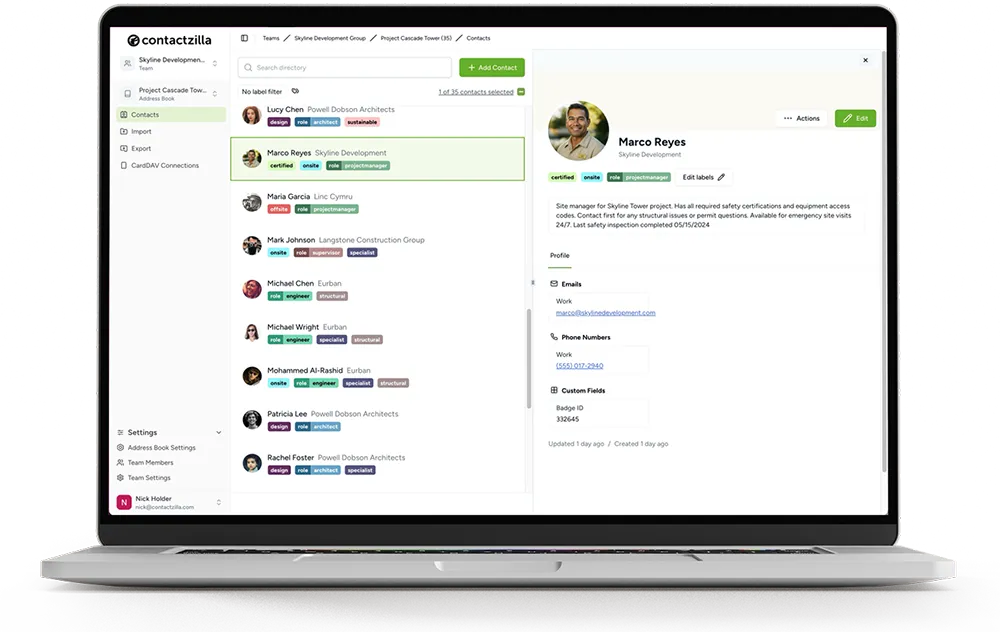
How to Sync Company Contacts to iPhones with Mosyle

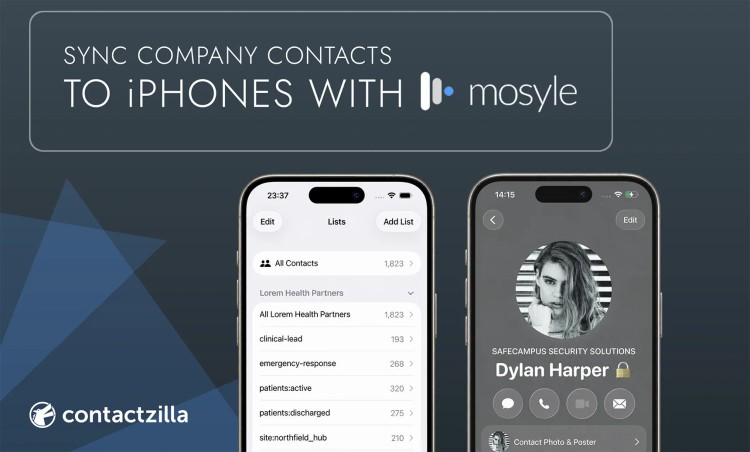
If your iPhones and iPads are managed in Mosyle, you can put a company contact list straight into the built-in Contacts app on every device, kept up to date without anyone touching the phones. The setup takes one custom profile in Mosyle and an address book that lives somewhere central.
Short answer: Mosyle delivers the contact account, and a CardDAV contact server such as Contactzilla holds the list. You build the address book in Contactzilla, download a ready-made .mobileconfig profile, upload it to Mosyle under Certificates / Custom Profiles and assign it to your devices. Once it has installed, tick Do not auto-install the profile after saving so later edits in Mosyle don't trigger CardDAV password prompts on users' phones.Can Mosyle push contacts to the iPhone Contacts app?
Yes. Mosyle can install a contact account on managed iPhones and iPads through a configuration profile, and iOS then syncs that account in the background like any other contacts account. What Mosyle doesn't do is hold and maintain the contact list itself. The list has to live on a contact server the phones can sync from, and that is the part Contactzilla provides.
Apple devices support CardDAV, the open standard for syncing contacts, out of the box, so no extra app is needed on the iPhone. Apple's deployment guide lists CardDAV alongside IMAP, LDAP and CalDAV as standards-based services iPhone and iPad work with directly. The contacts appear in the Phone, Messages and Contacts apps, so caller ID works for company numbers as soon as they sync.
Why vCards, shared mailboxes and the Outlook app don't solve company contacts on iPhone
Most teams try something simpler first. Sending a vCard file by email or AirDrop gives each person a static copy that goes out of date the moment someone changes their number. Google or Exchange shared contacts can sync to iPhones, but everyone who can see the list can usually edit or delete it, and those changes sync back to everyone else. The Outlook mobile app shows company contacts inside Outlook, not in the native Contacts app where the phone looks up callers.
What IT teams usually want is one contact list, maintained in one place, that lands in the native Contacts app read-only and updates itself. That combination is what the Mosyle and Contactzilla setup gives you.
Key definitions: CardDAV, configuration profiles and Mosyle custom profiles
CardDAV: an open standard that lets a device sync contacts with a server, used natively by iPhone and iPad. Our What is CardDAV? explainer covers it in more detail.
Configuration profile (.mobileconfig): a file that tells an Apple device how to set up an account or setting. Apple lists the contacts account among the device management payloads for iPhone and iPad. Contactzilla generates a profile containing the CardDAV server address and the account details for your address book.
Certificates / Custom Profiles: the Mosyle profile type used to upload your own .mobileconfig file and assign it to devices or groups.
Device connection: the Contactzilla setting that controls what one deployment can see and do, such as which contacts it receives and whether the phone can edit them.
What you need before you push contacts to iPhones with Mosyle
- Mosyle with your iPhones or iPads enrolled, and admin access to the Mosyle dashboard. The Certificates / Custom Profiles profile type is available in Mosyle Business, including the free tier (Mosyle Business Free, for up to 30 devices), and in Mosyle's education platform.
- A Contactzilla account with an address book containing the contacts you want to deploy.
- An MDM team member in Contactzilla, a dedicated account that device deployments run under.
Step 1: Get your business contacts into one address book
Start by putting your company contact list somewhere central. Contactzilla can import a CSV or vCard file, which suits a one-off move from a spreadsheet, or stay in sync with a source system such as Microsoft 365, through Microsoft Entra ID, or a Google Workspace directory. With a directory sync, new starters and leavers flow through without manual exports. Either way, the address book becomes the single copy of your contact list that you maintain, and every phone follows it.
Step 2: Create a read-only iOS device connection for your iPhones
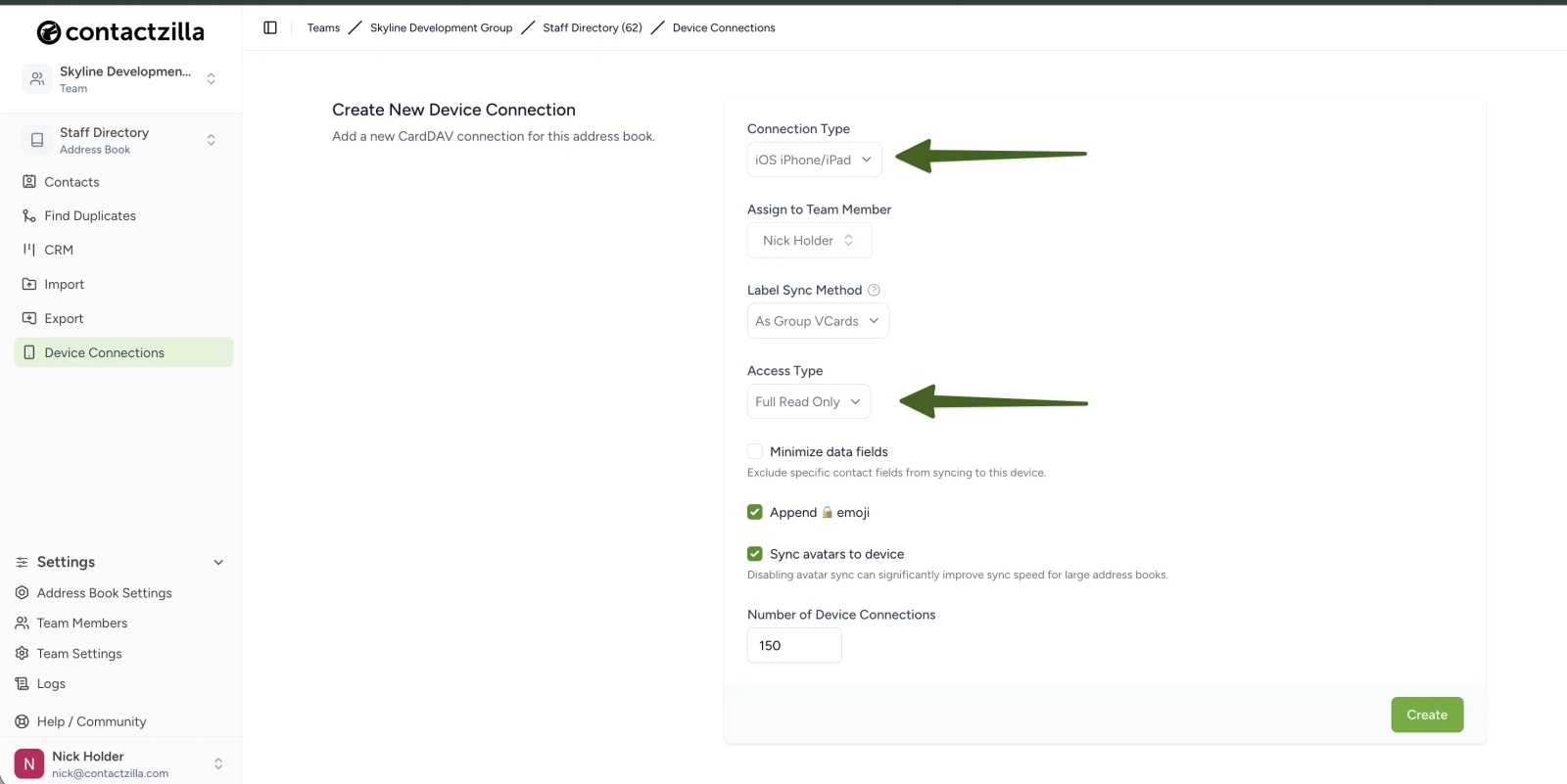
This is the main decision in the whole setup, and it's made in Contactzilla rather than in Mosyle. Create a device connection for the address book with the connection type set to iOS iPhone/iPad, assign it to your MDM team member, and set the number of devices you plan to deploy to. Then choose the access type, which decides who sees what and whether they can edit:
| Access type | What the phone gets | Typical use |
|---|---|---|
| Full Read Only | Every contact in the address book, which users can't change | Company-wide directory on managed phones |
| Selective Read Only | Only contacts carrying the labels you choose, read-only | Different lists for different teams, sites or departments |
| Full Read/Write | Every contact, and users can add or edit them | Small teams who share and maintain the list together |
Read-only is the usual choice for managed devices, because it stops personal numbers ending up in everyone's company list. On read-only deployments you can also add a lock emoji to each contact, so users can see at a glance that a contact is managed centrally. If you need different lists for different groups, Selective Read Only sync lets one address book serve all of them.
Step 3: Download the profile from Contactzilla
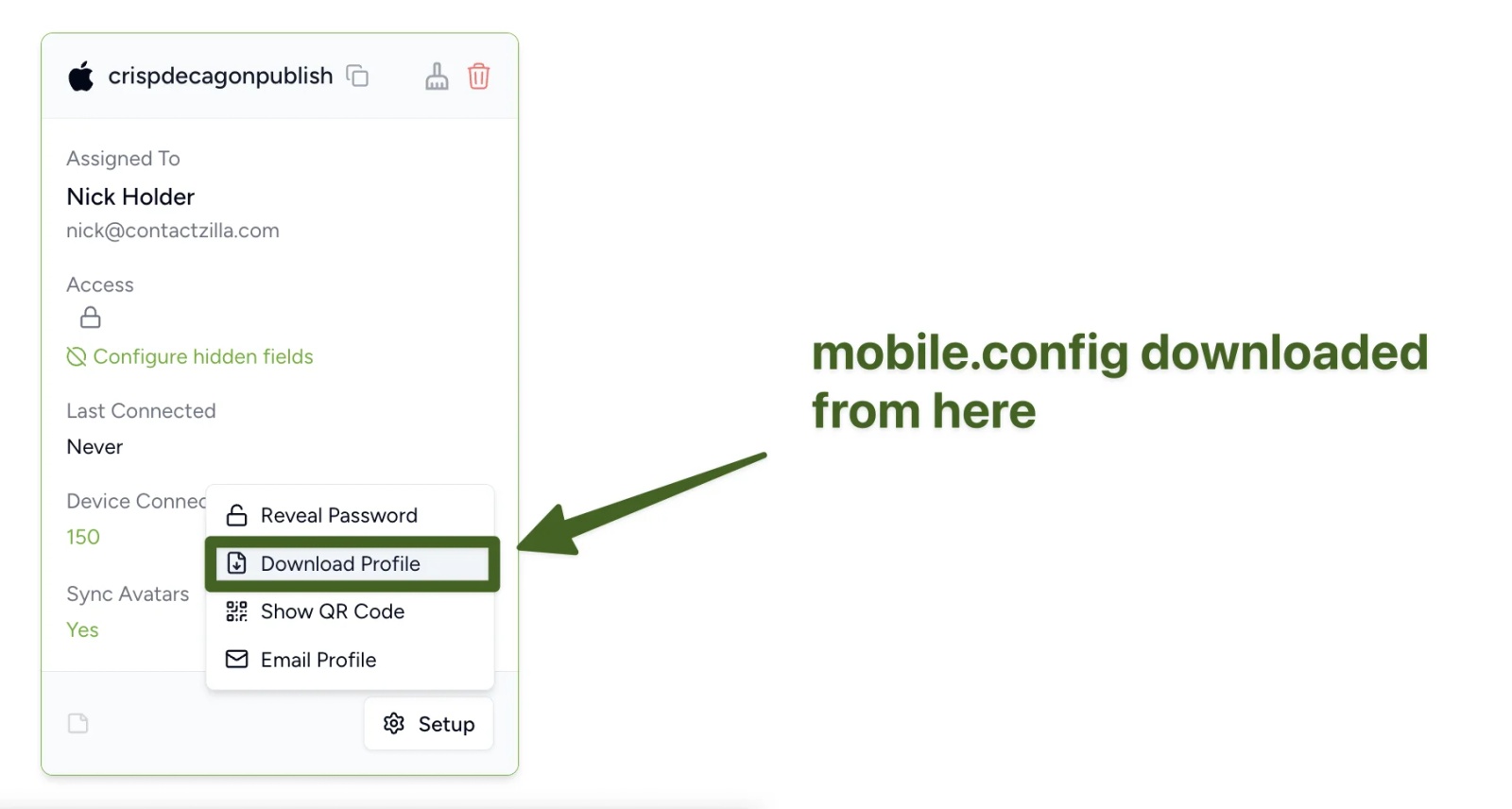
When you click Create, the new connection appears as a card. Open Setup on the card and choose Download Profile to get a .mobileconfig file with the server address and account details already filled in. There's nothing to type on the phone and nothing for users to set up, which is what makes the same file work for ten devices or a thousand.
Step 4: Upload the profile to Mosyle as a custom profile and assign it
In Mosyle, the profile goes in under Certificates / Custom Profiles. If that profile type isn't in your sidebar yet, you activate it once from Management. Create a new custom profile, upload the Contactzilla file, assign the devices or groups that should get the contacts, and save. Leave Do not auto-install the profile after saving unticked for this first install, so the profile goes out to the assigned devices straight away.
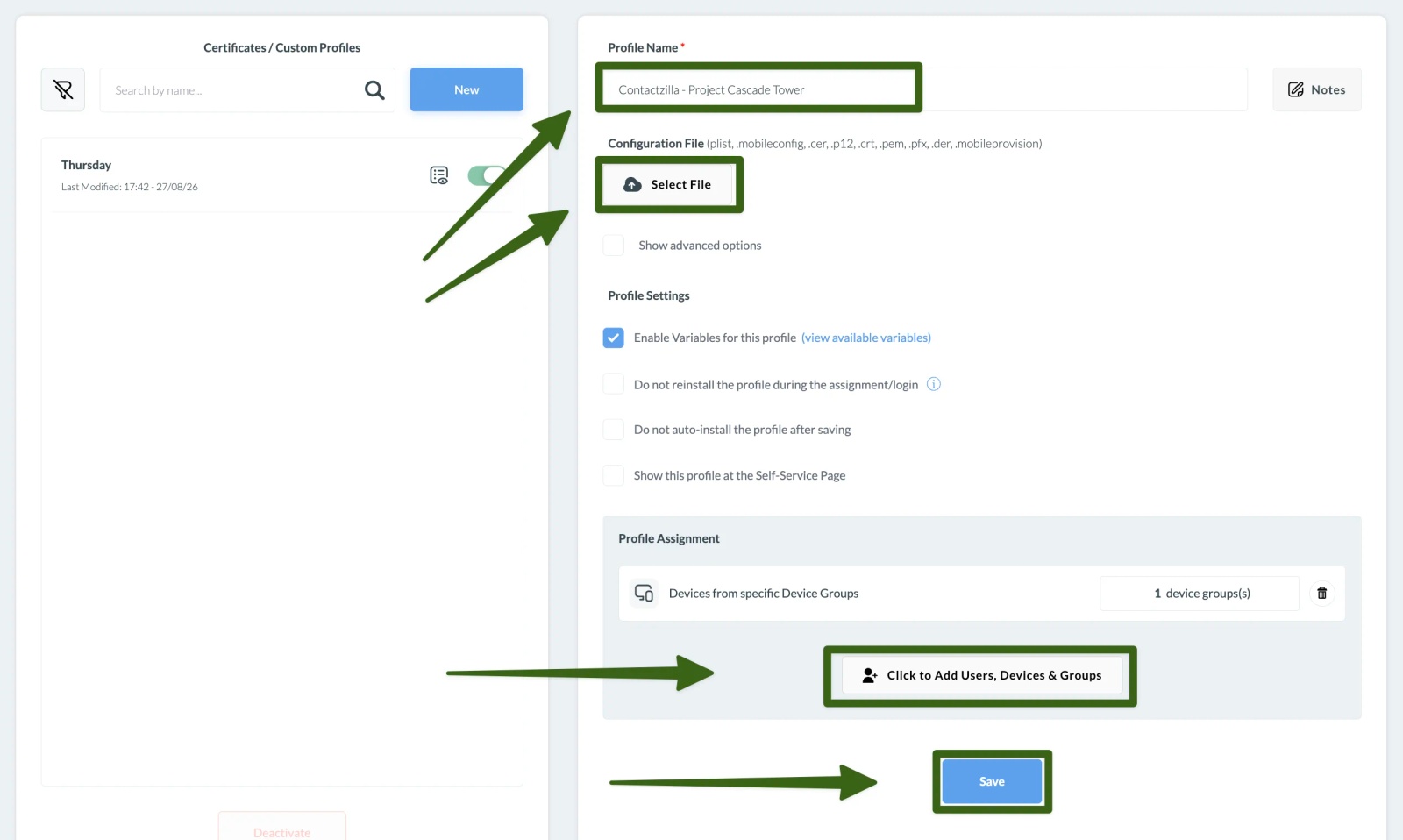
Tip 💡 Want the exact clicks? Our Mosyle deployment guide walks through every screen. Using a different MDM? We have guides for Jamf Pro, Microsoft Intune, IBM MaaS360 and Workspace ONE.
Step 5: Tick "Do not auto-install the profile after saving" in Mosyle
This is the Mosyle-specific step, and skipping it is what causes most problems later. By default, when you save any change to an assigned profile, Mosyle removes it from the devices and installs it again. For a CardDAV account, that reinstall can make iPhones ask users for the account password, which they won't have. Once the first devices show as installed in the profile's Compliance Status, open the profile again, tick Do not auto-install the profile after saving and save. Keep it ticked from then on.
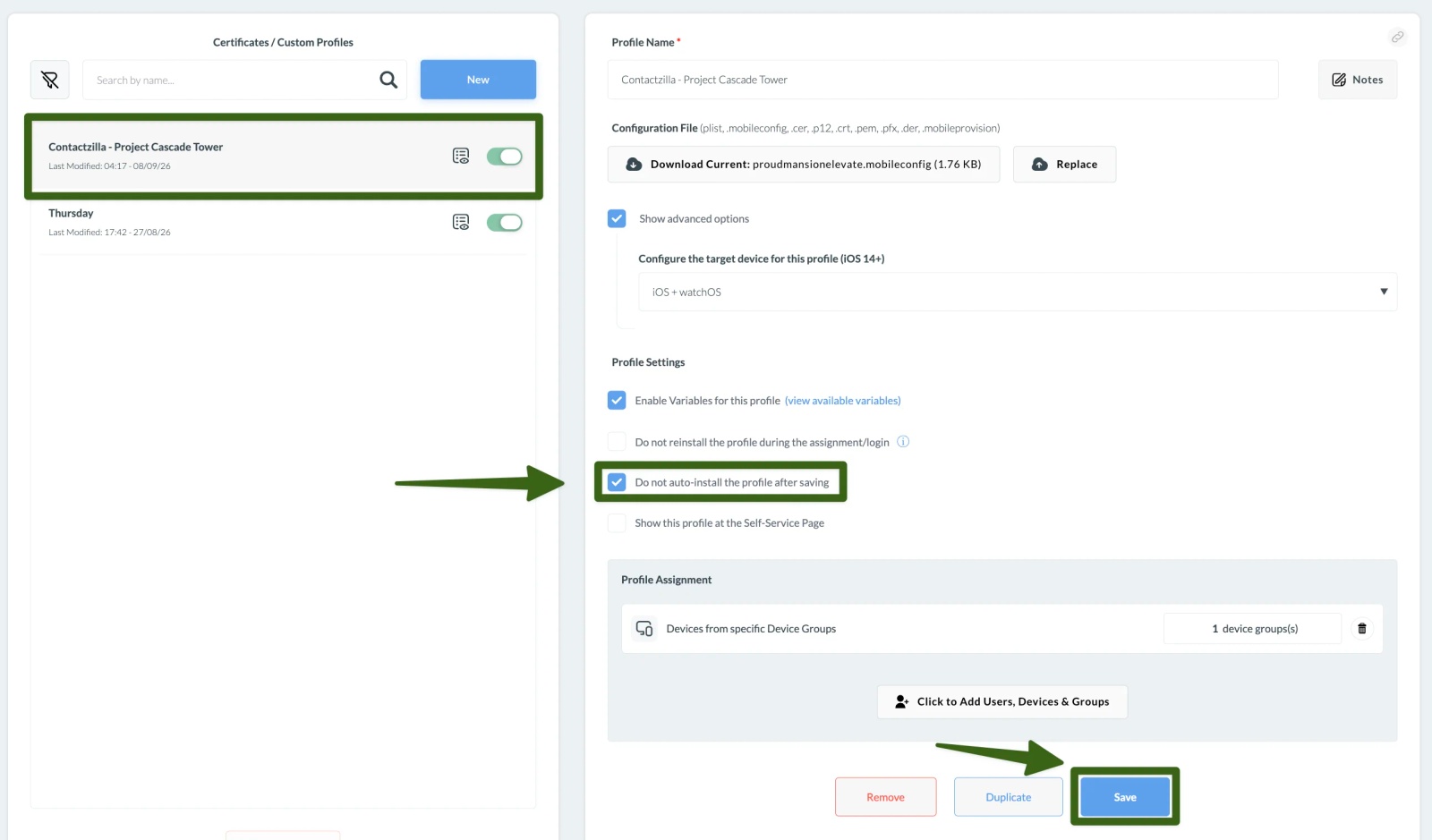
The trade-off is that devices added to the group later don't install the profile automatically. Mosyle holds it for them instead, shown as On hold on the device's Profiles tab, and you start the install with Reinstall. Despite the name, that button triggers the first install on a new device.
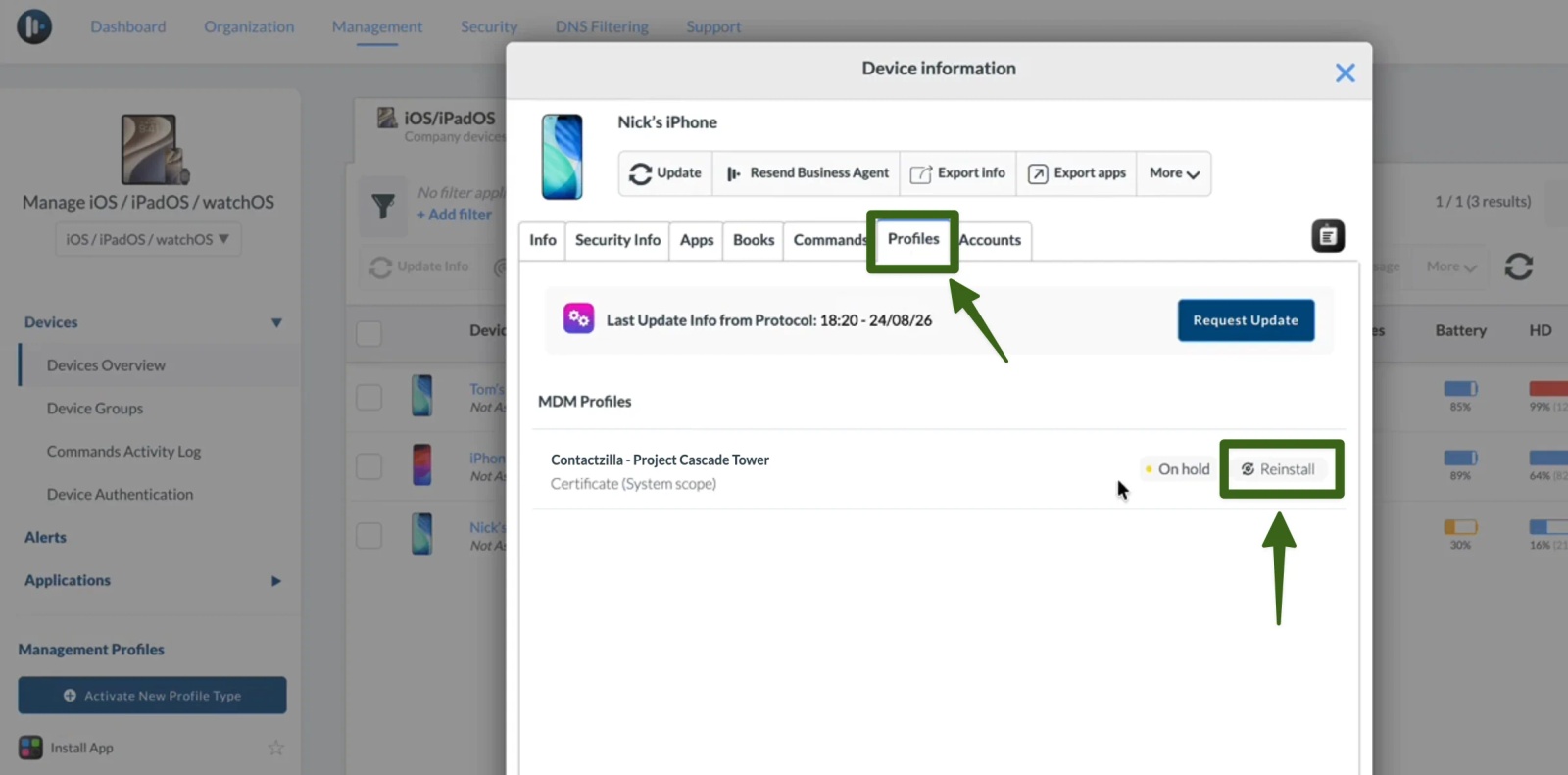
Step 6: Check the shared contacts on an iPhone
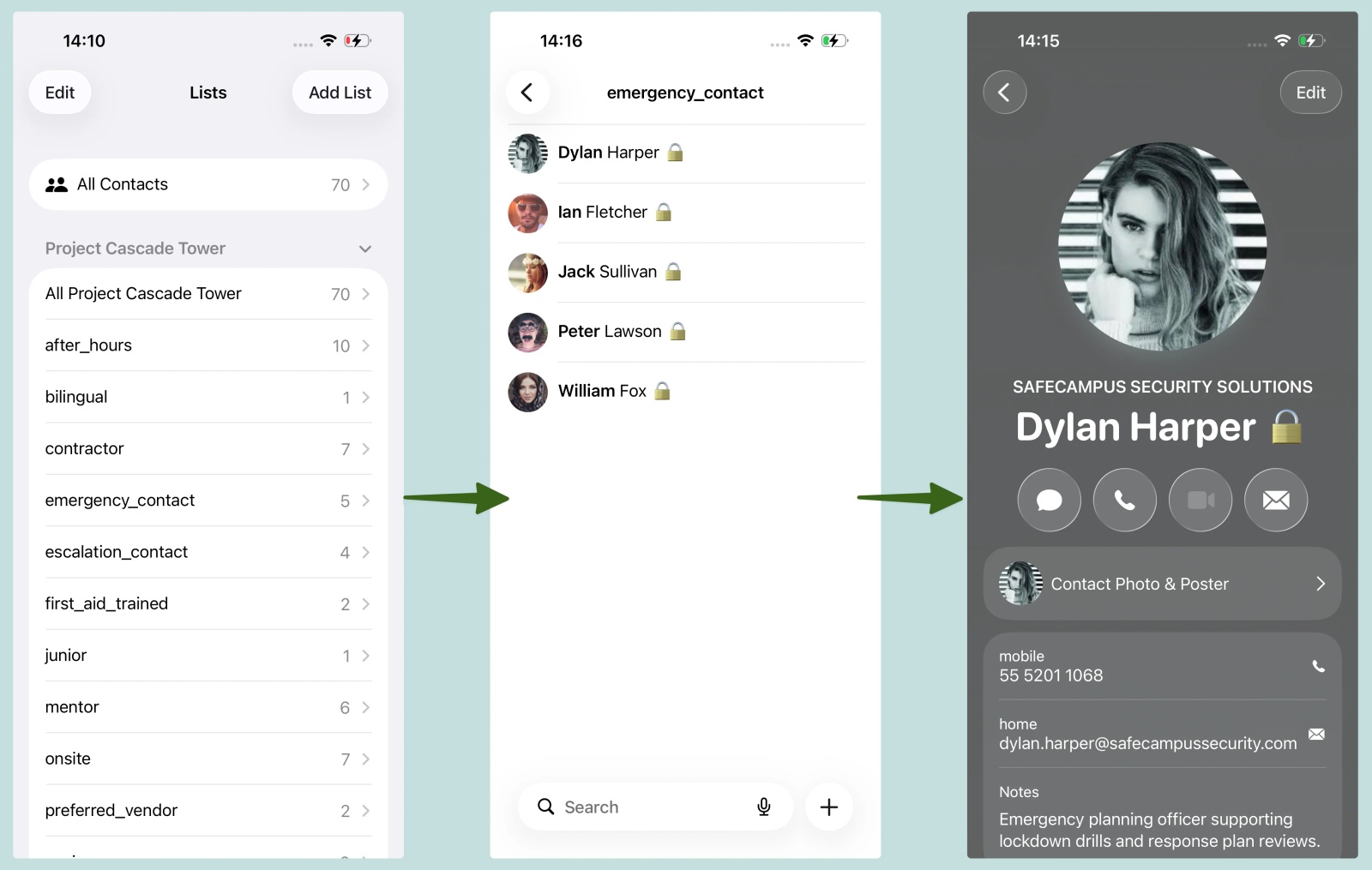
On an iPhone that has received the profile, the company contacts appear in the Contacts app as their own account, and the account is listed under Settings > Contacts > Contacts Accounts. From then on, changes you make in Contactzilla reach the phones on their own the next time they sync, usually within about 15 minutes. Contacts are stored on the device, so they're still there without a signal.
Why does Mosyle make iPhones ask for a CardDAV password?
A CardDAV password prompt on a managed iPhone almost always means the account was removed and put back, and the phone didn't get the password with it. With Mosyle, the most common cause is the default behaviour described in Step 5: saving a change to the assigned profile reinstalls it on every device. Ticking Do not auto-install the profile after saving after the first install avoids this.
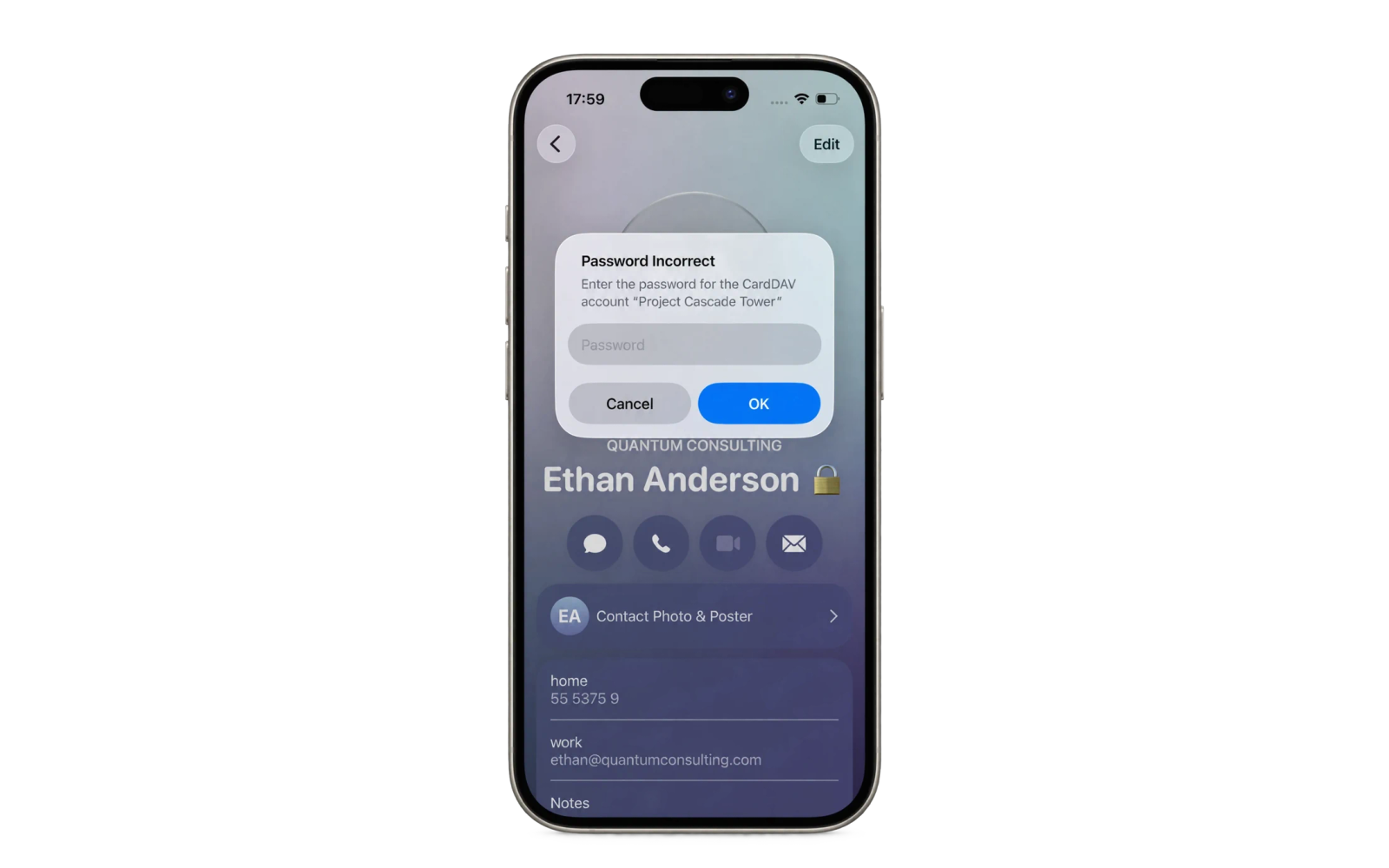
In our testing, changing which device group the profile is assigned to has also removed the CardDAV password from devices. The safe approach is to set the profile's assignment once, then add or remove devices through the device group itself rather than editing the profile.
Tip 💡 Seeing password prompts already? Our guide to why iPhones keep asking for a CardDAV password covers the other common causes and how to clear them.
When Mosyle and Contactzilla are the right fit for company contacts on iPhone
- Your organisation runs Apple devices in Mosyle and wants company contacts in the native Contacts app, not inside a separate app.
- You want the contact list read-only on phones, so it can't be edited or polluted by personal numbers.
- Different teams, sites or year groups need different contact lists from one maintained source.
- Contacts already live in Microsoft 365, Google Workspace or a spreadsheet, and you want phones to follow that source without manual exports.
Next steps
- Mosyle deployment guide with every click and screenshot.
- Sync the Global Address List (GAL) to iPhone, if your contacts live in Microsoft 365.
Frequently Asked Questions
Does Mosyle contact sync work on iPads as well as iPhones?
Yes. Apple supports the CardDAV contacts payload on iPadOS as well as iOS, so the same Contactzilla profile can be assigned to iPads in Mosyle, and the contacts appear in the iPad's Contacts app.
Can users delete or edit the company contacts?
Not on a read-only deployment. A user can delete a contact from their own phone, but the server's copy is the master and the contact comes back on the next sync. If users need to add or edit contacts, a read/write connection allows that, with an option to block deletions from the master list.
Can different Mosyle device groups get different contacts?
Yes. Either create a separate address book per group, or keep one address book and use Selective Read Only sync to send only labelled contacts to each deployment. Each deployment has its own profile, which you assign to the matching Mosyle device group.
Will the shared contacts show up as caller ID on iPhone?
Yes. Because the contacts sit in the native Contacts app, the Phone and Messages apps use them for caller ID, so an incoming call from a colleague or supplier shows their name rather than a bare number.
What happens when someone leaves the company?
Remove or update them in Contactzilla, or in the source system Contactzilla imports from, and the change reaches every phone on the next sync. To take the whole address book off a device, remove that device from the profile's assignment in Mosyle, and the account and its contacts are removed from the iPhone.
Can Mosyle push contacts to Android phones?
No. Mosyle manages Apple devices only. For Android, Contactzilla uses the Contactzilla Sync app deployed through an Android MDM, and our Android CardDAV guide explains the setup.
Do the contacts still work without a signal?
Yes. The contacts are stored on the device, so they're available offline and caller ID still works. The phone picks up any changes the next time it connects and syncs.