How to Sync the Global Address List (GAL) to iPhone Contacts

Microsoft 365 keeps the Global Address List up to date, but it won't put it on your team's iPhones as contacts that work with caller ID.
Short answer: To get the Global Address List on an iPhone, import your Microsoft Entra ID users into a shared address book and deploy it to the phone as a read-only CardDAV contacts account through your MDM, such as Intune or Jamf Pro. Microsoft 365 can't do this natively, because the GAL is a directory you search rather than a contacts account the iPhone stores. Contactzilla handles both steps: the contacts appear in the native Contacts app with caller ID, update on a schedule you set, and leavers can drop off automatically when their Entra account is disabled.
Prefer to watch first? Our video Sync Microsoft Global Address List to iPhone & Android runs through the Entra ID import and an Intune deployment end to end.
How to sync the GAL to iPhone with Contactzilla in four steps
1) Connect Contactzilla to Microsoft Entra ID: from the address book you want this data in, Contactzilla authenticates against your tenant over OAuth and reads directory data. Nothing is copied into individual mailboxes.
2) Configure the import: point it at your tenant, decide how much of the directory to bring in, and set how often it checks for changes.
3) Map fields and set update rules: Entra attributes map to contact fields, and you decide what's hidden, who's filtered out, and how deletions and duplicates are handled.
4) Deploy to iPhone: the address book reaches devices as a CardDAV contacts account through your MDM, or installed directly on each phone where there's no MDM, and appears in the native Contacts app with caller ID.
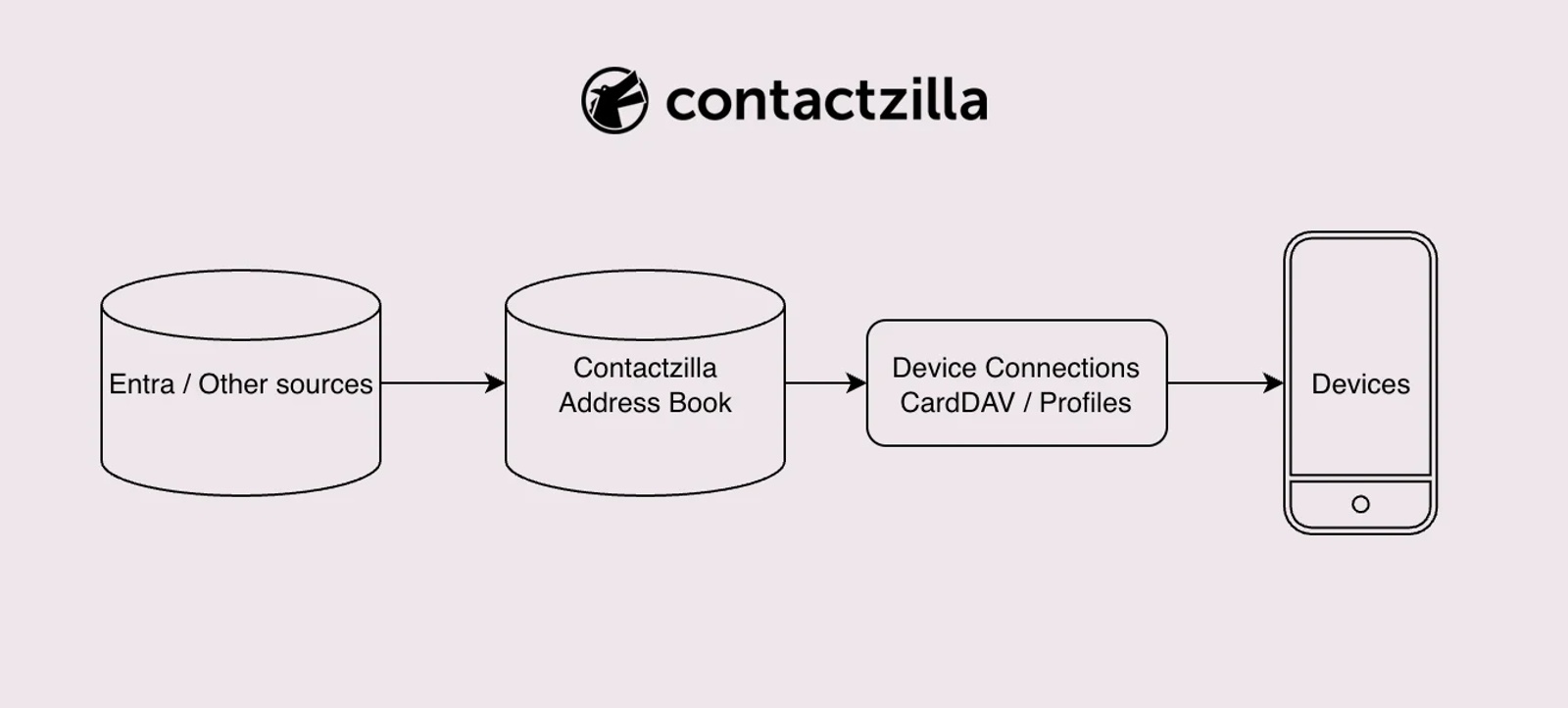
The sections below cover the decisions at each step. For every click, see the help article Import contacts from Microsoft Entra ID to Contactzilla.
Does the Global Address List sync to iPhone Contacts automatically?
No. Microsoft 365 keeps directory data and device contact sync deliberately separate. The GAL exists to support email addressing and Exchange directory lookups, and Microsoft's sync model runs the other way: through Exchange ActiveSync and Outlook, which sync a mailbox's own Contacts folder, not the directory itself. iOS follows the same split. The Contacts app only shows entries belonging to a configured account, such as iCloud, CardDAV, or an Exchange mailbox, and the GAL isn't one of those. A Microsoft moderator on Microsoft Q&A puts it plainly: "As far as I know, Exchange GAL does not sync to mobile phones natively." The only workaround offered there is manual: select the Global Address List in desktop Outlook and add everyone to your own contacts, a one-off copy that goes out of date as people join and leave.
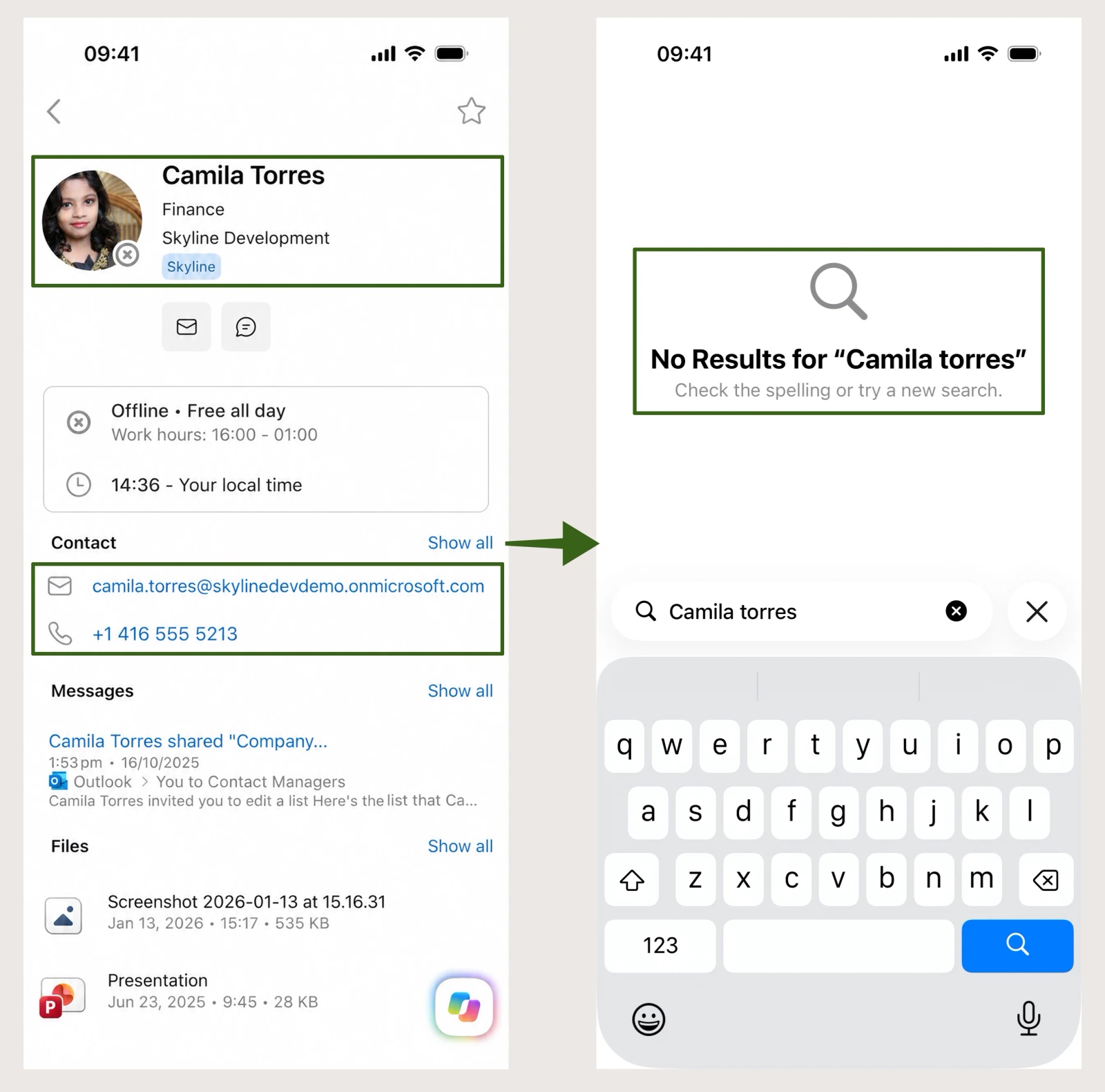
That's why searching in iOS can surface a GAL entry through a linked Exchange or Outlook connection, while the same person is nowhere to be found in the Contacts app itself: search reaches the directory, but the Contacts app only reads from accounts.
Key definitions: GAL, Entra ID users and mailbox contacts
Global Address List (GAL): the organisation-wide directory Exchange builds from users, mail contacts and distribution lists, used mainly for email addressing and lookups rather than device contacts.
Entra ID directory users: the identity objects behind those people in Microsoft Entra ID (formerly Azure Active Directory, or Azure AD), carrying attributes such as name, mobile phone, job title and department. This is the data an importer actually reads.
Mailbox contacts: the personal contacts inside one person's mailbox, synced individually through Outlook or ActiveSync, and unrelated to the shared directory.
Offline Address Book (OAB): a downloadable copy of the GAL that Outlook uses when it can't reach Exchange. It serves Outlook, not the iPhone Contacts app, so it doesn't solve this problem either.
Tip 💡 New to CardDAV? What Is CardDAV? Contact Sync Explained covers how the protocol itself works before you get into the Entra ID and MDM specifics below.
What are the ways to get the Global Address List onto an iPhone?
Every approach comes down to the same question: what pulls the directory data out, and how does it reach the device as a contacts account. Here's how the common approaches compare.
Options for delivering GAL data to iPhone Contacts
| Option | Stays updated? | Shows in native Contacts / caller ID? | Effort |
|---|---|---|---|
| Manual CSV or vCard export | No, one-off | Yes, once imported | Low per export, grows over time |
| Outlook "Save Contacts" | Partial, depends on the mailbox | Inconsistent, duplicates common | Low to enable, unreliable to maintain |
| Exchange ActiveSync (mailbox contacts) | Yes, for that mailbox's own contacts | Yes | Medium; creates a separate copy per mailbox |
| Script or Graph API export | Only if you build and run it on a schedule | No, not directly; it writes contacts into individual Outlook mailboxes, not a shared device account | High; app registration, a maintained script, no built-in deduplication |
| Third-party GAL sync service | Yes, typically | Yes, typically | Medium; ongoing subscription and setup |
| Entra ID import + MDM (Contactzilla) | Yes, on the schedule you set | Yes, read-only on the device | Low, after initial setup |
The script/Graph API route is real and IT admins do build it: a common pattern uses Microsoft Graph's Contacts.ReadWrite permission to write directory data into each user's own Outlook contacts (see Practical 365's walkthrough of the approach). It stops at the mailbox, though: those contacts only reach the native Contacts app if Outlook's own device sync is also switched on, which is the same partial, duplicate-prone path covered above. In community discussion (for example this Jamf admin forum thread), the answer to "how do I sync the GAL to iPhone" tends to be a dedicated third-party tool rather than a maintained script, precisely because MDM platforms have no built-in way to read the GAL themselves.
What you need to sync the GAL to iPhone
- Directory read permissions in Microsoft Entra ID (an admin may need to grant tenant-wide consent for a bulk deployment).
- A Contactzilla account with an address book to import into.
- An MDM platform for automatic deployment (Intune, Jamf Pro, MaaS360, Workspace ONE or Mosyle), or none at all: How to Sync the GAL to iPhone and Android Without Intune covers the routes that don't need one.
Tip 💡 Whether devices are personally owned or company-owned changes how you'll want to roll this out, and how much end users can be prevented from touching the setup. If that's not already decided, see BYOD vs COPE: choosing the right mobile device policy.
Step 1: Connect Contactzilla to Microsoft Entra ID
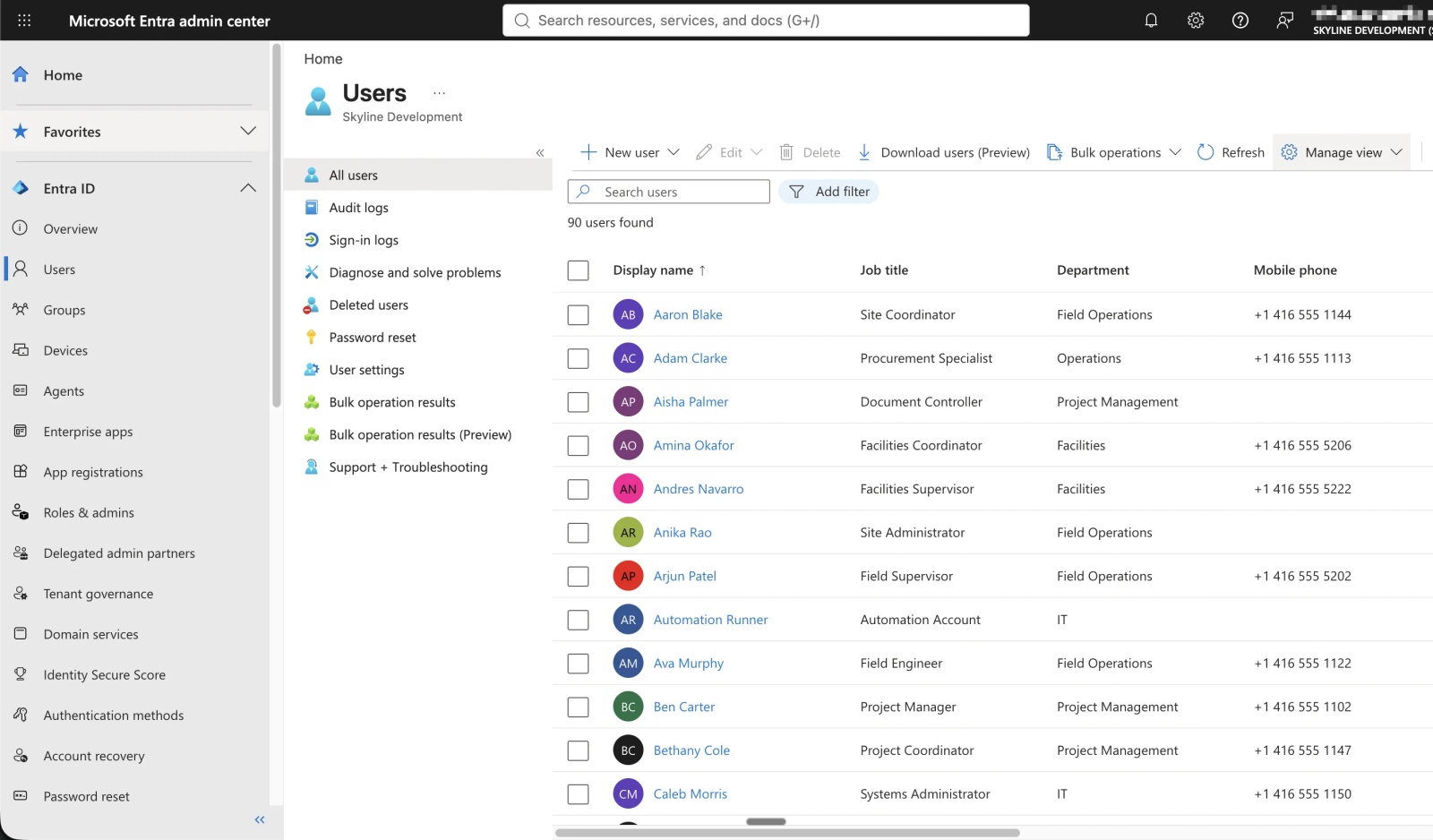
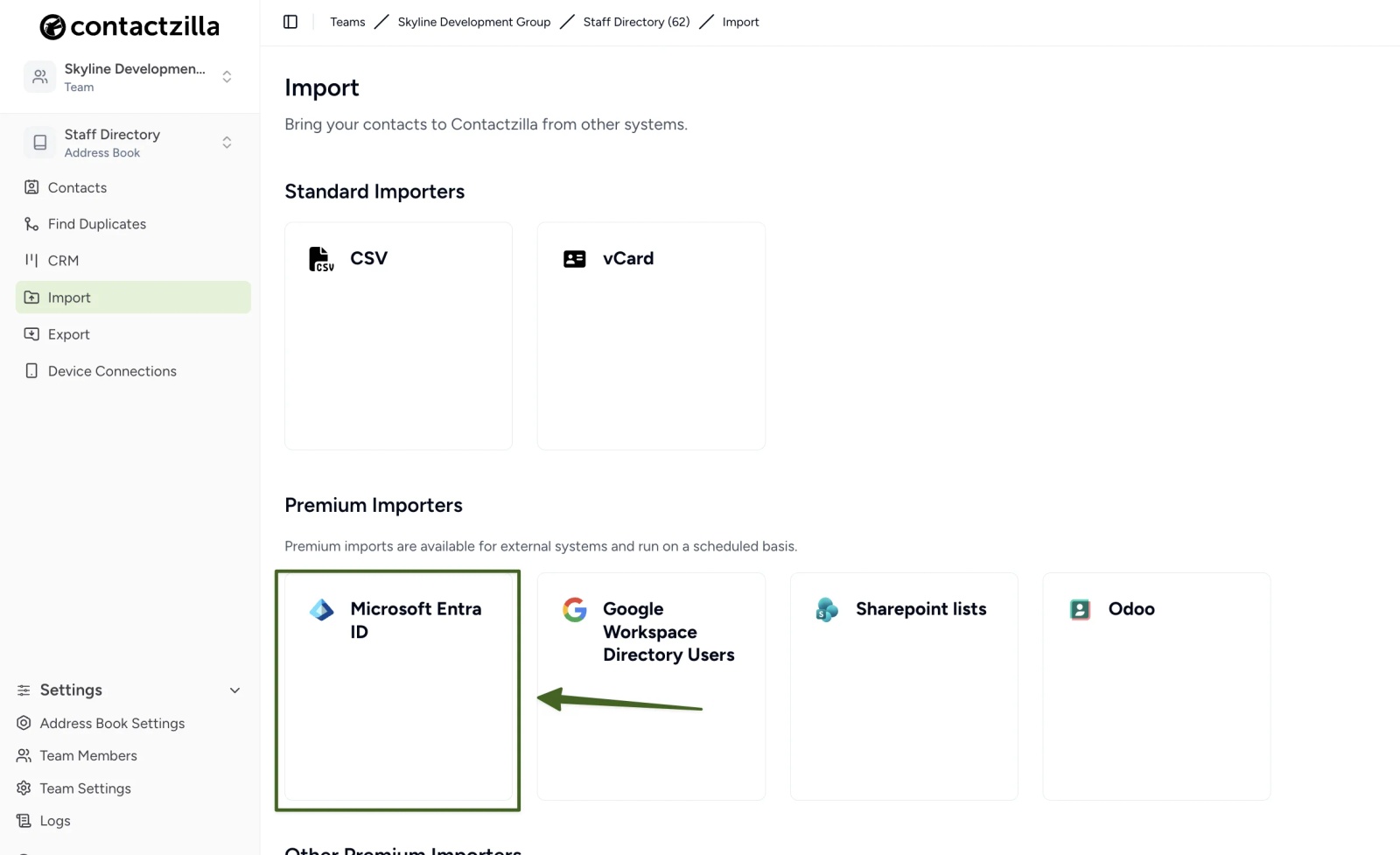
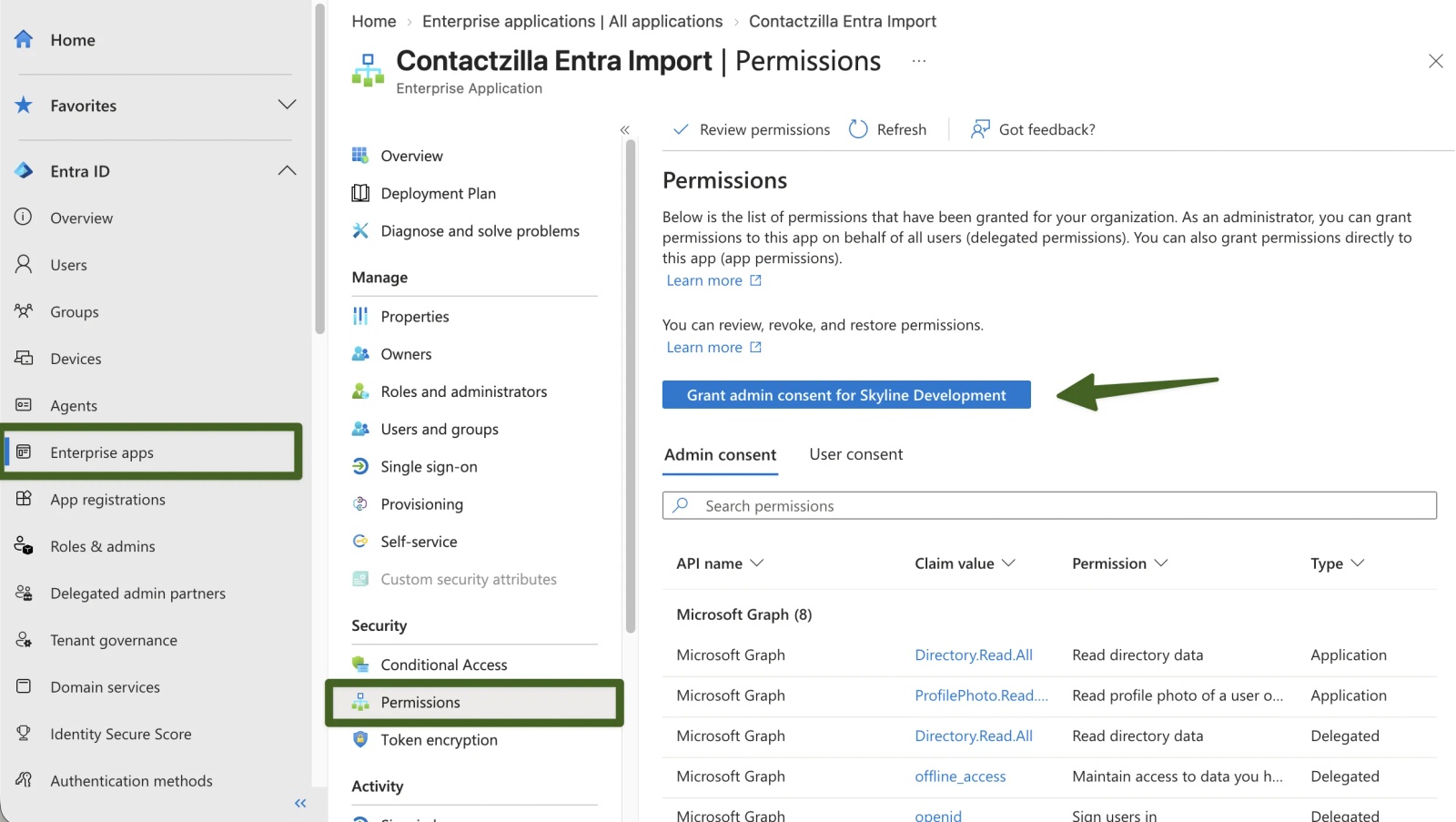
From the address book you want this data to land in, for example a dedicated "Staff Directory" address book, choose Import and select Microsoft Entra ID. Contactzilla then walks you through Microsoft's own OAuth consent flow, scoped to read-only directory access, so no credentials are stored outside Microsoft's system. The first time, an Entra admin also grants admin consent directly in Entra (under Enterprise Applications, against the Contactzilla connector), so the connection covers the whole tenant rather than one user at a time.
Step 2: Choose which Entra ID users to import and how often
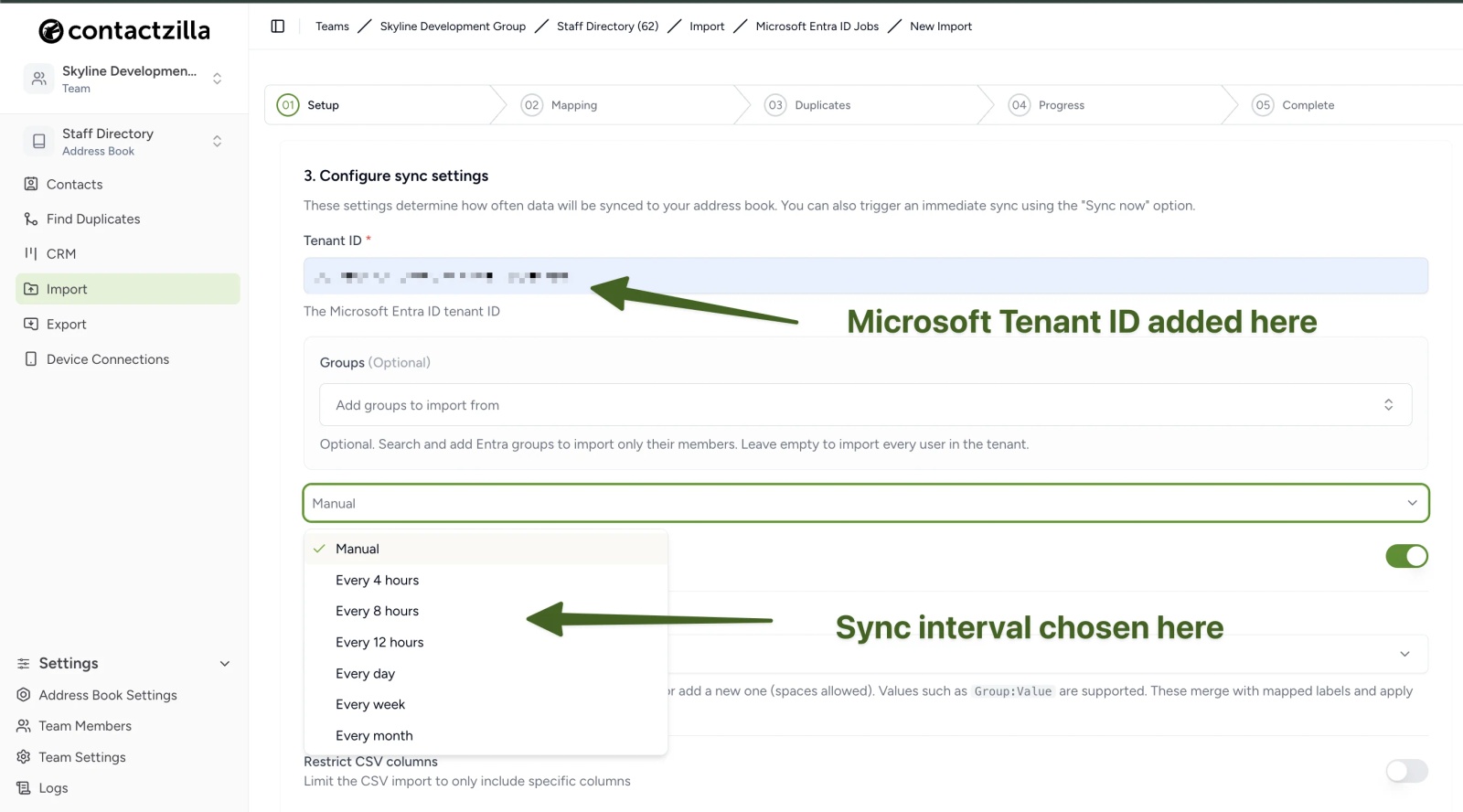
Paste in your Microsoft tenant ID, found on the Entra admin center overview page. If your Entra tenant is already organised into a group that matches who you want, such as a staff or all-employees group, you can scope the import to just that group. Otherwise it's usually simpler to bring in everyone and filter out what you don't want at the mapping stage next. Set how often the import checks Entra for changes, from manual up to monthly; manual is worth keeping while you're testing. From here on, this address book, not any individual mailbox, is the shared company contact list every device pulls from.
Step 3: Map Entra ID fields and handle joiners, leavers and duplicates
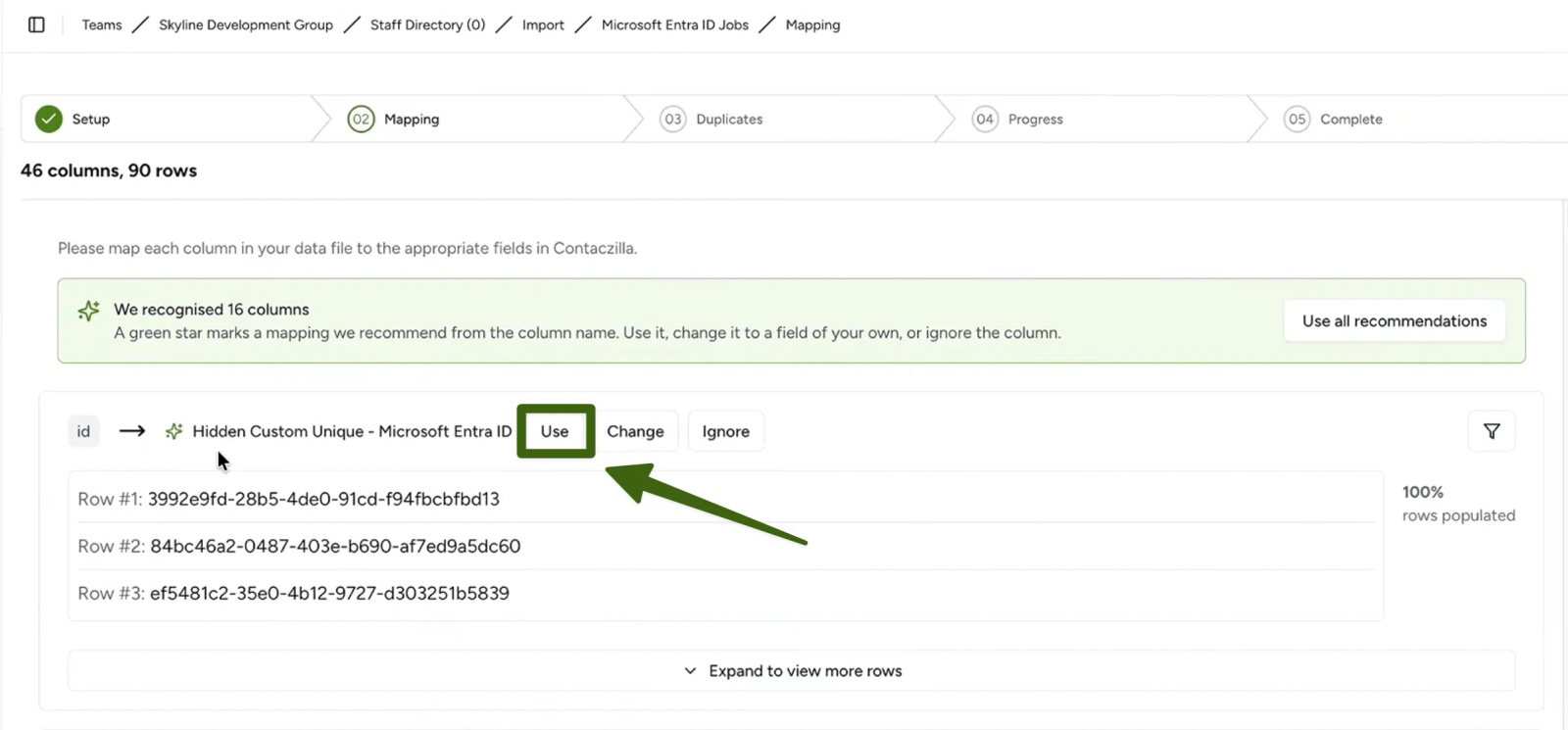
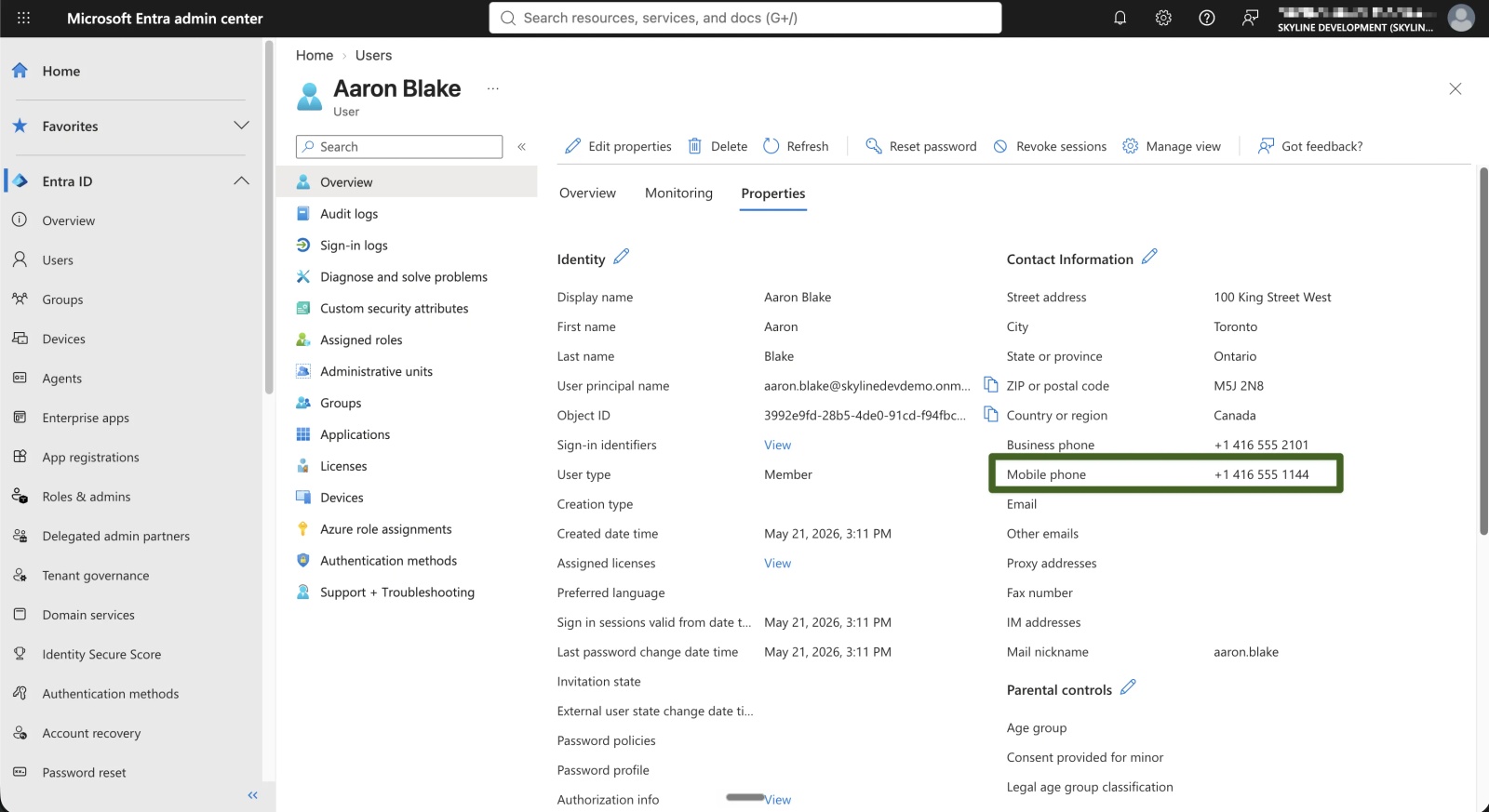
Entra typically returns far more columns than belong on a phone, so mapping is also where you decide what's actually shown: map name, phone number and department onto Contactzilla's contact fields, and leave anything you don't want visible on the device, such as a home address or job title, unmapped. Crucially, the Entra ID field itself gets mapped to a Hidden Custom Unique field: it never reaches the device, but it's what lets every future sync, on whatever interval you set, recognise the same contact again rather than creating a duplicate.
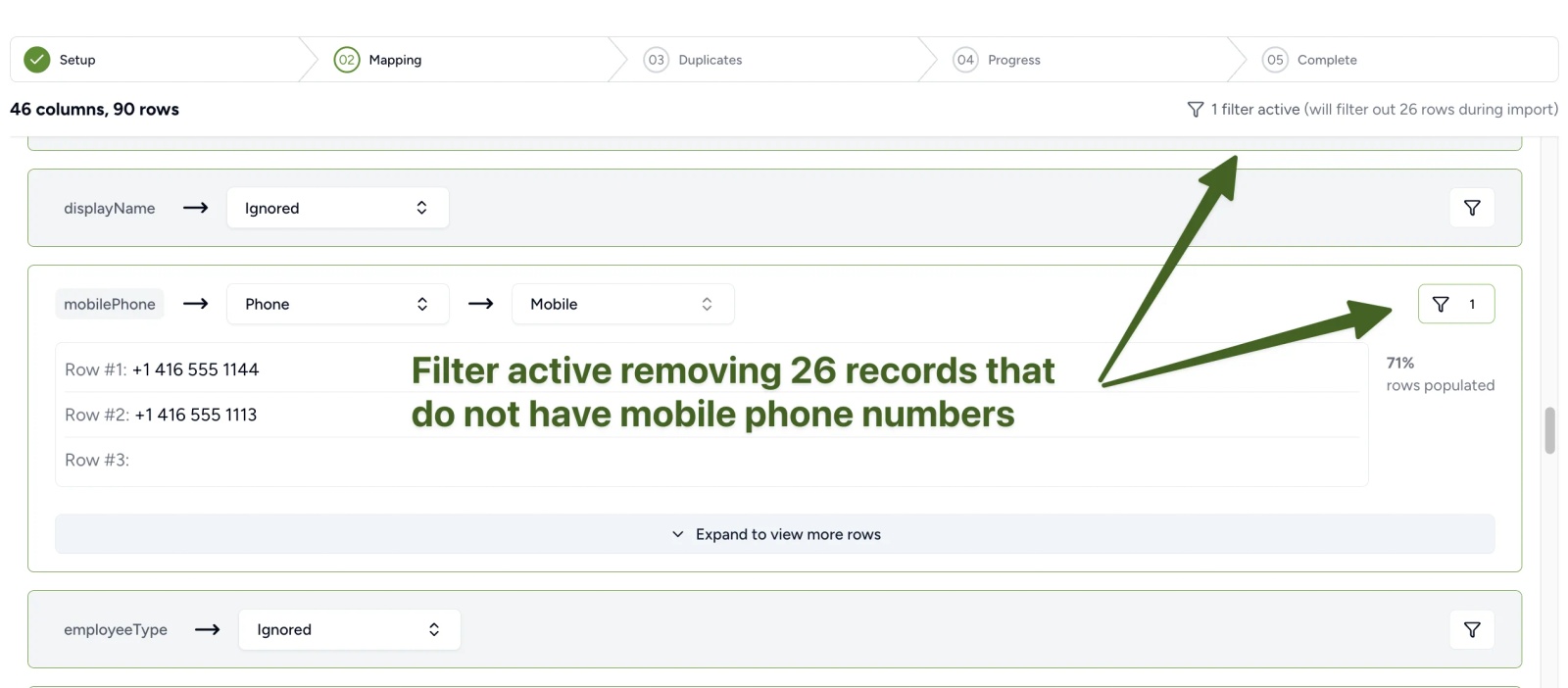
Filters then decide which records reach that address book in the first place. If your tenant has a mix of real people and service or shared-mailbox accounts, a filter can require a mobile number before a record is imported, exclude specific Entra groups, or match on company name for a multi-tenant setup. Deletion handling comes next: disabling someone's Entra account can be set to remove their contact on the next sync, so leavers drop off automatically instead of lingering. Duplicate handling then decides what happens on every other sync. Replace keeps the address book an exact mirror of Entra, while Merge or Skip suit setups where Contactzilla also holds data added by hand, so the list keeps reflecting who has actually joined, moved or left.
Step 4: Deploy the GAL address book to iPhone through your MDM
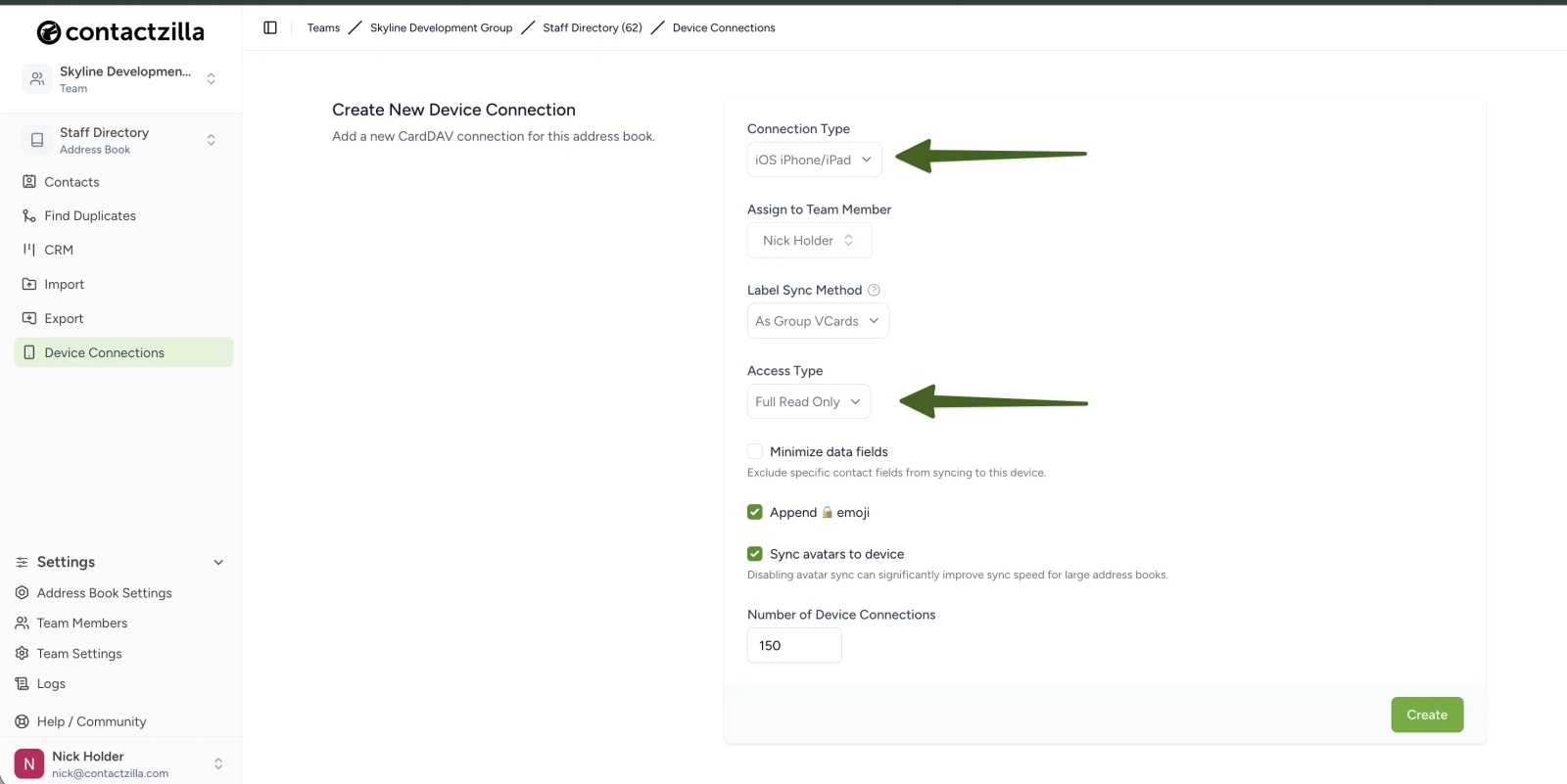
Create a device connection for the address book, and the platform generates an iOS configuration profile you can upload directly to your chosen MDM. Set the connection to read-only: end users can't edit or delete what they see on their device, so the address book in Contactzilla stays the one source of truth instead of drifting as people make their own changes on-device.
That configuration profile follows Apple's own format for adding a managed contacts account to a device, called a Contacts payload, the same format every MDM builds on, which is why the same profile works whichever platform sits underneath it.
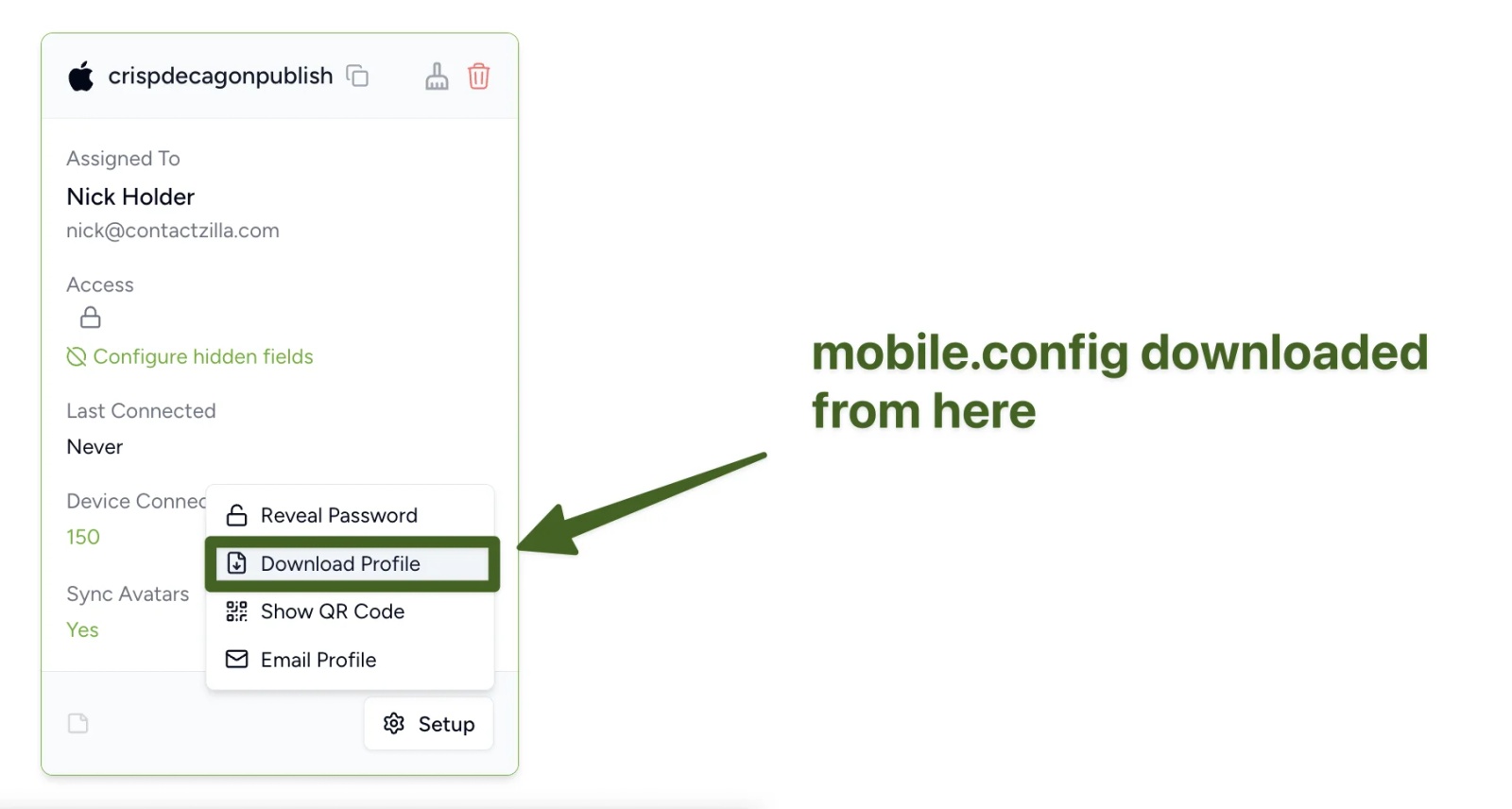
On Microsoft Intune, for example, a policy is created and assigned to a device group, the downloaded .mobileconfig file is uploaded directly to that policy, and the contacts appear in the native Contacts app on the next check-in. The same file installs the same way through Jamf Pro, Workspace ONE, MaaS360 or any other MDM, just under that platform's own custom-profile upload screen; the platform guides below have the exact clicks. Once installed, the shared contact list shows up in the native iOS Contacts app, with automatic updates and caller ID.
Step 5: Check the GAL contacts and caller ID on a test iPhone
On a test device, open Settings > Apps > Contacts > Contacts Accounts and confirm the account is listed under the name of your address book (Staff Directory in this example), with the dav.contactzilla.app server. Check that a known contact appears correctly in the Contacts app, then place a test call from that number and confirm the name resolves instead of showing just a number.
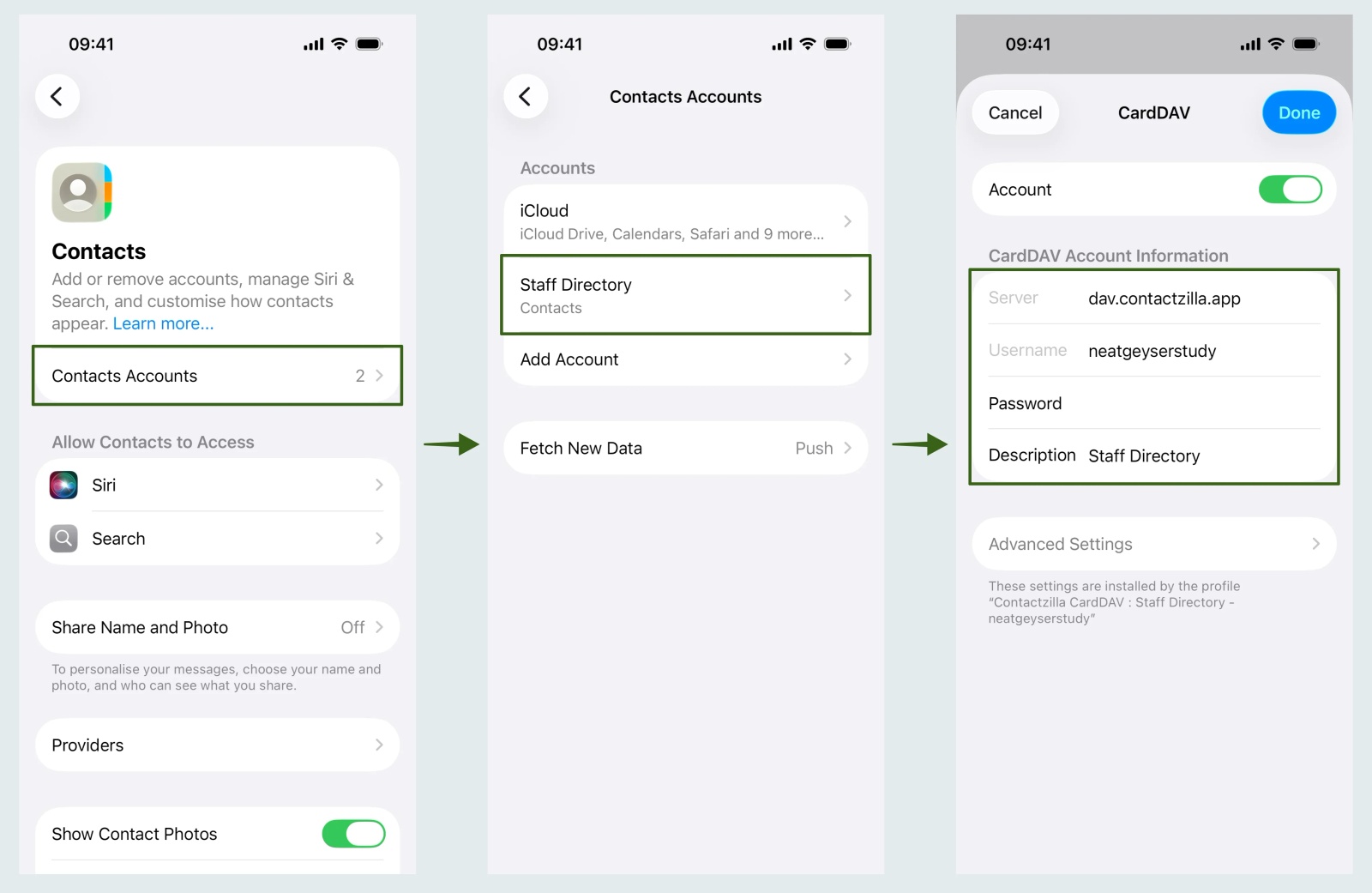
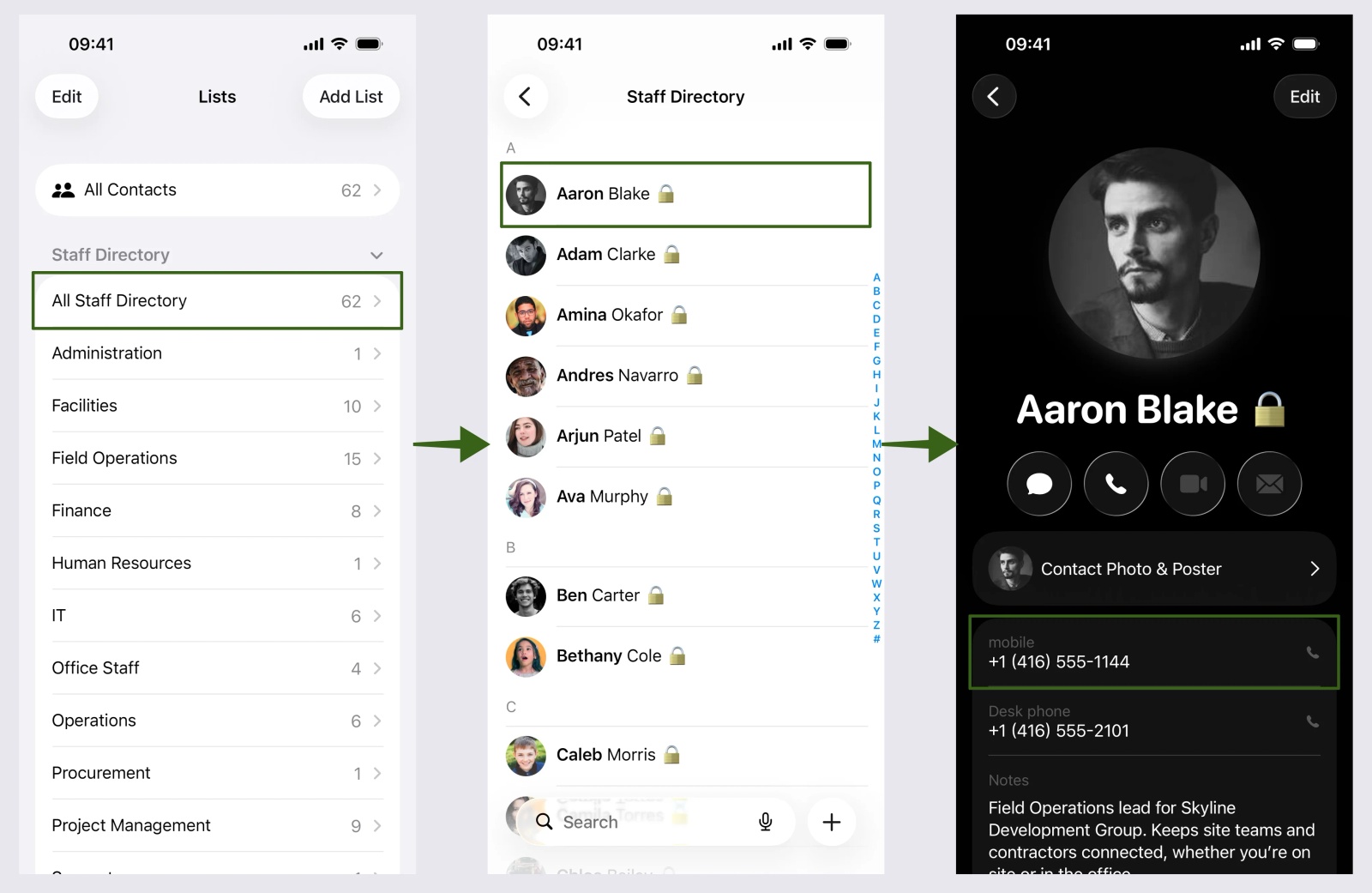
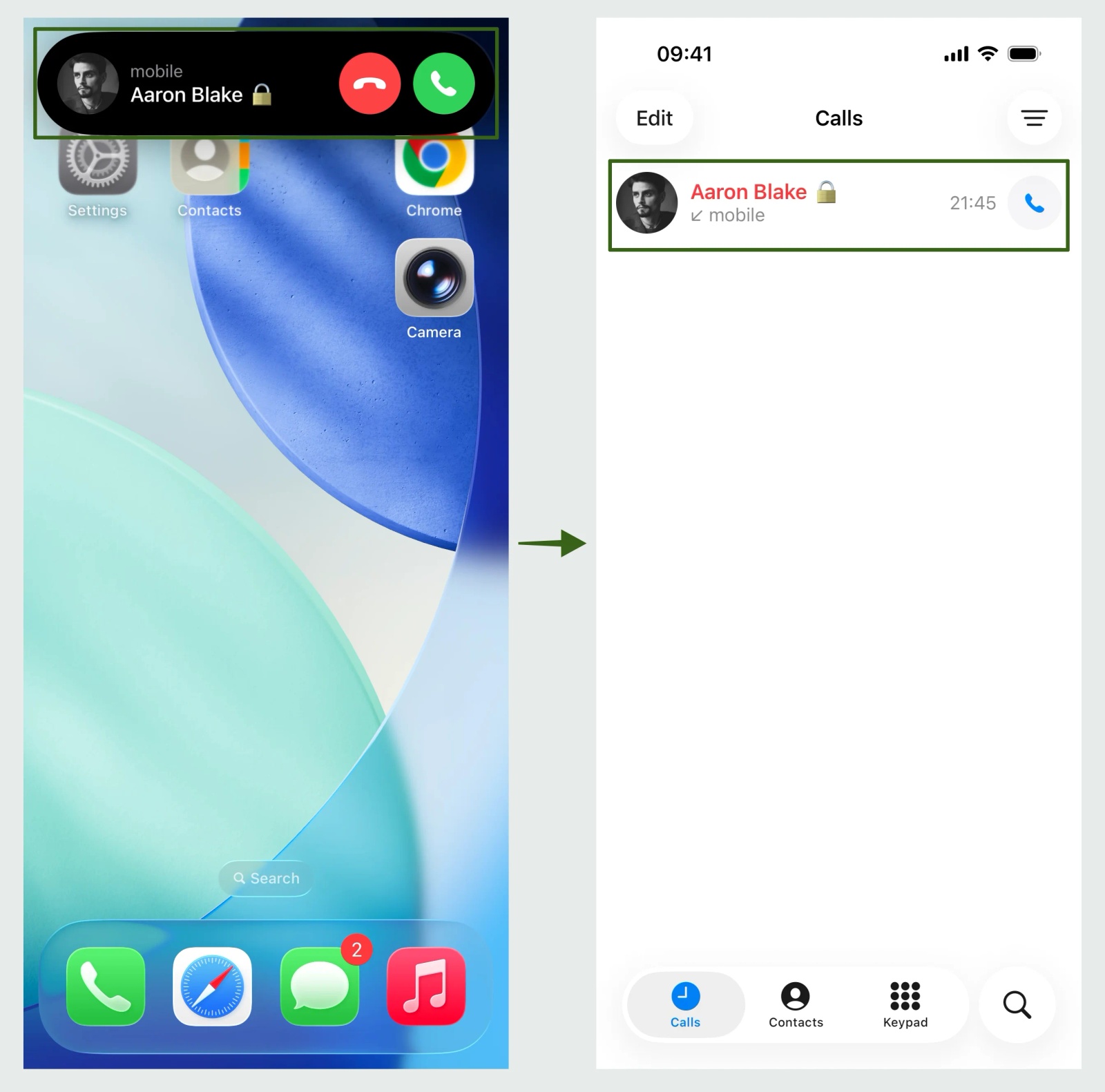
Tested on an iPhone 15 running iOS 26.6.2, October 2026. On iOS 17 and earlier, the Contacts settings sit under Settings > Contacts rather than Settings > Apps > Contacts.
Tip 💡 Contactzilla's CardDAV delivery isn't tied to Intune specifically. If you're on Jamf Pro, Workspace ONE, MaaS360, or no MDM at all, the same managed address book deploys the same way. How to Sync the GAL to iPhone and Android Without Intune walks through each of those paths.
Tip 💡 Contactzilla integrates with leading MDM platforms by generating standard iOS configuration profiles for deployment. If you're rolling out contacts at scale, follow the step-by-step setup guides for Microsoft Intune, Mosyle MDM, Jamf Pro, Workspace ONE or IBM MaaS360.
Can the Global Address List sync to Android phones too?
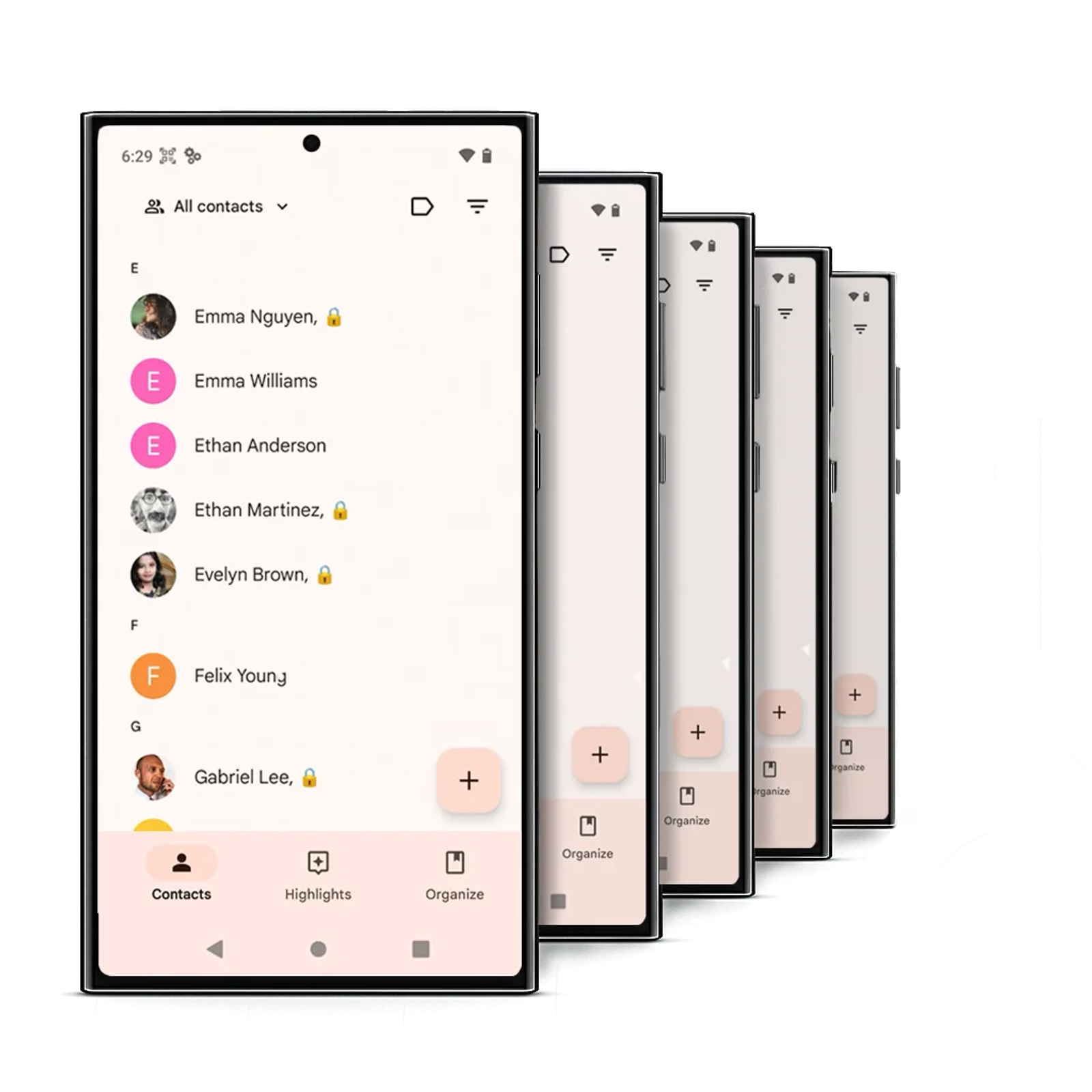
Yes. Contactzilla delivers the same shared address book into the native Android Contacts app through its Contactzilla Sync app, with the same read-only or read-write control, and the option to limit a deployment to specific labels or groups. How to Sync the Global Address List (GAL) to Android Phones covers the Android side in full, including Samsung and Pixel behaviour and the QR-code pairing step the Sync app uses in place of iPhone's built-in CardDAV support.
Android GAL deployment guides by MDM
- Set up CardDAV contact sync on Android via QR code
- Deploy contacts to Android with Workspace ONE
- Deploy contacts to Android with NinjaOne MDM
- Deploy contacts to Android with SOTI MobiControl
- Deploy contacts to Android with Hexnode MDM
When syncing the GAL to iPhone with Contactzilla is the right fit
- You want your organisation's Entra ID directory, the whole tenant, to be the shared contact list your team's devices use.
- Contacts need to appear natively on the device for calling, caller ID and messaging, not just as a searchable directory.
- People join, move roles or leave often enough that a one-off export won't stay accurate.
- Devices are managed through an MDM, or few enough to set up by hand.
Troubleshooting: GAL contacts or caller ID missing on iPhone
Most problems trace back to one of a few places: Entra admin consent, the MDM-deployed profile and its device assignment, or field mapping.
If the import doesn't bring in any contacts: check that an Entra admin has granted admin consent for the Contactzilla connector under Enterprise Applications in the tenant. That consent is a one-off, tenant-wide step, and without it the connection can complete while the import itself has nothing to read.
If contacts don't appear after the profile installs: confirm the profile shows as installed under Settings on the device, then check in your MDM that the policy carrying the device connection is actually assigned to the device group containing the affected phones. A correctly built profile can still miss devices sitting in the wrong group. Also check the address book actually contains contacts in Contactzilla, since an empty or still-syncing address book will deploy an empty account.
If contacts appear but caller ID doesn't work: check the phone number is mapped to a phone field (mobile, work, home or custom) on the mapping screen. A number left unmapped or mapped to the wrong field type won't match against an incoming call.
If duplicate contacts show up alongside the GAL: check whether Outlook's own "Save Contacts" setting is also active on the same devices, since it can create a second, separate copy of the same people. If you manage Outlook with Intune, Sync Policy Managed App Data With Native Apps explains the setting behind that copy.
Next steps
- Import contacts from Microsoft Entra ID to Contactzilla (help article with every click)
- Watch Sync Microsoft Global Address List to iPhone & Android on YouTube
- How to Sync the GAL to iPhone and Android Without Intune, for Jamf Pro, Workspace ONE, MaaS360 or manual deployment
- How to Sync the Global Address List (GAL) to Android Phones
- Deploy contacts to iPhone with Jamf Pro
- Comparing GAL sync tools? CiraSync Alternative: A Simpler Way to Sync Microsoft 365 Contacts to iPhone & Android
Frequently Asked Questions
Why can't I see the GAL in my iPhone's Contacts app?
Because the GAL is a directory lookup, not a contacts account. iOS can search it through a linked Exchange or Outlook connection without ever creating entries in the Contacts app. Only contacts stored in a synced contacts account, such as CardDAV, iCloud or a mailbox's own Contacts folder, appear there.
Does Exchange ActiveSync sync the GAL to iPhone Contacts?
No. ActiveSync syncs a mailbox's own Contacts folder to the device, not the Global Address List itself. If GAL entries need to reach the Contacts app, they first have to be copied into a mailbox or delivered through a separate contacts account.
Will caller ID work when the GAL is synced to iPhone?
Yes, provided the contacts are delivered as real entries in the native Contacts app rather than left as a directory lookup. When a contact is deployed through a CardDAV account or profile via MDM, iOS can match an incoming call's number against it and show the name.
How often does the GAL update on iPhone?
As often as you set the import to run: manually, hourly, daily, weekly or monthly. Each run reads the latest Microsoft Entra ID data into the address book, and the change follows on to staff iPhones the next time they sync. Leavers can be removed automatically when their Entra account is disabled.
Can I sync the GAL to iPhone without Intune?
Yes. The same Contactzilla profile works in Jamf Pro, Workspace ONE, MaaS360, Mosyle and other MDMs, and small teams with no MDM can install the contacts account directly on each phone. How to Sync the GAL to iPhone and Android Without Intune covers each route.
Can Outlook for iOS sync Microsoft 365 contacts to the native Contacts app?
Yes, partially. Enabling Outlook's "Save Contacts" setting can copy mailbox contacts into the iPhone Contacts app, but it doesn't sync the GAL as a managed list, and results vary and can create duplicates in mixed environments.
Can Intune or another MDM sync the Global Address List to iPhone on its own?
No, not directly. MDM platforms don't read the Microsoft GAL themselves. What they can do is deploy a configuration profile that adds a managed contacts account to the device, and that account will show GAL data only if something has already delivered it into the address book backing that account.
Can the GAL sync to both iPhone and Android at once?
Yes. Once directory contacts are in a shared address book rather than left as a GAL lookup, both platforms can use it: iPhones through an iOS configuration profile, and Android phones through the Contactzilla Sync app. Updates reach both from the same address book.
Can I choose which GAL contacts reach staff iPhones?
Yes. An import can be filtered before it ever reaches a device, for example requiring a mobile number, excluding specific Entra groups such as service accounts and shared mailboxes, or matching on company name. This keeps the address book to real, reachable people rather than every object the directory happens to contain.