How to Sync Company Contacts to iPhones with Microsoft Intune (No Scripts)


Intune can put almost anything on a managed iPhone except the company's shared contacts in the phone's own Contacts app.
Short answer: To sync company contacts to iPhones with Intune, keep the directory in a CardDAV address book such as Contactzilla, upload its .mobileconfig as an iOS/iPadOS custom profile and assign it to a device group.
Intune only delivers the account. It has no contacts store of its own, and Outlook's Save Contacts copies each user's own mailbox contacts, never the Global Address List.
Contactzilla holds the shared list, imported from Microsoft Entra ID, a CSV or a CRM, and syncs it to the native Contacts app, read-only if you choose, so calls show caller ID. With the Entra ID importer, leavers drop off every phone after the next scheduled import.
The setup in four steps:
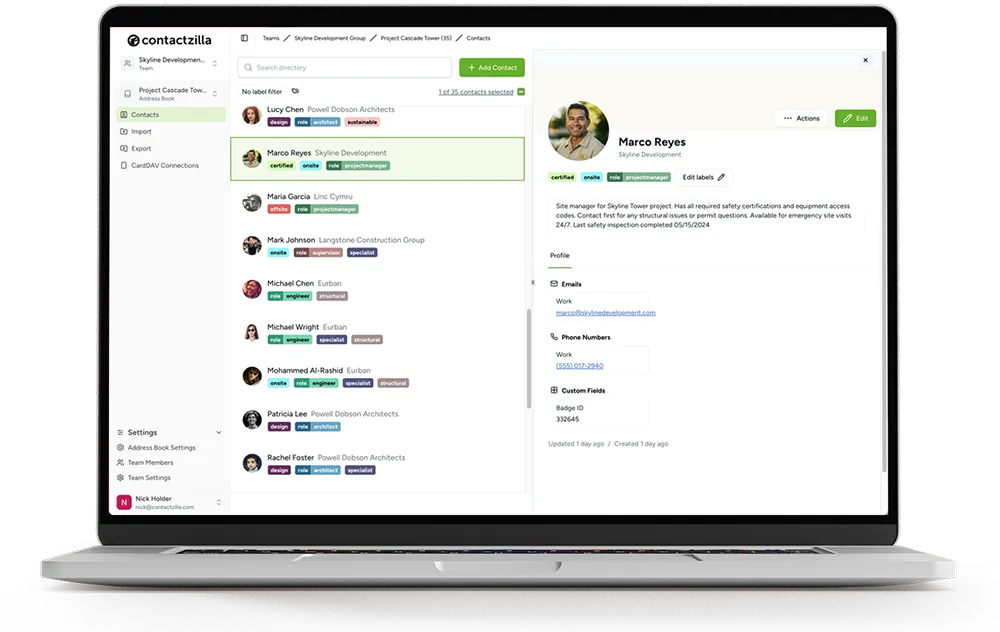
1) Build the company address book in Contactzilla, imported from Microsoft Entra ID, a CSV or a CRM.
2) Create an iOS device connection for an MDM team member and download its .mobileconfig file.
3) Upload the file to Intune as an iOS/iPadOS custom profile.
4) Assign the profile to your iPhone device groups and check the Contacts app.
Prefer to watch? How to Sync Company Contacts to iPhones Using Microsoft Intune shows the whole setup, and the exact clicks are in our Intune iOS help article. This post covers the choices around them.
Why can't Intune sync company contacts to iPhones on its own?
Microsoft Intune, run from the Microsoft Intune admin center (formerly the Microsoft Endpoint Manager admin center), delivers configuration profiles, apps and policies to devices. It has no contacts database and no built-in contacts template, so there is nowhere in Intune to keep a staff directory.
The gap comes up often. In the last year at least six organisations, from a city IT team to construction, energy and homebuilding firms, have asked us how to close it on Intune-managed iPhones.
What Intune, Outlook and Exchange ActiveSync actually put on an iPhone
Four routes usually come up, and only one puts a shared company directory in the native Contacts app.
| Route | What lands in the iPhone's Contacts app | Shared company directory? | The catch |
|---|---|---|---|
| CardDAV custom profile (a .mobileconfig from a contacts service such as Contactzilla) | A separate contacts account holding the shared list | Yes | Needs a service to host the address book |
| Outlook for iOS with Save Contacts turned on | Each user's own Outlook mailbox contacts | No | Outlook on every phone; switched off when the app protection policy blocks native sync |
| Intune email profile with Exchange data to sync set to Contacts only | Each user's own Exchange mailbox contacts, over Exchange ActiveSync | No | The Global Address List stays search-only; contacts saved into the account go when the profile goes |
| PowerShell and Microsoft Graph scripts plus Outlook Save Contacts | Contacts a script writes into every mailbox | Partly | A script, an app registration and Outlook to maintain |
Outlook's Save Contacts is the route assistants suggest most. Its app configuration key, com.microsoft.outlook.Contacts.LocalSyncEnabled, is off by default (see Microsoft's Outlook for iOS and Android configuration guide). Turned on, it copies only the user's own Outlook contacts, and the company directory isn't in anyone's mailbox. Setting the app protection option "Sync policy managed app data with native apps or add-ins" to Block turns it off; our post on what sync policy managed app data means for Outlook contacts explains.
The Contacts only option on an Intune email profile for iOS/iPadOS looks like the answer and isn't: it syncs the user's own Exchange contacts and nothing else. If your iPhones already use one, read how one enterprise is moving off it before you remove it.
How a CardDAV contacts profile gets company contacts from Intune to the iPhone Contacts app
The CardDAV route splits the job in two. Contactzilla holds the address book and serves it over CardDAV; Intune delivers a small Apple configuration profile telling each iPhone where the address book is and how to sign in. After that, the iPhone syncs with Contactzilla directly.
CardDAV: the open standard iPhones use to sync a contacts account with a server, the same way they sync iCloud or Google contacts. Our explainer What Is CardDAV? covers it in more depth.
.mobileconfig file: an Apple configuration profile. Contactzilla's carries Apple's Contacts payload (com.apple.carddav.account), which holds the server address and account details. The payload has no read-only setting, so read-only access is enforced by the server, not the phone.
Custom profile: Intune's way of delivering an Apple configuration profile it has no built-in template for. Microsoft documents it in Use custom settings for Apple devices in Microsoft Intune.
MDM team member: the Contactzilla placeholder a device connection is assigned to for MDM rollouts. It has no login, no password and no email, so staff don't need Contactzilla accounts of their own.
Step 1: Build the company address book in Contactzilla
Start with one Contactzilla address book holding the contacts every iPhone should carry. Import staff from Microsoft Entra ID (formerly Azure AD) on a schedule with the Microsoft Entra ID importer, or bring in a CSV or vCard file, or a CRM such as Salesforce or HubSpot. Add labels now if different teams need different lists; the section on Intune groups below shows why that choice matters later.
Step 2: Create an iOS device connection and download the .mobileconfig
On the address book's Device Connections page, create a connection with Connection Type set to iOS iPhone/iPad, assign it to an MDM team member and pick the Access Type. Most of our customers choose a read-only type. Full Read Only sends the whole address book, Selective Read Only sends chosen labels, and Full Read/Write lets staff edit. Read-only types add an Append 🔒 emoji option. Then download the profile from the connection's Setup screen.
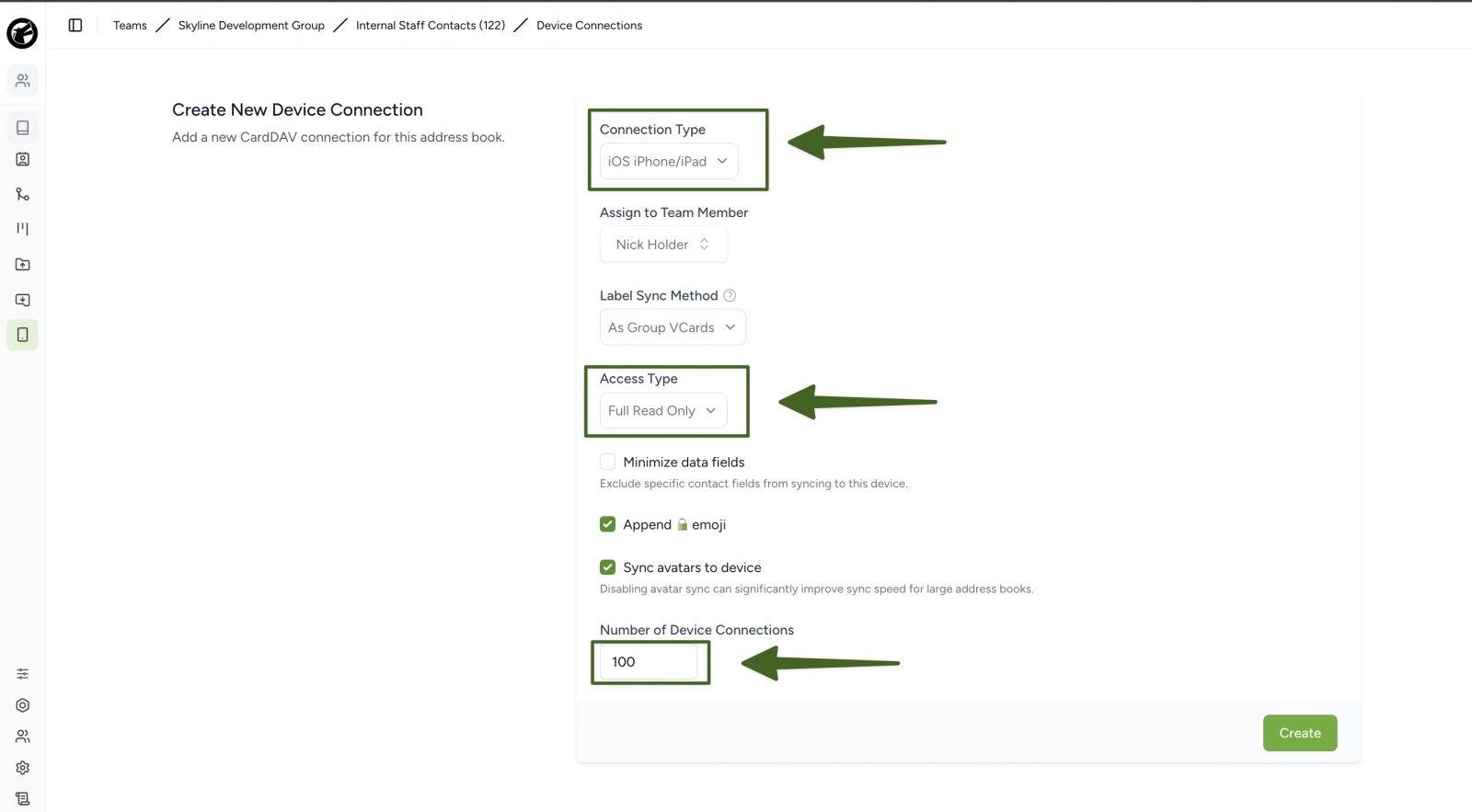
⚠️ Important: The address book name is written into the .mobileconfig when you download it, and a connection's access type can't be changed once it's created. Changing either later means a new device connection and a replacement file in Intune, so settle them before rollout.
Step 3: Upload the .mobileconfig to Intune as an iOS/iPadOS custom profile
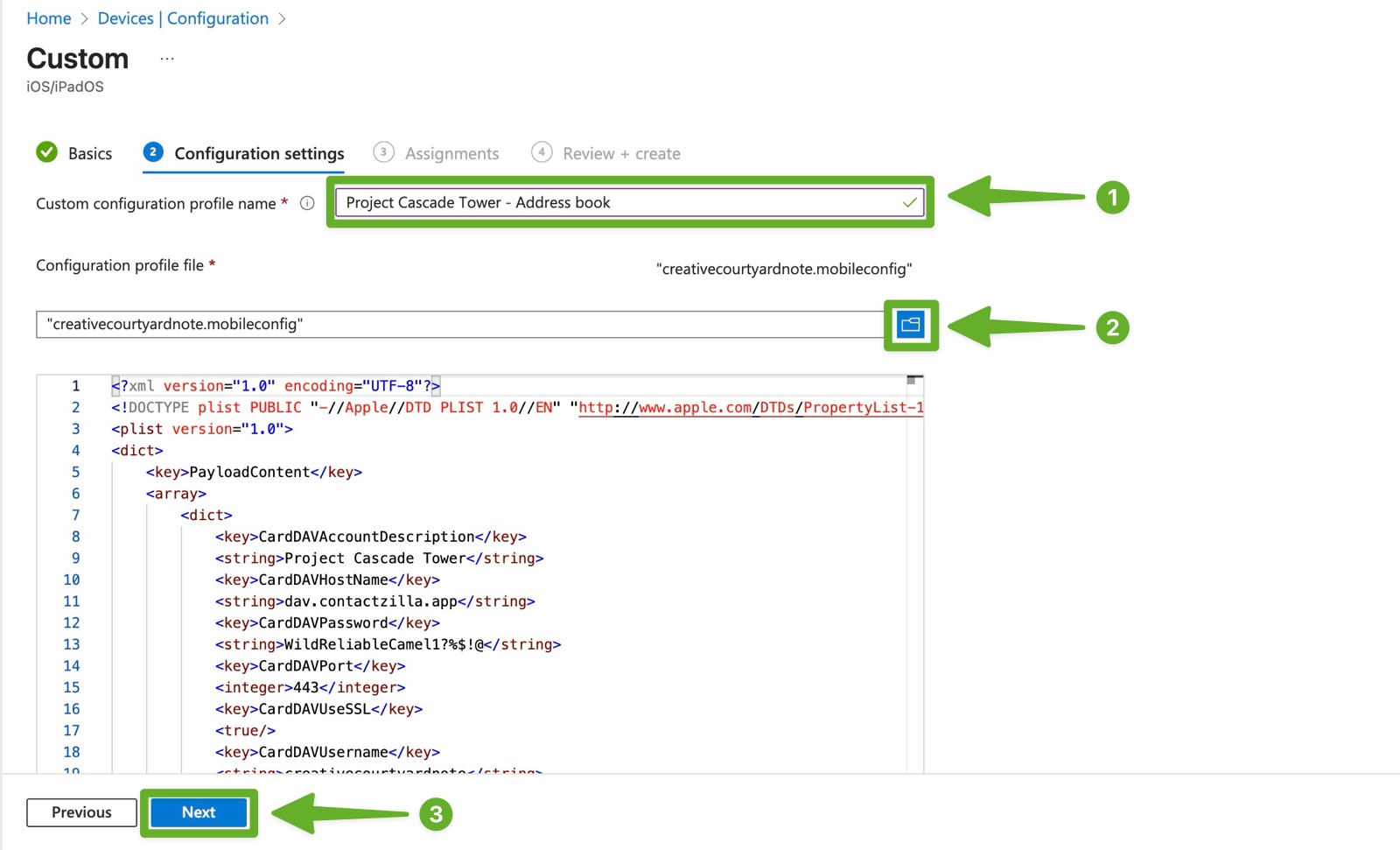
In the Microsoft Intune admin center, go to Devices > Manage devices > Configuration > Create > New policy, choose iOS/iPadOS, then Templates > Custom, as Microsoft describes in Create a profile with custom settings in Intune. Give it a name staff will recognise, such as "Address book: Project Cascade Tower", and upload the file under Configuration profile file. The custom profile carries the Contactzilla file as it is, so there is nothing to rebuild by hand in Intune.
Tip 💡 Not on Intune? The same approach works with other MDM platforms: see our guides for Jamf Pro, Mosyle, IBM MaaS360 and Workspace ONE.
Step 4: Assign the Intune profile to iPhone device groups and check the Contacts app
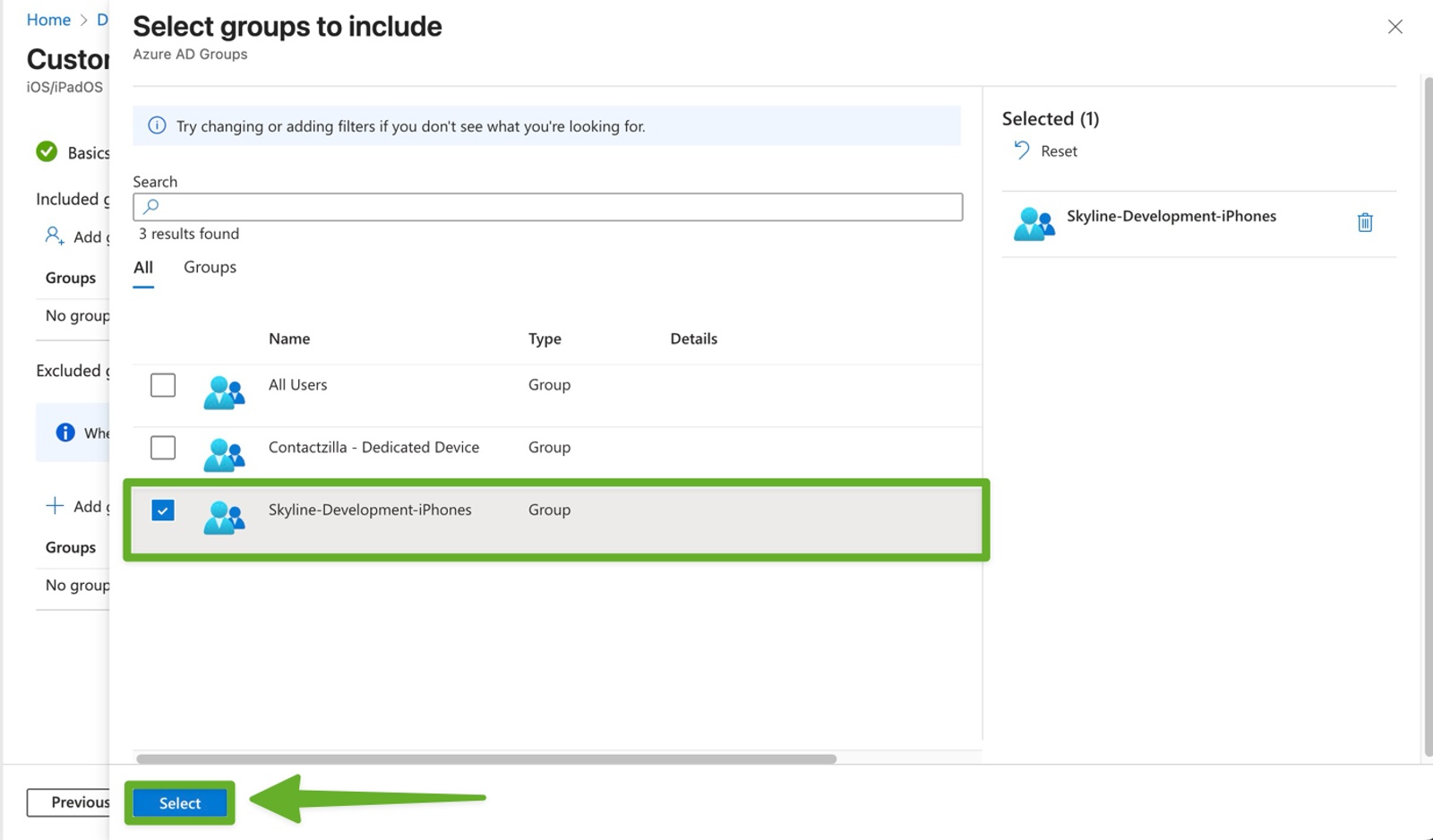
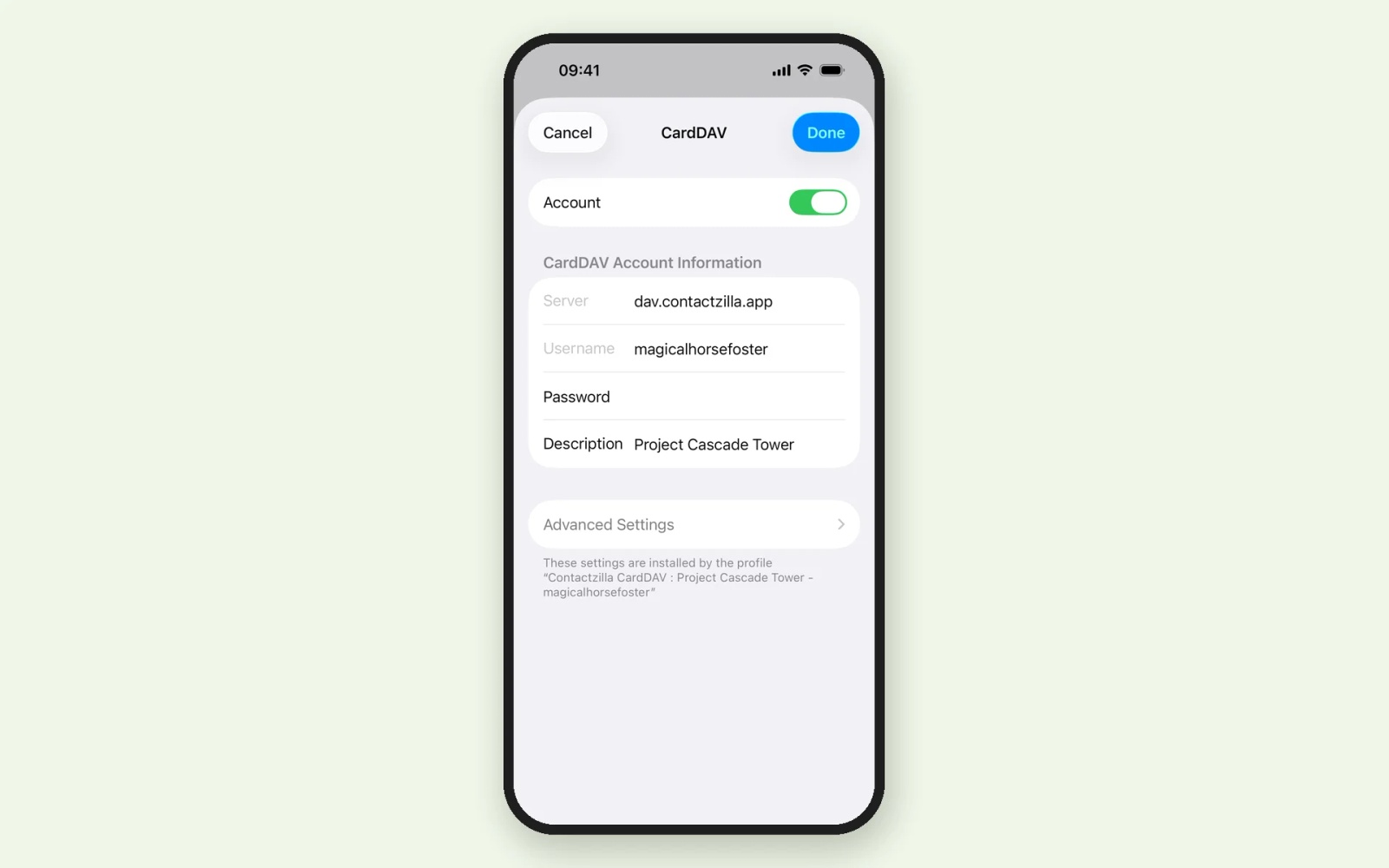
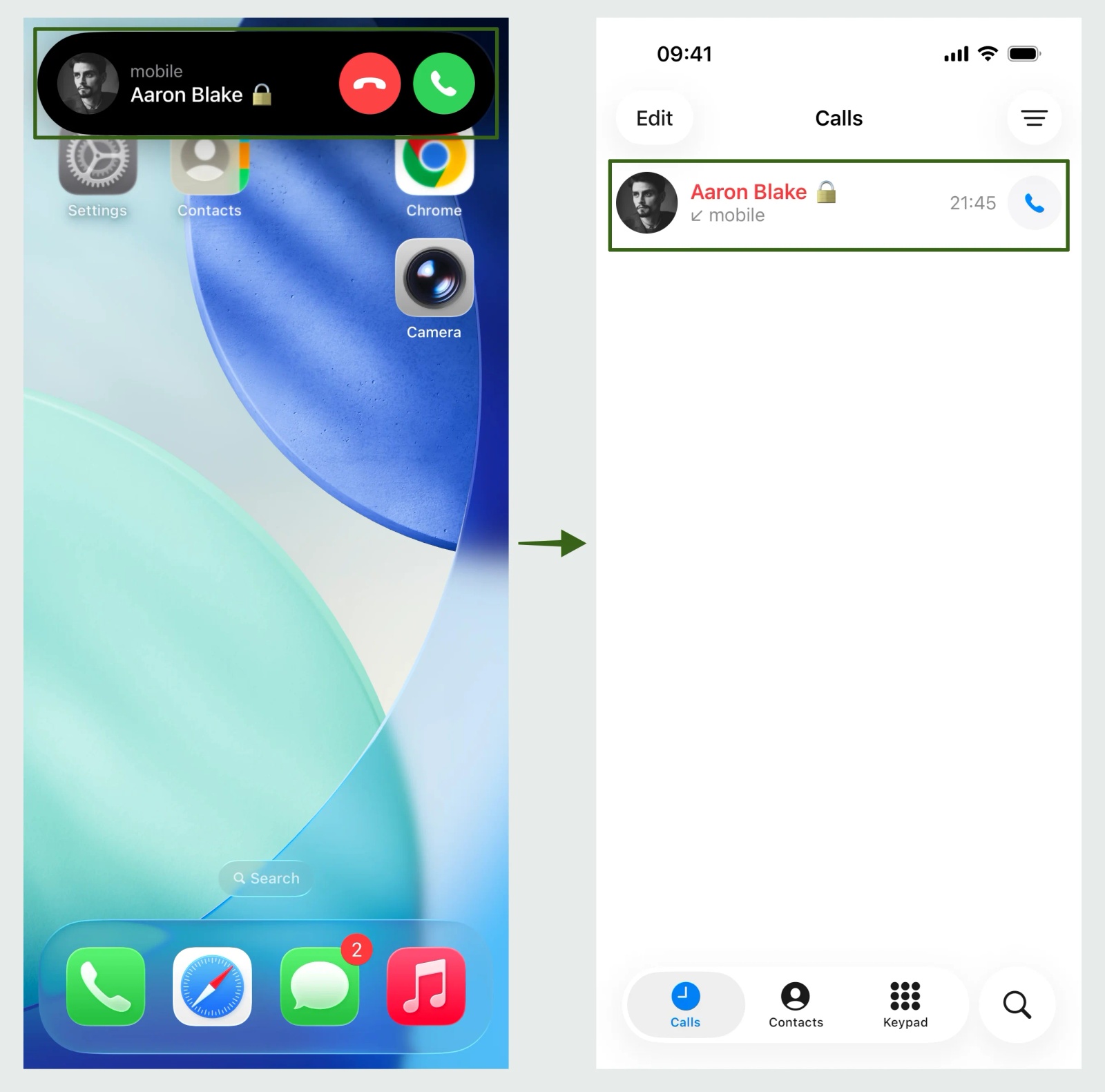
Assign the profile to the group of iPhones that should carry this list, with one profile per list. Intune shows Succeeded under Device status once a phone has installed it. On the iPhone, the address book appears under Settings > Apps > Contacts > Contacts Accounts (Settings > Contacts on older iOS versions), and its contacts show in the Contacts app. The profile arrives at the phone's next Intune check-in: Microsoft gives about 15 minutes for newly enrolled devices and up to 8 hours for existing ones, and tapping Check status in the Company Portal app, or Sync on the device in the admin center, brings it forward. Finally, call the phone from a number on a synced contact to check caller ID.
How do you send different contact lists to different Intune groups?
Most organisations don't want every phone carrying every number. Both ways of splitting lists rely on one profile per list, each assigned to its own Intune group.
One address book with labels and Selective Read Only connections
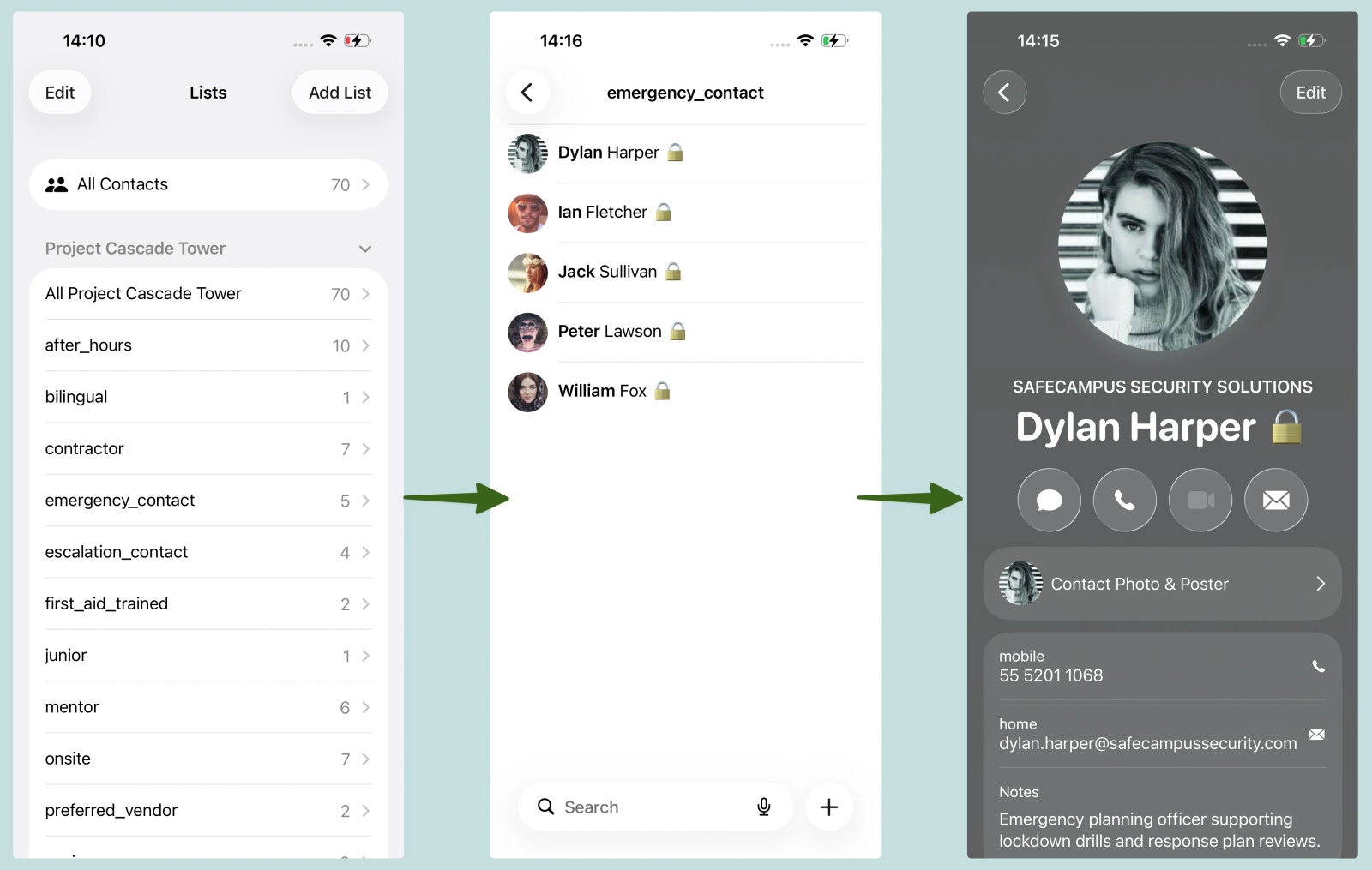
A US city IT team splitting its fire department's lists across Intune groups asked us how to do exactly this. The answer we gave: keep one address book, label each set of contacts, create a Selective Read Only device connection for each set, and assign each resulting profile to its own Intune group. Each label then arrives as a List in the iPhone's Contacts app.
Separate Contactzilla address books for each team's iPhones
Separate address books suit lists with different owners, such as a site directory one manager keeps current and a supplier list run by purchasing. Each gets its own device connection, profile and group, and an iPhone in two groups carries both as separate contacts accounts.
What happens to Intune-synced contacts after rollout?
Updating, editing and deleting company contacts on iPhone
Changes made in Contactzilla reach phones without anyone touching them, and without Intune: iOS checks the CardDAV account on its own schedule, typically about every 5 minutes, so an edit usually lands within a few minutes. The exact timing is up to iOS and can stretch when a phone has a weak signal or low battery.
On a read-only connection, staff can appear to edit or delete a company contact, but iOS has no idea the account is read-only. As our support team puts it, the contact "just gets reset back to the server state" at the next sync, so deleted company contacts come back and caller ID keeps showing the company's details.
Tip 💡 Weighing read-only against editable contacts? Our guide to making company contacts read-only on iPhone covers what staff can and can't change.
Renaming an address book or changing read-only access after an Intune rollout
The account name on the phone lives in the .mobileconfig, and a device connection's access type can't be changed once it's created, so neither change reaches phones that already have the profile. A US construction company using Intune and the Entra ID importer found this after renaming its address book: the phones kept the old name. The fix is a new device connection, a fresh download, and replacing the file in the existing Intune profile.
Tip 💡 Seeing a password prompt on an iPhone after a contacts profile change? Our post on why an iPhone keeps asking for a CardDAV password covers the usual causes.
Removing leavers and retiring iPhones from Intune
Leavers are handled at the source. When the address book is imported from Microsoft Entra ID, the importer can remove a contact once the user's Entra account is disabled; the next scheduled import takes it out of the address book, and phones drop it at their next sync. Retiring a phone works from the Intune side: when the profile is unassigned or the device is retired, iOS removes the profile, and the contacts account and its contacts leave the phone with it. Our IT offboarding checklist covers the rest of a leaver's access.
How one enterprise is moving iPhones from an Exchange ActiveSync contacts setup to Intune and CardDAV
A large enterprise is moving thousands of Intune-managed iPhones off an Exchange ActiveSync contacts setup. Their plan: push the Contactzilla profile through Intune, check the contacts arrive, then unassign the old Exchange email profile.
The catch is personal contacts. When an iPhone saves new contacts to the Exchange account, those contacts live in that account, and they disappear from the phone when the Exchange profile is removed. Our advice was to export them from Exchange or Outlook as a CSV or vCard file first, and move staff's default account to iCloud or another account they keep.
Does Intune contact sync work on supervised, ADE and BYOD iPhones?
Company-owned iPhones are straightforward. Apple lists its Contacts payload as supported on Device Enrollment, Automated Device Enrollment (through Apple Business Manager) and User Enrollment, and doesn't list supervision as a requirement. Apple's newer Contacts declarative configuration, a different mechanism from the .mobileconfig Intune delivers here, states that supervision isn't required.
A personal iPhone enrolled through the Company Portal app takes the profile the same way. On our own test iPhone, enrolled that way, the address books Intune installs sit under the single management profile in Settings > General > VPN & Device Management, however many there are, while an address book added by QR code shows there as its own separate configuration profile. Account-driven User Enrollment, the BYOD method Microsoft now recommends, allows a narrower set of settings, but Apple lists the Contacts (CardDAV) payload among those supported on User Enrollment, and Microsoft's overview of Apple User Enrollment in Microsoft Intune says the settings User Enrollment supports take effect. Where personal phones aren't enrolled at all, Contactzilla can set them up by scanning a QR code or with an emailed profile instead.
Intune contact sync for Android phones
Android works differently. Intune installs the Contactzilla Sync app from Managed Google Play and sends its settings through an app configuration policy, and each phone needs the app opened once before its contacts account appears. Assign it to a device group: an IT team that looks after a fire department's shared phones found Android only synced once the configuration went to a device group, while its iPhones worked with any group. Our Intune Android help article has the steps.
Next steps
- Follow the exact clicks in the Intune iOS help article.
- Watch How to Sync Company Contacts to iPhones Using Microsoft Intune on YouTube.
- Setting up Android phones too? See the Intune Android help article.
- Import staff with the Microsoft Entra ID importer.
- Read how to sync the Global Address List to iPhone contacts.
Frequently Asked Questions
Can Intune sync the Global Address List (GAL) to iPhone contacts?
No. Microsoft Intune can't copy the Global Address List into the iPhone's native Contacts app. Exchange ActiveSync and Outlook let staff search the GAL, and Outlook's Save Contacts copies only each user's own mailbox contacts. To put the GAL on phones, import it into a CardDAV address book: see how to sync the Global Address List to iPhone contacts, or sync the GAL without Intune.
Can PowerShell or Microsoft Graph push contacts to iPhones through Intune?
Yes, indirectly. A script using an app registration and the Microsoft Graph API can write contacts into each user's mailbox, and Outlook's Save Contacts, set through Intune, copies them to the iPhone; The Lazy Administrator's write-up shows one build. You maintain the script, every phone needs Outlook, and the whole GAL doesn't come across automatically.
Can Intune sync Microsoft Entra ID users straight to iPhone contacts?
No. Microsoft Entra ID holds your users, but Intune has no way to turn them into contacts on a phone. They reach the iPhone through an import or sync service, such as Contactzilla's Microsoft Entra ID importer running on a schedule, or through scripts. The importer can also remove a contact when the user's Entra account is disabled.
How do I make an iPhone pick up the Intune contacts profile straight away?
Ask the user to open Company Portal, go to Devices, select the phone and tap Check status, or select the device under Devices > All devices in the Intune admin center and choose Sync. Otherwise the iPhone installs the profile at its next routine Intune check-in, which can take several hours for a phone that's already enrolled.
Can Intune set the default contacts account on iPhone?
No. Neither Intune nor Apple's Contacts payload has a setting for the account new contacts are saved to. A homebuilder with about 25 Intune-managed iPhones found the same when we looked for one with them, and wrote a short guide for staff instead. Our guide to changing the default contact account on iPhone shows the steps.
Does Contactzilla work with Microsoft Intune on iPhone and Android?
Yes. On iPhone, Intune delivers Contactzilla's .mobileconfig as a custom profile; on Android, it installs the Contactzilla Sync app. Both sync the same address books, read-only if you choose. Contactzilla also works with other MDM platforms, and its security and compliance documentation is on the Contactzilla trust centre.