How to Sync the GAL to iPhone and Android Without Intune

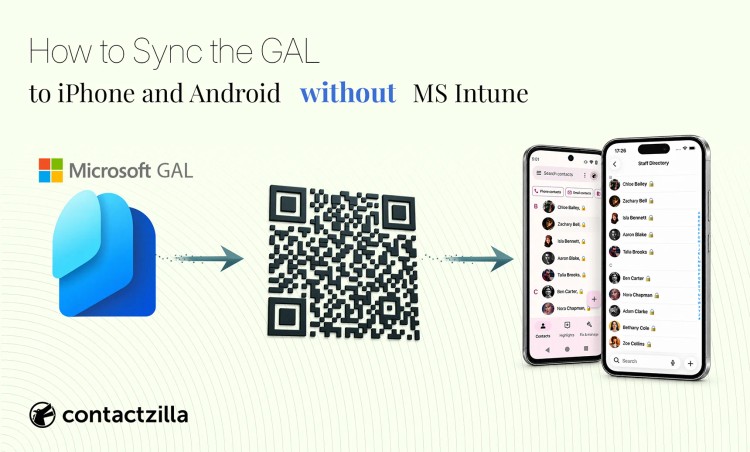
Plenty of organisations run Microsoft 365 and Entra ID without Microsoft Intune. That doesn't rule out getting the Global Address List into the Contacts app on those iPhones and Android phones.
Short answer: No, you don't need Intune. Import your GAL contacts, the people in your Entra ID directory, into Contactzilla, a shared business address book, then create a device connection for that address book. A single connection can cover as many phones as you need, and it reaches them two ways: with no MDM at all, through a QR code that IT scans on each phone or emails to staff to scan themselves, or pushed out through an MDM you already run, such as Jamf or Workspace ONE. Either way, the contacts land in the phone's own Contacts app and stay up to date.
Do you need Intune to sync the GAL to iPhone and Android?
No. Intune is one way to deploy a contacts profile, not the only way. The GAL doesn't reach a phone's Contacts app on its own under any MDM, Intune included: you can look people up in it from Outlook, but they aren't stored on the phone, so the phone usually can't put a name to their number when they call. We cover why in our guide to syncing the GAL to iPhones. Getting company contacts onto phones always takes the same two pieces: something to pull the directory data out, and something to deliver it to devices. Intune is one delivery option among several.
Why you might not be using Intune for this
Often there's no MDM in the picture at all, which is common enough for organisations with a modest number of phones. Sometimes a different MDM is already in place, such as Jamf, Workspace ONE or MaaS360, and standing up Intune for this one job makes little sense. And sometimes most of the fleet is managed but a few phones sit outside the MDM on purpose, for example employees' own phones or an executive's personal one.
Key definitions
Global Address List (GAL): the organisation-wide directory in a Microsoft 365 tenant, covering users, contacts and groups, built from Entra ID and Exchange Online. It's designed for lookups inside Outlook, not for populating a phone's native Contacts app. When people ask for "the GAL on their phones", they usually mean the people in it, the colleagues' names, numbers and email addresses, and that's what this article covers.
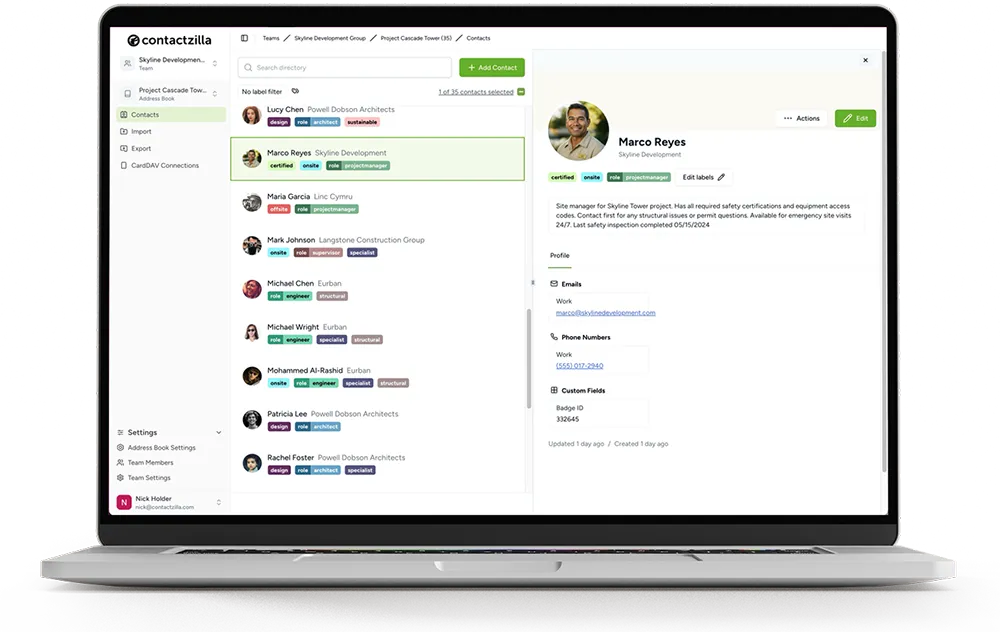
Contactzilla: a service for keeping shared business contacts in one central address book and syncing them to the native Contacts app on employees' iPhones and Android phones.
CardDAV: the open protocol, standardised as RFC 6352, that phones use to keep a contacts account in sync with a server - the same mechanism behind an iPhone's built-in "Add CardDAV Account" option, and the one used by every deployment path here.
Device connection: the link Contactzilla creates between one address book and a set of phones, carrying the CardDAV server details and credentials those phones use to sync. Some Contactzilla help articles call it a CardDAV connection.
Microsoft Entra ID importer: a Contactzilla feature that reads users directly out of an Entra tenant into a Contactzilla address book, independent of whichever MDM, if any, later delivers that address book to devices. It imports every user in the tenant with their directory fields, or only the members of the Entra groups you choose, which is the part of the GAL most people mean when they want it on their phones.
Tip 💡 New to CardDAV, or want the full protocol explanation before diving in? Read What Is CardDAV? Contact Sync Explained for how it works under the hood.
How syncing the GAL without Intune works
Every route, MDM or not, comes down to the same three parts.
1) Import your GAL contacts into Contactzilla: the Microsoft Entra ID importer pulls the users out of your tenant and into a Contactzilla address book. You set this up once, however you deploy afterwards.
2) Create a device connection for that address book: this holds everything a phone needs to pull the address book down. One connection isn't tied to one phone; it can cover as many as you need, whether that's 10 or 300.
3) Deliver the connection to phones: there are two ways. With the connection's QR code, no MDM is needed: someone scans it on each phone, either IT on the device or the phone's owner once you've emailed them the connection, and the Contacts account sets itself up. That suits employees' own phones, smaller rollouts, or a phone that sits outside the managed fleet on purpose, such as an executive's. If you do run an MDM, download the connection's profile instead and upload it to whichever MDM you use, and it pushes the connection to the devices you target.
Step 1: Import GAL contacts into Contactzilla
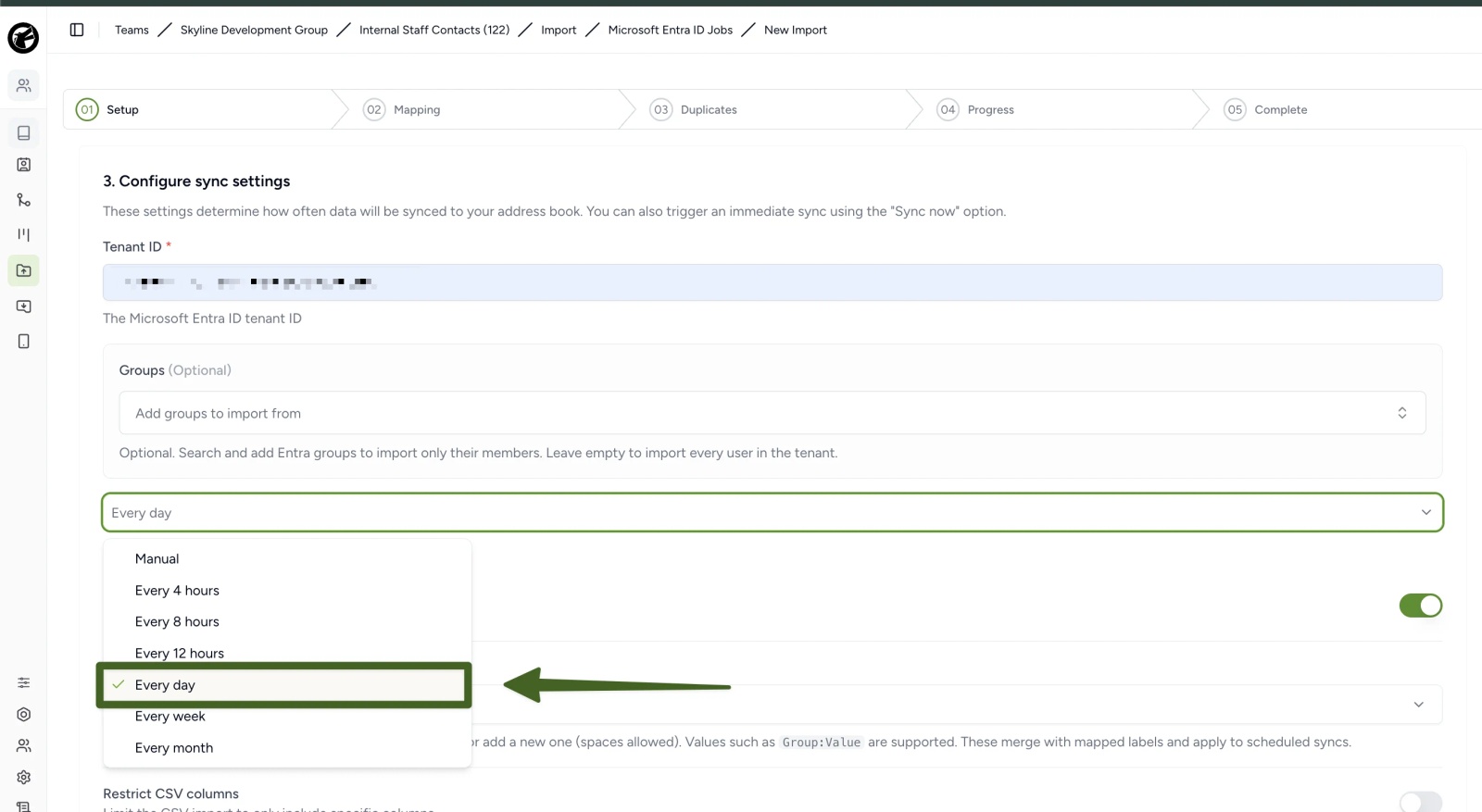
The Microsoft Entra ID importer connects to your tenant over OAuth and pulls users into a Contactzilla address book, mapping fields like email and job title. By default it imports every user in the tenant; the optional Groups field limits it to the members of the Entra groups you pick. The import can run manually or on a schedule, anywhere from every 4 hours to every month (daily in the example below), so the address book keeps pace with Entra.
A hidden unique ID field, the Entra id mapped to Hidden Custom Unique, lets later imports update existing contacts instead of duplicating them. You can also filter the import, to people with a mobile number say, so service accounts and shared mailboxes don't end up on everyone's phone. Full setup: Import contacts from Microsoft Entra ID.
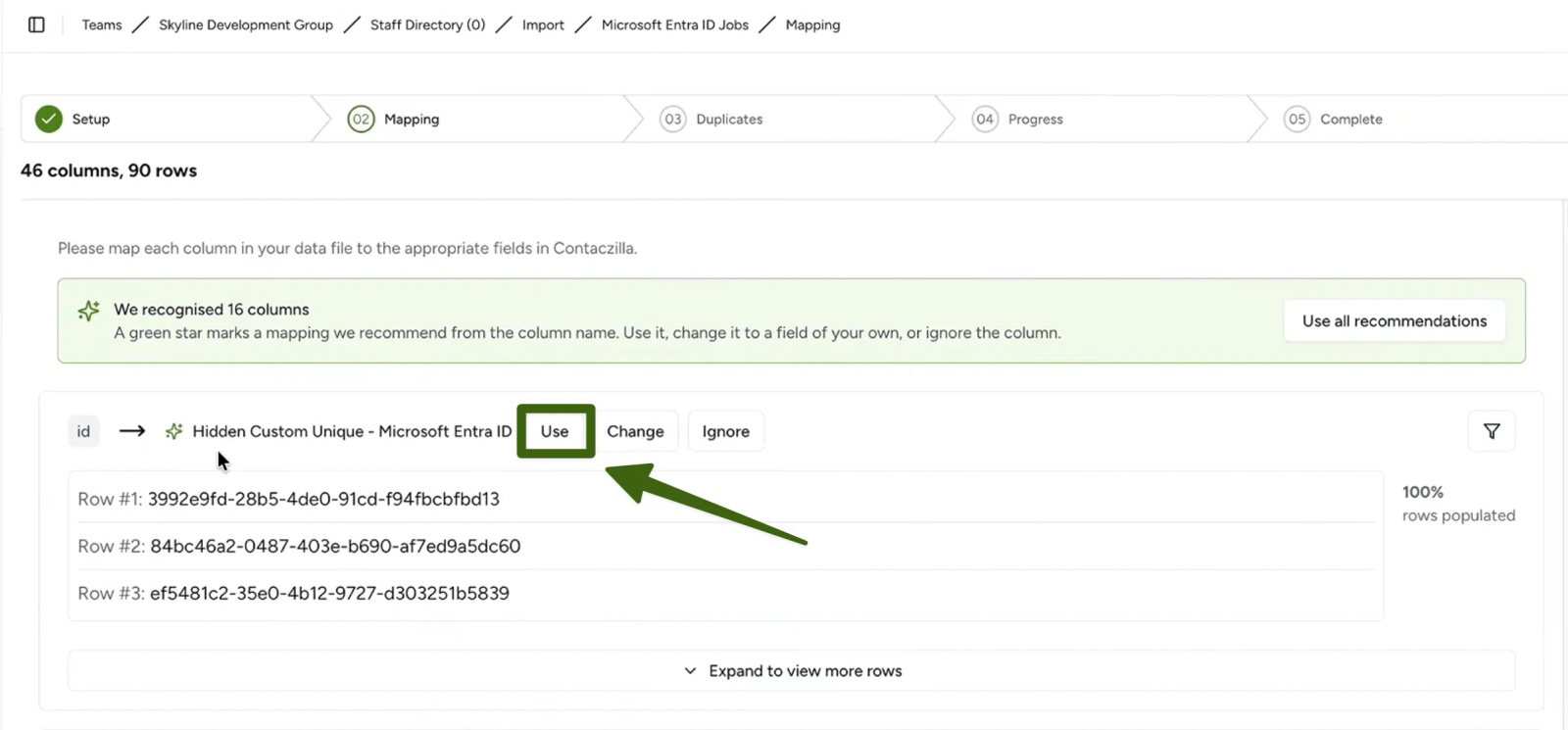
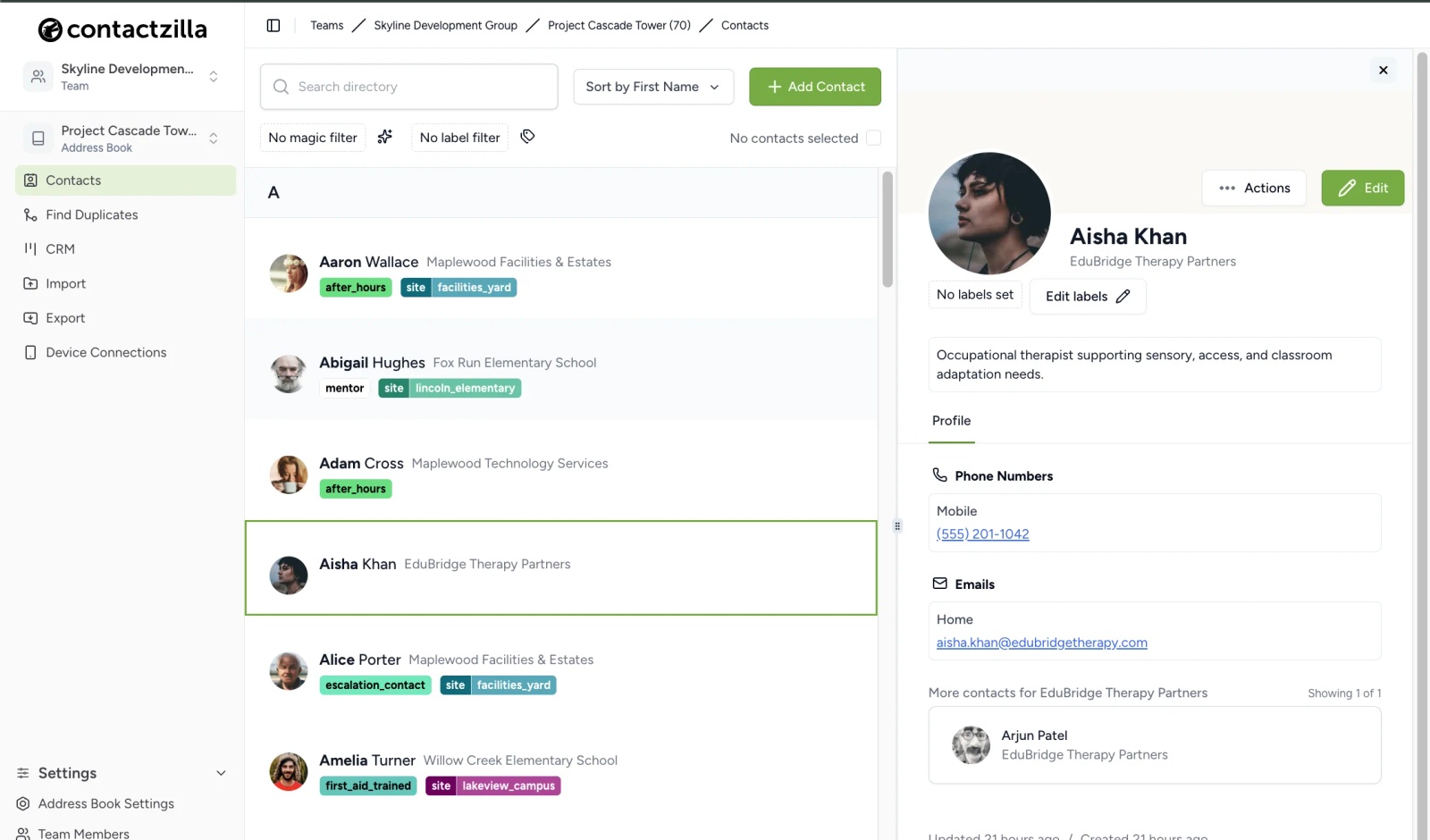
When the import finishes, the address book holds your company directory, ready to be delivered to phones.
Step 2: Create a device connection for the address book
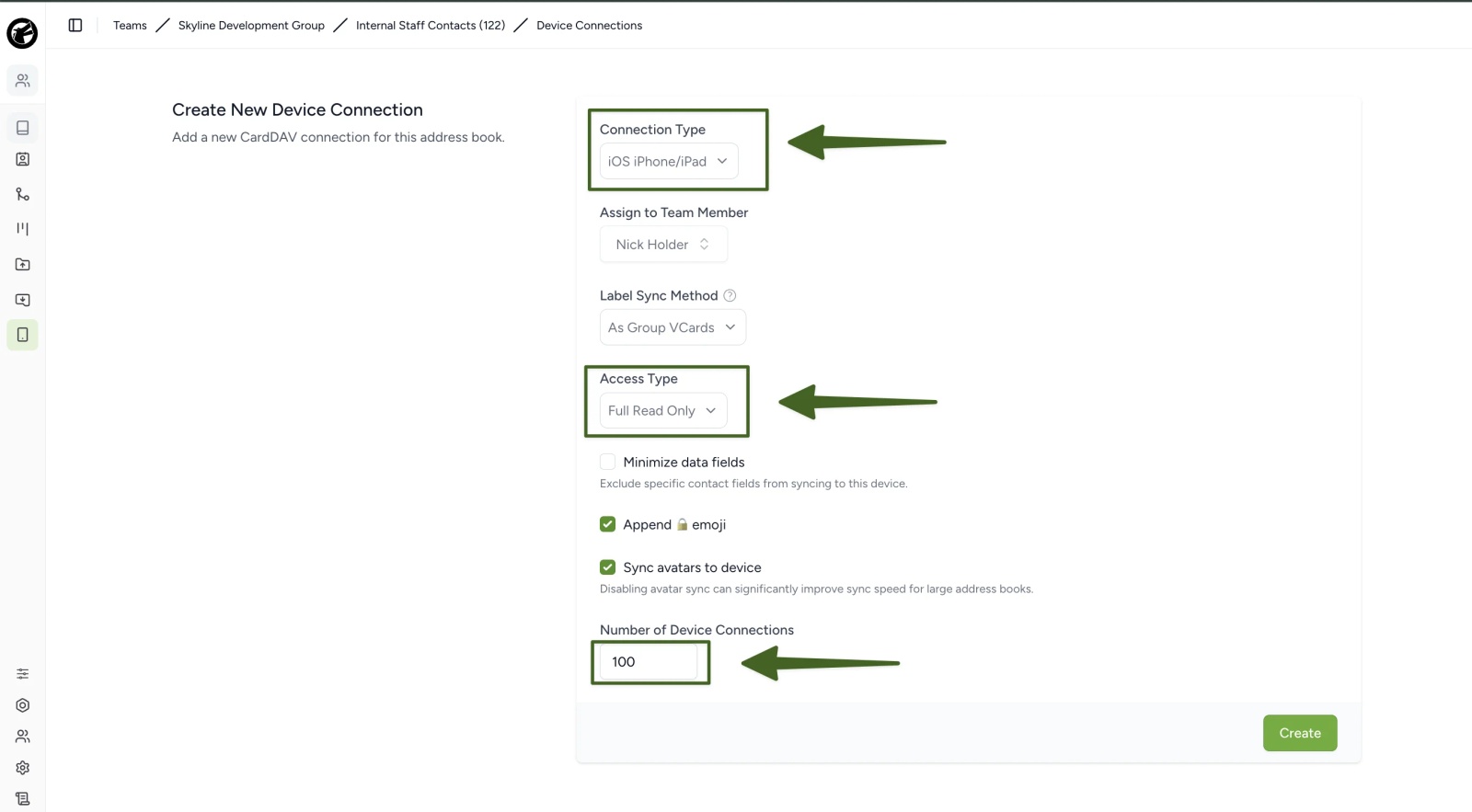
Start by choosing the platform, iOS or Android, then the access type. Full Read Only is the one we'd recommend for a company directory, since it stops an edit on one phone rippling out to everyone else's. Selective Read Only is also available if a connection should only carry contacts with particular labels; the walkthrough here sticks to Full Read Only. Then set how many devices the connection should cover: the example below uses 100 on a single connection. The Append lock emoji option adds a padlock to each synced contact's name, as you'll see in the iPhone screenshot further down.
Once the connection is created, its Setup option gives you both delivery routes: a QR code for setting phones up directly, and a profile to download for an MDM (a .mobileconfig file for iOS, a JSON configuration for Android).
Step 3: Sync the GAL to iPhone and Android with no MDM (QR code method)
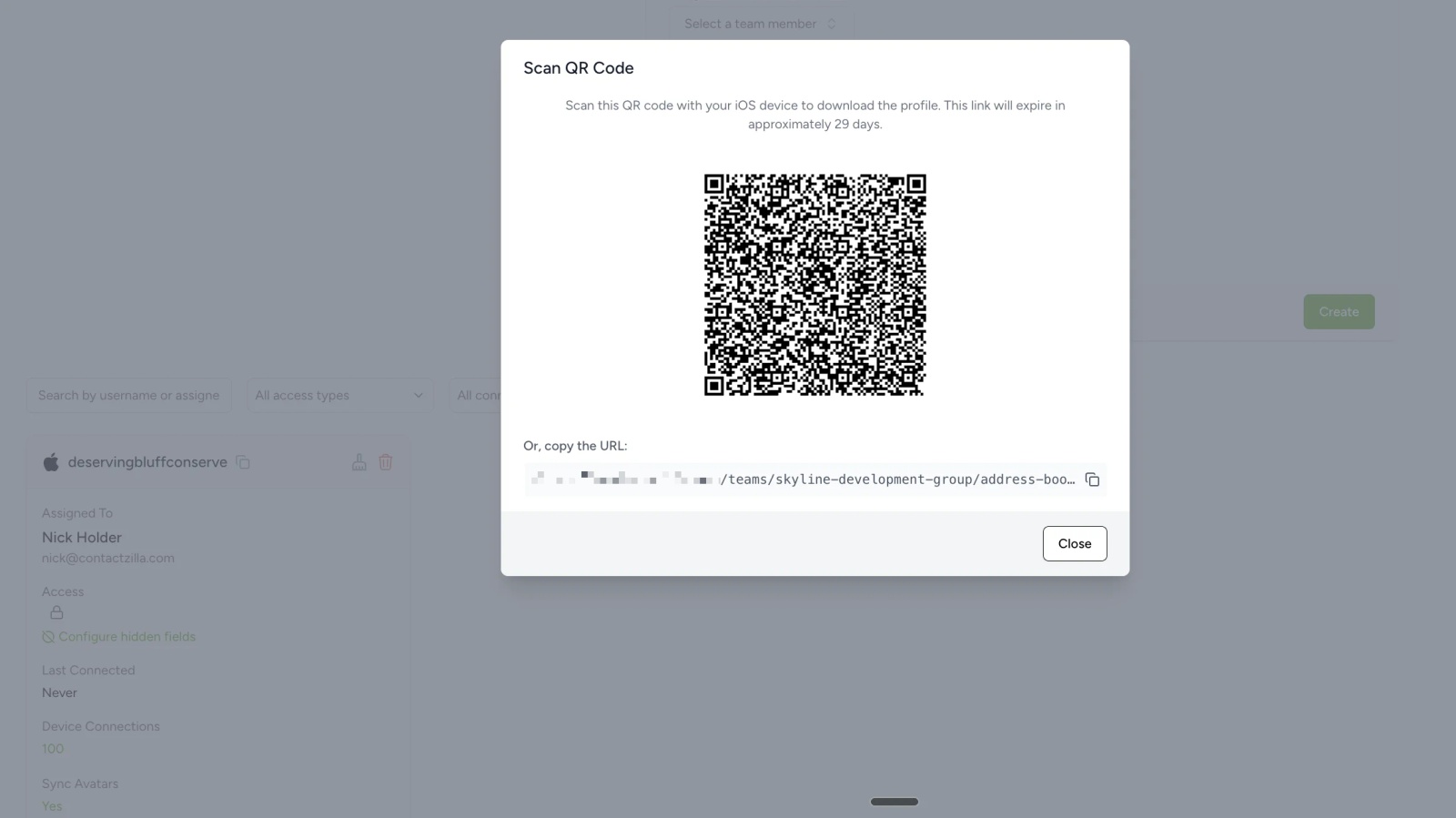
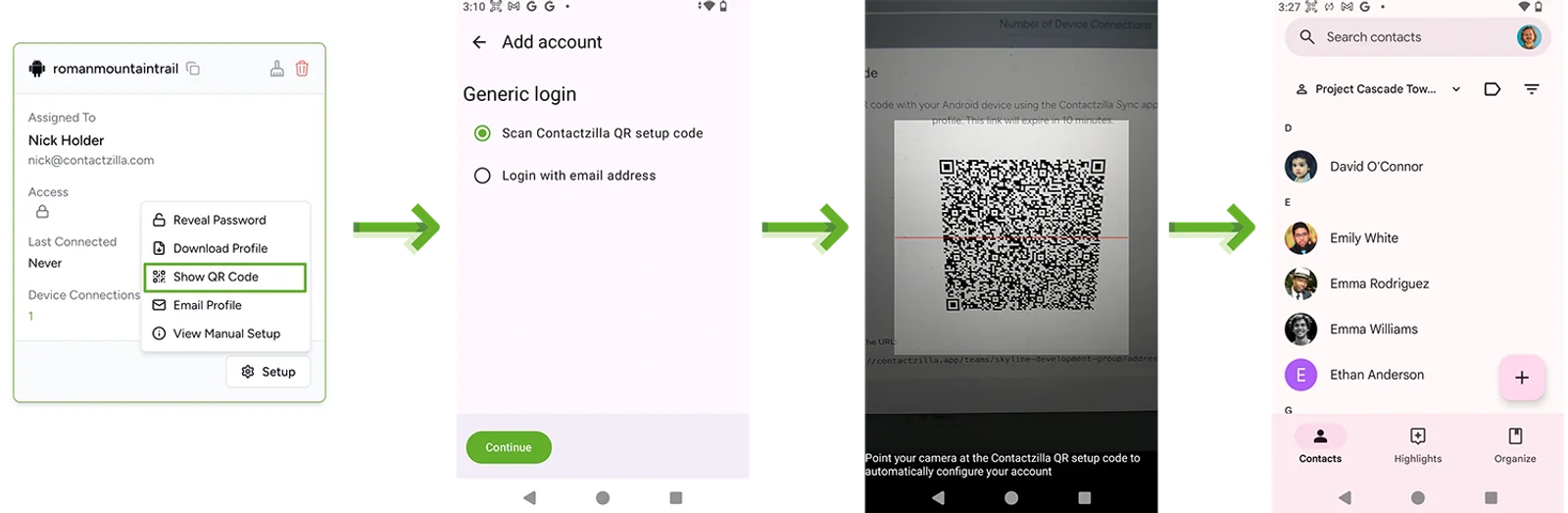
The connection's Setup menu has a Show QR Code option, which opens the code below for you to scan on a phone. IT can scan it on each device, or use the Email Profile option to send the connection to a team member, who can install it on their own phone without IT touching the device. That suits employees' own phones, smaller rollouts, and any phone outside the managed fleet, an executive's for example. For 10 or 20 phones it may be all you need, and one connection covers every phone, so there's no separate code to create per person. If some of your phones are managed and others aren't, you can use the QR code for one group and an MDM for the other.
QR codes don't last forever, and you can decide how long they stay valid. For security, a code can expire straight after its first use. Or you can extend the expiry window, so the same code can set up several phones or other devices before it lapses. That suits IT working through a batch of devices, or one email sent to a whole team. The QR window states how long the link stays valid, so check it before you hand a code out.
How to sync the GAL to iPhone with no MDM
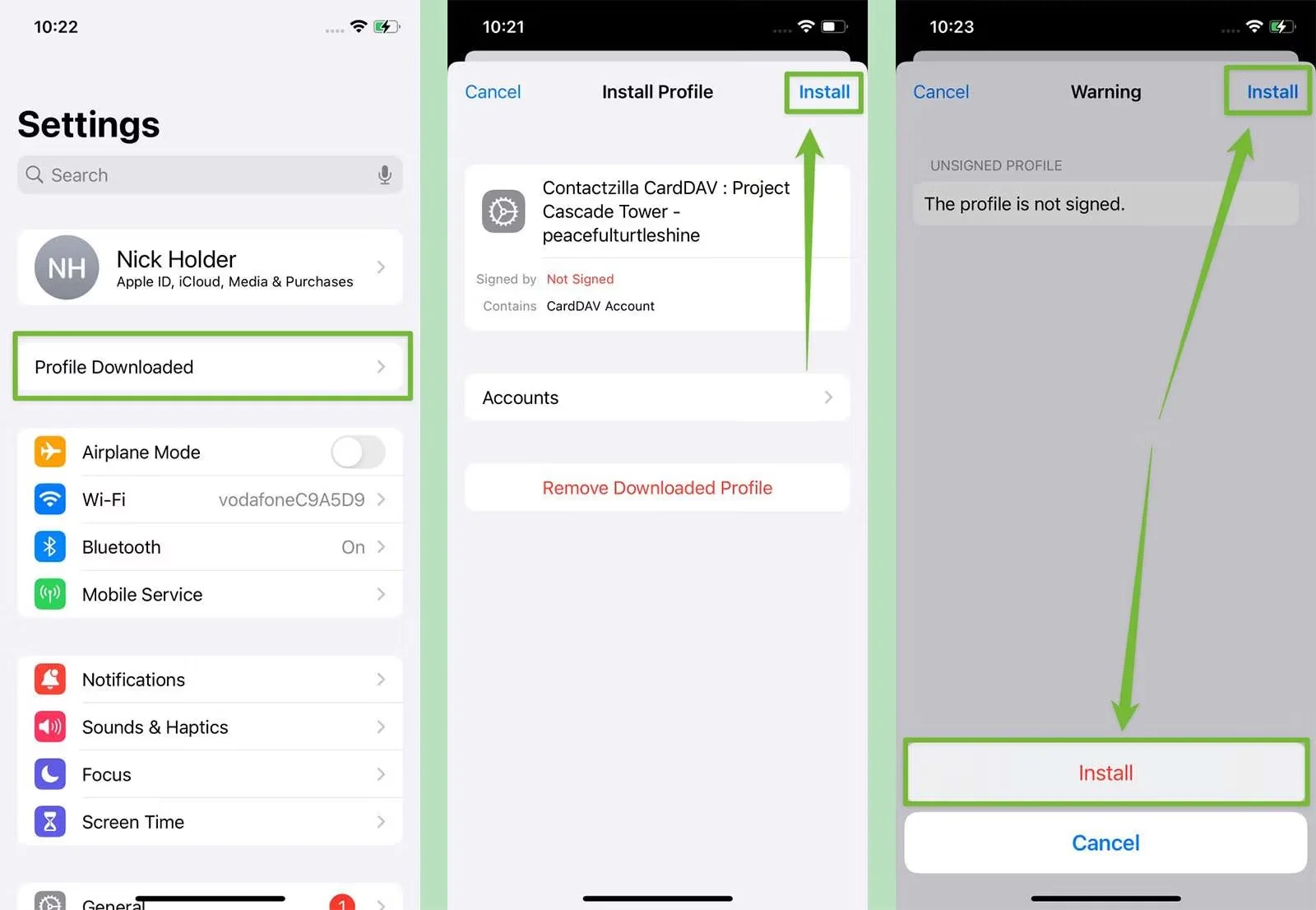
There's no app to install on an iPhone, because iOS supports CardDAV natively. Point the Camera app at the code and open the link it shows. Safari asks whether to allow the configuration profile to download; tap Allow, and Settings then shows Profile Downloaded near the top. Tap it, then tap Install on the Install Profile screen. The profile isn't signed, so iOS shows a warning; tap Install again to continue.
Once the profile is installed, the address book appears under Settings > Apps > Contacts > Contacts Accounts and its contacts arrive in the Contacts app, with the address book's labels shown as lists. Each contact carries a padlock when Append lock emoji is switched on.
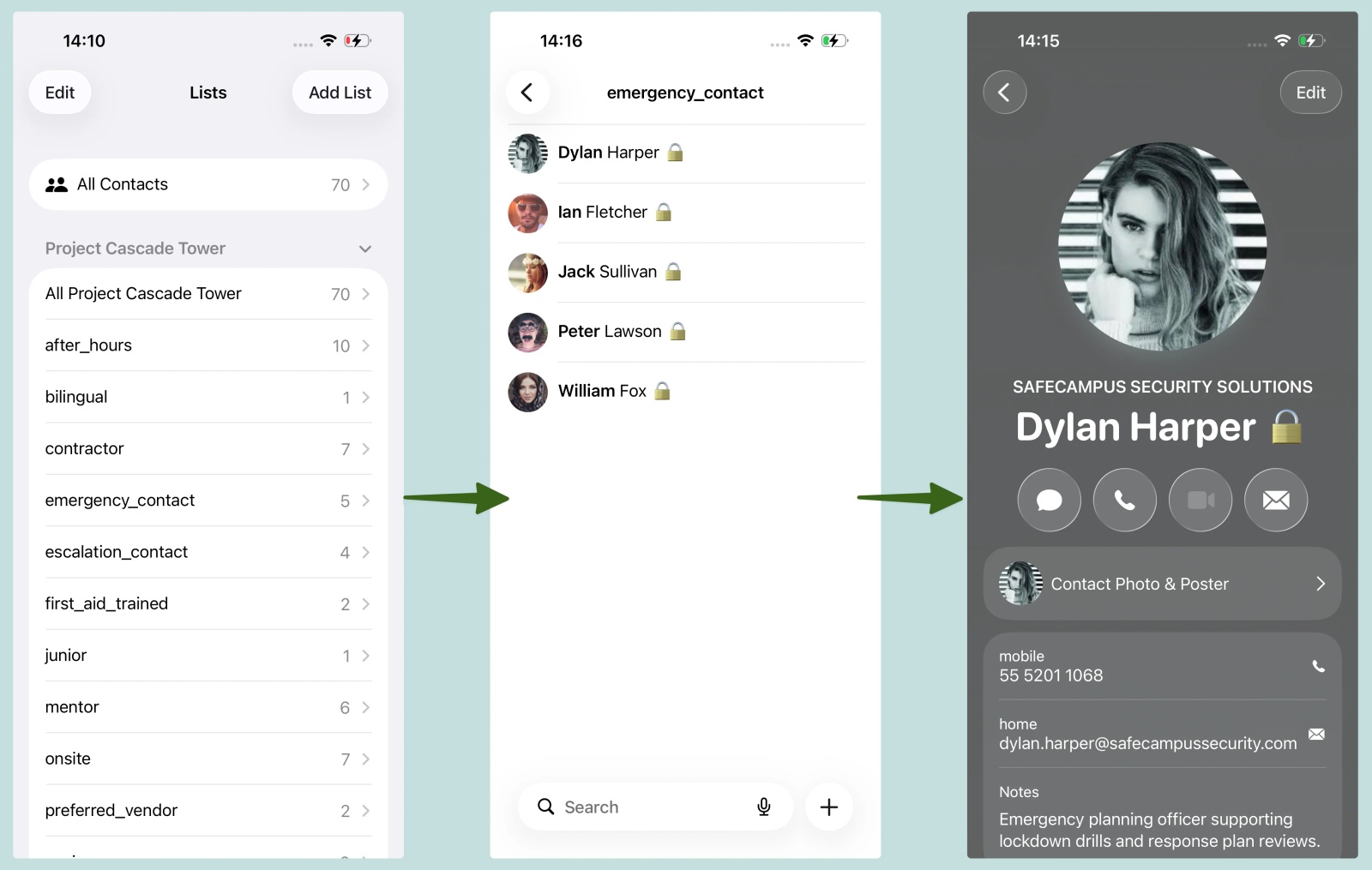
If scanning isn't practical, the same account can be added by hand under Settings > Apps > Contacts > Contacts Accounts > Add Account > Add Other Account > Add CardDAV Account, using the server, username and password from the connection's setup details. It works, but it's slower and easier to mistype, so treat it as a fallback.
How to sync the GAL to Android without Intune
On Android, Contactzilla Sync is the mechanism: the app holds the connection and keeps the phone's Contacts app in sync, so there's no CardDAV account to add in Android's own settings. Install it from Google Play, open it, choose Add account, then Generic login and Scan Contactzilla QR setup code, and point the camera at the connection's QR code (from Setup > Show QR Code in Contactzilla). The server details, username and password come across automatically. Contacts then appear in the phone's own Contacts app under the address book's name, and keep syncing from there. Connections are created per platform, so for a mix of iPhones and Android phones, set up one of each and send each group its own code.
Step 4: Or deploy through an MDM you already run
If a phone is already enrolled in an MDM, that platform can push the connection to every targeted device for you, with no QR step for anyone to complete. Download the connection's profile from the same Setup menu and upload it to the MDM; on Apple devices it's a standard configuration profile carrying a CardDAV account payload. Intune can take it too, though nothing here requires it. One setup detail worth knowing: Contactzilla's own MDM guides assign the connection to a dedicated MDM user, a device-only team member, rather than to a named employee. Once the MDM has installed the connection, the person holding the phone usually has nothing to do.
Tip 💡 Already settled on an MDM platform? Jump straight to the full walkthrough for Jamf Pro, Workspace ONE, MaaS360, ManageEngine or Mosyle.
Jamf Pro
Jamf Pro deploys the CardDAV profile as a standard mobile device configuration profile, scoped to whichever group needs it. Setup mirrors any other Jamf-managed profile: upload the .mobileconfig from the connection's Setup option, assign it to a scope, and Jamf handles the rest. Jamf Pro only manages Apple devices, so this route covers iPhone but not Android. Full walkthrough: Deploy Contacts to iPhone with Jamf Pro.
Workspace ONE
Workspace ONE (Omnissa) UEM takes the same .mobileconfig as an Apple iOS device profile, assigned through a Smart Group rather than Jamf's scoping model, so the account arrives on each targeted iPhone without anyone setting it up by hand. Workspace ONE manages Android too: it installs the Contactzilla Sync app through Managed Google Play and pushes the connection details to it, so one console can cover a mixed fleet. Full walkthrough: Workspace ONE: How to Sync Contacts to iPhones.
IBM MaaS360
IBM MaaS360 deploys the same profile through a security policy rather than a device-profile screen directly, which means one extra step: editing the downloaded .mobileconfig to remove its DOCTYPE declaration before MaaS360 will import it. Once that's done, deployment and targeting work the same way as any other MaaS360 policy. Full walkthrough: IBM MaaS360: How to Sync Contacts to iPhones.
Another MDM (Mosyle, ManageEngine, Hexnode and similar)
Most MDMs support uploading a custom configuration profile or a native CardDAV/Contacts payload, and the .mobileconfig from Contactzilla works with most of them on iPhone. We have walkthroughs for Mosyle (guide), ManageEngine Mobile Device Manager Plus (video) and Hexnode (video). The differences between consoles are where the upload option sits and how strictly it validates the profile, so test on one enrolled device before rolling out to a group. For Android, look for an MDM that can install Contactzilla Sync through Managed Google Play with a managed configuration, as Hexnode (video) and NinjaOne (video) can.
Tip 💡 Seeing a repeated CardDAV password prompt on an iPhone? Why Does My iPhone Keep Asking for a CardDAV Password? covers the common causes and how to fix them.
Which delivery route fits your situation?
| Your situation | Route | What you get | What you give up |
|---|---|---|---|
| No MDM at all, or the phone sits outside one (for example an employee's own phone or an executive's) | QR code, scanned on the phone by IT or its owner | Works straight away, with no MDM licence or enrolment needed | No central push if the connection changes: a new connection means scanning a new code on each phone |
| Phone is enrolled in an MDM such as Jamf Pro, Workspace ONE or MaaS360 | Deploy the connection's profile through that MDM | Central install and group targeting through the MDM you already run | Little beyond the MDM's own setup overhead |
What you don't get without central MDM management
Once a phone has scanned the code, its address book stays connected. Edit the central address book in Contactzilla and the changes reach every connected phone automatically, as long as the device connection itself stays the same. That holds whether the connection arrived by MDM push or by QR scan.
What a no-MDM setup doesn't give you is central control over the connection itself. If you ever need to create a new device connection, every phone has to scan the new QR code again, where an MDM would push the replacement to all of them in one go. That overhead grows with the number of phones and how often connections change, not with how often the address book does. For dozens of devices, it's worth weighing whether adopting an MDM is worthwhile for that reason alone.
Next steps
- How to Sync Global Address List (GAL) to iPhones - the full picture of why the GAL needs a tool like Contactzilla at all.
- CiraSync vs Contactzilla: An Honest Comparison and CiraSync Alternative - how the two compare if you are weighing up CiraSync for getting the GAL onto phones.
- Import contacts from Microsoft Entra ID - full help-centre setup for Step 1, including filters and deletion handling.
- Sync Microsoft Global Address List to iPhone & Android, a video of the Entra import and the rollout to phones from start to finish.
- How to Connect Contactzilla to Your iPhone - the QR code and profile install on video.
- Sync CardDAV Contacts to Android via QR Code - the same QR route on Android, on video.
- CardDAV connections for Android devices - the help-centre walkthrough for Contactzilla Sync.
- What Is CardDAV? Contact Sync Explained - the protocol every route here relies on.
Frequently Asked Questions
Can I sync the GAL to iPhone with no MDM at all?
Yes. A Contactzilla device connection produces a QR code that IT can scan on each iPhone, or email to staff to scan themselves, and one connection can cover as many phones as you need. Adding the account by hand under Settings > Apps > Contacts > Contacts Accounts also works when scanning isn't practical.
Can I sync the GAL to Android without Intune?
Yes. Android doesn't support CardDAV natively, so the Contactzilla Sync app handles the connection, set up by scanning the connection's QR code. That works with no MDM at all, and MDMs such as Workspace ONE can also install the app through Managed Google Play and push the connection details to it.
Does Jamf support GAL sync without Intune?
Yes, for iPhone. Jamf Pro deploys the same profile Contactzilla generates for any MDM, as a standard configuration profile scoped to a smart group. It doesn't involve Intune at any point. Jamf only manages Apple devices, so Android phones need another route.
What do I lose by not using Intune specifically?
Very little, because Intune isn't required for this. Most MDMs deliver contacts the same way, through the same kind of connection. Skipping an MDM altogether is what costs you something: content still syncs automatically, but setting up or reconnecting a phone becomes a per-device job rather than a policy rollout.
How long does a connection's QR code stay valid?
It depends on how the code is set up. A code can expire immediately after its first use, which is the tighter option for security, or it can stay valid for a longer window so the same code can set up several devices. The QR window in Contactzilla shows how long the link will last.
Can Outlook's Save Contacts setting sync the GAL instead?
No, not the whole GAL. Save Contacts copies contacts from a person's own Outlook account into the phone's contacts, as Microsoft's guide describes. Each user has to switch it on, and it isn't a way to publish the company directory to every phone, which is the gap a shared address book fills.
Does this import every entry in the GAL?
It imports the users in your Entra tenant, either everyone or just the members of the Entra groups you choose. That's the people part of the GAL, which is what most people mean when they ask for it on their phones. If your GAL also holds entries that aren't user accounts, such as mail contacts, add them through another import method, like a CSV file.
Do I need Microsoft Entra ID for this to work?
Yes, for syncing the GAL. The GAL is built from Entra ID, and that's what Contactzilla's importer connects to. Contacts from outside Entra, such as suppliers in a CSV file, can go into the same address book through other import methods. The device side, whether Intune, another MDM or none, is a separate choice.
Will GAL contacts stay updated automatically without Intune?
Yes. Contactzilla's Entra ID importer keeps pulling changes from the tenant on the schedule you set, daily for example, and CardDAV pushes those changes to every already-connected device automatically, regardless of which MDM, or none, delivered the original connection. What doesn't happen automatically without an MDM is replacing the connection: if you create a new device connection, each phone has to scan its new QR code again.
What happens to phone contacts when someone leaves?
With deletion handling switched on in the importer, disabling a person's Entra account removes them from the Contactzilla address book, and from every connected phone at its next sync. It works from disabled accounts because Entra doesn't give the importer a direct "deleted" signal. An optional setting also removes anyone who drops out of the import entirely.