
Sync Shared Contacts to Your iPhone — Just Scan, Tap, and Go
Install a Contactzilla provisioning profile on your iPhone to automatically sync your team's shared contacts into the native Contacts app. No manual typing or server settings required.
Getting shared company contacts onto every team member's iPhone can be a headache — manually adding entries, configuring Exchange servers, or fiddling with CardDAV settings. Contactzilla eliminates all of that with a provisioning profile that installs in just a few taps.
In this tutorial, you'll learn exactly how to install a Contactzilla address book on your iPhone using either a QR code or a link. The entire process takes under a minute and requires no technical knowledge. Once installed, your contacts sync automatically into the native Contacts app — no third-party app needed.
If your Contactzilla address book uses labels to organize contacts (e.g., by department, location, or project), those labels will appear as separate lists inside the iPhone Contacts app. This means your contacts stay organized exactly the way your team set them up, without any extra configuration on your end.
Get Your QR Code or Link
Before you begin, you'll need a QR code or a link from your Contactzilla administrator. Both do exactly the same thing — they point your iPhone to a configuration profile that sets up contact syncing.
Your admin will typically send this via email, Slack, or display it on a screen during onboarding. If you received a link, you can simply tap it on your iPhone. If you received a QR code, you'll scan it with your iPhone's camera in the next step.
- Check your email or messaging app for the QR code or link from your admin
- Both the QR code and the link produce the same result
- You only need to do this setup once per address book
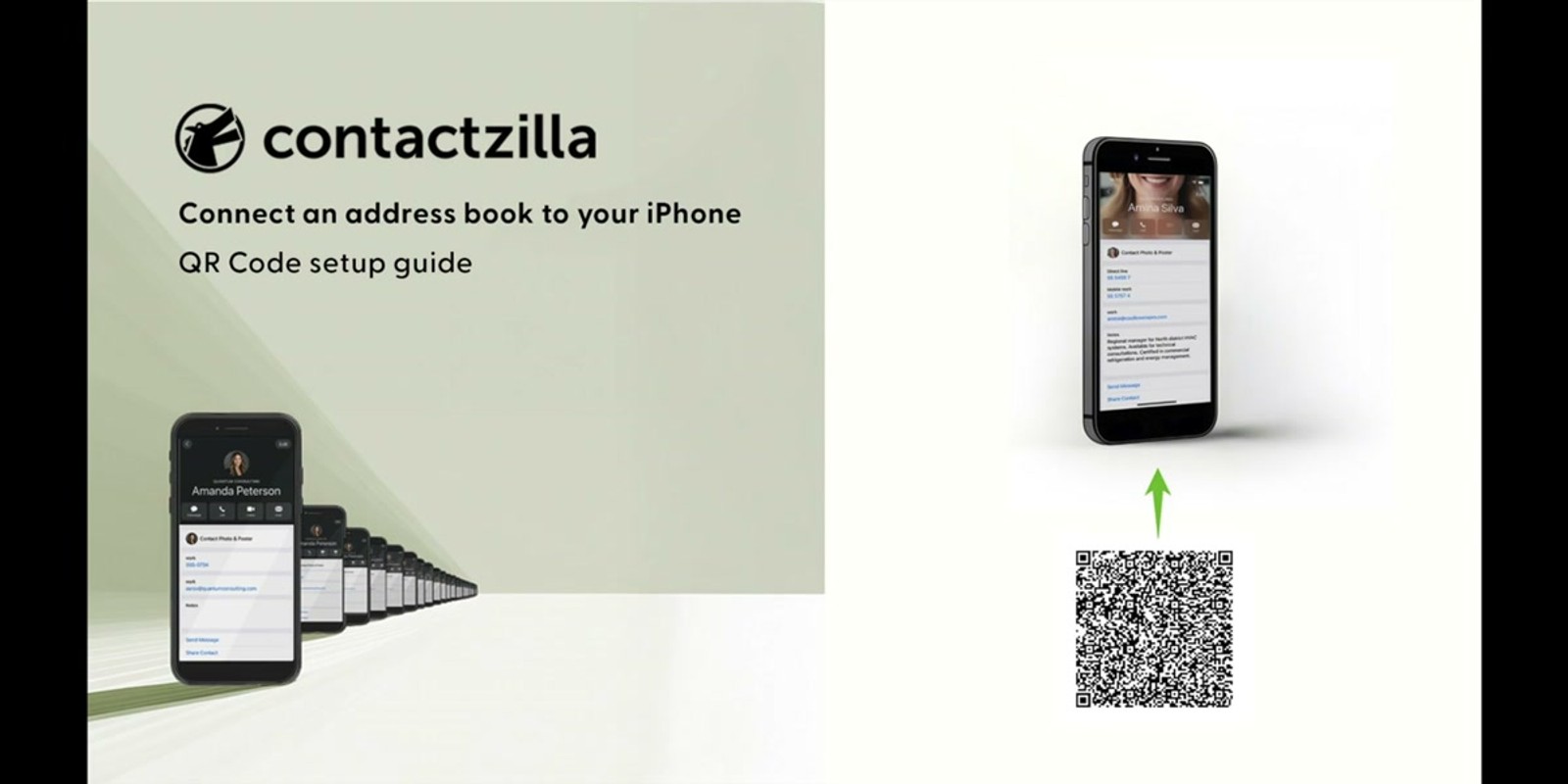
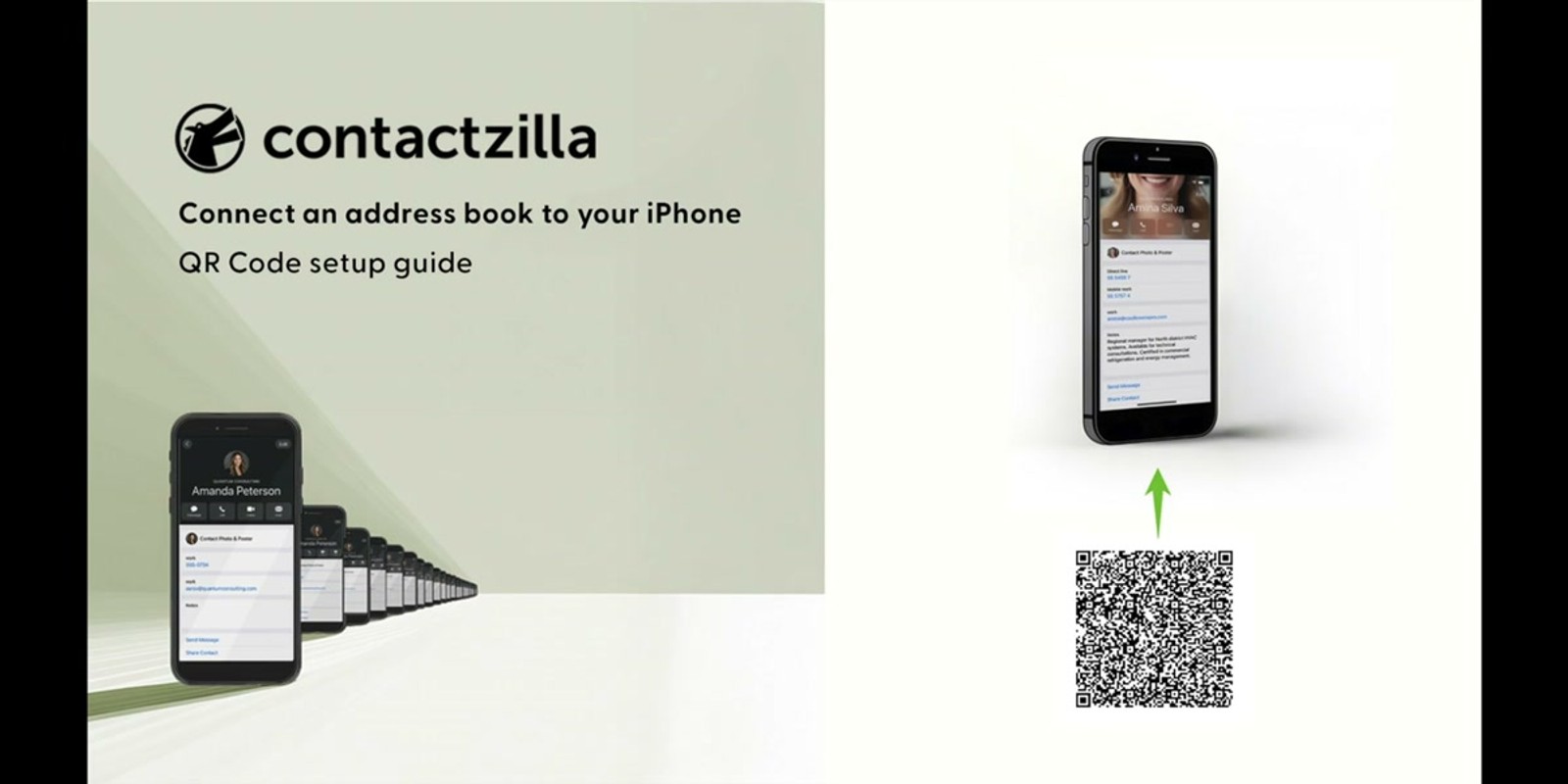
Scan the QR Code with Your iPhone Camera
Open the Camera app on your iPhone and point it at the QR code. Your iPhone's built-in QR code reader will detect it automatically — there's no need to install a separate scanner app.
When the camera recognizes the QR code, a notification banner will appear at the top of the screen. Tap that banner to open the link in Safari, which will trigger the configuration profile download.
If you received a link instead of a QR code, simply tap the link on your iPhone. It will open in Safari and begin the same download process described in the next step.
- Use the built-in iPhone Camera app — no third-party scanner needed
- Tap the banner notification that appears when the QR code is detected
- If using a link instead, just tap it directly on your iPhone
Allow the Configuration Profile Download
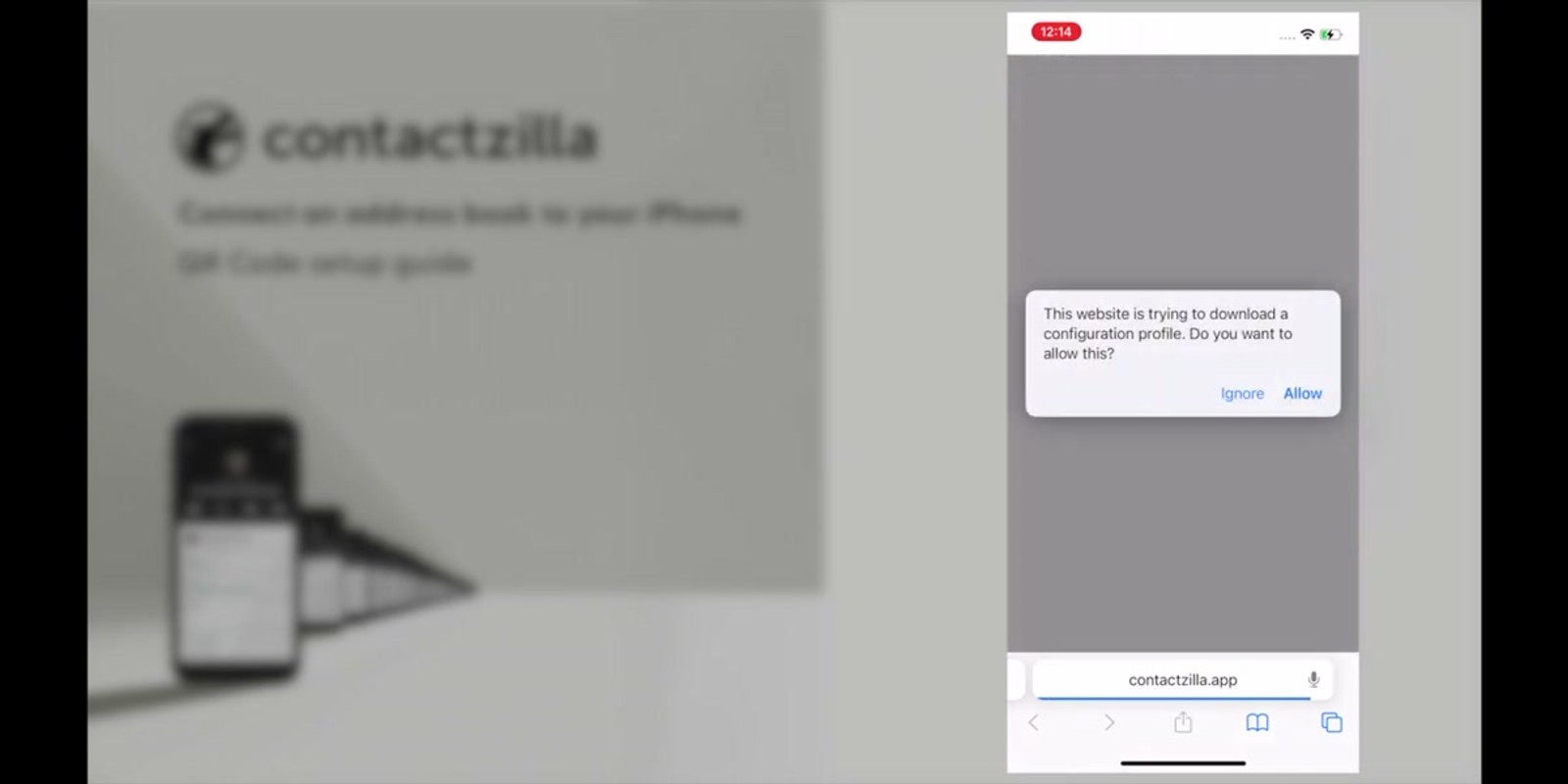
After scanning the QR code or tapping the link, your iPhone will display a prompt asking if you want to download a configuration profile. This is iOS's standard security dialog for any provisioning profile installation.
Tap Allow to proceed with the download. You'll then see a confirmation message telling you the profile has been downloaded successfully. At this point, the profile is on your device but not yet installed — you'll complete the installation in the next step.
- Tap Allow when prompted to download the configuration profile
- A confirmation message will appear: "Profile Downloaded"
- The profile is downloaded but not yet active until you install it
If you accidentally dismiss the prompt, you can re-scan the QR code or tap the link again to restart the download.
Open the Downloaded Profile in Settings
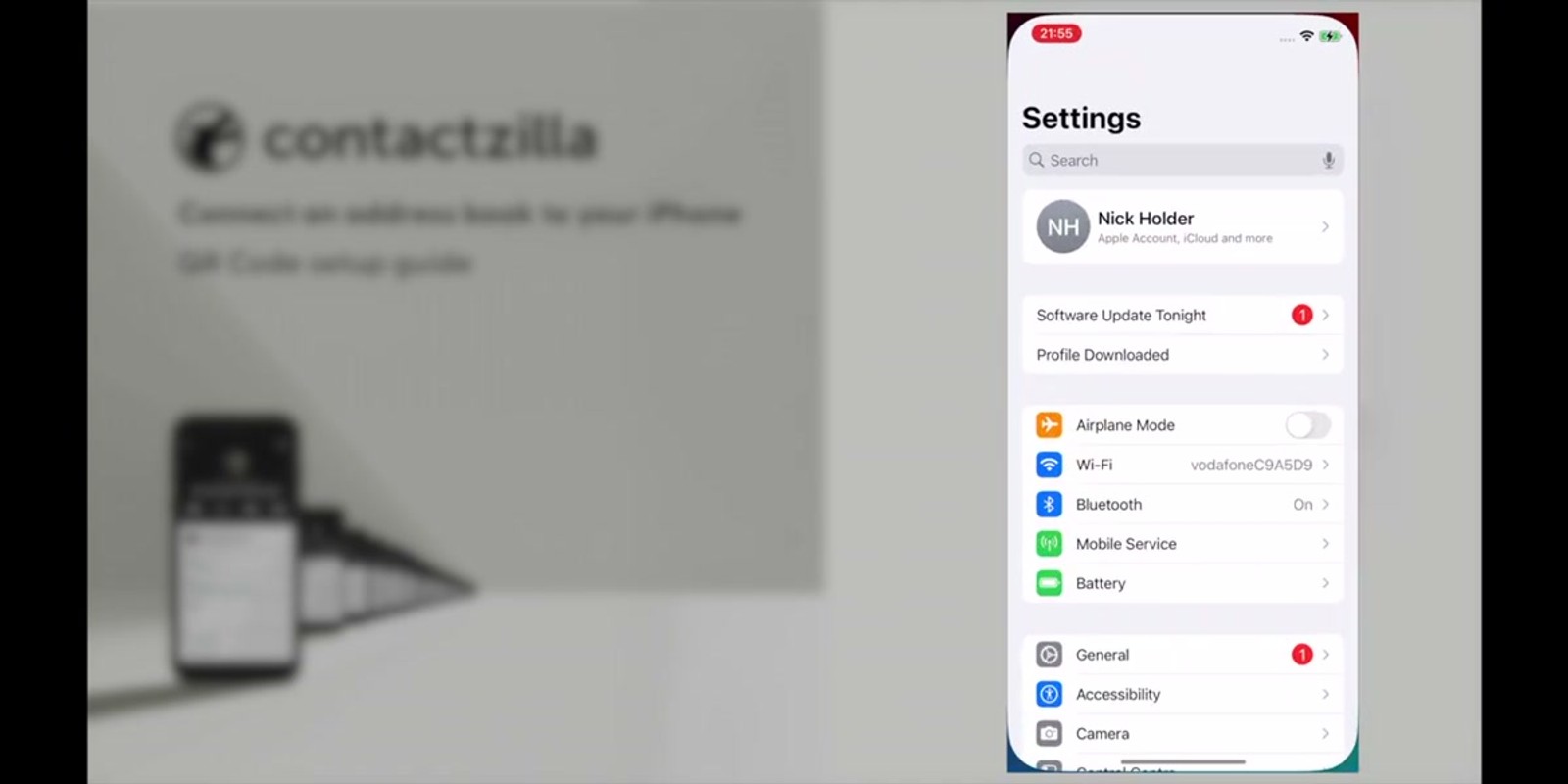
After the download completes, navigate to the top level page of the Settings app on your iPhone. You'll see a new entry near the top that says Profile Downloaded — this appears just below your Apple ID section.
Tap on the Profile Downloaded entry to open the profile details. This screen shows you information about the Contactzilla provisioning profile and gives you the option to proceed with installation.
Note that this entry only appears temporarily after downloading a profile. If you don't see it, go to Settings → General → VPN & Device Management to find downloaded profiles.
- Open the Settings app and look near the top for Profile Downloaded
- Tap through to view the profile details
- If the banner disappears, check Settings → General → VPN & Device Management
Install the Provisioning Profile
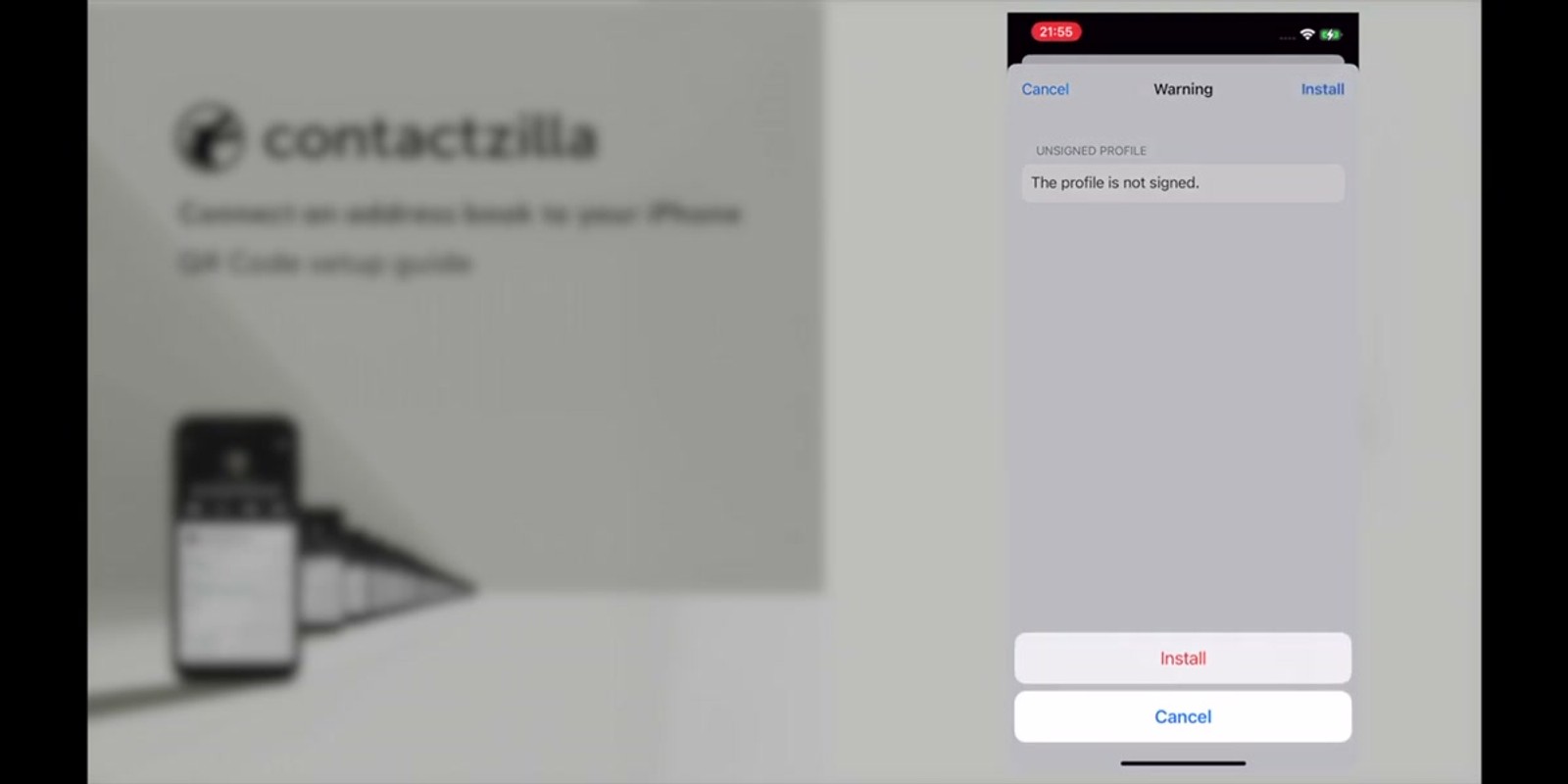
On the profile details screen, tap Install in the top-right corner. iOS will display a warning message telling you that the profile is not signed. This is completely normal for Contactzilla provisioning profiles and can be safely ignored.
After the unsigned warning, tap Install again in the top-right corner to confirm. You'll then be presented with one final confirmation — tap Install a third time at the bottom of the screen to complete the process.
Once installed, you'll see a confirmation screen saying the profile has been successfully installed. Tap Done to finish.
- Tap Install in the top-right corner of the profile screen
- You'll see a "Profile is not signed" warning — this is normal, ignore it
- Tap Install again in the top-right to confirm past the warning
- Tap Install one final time at the bottom to complete
- Tap Done when you see the installation confirmation
The "not signed" warning appears because the profile isn't issued by a certificate authority. This is expected and safe — it's simply how Contactzilla delivers the contact sync configuration to your device.
Verify Contacts Are Syncing
After tapping Done, your contacts will begin syncing automatically into your iPhone's native Contacts app. Open the Contacts app to verify that the shared contacts are appearing.
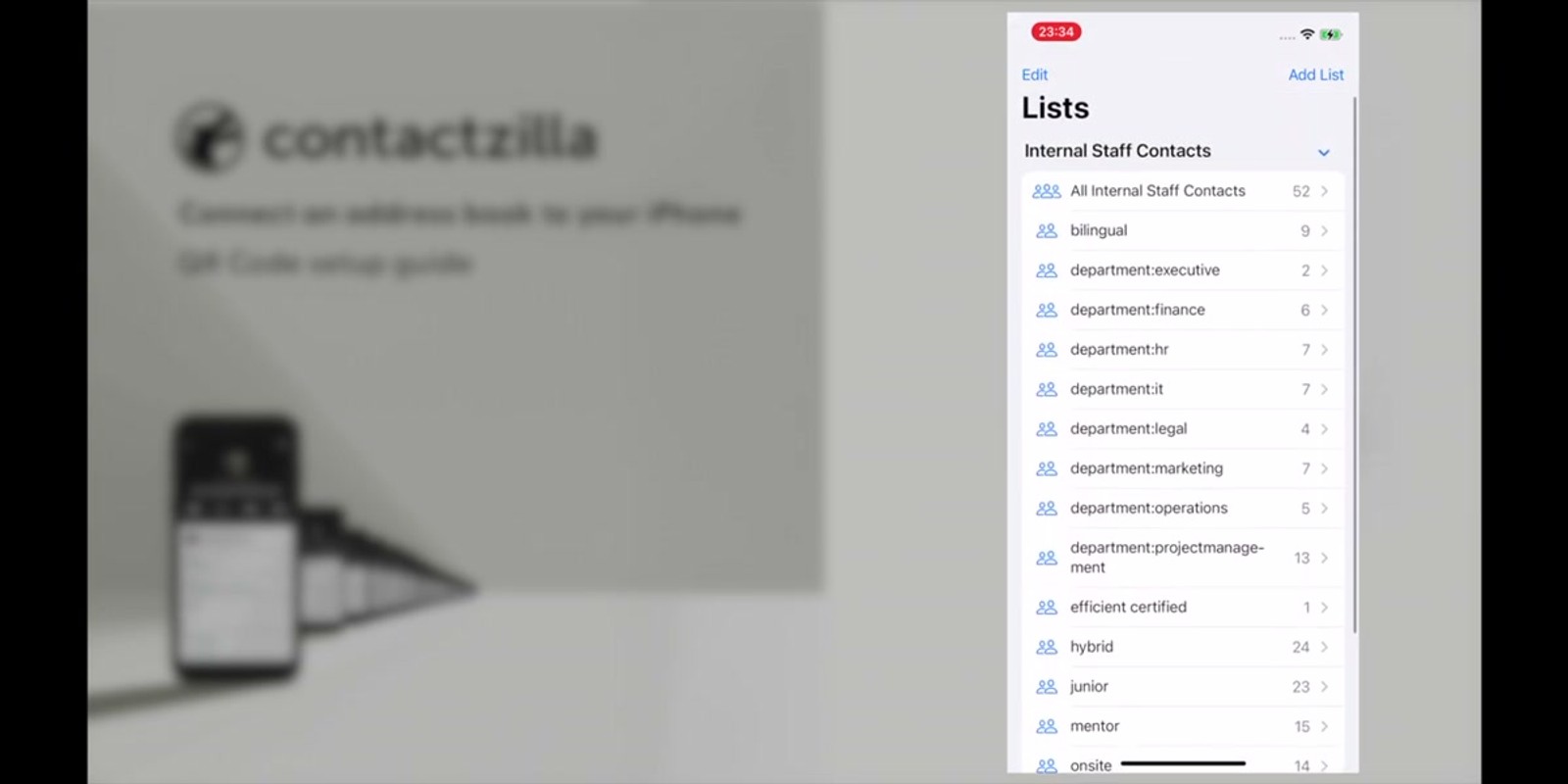
If your Contactzilla address book uses labels, those labels will appear as lists within the Contacts app. This keeps your shared contacts neatly organized — for example, you might see lists for different departments, offices, or projects.
The sync happens in the background, so depending on the size of your address book, it may take a moment for all contacts to appear. Future changes made in Contactzilla will sync automatically — no need to repeat this setup.
- Open the Contacts app to verify contacts are appearing
- Contactzilla labels appear as lists in the Contacts app
- Syncing happens automatically in the background
- Future updates to the address book sync without any manual steps
Frequently Asked Questions
What is a provisioning profile and is it safe to install?
A provisioning profile is an iOS configuration file that sets up your phone to sync contacts from Contactzilla. It's the same mechanism Apple uses for corporate device management. The "not signed" warning simply means it's not issued by a certificate authority, which is normal and safe for Contactzilla configurations.
Do I need to install a separate app to use Contactzilla on my iPhone?
No. The provisioning profile syncs contacts directly into your iPhone's native Contacts app. There's no additional app to download, install, or keep updated.
What's the difference between scanning the QR code and using the link?
Nothing — both do exactly the same thing. The QR code simply opens the same URL as the link. Use whichever is more convenient: scan the QR code if it's on a screen or printed page, or tap the link if it was sent to you via email or chat.
Will my contacts update automatically when changes are made in Contactzilla?
Yes. After the initial setup, your iPhone syncs with Contactzilla automatically. When contacts are added, updated, or removed in your Contactzilla address book, those changes will appear on your phone without any manual action.
What are Contactzilla labels and how do they appear on iPhone?
Labels in Contactzilla are categories you can assign to contacts to organize them (e.g., by team, department, or project). When synced to your iPhone, these labels appear as separate **lists** within the Contacts app, keeping everything neatly organized.
I can't find the 'Profile Downloaded' option in Settings. Where is it?
The Profile Downloaded banner appears near the top of the main Settings page right after downloading. If it's no longer visible, navigate to **Settings → General → VPN & Device Management** to find and install the downloaded profile.

