
Sync Shared Contacts to Any Android Phone — One QR Scan
Create a CardDAV connection in the Contactzilla dashboard, generate a QR code, and scan it from the Contactzilla Sync app to pull your shared address book straight into Android Contacts.
Contactzilla uses the CardDAV protocol to sync shared address books directly into the native Contacts app on Android. Rather than requiring users to look up server URLs and type credentials by hand, you can generate a QR code in the Contactzilla web portal and scan it from the Contactzilla Sync app on the Play Store.
This tutorial walks through every click — from creating the device connection in the dashboard to seeing contacts appear on the phone. The whole process takes under two minutes, and once the sync is established the address book updates automatically whenever contacts change in Contactzilla.
You'll need two things before you start: access to the Contactzilla web portal (any plan, including the 14-day free trial) and an Android device with the Contactzilla Sync app installed from the Google Play Store.
Open CardDAV Connections in the Web Portal
Log into the Contactzilla web portal at contactzilla.com and look at the left-hand navigation. Click CardDAV Connections to open the connection management screen.
This is where you create, view, and manage every device connection linked to your organisation's address books. Each connection ties a specific user and device type to an address book so you can control who syncs what.
- Navigate to CardDAV Connections in the left sidebar
- You'll see any existing connections listed here
- Each connection is scoped to one user and one device type
Create a New Android Connection
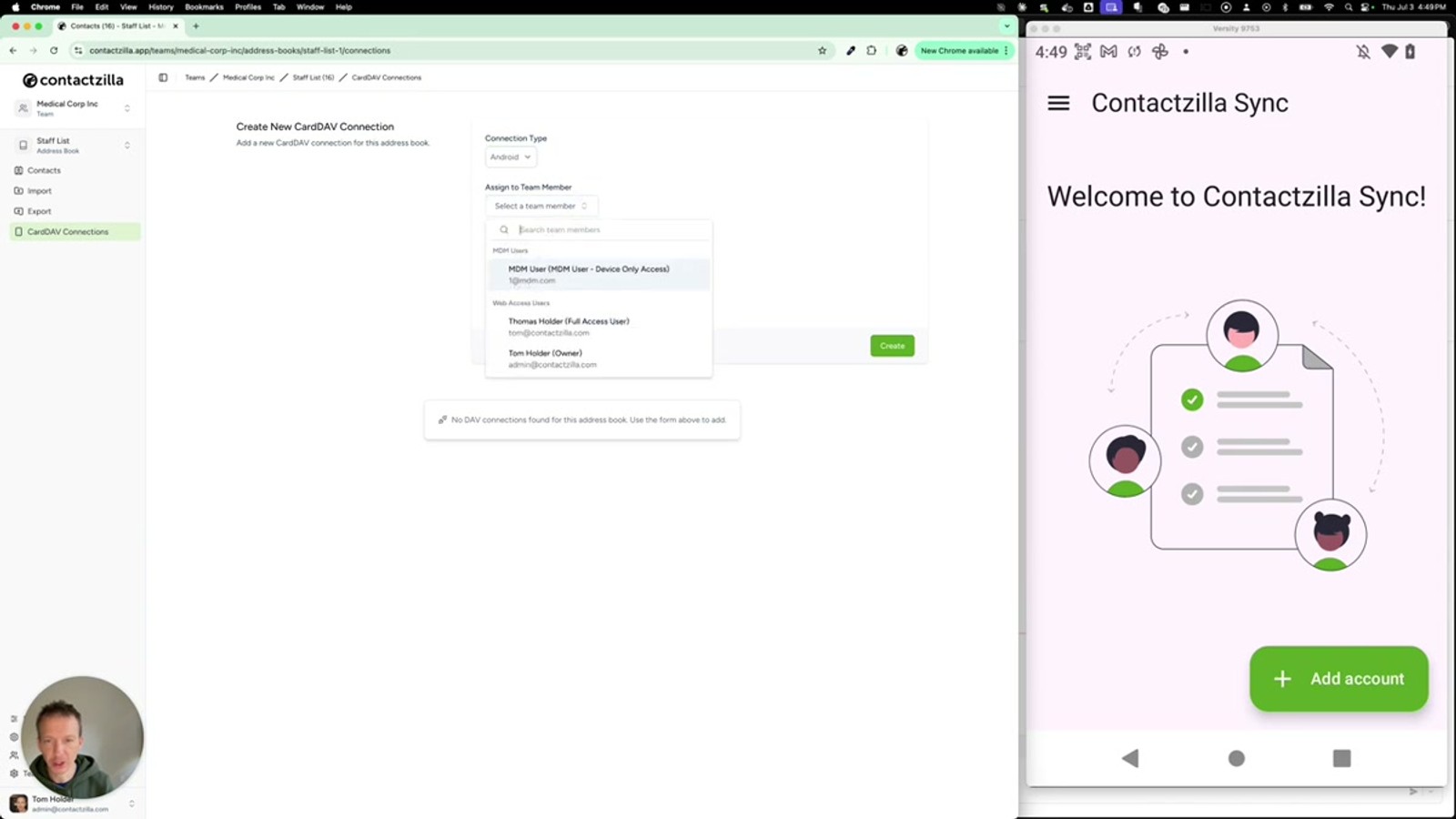
Click the button to create a new connection. The first choice is the connection type — select Android. Contactzilla offers different connection types for different platforms (iOS, macOS, Android, MDM), and picking Android ensures the generated credentials and QR code use the right format.
Next, assign the connection to a user. You can choose a specific named user from your organisation or select MDM if you plan to push the configuration through a mobile device management system. In this walkthrough we assign it to a specific user.
Leave the Label Sync setting at its default value. This controls whether the address book label in the phone's Contacts app mirrors the name shown in Contactzilla. Keeping it the same means the address book will appear on the phone with the exact name you see in the dashboard (e.g. "Staffless").
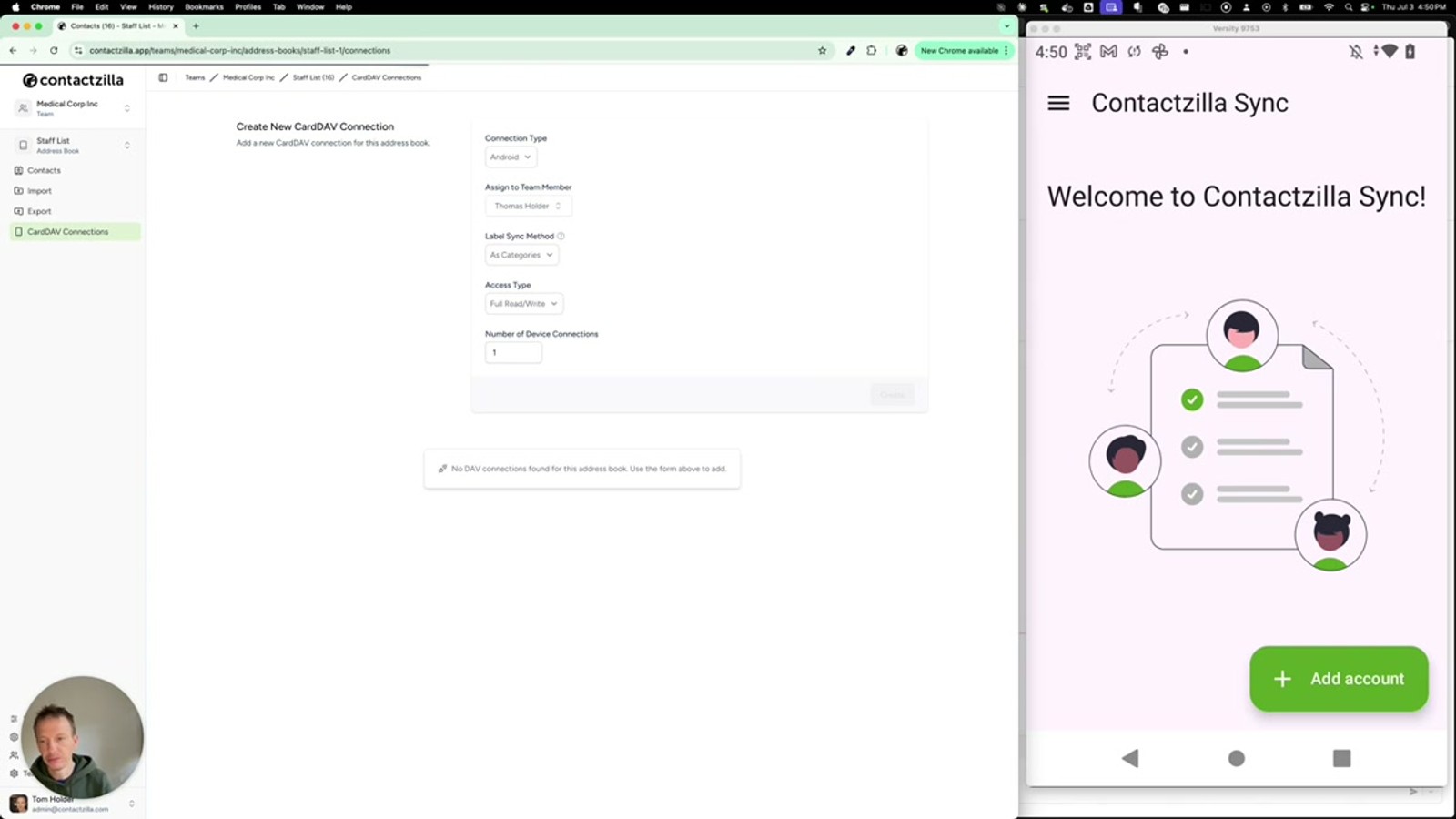
Finally, choose an Access Type — this determines whether the user gets read-only or read-write access to the address book — and click Create.
- Select Android as the connection type
- Assign to a specific user (or choose MDM for managed deployment)
- Leave Label Sync at default to keep names consistent
- Choose an Access Type (read-only or read-write)
- Click Create to generate the connection
If you're rolling out to many devices via an MDM platform, choose the MDM option instead of a specific user. For individual setups, the per-user option shown here is simpler.
Review Manual Setup Credentials (Optional)
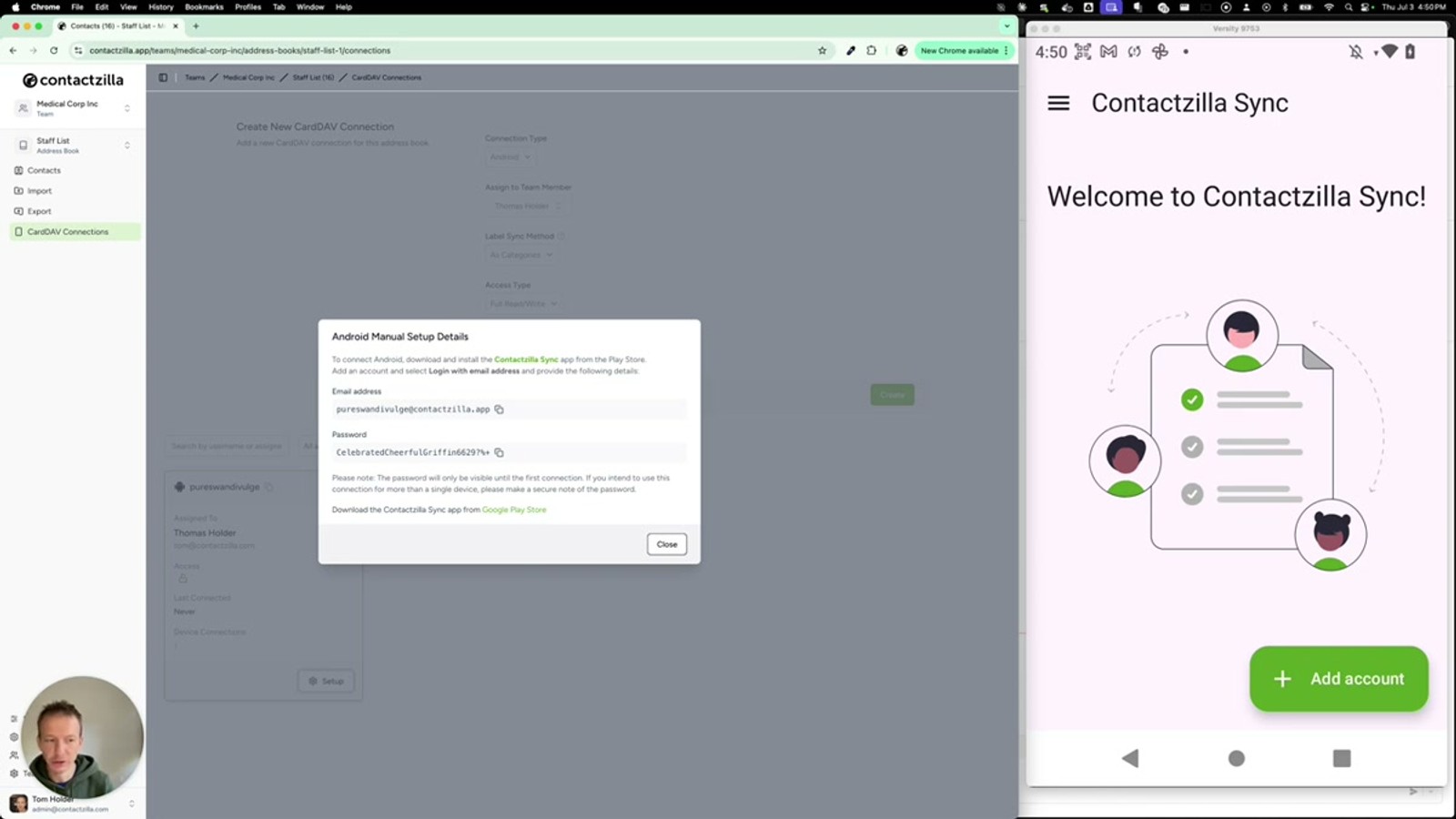
Once the connection is created, you'll see it listed as a new device connection ready to use. Click the Setup menu and then View Manual Setup to reveal the credentials Contactzilla generated.
The manual setup screen shows three fields: an email address, a username, and a password. These are the CardDAV credentials you would need if you were configuring the account by hand in the Contactzilla Sync app or any other CardDAV client. There's also a direct link to download the Contactzilla Sync app from the Google Play Store.
You don't need to copy these credentials if you're using the QR code method — but it's useful to know they exist in case you ever need to set up a device that can't scan a QR code.
- Click Setup → View Manual Setup on the new connection
- Note the email address, username, and password fields
- A Play Store download link for Contactzilla Sync is shown on this screen
- Manual credentials are a fallback — the QR method is faster
Generate the QR Code
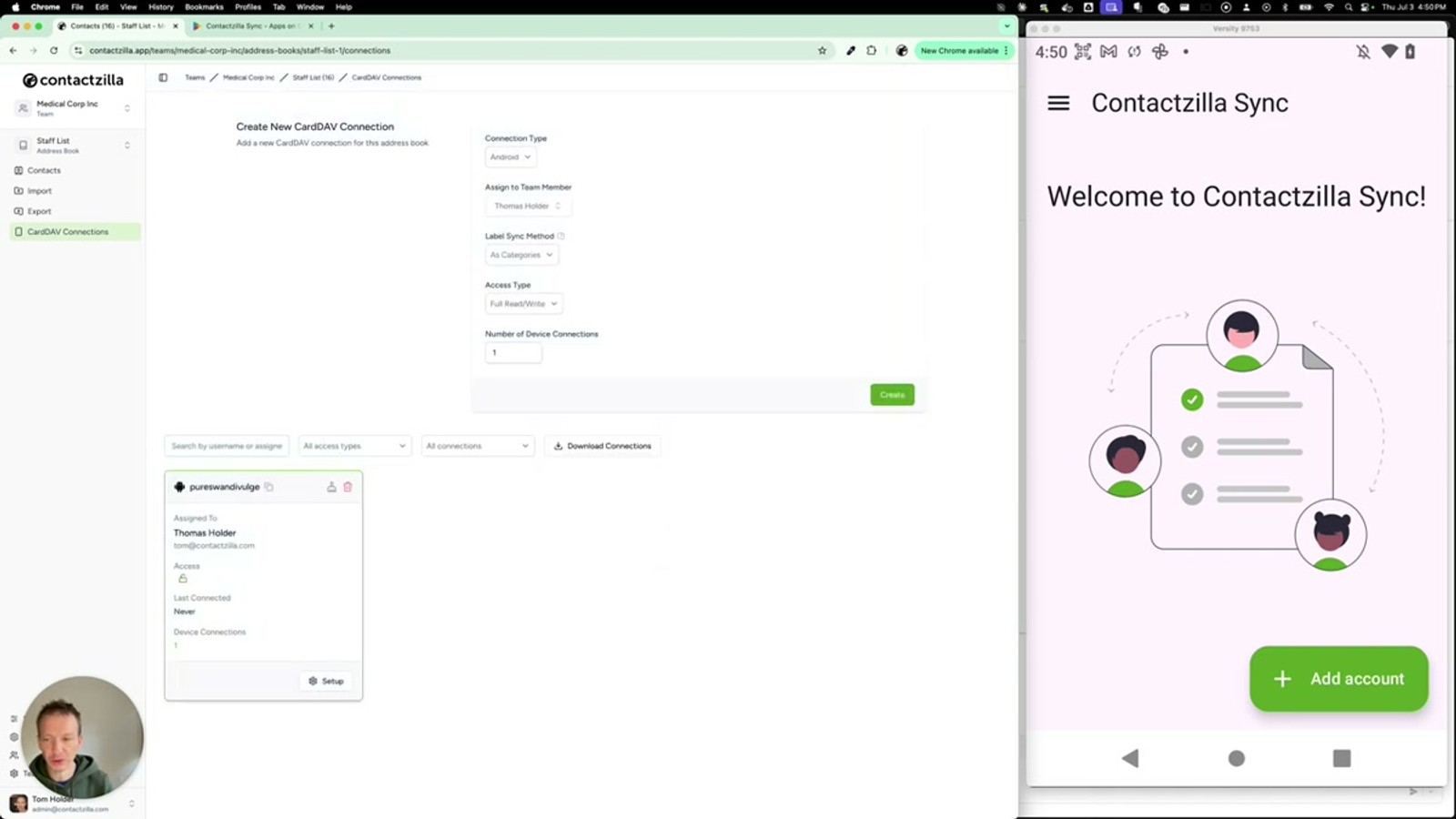
Go back to the device connection and click Setup again. This time, select Show QR Code. Contactzilla generates a QR code on screen that encodes the server URL, username, and password for this specific connection.
Leave this QR code visible on your computer screen — you'll scan it from the Android device in the next step. The code is tied to the user and address book you configured, so each connection gets its own unique QR code.
- Click Setup → Show QR Code on the device connection
- The QR code encodes the full CardDAV credentials
- Keep the code displayed on screen, ready to scan
The QR code contains sensitive credentials. Don't screenshot and share it over insecure channels — treat it like a password.
Install and Open Contactzilla Sync on Android
On your Android device, open the Google Play Store and search for Contactzilla Sync (published by Atomica Software). Install the app if you haven't already.
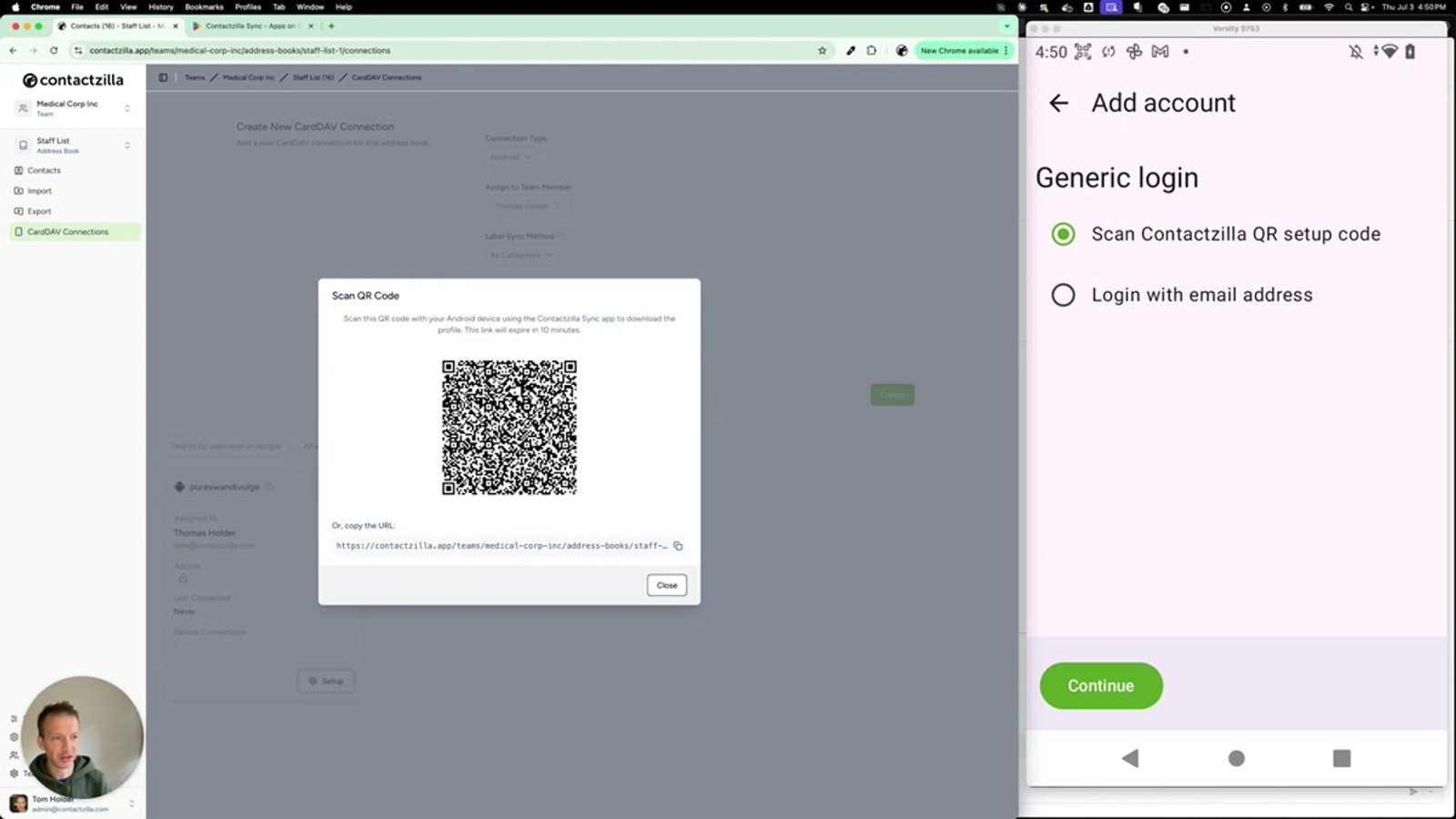
Open the app and tap Add Account. You'll see an option to Scan QR Setup Code — tap it, then tap Continue to open the camera scanner. The app needs camera permission to scan the code.
Contactzilla Sync acts as a CardDAV sync adapter for Android. Once configured, it runs in the background and keeps your native Contacts app in sync with the Contactzilla address book. You don't need to open the Contactzilla Sync app day-to-day — it works behind the scenes.
- Install Contactzilla Sync from the Google Play Store
- Open the app and tap Add Account
- Tap Scan QR Setup Code
- Tap Continue to launch the camera scanner
Scan the QR Code and Start Syncing
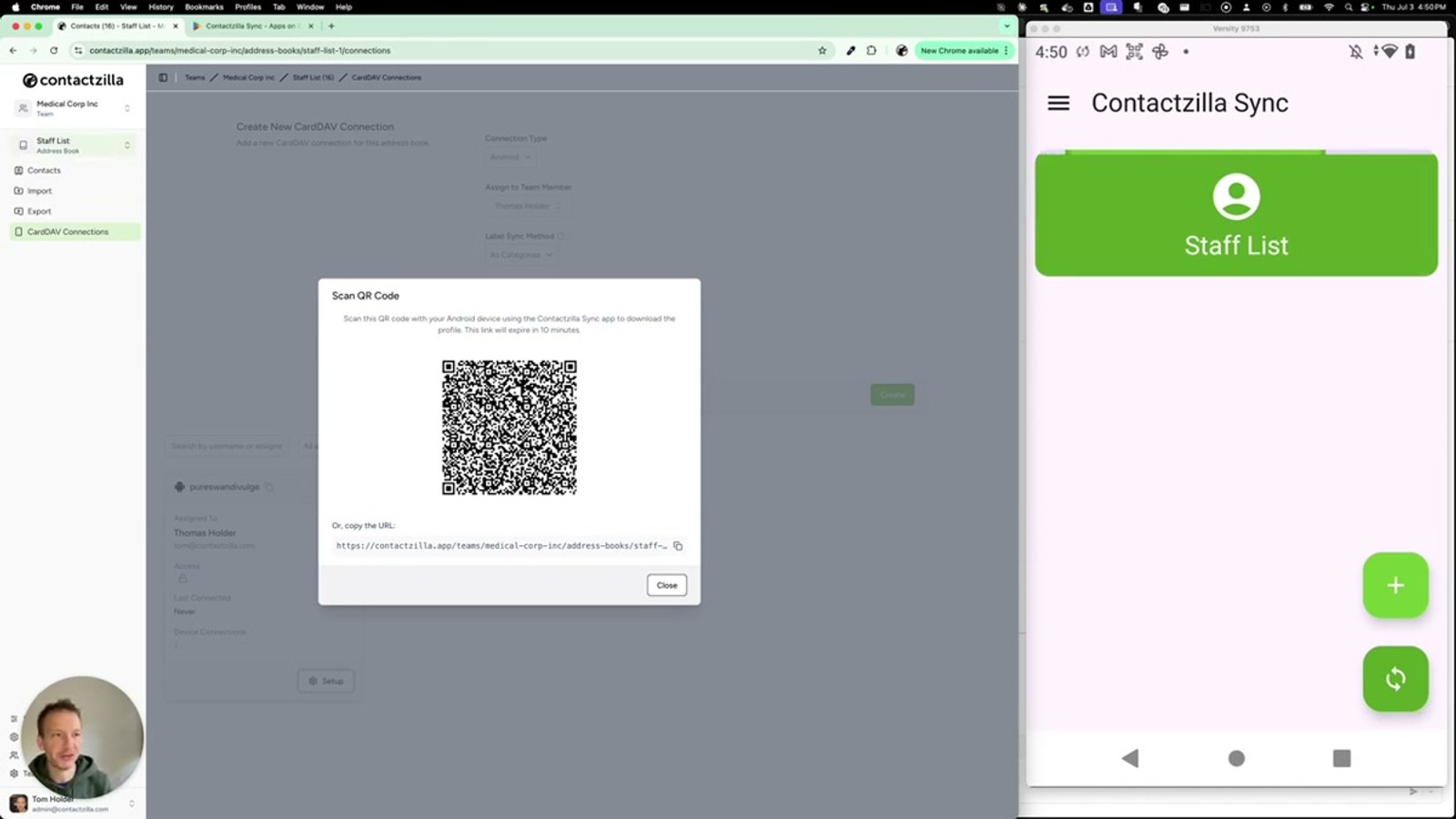
Point your Android device's camera at the QR code displayed on your computer screen. The app will read the code and automatically download the configuration — no manual typing required.
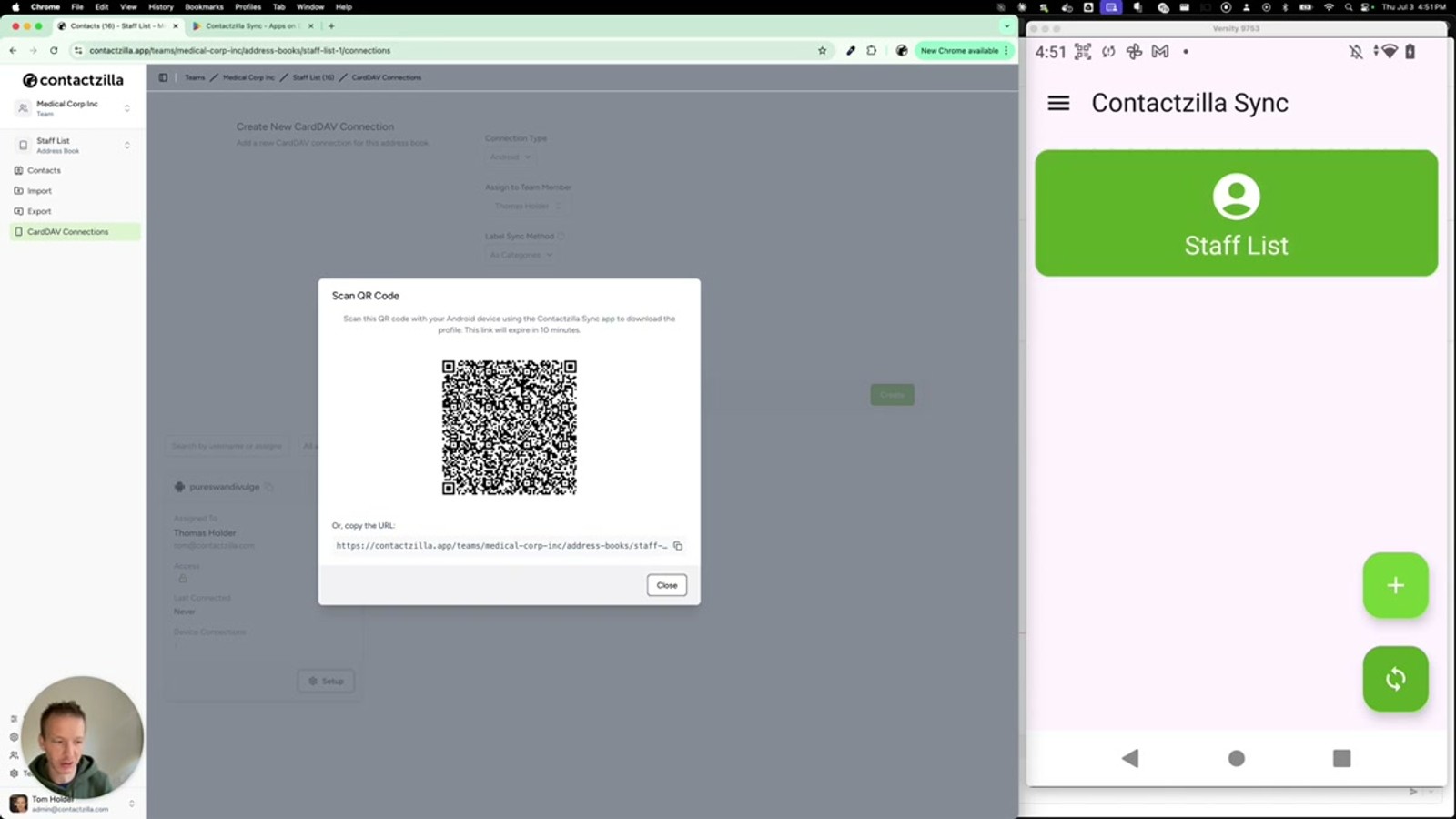
Once scanned, the app confirms the connection by showing the address book name. In the video, the address book appears as "Staffless", which mirrors the exact name shown in the Contactzilla web portal. This confirms that Label Sync is working correctly.
You'll see the app begin synchronizing contacts immediately. Depending on the size of your address book and your network speed, the full sync can take a few minutes. The contacts are pulled down into Android's native Contacts app — they're not siloed inside the Contactzilla Sync app.
- Scan the QR code from your computer screen
- The address book name appears (e.g. Staffless) matching the portal
- Synchronization starts automatically
- Contacts download into the native Android Contacts app
Verify Contacts in the Native Contacts App
After the sync completes (usually within a few minutes), open your phone's native Contacts app. You should see the contacts from your Contactzilla address book listed alongside any personal contacts already on the device.
The address book appears as a separate account in Android's contact system, so you can filter by account to view just the Contactzilla contacts if needed. Any changes made in the Contactzilla web portal will sync down to the phone automatically on subsequent sync cycles.
That's the entire setup — from creating the connection to seeing contacts on the phone, the process takes about two minutes.
- Open the native Contacts app on Android
- Contactzilla contacts appear alongside personal contacts
- Filter by account to see only the shared address book
- Future changes in Contactzilla sync automatically
Frequently Asked Questions
Do I need to keep the Contactzilla Sync app open for contacts to stay updated?
No. Contactzilla Sync registers as a sync adapter in Android and runs in the background. Once configured, contacts sync automatically without opening the app. Your contacts appear in the native Android Contacts app.
What's the difference between assigning a connection to a specific user vs. MDM?
A specific user connection is for individual phone setup — you assign it to one person and they scan the QR code or enter credentials manually. The MDM option is for organisations that push device configurations centrally through a mobile device management platform, so admins can deploy connections to many phones at once.
Can I set up the connection without scanning a QR code?
Yes. Click **Setup → View Manual Setup** on the device connection in the web portal. You'll see the email address, username, and password. Enter these manually in the Contactzilla Sync app's Add Account screen instead of scanning a QR code.
What does the Label Sync setting do?
Label Sync controls whether the address book name displayed on the phone matches the name in the Contactzilla portal. Leaving it at the default ensures the names stay consistent — for example, an address book called "Staffless" in the portal will appear as "Staffless" in your Android Contacts app.
How long does the initial contact sync take?
The initial sync typically completes within a few minutes, depending on the size of your address book and your network connection. After the first sync, subsequent updates happen automatically and incrementally.
Where do I download the Contactzilla Sync app?
Search for **Contactzilla Sync** (by Atomica Software) in the Google Play Store, or use the direct download link shown on the manual setup screen in the Contactzilla web portal.

