
Push Managed Contact Lists to Every iPhone — Via Hexnode MDM
Generate an iOS configuration profile in Contactzilla, deploy it through a Hexnode policy, and keep contacts synced across your entire fleet automatically.
Managing company contacts across a fleet of iPhones is a pain when done manually. This tutorial walks through a streamlined approach: generate an iOS .mobileconfig file in Contactzilla, upload it into a Hexnode UEM policy, and assign that policy to a device group. The result is a shared, read-only contact list that appears in the native iOS Contacts app — no end-user setup required.
Hexnode is a unified endpoint management (UEM) platform that supports iOS, Android, Windows, macOS, Linux, and even specialized platforms like Vision OS and Fire OS. For this walkthrough, we focus specifically on iOS devices. The entire process takes just a few minutes and gives IT admins full control over which devices receive which address books.
By the end of this guide you'll know how to create an MDM user in Contactzilla, configure access levels (including selective read-only with label filtering), generate and download the .mobileconfig profile, create a custom Hexnode policy, and assign it to a device group for controlled rollout. Any changes you later make in Contactzilla sync automatically to every enrolled iPhone.
Prepare Your Hexnode Environment
Before generating the Contactzilla profile, make sure your Hexnode environment is ready. You need iPhones already enrolled in Hexnode and at least one device group created to target the rollout.
In the video, the presenter uses a device group called iOS Skyline Field Devices. Device groups let you control exactly which phones receive the contact list. You can create groups based on department, location, or any organizational criteria that makes sense for your rollout.
If you haven't enrolled devices yet, complete that step in Hexnode first — the rest of this tutorial assumes enrollment is done and your device group exists.
- Ensure iPhones are already enrolled in Hexnode
- Create a device group to control which phones receive the contacts
- Name the group descriptively (e.g., by team or location)
- You can assign the policy to multiple device groups later
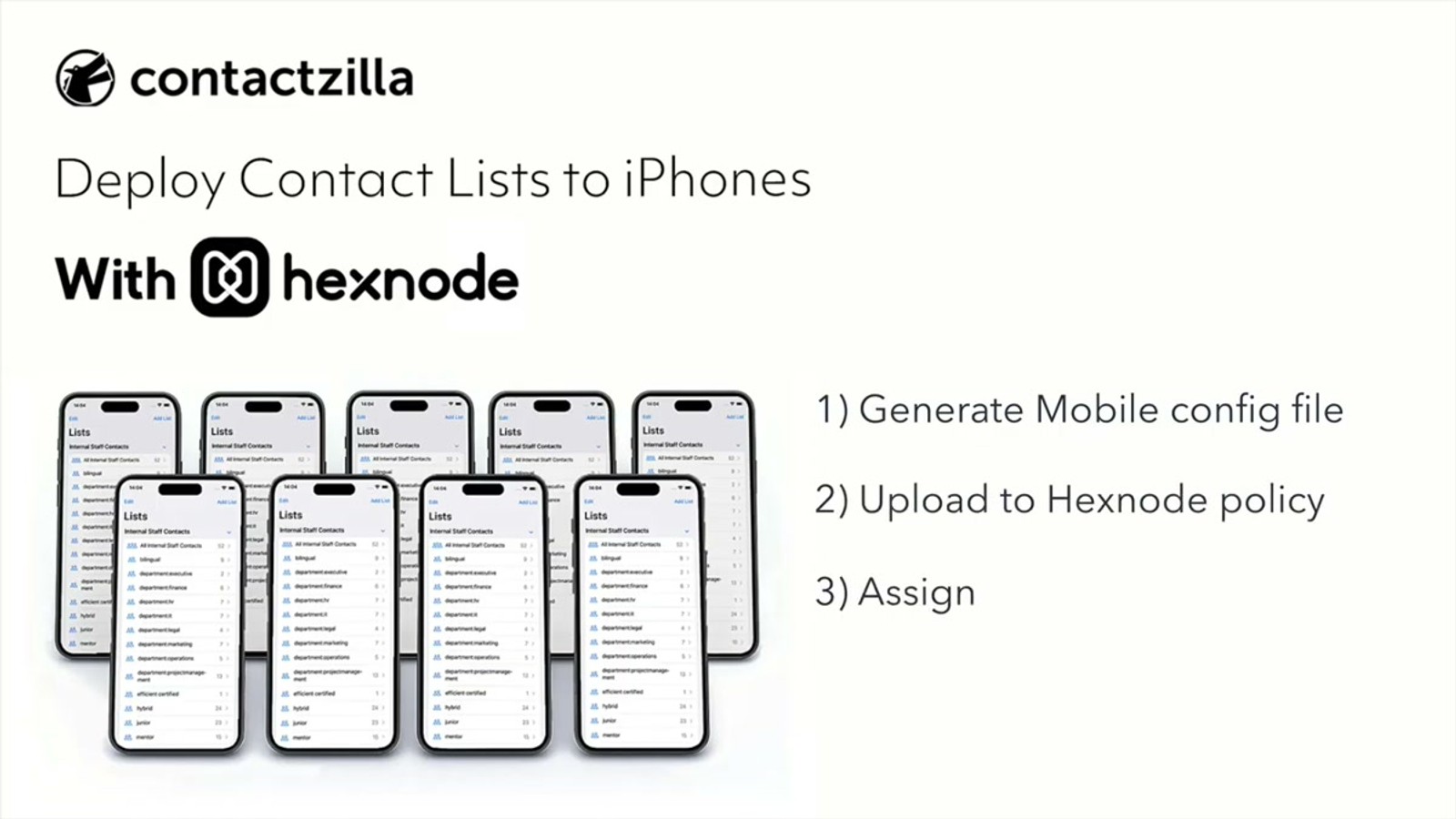
Open Device Connections in Contactzilla
Switch over to your Contactzilla dashboard and open the specific address book you want to deploy to iPhones. Click on Device Connections within that address book.
The first setting to configure is the connection type. Select iOS from the dropdown. This tells Contactzilla to generate an iOS-compatible .mobileconfig profile that uses CardDAV under the hood.
The connection type matters because iOS and Android use different deployment mechanisms. iOS uses configuration profiles (.mobileconfig files), while Android uses managed app configurations. Make sure you select the correct platform for your target devices.
- Navigate to the address book you want to deploy
- Click Device Connections
- Select iOS from the connection type dropdown
- This generates an iOS
.mobileconfigfile using CardDAV
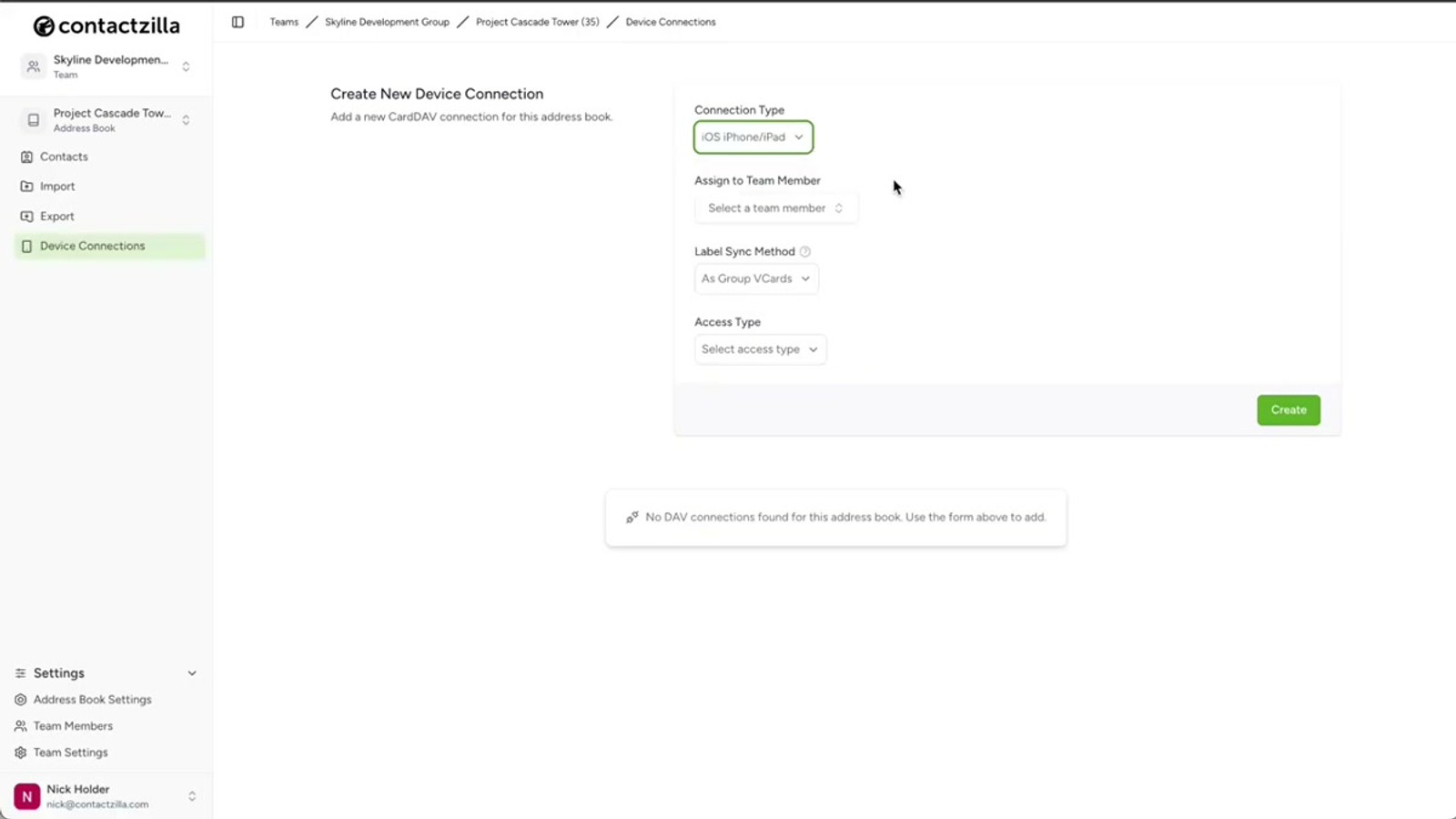
Create an MDM User in Contactzilla
The next step is to assign the connection to a team member. In Contactzilla, you can assign a connection directly to any team member — useful for individual setups where the person scans a QR code and configures their own phone. But for MDM rollouts, you need a special kind of user called an MDM user, which is a device-only account.
To create one, navigate to Team Members and click Add. Select the MDM user, device only access option. The email address field is arbitrary — you can enter anything, such as mdm-ios@yourcompany.com. It doesn't need to be a real mailbox. Hit Add and the MDM user appears in your team members list.
Head back to Device Connections and select the newly created MDM user from the user dropdown. This links the connection to a device-only account rather than a real person, which is exactly what you want for a policy-based rollout.
- Go to Team Members → Add
- Choose MDM user, device only access
- Enter any email address — it's arbitrary and doesn't need to be a real mailbox
- Return to Device Connections and select the new MDM user
- MDM users are device-only accounts designed specifically for MDM rollouts
For individual users, Contactzilla offers QR code setup — but for MDM rollouts, always create a dedicated MDM user rather than assigning to a real team member.
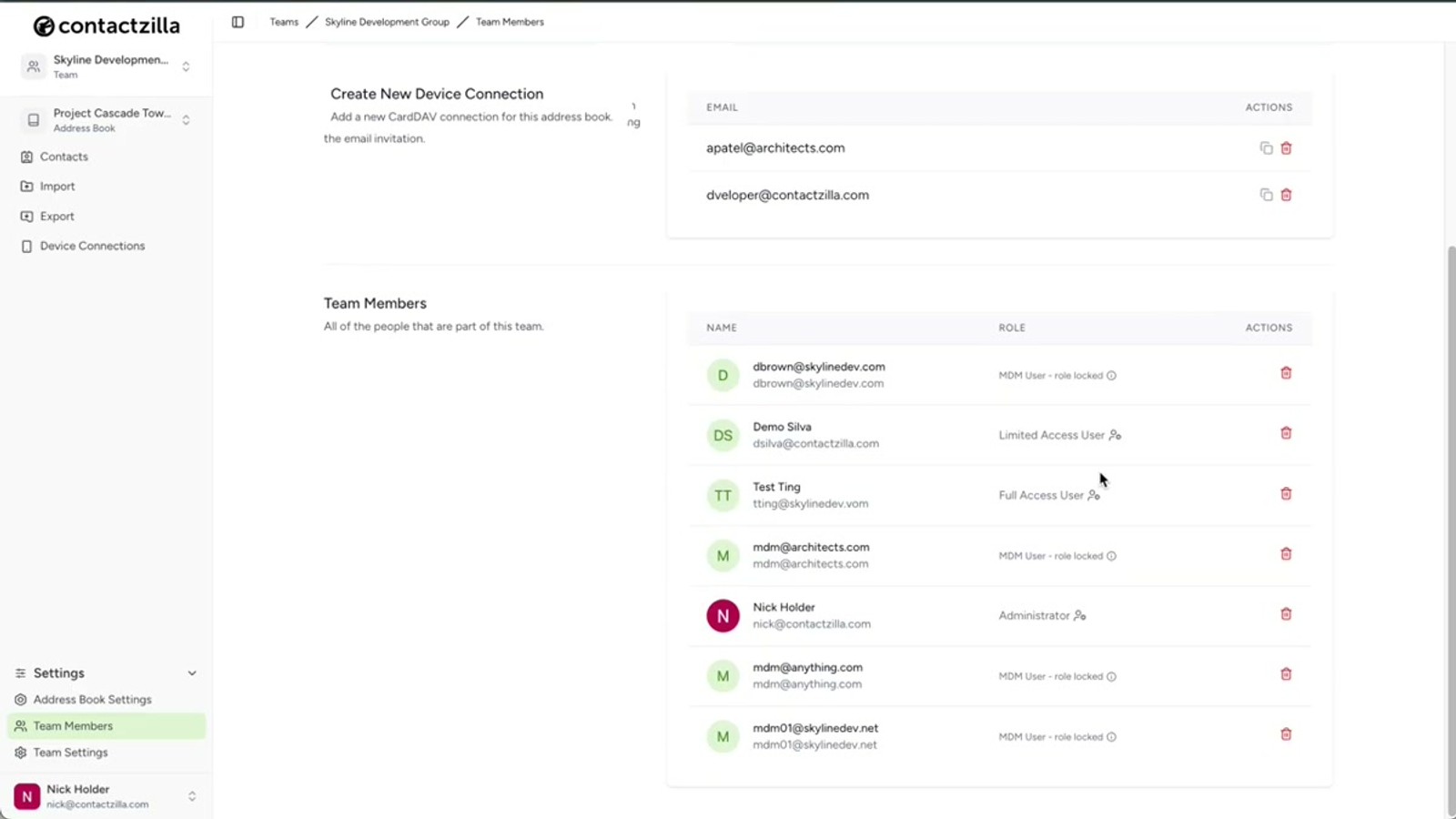
Configure Access Level and Label Sync
With the MDM user selected, configure the remaining connection settings. Label Sync can be left at the default setting for most rollouts.
The key decision is the access level for end users. There are three options:
Full Read-Only is the most popular choice for managed rollouts. It prevents any accidental changes to your master contact list — users can view contacts but cannot edit or delete them.
Full Read-Write gives end users the ability to edit contacts on their devices, with changes syncing back to Contactzilla. If you select this option, Contactzilla offers a handy feature to allow editing but still prevent users from deleting any contacts.
Selective Read-Only is a powerful feature for targeted rollouts. Instead of sending the entire address book, you choose one or more labels and only contacts tagged with those labels are deployed to devices. This is ideal when different teams need different subsets of contacts.
- Leave Label Sync at the default setting
- Choose Full Read-Only for most managed rollouts — prevents accidental edits
- Full Read-Write allows editing; optional toggle to still prevent deletion
- Selective Read-Only deploys only contacts matching specific labels
- Set the number of device connections to match your rollout size
Selective Read-Only is a powerful feature — you don't have to deploy the entire address book. Choose specific labels to send only relevant contacts to each device group.
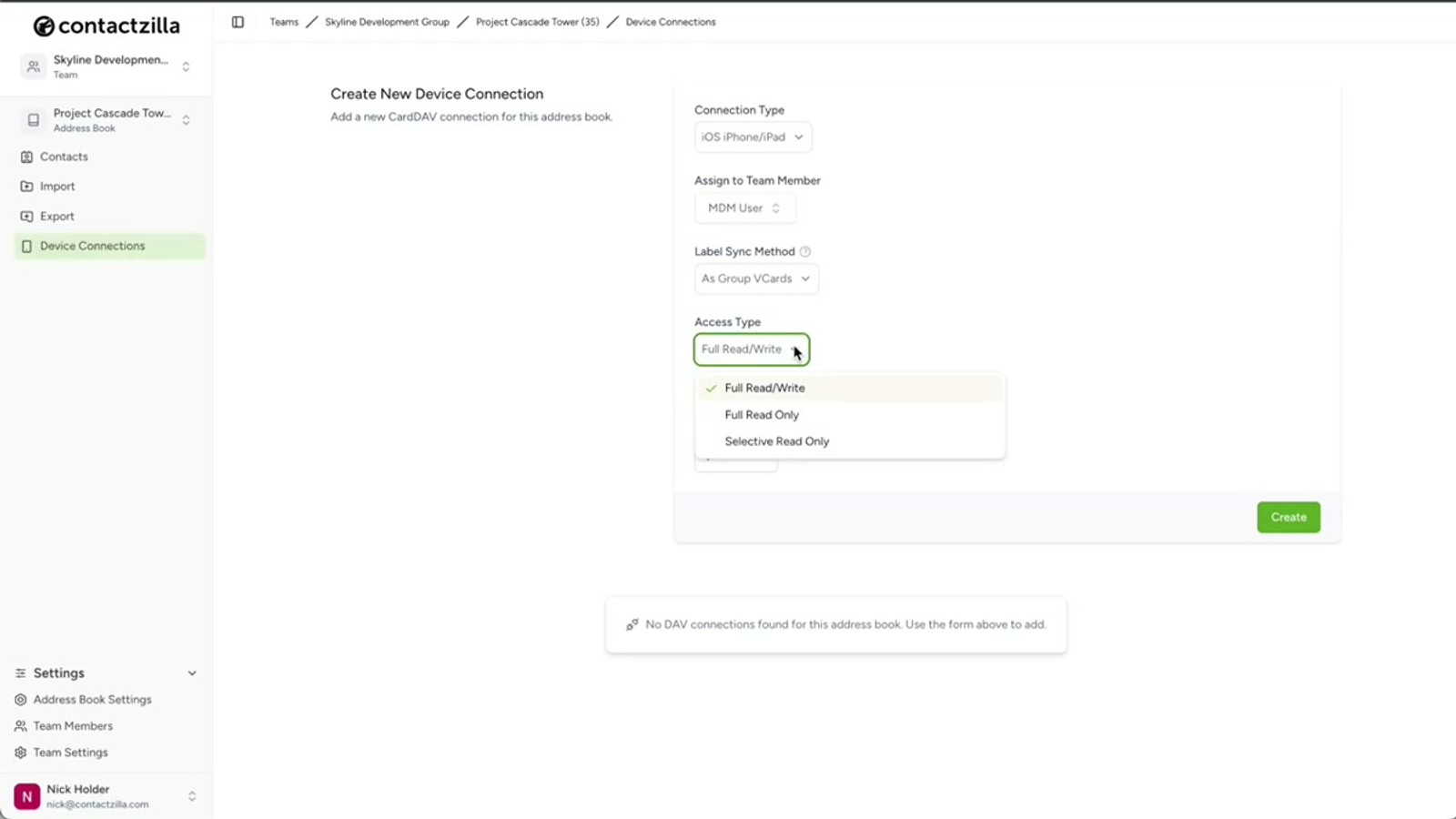
Download the iOS .mobileconfig File
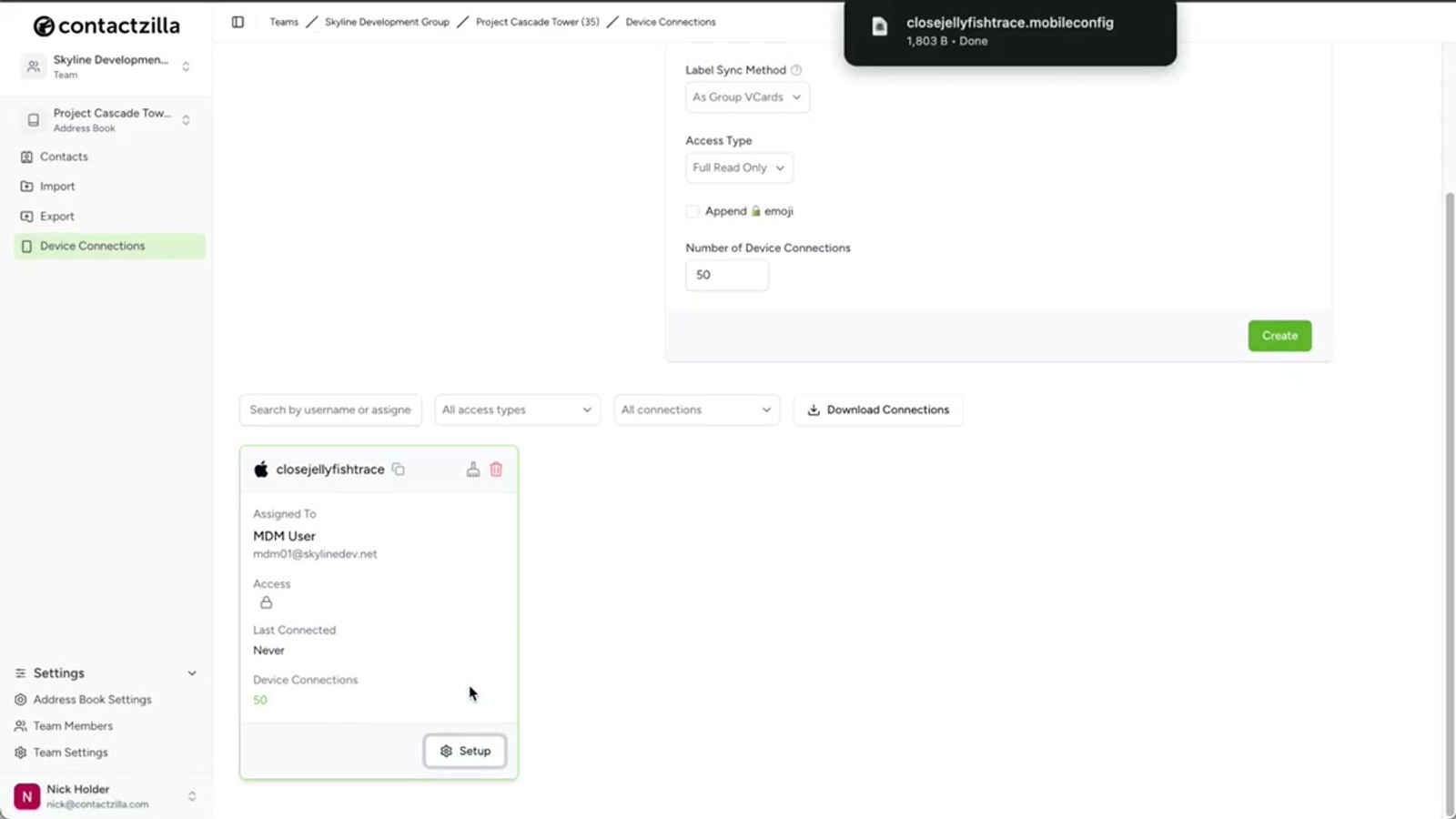
After setting the access level and number of device connections, click Create to generate the connection. Your new device connection appears in the list, ready for deployment.
Under the new device connection entry, click Setup and then Download the iOS mobile configuration file. This .mobileconfig file contains all the CardDAV settings Hexnode needs to deploy the contact list to iPhones.
The file downloads to your local machine (typically your Downloads folder). Keep track of where it saves — you'll upload it to Hexnode in the next step.
- Click Create to generate the device connection
- Click Setup under the new connection
- Download the
.mobileconfigfile - The file contains CardDAV configuration for the contact list
- Note the download location — you'll upload it to Hexnode next
Create a Custom Policy in Hexnode
Back in the Hexnode dashboard, navigate to the Policies tab at the top of the screen. Click to create a new policy and select Create a fully custom policy.
For the policy name, reference the Contactzilla address book name. Since Contactzilla supports rolling out multiple address books to your devices, naming the policy after the address book keeps things organized. In the video, the policy is named Contactzilla Project Cascade Tower. Click Save.
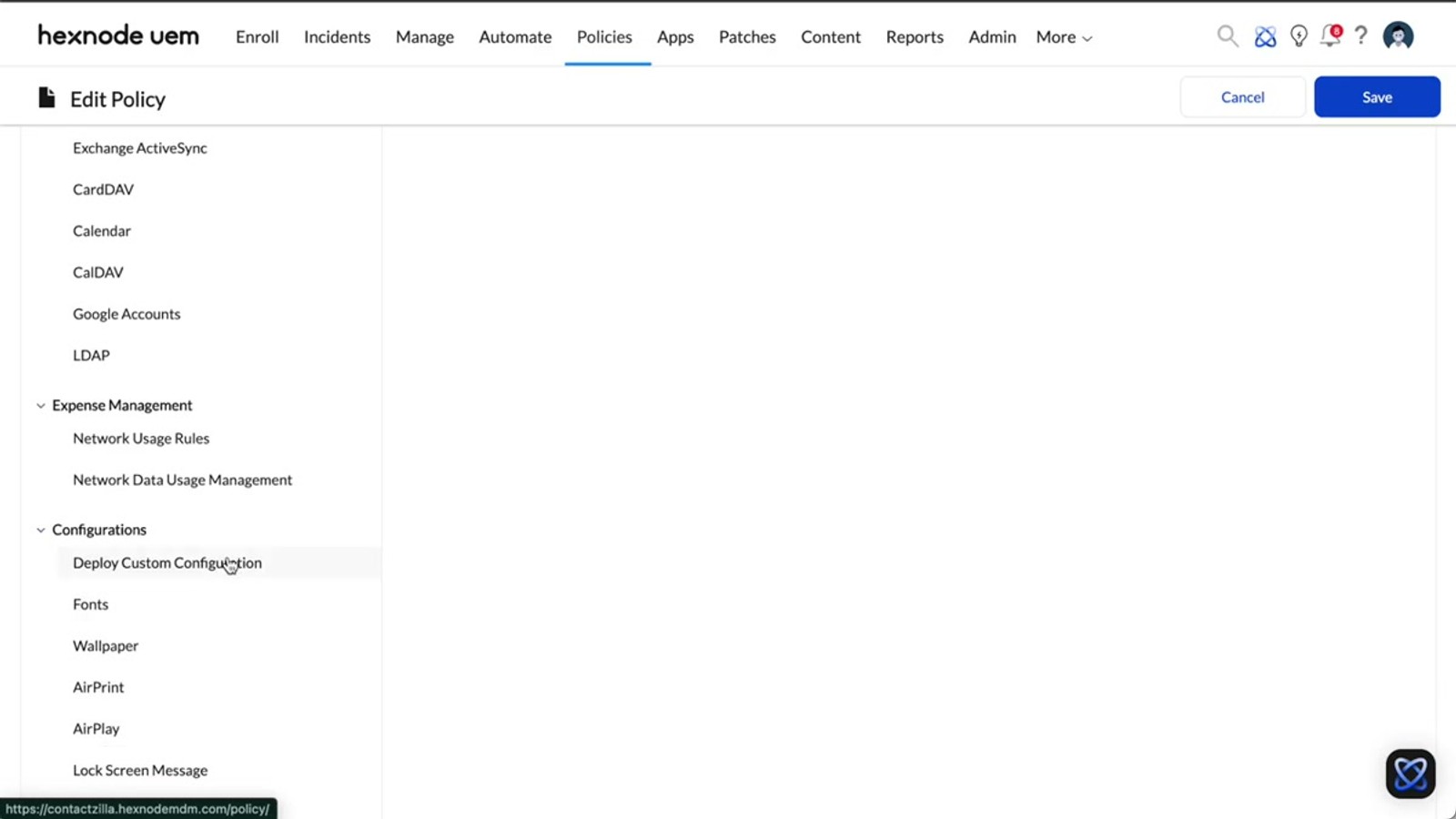
The policy is created. Click the pencil icon to edit it. Scroll down the left sidebar until you reach Configurations, then click Custom Configuration and hit Configure.
- Go to the Policies tab in Hexnode
- Click Create a fully custom policy
- Name the policy after the Contactzilla address book (e.g.,
Contactzilla Project Cascade Tower) - Click Save, then click the pencil icon to edit
- Scroll to Configurations in the left sidebar
- Click Custom Configuration → Configure
Name your Hexnode policies after the Contactzilla address book they deploy. This makes it easy to manage multiple address book rollouts from the same console.
Upload the .mobileconfig to the Policy
In the custom configuration dialog, click Choose File. You'll see file type options such as XML, plist, and mobile config. Leave these as their defaults — the .mobileconfig file from Contactzilla is already in the correct format and Hexnode will deploy it exactly as generated.
Browse to your Downloads folder (or wherever you saved the file), select the Contactzilla .mobileconfig file, and click Upload. Hit Okay to confirm.
The configuration profile is now attached to your Hexnode policy. Before saving, you still need to assign the policy to a device group — don't save yet.
- Click Choose File in the custom configuration dialog
- Leave file type options (XML, plist, mobile config) at their defaults
- Select the Contactzilla
.mobileconfigfile from your downloads - Click Upload, then Okay to confirm
- Do not save the policy yet — assign a device group first
Assign the Policy to a Device Group and Deploy
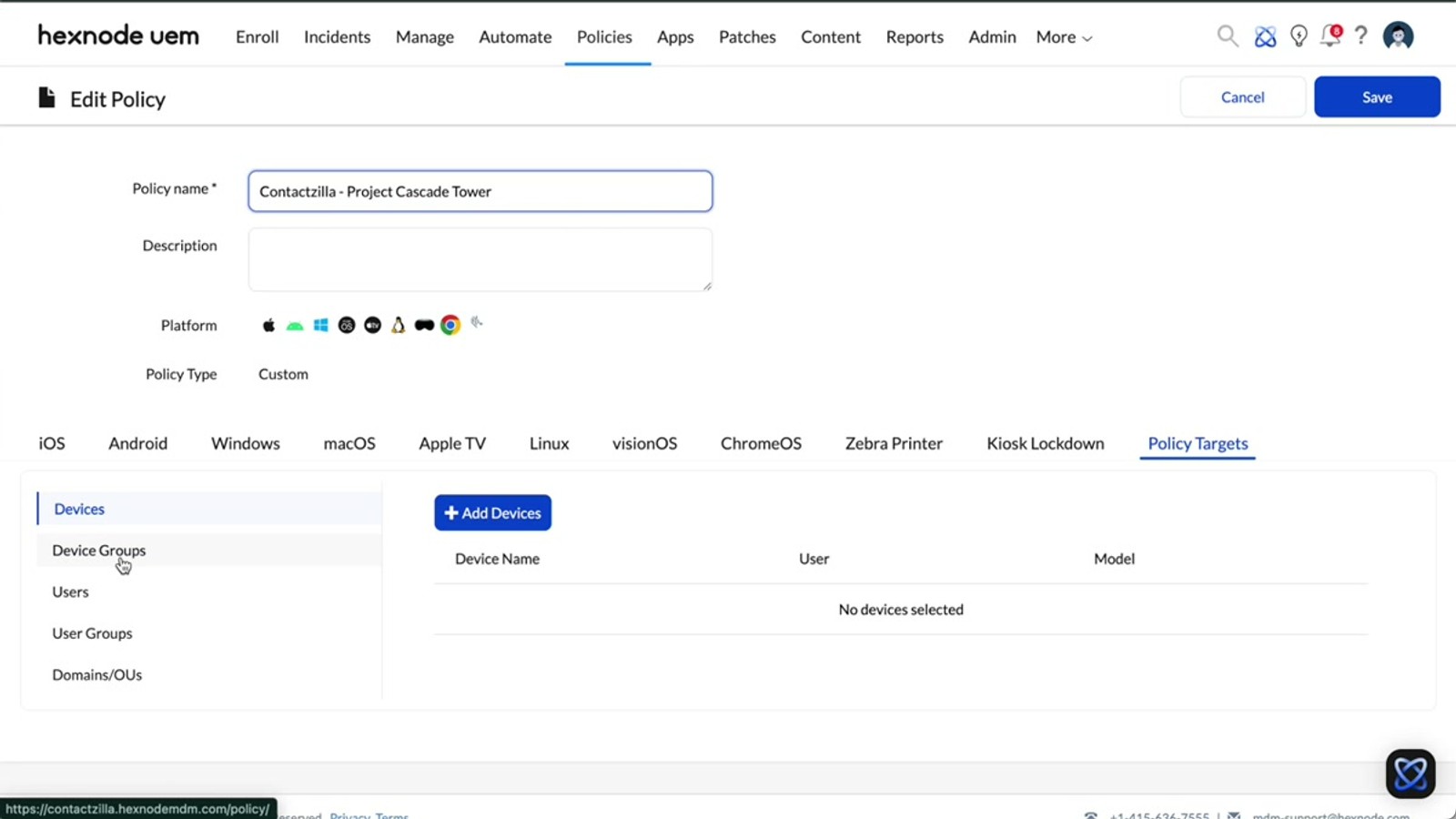
Before saving the policy, click the Policy Targets tab. This is where you tell Hexnode which devices should receive the contact list.
Click Device Groups from the left menu, then Add Device Groups. Find your target group — in the video, Skyline Field Devices is on the last page of the list. You can also use the search bar to find it quickly. Select the group and hit Okay.
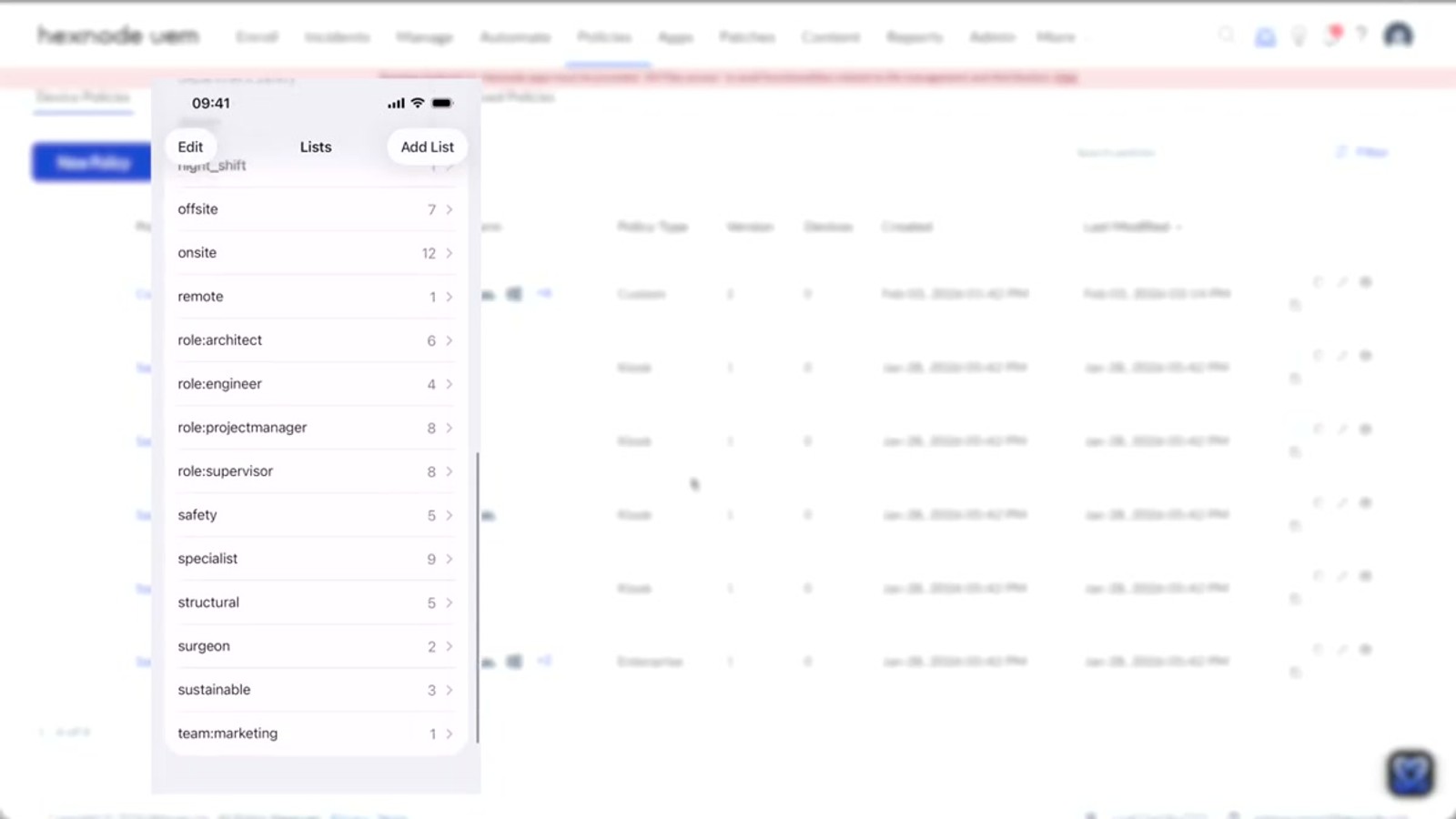
Now click Save to deploy. Hexnode pushes the configuration profile to all iPhones in the selected device group. In the video, the contacts appear in the native iOS Contacts app within seconds. The Contactzilla address book shows up as a new account, and all labels from Contactzilla are presented as lists in the Contacts app, keeping contacts perfectly organized.
- Click the Policy Targets tab before saving
- Select Device Groups → Add Device Groups
- Search for or browse to your target device group
- Select the group and hit Okay
- Click Save to push the policy to all devices in the group
- Contacts appear in the native iOS Contacts app within seconds
- Contactzilla labels become lists in the Contacts app
Verify Sync — Edits in Contactzilla Push to Devices
Once deployed, Contactzilla keeps contacts synced across all enrolled iPhones automatically. Any changes made in the Contactzilla dashboard propagate to the devices in your Hexnode device group.
In the video, the presenter demonstrates this by filtering contacts in Contactzilla for the Project Managers label, selecting a contact named Anna Brown, and editing her name. The change appears on the iPhone almost immediately — no re-deployment or policy update needed.
This live sync is the core benefit of combining Contactzilla with an MDM like Hexnode. Hexnode handles the initial deployment and device targeting, while Contactzilla handles ongoing content synchronization via CardDAV.
- Edits in Contactzilla sync to devices automatically
- No need to re-deploy or update the Hexnode policy for contact changes
- Changes appear on iPhones within seconds
- Hexnode manages deployment; Contactzilla manages ongoing sync
- Works with all contact fields — names, numbers, emails, etc.
.mobileconfig — no changes needed Frequently Asked Questions
What is an MDM user in Contactzilla and why do I need one?
An MDM user is a device-only account in Contactzilla designed specifically for MDM rollouts. Unlike regular team members who set up connections individually via QR code, an MDM user provides a single connection point for policy-based deployments. The email address is arbitrary — it doesn't need to be a real mailbox.
Can I deploy only a subset of contacts instead of the full address book?
Yes. Contactzilla's **Selective Read-Only** access level lets you choose one or more labels, and only contacts tagged with those labels are deployed to devices. This is ideal when different teams or device groups need different subsets of your contact list.
Do I need to re-deploy the Hexnode policy when contacts change?
No. Contactzilla uses CardDAV to keep contacts synced automatically. Once the initial deployment is done via Hexnode, any edits you make in the Contactzilla dashboard — name changes, new phone numbers, new contacts — sync to enrolled iPhones automatically within seconds.
Can I allow users to edit contacts but prevent them from deleting?
Yes. If you choose the **Full Read-Write** access level in Contactzilla, there's an additional toggle that allows users to edit contact details while still preventing them from deleting any contacts from the shared address book.
How do Contactzilla labels appear on the iPhone?
Contactzilla labels are presented as **lists** in the native iOS Contacts app. This means your organizational structure carries over perfectly — users can browse contacts by department, project, role, or whatever label scheme you've set up in Contactzilla.
Can I deploy multiple address books to the same devices?
Yes. Create a separate Hexnode policy for each Contactzilla address book, each with its own `.mobileconfig` file. Name each policy after the address book (e.g., `Contactzilla Project Cascade Tower`) so you can manage them independently.

