
Why does my iPhone keep asking for a CardDAV password?

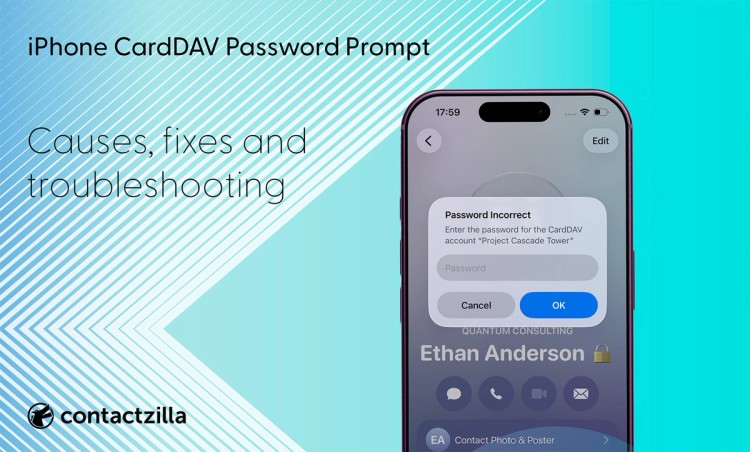
A pop-up asking for the password for a CardDAV account means one of the contacts accounts on your iPhone can no longer sign in.
Short answer: To stop an iPhone asking for a CardDAV password, find which contacts account is asking under Settings > Contacts > Accounts, then fix it where that password actually lives: re-add a Google or Yahoo account with the Google or Yahoo option, create a new app password for Fastmail, or ask IT to redeploy a managed profile. A CardDAV account is the connection that syncs contacts from a service such as Google, Yahoo or a work address book into the iPhone Contacts app, and the prompt means that connection has stopped authenticating. For company address books deployed through an MDM such as Jamf Pro, Intune or MaaS360, Contactzilla puts the CardDAV username and password inside the configuration profile, so users never have to type one.
Tested on an iPhone 15 running iOS 27.0.1, October 2026.
The prompt usually appears because the password is wrong, the account details are out of date, an app-specific password is needed, or a managed CardDAV profile has installed without sending the password correctly.
Managing iPhones with an MDM? If the prompt appeared on many phones at once, straight after a profile change in Mosyle or after uploading a profile to IBM MaaS360, go to the section on Mosyle and IBM MaaS360 below. It's a deployment problem with a fix in the MDM console, and your users can't solve it on the phone because they were never given a password to type.
Tip 💡 Want to know how the protocol itself works? What Is CardDAV? Contact Sync Explained covers it in plain English.
CardDAV password prompts are confusing because the iPhone can show a similar message for several different problems. A wrong password, an expired app password, a bad server address, and a missing password in a managed profile can all look like a simple password issue on the phone.
Why is CardDAV asking for a password?
| Situation | Most likely cause | What to check first |
|---|---|---|
| You added the CardDAV account yourself | Wrong password, wrong username, wrong server address, or app-specific password needed | Check the account details with the service that provides the contacts |
| The CardDAV account came from work | The password may be managed by IT or deployed through MDM | Ask IT whether the profile includes the CardDAV username and password |
| The prompt says “password incorrect” | The iPhone tried to authenticate and failed | Re-enter the password or create a new app-specific password if your provider requires one |
| The account is iCloud / Apple | Apple does not normally show a separate “CardDAV password” on the iPhone | Use Apple’s built-in iCloud account setup, or an Apple app-specific password only where a third-party client requires it |
| The account is Google | A Google account added through the CardDAV option instead of the Google option, whose saved password has stopped working, often after a Google password change | Remove the CardDAV entry and re-add the account with the Google option (see the Google section below) |
| The prompt names carddav.address.yahoo.com | A Yahoo account added by hand as a CardDAV account, with a password Yahoo won’t accept there (Yahoo wants an app password) | Remove and re-add the Yahoo account (see the Yahoo section below) |
| The account is Fastmail or a similar provider | The provider may require an app password for third-party contact access | Generate a new app password in the provider’s account settings |
| Contacts were deployed with Mosyle and the profile was just edited | Mosyle removes and reinstalls a custom profile when you save changes, and the reinstalled account can come back without its password | Tick Do not auto-install the profile after saving once the first install is done (see the Mosyle section below) |
| Contacts were deployed through MDM at scale | The profile may have installed the CardDAV account but not passed the password correctly | If uploaded .mobileconfig profiles trigger repeated password prompts, create the CardDAV payload directly in the MDM console and enter the hostname, username and password manually. |
| The account is self-hosted | Server URL, SSL certificate, redirects, or account permissions may be wrong | Check the CardDAV server logs and configuration |
Why does my iPhone ask for the password for a Google CardDAV account?
Your iPhone asks for the password for a Google CardDAV account when your Google account was added to the phone as a CardDAV account, through Add Other Account > CardDAV Account, instead of with the Google option, and the password it saved has stopped working, usually because your Google password changed. Typing your current Google password into the prompt won’t fix it. The lasting fix is to delete the CardDAV entry and add the account with the Google option, which signs in through Google’s own page.
Why was it set up as CardDAV in the first place? Because Google used to recommend it. In 2012, Google’s instructions for iPhone were to tap Add CardDAV Account, enter google.com as the server and sign in with your Google password, or with an application-specific password if you used 2-Step Verification (TechCrunch covered the change at the time). An account set up that way can sync happily for years, until a password change cuts it off.
We reproduced it on our test iPhone by adding Google as a CardDAV account, then revoking the password it used. The phone showed the exact pop-up people search for: Password Incorrect: Enter the password for the CardDAV account “Google”. The entry is named “Google” in Contacts Accounts, so it looks just like a normal Google account. Only when you tap into it does the heading CardDAV Account Information, with the server google.com, give it away.
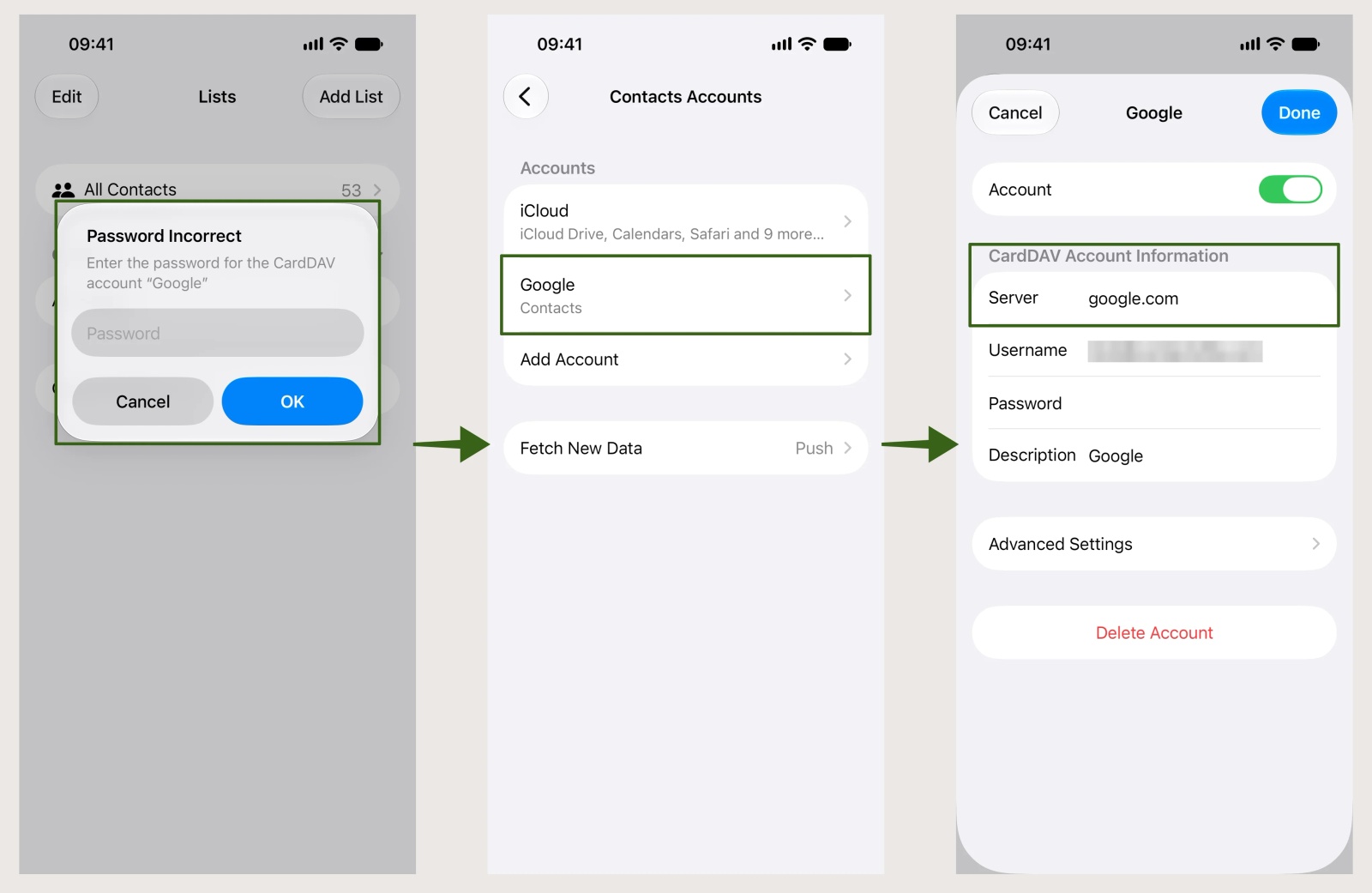
You may still see all your Google contacts while the prompt keeps appearing. On our test iPhone they stayed in the Contacts app after we tapped Cancel. Those are the copies already downloaded to the phone, not a sign the account is fine: until it can sign in again, the CardDAV account can’t sync anything new.
These four steps clear it:
1) Find the account that’s asking: open Settings > Contacts > Accounts (on newer iOS versions, Settings > Apps > Contacts > Contacts Accounts) and tap each entry named Google. A real Google account shows Google’s own account settings; the one causing the prompt shows CardDAV Account Information with the server google.com. On our test iPhone the working account was listed as Gmail and the CardDAV one as Google.
2) Check your contacts are safe in Google: sign in to Google Contacts on a computer and confirm they’re there. Deleting the account on the iPhone removes its contacts from the phone, not from Google.
3) Delete the CardDAV entry: tap the account and tap Delete Account.
4) Re-add Google the supported way: tap Add Account > Google, then Open Browser when the iPhone says Google requires completing authentication in your web browser. Sign in on Google’s own page, allow access, and check Contacts is switched on before you tap Save. These are the steps in Google’s own help for syncing contacts to iPhone.
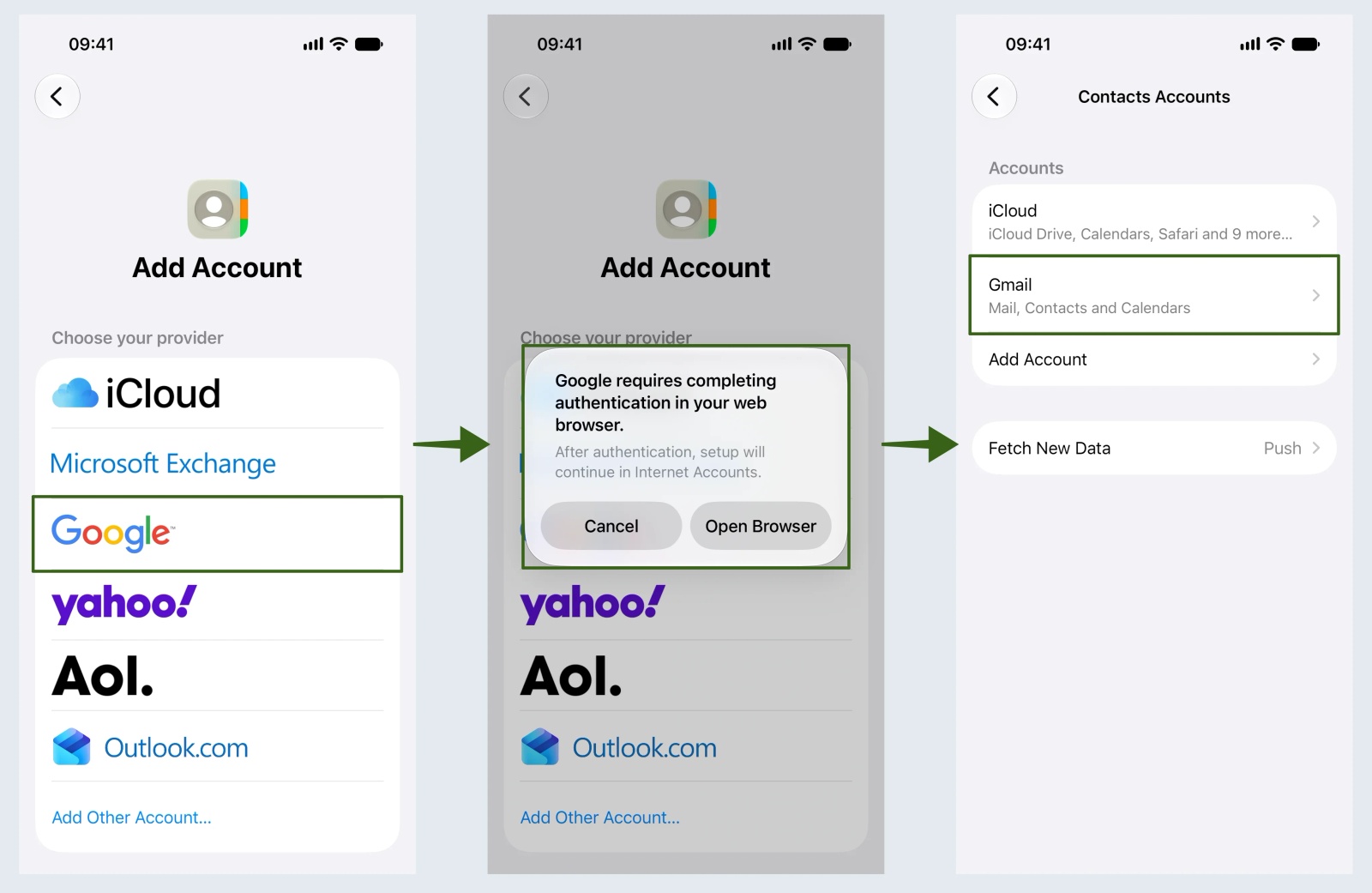
If the prompt keeps coming back after that, check Settings > General > VPN & Device Management for a work or school profile. A managed account has to be fixed by whoever manages the device, which the MDM sections below cover.
Managing iPhones for a team? Don’t deploy Google contacts as a CardDAV account pointing at Google: each phone’s saved password breaks the next time that person changes their Google password, and the phones start showing this prompt one by one. If each person needs their own Google contacts, push their Google account with your MDM’s Google Accounts setting instead. Apple’s Google Accounts payload has no password field, because the account signs in through Google rather than with a typed password. If the team needs one shared company contact list, that’s a different job: a dedicated CardDAV address book, such as one Contactzilla builds from your Google Workspace directory, deploys through the MDM with its credentials already inside the profile, so nobody is asked for a password. Our guide to Google Workspace shared contacts covers that setup.
What is carddav.address.yahoo.com on my iPhone?
carddav.address.yahoo.com is the address of Yahoo’s contacts server. When it shows up in a password prompt, it’s the name of a Yahoo account that was added to the iPhone by hand as a CardDAV account. On our test iPhone, iOS filled in the account’s name from the server address, so the pop-up read Password Incorrect: Enter the password for the CardDAV account “carddav.address.yahoo.com”. It isn’t spam or someone else’s server; it’s your Yahoo contacts, asking for a password Yahoo won’t accept.
We tried it on our test iPhone with a new Yahoo account. With the server carddav.address.yahoo.com, the full Yahoo email address and the correct normal Yahoo password, the iPhone showed CardDAV account verification failed, but still let us save the account. The Contacts app then showed the password prompt. Yahoo only accepts a third-party app password from apps that don’t use Yahoo’s own sign-in page, and a CardDAV account typed into the phone is one of those.
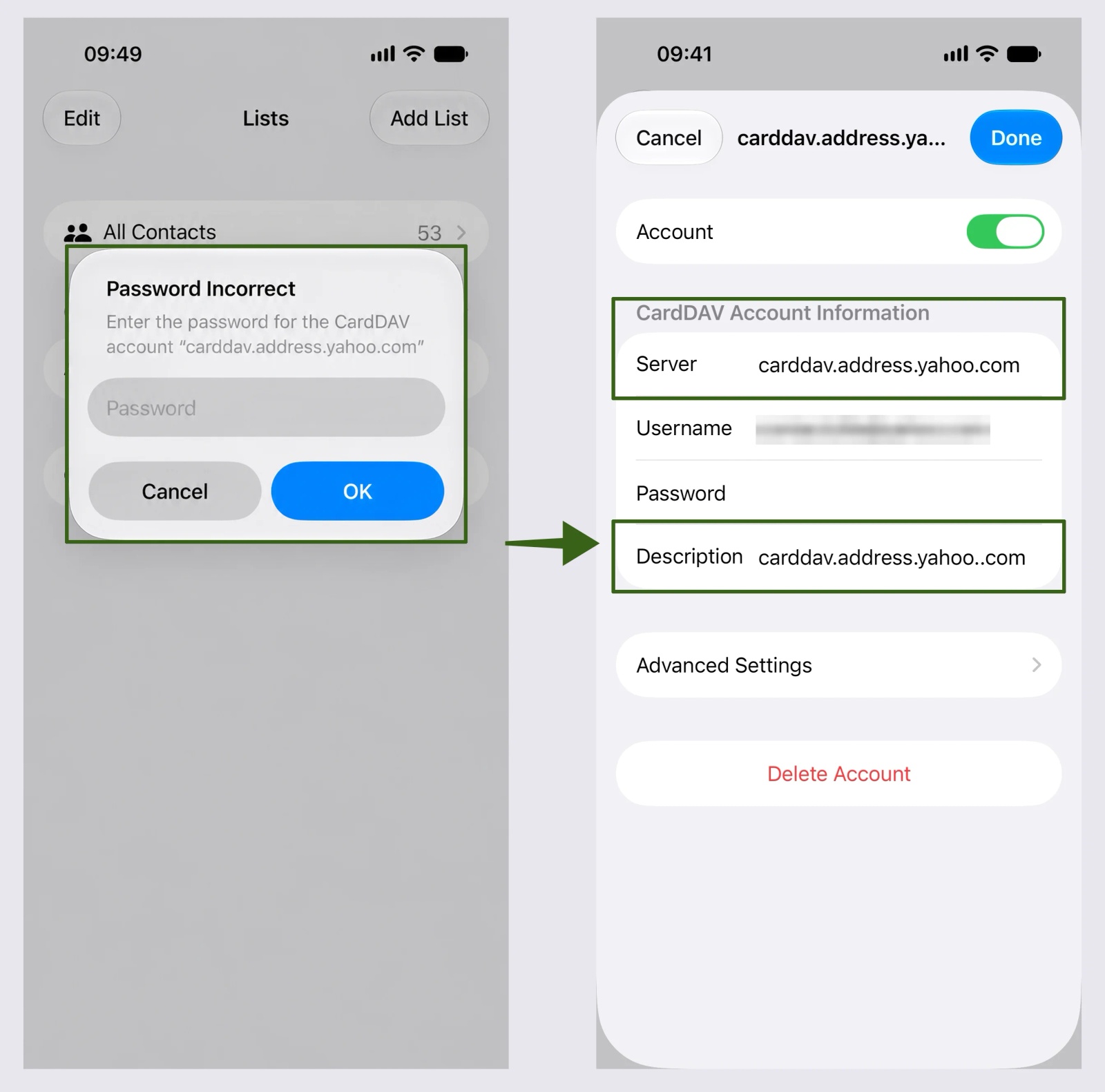
To fix it, open Settings > Apps > Contacts > Contacts Accounts, tap the account named carddav.address.yahoo.com and tap Delete Account. Then tap Add Account > Yahoo, sign in on Yahoo’s own page and leave Contacts switched on. Your contacts stay in Yahoo while you do this, and the account comes back as Yahoo!, with no CardDAV password to go wrong.
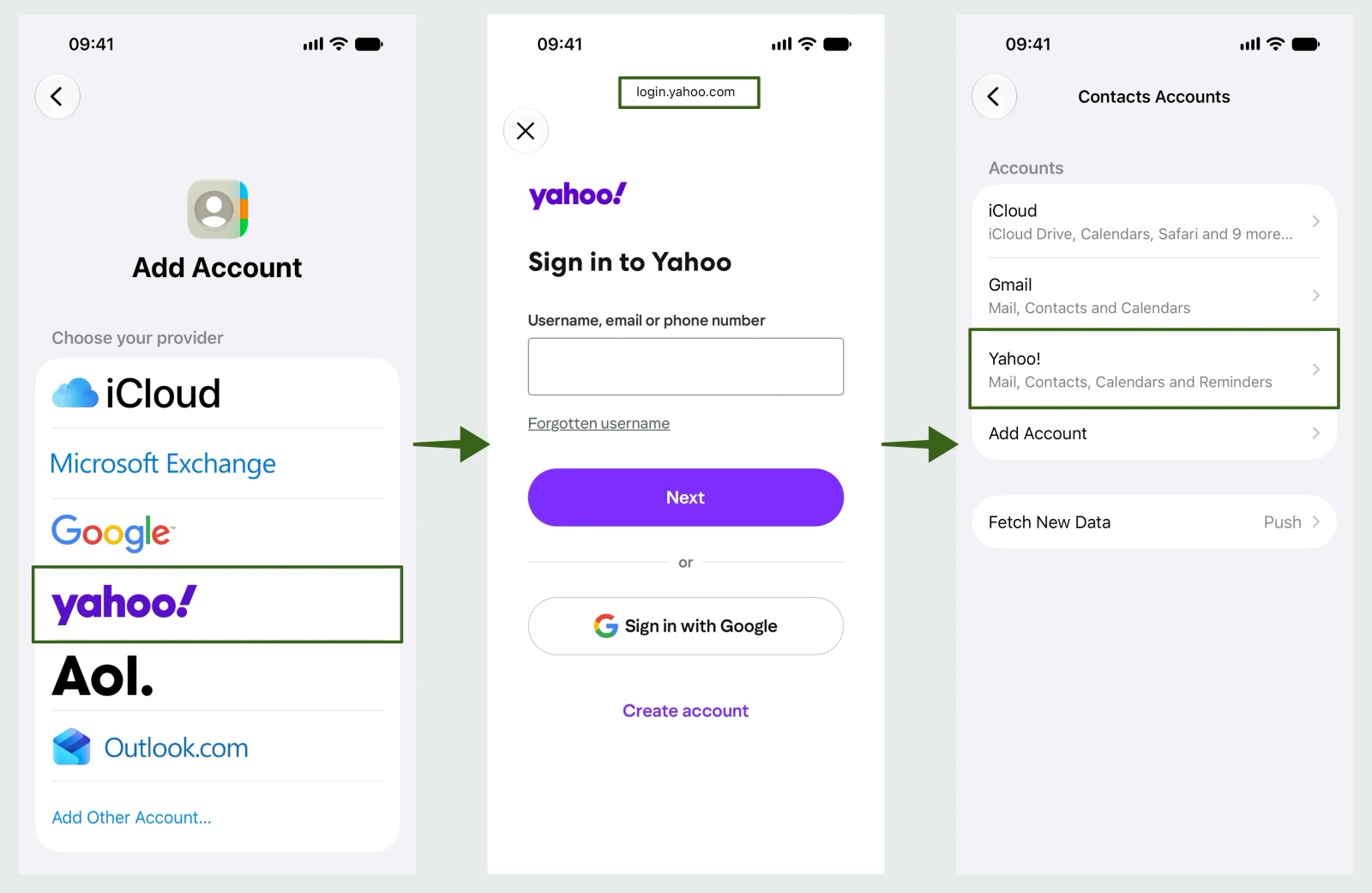
If you’d rather keep a CardDAV connection, use a Yahoo app password instead of your normal one. A new Yahoo account may not be able to create one straight away; ours couldn’t.
What is my Apple or Fastmail CardDAV password?
Different providers handle CardDAV passwords in different ways, which is why it’s worth checking which contacts account is causing the prompt before trying random passwords. Google and Yahoo have their own sections above.
What is my Apple CardDAV password?
Apple does not normally give you a separate “Apple CardDAV password” to find on the iPhone.
If you are using iCloud Contacts on an iPhone, Apple usually handles this through the built-in iCloud account setup. If a third-party contacts app or CardDAV client needs access to iCloud contacts, Apple may require an app-specific password instead of your main Apple Account password.
What is my Fastmail CardDAV password?
Fastmail and similar providers may require an app-specific password for CardDAV access. This is especially likely if two-factor authentication is enabled or if the account is being added to a third-party contacts client. The usual fix is to generate a new app password in the provider’s account settings and use that for the CardDAV account.
What does “CardDAV account verification failed” mean on iPhone?
“CardDAV account verification failed” means the iPhone couldn’t confirm the server, username and password together when you added or edited the account, so it never saved a working connection. Check the server address and principal URL against the provider’s own settings, make sure SSL is on if the server uses HTTPS, and use an app password where the provider asks for one. If the account is Google, your normal Google password won’t work over CardDAV, so use the Google option instead.
How do I fix a CardDAV password prompt on iPhone?
Start by checking which contacts account is asking for the password.
On iPhone, CardDAV accounts are usually found under Settings > Contacts > Accounts. Depending on your iOS version, this may also appear under Settings > Apps > Contacts > Contacts Accounts, or through the Mail/Accounts settings.
Once you are in the accounts list, look for the CardDAV account or any contacts account you do not recognise. This helps you work out whether the prompt is coming from Apple, Google, Yahoo, a work address book, a third-party CardDAV service, or a self-hosted server.
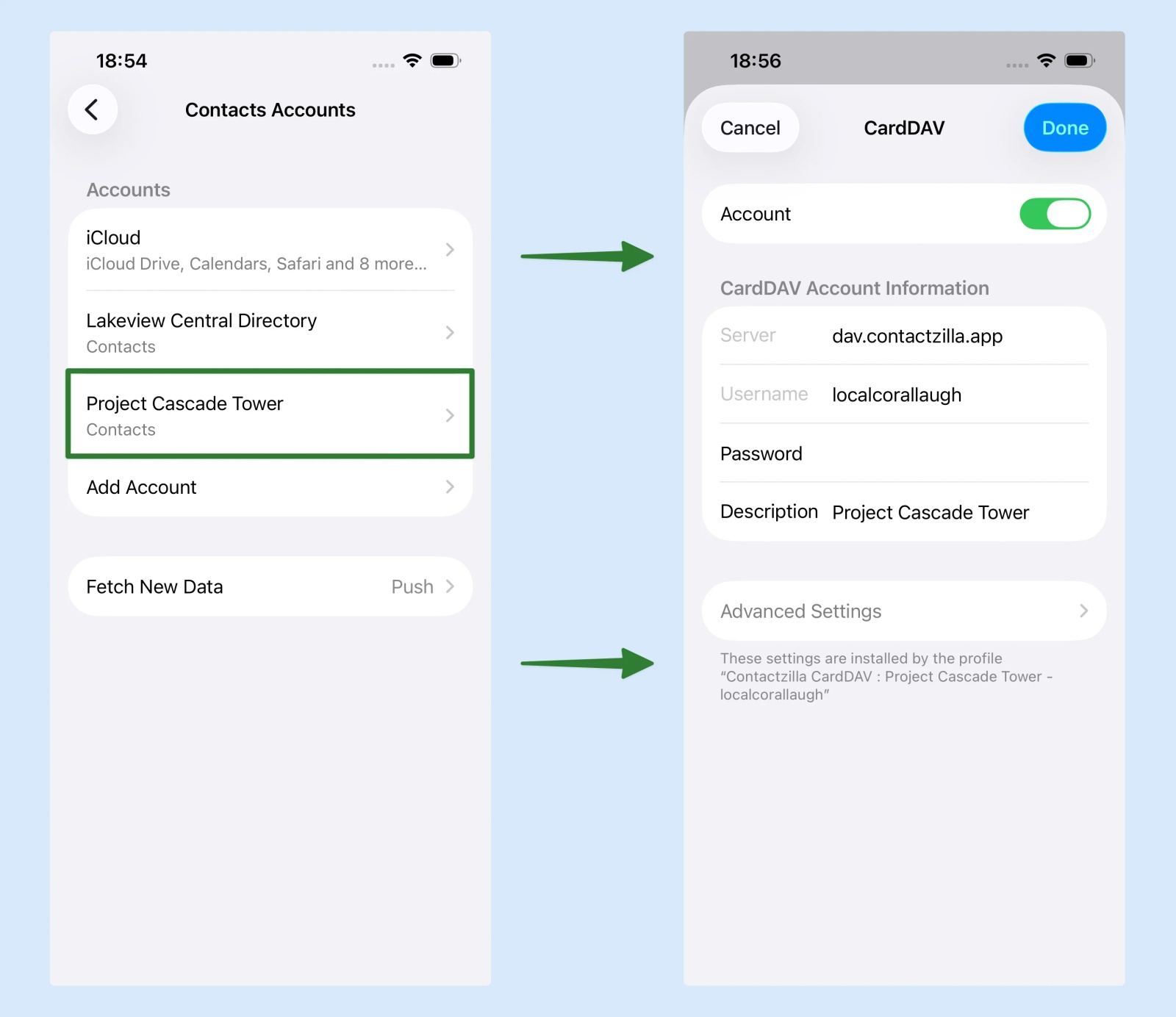
For a manually added CardDAV account, check the server address, username, password, SSL setting and port. A correct password can still fail if one of the other account details is wrong.
For Apple or Google accounts, avoid looking for a separate CardDAV password and use the normal iCloud or Google account setup in iOS instead. For Yahoo, re-add the account with the Yahoo option. For Fastmail and similar providers, generate a new app-specific password and use that in the CardDAV account.
For self-hosted CardDAV servers, reset the password at the server and check the server URL, path, SSL certificate and permissions.
For work-managed or MDM-deployed accounts, ask IT to update the profile or CardDAV payload. If a .mobileconfig upload causes repeated prompts, the MDM may need a native CardDAV payload with the hostname, username and password entered manually.
A CardDAV password is normally changed at the source, not inside the iPhone Contacts app. The iPhone uses the password, but it usually does not create, manage or reveal it.
How do I know if CardDAV was installed by a profile?
On an iPhone, a manually added CardDAV account is usually checked under Settings > Contacts > Accounts.
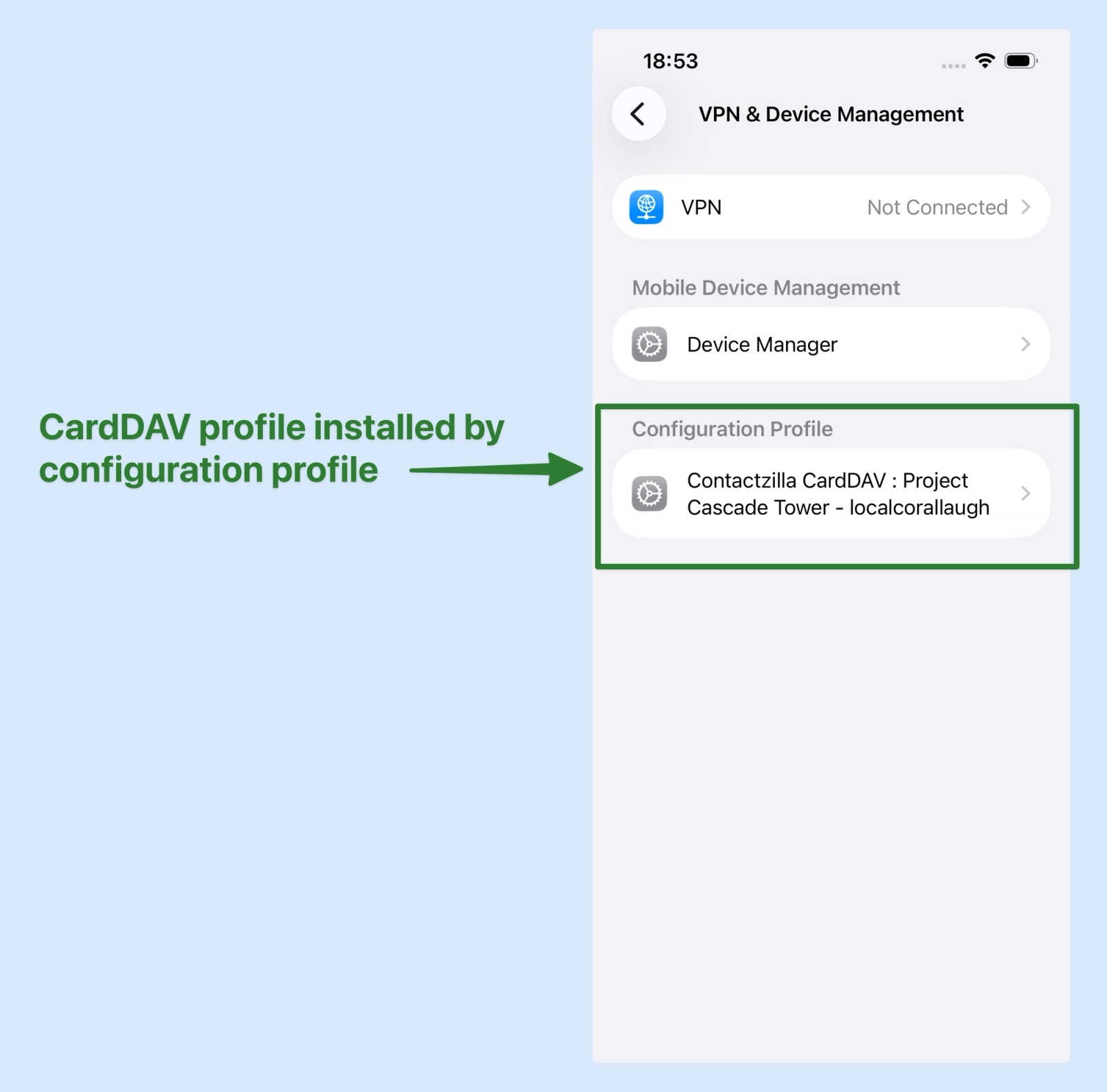
If the account was installed by work, school, or an MDM system, you may also see a configuration profile under Settings > General > VPN & Device Management. This screen shows that a profile has been installed on the iPhone. It does not prove that the CardDAV password is correct, or that the password was passed to the device successfully.
What details does a CardDAV account need?
A CardDAV password is only one part of the account setup. A CardDAV account usually needs a server address, username, password, SSL setting and, in some systems, a port number.
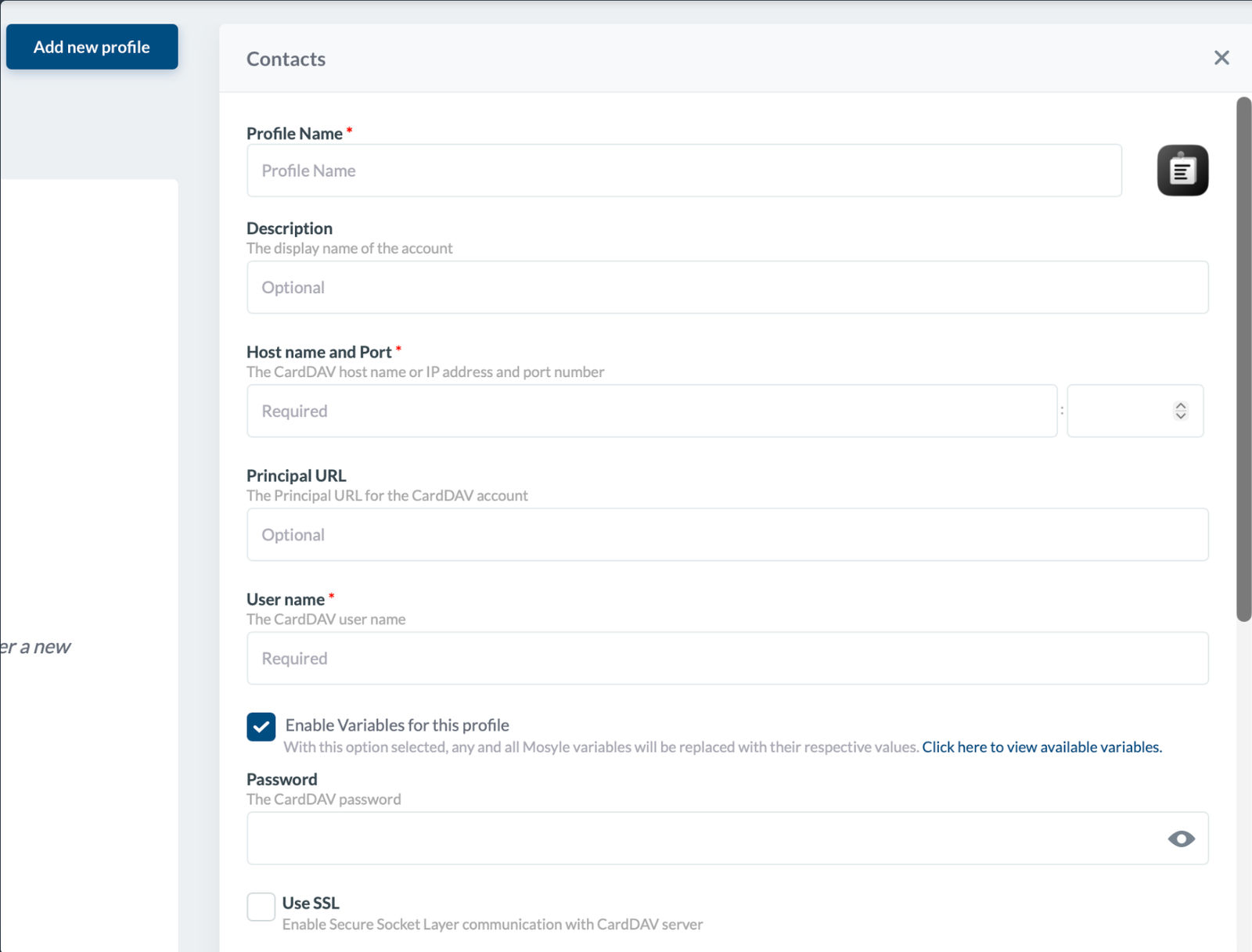
| Setting | What it means |
|---|---|
| Server address / hostname | The CardDAV server or contacts service your iPhone connects to |
| Port | The network port used for the connection. For secure HTTPS/CardDAV connections, this is usually 443 |
| Username | The account name used for the CardDAV connection |
| Password | The credential used to authenticate the account |
| SSL setting | Whether the connection uses HTTPS/SSL. This should normally be enabled for secure CardDAV services |
| Principal URL | An optional server path used by some CardDAV services |
If any of these details are wrong, the iPhone may ask for the password again. For example, a correct password can still fail if the username, server address, SSL setting, port number or principal URL is wrong.
In many MDM systems, the hostname and port are entered separately. If the CardDAV service uses HTTPS, SSL should normally be enabled and the port is usually 443, unless your provider gives you different instructions.
On managed devices, these account details may be installed by a configuration profile. If the profile installs the CardDAV account but does not include the password correctly, or if the MDM uses the wrong SSL or port settings, the user may be asked to enter the password after the profile installs.
What is a CardDAV password?
A CardDAV password is the password used to authenticate a CardDAV contacts account.
CardDAV is an open standard for syncing contacts between a contacts service and a device. On an iPhone, a CardDAV account can add contacts to the native Contacts app. Apple supports CardDAV account settings on managed devices through its Contacts payload, including hostname, username and account password.
Tip 💡 Comparing CardDAV with directory lookup? See our guide to CardDAV vs LDAP.
A CardDAV password is not one single password shared by all services. It depends on the provider or system that created the contacts account.
It might be:
- a normal account password
- an app-specific password
- a generated CardDAV password
- a password created by your IT team
- a password included inside a managed device profile
The important point is this: the iPhone does not create the CardDAV password. It only uses the password supplied by the contacts provider, server, or MDM profile.
Where do I find my CardDAV password?
You usually cannot find or view a saved CardDAV password on the iPhone itself. You need to get it from the service, provider, server, or IT system that created the CardDAV account.
Where to look depends on the type of contacts account.
| Account type | Where to look |
|---|---|
| Third-party CardDAV service | Check the service’s account settings or setup page for the CardDAV username and password |
| Self-hosted CardDAV server | Ask the server admin or check the hosting/control panel account settings |
| Yahoo, Fastmail or similar providers | Re-add the account with the provider’s own option on the iPhone, or generate a new app-specific password in the provider’s account settings |
| iCloud / Apple Account | Use Apple’s built-in iCloud account setup; only use an Apple app-specific password if a third-party contact client asks for one |
| Google account | Use Google sign-in or iOS Google account setup, rather than looking for a separate visible CardDAV password |
| Work-managed account | Ask your IT team; the password may be entered into an MDM payload or included in a configuration profile |
| MDM-deployed shared contacts | Check the MDM CardDAV payload or profile settings, especially the hostname, username and password fields |
| Contact management tools such as Contactzilla, syncBlue or CiraSync | Check the tool’s CardDAV/device connection settings; the tool may generate credentials for a specific connection |
If you are not the administrator, the safest answer is to ask whoever created the contacts account. That might be your IT team, your contact management provider, or the person who manages the CardDAV server.
Do not assume the CardDAV password is your Apple ID, Google password or main email password. Some providers use app-specific passwords or managed authentication instead.
Does every contacts provider have a CardDAV password?
Apple and Google accounts usually do not give you a separate “CardDAV password” to find on the iPhone. They normally use their own account sign-in flows, and Apple may use app-specific passwords for some third-party access to iCloud contacts.
A self-hosted CardDAV server or third-party contact management tool is different. In those setups, you are more likely to have a specific CardDAV server address, username and password.
So if your iPhone asks for a CardDAV password, first identify which contacts account is asking. The password may be an app-specific password, a generated CardDAV password, or a credential managed by IT.
Why do Mosyle and IBM MaaS360 make iPhones ask for a CardDAV password?
When a whole fleet of managed iPhones starts asking for a CardDAV password at the same time, the cause is almost always the MDM, not the users. The contacts account was removed and put back, or installed without its password, and nobody on the phone has a password to type because the profile was meant to carry it. Two MDMs account for most of the cases we see.
If you use Mosyle: by default, saving any change to an assigned custom profile makes Mosyle remove it from every device and install it again, and the reinstalled CardDAV account can come back without its password. After the first install has finished, open the profile, tick Do not auto-install the profile after saving and keep it ticked. In our testing, changing which device group the profile is assigned to has also stripped the password, so set the assignment once and add or remove devices through the group itself. New devices then show the profile as On hold, and Reinstall starts their first install.
If you use IBM MaaS360: an uploaded .mobileconfig profile can install the CardDAV account without passing the password through. Create the account in MaaS360’s own CardDAV payload instead and enter the hostname, username and password by hand, as fix 3 below describes.
Tip 💡 Deploying with Mosyle? How to Sync Company Contacts to iPhones with Mosyle explains the setting and its trade-off, and the Mosyle deployment guide shows every click.
MDM-deployed CardDAV accounts and password prompts
If a CardDAV account was deployed through MDM, the user should not normally need to enter the CardDAV password manually.
With Contactzilla, the iPhone setup is delivered as a .mobileconfig configuration profile which is uploaded directly to your MDM. This file can include the CardDAV hostname, username, password and account settings needed to add the contacts account to the iPhone.
For most MDM deployments, that works as expected. The MDM installs the profile, the iPhone creates the CardDAV account, and contacts start syncing to the native Contacts app.
If users keep seeing a CardDAV password prompt after deployment, there are three common fixes.
Tip 💡 Using Contactzilla? Our help article iPhone keeps asking for the password for the Contactzilla CardDAV account has the exact steps for a fresh connection and an updated MDM policy.
1) Generate a new CardDAV configuration profile
The first option is to create a fresh CardDAV/device connection in your contact management system and download a new .mobileconfig file.
Then:
- remove the old profile from the affected devices
- upload the new .mobileconfig file to the MDM
- assign it to the correct device group or policy
- check whether the prompt disappears after the new profile installs
This can fix issues caused by an old profile, stale credentials, or a previous connection that is no longer valid.
2) Remove the old CardDAV account from the device
Sometimes the iPhone is still trying to sync against an old CardDAV connection that no longer exists.
This can happen if the original device connection was deleted in the contact management system, but the CardDAV account remains installed on the iPhone. The address book may still appear on the device, but the account is now pointing at credentials that are no longer valid.
In that case:
- remove the old CardDAV account or profile from the device
- create a new CardDAV/device connection for the address book
- deploy the new profile or CardDAV payload through your MDM
- confirm that the new account syncs without prompting
3) Create the CardDAV payload directly in the MDM’s native CardDAV payload
If uploading the .mobileconfig file still causes password prompts, the MDM may not be passing the password field correctly.
In that case, create the account using the MDM’s native CardDAV payload, rather than uploading the .mobileconfig file.
| Field | What to enter |
|---|---|
| Hostname / server | The CardDAV server address |
| Username | The generated CardDAV username |
| Password | The generated CardDAV password |
| Account description | A clear name for the contacts account |
| SSL | Enabled, if required by the provider |
We have seen this behaviour in some MDM environments, in particular IBM MaaS360. In those cases, manually entering the CardDAV details into the MDM’s own CardDAV payload fixes the issue, so we recommend that over the .mobileconfig upload.
For a practical walkthrough, see our MaaS360 CardDAV setup guide for manually entering CardDAV details.
Tip 💡 Using a different MDM? Contactzilla also has walkthroughs for deploying iPhone contacts with Jamf Pro, Microsoft Intune, Workspace ONE and IBM MaaS360.
How Contactzilla CardDAV passwords work
Contactzilla creates CardDAV device connections for syncing address books to iPhones, iPads and other devices.
For iOS deployments, Contactzilla can generate a .mobileconfig configuration profile. This profile contains the CardDAV settings the device needs, including the hostname, username and generated password.
That means the password is already included in the configuration profile you upload to your MDM. In most cases, users do not need to see or type the password manually.
Contactzilla also lets admins reveal the generated CardDAV password from the dashboard. For security reasons, this password is only visible until the first connection. The dashboard message explains:
“This password will only be visible until the first connection. If you intend to use this connection for more than a single device please make a secure note of the password.”
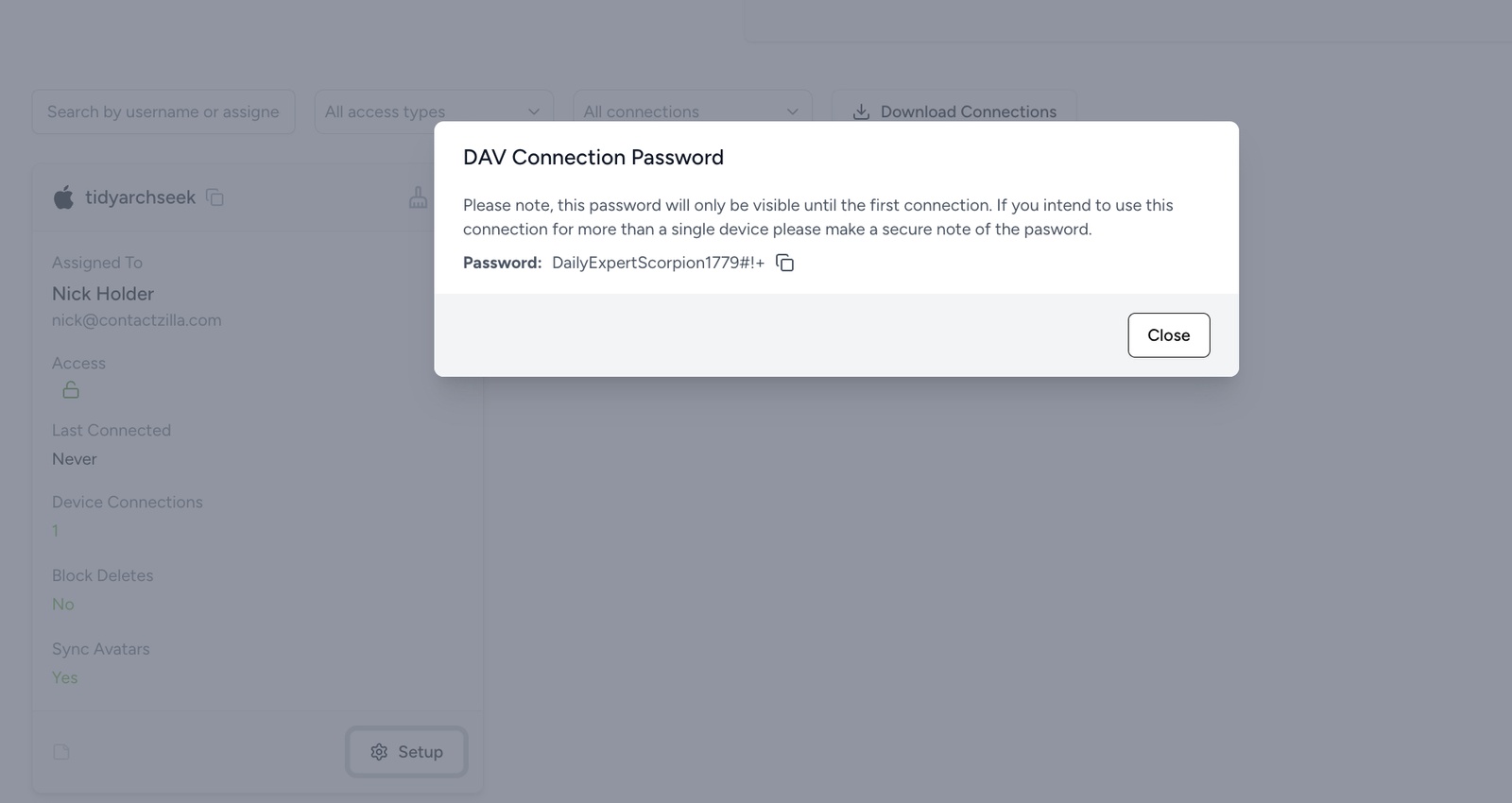
A Contactzilla CardDAV password belongs to that specific device connection. If you later need to enter the password manually, for example when using an MDM’s native CardDAV payload instead of uploading the .mobileconfig file, and the password is no longer visible, create a new device connection.
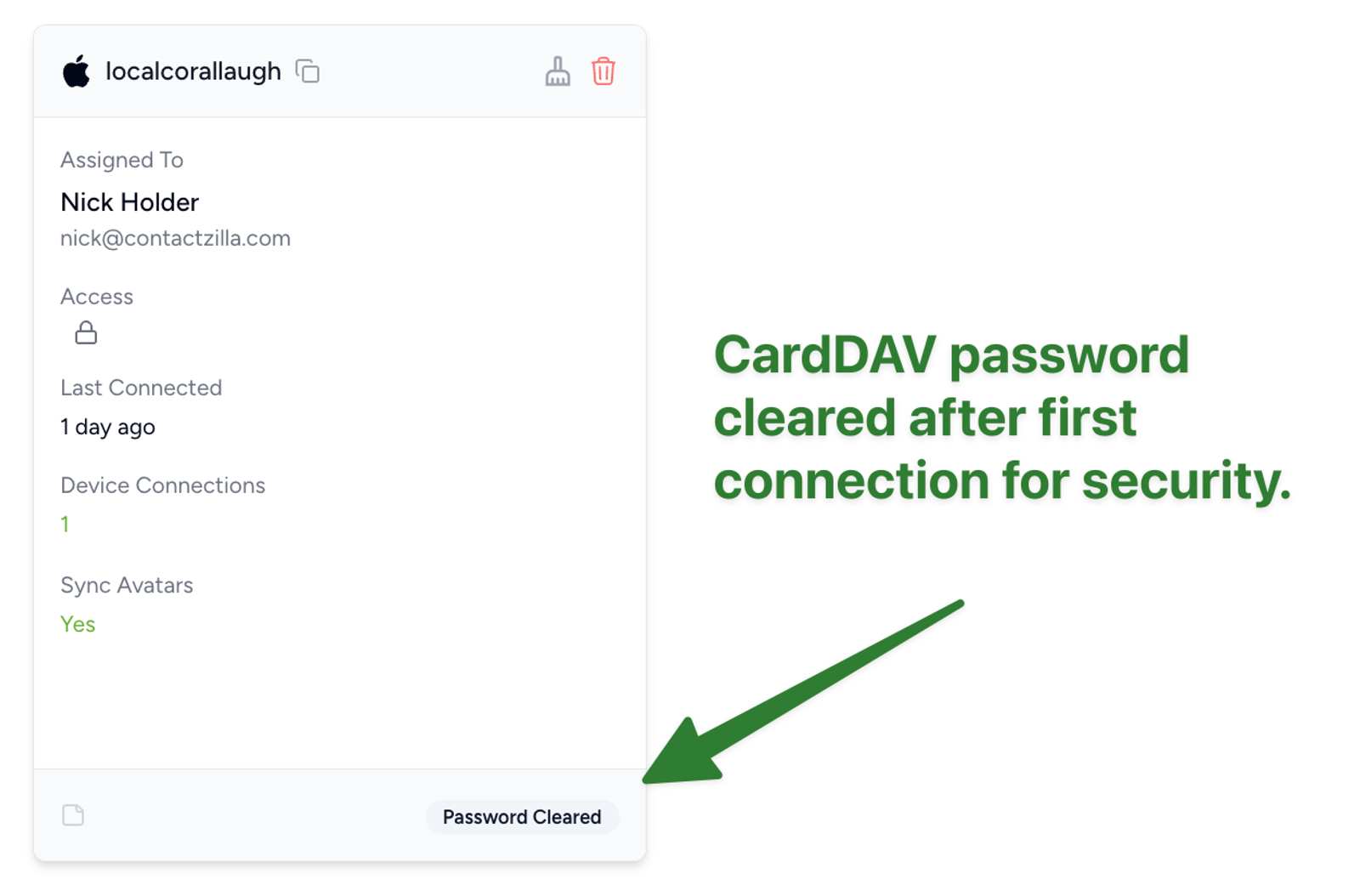
The clean fix is then to deploy the new .mobileconfig profile, or copy the new CardDAV hostname, username and password into the MDM’s native CardDAV payload.
For every click, from choosing the device platform to issuing the credentials, see the help article Setting Up CardDAV Connections.
FAQs: CardDAV password prompts on iPhone
What is a CardDAV account on my iPhone?
A CardDAV account on an iPhone is a contacts connection that syncs contacts from a server, such as Google, Yahoo, a self-hosted server or a work address book, into the native Contacts app. You’ll find it under Settings > Contacts > Accounts, listed as CardDAV or by its server name. If you don’t recognise one, check where it came from before deleting it.
What is a CardDAV password?
A CardDAV password is the password used to authenticate a CardDAV contacts account. It may be a normal account password, an app-specific password, a generated CardDAV password, or a credential included in a managed device profile.
How do I reset my CardDAV password?
A CardDAV password is normally reset at the source, not inside the iPhone Contacts app. Use your provider’s account settings, generate a new app password, reset the server password, or ask IT to update the MDM profile.
How do I remove a CardDAV account from my iPhone?
Go to Settings > Contacts > Accounts, tap the CardDAV account and tap Delete Account. Its contacts disappear from the iPhone but stay on the server they came from. An account installed by a work profile has no Delete option and goes when IT removes the profile.
What is my Google CardDAV password?
Google doesn’t give you a separate Google CardDAV password. If the prompt names Google, the account was added to the iPhone as a CardDAV account and its saved password has stopped working. Delete it and add the account with the Google option, so Google handles sign-in. Google Workspace contact sync may also depend on admin settings.
Is my CardDAV password the same as my Apple ID password?
An Apple or iCloud contacts setup usually does not involve finding a separate CardDAV password on the iPhone. If a third-party contacts app needs access to iCloud contacts, Apple may require an app-specific password instead of your main Apple Account password.
Why does my iPhone say my CardDAV password is incorrect?
Your iPhone says the CardDAV password is incorrect when it cannot authenticate the contacts account. The cause may be a wrong password, wrong username, wrong server address, expired app password, SSL issue, duplicate account, or missing credentials in a managed profile.
Why does CardDAV keep asking for a password after MDM deployment?
CardDAV may keep asking for a password after MDM deployment if the profile installs the account but does not pass the password correctly. In Mosyle, the usual trigger is saving a change to the assigned profile, which reinstalls it; tick Do not auto-install the profile after saving. In IBM MaaS360, configure the account in the native CardDAV payload instead of uploading the profile.
Can I recover a Contactzilla CardDAV password?
A Contactzilla CardDAV password is only visible in the dashboard until the first connection. If you need the password later and did not save it, create a new device connection and deploy the new profile or CardDAV payload.

