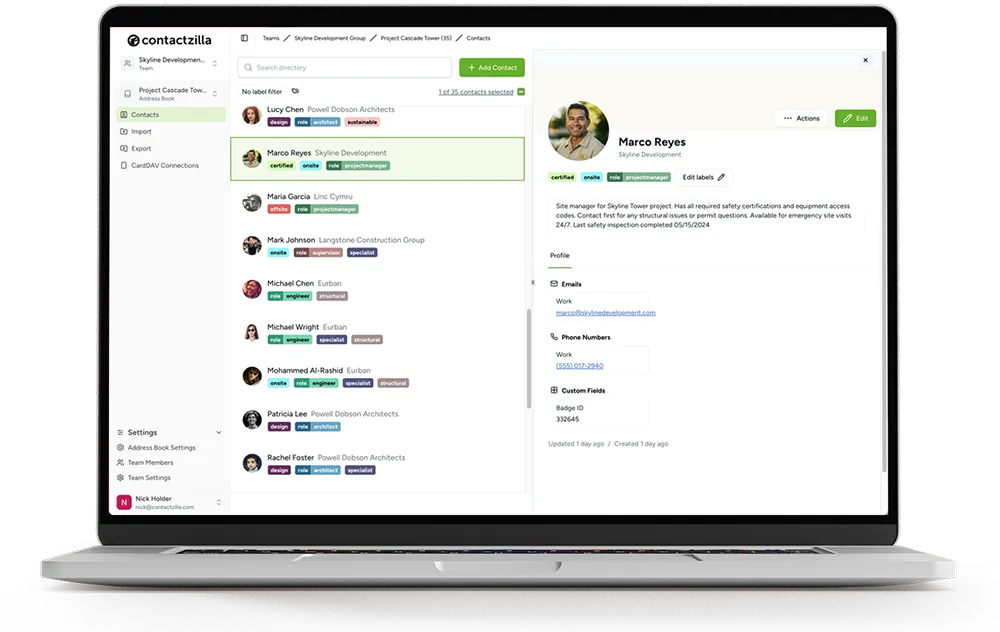
Google Workspace Shared Contact List: How to Get the Directory on Work Phones

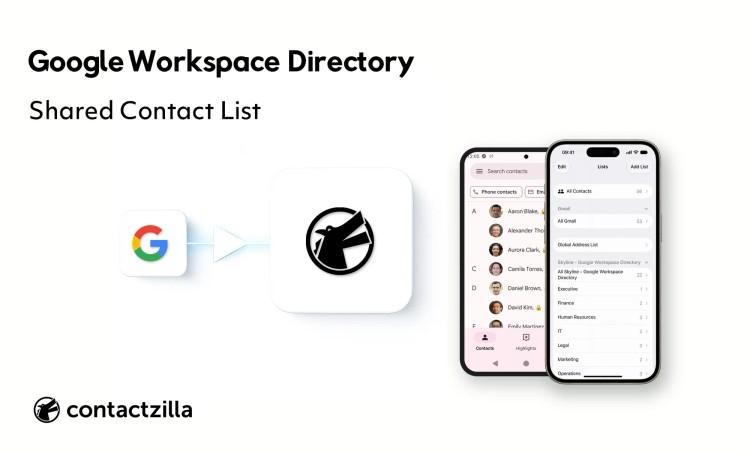
Google Workspace already has a shared contact list for your whole domain: the Directory. The catch is that it lives inside Google, and your staff’s phones never get it as a list.
Short answer: To get a Google Workspace shared contact list onto work phones, import the Workspace Directory into a shared address book and deliver it to each iPhone and Android phone as a read-only contacts account, through an MDM such as Intune, Jamf Pro or Mosyle, or with a QR code. Google Workspace can’t do this itself: a work account on a phone syncs that person’s own My Contacts and nothing else, so colleagues don’t appear in the Contacts app or on incoming calls. Contactzilla reads the Directory through a read-only Google connection, refreshes the address book hourly or daily, and puts it in the phone’s own Contacts app, with caller ID, natively on iPhone and through the Contactzilla Sync app on Android.
The job has four steps, and none of them changes anything in Google Workspace:
1) Connect Contactzilla to the Directory with a read-only Google connection.
2) Import the Directory into a shared address book that refreshes on a schedule.
3) Deliver it to iPhones and Android phones by MDM or QR code.
4) Check the result on a phone: a colleague in Contacts, and their name on an incoming call.
Does Google Workspace have a shared contact list or global address list?
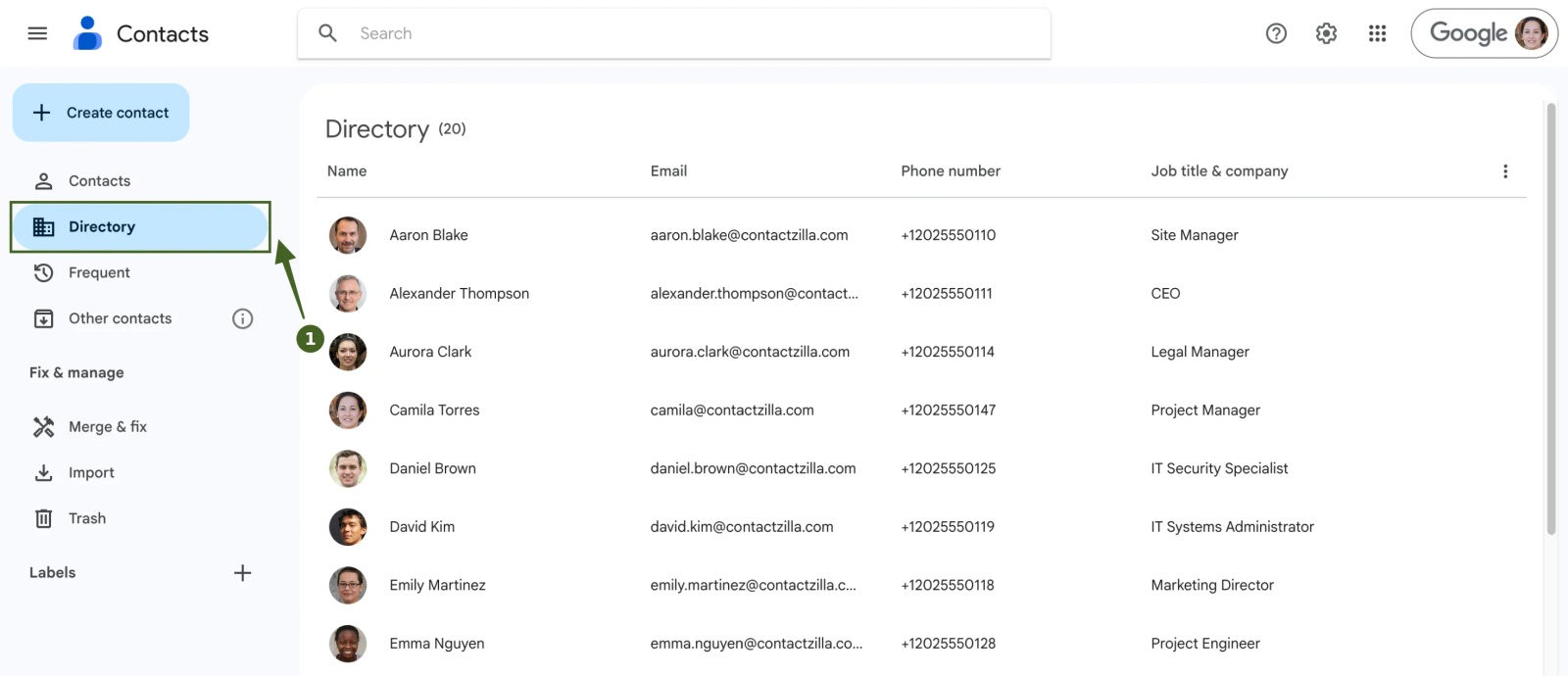
Yes. In Google Workspace the shared contact list is the Directory, Google’s equivalent of a global address list (GAL). Every user in your domain is in it, with the name, email, phone number and job title from their profile, and staff find colleagues there in Google Contacts, in Gmail autocomplete and on profile cards. An admin can also add external contacts, such as suppliers and clients, as domain shared contacts that everyone sees.
The Directory only shows up for users when contact sharing is on. In the Google Admin console, go to Directory > Directory settings > Sharing settings > Contact sharing, tick Enable contact sharing, and choose whether people see your own users, domain shared contacts or both (Google’s steps). You need the Directory settings administrator privilege to change it.
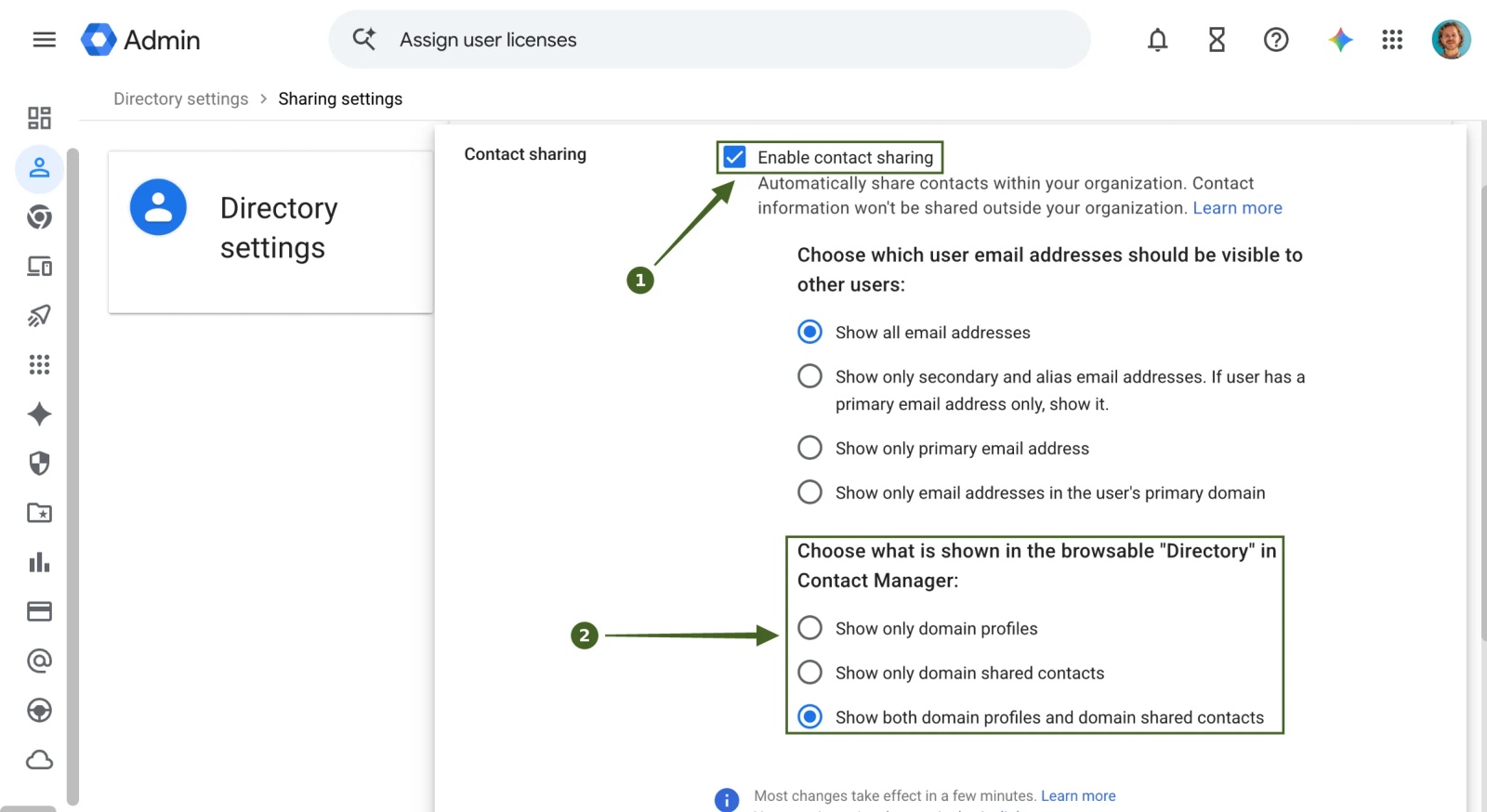
If colleagues don’t come up when you search: contact sharing is probably off, or the change hasn’t spread yet. Google says changes can take up to 24 hours, though they usually happen sooner.
Do Google Workspace shared contacts sync to iPhone and Android?
No. When someone adds their Google Workspace account to an iPhone or Android phone, Google pushes their personal contacts, the My Contacts list, to the phone’s Contacts app. The Directory is not copied. Google’s own help says work contacts have to be searched for, because they don’t appear as a list (Get Google Workspace contacts in your mobile contacts app).
We tested this on an iPhone with only a Google Workspace account added. Search Contacts for a colleague and nothing comes back. The Contacts app does show a Global Address List under Lists, but it is a search box, not a list: it stays empty until you type a name, and only then does the colleague appear. Mail suggests them too, once you start typing. Google’s help describes Android the same way: you can search the Directory, but colleagues never appear in the contact list. On either platform, nobody gets a contact list they can scroll, filter or rely on offline.
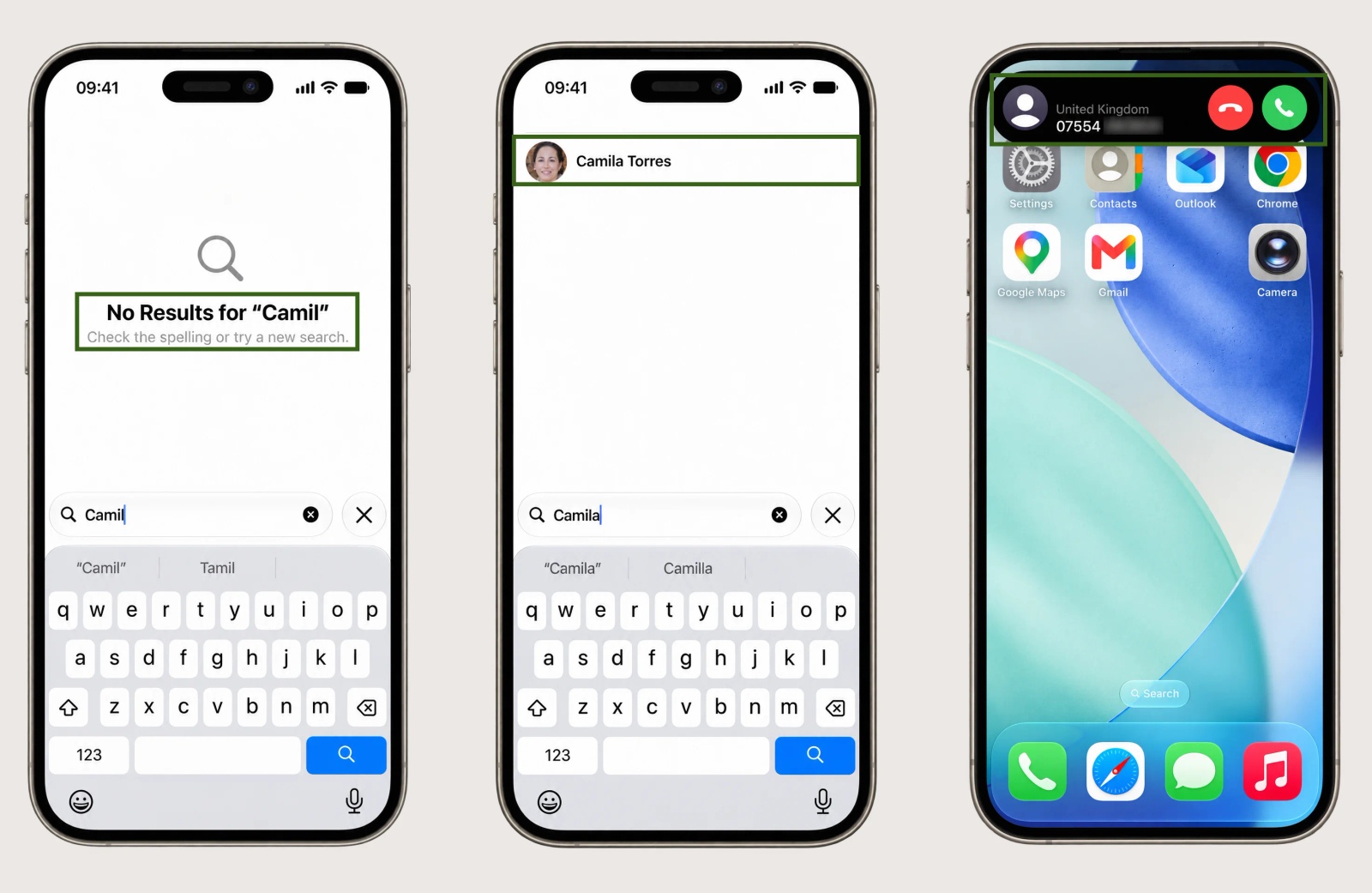
That gap matters more than it looks. The Phone app, WhatsApp, Teams and other apps match numbers to names from the contacts stored on the device. In our test, a call from a colleague who was in the Google Workspace Directory rang as an unknown number, even though Google has the right name centrally.
Tip 💡 Want the deeper story on Google’s other shared contacts feature? Our Google Shared Contacts guide covers domain shared contacts, the API behind them and their limits.
Google Workspace ways to share contacts, and which reach staff phones
Google Workspace gives you three native ways to share contacts, plus two workarounds teams often try. Only the workarounds put contacts in the phone’s own Contacts list, and each brings its own problem.
| Method | What it shares | Who sets it up | In the phone’s Contacts list? |
|---|---|---|---|
| Directory with contact sharing on | Everyone in your domain, from their user profiles | Admin, in Directory settings | No: search only |
| Domain shared contacts | External contacts such as suppliers and clients, up to 200,000 or 40 MB | Admin, through the API, Google Cloud Directory Sync or a Marketplace app | No |
| Contact delegation | One person’s own contacts, to named colleagues | Each user, in Google Contacts | No: Google says delegated contacts aren’t available on phones |
| One shared Google account on every phone | That account’s My Contacts | Admin | Yes, but everyone can edit or delete, and one password covers the fleet |
| Exported CSV or vCard file | A copy of a list | Anyone | Yes, but it is out of date the day someone joins or leaves |
Can you share Google contacts with another user in Google Workspace?
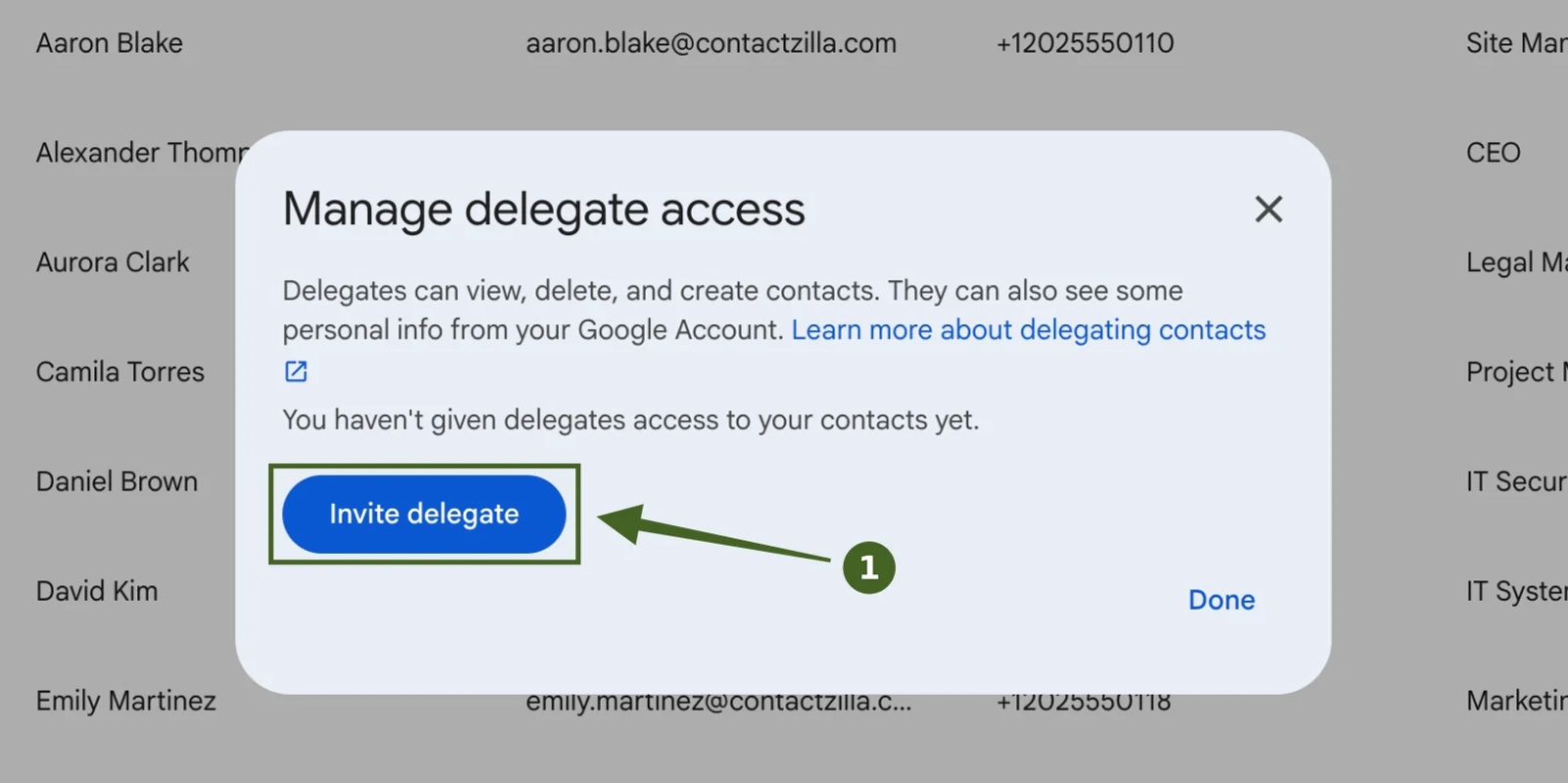
Yes, with contact delegation. In Google Contacts on a computer, open Settings > Delegate access > Invite delegate and enter up to 25 colleagues per invitation. Delegates can add, edit and delete your contacts, but they must be in the same organisation, contact sharing must be on, and both of you have to use a computer: Google’s delegation help says delegated contacts aren’t available in the mobile Contacts app. Delegation suits an assistant managing a manager’s contacts, not a team list on phones. The Google Shared Contacts guide covers every way users can share contacts with each other inside Google.
Can you share contacts with everyone using domain shared contacts?
Yes, for external contacts. Domain shared contacts appear for everyone in Gmail autocomplete and, when contact sharing includes them, in the Directory. Google lists three ways for admins to add them: the Domain Shared Contacts API, Google Cloud Directory Sync or a Google Workspace Marketplace app (Google’s overview). Like the rest of the Directory, they stay inside Google and don’t reach the phone’s Contacts list.
Can you add the whole Directory to My Contacts instead?
Not in one go. In Google Contacts you can point to a colleague in the Directory and click Add to contacts, but Google says work and school accounts can’t select all contacts in the Directory at once. What you add becomes your own copy in My Contacts, so it syncs to your phone but never updates when the colleague’s number or job title changes.
Key definitions: Google Workspace Directory, My Contacts and CardDAV
Google Workspace Directory: the list of everyone with an account in your domain, managed by your admin, plus any domain shared contacts. Google’s equivalent of a global address list.
My Contacts: each user’s own contacts in Google Contacts (sometimes called Gmail contacts). This is the only list a Workspace account syncs to a phone.
Domain shared contacts: external contacts an admin adds for the whole domain. They appear in autocomplete and the Directory, not on phones.
CardDAV: the open standard phones use to sync a contacts account into the native Contacts app. Contactzilla delivers the shared address book this way.
Google Workspace shared contact list (in this post): one managed list built from your Directory that lives in one central address book, stays in sync with Google Workspace and appears on every work phone for calling, messaging and caller ID.
What you need before you sync the Google Workspace Directory to phones
- Google Workspace admin access, or help from whoever manages your tenant, to create a Google Cloud project, enable the Admin SDK API and approve a read-only directory scope.
- Contact sharing turned on in Directory settings, if you also want staff to search the Directory inside Google.
- A Contactzilla team and address book to hold the list. New to Contactzilla? Start with setting up your first team and address book.
- A way to reach the phones: an MDM such as Microsoft Intune, Jamf Pro, Mosyle, IBM MaaS360 or Workspace ONE, or a QR code for phones you set up one at a time.
Step 1: Connect Contactzilla to your Google Workspace Directory
Contactzilla reads your Directory through your own Google Cloud project. Create the project, enable the Admin SDK API, set the OAuth consent screen to Internal and grant one read-only scope, admin.directory.user.readonly. Then add the client ID and secret to a Google connector under Team Settings > OIDC in Contactzilla and sign in. The read-only scope means Contactzilla can read your users but never change anything in Google Workspace.

Step 2: Import the Google Workspace Directory into a shared address book
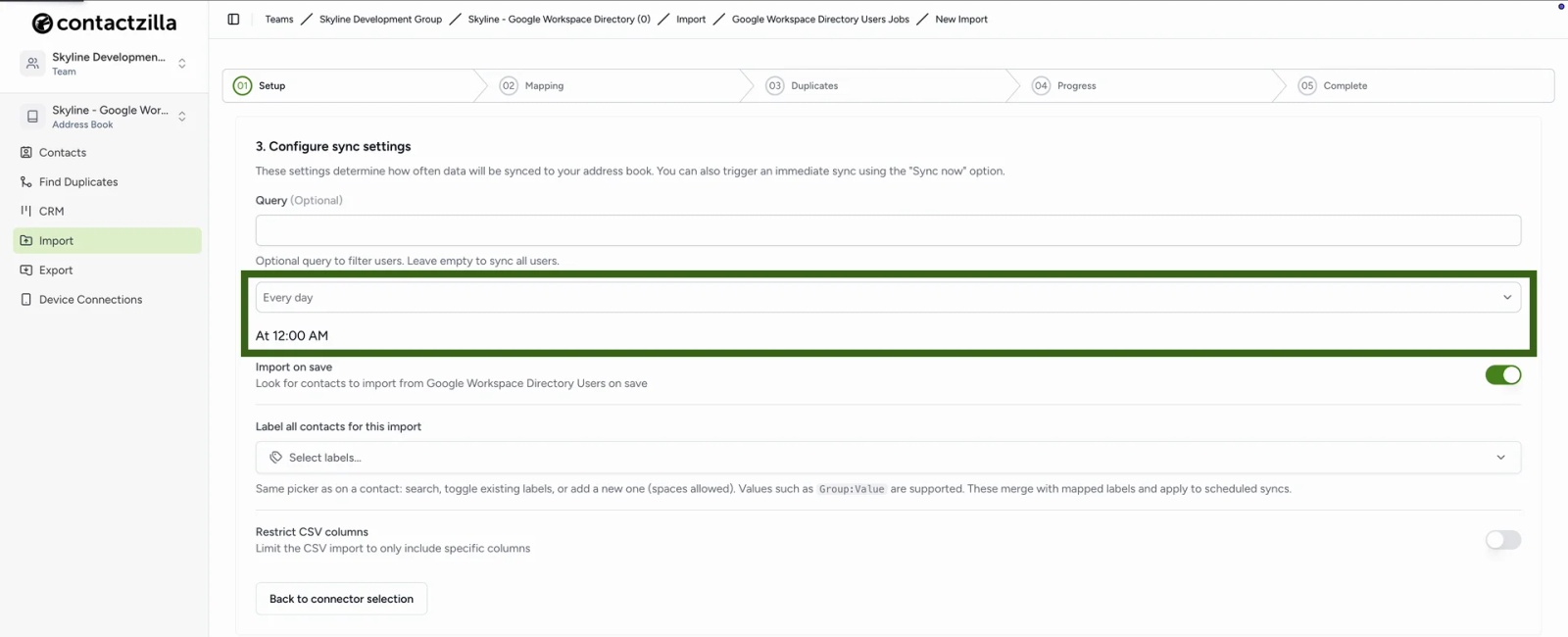
Under Import, choose Google Workspace Directory Users, pick your connection and the address book that will hold the list. Leave the query blank to bring in the whole Directory, or add one to import only some users. Set how often it syncs: manual for the first run, then daily or more often. Each sync brings in new starters and changed numbers.
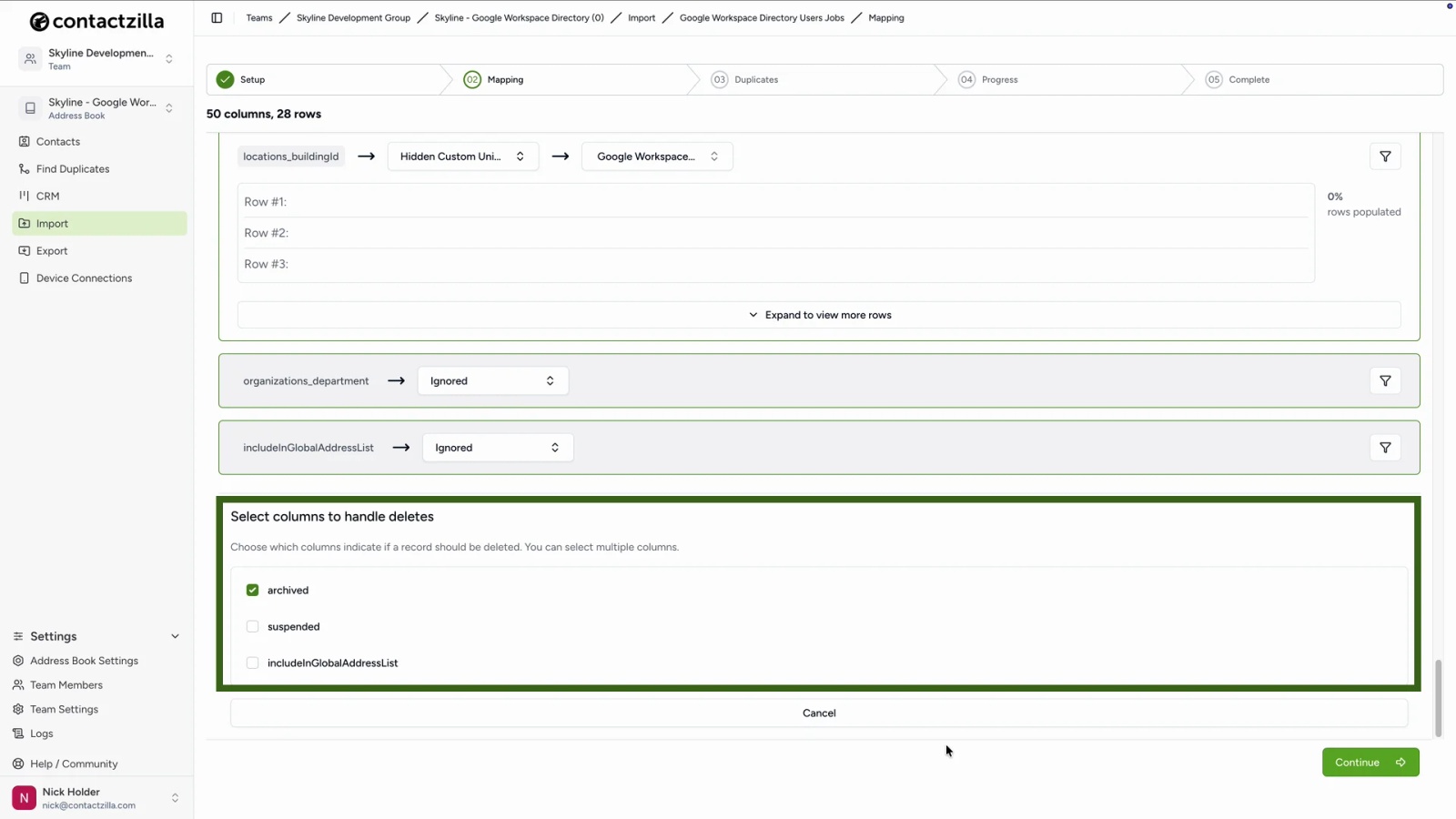
Leavers need one decision on the mapping screen. Under Select columns to handle deletes, tick the Google Workspace columns that mark someone as gone, such as suspended or archived, and they drop off the list at the next sync. Someone deleted outright from Google Workspace stops appearing in the data altogether, so on the duplicates screen choose Replace duplicates and turn on Delete any contacts not replaced, as long as this address book holds only the Directory.
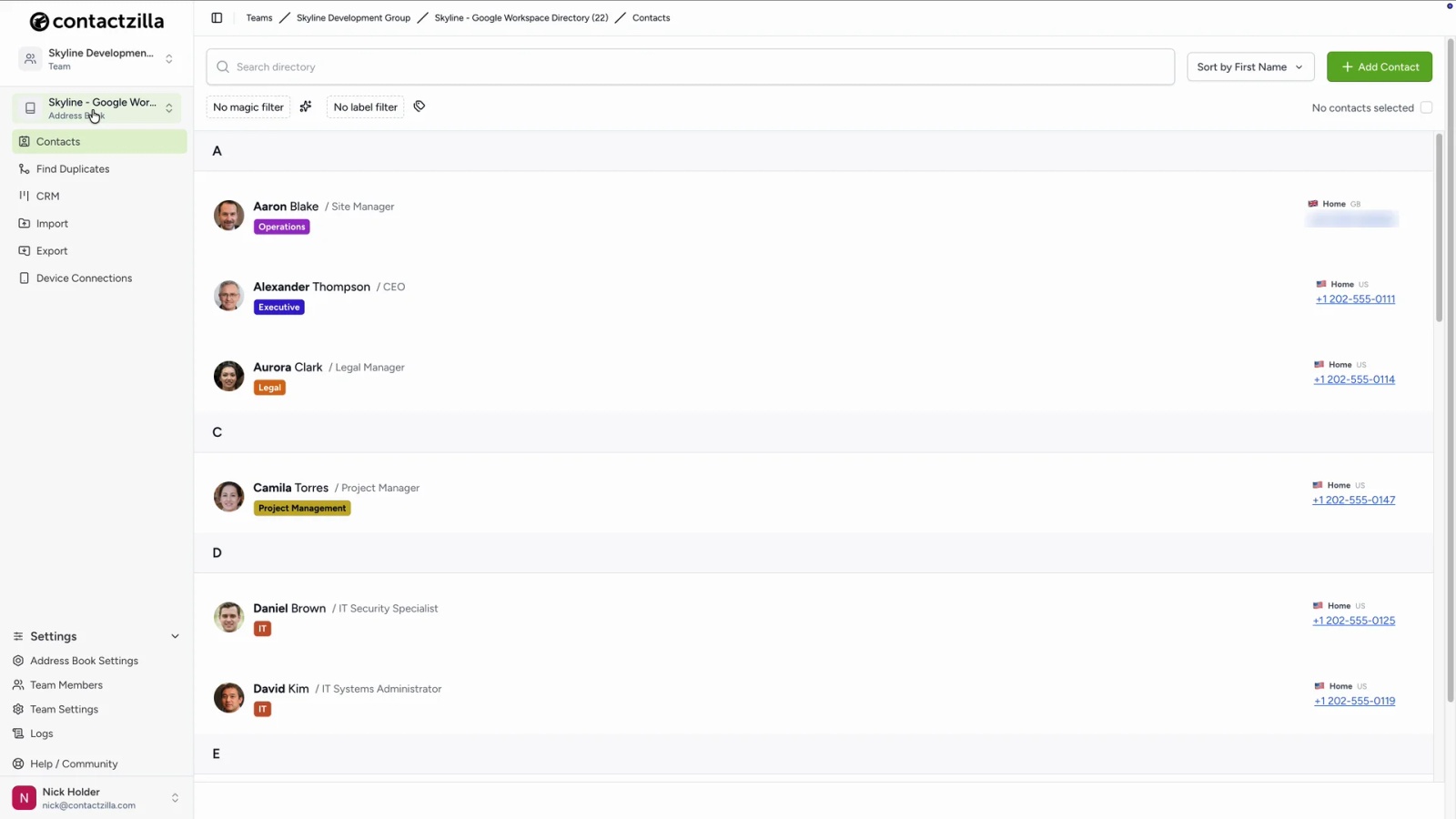
Tip 💡 Want every click? The help article Import contacts from Google Workspace directory to Contactzilla walks through the Google Cloud project, the scope and the field mapping.
Step 3: Create read-only device connections for iPhone and Android
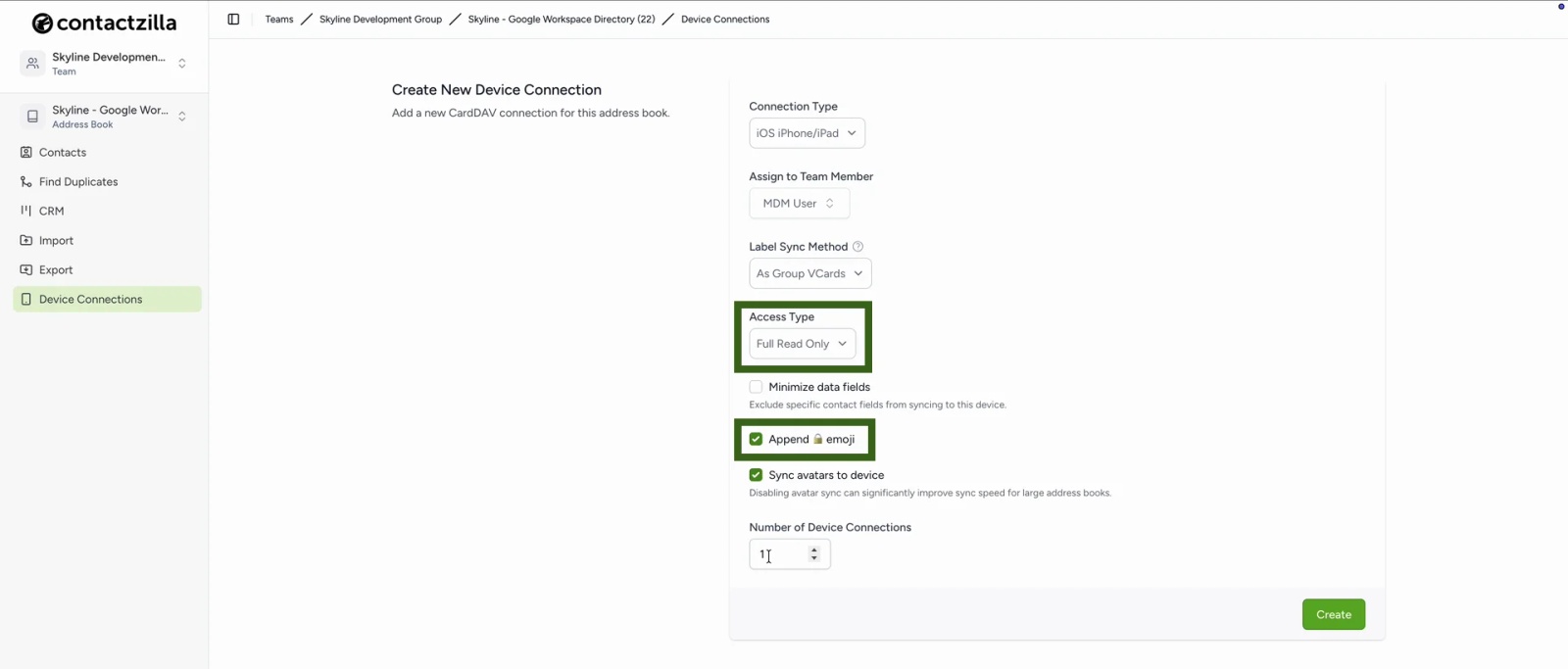
On the address book, create a device connection for each platform. Set the access to Full Read Only so staff can call and message colleagues but can’t edit or delete the company list on their phones; changes are made once, in Google Workspace. Our guide to making company contacts read-only on iPhone shows what staff can and can’t change.
Step 4: Deliver the Google Workspace contact list to iPhones and Android phones
On iPhone: an MDM profile or a QR code, no app
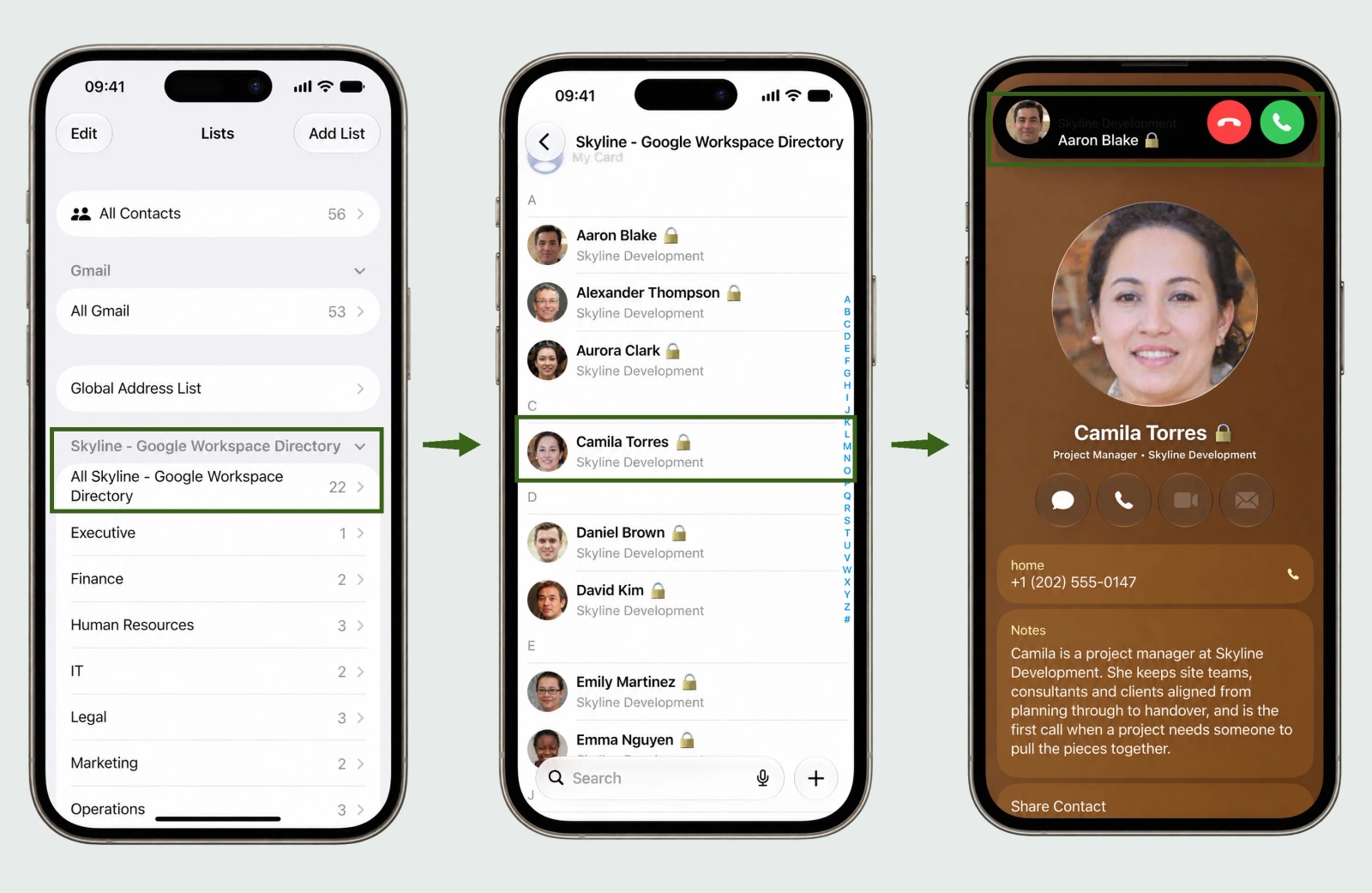
iPhones sync CardDAV natively, so there is no app to install. Upload the Contactzilla configuration profile to your MDM and assign it to the right device group, or scan the connection’s QR code on a phone you set up yourself. The address book appears as its own list in the Contacts app, under the address book’s name, and incoming calls from colleagues show their names.
On Android: Contactzilla Sync from Google Play
Android needs the Contactzilla Sync app from Google Play to add the address book to the phone’s Contacts app. Scan the connection’s QR code in the app, or push the app with its managed configuration through your MDM. Pushed through an MDM such as Intune, the app shows that its settings are managed by your organisation, so staff don’t have to set anything up. Once synced, the address book appears as its own account in Contacts, with your department labels, and colleagues sit in the list like any other contact, each with a 🔒 so they stand out from personal ones.
Prefer to watch? The video Sync CardDAV Contacts to Android via QR Code shows the Contactzilla Sync set-up on an Android phone.
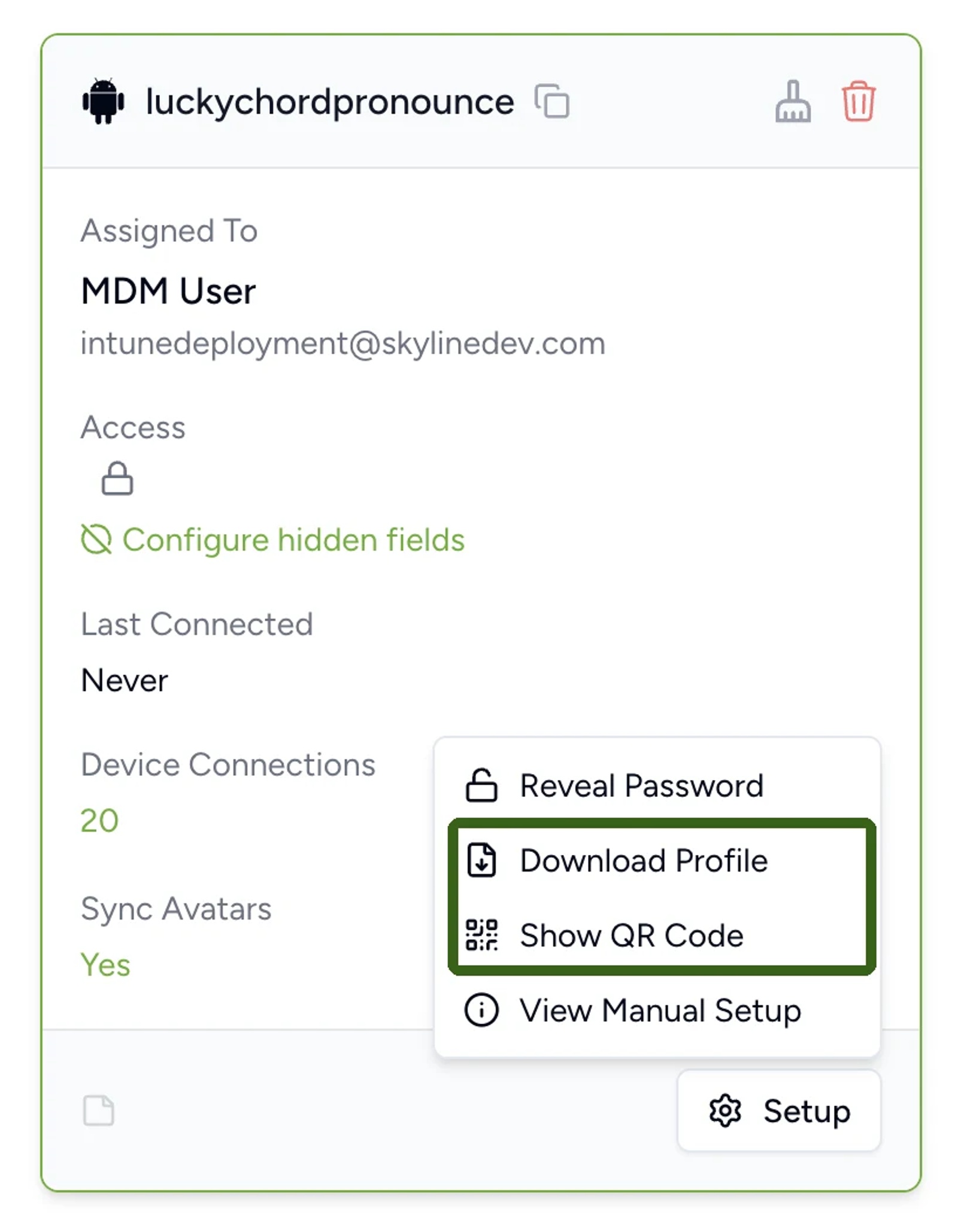
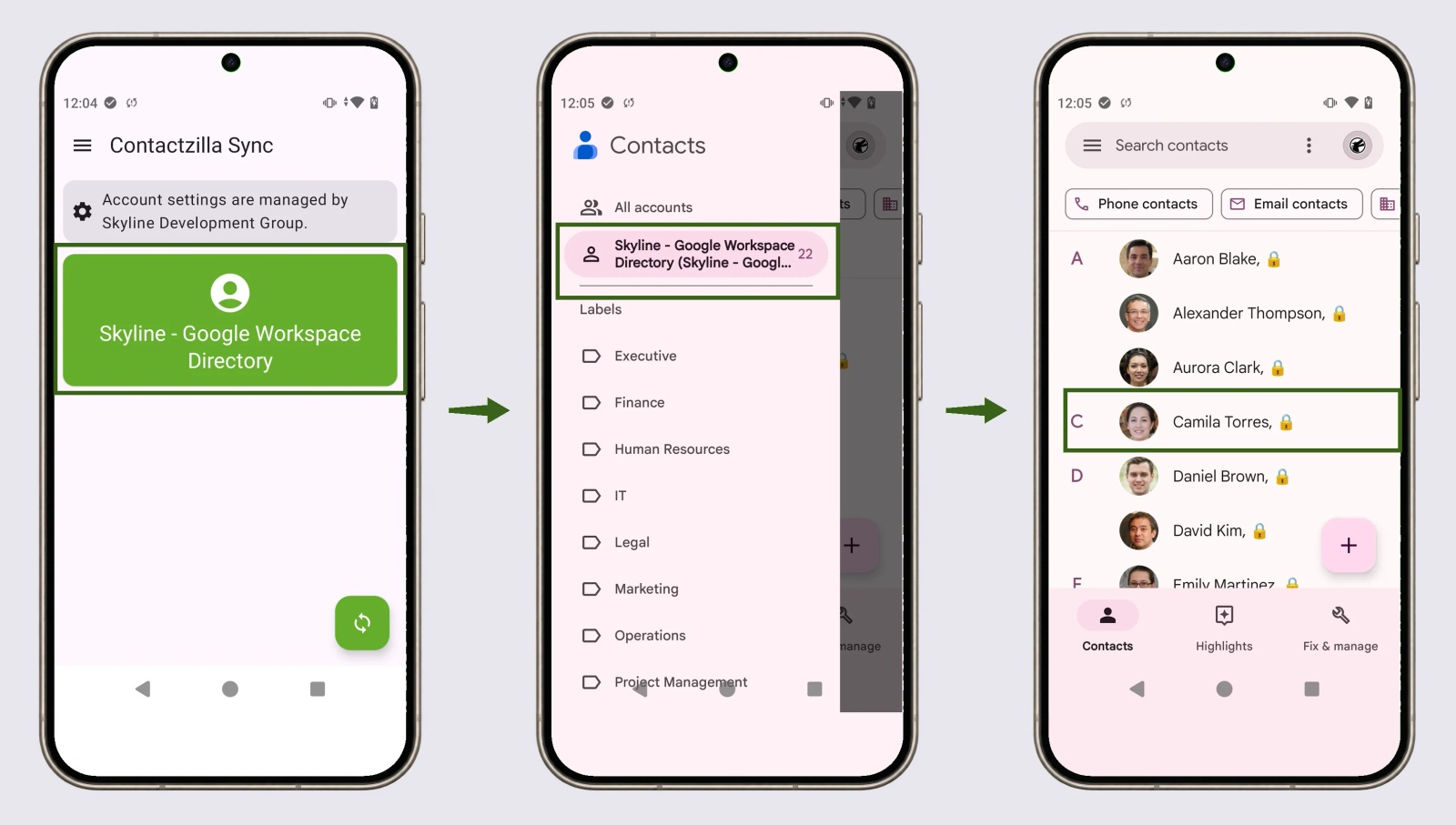
Tested on an iPhone 15 (iOS 27.0.1) and a rugged Spectralink Versity 9553 (Android 13), the kind of phone frontline teams carry, in October 2026.
Tip 💡 Deploying through an MDM? We have step-by-step guides for Microsoft Intune, Mosyle, Jamf Pro, IBM MaaS360 and Workspace ONE, and the Android setup guide covers Contactzilla Sync.
When Contactzilla is the right fit for a Google Workspace shared contact list
- Staff need colleagues on their phones, not just in Gmail: field teams, shared devices, on-call and 24/7 cover.
- You want caller ID for internal calls without everyone saving numbers by hand.
- The list must be read-only on phones and maintained in one place, Google Workspace.
- You run a mixed fleet of iPhones and Android phones, managed through an MDM or set up by QR code.
- You also need contacts from other sources, such as a CSV, Salesforce or HubSpot, in the same shared address book.
See what Contactzilla does for Google Workspace teams on the Google Workspace Directory sync page.
Next steps
- Follow every click in Import contacts from Google Workspace directory to Contactzilla.
- Watch How to Sync Google Workspace Directory Contacts to iPhone & Android.
- No MDM? Put the list on phones with a QR code instead.
- Set up Android phones with the Android setup guide.
Frequently Asked Questions
Is the Google Workspace Directory the same as a global address list?
Yes, in practice. The Google Workspace Directory is Google’s version of a global address list: everyone in your domain, plus any domain shared contacts, searchable in Gmail and Google Contacts once contact sharing is on. On Microsoft 365 instead? See how to sync the global address list to iPhones.
Why can’t my staff find colleagues in Google Contacts?
Usually because contact sharing is off. An admin with the Directory settings privilege turns it on under Directory > Directory settings > Sharing settings > Contact sharing. Google says the change can take up to 24 hours to appear, though it is usually faster.
Do delegated Google contacts show up on phones?
No. Google says delegated contacts can only be viewed and managed on a computer, not in the mobile Contacts app. Delegation shares one person’s contacts with named colleagues; it doesn’t create a team list on phones.
Can staff edit the Google Workspace contact list on their phones?
Not with a read-only connection. Contactzilla’s Full Read Only access lets staff call and message colleagues but not change or delete them, so the list stays as Google Workspace has it. Changes are made once, in the Directory, and follow at the next sync.
Does Contactzilla change anything in our Google Workspace?
No. The importer uses the read-only scope admin.directory.user.readonly through your own Google Cloud project, so it can read your Directory users but can’t create, edit or delete anything in Google Workspace.
What happens when someone joins or leaves the company?
Joiners appear at the next scheduled sync. Leavers come off once you’ve told the import how to spot them: tick suspended (or archived) under the columns that handle deletes, and turn on Delete any contacts not replaced for people deleted from Google Workspace altogether. The phones pick the change up at their next sync, so nobody has to delete a leaver by hand.