How to Change the Default Contact Account on iPhone

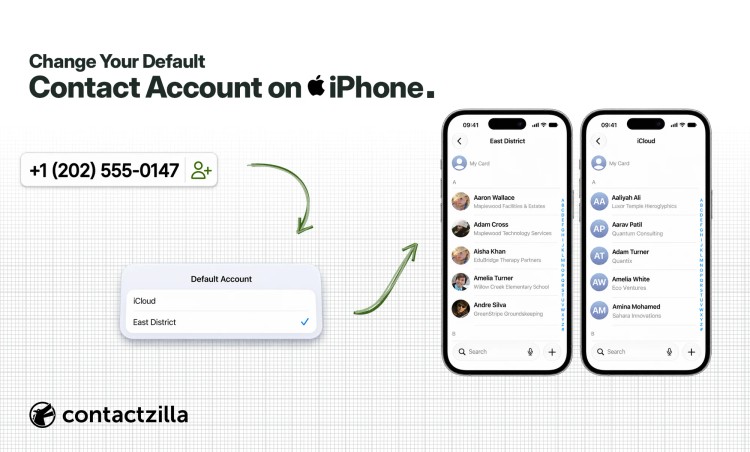
If your iPhone has more than one contacts account, such as iCloud, Gmail, Outlook or a company address book, every new contact you save goes into just one of them. Save it to the wrong one and the contact won't be where you, or your colleagues, expect to find it.
Short answer: To change the default contact account on iPhone, open Settings > Apps > Contacts > Default Account and choose the account new contacts should save to, such as iCloud, Gmail or a work address book. On iOS 17 and earlier the path is Settings > Contacts > Default Account. The setting covers contacts added from All Contacts or the keypad, while a contact added with a list open saves to that list's account. For teams, Contactzilla syncs a shared company address book to iPhones over CardDAV, and the default account decides whether a number a colleague saves reaches everyone's phone or stays on theirs.
1) Check your accounts: see which contacts accounts the iPhone has, in Settings > Apps > Contacts > Contacts Accounts.
2) Set the Default Account: choose the account new contacts should go to.
3) Add from inside a list: for a one-off, open the right list first, then tap +.
4) Fix earlier saves: move any contacts that already landed in the wrong account.
Tip 💡 Setting this up for a Contactzilla address book? Our help article iPhone: How to Save New Contacts to Your Contactzilla Address Book has every tap, with screenshots.
How does iPhone decide which account a new contact is saved to?
The iPhone Contacts app can show several accounts at once, but every contact belongs to exactly one of them. When you add a contact, the iPhone picks the account in one of two ways:
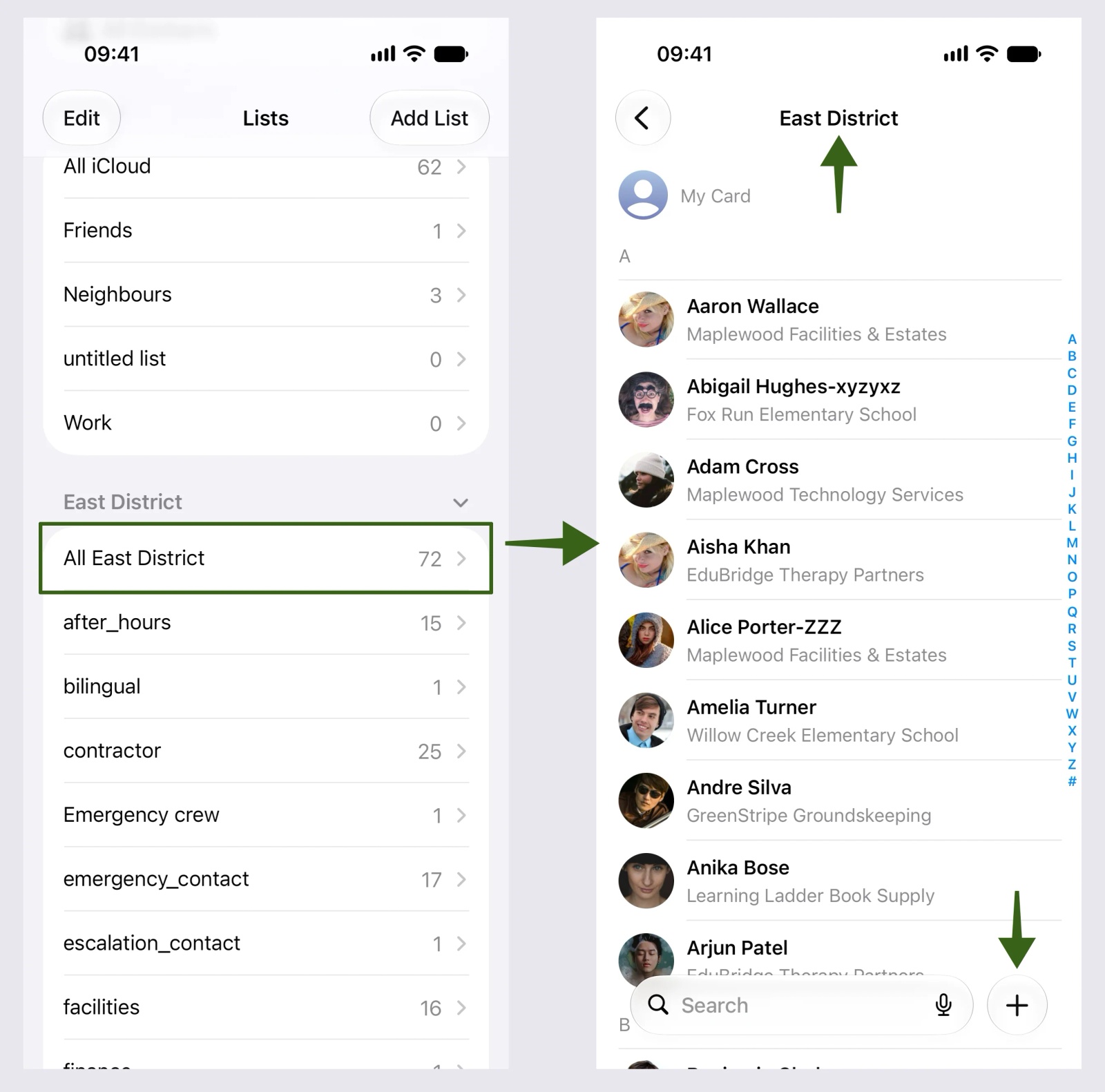
- With a list open: if you open a list first, such as All iCloud or your company's list, and tap +, the contact saves to that list's account.
- Without a list: if you add the contact from All Contacts, or type a number on the keypad and save it, the contact saves to the Default Account.
That's why two people with the same accounts can get different results from the same action. Apple's own guide to managing contacts on iPhone covers the Default Account setting, but not how it interacts with lists.
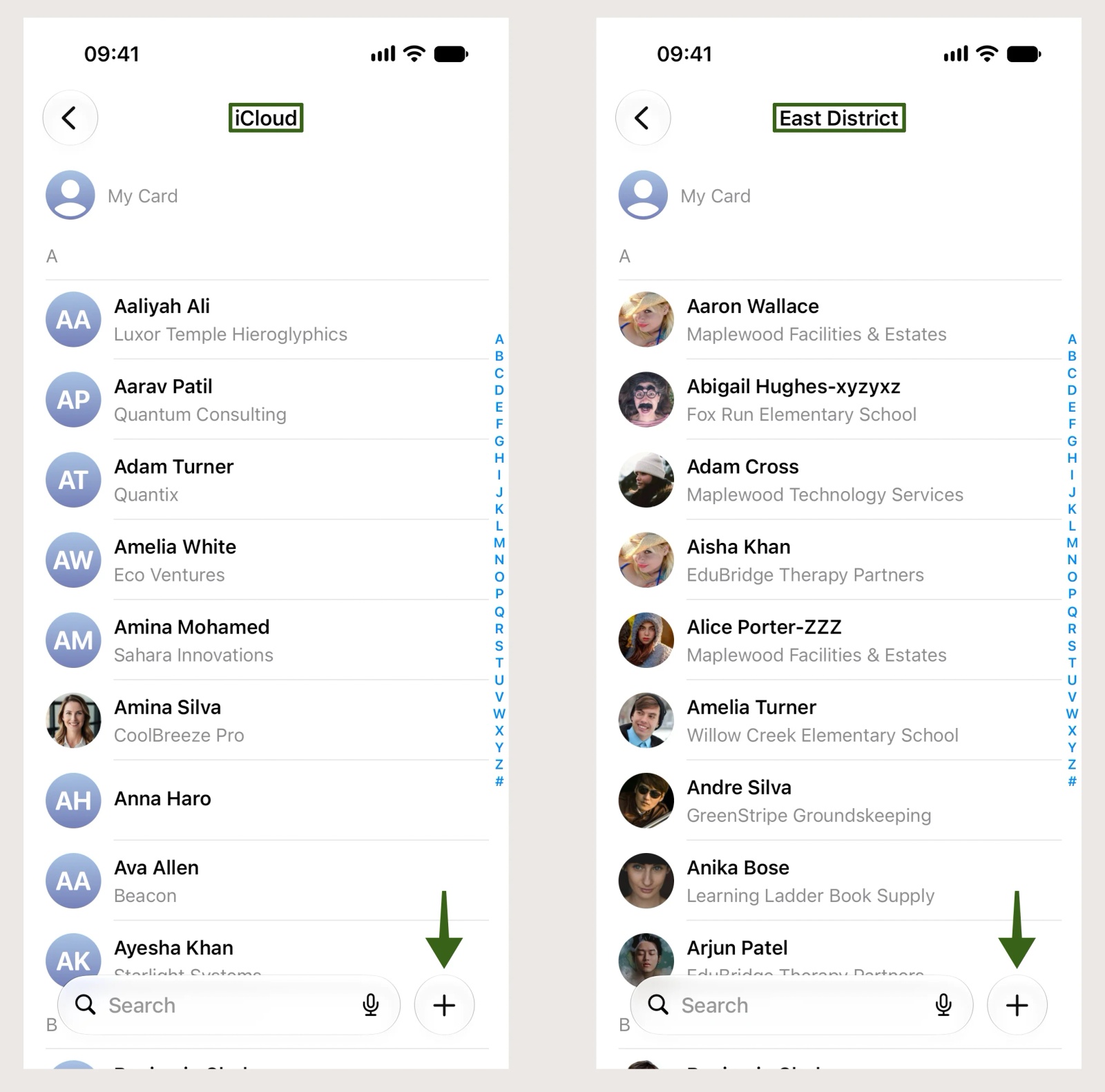
Step 1: Check which contacts accounts are on your iPhone
Open Settings > Apps > Contacts > Contacts Accounts to see every account that can hold contacts, with Contacts switched on or off for each. In the Contacts app, tap Lists to see an All [account] list for each one. Apple suggests opening each of these lists in turn when a contact seems to be missing, because it's often sitting in a different account rather than lost.
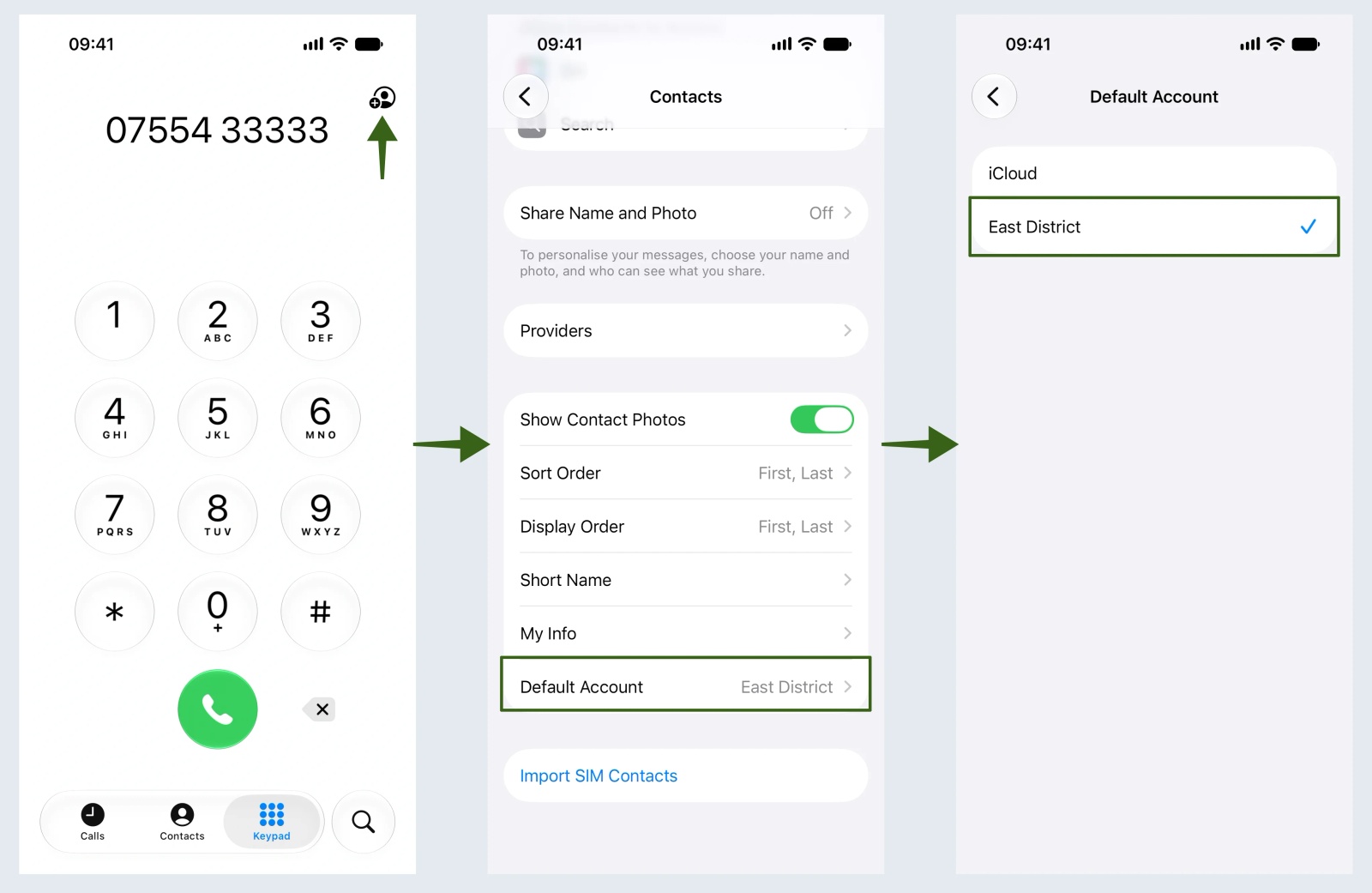
Step 2: Change the default contact account in iPhone Settings
Open Settings > Apps > Contacts > Default Account and tap the account you want. A tick appears beside it, and every contact you add from All Contacts or the keypad now saves there. The change only affects new contacts. Anything already saved stays in its old account, which Apple also points out for people switching their default to iCloud. Tested on an iPhone 15 running iOS 27.0.1, October 2026.
Step 3: Add a contact inside the right list on iPhone
When you only need the odd contact in a different account, you don't need to change the default. Open Contacts, tap Lists, open the account's list and check its title at the top before you tap +. If the title says iCloud, the contact goes to iCloud, whatever your Default Account is set to. To check either step worked, add a test contact, then open that account's All [account] list in Lists and make sure it's there.
iCloud, Gmail or Outlook: which should be your iPhone's default contacts account?
For personal contacts, the right default is simply the account you want your address book to live in from now on. This is the choice that matters when you're switching between iCloud and Google:
| Default account | Where new contacts end up | A good choice if |
|---|---|---|
| iCloud | Your Apple Account: iPhone, iPad, Mac and iCloud.com | You mainly use Apple devices |
| Gmail (Google) | Google Contacts: Gmail, Android phones and the web | You use Gmail day to day or may move to Android |
| Outlook or Exchange | Your Microsoft 365 mailbox contacts, also in Outlook | The contacts belong with your work email |
| A company address book | The shared list your organisation syncs to staff phones | Your team shares one list and you can add to it |
Switching your default from iCloud to Gmail, or the other way round, won't copy anything across. New contacts go to the new account, and your existing ones stay where they are until you move them.
Tip 💡 Moving everything to Google in one go? Our guide to transferring contacts from iCloud to Google covers both the one-off export and ongoing two-way sync.
Why are my iPhone contacts not saving to iCloud?
When new iPhone contacts aren't saving to iCloud, the Default Account is usually set to another account, such as Gmail, Outlook or a work address book, or the contact was added with another account's list open. Check Default Account first, then the list title. If contacts are in iCloud but not appearing on your other devices, that's a sync problem rather than a default account problem, and Apple's page on iCloud Contacts that won't sync covers it.
How do you move or merge contacts between accounts on iPhone?
The iPhone Contacts app has no button for moving a contact from one account to another. For a handful of contacts, the quickest fix is to add each one again from inside the right list and delete the old copy. For a whole account, export it as a vCard file, which you can do by long-pressing the account's list in Lists and choosing Export (available since iOS 16), then import that file into the destination, for example through iCloud.com Contacts.
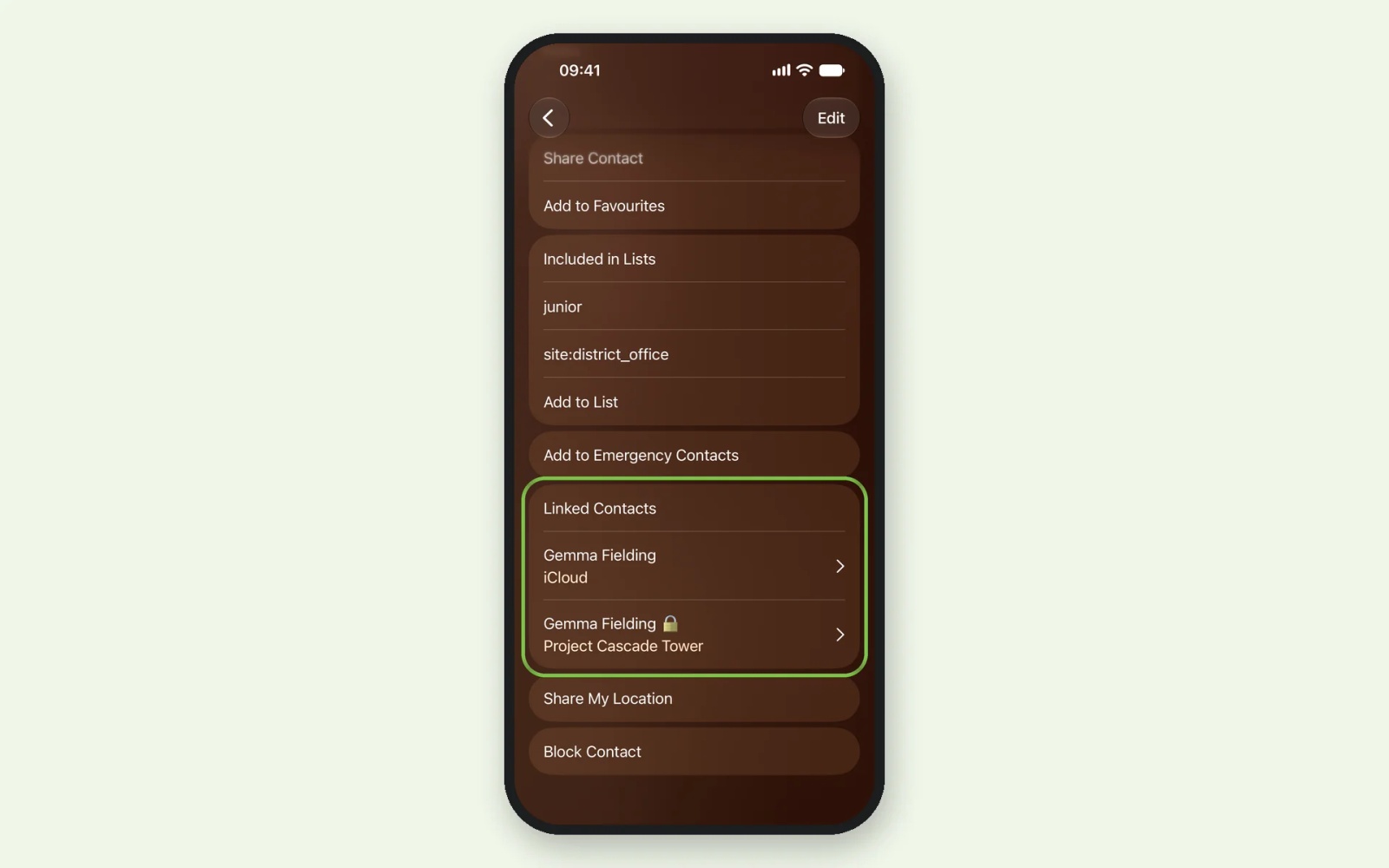
Merging works differently. The iPhone links cards for the same person from different accounts so they appear once in All Contacts, and it links them automatically when the names match. The cards aren't merged: each stays in its own account, and the contact's page lists them under Linked Contacts. To link two cards yourself, open one, tap Edit, then Link Contacts, as Apple's guide to merging or hiding duplicate contacts describes.
Shared company contacts on iPhone: why the default account decides what syncs
For IT teams, the default contact account is the quiet setting behind a lot of "it's not syncing" tickets. When a company address book sits on the iPhone alongside the user's own iCloud account, the Default Account decides whether a new contact goes into the shared list or stays on that one phone. Two cases from our own support inbox show both sides of it.
Read/write company address book on iPhone: a colleague's new number never reaches the team
A UK customer synced a read/write address book to staff iPhones so anyone could add a supplier or client and the whole team would get it. Numbers saved from the keypad never appeared on anyone else's phone, because each iPhone's Default Account was still iCloud. Setting the Default Account to the company address book fixed it for new contacts. Numbers already saved to iCloud stayed there and had to be added again.
Read-only contacts on iPhone: why saved contacts never reach the team
Read-only contacts on an iPhone usually come from a company directory, such as a managed CardDAV address book or an Exchange directory, which staff can view but not change. In our own tests, an iPhone with a read-only Contactzilla address book, a read/write one and iCloud had set the read-only book as its Default Account without anyone choosing it. A contact added from All Contacts went into that read-only book: it showed on the phone, but never reached the Contactzilla dashboard, because the server doesn't accept changes to a read-only book. A contact added to the read/write book reached the dashboard in about five seconds. An IT team testing a read-only address book through Jamf Pro hit the same thing and found the saved contacts were later removed from the phones when the address book refreshed from the server. The fix was to set a writable personal account, such as iCloud or the user's own Exchange account, as the default, and to mark company contacts with Contactzilla's optional lock emoji so staff can tell them apart in All Contacts.
| Company address book access | Best default account | If the company book is the default |
|---|---|---|
| Read/write | The company address book, when staff should add shared contacts | New contacts sync to everyone, as intended |
| Read-only or selective read-only | A writable personal account, such as iCloud | Contacts saved there stay on that one phone, never reach the server, and can later be removed |
Tip 💡 Deciding between read-only and editable company contacts? Our post on selective read-only sync shows how labels send each team only the contacts it needs, locked on the phone.
Can an MDM set the default contacts account on iPhone?
No, not directly. Apple's CardDAV payload, which Intune, Jamf Pro and other MDMs use to add a contacts account, sets the server, account name and credentials, plus which app handles calls, but has no key for the default account. The choice stays on the device. In practice that means telling staff which default to pick as part of the rollout, linking them to the help article, and checking the setting on a test iPhone after the profile installs. Don't assume the phone will pick a sensible default on its own: in our tests the iPhone made the company address book its Default Account automatically.
How to keep work and personal contacts separate on iPhone
If your work email is on your own iPhone, your work contacts and personal contacts can easily end up mixed. Set iCloud as the Default Account so personal contacts stay yours, and add work contacts from inside your work account's list. That matters when you leave a job: when a work account is removed from the iPhone, its contacts go with it, as Apple's guide to managing contacts describes, so a personal number saved there is lost from the phone.
For organisations, the same split works at scale: a personal account as each phone's default, with the company address book as a separate account beside it. Lists lets anyone view just one account when All Contacts gets busy, and a read-only company book with the lock emoji makes the boundary visible at a glance.
Next steps
- Follow every tap with screenshots in iPhone: How to Save New Contacts to Your Contactzilla Address Book.
- See how selective read-only sync keeps company contacts locked on staff phones.
- New to the protocol behind company address books? Read What Is CardDAV?
Frequently Asked Questions
What happens to an account's contacts when I remove it from my iPhone?
They disappear from the iPhone. Turning off Contacts for an account, or deleting the account, removes its contacts from the phone but not from the account itself, so they come back if you add the account again. Contacts you saved only to that account aren't copied to iCloud or anywhere else first, so move any you need before removing it.
Why does my iPhone save new contacts to Gmail instead of iCloud?
Because Gmail is set as the Default Account, or the contact was added with the Gmail list open. Go to Settings > Apps > Contacts > Default Account and choose iCloud, then add new contacts from All Contacts or the All iCloud list. Contacts that already went to Gmail stay there until you move them.
Does Android have a default contacts account too?
Yes. In the Google Contacts app, the profile icon menu leads to Contacts app settings and Default account for new contacts. Android also shows a Save to option on the new contact screen. Unlike iPhone, opening a list first isn't enough on Android: unless you change Save to, the contact goes to the default account.
Can staff save contacts into a read-only company address book on iPhone?
Yes, the iPhone lets them, which is what catches people out. The contact appears on that phone, but it isn't saved to the central address book, so nobody else gets it and it can later be removed when the book refreshes. Setting a writable account such as iCloud, or On My iPhone, as the Default Account stops staff saving into it by accident.
Is there one default contact account per app on iPhone?
No. The iPhone has one Default Account for contacts, set in Settings > Apps > Contacts, and it applies wherever a new contact is created without a list open, including the Phone keypad. Calendar and Reminders have their own separate default settings, so changing the contacts default doesn't affect them.