Sync Policy Managed App Data With Native Apps: What It Means for Outlook Contacts

Introduction
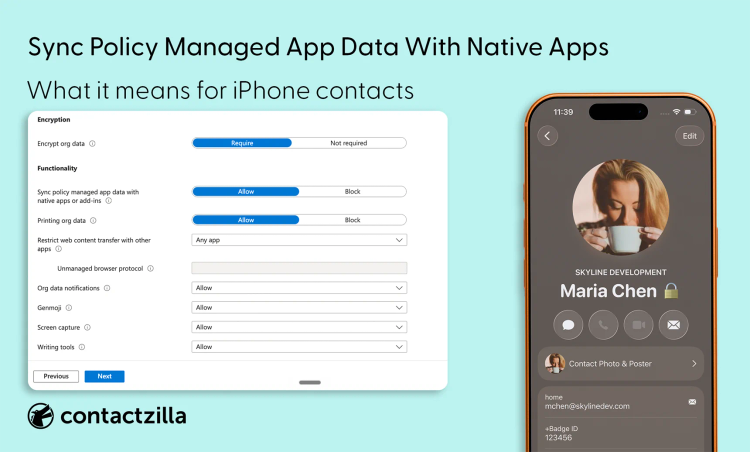
Sync policy managed app data with native apps is an Intune App Protection Policy setting that controls whether protected apps can pass work data into native device apps and features.
That includes areas such as Contacts, Calendar, widgets, and add-ins.
The setting often matters when Outlook is allowed to access Microsoft 365, but certain native device features do not work as expected. For example, Outlook may open normally, while Save Contacts, calendar sync, or add-ins are blocked for the work account.
For contact workflows, this can also affect whether work contacts appear in the native iPhone or Android Contacts app for caller ID.
Conditional Access controls whether the app can access Microsoft 365. This Intune setting helps decide whether the protected app can pass managed data into native apps.
This article uses Outlook contacts as the main example because contact sync and caller ID are common places where this setting has a visible user impact.
Quick answer: what this Intune setting does
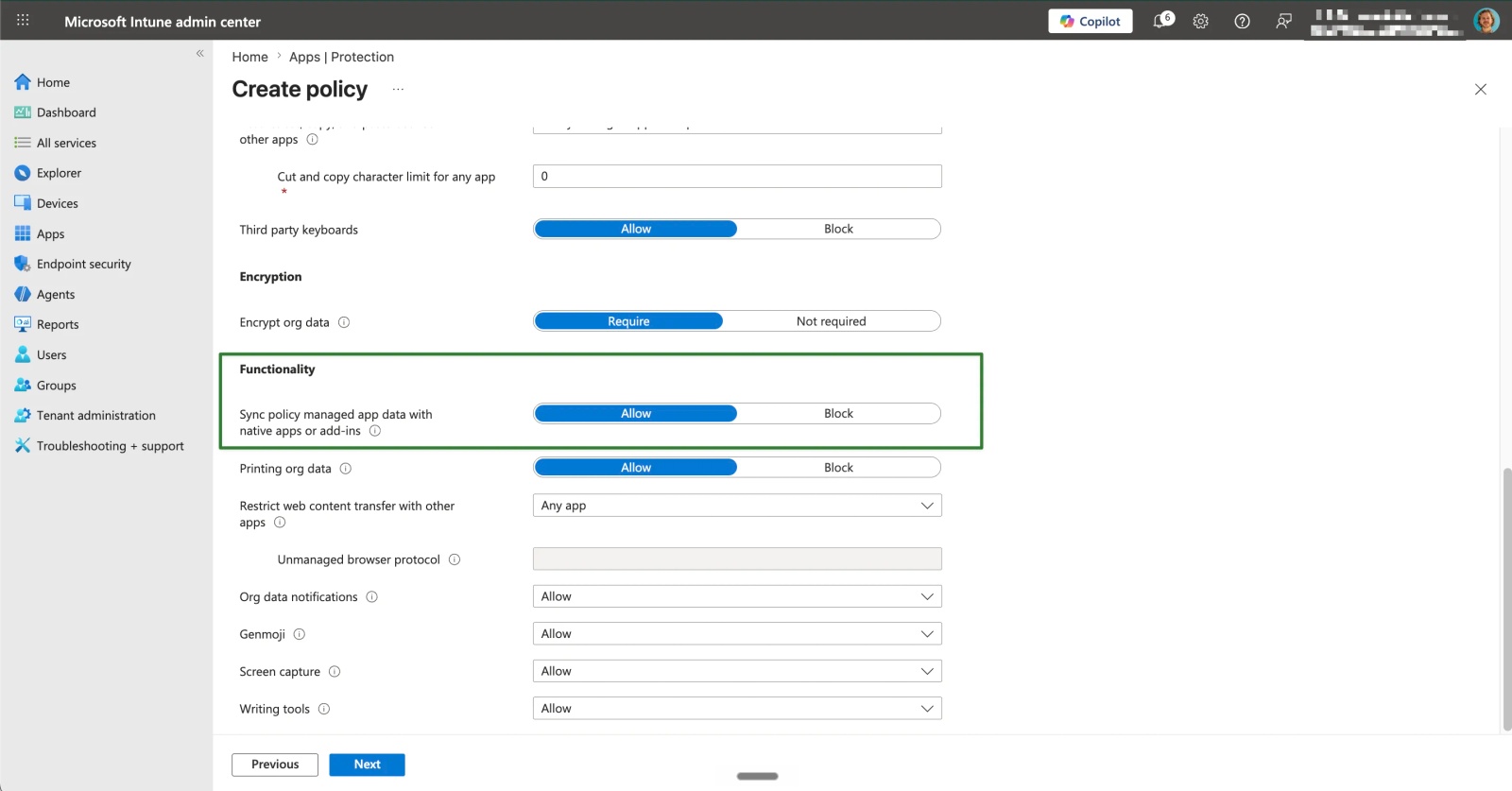
In Intune, Sync policy managed app data with native apps or add-ins controls whether protected apps can pass work data to native apps and device features such as Contacts, Calendar, widgets, and add-ins.
If set to Allow, supported native sync features can be available.
If set to Block, Outlook disables Save Contacts, Sync Calendars, and add-ins for the work or school account.
What does “Sync policy managed app data with native apps or add-ins” mean in Intune?
This setting appears inside an Intune App Protection Policy.
An App Protection Policy controls how work data is handled inside a protected app. Outlook is a common example, but the setting is not only about Outlook.
The setting Sync policy managed app data with native apps or add-ins controls whether a protected app can pass work data into native apps or device features outside that app.
In plain terms, it answers this question:
Can a protected work app save or sync managed data into native device apps?
If the setting is Allow, supported native sync features can be available. The app still needs to support the feature, and other app settings or user permissions may also apply.
If the setting is Block, the protected app cannot pass managed work data into native apps or add-ins.
For Outlook, this has a specific effect. Microsoft links this setting to Save Contacts, Sync Calendars, and add-ins. If the setting is blocked, those features are disabled for the work or school account.
This is why the setting often comes up in contact and caller ID problems. Outlook may still contain the contact, but the native Phone app may not have access to that contact for number matching.
What are native apps in Intune App Protection Policies?
In this setting, native apps means apps and device features outside the protected work app.
For example, Outlook is the managed app. The native apps are the built-in apps and device surfaces that Outlook may try to pass data into.
Common examples include:
- Contacts
- Calendar
- widgets
- app add-ins
- other device features that use native app data
For the contact sync example in this article, the key native app is the Contacts app.
If Outlook contacts are saved into native Contacts, the phone can often use those contacts outside Outlook. That can help with caller ID, text message name matching, and normal contact search.
If Outlook contacts stay inside Outlook only, users may still be able to search for people in Outlook. But the native Phone app may not have the same contact data available for incoming calls.
The setting does not make native Contacts a managed app. It only controls whether a protected app, such as Outlook, is allowed to pass supported work data into native apps.
Allow vs Block: how Intune’s native apps sync setting works

This setting has a simple choice, but the result is easy to misunderstand.
Allow means Intune is not blocking supported managed apps from passing data into native apps.
Block means managed apps cannot pass that protected work data into native apps.
For Outlook, that difference can affect Save Contacts, calendar sync, add-ins, and caller ID workflows.
| Setting | What it means | Outlook effect | Practical Result |
|---|---|---|---|
| Allow | Protected apps can pass supported work data into native apps or add-ins. | Outlook Save Contacts can be available if the rest of the Outlook and Intune configuration allows it. | Work contacts may appear in native Contacts, which can support caller ID and normal phone contact lookup. |
| Block | Protected apps cannot pass managed work data into native apps or add-ins. | Outlook disables Save Contacts, Sync Calendars, and add-ins for the work or school account. | Contacts stay inside Outlook. Native Contacts and caller ID may not have the work contact data they need. |
The main point is that Allow does not automatically sync contacts.
It only means Intune is not blocking Outlook from using supported native sync features.
Outlook still needs the right app configuration. The user may also need to grant Contacts permission on the device. On Android, work profile settings can also affect what the dialler and messaging apps can see.
So if contacts are still not appearing in the native Contacts app, this setting is only the first place to check. The next step is to look at Outlook Save Contacts.
Tip 💡: If your company contacts are stored in Microsoft 365 outside Outlook, see our guide to syncing a SharePoint contact list to iPhone Contacts.
How this setting affects Outlook Save Contacts and native Contacts
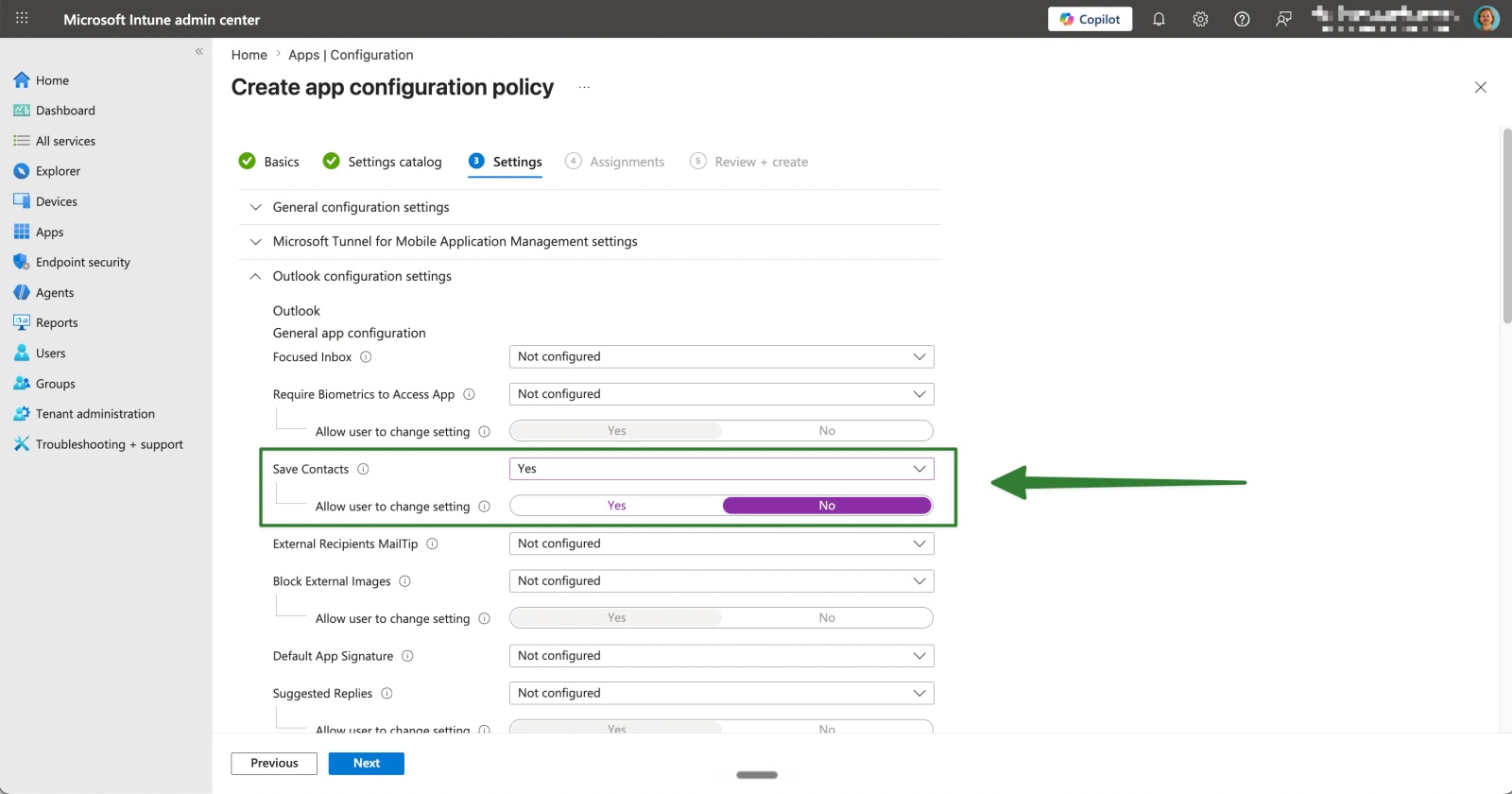
For Outlook, the main contact feature affected by this setting is Save Contacts.
Save Contacts is the Outlook feature that can write Outlook contact data into the native Contacts app on iOS or Android. This is the route many organisations rely on when users need work contacts available outside Outlook.
The Intune setting Sync policy managed app data with native apps or add-ins controls whether this route can be available.
If the setting is Block, Outlook disables Save Contacts for the work or school account.
If the setting is Allow, Save Contacts may be available, but it still depends on the rest of the Outlook and Intune configuration. The user may also need to grant Outlook permission to access the native Contacts app.
This is an important distinction:
Allow means Outlook is permitted to use supported native sync features. It does not mean contacts will definitely appear in native Contacts.
If contacts are not appearing, check the App Protection Policy first. Then check Outlook app configuration, user permissions, and any platform-specific restrictions.
It is also worth being clear about what Save Contacts does. It is not always the same as deploying a full company directory or Microsoft 365 GAL to every device. If the organisation needs centrally managed native contacts for caller ID, that may need a different contact deployment model.
Tip 💡: If you need the practical deployment route, see our guide to syncing company contacts to iPhones with Intune.
Tip 💡: If your goal is to make Microsoft 365 directory contacts available for caller ID, see our guide to syncing the Global Address List to iPhones.
Why Outlook caller ID may stop working after an Intune policy change
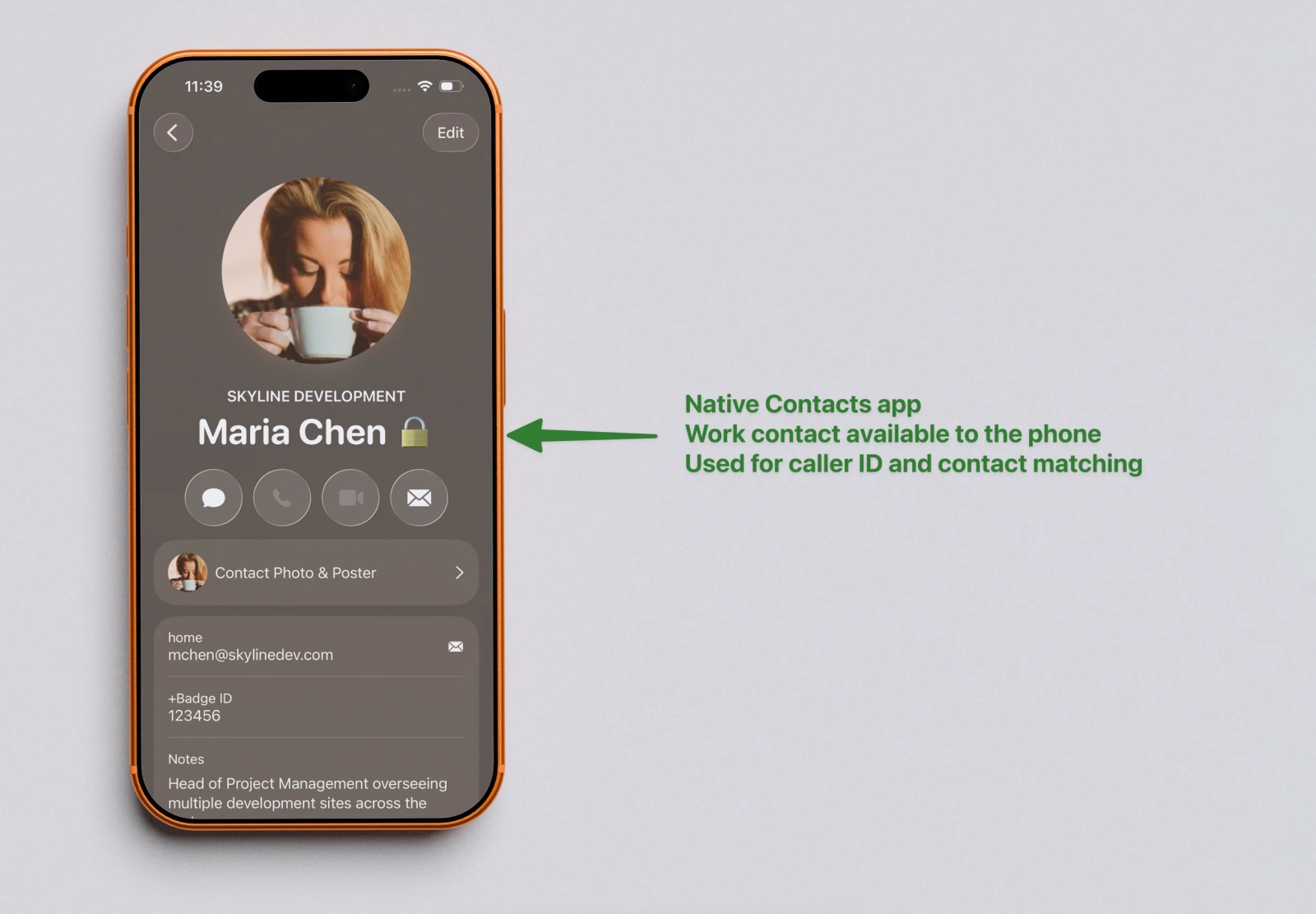
Caller ID depends on the contacts available to the phone’s native Contacts app.
Outlook may still contain the work contact, but the native Phone app may not be able to see it. If Save Contacts is blocked, users may still find contacts in Outlook, while incoming calls only show a number.
This often happens when an organisation allows Outlook as the protected Microsoft 365 app, but blocks native contact export through App Protection Policy.
So the issue is not always that Outlook is broken. It may be that contacts are no longer being written into native Contacts.
If caller ID is required, check whether Save Contacts is allowed, configured, and working on the device. On Android, work profile settings can also affect whether the dialler can see work contacts.
Conditional Access vs App Protection Policy for Outlook contact sync
Conditional Access and App Protection Policy are related, but they do different jobs.
Conditional Access controls whether the user, device, or app is allowed to access Microsoft 365.
App Protection Policy controls what the protected app can do with work data after access is allowed.
That distinction matters for Outlook contacts.
A Conditional Access policy may require users to access Microsoft 365 through Outlook because Outlook can be protected by Intune App Protection Policies. But that does not automatically mean Outlook can save work contacts into the native Contacts app.
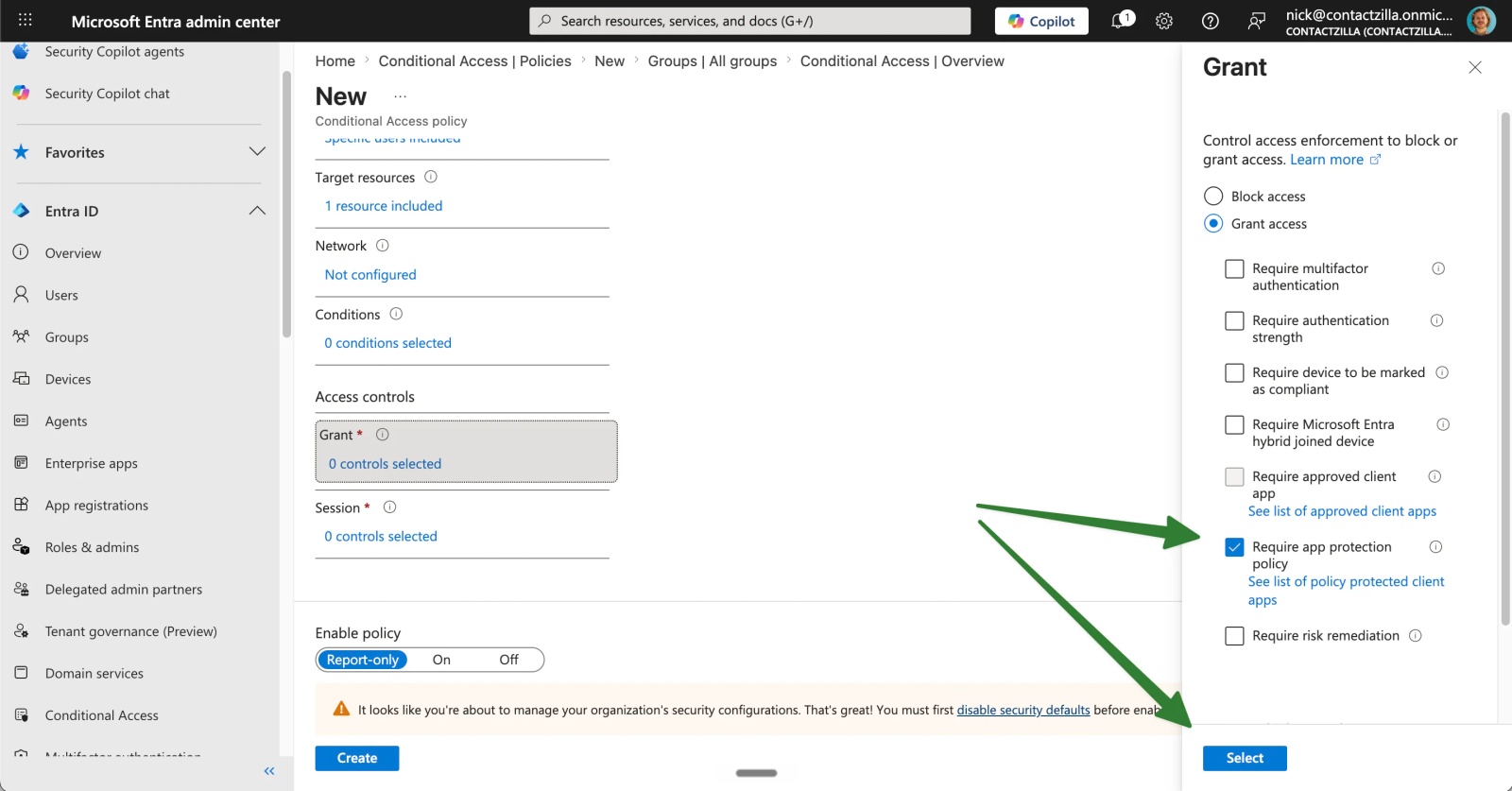
That second part depends on settings such as Sync policy managed app data with native apps or add-ins, Outlook app configuration, and device permissions.
So an organisation can be in this position:
- Outlook is allowed to access Microsoft 365.
- Outlook email works.
- Outlook contacts are available inside Outlook.
- Native contact export is still blocked.
- Caller ID may not have the work contacts it needs.
This is why admins often need to check both areas. Conditional Access may explain why the old sign-in route stopped working. App Protection Policy may explain why Outlook cannot pass contacts into native apps.
Troubleshooting Outlook contacts not syncing to iPhone or Android Contacts
If Outlook contacts are not appearing in native Contacts, start with the policy layers.
Check these points:
- Is the issue access or native export? If Outlook cannot sign in, check Conditional Access. If Outlook works but contacts do not appear in native Contacts, check App Protection Policy and Outlook configuration.
- Is native app sync allowed or blocked? In the App Protection Policy, check Sync policy managed app data with native apps or add-ins.
- Is Outlook Save Contacts enabled? Allowing native app sync does not automatically enable contact sync. Outlook still needs the right app configuration.
- Has the user granted Contacts permission? On iOS and Android, Outlook may need permission to access the native Contacts app.
- Is Android work profile behaviour involved? On Android, work profile settings can affect whether the personal dialler or messaging app can see work contacts.
- Does native contact export fit the security policy? Allowing work contacts into native Contacts may be useful, but it also changes where that data is stored and used.
If you need to confirm whether the policy is applying, check the App protection status report in Intune.
The main point is to avoid treating this as one setting. Native contact sync usually depends on several controls working together.
Options for syncing company contacts to native iPhone and Android Contacts
If users need company contacts in the native Contacts app, there are a few possible routes.
One option is to allow Outlook to save contacts into native Contacts. That may be suitable if the organisation is comfortable with that data moving outside Outlook, and if Outlook Save Contacts provides the right contact coverage.
Another option is to use Outlook app configuration to control the behaviour more tightly. For example, IT may allow contact sync but restrict which fields are saved.
That still may not be enough for every organisation.
Outlook Save Contacts is not always the same as deploying a centrally managed company directory or shared address book to every device. It may depend on user settings, Outlook behaviour, platform differences, and the contact data available to Outlook.
If the organisation needs centrally managed native contacts for caller ID, a separate contact deployment route may be more suitable.
Contactzilla is one option for that model. It can import contacts from Microsoft 365 or Entra, then deploy read-only contacts to native iOS and Android Contacts using MDM or CardDAV.
That should be viewed as a different contact delivery model. It is not a way to bypass Conditional Access or weaken Intune controls. It is for cases where IT still needs managed company contacts available in the native phone experience.
Tip 💡: For a wider look at the problem, see our guide to enterprise contact management and deploying contact lists at scale.
Tip 💡: If you are new to the contact sync protocol used by many native address book deployments, see our guide to what CardDAV is and how it works.
FAQ
What does “Sync policy managed app data with native apps or add-ins” mean?
It is an Intune App Protection Policy setting that controls whether protected apps can pass work data to native apps and device features. For Outlook, it affects whether Save Contacts, Sync Calendars, and add-ins can be available for the work or school account.
Should this setting be Allow or Block?
Use Allow if users need supported native features such as Outlook Save Contacts, calendar sync, or add-ins. Use Block if work data should stay inside protected apps. This is a policy decision, not a universal best practice.
Does Allow automatically sync Outlook contacts to native Contacts?
No. Allow does not automatically sync Outlook contacts to native Contacts. It only means Intune is not blocking supported native sync features. Outlook app configuration, device permissions, and platform-specific restrictions can still affect whether contacts appear in the native Contacts app.
Why are Outlook contacts not saving to iPhone Contacts?
Outlook contacts may not save to iPhone Contacts if native app sync is blocked, Save Contacts is not enabled, or the user has not granted Contacts permission. Start by checking the App Protection Policy, then Outlook app configuration, then device permissions.
Why is Outlook Save Contacts not working even though it is enabled?
Save Contacts can still fail if another Intune policy blocks native sync, if the Outlook configuration has not applied, or if the device permission is missing. On Android, work profile restrictions can also affect whether contacts are visible outside the work profile.
Does this setting affect caller ID?
Yes, it can affect caller ID when the phone relies on native Contacts for number matching. Outlook may still contain the work contact, but if it is not saved to native Contacts, incoming calls may show a number instead of a name.
How is this different from Conditional Access?
Conditional Access controls whether an app, user, or device can access Microsoft 365. App Protection Policy controls what a protected app can do with work data after access is allowed. Outlook can be allowed to sign in while native contact export remains blocked.
Can Intune push Microsoft 365 GAL to native Contacts?
Intune can help configure Outlook contact sync, but that is not the same as pushing the full Microsoft 365 GAL to native Contacts. Outlook Save Contacts depends on Outlook data, app configuration, user permissions, and platform behaviour.
Does Block stop Outlook from working?
Not usually. Block does not normally stop Outlook from opening or accessing mail. It blocks supported native sync features for the work or school account, such as Save Contacts, Sync Calendars, and add-ins. Outlook access is controlled separately.