
How to Sync a SharePoint Contact List to iPhone

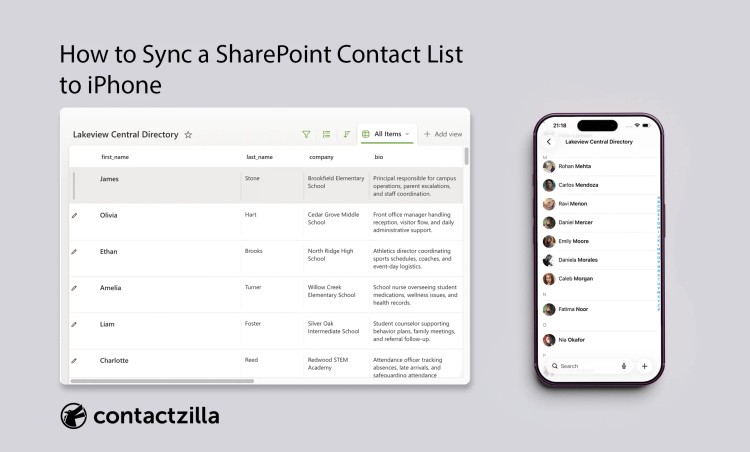
Many teams keep shared contacts in a SharePoint List because it fits neatly into Microsoft 365.
This makes sense because SharePoint Lists are built for structured information. They are often used for things like internal directories, site contacts, supplier lists, or team contact records. They support custom fields, permissions, and simple sharing across a business.
On phones, those lists can still be accessed through a browser. Users can open the list, search it, and view the information when needed.
In most teams, the expectation goes further than that. Contacts are expected to sit inside the phone’s native Contacts app, be searchable in the dialer, and resolve correctly for incoming calls.
A SharePoint List does not behave like a mobile contacts account. It remains a list that is accessed, rather than a contact source that feeds the phone’s address book. In this post we are going to look at exactly how you can sync your Sharepoint Contact list into the native contacts app of your iphone.
Why SharePoint can be the right place to keep contact data
If your team already works in Microsoft 365, SharePoint is a sensible place to hold a shared contact directory.
If you are still setting up the list itself, start with our guide to creating a SharePoint contact list in Microsoft 365 before configuring mobile sync.
It gives you structured columns, views, permissions, version history, and straightforward sharing. It also keeps the contact list close to Teams, SharePoint sites, and the rest of the Microsoft 365 environment. Microsoft’s own Lists documentation is clear on that role: Lists are for organizing, sharing, tracking, and managing structured information.
For some organizations, that is enough.
If staff mainly view the list in a browser, open it from a SharePoint site, or work with it inside Microsoft 365, there may be nothing else to solve.
Common Ways to Sync SharePoint Contacts to iPhone
Once the contact list is in SharePoint, the next step is getting that data onto phones in a usable way.
In practice, teams tend to try a few approaches.
Using Outlook as a bridge
One common approach is to move or replicate contacts into Outlook so they can sync to mobile devices.
This comes up frequently in Microsoft’s own forums, where teams ask how to connect SharePoint contact data with Outlook-based contact sync.
Outlook can sync its own contacts to mobile devices, but SharePoint Lists are not treated as a native contact source in that process. As a result, the data usually needs to be copied, imported, or pushed into Outlook in some way.
That adds a second place where contact data needs to be maintained or kept in sync.
Exporting and distributing contacts
Another approach is to export the list as a CSV or vCard file and distribute it to users.
This is simple to set up, but it is static. Any change in SharePoint requires a new export and redistribution.
Automation or custom scripts
Some teams use Power Automate or custom scripts to move data between SharePoint and other systems.
This can reduce manual work, but it introduces setup, monitoring, and ongoing maintenance.
Tip 💡: See our guide on enterprise contact management problem for a complete run down of the best ways to manage contacts at scale
A More Reliable Way to Sync SharePoint Contacts to iPhone
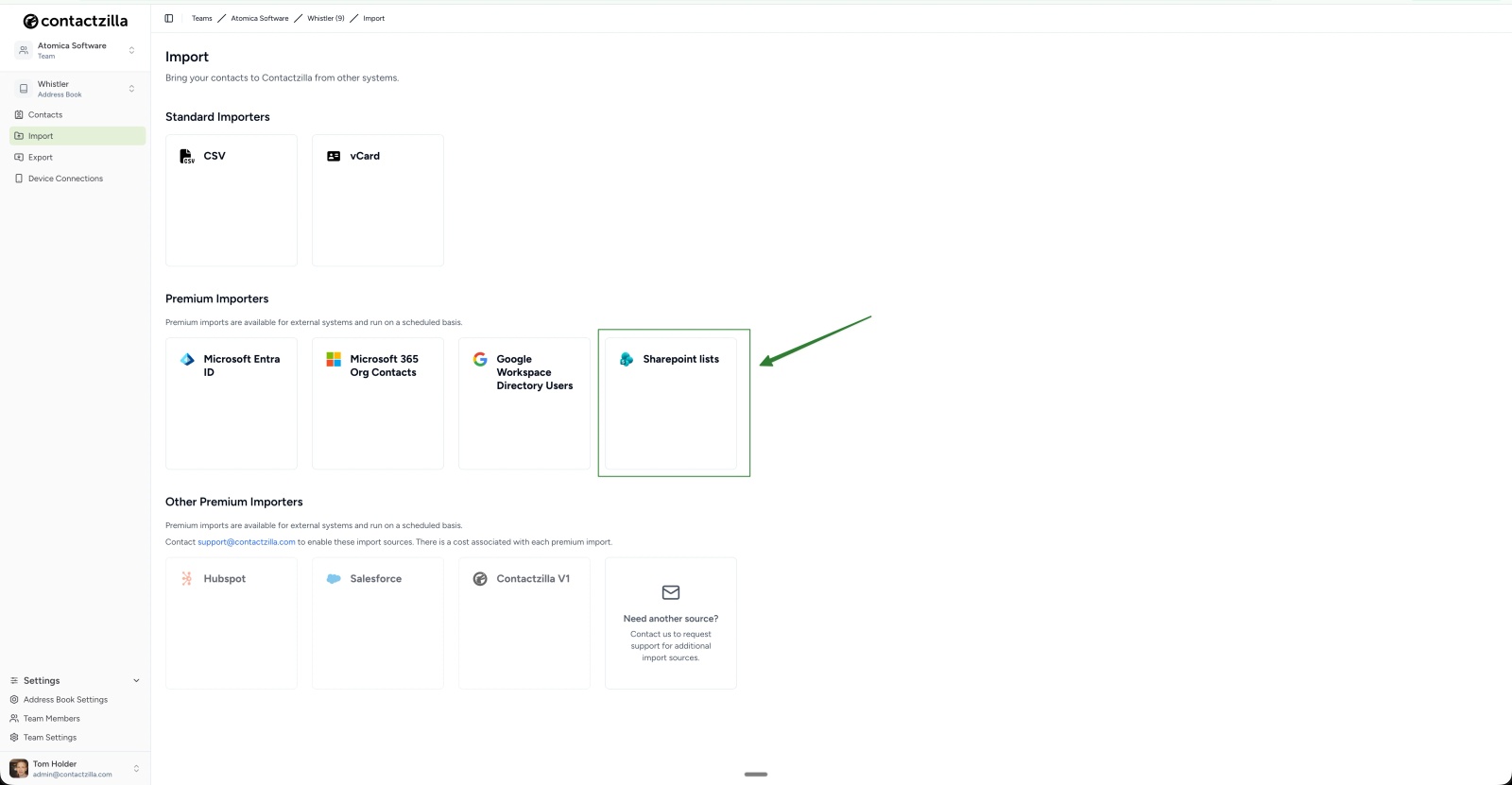
To sync a SharePoint contact list to iPhone, you need to keep SharePoint as the source, sync the data into a contact platform, organise it, and deploy it to devices using a mobile-compatible method.
At a high level, the process is:
- Store contacts in a SharePoint List
- Sync the data into a contact platform
- Organise contacts into groups or labels
- Deploy contacts to iPhone and Android devices
The approaches in thesections above all work in different ways, but they tend to either duplicate the data or require ongoing maintenance.
Tools like Contactzilla on the other hand are built for this. They connect to a source such as SharePoint, keep the data in sync, and handle how that data is pushed into the native Contacts app on iPhone and Android.
Now lets break down the 4 steps in detail
Step 1: Use SharePoint as the Source
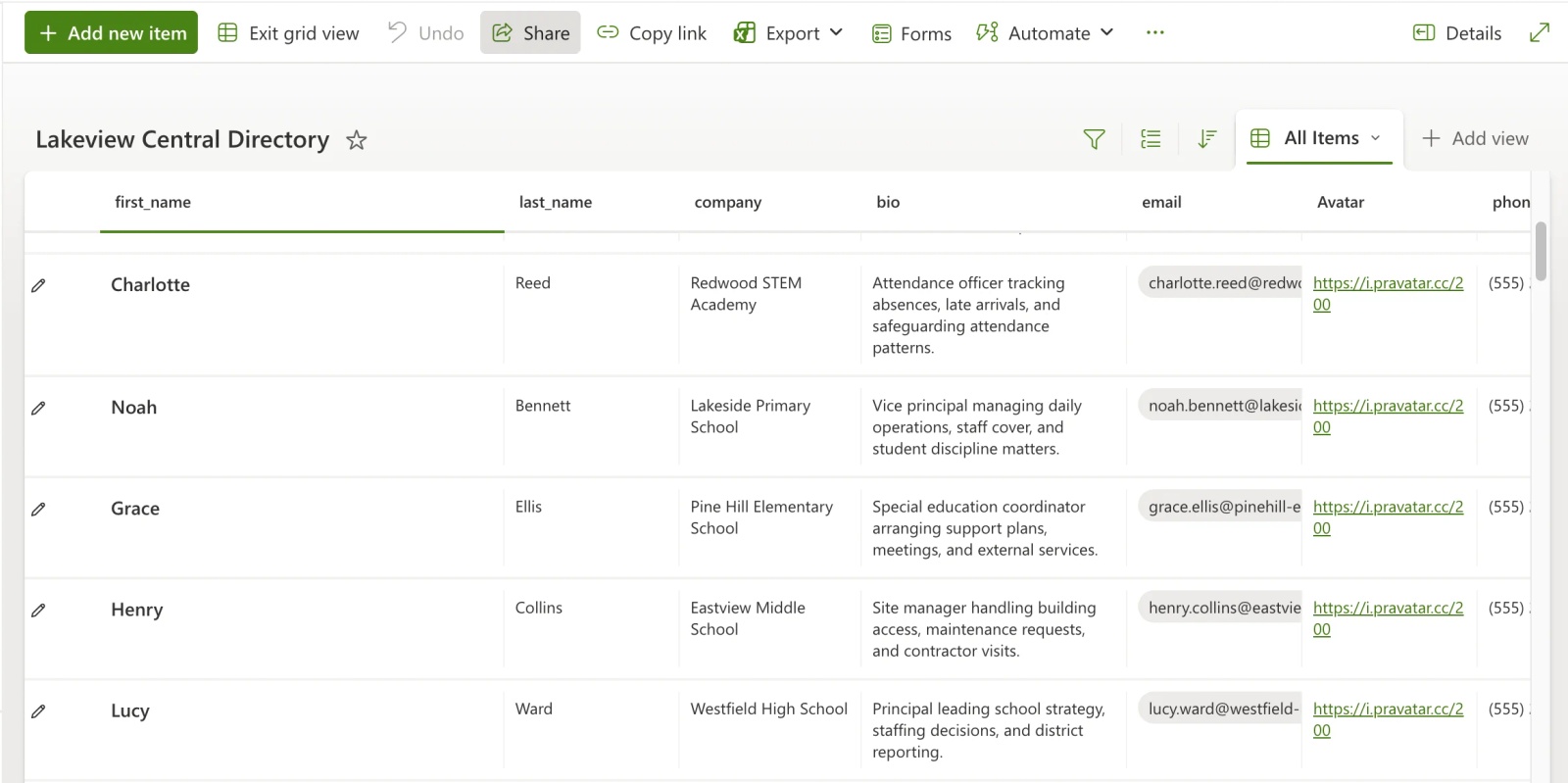
Start with a SharePoint List that contains your contact data.
Each row represents a contact. Columns map to fields such as name, phone number, email, and any additional attributes you want to include, such as department or location.
SharePoint remains the place where contacts are created and updated.
Step 2: Sync SharePoint into Contactzilla
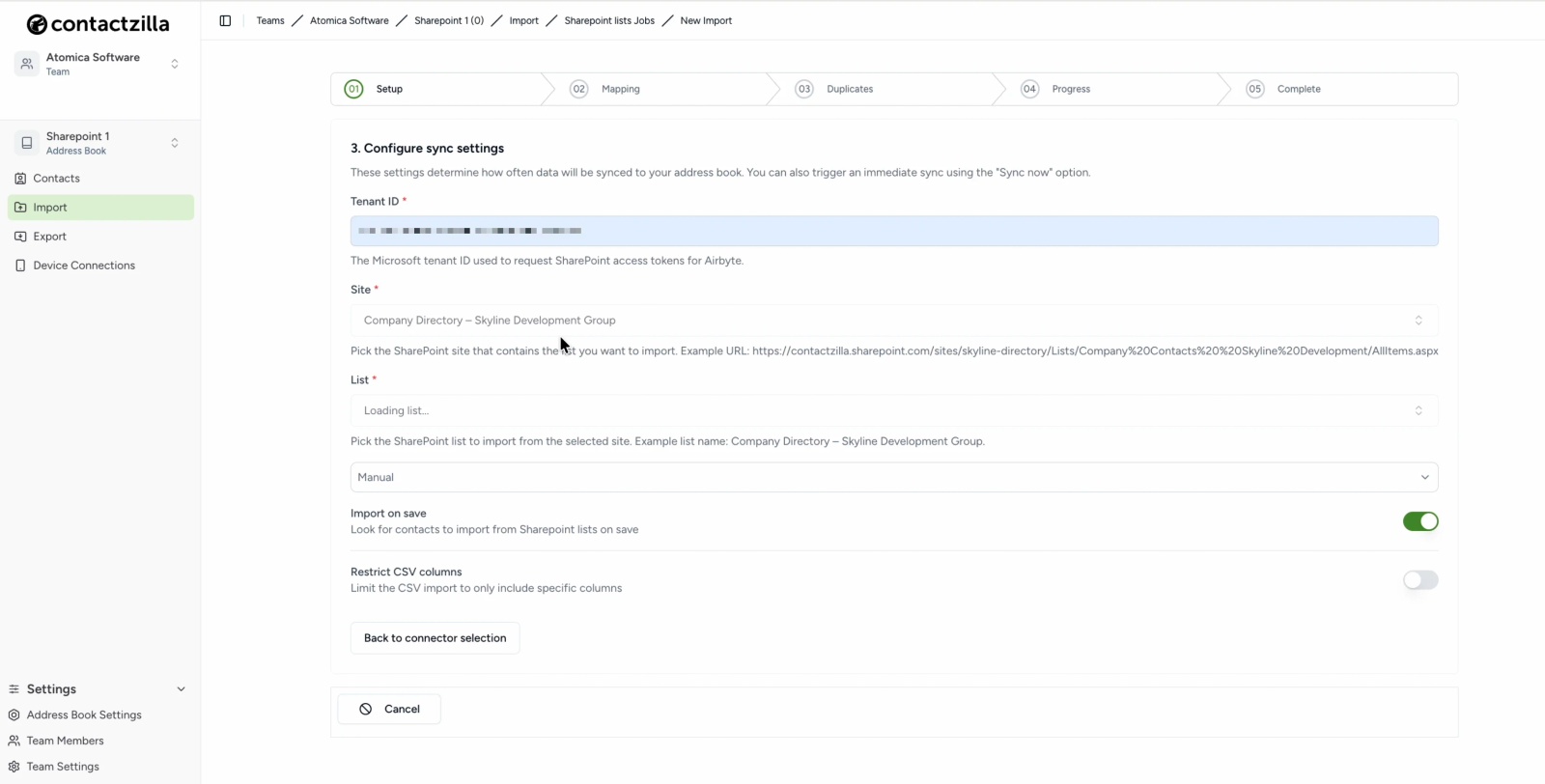
Connect your SharePoint List to Contactzilla using the SharePoint importer.
This creates a sync between SharePoint and Contactzilla. The importer reads data from your list and brings it into Contactzilla on a defined interval.
During setup, you map SharePoint columns to contact fields. Once configured, changes made in SharePoint are reflected in Contactzilla automatically.
There is no need to export or re-import data after the initial setup.
Step 3: Organise Contacts Using Labels
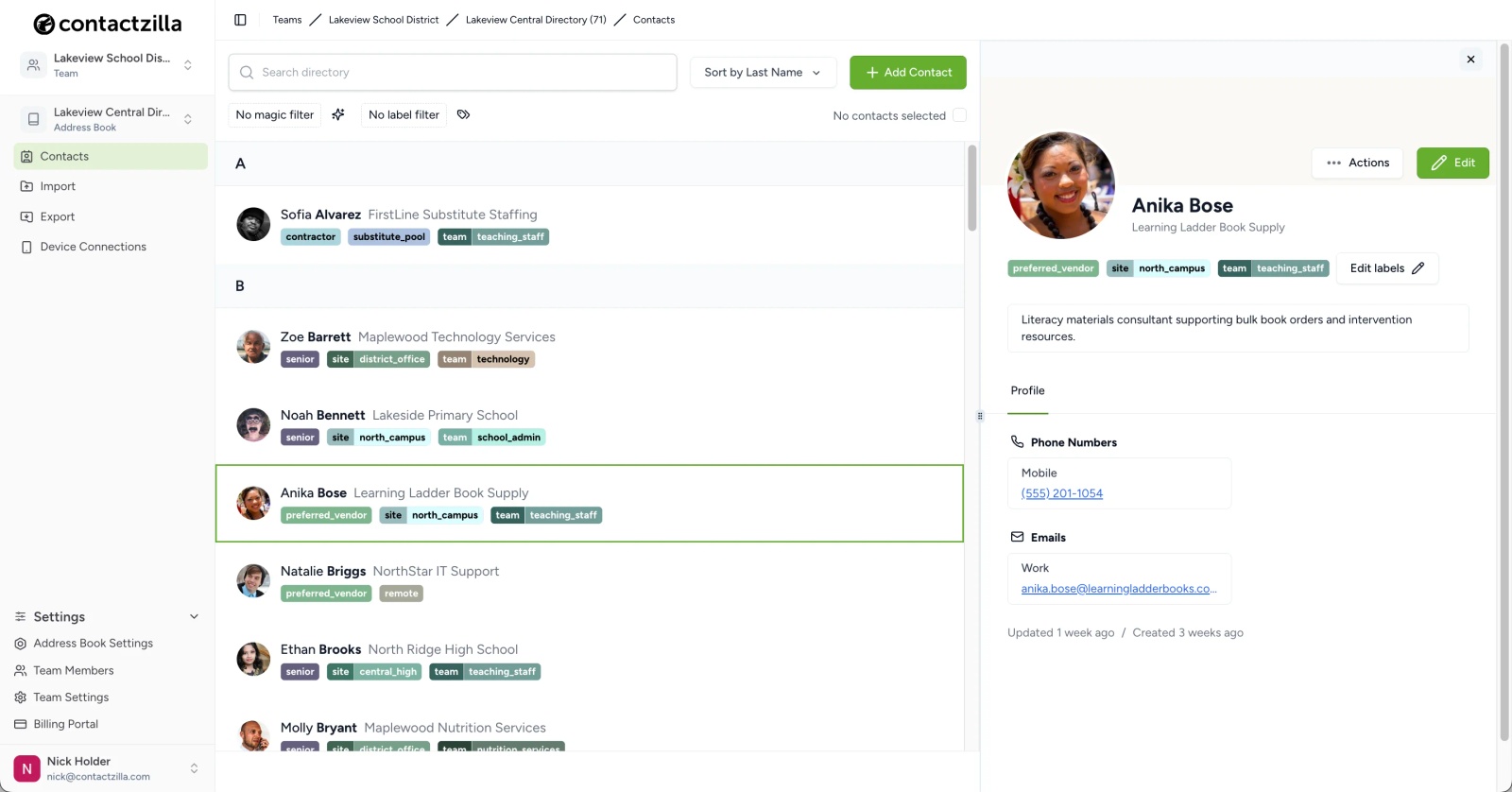
Once contacts are in Contactzilla, you can organise them using labels.
Labels allow you to group contacts into subsets based on how they are used. Common examples include:
- Site-based groups (e.g. north campus, warehouse, head office)
- Department-based groups (e.g. sales, support, operations)
This gives you a simple way to structure your contact data so it reflects how your organisation actually operates.
These labels also determine how contacts can be grouped when they are sent to devices. Rather than working with one large, unstructured address book, you can define clear subsets of contacts based on real-world use.
On the device side, labels can appear as separate contact lists. This means users can view contacts in a structured way—for example, switching between locations or departments directly within the Contacts app.
Step 4: Deploy Contacts to Devices
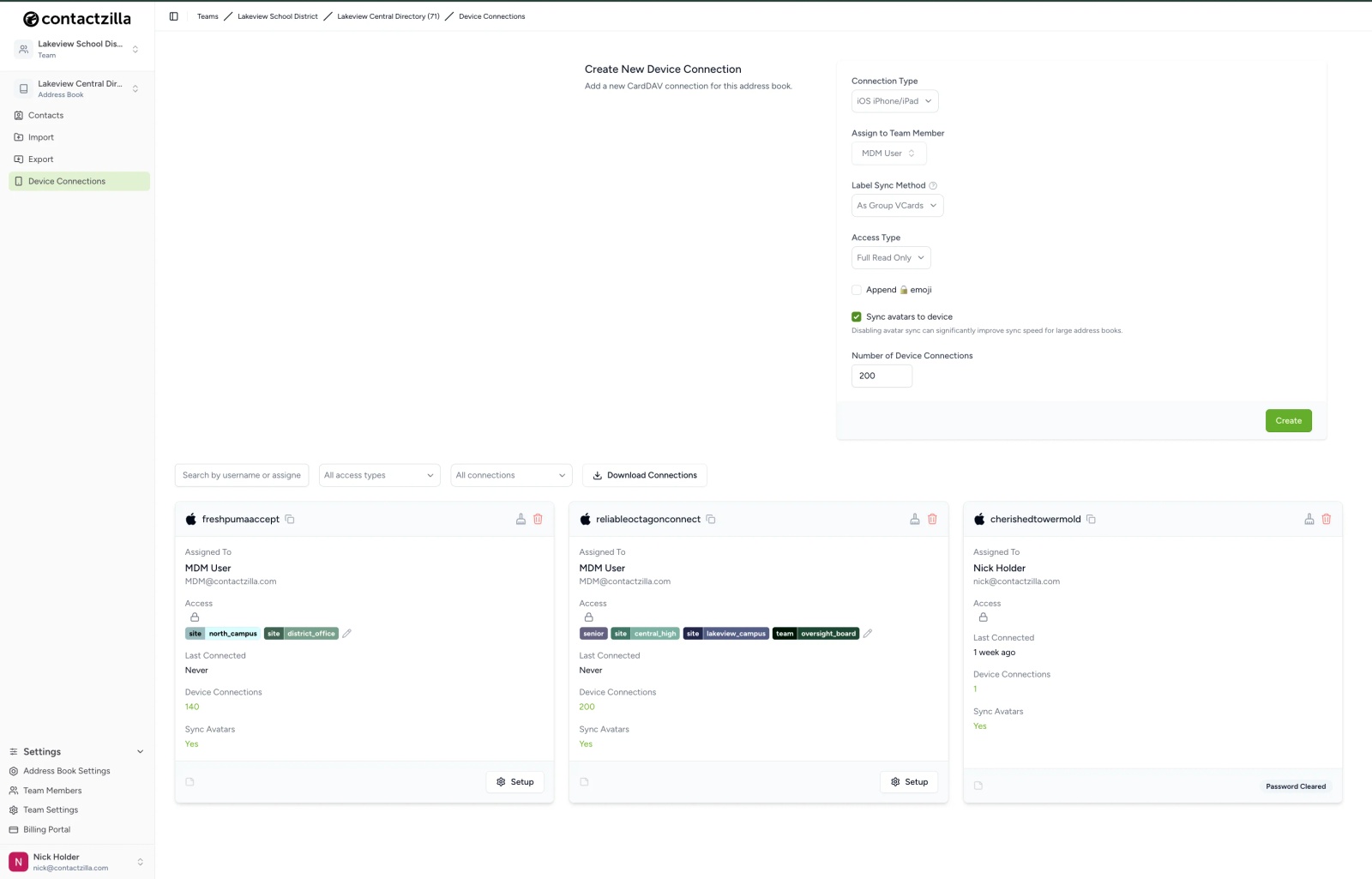
With contacts organised, the final step is to deploy them to devices.
In Contactzilla, this is done through device connections. This is where you define how contacts are delivered and how they behave on the device.
First, you choose the platform:
- iPhone (iOS)
- Android
You then choose how the contacts should be managed on the device:
- Read-write – users can edit contacts directly on their device
- Read-only – contacts are locked and cannot be changed
- Selective read-only – only contacts with specific labels are included
Selective read-only uses the labels defined in the previous step. This allows you to send only a subset of contacts to a device, rather than the entire address book.IMG: Selective read only - labels in device connection panel > Only those labels on the iphone
Once configured, Contactzilla generates a .mobileconfig file which can then be uploaded directly to your preferred MDM solution for deployment to the phones.
Tip 💡: Using Microsoft Intune? See our step-by-step guide to syncing company contacts to iPhones with Intune including how to deploy a Contactzilla CardDAV configuration profile to managed iOS devices.
Contacts appear in the device’s native Contacts app so are searchable in the dialer and resolve correctly for incoming calls.
Any updates made in SharePoint continue to sync through automatically based on the setup.
How to Filter SharePoint Contacts Before Syncing to iPhone and Android
The steps above describe the overall setup. In practice, we find a common requirement is to be able to filter exactly what data is brought in from SharePoint. Contact lists often contain more information than is needed on a phone, so it helps to be precise about what is included and what is left out.
Ignoring fields during mapping
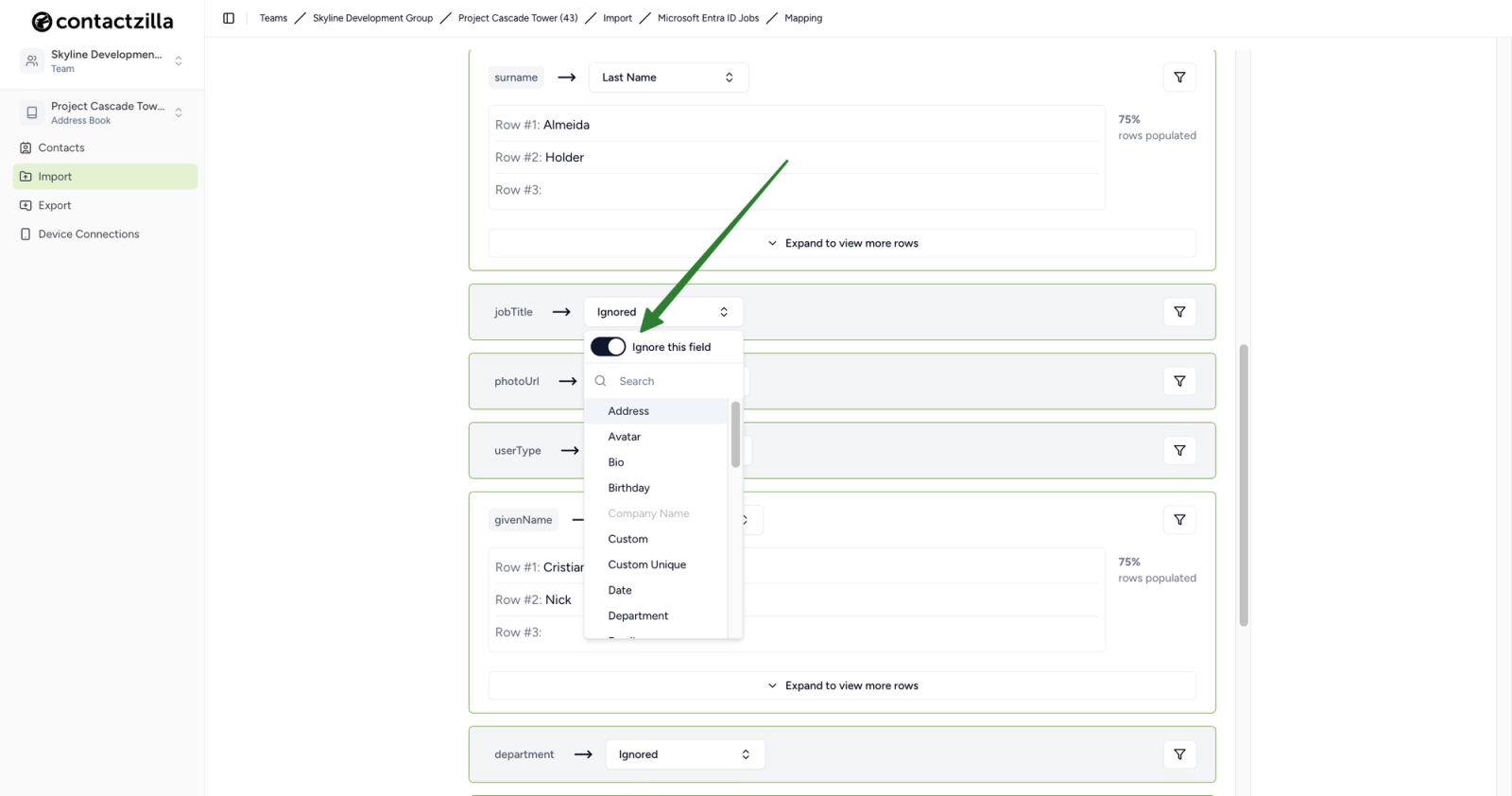
The first level of control comes during the mapping stage of the import.
This is where SharePoint fields are matched to contact fields in Contactzilla that will appear on the device. At this stage, you can choose to ignore fields entirely.
For example, if your list includes home or personal phone numbers, and you do not want those appearing on devices, or Job title’s, employee ID’s etc you can simply set that field to Ignored.
Using include and exclude filters
For more control, you can also apply filters during the import.
Filters allow you to decide which records are brought into Contactzilla:
- Include filters only bring in records that match a condition
- Exclude filters remove specific records while keeping everything else
This is useful when your SharePoint List contains a mix of data, but only part of it is relevant for mobile use.
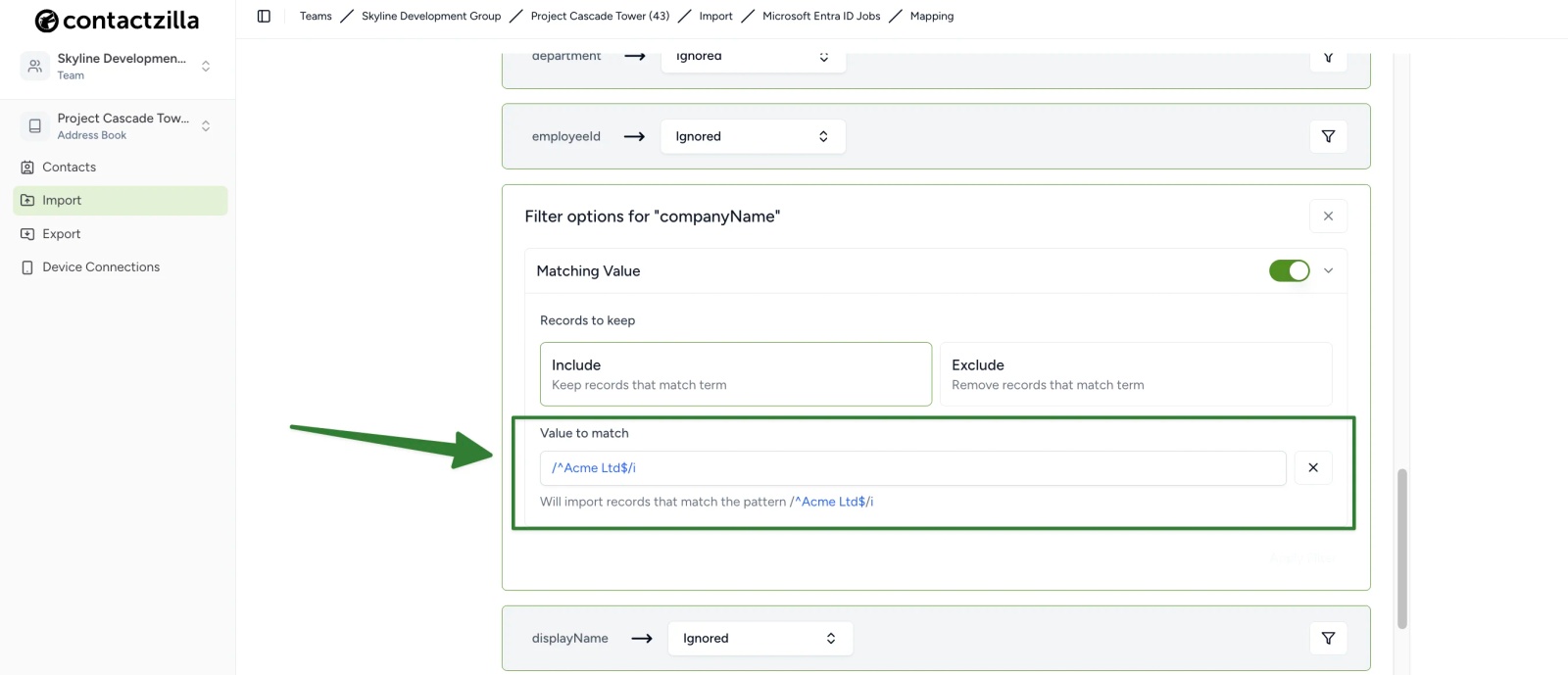
Filters are applied at the mapping stage. For any field, you can open the filter option, choose Include or Exclude, and then enter a value to match. This can be a simple value or a regular expression (regex), depending on how precise you need the filter to be.
Example: Including only relevant contacts
One common request is to only import contacts that are useful on a phone. For example, some teams choose to only include contacts that have a mobile number.
Or if a list contains multiple organisations, but only one should be deployed to devices.
In that case, you can include only records that match your company name.
For example, to include only contacts where the company name is “Acme Ltd”, you could use a case-insensitive expression like:
/^Acme Ltd$/i
This ensures that only contacts from that company are brought into the address book.
Example: Excluding unwanted records
In other cases, most of the data is valid, but there are specific entries you do not want to include.
A common example is service or system accounts. These often appear in directories but are not useful in a phone contact list.
These entries are often easy to identify by a naming pattern so can be excluded with a term like SVC for example.
Can Outlook Sync SharePoint Contacts to iPhone and Android?
Outlook is often part of this discussion because it can sync its own contacts to mobile devices.
On both iPhone and Android, Outlook can make its contacts available in the phone’s native Contacts app, which is why it is often suggested as part of a workaround.
The confusion comes from how this relates to SharePoint.
Outlook sync works with contacts stored in Outlook. SharePoint Lists are not treated as a contact source in that process.
In practice, this means SharePoint contacts need to be copied, imported, or pushed into Outlook before they can sync to a phone.
Tip 💡: the same distinction applies to Microsoft 365 directory data more broadly. If you are trying to make the Global Address List available as real iPhone contacts, see our guide to syncing the Global Address List to iPhones
This is why Outlook comes up so often in discussions. It can handle mobile contact sync, but it does not provide a direct path from a SharePoint List to the phone’s native contacts.
Conclusion
SharePoint is a practical place to store contact data, but it does not act as a native source for mobile contacts.
To make that data usable on iPhone and Android, it needs to be structured, filtered, and delivered in a way the device understands.
By keeping SharePoint as the source and using a sync layer to control how contacts are organised and deployed, you can maintain a single dataset while ensuring contacts appear correctly on devices.
Frequently Asked Questions
Can SharePoint contacts sync directly to iPhone?
No, SharePoint contacts cannot sync directly to an iPhone. SharePoint Lists are not treated as a contact source by iOS. They can be viewed in a browser, but they do not feed into the phone’s native Contacts app or dialer.
Can SharePoint contacts sync to Android phones?
No, SharePoint contacts do not natively sync to Android devices. Android does not recognise SharePoint Lists as a contact source. To appear in the Contacts app and dialer, the data must be synced through a system such as Contactzilla
Why don’t SharePoint contacts appear in the phone’s Contacts app?
SharePoint contacts do not appear because SharePoint is a data list, not a contacts service. Mobile operating systems only sync with supported account types like Exchange or CardDAV. SharePoint Lists can be accessed in a browser but do not integrate with the native Contacts app.
Can Outlook sync SharePoint contacts to iPhone and Android?
No, Outlook cannot directly sync SharePoint contacts to mobile devices. Outlook only syncs contacts stored within Outlook itself. SharePoint Lists are not included in that process, so the data must first be copied or imported into Outlook before it can sync.
How do you sync a SharePoint contact list to iPhone?
To sync a SharePoint contact list to iPhone, you need to connect SharePoint to a system that supports mobile contact sync, then deploy those contacts using a method like CardDAV. This allows contacts to appear in the iPhone’s native Contacts app and dialer.
Can you filter which SharePoint contacts sync to phones?
Yes, SharePoint contact data can be filtered before syncing to devices using Contactzilla. This is typically done during the import or mapping stage, where you can include or exclude records based on values or patterns, ensuring only relevant contacts are deployed to phones.

