How to Sync the Global Address List (GAL) to Android Phones

Most Android phones in a Microsoft 365 (formerly Office 365) organisation can look a colleague up in the Global Address List. Very few have that colleague saved in the Contacts app, which is why a call from someone in the next office so often shows up as an unknown number.
Short answer: Android doesn't store the GAL as contacts. The Outlook for Android app copies only your own contacts, and an Exchange account added to the phone gives you a directory search rather than saved contacts, so the phone can't put a name to an incoming call from a colleague. To get colleagues into the native Contacts app, import your Microsoft Entra ID directory into a shared address book and deliver it with a sync app. Contactzilla does both: it imports from Entra ID, and its Contactzilla Sync app, installed by your MDM, writes the address book into the Android Contacts app and keeps it current.
Does the Global Address List sync to Android contacts automatically?
No. Nothing in Microsoft 365 copies the GAL into the Contacts app on an Android phone. Microsoft's own answer on its Q&A forum is that it's "currently not possible to sync GAL to mobile phones natively", and the workaround offered is copying people into your own Outlook contacts by hand. The two things most admins try first both stop short of a real company phone book.
Outlook for Android Save Contacts: why it leaves out the GAL
Turning on Save Contacts in Outlook for Android copies the contacts in the user's own mailbox into the phone's Contacts app. Microsoft's Intune configuration guide describes it as linking calls and texts to "the user's existing Outlook contacts", and university IT teams that support it spell out the gap: it will "only sync your personal contacts, not the contents of the Global Address List (GAL)". Colleagues you only ever find by searching the directory stay in the directory. IT can also block the feature for work accounts without users being told why, which our post on Sync policy managed app data with native apps explains.
Exchange ActiveSync accounts on Android (Samsung Email or Gmail): search only, no caller ID
Android has no single place to add a work mailbox as an Exchange ActiveSync account. On Samsung phones it usually goes into Samsung Email; on Pixel and most other Android phones, Gmail handles Exchange and Microsoft 365 accounts. Samsung's setup also lets the Contacts app search the GAL when someone types a name. Those results are a live lookup against Exchange, not saved contacts: they need a connection and they don't appear in the contact list. They don't help caller ID either, because Android identifies an incoming number by checking the contacts stored on the phone, while a directory search is a separate, online query (Android's developer documentation treats them separately). The lookup can also break without warning. In March 2026, Samsung Email 6.2.10.8 started showing "Contact cannot be found" when users opened Exchange directory results, until version 6.2.11.4 fixed it (Samsung Knox KB-1769; admins' reports on the Android Enterprise community).
Why IT teams want company contacts and caller ID on Android phones
The usual trigger is caller ID: staff can't tell which incoming calls are from colleagues, so internal calls go unanswered or get treated as spam. On frontline and shared Android devices, the problem is sharper. A dedicated phone in a warehouse, a vehicle or a hospital ward often has no mailbox signed in at all, so there's no Outlook to search. Field teams often work where signal is poor, and a directory search needs a connection. And whatever ends up on the phones has to follow joiners, movers and leavers, without someone exporting a spreadsheet every month.
Key definitions: GAL, Entra ID and Android Enterprise terms
Global Address List (GAL): the organisation-wide address list Exchange builds automatically from every mail-enabled object, including users, mail contacts, groups and public folders (Microsoft Learn). Admins can create other, narrower address lists alongside it, and Outlook keeps an offline copy called the offline address book. When people ask for "the GAL on their phones", they almost always mean the people in it, the colleagues' names and numbers.
Microsoft Entra ID: the identity directory behind Microsoft 365, formerly called Azure Active Directory (Azure AD) (Microsoft Learn). It holds each user's name, phone numbers, department, job title and photo, and it's the source a contacts importer actually reads.
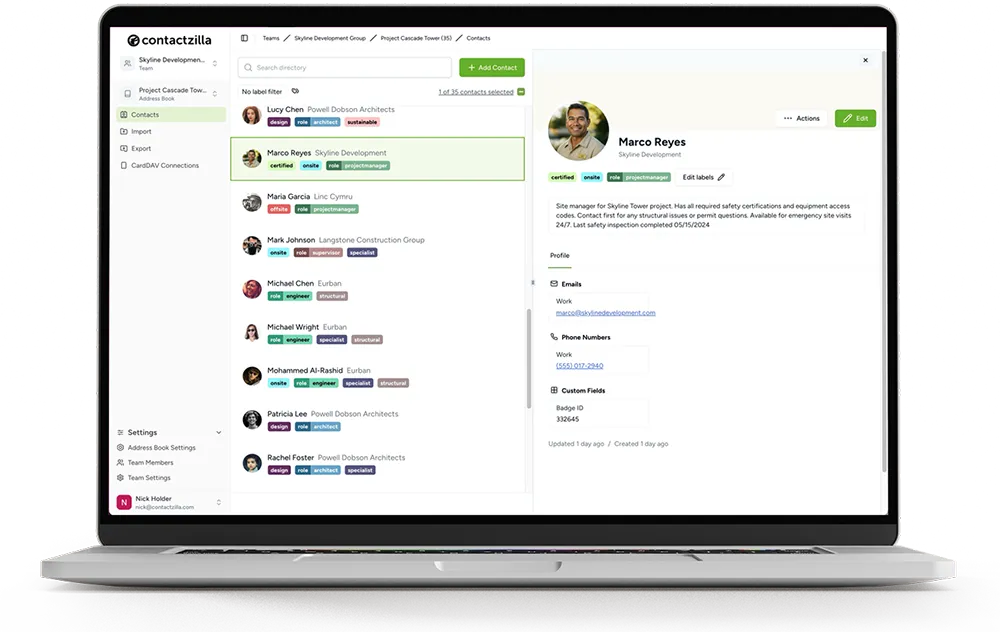
Contactzilla: a service for keeping shared business contacts in one central address book and syncing them to the native Contacts app on employees' iPhones and Android phones.
Contactzilla Sync: Contactzilla's Android app (Google Play). Android has no built-in way to add a CardDAV contacts account, so the app connects to the address book and writes the contacts into the phone's own Contacts app, then keeps them in sync in the background.
Managed Google Play and managed configuration: Managed Google Play is the Android Enterprise app store an MDM uses to install work apps. A managed configuration is the set of settings the MDM pushes into an app, so nobody types a server address or password on the phone.
Work profile: a separate, managed space on an Android phone that keeps work apps and data, including work contacts, apart from the personal side.
How to get the GAL onto Android phones: the options compared
Each approach answers two questions differently: which colleagues reach the phone, and whether they're saved there or only searchable.
| Approach | Colleagues from the GAL | Saved on the phone (caller ID) | Stays up to date | Controlled by IT |
|---|---|---|---|---|
| Outlook for Android Save Contacts | Only people in the user's own Outlook contacts | Yes | Yes, for those contacts | On or off only |
| Exchange account directory search (Samsung Email, Gmail) | Yes, by searching | No | Live lookup | No |
| Export to CSV or vCard and import | Yes, as of the export | Yes | No | No |
| Script that copies the GAL into each mailbox | Yes | Only if Save Contacts is also on | While the script is maintained | Whoever owns the script |
| Employee directory app | Yes | No, people stay inside the app | Yes | Yes |
| Directory sync app (Contactzilla) | Yes, filtered to the people you choose | Yes | Yes, on a schedule | Yes, read-only if you want |
Only the last row puts the company directory into the phone's own Contacts app and keeps it there without anyone touching each device. That's the route the rest of this article follows.
Step 1: Import GAL contacts from Microsoft Entra ID into a shared address book
Connect Contactzilla's Microsoft Entra ID importer to your tenant. It uses read-only directory access, and an Entra admin grants consent once. Map the Entra id to a hidden unique field so later imports update people instead of duplicating them, and map Department to a label, which becomes a group on the phone. By default the importer reads every record in Entra ID. If your tenant already has a group that holds just the people you want, import only that group; otherwise, filters keep service accounts and shared mailboxes off the phones, for example by excluding the Entra groups that hold them. Set the import to run daily once you're happy with it. Full setup: Import contacts from Microsoft Entra ID.
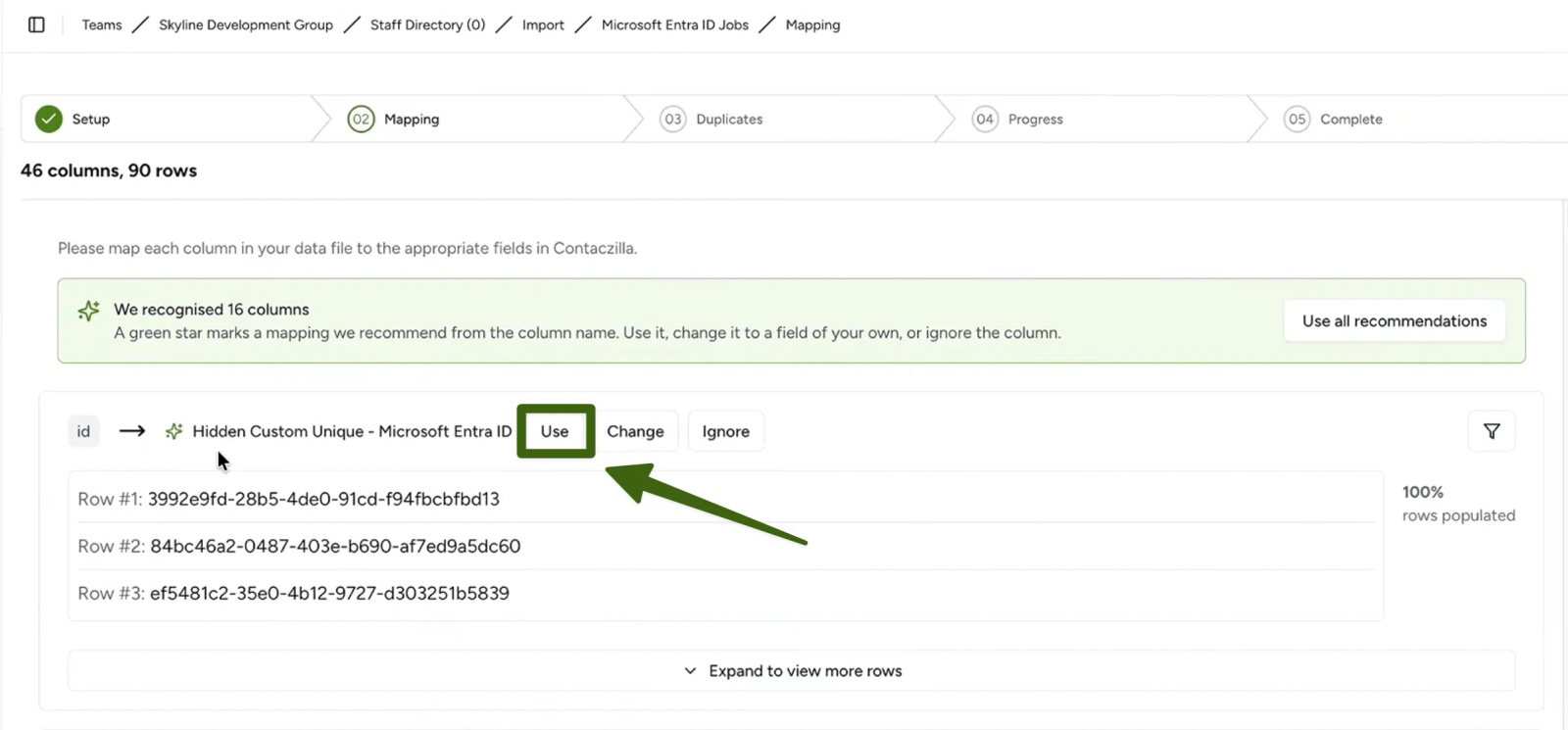
Tip 💡 Prefer to watch it? Our video Sync Microsoft Global Address List to iPhone & Android walks through the Entra import, the field mapping and the filters from start to finish.
Step 2: Create a read-only Android device connection
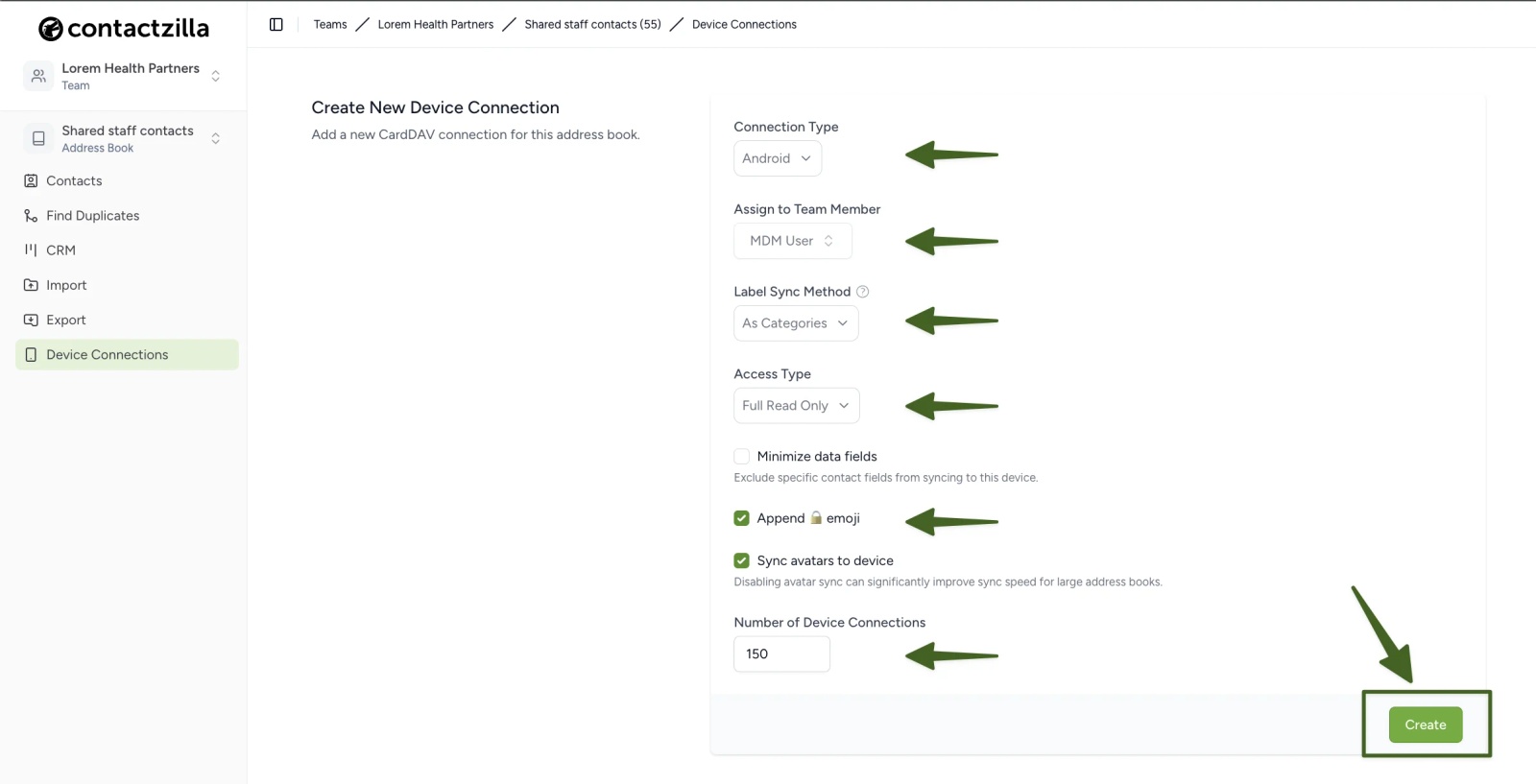
In Contactzilla, create a device connection for the address book with Android as the type. We recommend Full Read Only with the padlock emoji switched on, so an edit on one phone can't change the company list and staff can see which contacts are managed. Selective Read Only sends only chosen labels, such as one department, to a group of phones. For MDM deployment, assign the connection to an MDM team member, a placeholder with no login, rather than a real person. Then download the connection's JSON file and keep it as safe as a password.
Step 3: Deploy Contactzilla Sync to Android with Intune or another MDM
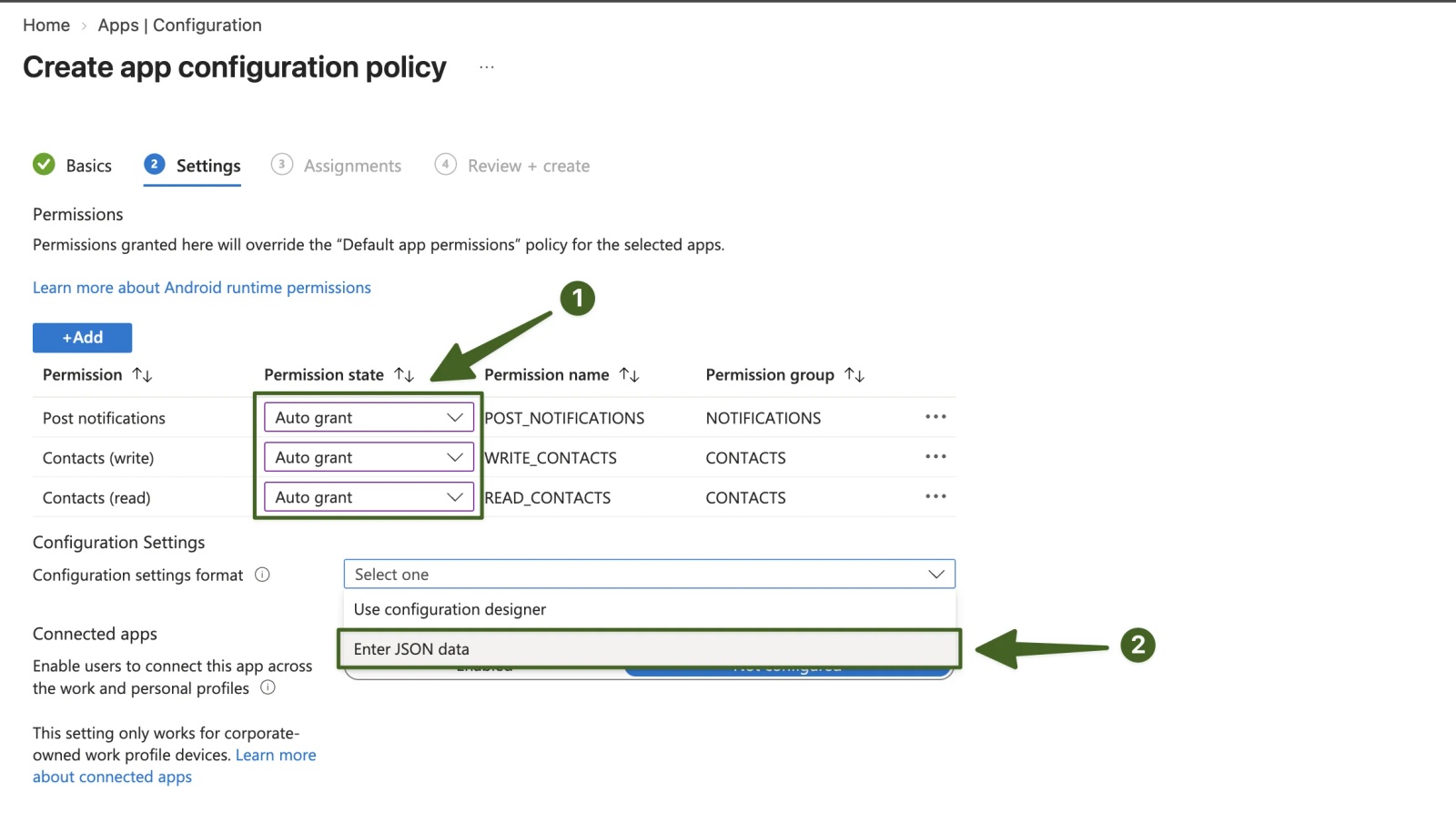
Contactzilla Sync is listed on Managed Google Play, so any MDM that supports Android Enterprise can install it and push the connection's JSON as its managed configuration. In Microsoft Intune, for example, that's an app configuration policy, with Contacts read and write permissions set to auto-grant so users see no prompts. Every click is in our guide to deploying Contactzilla Sync to Android with Intune. Assign the configuration to a device group. An optional Hide app interface setting strips the app back to its account and a pull-to-refresh.
The sync interval in the configuration is set in seconds, and the default is 900, so phones check for changes every 15 minutes. You can raise it in the JSON if you want phones to check less often, but you can't go lower: Android won't repeat background work more often than every 15 minutes.
Tip 💡 Not using Intune, or no MDM at all? How to Sync the GAL to iPhone and Android Without Intune covers the QR code route and other MDMs. For Android specifically, follow our guide for Workspace ONE or Hexnode, or watch it done on YouTube with NinjaOne and SOTI MobiControl.
Step 4: Check the company contacts appear in the Android Contacts app
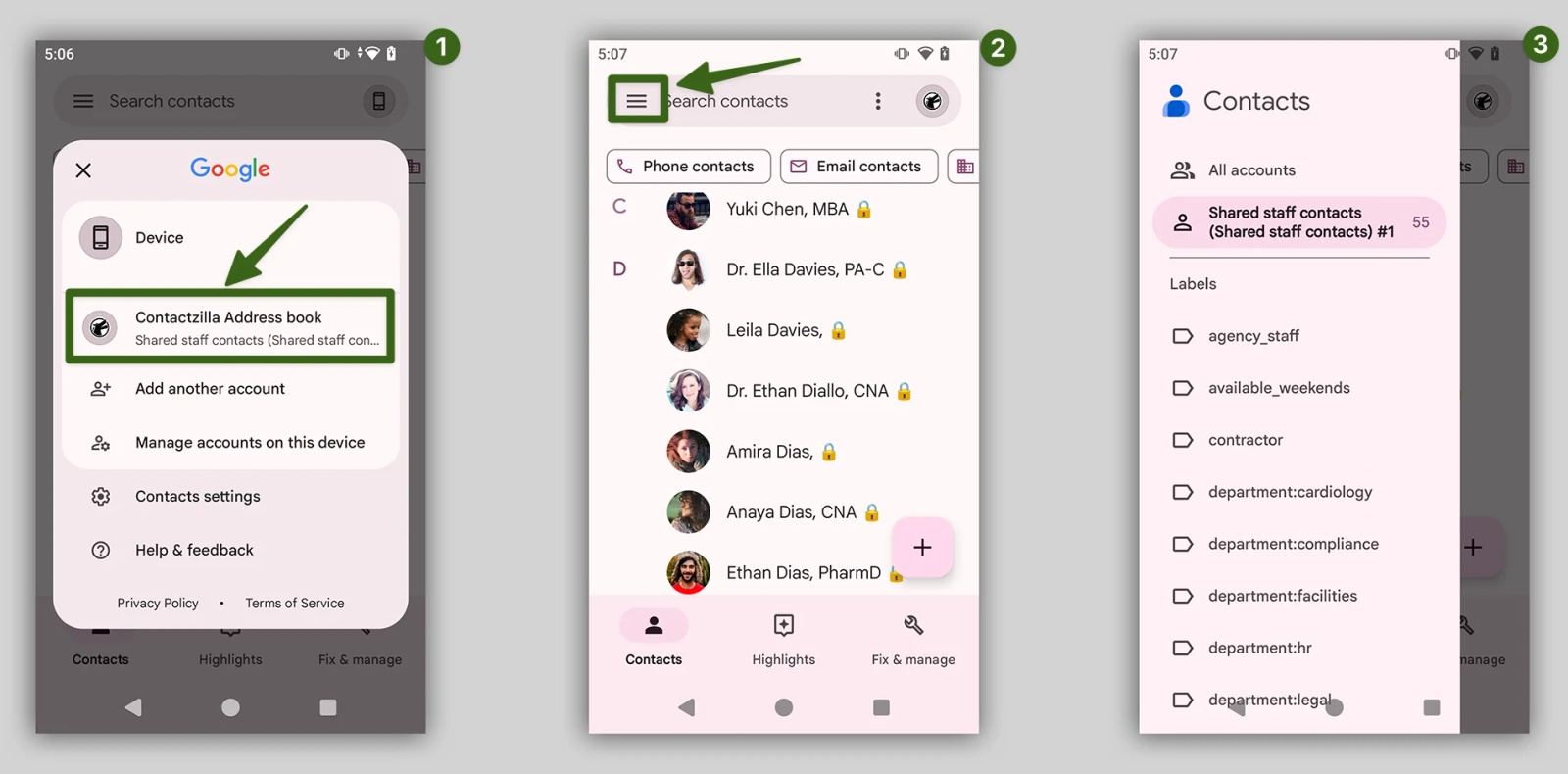
Once the MDM has installed Contactzilla Sync, open the app once on each phone. That first launch starts the initial sync, and from then on it runs in the background, so nobody needs to touch the app again. The contacts then appear in the phone's own Contacts app under the address book's name.
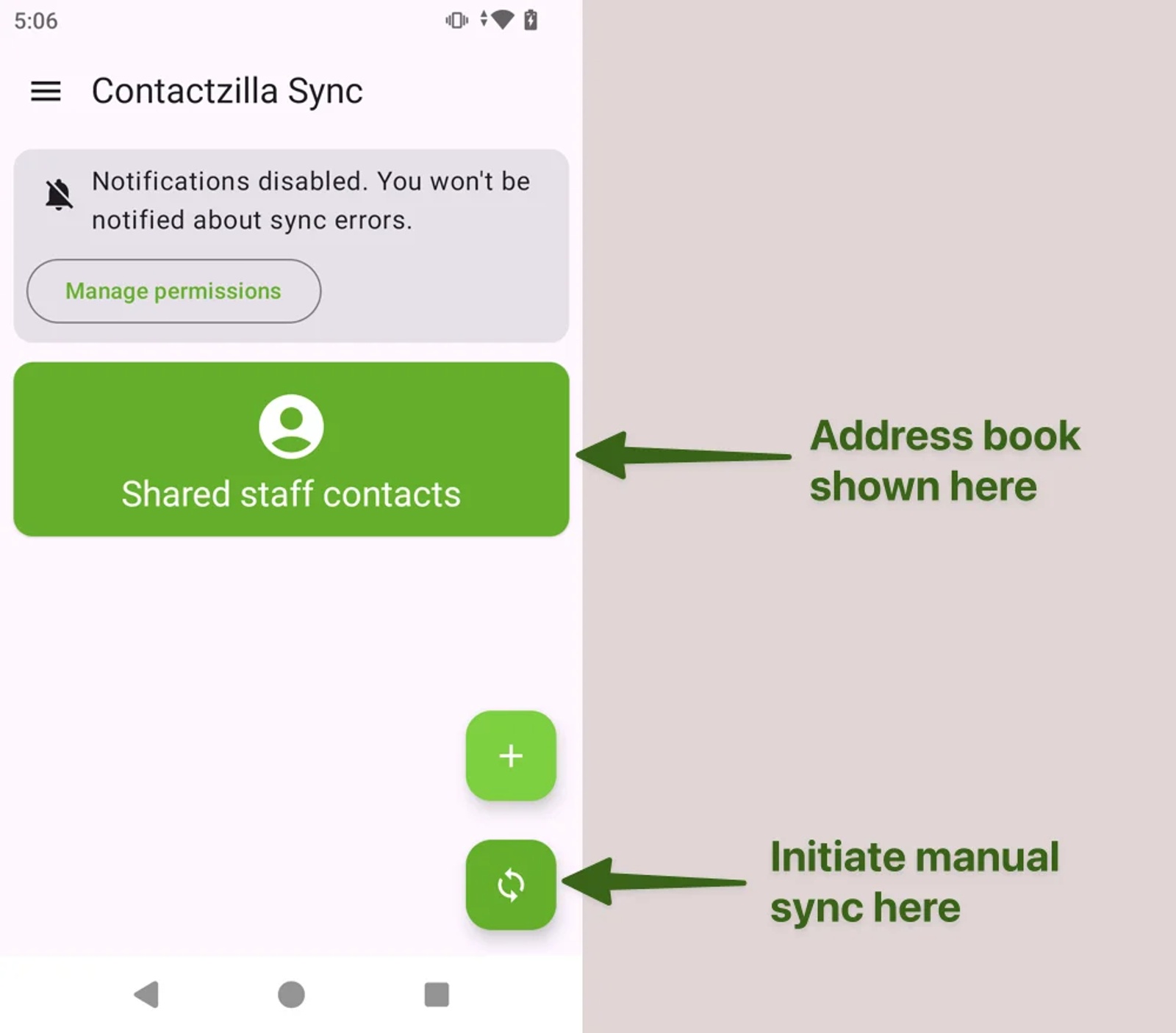
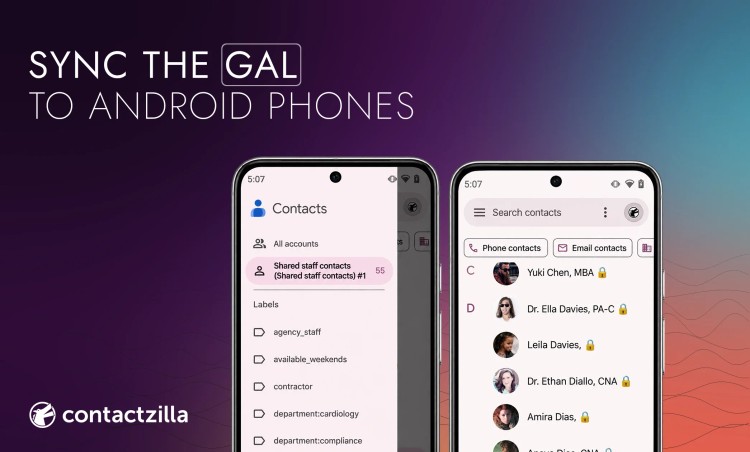
If the Contacts app then looks empty, it's probably showing the phone's own account rather than the new one. Switch to the Contactzilla address book from the account picker. Each label appears as a group, and the padlock marks contacts as managed.
Does caller ID work for company contacts on Android work profile phones?
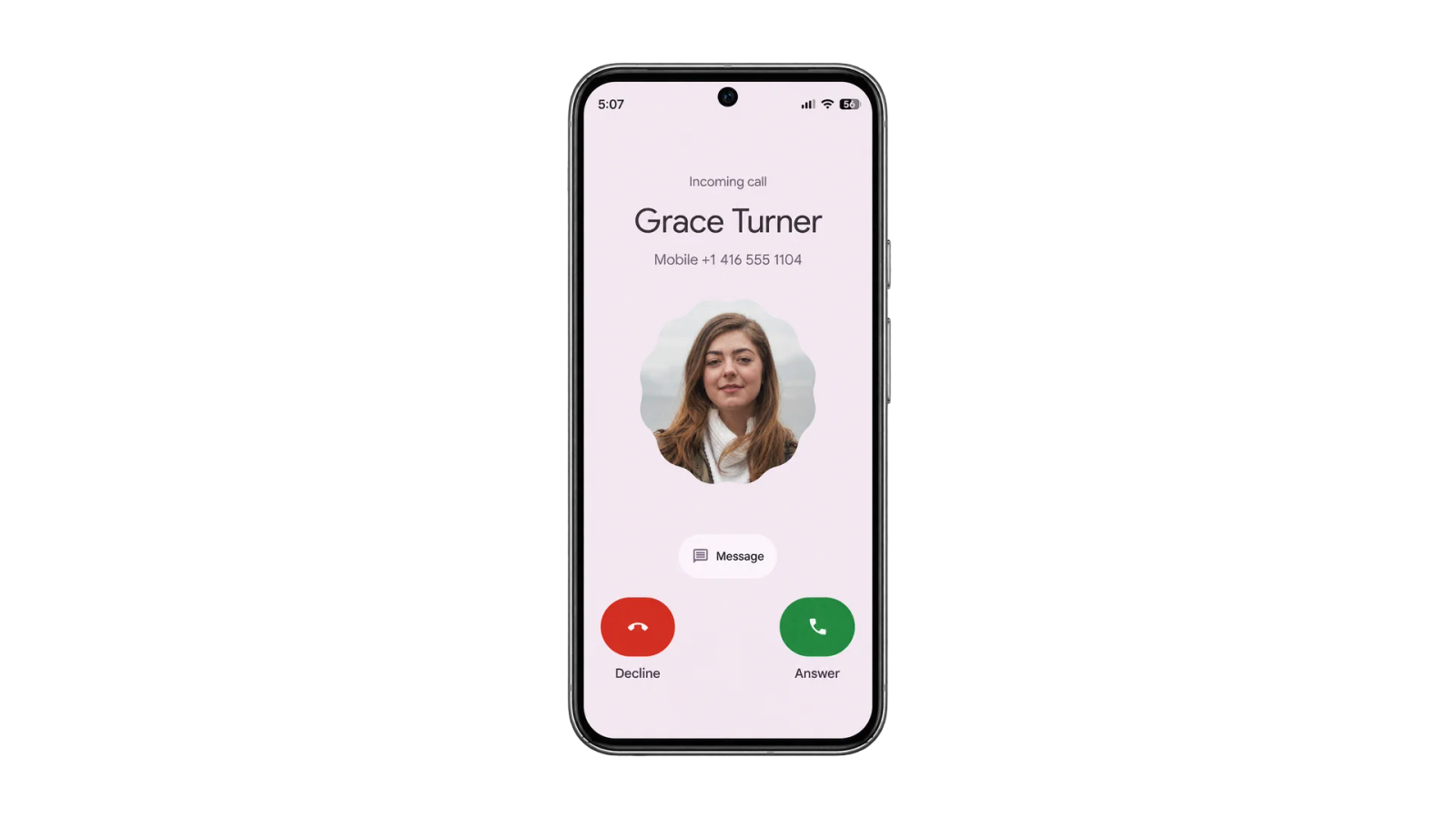
On fully managed and dedicated phones there's only one profile, so the synced contacts and the dialler share it and caller ID works directly. Work profile phones are different, because Android keeps work contacts apart from personal ones. Google says work contacts can be searched from the personal Contacts and dialler apps, and shown in caller ID, on Android 7 and later "if allowed by your IT admin". In Intune, that's the Search work contacts and display work contact caller-id in personal profile setting in Android Enterprise device restrictions. Leave it on Not configured and the operating system may allow it. Set it to Block and personal apps can't see work contacts.
Even when it's allowed, results depend on the dialler. Admins have reported Google's Phone app not showing work-profile names for incoming calls on personally owned Intune devices. So test caller ID on each phone model and enrolment type before a wide rollout. On a work profile phone, Contactzilla Sync installs inside the work profile, so the company contacts sit in the work Contacts app, the one marked with a briefcase.
Tip 💡 Still deciding between company-owned and personally owned phones? BYOD vs COPE: choosing the right mobile device policy covers what each one means for managed apps and data.
How do joiners, leavers and directory changes reach Android phones?
Two schedules decide how quickly a change shows up. The Entra import runs on its own schedule, from manual to monthly, and the phones check the address book at their sync interval. If you set the import to remove contacts whose Entra account is disabled, a leaver drops off the address book at the next import and off the phones at their next sync.
Tip 💡 Removing a leaver from the address book is only part of the job. Our offboarding checklist template lists the rest, from sign-in to devices.
Next steps
- Import contacts from Microsoft Entra ID: the full importer setup, including filters and deletion handling.
- Deploy Contactzilla Sync to Android with Intune: every click for the Intune route.
- Sync the Global Address List (GAL) to iPhone: the same job on iOS.
- CiraSync vs Contactzilla: how the two compare if you are looking at CiraSync for the same job.
- Sync CardDAV Contacts to Android with Contactzilla (QR Code Setup): the no-MDM setup on YouTube.
Frequently Asked Questions
Can Outlook for Android search the Global Address List?
Yes. Searching for a person inside Outlook for Android looks them up in the GAL, so you can email or call them from Outlook. Those results stay in Outlook, though. They aren't added to the phone's Contacts app, so the dialler and caller ID can't use them.
Do I need Intune to sync the GAL to Android?
No. Any MDM that supports Android Enterprise and Managed Google Play can install Contactzilla Sync and push its configuration, including Workspace ONE, Hexnode, NinjaOne and SOTI MobiControl. With no MDM at all, each phone can be set up by scanning the connection's QR code.
Is what Contactzilla imports from Entra ID the same as the GAL?
Not exactly. The GAL also lists distribution groups and external mail contacts, while the importer reads your Entra ID directory: every record by default, or only the members of a group you choose. Filters then keep service accounts and shared mailboxes off the phones, so the address book ends up holding the people your staff actually call.
Will Entra ID profile photos sync to Android contacts?
Yes, if your tenant holds them. Map Entra's photo field to the contact avatar during the import and the photos follow the contacts onto the phone. For very large address books, the device connection's option to stop syncing avatars can make syncing faster.
How many contacts can Contactzilla Sync handle on Android?
Plenty for most organisations: it handles address books of around 30,000 contacts. If a large directory is slow to finish its first sync, turning off avatar syncing on the device connection is the first thing to try.
Do GAL contacts work on Samsung and Google Pixel phones?
Yes. Contactzilla Sync writes to Android's standard contacts store, so the contacts appear in Samsung Contacts and Google Contacts alike. Each app has its own way to choose which account it's showing, which is the usual reason contacts seem to be missing after setup.