Zero Touch Deployment: How iPhones and Android Phones Set Themselves Up

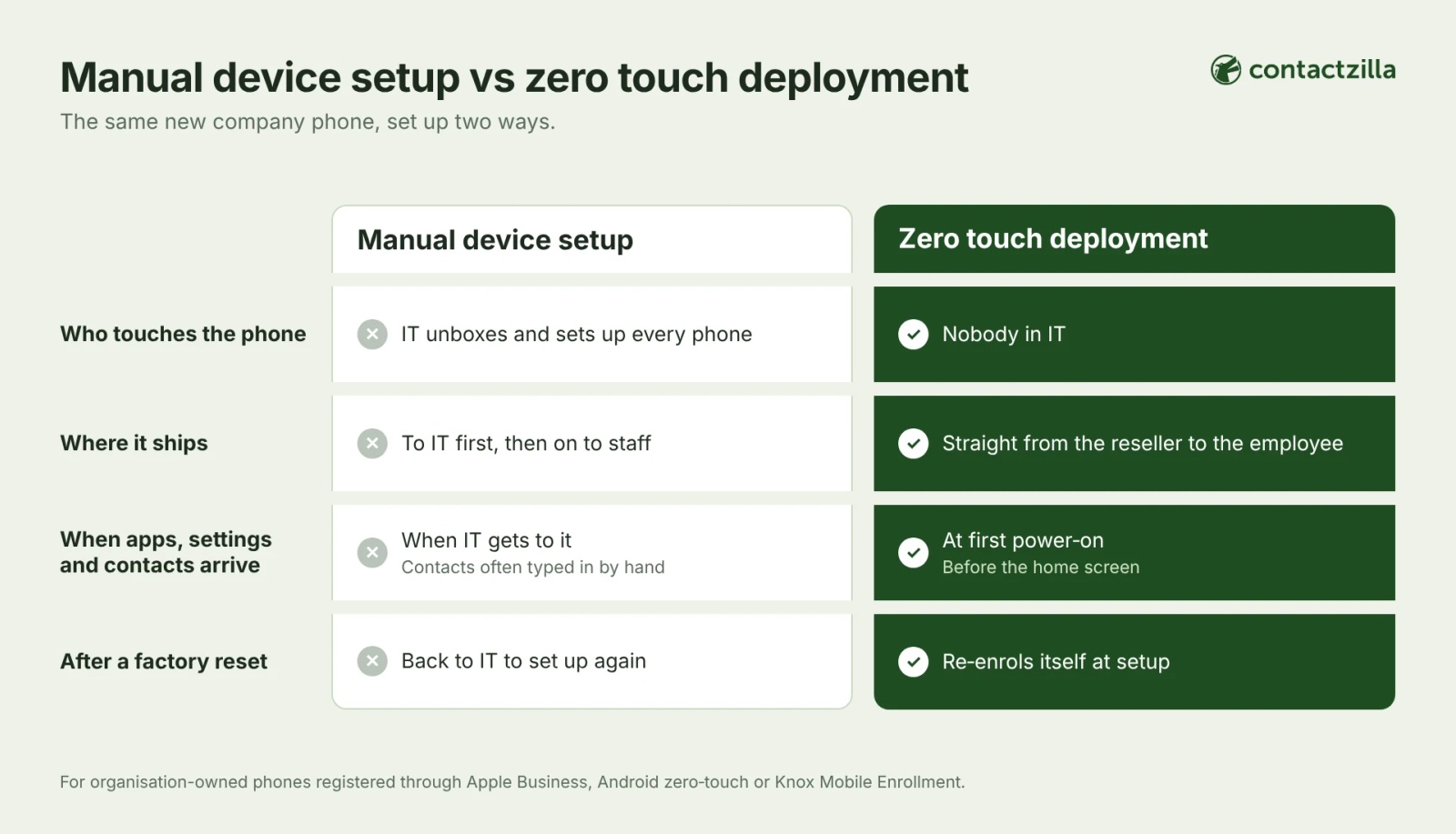
Manual device setup works for a handful of company phones. Once phones ship to staff in the field or at home, it stops working, and every phone set up by hand is another chance for human error.
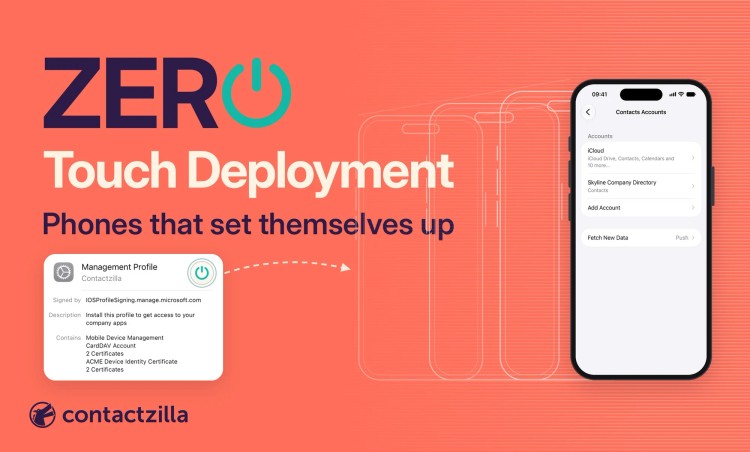
Short answer: Zero touch deployment registers company-owned phones to your organisation at purchase, in Apple Business (iPhone) or Android zero-touch enrollment. On first power-on each phone finds your MDM, enrols itself and installs the apps and settings you assigned.
It only covers organisation-owned phones registered by a reseller, carrier or Apple Configurator, and the MDM sends only what you've assigned.
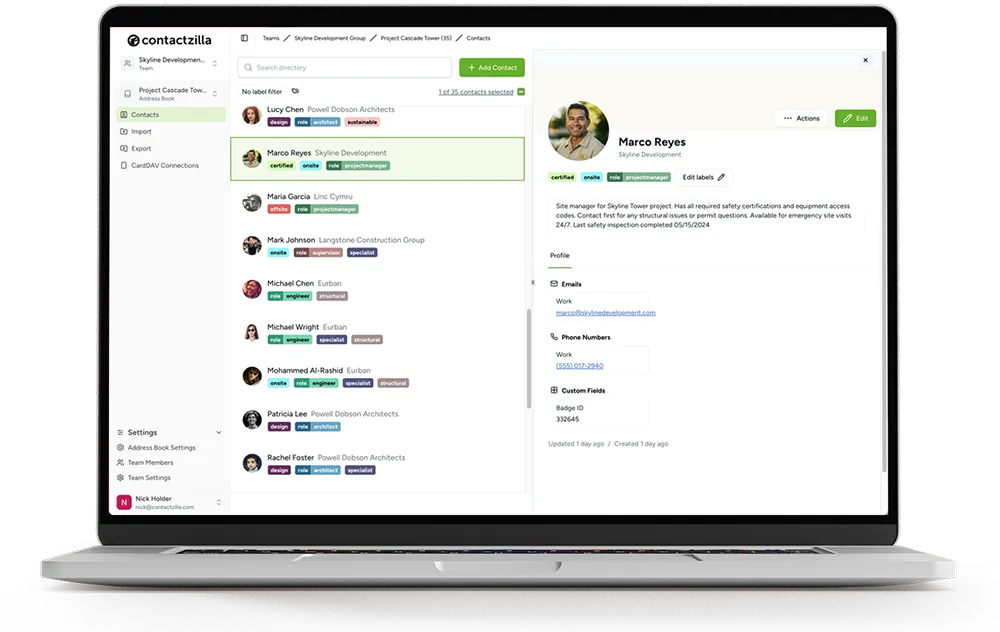
Contactzilla adds the company directory to that payload: assign its Contacts profile (iPhone) or the Contactzilla Sync app (Android) in Intune, Jamf Pro or another MDM, and shared contacts appear in the phone's Contacts app, read-only if you choose.
What is zero touch deployment?
Zero touch deployment is a way of provisioning company devices so that IT teams never have to handle them. The phone ships sealed from the reseller to the employee, and when it's switched on and connected to the internet it checks in with Apple or Google, finds that it belongs to your organisation, and is handed to your mobile device management (MDM) service. The MDM then installs the apps, Wi-Fi, email, certificates and restrictions you've assigned before the person reaches the home screen. For IT teams the gains are faster onboarding, fewer setup mistakes and management that staff can't remove.
Apple calls it Automated Device Enrollment (formerly the Device Enrollment Program, or DEP), Google calls it zero-touch enrollment, and Samsung's version is Knox Mobile Enrollment. Windows PCs have their own version, Windows Autopilot; this post covers phones.
Zero touch deployment terms: Apple Business, ADE, supervision and Knox
Apple Business: Apple's portal for organisation-owned Apple devices. It replaced Apple Business Manager, Apple Business Essentials and Apple Business Connect in April 2026, so many guides still use the old name.
Automated Device Enrollment (ADE): the Apple method that enrols a new or erased iPhone, iPad or Mac into your MDM during Setup Assistant, with no steps from the user.
Supervised device: an Apple device the organisation fully controls, which unlocks extra restrictions. Every phone enrolled through ADE is supervised.
Android zero-touch enrollment: Google's equivalent for company-owned Android phones, managed in the zero-touch portal or from inside your MDM's console.
Knox Mobile Enrollment (KME): Samsung's free bulk-enrolment service for Galaxy phones and tablets, which can run alongside or instead of Google's zero-touch.
Configuration profile: a settings file for Apple devices (a .mobileconfig) that the MDM installs to set up Wi-Fi, email, restrictions or a contacts account.
How does zero touch deployment work on iPhone and Android?
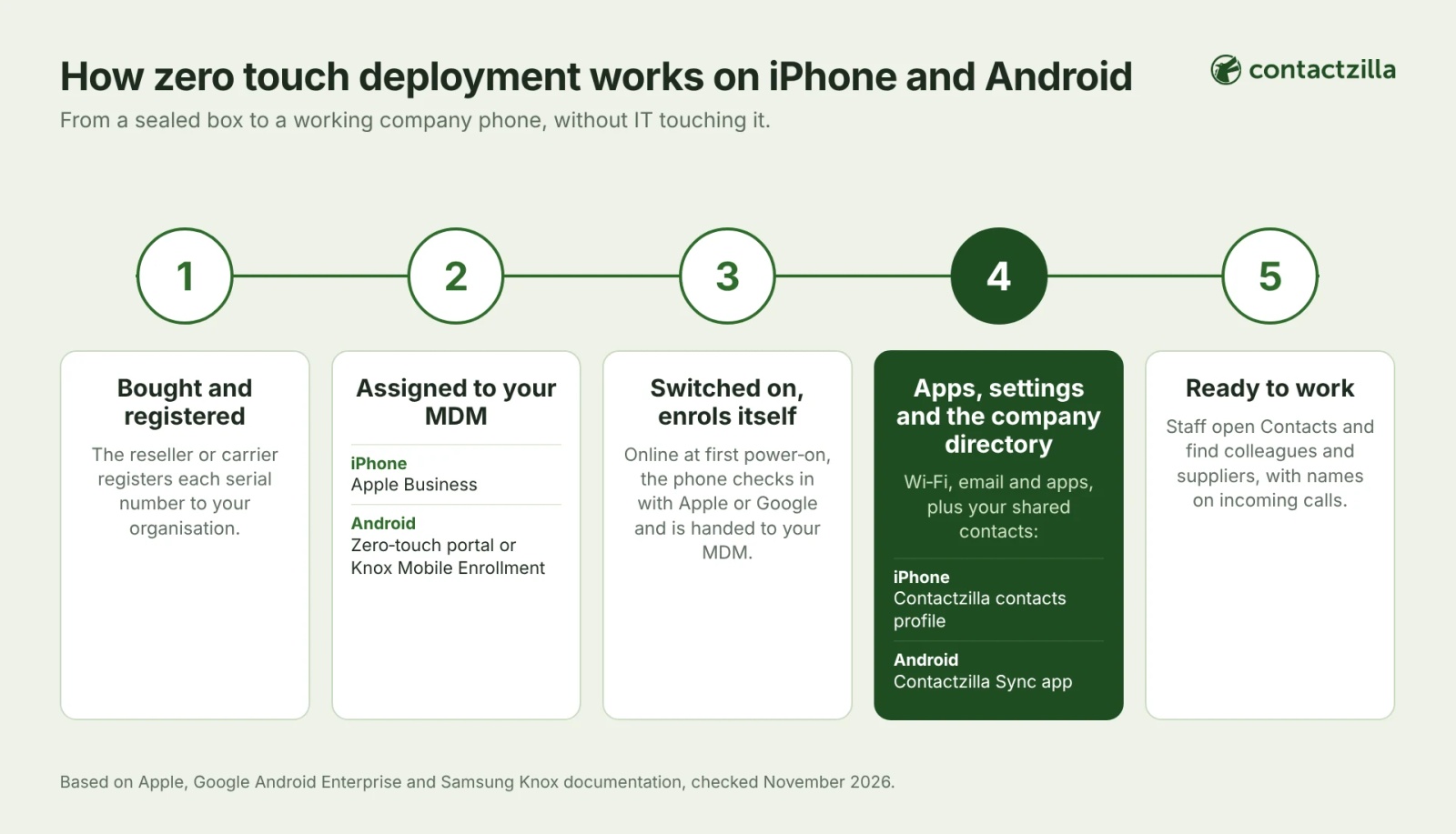
Both platforms follow the same pattern: the device is registered to you at purchase, the registration points it at your MDM, and the MDM delivers the setup on first boot. What differs is who registers the device and where you manage it:
| Platform | Zero-touch service | How devices get registered | What end users see |
|---|---|---|---|
| iPhone and iPad | Automated Device Enrollment in Apple Business | Bought from Apple, an Apple Authorised Reseller or a participating carrier, or added by hand with Apple Configurator | A short Setup Assistant with the panes you chose to skip removed, then a managed phone |
| Android (most makes) | Android zero-touch enrollment | Bought from a zero-touch reseller partner, who creates your zero-touch account | The phone downloads your MDM's app on first boot and becomes fully managed |
| Samsung Galaxy | Knox Mobile Enrollment (or Android zero-touch) | Bought from a Knox Deployment Program reseller, or added with a QR code on Android 10 or later | As above, with Samsung's extra enrolment options |
Zero touch deployment checklist: what you need before you start
- Company-owned phones. Zero-touch is not for staff's personal phones (those use a lighter enrolment, covered in our post on MDM vs MAM).
- An Apple Business account for iOS devices, and a zero-touch or Knox account for Android, each linked to your MDM.
- A reseller or carrier that takes part in Apple's, Google's or Samsung's programme, with your organisation ID on every order.
- An MDM platform that supports ADE and Android Enterprise fully managed devices, such as Microsoft Intune, Jamf Pro, Mosyle, IBM MaaS360 or Miradore.
- Android phones running Android 9 or later, with Google Play services.
- Internet access during first setup, on Wi-Fi or mobile data.
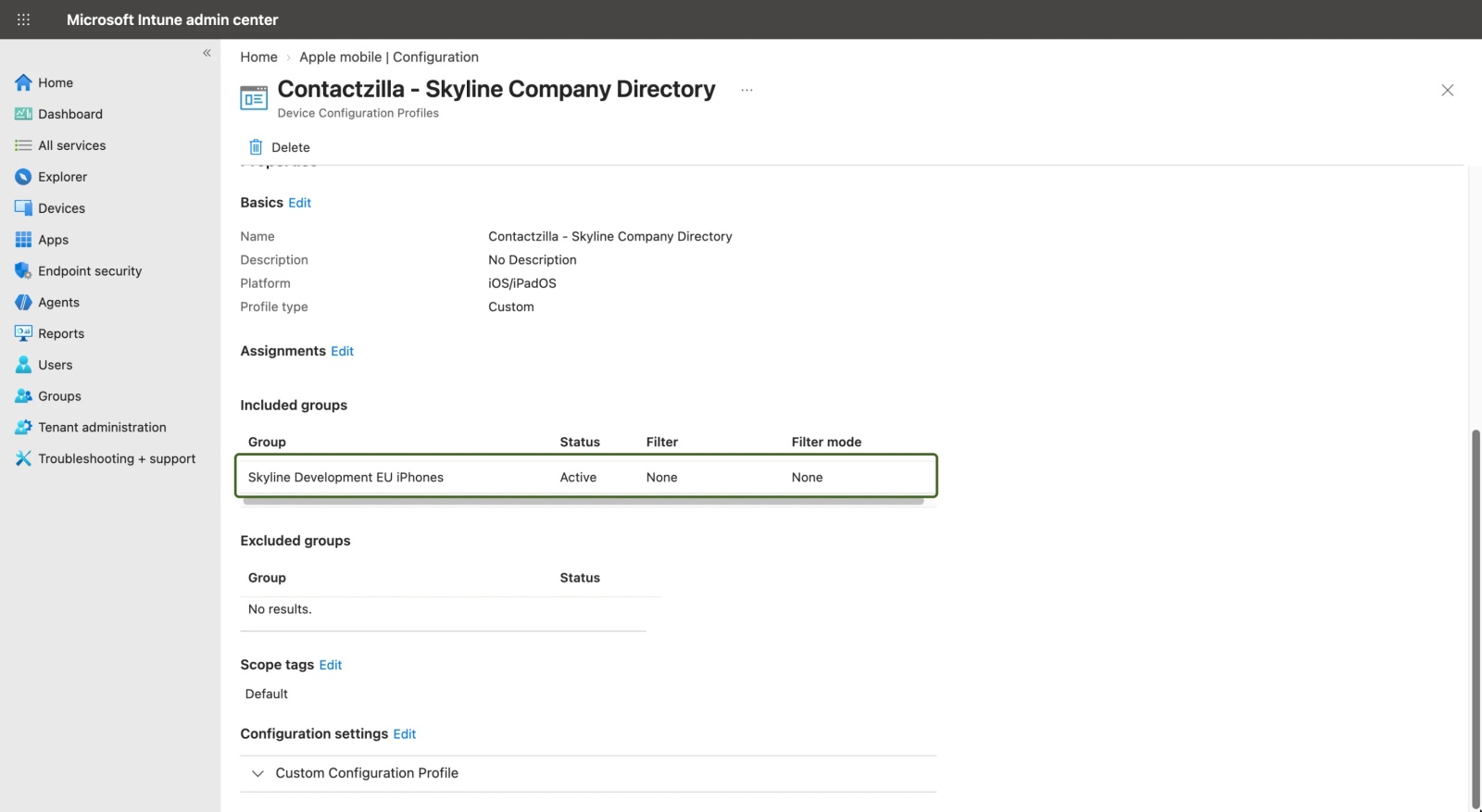
- Apps, Wi-Fi, email and the company directory assigned to device groups, not user groups, for shared phones.
- One test phone taken from sealed box to working home screen before the rest ship.
Step 1: Register company phones for zero-touch at purchase, or add them yourself
Ask your reseller or carrier to register every new device to your organisation when they invoice it; that is what makes the phone show up in Apple Business or your zero-touch account with no work from you. Phones you already own can join too. On Apple, erase the iPhone and add it with Apple Configurator (on a Mac, or the iPhone app on iOS 16 or later). It joins Apple Business supervised, though for the first 30 days the user can still remove it from management. Samsung Galaxy phones you already own can be added to Knox Mobile Enrollment with a QR code (Android 10 or later). Other Android phones need to be bought from a zero-touch reseller, who registers them for you, so ask yours about phones you already bought from them.
Step 2: Link Apple Business or the zero-touch portal to your MDM
Each portal needs to know which MDM to hand devices to. In Apple Business, connect your MDM as a device management service (the two exchange a token; Microsoft's guide to setting up ADE in Intune shows the token step) and make it the default for new iPhones, so new serial numbers go to it automatically. For Android, link your zero-touch account from inside the MDM console (Intune and most others embed Google's zero-touch page) or set a default configuration in the zero-touch enrollment portal. Samsung fleets do the same in the Knox Mobile Enrollment console. Skip this and the phone boots unmanaged; assign the wrong service and it enrols somewhere you didn't intend.
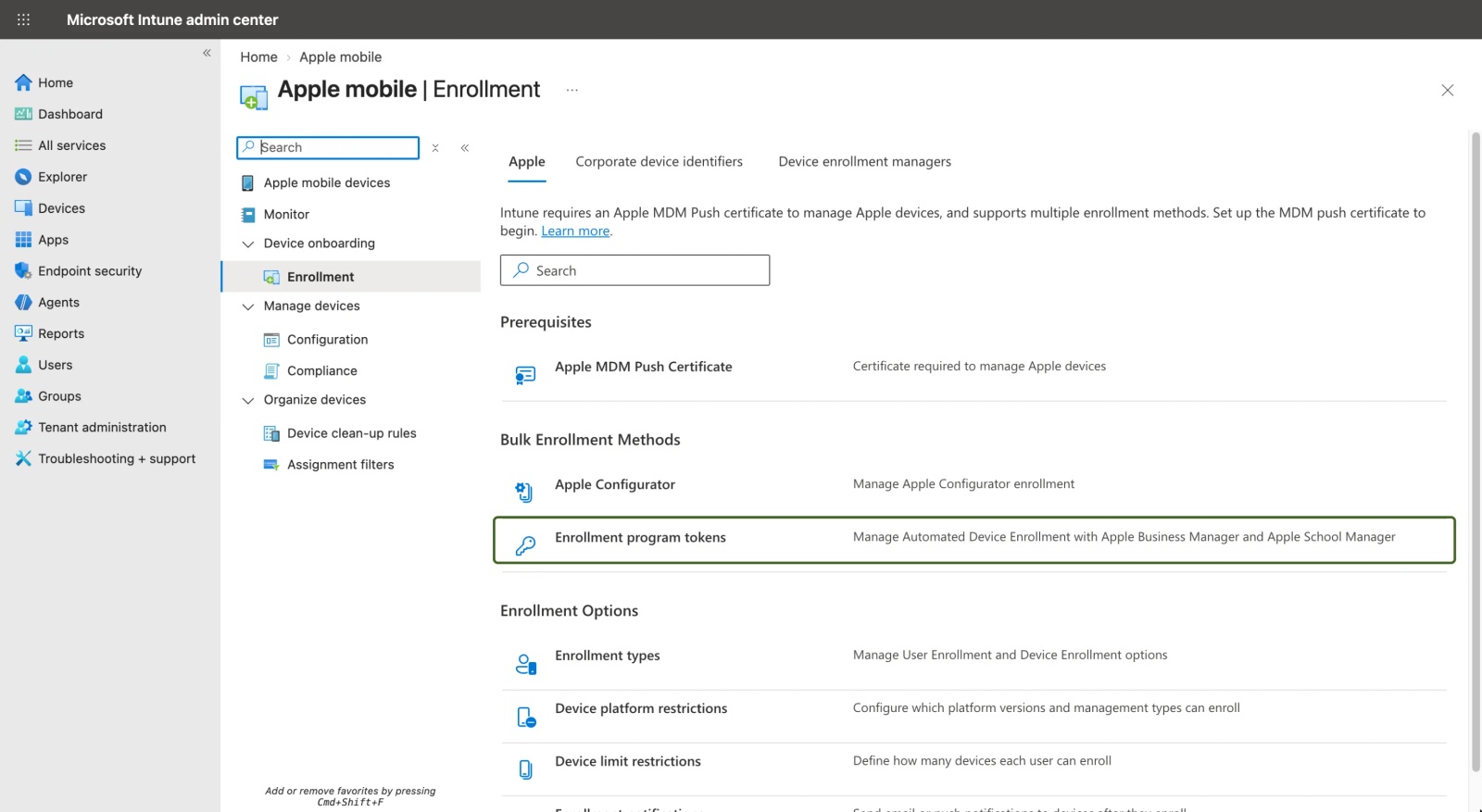
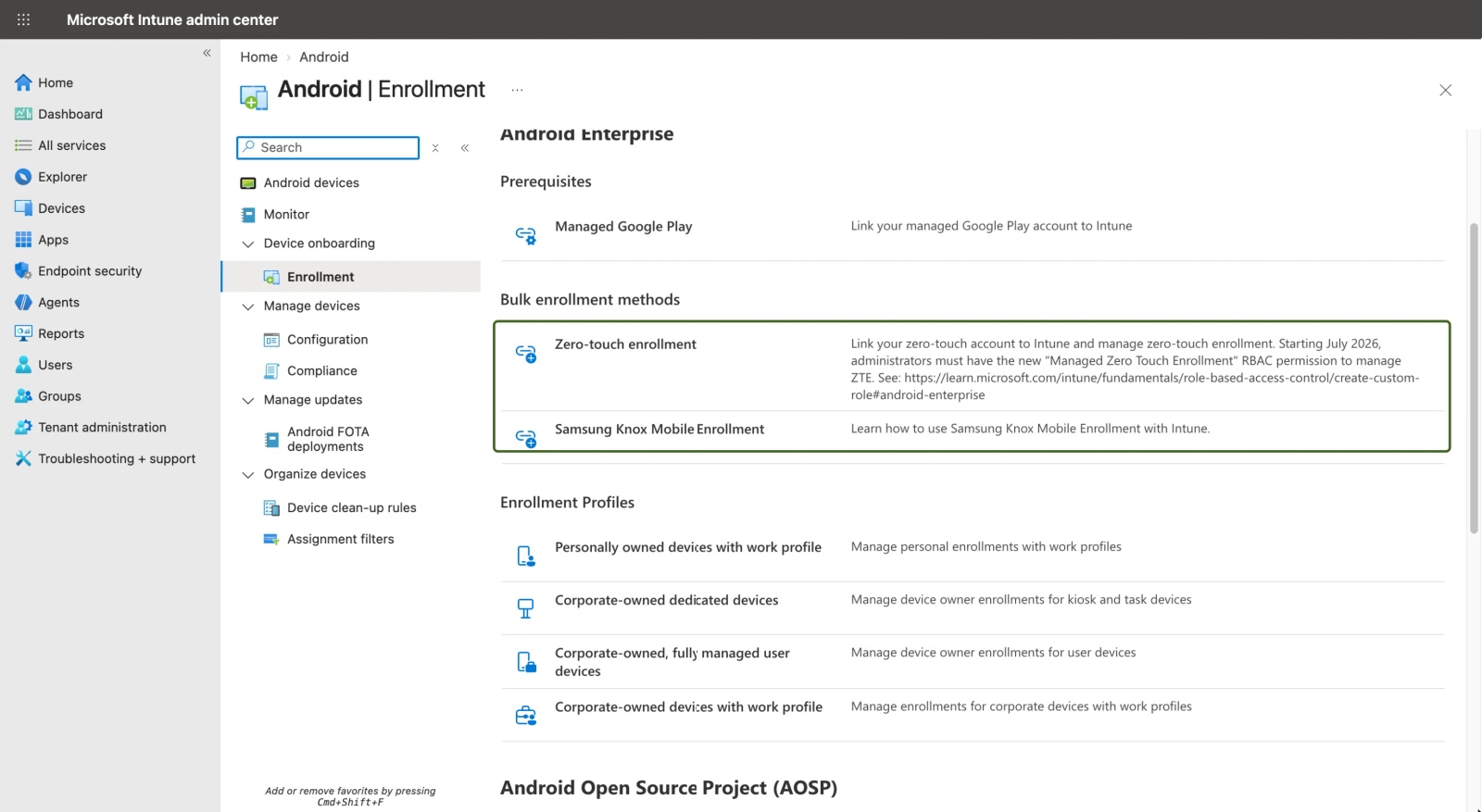
Step 3: Set up the ADE enrolment profile and Android zero-touch configuration
The enrolment profile decides the first-boot experience: which Setup Assistant screens to skip (Siri, Apple Account sign-in, Screen Time), whether users can remove management (ADE phones are always supervised), and, where your MDM supports it, a minimum iOS version the phone must reach before setup continues. Alongside it, assign the apps, Wi-Fi, email and security settings to the group these phones land in. IT teams usually group by role or site rather than by person, and shared phones make that essential: a shift phone has no single owner, so assign to device groups rather than user groups on both iPhone and Android.
Tip 💡 Pushing certificates as part of enrolment? Our guide to SCEP certificates in MDM explains how they reach iOS and Android devices.
Can zero touch deployment include company contacts?
Yes, and IT teams ask us for exactly that. Three organisations raised it unprompted in the last few months. A construction company with several hundred iPhones and iPads enrolled through Apple Business Manager asked whether contacts could populate the Contacts app during enrolment with no employee configuration, as part of replacing an older contact sync tool. A pharmaceutical company with thousands of Intune-managed phones wanted directory details for caller ID with no user interaction, as far as possible. And an emergency service running shared Android phones, passed between crews, set zero user interaction as a condition from the start.
In all three, the phones already enrolled themselves and the directory was the one job still done by hand. On iPhone the contacts profile installs with no user steps, like any other MDM profile; on Android, plan for the one-time app launch.
Step 4: Add the company directory to zero-touch so contacts arrive with the phone
Most zero-touch phones arrive with email, Teams and the apps sorted, and a Contacts app with no company directory in it. Colleagues ring as unknown numbers, and shared numbers (the office, site leads, suppliers, the out-of-hours line) get typed in by hand or not at all. The fix is to treat the directory as one more thing the MDM installs.
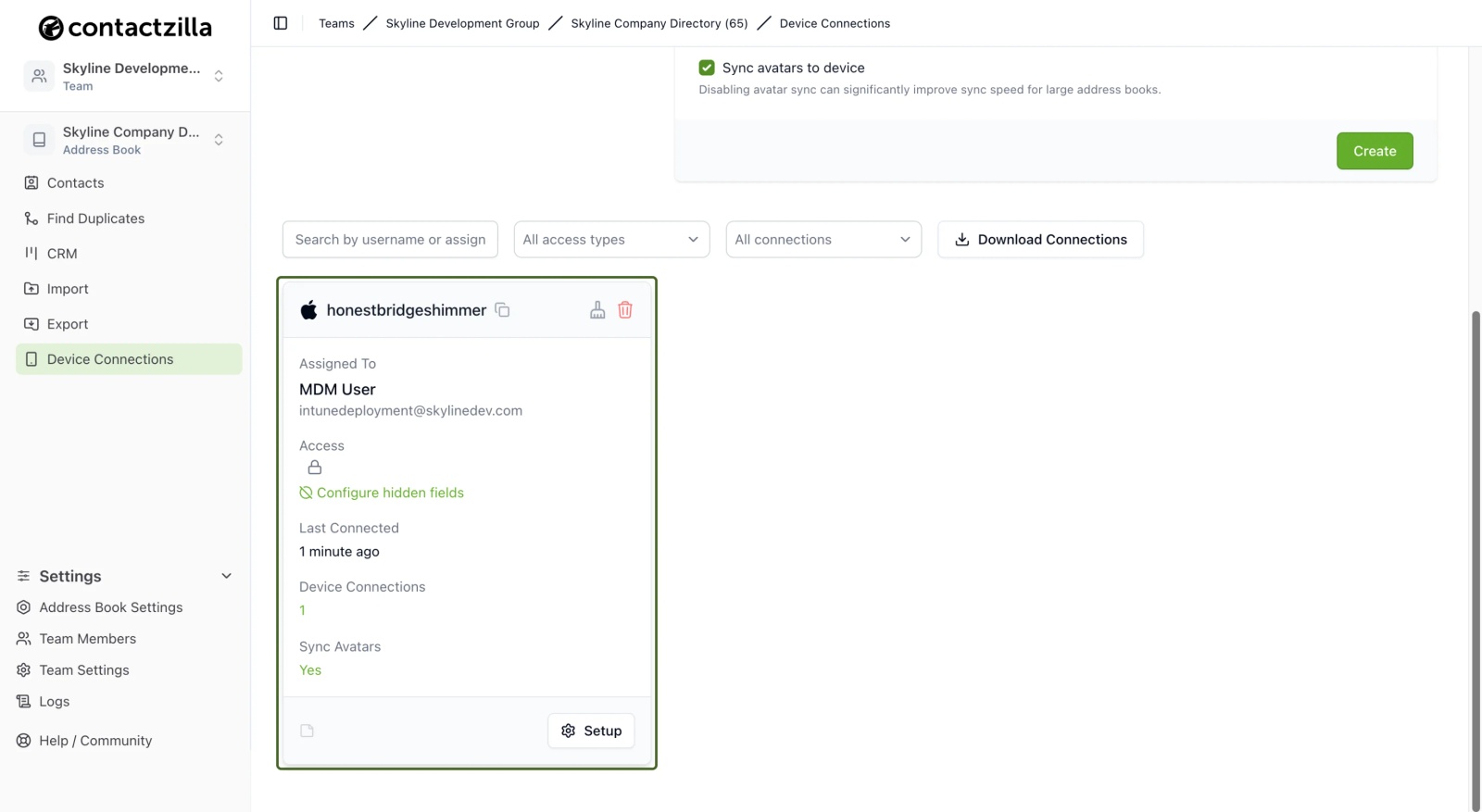
Contactzilla keeps your company contacts in a shared address book, imported from Microsoft Entra ID, Google Workspace, a CSV or a CRM and updated on a schedule. Each address book gets a device connection, which is what you deploy. After that the MDM is out of the loop: changes to the address book reach phones at their next sync, so you never re-push anything.
Zero-touch contacts on iPhone: a Contacts configuration profile
For iPhones, download the device connection as a .mobileconfig profile, or enter its CardDAV details in your MDM's own contacts payload, and assign it to the same device group as your ADE phones. The profile installs during enrolment, the company directory appears as its own account in Contacts, and incoming calls show names. Choose a read-only access type so staff can't edit or delete the shared contacts.
Zero-touch contacts on Android: the Contactzilla Sync app
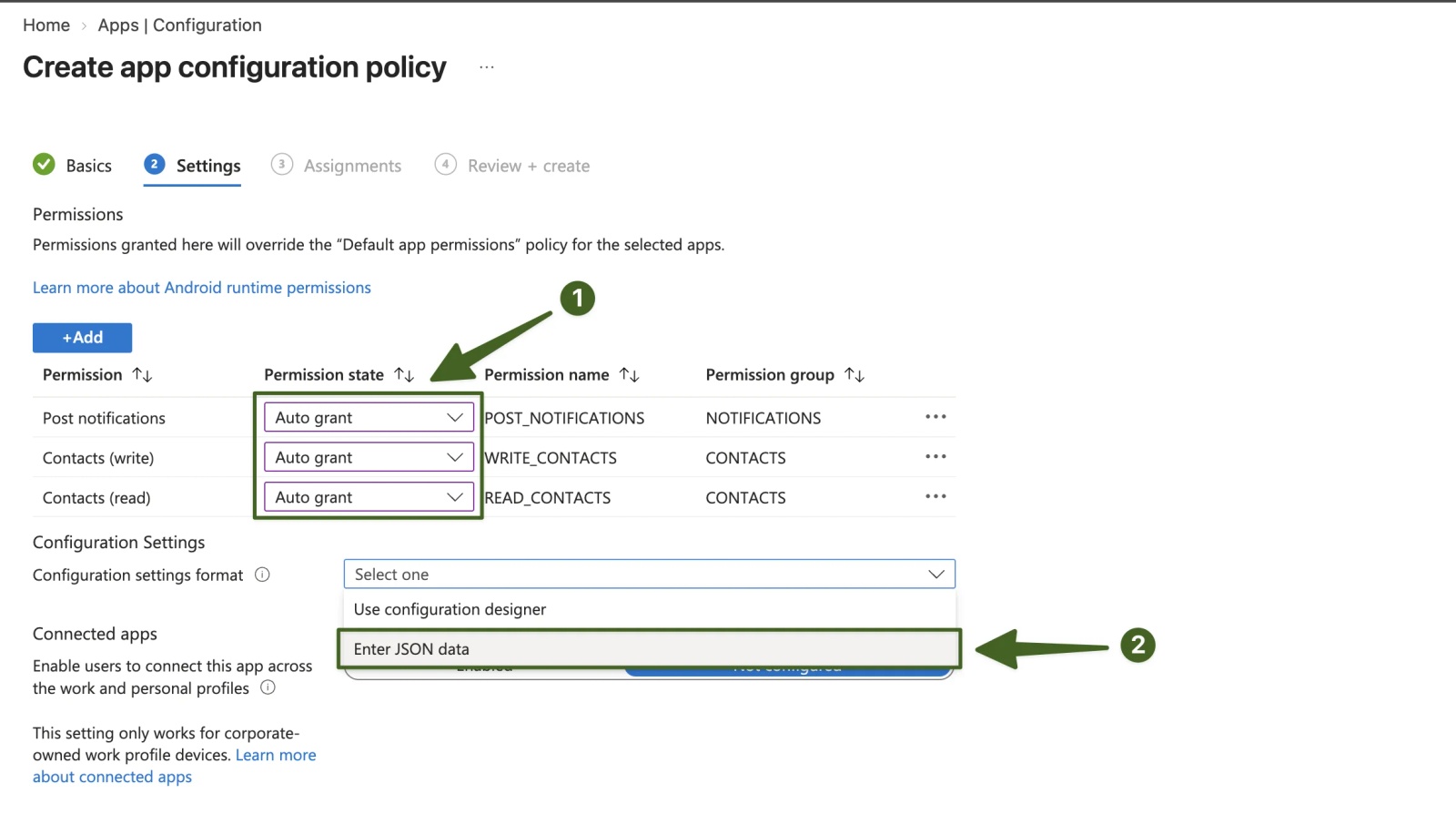
Android has no built-in way to add a contacts account from a profile, so the directory comes through the Contactzilla Sync app. Approve it in managed Google Play, assign it with an app configuration that holds the connection details, and target a device group. In our Intune test (September 2026) the configuration granted the Contacts and notification permissions automatically. Contactzilla Sync still has to be opened once on each phone before its contacts account appears, zero touch or not, so plan that tap into each Android phone's first setup.
Tip 💡 Step-by-step guides for the directory side: Intune for iPhone, Intune for Android, Jamf Pro, Mosyle and Miradore.
Step 5: Test zero touch deployment on one phone before shipping the fleet
Run one phone through the whole journey, from sealed box to a working home screen, before the reseller ships the rest. Most failures are set-up mistakes that only show at first boot: a serial number that was never assigned to your MDM, a phone that can't get online at the Wi-Fi screen, an app with no licence, or a profile aimed at the wrong group. One worth knowing for shared Android phones: an app configuration sent to a user group can show as applied without syncing on a phone that has no signed-in user, while a device group works. Check the Contacts app last, and call the test phone from a number in the directory to see the name come up.
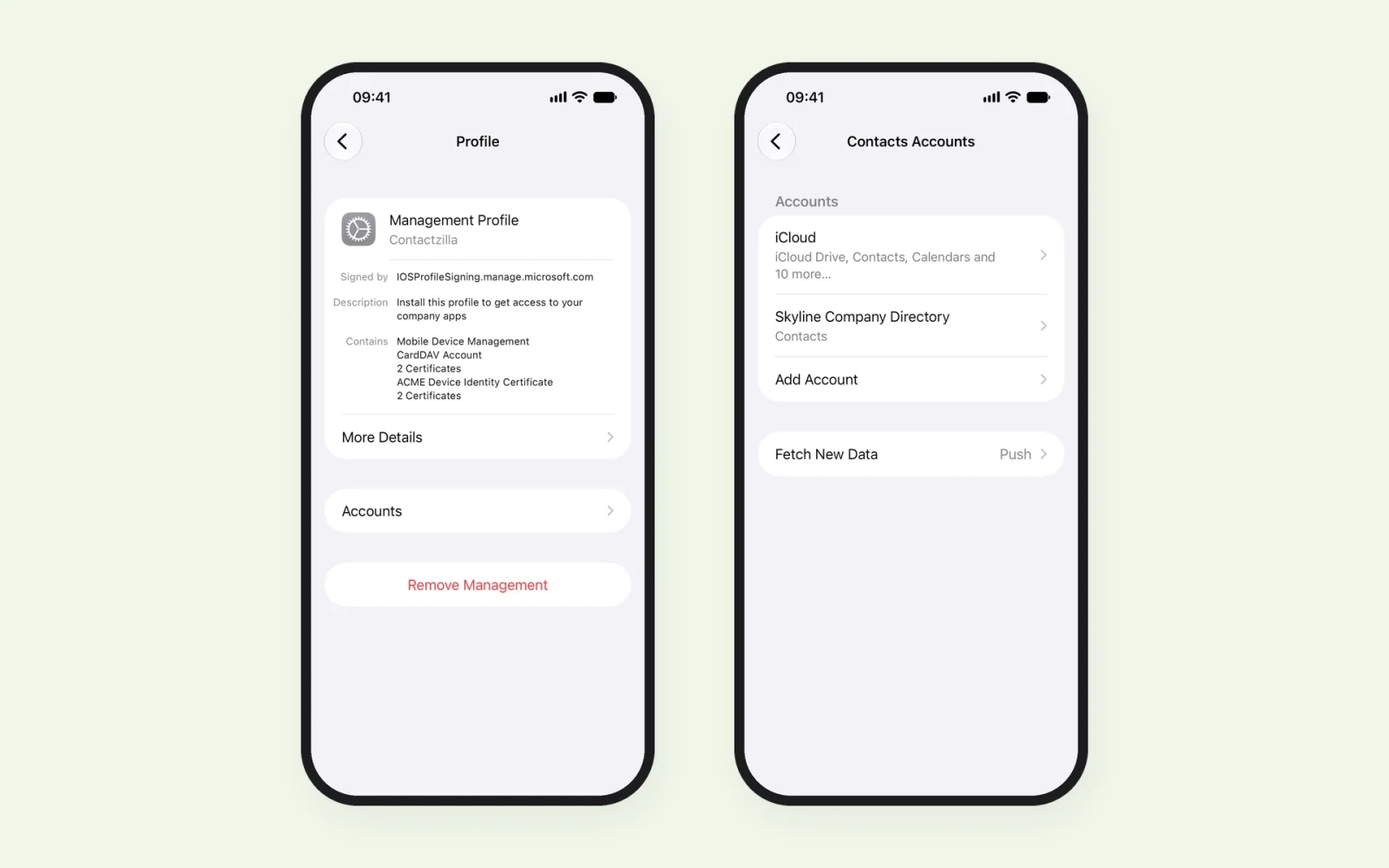
Tested on an iPhone 15 running iOS 27.2.1, November 2026. Our test phone was enrolled through the Intune Company Portal rather than zero touch, so its profile screen still offers Remove Management; a zero-touch enrolment profile decides whether staff get that option.
When is zero touch deployment the right fit?
- You buy phones in batches through a reseller or carrier that takes part in Apple's, Google's or Samsung's programme.
- Staff work in the field, at other sites or from home, and phones are shipped straight to them.
- Phones are shared between shifts and need to be reset and re-enrolled quickly.
- You need management that users can't remove, which personal-device enrolment can't give you.
For staff on their own phones, zero-touch is the wrong tool: a lighter enrolment or a QR code setup for contacts fits better.
Next steps
- Deploy the directory to iPhones with How to Sync Company Contacts to iPhones with Microsoft Intune.
- Get your Microsoft directory onto phones with How to Sync the Global Address List (GAL) to iPhone Contacts.
- Lock the shared list down with How to Make Company Contacts Read-Only on iPhone.
- Choosing an ownership model first? Read BYOD vs COPE.
Frequently Asked Questions
Does zero touch deployment cost anything?
No, not for the enrolment programmes themselves. Apple Business and Samsung Knox Mobile Enrollment are free, and Google doesn't charge for Android Enterprise's built-in enrolment, zero-touch included. You pay for your MDM, the phones and any paid apps, and some resellers charge a small fee to register devices.
Is zero touch provisioning the same as zero touch deployment?
Yes, for phones. Zero touch provisioning is the older term from networking, where routers and switches configure themselves when first plugged in. For iPhones and Android phones the two names mean the same thing: the device sets itself up from your MDM on first boot.
What happens when a zero-touch phone is factory reset?
It enrols again. Apple Business still assigns an erased iPhone to your MDM, so it goes straight back into management at Setup Assistant, and an Android zero-touch phone does the same when it next starts up. That makes resets the quickest way to hand a shared or returned phone to someone new.
Can staff remove MDM from a zero-touch phone?
No, not if you set it up that way. ADE lets you make the management profile non-removable, and an erased iPhone re-enrols in your MDM at setup because Apple Business still assigns it to you. Android phones enrolled by zero-touch return to your MDM after a factory reset too.
Do you need Intune for zero touch deployment?
No. Any MDM that supports Apple's Automated Device Enrollment and Android Enterprise fully managed devices can do it, including Jamf Pro, Mosyle, IBM MaaS360, Miradore and Microsoft Intune. Apple Business also has device management built in for smaller Apple fleets.
Does zero touch deployment work without internet access?
No. The phone needs Wi-Fi or mobile data during first setup to check in with Apple or Google and reach your MDM. A phone with no connection stalls at the network screen, which is why the first test should happen somewhere with the same network conditions your staff will have.