Phone Number Format for Caller ID: E.164, Excel and Google Sheets

You've put the company contact list on every staff phone, a colleague rings, and the screen shows a bare number, even though they're right there in the list.
Short answer: To make caller ID show names, store every number in a contact's phone field with a + and the country code, such as +44 20 7946 0958 (E.164: +442079460958).
A phone shows a name only when the incoming number matches a saved contact. Keep spreadsheet phone columns as text: Excel and Google Sheets drop the + and leading zeros, and a CSV saved as 4.47E+11 loses digits for good.
Contactzilla formats every number in a shared address book from a default country, keeps the original, and syncs the contacts to staff iPhones and Android phones by MDM or QR code.
Why do staff phones show a number instead of the contact's name?
Caller ID gives the phone a number. The phone looks that number up in its own Contacts and shows a name only if a saved contact has a matching number in a phone field. A number typed into the notes or a custom field doesn't count, and if several contacts share one main line, the phone may pick a different name from the one you expect. A customer syncing its directory to iPhones raised exactly this with us, and formatting the numbers was the fix our team suggested.
How strict the match is depends on the phone. In our testing on an iPhone 15 running iOS 27.0.1, we saved the same UK mobile in a shared contact four different ways and rang the iPhone from it each time:
| How the caller's mobile was saved | What the incoming call showed |
|---|---|
| E.164, with the + and country code | The contact's name |
| UK national format, starting 07 | The contact's name |
| Country code but no +, as a spreadsheet leaves it | The contact's name |
| No +, no country code and no leading zero | The contact's name |
| One digit wrong | An unknown caller, sent to call screening |
So for a call from the same country, the iPhone was forgiving about format and strict about the digits. That isn't the whole picture. Apple doesn't document how iPhone matches a caller, Android's PhoneNumberUtils compares numbers using national dialling rules, and a call from abroad arrives with its own country code, so a number that matches a local call can still fail elsewhere.
Two things no stored format can fix: a caller who withholds their number, and a phone system that sends the switchboard number instead of the person's direct line. Calling apps also keep their own rules. Microsoft's guide to Teams caller ID policies, updated in March 2026, says Teams looks callers up in Outlook and Entra ID contacts, only in the Mobile and Work phone fields, and only matches numbers in E.164 format that start with a +.
That's why the safe choice is still to store every number with its country code: it's the only form every phone, network and calling app reads the same way.
What is E.164 phone number format?
E.164 is the ITU-T's international public telecommunication numbering plan, the standard phone networks work to. An E.164 number is a plus sign, the country code, then the national number without its leading trunk zero: +442079460958 for the London number 020 7946 0958, or +13125550100 for the Chicago number (312) 555-0100. It has no spaces or punctuation and at most 15 digits, and because the country code is always there, it means the same line wherever it's dialled from.
E.164 is one of four formats you'll meet in contact systems. These are the outputs we got from Contactzilla's formatting setting, with the default country set to the United States.
| Format | US number | UK number | Good for |
|---|---|---|---|
| E.164 | +13125550101 | +442079460959 | Storing and matching; required by Teams |
| International | +1 312-555-0101 | +44 20 7946 0959 | Storing and reading |
| National | (312) 555-0101 | 020 7946 0959 | Reading, when every number is in one country |
| RFC 3966 | tel:+1-312-555-0101 | tel:+44-20-7946-0959 | Tap-to-call links |
Watch for the +44 (0) trap. UK numbers are often written +44 (0)20 7946 0959, which mixes the international and national forms. The zero in brackets is never dialled after the country code, and a clean-up that just strips the brackets leaves +4402079460959, the wrong number. Contactzilla's formatter removed the (0) correctly in our test.
Which phone number format should contacts use for caller ID?
Store E.164 or international format. Both keep the country code, so the number means the same line wherever the call comes from, including a supplier ringing from abroad. How the number looks to people is a separate choice: iPhone added its own brackets and spacing to the E.164 numbers we synced, showing +13125550101 as +1 (312) 555-0101.
National format is the risky one. It reads naturally to local staff, but it removes the country code from foreign numbers too, so a London supplier becomes 020 7946 0959 on a list used in Chicago. On our UK-set iPhone, a US number stored in national format showed as 312 555 0101, as if it were a local number. Some teams still want national display, such as one city IT helpdesk whose softphones add the country code themselves. Only choose it if every number in the book is in one country.
Extensions are the other catch. Caller ID never includes an extension, because the network sends the line, not the extension behind it. E.164 can't hold one either: a stored 312-555-0108 x245 becomes +13125550108, while international format keeps it as ext. 245 and RFC 3966 as ;ext=245. If staff need to dial extensions from their phones, keep them in one of those formats or a field of their own.
Why Excel and Google Sheets break phone numbers in a contact list
Most contact lists pass through a spreadsheet, and spreadsheets treat a phone number as a number to calculate with. They drop the leading zero, read a leading + as the start of a formula, and show long numbers in scientific notation. Spreadsheet damage is one of the problems five organisations raised with us about number formats this year: one customer's executive IT support team found numbers in scientific notation, and others with letters in them, after editing a contact CSV, and caught it only because they checked before rolling the list out to about 45 phones.
Whichever spreadsheet you use, open the saved CSV in a plain text editor before you import it, and check the phone column still shows every + and leading zero.
Excel phone number format: keep the + and the leading zero
Microsoft's guide to keeping leading zeros and large numbers says "Excel automatically removes leading zeros, and converts large numbers to scientific notation". Its list of available number formats says the General format switches to scientific notation at 12 or more digits.
We tried it in Excel for Microsoft 365 on a Mac in November 2026. Typed into an ordinary cell, +447700900123 lost its + and showed as 4.47701E+11, 07700900123 lost its zero, and +44 20 7946 0958 brought up a "We found a typo in your formula" prompt that turned it into a number. Typed into a column formatted as Text, every number stayed exactly as entered.
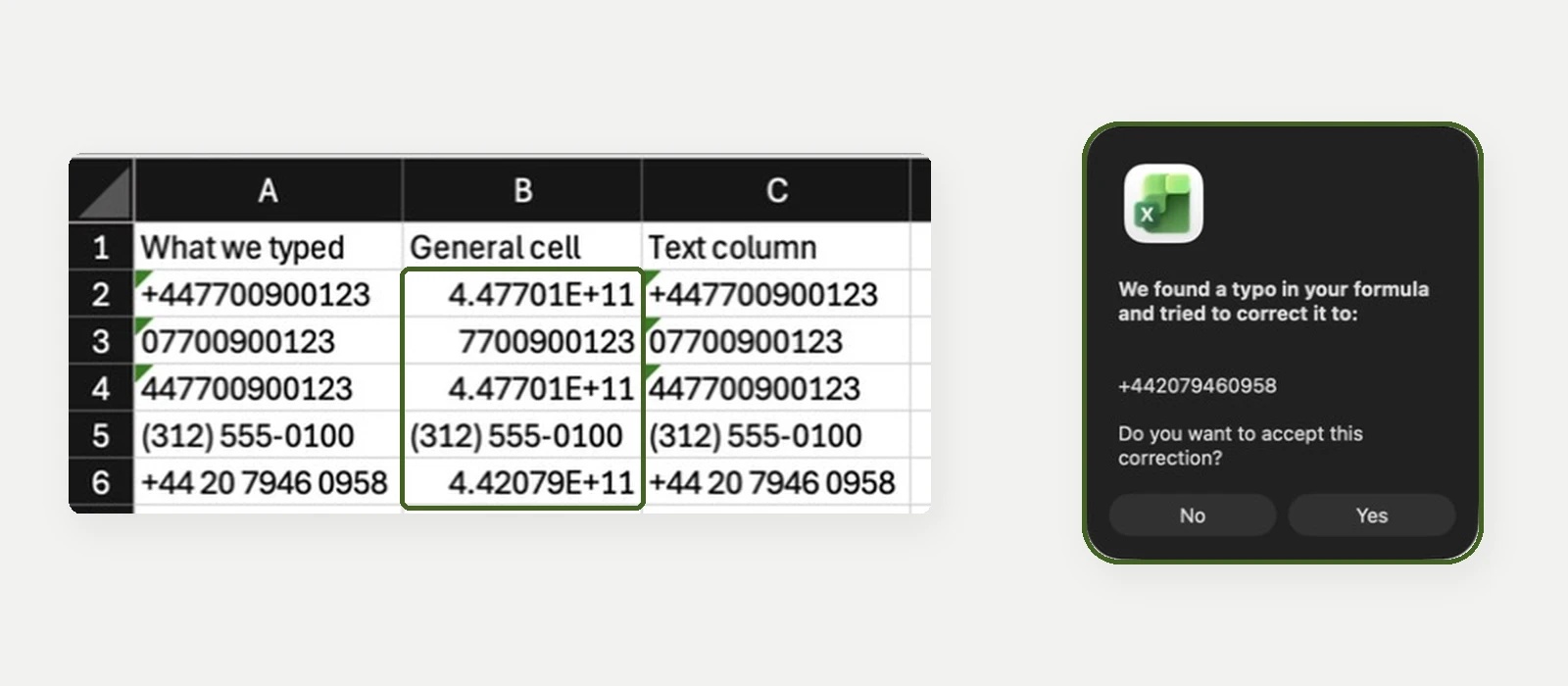
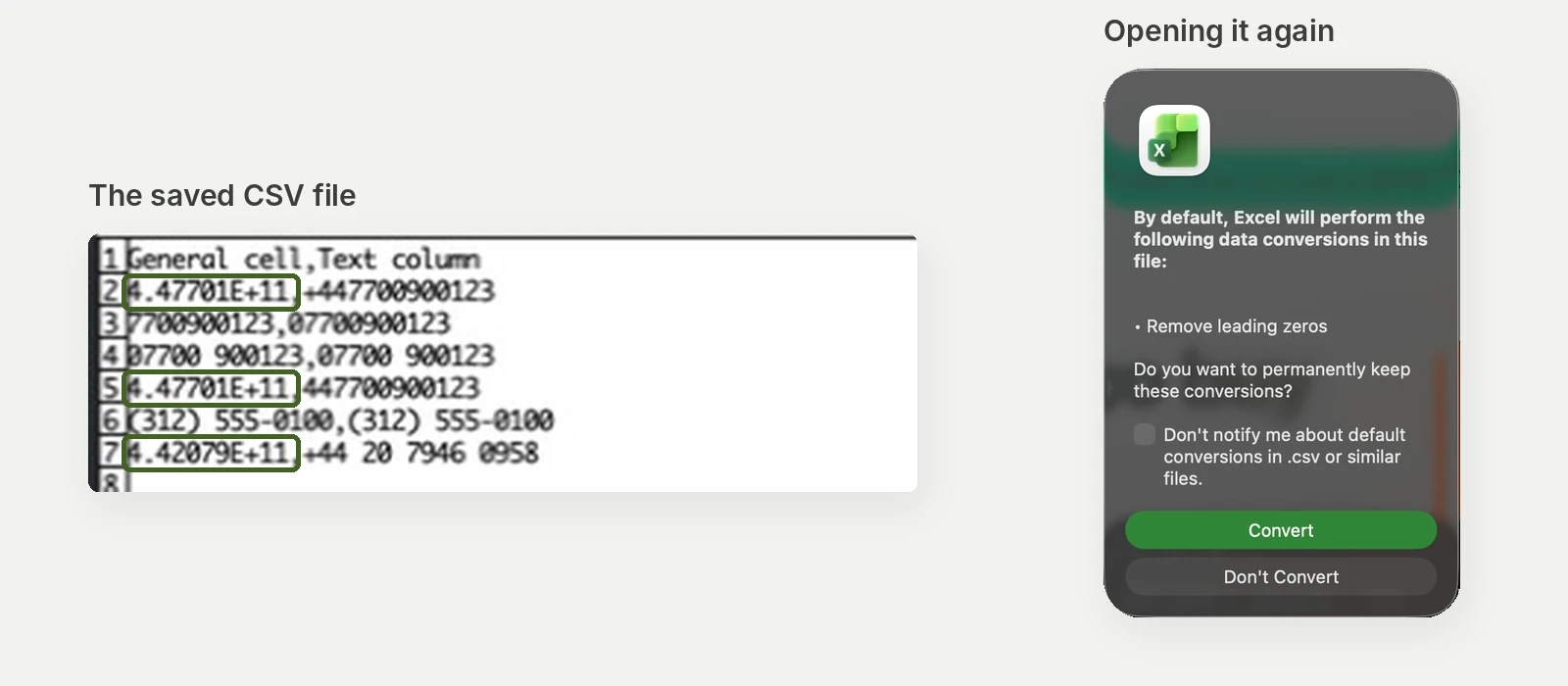
The real damage happens when you save. We saved that sheet as a CSV, and the file held 4.47701E+11 where the numbers had been. Reopened, it read 447701000000: the original digits were gone for good. To keep phone numbers intact in Excel:
- Format the phone column as Text before you type or paste numbers into it. Changing the format afterwards won't bring back a zero that's already gone.
- Type an apostrophe before a single number (
'+44 20 7946 0958) to keep it as text. - When you open a CSV, Excel for Microsoft 365 asks whether to remove leading zeros and convert numbers to scientific notation. Choose Don't Convert. In our test that kept the zeros, but a number starting with + still lost its +.
- To keep the + as well, bring the CSV in with Data > From Text/CSV and set the phone column to Text, as Microsoft's guide recommends, rather than double-clicking the file.
Google Sheets phone number format: Plain text isn't enough for the +
We typed five test numbers into Google Sheets three ways in November 2026. A normal cell turned +44 20 7946 0958 and +1 312 555 0100 into #ERROR!, dropped the + from +447700900123 and the zero from 07700900123. Setting the column to Format > Number > Plain text saved the zero, but numbers starting with + still broke, because Sheets reads the + as the start of a formula. Only an apostrophe in front kept every number exactly as typed.
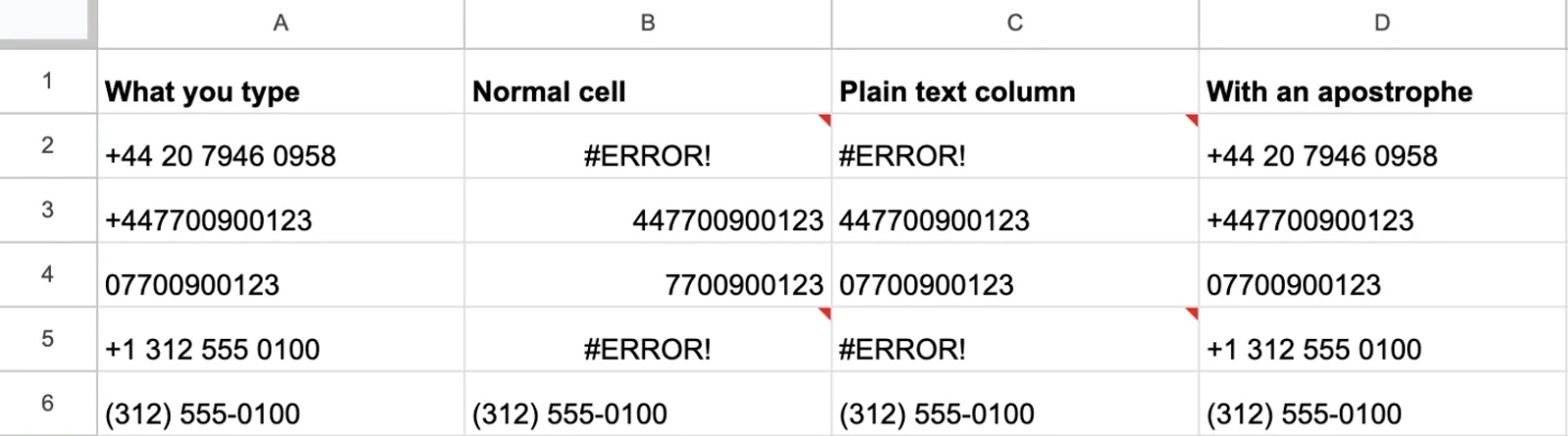
Opening a CSV in Google Sheets is a little kinder. In our test it kept +447700900123 and 07700 900123, but turned 07700900123 into 7700900123.
Excel and Google Sheets formulas to convert phone numbers to E.164
If a list is already a mix of styles, a formula can rebuild each number in E.164. These work in Google Sheets and Excel for Microsoft 365, which both have LET and REGEXREPLACE. Put the number in A2 and the formula in a new column, then paste the results back as values into a text column. We tested both in Google Sheets and in Excel for Microsoft 365 on a Mac in November 2026, and they gave the same results in each.
A list where every number is in the US or Canada:
=IF(A2="","",LET(d,REGEXREPLACE(A2&"","[^0-9]",""),IF(LEN(d)=10,"+1"&d,IF(AND(LEN(d)=11,LEFT(d,1)="1"),"+"&d,"CHECK"))))It turned (312) 555-0100, 312.555.0100 and +1 312 555 0100 into +13125550100 and flagged a number with an extension as CHECK. Only use it when every number is North American: it also turned a UK mobile that had lost its zero into a wrong +1 number.
A list where every number without a country code is in the UK:
=IF(A2="","",LET(d,REGEXREPLACE(SUBSTITUTE(A2&"","(0)",""),"[^0-9+]",""),IF(LEFT(d,1)="+",d,IF(LEFT(d,2)="00","+"&MID(d,3,20),IF(LEFT(d,1)="0","+44"&MID(d,2,20),IF(AND(LEFT(d,2)="44",LEN(d)=12),"+"&d,"CHECK"))))))It turned 07700 900123, +44 (0)20 7946 0958 and 0044 20 7946 0958 into correct E.164, rebuilt 447700900123 after a spreadsheet had dropped its +, and flagged a number that had lost its zero. It doesn't spot extensions, so move them to their own column first.
Phone numbers from Entra ID and HubSpot: fix them at the source or on import
A shared contact list is rarely one spreadsheet. Staff numbers come from the directory, customers and suppliers from a CRM, and each system writes numbers its own way. In Microsoft Entra ID, the user properties for business and mobile phone are plain text with no required format, so the directory holds whatever people typed. HubSpot sends numbers with no spacing at all, such as +14165552013. One list can easily hold the same kind of number written three ways.
You can fix this in two places. Cleaning numbers in the source system helps every app that reads it, and it's the only fix for Teams, which reads Entra ID rather than the phone. The customer whose caller ID problem we reproduced planned to correct its numbers in Microsoft 365 for that reason. Formatting on import is quicker when you don't own the source or can't touch every record.
How Contactzilla formats phone numbers before they reach staff phones
Contactzilla is a shared address book that organisations fill from the systems they already use (Microsoft Entra ID, HubSpot, Google Workspace, CSV and others) and publish to staff phones' own Contacts app. Its Phone Number Formatting setting, under Team Settings > Address Book, adds a formatted version of every number in the team's address books, in the format you pick: E.164, International, National or RFC 3966.
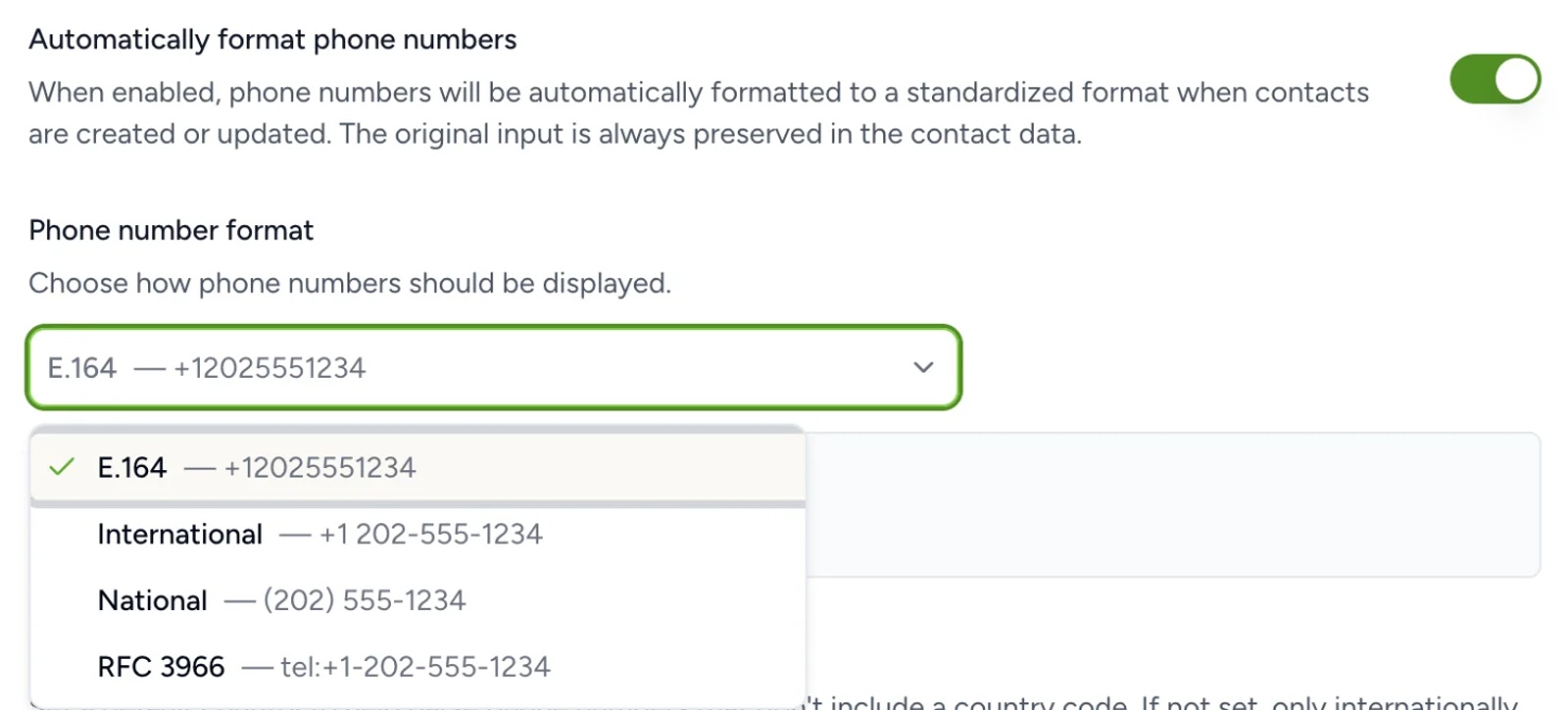
What we found when we tested it in November 2026:
- Set a default country. It's how Contactzilla reads numbers without a country code, such as
312.555.0160. On its own, automatic country detection left ordinary national numbers unformatted. - The original is kept. Each number stays as typed alongside the formatted version. Numbers it can't read, such as
4.47701E+11or a seven-digit number, are left as they were and show without a country flag, so they're easy to find and fix. - Saving reformats existing contacts straight away, with no re-import. Phones that already have the contacts need one more step, clearing the sync cache on each device connection; on our test iPhone the new format arrived about three minutes later.
- Formatting doesn't fix duplicates. A contact imported as
+1 (312) 555-0102was still added again next to an existing312-555-0102, although both showed the same formatted number, because duplicate matching compares the numbers as originally written.
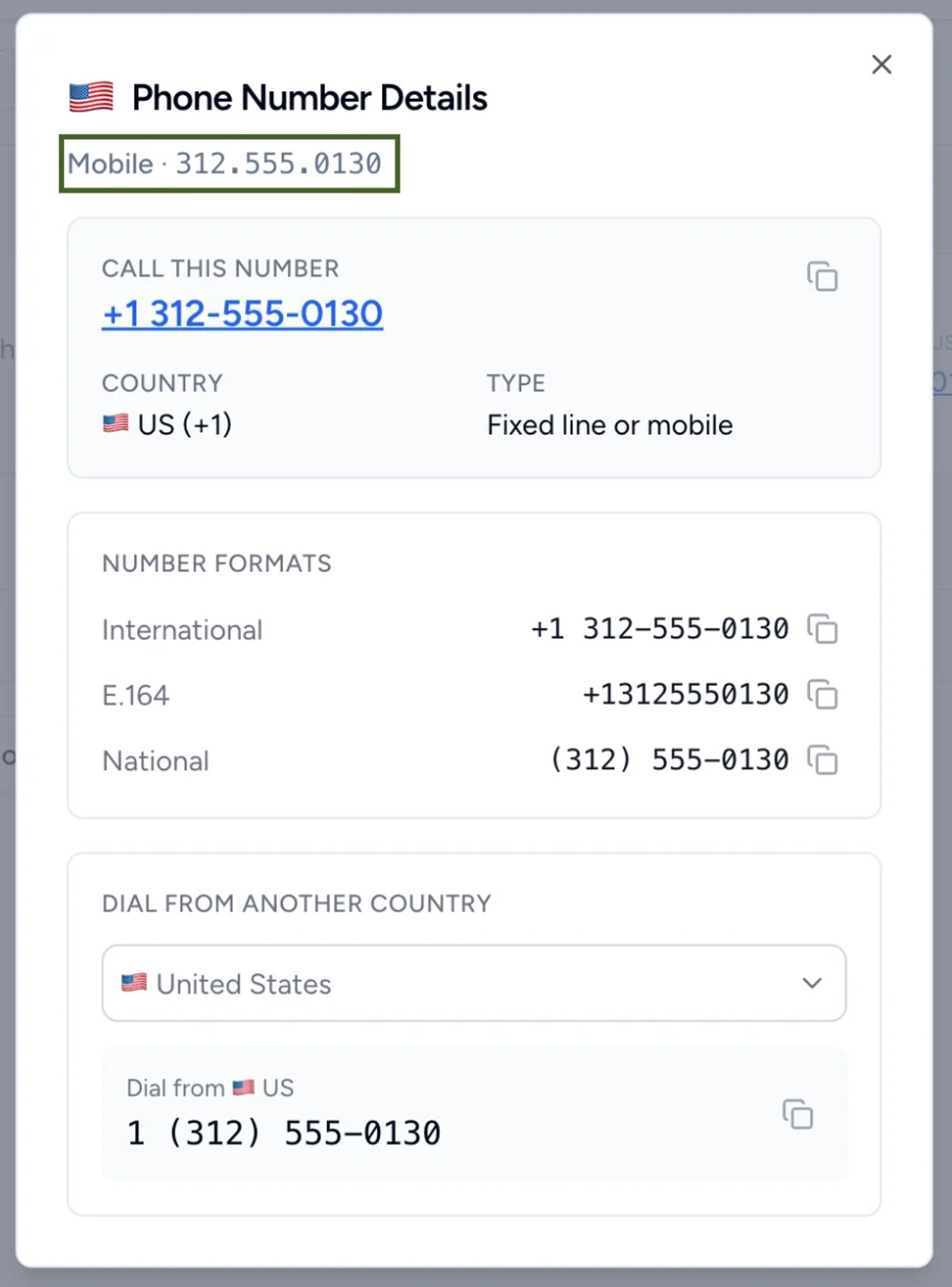
Every click is in our help article on how to automatically format phone numbers in Contactzilla.
Tip 💡 If the same people arrive from more than one source, our guide on how to deduplicate contacts before they reach staff phones covers matching rules, reports and what to merge first.
How to test caller ID before the contact list reaches every phone
Before you roll a list out to the whole team, prove it on one iPhone and one Android phone with three calls:
- A colleague's mobile, stored in the list as a Mobile number.
- A desk line or direct dial number, the kind most likely to have been typed in a local format.
- A supplier's or partner's main line, ideally one in another country or stored without its country code.
Each call should show the contact's name. If one doesn't, open that contact on the phone and look at exactly how the number arrived. If a call still fails on Android, check the contacts aren't in a work profile the dialler can't see.
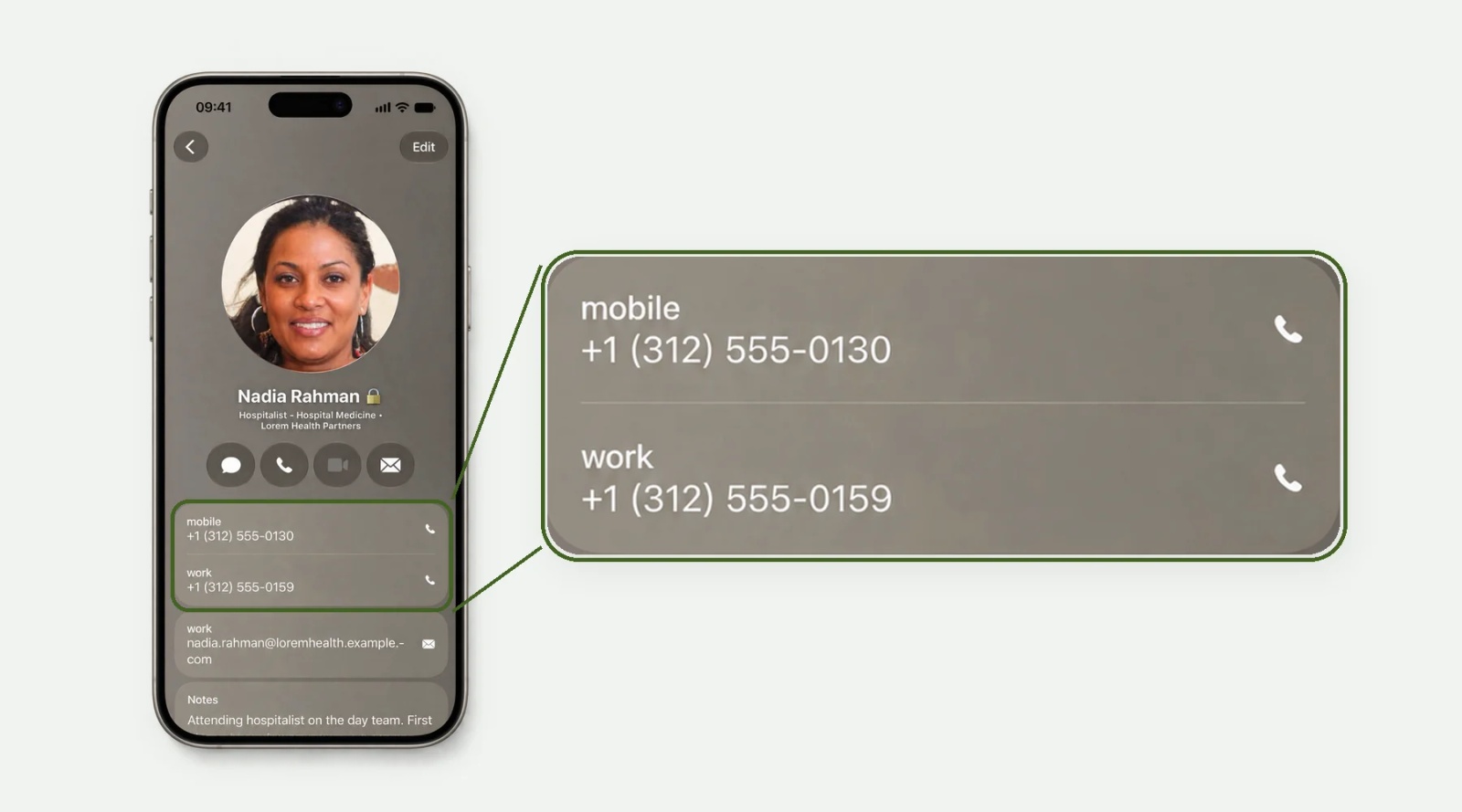
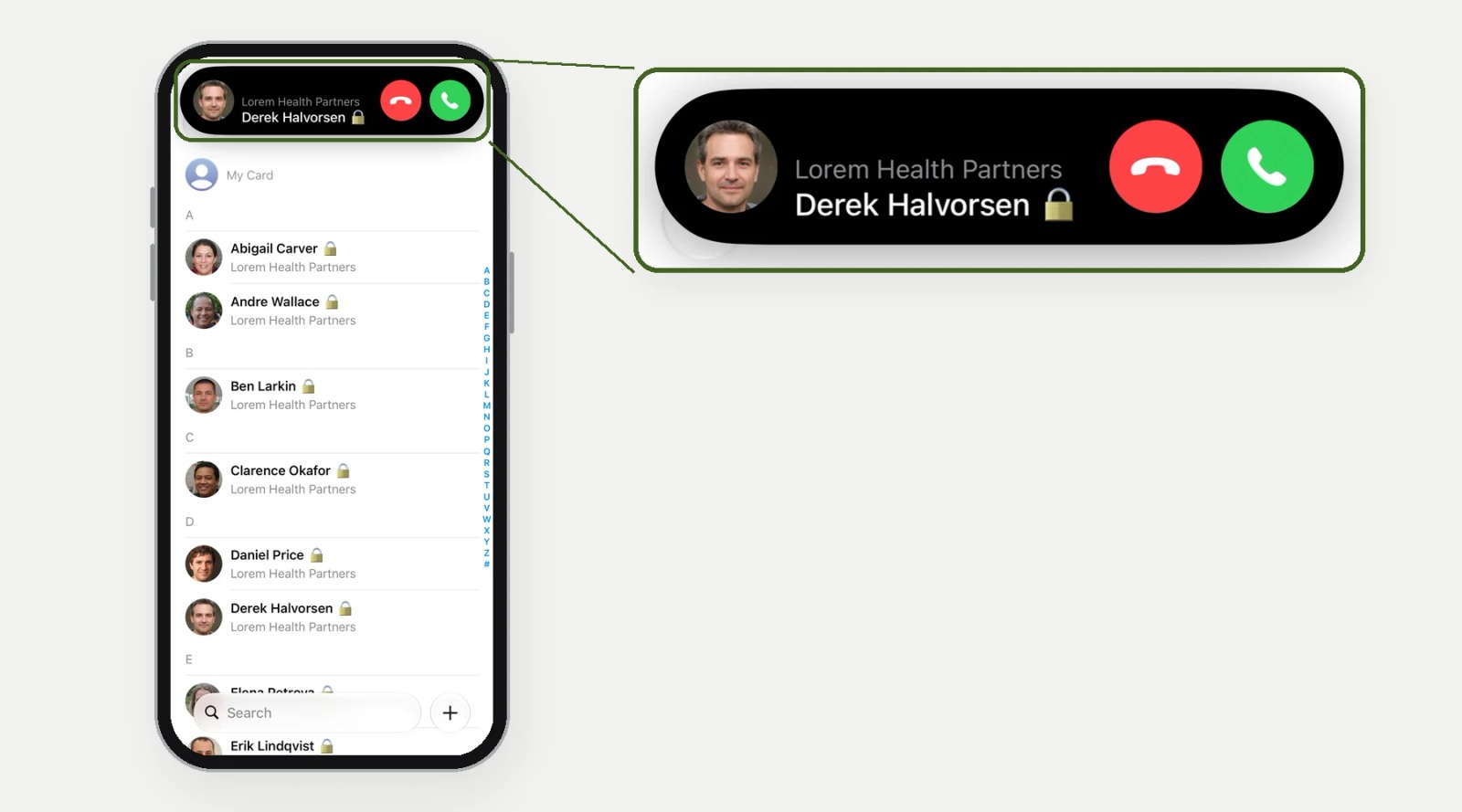
Tested on an iPhone 15 running iOS 27.0.1, November 2026. We didn't test Android for this post.
Tip 💡 If staff numbers come from Microsoft 365, our guide on syncing the Global Address List to iPhone Contacts explains why the directory isn't on the phone by default, and how to get it there with caller ID.
Next steps
- The setting, click by click: How to automatically format phone numbers in Contactzilla.
- Importing a cleaned list: import contacts from a CSV, Microsoft Entra ID, HubSpot or Google Workspace, and getting HubSpot contacts onto iPhone and Android.
Frequently Asked Questions
Does iPhone caller ID need the + sign?
Not for a call from the same country, in our testing. On an iPhone 15 running iOS 27.0.1, a UK mobile saved without its +, and even without its leading zero, still showed the contact's name. Apple doesn't document how the matching works, though, so store numbers with the + and country code: it's the one form that means the same line on every phone and for calls from abroad.
Why does Excel show phone numbers as 4.47E+11?
Excel's General format shows numbers with 12 or more digits in scientific notation, so a UK mobile that has lost its + (447700900123) appears as 4.47701E+11. The digits are still in the workbook, so format the column as Number with no decimals, or rebuild the numbers with the UK formula above. Save a CSV while the column shows 4.47701E+11 and the file keeps only what's on screen: in our test the number came back as 447701000000.
Do spaces, dashes or brackets stop caller ID matching?
Usually not. Phones compare the digits, so (312) 555-0100 and 312 555 0100 are the same number to them. On our test iPhone, even a missing + or leading zero still matched a call from the same country. What broke the match was a single wrong digit. An extension or letters stuck to the number change the digits too, and a number saved without its country code is the one most at risk when the call comes from abroad.
Does Contactzilla change phone numbers in Entra ID or HubSpot?
No. Contactzilla formats the numbers in its own address book and keeps each one exactly as it arrived, so the source system stays as it is. To fix numbers everywhere, including for Microsoft Teams, correct them in the source and the next scheduled import brings them in.