How to Add External Contacts to the Global Address List in Microsoft 365

Your staff can find each other in Outlook, but not the electrician or the fuel supplier.
Short answer: To add an external contact to the Global Address List in Microsoft 365, create a mail contact. Use the Microsoft 365 admin center (Users > Contacts > Add a contact), the Exchange admin center (Recipients > Contacts > Add a mail contact), orNew-MailContactwith a CSV for a long list. Allow about 30 minutes for it to appear in Outlook.
Mail contacts aren't saved to iPhone or Android Contacts, so their calls show only a number. Contactzilla's Microsoft 365 Org Contacts importer copies them to a shared address book that syncs to staff phones.
What is a mail contact in Microsoft 365?
A mail contact is how Exchange Online puts someone from outside your organisation into the Global Address List (GAL). Microsoft describes mail contacts as mail-enabled objects for people outside your organisation, each with an external email address. A mail contact can't sign in and holds no mailbox; it's an entry people can find and email from Outlook.
Two other kinds of external recipient get mixed up with mail contacts, and the right choice depends on whether the person needs access to anything.
| Type | Can sign in? | In the GAL by default? | Use it for |
|---|---|---|---|
| Mail contact | No | Yes, unless hidden | Suppliers, contractors and partners people only need to find and email |
| Mail user | Yes, with credentials in your tenant | Yes, unless hidden | Someone with an outside email address who needs to sign in to your resources |
| Guest user (Microsoft Entra B2B) | Yes, with their own account | Usually not | People you collaborate with in Teams, SharePoint or groups |
Microsoft's page on mail users in Exchange Online says a mail user has sign-in credentials and a mail contact doesn't. Guests are usually hidden from the Global Address List, and an admin has to make them visible with PowerShell.
Mail contact or guest user: which should you add?
If people only need to look the supplier up and email them, a mail contact is the simpler choice: no account, no licence, nothing to sign in to. If the person already works in your Teams or SharePoint as a guest, make the guest visible in the GAL instead of adding a second entry for the same email address.
Why not let staff save suppliers to their own Outlook contacts?
Anyone can save a supplier to their own Outlook contacts, and many do, so five people end up with five copies of the same electrician, each typed differently. Outlook's Save Contacts setting copies them to that person's phone only, and they leave with the mailbox. A mail contact is one entry, kept by an admin, that everyone can find, and it needs no licence.
Tip 💡 New to the GAL itself? Our guide to the Outlook Global Address List explains what it holds and where to find it in each version of Outlook.
What you need before you add external contacts to the GAL
- The right admin role. Microsoft's admin training says a Global Administrator, an Exchange Administrator or a Directory Writers member can create contacts in the Microsoft 365 admin center. Ordinary users can't.
- An external email address for each person. It's the one required field that identifies a mail contact, and it should be an address outside your organisation.
How to add an external contact in the Microsoft 365 admin center
The Microsoft 365 admin center is the quickest route for one or two people. Go to Users > Contacts, select Add a contact, and fill in Display name and Email, the two required fields. Open Profile info in the same pane for Company, Office Phone, Mobile Phone and Title. These show on the person's card in Outlook, so it's worth filling them in now. Leave Hide from my organization's global address list unticked, then select Add.
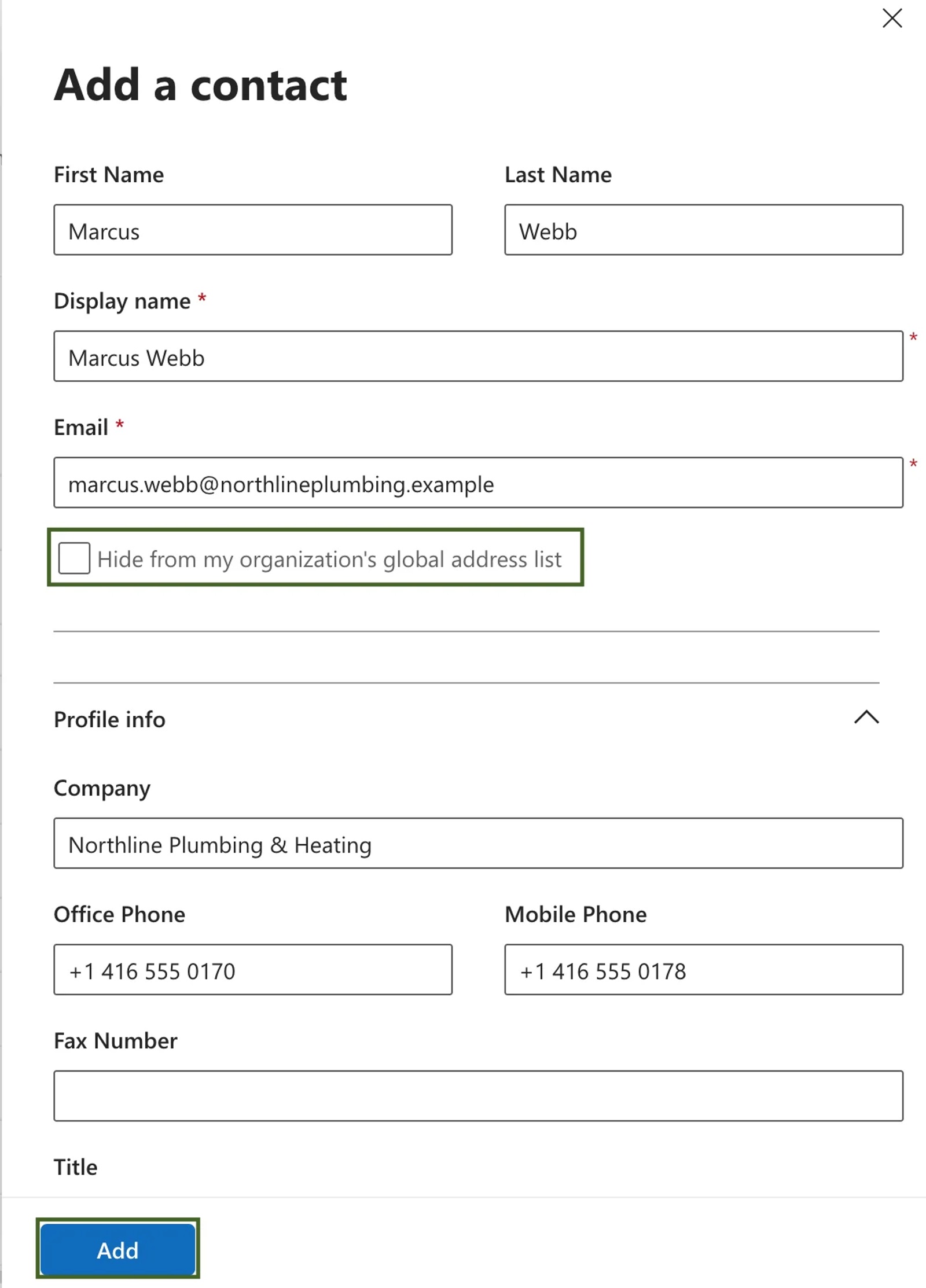
When we added suppliers this way in November 2026, the admin center confirmed each one and asked us to allow 30 minutes for the change to take effect. To correct a number later, select the contact in the list and edit its details. The Contacts page also has an Add multiple contacts option for a short list.
How to add a mail contact in the Exchange admin center
The Exchange admin center (EAC) gives the same result with Exchange's own wording. Go to Recipients > Contacts, select Add a mail contact, and enter the required Display name, Alias and External email address. The next step, Mail contact information (Optional), takes phone numbers and city under Contact information, and title and company under Organisation information. Review the details and select Create.
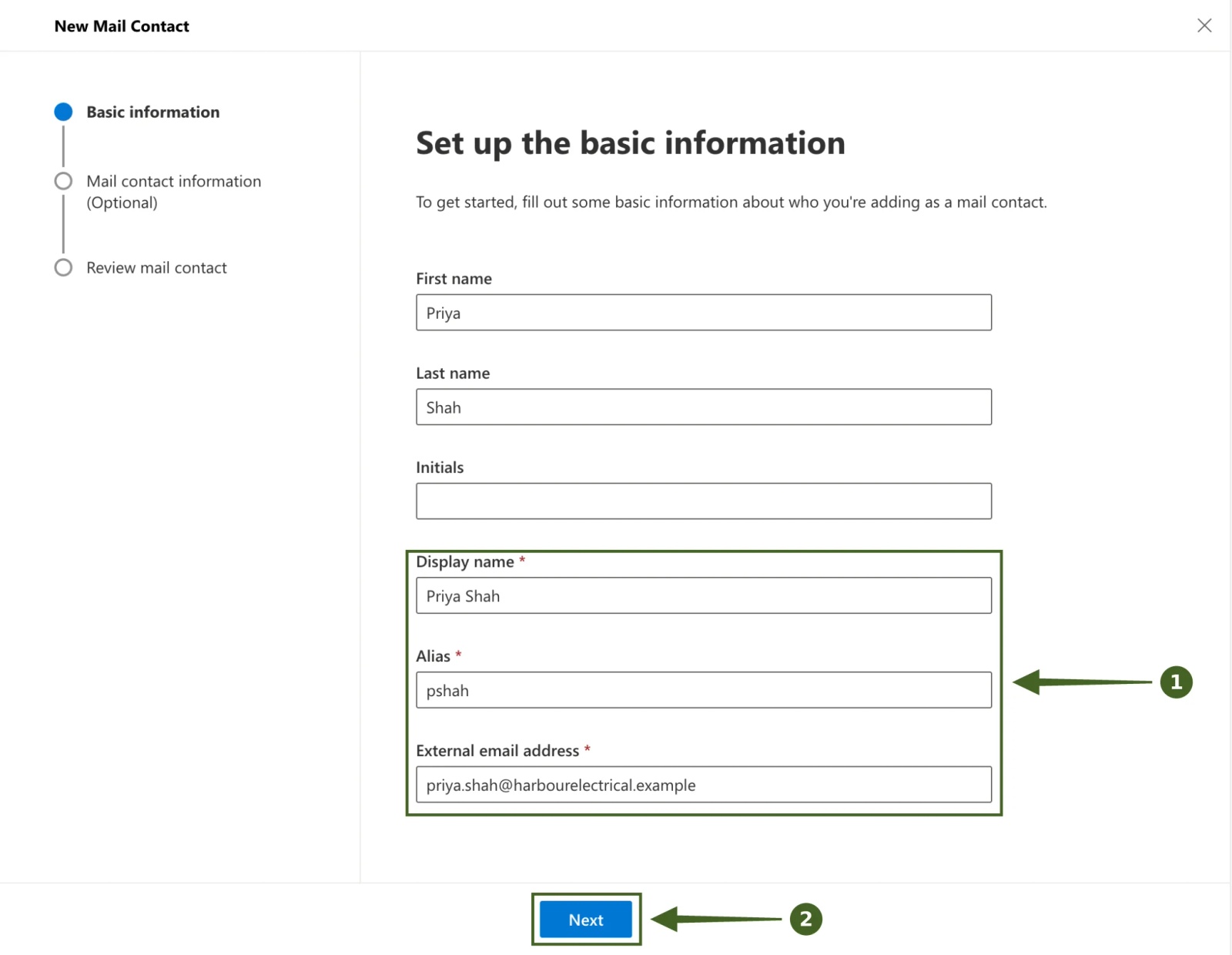
Microsoft's mail contacts page says the contact information you add "is displayed in the address book", and the EAC is also where you go back to correct it. Contacts added in either admin center appear in both.
How to bulk add external contacts with New-MailContact and a CSV
For a supplier list of 30 or 300, Microsoft's own method is a CSV and two PowerShell commands, from its article on bulk importing external contacts to Exchange Online. The CSV needs ExternalEmailAddress, Name, FirstName and LastName, and can also carry columns such as Company, Phone, MobilePhone and Title. Save it as UTF-8 if names have accents.
After you connect to Exchange Online PowerShell, the first command creates the mail contacts:
Import-Csv .\ExternalContacts.csv | %{New-MailContact -Name $_.Name -DisplayName $_.Name -ExternalEmailAddress $_.ExternalEmailAddress -FirstName $_.FirstName -LastName $_.LastName}New-MailContact doesn't take phone numbers or a company, so the second pass adds them with Set-Contact:
Import-Csv .\ExternalContacts.csv | %{Set-Contact -Identity $_.Name -Company $_.Company -Phone $_.Phone -MobilePhone $_.MobilePhone -Title $_.Title}Microsoft's full sample also sets -Manager; leave it out unless every row has one, because a blank Manager cell stops all the properties being added to that contact. Contacts that already exist will error if you re-run the import, so trim the CSV to the new rows. Check the result in the EAC under Recipients > Contacts, where each one shows as MailContact.
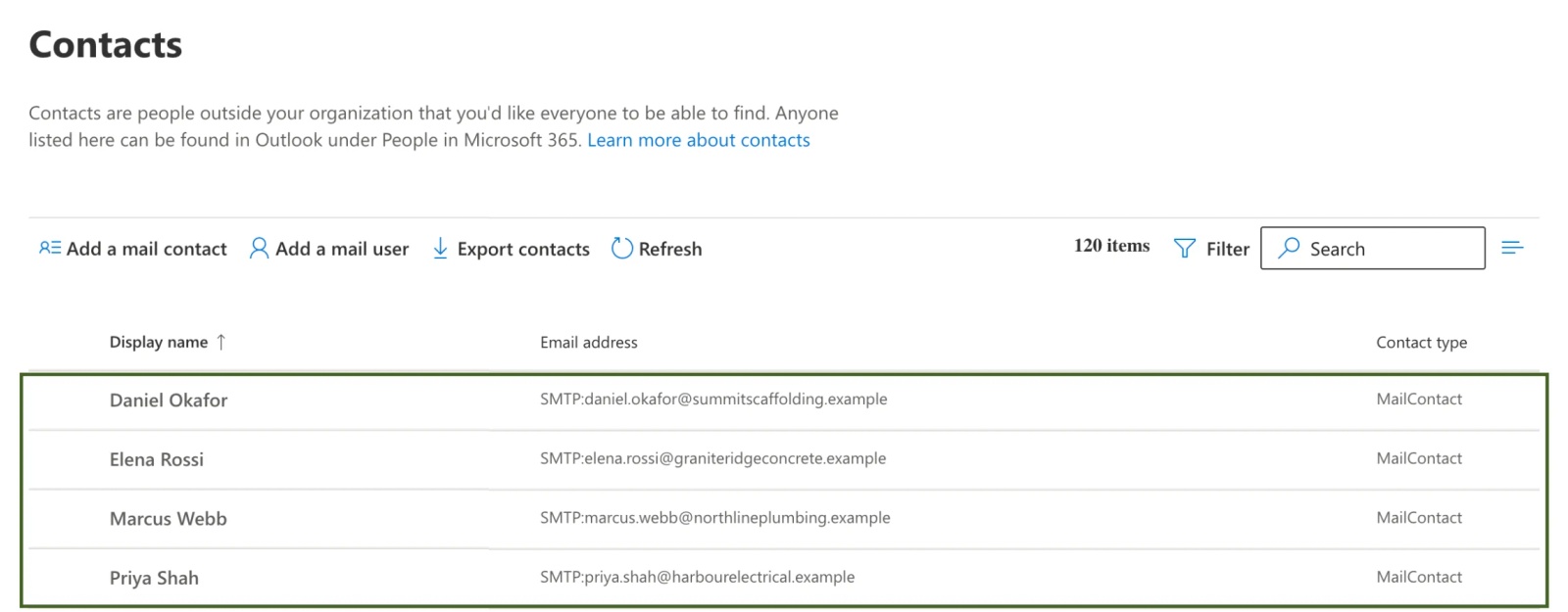
How long until a new mail contact shows in the Global Address List?
Microsoft's admin training says to allow 30 minutes after adding a contact, and the admin center says the same when you save one. Check in Outlook on the web first. In our test, the quickest check was a new email: typing the supplier's name in the To line brought them up from the GAL within the hour, while a search on the People page didn't find mail contacts at all. Classic Outlook works from a downloaded offline address book, which can lag by a day or more; our guide to updating the Global Address List in Outlook covers why and how to refresh it.
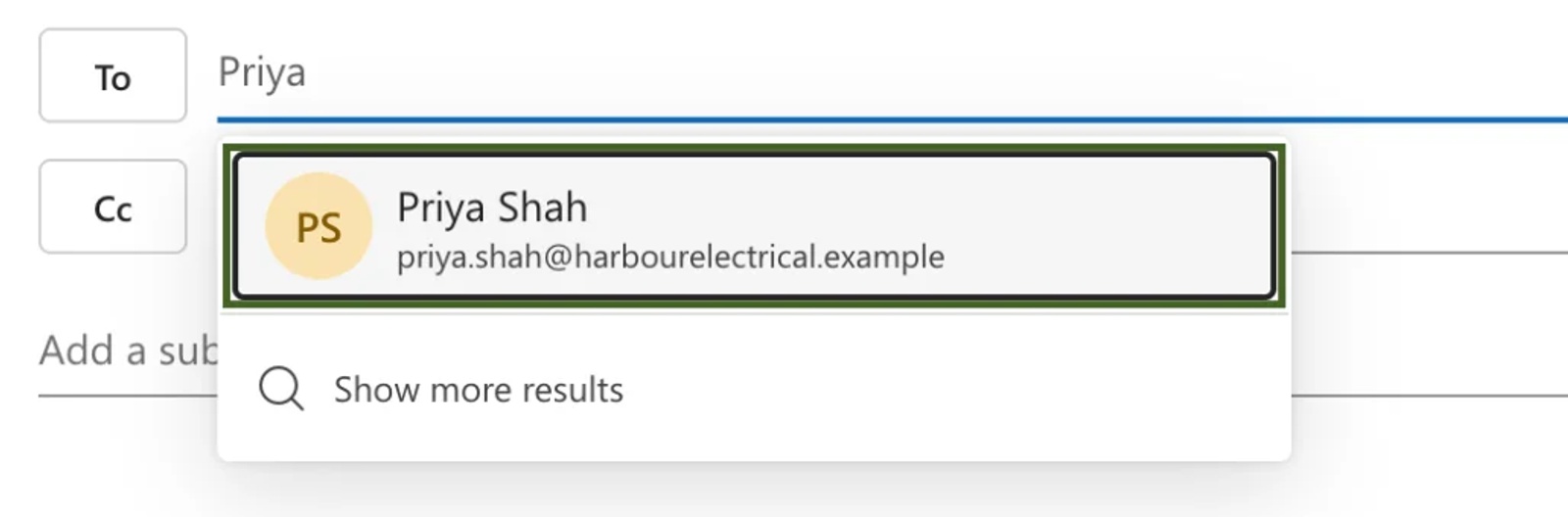
How to hide a mail contact from the Global Address List
Sometimes you want a contact for a distribution list but not in everyone's address book. Tick Hide from my organization's global address list in the admin center, or run Set-MailContact "Priya Shah" -HiddenFromAddressListsEnabled $true. Microsoft's bulk import article says a hidden contact can still be a member of a distribution group. Hiding works the same way for users, shared mailboxes and groups, as our guide to hiding a user from the Global Address List explains.
Why don't GAL contacts show up on iPhone and Android?
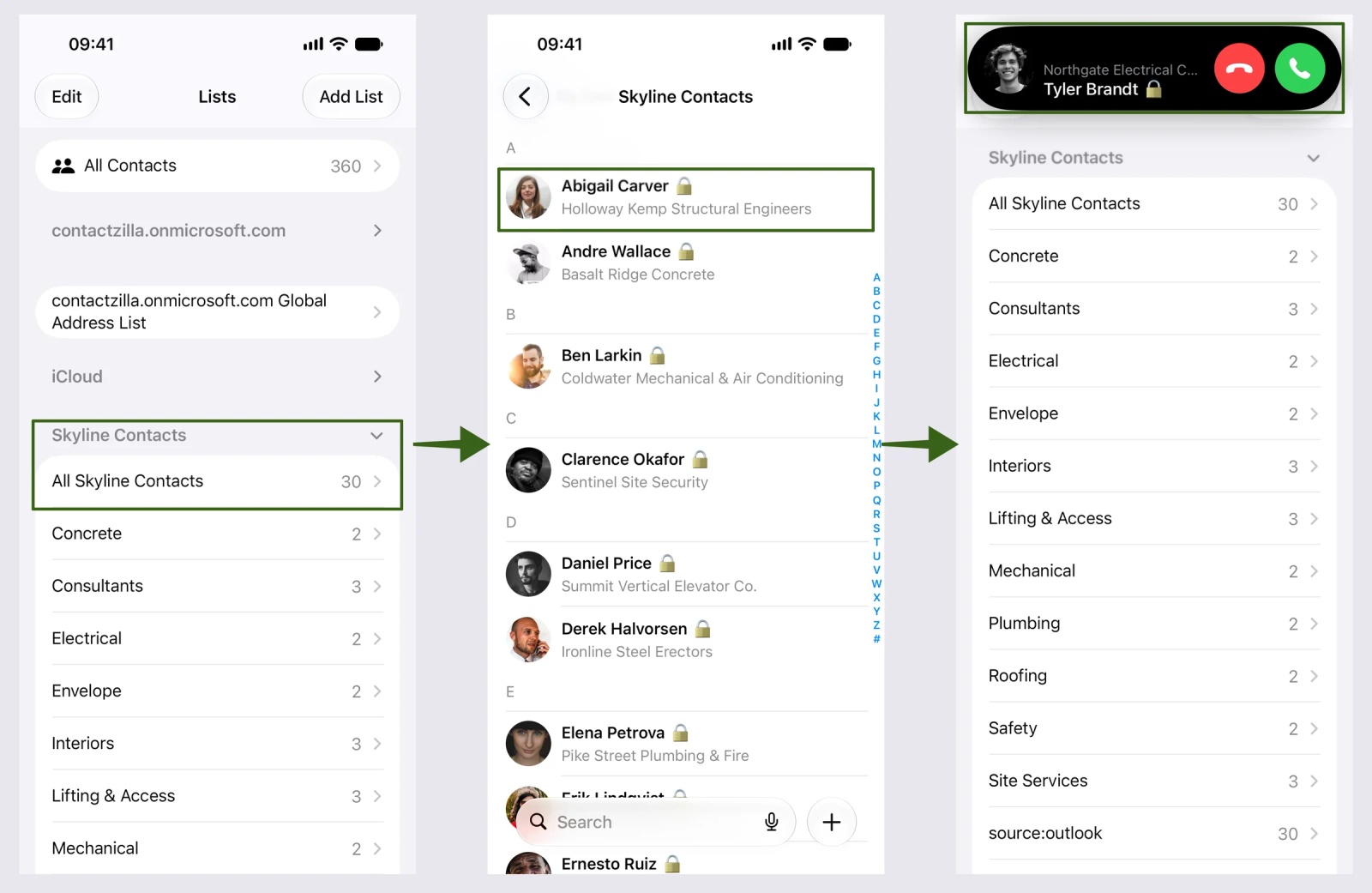
Mail contacts live in the directory, and a phone's Contacts app doesn't keep a copy of the directory. People can email a supplier from Outlook, but nothing is saved to the phone's Contacts, so when the supplier rings, staff see only a number where "Priya Shah, Harbour Electrical" should be. IT service providers have asked us for exactly this on behalf of clients, usually wanting only a chosen subset of the GAL on their phones.
Mail contacts also aren't user accounts in Microsoft Entra ID; Microsoft Graph lists them separately as organisational contacts. A tool that imports only your Entra ID users, Contactzilla's Entra ID importer included, won't pick them up.
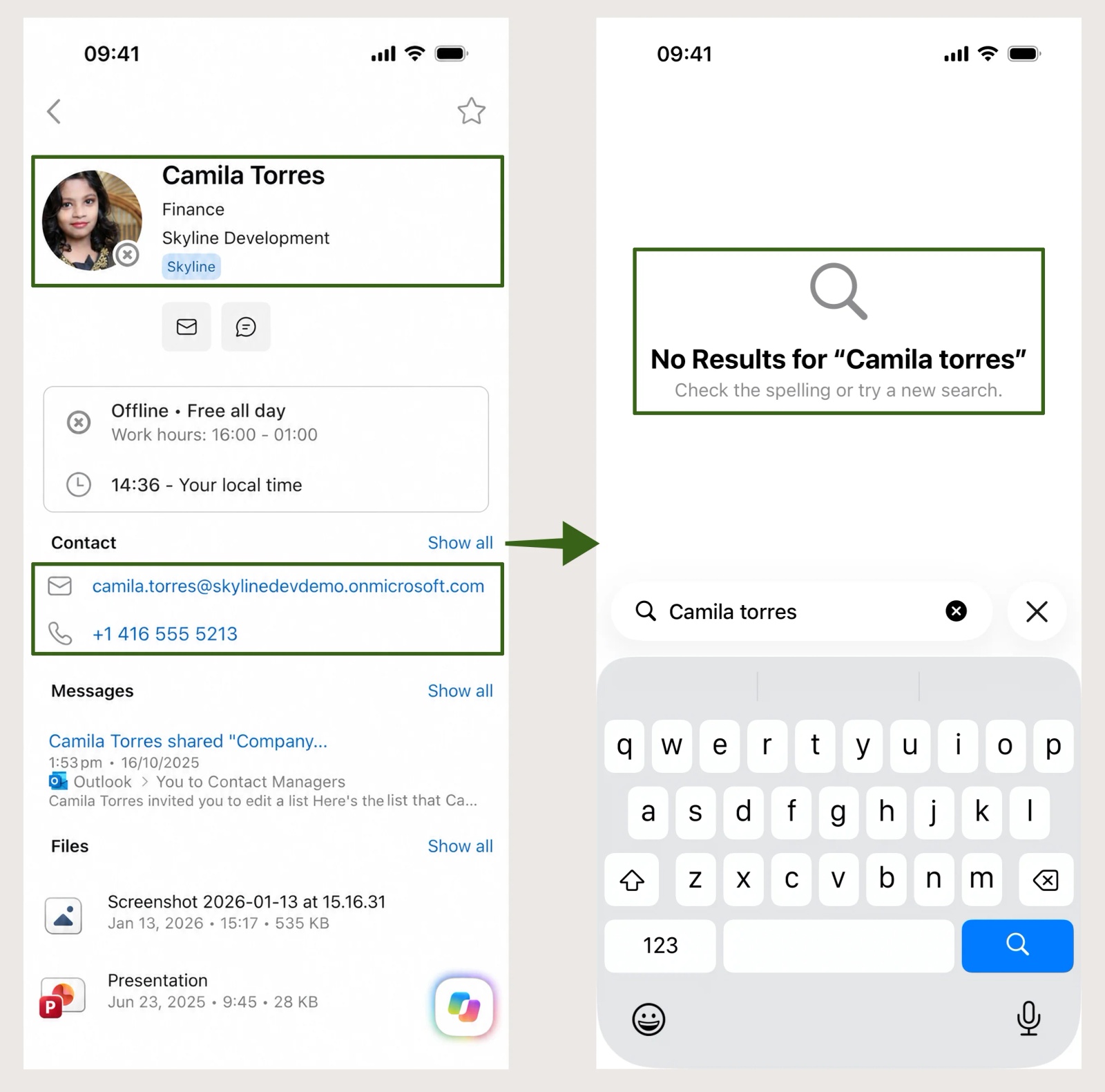
How to get external contacts from the GAL onto iPhone and Android phones
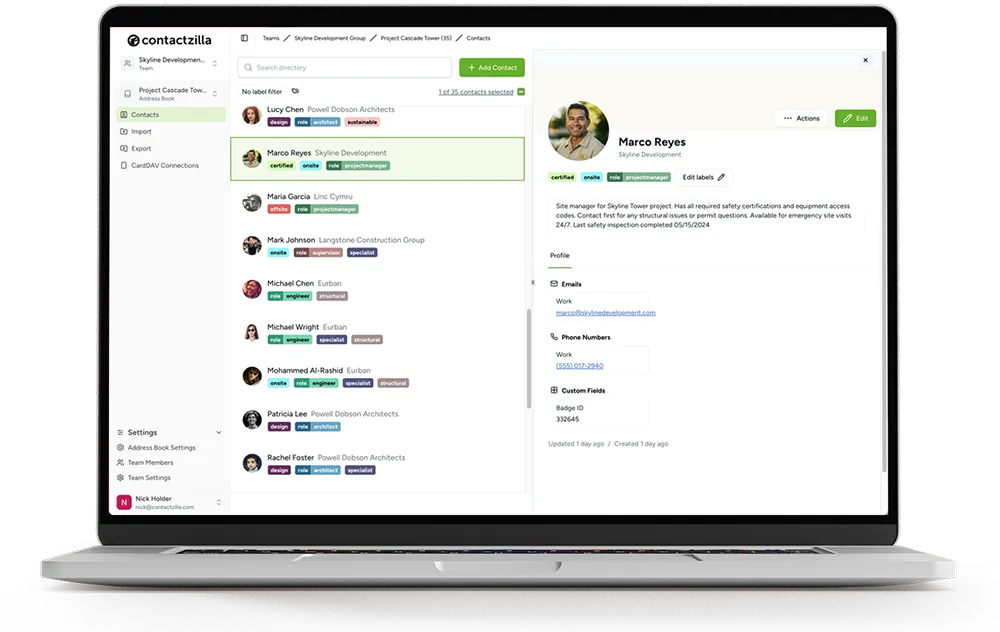
Contactzilla is a shared contacts service: you keep contacts in an address book it manages, and it syncs that address book to the native Contacts app on iPhone and Android as read-only contacts. Its Microsoft 365 Org Contacts importer reads the mail contacts in your tenant, so the suppliers you've just added can reach phones from the same mail contacts.
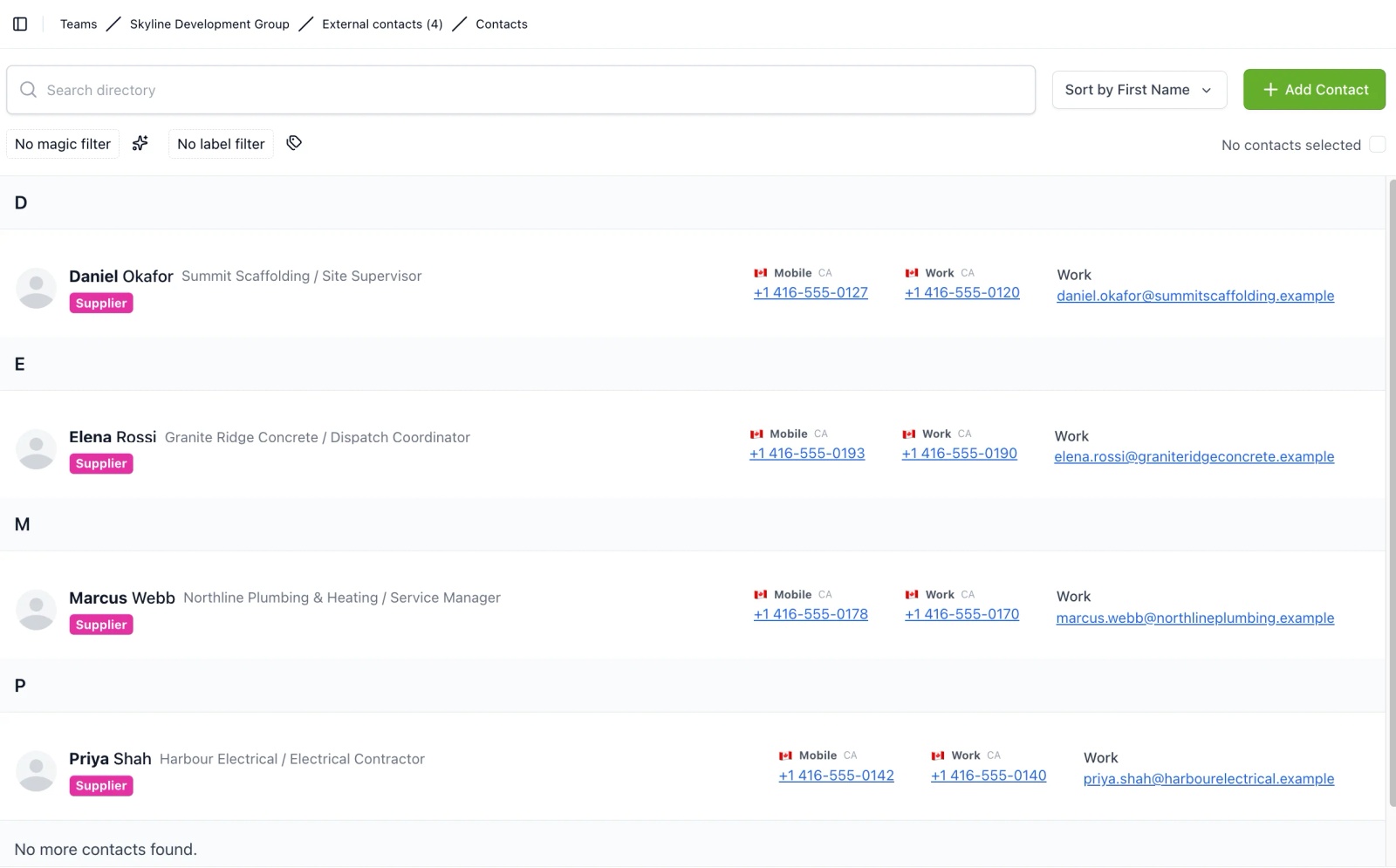
We tested it in November 2026 on four suppliers, three added in the Microsoft 365 admin center and one in the Exchange admin center, with the import set to run daily into an External contacts address book and every contact labelled Supplier.
How to sync only selected GAL contacts to phones
The importer reads every mail contact in the tenant, not just the ones you added for this job. Ours read 152, because the tenant also held old test contacts. The mapping screen has a filter on each column, so we filtered on companyName to keep only contacts with a company filled in: Include, with the pattern /.+/ (any value). The importer showed it would filter out 148 rows before we ran it. The same filter can be set on other columns, such as the email address or job title.
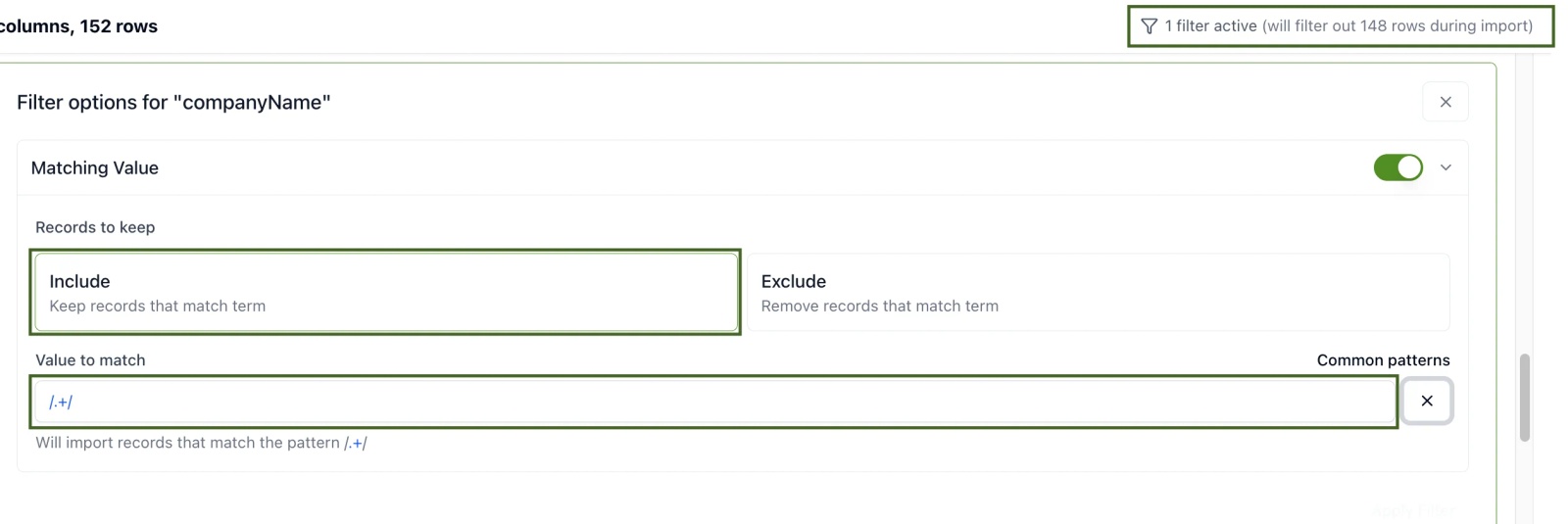
How to keep phone contacts updated when the GAL changes
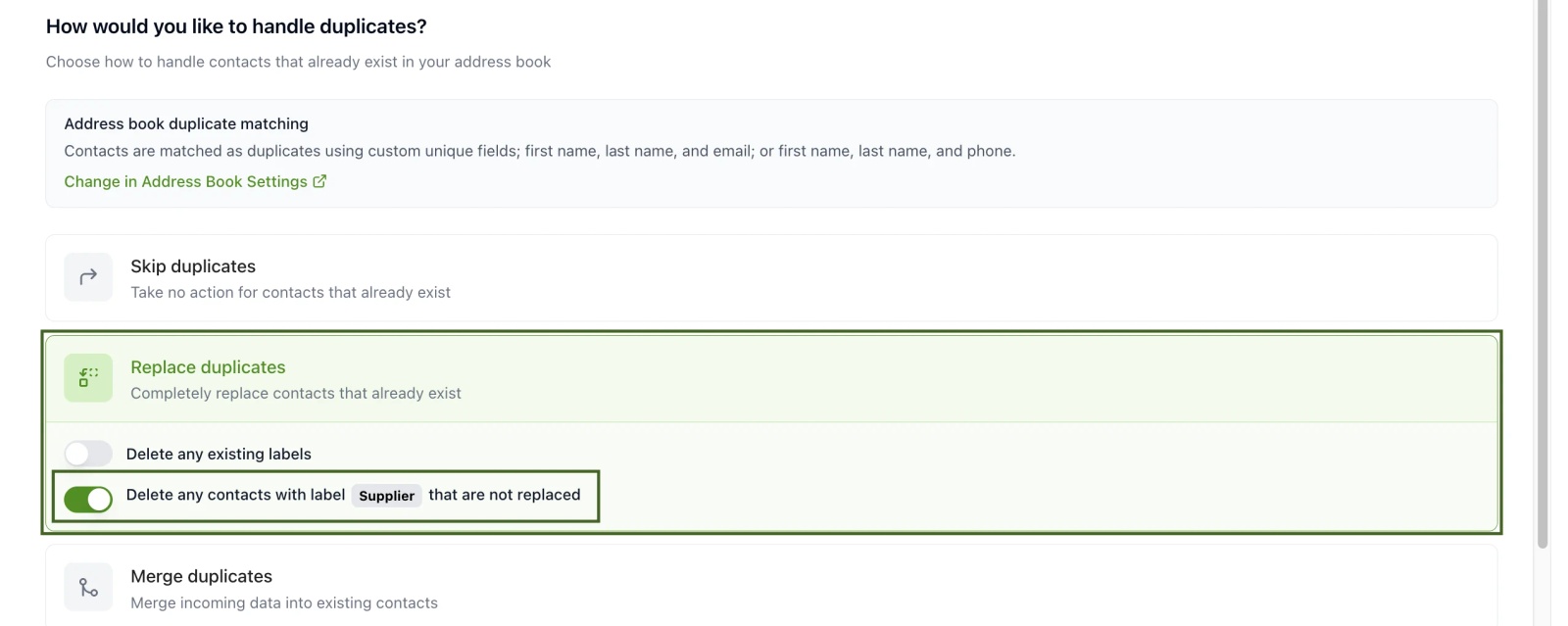
On the duplicates step we chose Replace duplicates, so each run overwrites a supplier's details with what's in Microsoft 365. Because we'd labelled the import, the next option read Delete any contacts with label Supplier that are not replaced. With that on, a supplier removed from Microsoft 365 is removed from the address book on the next run, and from phones at their next sync, while contacts without the label are left alone.
The import read 152 records, imported 4 and filtered out 148. All four suppliers came through with company, title, mobile and office numbers and email address, plus city where we'd filled it in, including Priya Shah, the one added in the Exchange admin center. The daily run that night updated all four and left the filter and label in place. One catch: Replace overwrites the whole contact, so details added in Contactzilla don't survive the next run. We added headshots to the four suppliers, and they were gone the next morning. Keep the details you want on phones in Microsoft 365, where the importer can read them.
The address book then goes to phones through Intune or another MDM, or by scanning a QR code on phones you don't manage. Contactzilla doesn't add anything to Outlook or the GAL, so the mail contacts stay where people email them from.
If you'd rather pick exactly which suppliers reach phones without keeping them in the GAL, import a CSV instead; the spreadsheet you built for New-MailContact will do.
Tip 💡 Starting the list from scratch? Our free vendor contact list template is laid out for a phone list import, with procurement details kept on a separate tab.
Next steps after adding external contacts to the GAL
- Getting a contact list onto phones, click by click: Import contacts from a CSV and Put contacts on phones without MDM by scanning a QR code.
- Taking someone back out of the address book: How to Hide a User from the Global Address List (GAL), Including Hybrid.
Frequently Asked Questions
Does a mail contact need a licence?
No. A mail contact is a directory entry with an outside email address, not a mailbox or a user account, so it uses no Microsoft 365 licence. Only an admin can create one.
How do I add a contact to my own Outlook address book?
That's a personal contact, not a GAL entry. In Outlook, open People (or Contacts) and choose New contact. Only you will see it. If the whole team needs the same supplier, ask IT to add a mail contact, or see how teams share contacts in Outlook.
Can I add a mail contact to a distribution list?
Yes. Once a mail contact exists, you can add it to a distribution list in the Microsoft 365 admin center under Teams and groups, even if it's hidden from the GAL.
Can I change a mail contact's phone number after creating it?
Yes. Select the contact in either admin center and edit its details, or run Set-Contact with the new -Phone or -MobilePhone. Outlook on the web shows the change first; classic Outlook picks it up with its next address book download.