How to Update the Global Address List in Outlook (and Why Changes Take Time to Show)

You've changed someone's number in Microsoft 365, and Outlook still shows the old one.
Short answer: To update the Global Address List in classic Outlook, go to File > Account Settings > Download Address Book. Outlook can't edit the GAL, so admins change people's details in Microsoft Entra ID or Active Directory.
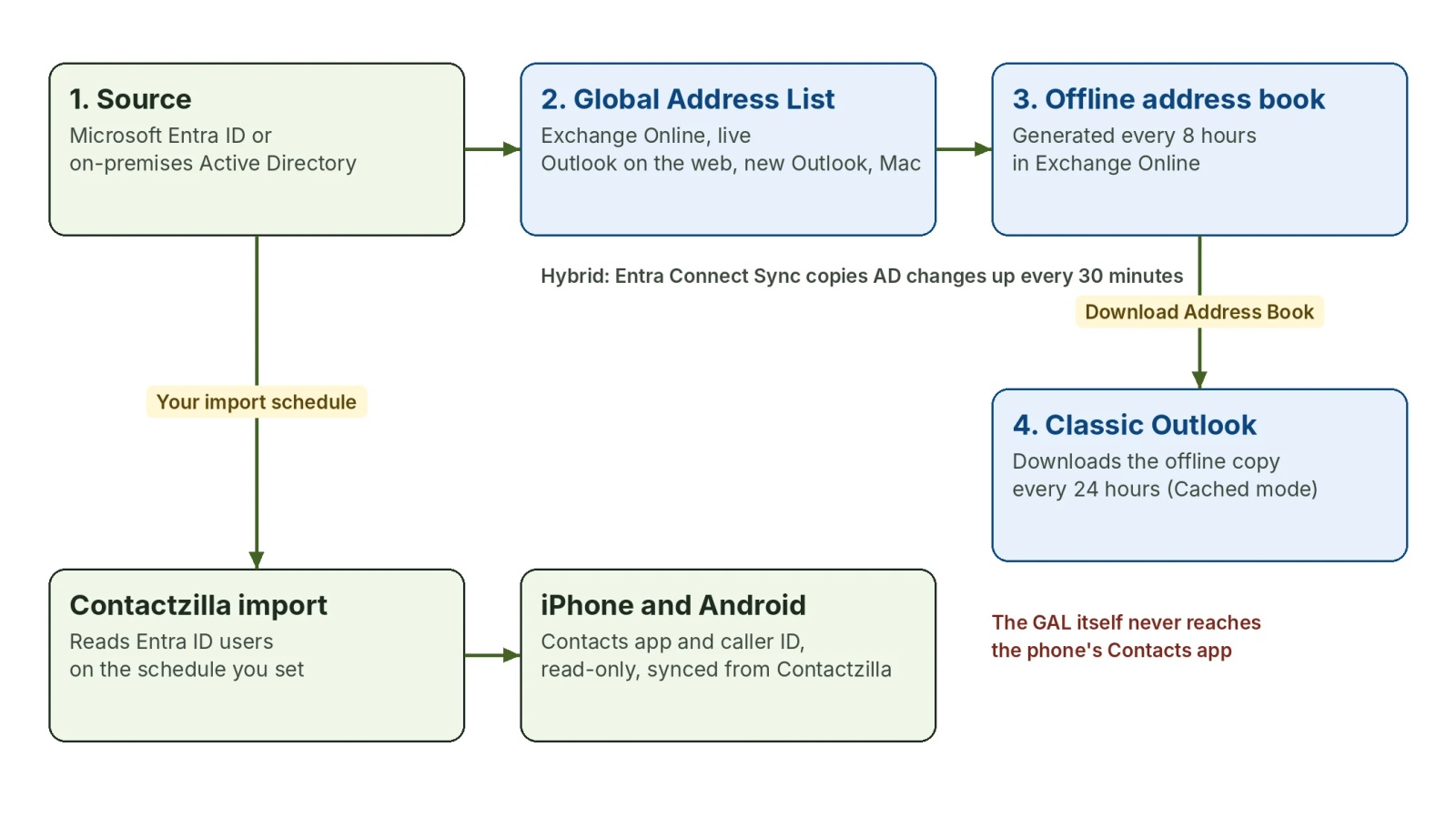
Exchange Online rebuilds the offline address book every 8 hours and classic Outlook downloads it about once a day, so a change can take a day or more to show. Microsoft allows up to 48 hours.
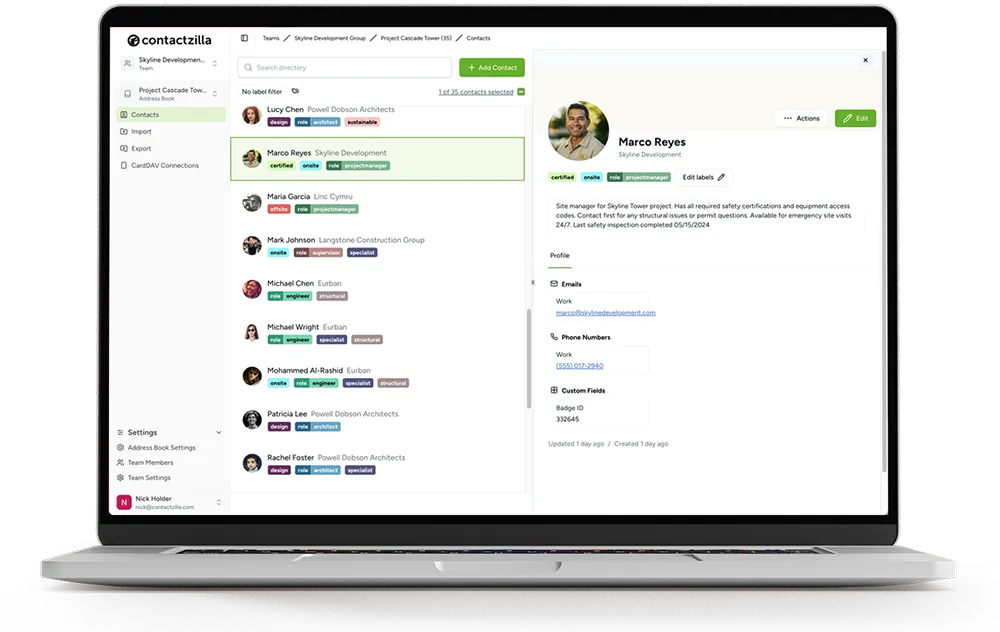
Phones don't keep a copy of the GAL. Contactzilla imports your Entra ID users on a schedule and syncs them to iPhone and Android contacts, caller ID included.
How do I update the Global Address List in Outlook?
You can't edit the Global Address List from Outlook, which only reads it. What you can do is make Outlook fetch the latest version, and how depends on which Outlook you use.
How to refresh the offline address book in classic Outlook
Classic Outlook for Windows in Cached Exchange Mode keeps a downloaded copy of the GAL called the offline address book. To refresh it, go to File > Account Settings > Download Address Book (or Send/Receive > Send/Receive Groups > Download Address Book), choose the Global Address List and select OK.
Microsoft's page on offline address books in Exchange Online says Download changes since last Send/Receive is ticked by default, and clearing it forces a full download. Use the full download when a change still hasn't appeared after an ordinary one.
How to update the address book in new Outlook, Outlook on the web and Outlook for Mac
Outlook on the web always reads the live directory, so there's nothing to refresh. New Outlook for Windows and Outlook for Mac have no Download Address Book command. New Outlook's address book does list an Offline Global Address List, though, so if a change shows in Outlook on the web but not there, give it time.
How long does it take for Global Address List changes to show?
Each layer has its own delay, and they add up. We didn't time Outlook ourselves; these are Microsoft's figures.
| Layer | How often it updates | Source |
|---|---|---|
| Entra Connect Sync (hybrid only) | Every 30 minutes by default | Entra Connect Sync scheduler |
| New Exchange Online mailbox | At least 24 hours to propagate | Create user mailboxes in Exchange Online |
| Offline address book generation | Every 8 hours in Exchange Online | Offline address books in Exchange Online |
| Classic Outlook download | About once a day; Microsoft allows up to 48 hours in total | Microsoft's Outlook troubleshooting article |
Microsoft's offline address book troubleshooting article puts the combined worst case at up to 48 hours. A manual download skips Outlook's wait, not the server's, and the 8-hour generation can't be triggered by hand in Exchange Online.
How do admins change someone's details in the Global Address List?
Every staff entry in the GAL is a user account, so you change it where that account is managed. Which admin center that is depends on whether the person is a cloud user, a synced user or an external contact.
| Who is in the GAL | Where to change their details |
|---|---|
| Cloud-only staff (created in Microsoft 365) | Microsoft Entra admin center or Microsoft 365 admin center |
| Staff synced from on-premises Active Directory | On-premises Active Directory, then let Entra Connect Sync copy it up |
| External people (mail contacts) | Exchange admin center |
| Shared mailboxes, rooms and groups | Exchange admin center or Microsoft 365 admin center |
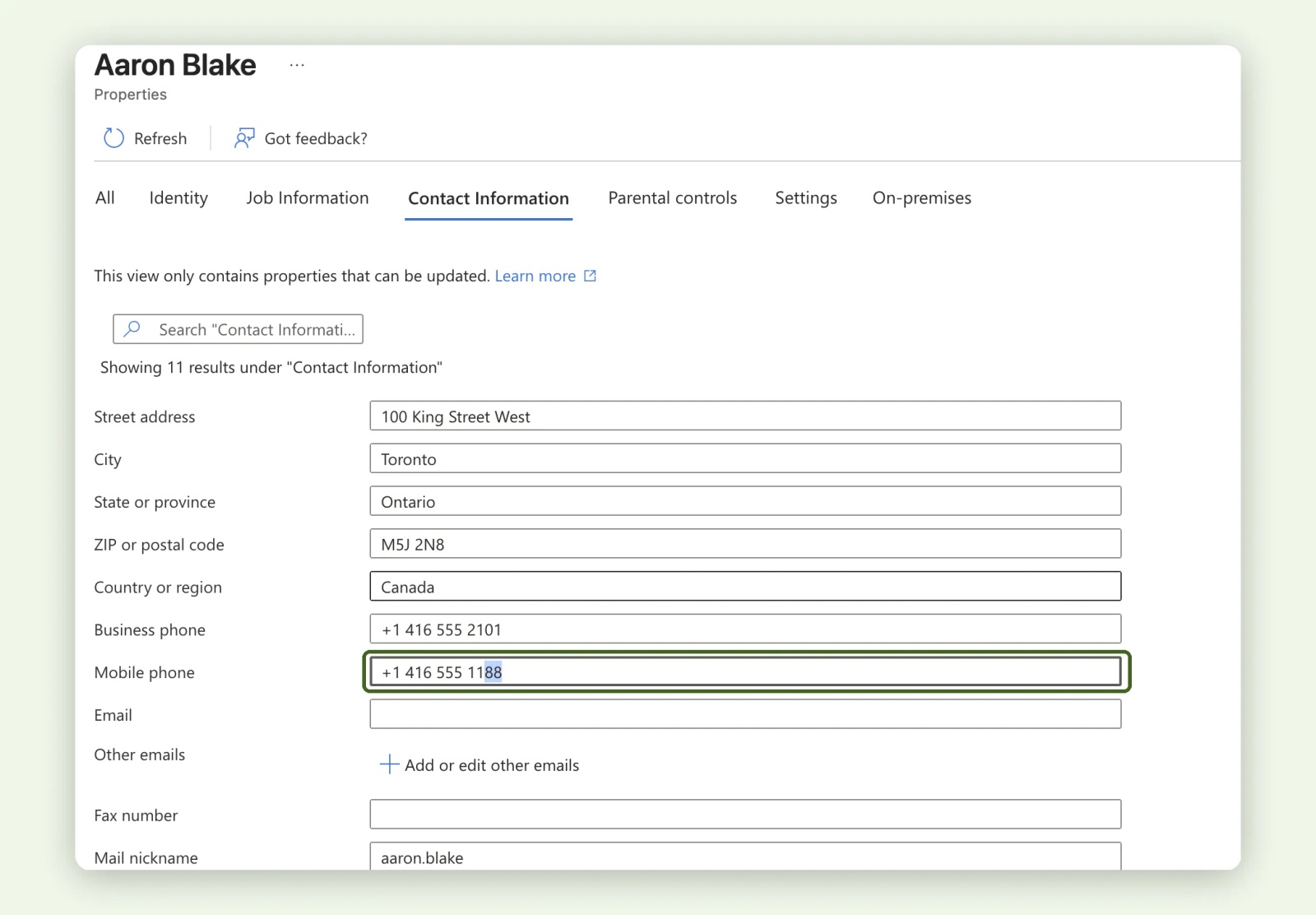
For a cloud user, edit the person's properties in the Entra admin center and save; the screenshot shows the Mobile phone field.
How to update GAL details for synced users in hybrid Active Directory
If your users come from on-premises Active Directory through Microsoft Entra Connect Sync (formerly Azure AD Connect), their phone, mobile, title and department fields are managed on-premises. Change them there. Microsoft's Entra Connect Sync scheduler page says a sync cycle runs every 30 minutes by default, and an admin can start one straight away with Start-ADSyncSyncCycle -PolicyType Delta on the sync server.
Why isn't my Global Address List change showing?
Check Outlook on the web to see where a GAL change is stuck
Outlook on the web is the quickest test. If the new number shows there but not in classic Outlook, the directory is right and your offline copy is behind. If it's wrong in Outlook on the web too, the change hasn't reached Exchange Online yet. Find the symptom in the left column.
| What you see | Likely cause | What to do |
|---|---|---|
| Right in Outlook on the web, old in classic Outlook | The offline address book hasn't caught up | Download Address Book, or wait for the next automatic download |
| Old everywhere, including Outlook on the web | The change was made in the wrong place, or hasn't synced from Active Directory | Check where the user is managed; in hybrid, edit on-premises and run a delta sync |
| A new starter is missing | New mailboxes take time, or the person has no Exchange Online licence | Allow at least 24 hours, and check the licence |
| Someone is missing who used to be there | They're hidden from address lists | Check HiddenFromAddressListsEnabled on the mailbox (in hybrid, set it on-premises) |
| Missing from a custom address list only | Exchange Online didn't re-evaluate the list's filter | Change the filtered property to a temporary value and back |
Why is a new user not showing in the Global Address List?
A new staff member normally appears in the GAL once they have an Exchange Online mailbox, which is created when they're given an Exchange Online licence. Microsoft says a new mailbox needs at least 24 hours to propagate, and classic Outlook's offline copy can lag a further day. Search for them in Outlook on the web before assuming something's broken.
How do I force the Global Address List to update in Exchange Online?
You can't force it with a single command. The Update-GlobalAddressList and Update-AddressList cmdlets exist only in Exchange Server, and Microsoft says they aren't available in Exchange Online by design. Microsoft's workaround is to touch the recipient so Exchange Online re-evaluates it: change a filtered property to a temporary value and back, as that article describes, or run Set-Mailbox -ApplyMandatoryProperties from its article on updating address list membership. On the Outlook side, the fastest you can go is a manual Download Address Book.
Why don't Global Address List updates reach iPhone and Android phones?
An iPhone with an Exchange account can look people up in the GAL, but it doesn't keep a copy, so the Contacts list and caller ID never show directory changes. Outlook for iPhone and Android searches the directory too, and the number saved on the phone stays as it was.
Contactzilla reads the same source the GAL does. Its Microsoft Entra ID importer pulls your users into a shared address book on the schedule you set, from manual to monthly, and syncs that address book to staff phones as read-only contacts, through your MDM or a QR code.
We tested this in November 2026 with a demo user, Aaron Blake. We changed his mobile number in Entra ID at 20:04. Contactzilla still showed the old number until its import ran, because the import has its own schedule. After a manual import, the new number was in the address book, and the iPhone's Contacts app showed it moments later.
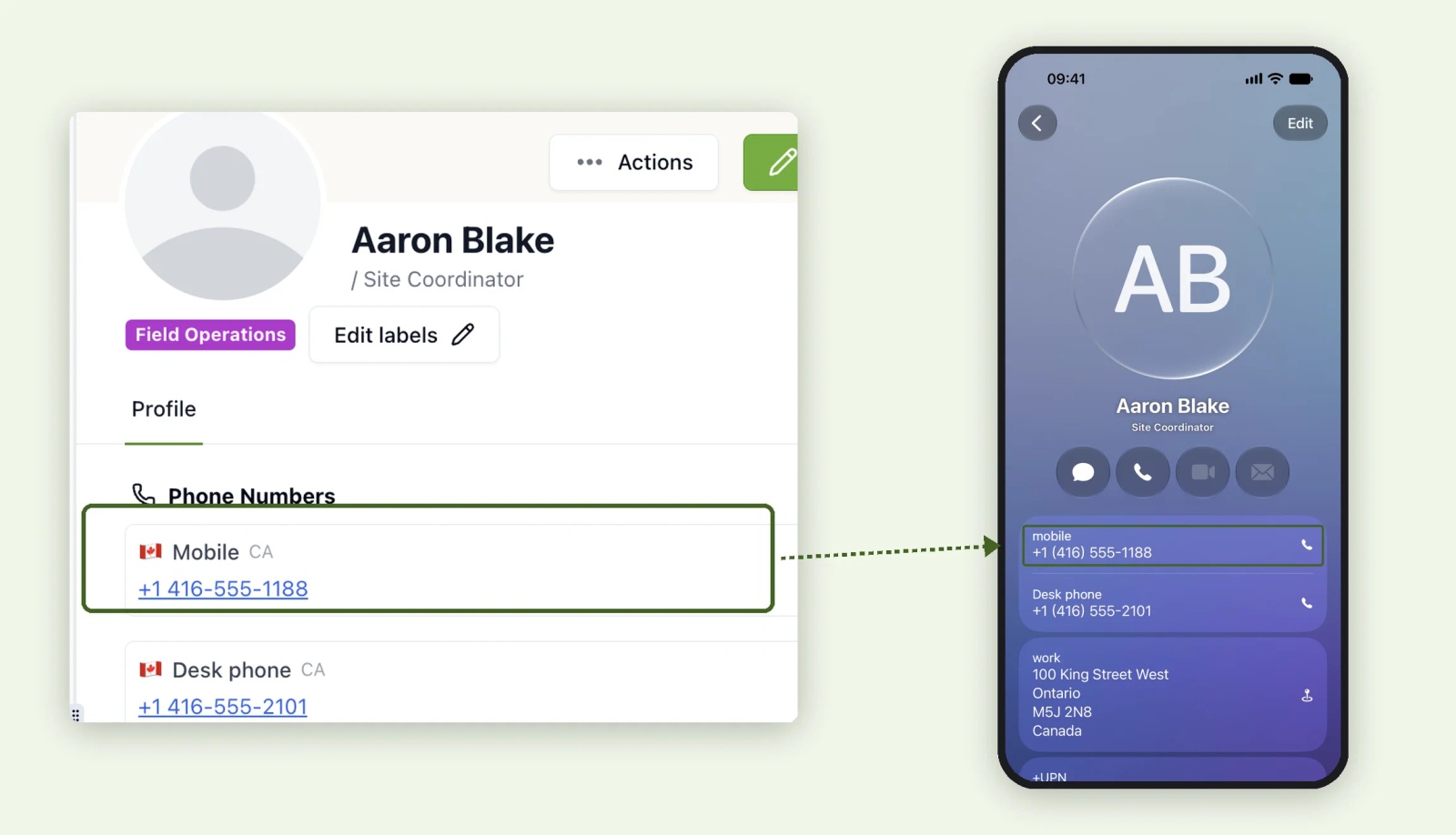
Tested on an iPhone 15 running iOS 27.0.1, November 2026.
The import schedule is one more layer. A daily import suits most teams; run it manually after a big change, such as a new office's phone numbers. With delete handling turned on, anyone disabled in Entra ID drops off the phones at the next import and sync.
Tip 💡 Setting this up for the first time? Our guide to syncing the Global Address List to iPhone covers delivery, and the help article on importing contacts from Microsoft Entra ID has every click.
What IT teams ask us about GAL updates
Of the five organisations that raised the GAL with us by name in the last 12 months, three asked specifically for joiners, leavers and number changes to flow through to phones on their own. They were in construction, public transit and environmental services.
Tip 💡 Prefer to watch? Our video Sync Microsoft Global Address List to iPhone & Android shows the Entra ID import and phone delivery end to end.
Next steps after updating the Global Address List
- What the GAL holds and where each Outlook keeps it: Global Address List (GAL): What It Is, Where It Is in Outlook.
- Getting the directory onto phones: Sync the Global Address List to iPhone and to Android.
- The Entra ID import, click by click: How to import contacts from Microsoft Entra ID.
- Removing leavers properly: our IT offboarding checklist.
Frequently Asked Questions
Can users update their own details in the Global Address List?
Not from Outlook, which only reads the Global Address List. An admin changes a wrong number or job title in the Entra admin center or Microsoft 365 admin center, on-premises Active Directory for synced users, or the Exchange admin center for mail contacts.
Why does the Global Address List still show someone who has left?
Blocking someone's sign-in doesn't by itself hide them from the GAL. Hide the mailbox from address lists, convert it to a shared mailbox or remove it, and allow for classic Outlook's offline copy to catch up.
Can I update the Global Address List on my iPhone?
No. The iPhone doesn't store the GAL, so there's nothing to refresh, and Outlook for iPhone searches the directory live. To get directory changes into Contacts and caller ID, sync the directory to the phone with a tool such as Contactzilla.