How to Hide a User from the Global Address List (GAL) in Microsoft 365, Including Hybrid

Someone has left, or a service account keeps turning up in Outlook, and you want them out of the address book.
Short answer: To hide a user from the Global Address List, open the mailbox in the Exchange admin center, select Manage hide from GAL, turn the toggle on and save. In PowerShell, runSet-Mailbox -Identity <user> -HiddenFromAddressListsEnabled $true.
If the user syncs from on-premises Active Directory, setmsExchHideFromAddressListsto True on-premises and let Microsoft Entra Connect sync it.
Hiding doesn't touch contacts already on staff phones. Contactzilla's Entra ID import can remove disabled accounts from phones at its next sync.
How do I hide a user from the Global Address List in the Exchange admin center?
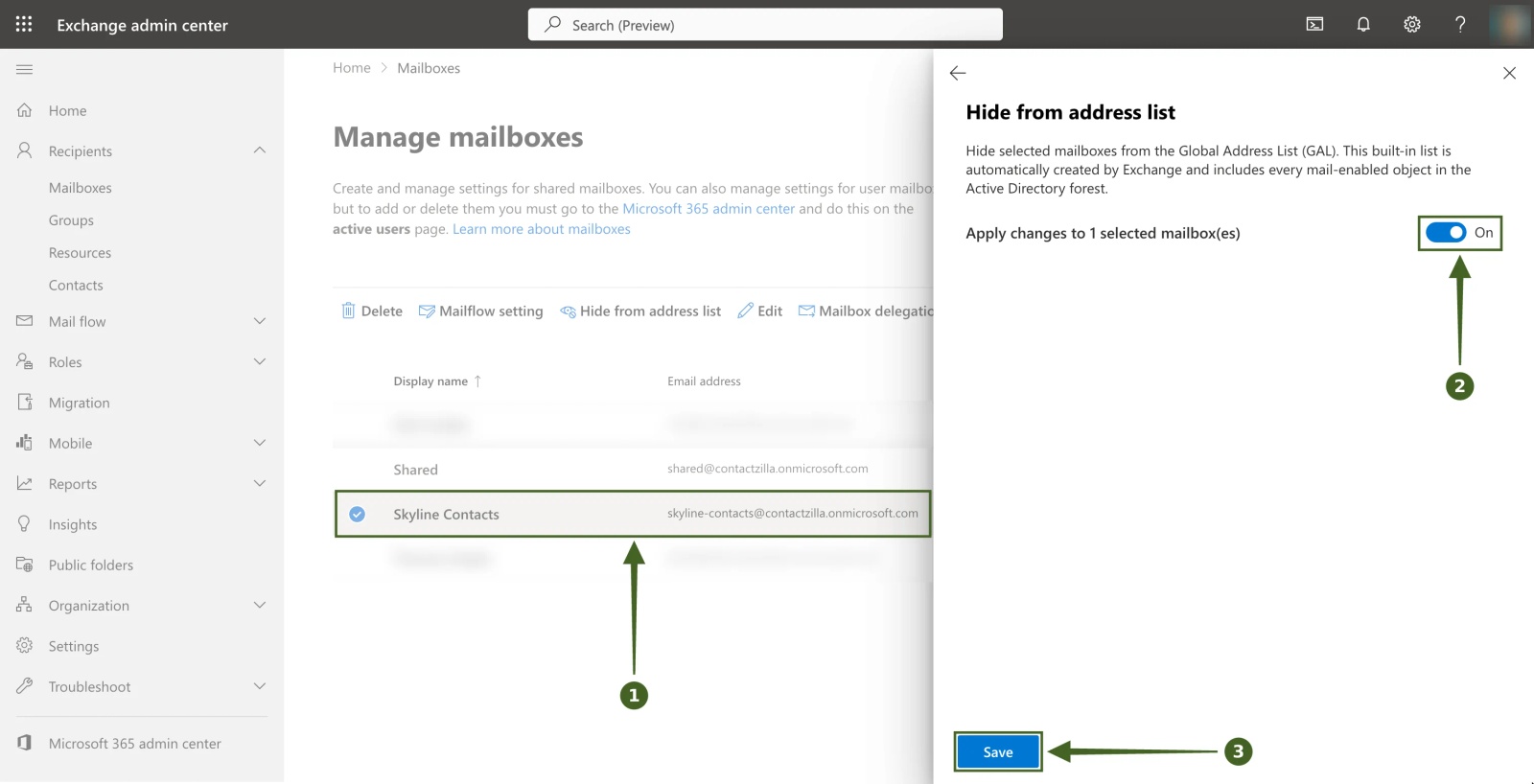
In a cloud-only Microsoft 365 tenant, the Exchange admin center is the quickest way to hide one person. Go to Recipients > Mailboxes, select the mailbox, and on the General tab select Manage hide from GAL in the Hide from global address list (GAL) section. The Hide from address list panel opens: turn the toggle on and select Save. To hide several mailboxes at once, tick them in the list and use Hide from address list on the toolbar. The same setting exists for shared mailboxes, rooms, groups and contacts, in slightly different places.
Microsoft's page on managing address lists in Exchange Online lists where the setting sits for each recipient type.
| What you want to hide | Where it is in the Exchange admin center |
|---|---|
| User or shared mailbox | Recipients > Mailboxes > General tab > Manage hide from GAL |
| Room or equipment mailbox | Recipients > Resources > General tab > Manage hide from GAL |
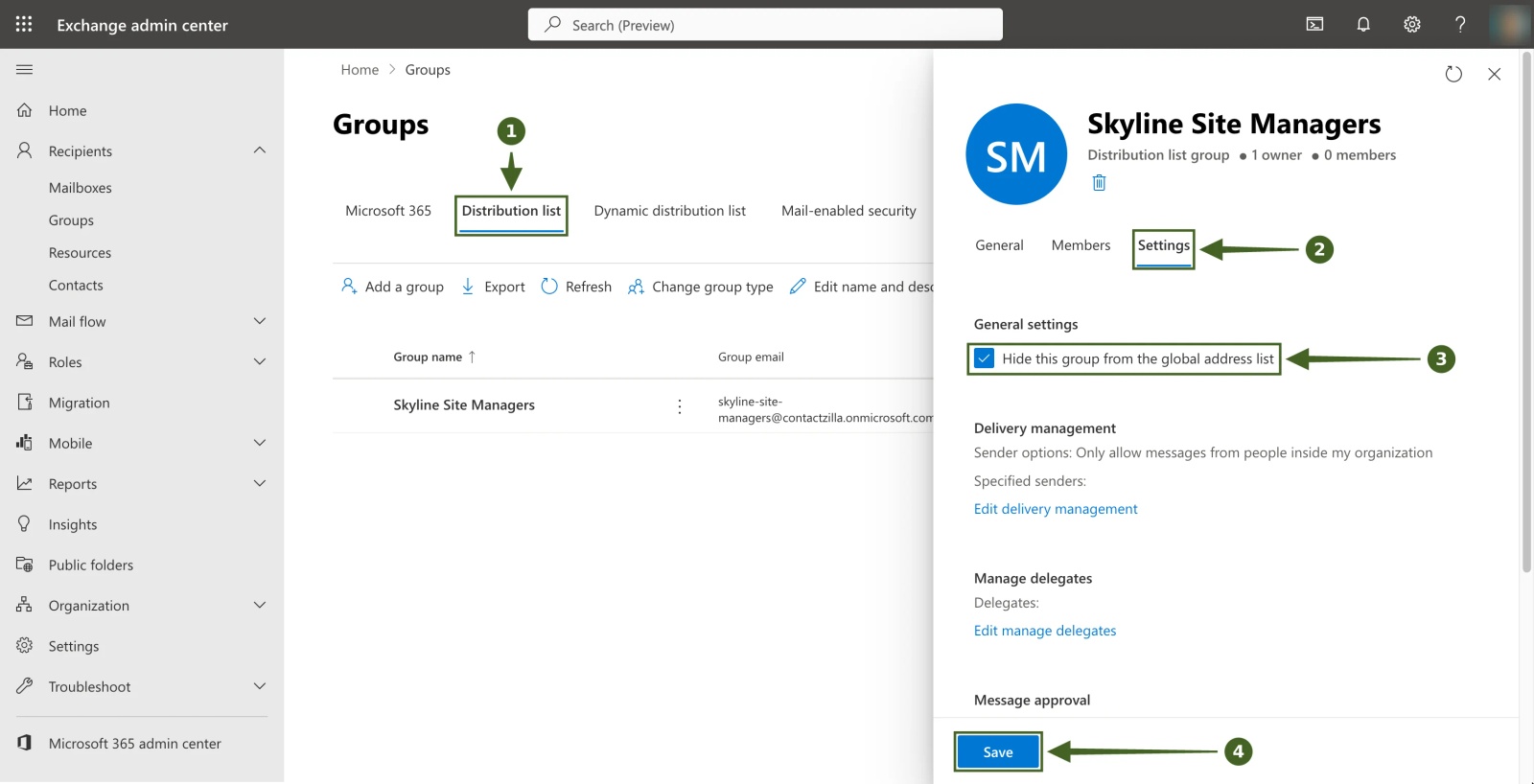
| Microsoft 365 group, distribution list or mail-enabled security group | Recipients > Groups > Settings tab > Hide this group from the global address list |
| Mail contact or mail user (external people) | Recipients > Contacts > General tab > Manage hide from GAL |
Hide a shared mailbox or user from the GAL in the Microsoft 365 admin center
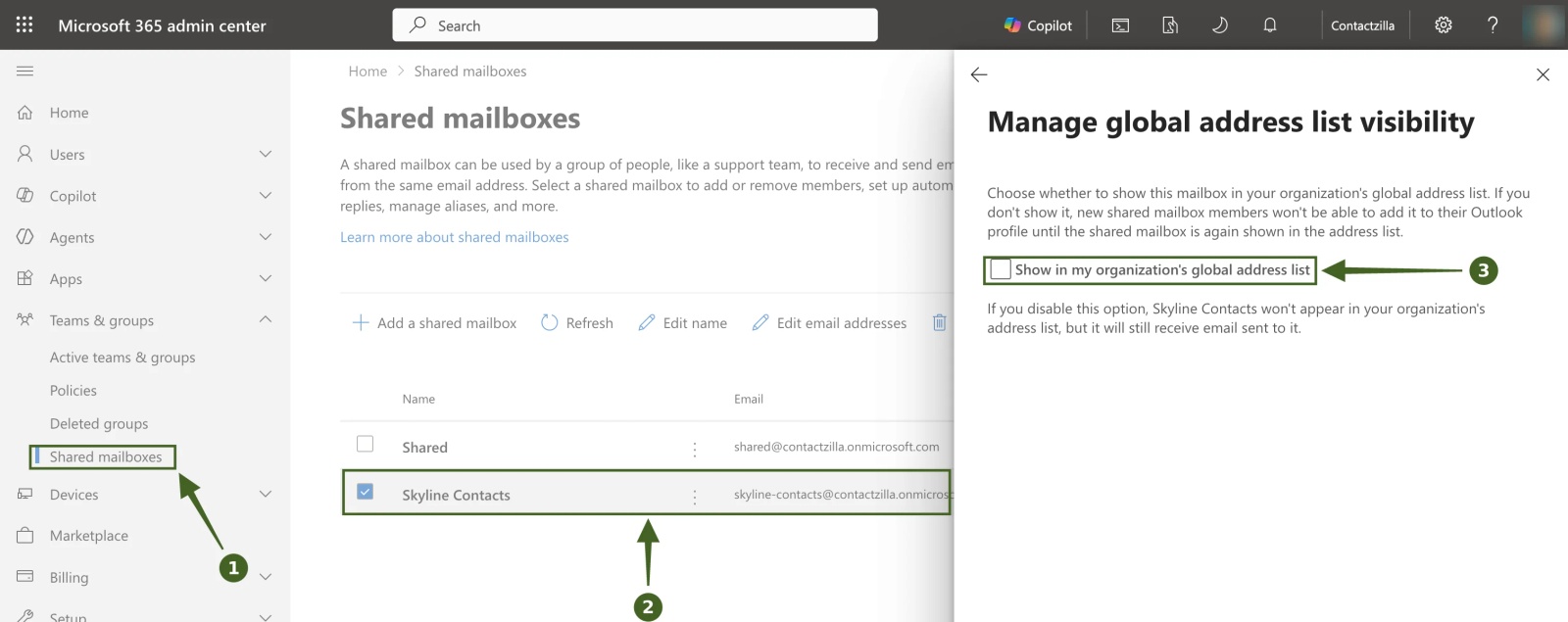
You can also do it without leaving the Microsoft 365 admin center. For a shared mailbox, go to Teams & groups > Shared mailboxes, select the mailbox and choose Edit under Show in global address list. In Manage global address list visibility, clear Show in my organization's global address list and save. For a user, the same setting is on the Mail tab under Users > Active users, as Microsoft's user email settings page describes. One catch the admin center spells out: while a shared mailbox is hidden, new members can't add it to their Outlook profile, so finish adding people before you hide it.
How to hide a user from the GAL with PowerShell (HiddenFromAddressListsEnabled)
In Exchange Online PowerShell, every mail-enabled object has a HiddenFromAddressListsEnabled property. Set it to $true to hide the recipient and $false to show it again. Connect with Connect-ExchangeOnline, then run the cmdlet for the recipient type.
Set-Mailbox -Identity aaron.blake@skylinedevdemo.onmicrosoft.com -HiddenFromAddressListsEnabled $true| Recipient | Cmdlet |
|---|---|
| User, shared, room or equipment mailbox | Set-Mailbox |
| Distribution list or mail-enabled security group | Set-DistributionGroup |
| Dynamic distribution list | Set-DynamicDistributionGroup |
| Microsoft 365 group | Set-UnifiedGroup |
| Mail contact | Set-MailContact |
| Mail user | Set-MailUser |
To check your work, or to audit everyone who's already hidden, Microsoft suggests Get-Recipient:
Get-Recipient -ResultSize unlimited -Filter 'HiddenFromAddressListsEnabled -eq $true'To hide a batch of people at once, list their sign-in addresses in a CSV with a UserPrincipalName column and run:
Import-Csv .\hide.csv | ForEach-Object { Set-Mailbox -Identity $_.UserPrincipalName -HiddenFromAddressListsEnabled $true }Hybrid users: set msExchHideFromAddressLists on-premises (the "couldn't update mailbox global address list info" error)
If your users come from on-premises Active Directory through Microsoft Entra Connect Sync, the toggle above won't save for them. The admin center shows an error saying it couldn't update the mailbox, and by default Set-Mailbox fails too, because the mailbox's Exchange attributes are managed on-premises. Microsoft's page on managing recipients in Exchange hybrid environments is blunt about why: you can't modify on-premises recipients directly in Microsoft Entra ID or Exchange Online.
The setting that controls hiding on-premises is the Active Directory attribute msExchHideFromAddressLists. Entra Connect Sync includes it in the attributes it synchronises for Exchange Online, for users, contacts and groups. Change it on-premises and the cloud follows.
Option 1: Hide a hybrid user from the GAL with Set-RemoteMailbox
If you still have an Exchange server, or the Exchange Server management tools installed (Exchange 2019 CU12 or later lets you manage recipients without a running server), use the supported cmdlet. Set-RemoteMailbox runs only in on-premises Exchange and syncs the change to the cloud mailbox.
Set-RemoteMailbox -Identity aaron.blake -HiddenFromAddressListsEnabled $trueOption 2: Set the msExchHideFromAddressLists AD attribute directly
Without Exchange tools, set the attribute yourself. In Active Directory Users and Computers, turn on View > Advanced Features, open the user, go to the Attribute Editor tab, find msExchHideFromAddressLists and change it from <not set> to True. Microsoft's fix for a mail-enabled security group that stays visible after sync uses the same Attribute Editor steps. The PowerShell equivalent is:
Set-ADUser aaron.blake -Replace @{msExchHideFromAddressLists=$true}Then wait for the next sync, which Microsoft's Entra Connect Sync scheduler page puts at every 30 minutes by default, or start one on the sync server with Start-ADSyncSyncCycle -PolicyType Delta. To check the value on-premises, run Get-ADUser aaron.blake -Properties msExchHideFromAddressLists.
Option 3: Hide a synced user from the GAL in the cloud with IsExchangeCloudManaged
Microsoft now lets you move a synced mailbox's Exchange attributes to the cloud. Run Set-Mailbox -Identity <user> -IsExchangeCloudManaged $true (Microsoft Entra Connect Sync 2.5.190.0 or later), and HiddenFromAddressListsEnabled becomes editable in Exchange Online like a cloud-only user's. The trade-off, from Microsoft's page on enabling Exchange attributes cloud management: the change isn't written back on-premises, and on-premises changes to that mailbox's Exchange attributes stop flowing up. Use it when you're moving away from managing Exchange on-premises, not for a one-off hide.
If the hybrid change still doesn't show in Exchange Online
Two things catch people out. First, if msExchHideFromAddressLists isn't in the Attribute Editor at all, your Active Directory schema hasn't been extended for Exchange. Microsoft's supported way to add it is Exchange Setup with /PrepareSchema, as described in preparing Active Directory and domains for Exchange Server. Second, Microsoft documents that a change to the attribute isn't applied in Exchange Online when the on-premises object has no mailNickname (alias), because the Exchange sync rule skips it. Set an alias and sync again.
How to hide shared mailboxes, groups, distribution lists and contacts from the GAL
Hiding works the same way for every mail-enabled object; only the place you click changes. A shared mailbox is a mailbox, so use the Mailboxes page or Set-Mailbox; in hybrid, a shared mailbox created on-premises needs the on-premises route above. For a group or distribution list, open it under Recipients > Groups, go to Settings and tick Hide this group from the global address list, or use Set-DistributionGroup or Set-UnifiedGroup. External mail contacts are under Recipients > Contacts, or Set-MailContact.
Hiding is all or nothing. Microsoft's page says a hidden recipient is removed from every address list and GAL; if you want someone visible to one department but not another, that's a job for address list filters or address book policies, not the hide flag.
How to hide disabled users from the GAL
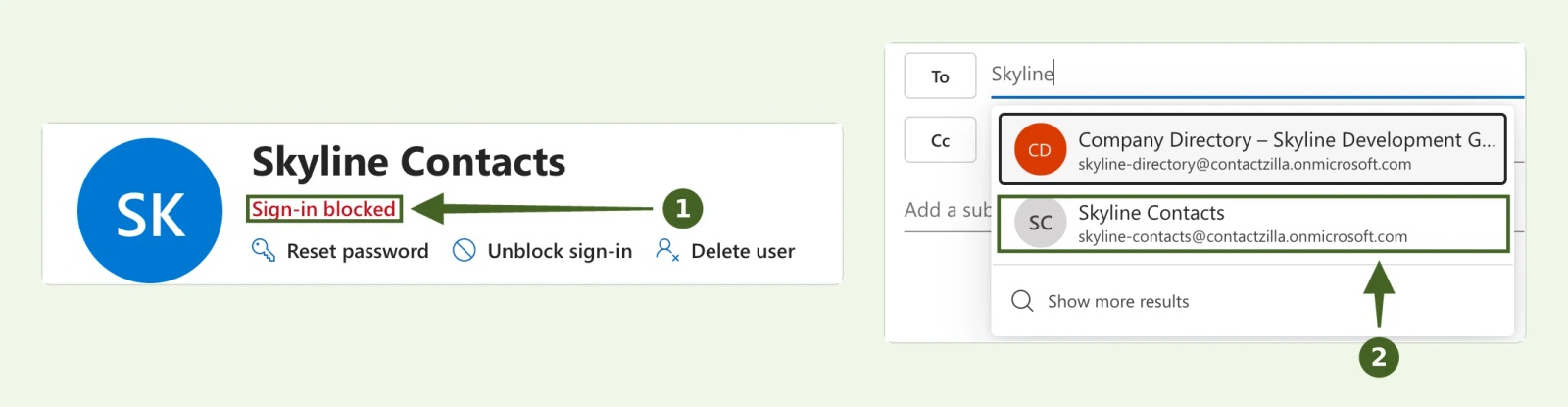
Blocking someone's sign-in or disabling their account doesn't by itself hide their mailbox, so leavers can linger in Outlook's address book. Shared mailboxes show this every day: Microsoft blocks sign-in on their accounts by default, and they still appear in the GAL. In our own tenant in November 2026, the Skyline Contacts shared mailbox was marked Sign-in blocked in the Microsoft 365 admin center and still came up when we typed its name in an Outlook on the web email.
Make hiding a named step in your IT offboarding checklist, alongside converting the mailbox to shared or removing the licence.
In hybrid, you can sweep up disabled users who were missed with one line of Active Directory PowerShell, scoped to the right OU, and run it on a schedule:
Get-ADUser -Filter {(Enabled -eq $false)} -SearchBase "OU=Staff,DC=skyline,DC=local" -Properties msExchHideFromAddressLists |
  Where-Object { $_.msExchHideFromAddressLists -ne $true } |
  Set-ADUser -Replace @{msExchHideFromAddressLists=$true} -WhatIf
It's written with -WhatIf so it only reports what it would change; remove that once you've checked the list, because some disabled accounts, such as shared mailbox owners, may need to stay visible. Run it against a test OU first.
How long does it take for a hidden user to disappear from the GAL?
Outlook on the web reads the live directory, so check there first. Classic Outlook for Windows uses a downloaded copy called the offline address book, which Exchange Online regenerates every 8 hours, and Outlook then downloads on its own schedule. A hidden person can stay visible in classic Outlook, often for a day or more. In hybrid, add the Entra Connect sync cycle on top. We cover each layer, and how to force Outlook's download, in how to update the Global Address List in Outlook.
What hiding from the GAL doesn't do: mail, voice search and contacts on phones
Hiding only changes what people can find in Exchange address lists. The account still signs in, keeps its licence and still receives mail. Microsoft also notes a side effect worth knowing about: hidden recipients can't be found through address book searches, so callers using a Teams auto attendant's dial by name, by keypad or by voice, won't find them.
It also does nothing to the phones in staff pockets. Copies of a person already saved to an iPhone or Android Contacts app, whether typed in by hand or synced from a shared directory, aren't address lists, so the hide flag never reaches them. A leaver hidden from the GAL on Monday still comes up by name when their old number rings a colleague's phone, until someone cleans up the phone list.
How to remove a leaver from staff phones as well as the GAL
If your staff directory reaches phones through Contactzilla, which syncs a shared address book to the native Contacts app on iPhone and Android through your MDM or a QR code, its Microsoft Entra ID importer can take leavers off the phones for you.
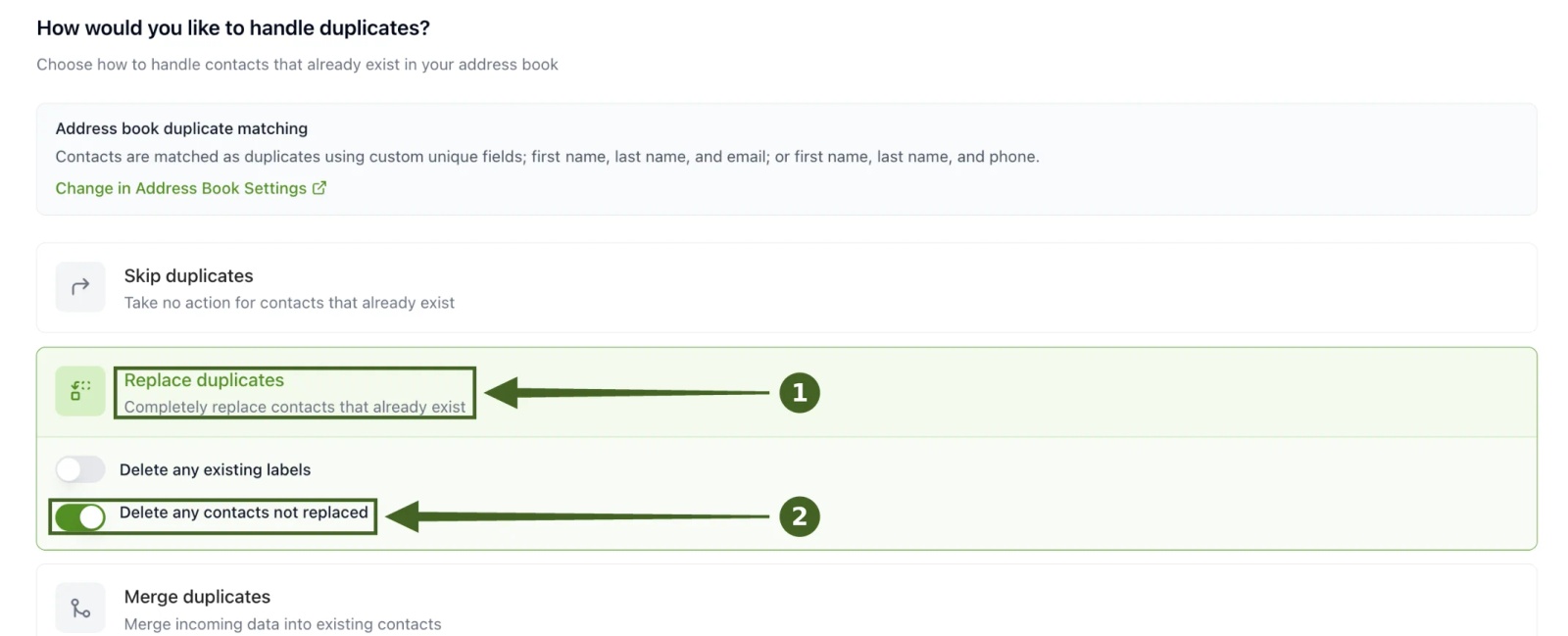
When you turn on delete handling in the import's mapping, you map the accountEnabled column. Each person comes through as true or false, and anyone with false (a disabled account) is skipped, and anyone with true comes in. With duplicate handling set to Replace duplicates and Delete any contacts not replaced turned on, anything outside the Entra import is removed. People who've left are deleted from the address book, and from phones at the next sync. Imports run manually or on a schedule, from every 4 hours to monthly.

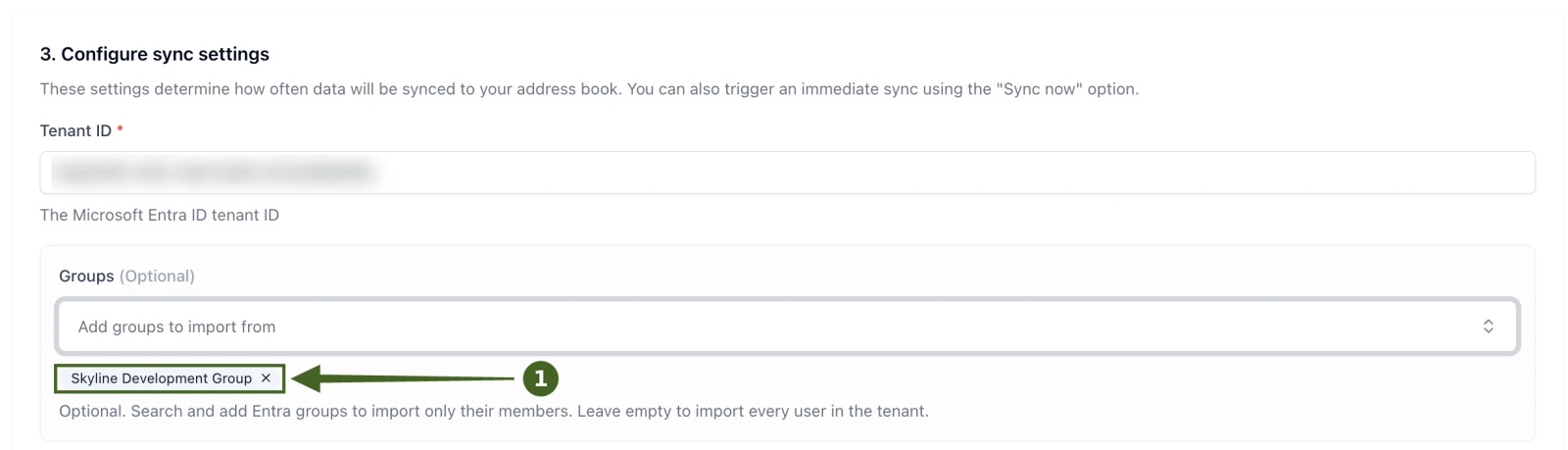
That covers people whose accounts are disabled. Hidden-but-active accounts are a different case: a service account, a shared mailbox or an executive you've hidden from the GAL is still enabled, so the importer treats them as a normal user. To keep those off the phones, add only the Entra groups of real staff in the import's Groups setting (leave it empty and every user in the tenant comes in), or use the import's filters, which Contactzilla's Microsoft 365 page says can exclude specific Entra groups, require a mobile number, and filter out service and shared-mailbox accounts.
Tip 💡 Setting up the import for the first time? The help article on importing contacts from Microsoft Entra ID has every click, and our video Sync Microsoft Global Address List to iPhone & Android shows it end to end.
What IT teams tell us about disabled users staying on phones
Nobody has asked us about the hide flag itself. Leavers are another matter: in the last 12 months, two organisations told us disabled accounts were staying in their phone directory: a US transit agency and a UK utilities contractor. In both cases the fix was the delete handling above. Not every team wants it automated, though. A county government planning 200 phones chose a CSV import over the Entra connection and handles leavers by hand.
Tip 💡 Want the whole directory on phones, not just leavers handled? Read how to sync the Global Address List to iPhone or to Android.
Next steps after hiding someone from the Global Address List
- Why GAL changes take time to show, and how to force Outlook's download: How to Update the Global Address List in Outlook.
- What the GAL holds and where each Outlook keeps it: Global Address List (GAL): What It Is, Where It Is in Outlook.
- The Entra ID import, click by click: How to import contacts from Microsoft Entra ID, and the video Sync Microsoft Global Address List to iPhone & Android.
- Every other step when someone leaves: our IT offboarding checklist.
Frequently Asked Questions
Does a hidden user still receive email?
Yes. Hiding a recipient from the Global Address List doesn't stop mail. Anyone who knows the address, or has it saved, can still email them, and the mailbox works as normal. People just can't find the person by searching the address book in Outlook or Outlook on the web.
How do I unhide a user from the Global Address List?
Reverse the same setting. Turn the Exchange admin center toggle off, or run Set-Mailbox -Identity <user> -HiddenFromAddressListsEnabled $false. For a synced user, set msExchHideFromAddressLists to False or clear it on-premises, then let Entra Connect sync. Classic Outlook shows them again after its next address book download.
Why is a hidden user still showing in Outlook?
Usually because classic Outlook is reading an offline copy of the address book that hasn't caught up yet. Check Outlook on the web: if they're gone there, the hide worked. Outlook's autocomplete list also remembers addresses you've used, so a hidden person can still pop up as you type.
Can I hide a user from some people but not others?
No, not with the hide flag. It removes the recipient from every address list and the GAL at once. To show someone to one group of staff and not another, use custom address lists with recipient filters, or address book policies, instead.