Contact Management for Outlook: How Teams Share Contacts and Replace Business Contact Manager

Outlook is good at managing one person's contacts. It gets harder when a whole team needs the same customer, supplier or site list.
Short answer: To manage contacts in Outlook as a team, keep personal contacts in each person's People list and put the list everyone needs in one shared place, such as a shared mailbox or a shared contact directory.
Outlook has no team contact manager of its own. Business Contact Manager wasn't updated after Outlook 2013, new Outlook can't open shared contacts folders or shared mailbox contacts yet, and none of Outlook's sharing options reaches staff phones.
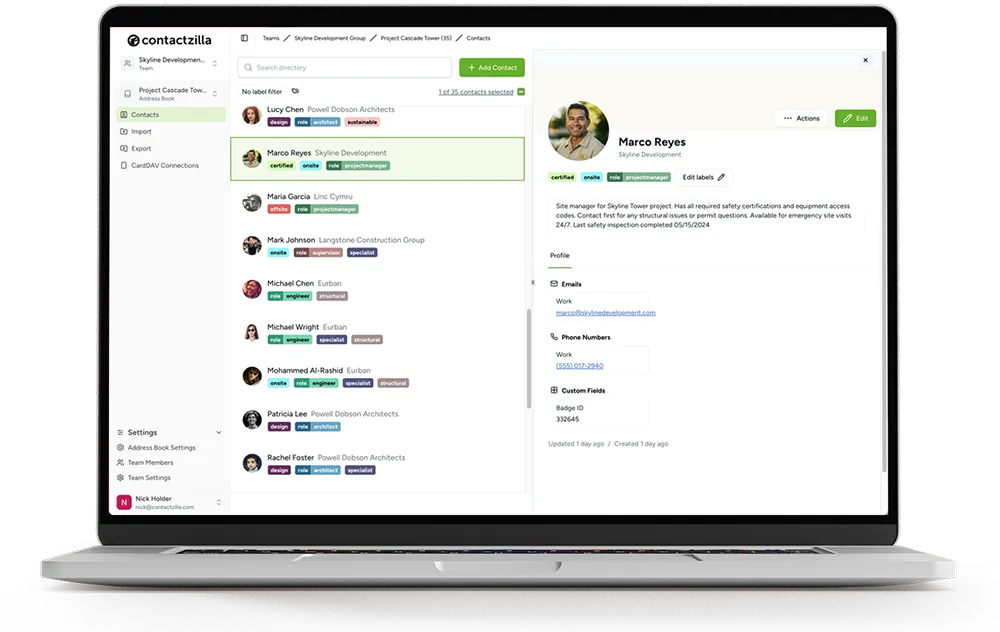
Contactzilla is a shared contact directory: it imports your shared mailbox's Outlook contacts and Entra ID users, keeps them updated on a schedule, and puts them on every iPhone and Android phone with names on incoming calls.
This guide covers:
1) What Outlook does well with contacts, and where it stops once a team shares a list.
2) How to share contacts in Outlook, and which options still work in new Outlook.
3) What replaced Business Contact Manager, depending on what you used it for.
4) How to get the shared list onto staff phones.
What does Outlook's contact management do well?
For one person, Outlook's People section covers most of what contact management needs. You can create and edit contacts, group them into contact lists (also called contact groups or distribution lists) to email several people at once, mark favourites, and search everything from one box. Microsoft's guide to creating and editing contacts and contact lists in Outlook covers each version's steps. Your contacts live in your own Microsoft 365 mailbox, so they follow you to Outlook on the web, Outlook on the Mac and your phone.
Because Outlook contacts live in one person's mailbox, contact management in Outlook works well for one person's list and much less well for a list a whole team relies on.
Where Outlook contact management stops for a team
Once five or fifty people need the same contacts, four problems appear.
Everyone keeps their own copy. If each person adds the same suppliers to their own Contacts, the copies drift apart: one person has the new mobile number, three have the old one. Nobody owns the list.
Contacts leave with people. Contacts kept in a leaver's mailbox go when the mailbox is removed, unless someone exports them first.
Sharing depends on which Outlook you use. The built-in ways to share contacts work in classic Outlook for Windows. New Outlook and Outlook on the web support only some of them (the table further down shows which).
Phones only get each person's own contacts. A Microsoft 365 account on a phone syncs that person's mailbox contacts. A shared mailbox's contacts don't sync, and the Global Address List is a search-only lookup, so a call from a colleague or supplier can still show up as a bare number.
Tip 💡 If the contacts you need are your own and they aren't reaching your iPhone, our guide on how to sync Outlook contacts with iPhone covers the two built-in routes and the settings to check.
How to share contacts in Outlook with your team
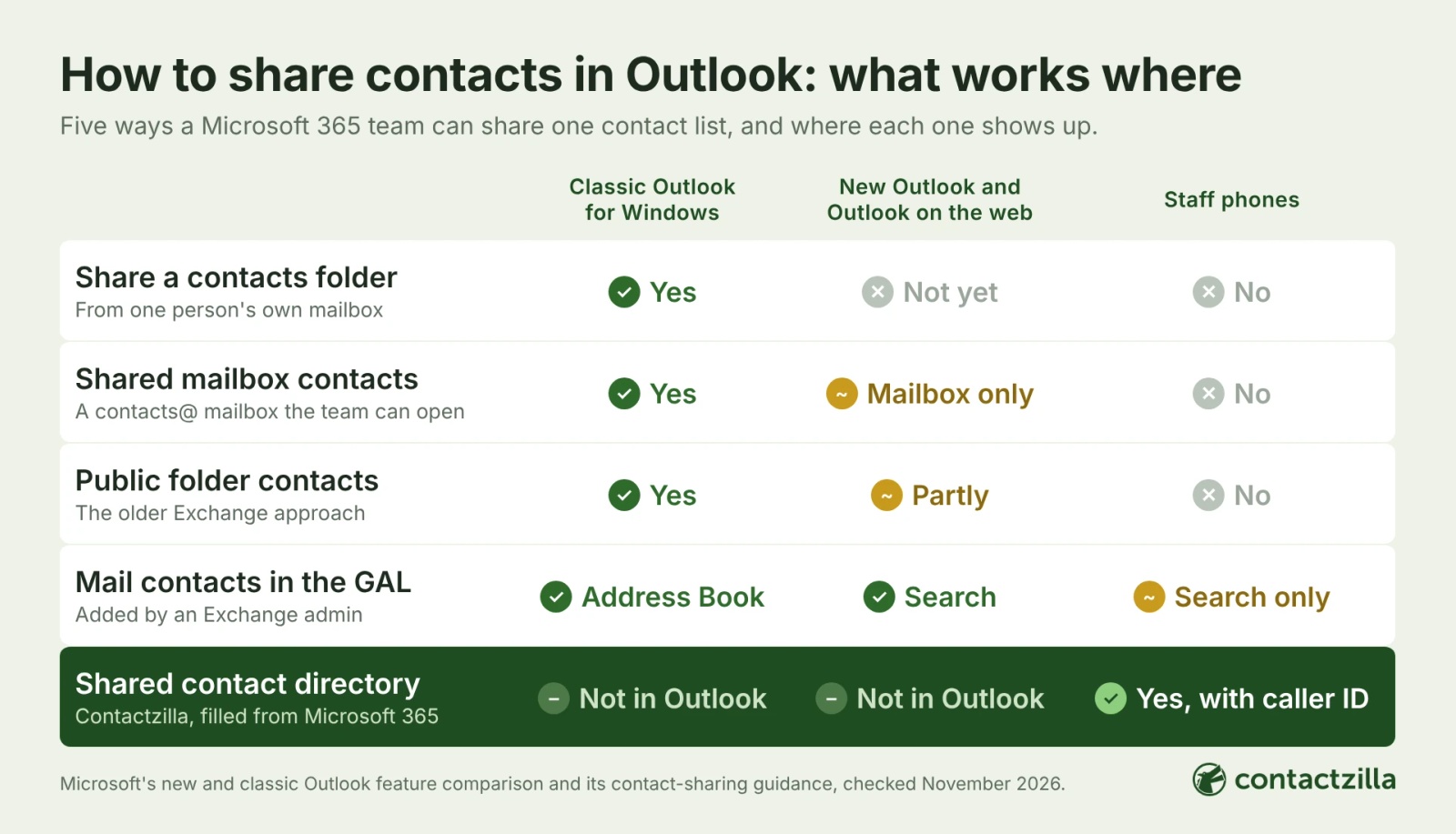
Microsoft 365 gives you four built-in ways to share contacts, and they behave differently in classic Outlook, new Outlook and on phones. This table compares them with a shared contact directory.
| Way to share contacts | Who sets it up | Classic Outlook for Windows | New Outlook and Outlook on the web | On staff phones |
|---|---|---|---|---|
| Share a contacts folder | Any user, from their own mailbox | Yes | No. Outlook on the web doesn't support it; for new Outlook, Microsoft lists it as "investigating" | No |
| Shared mailbox contacts | An admin creates the mailbox and grants access | Yes, added to My Contacts automatically | Not in your own People list. In Outlook on the web, only by opening the shared mailbox on its own | No |
| Public folder contacts | An admin | Yes | Partly in new Outlook | No |
| Mail contacts in the Global Address List | An Exchange admin | Yes, in the Address Book | Yes, in search | Search only, no caller ID |
| A shared contact directory, such as Contactzilla | An admin, from Microsoft 365, CSV or other sources | Not inside Outlook | Not inside Outlook | Yes, in the Contacts app, with caller ID |
Share a contacts folder in classic Outlook
Any user can share one of their contacts folders with colleagues and give them permission to read or edit it. Microsoft's page on sharing calendars and contacts in Microsoft 365, updated in May 2026, says contacts can only be shared from the Outlook desktop app and that Outlook on the web doesn't support sharing a contacts folder. When we checked Outlook on the web in November 2026, its People page listed Your contacts, Favourites, contact lists, Deleted and Categories, with no Folders list, and the New Contacts switch that used to bring contact folders back had gone. Sharing a folder works well for a small team on classic Outlook. The catch is that the folder still lives in one person's mailbox.
Share contacts through a shared mailbox in Outlook
A shared mailbox, such as a contacts@ address that several people can open, is the usual Microsoft 365 way to give a team one list nobody personally owns. Anyone with Full Access to the mailbox can edit its contacts, and in classic Outlook its Contacts folder appears under My Contacts automatically. Microsoft's same page says a shared mailbox's contacts aren't supported in new Outlook and can't be accessed from Outlook on the web. In our test, opening the shared mailbox on its own in Outlook on the web did show them, but they never appeared in our own People list. Microsoft's guide to opening a shared mailbox in Outlook says Microsoft is working on it.
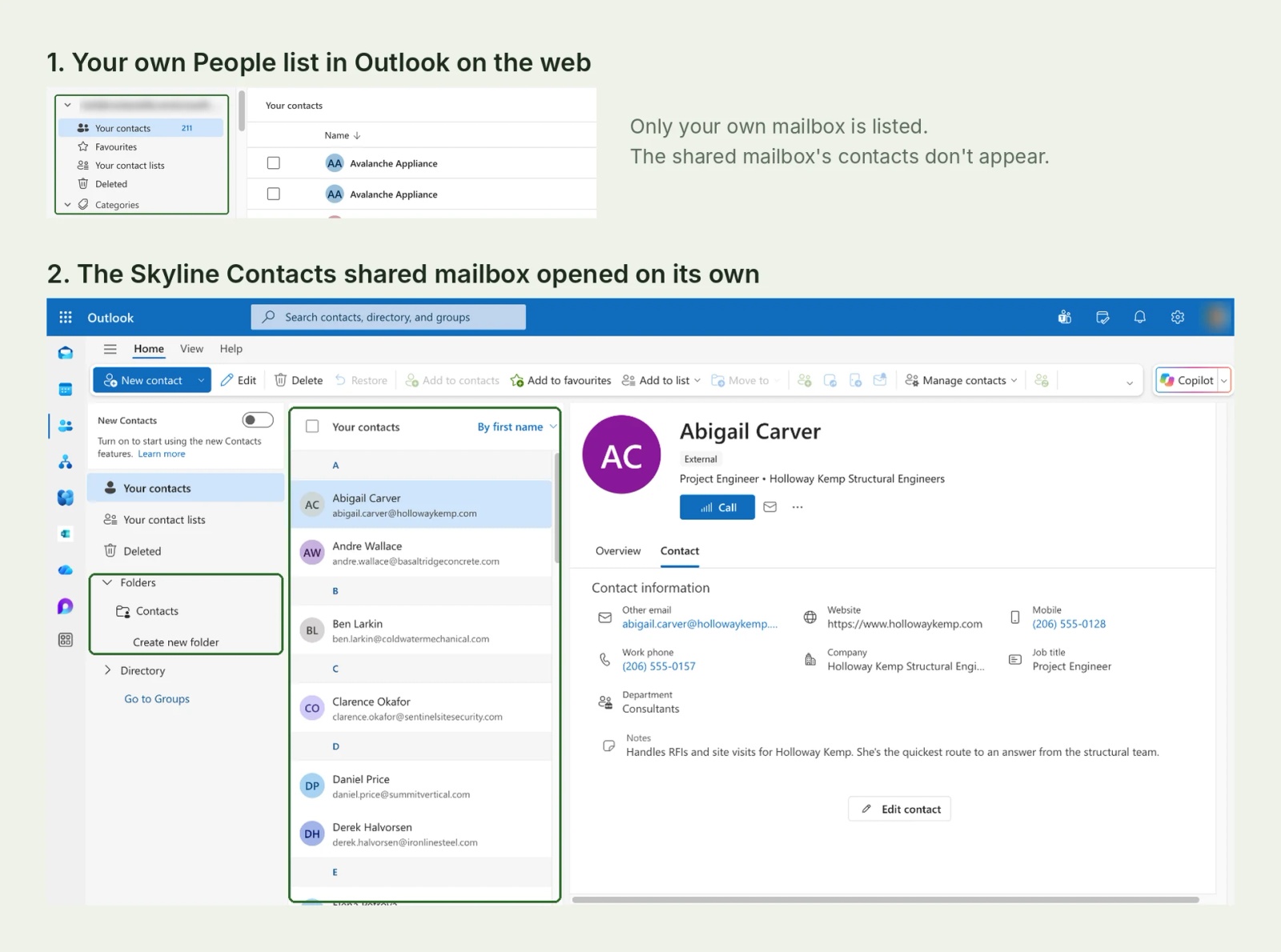
The people and companies in this post's screenshots are fictional demo contacts.
Share contacts in an Outlook public folder
Public folders are the older Exchange way to share contacts across an organisation. They still work in classic Outlook, and Microsoft lists them as partly available in new Outlook. Most organisations moving to Microsoft 365 now use a shared mailbox or another tool for new lists.
Add external contacts to the Global Address List as mail contacts
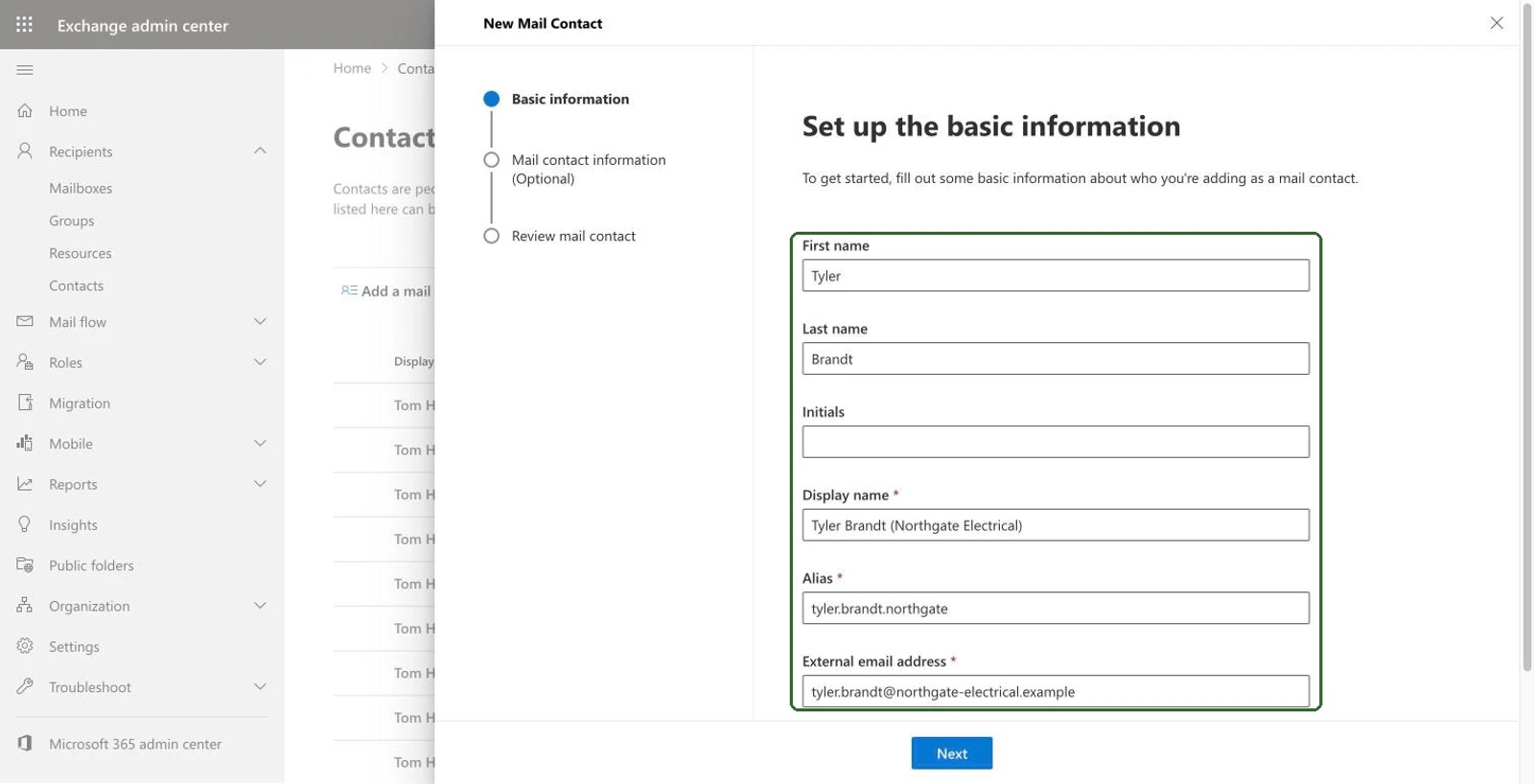
An Exchange admin can add people from outside the organisation, such as key suppliers, as mail contacts, so they appear in everyone's Global Address List alongside staff. Only admins can add them, in the Exchange admin center or with Exchange Online PowerShell; users can't add to the list themselves. Microsoft's guide to managing mail contacts in Exchange Online covers the steps. Mail contacts suit a short list that everyone should find when they address an email. On a phone the Global Address List is search-only, so these contacts don't show by name on incoming calls.
Tip 💡 If you'd rather keep the shared list inside Microsoft 365 as a list people edit in a browser, our guide on creating a SharePoint contact list in Microsoft 365 walks through it.
Classic Outlook vs new Outlook: what changes for team contacts
Most of Outlook's contact sharing was built for classic Outlook for Windows, and Microsoft is moving organisations to new Outlook. Microsoft's feature comparison of new and classic Outlook for Windows, last updated in September 2026, still lists contacts-folder sharing as "investigating" and public folders as partially available, and new Outlook drops business cards and COM add-ins, the kind Business Contact Manager used. Contact lists and the Global Address List work in both.
For enterprise customers, Microsoft first planned to switch users to new Outlook by default from April 2026. Its Message Center notice MC949965 was updated in February 2026 to move that opt-out phase to March 2027, and existing policies that disable or limit new Outlook stay in effect, so organisations that block it through policy aren't moved. If your team's shared contacts depend on a shared folder or shared mailbox in classic Outlook, plan where that list will live before the switch.
What replaced Business Contact Manager for Outlook?
Business Contact Manager (BCM) was Microsoft's add-in that turned classic Outlook into a small-business CRM, with business contacts, accounts, opportunities and communication history in one database. Microsoft didn't update it for Outlook 2016, as Slipstick Systems reported at the time, and its support articles, such as enabling the Business Contact Manager add-in in Outlook 2010 and 2013, now sit in Microsoft's archive of previous versions. BCM loaded as a COM add-in, and new Outlook for Windows doesn't support COM add-ins, so it can't run in new Outlook at all.
Microsoft didn't ship a direct replacement inside Outlook, and most "Business Contact Manager alternative" lists are lists of CRMs. Whether you need one depends on what your team actually used BCM for, because BCM did two jobs at once.
| What your team used BCM for | What does that job today |
|---|---|
| Tracking leads, opportunities and follow-ups | A CRM with an Outlook add-in, such as Microsoft Dynamics 365 Sales or HubSpot |
| Linking emails and meetings to customer records | The same CRM's Outlook add-in, for example the Dynamics 365 App for Outlook |
| One list of customers, suppliers and partners that everyone can look up | A shared contacts folder or shared mailbox in classic Outlook, or a shared contact directory |
| Having those contacts on staff phones, with caller ID | A shared contact directory delivered to the phones. Outlook's own sharing options don't reach the phone's Contacts app |
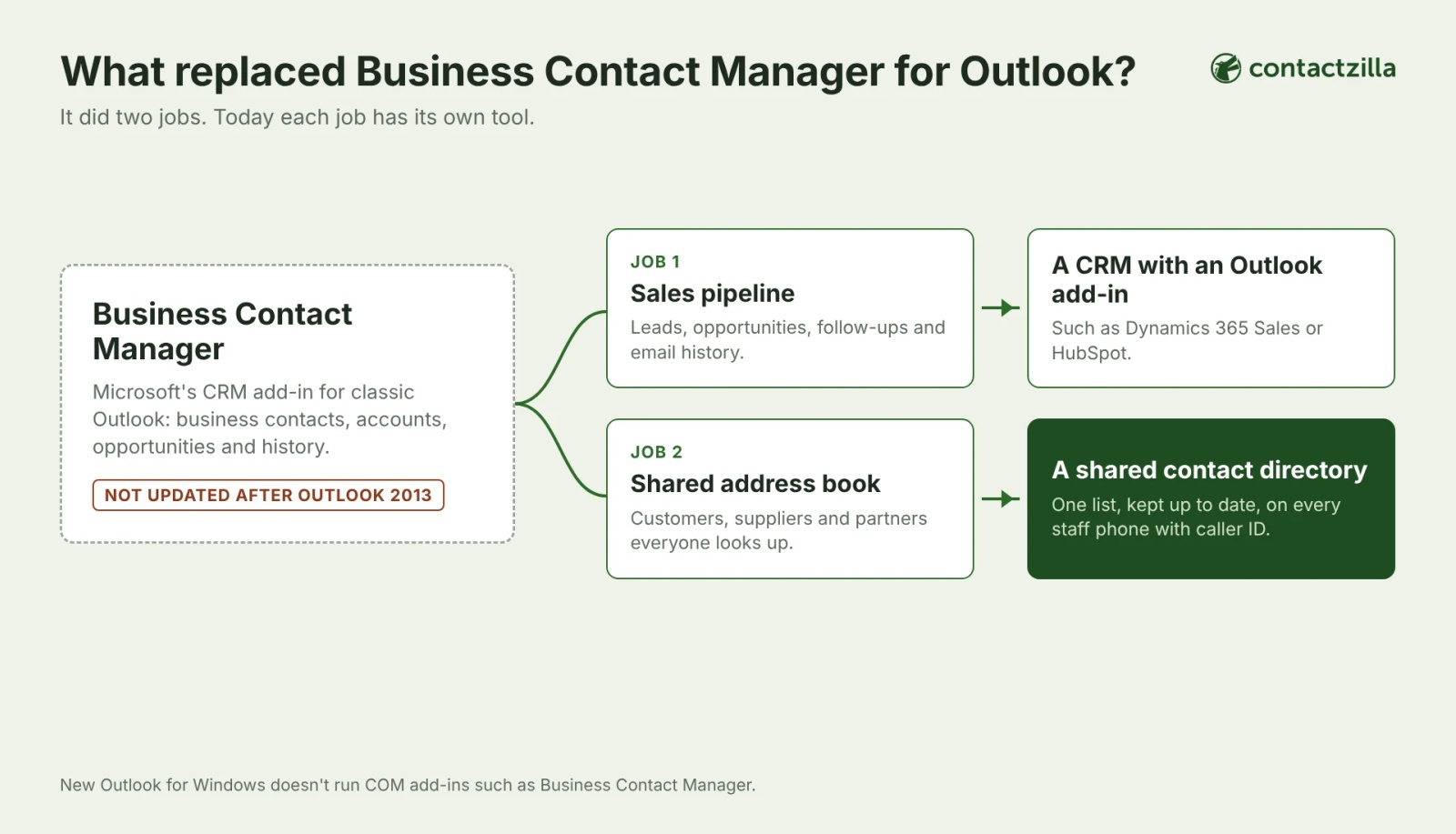
If BCM was mainly your team's shared address book, a full CRM can be more system than you need, with every person who looks up a number needing a seat. If BCM held your pipeline, a CRM is the right replacement, and the shared address book becomes one part of it.
Tip 💡 If your team moves its contacts into HubSpot, our post on getting HubSpot contacts onto iPhone and Android shows how to put that list on staff phones too.
What IT teams tell us about managing contacts in Outlook
In the last 12 months, 30 organisations raised contact management in Outlook and Microsoft 365 with us themselves, in support conversations and demos. Fifteen were trying to share company contacts inside Outlook or Microsoft 365, through a shared mailbox, a public folder, mail contacts or a contact group, and seven said their contacts lived in each person's own Outlook.
Each person's Outlook becomes the company address book by accident. A private equity firm of about 110 people told us everyone kept contacts in their own Outlook, so numbers went out of date as people left or changed roles. What they asked for was two or three admins keeping one master list that every work phone could rely on, without taking on a CRM. A small door company had shared contacts through an Outlook distribution list, dropped it, and found everyone back to keeping their own.
CRM contacts and team contacts are different jobs. A law firm that already uses Contactzilla for its staff directory wants each lawyer's client contacts from its CRM, which land in that lawyer's own Outlook, on their phone as well. Every lawyer's list is different, which makes it a harder job than one shared directory, and it isn't solved yet.
Some teams want the list inside Outlook too. Seven organisations, including the private equity firm, asked whether the shared contacts could also appear in Outlook or be written into every mailbox. Contactzilla doesn't do that today. At the other end, three small teams with two to ten phones each chose a one-off CSV or vCard import over a live Microsoft 365 sync.
How to put your team's Outlook contacts on every phone
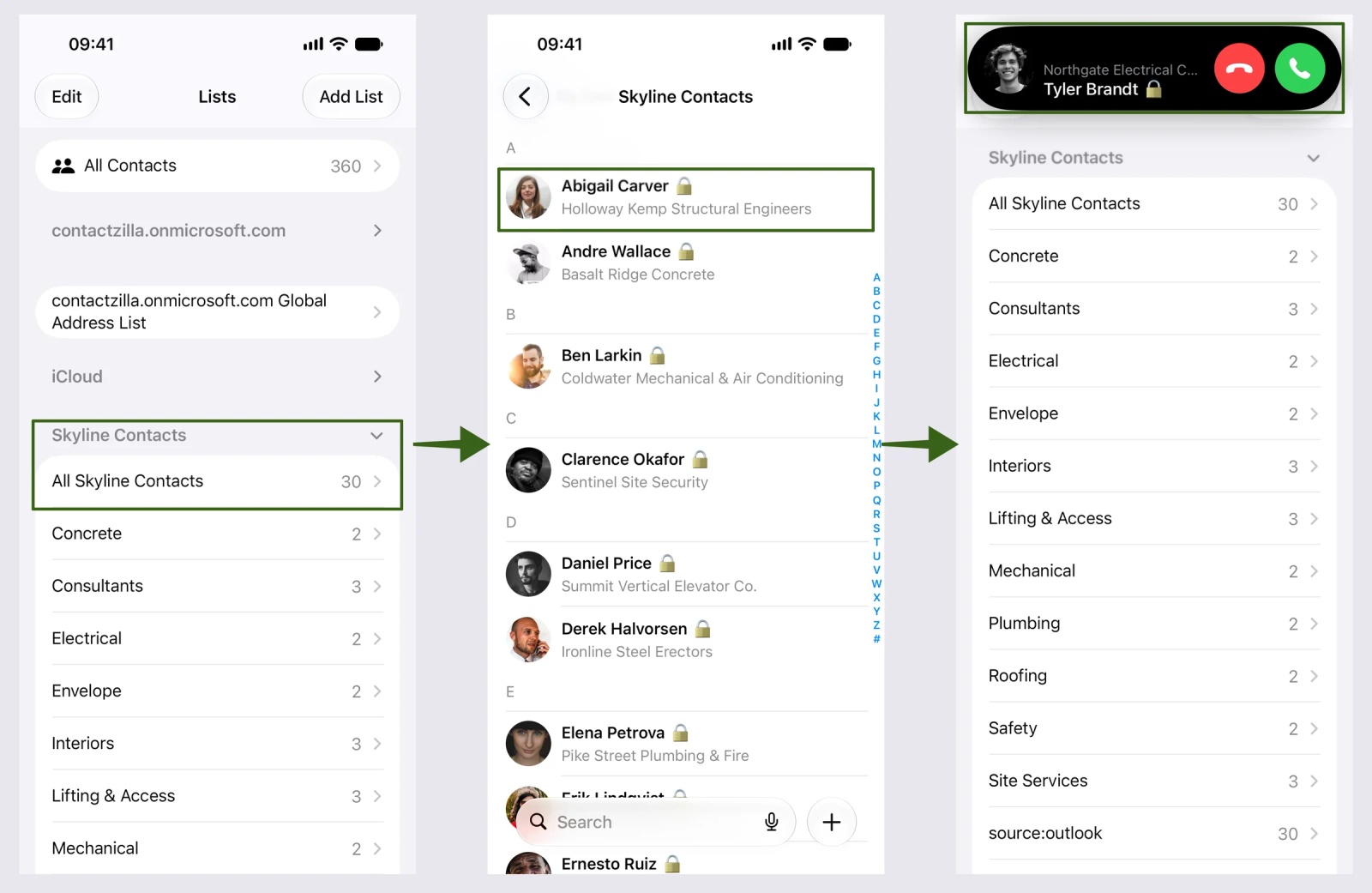
Contactzilla is a shared address book that organisations fill from the systems they already use and publish to staff phones' own Contacts app. In Microsoft 365 it takes contacts from two places: the Microsoft Outlook Contacts importer reads a shared mailbox's Contacts folder, and the Microsoft Entra ID importer reads your directory. Both run on a schedule. With the importers set to replace existing contacts and handle deletes, a supplier changed in the shared mailbox, or a leaver disabled in Entra ID, reaches every phone at the next import.
Contactzilla then publishes the list to the iPhone and Android Contacts apps, read-only if you prefer, including shared phones that nobody signs in to with a personal Microsoft 365 account. Our guide on syncing Outlook contacts with iPhone, including shared company contacts covers the delivery options, and the help article on importing contacts from a Microsoft 365 shared mailbox has every click.
Which Outlook contact management setup is the right fit?
- Outlook on its own: each person manages their own contacts, or a small team shares a folder and everyone uses classic Outlook.
- A shared mailbox: a team that edits one list on Windows desktops and only needs it at a desk, for now.
- Mail contacts in the Global Address List: a short list of outside contacts that everyone should find when addressing email, kept by IT.
- A CRM with an Outlook add-in: you used Business Contact Manager for leads, opportunities and email history.
- A shared contact directory such as Contactzilla: the same list on every staff phone, with names on incoming calls, whichever Outlook people use, and kept up to date from Microsoft 365 or one central place.
Next steps
- Shared Outlook contacts on phones: How to sync Outlook contacts with iPhone, including shared company contacts.
- The clicks for the importer: How to import contacts from a Microsoft 365 shared mailbox into Contactzilla.
- The company directory: Sync the Global Address List (GAL) to iPhone Contacts, and the video Sync Microsoft Global Address List to iPhone & Android.
- A list in Microsoft 365 itself: How to create a SharePoint contact list in Microsoft 365.
Frequently Asked Questions
Does Outlook have a built-in contact manager?
Yes, for one person: Outlook's People section stores, edits, groups and searches your own contacts. No, for a team: there is no shared contact manager built into Outlook or Microsoft 365, so teams use a shared contacts folder, a shared mailbox, mail contacts in the Global Address List or a separate shared contact directory.
Is Business Contact Manager still available for Outlook?
No. Microsoft didn't update Business Contact Manager for Outlook 2016 or later, and its support articles are archived. It ran as a COM add-in, which new Outlook for Windows doesn't support. Teams replacing it usually move pipeline work to a CRM and the shared address book to a shared mailbox or a contact directory.
Can admins add external contacts to the Global Address List?
Yes. Exchange admins add them as mail contacts in the Exchange admin center or with Exchange Online PowerShell, and they appear in everyone's address book. Apps can read them through Microsoft Graph but can't create or change them, because organisational contacts are read-only in Microsoft Graph. On phones they are search-only, so they don't show by name on incoming calls.
Is a contact list the same as a contact group in Outlook?
Yes. Microsoft's help uses both names for the same thing: a named set of contacts you can email in one go. Newer Outlook calls it a contact list. It doesn't share the contacts themselves with anyone; it only saves you typing each address.
Do I need a CRM or a shared contact list?
A CRM if you track deals, follow-ups and email history against customers. A shared contact list if the main job is that everyone has the same up-to-date numbers, on their desk and on their phone. Many teams end up with both: a CRM for the people who sell and a shared directory for everyone else.
Can Contactzilla add contacts to everyone's Outlook?
No. Contactzilla takes contacts from Microsoft 365 and other sources and puts them on staff phones; it doesn't write contacts into Outlook mailboxes. Some other tools do copy a shared list into every mailbox's Contacts folder. With Contactzilla, keep the list you edit on the desktop in a shared mailbox and let the import carry each change to the phones.