Miradore MDM: How to Push Shared Company Contacts to iPhones

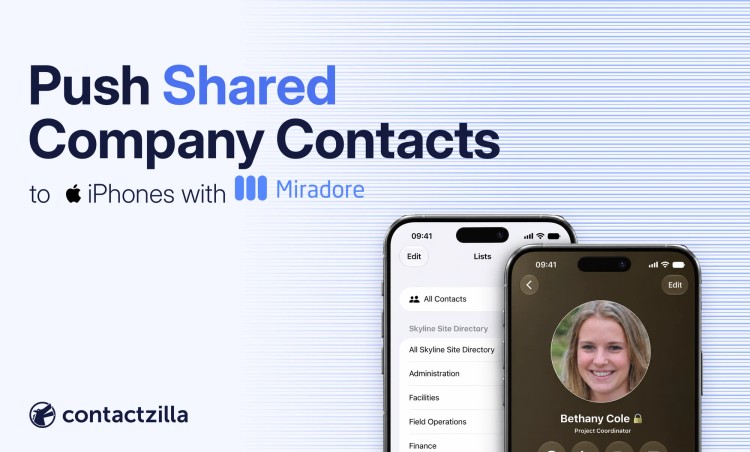
If your iPhones are managed in Miradore (now LogMeIn Miradore, part of GoTo), you can put one company contact list into the built-in Contacts app on every phone and keep it up to date without touching the devices. We tested the whole setup on an enrolled iPhone in November 2026, and this guide shows what worked. If your devices are in the newer LogMeIn Resolve console, read the Resolve section further down first.
Short answer: Yes, Miradore MDM can push company contacts to iPhones, but not with a built-in setting: Miradore's own Contacts profile covers Android only and sends a fixed CSV list. For iPhones, upload a CardDAV contacts profile as an Advanced (custom) iOS configuration profile and deploy it by tag. The profile adds a contacts account that syncs from a CardDAV server such as Contactzilla, a shared business contacts service, which holds the company list and can keep it read-only on phones.
Can Miradore MDM push contacts to the iPhone Contacts app?
Yes, but not with a built-in contacts setting. Miradore's Contacts configuration profile exists for Android only, and it works by uploading a CSV file of names and numbers. That list is a snapshot: to change a number, you edit the CSV and deploy it again. When we went through the iOS profile types in Miradore, there was no contacts option, but there was Advanced (custom), which accepts a .mobileconfig file you supply.
Advanced (custom) is the route that works. iPhones support CardDAV, the open standard for syncing contacts, out of the box, and Apple lists a Contacts configuration for connecting to a CardDAV-compliant server among its device management settings. Miradore delivers that account to the phone. A CardDAV server such as Contactzilla holds the list the phone syncs from, so changes reach the phones on their own.
Key terms: CardDAV, custom profiles, tags and device connections
CardDAV: an open standard that lets a device sync contacts with a server. Our What is CardDAV? explainer covers it in more detail.
Advanced (custom) profile: the Miradore iOS profile type for uploading your own .mobileconfig configuration profile. Contactzilla generates one containing the CardDAV account for your address book.
Tags: Miradore's way of grouping devices, such as all the iPhones at one site. You pick devices by tag when you deploy, and business policies use tags to deploy automatically.
Device connection: the Contactzilla setting that controls what one deployment receives and whether phones can edit the contacts.
What you need before you push contacts to iPhones with Miradore
- Miradore (LogMeIn Miradore) with the Apple Push certificate set up, your iPhones enrolled and admin access to the Miradore console at
online.miradore.com(not LogMeIn Resolve, see below). Our test iPhone was enrolled without supervision, and the profile still installed. - A Contactzilla account with an address book containing the contacts you want on the phones.
- An MDM team member in Contactzilla, a dedicated account that device deployments run under. One MDM team member can serve every phone.
Step 1: Put your company contacts into one Contactzilla address book
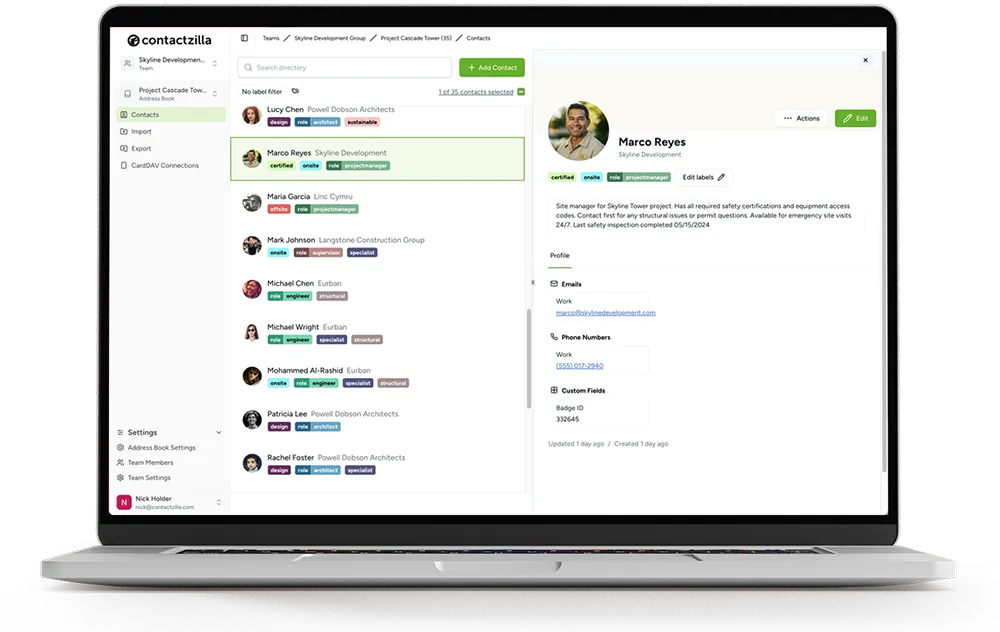
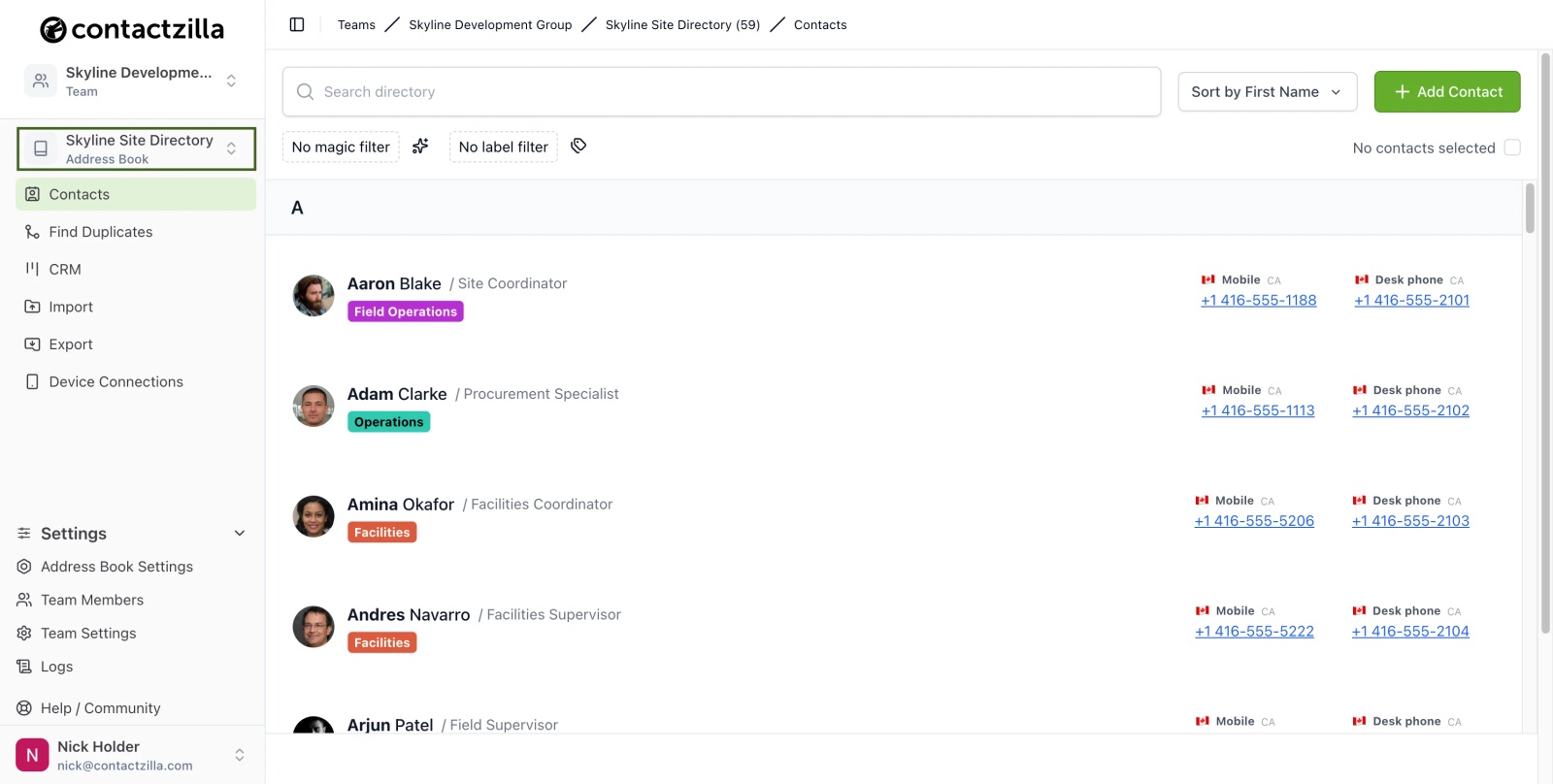
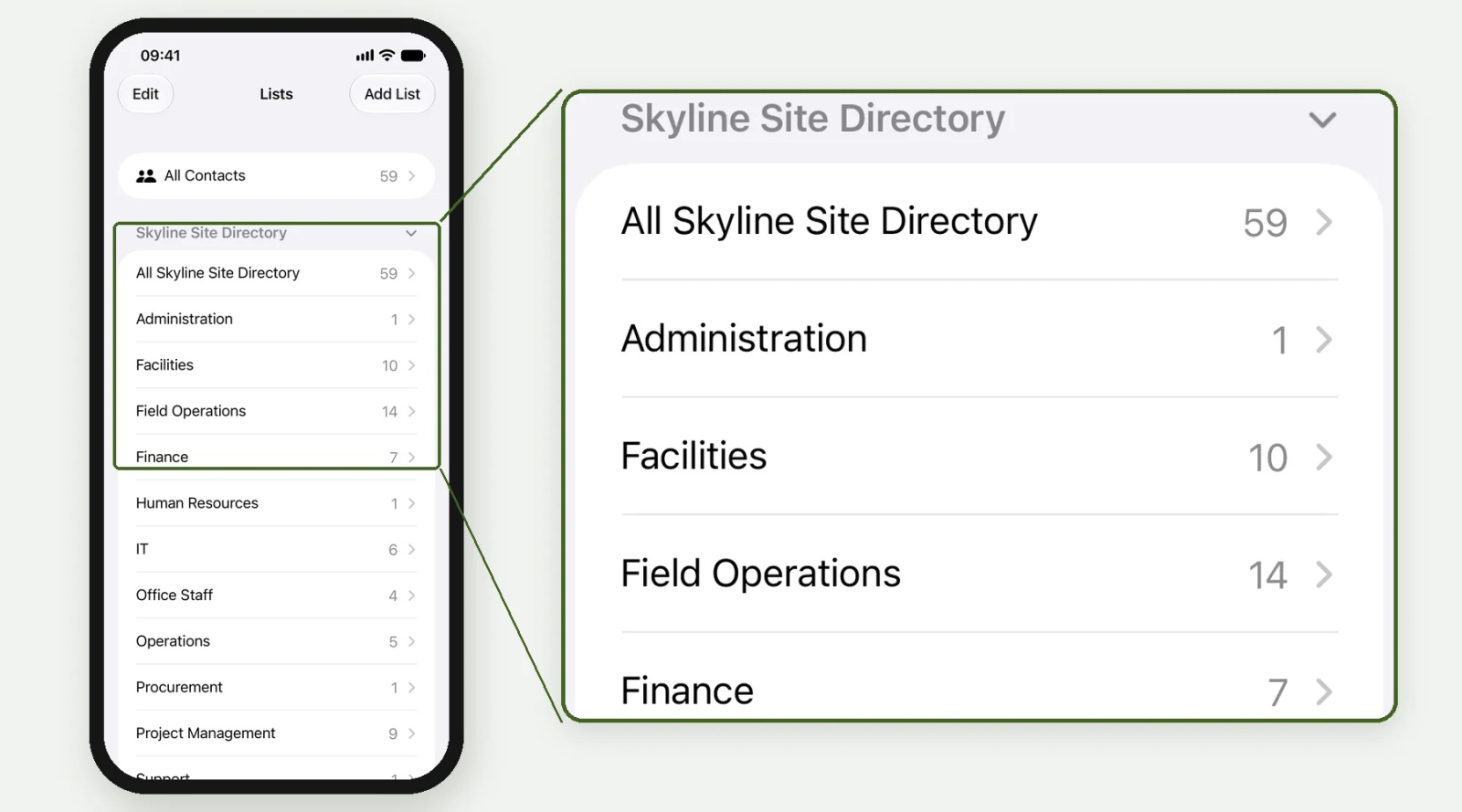
Start by putting the contact list in one place. Contactzilla can import a CSV or vCard file, which suits a one-off move from a spreadsheet or from the CSV you may already use with Miradore on Android. It can also stay in sync with a directory such as Microsoft Entra ID or Google Workspace, so new starters and leavers flow through on a schedule without manual exports. Whatever you store, from headshots and desk phones to a short note on when to call someone, goes to the phones with the contact. For this guide we used a demo address book called Skyline Site Directory for a construction company.
Step 2: Create a read-only iOS device connection and download the profile
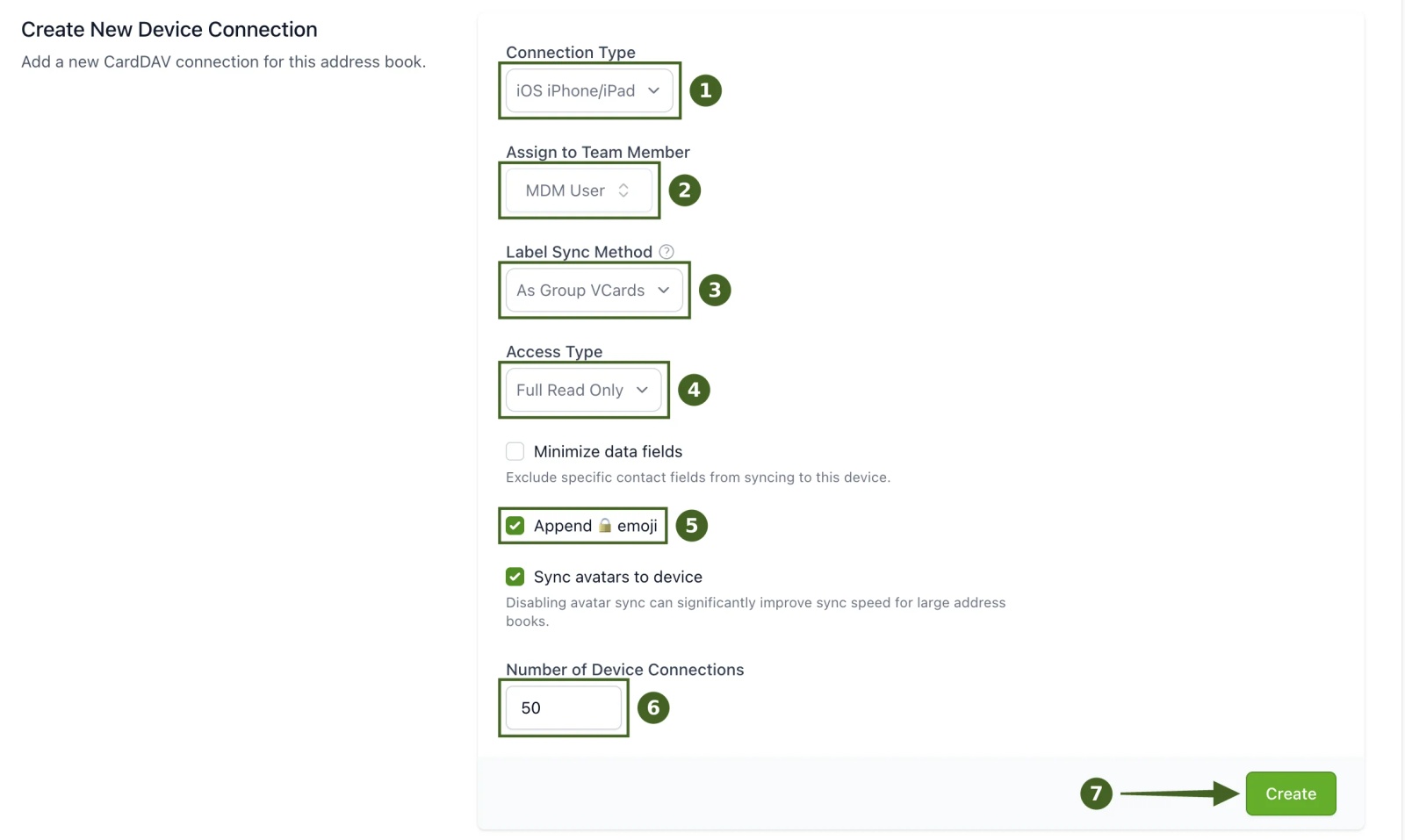
The access type is the main decision in the setup, and you make it in Contactzilla rather than in Miradore. Create a device connection with the type set to iOS iPhone/iPad, assign it to your MDM team member, leave Label Sync Method as As Group VCards so your labels show as lists on the phone, and set the number of devices you plan to deploy to. Then choose the access type, and download the profile from the connection's Setup menu.
| Access type | Use it when |
|---|---|
| Full Read Only | Phones should show the list but never change it. The usual choice for managed iPhones. |
| Selective Read Only | Different groups should only get contacts with certain labels. |
| Full Read/Write | Users need to add or edit contacts that everyone shares. |
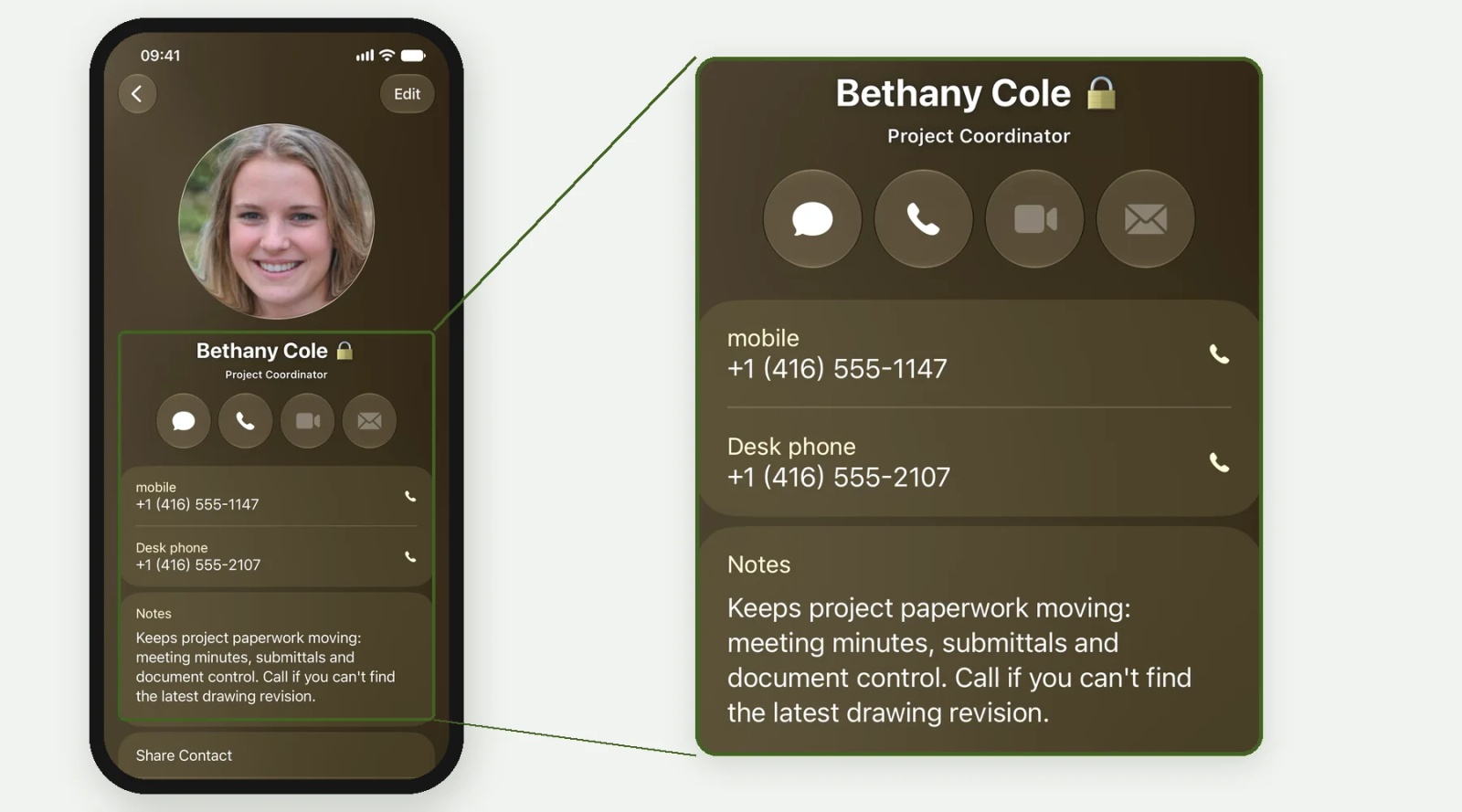
On read-only connections you can also tick Append 🔒 emoji, which puts a lock after each contact's name so users can see it's managed centrally. One profile can go to every iPhone: you don't need a separate connection per user.
Step 3: Upload the profile to Miradore as an Advanced (custom) configuration profile
In Miradore, go to Management > Configuration profiles > Add, choose iOS, then Advanced (custom). On the Custom configuration step, browse to the Contactzilla .mobileconfig file, then name the profile after the address book so other admins know what it is. LogMeIn's documentation for custom iOS profiles says only the payload contents of an uploaded file are used, and that is where the CardDAV account and its credentials sit. The upload worked as it was, with no editing.
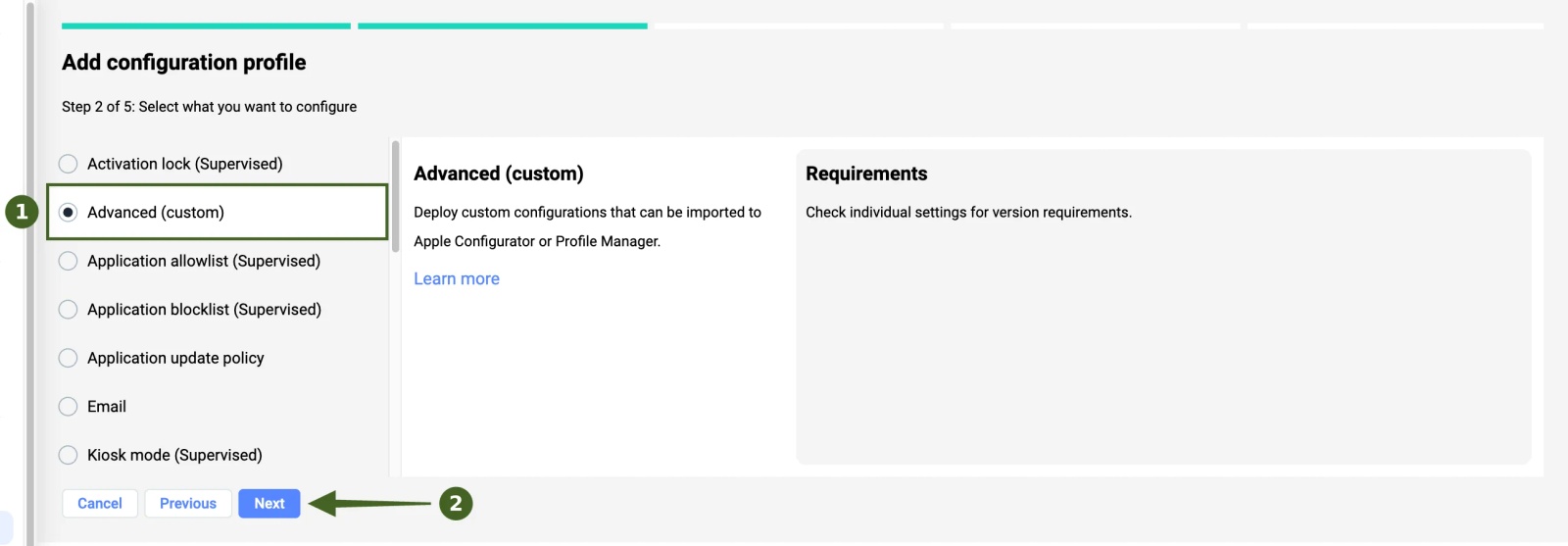
Tip 💡 Want every click? Our [LINK: Miradore help article] Miradore deployment guide walks through each screen. Using a different MDM? See our guides for Microsoft Intune, Jamf Pro, Mosyle and Workspace ONE.
Step 4: Tag your iPhones and deploy the contacts profile in Miradore
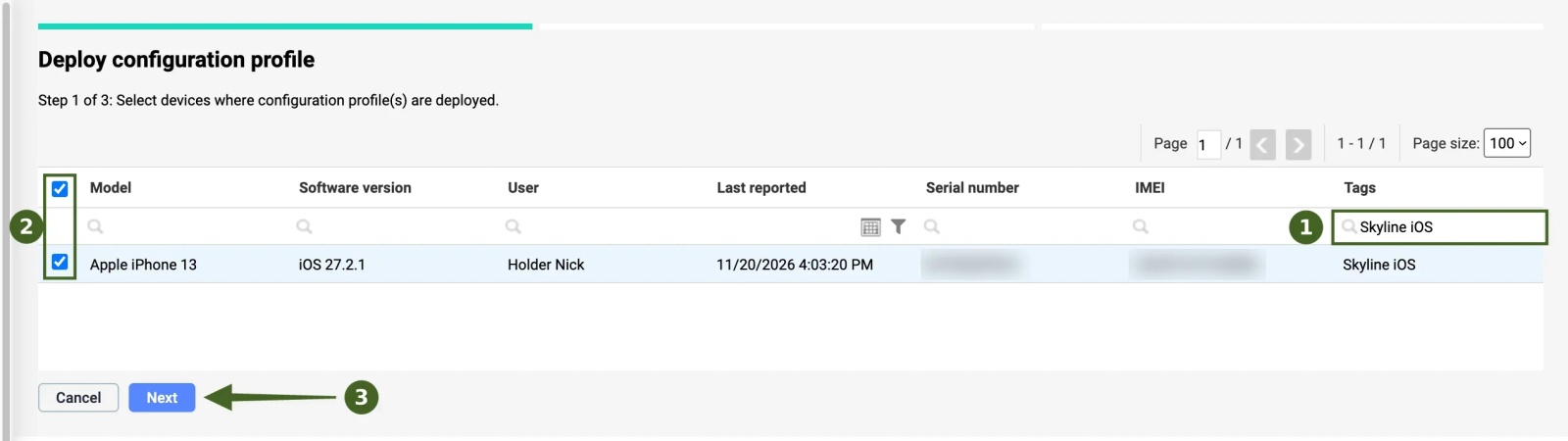
Tag the iPhones that should get the contacts, for example Skyline iOS. Then select the Contactzilla profile in Configuration profiles, click Deploy, filter the device list by your tag and confirm. Rolling out in batches is simply one tag per batch, with the same profile each time. To cover iPhones you tag later without deploying by hand, add the profile to a business policy scoped to the same tag, which is a Miradore Premium feature.
When we deployed, the iPhone was locked and Miradore's Action log showed the command as Postponed by device. As soon as the phone was unlocked, the contacts appeared within seconds, with no password prompt or pop-up for the user. The log only changed to Completed some time later, so check the phone rather than waiting on that status.
Step 5: Check the company contacts on an iPhone
On our iPhone 13 running iOS 27.2.1, the address book appeared in the Contacts app as its own group of lists, one list per Contactzilla label, with the number of contacts in each.
Each contact arrives with everything stored in Contactzilla: headshot, job title, mobile, desk phone and notes, with the 🔒 after the name on a read-only connection. Because the contacts are in the native app, the Phone app should show their names on incoming calls too.
The account itself is listed under Settings > Apps > Contacts > Contacts Accounts. Its server and username are greyed out, and the screen says the settings are installed by the Miradore profile, so users can't repoint it. Changes you make in Contactzilla reach the phones on their next sync.
Does this work in LogMeIn Resolve?
Not in the same way, as of November 2026. GoTo now offers two consoles: LogMeIn Miradore (the standalone MDM at online.miradore.com) and LogMeIn Resolve, where GoTo announced native iPhone and Android management on 12 November 2026. When we tried Resolve's new policy builder, we couldn't find a custom profile upload, and its built-in CardDAV account module asks each user to sign in with their own email address. That doesn't suit one shared, read-only company list, so for now this guide uses the Miradore console. If you sign up through Miradore's trial page, choose Standalone MDM to get it.
How a European education non-profit planned its Miradore iPhone contacts rollout
Earlier this year, a European education and childcare non-profit that manages its company iPhones in Miradore trialled Contactzilla. Its IT team wanted the same contact list on about 150 phones, rolled out in batches through Miradore. They had it working on two IT phones during the trial, and before buying they asked whether one device connection, for one MDM account, could go to every phone. It can: one MDM team member generates the profile, and the same profile goes to every device you deploy it to, one Miradore tag per batch.
When Miradore and Contactzilla are the right fit for company contacts on iPhone
- Your iPhones are managed in Miradore and you want company contacts in the native Contacts app, not in a separate app.
- Different teams or sites need different lists from one maintained source.
- You've been updating contacts by re-uploading CSV files and want phones to follow changes automatically.
Next steps
- [LINK: Miradore help article] Miradore deployment guide, with every click and screenshot.
- [LINK: video] Miradore video walkthrough (to come).
- [LINK: free trial] Try Contactzilla free with your own Miradore iPhones.
Frequently Asked Questions
Can I push contacts to Android phones with Miradore too?
Yes. Android uses a different route from iPhone, and we're covering it in a separate guide. [LINK: Miradore Android post] In the meantime, our Android CardDAV guide explains how Contactzilla gets shared contacts onto Android phones.
Can staff delete or edit the company contacts on their iPhone?
They can tap Delete, but it doesn't stick. On a read-only connection the server copy is the master: the contact disappears from that one iPhone for a minute or two, then comes back on the next sync. It's never removed from the shared address book or from anyone else's phone, and edits aren't saved back either. If staff need to add or change shared contacts, use a read/write connection instead.
Will staff see a password prompt when the contacts arrive?
No. The Contactzilla profile carries the account details, so the contacts appear without the user doing anything. In our test they arrived within seconds of the phone being unlocked. If an iPhone ever does ask for a CardDAV password, see why iPhones ask for a CardDAV password.
What happens to the contacts when someone leaves?
Remove or update them in Contactzilla, or in the directory Contactzilla imports from, and the change reaches every phone on its next sync. You don't need to redeploy anything in Miradore.
Do I need Miradore Premium to push contacts to iPhones?
Not as far as we could see. On our Premium+ trial, Miradore didn't mark the Advanced (custom) profile type as a Premium feature, and we deployed it by hand; we haven't tested the free plan. Deploying automatically to newly tagged iPhones through a business policy does need Premium. (Miradore's own Android Contacts profile also requires Premium.)
Does it work on iPads as well as iPhones?
Apple supports the CardDAV contacts setting on iPadOS as well as iOS, so the same profile should work on iPads enrolled in Miradore. We tested on an iPhone.