How to Sync Odoo Contacts to iPhone and Android

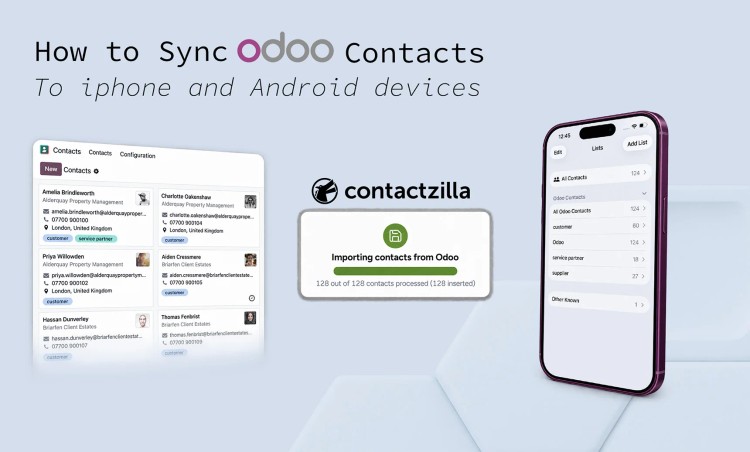
Odoo holds your customer and supplier contacts, but your team's phones don't show them, so a call from a customer just comes up as an unknown number. Contactzilla's Odoo importer pulls those contacts out of Odoo and delivers them to the native Contacts app on iPhone and Android, so names appear in the phone's contact list and on caller ID.
Short answer: To sync Odoo contacts to iPhone and Android, create an API key in Odoo, connect it to Contactzilla's Odoo importer, map the fields, and import your contacts into a Contactzilla address book. Then deliver that address book to phones as a CardDAV account: through your MDM (or a manual profile) on iPhone, and the Contactzilla Sync app on Android. The contacts appear in the native Contacts app and support caller ID. You need an Odoo plan with external API access.
Can Odoo sync contacts to iPhone and Android on its own?
Not with a built-in feature that we can find. Odoo forum threads asking for exactly this keep getting the same answer, including a recent one on syncing contacts with third-party apps like Outlook or Exchange (Odoo forum). The Odoo Apps Store has had third-party CardDAV modules over the years, but they target older Odoo versions; we couldn't find one for the version we tested.
Contactzilla takes a different route. Contactzilla imports the contacts from Odoo into a managed address book, then delivers that address book to devices over CardDAV, the standard iPhones use for contact accounts. Odoo stays your source of truth. Contactzilla controls which contacts go to which devices and whether they can be edited.
Key definitions
Contactzilla: A service that keeps shared business contacts in managed address books and delivers them to employees' iPhone and Android devices, including through mobile device management (MDM) platforms such as Microsoft Intune.
Odoo API key: A token you create in your Odoo user profile that lets another system read your Odoo data without your password. Treat it like a password.
Contactzilla address book: The syncable contact list that Contactzilla delivers to devices. Each address book holds contacts, labels, permissions and device connections.
CardDAV: The open standard that keeps a contact list on a server in sync with the Contacts app on a phone.
Archived contact: An Odoo contact that has been hidden with the archive action instead of deleted. Archived contacts still come through in the import.
Device connection: The link between a Contactzilla address book and a phone. Each device connection has an access type that sets what users can do with the contacts.
Read-only access: A device connection access type (Full Read Only) that lets users see the contacts on their phones but not change them.
Custom unique field: A field that stores the contact's Odoo ID in Contactzilla, so later imports update the right contact instead of creating a duplicate.
What you need before you start
- An Odoo plan with external API access and a user who can create an API key.
- The Odoo importer enabled in Contactzilla. The importer appears under the premium importers on the Import page. If you do not see it, ask Contactzilla support to enable it.
- A Contactzilla address book to hold the imported contacts.
- Devices. iPhones can use an MDM-deployed profile or a manual profile; Android phones use the Contactzilla Sync app.
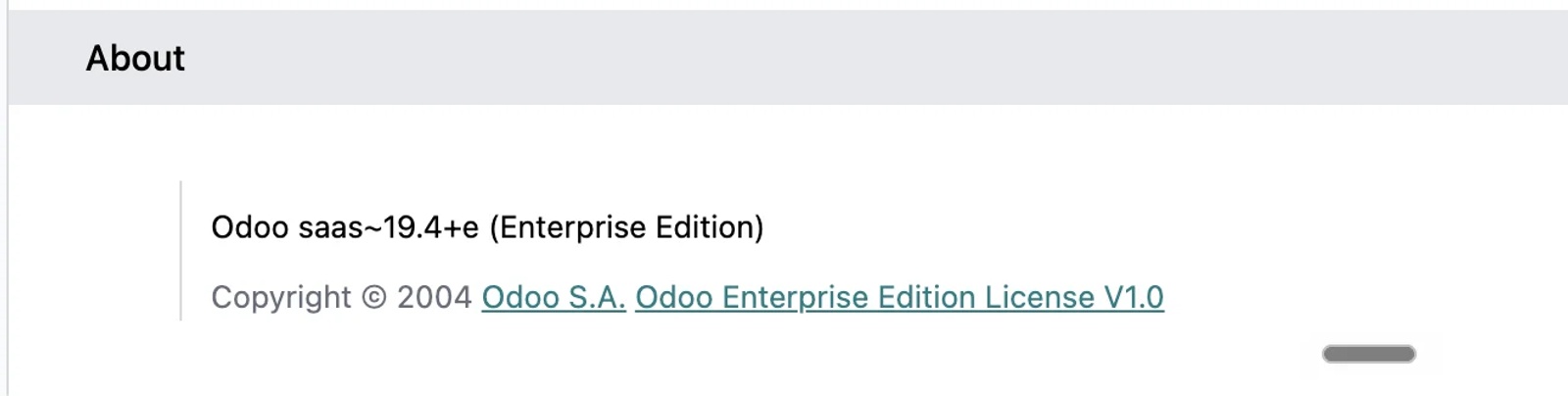
Tested with: Odoo SaaS~19.4+e (Enterprise Edition), Contactzilla Odoo importer, September 2026.
How the Odoo to phone workflow works
The workflow has two stages that are set up separately. The import copies contacts from Odoo into a Contactzilla address book. The delivery connects that address book to phones as a CardDAV account. Seven steps cover both:
1) Generate an API key in Odoo: Create a key with the RPC scope.
2) Connect Odoo to Contactzilla: Enter your Odoo address and the key in the importer.
3) Map the Odoo fields: Match Odoo's fields to Contactzilla's fields.
4) Choose how deletions are handled: Decide what happens to contacts Odoo has archived.
5) Handle duplicates on later imports: Decide what happens to contacts missing from a later import.
6) Import and check the results: Run the import and open a contact.
7) Deliver the address book to phones: Connect iPhones and Android phones, then check the Contacts app.
Each step below covers the choices that matter and the behaviour to check. The full click-by-click walkthrough is in [LINK: Odoo importer help article] and in the video above.
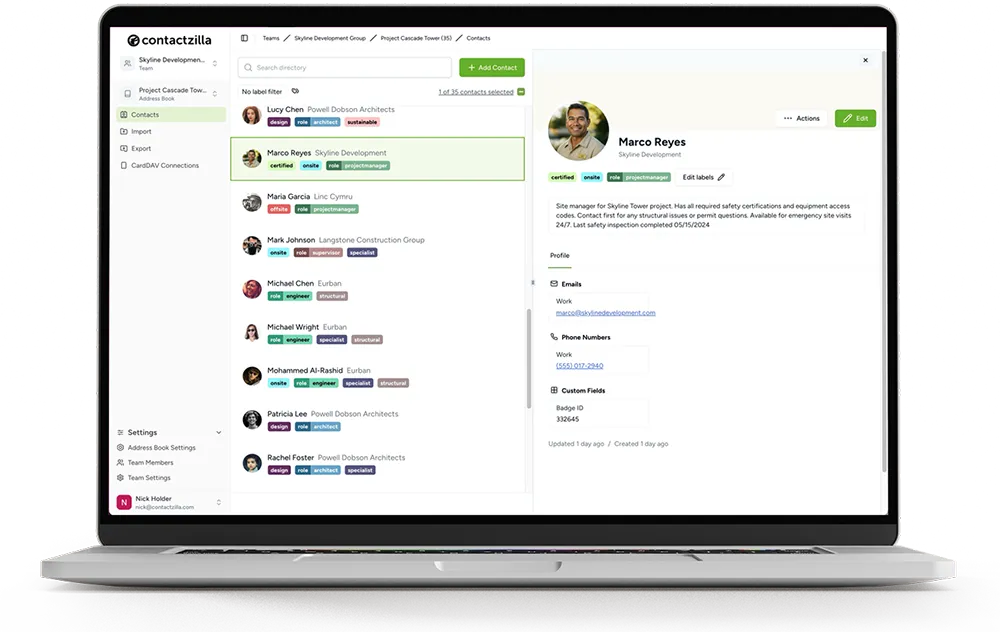
Example used in the screenshots: The screenshots follow Skyline Development, a fictional construction and property-maintenance company with fictional Odoo contacts (customers, suppliers and service partners). Your own Odoo contacts follow the same steps.
Step 1: Generate an API key in Odoo
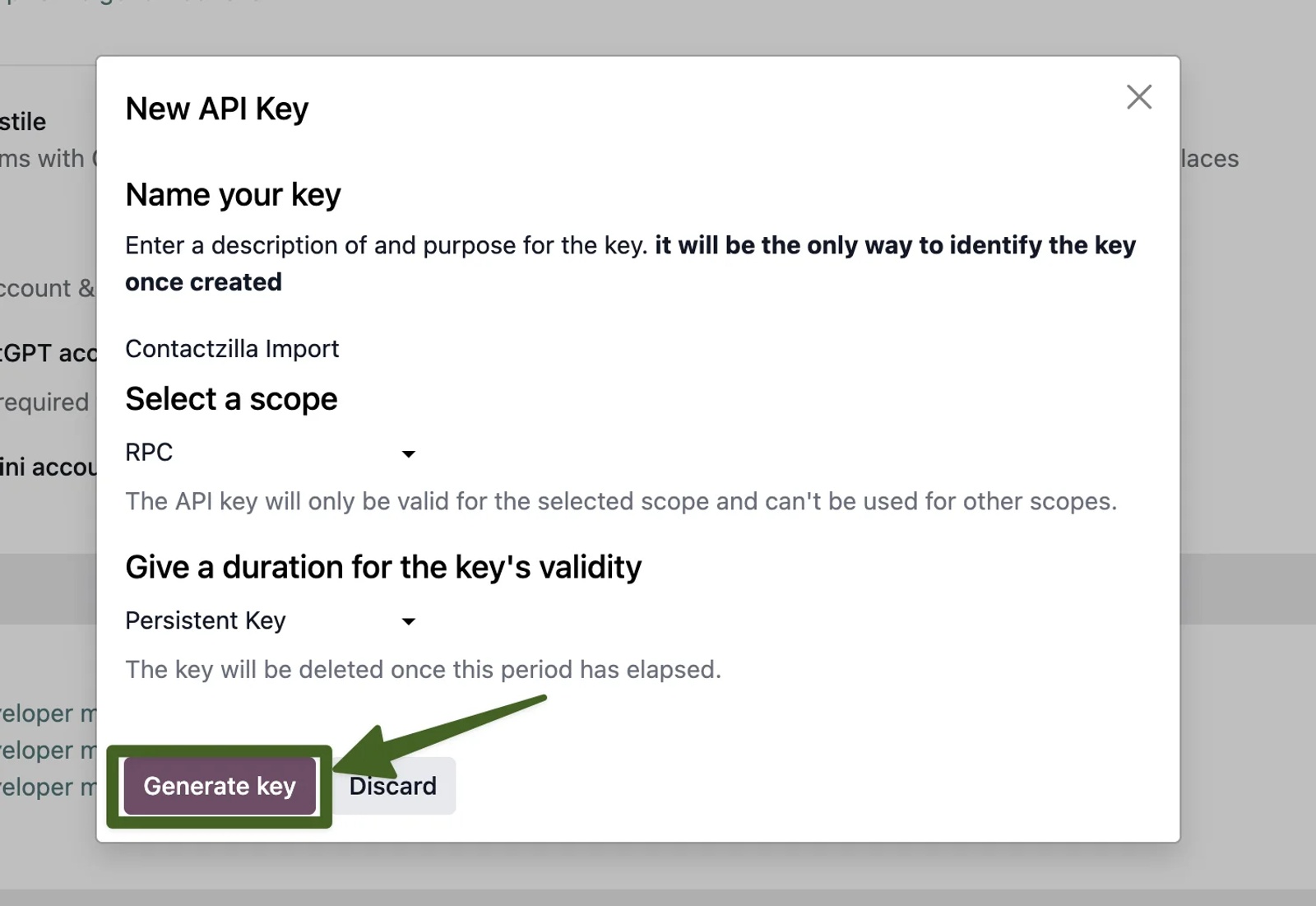
In Odoo, click your avatar (top right), open My preferences, go to the Security tab, and click Add API Key. In the New API Key dialog, name the key, choose RPC under "Select a scope", choose a duration under "Give a duration for the key's validity" (Odoo offers a Persistent Key option, which does not expire), then click Generate key and copy it straight away: Odoo does not show it again once you navigate away, and it gives the same access as your password, so store it as carefully as one (Odoo documentation).
Choose a validity period that lasts. Contactzilla stores the key securely, and if the key expires you will need to go through the import setup again.
Step 2: Connect Odoo to Contactzilla
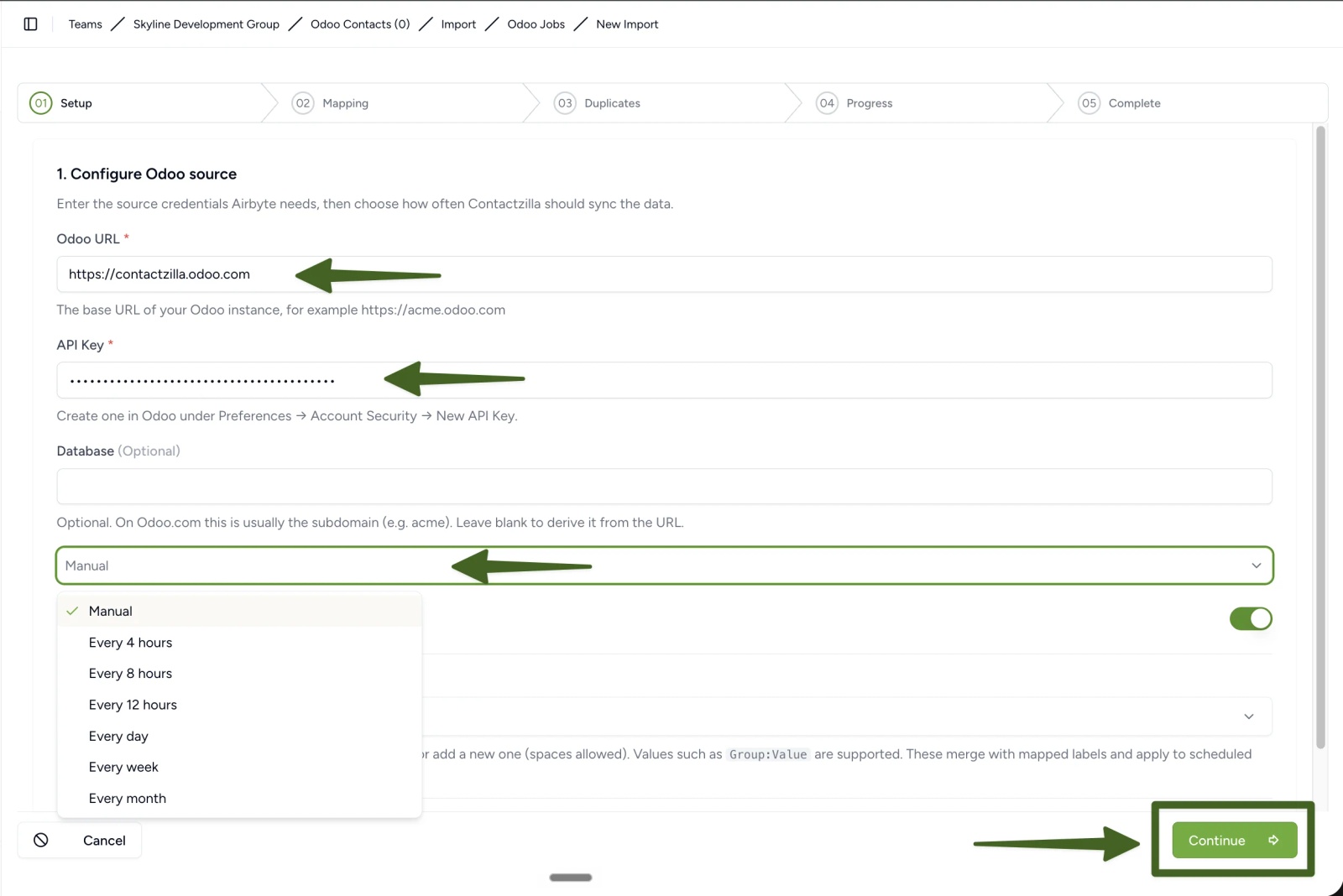
In the Contactzilla address book that will hold the contacts, open Import, choose Odoo under the premium importers, then enter the web address of your Odoo instance and paste in the API key. Choose a manual import for the first run, and switch to a schedule once the mapping is right.
Consider labelling all imported contacts, for example Odoo. The label lets Contactzilla tell imported contacts from ones added by hand when you choose how deletions work in Step 4. When the connection turns green, Contactzilla is pulling data from Odoo.
Step 3: Map the Odoo fields
Once Contactzilla has pulled the data, it suggests a mapping for each field. You can use the suggestions, change them or ignore them. These are the Odoo fields that matter:
| Odoo field | Map it to in Contactzilla | What happens |
|---|---|---|
| Name (Odoo has a single name field) | Display name, first name then last name | Contactzilla splits the name into a first name and a last name. A last name then first name variant also exists. |
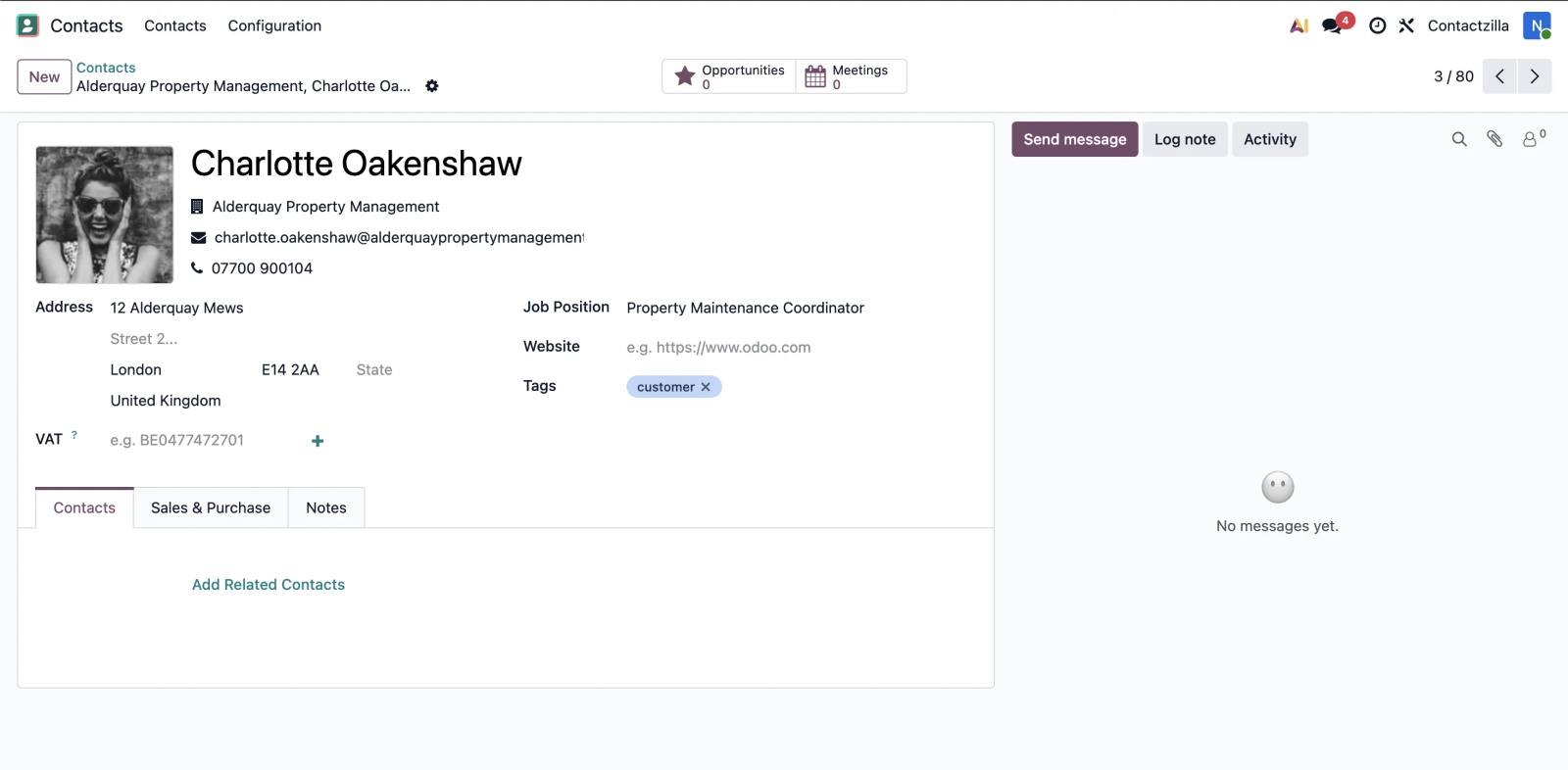
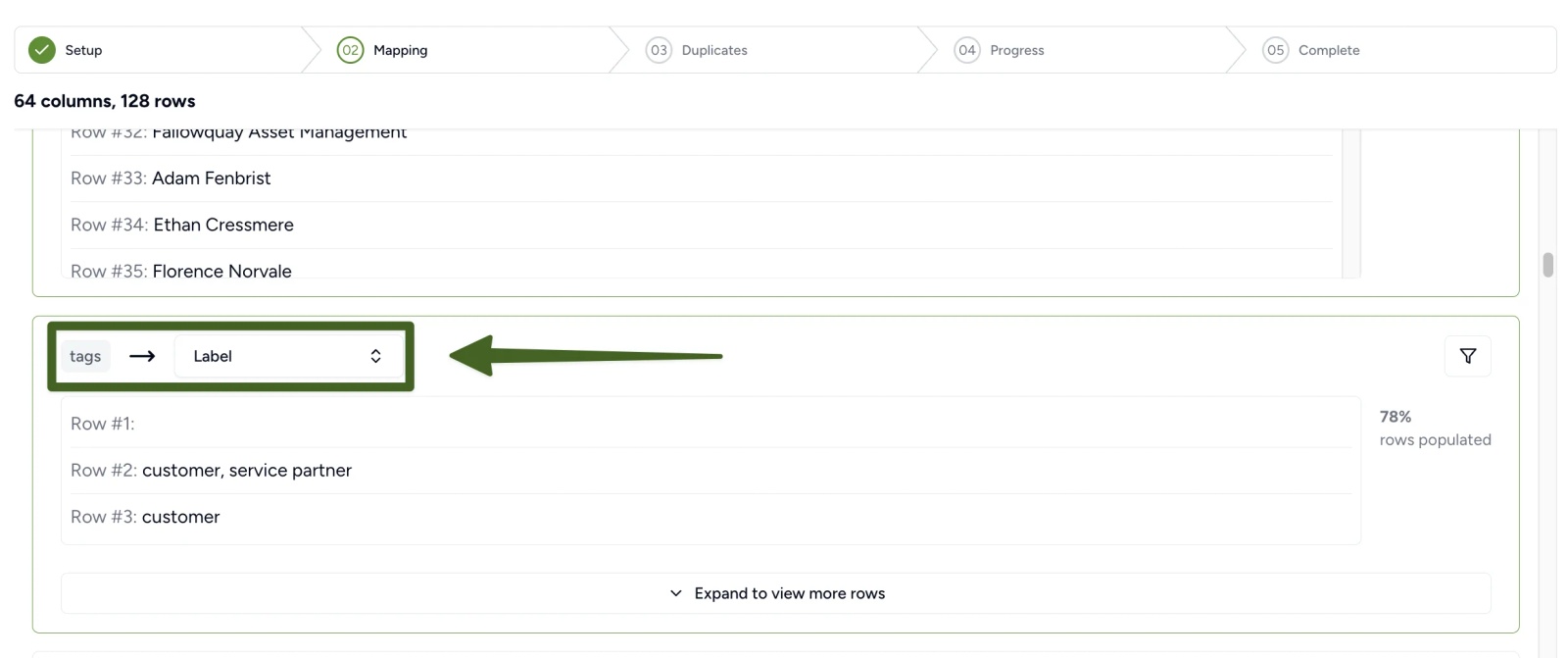
| Tags | Label | Odoo's tags arrive as a comma-separated list and Contactzilla splits them into separate labels. |
| Email and phone numbers | The suggested fields | Check each suggestion against your own data. |
| Notes | Bio | Odoo notes can contain rich formatting. Contactzilla notes are plain text, so the formatting is stripped. |
| Avatar | Avatar | Odoo returns the image as a long text string (base64). Mapped to Avatar, the photo comes across. |
| Odoo ID | A custom unique field, for example "Odoo ID" | Contactzilla saves the ID on the contact, so later updates in Odoo target the same contact. |
Ignore any field you do not need, and check the suggestions for address, job title and company fields against your own data.
Odoo ID: hidden or visible? A custom unique field is what lets Contactzilla recognise the same Odoo contact on a later import, so it updates the right record instead of creating a duplicate. It doesn't need to be seen to do that job, so we mapped it as a hidden field named "Odoo ID": it never appears on phones or in the address book list, it's just quietly doing the matching in the background. Odoo's ID is a short number too, unlike the long alphanumeric ID some other systems use for the same purpose.
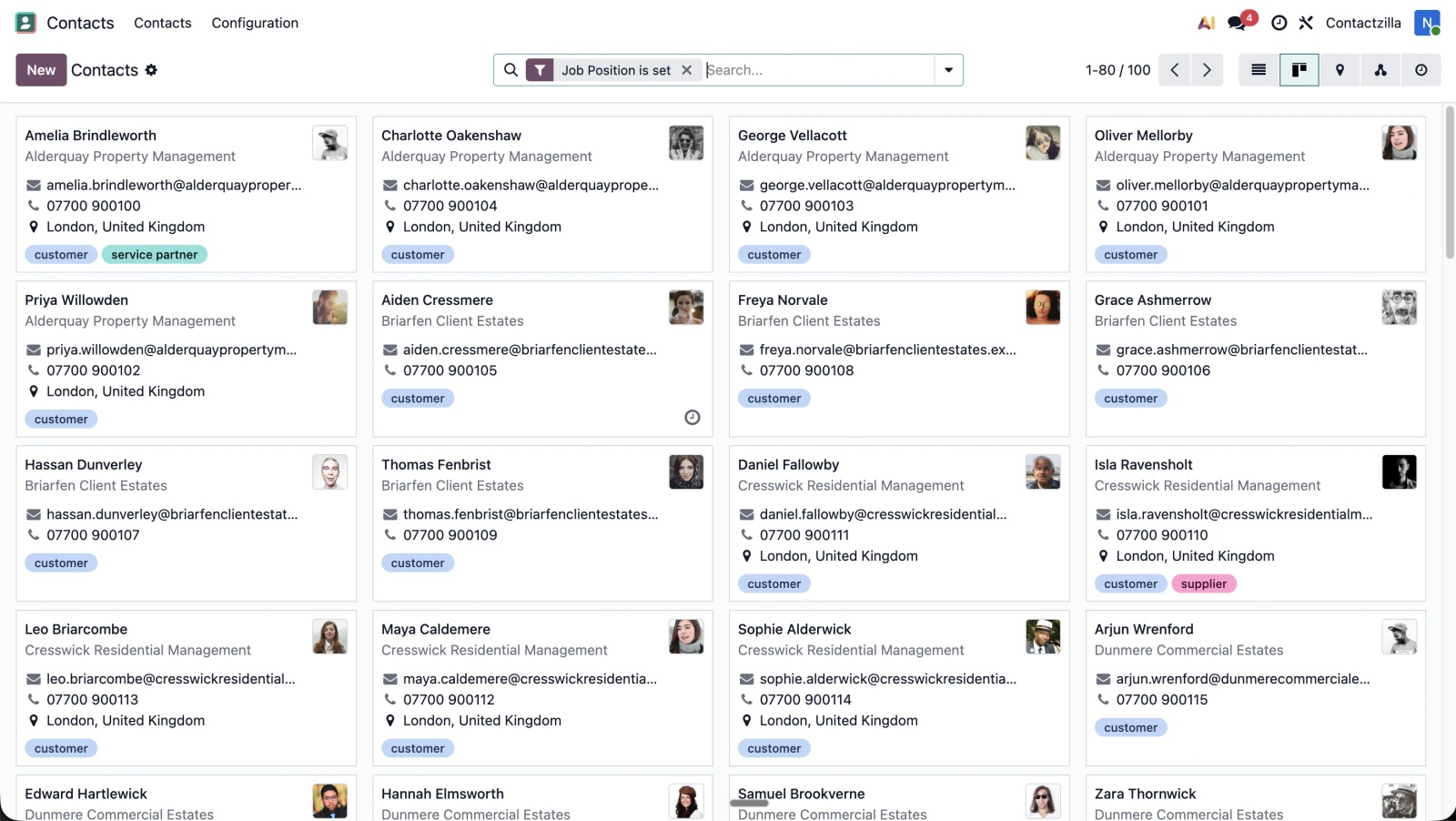
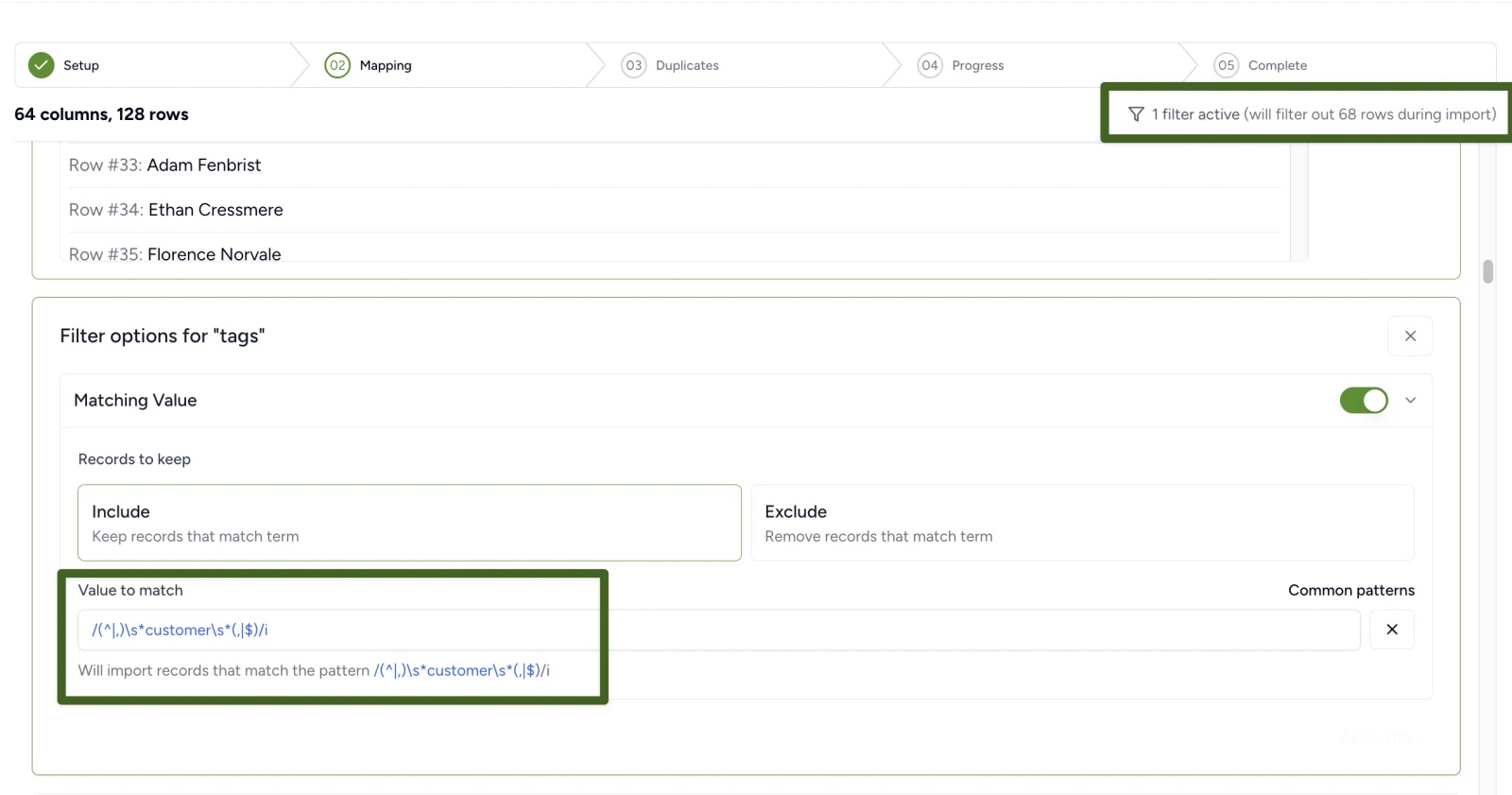
Import only some contacts. Each mapped field can have a filter. For example, filter the tags field with the pattern that matches a string in a comma-delimited list and enter customer to bring in only contacts tagged customer. You can use a basic string match or a regular expression, and Contactzilla tells you how many rows the filter will remove before you import. A filter here decides which contacts enter Contactzilla at all.
Step 4: Choose how deletions are handled
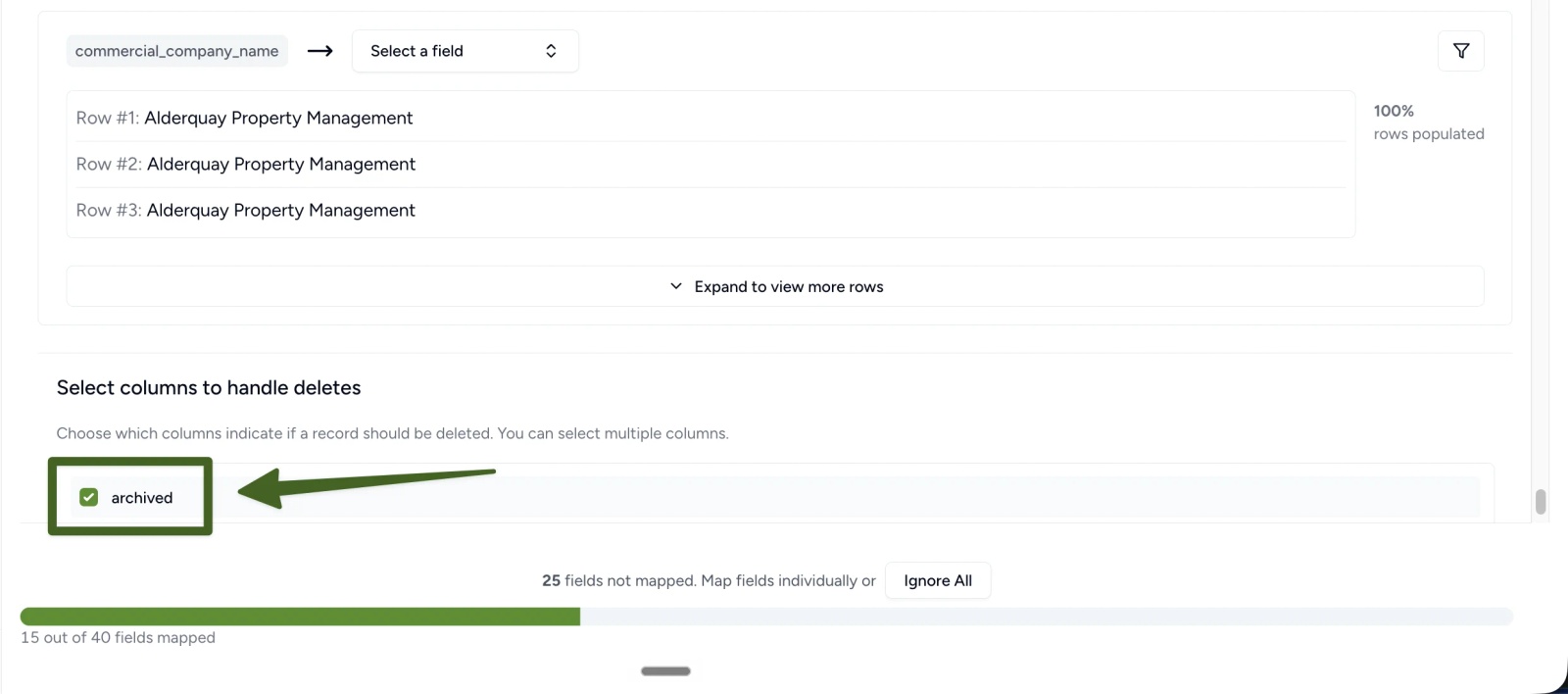
On the mapping screen, under Select columns to handle deletes, tick the source column that marks a record as deleted. In Odoo's export this is a column called archived: tick it, and a contact Odoo reports as archived is left out of Contactzilla on the next import.
Step 5: Handle duplicates on later imports
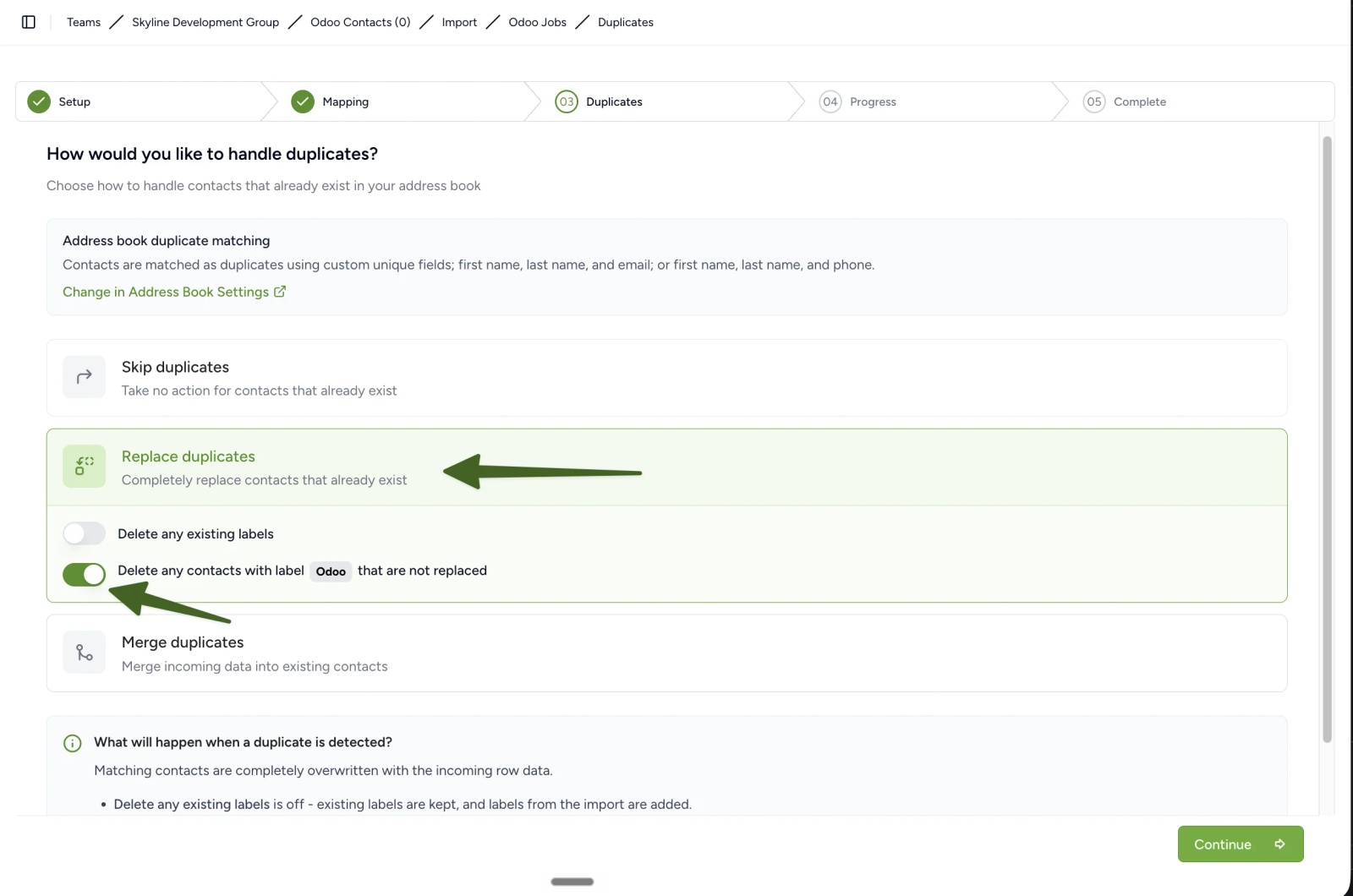
On the Duplicates screen, choose Replace duplicates so each later import updates the matching Contactzilla contact instead of creating a new one. This screen also offers Delete any contacts with label [your label] that are not replaced: turning it on removes every contact carrying that label that's missing from the current import, including ones someone added by hand under the same label. Contacts without the label are left alone, whatever their source. A separate Delete any existing labels toggle controls something different: whether a contact's other, non-import labels are wiped when it is overwritten, or kept alongside the new ones.
Contactzilla's own deletion-handling video demonstrates this label-scoped delete on a Microsoft Entra import and states that it applies to any importer, including Odoo. Read the option text on screen before you tick it, since the exact wording includes your label.
If Odoo is your source of truth, use this alongside the archived-column tick from Step 4: that catches contacts Odoo reports as archived on every run, and this catches anything still missing regardless of the reason, since it works from the label rather than one specific column. If you also add contacts from other sources or by hand, keep this scoped to your import's label, so only Odoo-sourced contacts are ever removed this way.
Step 6: Deliver the contacts to phones
The import fills the Contactzilla address book. The phones still need a connection to it, and the access type you choose decides what users can do with the contacts.
- Full Read Only is best when Odoo is the master list and users should not edit it. An edit made on the phone is overwritten the next time the device syncs, so Odoo always wins.
Tip 💡 Want users to see contacts but not edit them? Our post on improved read-only CardDAV synchronization covers that option.
- Selective Read Only sends only contacts with the labels you choose, for example only contacts labelled
customer. See selective read-only sync. - Full Read/Write lets users add and edit contacts on their phones.
iPhone. In the address book, open Device Connections, create a connection with the iOS connection type, choose the access type, then click Setup. From there you can add the connection straight to a device by showing a QR code, or download the configuration profile and deploy it through an MDM: assign the connection to an MDM team member in Contactzilla, then follow the guide for your platform: Intune, Jamf Pro, Workspace ONE or MaaS360. Each connection has its own device count, so the same setup that installs a profile on one test iPhone is what deploys the address book to a fleet: our example connection is configured for 100 devices.
Android. Create a device connection with the Android connection type and choose the team member who will use it. Keep the label sync method set to As Categories so labels show correctly, then click Setup to display a QR code. On the phone, install Contactzilla Sync from Google Play and choose Scan Contactzilla QR setup code. Android needs this app to bring CardDAV contacts into the native Contacts app; we haven't walked through the Android screens step by step here, since they're covered in the help article and video.
Tip 💡 Setting this up for Android? Our introduction to Contactzilla Sync covers how the app brings contacts into the native Contacts app.
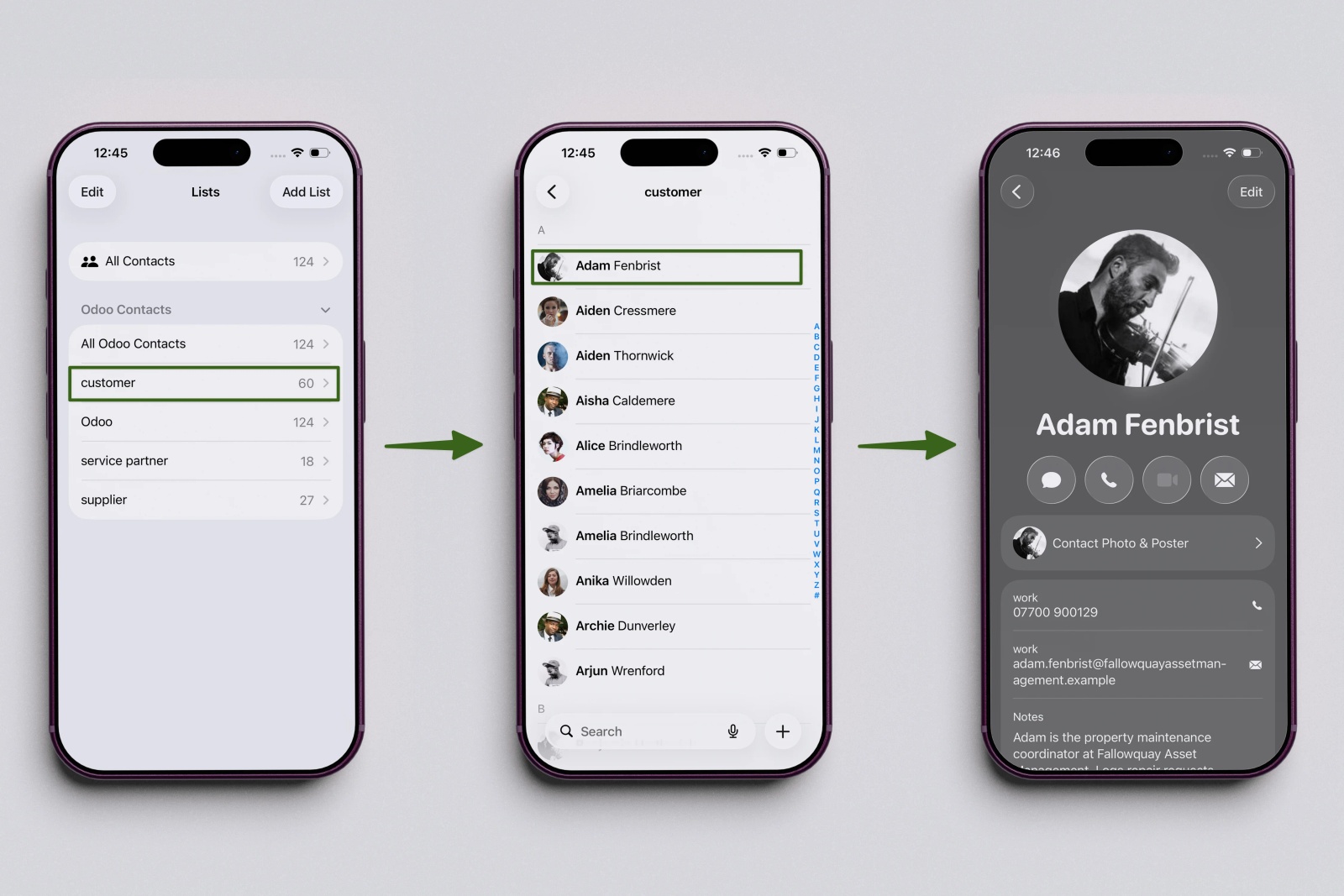
Check it worked. On the iPhone, open Settings > Contacts > Accounts and look for the new CardDAV account, then open the Contacts app and find an Odoo contact. The contact should show on caller ID when that number rings. Store phone numbers in a consistent format, ideally with the country code.
If the iPhone keeps asking for a password, see why an iPhone keeps asking for a CardDAV password.
Keep the contacts up to date
After the first import looks right, switch the importer from manual to a schedule in the import's settings. Use Sync now when you want an update straight away.
Example: an update flowing through. Change a field on an example contact in Odoo, run Sync now (or wait for the schedule), then check the contact in Contactzilla and on the phone. Two separate steps decide the timing: the import schedule decides when the change reaches Contactzilla, and the phone's own sync decides when it reaches the device. We haven't included a before-and-after screenshot of this for the article; the behaviour above is what we see day to day running Contactzilla.
To change the mapping later, clear the saved mapping and run Sync now; Contactzilla lets you map again. You can also delete the import job and set it up again from scratch.
When Odoo and Contactzilla are the right fit
- Odoo is the master list, and phones should just reflect it, not let anyone edit it by mistake.
- Staff need customer and supplier names in the phone's own Contacts app and on caller ID.
- Different groups of staff need different contacts, for example only customers, using tag filters and selective read-only connections.
FAQs
Does Odoo support CardDAV?
Not as a built-in feature for the version we tested: the Odoo Apps Store has had third-party CardDAV modules for older releases, but we didn't find a current one. Contactzilla supplies the CardDAV layer instead: it imports the contacts from Odoo and serves them to phones as a CardDAV account, which iPhones use natively.
Which Odoo plans and versions work with the importer?
You need an Odoo plan with external API access.
Is the sync one-way or two-way?
One-way. The importer pulls contacts from Odoo into Contactzilla, so Odoo stays the source of truth. Nothing is ever written back to Odoo: changes made in Contactzilla roll out to devices, not back to Odoo, and read-only device connections are what stop users from editing the list on their phones.
Can I sync only some Odoo contacts, such as customers?
Yes, in two different ways. Filter by tag when you import to limit what enters Contactzilla, or import everything and use Selective Read Only device connections to send only contacts with chosen labels to particular devices.
Will archived Odoo contacts disappear from phones?
Yes, if you tick the option to handle deletions for archived contacts. The contact is removed from Contactzilla on the next import and from devices when they next sync.
Will Odoo contacts show on caller ID?
Yes, when the number is in the native Contacts app and matches the incoming number. Consistent number formats with the country code help.
Does it work on Android?
Yes, through the Contactzilla Sync app, which brings the address book into the native Contacts app.
Do I need an MDM?
No, you can install a profile on an individual iPhone. For a fleet, an MDM deploys the profile to every device without users doing anything.
Do I need an app on the iPhone?
No. iPhones support CardDAV natively, so the profile adds the account and the contacts appear in the built-in Contacts app. Android is different: it needs the Contactzilla Sync app.
Will the contacts stay on the phone when it is offline?
Yes. Contacts delivered to the native Contacts app are stored on the phone, so they stay there and stay usable when it is offline.
How often does it sync?
Manually, or on a schedule you choose. Start manual, then schedule once the mapping is right.