
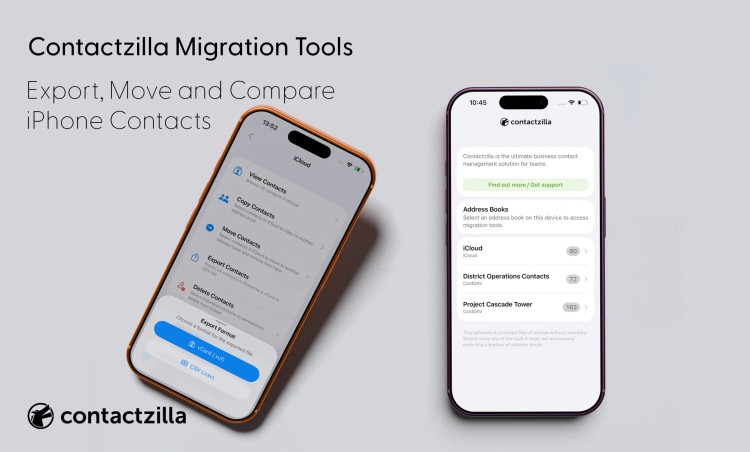
Export, Move and Compare iPhone Contacts with Contactzilla Migration Tools

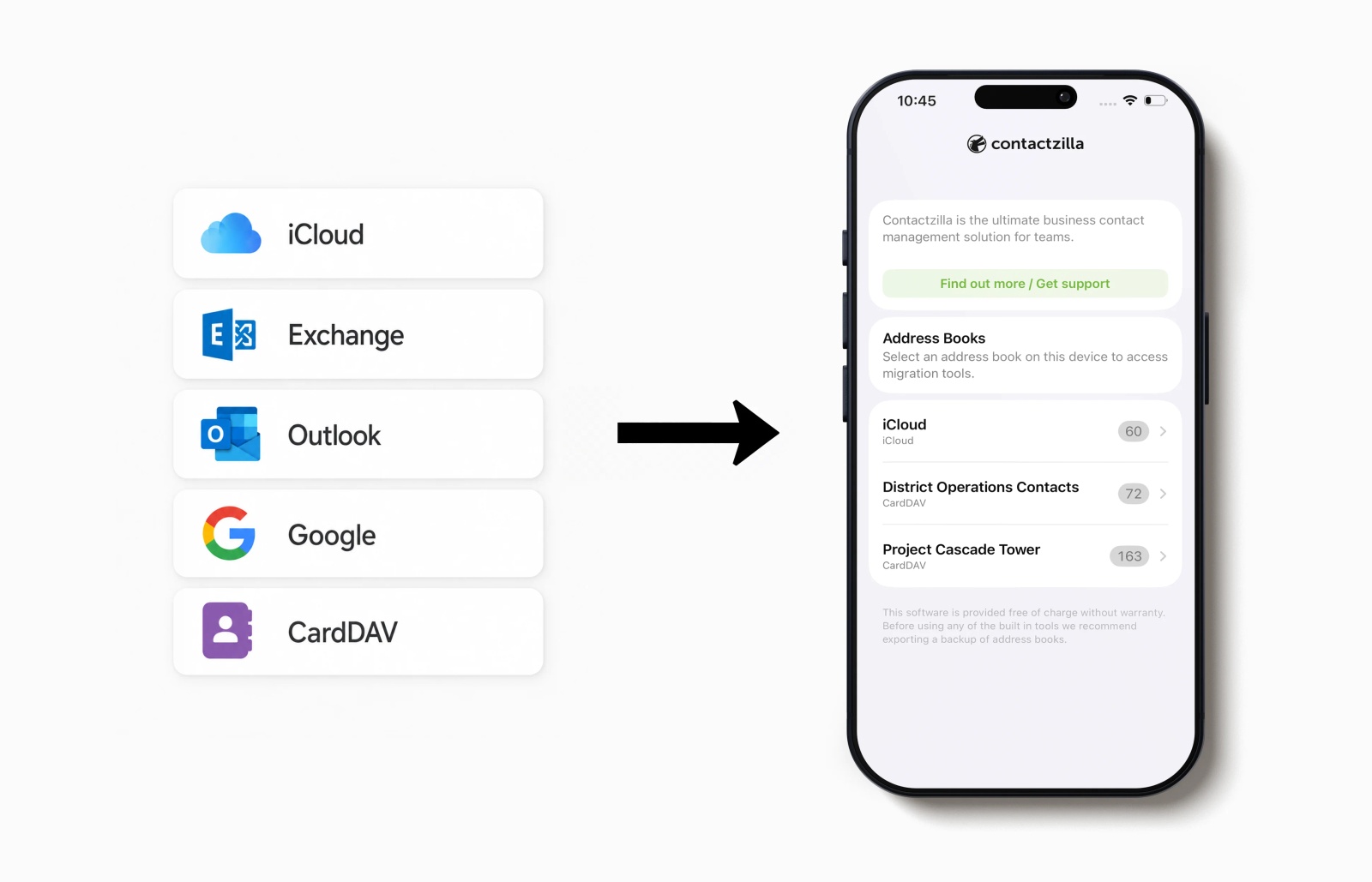
iPhone contacts are often spread across iCloud, Exchange, Outlook, Google, CardDAV, and local address books.
That is fine day to day, because the iPhone Contacts app pulls those contacts together into one view. But it becomes a problem when you need to export contacts, move them between systems, compare address books, or clean up old contact data before a migration.
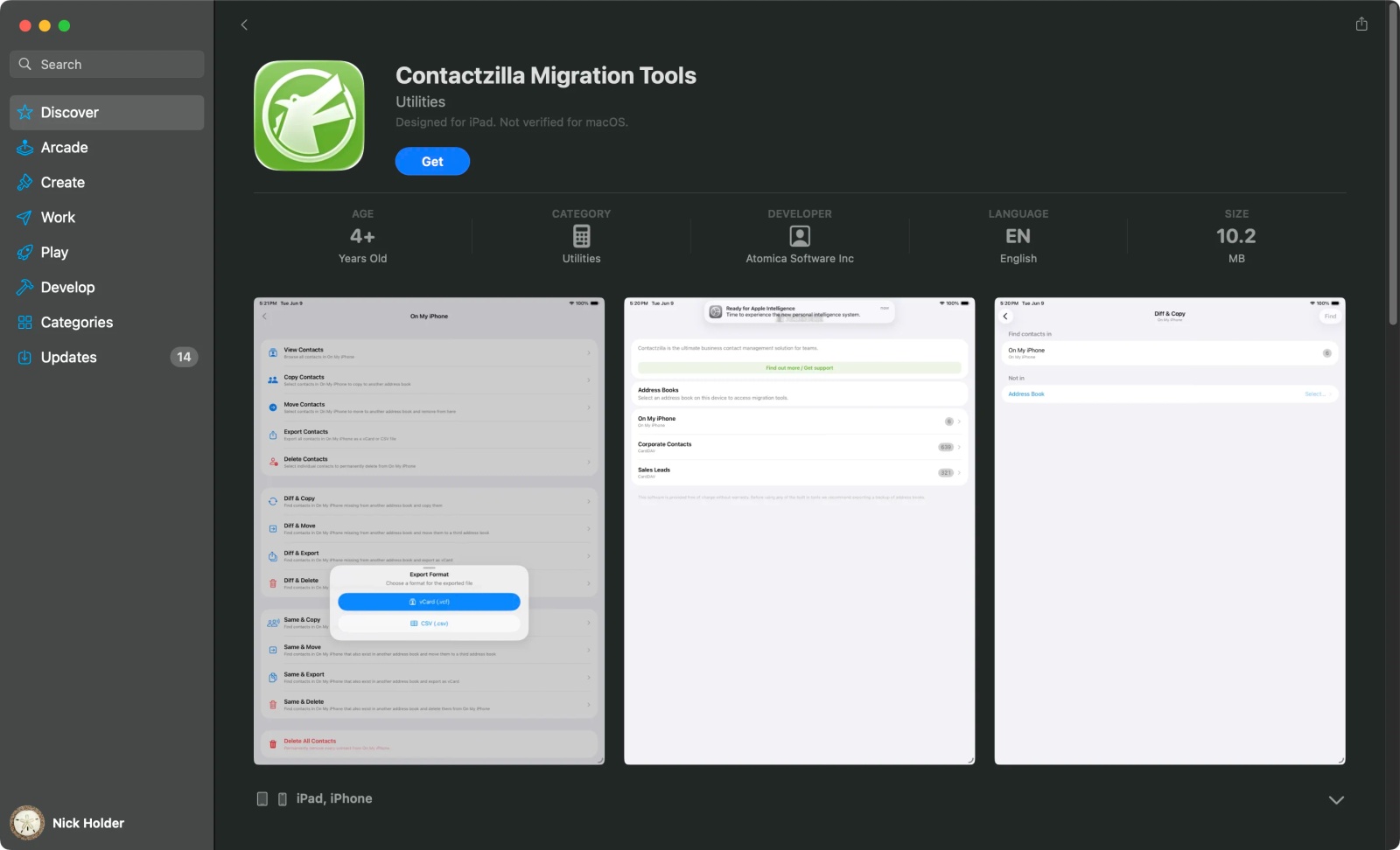
Contactzilla Migration Tools is a free iOS app that helps you work with the contact address books already on your iPhone or iPad.
It lets you:
- view contacts by address book
- export contacts as vCard / VCF
- export contacts as CSV
- copy or move contacts between address books
- compare two address books
- find contacts that exist in one address book but not another
- detect duplicates during copy and move operations
- delete contacts from a specific address book
- work entirely on-device, without a Contactzilla account
The purpose of the tool is to make iPhone contact data easier to export, compare, move, and clean up before a migration.
Tip 💡: If you are new to the contact sync technology behind many shared address books, see our guide to what CardDAV is and how it works
What is Contactzilla Migration Tools?
Contactzilla Migration Tools is a free iOS app for managing contact data across address books on an iPhone or iPad.
It is not the main Contactzilla shared contacts platform. It is a separate tool for contact migration, export, comparison, and cleanup work on the iOS device Itself. The app is useful when contacts are spread across more than one source. For example, a user may have contacts in iCloud, an old Exchange account, Google, Outlook, CardDAV, or local device storage.
In the normal iPhone Contacts app, those contacts may appear together. That can make it hard to see where each contact is actually stored.
Contactzilla Migration Tools helps by showing the address books behind the combined Contacts view. You can then choose the source you want to work with before exporting, copying, moving, comparing, or deleting contacts.
Why iPhone contact migration needs more than a basic export
Contact migrations often look simple until you inspect the device.
A business may be moving away from an old Exchange server. A consultant may need to prepare contacts for a CRM. A user may have saved business contacts into iCloud by mistake. Someone else may need to separate personal and work contacts before removing an account.
The problem is the same in each case: the contacts are visible on the iPhone, but the source is not always obvious.
That creates practical risks.
- Contacts can be lost when an old account is removed
- Duplicate contacts can be created during a move.
- Personal and business contacts can become mixed together.
- CSV exports can be hard to prepare. Users may not know which contacts exist in which address book.
- Contactzilla Migration Tools was built for these situations.
- It gives users and IT teams a way to inspect and manage contact data before making changes.
Tip 💡: If you are planning a wider contact rollout, see our guide to enterprise contact management and deploying contact lists at scale
Export contacts from iPhone as vCard or CSV
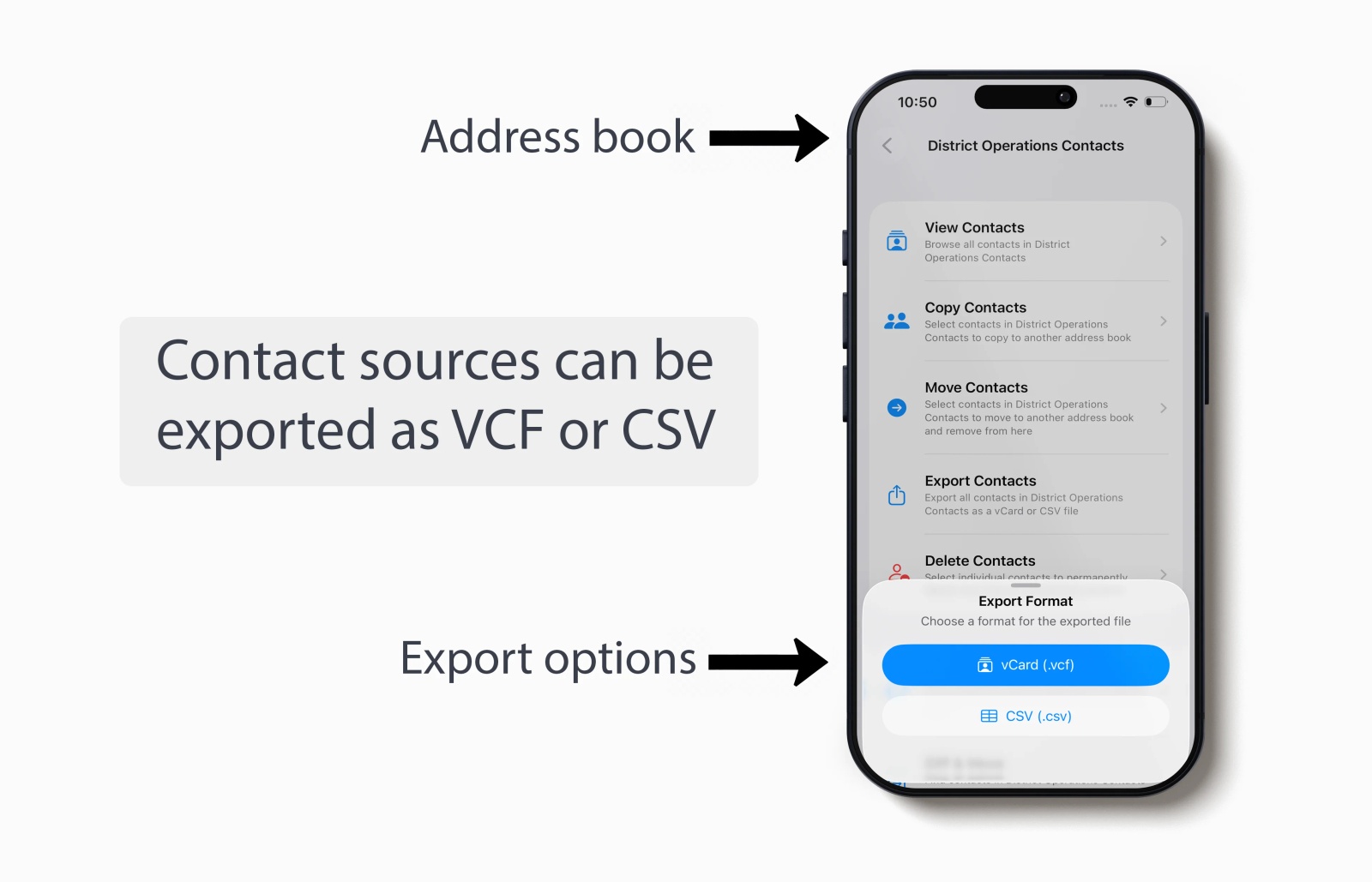
Contactzilla Migration Tools lets you export contacts from an iPhone as either CSV or vCard.
This matters because Apple’s standard contact export options are centred on vCard. vCard or VCF is a standard format for exchanging contact information between address books and contact apps.
- iCloud Contacts exports contacts as vCard.
- Mac Contacts exports selected contacts as a vCard .vcf file.
- CSV export usually requires an extra conversion step after the vCard export.
That is fine if you only need to move contacts into another contacts app. It is less useful if you need to review the data in a spreadsheet or prepare it for another business system.
Contactzilla Migration Tools gives you both options directly from the device.
| Export format | Best for |
|---|---|
| vCard / VCF | Moving contacts into another contacts app |
| CSV | Excel, Google Sheets, CRM imports, audits, cleanup, and data review |
Use vCard / VCF when you want to move contacts into another contacts app or address book.
Use CSV when you want to open contacts in Excel, Google Sheets, a CRM, or another business system.
CSV export is useful because it lets you check the data before it moves. You can review names, phone numbers, email addresses, and other fields before importing contacts into another system.
Contactzilla Migration Tools exports iPhone contact data as CSV with dynamic column headers. That means fields such as phone number types and email address types can be represented clearly in the file.
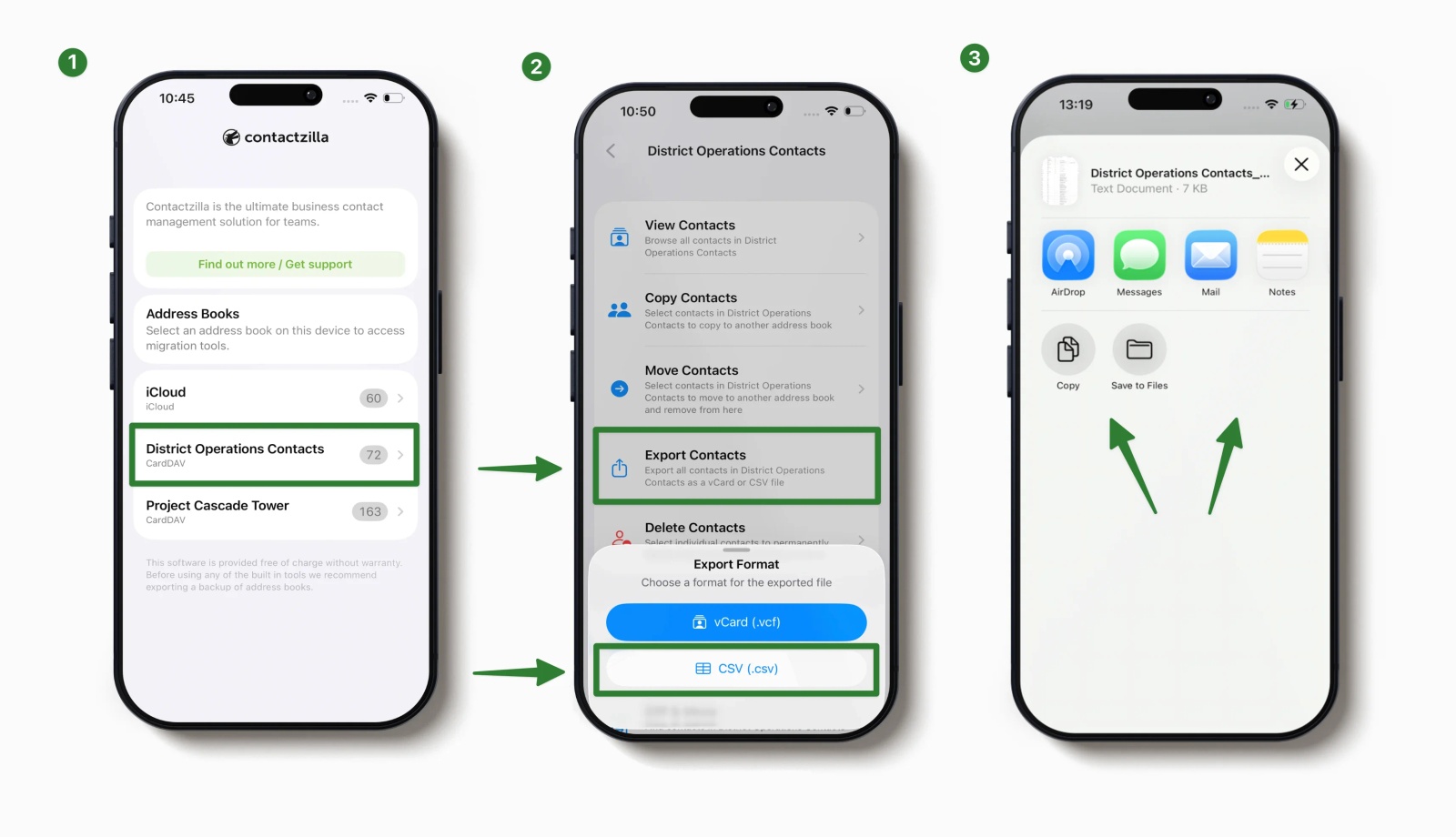
Tip 💡: Apple also explains how to export contacts from the iPhone Contacts app using the built-in Lists export option and how to export iCloud contacts as a vCard file.
Export iCloud contacts to CSV
The following 3 steps go through how to export iCloud contacts to CSV with Contactzilla Migration Tools
Step 1) Select the iCloud address book
Open Contactzilla Migration Tools and choose iCloud from the list of address books on your iPhone.
Step 2) Choose Export Contacts and select CSV
Tap Export Contacts. When the export format prompt appears, choose CSV (.csv).
Step 3) Choose where to send or save the CSV file
Use the iPhone share sheet to save the CSV to Files, send it by Mail or Messages, copy it, or share it by AirDrop.
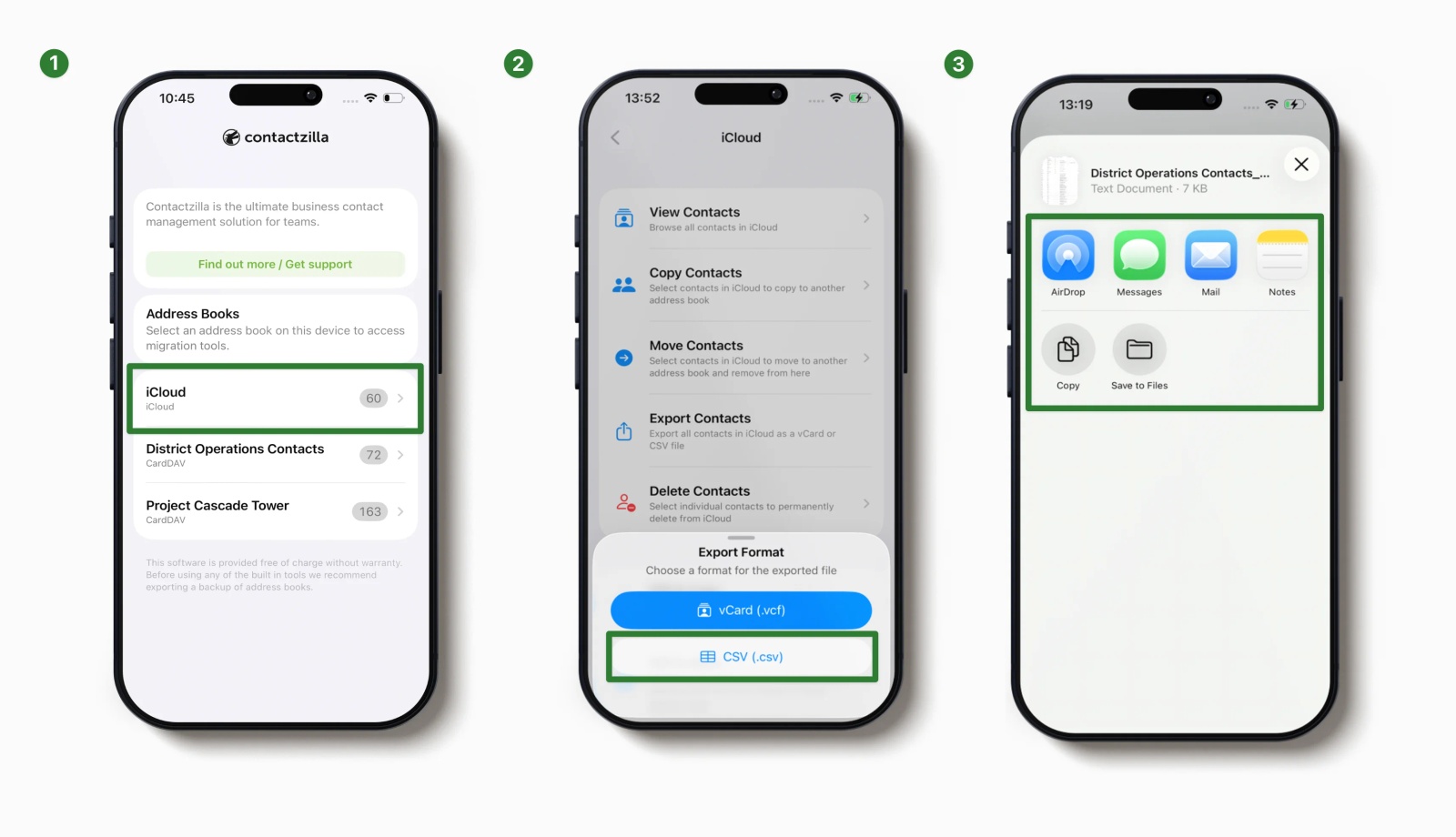
iCloud Contacts exports contacts as vCard, not CSV.
That is fine if you want to move contacts into another contacts app. It is less useful if you need to open the data in Excel, prepare a CRM import, or review the contacts in a spreadsheet.
Until now, the usual workaround has been to export iCloud contacts as a vCard file, then convert that vCard into CSV.
Contactzilla Migration Tools gives you a more direct route. If your iCloud contacts are available on your iPhone, you can choose the iCloud address book in the app and export those contacts as CSV.
That makes it easier to review names, phone numbers, email addresses, and other fields before the data moves into another system.
Move contacts between iPhone address books
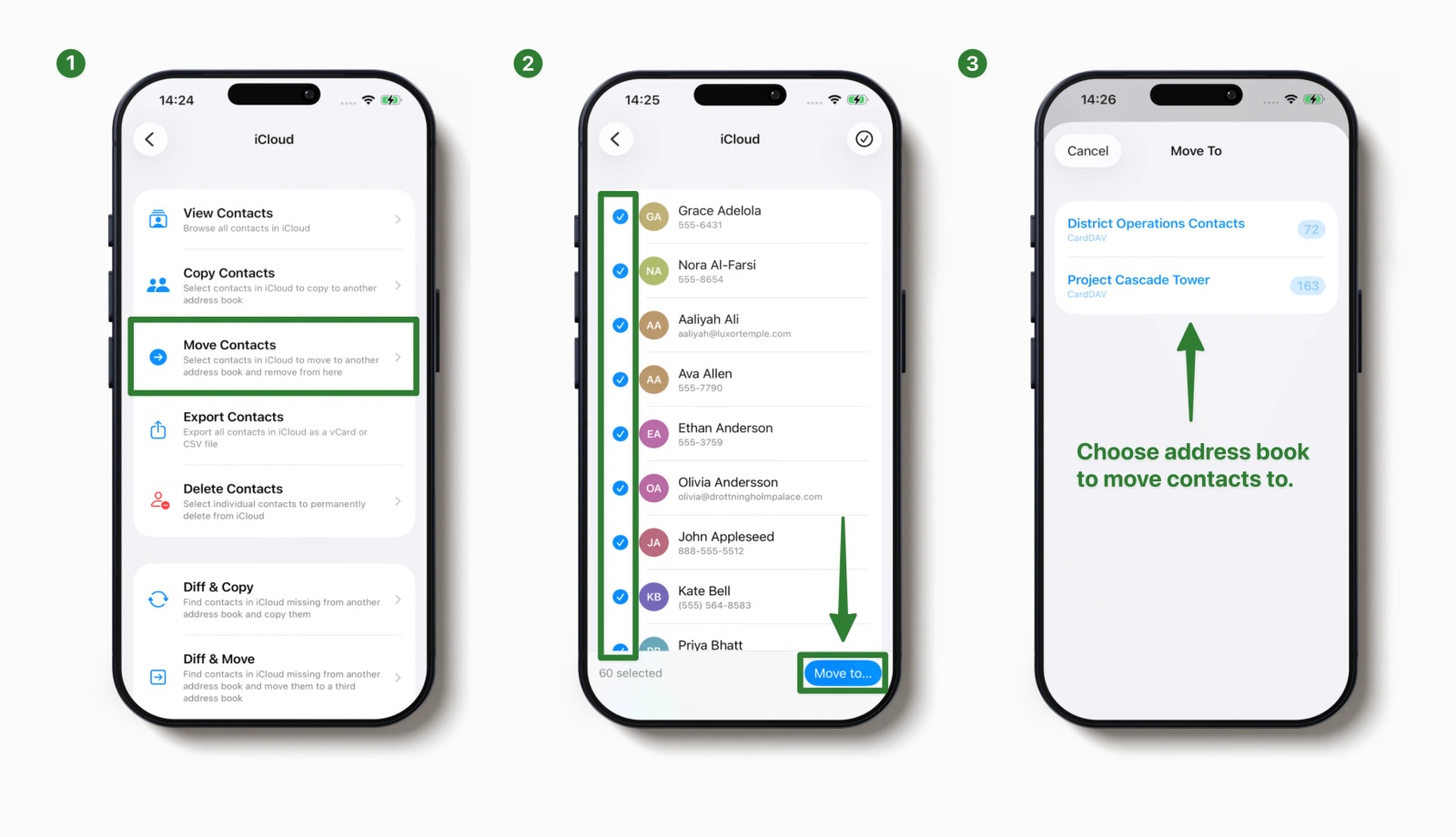
To move contacts between iPhone address books/contact sources follow these 3 steps:
Step 1) Choose Move Contacts
Open the address book you want to move contacts from, then tap Move Contacts.
Step 2) Review and choose the contacts to move
Contacts are selected by default. Untick any contacts you do not want to move, then tap Move to…
Step 3) Select the destination address book
Choose the address book you want to move the contacts into, such as another CardDAV, iCloud, Google, or Outlook address book.
Exporting contacts is not always enough.
Sometimes you need to move contacts from one source to another. In practice, that often means moving contacts between accounts such as Exchange, Outlook, Google, iCloud, or CardDAV.
Common examples include:
- Exchange to iCloud
- Outlook to iCloud
- Google to iCloud
- local iPhone contacts to iCloud
- one CardDAV address book to another
Contactzilla Migration Tools lets you copy or move contacts between address books on the device.
Use Copy when you want to keep the original contact in place.
Use Move when you have checked the destination and want to clean up the old source.
For migration work, copying first is usually safer. You can confirm the contacts are in the destination address book before deleting anything from the source.
Move Exchange or Outlook contacts before removing an account
This is one of the clearest use cases for Contactzilla Migration Tools.
A business may need to remove an old Exchange or Outlook account from iPhones. Before doing that, it needs to check whether users have personal contacts stored in that account.
If the account is removed too early, those contacts may no longer be visible on the device.
A safer workflow is:
- Open the Exchange or Outlook address book.
- Export the contacts as a backup.
- Compare the old address book with the destination.
- Copy or move contacts that only exist in the old account.
- Check the destination address book.
- Remove the old account only after the contacts have been checked.
This is useful for IT teams, consultants, and professionals who need to move contact data without guessing where it is stored.
Compare two iPhone contact address books
A basic export tool gives you a file.
That may be enough for a backup. It is not always enough for a migration.
Before moving, deleting, or exporting contacts, you may need to know what is different between two address books.
For example:
- which contacts exist in Exchange but not iCloud
- which contacts exist in Outlook but not Google
- which contacts are shared between two address books
- which contacts need to be copied before an old account is removed
- which contacts should be exported for review
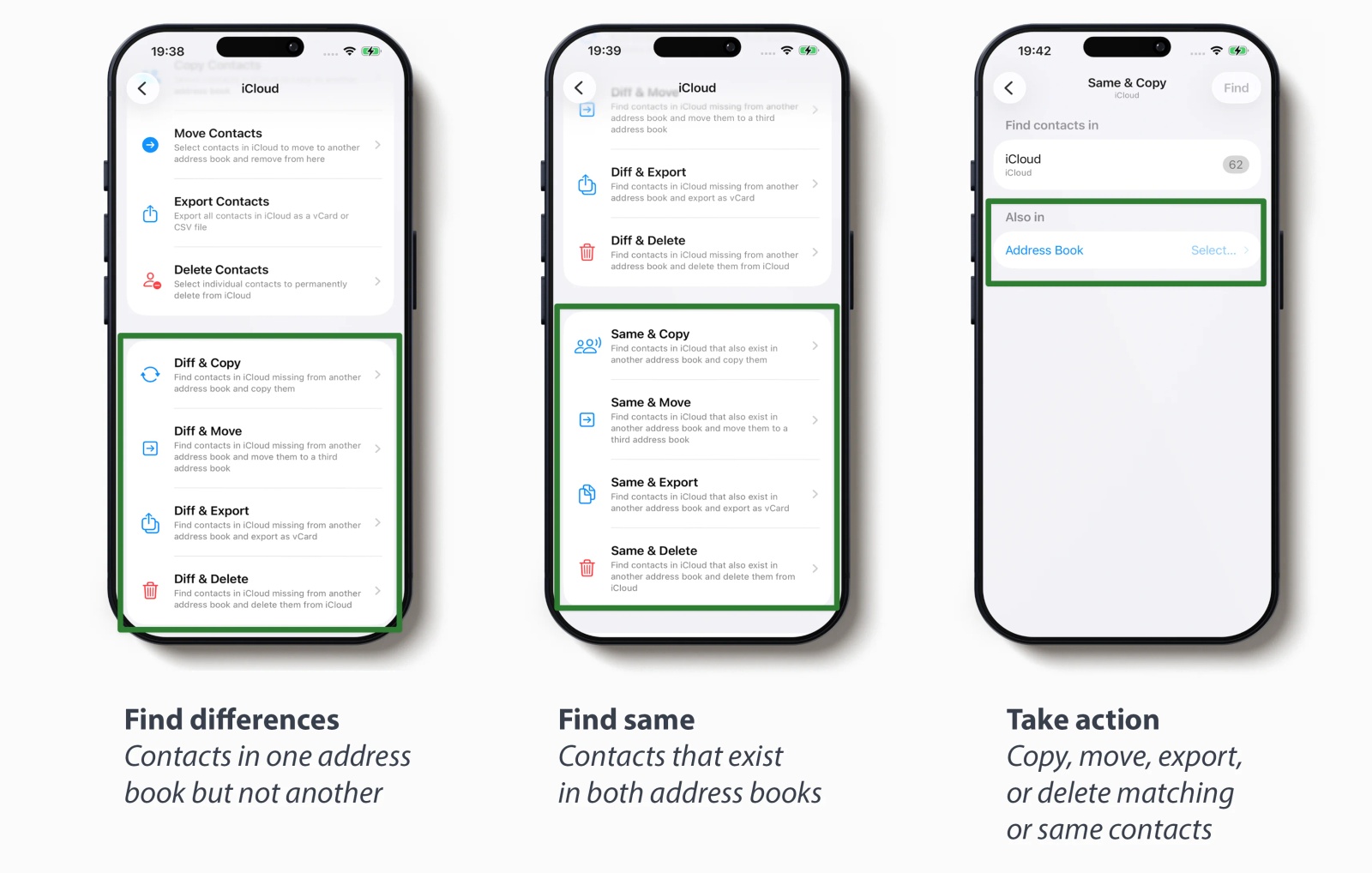
Contactzilla Migration Tools can compare two address books.
It can show:
- Diff — contacts that exist in one address book but not another
- Same — contacts that appear in both address books
You can then copy, move, export, or delete contacts from the comparison results.
This helps you check the source and destination before changing anything.
Avoid duplicate contacts during iPhone contact migration
Duplicate contacts often appear when contact lists are copied or merged.
This can happen when the same person exists in iCloud, Exchange, Outlook, Google, or another address book.
Contactzilla Migration Tools includes duplicate detection during copy and move operations. This helps prevent the same contact being added twice to the destination address book.
This is useful during migration work, where the goal is to move contacts cleanly without making the destination list messier.
The feature is focused on safer copy and move actions. It is not presented here as a full duplicate cleanup tool for every contact on the device.
Delete contacts from one iPhone address book
Contactzilla Migration Tools can delete selected contacts from a specific address book.
It can also remove all contacts from one address book.
This is useful when you want to clean up one contact source without touching contacts stored somewhere else.
For example, you may want to:
- clear contacts from an old Exchange address book
- remove contacts from a test account
- delete contacts after confirming they exist elsewhere
- clean up an imported list
- remove contacts from one source without affecting another
Deletion should usually be the last step.
Export first. Compare if needed. Check the destination. Then delete only the contacts you intend to remove.
Who should use Contactzilla Migration Tools?
Contactzilla Migration Tools is for businesses and professionals who need to work with contact data during a migration.
It is useful for:
- IT teams moving users off Exchange or Outlook
- consultants helping clients migrate contact data
- businesses preparing contacts for a CRM
- professionals merging address books
- teams cleaning up contact data before moving to a new platform
- users separating personal and business contacts
- anyone who needs a CSV or vCard export from an iPhone
It can also help individuals who want a free way to back up, export, or move contacts before changing phones, accounts, or contact providers.
The app works on-device and does not require a Contactzilla account.
How to migrate iPhone contacts safely
Do not start a contact migration by deleting accounts or clearing address books.
Use this workflow first:
- Identify the contact address books on the device.
- Choose the source address book.
- Export a backup as vCard or CSV.
- Compare the source and destination address books.
- Copy or move contacts that only exist in the source.
- Check for duplicate warnings during the copy or move.
- Confirm the destination address book is correct.
- Delete contacts or remove the old account only after the migration has been checked.
A safer contact migration workflow is:
backup, compare, move, verify, then delete.
It takes slightly longer. It reduces the risk of losing contacts or creating a messy destination list.
Editorial note: The FAQ section supports AEO and gives short answers to likely long-tail questions.
Tip 💡: If your goal is not just to migrate contacts, but to deploy managed contact lists to company iPhones, Contactzilla also has iPhone deployment guides for Jamf Pro, Microsoft Intune, Workspace ONE, and IBM MaaS360.
FAQs
What is Contactzilla Migration Tools?
Contactzilla Migration Tools is a free iOS app for exporting, moving, comparing, and managing contact address books on an iPhone or iPad. It is built for contact migration work, especially when contacts are spread across iCloud, Exchange, Outlook, Google, or CardDAV.
Can I export contacts from iPhone?
Yes. You can export contacts from an iPhone as vCard or CSV, depending on the tool you use. Contactzilla Migration Tools lets you choose an address book on the device and export those contacts for backup, review, or migration.
Can I export iPhone contacts to CSV?
Yes. Contactzilla Migration Tools can export iPhone contacts to CSV from an address book on the device. CSV is useful when you need to open contacts in Excel, prepare a CRM import, audit phone numbers, or clean up data before migration.
Can I export iCloud contacts to CSV?
iCloud’s standard export route is vCard, not CSV. To export iCloud contacts to CSV, you usually need to convert a vCard file or use a tool that can access the iCloud address book on your iPhone and export it as CSV.
How do I know where my iPhone contacts are stored?
Check which contact accounts are enabled on your iPhone, then look at the address books available in the Contacts app or a migration tool. Contacts may be stored in iCloud, Exchange, Outlook, Google, CardDAV, or another source, even if they appear in one combined list.
Can I export only one iPhone contact account?
Yes, if your export tool lets you choose the contact source or address book first. This is useful when you only want contacts from iCloud, Exchange, Outlook, Google, or CardDAV instead of exporting every contact visible on the iPhone.
What happens if I remove Exchange or Outlook from my iPhone?
Contacts stored in the Exchange or Outlook account may no longer be visible on the iPhone after the account is removed. Before removing the account, export those contacts as a backup or copy them to another address book.
Can I export iPhone contacts to vCard?
Yes. You can export iPhone contacts to vCard or VCF when you need a contact file for another address book or contacts app. vCard is usually better than CSV when the goal is contact-app-to-contact-app migration.
Is CSV or vCard better for exporting iPhone contacts?
Use CSV when you need a spreadsheet, CRM import, audit file, or cleanup workflow. Use vCard when you need to move contacts into another contacts app. CSV is easier to review. vCard is better for contact-app-to-contact-app import.
Can I move contacts between iPhone address books?
Yes. You can move contacts between iPhone address books if both the source and destination are available on the device. Contactzilla Migration Tools lets you copy or move contacts between sources such as iCloud, Exchange, Outlook, Google, or CardDAV.
Can I move Exchange contacts to iCloud?
Yes, if the Exchange and iCloud address books are both available on the iPhone. Before removing Exchange, export the Exchange contacts as a backup, compare them with iCloud, then copy or move any contacts that only exist in Exchange.
Can I compare two iPhone contact lists?
Yes. Contactzilla Migration Tools can compare two iPhone address books and show contacts that are different or shared. This is useful before a migration because you can check what exists in the source and destination before copying, moving, exporting, or deleting contacts.
Can I delete contacts from one iPhone address book?
Yes. Contactzilla Migration Tools can delete selected contacts from one iPhone address book, or remove all contacts from that address book. Export first, then compare if needed, so you do not remove contacts before checking where they are stored.
Can Contactzilla Migration Tools prevent duplicate contacts?
Contactzilla Migration Tools includes duplicate detection during copy and move operations. It helps prevent the same contact being added twice to a destination address book. It should not be described as a full duplicate cleanup tool for every contact on the device.
Is Contactzilla Migration Tools free, and does it need an account?
Contactzilla Migration Tools is free to use and does not require a Contactzilla account. The app works on-device, so users can export, move, compare, and manage iPhone contact address books without signing in to the main Contactzilla platform.
Tip 💡: Managing Android contacts as well? See our Android CardDAV setup guide for sharing contacts with Android devices:

