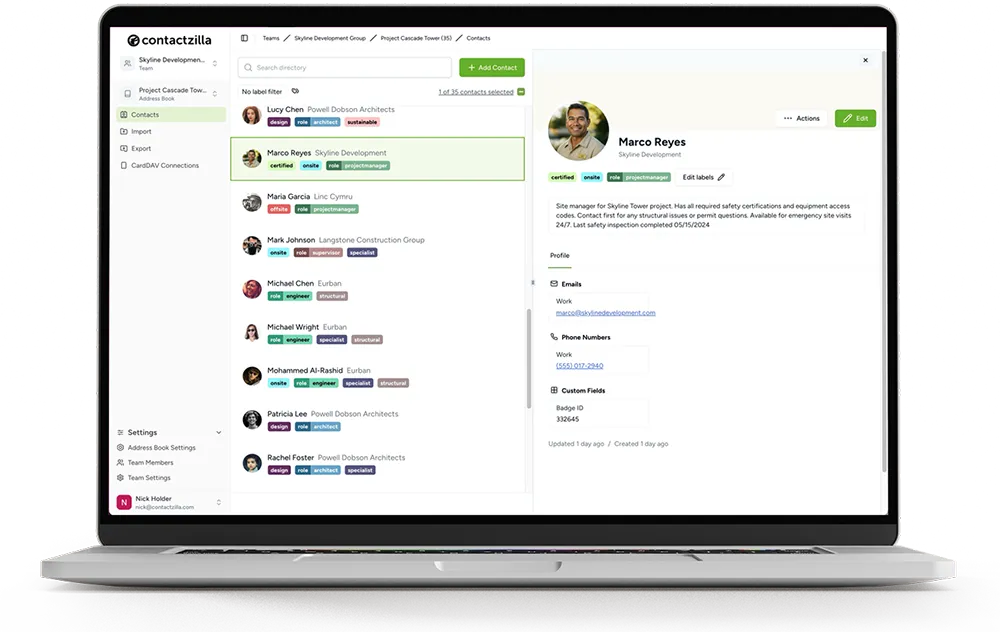
Turn Claude or ChatGPT Into Your Contact Manager

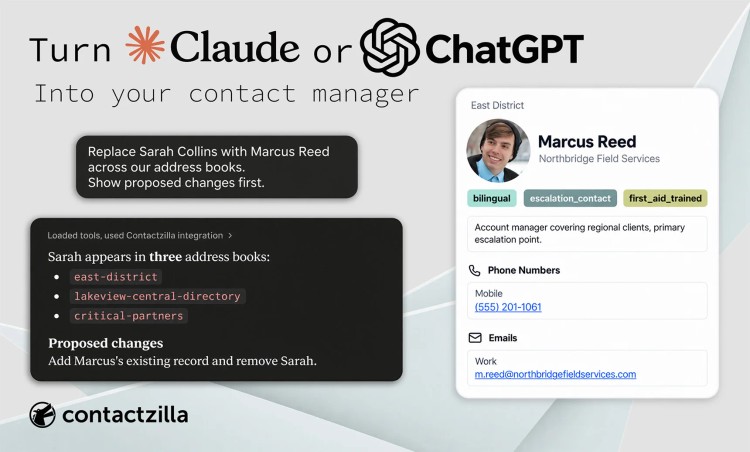
If your organisation's shared contacts live in Contactzilla, you no longer have to open Contactzilla to use them. Contactzilla now supports MCP (Model Context Protocol), so Claude, ChatGPT and other compatible AI assistants can read your address books directly from a conversation and, where the AI client supports write actions, update them too.
Short answer: Contactzilla is now an MCP connector. Once an administrator allows MCP connections for the team, anyone with permission can connect their own AI assistant to Contactzilla and ask it, in plain English, to look up, add, edit or clean up contacts, instead of logging in to do it by hand. Whether that connection can only read contacts or can also write to them is chosen separately, when the connection is authorised, and can be changed later.
This post covers what that looks like in practice. For the full step-by-step setup, see our help guide, Connect Contactzilla to Claude, OpenAI or Any MCP-Compatible AI Tool.
What this lets you do
Once connected, you can talk to your Contactzilla address books through Claude, ChatGPT or another MCP-compatible assistant in plain English. That covers a fair range, not just one trick:
- Look things up: ask questions about your address books and contacts directly.
- Filter and analyse: apply a condition across fields, dates or other criteria, not just a saved label.
- Compare against another system: check Contactzilla against a list or a system from somewhere else.
- Make changes: add, edit, move, merge or remove contacts, when the connection has write access.
- Combine it with other tools: chain Contactzilla together with anything else you've connected, so one request can pull from both instead of you copying information between them by hand.
The last one is where this stops being just a faster way to do what Contactzilla already does. Contactzilla only knows about your contacts, not what's in your HR system, your calendar or your inbox. Once your AI assistant can reach Contactzilla alongside whatever else you've connected it to, it can carry information between them in one request instead of you exporting from one place and pasting it into another.
Here's what that looks like for a job most admins have had to do by hand at some point.
A practical example: covering for someone who's left
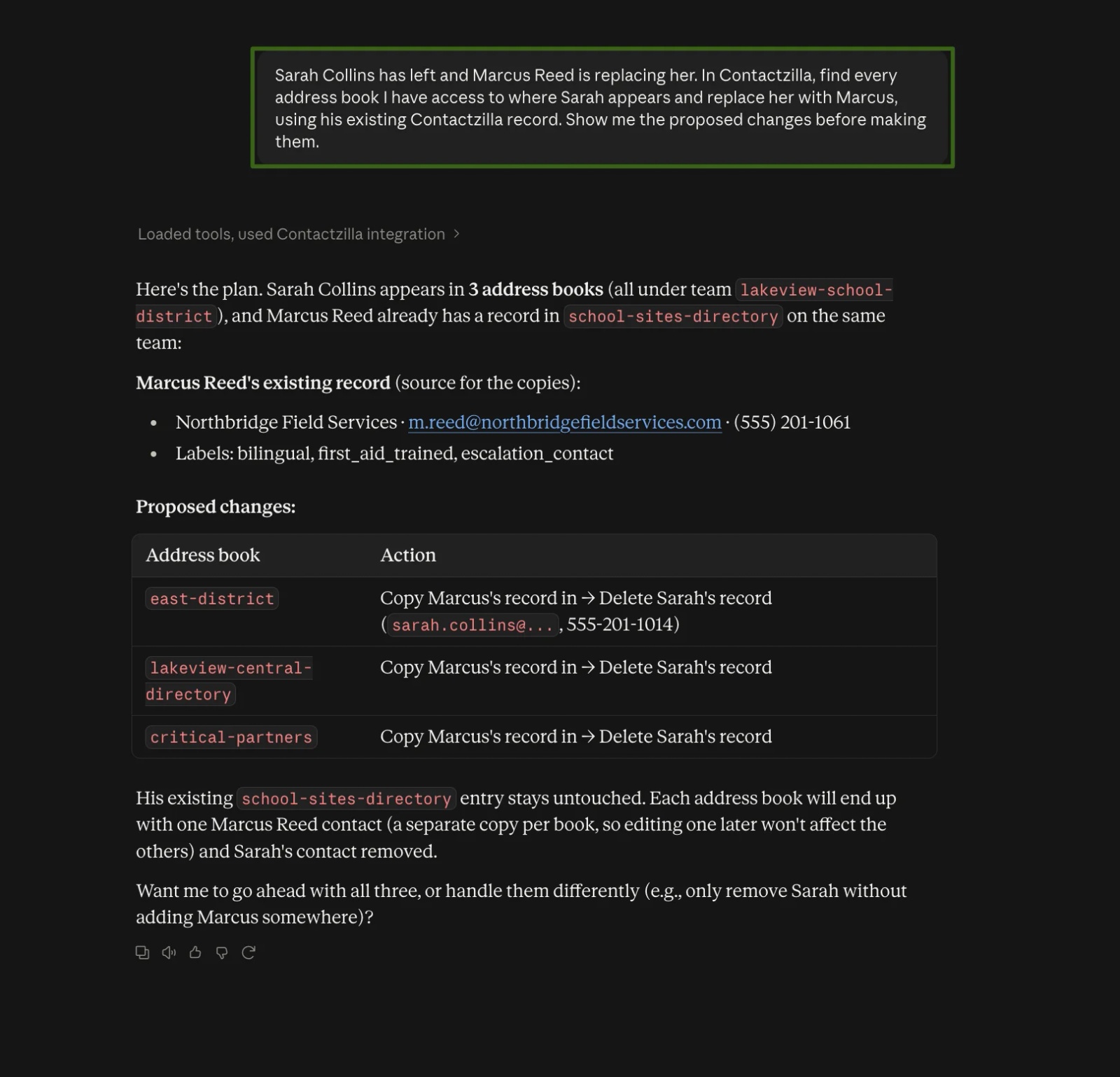
When someone leaves, removing them usually isn't the whole job. Somebody else may need to replace them across several shared address books. It's easy to miss one, and a missed one means a team calling or texting the wrong person.
Ask it: "Sarah Collins has left and Marcus Reed is replacing her. In Contactzilla, find every address book I have access to where Sarah appears and replace her with Marcus, using his existing Contactzilla record. Show me the proposed changes before you make them."
Because you've asked to see the proposed changes first, you can check them before asking the assistant to go ahead.
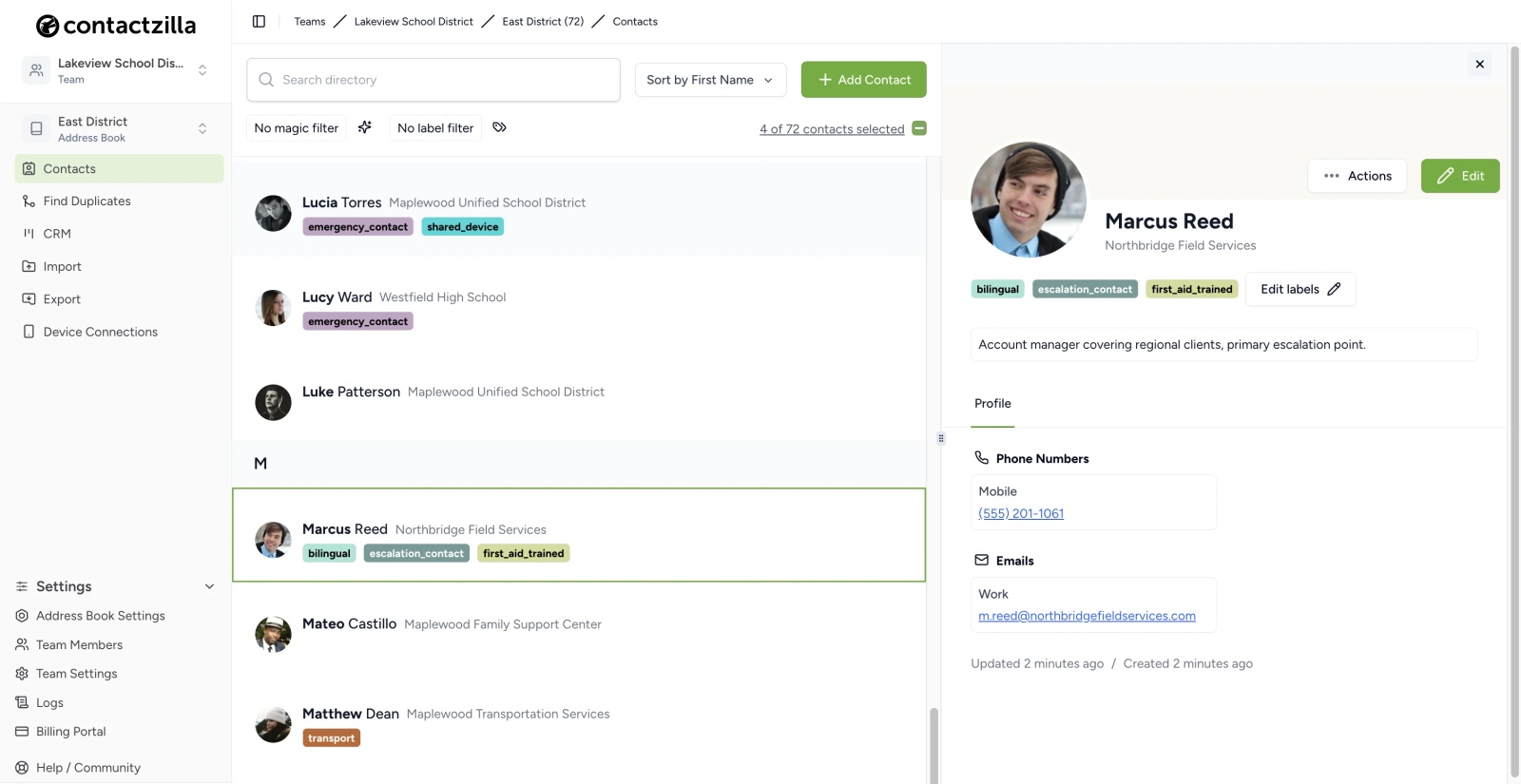
That's the difference MCP makes here. One request reaches into every address book you have access to instead of you checking each one yourself, and shows you exactly what it's about to change before it touches anything real.
More things you can ask it to do
That's one workflow. Once MCP is connected, you can ask an AI assistant to handle many of the jobs you'd normally carry out inside Contactzilla, including ones that would otherwise mean moving information between several different tools by hand:
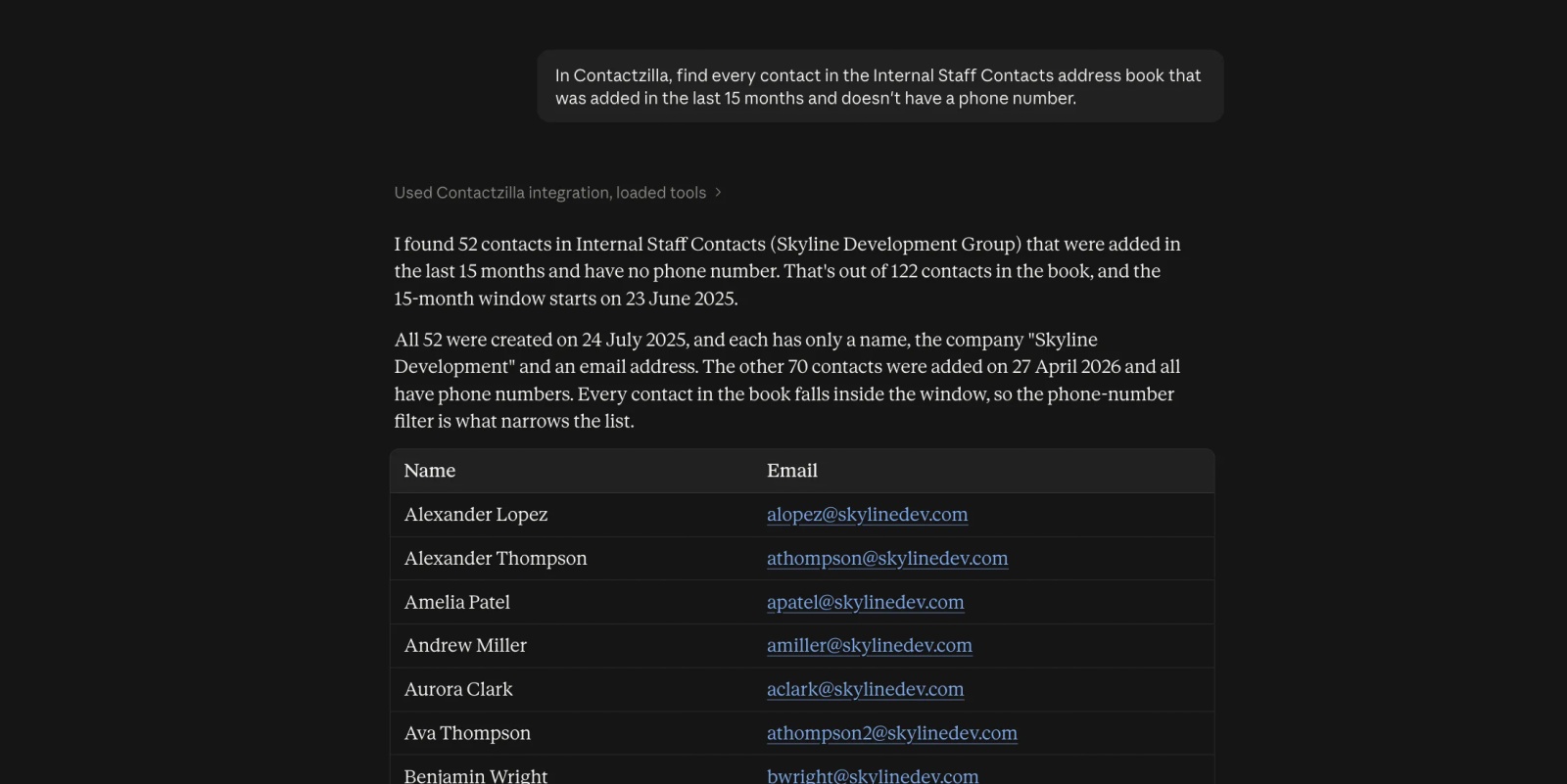
- Ask a question with no report behind it: "In Contactzilla, find every contact in the Internal Staff Contacts address book that was added in the last 15 months and doesn't have a phone number." Contactzilla doesn't have a reporting screen built for that. Without MCP, you'd need to export the data and filter it yourself; the assistant can return the matching contacts directly.
- Check two lists against each other: "Here's a list of email addresses from our HR system [paste]. Which ones aren't in the Clients address book yet?" Reconciling two lists without exporting one and eyeballing it against the other.
- Populate an address book once it's set up: "We're mobilising a new site on Monday. From the Staff Directory, add everyone labelled Site Manager, Project Manager or Safety Lead to the New Site address book, and flag anyone missing a mobile number." Who counts comes from labels already on the contacts, not from the assistant guessing at job titles; it's interpreting a label-based brief and adding several people to the right place in one request, not just running a filter.
- Clean up likely duplicates: "Find contacts in the Clients address book that look like they may be duplicates, show me the likely matches, then merge the ones I approve." That can surface likely near-duplicates, such as a misspelled name or slightly different email address, that an exact-match check may miss.
What MCP actually is, and what it means for your data
MCP (Model Context Protocol) is an open standard that lets an AI assistant connect to an external service and use it as part of a conversation, rather than the assistant only knowing what you type. For the fuller technical explanation, Anthropic's own introduction to MCP covers the protocol itself.
⚠️ Important: this is not an AI feature Contactzilla has added, and Contactzilla doesn't operate any AI itself. Enabling MCP doesn't change how Contactzilla stores or handles your data. It simply allows the AI client you choose to connect to your account. Once connected, that client can read, and depending on the permissions you grant, write your contact data, and it may copy that data into its own service. Whether and how you use this should be governed by your organisation's own AI usage policy.
How MCP access and permissions work
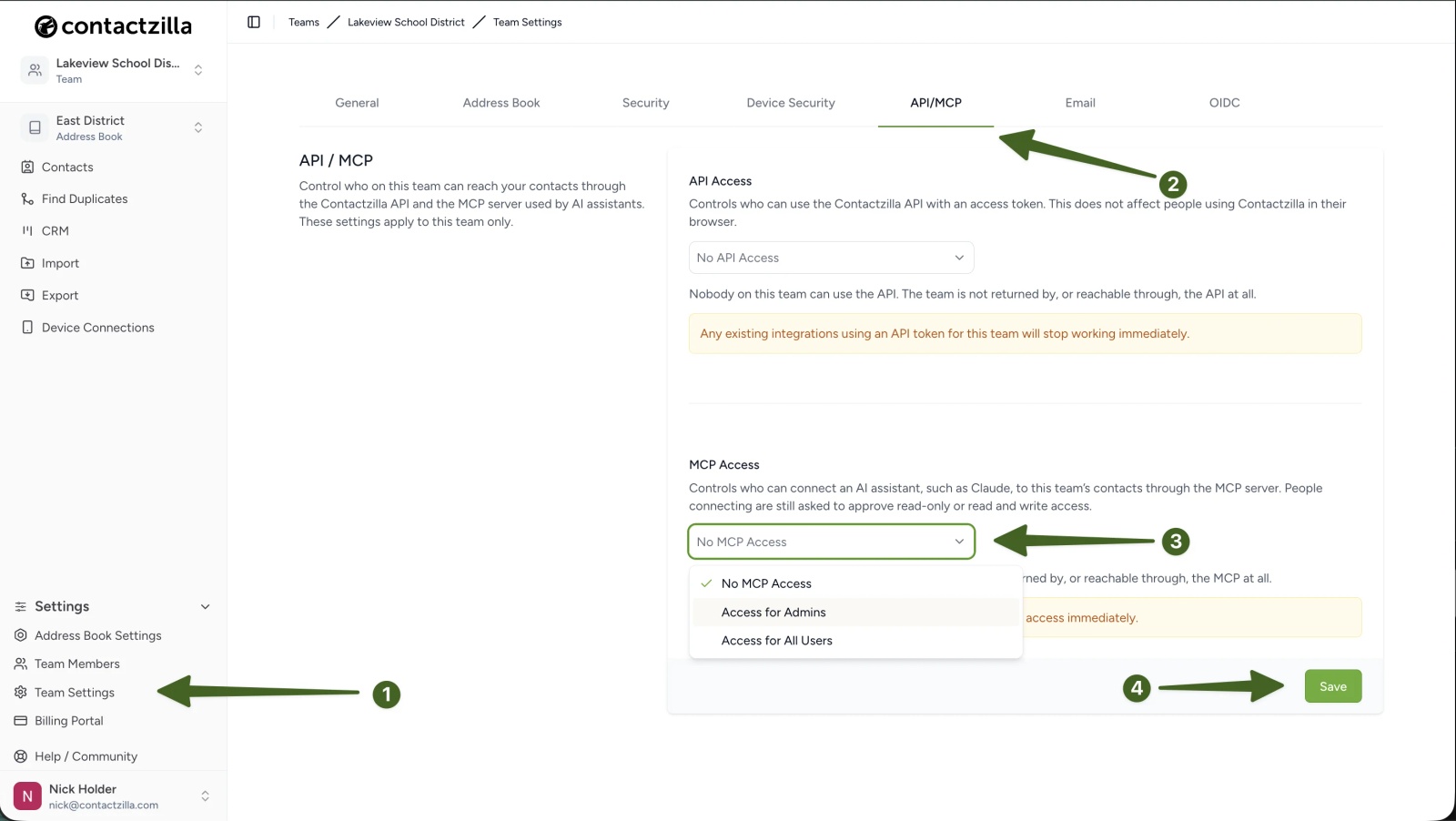
MCP is off by default for every Contactzilla team. An administrator turns it on from Team Settings > API/MCP, where the MCP Access setting controls who's allowed to connect an AI assistant at all: no one, admins only, or every team member.
Read versus write is a separate choice, made when the assistant is authorised. Setting up a connection means choosing whether it can only read contacts or can also add, edit and delete them; it isn't fixed once for the whole team by an administrator, and it isn't fixed for good either: those permissions can be changed later without changing the team-wide MCP setting. Whatever's chosen, the assistant still only reaches the address books that person's own Contactzilla account already has access to. Connecting MCP doesn't grant it anything beyond their existing permissions.
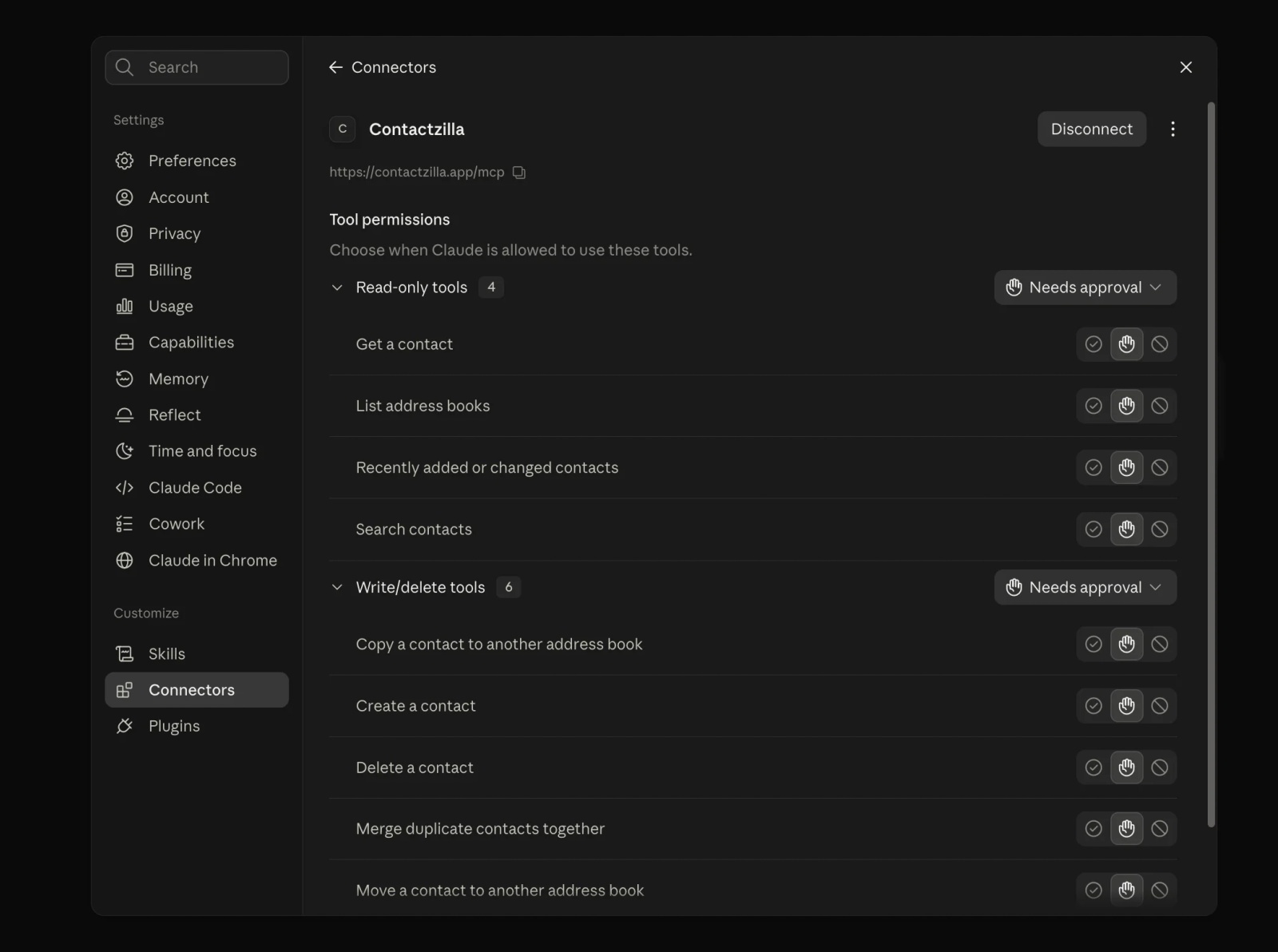
AI clients may add their own approval controls on top of that. In Claude, for instance, the Contactzilla connection's tool permissions can be set separately for read-only tools and for write or delete tools, so either group can be set to ask before every use rather than running automatically.
For the full walkthrough (enabling access and connecting a client such as Claude, step by step), see our help article, Connect Contactzilla to Claude, OpenAI or Any MCP-Compatible AI Tool.
FAQs
Does connecting an AI assistant change how Contactzilla stores or handles contact data?
No. Contactzilla's own storage and handling of your data is unchanged. What changes is that a connected AI client can now read that data on request, and write to it if you've allowed that, in the same way any other authenticated integration would.
Can an AI assistant edit or delete our contacts, not just look them up?
Yes, if the person who connected it chose read/write access when they set up the connection. That choice is made per connection, not set once for the whole team by an administrator, so one person's assistant can be read-only while another's can make changes, depending on what each of them chose and what their own Contactzilla permissions allow.
Is MCP turned on by default?
No. It's off for every team until an administrator turns it on in Team Settings > API/MCP.
Which AI assistants does this work with?
Contactzilla exposes a standard MCP connection, so it works with AI clients that support remote or custom MCP servers. Claude is the example we've used here, and ChatGPT also supports MCP connections. Exact setup, availability and read/write capabilities depend on the AI client and subscription plan.