How to Sync Outlook Contacts with iPhone (Microsoft 365), Including Shared Company Contacts

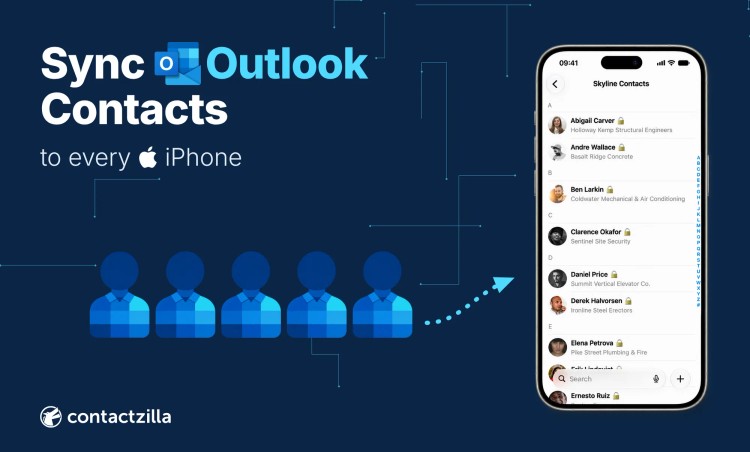
You can sync your own Outlook contacts with an iPhone in a few minutes, through iPhone Settings or the Outlook app. Shared contacts, such as a supplier list kept in a shared mailbox, work differently, because neither of those routes puts them on staff phones.
Short answer: To sync Outlook contacts with an iPhone, add your Microsoft 365 account in the iPhone's Settings with Contacts switched on for a two-way sync, or turn on Save Contacts in the Outlook app for a one-way copy.
Both routes only carry the contacts in your own mailbox. The Global Address List stays a search-only lookup, and a shared mailbox's contacts never reach the phone.
To put shared Outlook contacts on every staff iPhone, Contactzilla imports them from a shared mailbox or your Entra ID directory, keeps them updated on a schedule and delivers them to the phones' Contacts app through your MDM or a QR code, read-only if you want, with names on incoming calls.
In this guide:
1) Your own Outlook contacts on your iPhone: the two built-in routes, and how they differ.
2) Outlook contacts not syncing with iPhone: the five settings to check before you re-add anything.
3) Shared Outlook contacts on everyone's iPhone: why the built-in routes stop, and how to do it with Contactzilla.
Which Outlook contacts do you want on the iPhone?
"Outlook contacts" means three different things in a Microsoft 365 organisation, and only one of them syncs to an iPhone with Apple's and Microsoft's own tools. Work out which one you are after before changing any settings.
| Type of Outlook contact | Where it lives in Microsoft 365 | Does it reach the iPhone Contacts app? |
|---|---|---|
| Your own contacts | The Contacts folder of your own mailbox | Yes, through the Microsoft 365 (Exchange) account in Settings, two-way, or Save Contacts in the Outlook app, one-way |
| The company directory (Global Address List) | Microsoft Entra ID, shown in Outlook as the GAL | Search only. The iPhone can look names up, but nothing is stored in Contacts, so there is no caller ID |
| Shared contacts (a shared mailbox's Contacts folder, or a contacts folder someone shared with you) | The shared mailbox, or the owner's mailbox | No. Neither built-in route carries them |
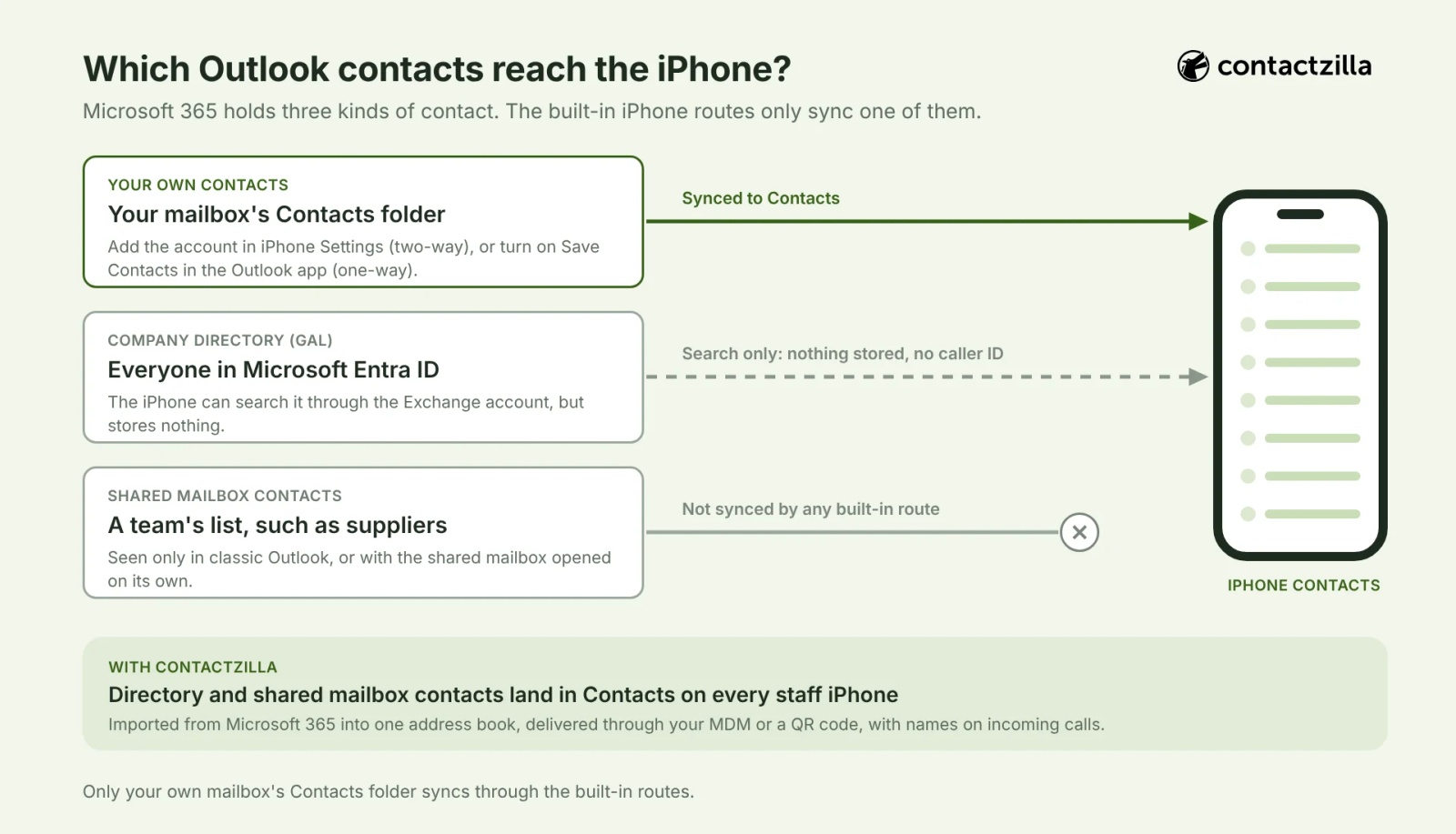
The rest of this guide follows that split: the two routes for your own contacts, what to check when they stop syncing, and then the shared contacts.
How to sync Outlook contacts with iPhone: add your Microsoft 365 account in Settings (two-way)
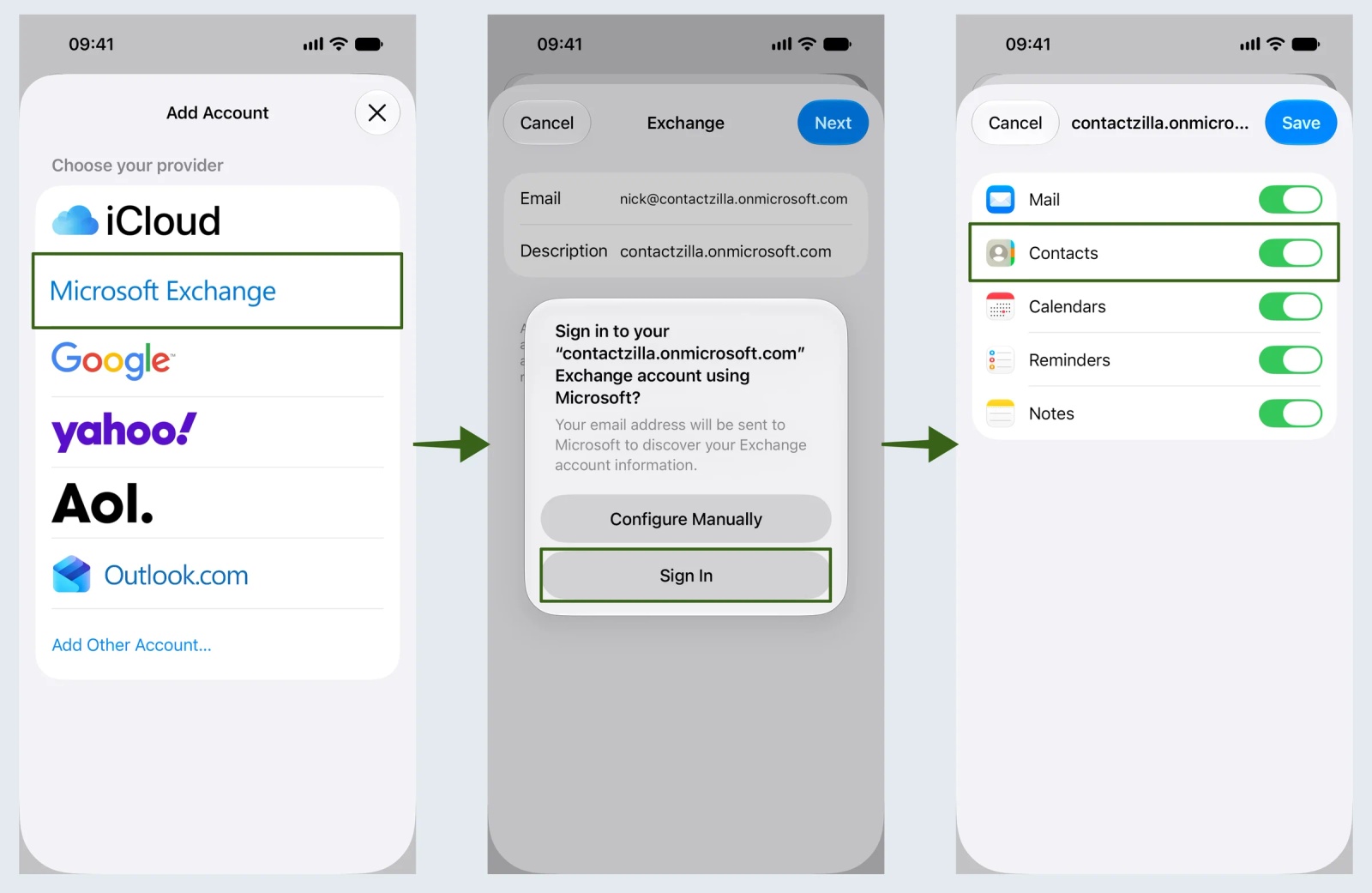
If you want your Outlook contacts in the iPhone's own Contacts app, and edits on the phone to go back to Outlook, add the Microsoft 365 account to the iPhone itself rather than only installing the Outlook app. Go to Settings > Apps > Mail > Mail Accounts > Add Account (on older iOS versions, Mail > Accounts), choose Microsoft Exchange, sign in with Microsoft and leave Contacts switched on. Your mailbox's contacts appear in the Contacts app under that account, and a contact you add or edit on the phone goes back to Outlook. The same account is an Exchange ActiveSync account whether your mailbox is called Microsoft 365, Office 365 or Exchange Online.
Two things this route does not do. It does not copy the Global Address List onto the phone: Apple's deployment guide says devices retrieve contact information from the Exchange global address list when you search, which is a lookup, not a stored contact. And it does not show a shared mailbox's contacts, even if you have access to that mailbox, because the iPhone only syncs your own mailbox.
How to export or transfer Outlook contacts to iPhone: Save Contacts in the Outlook app (one-way)
To export Outlook contacts to an iPhone without adding the account in Settings, use Save Contacts in the Outlook app: it copies your mailbox's contacts into the iPhone Contacts app and keeps that copy updated. Open the Outlook app, tap your profile picture, then the Settings gear, choose your account and turn on Save Contacts.
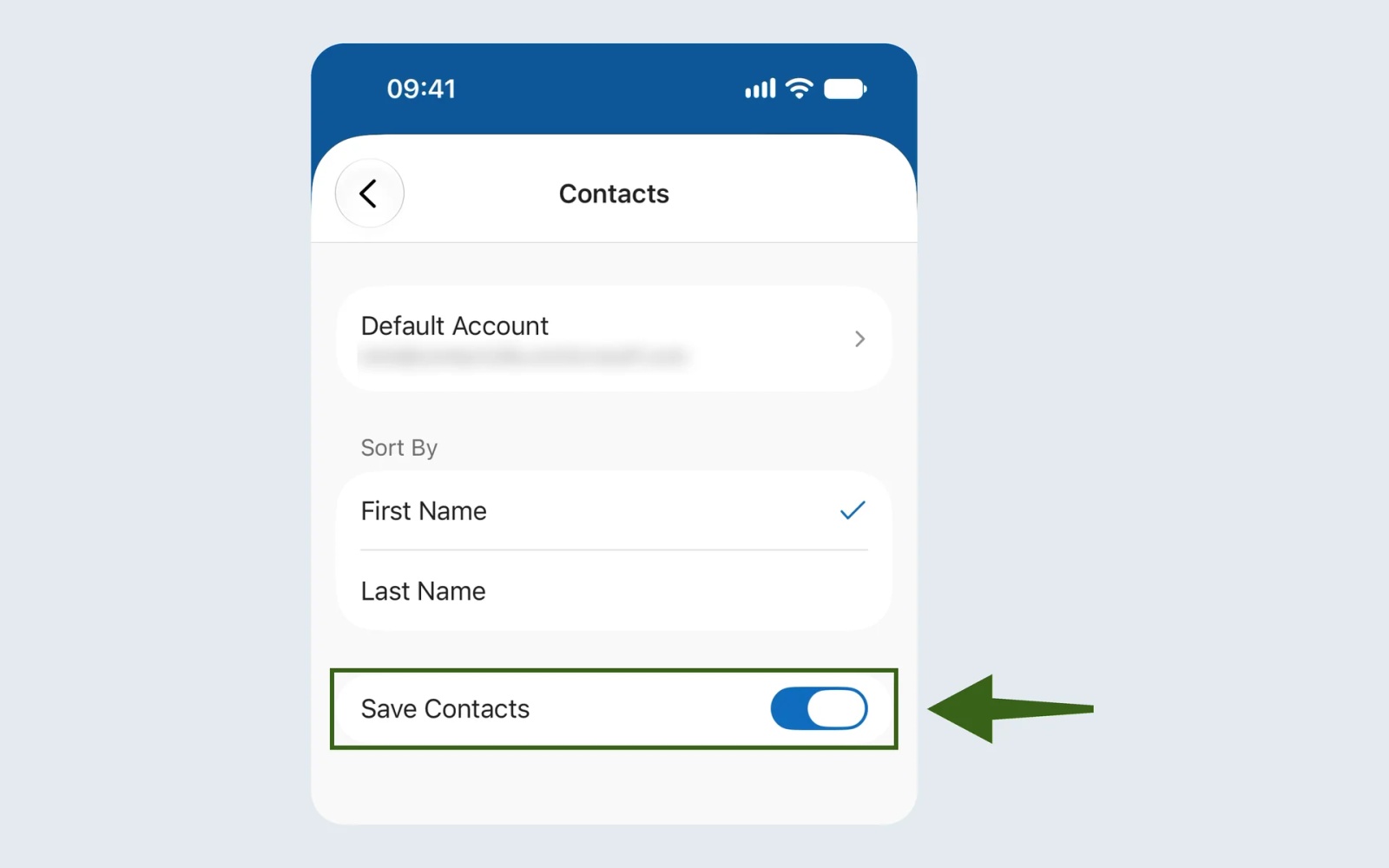
Two details catch people out. The copy is one-way: Microsoft's support page says edits made in the device's Contacts app are not saved back to Outlook. And the contacts land in the phone's default contacts account, which on most iPhones is iCloud, so Microsoft's Save Contacts setup page asks you to check that default first. On a work phone that means company contacts can end up in someone's personal iCloud.
On a company phone, Save Contacts may be greyed out or missing. That is usually an Intune app protection policy: the setting Sync policy managed app data with native apps or add-ins set to Block stops managed apps such as Outlook writing to the native Contacts app. Only your IT admin can change it.
Tip 💡 Before changing that Intune setting, read our post on Sync policy managed app data with native apps and what it means for Outlook contacts.
If you only need a one-off transfer, for example moving a contact list onto a new iPhone once, Save Contacts does that job too: turn it on, let the copy finish, and the contacts stay in the phone's Contacts app.
Outlook contacts not syncing with iPhone: what to check
If your Outlook contacts are not syncing with your iPhone, the cause is nearly always one of five settings rather than a fault. Check them in this order before deleting and re-adding the account.
The Contacts switch is off on the Microsoft 365 account. In Settings, open the account and check that Contacts is on. Mail can be working perfectly while Contacts is switched off.
New iPhone contacts are saving to the wrong account. The iPhone saves a new contact to its default contacts account, which might be iCloud rather than Microsoft 365. If contacts you add on the phone never appear in Outlook, that is usually why. Our post on how to change the default contact account on iPhone shows where the setting is.
Save Contacts is off, or blocked by an Intune policy. If you rely on the Outlook app rather than the account in Settings, Save Contacts has to be on for that account, and an app protection policy can block it. Seeing contacts inside the Outlook app does not mean the phone's Contacts app has them.
You are expecting the GAL or a shared mailbox to sync. Neither route carries these, however long you wait. If the missing contacts are colleagues from the directory, or the contacts in a shared mailbox, nothing is broken: the built-in routes do not do this job. The next section explains why.
The account needs re-adding. If your own contacts are definitely in Outlook, the switches are on and nothing has arrived, remove the account from the iPhone and add it again. Your contacts live in Microsoft 365, so nothing is lost.
Why shared Outlook contacts and the GAL don't reach staff iPhones
If you have followed the steps above and a team list is still missing from the phones, it is almost certainly shared: suppliers, subcontractors, sites or on-call numbers kept in a shared mailbox, or the directory everyone should see on incoming calls. That is not a sync fault. Neither built-in route was built to carry it.
Microsoft's own guidance confirms the limits. Its page on sharing calendars and contacts in Microsoft 365, updated in May 2026, says shared contacts are not supported in new Outlook and that you can't access a shared mailbox's contacts list from Outlook on the web. Only classic Outlook for Windows adds a shared mailbox's Contacts folder to your list. In our own test, opening the shared mailbox on its own in Outlook on the web (Open another mailbox) did show its contacts, but only inside that mailbox, and none of this reaches a phone.
The Global Address List is different again: it is an address list in Exchange, not a set of contacts, so the iPhone can search it but never stores it. Without a shared address book, every member of staff would have to copy each contact into their own phone by hand, and keep them updated by hand.
Tip 💡 If the company directory is what you are after, our guide on syncing the Global Address List (GAL) to iPhone Contacts covers that job end to end.
What IT teams tell us about shared Outlook contacts on iPhones
In the last 12 months, 25 organisations raised this with us themselves: 15 wanted contacts kept in Outlook, Exchange or Microsoft 365 on their staff phones, and 10 wanted the company directory there. Three patterns come up again and again.
The shared mailbox works on the desktop and breaks on the phone. A contacts@ shared mailbox that everyone can open is the usual Microsoft 365 setup, and in classic Outlook it works well. On the phone, one MSP told us that signing every iPhone into the shared mailbox "doesn't scale and introduces risk", from accidental sends to shared passwords.
Shared phones have no one to sign in. A regional government is testing the shared mailbox import for iPhones that care staff pass between shifts, where nobody has their own Outlook account on the phone. A mechanical contractor had kept its list in an Exchange Online public folder and outgrew it once staff turnover left the list out of date on every phone.
Some teams want the contacts in Outlook too. Six organisations asked whether the list would also appear in Outlook or be written back into mailboxes. It won't (see below), and for one person's own contacts, Microsoft's built-in routes are still the right answer.
How to put shared Outlook contacts on every staff iPhone with Contactzilla
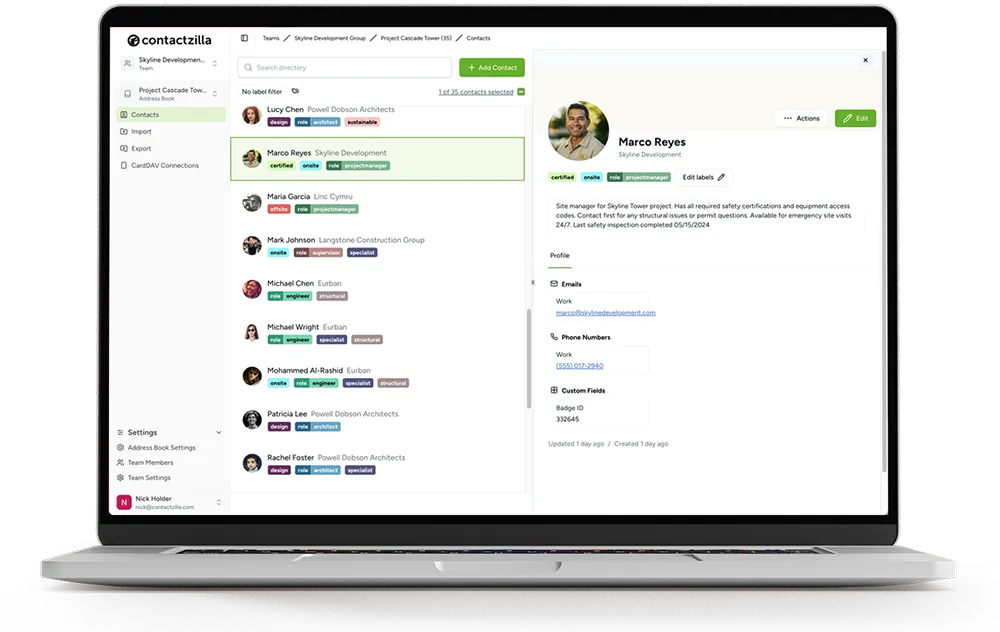
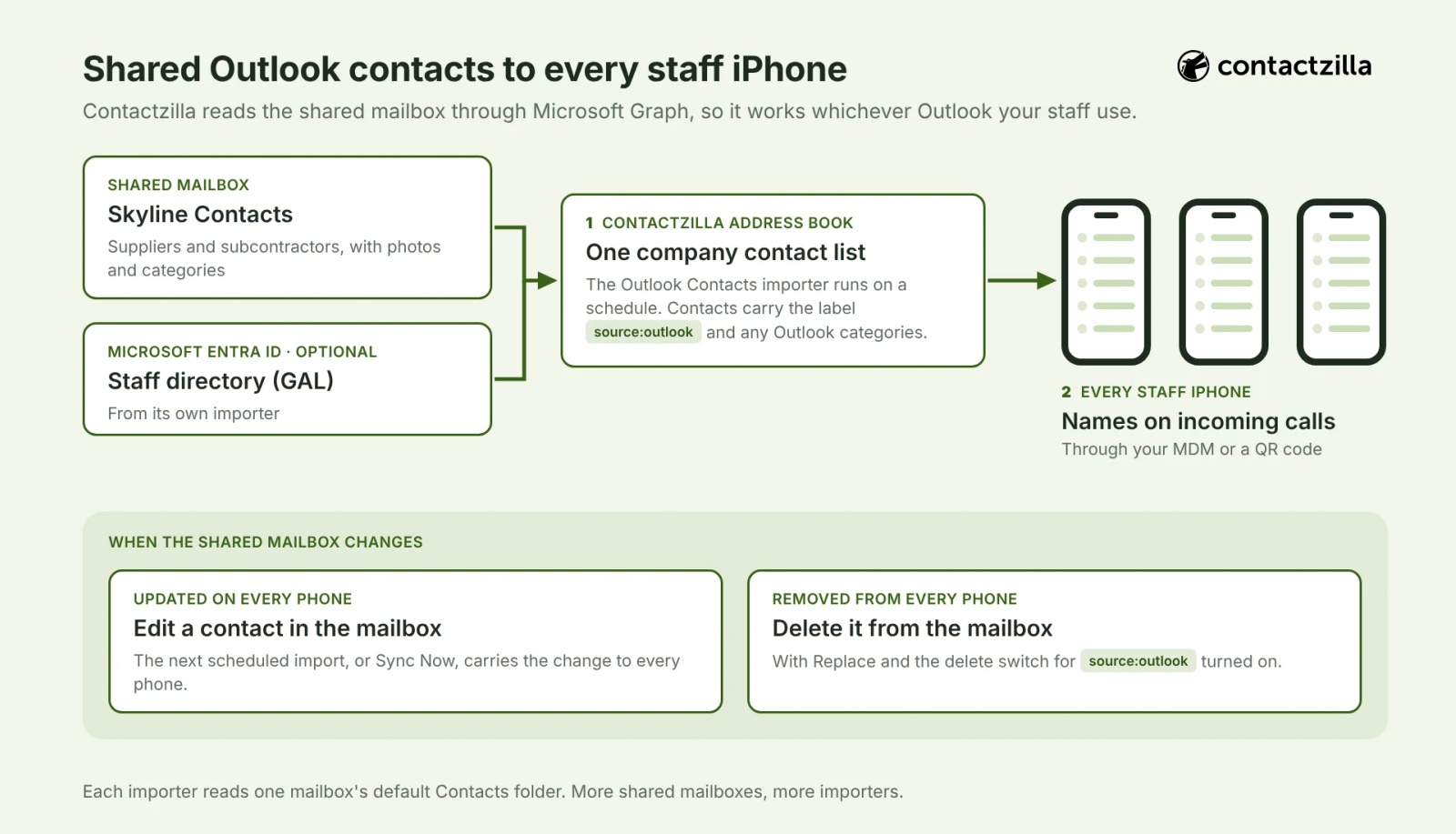
Contactzilla is a shared address book that organisations fill from the systems they already use and publish to staff phones' Contacts app. For Microsoft 365 that means two sources: the Microsoft Outlook Contacts importer for a shared mailbox's contacts, and the Microsoft Entra ID importer for the directory. Both run on a schedule, so a contact changed in Microsoft 365 changes on every phone without anyone touching the phones.
This short demo video shows the same journey for the company directory, from the Entra ID import to the contacts appearing on a phone. The shared mailbox import sits in the same Import area and delivers to the phones the same way.
Step 1: Import the shared mailbox's Outlook contacts into Contactzilla
Create an address book named for the people who will see it on their phones, then add a Microsoft Outlook Contacts import that points at the shared mailbox. Each import reads one mailbox's default Contacts folder, so three department mailboxes means three imports. Outlook photos come across as each contact's picture, and Outlook categories can become labels you use later to choose who gets what. Leave the schedule on Manual until the first run looks right, then set it to run daily or every few hours.
The decision that matters is how the import handles contacts already in the address book. If the book is a straight copy of the shared mailbox, choose Replace and switch on the option to delete contacts with the import label that are no longer in the mailbox, so a supplier removed in Outlook leaves every phone too.
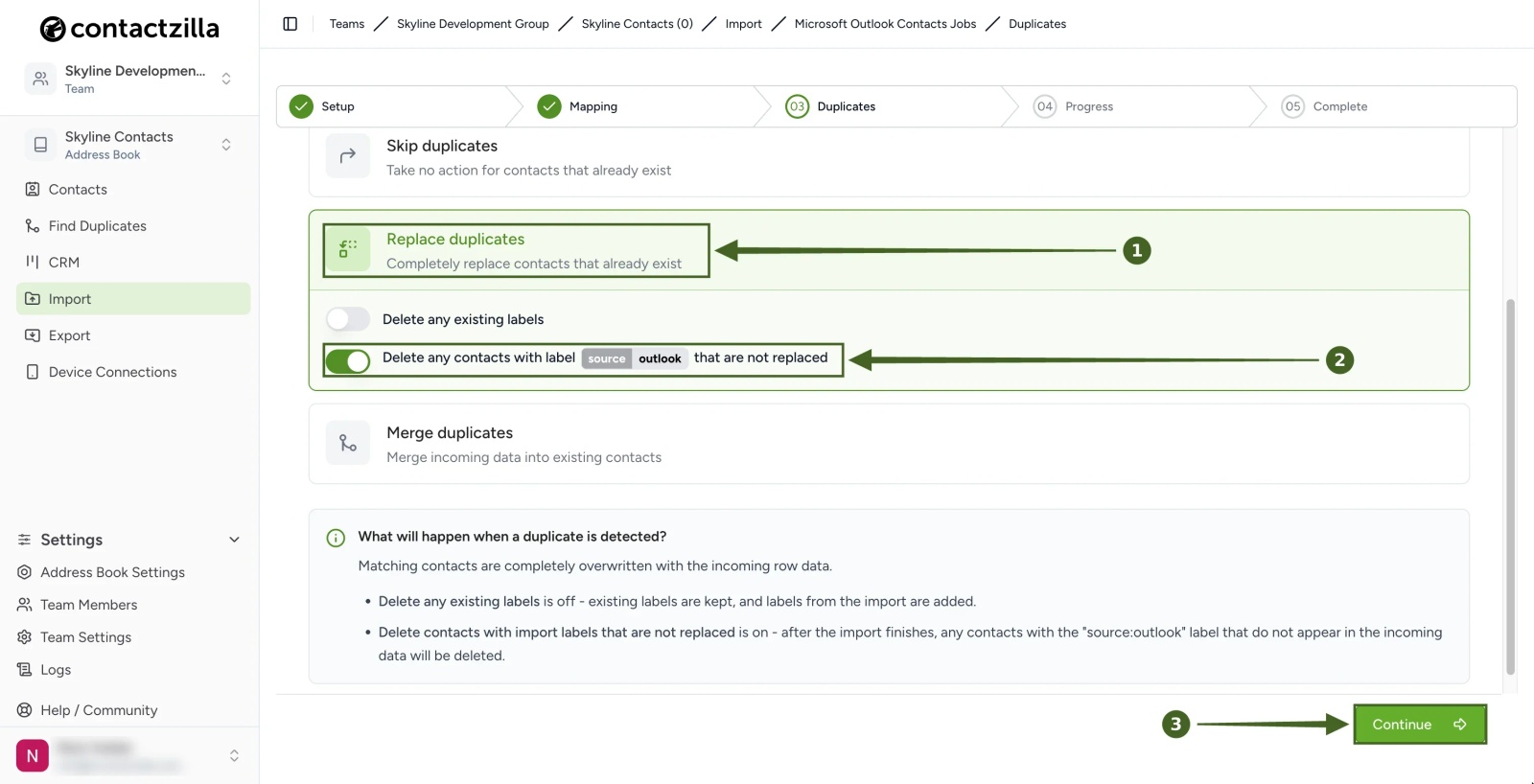
If the same people also come in from Entra ID or a spreadsheet, decide which source owns them first, or each phone gets two cards per person. The first connection needs a Microsoft 365 admin to approve Contactzilla, and the account you connect with needs access to the shared mailbox. Microsoft can take a while to apply that approval, so if the first run reports a permission error, give it time before changing anything. Our help article on importing contacts from a Microsoft 365 shared mailbox has every click, and the one on importing contacts from Microsoft Entra ID covers the directory.
Step 2: Deliver the shared contacts to staff iPhones through MDM or a QR code
The address book reaches each phone as a contacts account in the iPhone's own Contacts app, not a separate app. With an MDM such as Microsoft Intune, Jamf Pro, Mosyle or Workspace ONE, you push it as a configuration profile to the devices or users you choose. Without one, each phone scans a QR code or opens an emailed profile. The access choice matters: read-only keeps the shared list clean on every phone, with an optional lock after each name, while read/write lets staff add contacts that everyone then gets. To give each department only its own contacts, deliver by label rather than the whole book. One thing to check on every phone: a read-only shared list should not be the default contacts account, or contacts staff add themselves can disappear. Our help article on setting the default account on iPhone covers it.
Tip 💡 Platform guides: Intune, Jamf Pro, Mosyle, Workspace ONE and MaaS360, or, with no MDM at all, putting contacts on phones by scanning a QR code.
Step 3: Check the shared Outlook contacts and caller ID on an iPhone
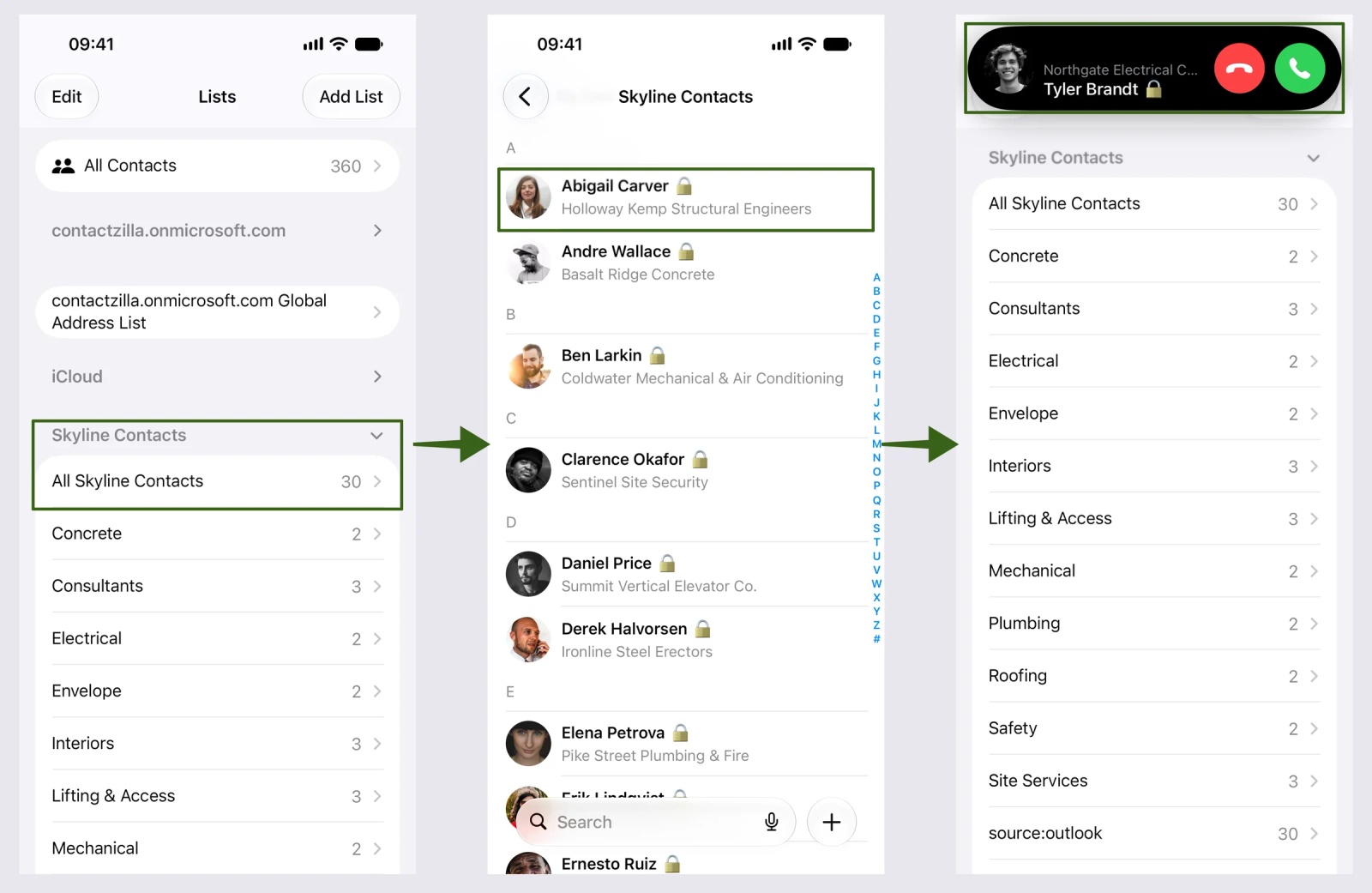
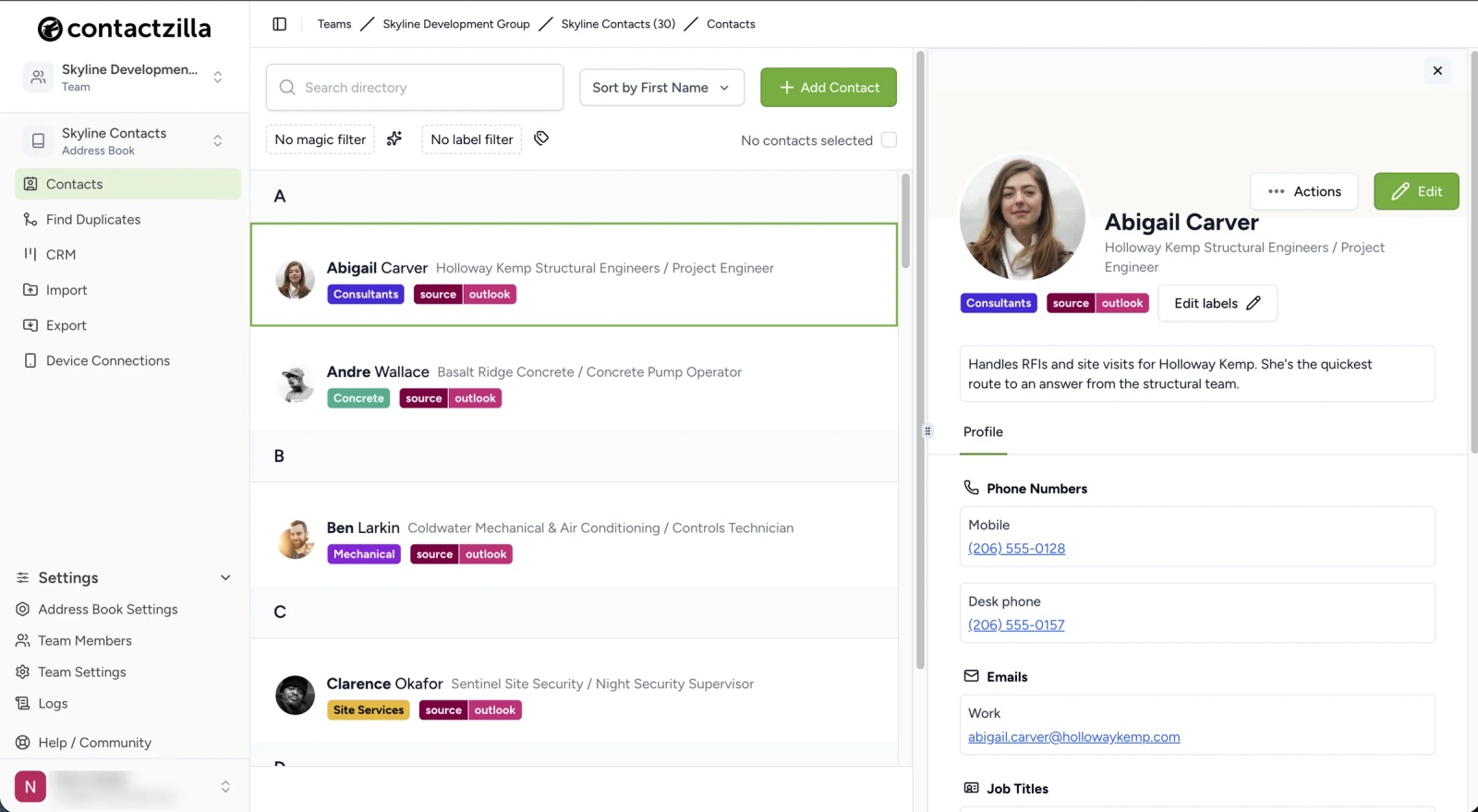
Open Contacts on one of the phones and tap Lists. The shared address book sits as its own list beside the Microsoft 365 account, with the Global Address List and iCloud still there as before. In our test, the 30 contacts from the Skyline Contacts shared mailbox arrived with their photos and a lock after each name, and a call from one of them came in showing the name and company rather than a bare number. Change a contact in the shared mailbox and the next import carries the change to every phone. Tested on an iPhone 15 running iOS 27.0.1, November 2026.
Can Contactzilla sync contacts back into Outlook?
No. Contactzilla takes contacts from Microsoft 365 and puts them on phones; it does not write contacts into anyone's Outlook mailbox. If staff need a shared list they can edit in Outlook on the desktop, keep the edits in the shared mailbox and let the import carry them to the phones. For most teams that is the right way round anyway: one place to edit, every phone up to date.
Which way to sync Outlook contacts with iPhone is the right fit?
- Microsoft 365 account in Settings: your own contacts, and you want edits on the phone to go back to Outlook.
- Save Contacts in the Outlook app: your own contacts, the phone only has the Outlook app, and a one-way copy is enough.
- Contactzilla: a shared mailbox's contacts, the company directory or any shared list on every staff iPhone (and Android phone), kept up to date from Microsoft 365, with control over who can edit.
Next steps
- Shared mailbox contacts: How to import contacts from a Microsoft 365 shared mailbox into Contactzilla.
- The company directory: Sync the Global Address List (GAL) to iPhone Contacts, and the video Sync Microsoft Global Address List to iPhone & Android.
- Intune: How to sync company contacts to iPhones with Intune, or without Intune.
- Managing and sharing contacts in Outlook itself: Contact management for Outlook: how teams share contacts and replace Business Contact Manager.
- Keeping it tidy: How to make company contacts read-only on iPhone and how to deduplicate contacts before they reach staff phones.
Frequently Asked Questions
How do I sync contacts from Outlook to iPhone automatically?
Add your Microsoft 365 account in the iPhone's Settings with Contacts switched on. Your mailbox's contacts then stay in sync both ways without any further steps. Save Contacts in the Outlook app also keeps updating, but only in one direction, from Outlook to the phone.
Does adding my Exchange account to iPhone sync the Global Address List?
No. The iPhone searches the GAL when you type a name in Contacts or an address in Mail, but nothing from it is stored on the phone, so directory colleagues do not show on incoming calls. Getting the GAL into Contacts needs a shared address book delivered to the phone, which Contactzilla builds from Entra ID.
Is syncing Outlook 365 contacts different from syncing Outlook contacts?
No. "Outlook 365" is what many people call Outlook as part of Microsoft 365, and the account you add to the iPhone is the same Microsoft 365 (Exchange Online) account. The steps above apply to both. On-premises Exchange works the same way on the phone, but Contactzilla's importers connect to Microsoft 365.
Can I sync iPhone contacts to Outlook, the other way round?
Yes, with the Microsoft 365 account route. Contacts you add on the phone under that account go back to your Outlook mailbox, as long as it is the phone's default account for new contacts. Save Contacts in the Outlook app does not do this: it only copies from Outlook to the phone.
Where do Outlook contacts go on the iPhone when I use Save Contacts?
Into the phone's default contacts account, which on most iPhones is iCloud. That means they also sync to the person's other Apple devices. On a company phone, check the default account before turning Save Contacts on, or use the Microsoft 365 account route instead.
Will shared Outlook contacts show caller ID on an iPhone?
Yes, once they are in the phone's Contacts app. iOS matches incoming calls against Contacts, so a shared contact delivered through Contactzilla shows by name and company, as in our test above. Contacts that only exist in a shared mailbox or the GAL do not, because they were never stored on the phone.
Can I import contacts from more than one shared mailbox?
Yes. Each Contactzilla import reads one mailbox, so you add one import per shared mailbox. They can feed one address book, labelled by mailbox, or separate address books for separate teams.
Do I need Intune or another MDM to get shared Outlook contacts onto iPhones?
No. An MDM such as Intune makes it hands-off across a fleet, but without one each phone can scan a QR code or open an emailed profile to add the shared address book. Our post on syncing the GAL to iPhone and Android without Intune walks through it, and the Intune guide covers the managed route.
Does this work for Android phones too?
Yes. The same Contactzilla address book goes to Android phones through the Contactzilla Sync app, deployed through managed Google Play or installed by hand. Our guide on syncing the Global Address List to Android phones covers the Android side.