
Remotely Wipe Company Contacts from Any Device — Even BYOD
When an employee leaves, don't just revoke access — ensure every synced contact is automatically deleted from their device the next time it connects.
When an employee leaves your organisation, revoking their access to shared contacts is only half the battle. If they were using a BYOD (Bring Your Own Device) phone or laptop, those company contacts are already synced locally to their device. Simply deleting a device connection in Contactzilla will cause authentication errors on the device — but the contacts themselves remain sitting in the address book, fully accessible.
That's where Wipe on Next Connect (also called Wipe on Delete) comes in. This feature ensures that when you delete a manually deployed device connection, Contactzilla doesn't just cut off access — it actively removes all synced contacts and labels from the device the next time it connects to the server.
In this demo, Tom walks through the entire process: from viewing an active device connection, to enabling the wipe option, to watching the contacts disappear from a BusyContacts client on Mac. The whole process takes just a few clicks and works automatically once the device's sync client checks in — typically within 5 to 10 minutes.
Understand When Wipe on Delete Applies
The Wipe on Next Connect feature is specifically designed for manually rolled out device connections — or hybrid setups where some connections are manual and some are managed by MDM (Mobile Device Management).
If you're using MDM to manage device connections, you would typically remove the MDM connection profile and push the change to phones, which automatically removes contacts. Wipe on Next Connect solves the problem for connections that were set up manually, where there's no MDM profile to revoke.
The most common scenario is a BYOD device — the employee's own phone or laptop. When they leave the business, you can't remotely wipe the entire device (it's theirs), but you absolutely need to remove company contacts from it.
- Only relevant for manually rolled out device connections
- MDM-managed connections are handled by removing the MDM profile instead
- Hybrid setups (some manual, some MDM) can use both approaches
- Critical for BYOD scenarios where you can't wipe the entire device
View Active Device Connections
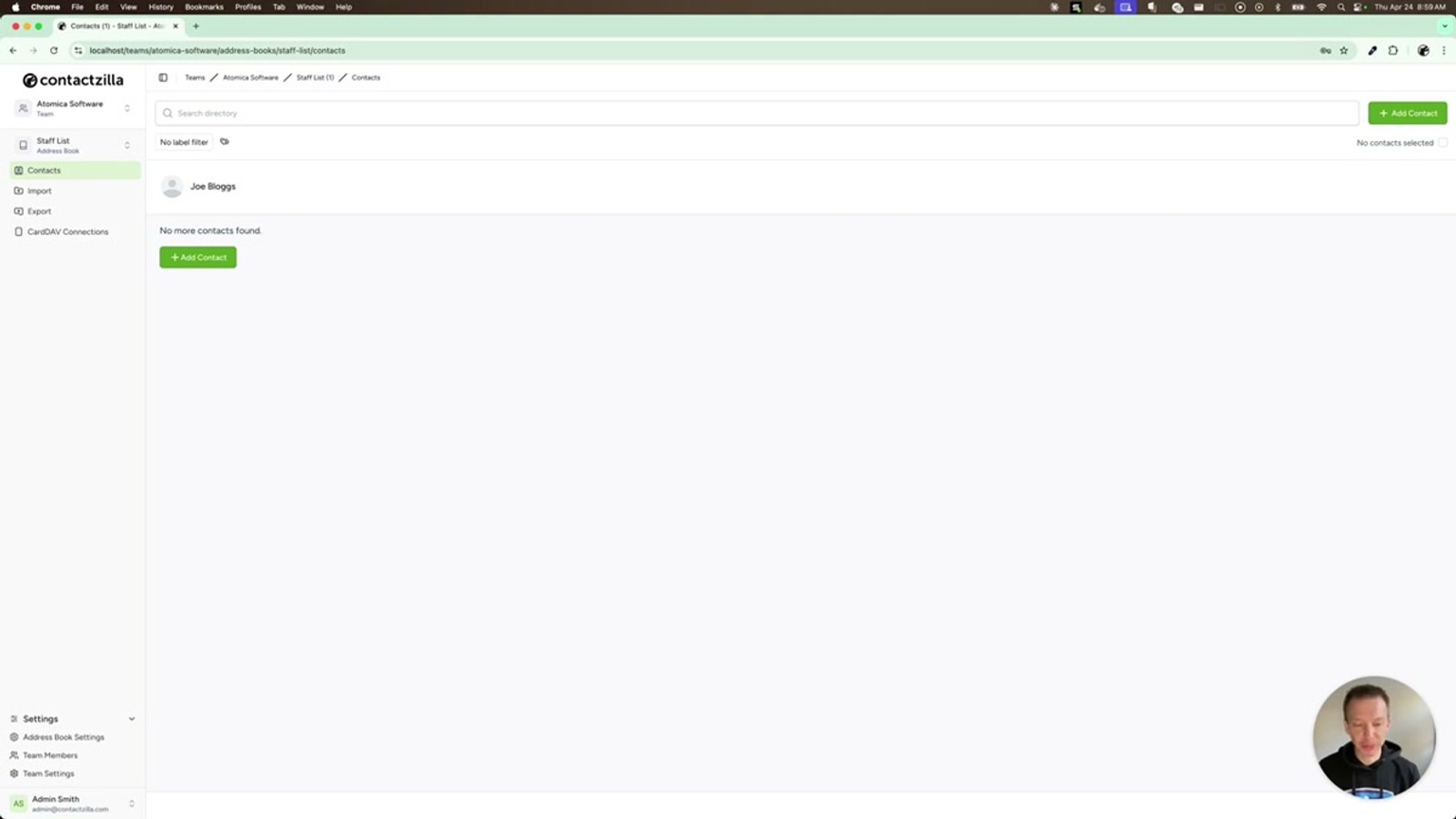
Before deleting a connection, you'll want to confirm which device connection is linked to the departing team member. Navigate to the CardDAV Connections section in Contactzilla. Here you'll see all device connections that have been created for your team.
Each connection is linked to a specific member of the team and corresponds to a CardDAV account configured on their device or desktop client. In Tom's demo, the connection is set up with BusyContacts, a popular CardDAV-compatible contacts client for Mac, as an alternative to the built-in macOS Address Book.
The address book associated with this connection contains the synced company contacts — in the demo, just one contact is shown for simplicity, but in practice this would include all contacts and labels shared through that connection.
- Go to CardDAV Connections in the Contactzilla dashboard
- Each connection is linked to a specific team member
- Works with any CardDAV-compatible client (BusyContacts, macOS Contacts, etc.)
- The connection syncs all shared contacts and labels to the device
Delete the Connection with Wipe Enabled
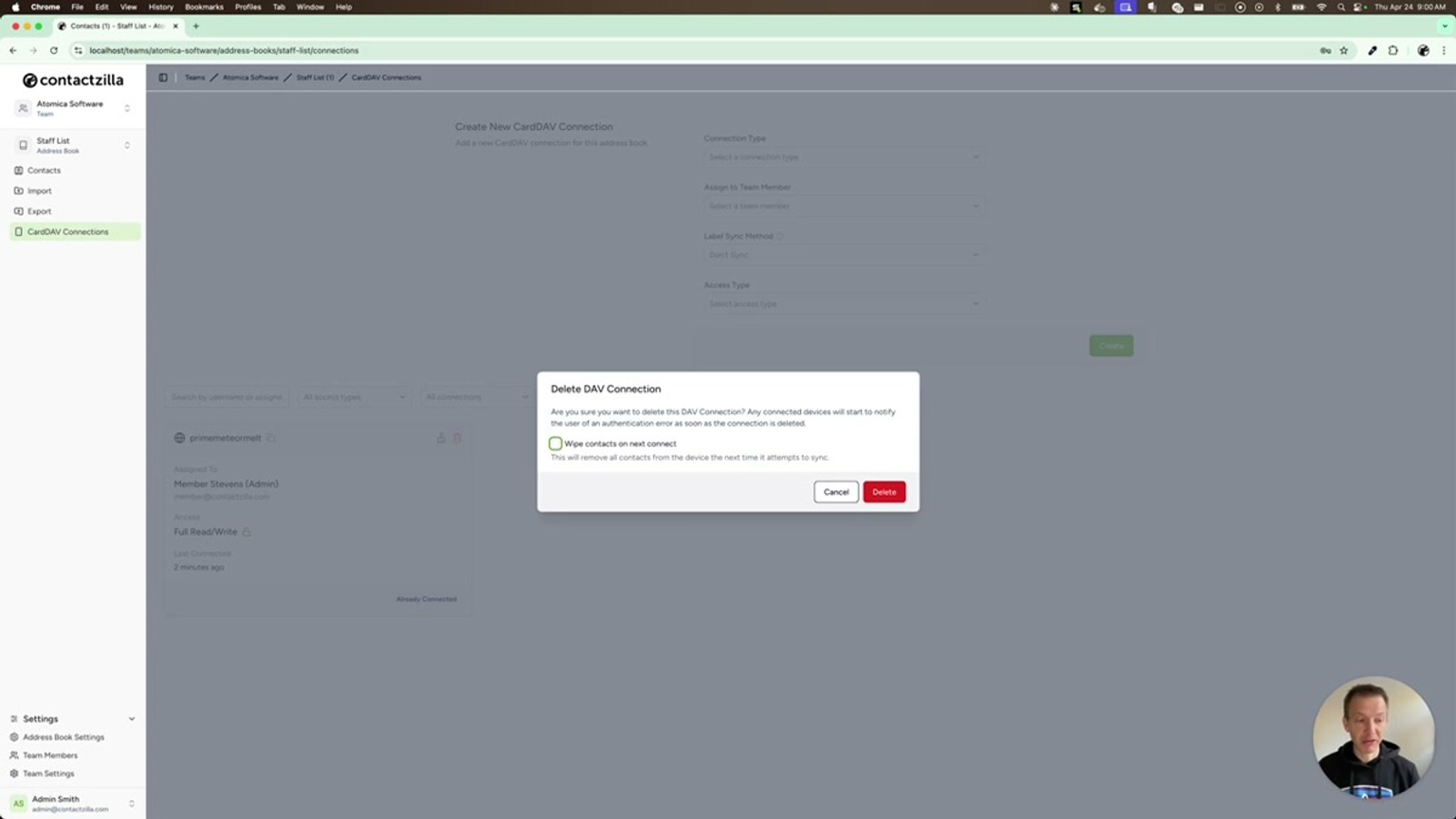
When you're ready to remove a departing employee's access, click to delete their device connection. At this point, Contactzilla presents you with a critical choice.
If you simply delete the connection normally (without the wipe option), the device will start throwing authentication errors — but the contacts will remain on the device. The employee would still have access to all those company contacts in their local address book indefinitely.
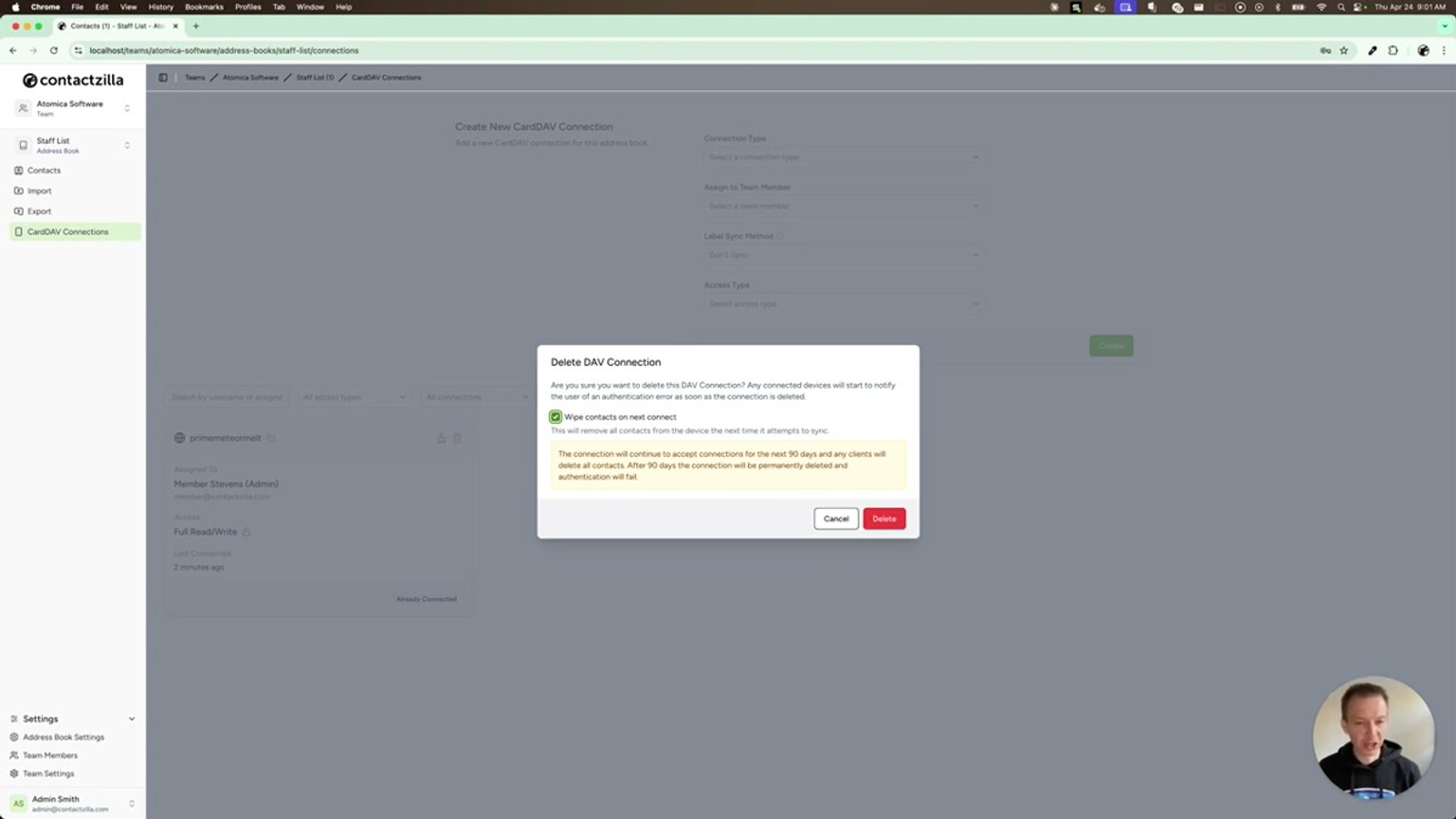
To actually remove the contacts, tick the Wipe contacts on next connect checkbox before confirming the deletion. When you enable this option, Contactzilla displays an explanation of what will happen: for the next 90 days, the server will continue to authenticate the connection, but it will immediately delete all contacts and any labels when the device connects.
- Click delete on the target device connection
- Tick the Wipe contacts on next connect checkbox
- Read the explanation — the server keeps authenticating for 90 days
- During that window, it deletes all contacts and labels on connect
- Click Delete to confirm
Without the wipe option enabled, deleting a connection only causes authentication errors — the contacts stay on the device permanently. Always enable wipe for departing employees.
Understand the 90-Day Authentication Window
The clever part of this feature is the 90-day authentication window. When you delete a connection with wipe enabled, Contactzilla doesn't immediately block the device. Instead, it continues to accept authentication from that device for up to 90 days.
Why? Because the device needs to successfully connect to the server in order for the server to instruct it to delete the contacts. If Contactzilla immediately rejected the connection, the device would simply show an error and the contacts would remain untouched in the local address book.
By keeping the authentication alive, Contactzilla ensures that the next time the device's sync client checks in — which typically happens every 5 to 10 minutes automatically — the server responds by deleting all contacts and labels from that address book.
- Server continues authenticating the connection for 90 days after deletion
- This window ensures the device can connect and receive the delete instruction
- Sync clients typically check the server every 5 to 10 minutes
- All contacts and labels are removed from the device's address book
- After 90 days, the authentication window closes permanently
The 90-day window is generous enough to catch devices that may be offline for extended periods — holidays, lost devices, or rarely-used laptops will still get wiped when they eventually reconnect.
Verify Contacts Are Removed on the Device
Once the connection is deleted with wipe enabled, the device connection disappears from the CardDAV Connections list in Contactzilla. There is no way to recover this connection — if you need to reconnect the user later, you would have to create an entirely new connection.
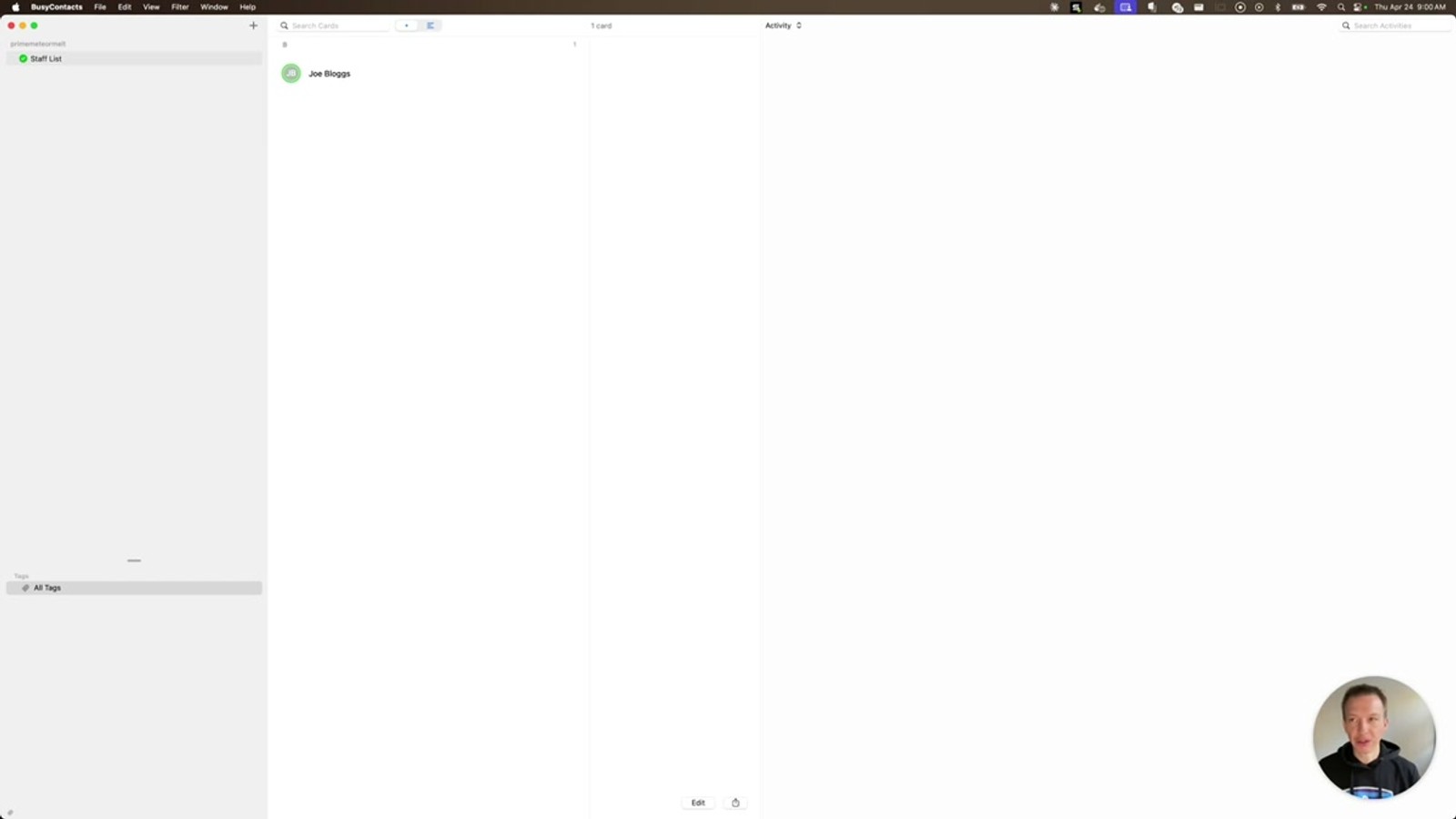
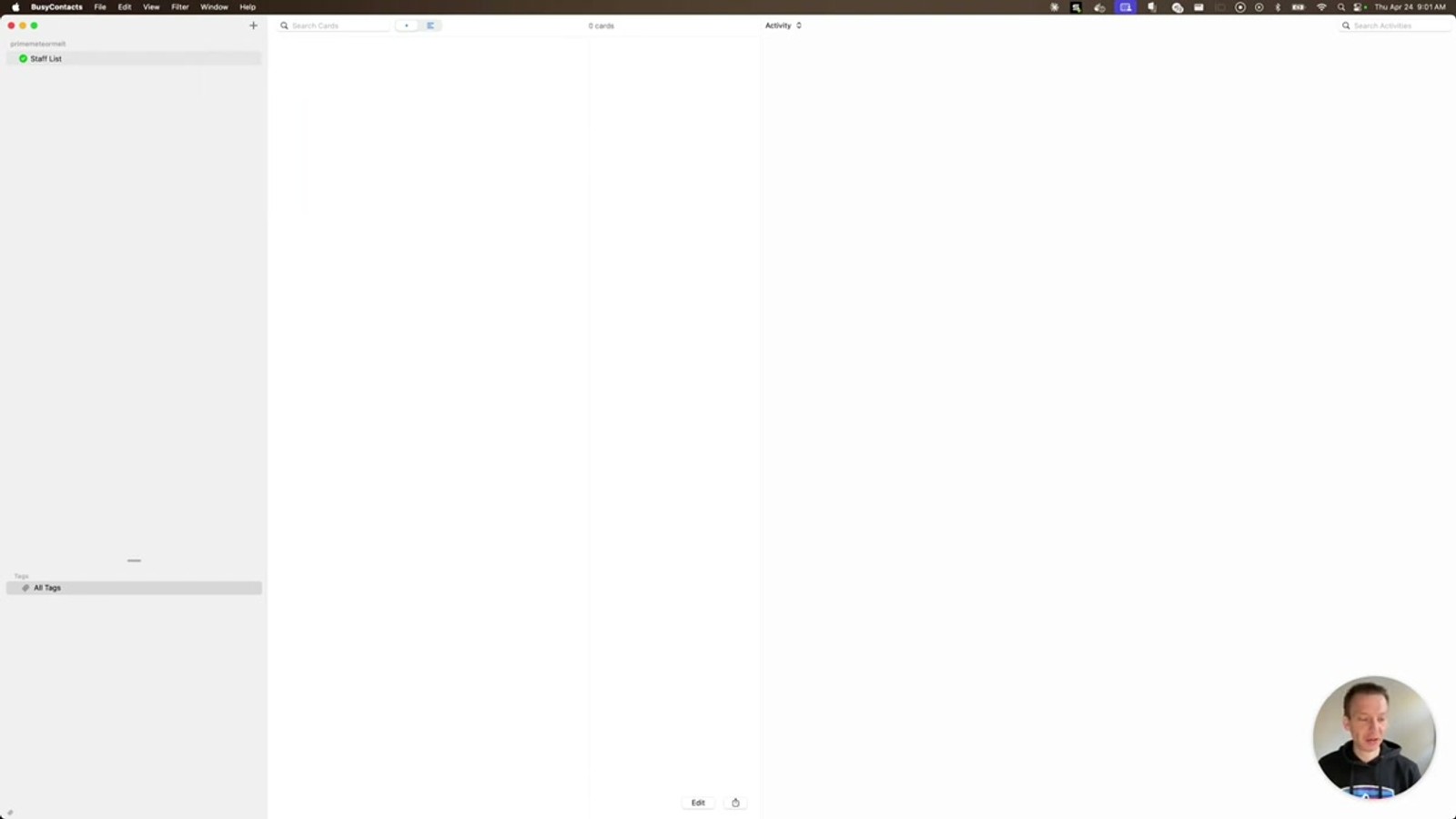
On the device side, the contacts will be removed the next time the sync client connects to the server. In Tom's demo using BusyContacts on Mac, he triggers a manual refresh to demonstrate the feature immediately rather than waiting for the automatic 5-10 minute sync interval.
As soon as the client connects to the server, the contacts are deleted. The address book that previously contained company contacts is now empty. This includes all contacts and all labels — everything associated with that connection is wiped clean.
- The connection disappears from CardDAV Connections immediately
- The deletion is irreversible — you must create a new connection to reconnect
- Contacts are removed on the next sync (automatic or manual refresh)
- Automatic sync happens every 5 to 10 minutes depending on the client
- Both contacts and labels are completely removed from the device
Plan Your Offboarding Workflow
The Wipe on Next Connect feature fits naturally into an employee offboarding workflow. When someone leaves the business — whether they resign, are let go, or simply change roles — you need to ensure company contacts are removed from their personal or assigned devices.
For BYOD devices, this is especially important because you have no MDM control over the device itself. You can't remotely wipe it or remove configuration profiles. The wipe feature gives you a targeted way to remove just the company contacts without affecting anything else on the employee's personal device.
For hybrid environments where some devices are MDM-managed and others are manual, you'll use both approaches: remove the MDM profile for managed devices, and use Wipe on Next Connect for manually configured ones. This ensures complete coverage across your entire device fleet.
- Add connection deletion to your employee offboarding checklist
- Always enable Wipe contacts on next connect for departing employees
- For BYOD: this is your only option to remove contacts remotely
- For hybrid setups: combine MDM removal with Wipe on Next Connect
- Ensures compliance with data protection and security policies
Don't forget about labels — Wipe on Next Connect removes both contacts and labels, so group categorisations are also cleaned up from the device.

