
Push Your Salesforce Contacts to Every Team Device — Automatically
Import contacts from Salesforce into Contactzilla with field mapping, deletion handling, and scheduled sync — so your field team always has the latest contact data on their phones.
If your team manages contacts in Salesforce but needs them accessible on mobile devices — without manually exporting CSVs or copying records one by one — this guide walks you through the entire process of connecting Salesforce to Contactzilla. Once set up, your Salesforce contacts sync into a shared address book that pushes updates to every connected phone via CardDAV.
This tutorial covers installing the Contactzilla Salesforce Connector package into your Salesforce org, creating a dedicated address book in Contactzilla, authenticating via OAuth, mapping Salesforce fields to Contactzilla fields (including the critical Salesforce ID mapping), configuring deletion handling, choosing a duplicate strategy, and reviewing import results.
The entire setup takes under 10 minutes. By the end, you'll have a working sync pipeline that can run on a schedule — every 4 hours, 8 hours, or manually — keeping your team's devices current with whatever's in Salesforce.
Install the Contactzilla Salesforce Connector Package
Before anything else, you need to install the Contactzilla Salesforce Connector into your Salesforce account. This is a one-time setup that enables secure syncing between the two systems.
Log into your Salesforce account, then open the official installation link (found in the video description or at https://login.salesforce.com/packaging/installPackage.apexp?p0=04tbm0000007781AAA). On the installation screen, select Install for Admins Only, tick the confirmation checkbox, and click Install.
Salesforce will process the installation and display a confirmation screen. Click Done to finish. The connector will now appear as an installed package in your Salesforce org. You only need to do this once — it stays installed for all future syncs.
- Open the official installation link while logged into Salesforce
- Select Install for Admins Only from the installation options
- Tick the confirmation checkbox and click Install
- Click Done when installation completes
- The connector appears under installed packages in Salesforce
This is a one-time installation. You won't need to repeat this step for future imports or when adding new address books.
Create a New Address Book in Contactzilla
Head back to your Contactzilla dashboard after installing the connector. You need to create a new address book that will serve as the destination for your Salesforce contacts.
Click to create a new address book and give it a meaningful name — the video uses Salesforce Contacts, but you can name it whatever makes sense for your organization. This address book will be the container that receives all imported contacts and keeps them synced going forward.
- Navigate to your Contactzilla dashboard
- Create a new address book
- Name it something descriptive like
Salesforce Contacts - This address book becomes the sync destination for all Salesforce imports
Connect Salesforce via the Import Section
In the Contactzilla dashboard, navigate to the Import section in the left sidebar. Click on Salesforce, then click the Add Import button.
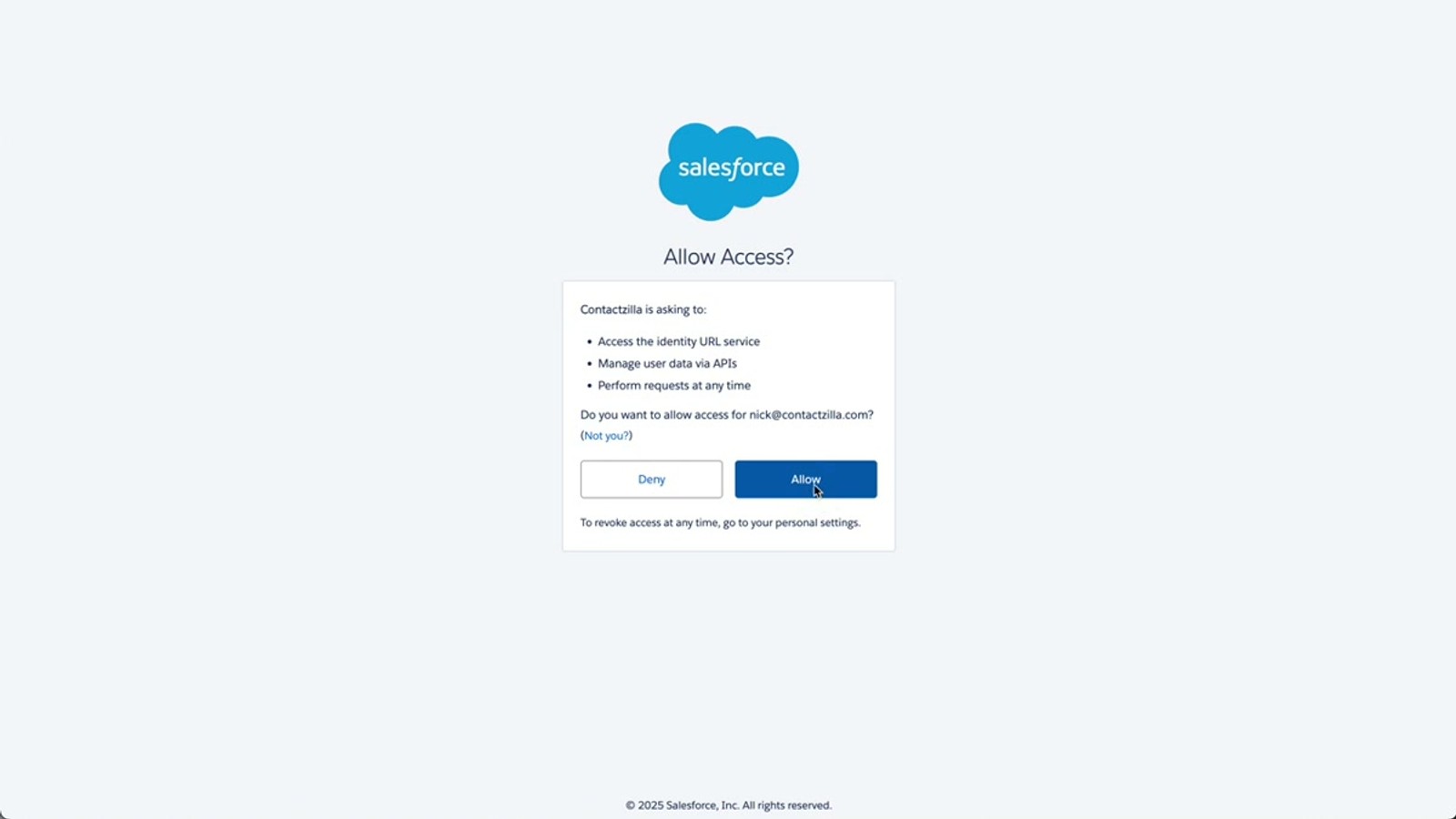
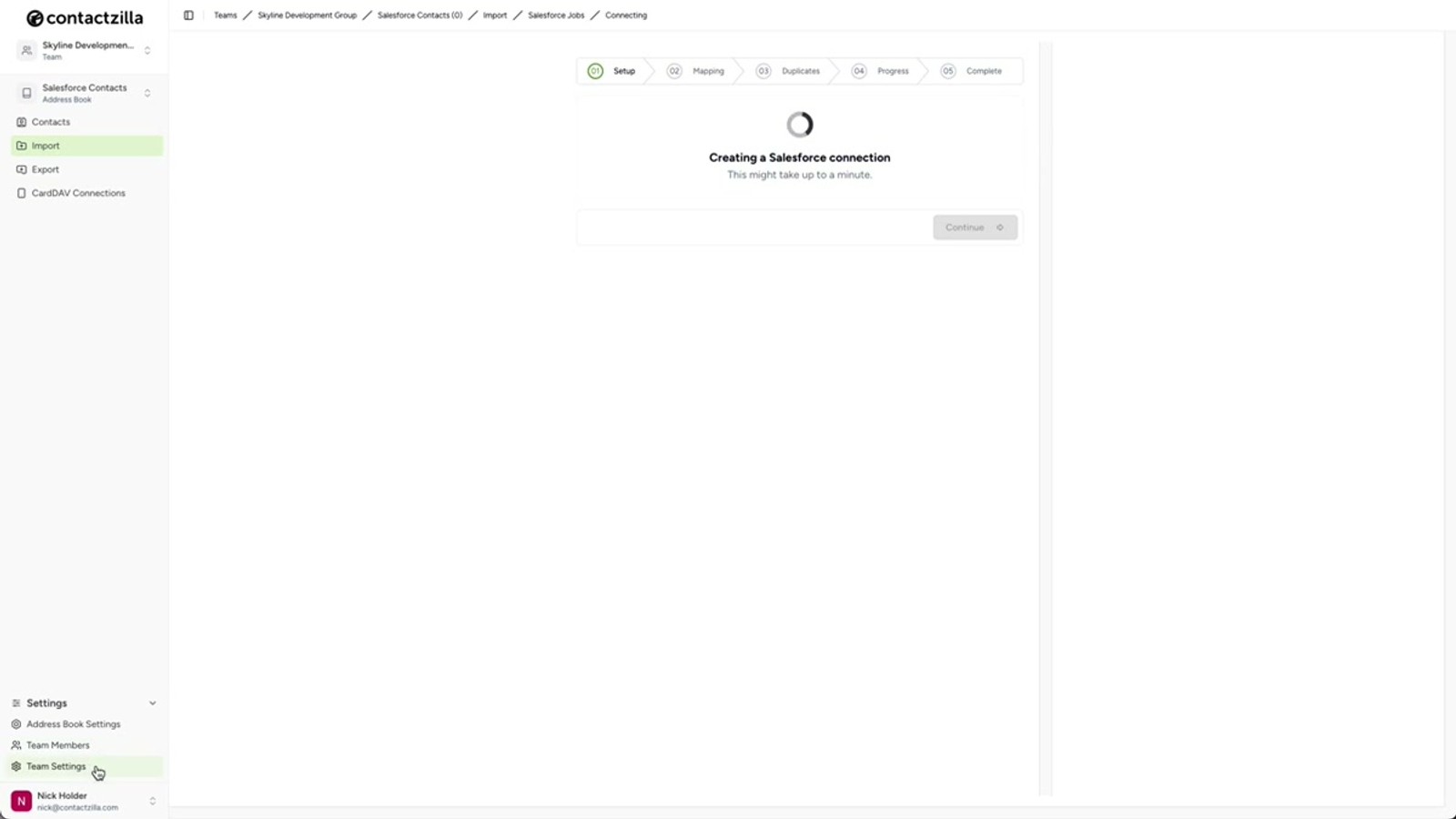
You'll see two dropdown menus. The first dropdown shows the Salesforce connector you installed earlier. In the second dropdown, choose Add New Connection — this triggers an OAuth login flow where you sign into your Salesforce account. A permission window will appear asking you to allow Contactzilla access to your Salesforce data. After you authorize, your Salesforce connection appears in the second dropdown menu. Click Continue to proceed.
- Go to Import in the left sidebar
- Click Salesforce, then Add Import
- First dropdown: select the Salesforce connector
- Second dropdown: choose Add New Connection
- Log into Salesforce and authorize Contactzilla access
- Your connection appears in the dropdown after authorization
- Click Continue
Set the Sync Frequency
Next, choose how often Contactzilla should sync with Salesforce. Options include intervals like every 4 hours, every 8 hours, or manual only.
The video recommends starting with manual sync. This lets you verify everything is working correctly before enabling automatic updates. You can always change the frequency later once you're confident the field mapping and import results look right.
There's also a checkbox option to run the sync immediately after setup. Tick this box so your first import begins as soon as you finish the configuration. Click Continue to proceed — Contactzilla will begin connecting to Salesforce and pulling your contact data into CSV format in the background.
- Set sync frequency to Manual for initial setup
- Available frequencies include every 4 hours, 8 hours, and other intervals
- Tick synchronize immediately after setup to trigger the first import right away
- You can change the frequency later from the import management screen
- Click Continue — data pull runs in the background
Start with manual sync so you can verify field mappings and import quality before committing to automatic updates.
Map Salesforce Fields to Contactzilla Fields
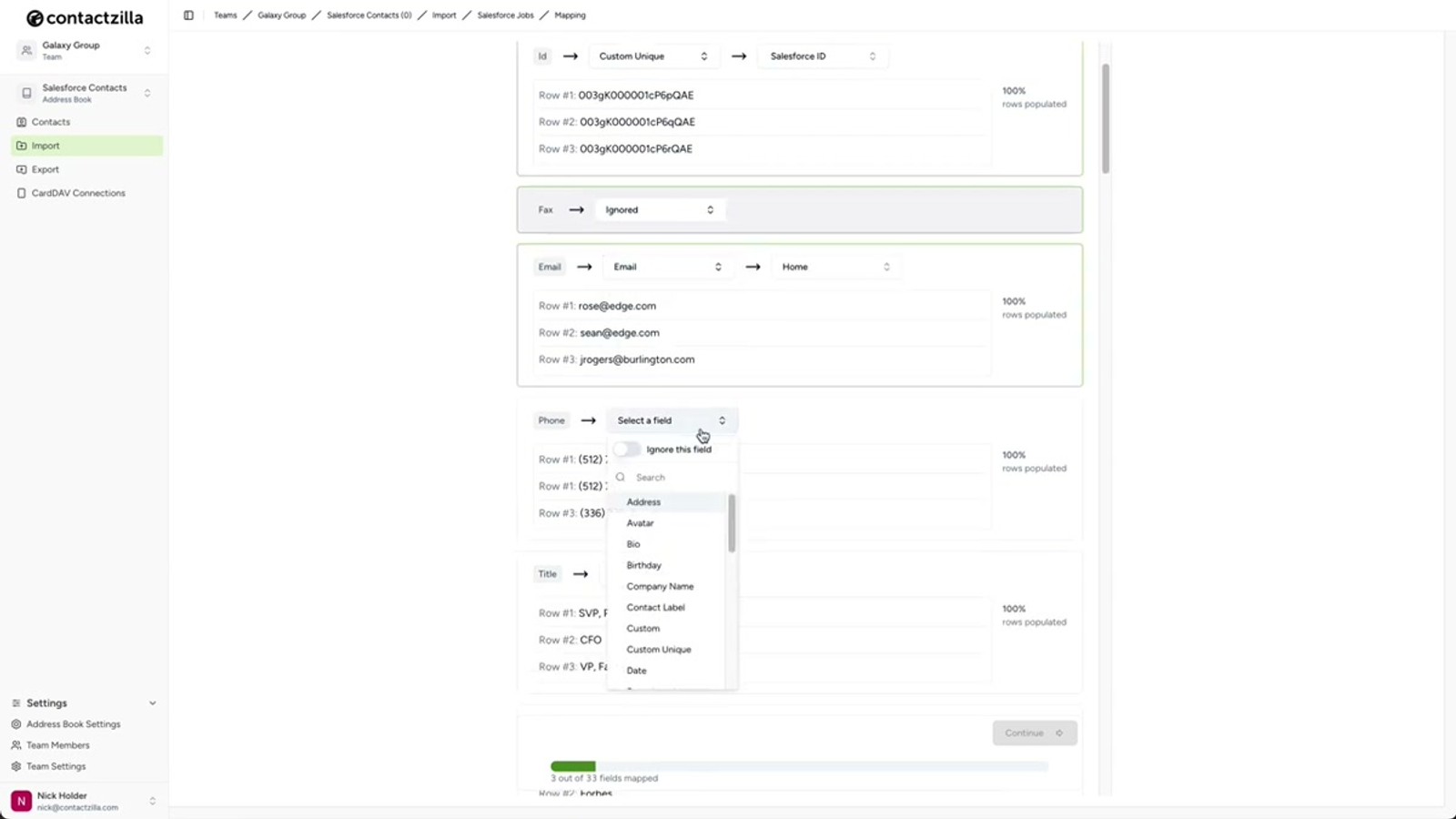
Once Contactzilla finishes pulling data from Salesforce, the status changes to Requires Mapping. This is where you tell Contactzilla how each Salesforce field corresponds to a Contactzilla field.
The most critical mapping is the Salesforce ID field. Map this to a Custom Unique Field in Contactzilla and label it something like Salesforce ID or SFID. This unique identifier is what ensures future syncs can find the exact record in Contactzilla and update the correct contact — without it, Contactzilla can't match incoming updates to existing records.
For remaining fields, map standard ones like Name, Email Address, and Phone to their Contactzilla equivalents. For any Salesforce fields you don't need in your address book, select Ignore to skip them.
- Salesforce ID → map to Custom Unique Field, label it
Salesforce IDorSFID - Map Name, Email Address, Phone, etc. to their Contactzilla equivalents
- Use Ignore for any fields you don't want to import
- The unique field mapping is essential for future sync updates to match correctly
The Salesforce ID mapping is the most important step. Without it, future syncs can't match Salesforce records to existing Contactzilla contacts, and you'll end up with duplicates instead of updates.
Configure Deletion Handling
At the bottom of the field mapping screen, there's an option to enable deletion handling. When enabled, you select the Is Deleted field — this is the field Salesforce uses to flag a contact as deleted.
With deletion handling turned on, Contactzilla detects those deletion flags during each sync and removes the corresponding contacts from your address book automatically. If you leave it off, contacts deleted in Salesforce will remain in Contactzilla indefinitely.
Note that the Is Deleted field also appears in your general field list. You can safely set it to Ignore there — you don't need to map it to a visible Contactzilla field. The deletion handling toggle is separate from field mapping.
- Enable deletion handling at the bottom of the mapping screen
- Select the Is Deleted field from the dropdown
- Deleted Salesforce contacts will be automatically removed from your address book
- If disabled, deleted Salesforce contacts remain in Contactzilla
- Set the Is Deleted field to Ignore in the general field mapping — it's handled separately
Choose a Duplicate Handling Strategy
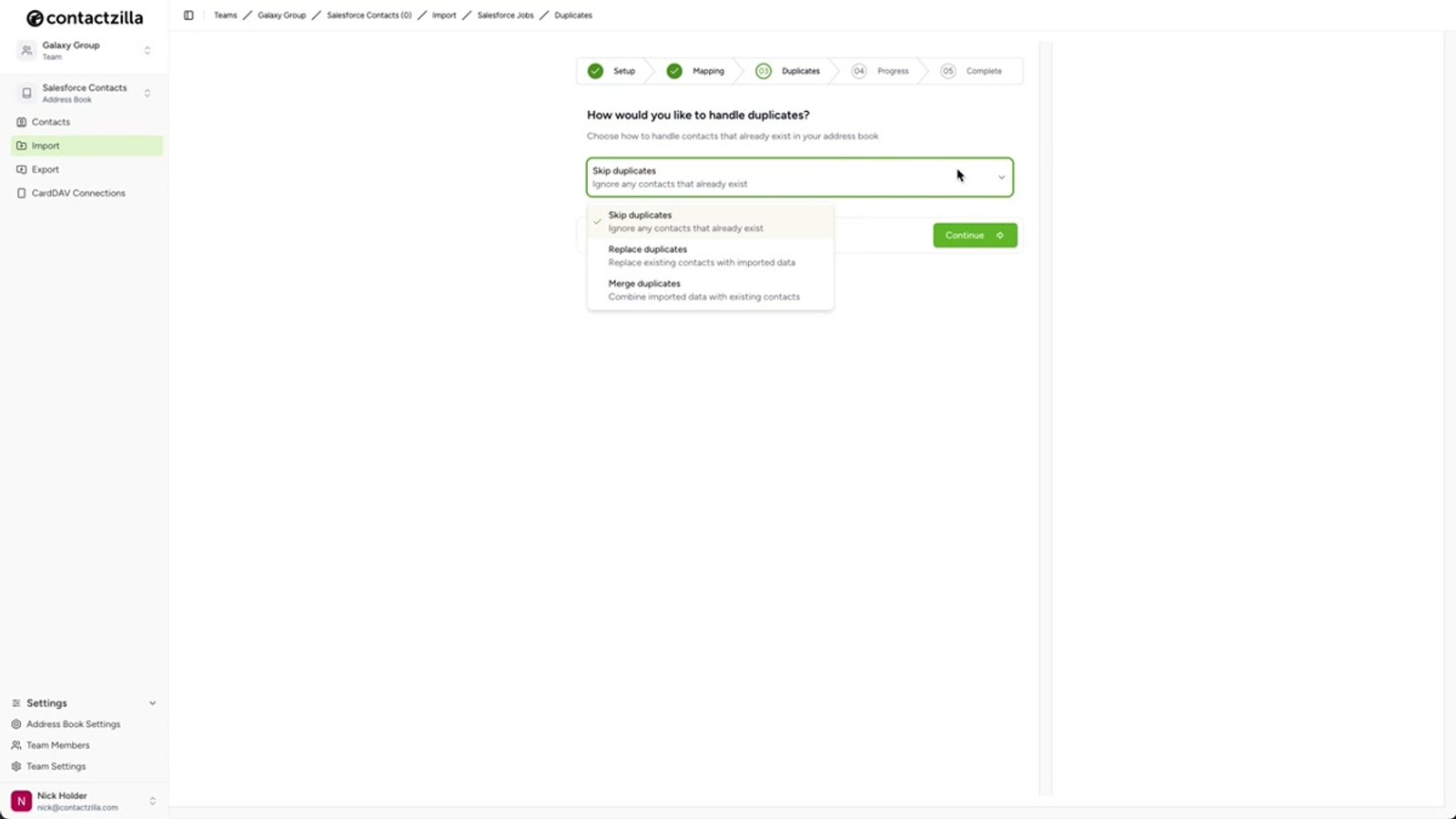
After field mapping, click Continue to reach the duplicate handling screen. Contactzilla offers three strategies for how to handle contacts that already exist in your address book:
Skip — Ignores any incoming contacts that already exist in Contactzilla. If a contact's email address changed in Salesforce, that change will not come through. Best if you manage some contacts manually in Contactzilla and don't want Salesforce overwriting local edits.
Replace — Overwrites the entire contact record in Contactzilla with the Salesforce version, except for labels, which are preserved. This is the best option if you want Salesforce to be your single source of truth for contact data.
Merge — Adds any new information from Salesforce to what's already in Contactzilla. If a Salesforce contact has an extra phone number or email, it gets added rather than replacing existing data. Best for combining data from multiple sources.
- Skip: ignores existing contacts, no updates come through
- Replace: overwrites contact records but preserves Contactzilla labels
- Merge: adds new fields/values without removing existing data
- Replace is recommended if Salesforce is your single source of truth
Choose Replace if Salesforce is your primary contact database. This ensures every sync pushes the latest data to Contactzilla while preserving any labels you've added locally.
Review Import Results and Troubleshoot Errors
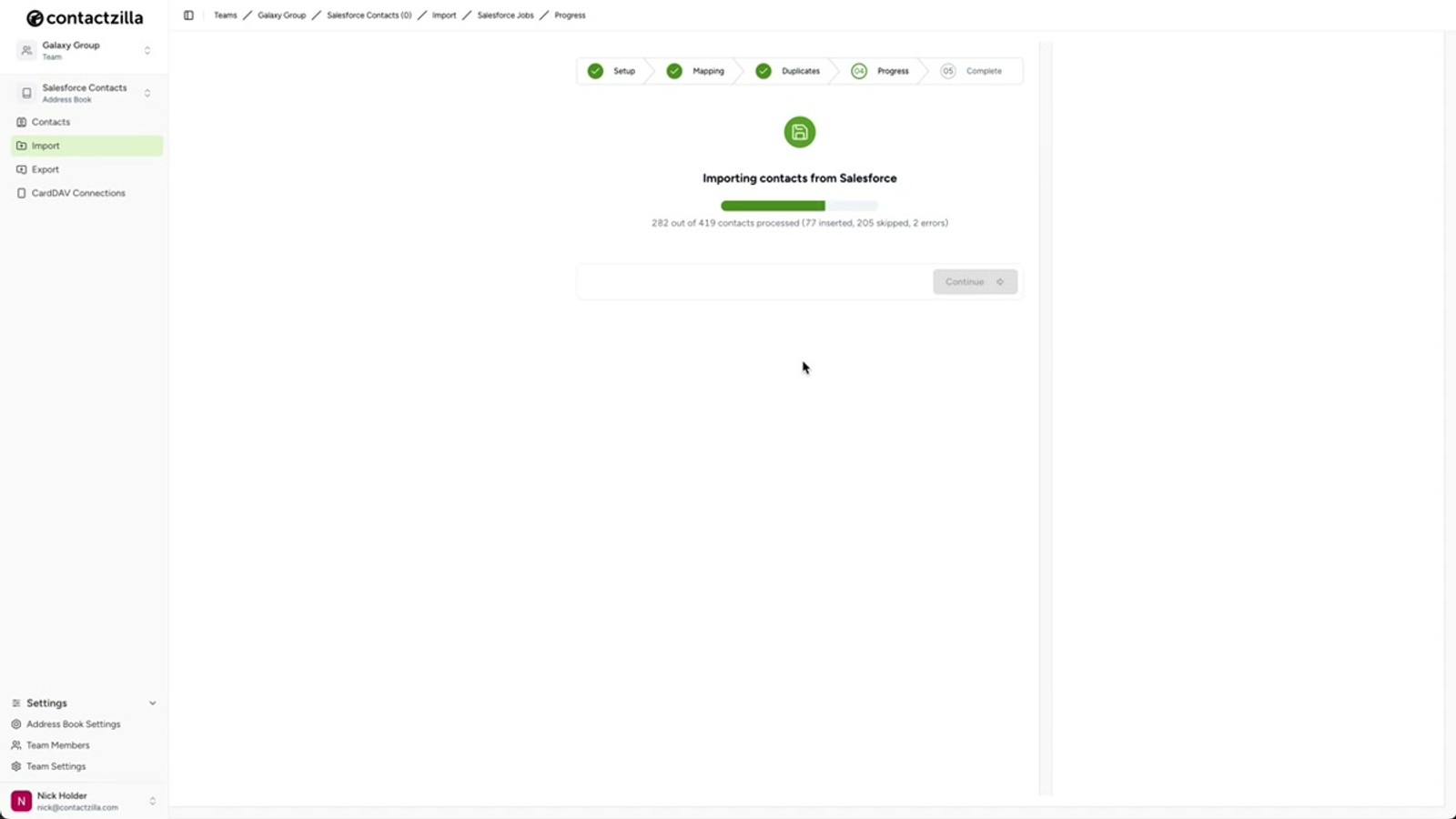
Click Continue to begin the import. Once it completes, Contactzilla shows a summary of what happened. In the video example, the results were: 202 imported, 205 skipped (contacts marked as deleted in Salesforce), 10 replaced (duplicates handled via the Replace strategy), and 2 failed.
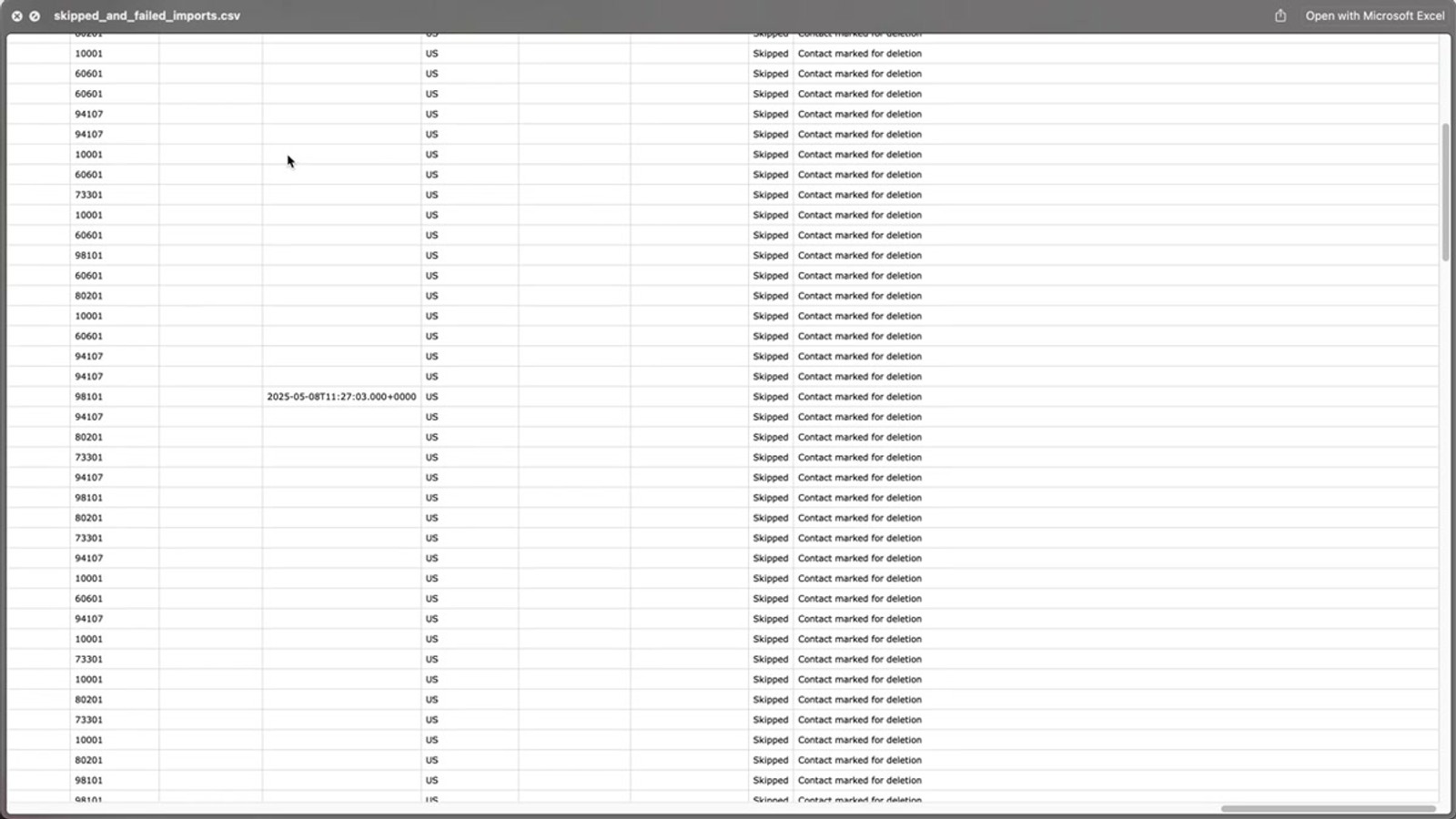
To investigate failures, download the CSV from the results screen. Open it and scroll to the rightmost columns to see error details. In the video, the two failures were caused by invalid email addresses. The 205 skipped contacts were correctly flagged — they were marked as deleted in Salesforce, confirming that Contactzilla properly respects deletion flags.
You can always return to manage your Salesforce imports later. From the import management screen, you can edit sync settings, trigger a manual synchronization, review details for completed imports, check file size and status, and download the CSV for any past import.
- Review the import summary: imported, skipped, replaced, and failed counts
- Download the CSV to investigate any failures
- Scroll to the rightmost columns in the CSV for error details
- Common errors include invalid email addresses
- Skipped contacts with deletion flags confirm deletion handling is working
- Return to the import management screen anytime to re-sync or review
Explore the OIDC Connectors Area in Team Settings
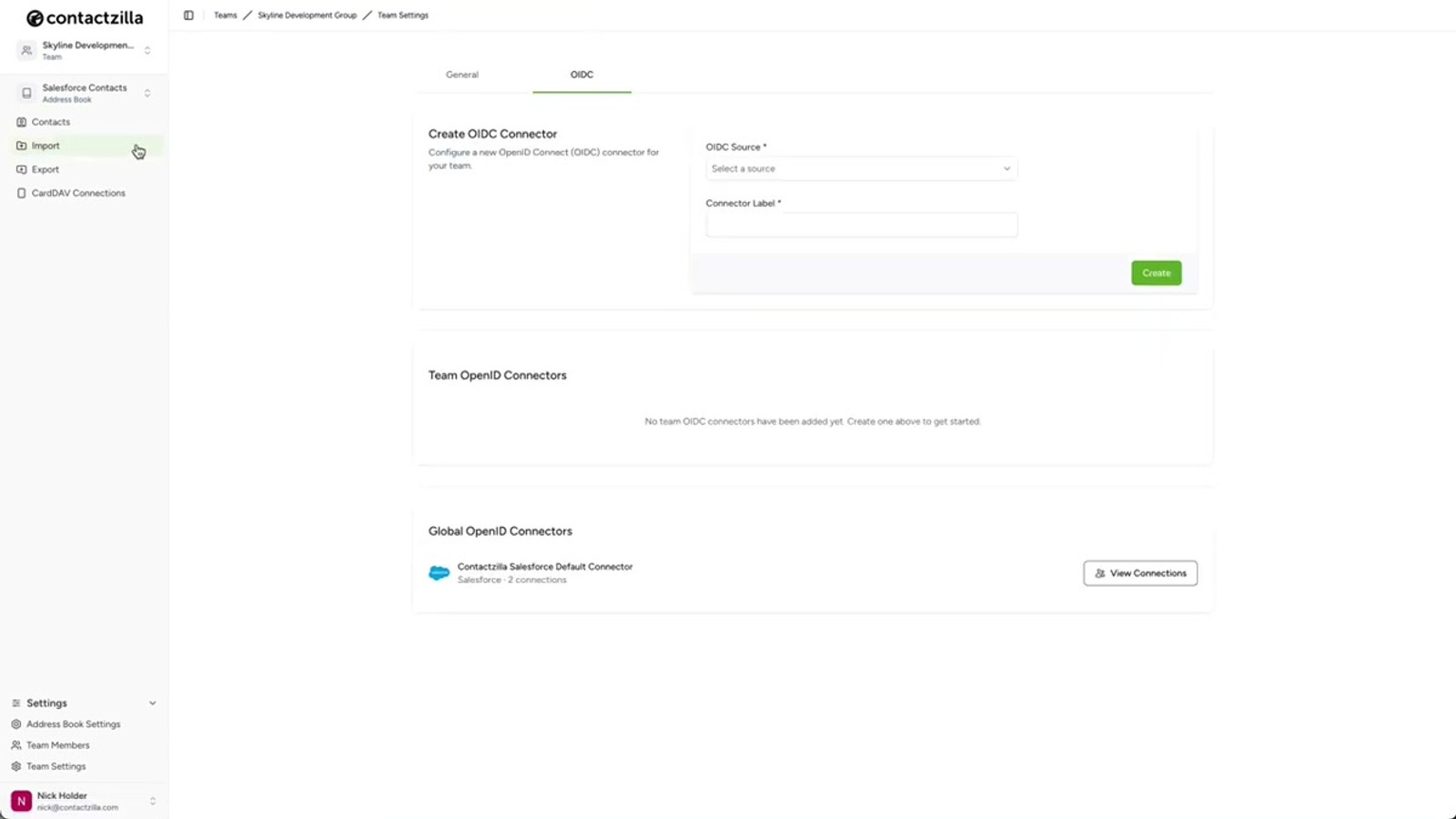
While the initial data pull runs in the background, it's worth knowing about the OIDC (OpenID Connect) Connectors area inside your team settings. Navigate to Team Settings, then click the OIDC tab at the top.
At the time of recording, only the Salesforce connector is listed here, but this list is set to grow as Contactzilla adds more supported platforms. If there's a system you'd like to connect, the team encourages you to get in touch.
Advanced users and IT admins can also set up custom connectors for their own tools from this area. There's a View Connection section that shows any accounts you've linked — useful for reviewing or removing connections later. If this is your first time, the connections list will be empty until your Salesforce authorization completes.
- Navigate to Team Settings → OIDC tab
- View currently available connectors (Salesforce at launch, more coming)
- Advanced users can set up custom connectors for their own tools
- View Connection section shows all linked accounts
- Use this area to review or remove connections later
Key Takeaways
Why Sync Salesforce with Contactzilla
Frequently Asked Questions
What happens if I don't map the Salesforce ID field?
The Salesforce ID mapping is critical for ongoing sync. It's mapped to a **Custom Unique Field** in Contactzilla so that future imports can match incoming Salesforce records to existing contacts. Without it, Contactzilla can't identify which contact to update, and you'll likely end up with duplicates instead of updated records.
What's the difference between Replace and Merge for duplicate handling?
**Replace** overwrites the entire contact record in Contactzilla with the Salesforce version (except labels, which are preserved). It's best when Salesforce is your single source of truth. **Merge** adds new information from Salesforce without removing existing Contactzilla data — so an extra phone number gets added rather than replacing what's there. Use Merge when combining data from multiple sources.
Will contacts deleted in Salesforce be removed from Contactzilla?
Only if you enable **deletion handling** during the field mapping step. When enabled, you select the **Is Deleted** field, and Contactzilla will detect deletion flags during each sync and remove the corresponding contacts. If you leave deletion handling off, deleted Salesforce contacts will remain in your Contactzilla address book.
Can I change the sync frequency after the initial setup?
Yes. You can return to the import management screen at any time to edit sync settings, including the frequency. The video recommends starting with **Manual** so you can verify everything works correctly, then switching to an automatic interval like every 4 or 8 hours once you're satisfied with the results.
How do I troubleshoot failed contacts after an import?
From the import results screen, download the CSV file and open it in a spreadsheet application. Scroll to the rightmost columns to find error details for each contact. In the video example, the two failures were caused by invalid email addresses. Skipped contacts may also be flagged — in the demo, 205 were skipped because they were marked as deleted in Salesforce.
Can I connect other systems besides Salesforce?
At the time of recording, Salesforce is the first connector available in the **OIDC Connectors** area under Team Settings. More platforms are planned. Advanced users and IT admins can also set up **custom connectors** for their own tools. If there's a specific system you'd like to connect, Contactzilla encourages you to get in touch at support@contactzilla.com.

