
Push Your Microsoft Entra Directory to Every Phone — Automatically
Import users from Microsoft 365 into Contactzilla, map fields precisely, filter by mobile number, handle deletions, and schedule daily syncs to keep every device up to date.
If your organization manages users in Microsoft Entra ID (formerly Azure Active Directory), you already have a rich directory of contact details — names, emails, phone numbers, job titles, and group memberships. The challenge is getting that information onto every employee's phone without manual data entry or CSV exports.
The Microsoft Entra ID Premium Importer in Contactzilla solves this by connecting directly to your Entra tenant via OIDC, pulling user records across, and letting you map fields, apply filters, and schedule recurring syncs. Once imported, Contactzilla pushes the contacts to iPhones and Android devices automatically.
This guide walks through every step shown in the video: enabling the importer, creating the OIDC connection, granting admin consent in the Entra portal, copying your Tenant ID, running the first manual sync, mapping fields (including the critical hidden unique ID), setting up regex filters to include only users with mobile numbers, configuring delete handling for disabled accounts, choosing a duplicate strategy, and finally scheduling the import to run daily.
Enable the Microsoft Entra ID Premium Importer
The Entra importer is a premium feature that may not be enabled on your Contactzilla account by default. Navigate to the Import section in Contactzilla and look for the Microsoft Entra ID Premium Importer.
If you don't see it listed, send a support request to the Contactzilla team and they will enable it for your account. There is a small additional cost associated with the Entra importer, but you can trial it first to see how it works for your organization before committing.
Once enabled, click through into the Entra ID Importer and then click Import Microsoft Entra ID to begin the setup process.
- Go to Import in the Contactzilla navigation
- Look for Microsoft Entra ID Premium Importer in the list
- If not visible, contact Contactzilla support to enable it
- There is a small cost — but you can trial it first
- Click Import Microsoft Entra ID to start
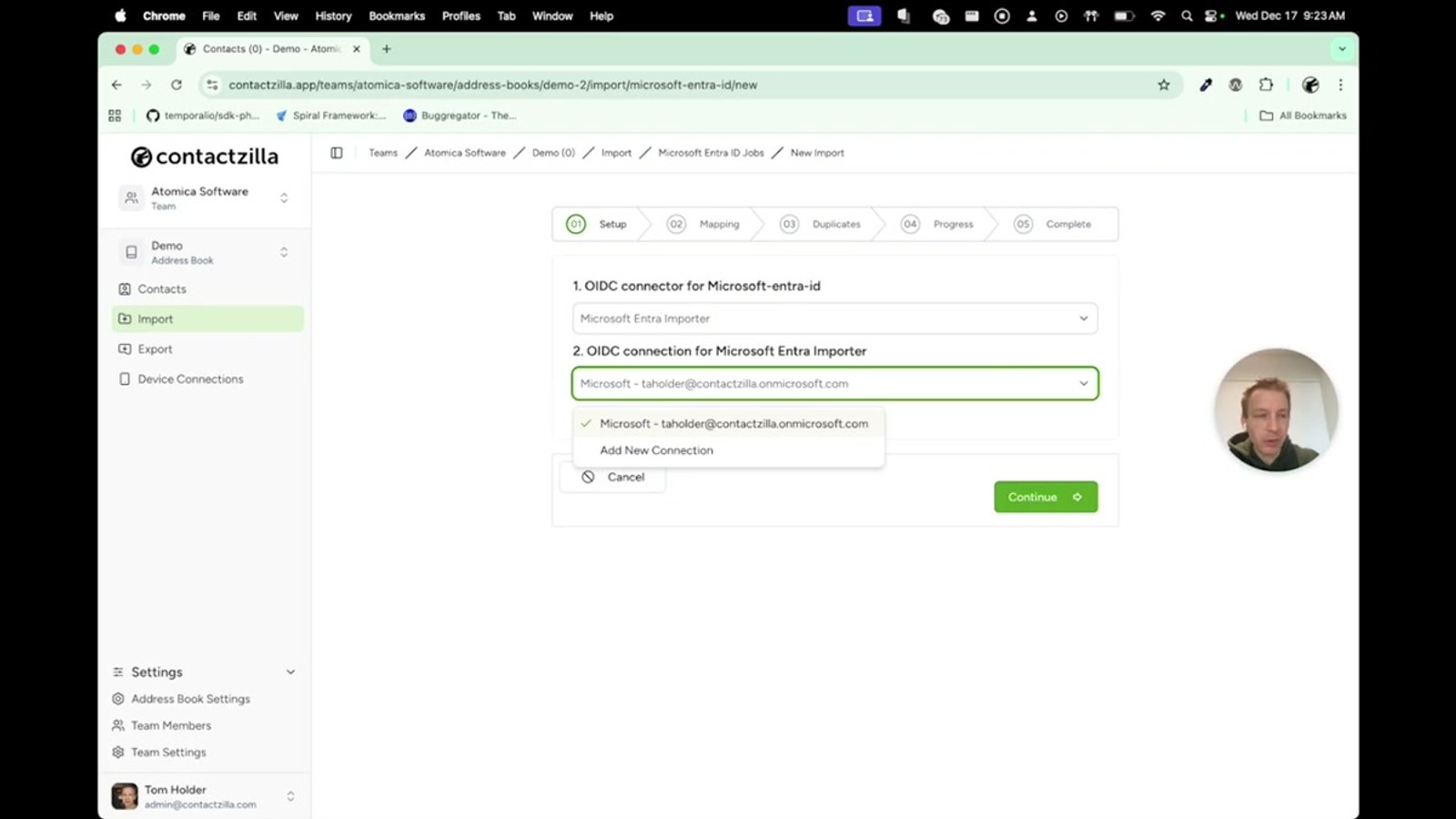
Create the OIDC Connection — Use the Correct Connector
The first step is connecting Contactzilla to your Microsoft Entra tenant via an OIDC (OpenID Connect) connector. When prompted, you will see multiple connector options. It is critical that you select the Microsoft Entra Importer connector specifically — not the generic Microsoft default connector.
The default Microsoft connector requests broader permissions from your tenant that you don't actually need to grant. The Microsoft Entra Importer connector is scoped to only the permissions required to read contacts. It will not request write access or the ability to change anything in your directory.
Click Add Connection, then hit the Connect button. This will open a Microsoft sign-in flow where you pick your account, review the permissions requested, and click Consent and Accept. Once complete, you will see the connection listed in Contactzilla. Select it and click Continue.
- Choose the Microsoft Entra Importer connector — not the default Microsoft one
- The Entra-specific connector requests only read permissions
- Click Add Connection → Connect
- Sign in with your Microsoft account and accept the permissions
- The connection appears in the list — select it and click Continue
The default Microsoft connector requests permissions you don't need to grant. Always pick the Entra-specific importer connector to keep your permissions scoped to read-only access.
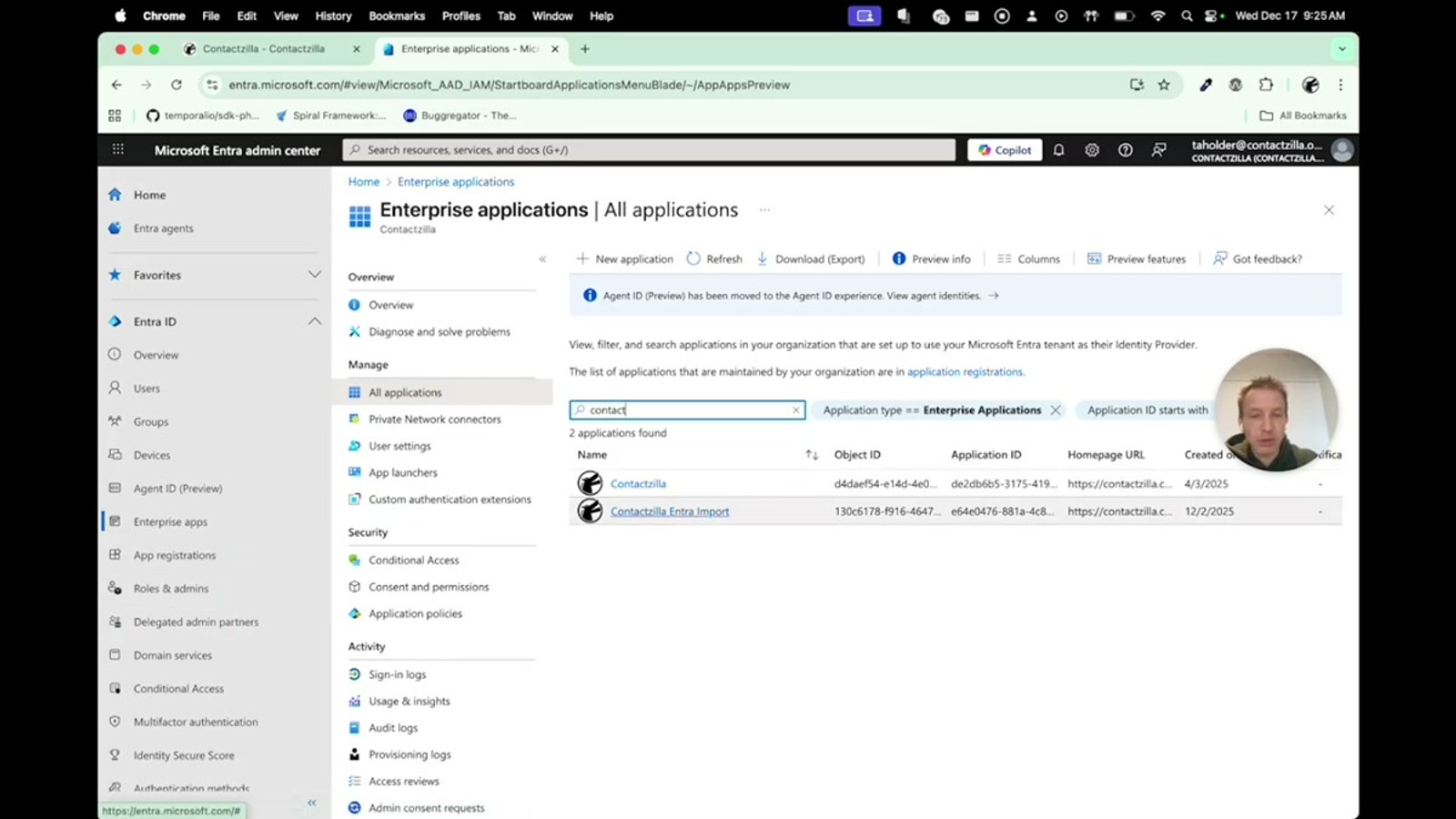
Copy Your Tenant ID and Grant Admin Consent in Entra
Before continuing in Contactzilla, you need to collect information from your Entra portal and grant the importer permission to read your directory. Open entra.microsoft.com in a new tab.
On the Entra dashboard, you will see your Tenant ID displayed prominently. Copy this value — you will paste it into Contactzilla in the next step.
Next, navigate to Enterprise Applications in the Entra portal. Search for the Contactzilla Entra Importer application in the search box. You can verify it by checking the Application ID (starts with E64E0). Click into the application, then on the left-hand side navigate down to Permissions.
Click Grant admin consent for Contactzilla. This will open a confirmation dialog. You must be an administrator of the Entra workspace to complete this step. Review the permissions listed and click Accept. This grants the importer read-only permission to your directory. This step only needs to be done once during initial setup.
- Go to entra.microsoft.com and copy the Tenant ID from the dashboard
- Navigate to Enterprise Applications and search for Contactzilla Entra Importer
- Verify the Application ID starts with
E64E0 - Click into the app → Permissions (left sidebar)
- Click Grant admin consent for Contactzilla and accept
- You must be an Entra administrator to grant consent
- This is a one-time setup step
You need to be an Entra administrator to grant admin consent. If you're not an admin, coordinate with your IT team to complete this step.
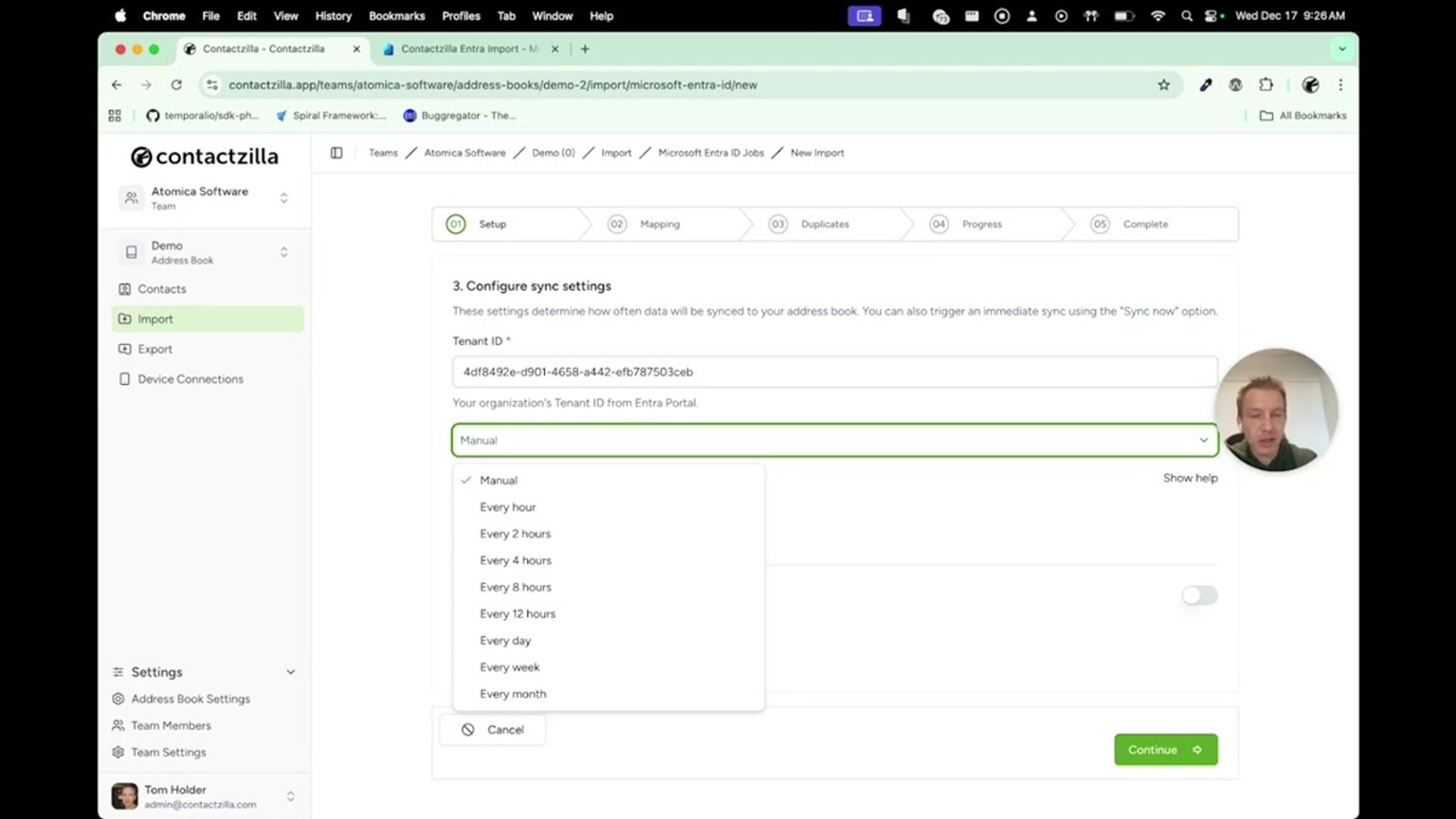
Paste the Tenant ID and Configure Initial Sync Settings
Back in Contactzilla, select your connection and click Continue. The importer will ask for the Tenant ID you copied from the Entra dashboard. Paste it into the field.
Next, you are asked to choose between a manual import or a scheduled one. For your first run, it is recommended to leave this as Manual so you can verify the import works correctly. You can change this to a scheduled sync later.
The sync mode setting is not actually relevant for Microsoft Entra — it will always pull across all contacts regardless of the setting.
You can optionally restrict columns, but the available columns are not known ahead of time. If you enter incorrect column names, the import will show a failure message listing the available fields. For the initial setup, it is best to skip column restriction.
Critically, make sure to tick Sync now on update. If you don't check this box, the import will be configured but it won't actually bring any contacts across. Click Continue to start the import.
- Paste the Tenant ID from Entra into the field
- Set import type to Manual for the first run
- Sync mode does not apply to Entra — all contacts are always pulled
- Column restriction is optional — skip it on first run
- Always tick Sync now on update or no contacts will import
- Click Continue to begin pulling data
If you don't tick Sync now on update, the import will be set up on the backend but won't actually bring any contacts across. This is the most common gotcha during initial setup.
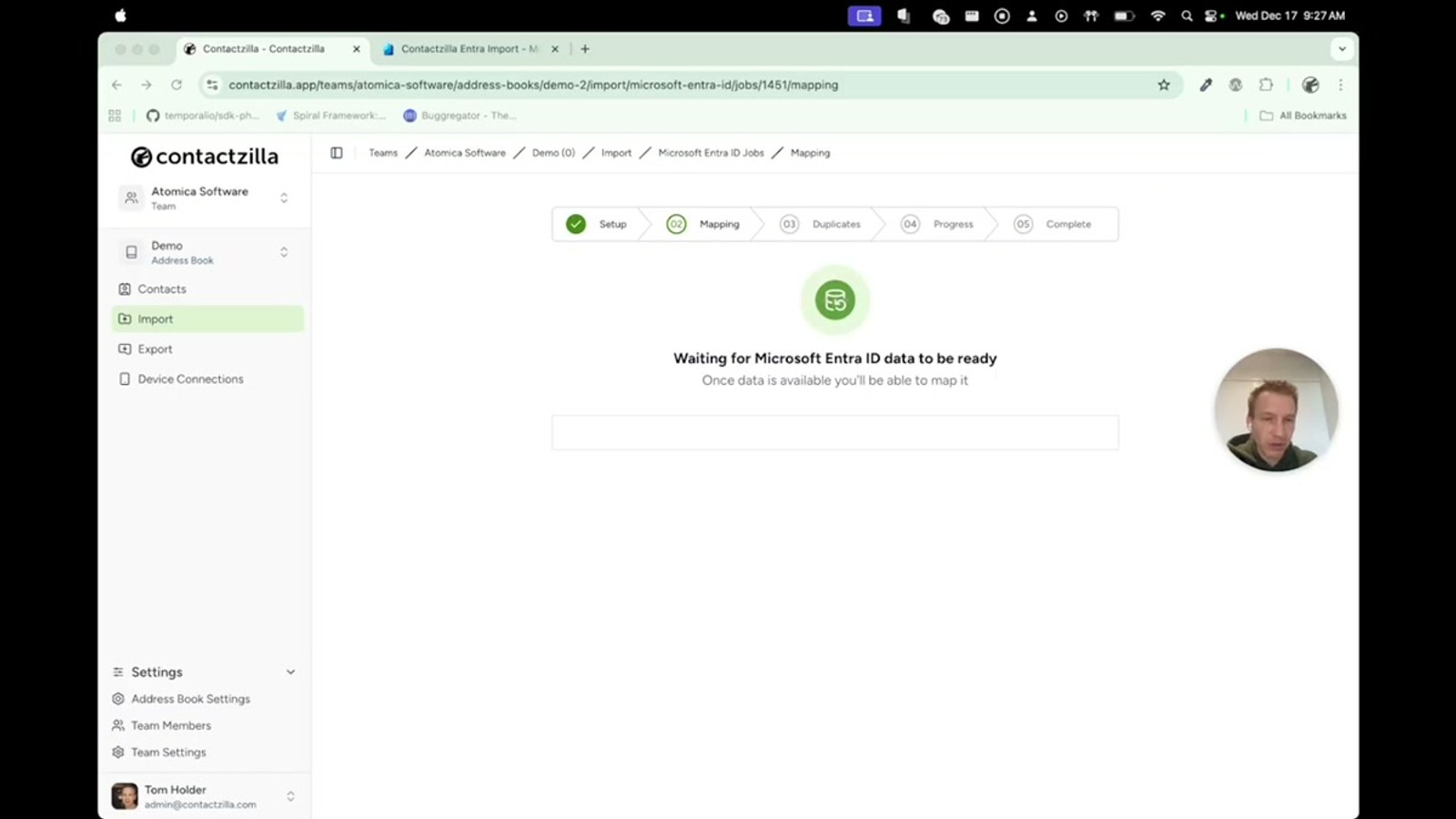
Map Fields — Set the ID as a Hidden Custom Unique Field
Once the initial data pull completes, Contactzilla presents a field mapping screen. This is where you tell the system which Entra fields map to which Contactzilla contact fields.
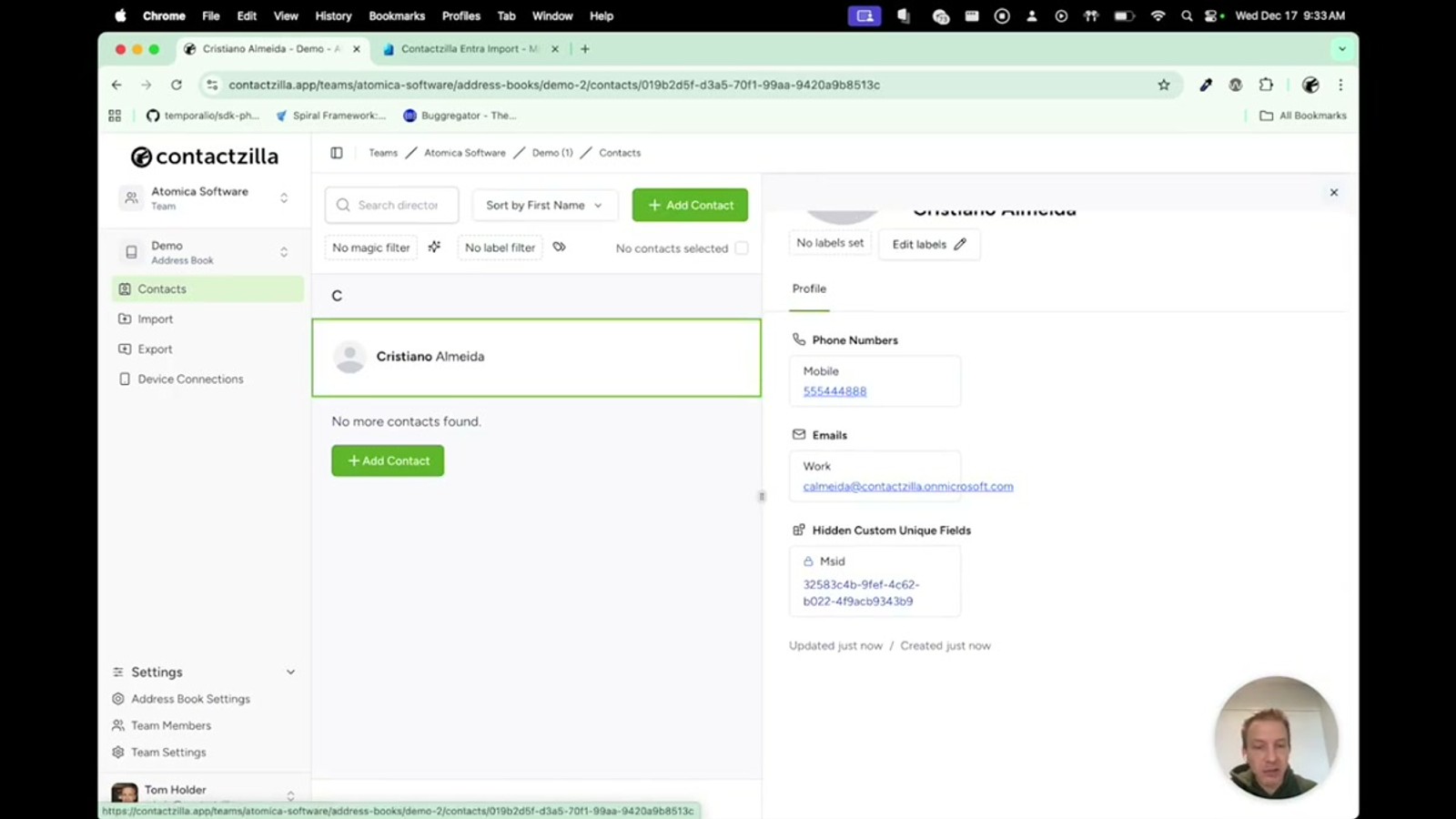
The most important mapping is the ID field. Map it to Hidden Custom Unique and give it a descriptive title like MSID or Entra ID. This is critical for two reasons:
First, because it's a unique field, future sync updates will use this ID to target the correct contact. If a user's details change in Entra (say their phone number updates), the importer will match on this ID and update only that specific contact rather than creating a duplicate.
Second, because it's hidden, this technical ID won't be pushed down to end-user devices. Regular users on phones will never see it. It will only be visible in the Contactzilla web interface to administrators.
The remaining fields (name, email, phone, job title, etc.) can be mapped to their corresponding Contactzilla fields as needed. You can also choose to ignore fields you don't want to import, such as groups.
- Map the ID field to Hidden Custom Unique
- Name it
MSIDorEntra ID - Hidden = not pushed to devices, only visible to admins in the web UI
- Unique = ensures future syncs update the correct contact, preventing duplicates
- Map remaining fields (name, email, phone, job title) to matching Contactzilla fields
- Use Ignore for fields you don't need, such as groups
Don't use just Custom Unique — use Hidden Custom Unique. The 'hidden' part ensures the Microsoft ID string doesn't clutter up contacts on employee phones.
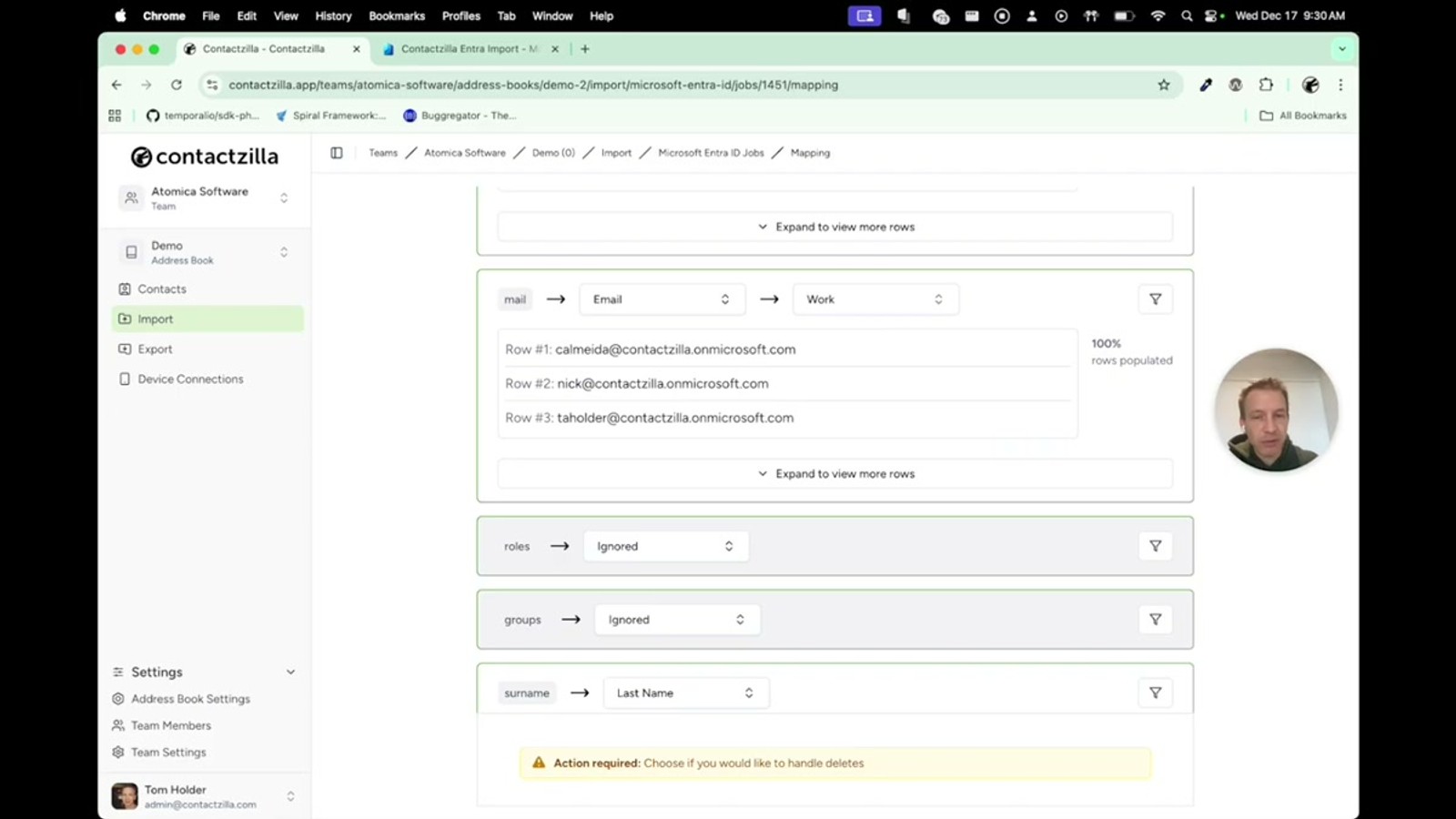
Filter Contacts — Import Only Users with Mobile Numbers
A common requirement is to import only Entra users who actually have a mobile phone number, ignoring service accounts or users without phone data. Contactzilla supports per-field regex filters to accomplish this.
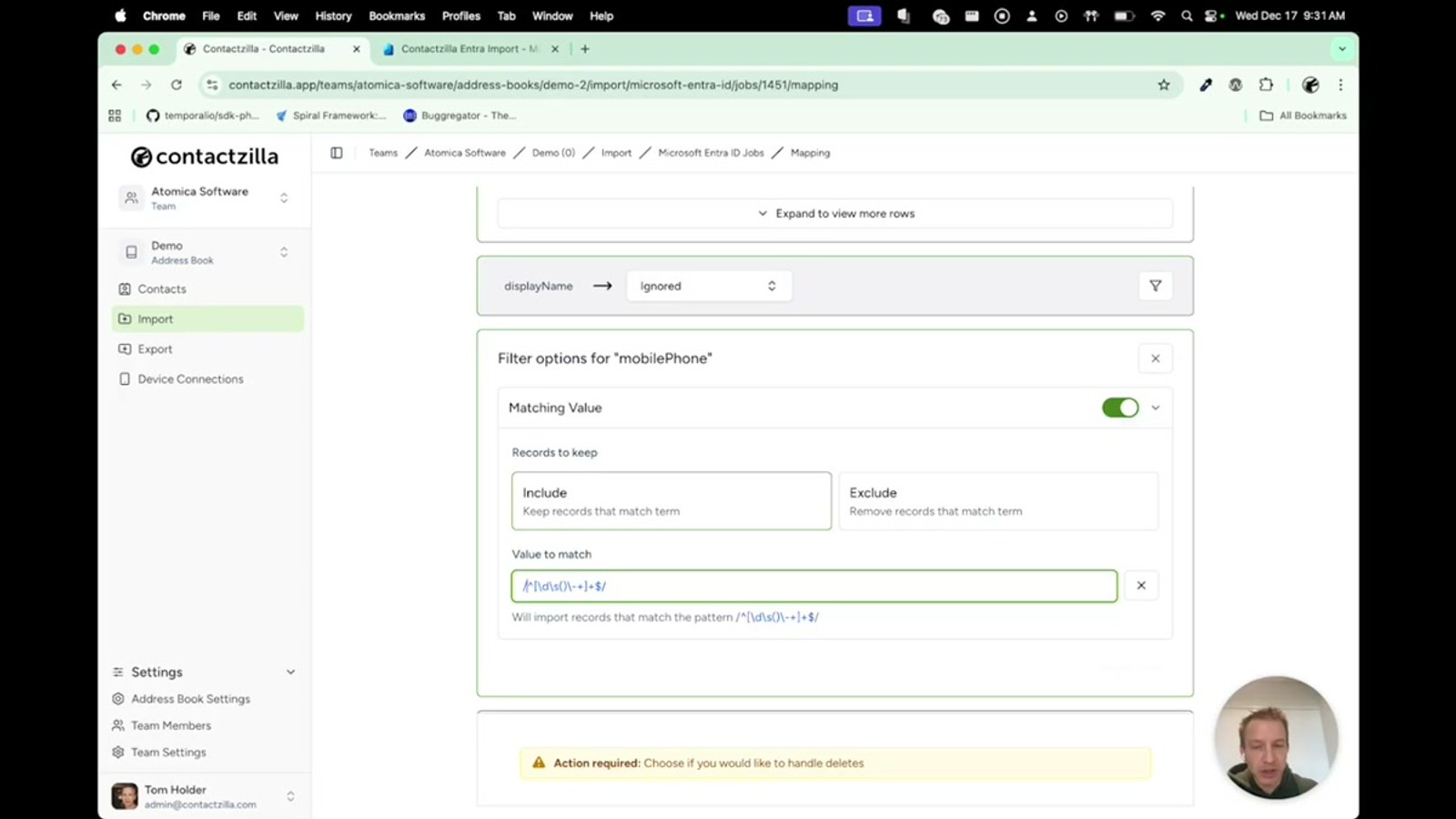
Find the mobile field that you've already mapped to Phone > Mobile. Click to add a filter, then enable the filter. In the filter expression box, enter a regular expression that matches valid phone number characters — digits, spaces, plus signs, hyphens, and parentheses.
The regex must be in PHP format. When the expression is valid, the filter indicator will turn blue. You can use AI tools like ChatGPT to help write regex patterns for specific matching needs — for example, matching only email addresses from your domain name.
After enabling the filter, the field row will show a filter count indicator (e.g., "1 filter"). Any Entra user whose mobile field doesn't match the pattern will be excluded from the import entirely.
You can also apply filters to the groups field if you want to restrict the import to users in specific Entra groups. Groups can optionally be imported as labels in Contactzilla, since group data comes across as comma-delimited values.
- Click the mobile field → Add filter → Enable filter
- Enter a regex matching phone number characters (digits, spaces, +, -, parentheses)
- Regex must be in PHP format — turns blue when valid
- Users without a matching mobile number are excluded from the import
- Groups can be filtered similarly or imported as labels (comma-delimited)
- Use AI tools to generate regex patterns for complex matching (e.g., domain-specific emails)
Regular expressions need to be in PHP format. If you're not comfortable writing regex, ask ChatGPT or any AI tool — they're excellent at generating patterns for matching phone numbers, email domains, etc.
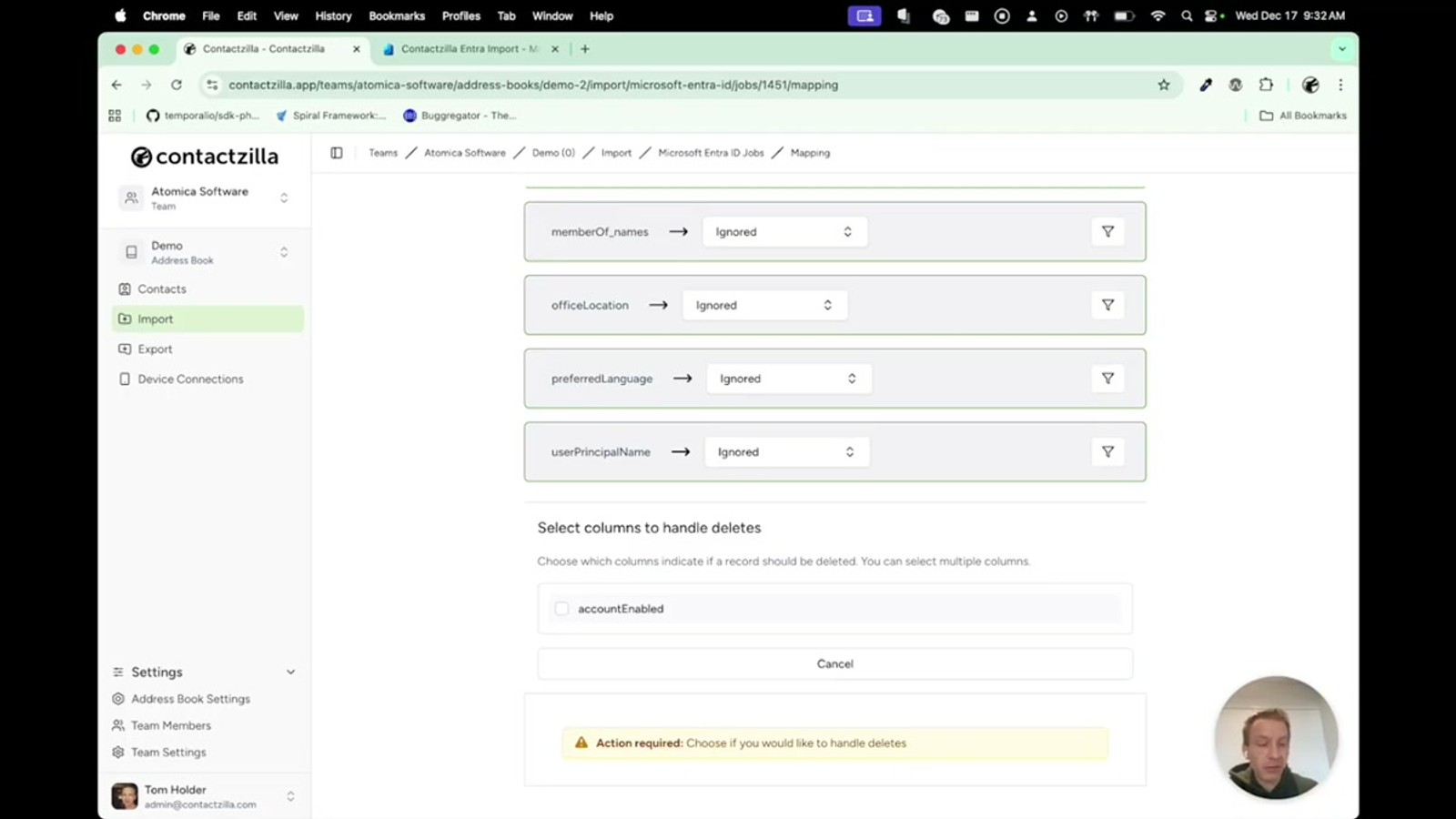
Configure Delete Handling for Disabled Accounts
Microsoft Entra doesn't have a direct mechanism to indicate that an account has been deleted. However, it does have an account enabled flag that changes when an account is disabled.
When prompted "Would you like to handle delete?", select Yes. Then tick the checkbox for the account enabled field. When this field becomes false (i.e., the account is disabled in Entra), Contactzilla will automatically delete that contact from your address book.
This is particularly useful for offboarding workflows — when an employee leaves and their Entra account is disabled, their contact entry is automatically removed from Contactzilla and, by extension, from all synced devices.
After configuring delete handling, click Continue to save the field mapping.
- Select Yes for handle delete
- Tick the account enabled field checkbox
- When account enabled becomes
false, the contact is deleted from Contactzilla - Entra has no true 'deleted' flag — disable the account first, then the sync handles removal
- Click Continue to save the mapping
Choose a Duplicate Strategy and Schedule Recurring Syncs
The final configuration step is choosing how Contactzilla handles duplicate contacts when the same Entra user is imported again. There are two options:
Replace — The existing Contactzilla contact is completely overwritten with the latest data from Entra. This is the recommended option for most organizations, as it ensures contacts always reflect the current state of your directory.
Skip — If a matching contact already exists, the import leaves it unchanged. Use this only if you manually edit contacts in Contactzilla and don't want those edits overwritten by Entra data.
Most organizations should choose Replace to keep contacts fully synchronized.
Once the initial manual import looks correct, go back to the importer settings and change the schedule from Manual to a recurring schedule. The recommendation is to run the sync every day, which ensures that new employees, updated phone numbers, and disabled accounts are reflected quickly across all devices.
- Replace — overwrites existing contacts with latest Entra data (recommended)
- Skip — leaves existing contacts unchanged if already imported
- Most organizations should use Replace for full sync accuracy
- After verifying the first import, switch from Manual to Scheduled
- Recommended schedule: daily sync
- Schedule can be changed at any time from the importer settings
Start with a manual import to verify everything looks right, then switch to daily scheduled sync. You can always change the schedule later without reconfiguring the field mapping.
MSID or Entra ID) to ensure accurate updates and prevent duplicates Automated Daily Sync
Schedule imports to run daily so new employees, updated details, and offboarded users are reflected automatically
Read-Only Permissions
The Entra-specific connector only requests read access — it cannot modify your Microsoft directory
Regex Field Filters
Import only users matching specific criteria, like those with valid mobile numbers or specific email domains
Hidden Unique IDs
Technical mapping IDs stay invisible to end users on phones — only admins see them in the web interface
Push to All Devices
Imported contacts sync automatically to iPhones and Android devices via Contactzilla's device sync
Offboarding Automation
Disabled Entra accounts automatically trigger contact deletion — no manual cleanup needed

