
Push Your Google Workspace Directory to Every Phone — Automatically
Connect Contactzilla to your Google Workspace directory, import every user, and deploy the contact list to iOS and Android devices via CardDAV or MDM.
If your team uses Google Workspace, your company directory is already full of employee contact details — names, emails, phone numbers, job titles. The problem is getting that directory onto every team member's phone without manual entry or CSV exports that go stale the moment someone joins or leaves.
This guide walks you through the complete process of creating an OIDC connector in Contactzilla that links to your Google Workspace Admin SDK, authorising it with the correct read-only scope, and then running an import that pulls every directory user into a Contactzilla address book. From there you can deploy those contacts to iPhones and Android devices using CardDAV or your MDM solution.
The whole setup takes about 10 minutes and involves two dashboards: the Google Cloud Console (where you create the project, enable the API, and generate OAuth credentials) and Contactzilla's Team Settings (where you paste those credentials and configure the connector). Follow along step-by-step below — every field name, menu path, and gotcha from the video is documented so you can complete the setup without watching a frame.
Open the OIDC Connectors Panel in Contactzilla
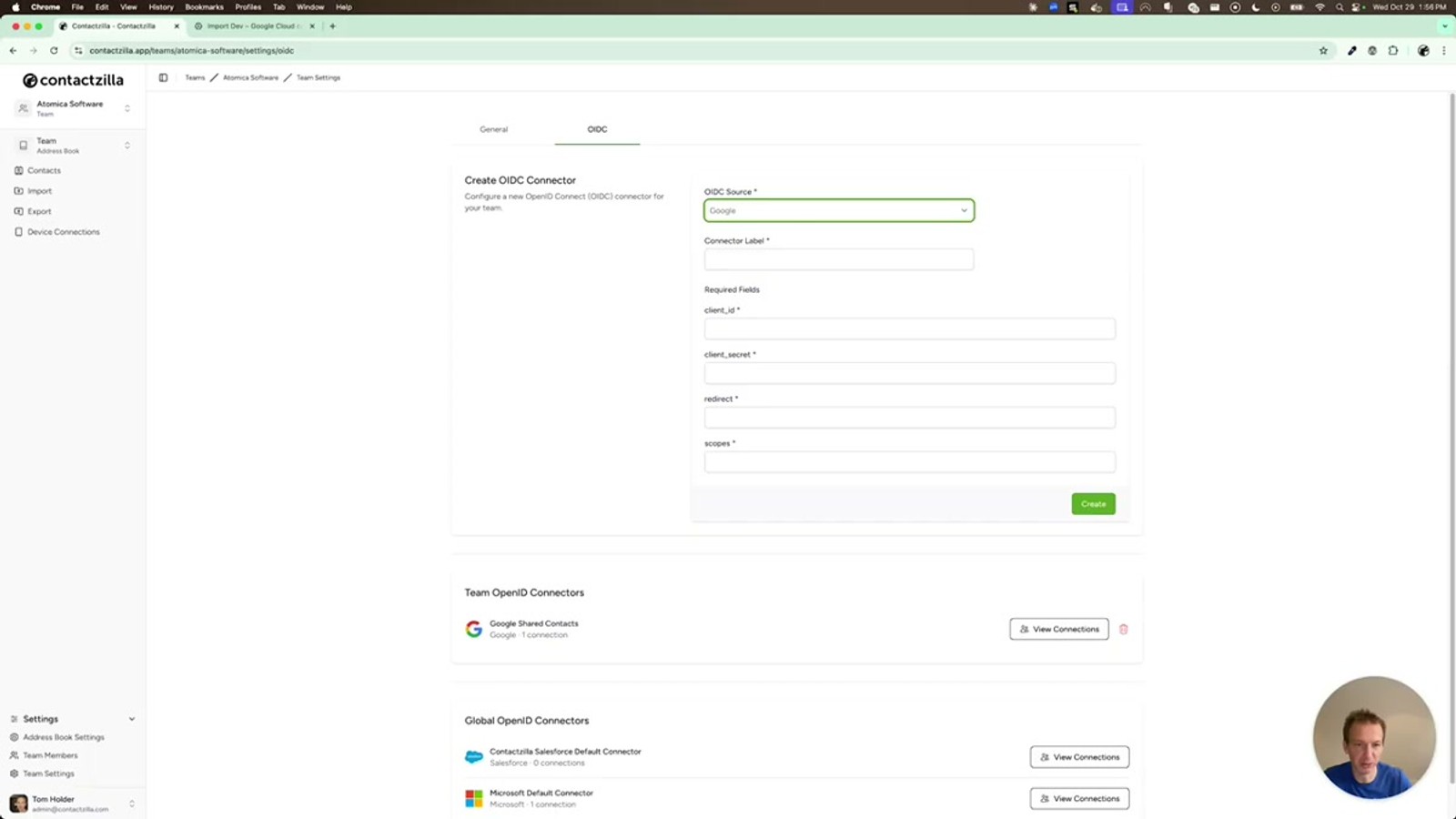
Start in Contactzilla and navigate to Team Settings. You'll find an OIDC tab that lists all of your existing team OIDC connectors along with any global connectors already in the system.
You may already see a connector listed — for example, a Google Shared Contacts app if you've previously set up contact sharing. For this directory import, you'll create a completely separate OIDC connector. While you *could* modify the permissions on your existing connector in the Google Developer Console, creating a new one keeps analytics separate and makes management easier — you'll get a distinct set of API usage metrics for the import versus the export.
Click the option to add a new connector and select Google from the provider list. Contactzilla will display the fields it needs: Client ID, Client Secret, Redirect URL, and Scope. Leave this tab open — you'll fill these in after setting up the Google side.
- Navigate to Team Settings → OIDC tab
- Review existing connectors — you may already have a Google Shared Contacts app
- Click to create a new connector and select Google as the provider
- Keep the Contactzilla tab open — you'll need to paste credentials from Google shortly
Create a New Project in Google Cloud Console
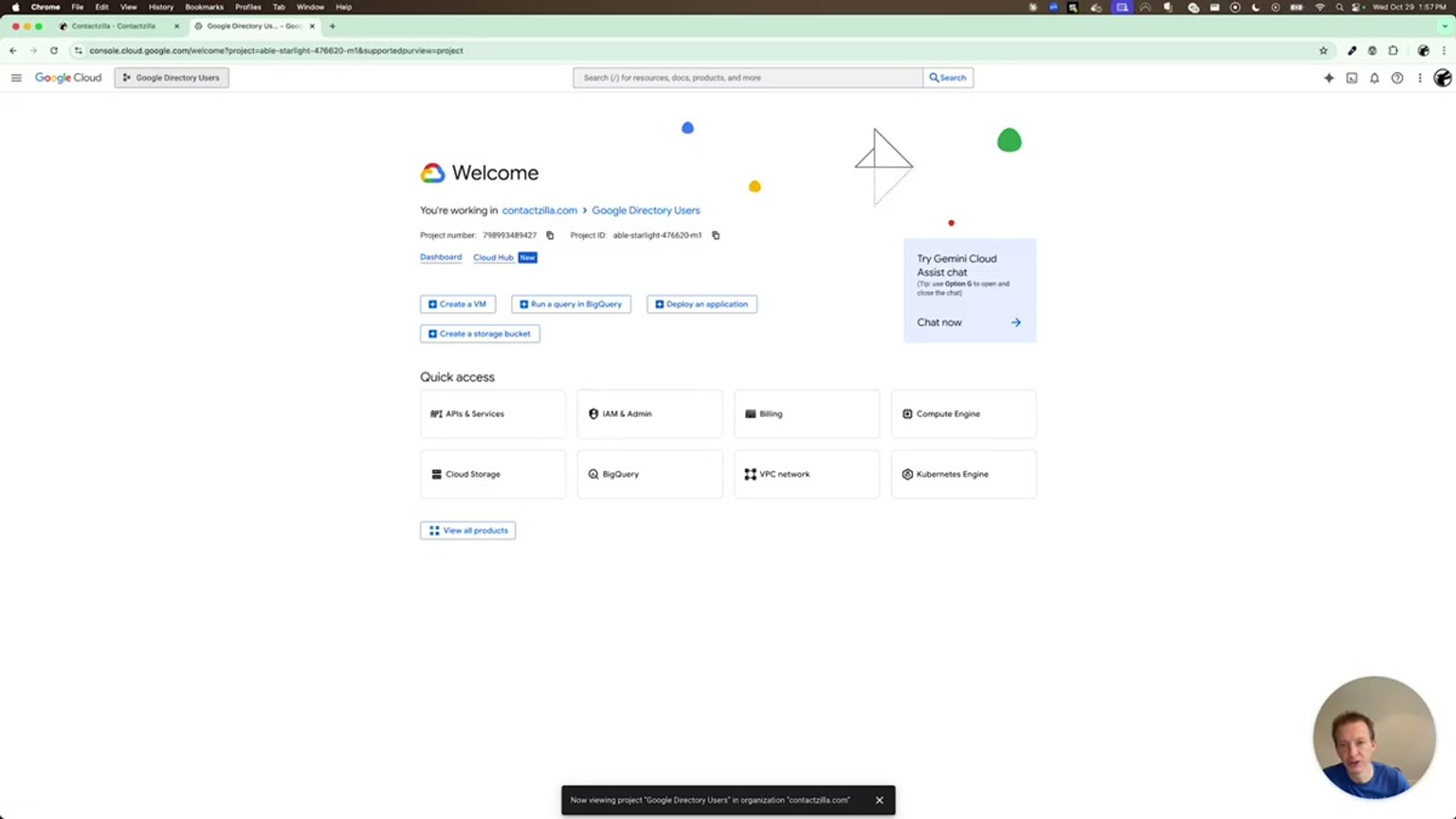
Open a new browser tab and navigate to the Google Cloud Console (search for "Google Cloud Console" or "Google Developer Console"). Once there, click the project selector in the top-left corner and choose New Project.
Name the project something descriptive — the video uses Google Directory Users. Leave the Organization and Location fields at their defaults and click Create.
Here's a critical gotcha: the project takes a moment to provision. You must then explicitly select the new project before proceeding. You can do this either from the notification that appears or from the project selector dropdown at the top of the page. If you skip this step, you'll be configuring APIs and credentials on your *previous* project instead of the new one — a mistake that's easy to make and confusing to debug.
- Go to Google Cloud Console → project selector → New Project
- Name it something memorable like
Google Directory Users - Keep Organization and Location at defaults
- Click Create and wait for it to finish provisioning
- Explicitly select the new project from the top-left dropdown before continuing
The project takes a few seconds to create. Don't start configuring until you've switched to the new project — otherwise you'll modify the wrong project and wonder why things don't work.
Enable the Admin SDK API
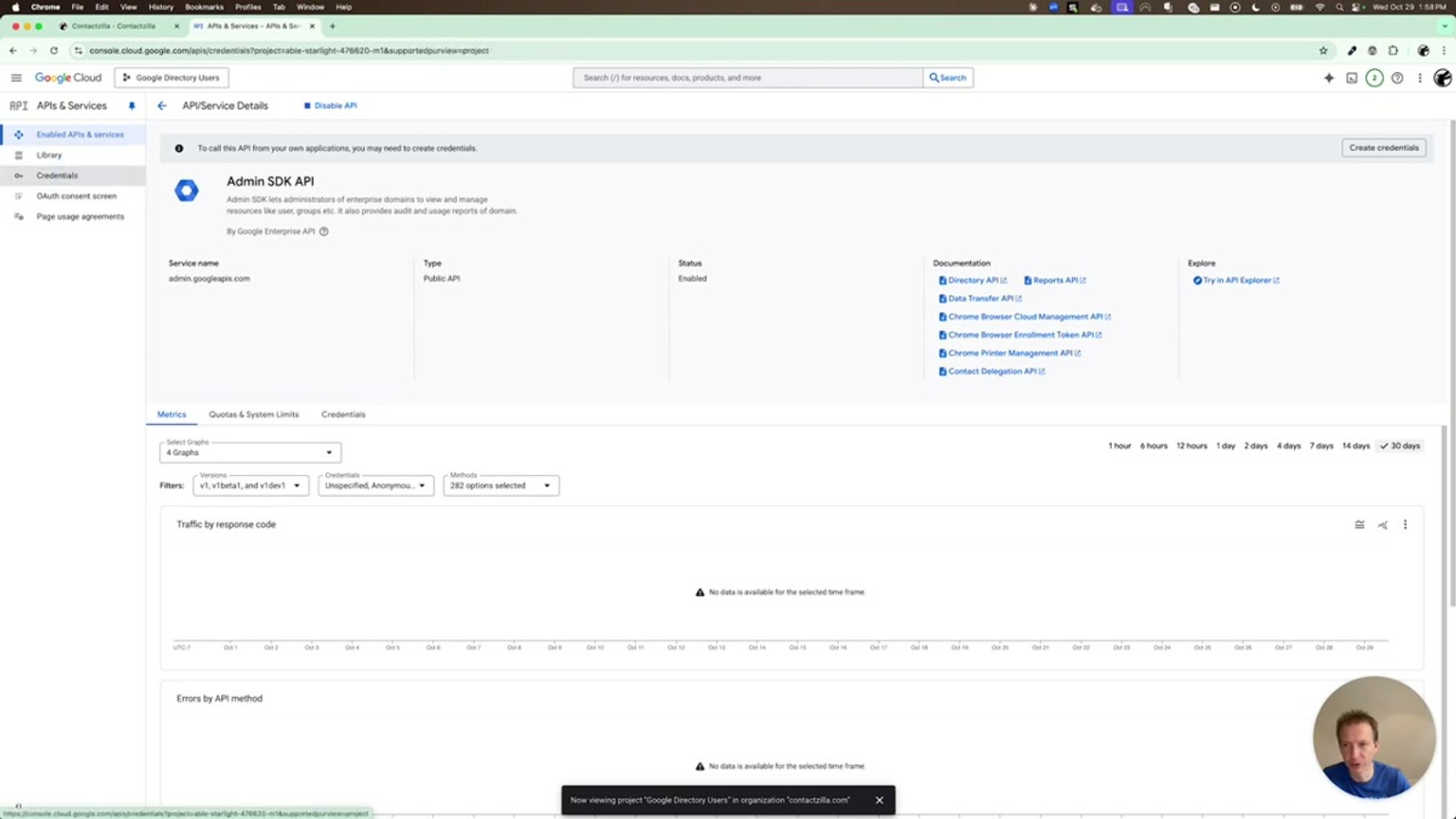
With your new project selected, navigate to APIs & Services in the left sidebar. At the top of the page you'll see a button labelled Enable APIs and Services — click it.
You need to find and enable the Admin SDK API. It's usually listed partway down the page under Google Workspace APIs, but you can also use the search bar to find it quickly. Click on Admin SDK API and then click the Enable button.
This API is what gives Contactzilla the ability to read directory users from your Google Workspace domain. Once enabled, you'll see a dedicated dashboard for this API with its own traffic and error metrics — this is one of the advantages of creating a separate project, as you can monitor import API usage independently from any export or shared contacts API usage.
- Go to APIs & Services → Enable APIs and Services
- Search for or locate Admin SDK API
- Click Enable to activate it for this project
- You'll get separate analytics for this API — useful for monitoring import activity
Configure the OAuth Consent Screen
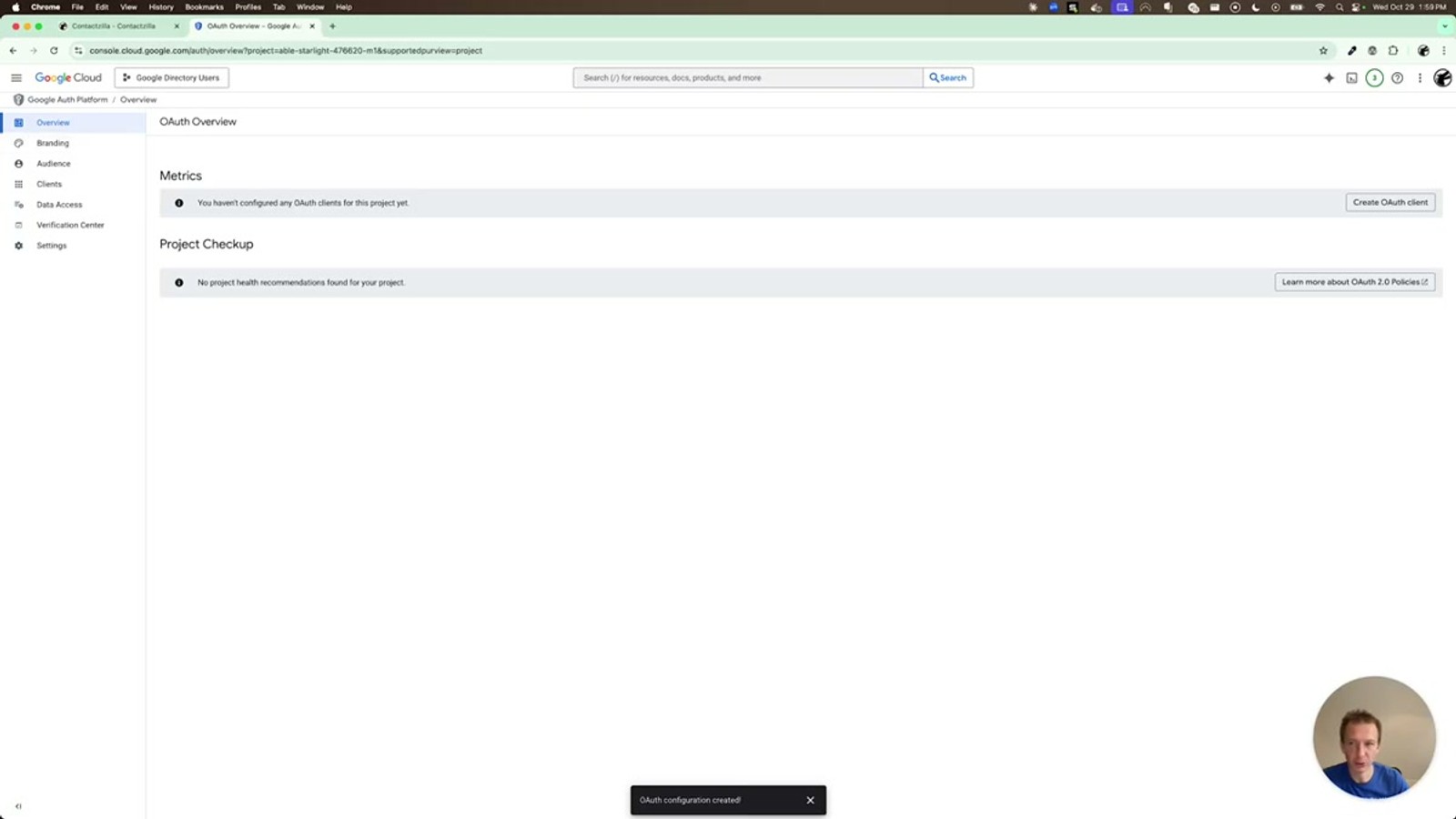
Before creating credentials, you need to set up the OAuth consent screen. Navigate to APIs & Services → OAuth consent screen (or you may be prompted automatically).
Fill in the App name — something like Contact Directory Users works well. Select one of the email addresses available to you for the User support email field, and add a Developer contact email (e.g. support@yourdomain.com).
For the User type, select Internal. This is important — since this app only needs to access your own organisation's directory, there's no need to publish it externally. Choosing Internal means you avoid having to go through Google's OAuth verification process, which can take weeks for external apps. Agree to the terms, then click Continue and Create.
You'll be offered the option to set up branding at this point. You can skip this — it's not required for the directory import to function.
- Navigate to OAuth consent screen
- Set App name to something like
Contact Directory Users - Choose an email for User support email
- Select Internal for user type to skip Google's verification process
- Add a developer contact email and agree to terms
- Skip the optional branding step
Always choose Internal for this use case. Publishing as External triggers Google's app verification review, which is unnecessary when you're only accessing your own organisation's directory.
Create the OAuth Client and Get Credentials
Now navigate to APIs & Services → Credentials and create a new OAuth client ID. Set the application type to Web application. You can rename it to something memorable or leave the default — both work fine.
The critical field here is Authorized redirect URIs. You need to add the Contactzilla callback URL, which is: https://contact.app/oauth2/google/callback. Make sure this is entered exactly — any mismatch will cause the OAuth flow to fail.
Click Create and Google will display your Client ID and Client Secret. Copy both values immediately — you'll paste them into Contactzilla in the next step. You can always retrieve these later from the Credentials page, but it's easiest to copy them now while they're displayed.
- Go to Credentials → Create Credentials → OAuth client ID
- Set type to Web application
- Add authorized redirect URI:
https://contact.app/oauth2/google/callback - Click Create and copy the Client ID and Client Secret
Configure the Data Access Scope in Google
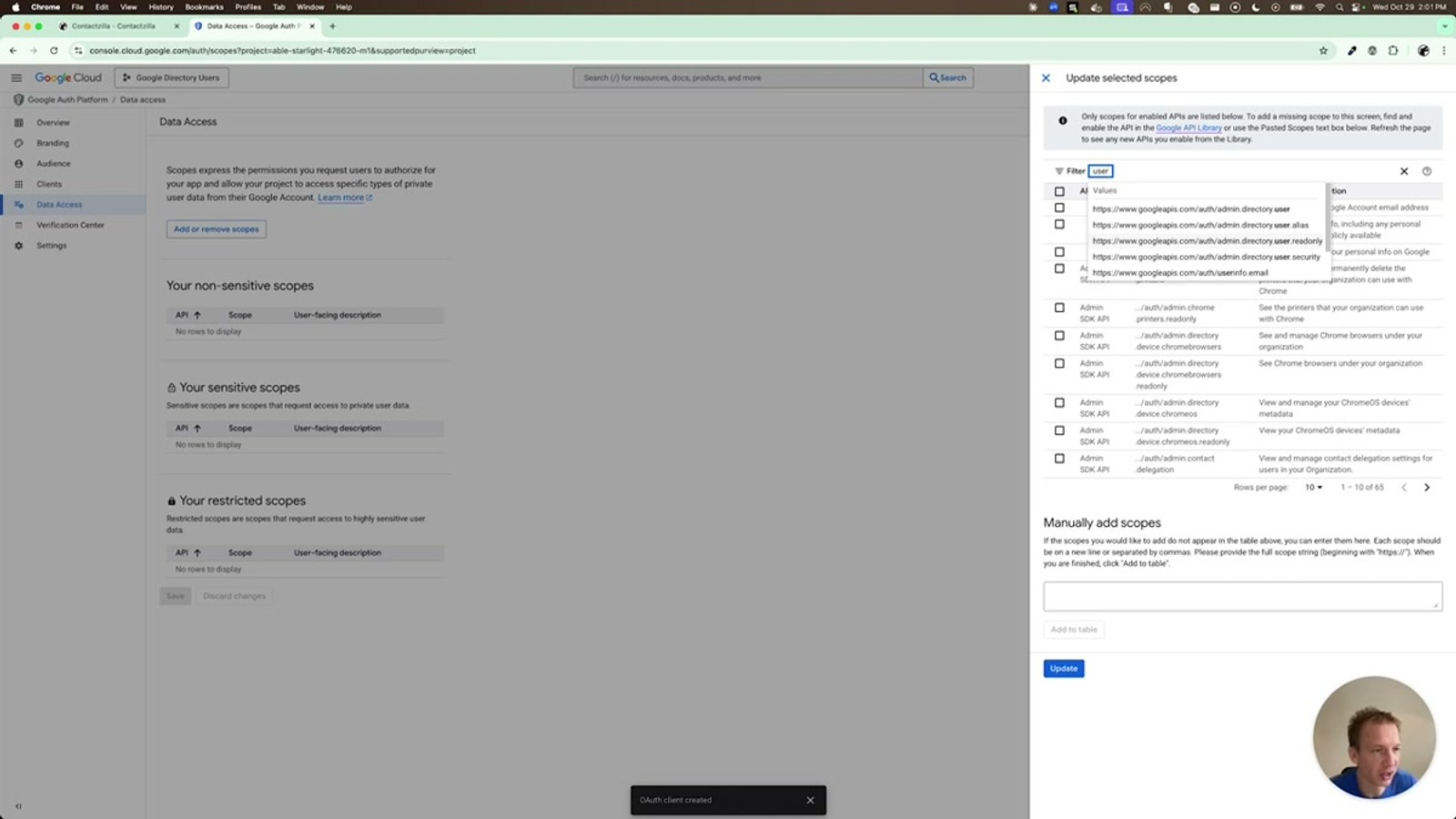
Before leaving Google Cloud Console, you need to grant the OAuth client access to the correct API scope. Navigate to Data Access (under APIs & Services) and click Add to configure scopes.
The Admin SDK exposes many scopes, so filter the list by searching for the word user. Look for admin.directory.user.readonly — this is the read-only scope that allows Contactzilla to list directory users without being able to modify them. Select it by ticking the checkbox, then click Update.
You'll see the scope pulled into the Data Access panel. The full scope URL you'll need for the Contactzilla side is: https://www.googleapis.com/auth/admin.directory.user.readonly. You can find this and other Admin SDK scopes in Google's API documentation by searching for "Admin SDK scopes".
- Navigate to Data Access in the Google Cloud Console
- Click Add to browse available scopes
- Search for
userto filter the long list of Admin SDK scopes - Select admin.directory.user.readonly and click Update
- Note the full scope URL:
https://www.googleapis.com/auth/admin.directory.user.readonly
Only grant the readonly scope. Contactzilla only needs to read directory users — there's no reason to grant write access to your directory.
Complete the OIDC Connector in Contactzilla
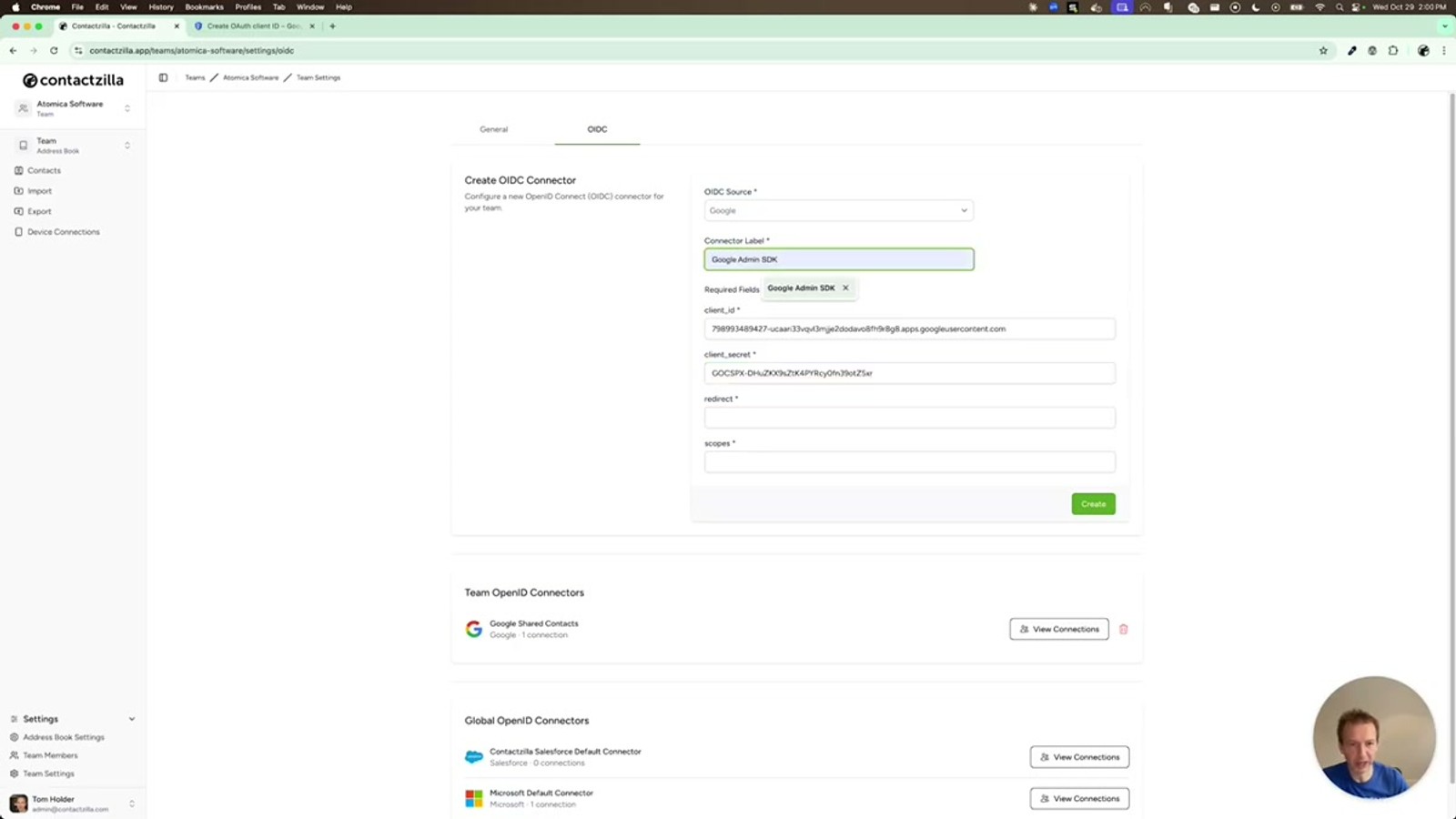
Switch back to your Contactzilla tab. Paste the Client ID and Client Secret you copied from Google into the corresponding fields.
Set the Label to something recognisable — Google Admin SDK works well. For the Redirect URL, enter the same callback URL you configured in Google: https://contact.app/oauth2/google/callback. For the Scope field, paste the full scope URL: https://www.googleapis.com/auth/admin.directory.user.readonly.
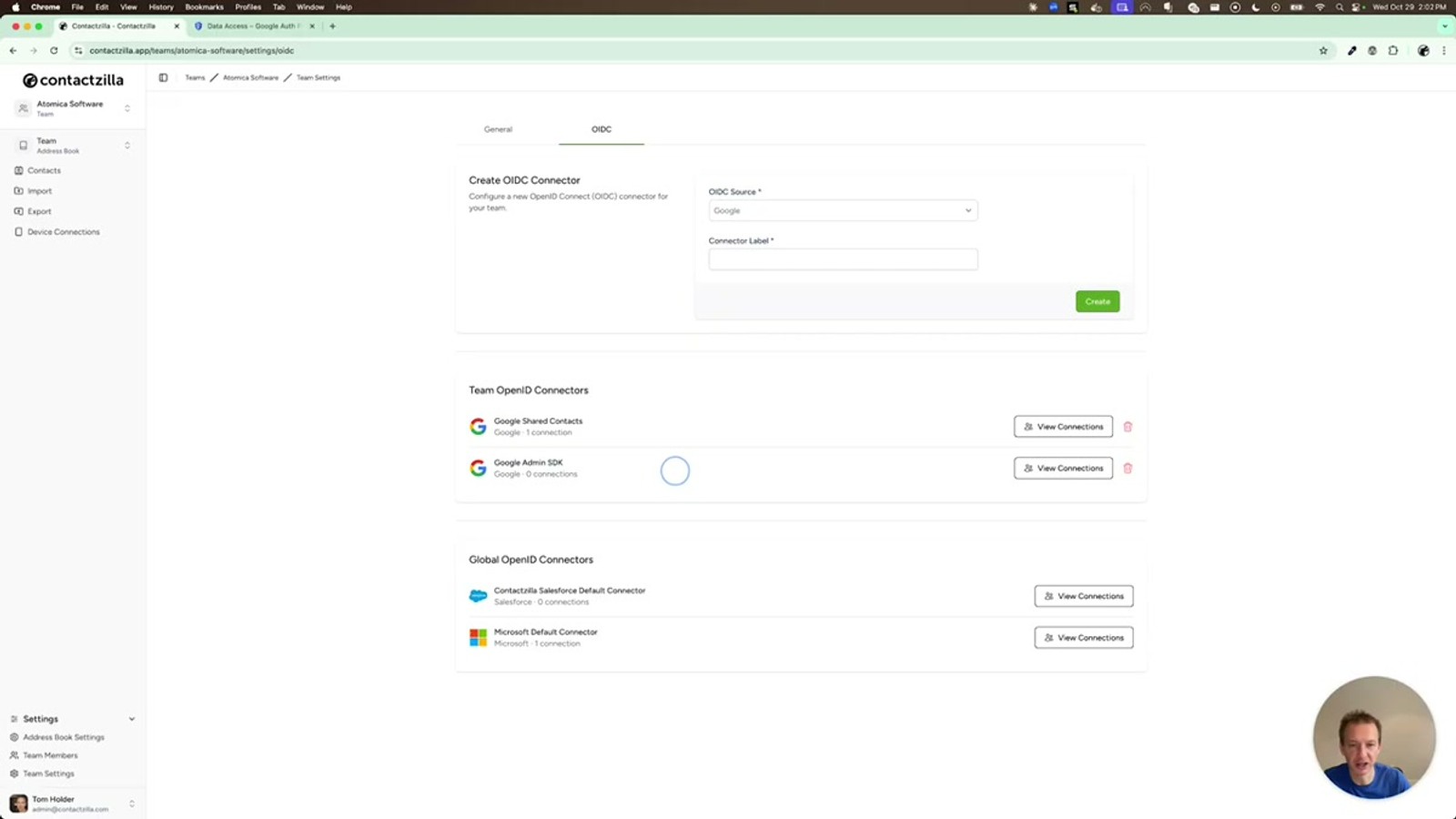
Click Create to save the connector. You'll now see it listed as a team-based OpenID connector in your OIDC panel. If you click View Connections, it will show no connections yet — that's expected, since you haven't authenticated with Google through it yet.
- Paste Client ID and Client Secret from Google
- Set Label to
Google Admin SDK - Set Redirect URL to
https://contact.app/oauth2/google/callback - Set Scope to
https://www.googleapis.com/auth/admin.directory.user.readonly - Click Create to save the connector
Authenticate and Run the Directory Import
With the connector created, click the Connect button. This launches the standard Google OAuth flow — you'll see the name of the app you created, and if you'd configured branding it would appear here too. Select your Google account, review the permissions (it will show the directory user readonly scope), and click Allow.
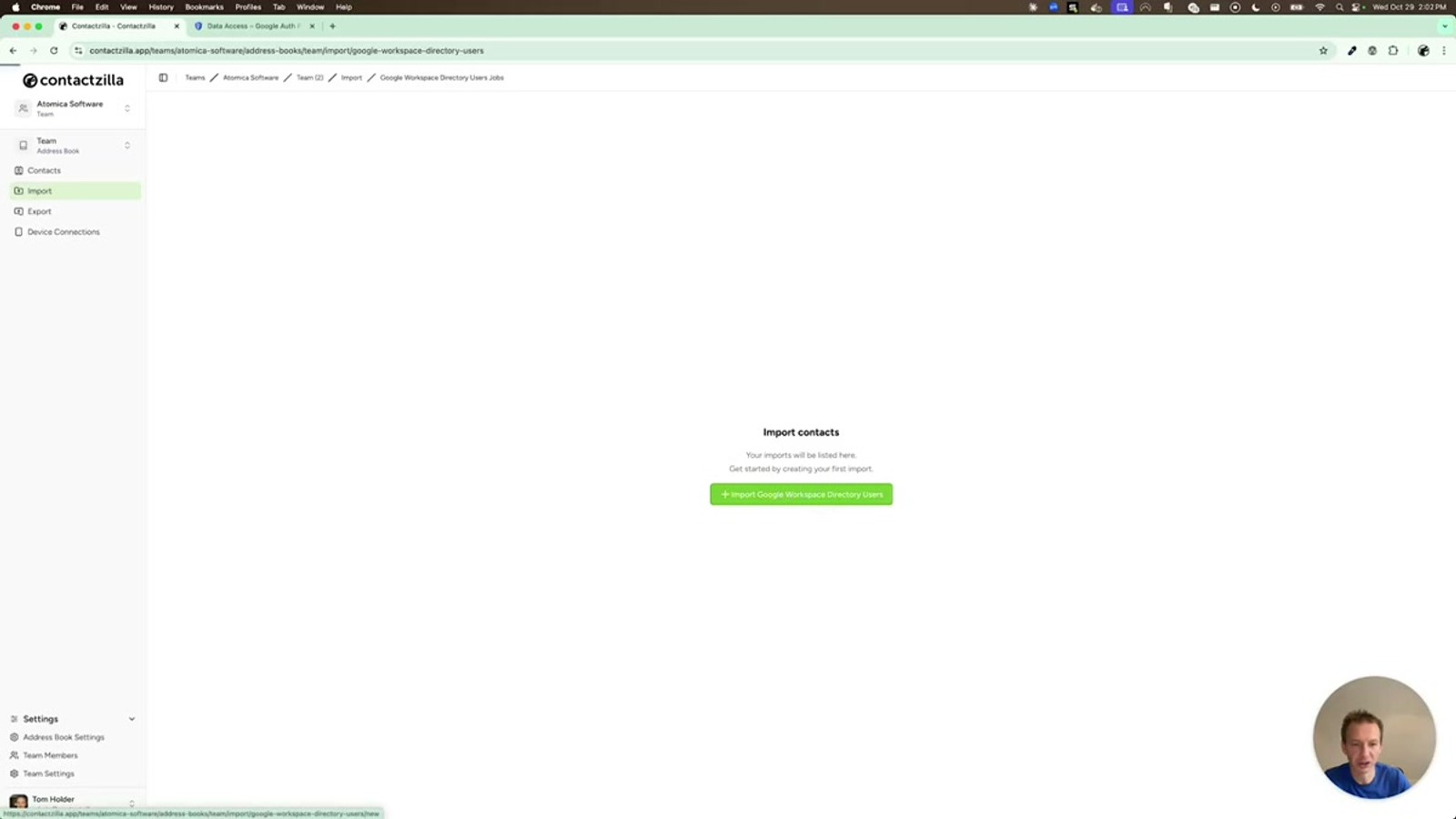
Once connected, navigate to Import and select Google Workspace Directory Users Import. You'll see your new connection available in the dropdown. Click Continue.
You can leave the Customer ID field empty — this will pull back the main directory users for your domain. For the sync mode, choose Run manually with Full refresh to do an immediate one-time import. Then click Sync immediately and Continue to create the import connection and start pulling in contacts.
If you want the directory to stay in sync automatically, select a scheduled sync instead of manual during setup. This will re-import on your chosen interval, picking up new employees and changes.
- Click Connect on the new connector and complete the Google OAuth flow
- Go to Import → Google Workspace Directory Users Import
- Select your connection and click Continue
- Leave Customer ID blank to import all directory users
- Choose Run manually + Full refresh for a one-time import, or Scheduled for ongoing sync
- Click Sync immediately to start the import
For ongoing accuracy, choose a scheduled sync during setup. This way new hires and departures are automatically reflected in your shared contact list without manual intervention.
Key Takeaways
https://www.googleapis.com/auth/admin.directory.user.readonly — grant read-only access, never write. https://contact.app/oauth2/google/callback in both Google and Contactzilla. Why Use Contactzilla for Directory Sync
Frequently Asked Questions
Can I reuse my existing Google Shared Contacts OIDC connector?
Technically yes — you could modify the permissions on your existing connector in the Google Developer Console to add the Admin SDK scope. However, it's recommended to create a separate connector and Google Cloud project so you get independent API analytics and easier management for import vs. export.
Why should I set the OAuth consent screen to Internal?
Since you're only accessing your own organisation's Google Workspace directory, there's no need to publish the app externally. Choosing **Internal** means you skip Google's OAuth app verification review process entirely, which can otherwise take weeks.
What is the Customer ID field during import setup?
The **Customer ID** field is optional. Leaving it blank tells Contactzilla to pull back the main directory users for your primary Google Workspace domain. You'd only need to specify a Customer ID if you have a multi-domain setup and want to target a specific one.
Can the directory contacts sync automatically on a schedule?
Yes. During the import setup step, choose **Scheduled** instead of **Run manually**. This will re-import directory users at your chosen interval, automatically picking up new employees, departures, and profile changes.
What scope URL do I need to paste into Contactzilla?
The scope is `https://www.googleapis.com/auth/admin.directory.user.readonly`. This grants read-only access to directory user data. You can find this and other Admin SDK scope URLs in Google's official API documentation.
What redirect URL do I use in both Google and Contactzilla?
The authorized redirect URI is `https://contact.app/oauth2/google/callback`. This must be entered identically in both the Google Cloud Console (under Authorized redirect URIs) and in the Contactzilla OIDC connector's **Redirect URL** field.

